RSS
 

Archive for October, 2016

Weekly Photography Challenge – Pink

26 Oct

We do a lot of weekly challenges around colors but we haven’t done one on pink yet on my watch! So I thought it was time.

June Yarham

By June Yarham

Weekly Photography Challenge – Pink

Pink is a color many people associate with femininity and girls or girly stuff. Most commonly we think of pink flowers when we talk about this color, but what else can you find that’s pink?

Get out there this week and seek some pink items. It might be a flower, bubblegum, a rosy sunset, or even a cocktail or pair of sneakers. Use your powers of observation and look for this less common color. I bet you’ll start seeing it everyone once you start looking.

Andrew Reding

By Andrew Reding

Rachel

By Rachel

Nerissa's Ring

By nerissa’s ring

Thomas Hawk

By Thomas Hawk

Share your images below:

Simply upload your shot into the comment field (look for the little camera icon in the Disqus comments section) and they’ll get embedded for us all to see or if you’d prefer, upload them to your favorite photo-sharing site and leave the link to them. Show me your best images in this week’s challenge. Sometimes it takes a while for an image to appear so be patient and try not to post the same image twice.

Share in the dPS Facebook Group

You can also share your images on the dPS Facebook group as the challenge is posted there each week as well.

googletag.cmd.push(function() {
tablet_slots.push( googletag.defineSlot( “/1005424/_dPSv4_tab-all-article-bottom_(300×250)”, [300, 250], “pb-ad-78623” ).addService( googletag.pubads() ) ); } );

googletag.cmd.push(function() {
mobile_slots.push( googletag.defineSlot( “/1005424/_dPSv4_mob-all-article-bottom_(300×250)”, [300, 250], “pb-ad-78158” ).addService( googletag.pubads() ) ); } );

The post Weekly Photography Challenge – Pink by Darlene Hildebrandt appeared first on Digital Photography School.


Digital Photography School

 
Comments Off on Weekly Photography Challenge – Pink

Posted in Photography


How to do Non-Destructive Editing in Photoshop

26 Oct

Picture this, you are about halfway through editing a beautiful urban landscape in Photoshop. You’ve already put hours into the image when suddenly you notice that a particular area of the image doesn’t add up. A wall you were working on has accidentally been Clone Stamped to look as if it were hanging at an unnatural angle. It just looks wrong. After repeatedly hitting the undo button you discover that Photoshop can only remember so much, and you are stuck with this disastrous looking edit. All you can do now is waste more precious time trying to fix the problem or close the program and start from square one. If only there was some other way – enter non-destructive editing in Photoshop.
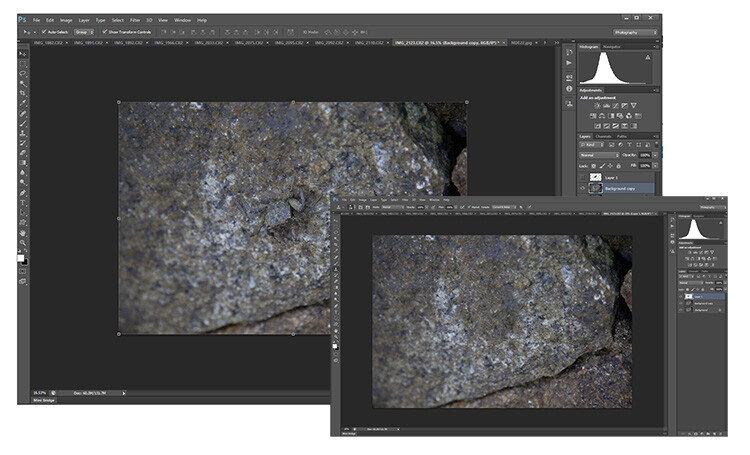
Non-Destructive Editing in Photoshop

Now you see me…now you don’t! Editing with a non-destructive workflow means that you can edit your photos without leaving a trace on the original file.

What is non-destructive editing?

Fortunately, there is a better way! Non-destructive editing (sometimes called NDE for short) is a method of editing in Photoshop that allows you to make changes to an image without overwriting the original image data. This means that you will always be able to backtrack on adjustments made to an image as needed, retaining flexibility and keeping the resolution of the original image intact.

You may have already encountered non-destructive editing while following online tutorials that instruct you to use a particular adjustment layer to make modifications rather than editing the actual image.

Non-destructive editing is not one single technique. You can perform it in numerous ways in Photoshop depending on the desired outcome of an image. For this article, we will have a look at some of the most basic methods used by photographers for doing non-destructive editing .

Duplicating the background layer

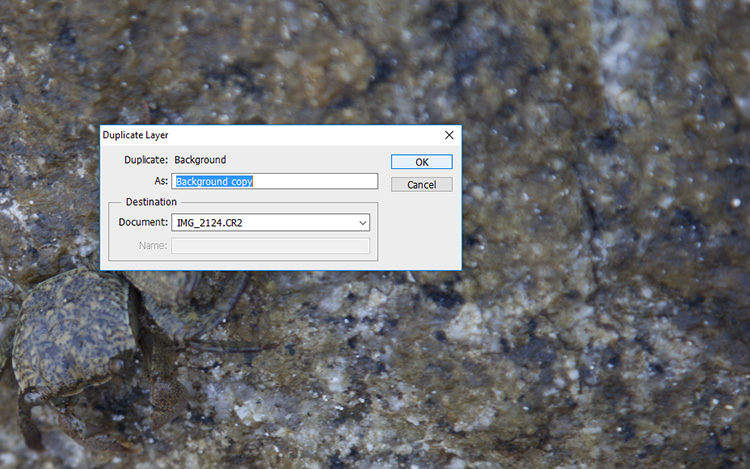
No matter what image you have opened in Photoshop, the first step is always to duplicate the background layer. If you do happen to make an adjustment directly onto the image the background layer will remain untouched. Then you can start afresh with all your adjustment layers intact.

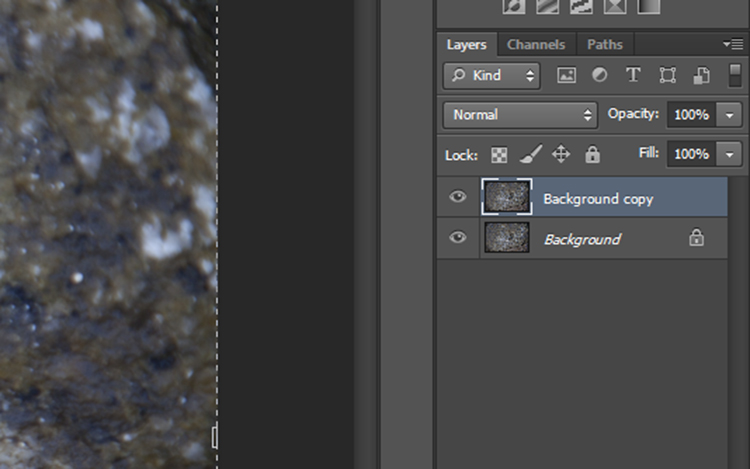
To do this, open an image in Photoshop. Move the curser to the thumbnail image in the Layers panel and right click on the shaded area that says Background. Now select the Duplicate Layer option and select OK at the screen prompt. A new layer will appear above the Background layer in the layers panel titled Background Copy.
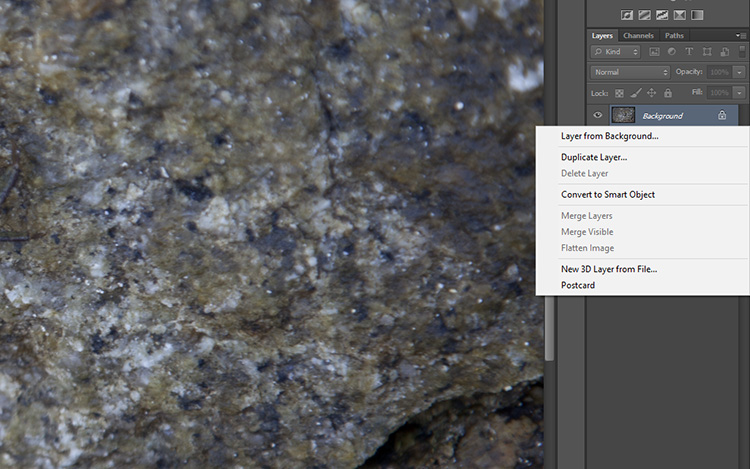
non-destructive editing duplicate layer

nondestructive editing Photoshop

non-destructive editing

Working with adjustment layers

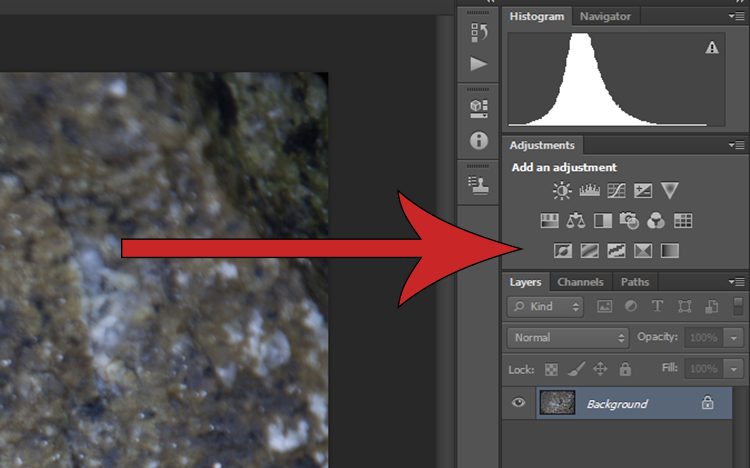
Simply put, adjustment layers apply colour and tonal adjustments to an image without permanently changing any pixel values. To activate the adjustment layers panel click Window on the top menu bar and select Adjustments. It will bring up a panel with lots of adjustment options such as levels, hue/saturation, brightness/contrast, gradient overlays and black/white.  This is the go-to panel for digital editing and in most cases, it will provide all the editing tools you will need.
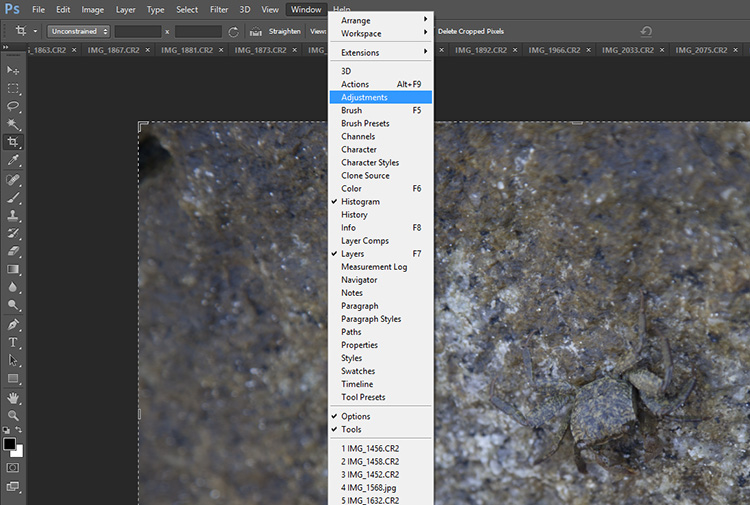
Non-Destructive Editing in Photoshop

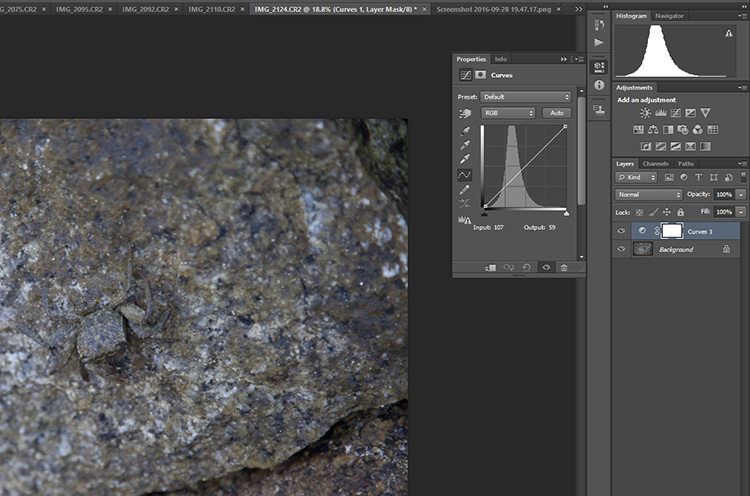
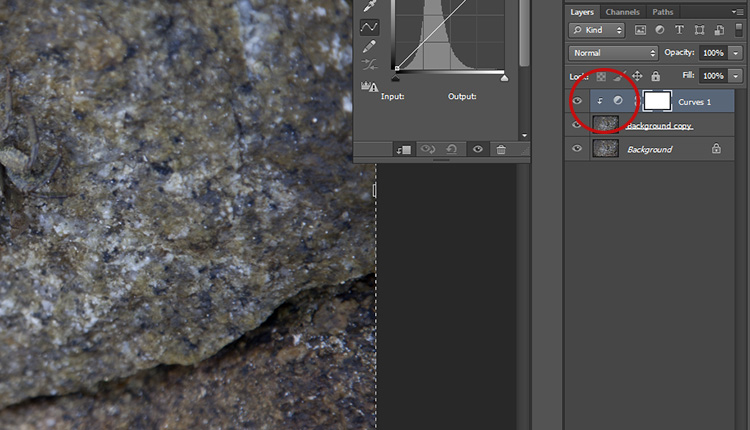
Select one of the adjustment layers by clicking on an icon. The name of the icon will appear if you rest your mouse on it for a moment. In this example, I have chosen Curves to adjust the contrast in my photograph. Clicking that icon will cause the Curves panel to pop up with the available settings within that adjustment.
non-destructive editing curves

Non-Destructive Editing in Photoshop

Notice that there is now a new layer in the layers panel which is sitting above the one called Background. This means that any layers below the Curves layer will be affected by this adjustment. To limit the effect of an adjustment to a single layer only, right click on the adjustment layer and select Create Clipping Mask. A small arrow pointing down indicates that the adjustment layer will only affect the one that is sitting directly underneath it.
Non-Destructive Editing in Photoshop

Using Smart Filters

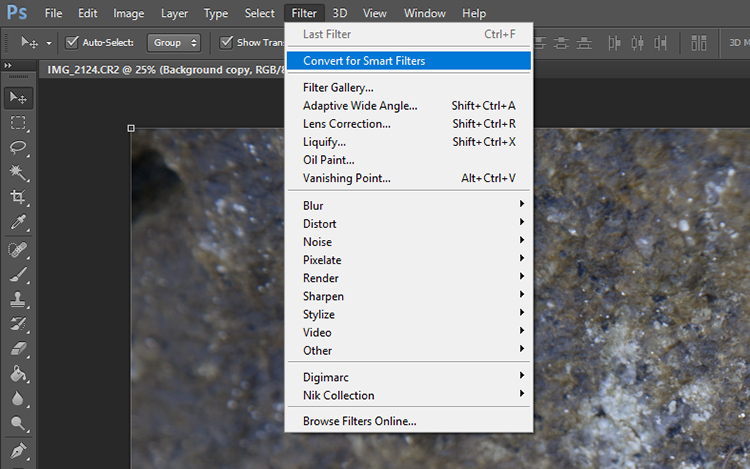
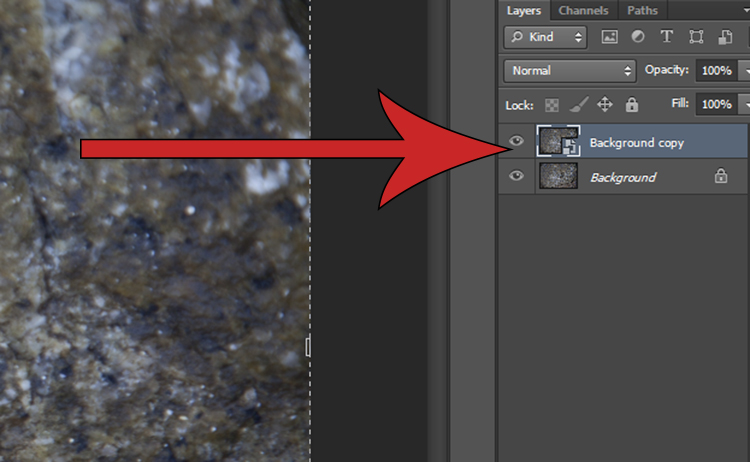
Adding a filter to an image can be done non-destructively and will allow you to undo the effects of it later if you change your mind. Click on the layer you would like to apply a filter to and click on the Filter drop-down menu located on the top main toolbar. Select Convert for Smart Filters and a pop-up will appear saying that you must turn the selected layer into a Smart Object. Hit OK and a tiny document shaped icon will appear in the bottom left-hand corner of the selected layer thumbnail image.
non-destructive editing convert smart filters

non-destructive editing smart object

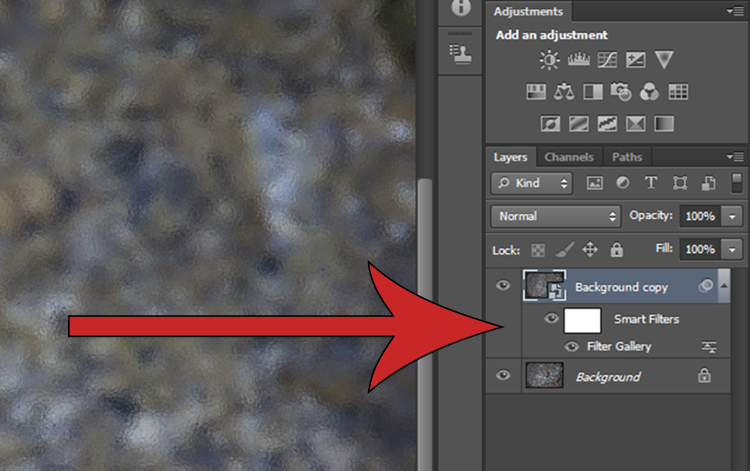
After you select a filter from the Filter Gallery (via Filter > Filter Gallery) and apply it to the image, you will see two new items beneath the selected layer. Clicking on the eye icon next to the Filter Gallery layer will toggle the filter on and off, and double clicking near the Filter Gallery text will open the Filter Gallery adjustments. Right clicking on the Filter Gallery Layer will bring up a menu. If you want to remove a filter altogether, select delete and the filter mask will disappear without degrading your image.
non-destructive editing

Use Layer Masks instead of the Eraser Tool

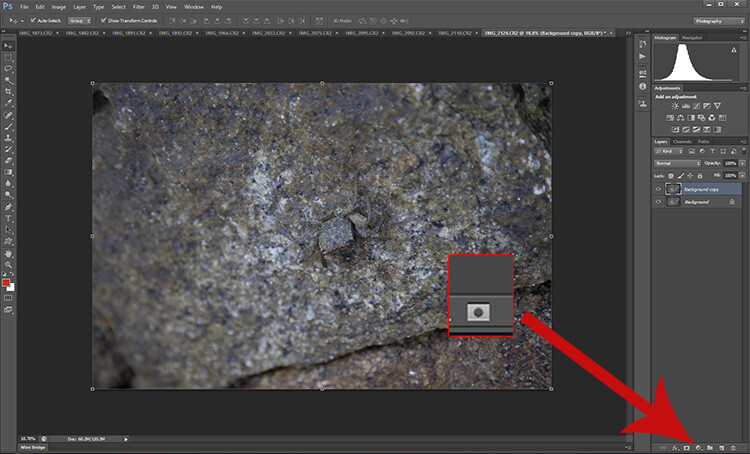
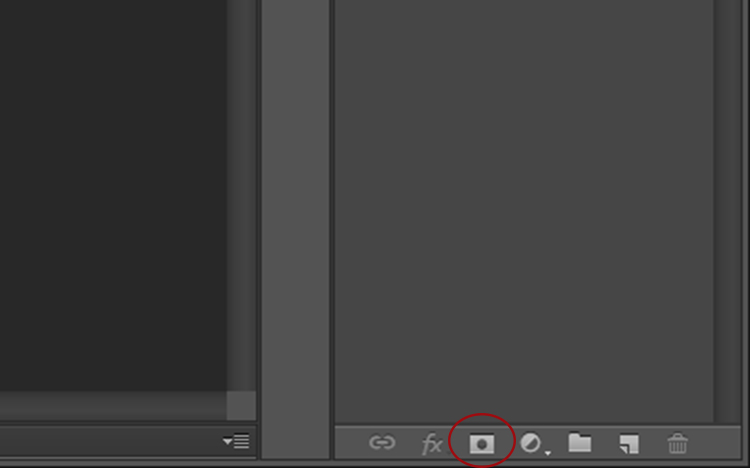
Masking is one of the more common tools in the Photoshop master’s kit. Using a layer mask allows you to you hide or mmask off parts of an image rather than using the eraser tool to permanently remove parts of an image. To apply a layer mask, open an image, select the layer you want to edit and click on the small icon at the bottom of the layers panel.
non-destructive editing mask

Non-Destructive Editing in Photoshop

A close-up of the Layer Mask button.

A mask will appear next to the layer you have selected, with a small chain icon between the thumbnail and the mask. When you have the image icon selected any effects applied to the image will occur as normal. However, if you select the mask, you will find that painting onto it (with black) will hide parts of that layer.
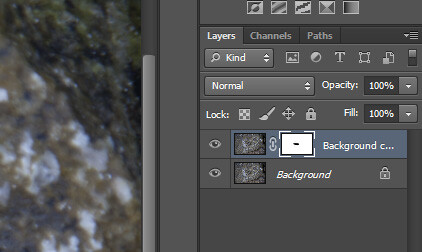
Close up of the selected mask layer - note the white lines around the corners of the layer.

Close-up of the selected layer mask – note the white lines around the corners indicating which part is active.
Non-Destructive Editing in Photoshop

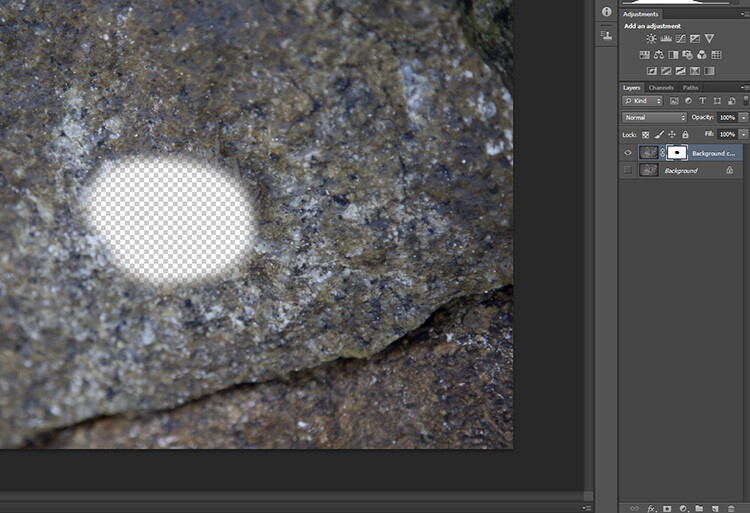
With the background layer turned off (not visible) you can see that part of this layer is missing, or hidden by the layer mask where it is black. Black conceals or hides, white reveals.

Now, if any hidden portion of the image is painted over in white on the layer, it will be visible again. If you then delete the mask all the hidden areas will reappear.

Dodging and burning non-destructively

The Dodge and Burn tools are used to lighten and darken areas of an image, but applying these effects directly to an image is destructive, preventing you from being able to edit the changes later.

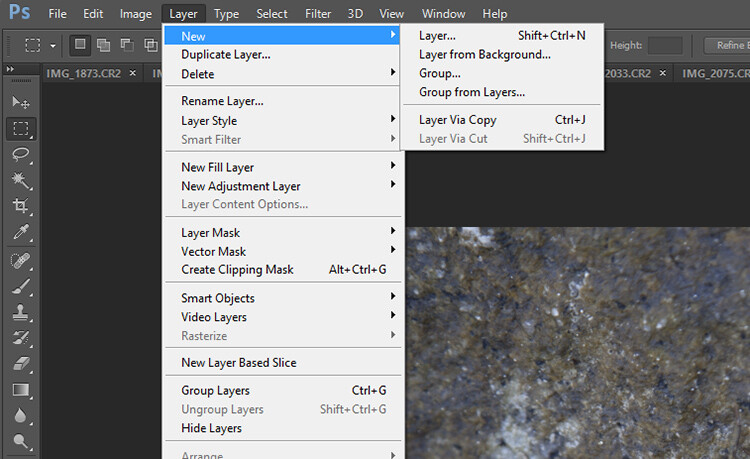
To dodge and burn non-destructively, start by opening up your photo. Duplicate the background layer, then select Layer > New > Layer from the top menu bar. A dialogue box will pop-up, make sure your settings are the same as those shown below and hit OK. A new layer will be created.
Non-Destructive Editing in Photoshop

Create a new layer

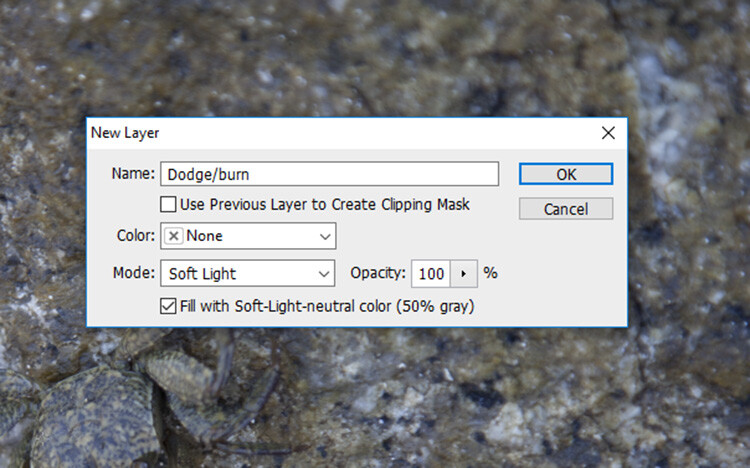
Use the settings you see below. That will fill the layer with gray and change the blend mode to make it effective for dodging and burning.
non-destructive editing

Use these settings for your dodge and burn layer.

You can give this layer a nickname to help you remember what it is doing. You can always do it later if you forget, by double-clicking on the layer name. I usually call this layer “dodge/burn”.
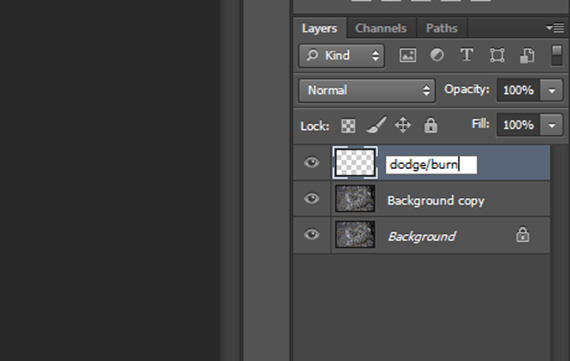
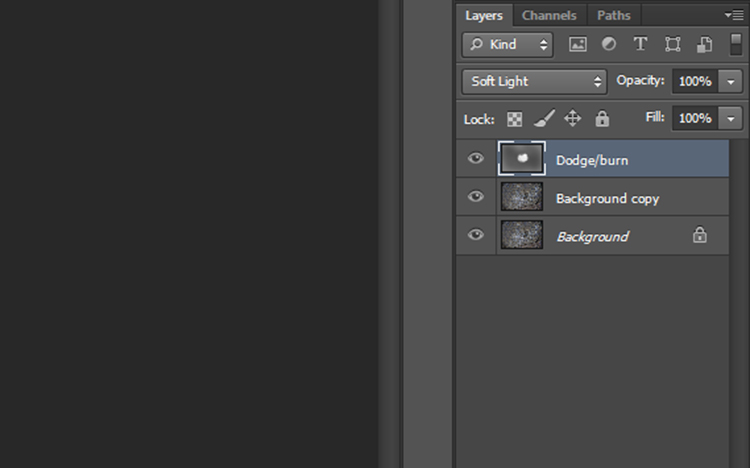
Now simply select either the Dodge or Burn tool and apply any adjustments to this new layer. Though you are now editing one layer above the actual image, you have adjusted the blend mode so that the opacity of the grey Dodge/Burn layer is completely transparent, and any changes you make to this layer now appear to only adjust the image, without impacting the quality of the original pixels.
non-destructive editing dodge burn layer

Result of the dodge and burn layer

Result of the dodge and burn layer

Using the Clone Stamp non-destructively

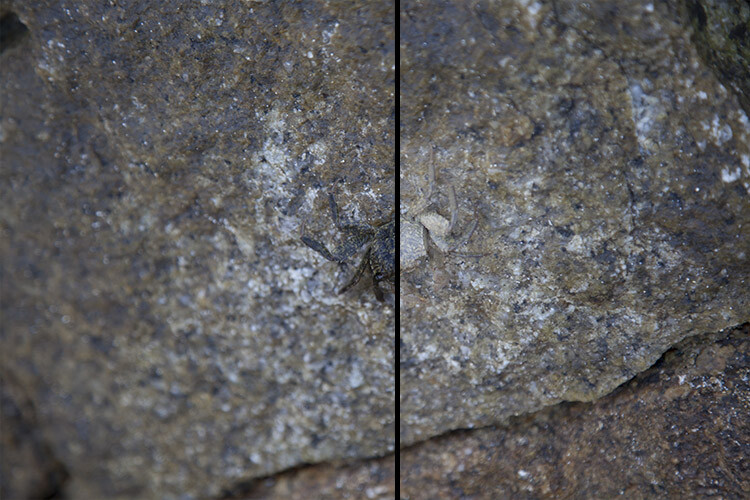
The Clone Stamp is another great tool used to remove bits and pieces you may not want in an image. Normally it works by moving pixels in the original image around but, you guessed it, that is a very destructive technique!

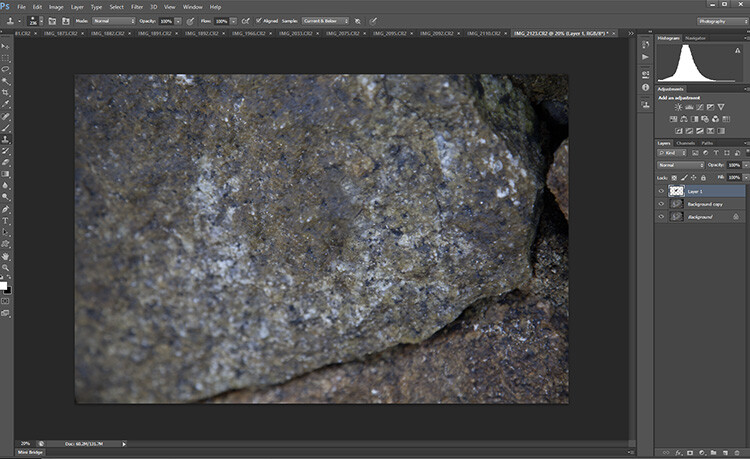
To use the Clone Stamp Tool non-destructively simply create a new layer as before. Next, select the Clone Stamp Tool and in the Sample drop-down menu select the Current & Below option. Now the Clone Stamp Tool will sample everything in the image but only apply any changes to the top most layer.
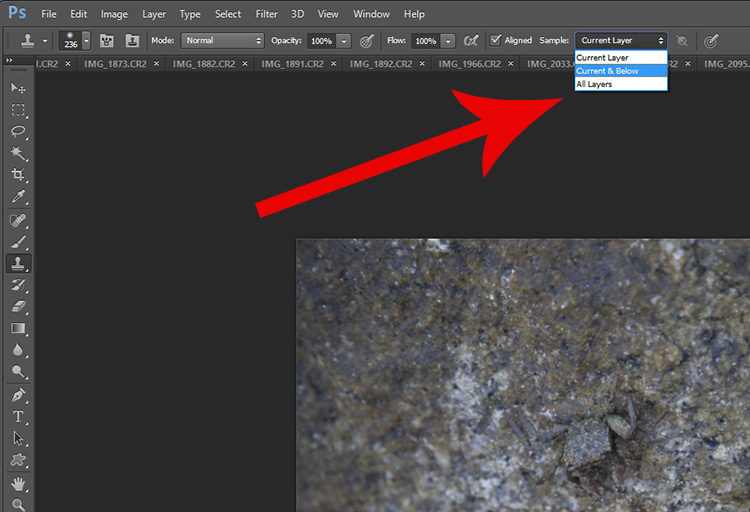
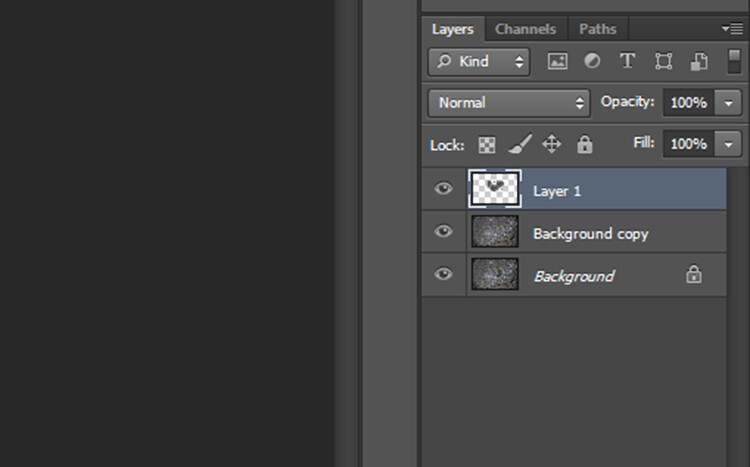
clone tool

non-destructive editing

The clone layer looks like this.

clone tool non-destructive

The result of the clone layer being applied looks like this.

Conclusion

There are plenty of other methods to edit non-destructively. But as the basics show, non-destructive editing is mostly about using new layers that are placed above the original image rather than adjusting the original image itself. It may seem clunky at first, but it will soon become an automatic part of your workflow. The next time you find yourself with an awkward edit you’ll be glad you can simply turn a layer off rather than starting all over again.

How do you use edit non-destructively in Photoshop?

googletag.cmd.push(function() {
tablet_slots.push( googletag.defineSlot( “/1005424/_dPSv4_tab-all-article-bottom_(300×250)”, [300, 250], “pb-ad-78623” ).addService( googletag.pubads() ) ); } );

googletag.cmd.push(function() {
mobile_slots.push( googletag.defineSlot( “/1005424/_dPSv4_mob-all-article-bottom_(300×250)”, [300, 250], “pb-ad-78158” ).addService( googletag.pubads() ) ); } );

The post How to do Non-Destructive Editing in Photoshop by Megan Kennedy appeared first on Digital Photography School.


Digital Photography School

 
Comments Off on How to do Non-Destructive Editing in Photoshop

Posted in Photography


7 Tips for Attending a Photo Walk

26 Oct

As a photographer, you might have noticed that photo walks are all the rage these days. Whether it’s an event run through meetup.com or eventbrite.com, or a more involved workshop from a teacher that you follow, photo walks are one of the best ways to see a place and to improve your photography.

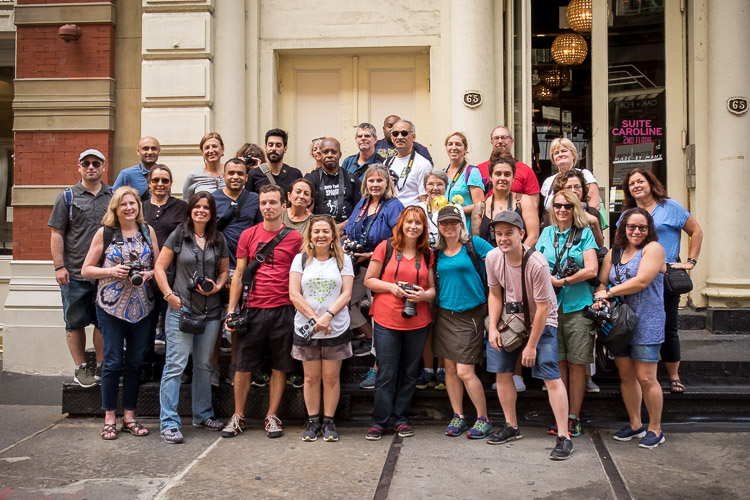
nyc-photowalk-750px-14

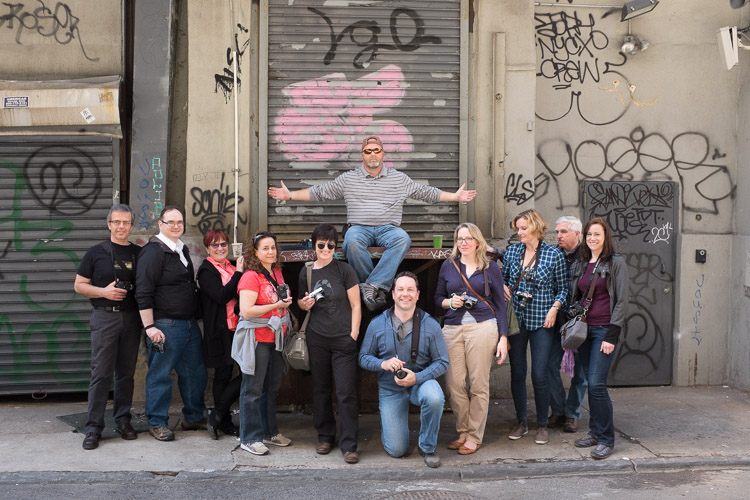
NYC photo walk featuring dPS Managing Editor Darlene as my guest (I’m in the front row with the hat, she’s in blue with a hat on my right).

Classroom and reading time are very important for improving, but nothing can replace the act of learning while you are out there photographing. This is where all the things you’ve learned come together and finally stick in your head. It is also the most fun way to learn.

So if you haven’t already, I suggest that you start seeking photo walks out, and here are some tips to help when you do.

1. Use them as an excuse to meet other photographers

Photo Walk

One of the main advantages to photo walks is that you are surrounded by like-minded people with similar passions. I don’t know about you, but most of my family and friends from growing up are not very into photography. So I try to find new photography friends whenever I can, but it can be tough to do that. Photo walks solve this problem.

Introduce yourself, exchange information, and talk about possibly going out to shoot again. You can take your favorite few people from each walk and start building an awesome network of photographers to go out shooting with in the future.

If you have questions, by all means, ask the organizers of the walk, but also see what the other people attending think. This is a chance to learn from many unique perspectives. Photography is a subject where there can be many correct, but differing answers to a question or problem, and it’s good to hear multiple opinions.

2. Watch what other people are photographing

Photo Walk

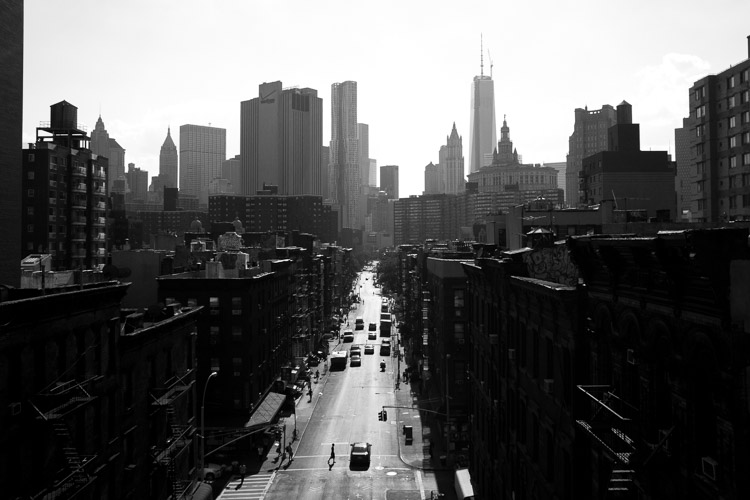
You are there to have fun and learn, and sometimes a great way to learn in this environment is to watch the other photographers and see what they are attracted to. Just from teaching on photo walks for the last five years, I have found so many new interesting ways to capture the city by watching my students. I have walked down certain blocks hundreds of times and then suddenly someone will capture it in a way that I had never thought of. It is an incredible way to learn.

3. Shoot on your own occasionally

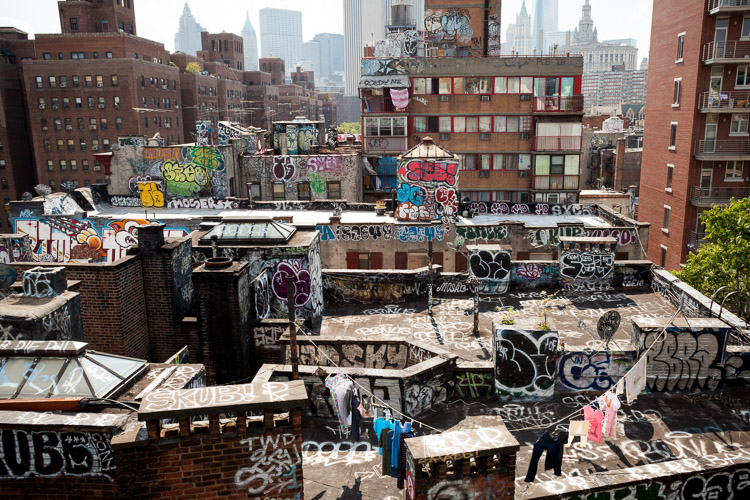
New York Photo Walk

That being said, mix it up and take some time to break off and shoot on your own. You have the advantage here to learn from so many others, but at the same time you want to capture your own, unique photographs, and you need some quiet to do that. Step away a handful of times during the walk, but make sure not to get lost or slow down the group. After that, you can reengage with everyone else.

4. Get out of your comfort zone

New York Photo Walk

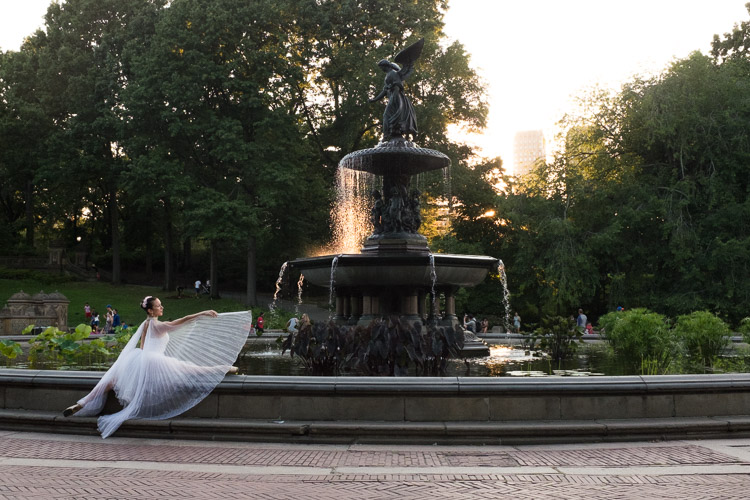
This is a chance to do something you are not used to doing. If you are a street photographer and are on a street photography meet up, of course, that is what you will be focusing on. But if you are a landscape photographer, consider doing some street photography, and if you are a street photographer, consider trying more landscapes. Do some portraiture. Improve your lighting. There are photo walks for nearly everything.

Seek out photo walks that will cover your interests and others that will challenge them. Everyone has their likes and dislikes, but this is a great chance to seek new perspectives and to round out your abilities.

5. Learn about the area beforehand

Photo Walk, New York City

Some photo walk leaders will talk about the history of the neighborhood, while others will strictly focus on the photography. Both are great ways of running workshops, but history is very important to photography. It helps to inform what you are shooting and to improve your awareness of the place.

Take some time on your own to read up about the area. Learn about the history, and explore the work of photographers that frequent those areas. Come prepared with this knowledge and it will make your day even that much more successful. This knowledge is not only inspiring but it will improve your ability to notice those special moments that create a magnificent photograph. In addition, some of the other walk attendees may find this knowledge fascinating as well.

6. Organize one yourself

Photo Walk

As you continue to attend photo walks, build your network of local photographer friends and start shooting with them regularly. Once you all get to know each other this could become a very close group of friends. Keep in touch, build friendships, attend gallery events together, and share your work and ideas.

Having a close group that all know you and your work is the best way to get a proper critique. If you just ask anybody or share your work on the web, you never know what the person’s perspective is who is giving you the critique. Usually, they just say “beautiful!” With a close group, that perspective will grow between all of you and these friends will not be afraid to tell you when they do not like something.

7. Do not get run over by cars or bikes

Photo Walk, New York City

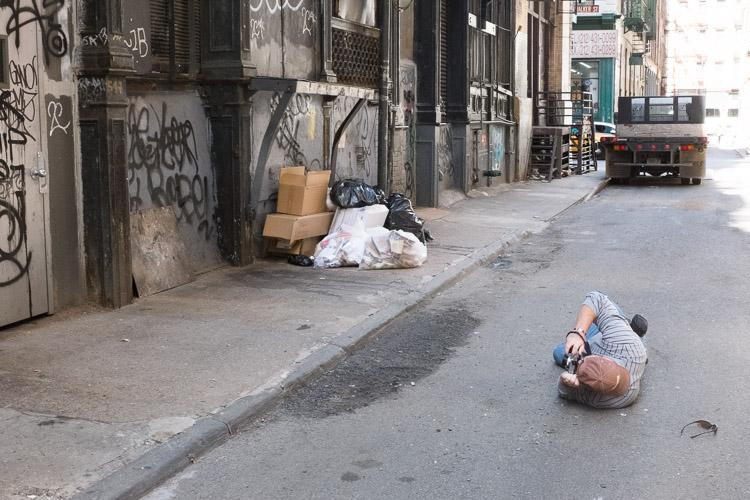
This is the hardest part of my job, so please help me and the other photo walk leaders out. When you are in a new place, photographing in a new way, or surrounded by competing stimuli and photographers walking around, your situational awareness can become distracted. People with their lens to their eye can suddenly walk backward into the street trying to get the correct perspective, but with no awareness of where they are and the dangers that could hurt them.

Always be careful and look before you make a sudden stop or a move sideways or backward. If you are using a tripod on the sidewalk or street, be careful about the tripod legs. Make sure they are no wider than the width of your body so that bikers won’t trip on them riding by you.

With a one-on-one workshop, I can do a good job at making sure people don’t make unwelcomed moves on the street, but with a large group it is out of my ability, so please watch out for both yourself and your fellow photo walkers.

Conclusion

Have you participated in any photo walks? Please share your experience and tips for them below.

Now go out and find some photo walks!

googletag.cmd.push(function() {
tablet_slots.push( googletag.defineSlot( “/1005424/_dPSv4_tab-all-article-bottom_(300×250)”, [300, 250], “pb-ad-78623” ).addService( googletag.pubads() ) ); } );

googletag.cmd.push(function() {
mobile_slots.push( googletag.defineSlot( “/1005424/_dPSv4_mob-all-article-bottom_(300×250)”, [300, 250], “pb-ad-78158” ).addService( googletag.pubads() ) ); } );

The post 7 Tips for Attending a Photo Walk by James Maher appeared first on Digital Photography School.


Digital Photography School

 
Comments Off on 7 Tips for Attending a Photo Walk

Posted in Photography


Overview of the Yongnuo RF-603 Wireless Flash Trigger

26 Oct

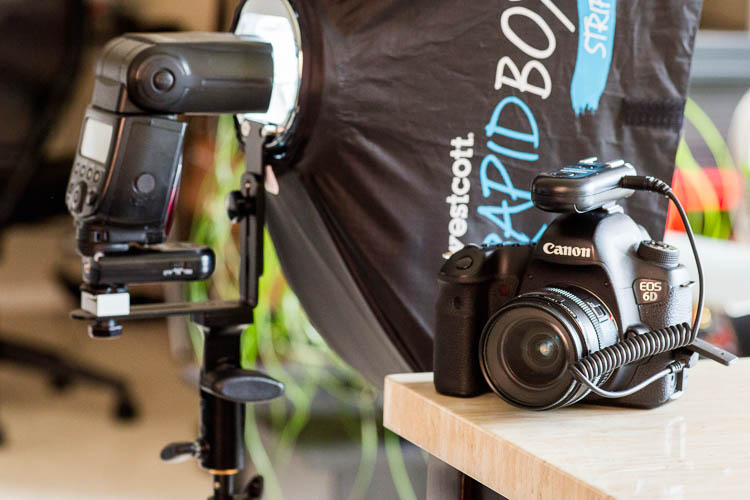
Off-camera flash is a key technique that can really differentiate your photography style and make you and your imagery appear more professional. The tools needed to achieve off-camera flash are relatively simple, consisting of just a flash unit and a cord or triggers to connect the flash to your camera. While a cord is by far the cheapest and most straightforward option, it’s also inconvenient since it physically binds you to your camera. Wireless triggers are a simpler solution, but they tend to be pricey, especially if you opt for Pocket Wizards. Enter a budget option: the Yongnuo RF-603 wireless flash trigger.

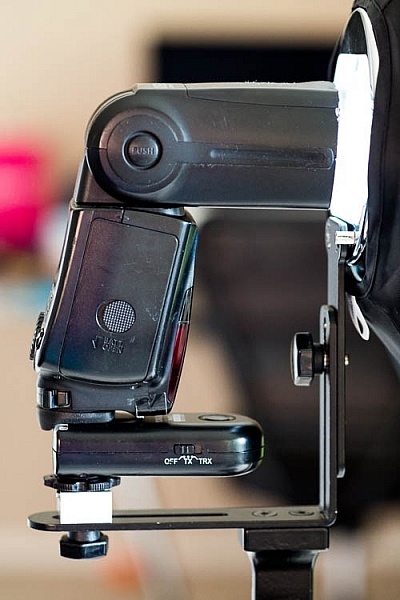
Yongnuo RF-603 wireless flash trigger

Features

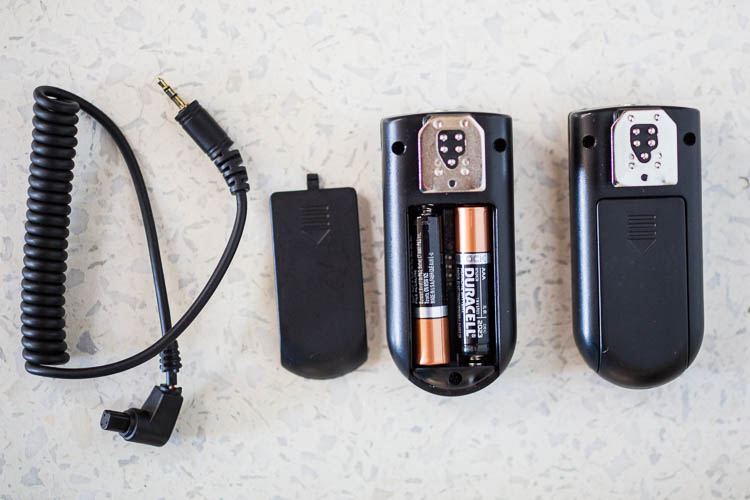
Priced at under $ 35 for a set of two, the Yongnuo RF-603 works as both a wireless flash trigger and receiver. It can also function as a remote shutter release for your camera.

Yongnuo wireless flash triggers

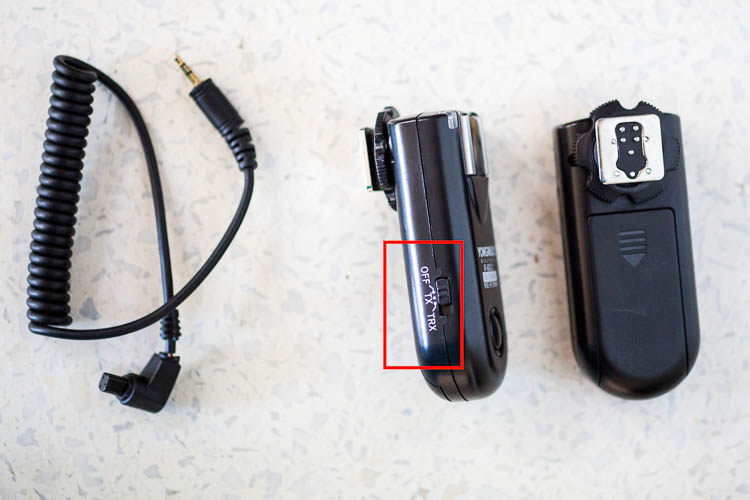
What’s in the box: two (2) flash triggers, one (1) N1 shutter release cable. AAA batteries not included.

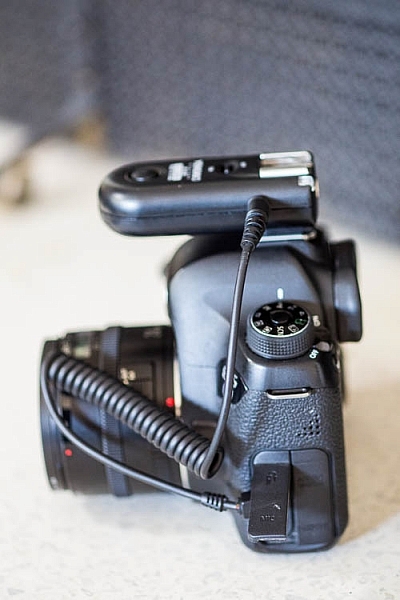
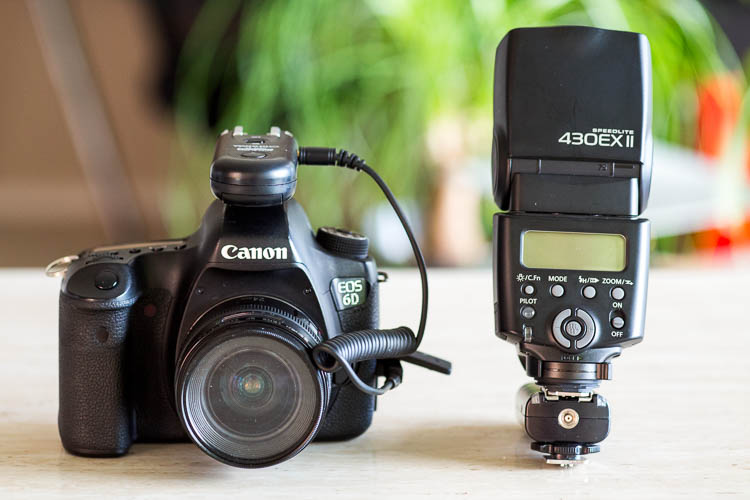
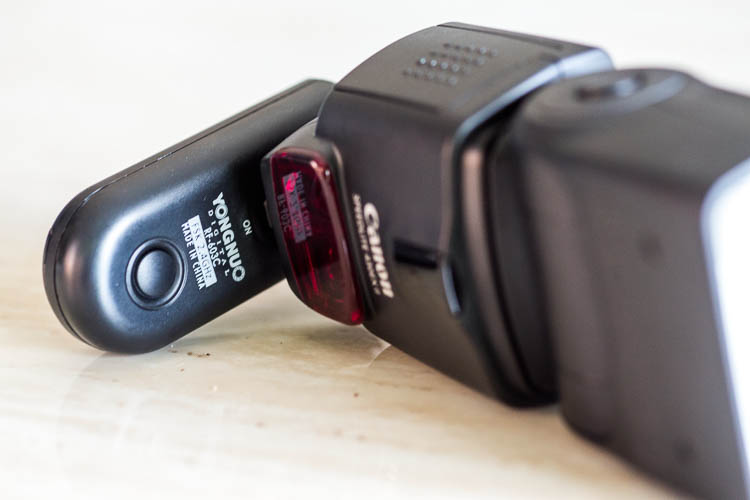
One of the triggers attaches to your off-camera flash unit via the hot shoe mount. Ihe other slides onto your camera’s hot shoe mount and also connects via the included N1 shutter release cable. Then you simply turn the triggers, camera, and flash on and you’re good to start firing away!

You can also purchase additional Yongnuo transceivers to trigger multiple flashes at once. To use the Yongnuo RF-603 as a shutter release, simply attach one unit to your camera’s hot shoe mount, turn both units on, and use the second unit to remotely fire your camera.

Yongnuo wireless flash triggers

How to Yongnuo RF-603 trigger attaches to your camera.

Yongnuo wireless flash triggers

Batteries

Besides being very reasonably priced, these Yongnuo triggers are powered by two normal AAA batteries. They use the battery power very efficiently, meaning you won’t have to constantly switch out drained ones. The triggers are also very slim and lightweight in size at just three inches long, making them easy to slip into a bag or pocket. These triggers are compatible with most DSLR cameras, but double check to make sure you order the correct model that is compatible with yours.

Yongnuo wireless flash triggers

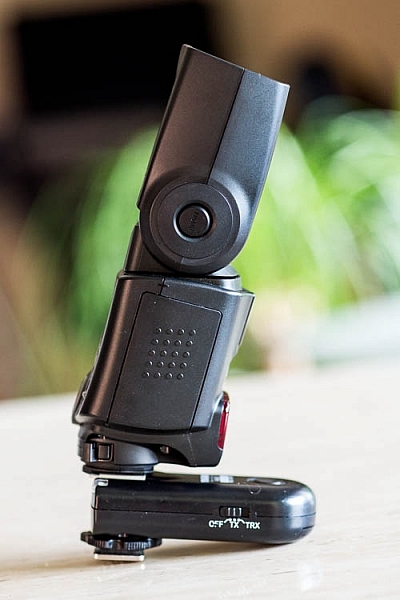
Slim and low-profile, the Yongnuo RF-603 doesn’t add a lot of bulk to your flash unit.

Shooting distance

Another point to note is that these Yongnuo triggers use a 2.4GHz wireless frequency, and the remote control distance is up to approximately 100 meters (328 feet). Synchronization speed can reach 1/320, but may only reach 1/250 depending on the exact scenario you’re shooting in.

Yongnuo wireless flash triggers

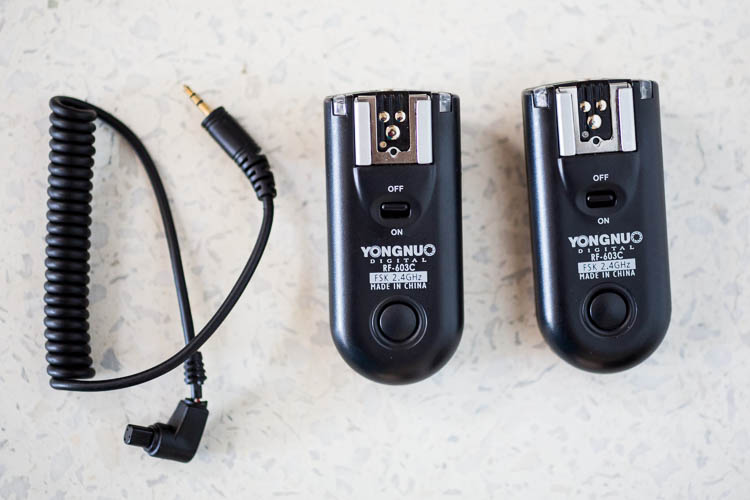
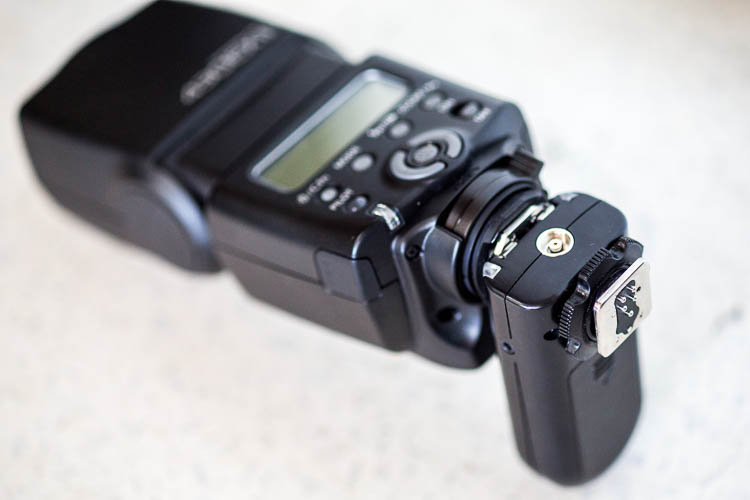
Yongnuo RF-603, the original version.

Yongnuo wireless flash triggers

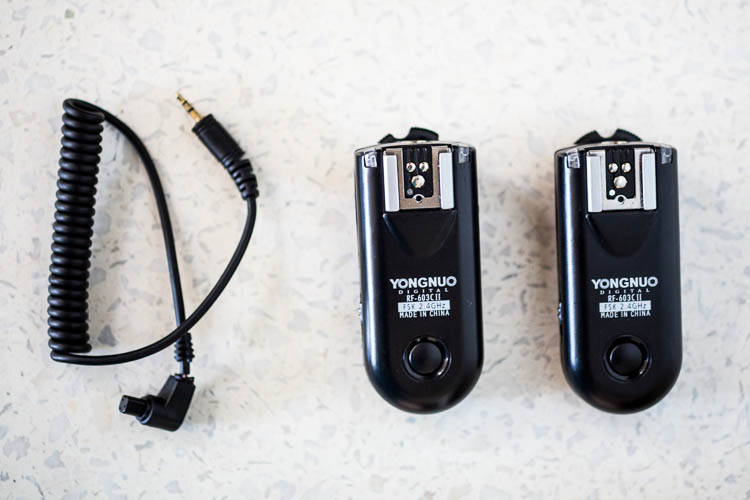
Yongnuo RF-603 II, the latest version.

Why the Newer Version is Better

When shopping around, you might notice that there are two Yongnuo RF-603 models: RF-603 and RF-603 II. The older, original version looks like it has recently been discontinued by the manufacturer, but it is still available for sale. Thus, it’s important to note several key differences between the two models, and why you’ll probably want to opt for the newer version. Also note that the original and newer transceivers are compatible with each other, so you can mix and match if you happen to have both versions.

Yongnuo wireless flash triggers

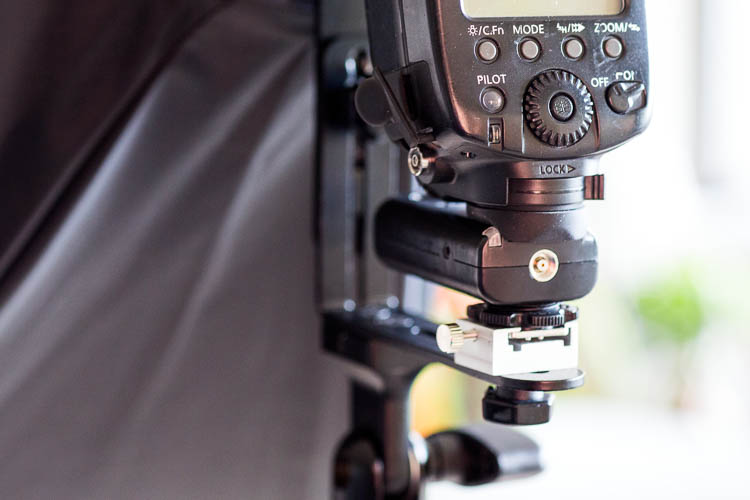
The round locking mechanism above the metal hot shoe of the Yongnuo RF-603 II (the original version does not have this feature).

Yongnuo wireless flash triggers

An example of the locking mechanism being used to attach the flash to a lighting stand.

Enhanced on/off switch is on the side for easier access

The original trigger has the on/off button on the top surface, which means it is completely covered up when attached to your flash. Thankfully, Yongnuo fixed this problem in the second version, and moved the on/off button to the side of the trigger. The newer version also includes the option of designating the trigger as off, in TR mode or TRX mode, rather than simply on or off.

Yongnuo wireless flash triggers

Even before the flash unit is fully attached, the on/off switch of the original Yongnuo RF-603 is already covered and hard to access.

Yongnuo wireless flash triggers

The newer Yongnuo RF-603 II added options to the on/off button and moved it to the side of the trigger.

Yongnuo wireless flash triggers

Having the on/off button on the side of the trigger makes it easier to access with the flash attached.

Who should use Yongnuo RF-603 Triggers

If you’re a photographer looking for a low-cost way to experiment with off-camera flash, Yongnuo triggers and even their own brand name flash units are highly recommended. Based on multiple user reviews and my own experience with Yongnuo products, they are dependable, efficient, and incredibly easy to use despite being considered budget options.

The only downside to these Yongnuo RF-603 triggers lies in their simplicity. Since this base model trigger only has a simple on/off button, you still have to manually adjust your flash settings if you want to tweak the flash power, flash zoom, etc. Upgrading to a more sophisticated trigger system such as the Yongnuo 622N TX ($ 85 for a pair approx.) gives you the full power of adjusting flash settings without having to even touch your flash. However, given the extra cost and complication of the Yongnuo 622N, only opt for this version if you truly need the extra features (in other words, stick with the RF-603 if you’re a beginner or on a budget).

googletag.cmd.push(function() {
tablet_slots.push( googletag.defineSlot( “/1005424/_dPSv4_tab-all-article-bottom_(300×250)”, [300, 250], “pb-ad-78623” ).addService( googletag.pubads() ) ); } );

googletag.cmd.push(function() {
mobile_slots.push( googletag.defineSlot( “/1005424/_dPSv4_mob-all-article-bottom_(300×250)”, [300, 250], “pb-ad-78158” ).addService( googletag.pubads() ) ); } );

The post Overview of the Yongnuo RF-603 Wireless Flash Trigger by Suzi Pratt appeared first on Digital Photography School.


Digital Photography School

 
Comments Off on Overview of the Yongnuo RF-603 Wireless Flash Trigger

Posted in Photography


iOS 10.1 adds ‘beta’ support for Portrait mode to iPhone 7 Plus

26 Oct

Apple has released an update to iOS 10, which alongside various bug fixes and refinements, adds beta support for ‘Portrait’ mode in the iPhone 7 Plus.

The Portrait mode feature is only supported by the dual-lens iPhone 7 Plus model running iOS 10.1, and is designed to replicate the look of shooting at a shallow depth of field – an effect traditionally limited to larger imaging formats. Although anyone with an Apple developer account has been able to shoot with the new mode for a while (we posted a gallery including some samples last month), iOS 10.1 represents the first truly public ‘beta’ test of the new feature.

Are you curious? Have you downloaded it? Did you jump straight to the comments section before you finished reading this paragraph? Let us know. 

Articles: Digital Photography Review (dpreview.com)

 
Comments Off on iOS 10.1 adds ‘beta’ support for Portrait mode to iPhone 7 Plus

Posted in Uncategorized


Google Pixel XL added to mobile studio test scene comparison

26 Oct

Google’s Pixel and Pixel XL have garnered plenty of interest for their imaging capabilities since they were launched in the beginning of October. They each offer a 12.3MP camera with an F2.0 lens and a 1/2.3″ sensor – the same size used in yesteryear’s compact cameras – sporting 1.55µm sized pixels. The Pixel phones also utilize gyroscope-based stabilization for some seriously smooth video recording.

We got our hands on a Pixel XL review unit, and while we wait for the clouds to part outside for some real-world samples, we put it in front of our studio test scene. Take a look below at its JPEG and Raw performance in daylight and low light. It’s quite impressive: the lens is relatively sharp across the frame, and our low light Raw shots show that despite receiving 1.33 EV less light than the iPhone 7, the Pixel shows only slightly more noise, meaning it comfortably outperforms the iPhone camera in low light.*

$ (document).ready(function() { ImageComparisonWidget({“containerId”:”reviewImageComparisonWidget-20506681″,”widgetId”:423,”initialStateId”:null}) })

Related: Google’s Pixel phones: what you need to know

*Multi-frame noise reduction – used in low light by both the Pixel and iPhone 7 – may skew results in either direction for either camera, providing better performance for static subjects, or potentially blurry images for moving ones.

Articles: Digital Photography Review (dpreview.com)

 
Comments Off on Google Pixel XL added to mobile studio test scene comparison

Posted in Uncategorized


Xiaomi’s Mi Note 2 looks a whole lot like the Samsung Note 7

26 Oct

Xiaomi has today launched the Mi Note 2, a device looks a lot like Samsung’s Galaxy Note 7, the production of which was ceased after repeated incidents of exploding batteries, and could neatly fill the gap in the market that was left by the Samsung device.

Like the Note 7, the Mi Note 2 offers top-end specs all-around. In the camera department a 22.46MP 1/2.6″ Sony IMX318 Exmor sensor is coupled with a six-element lens, F2.0 aperture and on-sensor phase detection. There is an electronic stabilization system for video shooting but the camera has to make do without optical stabilization. On the plus side there is a low-light mode, which presumably uses image-stacking for lower noise and better detail, and a long-exposure mode. At the front the 8MP camera uses Sony’s IMX268 sensor and comes with autofocus, an F2.0 aperture and Xiaomi’s Beautify 3.0 selfie mode.

Another highlight of the new device is its curved 5.7″ AMOLED display with extremely thin bezels and 1080p Full-HD resolution. It means the Mi Note 2’s screen-to-body ratio is an impressively high 77.2%. Processing power is provided by by Qualcomm’s latest Snapdragon 821 SoC which comes in combination with either 6GB RAM and 128GB storage or 4GB RAM and 64GB storage. Sound is optimized through a 24-bit / 192kHZ DAC and a large 4070 mAh battery that supports Quick Charge 3.0. should make sure you hardly ever run out of juice.

The global version of the 6GB RAM/128GB storage option will be available for approximately $ 520 while the lower specced variant will set you back $ 415. No details on geographic availability have been provided yet.

Articles: Digital Photography Review (dpreview.com)

 
Comments Off on Xiaomi’s Mi Note 2 looks a whole lot like the Samsung Note 7

Posted in Uncategorized


LG V20 owners report fragile, easily cracked camera glass

26 Oct

Numerous reports have surfaced from LG V20 owners claiming that the glass covering the smartphone’s rear camera is easily shattered. In some cases, the glass reportedly breaks without any direct impacts, leading some to speculate that the LEDs may be the cause. Some users report receiving a new phone with glass that’s already cracked, while others indicate it cracks after only several hours or days of use.

In addition to user reports on Reddit, smartphone durability tester ‘JerryRigEverything’ experienced the same issue. The glass camera covering is shown shattering in the video below a few moments after he rubs it with a pick to test its durability against scratches. LG has not issued a comment on the reported issue. For now, users are advised to keep the protective film covering on the camera glass in an effort to avoid cracks.

Via: TechTimes

Articles: Digital Photography Review (dpreview.com)

 
Comments Off on LG V20 owners report fragile, easily cracked camera glass

Posted in Uncategorized


How to Expose Correctly for High Contrast Wildlife

25 Oct

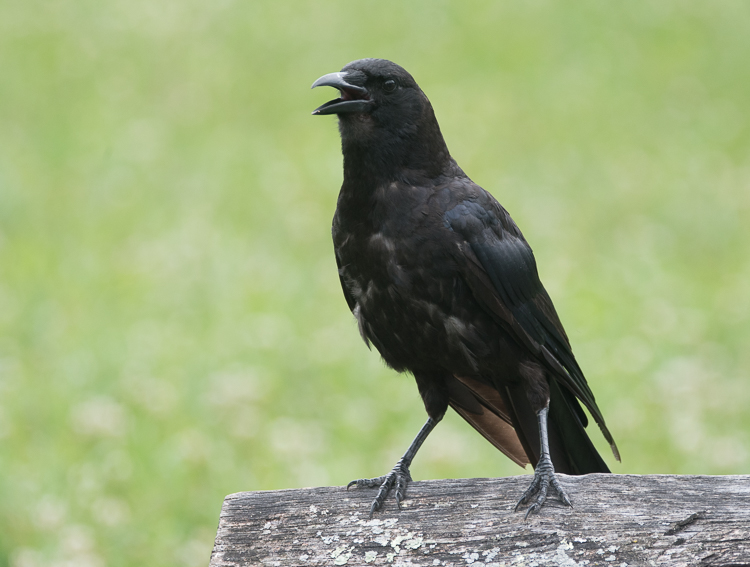
Photographing wildlife of deeply contrasting colors, such as black bears or white waterfowl, can present certain challenges setting up shots that are properly exposed for the wildlife and also the surroundings. Harsh lighting also makes exposing for these subjects especially difficult. The hurdle to overcome in these cases is to expose for the subject animal(s) properly and still capture a scene that is pleasing to the viewer. What often results are images where the exposure is correct for the surroundings, but the creature is either under or overexposed.

Getting the subject wildlife exposed correctly is a more important aspect because the background can be dealt with later in post-production. In some cases, the background just doesn’t really matter in comparison to the photo capture of the often elusive wildlife in the scene.What follows are methods to use in stark color-contrasting situations. One is for dark colored wildlife such as black bears or ravens, and another for light colored wildlife such as egrets or swans.

What follows are methods to use in stark color-contrasting situations. One is for dark colored wildlife such as black bears or ravens, and another for light colored wildlife such as egrets or swans.

Exposure Details

A reality of photographing wildlife is that when things happen, they happen fast. Lighting may change very quickly and there may not always be time to make adjustments while shooting the action of the wildlife in view.

Most experienced photographers want control of all camera settings and don’t generally choose to shoot in auto modes for shutter speed and aperture in order to control movement and depth of field. So is there was a way to set the shutter speed and aperture and still get the correct exposure without the hassle of continually changing settings as the light changes?

There are many ways of shooting wildlife resulting in a desirable exposure, but probably one of the most overlooked ways is using the Auto ISO setting in Manual mode. To use this method, set the camera in Manual mode, adjust shutter speed and aperture to the settings desired, and then set the ISO to auto-ISO. Most cameras will allow you to set a maximum ISO, so it’s helpful to know at what ISO the images become unacceptably grainy with your camera. However, this still doesn’t entirely solve the problem of correctly exposing for those dark and light animal subjects. To solve these problems you can fine-tune the exposure by using exposure compensation.

Correcting the background in post-production

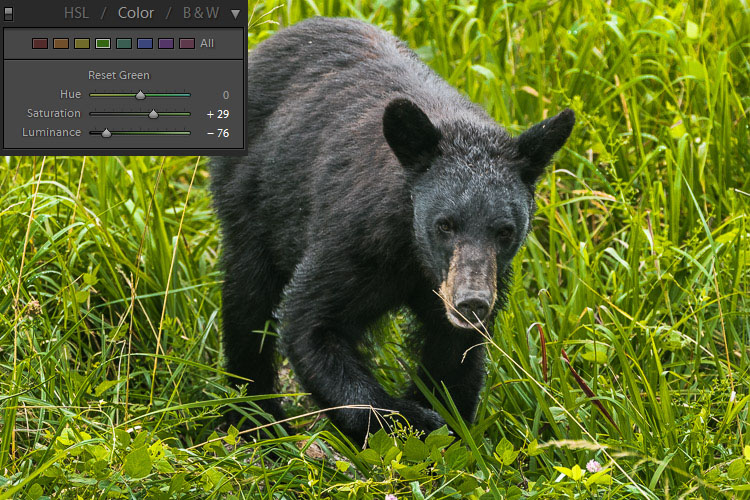
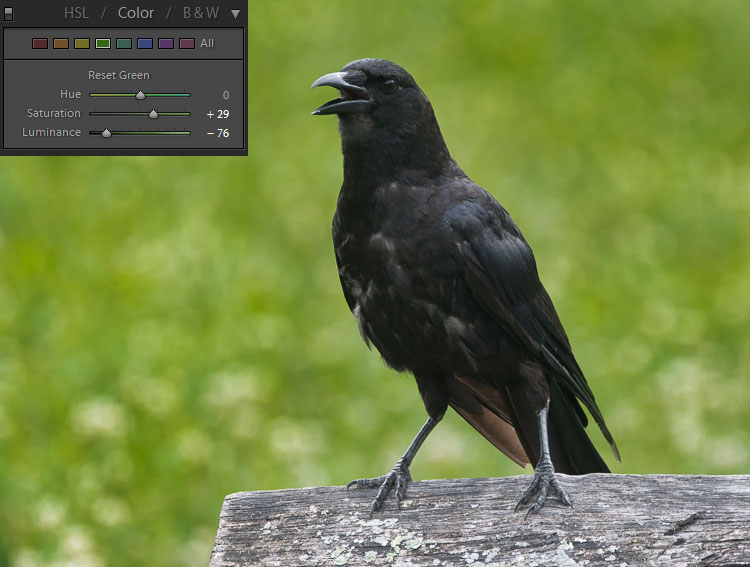
As in any image, if editing is planned it is important that the image be shot in RAW mode. When opening an image in Adobe Raw Converter (ARC) (or Lightroom) and if the exposure for the animal is correct in camera, then only the background may benefit from corrections in post. In most cases for wildlife images, the background hues are green, yellow or blue. To enhance or balance these colors in ARC, go to HSL/Grayscale panel and simply darken or lighten the luminance for green, yellow or blue until the background exposure appears to match the exposure of the animal. A little saturation may also be added. If a little punch or contrast would improve any background flatness, one may use an adjustment brush to add some contrast and clarity to the background. It’s that simple!

Dark Colored Wildlife

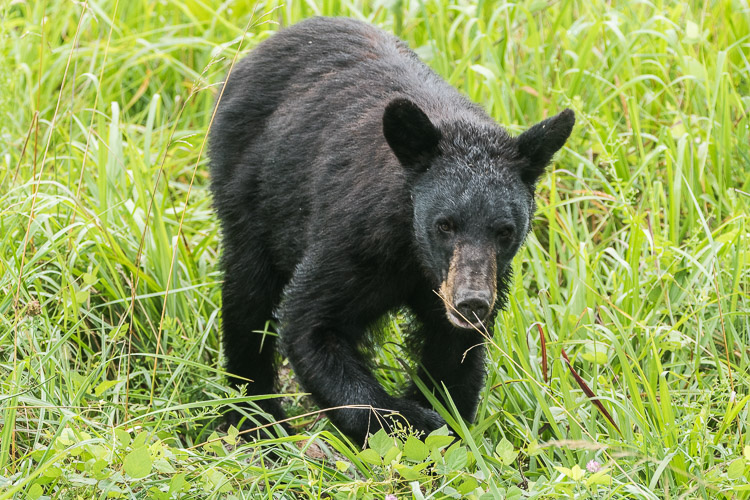
In this image the correct exposure for the black bear over-exposes the green background.

The luminance of the green has been adjusted to decrease the background exposure.

The dark hues of some wildlife will absorb more light than the scene around them, so it becomes necessary to increase the light taken in by the camera by using exposure compensation as mentioned above. For wildlife with dark colored coats or feathers, use exposure compensation and adjust by adding light (+value). This will suffice in most cases, depending on the amount of natural light available.

Keep in mind that the wild subject is the most important component in the image, so if any aspect of the image should be sacrificed in the moment, make it the background. For really dark creatures, such as bears, start out by using a compensation of +1. Remember, don’t worry about the background. The animal is the important exposure!

The exposure is correct for the black bird, but the background is washed out and boring.

Again, the luminance of the green has been adjusted. Then an adjustment brush has been used to add contrast, creating a vibrant background.

Light Colored Wildlife

Conversely, for light colored animals, use exposure compensation and adjust by subtracting light (- value). The whiter color of many beautiful creatures will reflect much more light than the background will, so it helps to decrease the light the camera takes in so as not to overexpose the animal.

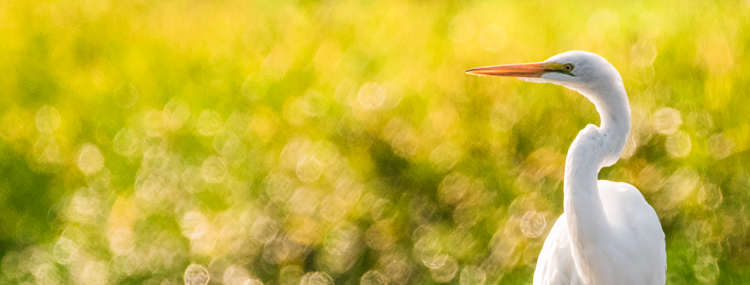
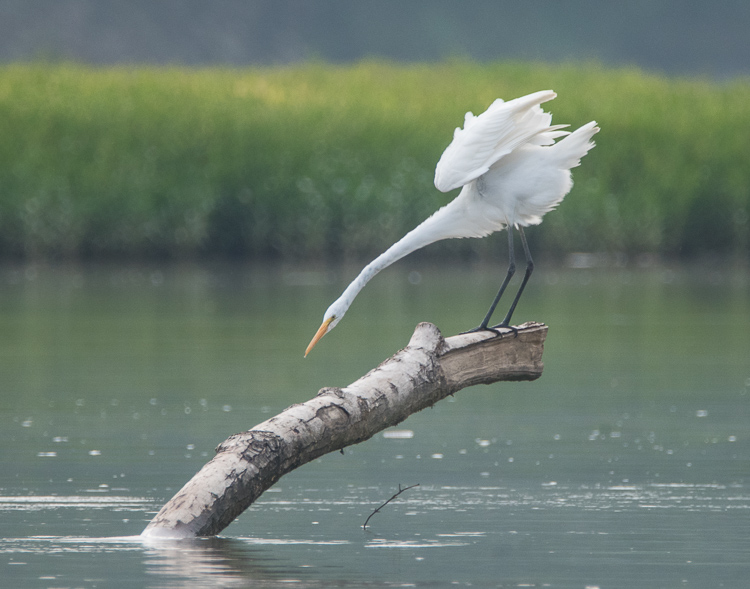
In keeping the white egret from being overexposed, the background appears dull and dark.

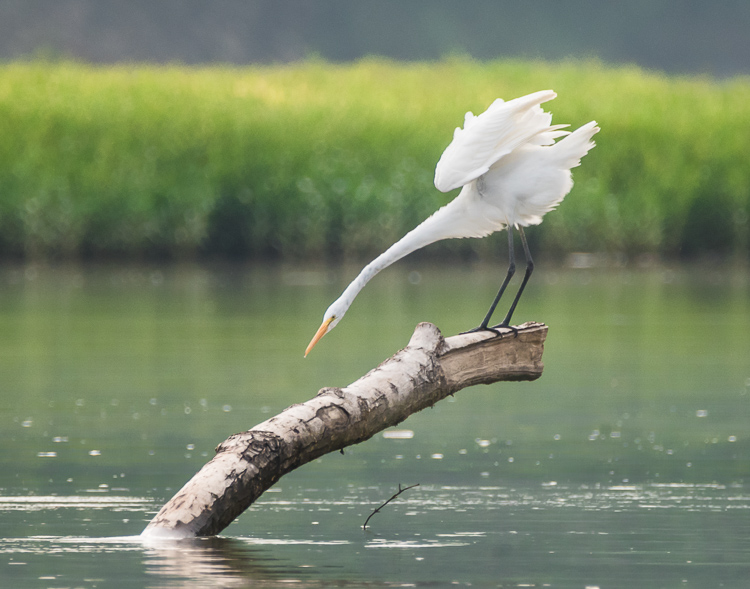
The green and yellow hues were adjusted to add life to the background. Notice that in every case the exposure of the subject is unchanged.

Why can’t I just correct the exposure of the wildlife in post-production?

Of course, this is an option. But there at least two reasons for not correcting the exposure of the subject later on the computer.

  1. Any time a major exposure correction is undertaken, there is a certain amount of digital data of the image that is lost. Therefore, it is best to get the main subject of the image captured as closely as possible in camera. (This is true of any image, not only wildlife subjects.)
  2. When photographing extremely light colored animals, if the white is over-exposed to absolute white there is nothing that can be done in post-production to pull out any detail. Darkening the subject will not bring back any nuance in the creatures coloring, and the image will lose desirable texture. Again, conversely, if the black-coated bear or bird is underexposed to absolute black there is no way to lighten the subject and pull out interesting details from the fur or feathers.

What about the Eagle?

Some animals are doubly challenging as in the case of the American Bald Eagle, with its white head and dark body. These magnificent creatures are almost impossible to photograph in harsh light. If choosing which end of your histogram to sacrifice, my opinion is to expose for the white head.  Again, avoid harsh lighting if at all possible.

Conclusion

Remember, when you’re faced with a choice of settings for an extreme exposure while photographing wildlife, never sacrifice your subject. Whether a light or dark-coated bird or animal, intentionally set up the shot to capture the creature and its distinctive features and keep the background as a secondary consideration. To make sure the subject will be correctly exposed, use a 3-shot bracketed exposure, with an exposure one stop over and another exposure one stop under the setting.

Do you have any wildlife exposure tips? Please leave them in the comments below.

googletag.cmd.push(function() {
tablet_slots.push( googletag.defineSlot( “/1005424/_dPSv4_tab-all-article-bottom_(300×250)”, [300, 250], “pb-ad-78623” ).addService( googletag.pubads() ) ); } );

googletag.cmd.push(function() {
mobile_slots.push( googletag.defineSlot( “/1005424/_dPSv4_mob-all-article-bottom_(300×250)”, [300, 250], “pb-ad-78158” ).addService( googletag.pubads() ) ); } );

The post How to Expose Correctly for High Contrast Wildlife by Bruce Wunderlich appeared first on Digital Photography School.


Digital Photography School

 
Comments Off on How to Expose Correctly for High Contrast Wildlife

Posted in Photography


Plastic Village: Tropical Housing Estate Built from 1MM Recycled Bottles
25 Oct

[ By WebUrbanist in Architecture & Houses & Residential. ]

plastic-bottle-architecture

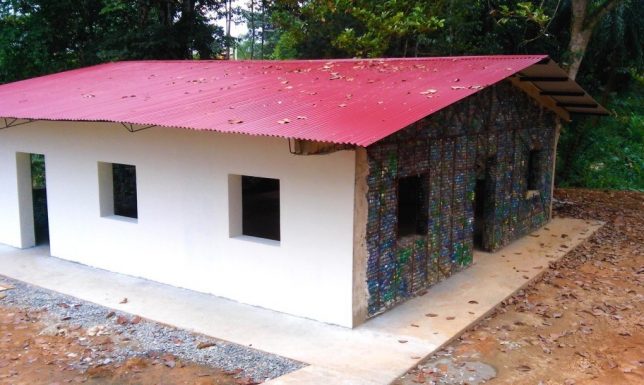
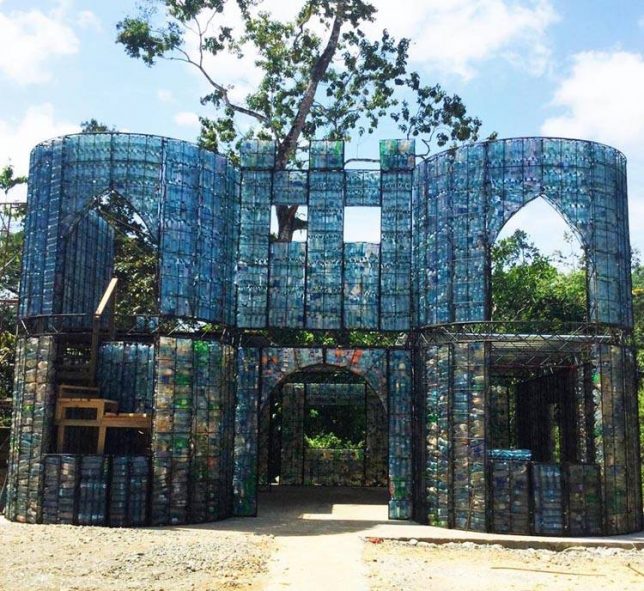
At a glance, it would be impossible to guess that the finished houses in Panama’s Plastic Bottle Village featured walls packed with recycled drinking containers. What started as a recycling initiative by a expat Canadian entrepreneur has become an architectural adventure that will ultimately reuse over a million plastic bottles.

plastic-bottle-finishing

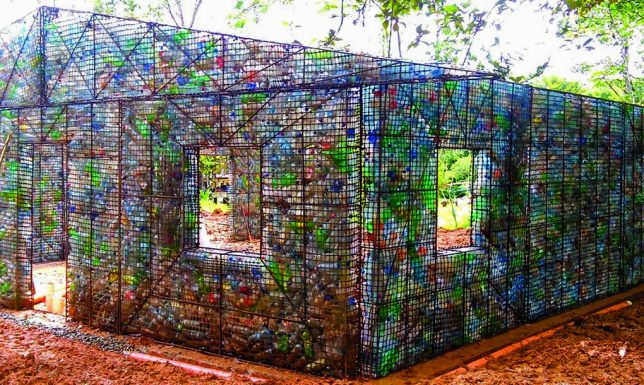
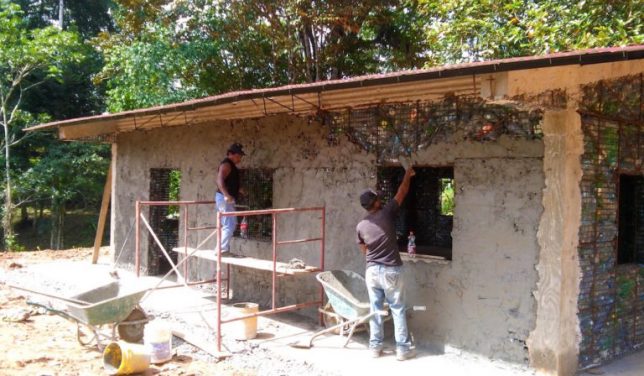
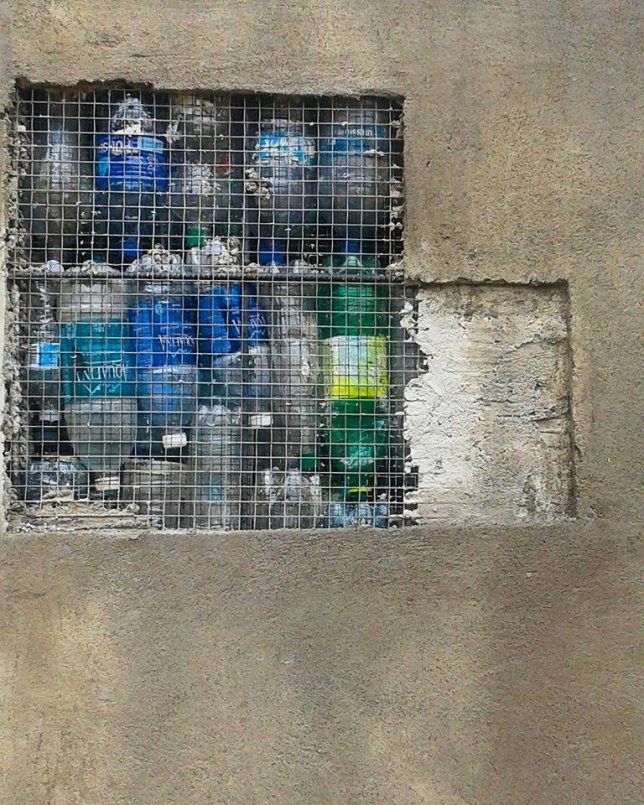
Since 2012, tens of thousands of bottles have been brought to the growing town to make buildings. These are stacked in steel cages with stones to fill in gaps and provide rigidity. Cement plaster covers the structures inside and out, making them appear like solid concrete or finished stucco.

The bottles, meanwhile, provide insulation while allowing airflow, keeping interiors in the hot climate a full 17 degrees cooler than the ambient outdoors.

plastic-bottle-castle

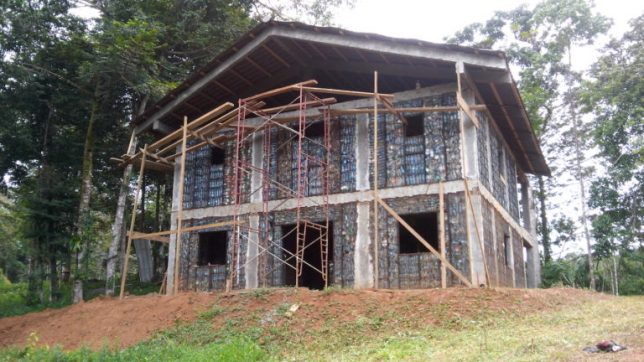
Multiple bottle-based houses already constructed on nearly 100 acres of lush tropical jungle land purchased for the Plastic Bottle Village, which will eventually be home to over 100 such structures. Also in the works: a small public park, retail operation and yoga pavilion.

plastic-bottle-complete

The steel-framed structures provide a balance of strength and flexibility, helping them stand up and support roofs but also to resist earthquakes. The Plastic Bottle Village is about more than just one place, too: its founder is educating others about how to build with this cheap and ubiquitous material that many see simply as waste.

plastic-bottle-cage

caged-bottle-concrete

The project puts consumption in context: “Average humans can consume 15 or more drinks in plastic bottles a month. If you were born after 1978, and live until 80 years old, you will leave behind a minimum of 14,400 plastic bottles on this planet.”

“These bottles take hundreds of years to break down into tiny pieces of plastic, never to completely disappear. Most of the waste is consumed by fish and birds, which has shortened their lifespans greatly.”

plastic-bottle-wall

It also illustrates the potential offsets: “If you live in a two story plastic bottle house of 100 square meters or 1,000 square feet per floor, then your house will be built reusing 14,000 plastic bottles. These recycled bottles could neutralize the negative effect of your passage on this planet,  and move closer to leaving only your footprints.”

Share on Facebook


[ By WebUrbanist in Architecture & Houses & Residential. ]

[ WebUrbanist | Archives | Galleries | Privacy | TOS ]


WebUrbanist

 
Comments Off on Plastic Village: Tropical Housing Estate Built from 1MM Recycled Bottles

Posted in Creativity