RSS
 

Archive for September, 2016

Spellbinding Visuals: Magical Book Artwork Tells Surrealist Stories

05 Sep

[ By WebUrbanist in Art & Drawing & Digital. ]

book cover art

A series of book-centric illustrations (now collected into one big ‘book of books’) by Seoul artist Jungho Lee explores realms of impossibility through the deconstruction and re-imagining of bound volumes. Each surrealistic piece pushes the limits of plausibility in different ways, challenging the viewer to read complex stories into deceptively simple-looking drawings.

book architecture

book bending warped

book fishing

Winner of the World Illustration Awards for 2016, Lee is a Korean artist whose dreamlike work is often featured both on the covers of and within books for children or adults. The illustrations shown here are some of the 21 submitted for the competition and also included in the book Promenade, a collection published by Sang Publishing early this year.

book door

book image

book memory

Lee’s mixed-media approach includes “charcoal, water colour, gouache, hot-pressed papers and computer” graphics. He cites surrealist René Magritte and German artist Quint Buchholz as sources of inspiration for composition, messaging, lighting and angle of observation choices.

book plane wing

book pie

book surrealism

Lee starts with a basic image or rough sketch on large-format paper, usually using graphite or charcoal. Then he scans in the work and begins digital manipulations. Sometimes he goes back and forth, printing to paper to add more layers manually.

book lighthouse

book hike

book deconstructed

While his pictures span a variety of types, styles and subjects, much of his recent work specifically revolves around the manipulation of book-related imagery, expressing the contents of volumes without any use of text. If the series continues, he may create a followup volume to Promenade featuring further works of bookish art.

Share on Facebook


[ By WebUrbanist in Art & Drawing & Digital. ]

[ WebUrbanist | Archives | Galleries | Privacy | TOS ]


WebUrbanist

 
Comments Off on Spellbinding Visuals: Magical Book Artwork Tells Surrealist Stories

Posted in Creativity


5 Critical Mistakes to Avoid When Buying New Camera Gear

05 Sep

The day you’re finally in the market for a new camera gear is certainly an exciting one when you’re a photographer. Visions dance in your head of all the killer shots you’ll be capturing with a sleek new set-up. You get excited about finally having gear that not only meets your current needs, but that you can grow with into the future as well.

However, it goes without saying, that the buying process can be daunting to say the least. There’s a lot to choose from out there! You want to make absolutely sure that what you buy is actually worth the investment you’re about to make.

Buying New Camera Gear mistakes

In this article I’ll go over some of the most important (and most common) mistakes to avoid when shopping for a new camera or any other piece of photography equipment.

Mistake #1. Taking advice from the wrong person

It’s normal, and wise, to ask for other people’s advice before you finalize a major buying decision. However, it’s important to get it from the right sources. It’s not enough for someone to simply sound like they know what they’re talking about.

Do they actually know what they’re talking about? Is this someone that really knows their way around a camera, and could be considered an expert when it comes to photography gear? Do they actually understand all of the features associated with the item you’re shopping for well enough to have an informed opinion? You should be able to say “yes” with assurance to all of these questions. You need to make sure the person actually understands your unique needs, and the many ways they might differ from theirs.

Buying New Camera Gear mistakes

I need this camera for the work I do, but you may not need one so large. Get what’s appropriate for your needs.

Avoid buying anything just because another photographer you know has one, or because all the online reviews say it’s the one to have. Definitely don’t buy on the say-so of one person, who may or may not really understand photography. Ask for advice from trusted experts and take it for what it’s worth – a great tool that can help you make a decision. Even the best advice isn’t a proper substitute for research and careful comparison shopping.

Mistake #2. Assuming quality is equal to price

Yes, good quality gear should be considered an investment. It’s most definitely a purchasing decision that should be made with care, especially if you’re a professional photographer or hope to become one. However, it’s important not to simply assume that a higher price tag automatically equals a better item.

Buying New Camera Gear mistakes

Do your research and due diligence.

Even if money isn’t personally an issue for you, paying more money doesn’t guarantee that your purchase will actually meet your needs. It doesn’t guarantee you the spectacular photos you’ve been dreaming about either. Even great photography equipment is only going to be as good as the person actually taking the photos.

Focus less on the price tag, and more on whether or not a given item is right for you, especially when buying a camera. Does it fit your current skill level? Are you familiar with all of the functions and tools it comes with? According to your research, is it a good fit for the type of photography you do? Lots of bells and whistles, and tons of different settings won’t do you any good if you either won’t use them, or don’t understand them.

Buying New Camera Gear mistakes

Mistake #3. Failing to budget properly

Proper planning is the key to success when it comes to many endeavours, and shopping for a new camera or photography gear is no different. A big part of that is budgeting, and there are a number of ways people can stumble in that arena.

Many drastically overestimate what they’re likely to get in exchange for their money. An outrageously expensive camera won’t magically allow a beginner to somehow start pulling off National Geographic quality images. Nor will world class photography skills make up for a cheap camera, that’s incapable of taking professional quality pictures.

Buying New Camera Gear mistakes

A lot of shoppers also fail to factor the full cost of all the accessories they’ll need into their budget. Okay, so you did your homework when it comes to the camera you’ll need in order to take your landscape photography to the next level. But, did you also remember to consider the lenses you’ll require? What about the batteries, tripods, memory cards, and everything else? It’s important to be thorough from the get-go.

Mistake #4. Becoming distracted by bargains and specials

So you’re finally ready to walk into the photography shop and make your purchases. You’ve done your homework. You’ve figured out which camera is right for your needs, both present and future. You’ve even picked out the accessories and other tools you’ll need to go with it. You’re sure you know exactly what you’re looking for.

Buying New Camera Gear mistakes

Then you get inside, and see all the signs advertising special deals on this, and bargain pricing on that. Do you lose your focus, or do you remind yourself that item isn’t really what you went there for? Hopefully it’s the latter.

Never buy any piece of photography gear just because it’s displayed under a flashy sign, or a salesman insists that it’s what you really want. If something sounds way too good to be true, it probably is. Keep your eye on the prize, and make sure you walk out of that shop with what you actually need.

Mistake #5. Not being realistic enough

Buying New Camera Gear mistakes

Most of us entertain really big dreams that we hope will come true someday, when it comes to our interest in photography. However, it’s important to ask yourself whether those dreams are realistic as far as the near future goes, before you actually sink your money into them.

Are you brand new to photography, but already picture yourself traveling the world, making big money as a travel photographer within a couple of months? Are you shopping based on a desire to jump straight into professional photography with a ton of new, expensive gear, even though you’ve never used anything more complicated than the Instagram app on your iPhone?

Buying New Camera Gear mistakes

Make sure you’re not getting ahead of yourself when it comes to what you think you’ll accomplish, by spending lots of money on new camera gear right now. Shop according to what your needs and skill level are currently, not what you’re hoping they’ll be “someday”. You’re that much more likely to be happy with your purchases not only now, but in the years to come as well.

If you have any other gear buying tips, please share in the comments below. What is your though process?

googletag.cmd.push(function() {
tablet_slots.push( googletag.defineSlot( “/1005424/_dPSv4_tab-all-article-bottom_(300×250)”, [300, 250], “pb-ad-78623” ).addService( googletag.pubads() ) ); } );

googletag.cmd.push(function() {
mobile_slots.push( googletag.defineSlot( “/1005424/_dPSv4_mob-all-article-bottom_(300×250)”, [300, 250], “pb-ad-78158” ).addService( googletag.pubads() ) ); } );

The post 5 Critical Mistakes to Avoid When Buying New Camera Gear by Destin Sparks appeared first on Digital Photography School.


Digital Photography School

 
Comments Off on 5 Critical Mistakes to Avoid When Buying New Camera Gear

Posted in Photography


Buzz Off: 15 Smokin’ Hot Mosquito Coil Holders

05 Sep

[ By Steve in Design & Products & Packaging. ]

mosquito-coil-holders-1a

Modern mosquito-borne diseases like Zika and West Nile fever call for traditional insect repellents like pyrethrum mosquito coils and creative coil holders.

mosquito-coil-holders-1b

The classic mosquito coil was invented in Japan over a century ago and has changed very little over time. Ditto for the coil holders, usually made of heat-proof ceramic traditionally crafted in the form of an open-ended pig. Called “katori buta“, these hog-like holders have become symbolic of summer in Japan, Australia, Africa and South America, where smoldering mosquito coils have always been the go-to skeeter repellent.

Never Boaring

mosquito-coil-holders-2a

mosquito-coil-holders-2b

mosquito-coil-holders-2c

mosquito-coil-holders-2d

The coils are made mainly from Pyrethrum derived from the powdered seed heads of Tanacetum cinerariifolium, a type of Chrysanthemum. Considered non-toxic to humans and pets, the smoke emitted by mosquito coils effectively repels any and all insects while its coiled design ensures it will smolder for roughly 7 to 9 hours. Some variations on the classic pig-design coil holder evoke cows, cats and even hedgehogs should one be feeling a tad kosher. Others take the opposite tack and, er, totally and realistically pig out.

Fruit-Fighters

mosquito-coil-holders-3a

mosquito-coil-holders-3b

With over a century of use to work with, creative types have come up with a plethora of mosquito coil holder designs with which to complement your newly bug-free home. Here is the Shigaraki-yaki Watermelon Ceramic Mosquito Coil Holder, individually made in Japan and available in red or yellow.

Feelin’ Hut Hut Hut

mosquito-coil-holders-13a

Mosquitoes can transmit a number of debilitating illnesses and in sub-saharan Africa, malaria is endemic. No surprise, then, that in Malawi if one wants a mosquito coil holder it’s a simple matter of browsing the local pottery market. That’s where Matt & Rachel Floreen of Africa Stories found this delightful hand-made ceramic coil holder.

Spidey Sense

mosquito-coil-holders-4a

mosquito-coil-holders-4b

Some folks want to set tradition aside, others chuck it out the window – and nail the window shut! Take this spider-themed mosquito coil holder from northern Thailand, if you dare. The matte black finished steel holder is no doubt child-proof while using it should keep your home skeeter-proof. In related news, some mosquito coils in Thailand are purple.

Goofy Is As Goofy Does

mosquito-coil-holders-14b

mosquito-coil-holders-14a

mosquito-coil-holders-14c

Here’s a goofy mosquito coil holder listed for sale at T3-Toys. We’re not “hav’n a go,” by the way, it really is a Goofy mosquito coil holder – officially authorized by Disney and sold sometime in the ’90s at Tokyo Disneyland. Guess it’s a better souvenir than a dumb t-shirt.

Next Page – Click Below to Read More:
Buzz Off 15 Smokin Hot Mosquito Coil Holders

Share on Facebook


[ By Steve in Design & Products & Packaging. ]

[ WebUrbanist | Archives | Galleries | Privacy | TOS ]


WebUrbanist

 
Comments Off on Buzz Off: 15 Smokin’ Hot Mosquito Coil Holders

Posted in Creativity


6 tips for shooting fall color

04 Sep

6 tips for shooting fall color

The leaves are already starting to turn and the pumpkin beer is already flowing up here in the Pacific Northwest. Fall is just around the corner and photographing fall color is one of our favorite things to do when that autumn chill starts to take hold. Here are some fun and helpful tips to make shooting fall color that much more enjoyable!

Check the fall color reports

One of the first things that I always do prior to planning a trip to photograph fall color is to check the trip reports and the fall color or fall foliage reports.

  • The Weather Channel is a great place to get a broad feel for how the fall color season is shaping up. They have a variety of useful maps and tools to give users a good sense of when their region will have peak color.
  • The Smoky Mountain parks guide also has a unique predictive map that offers a bit of insight into how the current years foliage is developing and what it looks like two months out.
  • I also consult local hiking forums and other photographers through social media to get a good sense of how things are coming along. 

Visit your local Japanese Garden

One trip that I seem to make on an annual basis is to one of our local Japanese Gardens up here in Seattle. Here are a few tips for catching and shooting the gardens in their prime.

  • Call ahead to get a fall color report and to see if tripods are allowed. A number of the gardens in Seattle (and other cities) don’t allow tripods inside of their gates. 
  • Look for the Japanese Maples! Shooting up ‘inside’ of these gorgeous trees can give them a whole new perspective and can offer up some amazing possibilities in terms of composition.
  • Include the architecture- don’t be afraid to photograph the bridges, pagodas and other structures in the garden- let the fall color become a gorgeous backdrop to the architecture.
  • Go early or late- these gardens tend to get very crowded, so go around sunset or sunrise (depending upon the garden’s hours) to avoid the people and other photographers.
  • Look for abstract and macro possibilities in the garden- colors, patterns and structures can offer a seemingly endless amount of compositional choices.
  • Bring a wide selection of lenses and your circular polarizer- a CPL can really increase the vibrancy of the foliage and having a good selection of focal lengths can help you to expand your creativity.

Use fall color to add layers

Fall color can also add layers to a already interesting composition. Finding a way to incorporate fall color into a forest scene or a mountainous landscape can really add depth, character and interesting colors to your image.

  • Use a telephoto lens to minimize the scene and add depth through layers.
  • Look for patterns and textures – a mixture of fall foliage and evergreen trees can offer a nice variety of colors and textures to the scene.
  • Shoot panoramic images – scenes with fall foliage and layers tend to lend themselves very well to a panoramic treatment.
  • Utilize light at different times during the day to emphasize the fall color – the colors in the scene will change drastically throughout the day depending upon the direction and amount of light present in scene, so experiment and take lots of images throughout the day.

Shoot falling leaves

Fall foliage doesn’t last forever, but even the falling leaves can add interest and color to your images.

  • One of my favorite things to shoot just after the fall color has peaked are the leaf-covered driveways, streams and trails that seem to be everywhere after the leaves have begun to fall.
  • The fallen leaves can not only add texture and color to your images, but they can also convey motion and help to form leading lines in your composition.
  • If the colors have already peaked in your area, fear not! There are still a number of great shooting opportunities at your fingertips.    

Go abstract

Fall foliage offers a unique opportunity to try techniques such as motion blur while your out in the field:

  • Mount your camera on a tripod and adjust your settings to enable your camera to shoot for around 0.5″ to 2″ seconds with proper exposure.
  • You may need to use an ND filter to achieve the longer exposure depending upon the lighting conditions.
  • Press the shutter and while the camera is taking the longer exposure pan the camera vertically to achieve a vertical motion blur in your photo.
  • Experiment with different shutter speeds and varying amounts of movement to achieve your desired result.
  • Blend your motion blur shot with a tack sharp shot in your favorite photo editing program to give your abstract a nice sense of depth and a varying amount of texture.
  • If you’re shooting in windy conditions try taking a longer exposure to blur the leaves while leaving the tree trunks tack sharp.

Shoot in all types of weather

One of my biggest pet peeves in photography is the idea that you absolutely have to shoot in specific lighting and weather conditions and at specific times of day. Sure, sunrise and sunset are ideal but I honestly love shooting in anything from blue bird to adverse and frankly bad weather conditions at any time of day. 

  • Don’t get discouraged by the forecasts- fall color offers up some unique opportunities to photograph brilliant colors in snow, rain, sleet and wind. I often find those types of images even more appealing because they tell a story and are very unique.
  • Before you head out to shoot always check your local weather forecasts- fall is a time of year that tends to catch many people off guard, especially while venturing into the mountains, so it’s best to look ahead and plan accordingly.
  • Be prepared for anything – fall is one of the those seasons that can throw rain, sun and snow at you all on the same day.

Articles: Digital Photography Review (dpreview.com)

 
Comments Off on 6 tips for shooting fall color

Posted in Uncategorized


Lenovo announces Moto Z Play Android smartphone

04 Sep

Lenovo has announced the Moto Z Play smartphone at IFA in Berlin. The new model slots in below the Moto Z Force and Moto Z in Lenovo’s current smartphone lineup and, like its sister models, is compatible with the Moto Mod range of detachable accessory modules, including the also newly announced Hasselblad True Zoom camera module.

With a 16MP CMOS sensor, F2.0 aperture, on-sensor phase detection, laser-assisted AF and dual-LED flash the rear camera specification sounds very similar to the Moto G Plus that was announced back in May but, unlike the G Plus, the Moto Z Play is capable of recording 4K video. At the front the new device features a 5MP camera with a 85 degree angle of view and LED-flash.

Android 6.01 is powered by a Qualcomm Snapdragon 625 chipset with  a 2 GHz Octa-Core CPU. The device comes with 3GB of RAM and 32GB of internal storage that can be expanded up to 2TB via a microSD slot. Images can be viewed on a 5.5″ 1080p Full-HD Super AMOLED display and a fingerprint reader below the screen provides extra security.

The device body comes with a water repellent nano-coating and a USB Type-C port is used for charging and connection to other devices. Lenovo claims the 3510 mAh battery is good for 50 hours of mixed use, and it also features the company’s TurboPower quick-charging which can give you up to 10 hours of usage in only 15 minutes of charging. 

The Moto Z Play will be available worldwide in September for €499/$ 408.

Articles: Digital Photography Review (dpreview.com)

 
Comments Off on Lenovo announces Moto Z Play Android smartphone

Posted in Uncategorized


Black Rock City’s Biggest Art Car: Converted 747 Lands at Burning Man

04 Sep

[ By WebUrbanist in Art & Installation & Sound. ]


black rocket

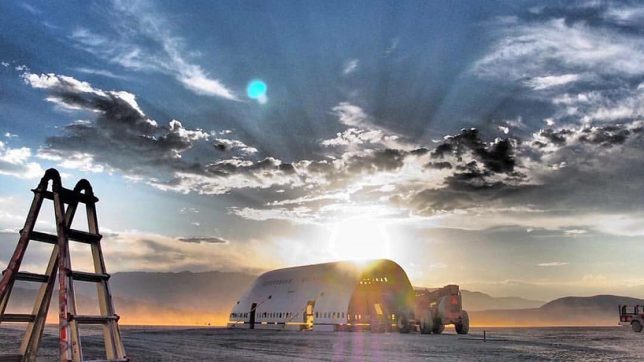
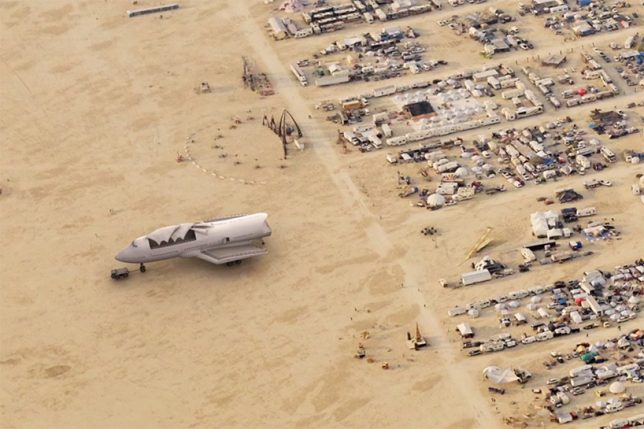
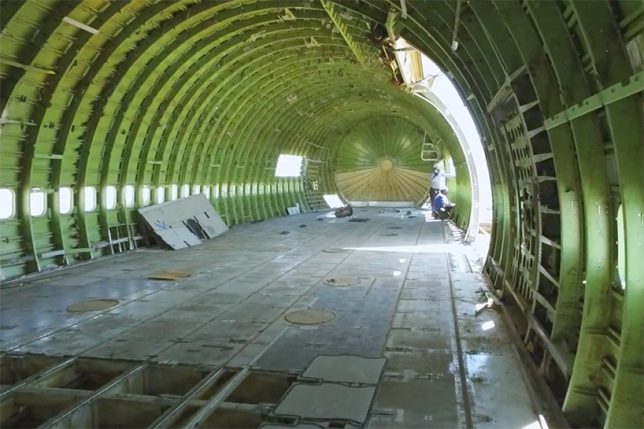
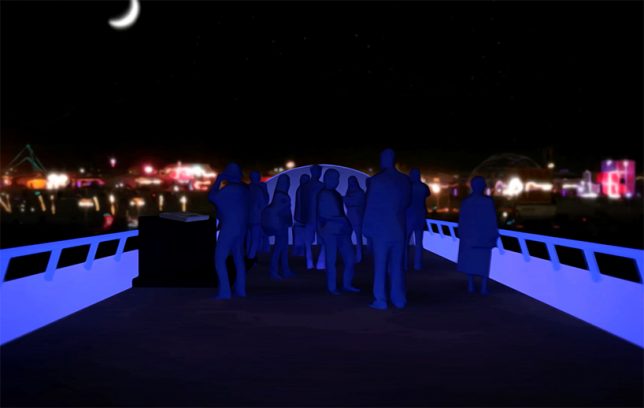
A temporary metropolis for tens of thousands built annually in Nevada’s remote Black Rock Desert, the Burning Man festival is famous for its extreme architecture and creative art cars, the latter now including a transformed Boeing 747.

black rock 747

747 arts venue

747 in city

Fitting this year’s theme of Da Vinci’s Workshop (art and technological innovation), the huge gutted hull has been in the works for seven years thanks to Big Imagination Foundation and their supporters.

747 shell

converted 747

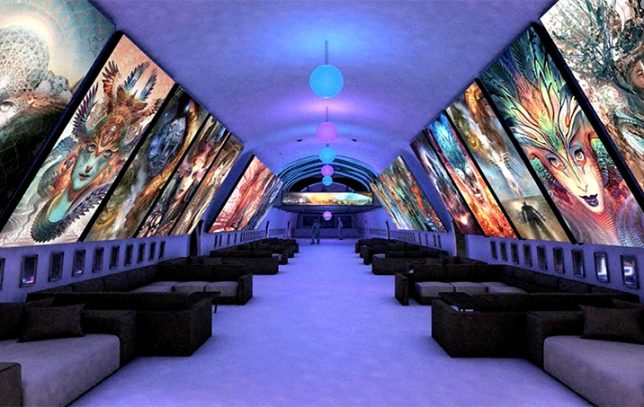
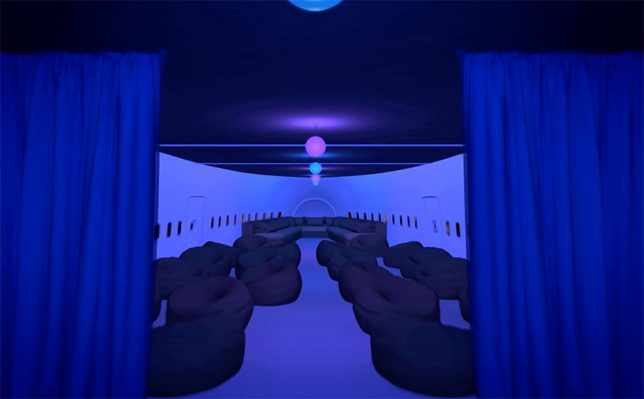
The carved-out jumbo jet invites people to hop on board for speakers, parties and other events. It is being towed around the dusty playa by a surprisingly small service vehicle, a bit like one might see on the tarmac at an airport.

747 work

747 gutted

747 interior

A team of over 100 artists, engineers and other creatives helped strip and reconstruct the original plane, reinforcing its removed structure with custom interior supports and adding a series of staircases.

747 art car huge

747 screens

747 lounge

747 roof

747 in person

Anyone who has attended the festival will know that one of the most fascinating experiences is the serendipity of boarding a big art vehicle and seeing where it leads, either spatially or experientially (or both). This may be the best such adventure yet, featuring interactive art, music and other live performances and inspirational talks.

Share on Facebook


[ By WebUrbanist in Art & Installation & Sound. ]

[ WebUrbanist | Archives | Galleries | Privacy | TOS ]


WebUrbanist

 
Comments Off on Black Rock City’s Biggest Art Car: Converted 747 Lands at Burning Man

Posted in Creativity


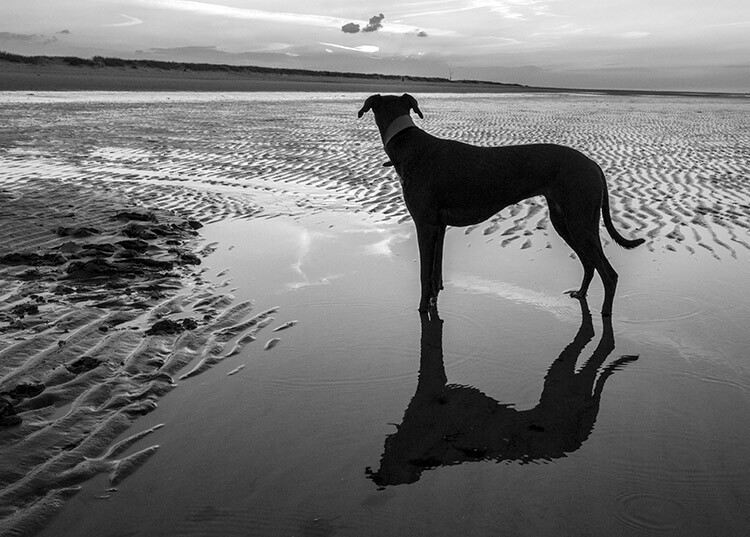
How Black and White Photography Taught Me to Capture Emotion

04 Sep

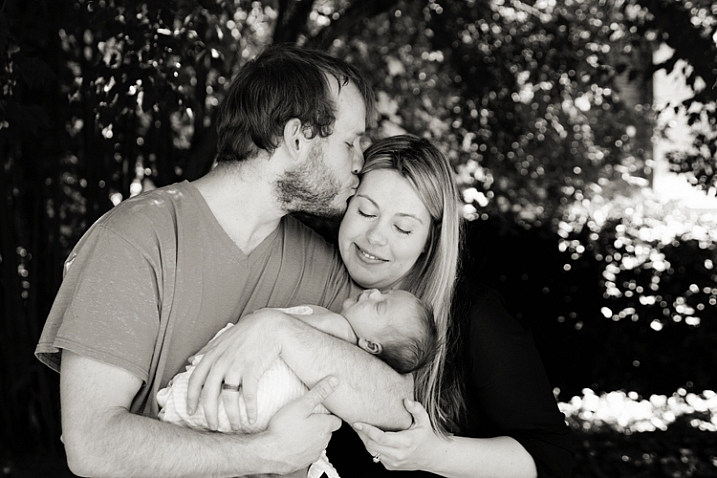
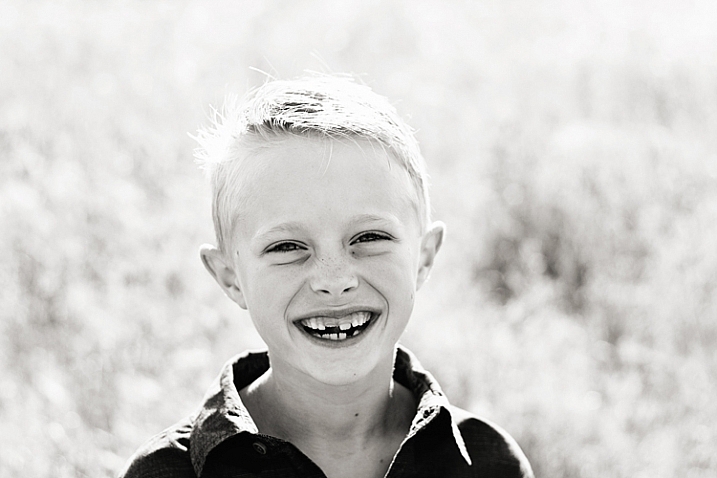
My first experience with photography was a black and white film photography class in high school. We were given one roll of film per week, and told to, “go capture something compelling.” Though learning photography on a fully manual, very low-tech camera, resulted in a bit of a learning curve when I switched over to digital (hello metering modes, back button focus, and exposure compensation!), one of the most important things that my first black and white photography class taught me was the importance of capturing emotion in photography.

capture-emotions-2

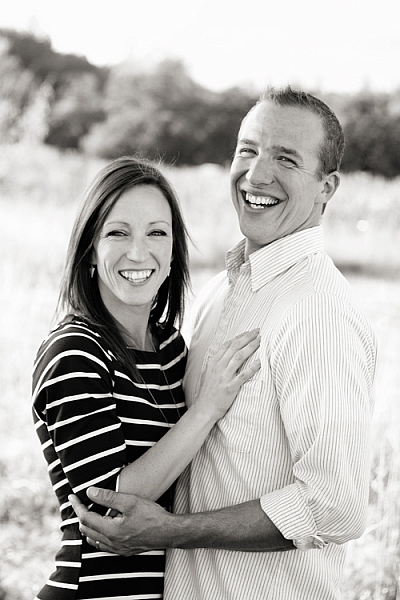
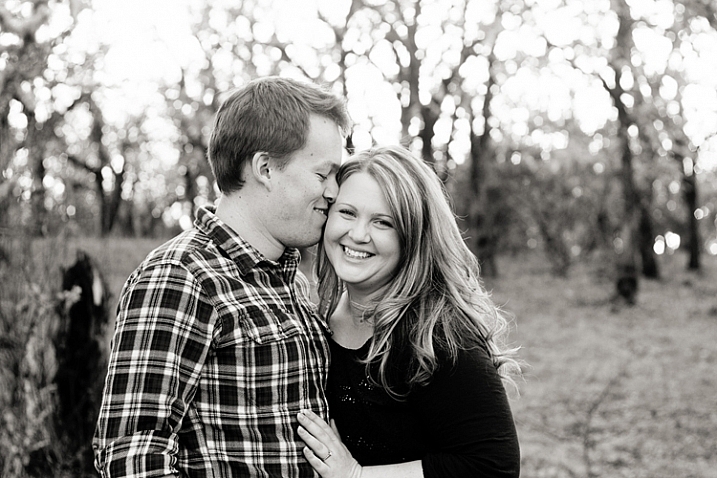
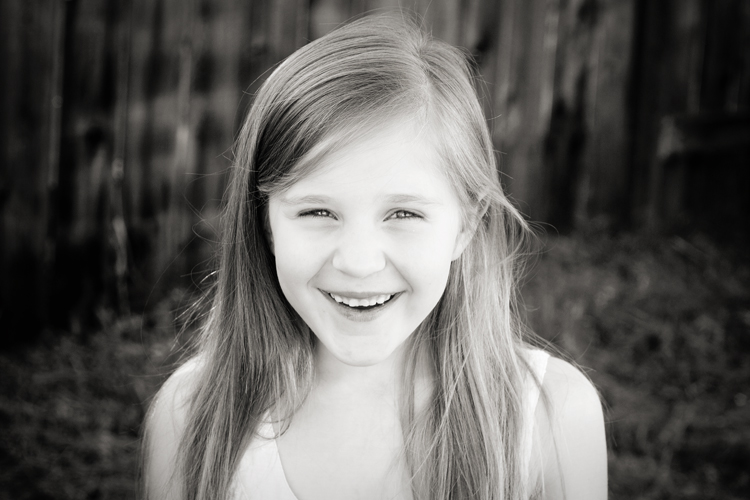
Ted Grant–an amazing Canadian photojournalist–has said, “When you photograph people in color, you photograph their clothes. But when you photograph people in black and white, you photograph their souls!” While I’ve certainly seen my fair share of color photos that beautifully capture emotion, I also relate to Grant’s words very much.

capture-emotions-4

Black and white strips the image down to the basics

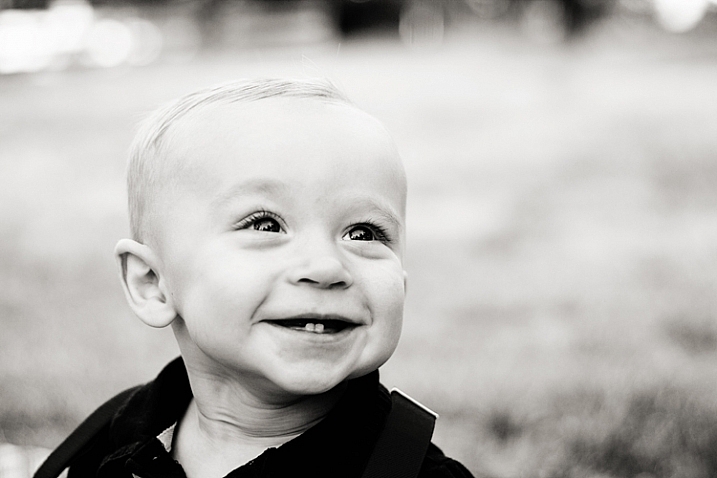
In a sense, black and white photography strips away all the extras, and forces you to think about things like contrast and emotion, in a way that isn’t always be as crucial when you’re shooting in color. Whether intentional or not, it can be easy to use color and props as a sort of crutch in photography. I love a photo of a toddler licking a giant multi-colored lollipop just as much as the next person. But, the tendency with images like that can sometimes be for the color and the whimsy to carry the image, rather than the emotion.

Starting in black and white photography taught me that it’s not enough to have perfectly matched clothing, or a brightly colored chandelier hanging from a tree in the woods. It’s not enough to stand someone in front of a beautiful backdrop and tell them to smile. Compelling photographs do more than that. They give you a glimpse into what the person being photographed is feeling right at that moment.

capture-emotions-6

Black and white only challenge

If you’ve never had experience shooting exclusively in black and white, I highly suggest giving it a try. Most digital cameras have the capacity to shoot black and white right in camera (consult your manual). It’s a really great exercise to occasionally force yourself to do so. Grab a friend, and go shoot 50 or 100 frames in black and white.

I do recommend shooting black and white right in camera for this exercise, because it completely eliminates color from the equation. It’s a quick and easy way to see which images are successful in black and white, and which are not. It also helps train your brain to “think” in black and white. Once you’ve completed this quick exercise, take a look at your images. Are your black and white images compelling? If not, one of the reasons may be that the images are lacking emotion.

capture-emotions-1

Getting emotion into your images

As a photographer, there’s no exact science to capturing emotion in your photos. Some children will be naturally expressive, and some couples will be naturally affectionate. Other people may need a bit of help getting comfortable enough to express themselves in front of the camera. As always, building rapport with the people that you’re photographing, before and during the session, will go a long way in helping them relax and feel comfortable.

capture-emotions-8

Your subjects will mirror you

In my experience, the key to capturing emotion, is helping your subjects to actually feel the same emotion that you’re trying to capture during the session. One simple and effective tip is to remember that humans naturally mimic the emotions and attitudes of those around them. As the photographer, if you come into the session laughing and joking around, it’s much more likely that the people you’re photographing will start to laugh and joke around as well.

So, keep a book of silly knock knock jokes tucked into your camera bag, or come prepared to tell a funny story that happened to you recently. If you’re having a bad day, make the conscious decision to leave it behind for the duration of your session, and even fake it until you make it if you must. It really does make a difference!

Couples

capture-emotions-3

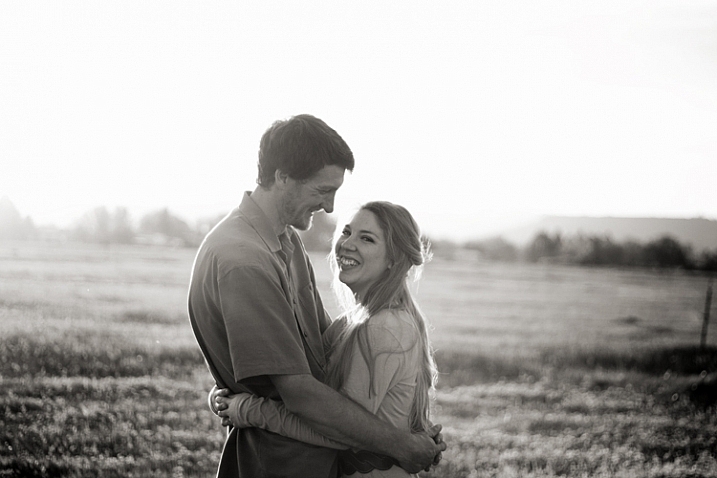
When photographing couples, asking them to tell you a story about how they met, got engaged, or the best part of their wedding, are all topics that can help cultivate real emotions during your session. Ask the question, then wait and watch carefully, with camera in hand, for interaction between the couple during the story.

Kids

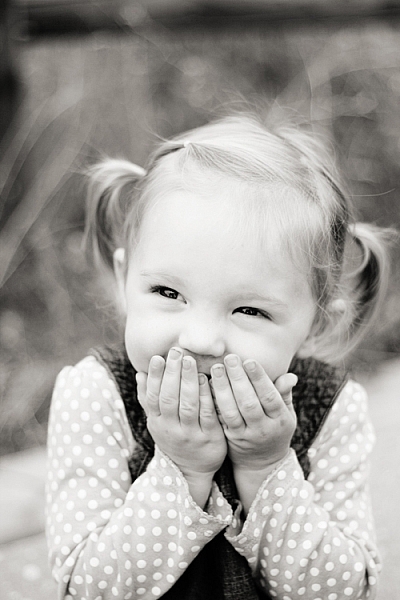
For kids, try asking them about their favorite movie, TV show, or the best part of their week so far. If you don’t have children around the same age as the ones you’re photographing, it’s a good idea to ask the parents in advance about the sorts of books, songs, TV shows, movies, and/or sports their children enjoy so that you can prepare thoughtful questions that will allow them to talk about the things they love.

capture-emotion-9 capture-emotions-7

Get them laughing

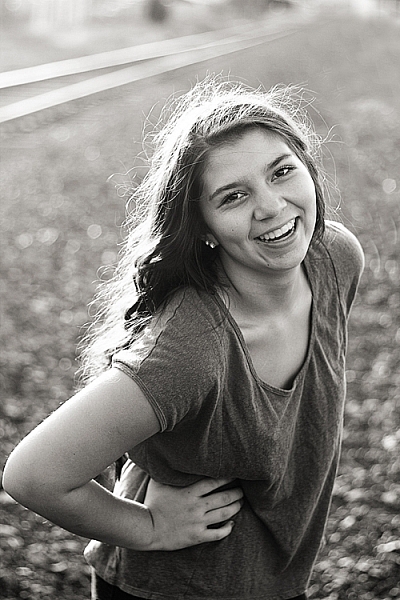
As funny as it sounds, another method that’s really effective in making people laugh is to actually ask them to fake laugh. Ask them to be silly and to give you their biggest and deepest Santa Claus chuckle. It will feel weird and awkward, but the end result is usually that everyone around starts genuinely laughing, and that’s the moment you’re waiting for as the photographer.

During family sessions, getting mom or dad to play along and be over-the-top silly, almost always helps elicit laughs from the kids. It’s a good idea to tell the parents in advance that you’re going to ask them to be silly and ridiculous, but that if they just roll with it, the kids will smile and laugh in a natural way. They won’t if you just say, “look here and smile!”

capture-emotions-5

Summary

I no longer shoot exclusively in black and white, nor am I arguing that black and white photography is the only way to capture emotional images. Ones that capture real emotions will be compelling whether they are processed in color or in black and white. However, upon reflecting on my personal journey in photography, I can clearly see that beginning with black and white photography forced me to prioritize emotion in my images over color, props, and styling, in a way that has strengthened my photography overall.

Do you struggle with capturing genuine emotion in your images, or does it come easily for you? Do you have any other tips about capturing emotion to share? Please share in the comments below.

googletag.cmd.push(function() {
tablet_slots.push( googletag.defineSlot( “/1005424/_dPSv4_tab-all-article-bottom_(300×250)”, [300, 250], “pb-ad-78623” ).addService( googletag.pubads() ) ); } );

googletag.cmd.push(function() {
mobile_slots.push( googletag.defineSlot( “/1005424/_dPSv4_mob-all-article-bottom_(300×250)”, [300, 250], “pb-ad-78158” ).addService( googletag.pubads() ) ); } );

The post How Black and White Photography Taught Me to Capture Emotion by Meredith Clark appeared first on Digital Photography School.


Digital Photography School

 
Comments Off on How Black and White Photography Taught Me to Capture Emotion

Posted in Photography


Lenovo announces Hasselblad True Zoom camera module for Moto Z smartphones

04 Sep

Lenovo offers a range of detachable smartphone accessory modules, called Moto Mods, for its Moto Z series smartphones. So far a power pack, a speaker and a mini-projector have been available. Now the company has launched a new addition at IFA in Berlin that is especially interesting to mobile photographers: the Hasselblad True Zoom.

As its name suggests the True Zoom camera module was developed in cooperation with Swedish camera maker Hasselblad, and with its 10x zoom lens and Xenon flash it converts any Moto Z device into a connected travel zoom camera. Like the other Moto Mods, the True Zoom is attached to the smartphone via magnetic force and can be used instantly – no need to restart the device or pair the phone. Communication between the devices takes place via a range of electronic contact pins.

The True Zoom’s body is made from a plastic material. Inside, images are captured on a 12MP 1/2.3″ CMOS sensor with a 1.55 um pixel size. The zoom lens offers an equivalent range of 25-250mm and a F3.5-6.5 aperture. Optical image stabilization is on board as well, and the module can record 1080p Full-HD video.

Currently compatible smartphone models are the Lenovo Moto Z, Moto Z Force and the just-announced Moto Z Play mid-range phone that comes with a 16MP camera, 5.5″ 1080p AMOLED display and a Qualcomm Snapdragon 625 octa-core processor. We have had the chance to test the Hasselblad True Zoom on a Moto Z Force for a few days – you can read about our experience with the module in our hands-on review.

The Hasselblad True Zoom will ship globally in September and will cost $ 299/€299, or $ 249.99 from Verizon in the US.

Lenovo’s Moto Mod range includes a power pack, a speaker, a projector and now the new Hasselblad True Zoom camera module.

Hasselblad True Zoom Moto Mod key specifications:

  • 12MP 1/2.3″ CMOS sensor with 
  • 25-250mm equivalent 10x zoom lens
  • 12MP
  • F3.5-6.5 aperture
  • ISO 100 to 3200
  • 1080p video
  • 2 built-in microphones
  • Physical two-stage shutter button and zoom lever
  • Xenon flash
  • 145g

Articles: Digital Photography Review (dpreview.com)

 
Comments Off on Lenovo announces Hasselblad True Zoom camera module for Moto Z smartphones

Posted in Uncategorized


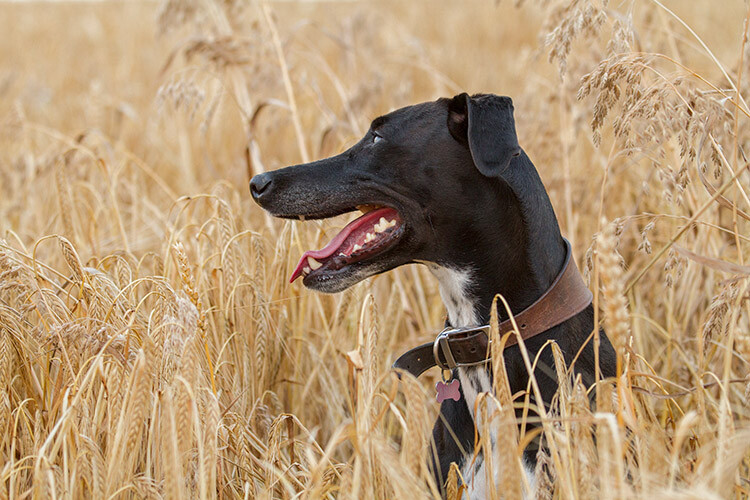
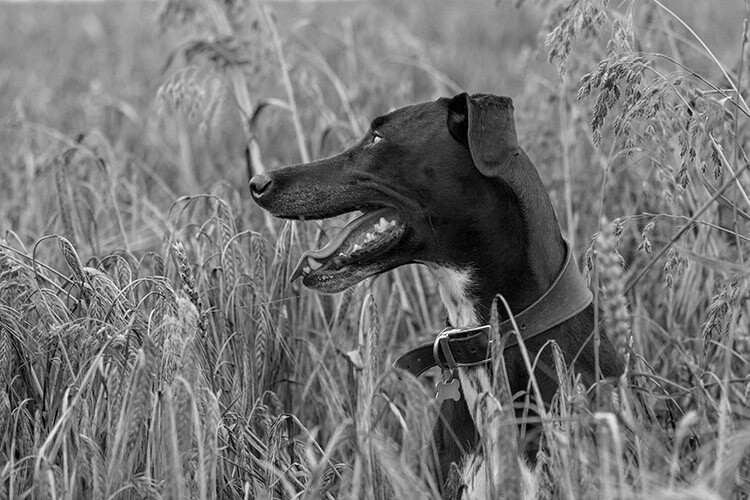
A Guide to Black and White Conversion in Photoshop

04 Sep

Black and white photography is as popular as ever. If you’re one of the many photographers who adore it, you know why that is the case. On one hand, black and white conversion removes the distraction of color from an image. It can help you to create evocative and dramatic images, that concentrate on the forms and shapes of a subject as a whole. On another level, black and white photographs can be reminiscent of a time gone by, one of film canisters and darkroom chemicals.

With digital photography, it doesn’t matter whether you come to black and white from a stance of nostalgia, or approach it as a tool for visual storytelling. The tools to create it are the same either way. These tools, however, are many, and can be confusing if you’re approaching Photoshop (or any post-processing tool) for the first time.
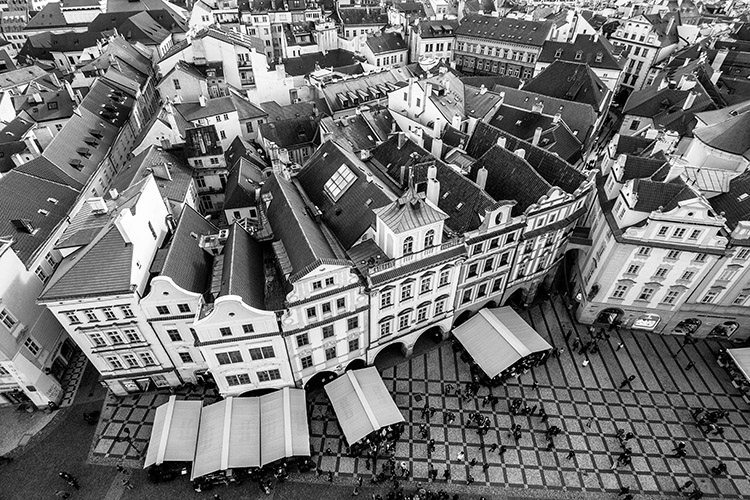
Black and White Conversion in Photoshop image of a city

Photoshop conversions

Photoshop alone has many methods to create black and white conversions. Some of them are quite useless, and should be avoided. Others are very powerful, yet won’t work well in every instance. However, it is important to know and understand as many of the tools as possible. No two images are alike, and every image requires its own treatment. While one tool may provide perfect results, another image from the same shoot might require the use of an entirely different tool for the best results.

In this tutorial, we’ll work through nine different methods for black and white conversions in Photoshop. By following along with your own images, you will be able to quickly develop an understanding of the many tools available. Some of these methods work at the press of a button. While others take a few minutes, they offer absolute control over every aspect of the tonality of your photographs.

The basic techniques

The first four black and white conversion techniques are very basic, and will not lead to good results in most instances. I can already hear you asking; “If they’re so bad, why are they in this article?” They are here so that you will be aware of them, and know to avoid them. Also, some of them (like the Grayscale method) are among the few clearly labeled in Photoshop as black and white conversions. By actively knowing about them, you will be able to save time later when you come across a tool you previously weren’t familiar with.

This isn’t to say that they don’t have their uses. Often these techniques can be used as part of a much larger retouching workflow. But, for straight black and white conversions, these methods will leave you with muddy tones and lacklustre results.

It’s important to note, that this article concentrates on the black and white conversion process only. With the exception of the Gradient Map tool, you will still need to consider using some other post-processing techniques (blemish removal, contrast adjustments) on your images, for the best results.

1) Grayscale mode
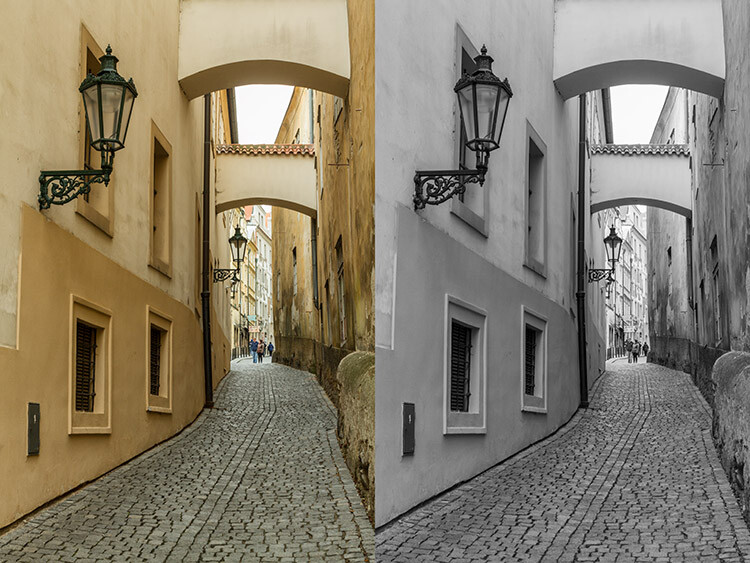
black-and-white-conversions-in-photoshop-greyscale-example

Converting your images to Grayscale is fast, but the cost is a loss of control, and a lot of file information.

This method is as simple as it gets. In Photoshop, go to your toolbar and click Image > Mode > Grayscale. When prompted to discard your color information, click discard.
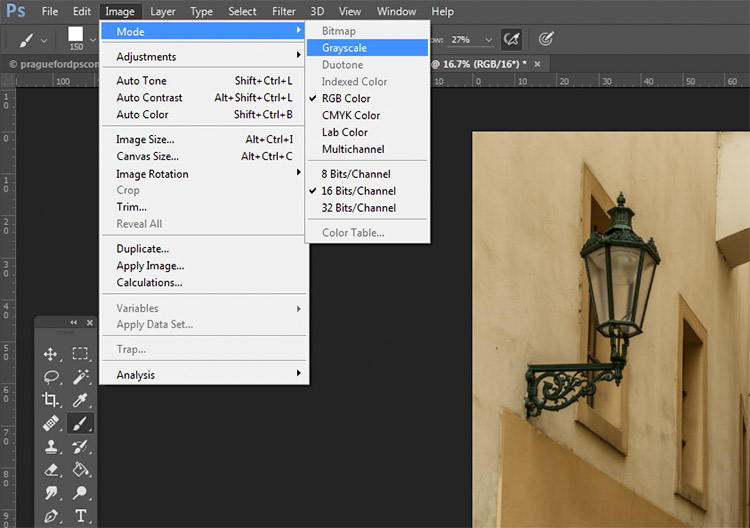
black-and-white-conversions-in-photoshop-greyscale-method

Out of all of the options, this is the one to avoid at all costs. The act of discarding all of the color information from your images is a destructive technique. That makes it difficult, if not impossible, to make changes later if you decide you don’t like the output. Also, as you’ll see in later techniques, that discarded color information is what gives you the most control over the tonality in your images.
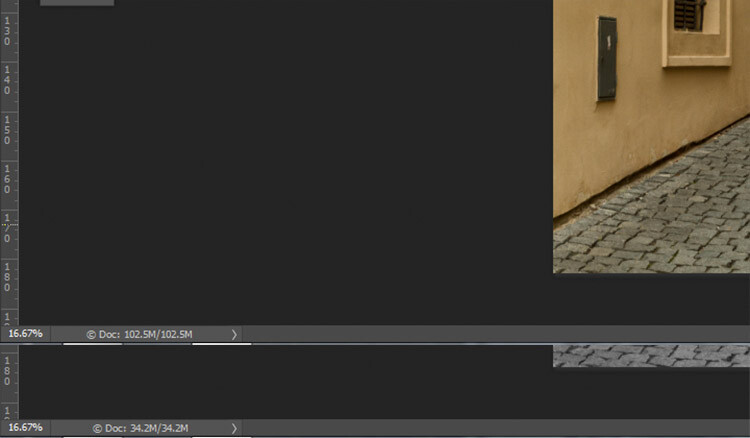
black-and-white-conversions-in-photoshop-greyscale-filesizes

Here, you can see how much data was lost when converted to Grayscale. The converted image (bottom) has nearly 2/3 less data than the original image (top).

The best advice for this conversion method is to try it, acknowledge it, and then avoid it at all costs.

2) Desaturate
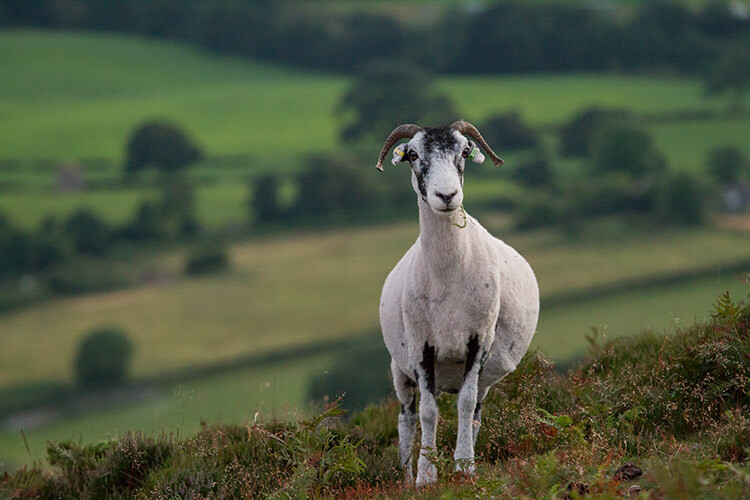
black-and-white-conversions-in-photoshop-desaturate-color-example

Original Image

black-and-white-conversions-in-photoshop-desaturate-bw-example

Converted to black and white using the Desaturate command.

Unlike the Grayscale method, using the Desaturate command does not discard the color information from your image. It is, however, still a destructive technique, as it does not allow you to alter or control any aspects of the conversion once it’s made.

To Desaturate your image, go to your toolbar in Photoshop and choose Image > Adjustments > Desaturate
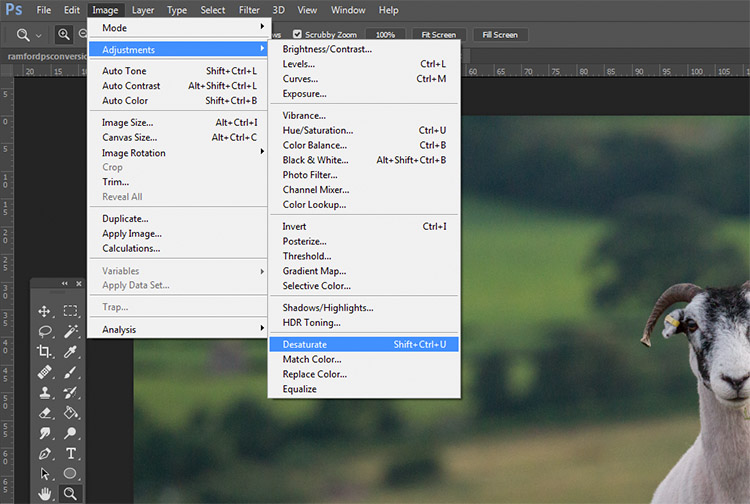
black-and-white-conversions-in-photoshop-desaturate-method

Once again, as a destructive technique, I encourage you to avoid this tool whenever possible.

3) Hue/ Saturation layer
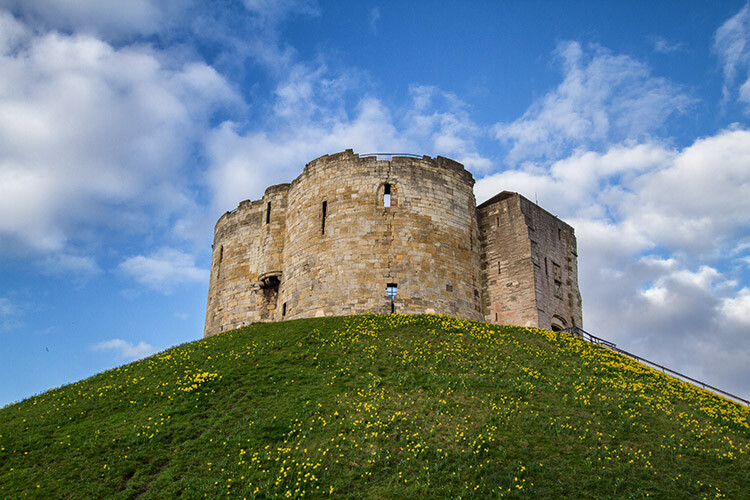
black-and-white-conversions-in-photoshop-huesaturation-color-example

Original image

black-and-white-conversions-in-photoshop-huesaturation-bw-example

Converted to black and white using a Hue/Saturation adjustment layer.

By using a Hue/Saturation adjustment layer, you will get the exact same results as the Desaturate method, with one exception. Because this is an adjustment layer, it can be changed or discarded at any time, without any alteration to your original image, making this a non-destructive technique.

To convert your image with this method, find the Create new fill or adjustment layer button (circle that is half dark, half white) at the bottom of the Layers Palette and choose Hue/Saturation (you can also select it from the Adjustments panel if you have it visible).
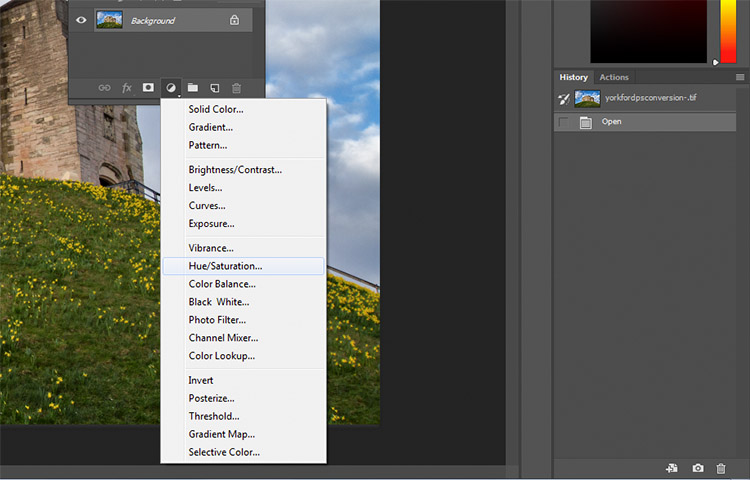
black-and-white-conversions-in-photoshop-huesaturation-method1

In the layer properties tab that should have opened, find the Saturation slider and move it across to -100.
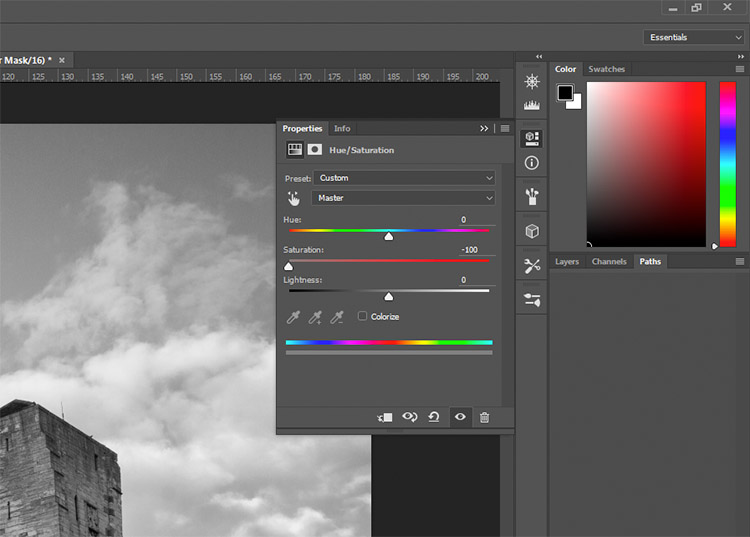
black-and-white-conversions-in-photoshop-huesaturation-method2

This is still not an ideal method, as it offers no control in the actual conversion process.

4) Solid black or white layer
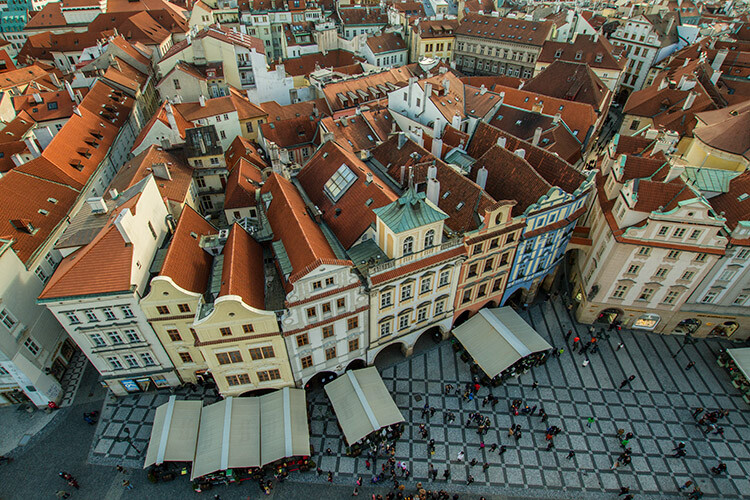
black-and-white-conversions-in-photoshop-blacklayer-color-example

Original image

black-and-white-conversions-in-photoshop-blacklayer-bw-example

Converted to black and white using a solid black layer, set to the Color blending mode.

Another easy method of converting your image to black and white is to create a new layer filled with black or white, then set the blending mode to Color. Again, this technique offers no control over the actual conversion, so it’s best avoided.

To do this, create a new empty layer by pressing the New Layer button on the layer palette (ctrl/cmd+shift+N).
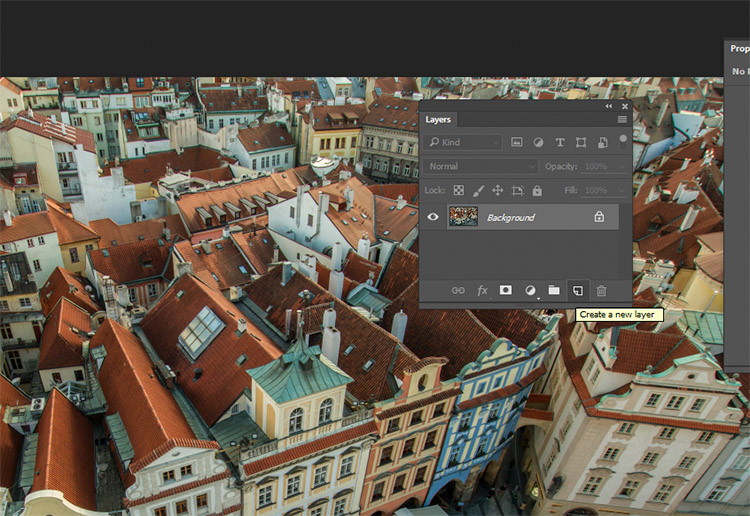
black-and-white-conversions-in-photoshop-blacklayer-newlayer

With the empty layer selected go to Edit>Fill (shift+f5) and choose either black or white. Your image should now be filled with the color you selected.
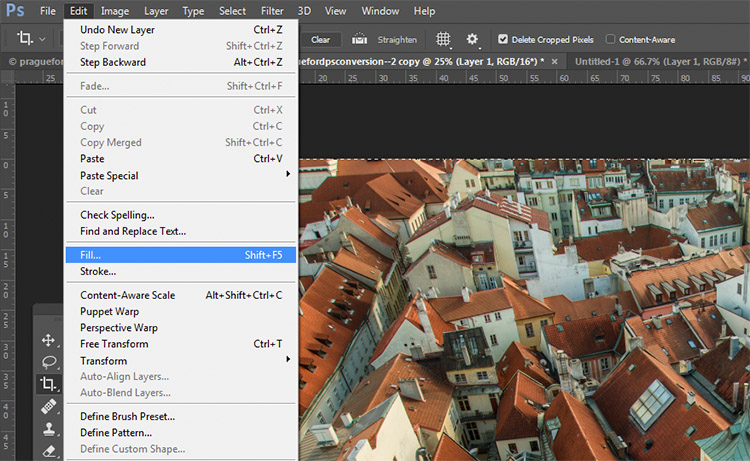
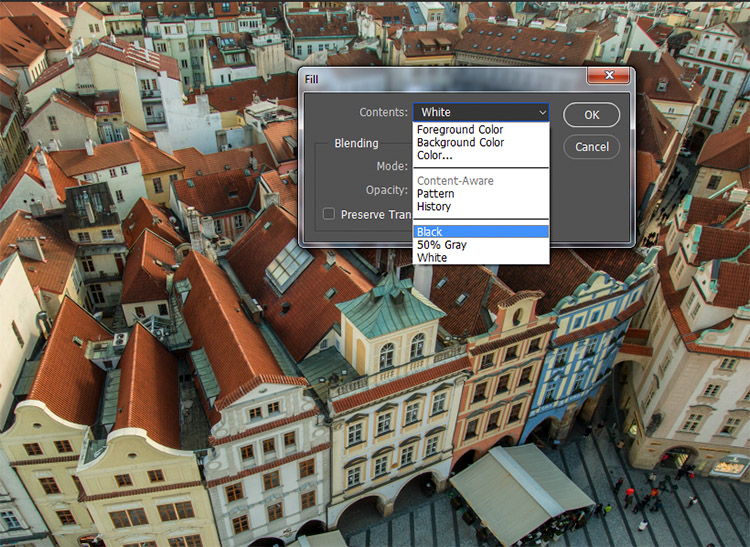
black-and-white-conversions-in-photoshop-blacklayer-fillblack-and-white-conversions-in-photoshop-blacklayer-fill2

On the layer palette, find the drop down menu for the blending modes and choose color.
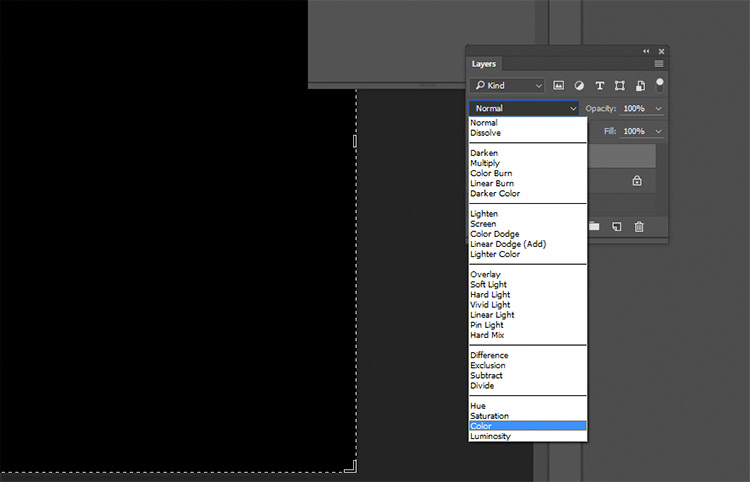
black-and-white-conversions-in-photoshop-blacklayer-blending

Intermediate Techniques

The previous four techniques are very basic, and offer you very little control, if any, over the actual conversion of your image to black and white. Now that you’re aware of them, you know what to avoid if you want the best results. The following techniques offer you a range of control over your black and white conversions, however, they take a bit more effort to get right.

5) Channels
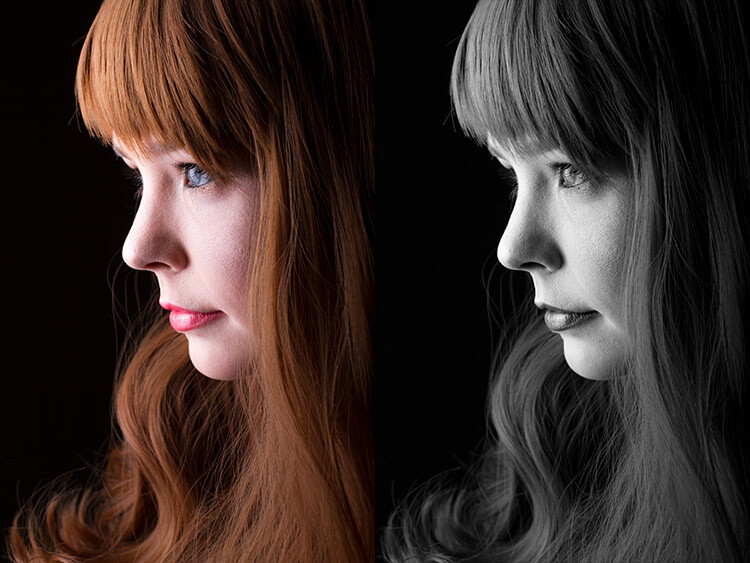
black-and-white-conversions-in-photoshop-channels-example

Left: Original image
Right: Converted to black and white by using Channels

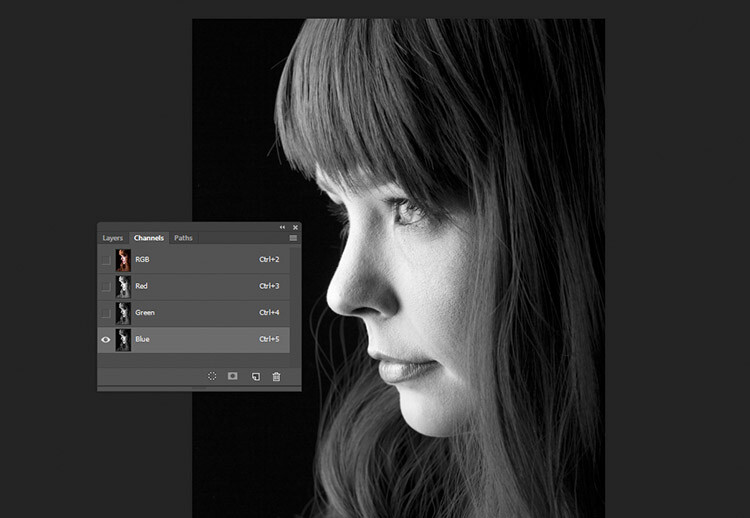
Out of all of the techniques presented in this tutorial, this one may be the least obvious. To start, you want to make sure that you can see the Channels tab in your layer palette. If it’s not visible, go to Window in the top menu bar and make sure Channels is ticked.
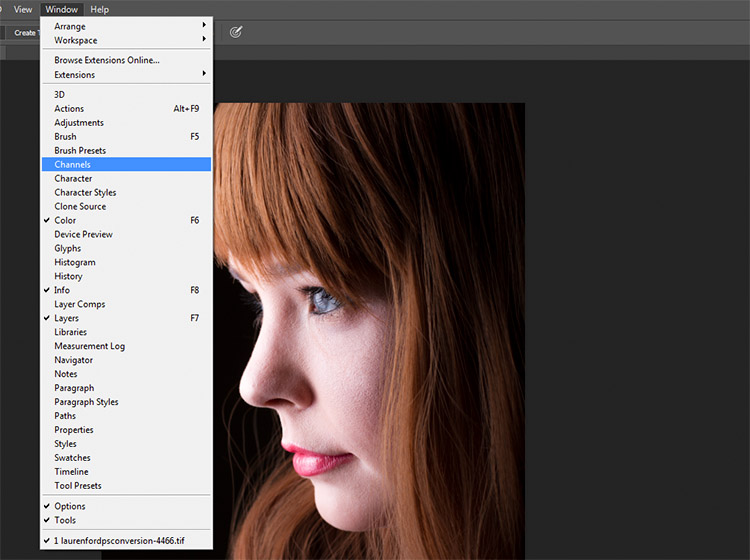
black-and-white-conversions-in-photoshop-channels-window

This is a destructive technique, so please make sure you are working on a copy of your original image in case it goes wrong. If you’re unsure, go to Image>Duplicate to have Photoshop create a second instance of your file to work with.

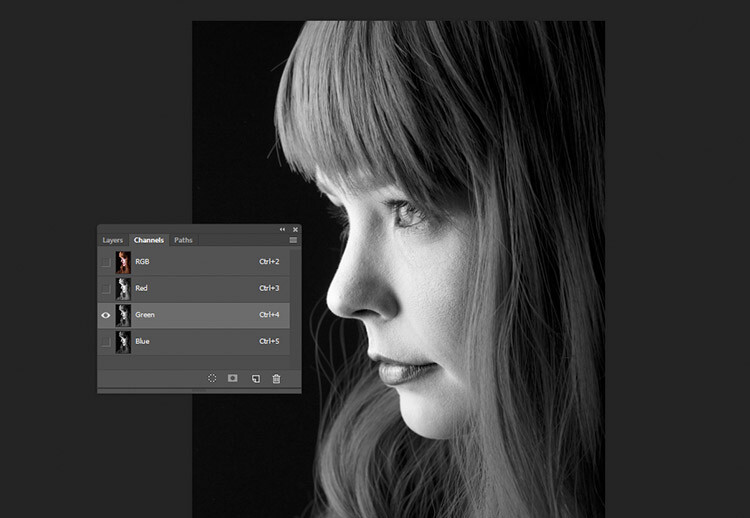
With the Channels tab selected, you should see four sections (they appear as layers would in the Layer Palette) labeled RGB, Red, Green and Blue. If you select the Red, Green and Blue Channels in turn, you will see variations of your image in black and white as it relates to the color information in your image.
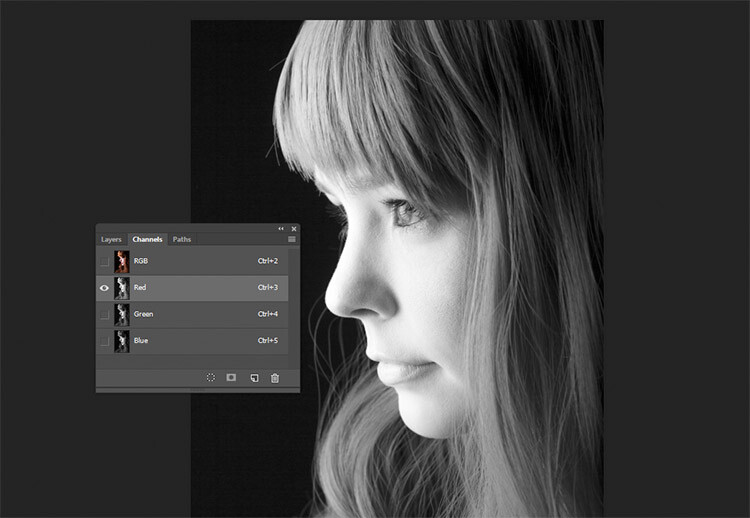
black-and-white-conversions-in-photoshop-channels-redchannel

Red Channel

black-and-white-conversions-in-photoshop-channels-grenchannel

Green Channel

black-and-white-conversions-in-photoshop-channels-bluechannel

Blue Channel

To use this to convert your image, choose the channel that has the most pleasing effect on your image. This will vary depending on your subject, and the range of colors in your photos. Once you’ve made your choice, make sure you click on the channel you wish to work with. Now, on the toolbar, choose Select>All (ctrl+A or cmd+A). With the selection active go to Edit>Copy (ctrl/cmd+C)

The next step is to paste the selected channel into the other two. In this case, Green is copied and pasted into the Blue and Red channels. One at a time, select the other two channels and go to Edit>Paste (ctrl/cmd+V).

Once that is done, click on the RGB channel and you should see that your image has been converted to black and white. While this technique does not offer complete control over the conversion, it can still be used to great effect.
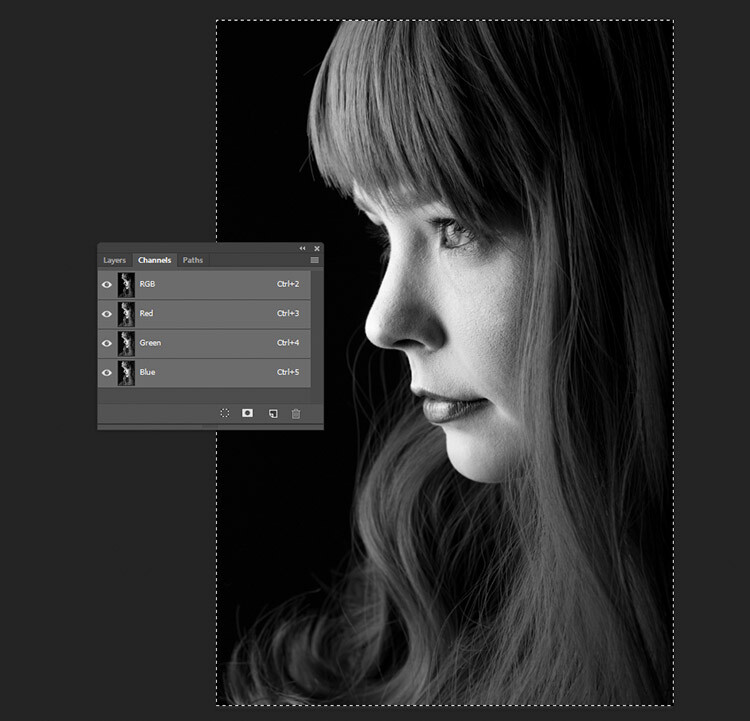
black-and-white-conversions-in-photoshop-channels-pasted

The final result with the Green channel, pasted into the Red and Blue channels.

6) Channel Mixer adjustment layer
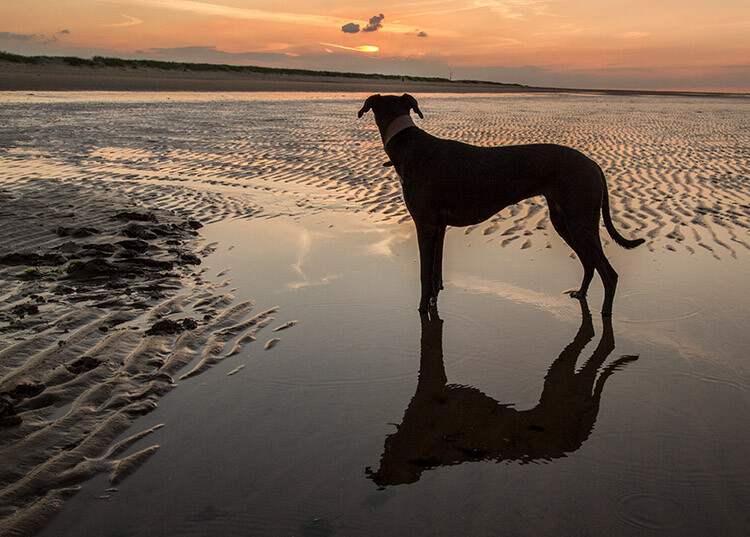
black-and-white-conversions-in-photoshop-channelmixer-colorexample

Original Image

black-and-white-conversions-in-photoshop-channelmixer-bwexample

Converted to black and white using a Channel Mixer adjustment layer.

For a bit more control, you can use a Channel Mixer adjustment layer, as a non-destructive technique. On the Layer Palette, find the Create new fill or adjustment layer button and choose Channel Mixer (or select it from the Adjustments panel).
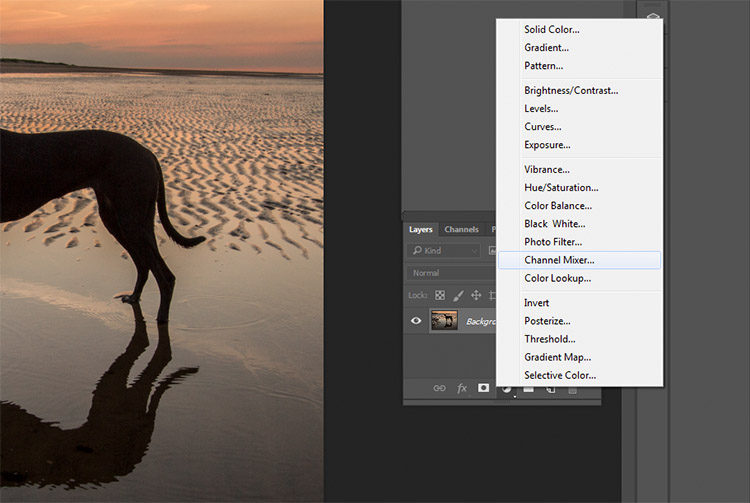
black-and-white-conversions-in-photoshop-channelmixer-layer

On the properties tab for the Channel Mixer layer, click the box that says Monochrome.

To fine tune your image, you can adjust the red, blue and green sliders until you get the effect you desire. These sliders are not very forgiving, so try to keep the adjustments small to avoid destroying the highlights and shadows in your image.
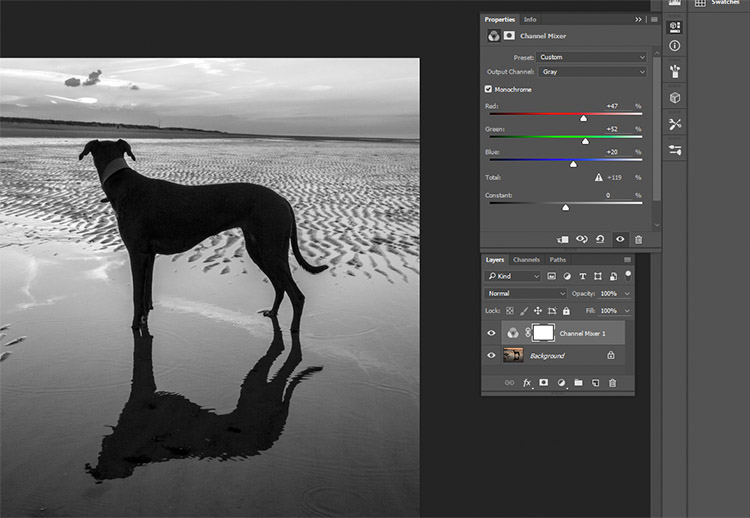
black-and-white-conversions-in-photoshop-channelmixer-layerproperties

7) Black and White adjustment layer

black-and-white-conversions-in-photoshop-blackandwhitelayer-color-example

Original image

black-and-white-conversions-in-photoshop-blackandwhitelayer-bw-example

Converted to black and white using a Black and White adjustment layer.

Okay, this one’s pretty obvious in function. It’s also pretty powerful, but it’s not always the best choice. However, it is a good starting point in many cases. As such, this technique will likely become your go-to black and white conversion method, especially if you’re just starting out.

To start, find the Create new fill or adjustment layer on the Layer Palette and choose Black and White (or select it on the Adjustments panel).
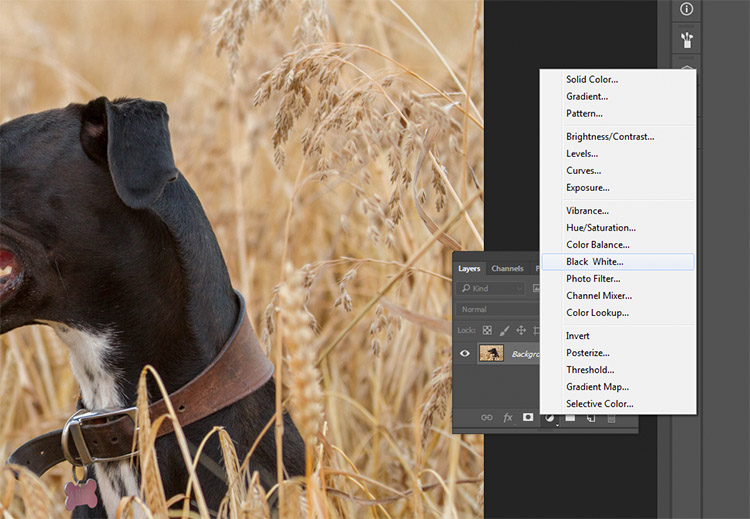
black-and-white-conversions-in-photoshop-blackandwhitelayer-method

Your image will be converted to black and white, and in the properties tab, you will now see an array of color sliders. Moving these sliders to the right will brighten any tones associated with that color. Moving them to the left will darken those tones. The idea behind these sliders is to emulate the effect that colored lens filters used to have on black and white film.
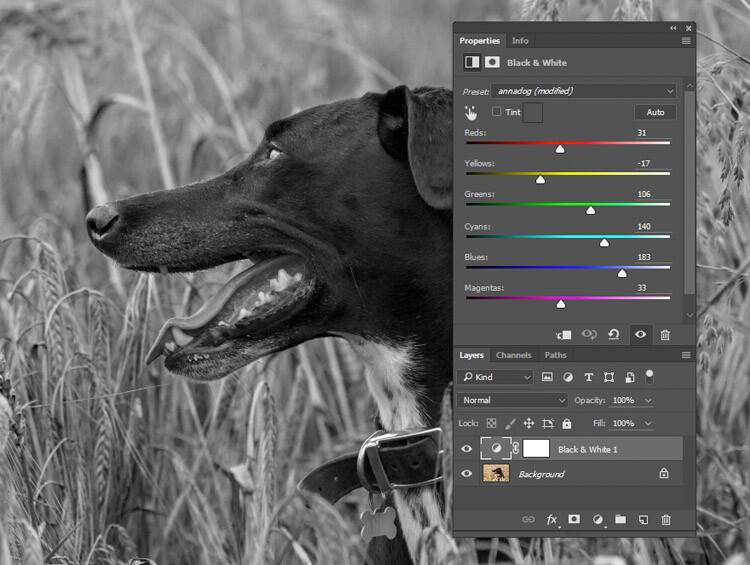
black-and-white-conversions-in-photoshop-blackandwhitelayer-sliders

Moving the Reds and Yellows slider to the left brings out the detail in the grass by darkening the tones associated with those colors.

For portraits, the most noticeable changes will come from moving the red and yellow sliders. For landscapes, the blue and green sliders will be more useful.

As with any adjustment layer, if you change your mind later, you only need to return to the properties tab and alter the sliders to your heart’s content. This is non-destructive editing.

8) Gradient Map
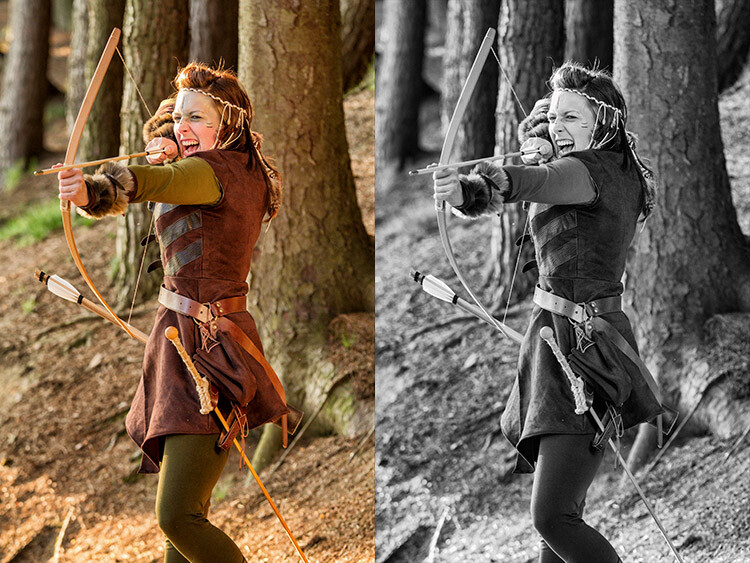
black-and-white-conversions-in-photoshop-gradientmap-example

Left: Original Image
Right: Converted to black and white using a Gradient Map adjustment layer.

The Gradient Map is easily the most powerful of all the black and white conversion tools. It allows you to control every aspect of the tonality of your image. Because of this control, it’s also the most complicated and hardest to use. It is worth knowing though, and a bit of practice will make it an invaluable tool on your belt.

Make sure your foreground and background colours are set to black and white. You can do this by pressing D on your keyboard. Now, find the Create new fill or adjustment layer on the Layer Palette and choose Gradient Map.
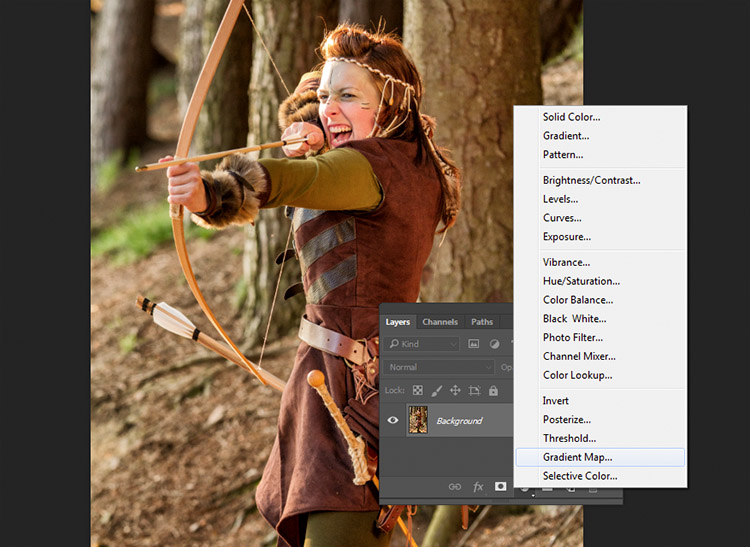
black-and-white-conversions-in-photoshop-gradientmap-layercreation

Make sure the gradient that is selected is black to white. Your image is now monochromatic, and you may notice that this technique gives it higher contrast to begin with, than the other methods.
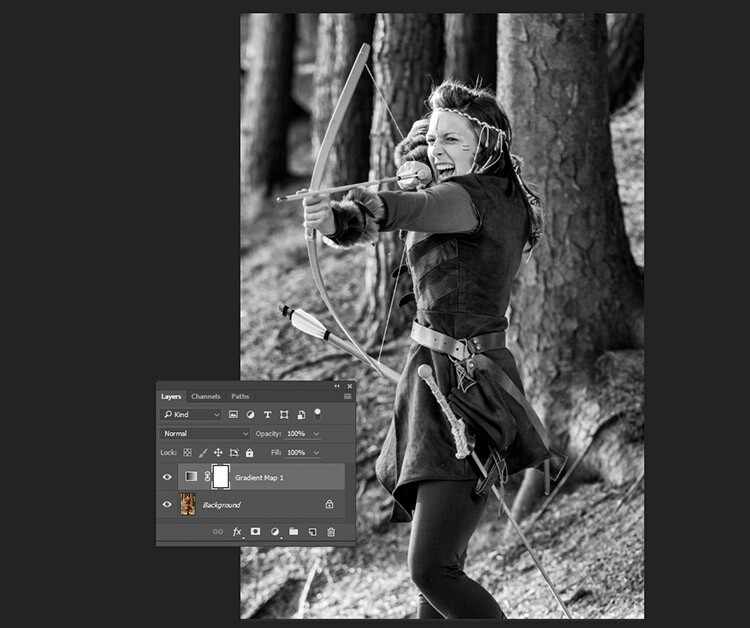
black-and-white-conversions-in-photoshop-gradientmap-basigradient-example

This is an example of how an image might look with a Gradient Map layer, and no further adjustments.

Note: If your image looks like a negative after making the adjustment layer, just click the Reverse box in the layer’s properties tab.
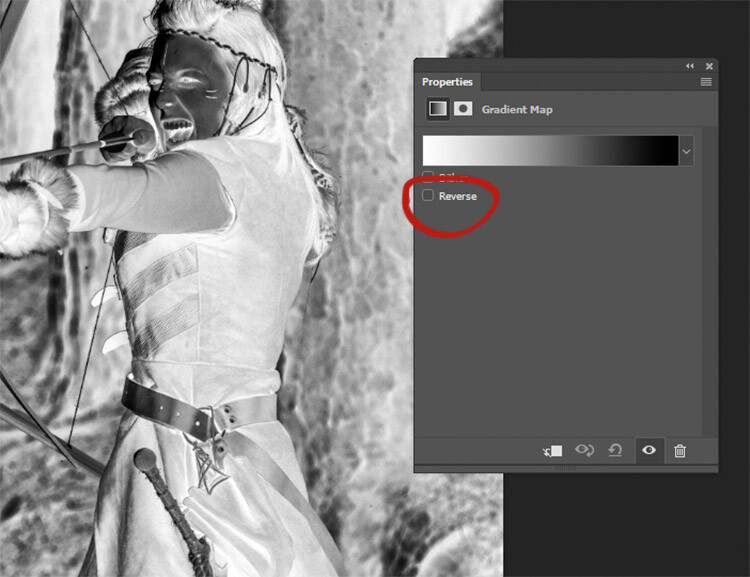
black-and-white-conversions-in-photoshop-gradientmap-reverse

If your image looks like a negative, it just means your foreground and background colors are backwards. Just click the Reverse box in the Gradient Map’s properties tab.

If you forgot to reset your foreground and background colors, your image probably looks like a colored mess. Just click in the gradient in the properties tab, and choose the black and white gradient to fix this with little error.
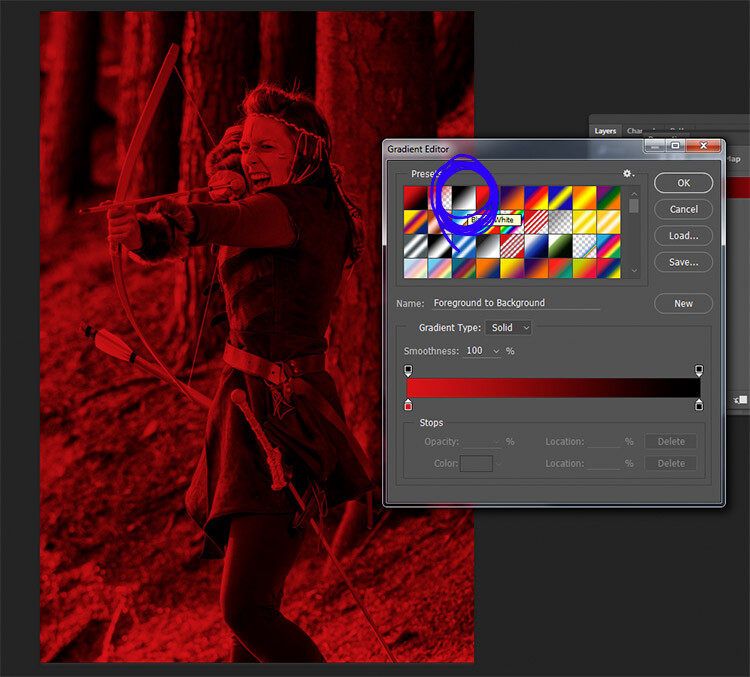
black-and-white-conversions-in-photoshop-gradientmap-colorgradient

Forgetting to reset your foreground and background colors may result in something like this image. To fix it, just choose the black and white gradient (circled in blue) in the presets section of the Gradient Editor.

At this stage, you may feel that this enough. However, the Gradient Map offers a lot more in terms of control over tonality of the image.

In the properties tab, if you double click the image of the gradient, the Gradient Editor will open. Towards the bottom of this screen, you will see a visual representation of your gradient. There are also be a set of sliders that show either black or white.

If you move the bottom sliders inward, you will increase the contrast in your image. Moving the black slider in, will deepen the shadows, while moving the white slider in will brighten the highlights (which direction those are will depend on whether you have reversed the gradient or not). This is an effective way to increase contrast in your image without leaving the conversion layer. Do watch your histogram for shadow and highlight clipping though.
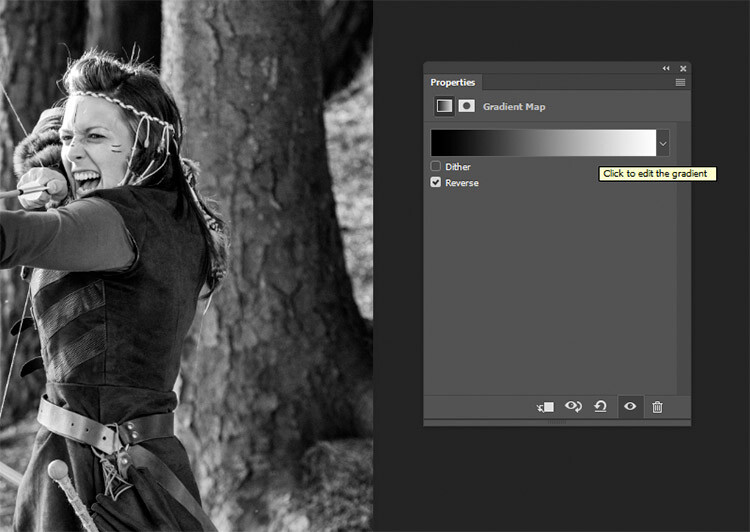
Click into the image of the gradient to enter the Gradient Editor.

Click into the image of the gradient to enter the Gradient Editor (note my gradient here is reversed)
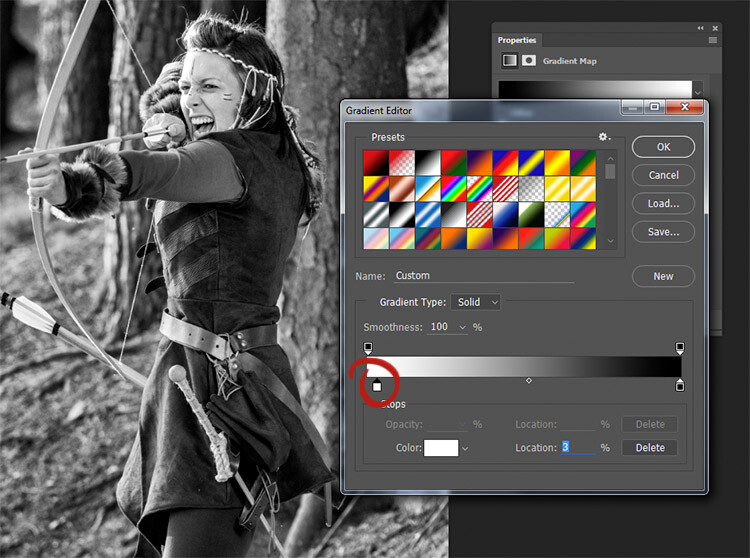
black-and-white-conversions-in-photoshop-gradientmap-whiteslide

Moving the white slider to the right (circled in red) will brighten the highlight tones in this image. Moving the lower black slider (to the left) will deepen your shadows.
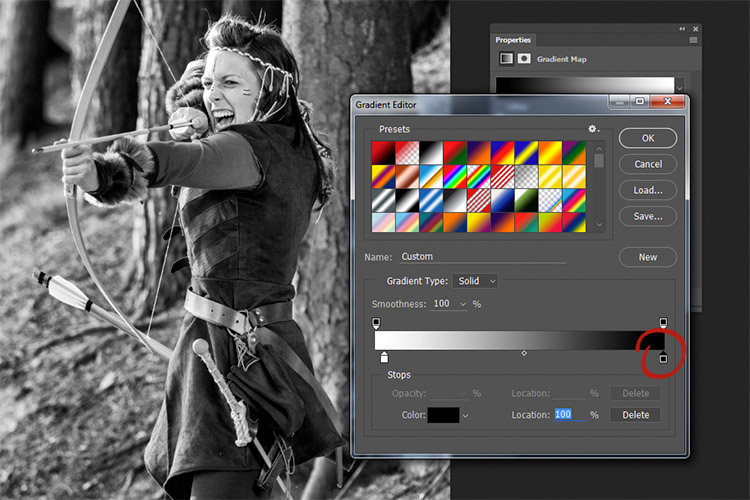
black-and-white-conversions-in-photoshop-gradientmap-clickslide

If you wanted to darken your highlights or brighten your shadows, you can change the colour of the sliders. To do this, double click on one of sliders. In this image, the dark tones are more intense than I would like, so I double-clicked the shadow slider as circled in the above image.

You should then see a Color Picker colour palette (if you don’t see red as shown below, just click the H for Hue). Click into the far left hand side of the palette, and slide the cursor up and down until you get the tone you want for your darkest shadows(or highlights if you chose them). Try to only use colours all the way to the left in the palette. Anything even a bit to the right will have a color tint to it.
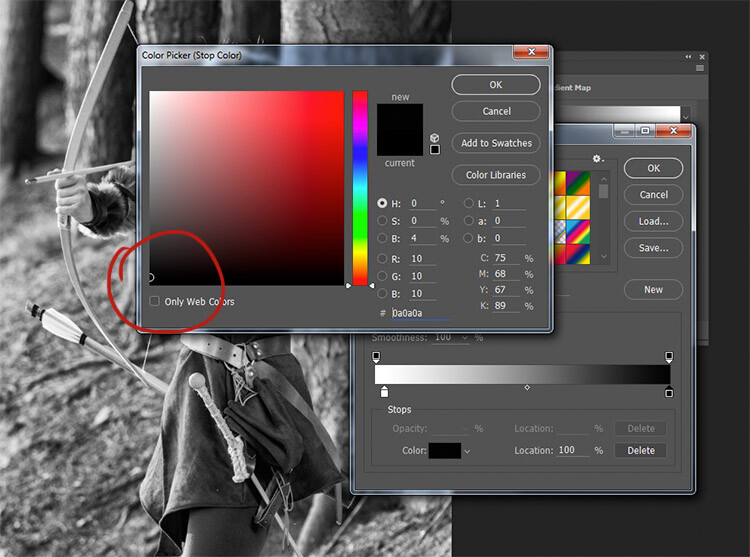
black-and-white-conversions-in-photoshop-gradientmap-blacktones

By selecting a colour just above pure black, the shadow tones in the image are brightened significantly.

To really take control over your image’s tonality, you can also control your mid-tones with the Gradient Map. Click just underneath the gradient bar and create a new slider.
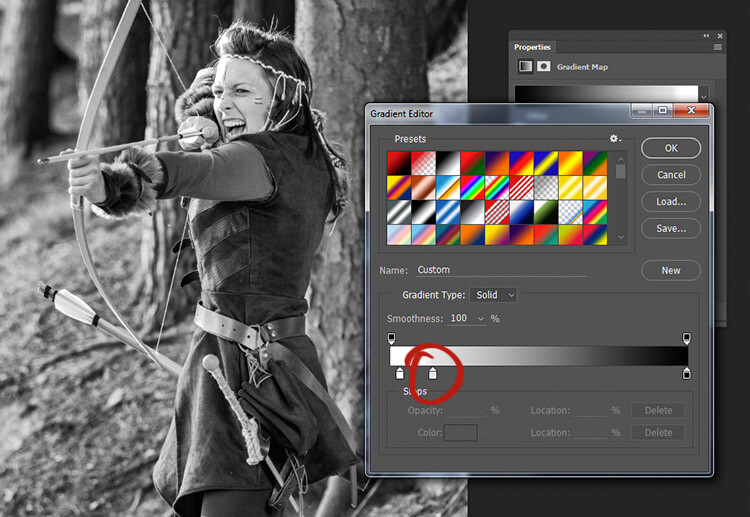
black-and-white-conversions-in-photoshop-gradientmap-newslider

To control the mid-tones in your image, create a new slider in the Gradient editor by clicking and dragging under the gradient.

Double clicking this slider will open a color palette. Choose a grey tone (light if you want to alter lighter tones, dark if you want to alter darker tones) and press okay.
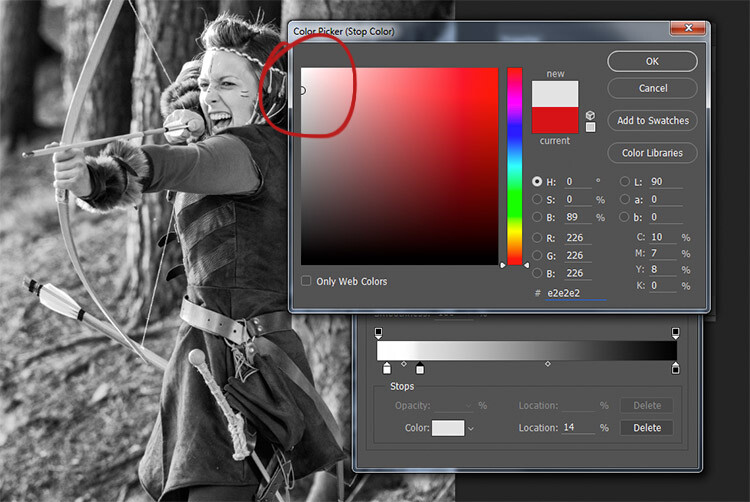
black-and-white-conversions-in-photoshop-gradientmap-newwhitetones

Choose a color relevant to the tones you want to alter in your image.

Now drag the slider to a point where it affects the image in the way you desire. If your tone is wrong, just double click the slider again and pick a new shade. You can make as many of these sliders as you need. This gives you absolute control over every tone in your image.

At first, it may be difficult to get used to this tool, but practice will make it easier. The Gradient Map is by far the most powerful black and white conversion tool for your images.

9) Adobe Camera Raw
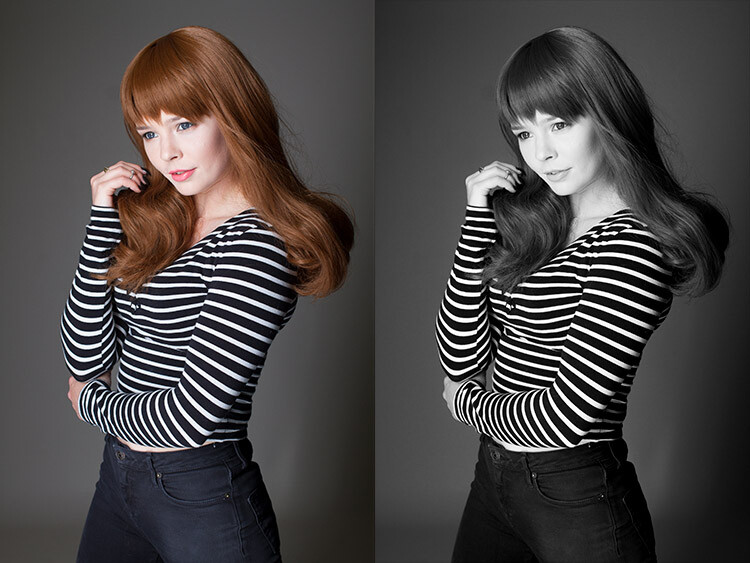
black-and-white-conversions-in-photoshop-ACR-example

Left: Original Image
Right: Converted to Black and White in Adobe Camera Raw

The last method involves converting your image to black and white at the raw processing stage. Doing this, doesn’t grant you absolute control over your tonality, but it is still quite a powerful possibility. Because you’re working with a raw file, no matter what changes you make, the file information will remain untouched, making this a completely non-destructive technique. It also grants you access to the rest of the tools available in raw processing after you’ve converted your image, giving you a more polished result without having to open your image in Photoshop.

To start, open your image in ACR (Adobe Camera Raw) by opening your raw file with Photoshop. On the toolbar to the right, you should see a row of icons. Find the one that’s called HSL/Grayscale and click it.
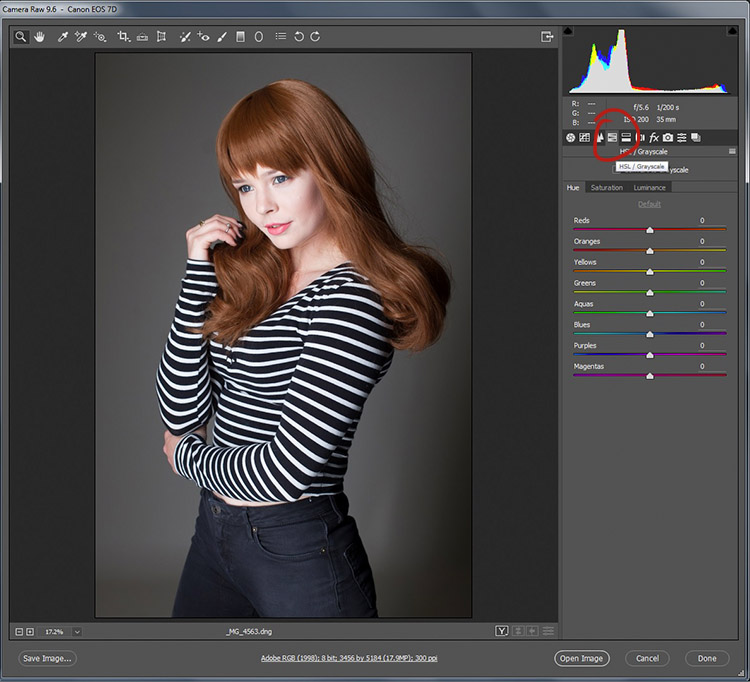
black-and-white-conversions-in-photoshop-ACR-HSL

You should see a box labeled Convert to Grayscale. Click it.
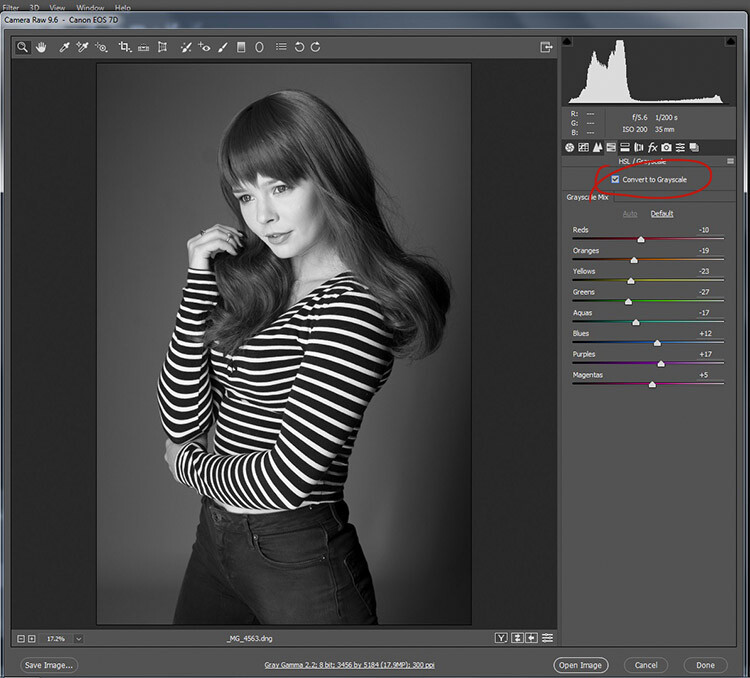
black-and-white-conversions-in-photoshop-ACR-mono

To convert your raw file to black and white in ACR, click the Convert to Grayscale box in the HSL tab.

From here, you have access to a bunch of sliders that act the same way as if you were using a Black and White adjustment layer in Photoshop. Play around with them until you’re happy with the way the tones appear in your image.
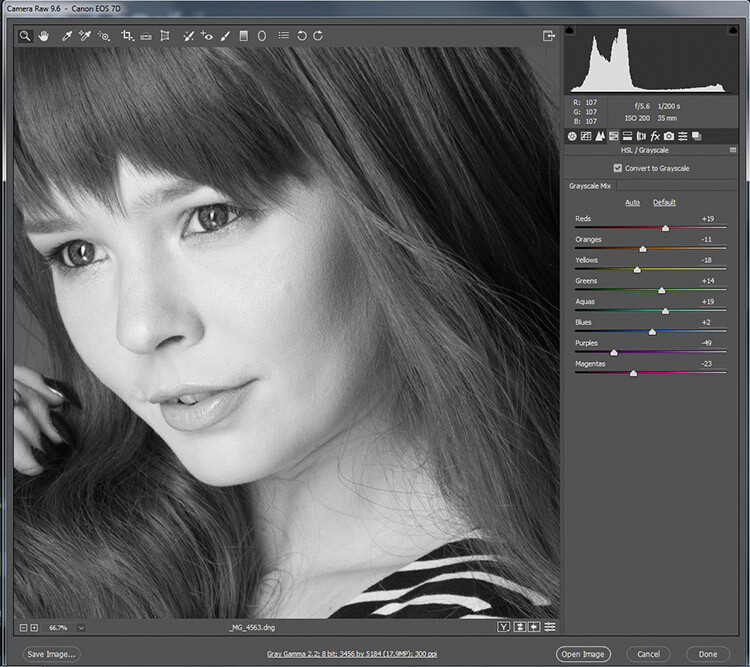
black-and-white-conversions-in-photoshop-ACR-zoom

While adjusting the sliders, zoom in to areas like skin tones, so you can watch exactly how the sliders are affecting your image.

If you go back to the Basic panel, you have access to all of the basic functionality in ACR. Here you can process your raw file as normal, and you can go back to the HSL panel to alter your sliders at any point (before you leave ACR).
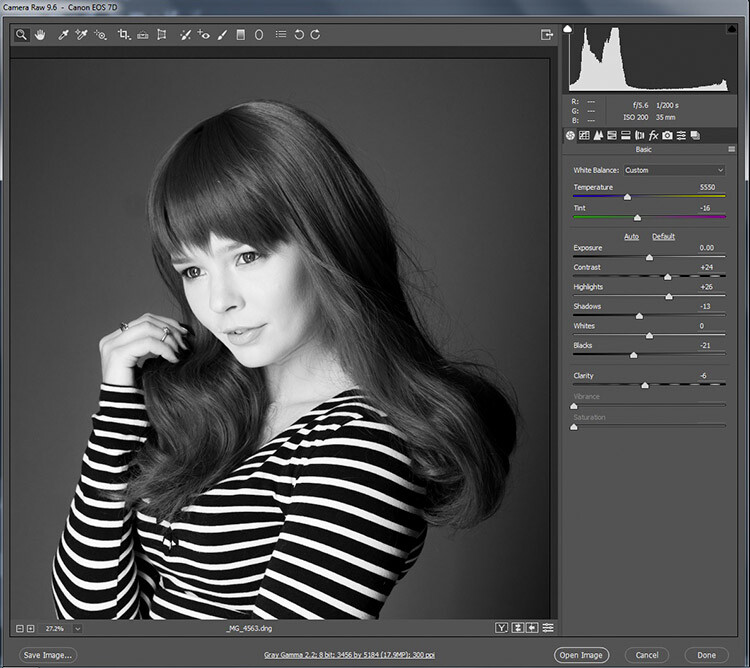
black-and-white-conversions-in-photoshop-ACR-rawcontrols

By doing your black and white conversion at the raw stage, you still have access to all of the processing tools in ACR. Take advantage of these to get a more polished result, before even entering Photoshop.

Once you’re done, export your image in your preferred format (or open it directly into Photoshop) and there you have it.

The right tool for the job

If you’ve followed each of these tutorials through, you will have gained at least a basic understanding of how to use each for black and white conversions in Photoshop. Now, ask yourself the following questions:

  • Which of these tools worked best for me?
  • Which of these tools did I enjoy using?
  • Which of these tools did I hate using?
  • Which of these tools created results that fit my tastes?

In the end, the best tool for the job is the one that gets you the results that you are looking for (even if it’s the tools that I’ve urged you to avoid). Just keep practicing, and you’ll be able to figure out which tool is best, before you even start working on your image.

How do you use Photoshop for your black and white conversions? Please share in the comments below.

googletag.cmd.push(function() {
tablet_slots.push( googletag.defineSlot( “/1005424/_dPSv4_tab-all-article-bottom_(300×250)”, [300, 250], “pb-ad-78623” ).addService( googletag.pubads() ) ); } );

googletag.cmd.push(function() {
mobile_slots.push( googletag.defineSlot( “/1005424/_dPSv4_mob-all-article-bottom_(300×250)”, [300, 250], “pb-ad-78158” ).addService( googletag.pubads() ) ); } );

The post A Guide to Black and White Conversion in Photoshop by John McIntire appeared first on Digital Photography School.


Digital Photography School

 
Comments Off on A Guide to Black and White Conversion in Photoshop

Posted in Photography


Hasselblad True Zoom Moto Mod hands-on preview

03 Sep

At IFA in Berlin, Lenovo has revealed its latest Moto Mod detachable smartphone accessory module: The Hasselblad True Zoom. It’s a camera module with a 10x zoom lens, physical shutter button, zoom lever and a Xenon flash. Like previous Moto Mods it attaches directly to a compatible phone – currently the Moto Z, Moto Z Force and also brand new Moto Z Play will work – magnetically and via a series of contacts on the back of the device. It offers the following specifications:

  • 12MP 1/2.3″ CMOS sensor with 1.55 um pixel size
  • 25-250mm equivalent 10x zoom lens
  • 12MP
  • F3.5-6.5 aperture
  • ISO 100 to 3200
  • 1080p video 
  • 2 built-in microphones 
  • Physical two-stage shutter button and zoom lever
  • Xenon flash
  • 145g
  • Available globally in September for $ 299/€299

We have had the chance to test a pre-production unit, attached to a Lenovo Moto Z Force, as well as with the new Z Play, for a few days. Read on to find out how we got on.

Operations and ergonomics

The docking process is extremely simple and quick. The Hasselblad True Zoom is literally ‘sucked’ in place on the back on the smartphone by magnetic force and usable instantly, without the need to restart the device. The process is much quicker and easier than, for example, attaching the LG G5 camera grip, which requires removal of the battery and a restart. It’s also easier than pairing the Sony QX or Kodak Wi-Fi camera modules. 

Both smartphone and camera module come with electronic connection pins. Once the two devices get close the camera clips into place by magnetic force.

The module body is made from a solid-feeling plastic material and the rubberized grip makes it comfortable to hold. In terms of overall dimensions, weight and ergonomics the Moto Z Force with the attached True Zoom module feels not too dissimilar to the Samsung Galaxy Camera models, but gives you the option to remove the module when it’s not needed. The physical shutter button supports half-pressing for locking exposure and AF and, like the zoom rocker, works just like on a compact camera. There is no noticeable lag, and overall operation is very responsive.  

With its rubberized grip the True Zoom feels comfortable and secure to hold. With an attached smartphone the combo feels similar to the Samsung Galaxy Camera series.

By default the True Zoom works with the standard Moto camera app, which makes things nice and easy for the user, as no adaption to a new user interface is required. More advanced users will appreciate the full manual control over shooting parameters in Manual Mode and the ability to save Raw files with the JPEG images. The final version of the app will come with a range of True Zoom-specific Hasselblad image modes, but those had not been implemented yet on our pre-production test device.

In the settings you select DNG Raw format. The final version of the True Zoom will come with a range of Hasselblad image modes.

You can also use the True Zoom module for capturing images straight from Instagram and similar apps but it appears that at this point manual control and Raw capture are not available in third-party camera apps that focus on photographic control, such as Manual camera or Camera FV-5.

Image Output

The 10x optical zoom is one of the True Zoom’s most obvious advantages over a smartphone camera and covers pretty much all focal lengths needed on a typical vacation or trip. The optical image stabilization works very efficiently and keeps things steady at longer focal lengths. On our pre-production unit sharpness does vary a bit across the zoom range though – at some settings there is noticeable softness around the edges. 

Wide angle, 25mm equivalent, ISO 100, 1/2000 sec

Tele, 250mm equivalent, ISO 100, 1/320 sec

In good light the True Zoom produces good exposure and consumer-friendly vibrant colors but in terms of pixel-level detail it does not offer any noticeable advantage over most built-in smartphone cameras. Images show the same smearing of finer low-contrast detail, highlight clipping and luminance noise levels at base ISO that you would expect from a smartphone camera. 

 ISO 100, 1/800 sec
 ISO 100, 1/500 sec

In lower light the True Zoom images are again on a similar level to built-in smartphone cameras. Image detail starts suffering as you go up the ISO scale and both luminance and chroma noise are becoming more noticeable. Partly this is caused by the comparatively slower apertures of the lens, especially at the longer end of the zoom range. Thanks to the efficient OIS camera shake is hardly an issue, even at longer focal lengths, but in Auto mode slow shutter speeds in low light can lead to motion blur on moving subjects. Thankfully shutter speeds can be manually increased, as long as you’re happy to shoot at higher ISOs.

ISO 560, 1/30 sec
ISO 2500, 1/100 sec, manual exposure mode

The Xenon flash is another big advantage of the True Zoom module. It’s much more powerful than the LED flashes of smartphone cameras and allows for the illumination of subjects farther away from the lens, such as groups of people, and even some of the background. In our testing, exposure was good and we did not see any red-eye effect. In flash mode the camera also keeps the ISO low which makes for decent detail. 

 ISO 200, 1/30 sec, flash

The True Zoom also shoots 1080p video at 30 frames per second. Image quality is again on smartphone level but the module’s big bonus is the zoom which, thanks to the very efficient OIS, allows for getting closer to your subject, even when recording handheld. The low light video below shot with the zoom set to approximately 150mm equivalent.

Studio test scene comparison

Below you can see how the Hasselblad True Zoom performs capturing our standard studio test scene, next to the Moto Z Play’s built-in camera for comparison. 

$ (document).ready(function() { ImageComparisonWidget({“containerId”:”reviewImageComparisonWidget-23403694″,”widgetId”:398,”initialStateId”:null}) })

Conclusion

The Hasselblad True Zoom is the best smartphone camera add-on I have used so far. Attaching it to the phone is super-easy and quick. When it’s not needed, it is swiftly removed and stored away. It feels nice in the hand and the controls work well. The zoom range is very useful and offers a big advantage over the fixed wide-angle lenses in smartphone cameras. The Xenon flash is much more powerful than a smartphone LED and helps keep the ISO down.

Those looking for premium-compact or even DSLR-like image quality will be disappointed, though. Looking at the True Zoom’s sensor specification, it is no surprise that pixel-level detail and dynamic range are on very similar levels to built-in smartphone cameras. In terms of image quality, the optical zoom, robust image stabilization and Xenon flash are the module’s real advantages.

Currently, the most obvious disadvantage is the fact that you can only use the Hasselblad True Zoom with a compatible smartphone. That said, the Lenovo Moto Z models are attractive devices in their own right and make a nice package with the module. I enjoyed using the True Zoom on a recent short vacation and, as a photographer, I really hope the module will be an economic success for Lenovo and its subdivision Motorola. This would mean that we’d be likely to see more models in this series. A ‘Pro’ version with shorter zoom range but larger sensor, and maybe a physical control dial, sounds like music to our ears.

$ (document).ready(function() { SampleGalleryV2({“containerId”:”embeddedSampleGallery_9344168119″,”galleryId”:”9344168119″,”isEmbeddedWidget”:true,”standalone”:false,”selectedImageIndex”:0,”startInCommentsView”:false,”isMobile”:false}) });
Articles: Digital Photography Review (dpreview.com)

 
Comments Off on Hasselblad True Zoom Moto Mod hands-on preview

Posted in Uncategorized