RSS
 

Archive for July, 2016

How to Use Photoshop to Enhance Details in Your Photos

24 Jul

Do you think that your images lack details? Here is the way to extract the extra details that are already present in your photos, but are not visible, using Photoshop. Some methods like high pass sharpening will either give you a way too crunchy look or create halos around the edges of the different elements in your image. However, this Continue Reading

The post How to Use Photoshop to Enhance Details in Your Photos appeared first on Photodoto.


Photodoto

 
Comments Off on How to Use Photoshop to Enhance Details in Your Photos

Posted in Photography


Real world test: The Panono is a 108MP spherical camera

24 Jul

‘Uh, what is that thing?’

‘What is that thing?’ That’s the question I was asked pretty much every time I took the Panono out shooting. There is a lot of curiosity surrounding 360/VR content and my week spent fielding questions from curious onlookers as I dipped my toes into a new, more immersive photographic world is proof of that. In fact, only once did someone walk up to me and say “Hey I know what that is, its a 360 VR camera!” And it was a 12 year old child.

Damn know-it-all kids making us all look bad…

Yes, it can be tossed in the air to take a picture. 

So uh, what exactly is it? The Panono is the highest resolution 360-degree still camera currently on the market. A grapefruit-sized ball constructed of tough plastic, the Panono contains 36 separate cameras. Each camera uses a 1/4″ sensor (a bit smaller than the sensor likely found in your smartphone) and when the files are combined, the result is a 108MP 360-degree image that allows one to pan and zoom around the scene. 

Panono started off as a thesis project, but was later successfully funded via crowd-sourcing campaigns (DPreview field-tested an early version in 2013). Designed in Germany and constructed in Poland, everything about the camera is surprisingly frustration-free and the controls are intuitive. I say ‘surprisingly’ only because Panono is such a new company and good UI often takes time to get right. But once paired with a smart device, taking shots, processing  and sharing them is all a breeze. 

For optimal viewing, open the 360 in full screen mode. This image was shot using the HDR-setting, which combines a properly-exposed image with one exposed for highlights. 

The design 

The Panono only has a single button on the top. Holding it down for a second turns the camera on and off. When it’s switched on, the button can also be used to take images without the need for a smart device. However, for the best user experience, you’ll want to use the app to set up and control the Panono remotely from a phone or tablet. 

Around the periphery of the Panono’s one and only physical button is a glowing LED. It lights up when the camera is switched on and blinks whenever a photo is taken. If battery or internal space is getting low, part of the LED ring will illuminate red next to the corresponding symbol. While useful in dim conditions, the LED ring is near impossible to see in bright light.

There is a micro-USB port located at the very bottom of the camera for charging. It doubles as a mounting point for the Panono Adapter (to mount it on a tripod) and the Panono stick (a selfie stick). However when plugged into a computer via Micro-USB, the Panono is not discoverable. 

The app

Pairing with a device simply requires turning the Panono on and connecting to it via Wi-Fi. The password to connect is written directly on the side of the unit. Once connected, open up the app. At the bottom of the screen there are five icons. If you’ve properly paired the unit, green lines will appear above the camera icon (which is the shooting screen), indicating you are connected.

Most of the shooting controls are accessed via the center-most camera icon on the bottom. The app is also used to push images downloaded to your device to the cloud for processing. You can also view your processed 360s. 

Simply tap the green camera button to fire a shot. For more control over the camera’s exposure and color parameters, tap the gear symbol. 

To take images from within the shooting screen simply tap the green camera button bottom center. By default the camera will beep and blink when a photo is fired (the beep can be turned off). For more controls, tap the gear symbol in the lower right. There you can control a number parameters, like dialing in a white balance or specific exposure. I found the auto exposure and white balance modes largely worked fine for the majority of the places I shot. But it’s nice that those additional manual controls exist.

There is also a switch to toggle HDR mode on and off. If you’re mainly photographing static subjects, HDR mode is very useful. You can see an example of it on and off below:

The above image was shot as an HDR file, the one below was not.

The camera has 16GB of internal storage. Once an image is taken it is stored locally within the camera and a low-resolution un-stitched version of the image will appear within the app’s shooting screen for quick viewing. If you’re please with the preview, simple tap “download from camera,” and the files are transmitted to your device, but only temporarily – more on that in a moment.

It’s worth noting that if you are shooting a non-HDR image, there is a 10-sec black out time between when a shot has been fired and when an additional shot can be taken. When shooting an HDR image, that time gap is closer to 30 seconds. When the camera is ready to shoot again, the circle around the camera symbol/trigger button will turn from white to green. 

Once back in the comfort of a proper Wi-Fi connection open the “Task” screen (2nd icon from the right). There you’ll find all your transmitted 360’s. With the tap of a finger you can upload them to the Panono cloud where their servers do all the hard work of stitching and processing – you can simply sit back and make yourself a cocktail. In about 10 minutes, your 360s will appear in your Panono account where you can share them either via a direct link, iframe embed or Facebook/Twitter/Google+. It’s really that easy.

Articles: Digital Photography Review (dpreview.com)

 
Comments Off on Real world test: The Panono is a 108MP spherical camera

Posted in Uncategorized


5 Life-Saving Tips on How to Back Up Photos

24 Jul

Everyone’s heard the horror stories about people who’ve lost their photos, and everyone knows that – no matter what they’re of or what they’re for – losing your pictures can be devastating. Whether it’s a folder of precious family photos, a portfolio, or a project for a client, replacing what was lost can be time consuming, expensive, and even impossible Continue Reading

The post 5 Life-Saving Tips on How to Back Up Photos appeared first on Photodoto.


Photodoto

 
Comments Off on 5 Life-Saving Tips on How to Back Up Photos

Posted in Photography


Affinity Photo 1.5 update detailed ahead of autumn release

24 Jul

Affinity Photo, software maker Serif’s non-destructive photo editing alternative to Photoshop, is set to receive its fifth major update this fall. The company has published a video detailing features arriving in Affinity Photo v1.5 for Mac, saying it expects the same features to be made available in the upcoming Windows version of the software, as well.

Affinity Photo 1.5 will bring the following features, says Serif:

  • Advanced HDR merge producing full 32-bit linear colour space images
  • An entirely new workspace for tone mapping
  • Focus stacking to bring depth to multiple combined images
  • Batch processing for smoother, faster workflow
  • Macros to record and replay a set of commands
  • An all-new way to edit 360 degree images

The 1.5 update will be available to existing Affinity Photo customers for free. New customers can get the software with a 20% discount today at $ 39.99/€39.99/£29.99. The price will revert back to its regular $ 49.99/€49.99/£39.99 price starting tomorrow. Windows users can sign up to be alerted when the Windows beta version is available here.

Articles: Digital Photography Review (dpreview.com)

 
Comments Off on Affinity Photo 1.5 update detailed ahead of autumn release

Posted in Uncategorized


Wolffepack Capture brings unique swinging access design to a photography backpack

24 Jul

$ (document).ready(function() { SampleGalleryV2({“containerId”:”embeddedSampleGallery_7919834426″,”galleryId”:”7919834426″,”isEmbeddedWidget”:true,”standalone”:false,”selectedImageIndex”:0,”startInCommentsView”:false,”isMobile”:false}) });

Taking your backpack off once to grab your camera gear isn’t a big deal. Having to do it over and over throughout the course of a day is a royal pain. That’s why David Wolffe dreamed up the Wolffepack – a backpack designed so that the user can swing the main compartment in front of themselves while keeping the straps on their shoulders. With a few models already on the market, the company is now looking to produce the Wolffepack Capture, designed specifically for photographers.

Sling and messenger-style bags are easier to swing around and grab gear out of while keeping your bag on your shoulder, but they don’t offer the even weight distribution of a backpack. Hence, the Wolffepack Capture employs a release cable that attaches to one of the straps. Pulling and releasing the cord lowers the pack while the straps stay fixed – the wearer can then swing the bag around front and grab their gear. Wolffepack calls this its ‘orbital trapeze technology.’

The Wolffepack Capture includes a removable, padded ‘pod’ designed to hold a DSLR with lens as well as two additional lenses. The bag also makes room for a 15″ laptop and can hold a tripod in either of its two side pockets. The Capture is made of water-resistant polyester and a nylon waterproof rain cover is included. The cord attaching the main pack to the rest of the bag is made of Kevlar, carbon fiber and Dyneema, a combination that Wofflepack calls ’15x stronger than steel.’

The Wolffepack Capture has launched on Kickstarter, where the company is looking for funding before putting the bag into production. They estimate the Capture will ship to customers in November. Currently, a pledge of $ 152/£115 will get you a Capture with camera pod – full MSRP is expected to be about $ 225/£170. 

What do you think – a great idea or kind of wacky? Let us know in the comments.

Press release:

Wolffepack Capture: The Ultimate Backpack for Cameras and Access launches on Kickstarter

July 20th 2016

The award-winning team from Wolffepack have just adapted their unique Wolffepack access system for photography, and are now launching the Wolffepack Capture, the ultimate backpack for cameras and access.

This follows their successful Kickstarter in November 2014 with their first concept, Wolffepack, the world’s first Orbital Backpack.

Wolffepack Capture is a revolutionary new camera bag that allows you to swing your gear round to your front whilst still strapped to your back. It offers groundbreaking gains in easier access, better workflow and greater security.

This innovation comes with a unique set of features:

  • Rapid Access: Wolffepack’s unique system swings your camera bag swiftly round to your front without unstrapping, for rapid and easy access.
  • Padded Carry: a custom-designed and removable padded pod to hold camera, lenses and accessories that sits inside the top of the backpack. Removing the pod converts the Capture into an access backpack for everyone.
  • Ergonomic Workflow: the top of the bag opens in a clean one-handed single movement, allowing the pod entrance to naturally open in an ‘aperture action’. This presents the camera in the perfect position to grab, shoot and replace.
  • Hands-free Platform: Wolffepack’s system allows you to stow the bag on your front, creating an ideal platform to work cleanly and hands-free on shooting, lens changes, or reloading storage.
  • Customisable Loading System: with a moveable internal shelf, there are spaces for both camera equipment and everyday gear in 3 different configurations

Wolffepack’s radical new concept in backpack design has won an ISPO Award 2016 for product excellence, following its December 2015 Good Design Award from the Chicago Athenaeum Museum of Design, and its Good Design Award 2015 from the Japan Institute of Design Promotion in November. It has also been nominated for a prestigious 2017 German Design Council Award.

Wolffepack Capture takes camera backpack design to a whole new level. The custom-designed padded pod includes all the pouches and compartments you need to safely carry and organise your camera, lenses and accessories. The customisable loading system stores away your belongings exactly how you need them – the camera pod docked and locked safely in one section, your day gear and belongings tucked away in the other. Alternatively, the 2 compartments can be converted into one large space. Stowing the bag to your front means you can work cleanly and safely without ever needing to put your backpack down on wet or dirty ground.

The ingenious expetoSYSTEM®, a patented orbital trapeze technology that frees the bag to rotate around the body on a super-strong cord system, is now available to the world of photography. It incorporates durable, high-performance materials such as Dyneema cords (15 times stronger than steel), Kevlar and carbon fibre componentry, as well as the latest magnetic catches.

David Wolffe, founder and inventor, said: “Since our Kickstarter success in 2014, we’ve been inundated with enquiries and requests to design a camera bag. As a photographer myself I always thought we’d produce a design for cameras. Now the Wolffepack Capture is finally here it has come out even better than I imagined.“

The Wolffepack Capture provides fast and easy access, comfort and convenience, not just for photographers but for everyone. It has been crafted with cameras in mind, but offers an innovative hands-free advantage for anyone on-the-go, from the commuter to the hiker, the parent to the traveller. With the camera pod removed, it’s the perfect backpack for access for everyone.

The Wolffepack story started with a seed in the mind of David Wolffe, a former Finance Director who quit his corporate career to develop the Wolffepack® backpack. A successful initial campaign on crowdfunding website Kickstarter to boost the first production run of the Wolffepack® reached 157% of its funding goal and generated preorders in 28 countries.

Some of the international acclaim the Wolffepack® has earned includes coverage on Channel 4 Television, in The National Geographic Traveller Magazine, The Independent, The Daily Express, The Daily Mail, The Telegraph, Der Spiegel and in many technology reviews including Neuerdings and Gizmag.

Wolffepack Capture- The Ultimate Backpack for Cameras and Access

Articles: Digital Photography Review (dpreview.com)

 
Comments Off on Wolffepack Capture brings unique swinging access design to a photography backpack

Posted in Uncategorized


Finding Comfort with Off-Season Photography

24 Jul

When you are learning photography you read so much about golden hours, the right time of the day to take photos, and other rules. What about the sort of photos to take depending on the weather? People tend to think that you need good weather to get good photos.

leannecole-winter-photography-razorback-gor

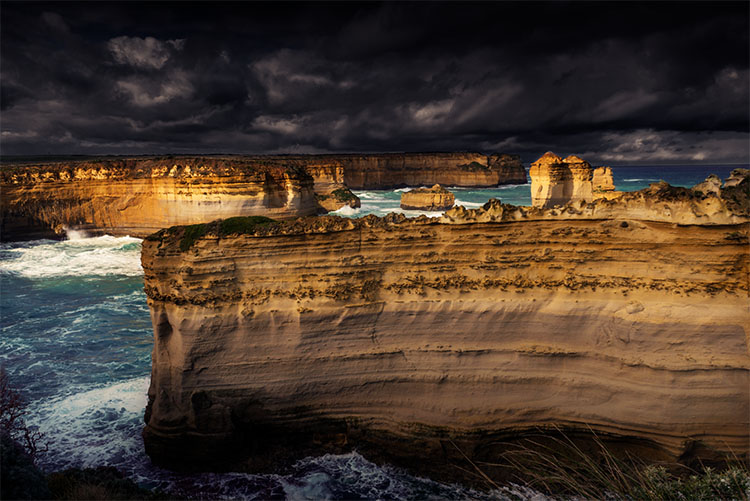
What happens when all there is only rain, fog, overcast skies, and all you want to do is sit inside, keep warm, and drink coffee? However, what if you disregard all that, and decide that you like the image you get in the winter or just bad weather?

There is no question that the images you get in the off-season (that could be snow, monsoon, or heat wave depending where you live), when you would rather stay indoors, are going to be very different. It should be considered as opportunity to see nature in a different light, and a challenge to be brave, to try new types of images. It is also important to take steps to make sure you and your gear are protected from the elements.

LeanneCole-winter-photography-008

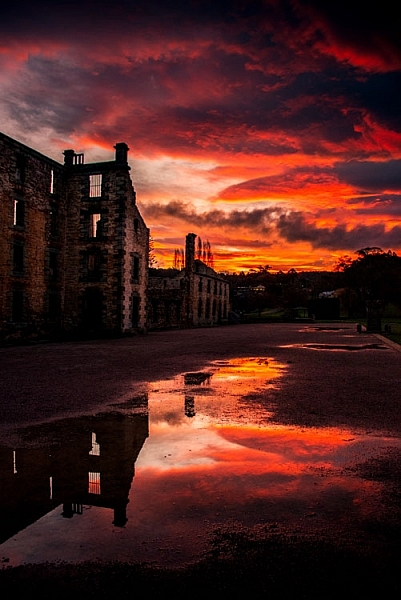
A winter sunset at Port Arthur in Tasmania made even bigger by all the rain and the puddles creating fantastic reflections.

Here are a few reasons why off-season is a great time to take photos:

Not many people around

If you are anything like me, you dislike people who walk into your shot, or just won’t leave an area you want to photograph. During the popular vacation times you will be surrounded by people, and many other photographers who think that taking photos in popular places is also a good idea. It can be very crowded.

Winter (or off-season) is a time that most people decide not to travel, they don’t want the weather ruining their trip. This makes it the best time for you to go out and take photos. You may find that many spots are devoid of people, or there won’t as be many.

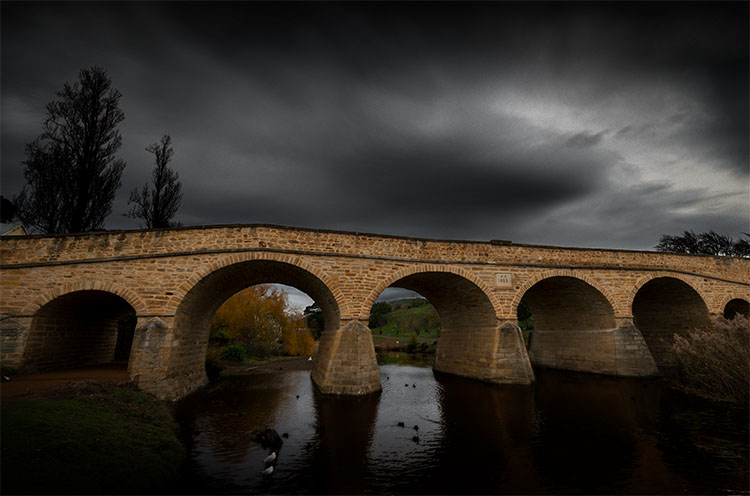
leannecole-winter-photography-richmond-bridge

It is an opportunity to take photos that others will not

As most people will stay indoors when the weather is bad, you will be able to get out and take the photos the others miss out on. Rain, fog and snow can all give you incredible images. Even overcast grey days will give you a different look. There are some of us who would go for an overcast sky any day, over a beautiful blue one with no clouds.

Making the most of breaks in bad weather

During bad weather there are going to be breaks where the rain (snow, or whatever you get there) will stop and if you are lucky the sun might even come out. In southern Australia that often happens. You might only get 10 minutes of it, or a few hours, so you have to make the most of it.

You can’t be lazy. If you see the weather improving, you need to get out there fast. Visit all the places on your list and see what you can get. In some instances, it may be the only opportunity you get to shoot some spots.

LeanneCole-winter-photography-009

A break in the rain at Strahan, Tasmania, so we spent four hours getting what we could before it started again.

Water in winter

There is something quite magical about water in the winter or off-season. When it isn’t raining, the stillness can create some magical landscapes where the water will be so calm, that everything reflects in it. Often after light rain you can get that flat reflective surface.

LeanneCole-winter-photography-003

Reflections in the water can be wonderful, especially when you get an overcast sky reflected as well.

Rain gives a natural vibrance

Have you ever noticed how a dry seashell is dull, and the vibrancy that you saw in it on the beach is gone? That is, until you wet it again! When I was a child we used to paint shells with clear nail varnish so they would keep that wet look.

The landscape is not that much different. You can’t paint it with varnish, but you can look for rainy days that make it all wet. Colours are saturated and just pop out. Grass appears a lot greener, and warm tones like red and yellow stand out a lot more. You get a landscape that is grey, but in it there are also saturated colours that are accentuated to make the image more interesting.

LeanneCole-winter-photography-010

Colours can appear saturated during and after rain.

Moody landscapes

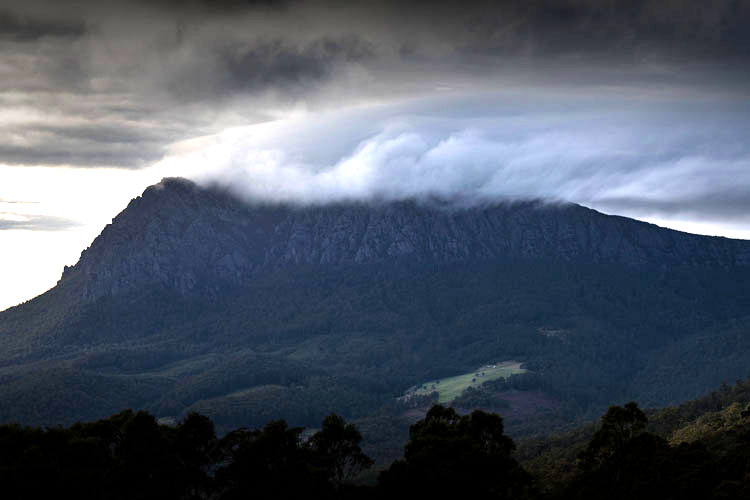
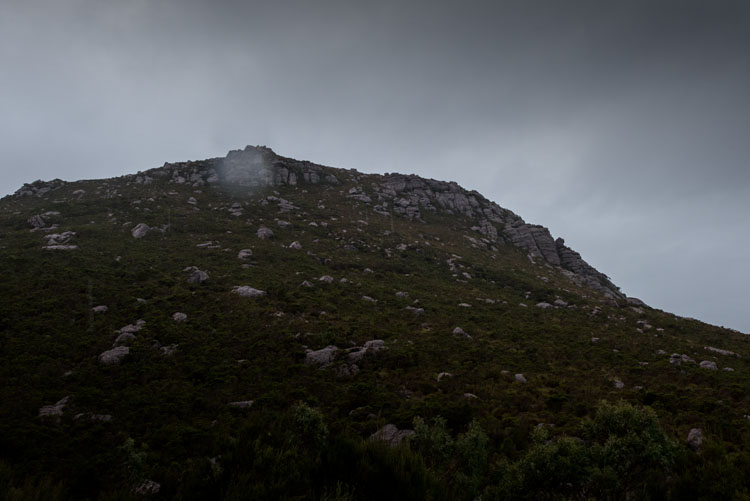
Off-season gives you so many more opportunities to get moody landscapes. Nothing says mood like a scene drenched in fog. It has a way of isolating your subject, and making it the most important thing in the image. The mist is also great for getting silhouettes of objects, especially around water.

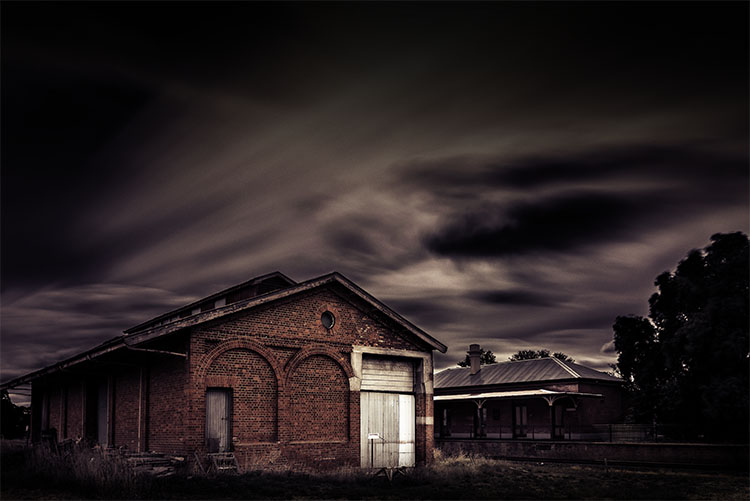
Overcast skies can do the same. Dark foreboding clouds can create darkness in landscapes, and give a sense of dread, tinged with some scariness. The absolutely best scene is the one with a dark overcast sky, then the sun peeks through a break in the clouds, and highlights an aspect of the image. It’s like hitting the jackpot, you get the best of everything. It is one of my favourite things to capture.

If you are out and see fog, frost, or lots of clouds, try to figure out how to make them work for you in your image. See if you can get lots of different angles, and what you can do with them.

leannecole-winter-photography-hellsgate-lighthouse

LeanneCole-winter-photography-004

Fog can create moody landscapes and isolate areas.

Light

Photography is full of rules, how to take photos, when to take photos; it is said that you shouldn’t take photos between 10am and 4pm. Is this true? Perhaps in the summer, and those places that don’t really have winter, but if you live a long way from the equator this rule may not apply to you. The further you are away from it the less it applies.

leannecole-winter-photography-queenstown

Winter (off-season) light is quite beautiful. There is a softness to it that makes photographing wonderful, and you can get some incredible images. The shadows are soft, meaning the edges aren’t hard and sharp like they are in the summer. The sun doesn’t get as high in the sky so the shadows are always long.

Living in a country like Australia where the summers are hot and harsh, I look forward to winter every year. It means I can go out and take photos for as long as I like, when I like. The clock doesn’t dictate when it is a good time. Winter is my absolute favourite time for photography here.

LeanneCole-winter-photography-007

On an overcast day the sun could suddenly come out and give your landscape a spotlight effect.

Equipment you need to take with you

When you are travelling in the off-season you have to be prepared for wet and cold weather. It’s likely going to mean that you will have to take more gear with you so that you can protect your gear.

In your kit it’s good to have a plastic raincoat cover for your camera; a sleeve that will fit over your camera, but the end is open for your lens so you can still take unobstructed photos. Many cameras can take a certain amount of water, the more high end ones more so, but you don’t want to push it much. If you are out in the rain constantly, then protect it as much as you can.

LeanneCole-winter-photography-006

Riding in a boat in open water in inclement weather is a disaster waiting to happen, so make sure you protect the camera and keep it covered up.

A lens hood is one of the best ways to protect the end of your lens when it is misty and raining. The sides of it can help prevent water from ruining your photos, unless you are shooting straight into the wind.

Having a lens cloth close by is an absolute must. As much as you try to keep the lens dry if there is any breeze, you will get drops of water on the end. It is good to keep it in your pocket for quick access. Nothing spoils a photo more than water drops on the lens.

LeanneCole-winter-photography-002

Waterdrops on your lens can ruin your images, and can be very hard to remove in post-production, especially if there are lots of them.

Making the most of it

You shouldn’t think of the off-season as a time to hibernate, but make the most of weather that other photographers don’t consider. Think about how you can get the weather conditions to enhance your images, and give you a final photo that is unique. Good luck with it and remember to rug up and keep warm.

LeanneCole-winter-photography-005

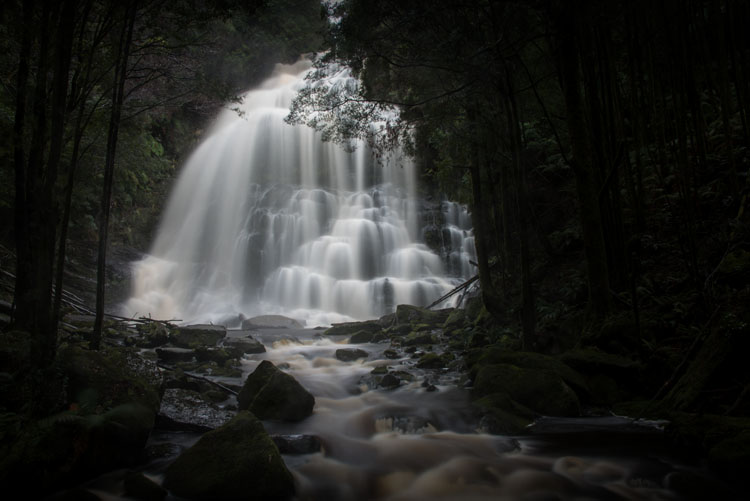
Waterfalls can be full of water from lots of rain.

leannecole-winter-photography-newstead-railwayshed

googletag.cmd.push(function() {
tablet_slots.push( googletag.defineSlot( “/1005424/_dPSv4_tab-all-article-bottom_(300×250)”, [300, 250], “pb-ad-78623” ).addService( googletag.pubads() ) ); } );

googletag.cmd.push(function() {
mobile_slots.push( googletag.defineSlot( “/1005424/_dPSv4_mob-all-article-bottom_(300×250)”, [300, 250], “pb-ad-78158” ).addService( googletag.pubads() ) ); } );

The post Finding Comfort with Off-Season Photography by Leanne Cole appeared first on Digital Photography School.


Digital Photography School

 
Comments Off on Finding Comfort with Off-Season Photography

Posted in Photography


Getting up close: Canon EF-M 28mm macro hands-on review

24 Jul

Hands-on review: Canon EF-M 28mm Macro

This is the Canon EF-M 28mm F3.5 Macro IS STM. It is a compact, light weight, close-focusing lens designed exclusively for Canon’s EOS M lineup. It’s image-stabilized and uses a quiet stepping motor mechanism for autofocus. It’s priced at $ 299.

Hands-on review: Canon EF-M 28mm Macro

The lens comes with a removable cover for the front

$ 299 places it below a majority of macro primes for cost. However, the Nikon Micro?Nikkor 40mm F2.8 does still beat it out in price by around $ 50, and is 2/3-stop brighter.

All the trump cards held by the Micro-Nikkor fold when other features of the EF-M 28mm Macro are brought in to consideration, though. First, even though it is a wider FOV lens, its nearest focus distance is 3.7″, nearly 3″ closer than the Micro-Nikkor. Even taking the slightly longer field of view of the Micro-Nikkor in to account, the Canon is able to achieve a 1.2x magnification in “Super Macro” mode over the Nikkor’s 1x magnification.

When working at such diminutive focus distances, there’s an inherent issue that many experienced macro photographers have learned to work around. The camera, lens, and sometimes even photographer start blocking light from the itty bitty subject. To get around this, macro photographers will use specialized lights, typically ring lights mounted to the filter thread. 

Canon has gone the extra mile (inch?) and included a pair of LED lights (hidden under their cover in this shot) mounted on the left and right hand side of the front of the lens, diffused by a clear white ring, eliminating the additional requirement of a macro light kit for those extreme close-ups.

Hands-on review: Canon EF-M 28mm Macro

3.7″ is quite an extreme working distance, and this means a maximum reproduction ratio of 1.2x in ‘Super Macro’ mode. Image stabilization is included and is effective for shooting in a wide range of scenarios, although for the extreme close-ups it’s better left switched off and replaced with a tripod.

A subject at minimum focus distance illuminated by the two LED’s together receives about 8.9 EV illumination in normal macro and 9.1 EV in super macro mode when measured with an incident light meter. The lights have two levels of brightness, and are switched on via a button on the lens barrel. Both come on with a single press, and a press and hold switches to one light only. Sadly, there’s no ability to have just one LED on at full brightness and the other dimmed. They’re either both on at the same power level, or illuminated independently.

The lightweight construction and STM focus motor also help this lens focus reasonably quickly, especially when compared to the painfully slow-focusing macro lenses of yore. It isn’t as fast as some of the quickest we’ve seen, but does very well, especially considering how close its MFD is.

Hands-on review: Canon EF-M 28mm Macro

By itself, this lens weighs 130 grams, making it so light Canon boasts about the 28mm F3.5 being the ‘world’s lightest autofocus macro lens for an ILC system.’ When mounted to the EOS M3 the total weight is a featherweight 492 grams, exemplifying the lightness and convenience benefit of mirrorless systems compared to DSLRs. By comparison, a Nikon D5500 body weighs 420 grams. Add another 235 grams for the 40mm Micro lens, then another 200+ for an LED macro light kit, and the total comes out to 855 grams, or nearly double the weight of the Canon kit.

This diminutive size means weight can also be saved when making a tripod selection, as long as it is sturdy enough for work that is incredibly sensitive to vibrations.

Less weight means less fatigue and more reasons to bring the camera on location.

It resolves well…

This graph shows the maximum resolution (as a percent of Nyquist) attained by our copy of the lens at various apertures. It uses MTF-10 criteria, which is a measure of the finest detail that can be resolved with at least 10% contrast. If that sounds complicated, just keep in mind this figure is well correlated to total resolution, though isn’t as great a representation of perceived sharpness, which correlates more with MTF-50 measurements (more on that on the next slide).

Our results here show that center resolution peaks at 80% the linear resolution that can be theoretically attained, at F5.6 – a decent result. If this were resolved across the frame, you’d get about a 16MP image from this 24MP sensor. Of course it’s not, but corners aren’t too far behind, at 67% by F6.3. Not bad when you consider the higher resolving power demands placed on the lens by the smaller APS-C sensor… but what about perceived sharpness?

… and is fairly sharp

The MTF-50 result – better correlated with perceived sharpness – tells a slightly different story, indicating only around 875 line pairs per picture height resolved, which translates to ~4.6MP, or 19% of the total sensor resolution. It’s not a terrible result, but does indicate that while the lens resolves a lot of detail, it doesn’t quite maintain as much contrast as a higher performing lens might. This is no surprise, given the lens’ size, weight, and price.

While performance isn’t state of the art in terms of macro lenses (the Sony FE 90mm F2.8 deserves a shout out here), it does a good job throughout the aperture range, with good field uniformity, and fair ability to resolve fine detail, particularly when you factor in the disadvantages of the smaller APS-C sensor (which places high demands on lens’ resolving power). It doesn’t have L-series levels of contrast and perceived sharpness – but we wouldn’t expect it to.

See our gallery for a set of infinity shots to see how this tiny macro resolves real-world detail on a flat plane.

How well does it work with EOS M3?

The EOS M3’s articulating touch screen is great for close-up work when using this lens. It takes a lot of strain out of working low when one doesn’t need to peer through a viewfinder or crouch low to see the screen. Magnifying the image for focus checking also works brilliantly on the M3. There’s no pixel binning or frame rate drops in 100% magnification mode, which helps the touch-enabled panning function to operate quickly and smoothly, helping ensure the narrow focus plane is placed exactly where you want it.

It’s creative

Even club soda can make an interesting photo when shooting this close

Or rather, it can be used creatively. 1.2x magnification means that objects are 1.2 times their actual size on the sensor plane. This means objects, details or textures can completely fill the frame, creating wonderful abstract shots that aren’t usually possible without a fair bit of kit. Combine this ability with a set up that is easily carried around and opportunities for interesting shots begin to pop up everywhere, as it offers a whole new view on the seemingly mundane.

It isn’t perfect…

This image was taken with just the built-in LED lights for illumination, and was cropped and brightened in post.

Well, for $ 300, expecting absolute perfection is unrealistic, especially in the photo world. 

First, it isn’t the sharpest lens out there. It’s pretty good, but in the macro world there are better options. That said, none of them have those lovely lights and will probably cost more.

The lights and image stabilization aren’t powerful enough to make this a hand-holdable macro, so don’t make the mistake of expecting that. The handheld spider shot above illustrates the pitfalls of lighting exclusively with the on board LEDs.  

First, the light cast by the LEDs isn’t particularly intense. It’s bright enough to light subjects at minimum focus distance outdoors, but only when its overcast. Any direct sunlight will overpower the light and will make the lens’ shadow very obvious. By itself, the light needs to be combined with a tripod, and should be thought of as a way to avoid the complications of a ring light system (batteries, cables, etc) instead of an all-purpose fill light.

Second, when working with a high reproduction ratio, depth of field is inherently incredibly shallow. The LED lights aren’t bright enough to allow for stopping down for deep depth of field while shooting handheld in dim ambient light. 

…but is still very usable

Using a narrow aperture can achieve deep depth of field when close focusing, but diffraction will decrease sharpness, as can be seen in this shot at F18.

It is important to remember that shallow depth of field is a challenge with all macro lenses. One way to get around that issue is by focus stacking. There are many software solutions to focus stacking, and Olympus has even gone as far as to include it as an automatic function in some of its cameras. One can only hope Canon does eventually as well.

The only other gripe is with the lights and their configuration. It would be nice to be able to rotate the lights 90 degrees for a sort of “clamshell” lighting instead of being stuck with the “copystand” lighting constantly, or to be able to have them configured either way regardless of wether the camera is being used in portrait or landscape orientation. 

As a standard lens, it performs fine in normal working distances, but vignetting is strong wide-open, making the EF-M 22 F2 a better general use prime lens if you don’t need the macro performance. 

Hands-on review: Canon EF-M 28mm Macro

This image used a combination of the built-in lights and a back lit semi-transparent surface

For beginners looking to shoot macro, the EF-M 28mm F3.5 Macro is a great place to start. Its close focus abilities mean it has a wide range of macro use cases, and the built-in LEDs mean one doesn’t have to budget for a set of lights when just getting started. It’s a great starting point for learning the challenges and pitfalls of macro photography, and will produce great results when applying those lessons.

Articles: Digital Photography Review (dpreview.com)

 
Comments Off on Getting up close: Canon EF-M 28mm macro hands-on review

Posted in Uncategorized


How to Enhance Portraits Using Gray Layers to Dodge and Burn in Photoshop

24 Jul

What is dodging and burning?

The techniques of dodging and burning are hand-me-downs from the days of the darkroom. The idea was to manipulate parts of an image while the paper was being exposed to light from the enlarger, where the negative was fitted. In order to decrease the exposure (lighten) on parts of an image, the paper had to be exposed for less time, which was dodging. To increase exposure (darken) it needed to be exposed for more time, which was burning.

Before dodging and burning

Before dodging and burning

After dodging and burning (it’s subtle, look at her hair and cheeks – don’t overdo it with this technique)

One way of doing this, was by holding bits of paper or card over the parts of the image that didn’t require manipulation. Because these adjustments only applied to certain parts of an image, it required a certain amount of dexterity (as well as a lot of paper) to get right. Because of this complexity and precariousness, dodging was used primarily to lighten dark areas. Burning was then used to darken highlight areas.

The Photoshop version of the technique; however, is far more forgiving. Photoshop allows very fine control over an image and even allows pixel by pixel retouching. The versatility this provides turns the traditional darkroom method on its head. It allows you to use small brush strokes to brighten and exaggerate small areas of highlights, or darken shadows, instead of applying to only broad areas.

This technique is very easy to learn, but it does require some practice to get down, as it’s very easy to go overboard with it, and overcook your images.

Why dodge and burn?

Tools like curves and levels give you control over the tonality and contrast of an entire image (excluding the use of layer masks). This is called a global adjustment, but they aren’t always effective for most images.

Dodging and burning allows you fine control over the tonality of your images in small, concentrated areas. These are called local adjustments. This allows you to pick out small parts of an image to work on, while leaving areas that need no work untouched.

While useful in all genres of photography, the use of local adjustments comes into its own in portraiture. If you think in terms of contrast alone; hair, eyes, skin, and clothes all require very different treatments in order to look their best. For example, if you pump up the contrast in an image to make a pair of jeans look punchy, that will wind up destroying the skin tones in your portrait. One of the easiest ways to overcome this is using a local adjustment technique like dodging and burning.

This tutorial will get you started with a two layer dodging and burning technique, that will give you far more control over your images than you would have with global adjustment tools alone. This is an intermediate technique and you need to have a basic understanding of how to use layers in Photoshop.

For this demonstration, I am going to go beyond what I would normally consider acceptable and overcook the image, to ensure that it is visibly clear what is happening at various stages of the process.

Setting up the layers

Before you start this technique, I suggest that you first finish any blemish removal in your image.

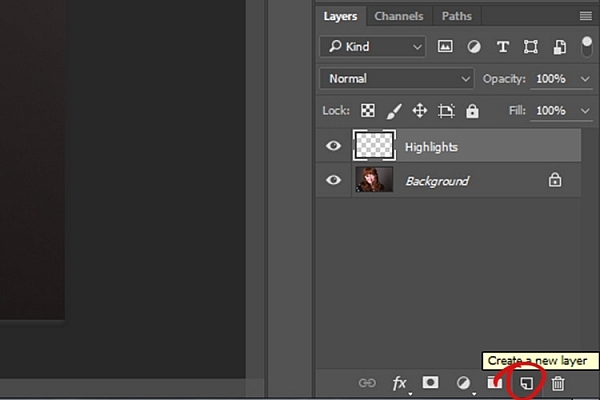
That said, the first step in Photoshop is to create a new layer by going to Layer>New Layer or by pressing ctrl+shift-n. Rename this layer, “Highlights”.

dodging-and-burning-with-grey-layers-newlayer

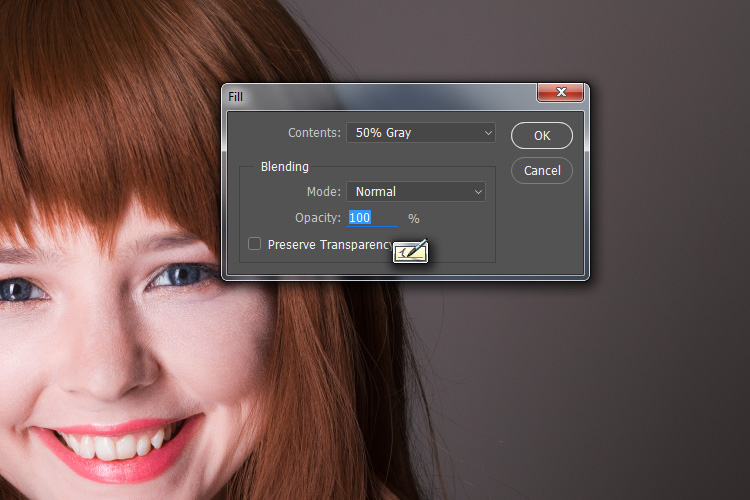
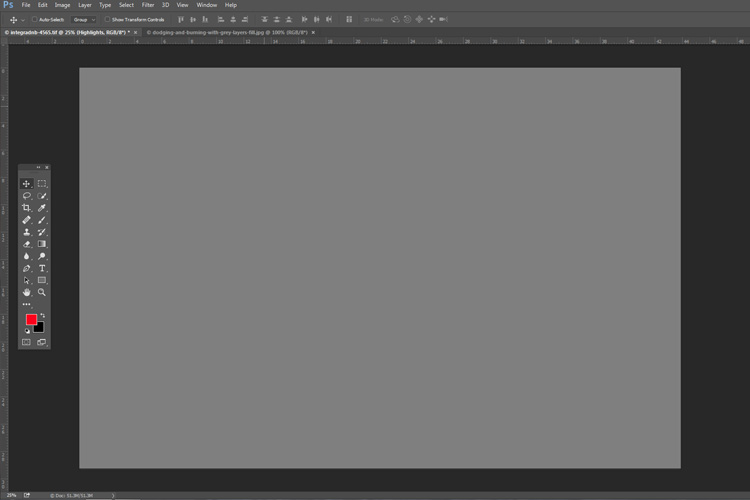
With this new layer selected, go to Edit>Fill or shift+f5 and choose 50% gray from the menu. Press OK. Your image should now be entirely gray.

dodging-and-burning-with-grey-layers-fill

dodging-and-burning-with-grey-layers

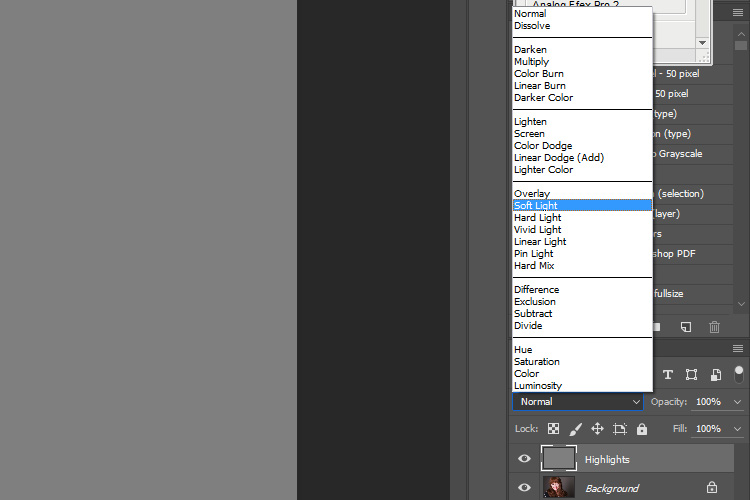
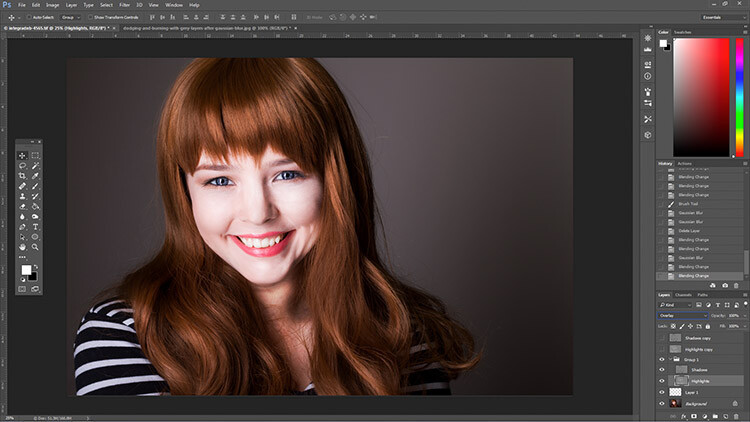
The next step is to change the blending mode of your gray layer. From the drop down menu in the layers palette, choose Overlay or Soft Light. Either choice is fine, but using Overlay will result in a far more pronounced effect than Soft Light. Experiment with both, see how it works for you, and which you prefer. Once the blending mode is changed, you should be able to see your image again.

dodging-and-burning-with-grey-layers-softlight

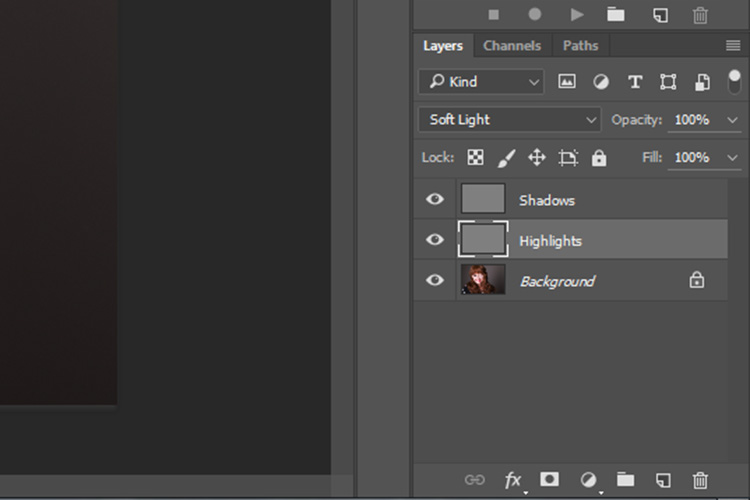
Next, create another new layer. Layer>New Layer or ctrl+shift+n and rename it to “Shadows”. Again, fill it with 50% gray. Edit>Fill>50% Gray or shift+f5

dodging-and-burning-with-grey-layers-layers

Set this layer’s blending mode to the same as the one you chose for your Highlight layer.

That’s the preparation work done. Once you’re used to it, this whole process only takes a few seconds. It’s also possible to set it up as an action, so Photoshop will do it for you at the press of a button.

Dodging

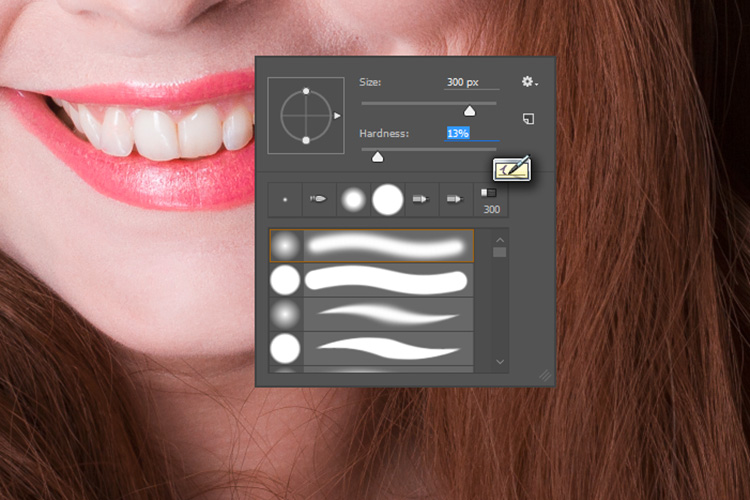
To start, select your Highlight layer and choose the brush tool. Pick a large, soft brush (Hardness number is low and edges are fuzzy). You can change the brush settings by right clicking within your image.

dodging-and-burning-with-grey-layers-brush

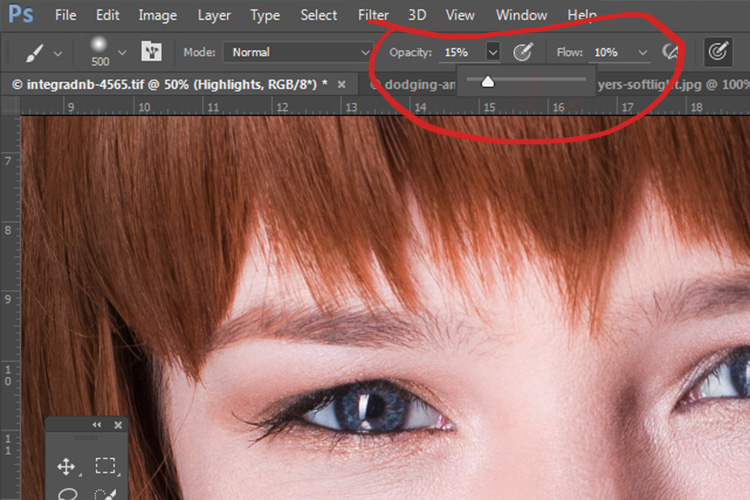
With the brush selected, look for the tool settings at the top of your screen. You’re looking for a pair of sliders labeled opacity and flow. Set your brush’s opacity to 15% and the flow to 10% (see below circled in red). You can change them later, but this is a good starting point.

dodging-and-burning-with-grey-layers-brushopacity

Make sure that your brush colors are set to white and black. You can press D (default) on your keyboard to do this. Also, you can press X to swap between them. Knowing these shortcuts will save you an incredible amount of time.

Now you’re ready to dodge.

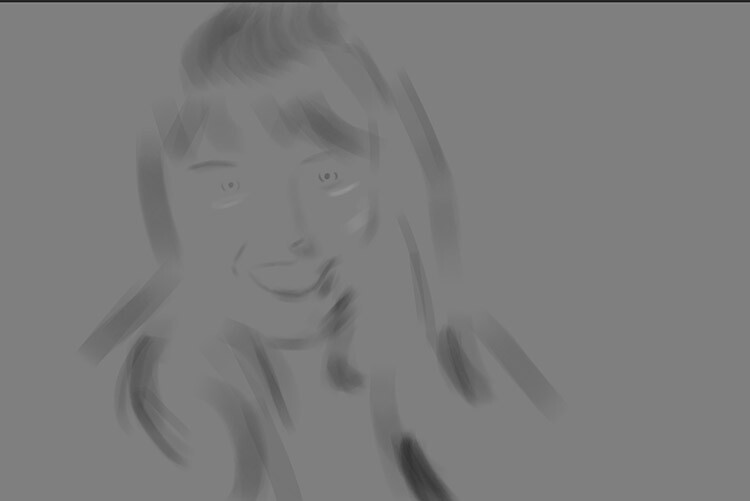
Assuming you’re working on a portrait, find a highlight area on your subject’s skin that you would like to emphasize. With white set as your foreground color, paint into that area (make sure you are on the Highlight layer not your image). Because the brush’s opacity is so low, you may not notice a difference at first. Just keep brushing into it, and build up strokes until you have the desired effect. Do this for all of your highlight areas.

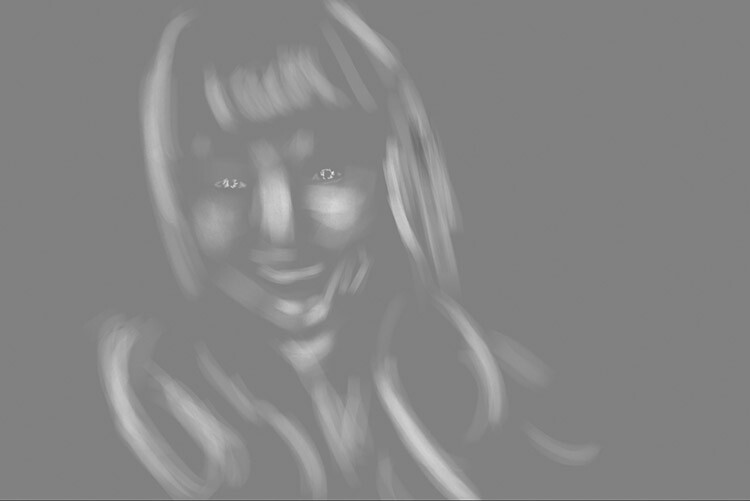
With the blending mode set to normal, your highlight layer may look something like this.

Note: If you decide that you’ve gone too far, just fill the layer with 50% gray again and start over.

Burning

With your highlights done, select your Shadow layer by clicking on it in the layer palette. Select black as your foreground color and paint into the shadows in the same manner you did for your highlights (make sure you are painting on the Shadow layer not your image).

With the blending mode set to normal, your shadow layer may look something like this.

After dodging and burning is complete, you may have something that looks like this.

Add Gaussian Blur

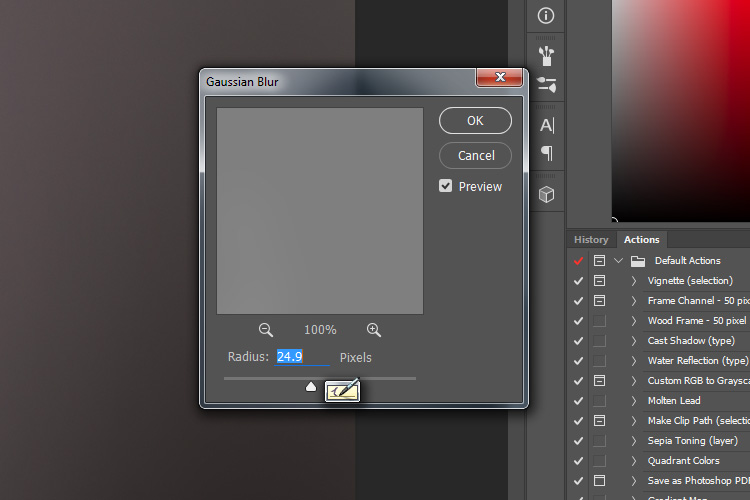
The next step is to smooth out your brush strokes. Select your Highlight layer and select Filter>Blur>Gaussian Blur. Choose an amount between 20 and 40 pixels, and press okay.

dodging-and-burning-with-grey-layers-gaussian

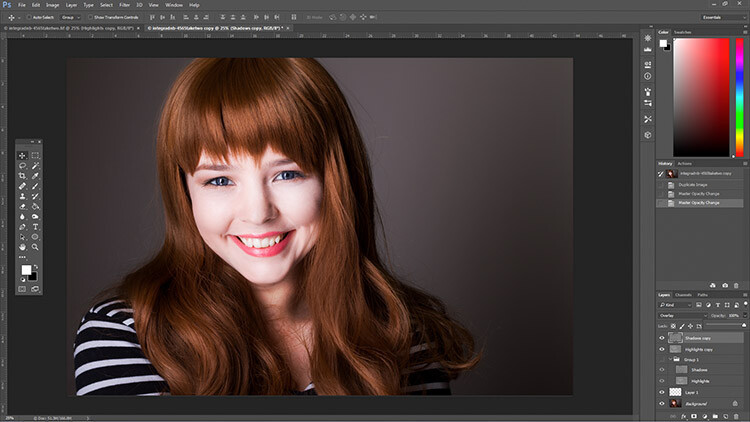
After the Gaussian Blur filter is applied.

Do the same for your shadow layer.

Final Steps

The last thing to do is is change the opacity of your layers. It may not seem like it, but at this point the effect is probably way too strong.

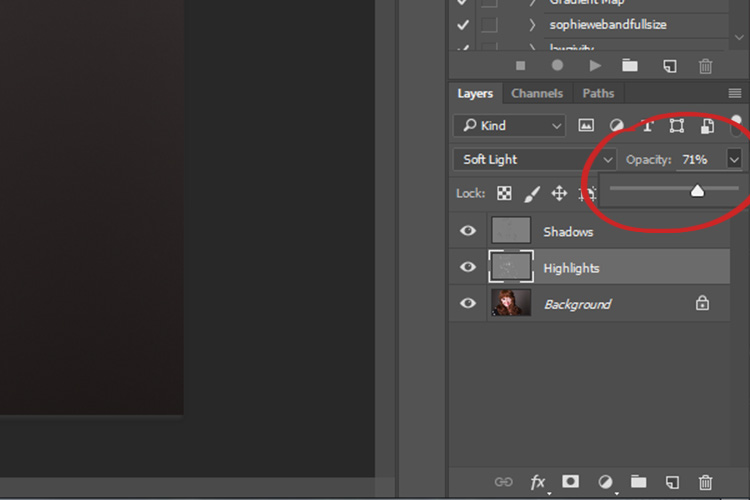
Select one of your painted layers. Find the opacity slider in the layer palette, and drag it to the left. Watch your image as you move the slider and stop once you’ve reached the desired effect.

dodging-and-burning-with-grey-layers-layeropacity

Do this for the second layer, and that’s it! You have dodged and burned.

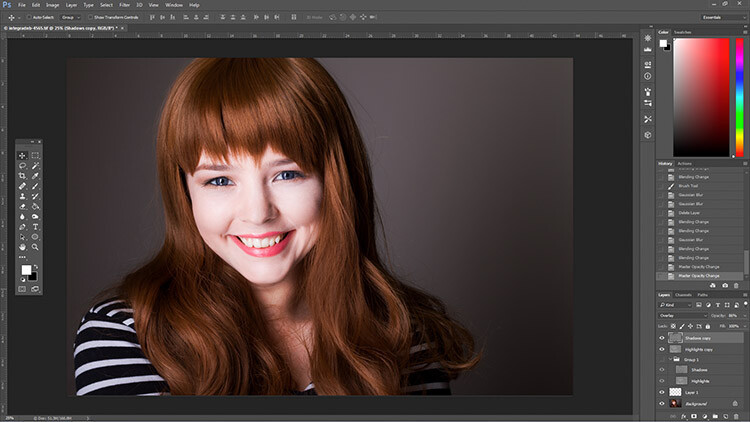
The final image after the opacity of the dodge and burn layers has been reduced.

It's really easy to overcook an image with this technique. Use low opacity brush strokes and take your time to avoid having your images look like this one.

It’s really easy to overcook an image with this technique. Use low opacity brush strokes and take your time to avoid having your images look like this one.

From Left to right: 1) Before 2) Dodge and burn with no blur. 3) Gaussian Blur filter applied. 4) Opacity of dodge and burn layers reduced.

Tips and Notes

  • Like most retouching techniques, subtlety is key. At first, overcooking your images with this technique is inevitable. Keep practicing and you’ll figure it out in no time.
  • Always zoom in to 100% or closer when working on small areas like eyes.
  • A graphics tablet will help with smooth, natural brush strokes. If you can only use a mouse or trackpad, experiment with more liberal use of Gaussian Blur to mask the brush strokes.
  • When painting shadows or highlights, try to match the light in the image. You can paint white (dodge) into your shadows, but this will probably look very strange in the end.
  • Change the brush size often, and appropriately, to the area you are working on. Keyboard shortcuts make this a breeze (use [ and ] to increase and decrease brush size).
  • Experiment with different brushes until you find one that suits your taste.
Before dodging and burning

Before dodging and burning

After dodging and burning

More Tips and Notes

  • It’s all too easy to concentrate on the face, but try not to forget other parts of the image like your subject’s hair, clothes, and the rest of their body.
  • Both dodging and burning can be done on a single gray layer. Feel free to do this, but the two layer technique grants you even more control, without much extra effort.
  • Consider setting up a keyboard shortcut for Gaussian Blur. This saves a lot of time.
  • You can create as many sets of gray layers as you want. For example, if you want to use very small brushes to dodge and burn the eyes, you might choose to do this on a separate set of layers in order to use less blur at the end. If you use a lot of layers sets like this, consider using layer groups to keep them organized and don’t forget to name your layers.
  • If the shadows and highlights you are working with have very hard edges, try using a harder brush and a lower amount of Gaussian Blur.
  • Consider watching and trying some digital painting and sketching tutorials for Photoshop. These can really help to increase your brush control and lend to more natural results.

googletag.cmd.push(function() {
tablet_slots.push( googletag.defineSlot( “/1005424/_dPSv4_tab-all-article-bottom_(300×250)”, [300, 250], “pb-ad-78623” ).addService( googletag.pubads() ) ); } );

googletag.cmd.push(function() {
mobile_slots.push( googletag.defineSlot( “/1005424/_dPSv4_mob-all-article-bottom_(300×250)”, [300, 250], “pb-ad-78158” ).addService( googletag.pubads() ) ); } );

The post How to Enhance Portraits Using Gray Layers to Dodge and Burn in Photoshop by John McIntire appeared first on Digital Photography School.


Digital Photography School

 
Comments Off on How to Enhance Portraits Using Gray Layers to Dodge and Burn in Photoshop

Posted in Photography


All about control: Huawei P9 camera review

24 Jul

DPReview smartphone reviews are written with the needs of photographers in mind. We focus on camera features, performance, and image quality.

$ (document).ready(function() { SampleGalleryV2({“containerId”:”embeddedSampleGallery_8524135201″,”galleryId”:”8524135201″,”isEmbeddedWidget”:true,”standalone”:false,”selectedImageIndex”:0,”startInCommentsView”:false,”isMobile”:false}) });

Right behind the LG G5, the Huawei P9 is the second device to launch in 2016 with dual cameras. However, while on the LG the secondary module essentially acts as a wide-angle extension, Huawei’s approach is different. In the Huawei system, which has been co-engineered with German camera manufacturer Leica, a 12MP RGB main sensor is accompanied by a 12MP monochrome chip. Huawei says combining image information from both sensors makes the P9 camera 100% more light-sensitive than conventional smartphone cameras which should, at least in theory, result in superior low light image quality.

The P9 is also capable of some other dual-camera tricks that we’ve seen before, such as simulating shallow depth-of-field. While the camera is no doubt one of the most interesting we have seen this year, with an octa-core chipset and fingerprint reader the non-camera specifications are flagship-worthy as well. Read our full review to find out how the Huawei P9 performs in the hands of a mobile photographer.

Key Photographic / Video Specifications

  • Dual Sony IMX 286 12MP sensors with 1.25µm pixel size
  • 27mm equivalent focal length
  • F2.2 aperture
  • Laser-assisted AF
  • DNG Raw capture
  • Manual control
  • 1080p Full-HD video
  • 720p, 120fps slow-motion video
  • 8MP front camera with F2.4 aperture

Other Specifications

  • 5.2-inch 1080p IPS screen
  • HiSilicon Kirin 955 chipset
  • 3GB RAM/32GB storage or 4GB RAM/64GB storage
  • microSD slot
  • 3,000mAh battery
  • Fingerprint reader

Articles: Digital Photography Review (dpreview.com)

 
Comments Off on All about control: Huawei P9 camera review

Posted in Uncategorized


Artist Socks Series: Wear Pairs of Figures from Famous Paintings

24 Jul

[ By WebUrbanist in Design & Products & Packaging. ]

artist socks abstract

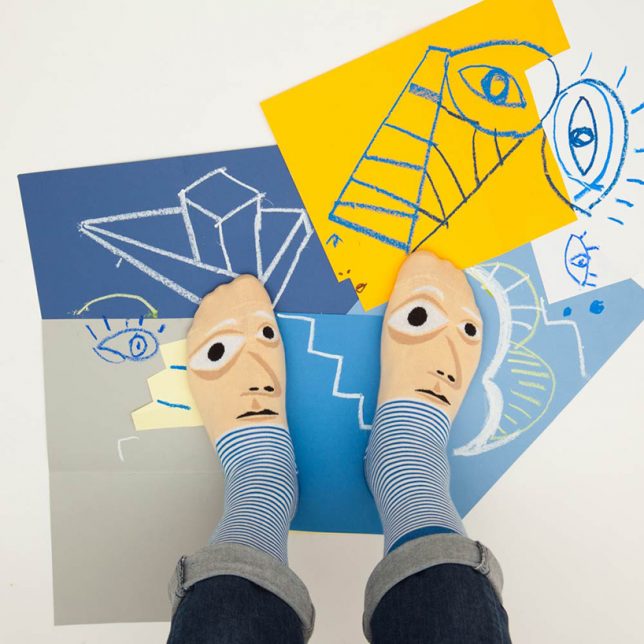
Simple stripes, colors and patterns are all that is visible when you are wearing shoes, but kick them off and you can show off famous figures from classic paintings. They may not be fit for formal wear situations, but are certainly fun for everyday occasions (and a great idea for sock puppet shows).

vincent van socks

artist sock box

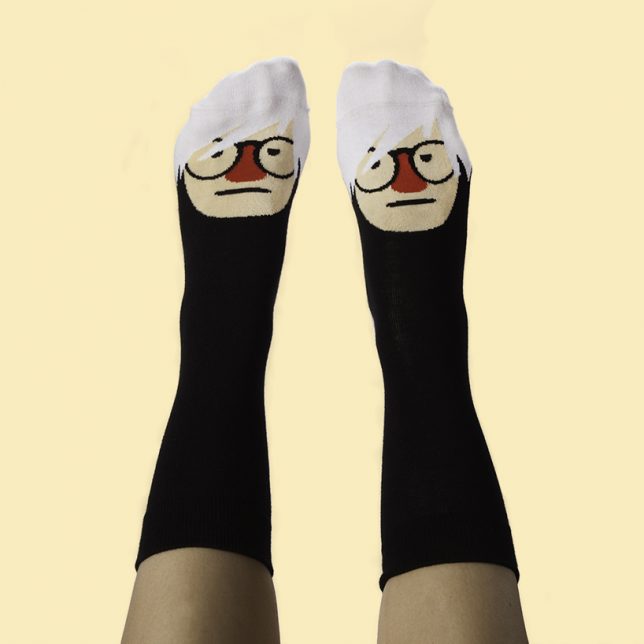
These series of silly socks from ChattyFeet is equally informal about their titling of the various pairs. Famous artists are given name twists, resulting in Andy Sock-Hole and David Sock-Knee. Other pairs include Frida Callus and Feetasso (from Frida Kahlo and Pablo Picasso).

andy sock hole

david sock knee

From the designers: “The master of modern art David Sock-Knee is on hand (or foot) when you want to impress with your knowledge of home-grown British artists. They are just the thing to wear to that exhibition opening event and don’t forget to snap a ‘sockie’ photo when you visit famous galleries. Follow in this famous face’s footsteps by recreating your favourite holiday scenes in acrylic – just don’t splash any on your socks!”
art fun socks

artist feetaso

ChattyFeet is a quirky brand that offers “silly sock personalities” for adults and children alike. The studio’s line of cheeky characters colorfully drawn onto comfortable cotton socks.

Share on Facebook


[ By WebUrbanist in Design & Products & Packaging. ]

[ WebUrbanist | Archives | Galleries | Privacy | TOS ]


WebUrbanist

 
Comments Off on Artist Socks Series: Wear Pairs of Figures from Famous Paintings

Posted in Creativity