RSS
 

Archive for July, 2016

Adobe boosts Lightroom Mobile with Raw editing for iOS

14 Jul

Adobe’s Lightroom Mobile apps for Apple and Android mobile devices have both been given significant updates that allow users a much wider range of controls when editing and shooting. The company has quite different apps for the two operating systems, and while Android users have been able to edit Raw files for some time the facility is now offered to iOS users via version 2.4. Owners of Android devices can now install version 2.1 which offers what Adobe calls a ‘Pro’ shooting mode that allows much more detailed control over the way pictures are recorded.

Adobe says the version 2.1 for Android has a completely new Lightroom Camera function that features a mode that gives the photographer access to shutter speed, ISO, white balance and focus so that they can all be adjusted manually. Aperture isn’t listed as few mobile cameras have significantly variable apertures. The company also says it has improved the app’s ability to export high resolution files.

Apple iPhone and iPad users get Raw Technology Preview, which effectively allows photographers to import files from all the cameras supported by the main desktop version of Camera Raw. These Raw files can be edited using a wide range of tools to control contrast, exposure and white balance, and marked with star ratings and flags – all of which can be synched with Lightroom on the owner’s other devices. The company says it has edited 50MP images from the Canon EOS 5DS on an iPhone 6 to demonstrate how powerful the application is.

iOS users can also now make radial and linear selections that allow local editing of particular areas of the image.

Both the Android and iOS versions of Lightroom Mobile are free to download and use, but to enjoy the new features iOS users need to have a subscription to Creative Cloud.

For more information see the Adobe blog. 

Photograph by Elia Locardi of the valley in Meteora, Greece. Shot in raw on a Fuji XT-2 and edited on location with an iPad Pro with Lightroom for iOS.

Manufacturer’s information:

Two big updates for Lightroom for mobile are now available for download

Lightroom for iOS 2.4
In version 2.4, two major improvements have been added: a raw technology preview and the addition of local adjustment tools. In addition to these major improvements, we’ve also added the ability to use keyboard shortcuts with physical keyboards connected to iPads, the ability to add your copyright to all imported photos, functionality to turn on lens profiles (if your camera and lens combination are supported), as well as the usual bug fixes and improvements.

Raw Technology Preview
We’re sure it’s happened to you before: you’re out taking photos (in raw of course) and you capture a real stunner that you can’t wait to share with the world. Until now, you had to either transfer a JPEG version of the file over or you had to wait until you got back to your desktop or laptop. With the raw technology preview, you’ll be able to import raw photos immediately to either your iPhone or iPad, edit them, and then share them, anywhere you’ve got a connection. Our goal with Lightroom for mobile is to make it an indispensable part of your photography workflow, providing the tools that you’re familiar with and the quality you expect in a product that can be with you, no matter when inspiration strikes. With this technology preview, we want to push the boundaries of how photographers around the world work with their mobile devices.

You get all of the benefits of raw, such as the ability to change the white balance, being able to recover blown out highlights, access to the full range of color information, as well as editing an uncompressed file, all using the exact same technology that powers Lightroom on your desktop. An added benefit is that the raw file that you’ve imported into Lightroom for iOS will be synced with Lightroom on your other devices, such as Lightroom for desktop or Lightroom on the web, along with any of the edits, star ratings, or flags that you added.

Lightroom for mobile supports all of the same raw files that Lightroom for desktop as well as Adobe Camera Raw support, with the full list available here.

To transfer photos to your mobile device, you need to use either the camera connection kit or the lightning to SD or USB kits from Apple to transfer your raw files over to your device, which will bring up the Import tab within the iOS Photos app. Importing the files will add them into your camera roll, where you can then access and load in any raw file directly into Lightroom mobile. It’s important to keep in mind that raw files are significantly larger (3-5 times larger) than JPEGs, meaning the raw files will take longer to import, upload, and take up more space on your device. Even as such, we found that the added control and quality that the raw files afforded were so useful that it outweighed the negatives.

Just as when working with raw files that were synced from Lightroom for desktop or Lightroom on the web, you’ll be able to perform raw-specific enhancements, such as changing the white balance with greater control and recovering clipped highlights, but unlike when working with raw files synced from Lightroom for desktop, you’ll have access to the full resolution file AND you can do it anywhere in the world, even from your iPhone! 

We’ve run Lightroom for mobile through its paces on a number of different files, including the 50MP Canon 5DS running on an iPhone 6, proving that you really can edit nearly any photo anywhere. After playing with the app for a few months, we’ve found that it’s a really great way to take a few of your favorite images from the day (or even that you just captured), review to make sure you captured what you saw, edit, and then share them, all right away, and with all of your edits carried through the rest of the Lightroom ecosystem.

We had the pleasure of working with a number of photographers while creating the raw technology preview, take a look at how travel photographer Elia Locardi was able to put the technology to use while shooting on location in Greece.

You can read more about the images that were created for this release through an article about Elia on Adobe Create as well as on Elia’s own blog.

Linear and Radial Selections
In addition to the raw technology preview, we’ve also added in the ability to perform local adjustments with linear and radial selections, the two most requested features after raw support.

Lightroom for iOS Availability
Lightroom mobile 2.4 is available immediately for iPhone and iPad from the iOS App Store for free. Both of these improvements are available only for members with a creative cloud subscription or or if you start a free Creative Cloud trial.

Lightroom for Android 2.1

While the iOS team was working hard on the raw technology preview, the Android team doubled-down on the unique end-to-end DNG capture experience first announced in Lightroom for Android 2.0 and created a brand new capture experience. Our goal is to create the best mobile photography experience available, and with the amazing quality possible on Android devices, especially thanks to DNG raw capture, we wanted to provide all of the controls and functionality needed.

Now, the built-in camera has a new Pro mode that lets you control the shutter speed, ISO, white balance, and focus all manually, in a brand new interface.

You can access the camera directly using the new Lightroom Camera widget. This new widget will launch the Lightroom camera directly, making it faster for you to get in and start taking pictures.

In addition to the new built-in camera, we’ve also improved the app’s ability to export full-resolution files. If the files are available somewhere within the Lightroom ecosystem, Lightroom for Android will now download the full resolution version and enable you to export them.

You can download Lightroom for Android 2.1 here now for free.
Articles: Digital Photography Review (dpreview.com)

 
Comments Off on Adobe boosts Lightroom Mobile with Raw editing for iOS

Posted in Uncategorized


4 Ways to Get Inspiration from the Streets to do Better Wedding Photography

14 Jul

Be inspired by decisive moments on the streets to create better wedding photography.

If you are reading this article you must have some interest in street photography, or maybe you are starting as a professional wedding photographer, but most likely you are interested in both fields. This will give you some ideas on how to draw inspiration from street photography that you can use in your wedding work.

A street photographer can be anyone going out to wander the streets of a city with their camera, in order to make photographs that tell the human story of daily life as it occurs on the streets. A wedding photographer on the other hand, is one that is hired to capture memories, tell the love story, and the unfolding special day in a family’s life. The wedding photographer is a professional with enormous responsibility to find, and deliver the right frames, that will recreate trusted memories, decades after the big day is over.

A clear personal artistic voice is what separates one photographer from another. That voice is who you are, but that voice of yours needs constant care and development, in order for it to be a dominant factor in your photographic style as a professional photographer. Competition, changing trends, and the release of new gear also have their own voices that can influence your photography. Maintaining a balance between your inner world and the outer influences is key to success as a street-wedding photographer.

The following tips came from the world of street photography and are perfectly suited for the wedding photographer. If you master them on the street, you can go to a wedding with confidence, and sing your own song with your camera.

1 – Planning versus reacting

Wedding photography tips
What it takes to make great decisive moment photographs is, that first of all you need to see them before they occur. The longer before the better, it will give you the time to plan your composition, and work towards a frame that will be exciting and tell a story. In order to see things before the happen it takes looking around your subject, and constantly look at the surroundings of the bride, rather than focusing your attention only on her. This way you will be able to notice other elements and people that make your frame more interesting and communicative. Even as short as two or three seconds can be long enough for a street photographer to plan a good frame.

If you look around and plan your next shot you have a greater chance of catching the decisive moment, rather the one that follows.

2 – Create emotion

wedding photography tips motion
Freezing and blurring the movement of objects and people are two ways to communicate emotion in a photograph. It is a property that is unique to still photography, and is a big part of the photographic language. But often many photographers think that a wedding photograph has to be sharp and in focus, and the end result is often a precise documentation of reality, rather a poetic description of the moment. Give yourself the time it takes on the street to fully understand how the blurring and freezing of motion is being read and perceived by the viewers.

Master motion techniques then bring them into the weddings you photograph.

3 – Understand the way light can work for you

wedding photography tips light
Explore the way light falls on things, and the way it looks in your street photographs. When your are under the stress and responsibility of a wedding day the thinking side of your brain often takes over, and shuts down the creative side. You may see the wedding as a checklist of photographs to be taken, images of subjects, rather than decisive moments to tell a story.

One way to keep the creative brain in charge of things is to remind yourself constantly to work with the light, see light, change it if necessary, and let go of the subjects. If you are photographing the bride getting ready, she is the subject whether you think about it or not, now it’s time to think about light.

4 – Responsibility and integrity

wedding photography tips

Whether you work for yourself as a street photographer, or as a professional wedding shooter, you should be able to sleep well at night. You should never publish street photographs that might hurt someone’s feelings or cause them damage. However, that being said, you should also remember that the act of photographing people on the streets doesn’t harm them in any way, and have no fear to do your art.

There is another side to the coin of responsibility, that is integrity. when you are hired to photograph a wedding be sure to have shown only photographs that were made by you, that are a good representation of your style and voice. Be sure to let your clients know that they are going to get artistic street-wedding photographs if that is what you want to give them!

googletag.cmd.push(function() {
tablet_slots.push( googletag.defineSlot( “/1005424/_dPSv4_tab-all-article-bottom_(300×250)”, [300, 250], “pb-ad-78623” ).addService( googletag.pubads() ) ); } );

googletag.cmd.push(function() {
mobile_slots.push( googletag.defineSlot( “/1005424/_dPSv4_mob-all-article-bottom_(300×250)”, [300, 250], “pb-ad-78158” ).addService( googletag.pubads() ) ); } );

The post 4 Ways to Get Inspiration from the Streets to do Better Wedding Photography by Ouria Tadmor appeared first on Digital Photography School.


Digital Photography School

 
Comments Off on 4 Ways to Get Inspiration from the Streets to do Better Wedding Photography

Posted in Photography


How to Use the Text Tool in Photoshop

14 Jul

As photographers, we often swear by the mantra that a picture speaks a thousand words. Yet there are some instances when we just wish we could add a word or two to help facilitate the understanding of the image, or carry the thought process forward even beyond viewing the image. The good news is that this is fairly easy to do using most editing software on the market today.

In this article we’ll go over the basics of how to add text to an image using Photoshop.

transparent-text

The Type Tool

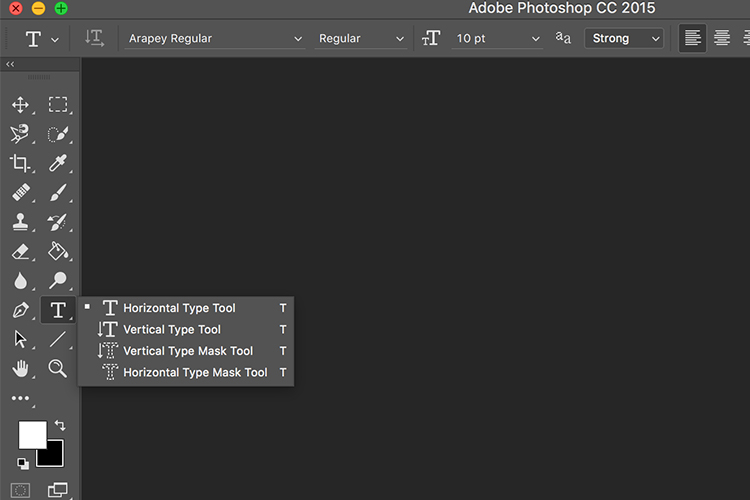
Photoshop’s Type Tool is an easy to use yet powerful mechanism with which you can add text to an image. The Type Tool is found in the Tools panel, normally located along the left side of the screen. It’s the icon that is the capital letter T. You can also select the Type Tool by pressing the letter T on your keyboard. The default chosen is the Horizontal type tool, but you also have the option of selecting the Vertical type tool (where text entered is displayed in vertical orientation, going down instead of to the right – just click and hold your mouse on the Type tool on the panel to access the other options).

Memorable Jaunts Article for DPS Text tool in Photoshop basics 02

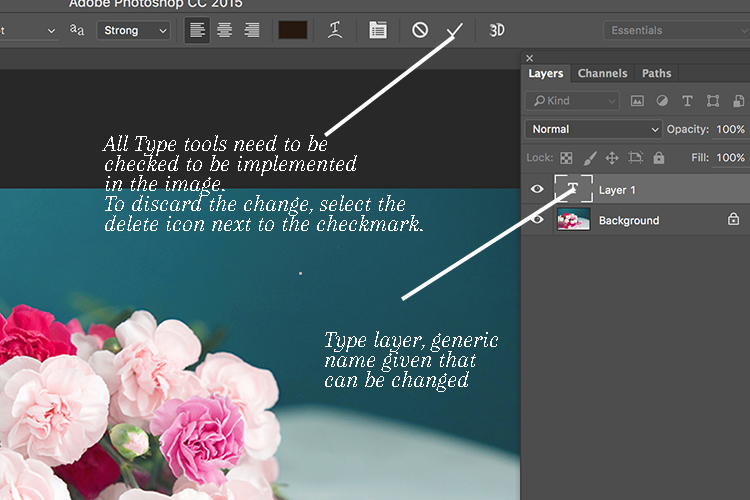
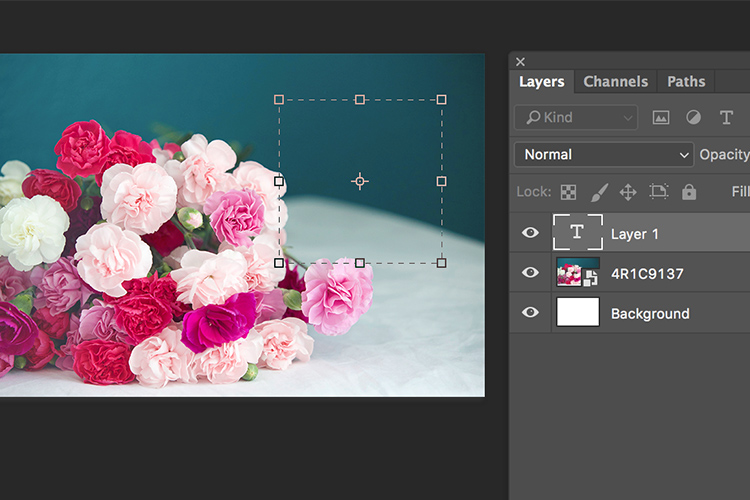
When you choose the Type Tool, Photoshop automatically creates a new layer (called Type Layer) over the original background image. This is very helpful should you make a mistake and want to delete the layer to start over, or if you want to make edits after the fact. Initially the layer has a generic name “Layer 1” but once you start entering the text, the layer name changes to the text you have entered. However, this can be confusing, especially if you are entering in a lot of text in the type layer. I recommend changing the name of the Layer to something more appropriate and meaningful like Title Text or Quote Text, etc.

Memorable Jaunts Article for DPS Text tool in Photoshop basics 04

Choosing a Font

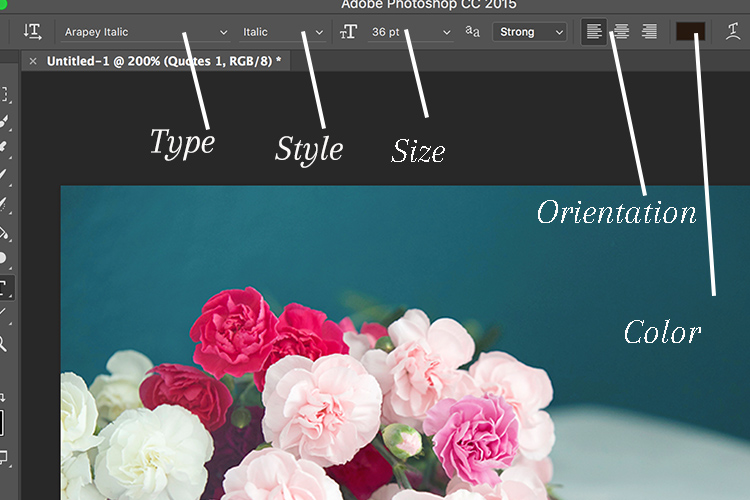
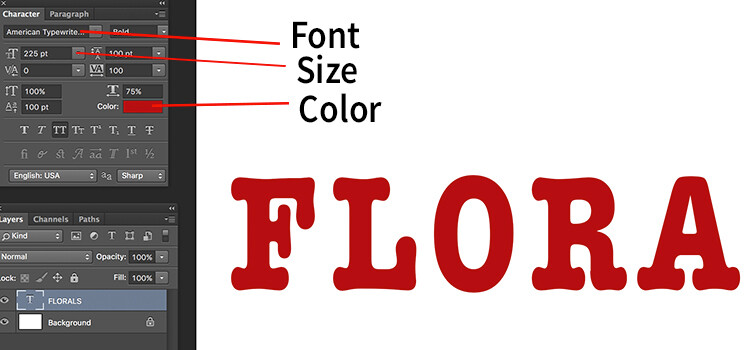
As soon as you select the Type Tool, the Options Bar along the top of the screen updates to show the options related to it, including options for choosing a font, a font style and the size among others. Front left to right (as shown in the image below) you can choose font type, font style, font size, alignment, and color. The type indicates the font you want to use. Clicking on the dropdown arrow shows a list of all the possible fonts available for use. The exact fonts you’ll see in your list will depend on which fonts are currently installed on your computer. Next up is the style. In this example, I have used italic style for the image below. Following that is the size, alignment, and color. Selecting the color opens up the color picker tool where you can either choose the color from the pallet, or enter in the HEX value of the color you want for the text.

Memorable Jaunts Article for DPS Text tool in Photoshop basics 03

Adding Type to the Image

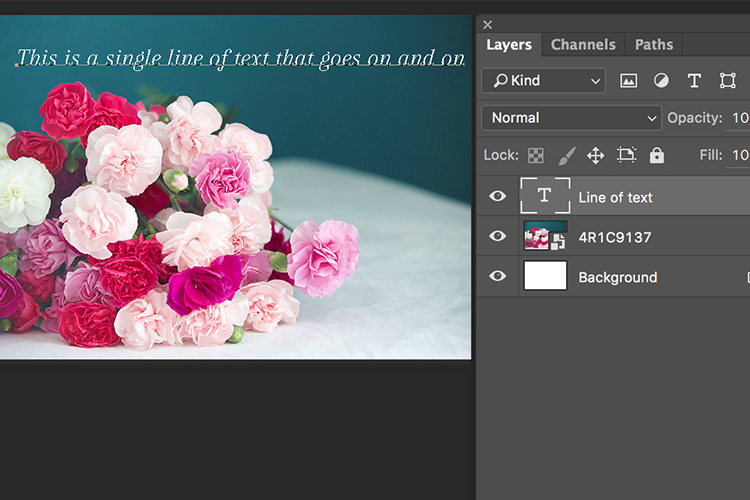
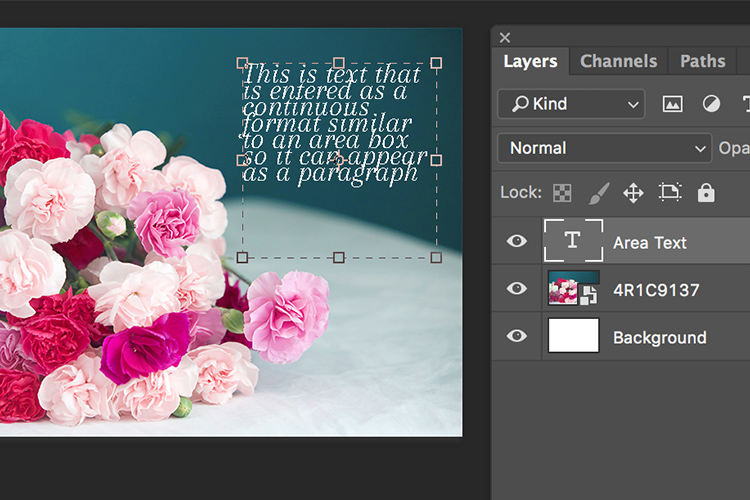
The power of the type tool in Photoshop lies in the ability to add different types of text to a document. The first option is Point type (also known as character type), and the second is Area type (also known as paragraph type). The difference is that point type is mainly used for adding small amounts of text to a document (a few words, a title, etc.) while area type is used for adding larger amounts of text (think a quote or paragraph) inside a selected area. The Point type is the basic type tool. When the type tool is selected the default is a line of text that will keep extending as long as you keep writing text in the type box (that is Point type).

Memorable Jaunts Article for DPS Text tool in Photoshop basics 07

To add text using the Point type, simply click on your image with the Type Tool, in the spot where you want your text to begin. A blinking insertion marker will appear letting you know that Photoshop is ready for you to start typing.

By holding down the Shift key, and dragging the ends of the type box (the blinking insertion marker), and an Area type will be created. This is the area where larger blocks of text, like paragraphs, can be entered. You can also simply click and drag to make a rectangle (similar to make a marquee selection) which will be the Area type.

Memorable Jaunts Article for DPS Text tool in Photoshop basics 05

Memorable Jaunts Article for DPS Text tool in Photoshop basics 06

As you can see, the Type tool is a simple yet powerful tool to add text to your images in a creative way. It can be used to enhance the messaging on an image, as well as for other uses like creating announcements, marketing materials, etc., based on your needs. Once you have the basics of the text tool mastered, you can take it up a notch to add effects like drop shadow and an image see-through the text effect as shown in the images below. It is not complicated but you need to follow the steps carefully.

Special text effects

Memorable-Jaunts-Text-Tool-Text-See-through-effect-for-DPS-article-01b

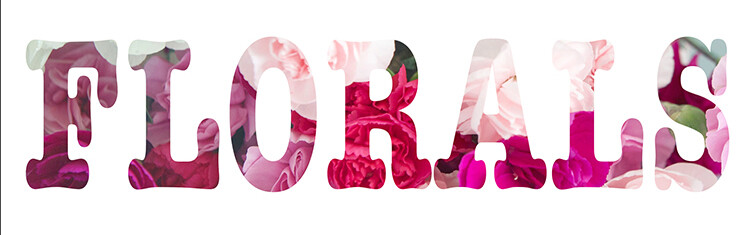
Text tool effect with image see through

Memorable-Jaunts-Text-Tool-Text-See-through-effect-for-DPS-article-02b

Text tool with image see-through effect and a drop shadow for added impact.

To add a drop-shadow to text, follow the steps listed below:

  1. Create a new text layer and select the font, size and color you want. To see the true effect of image through text, make sure you select an appropriate font and size (something bold and wide).
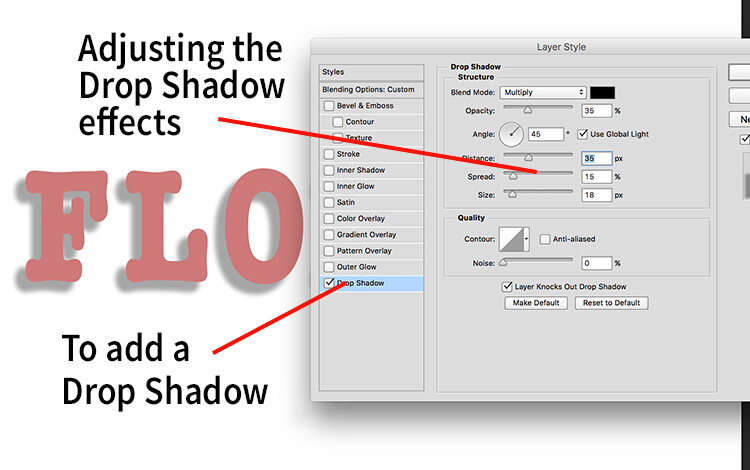
  2. Double clicking on the text layer will open up the layer style panel. To add a drop shadow effect, select the drop shadow option (last option) and adjust the size, position and color of the drop shadow.
text-tool-01

Create a new text layer on a new image and adjust the font, size and color of the text layer to taste. For text see-through effect, a bold large font is preferred.

text-tool-02

Using the layer style option, you can add a drop shadow effect and adjust the size, distance and orientation/angle of the drop shadow.

Creating see-through text

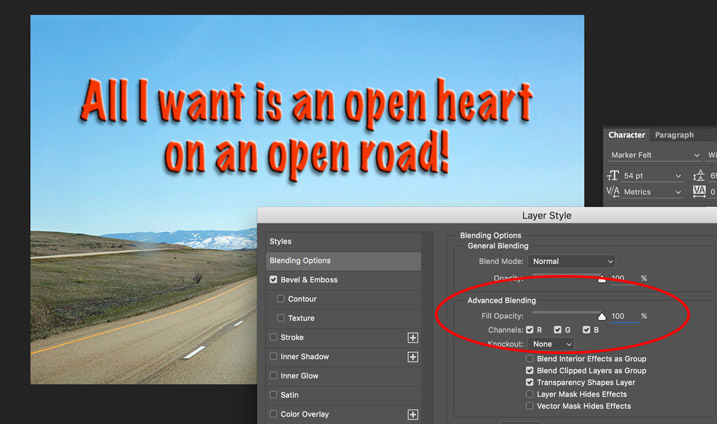
To create an effect of transparent text (you can see through it) open up the Layer Style panel and click on Blending Options from the left-hand side. Look for Advanced Blending (circled below).

text-unfaded

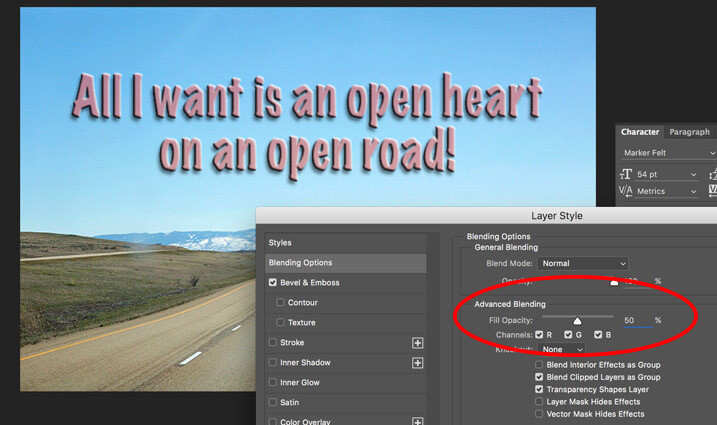
Lower the Fill Opacity by moving the slider to the left. This is what 50% faded looks like:

text-50-faded

Text layer with the opacity lowered.

Notice that is does not lower the opacity of any of the other layer styles you have applied such as the Drop Shadow. It only fades out the inside of the text. This is a handy trick for making watermarks of your name or logo over your images so it is subtle.

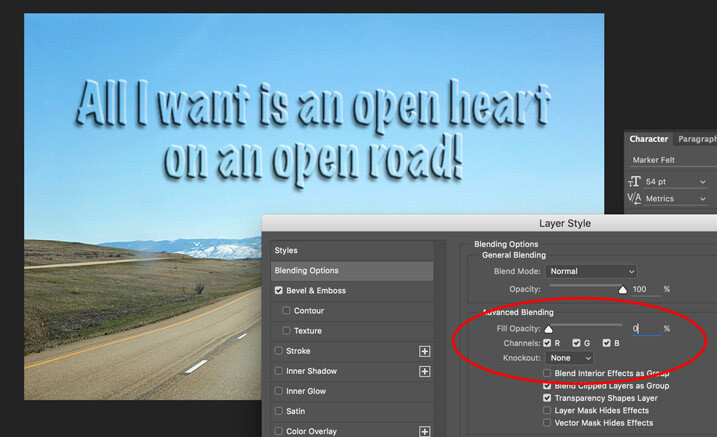
Faded out to 0%

Faded out to 0%

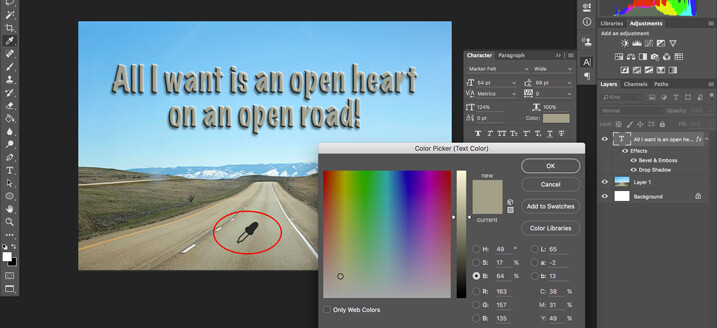
Note: if you want to make a custom color for your text, one that complements well with the tones of your image – you can use the color picker to select a shade right from your image. Just click on the color in the top menu panel or the Character panel if you have it opened – that will bring up the Color Picker popup box. Just hover over your image and you will see a small eyedropper (I have enlarged it below so you can see it easier). Whatever color you click on will be selected and pulled right from your image.

text-tool-custom-color

Use the color picker to select a tone from your image to use for your text.

Creating and image inside text

To add an image see-through effect to the text you created, follow the steps listed below:

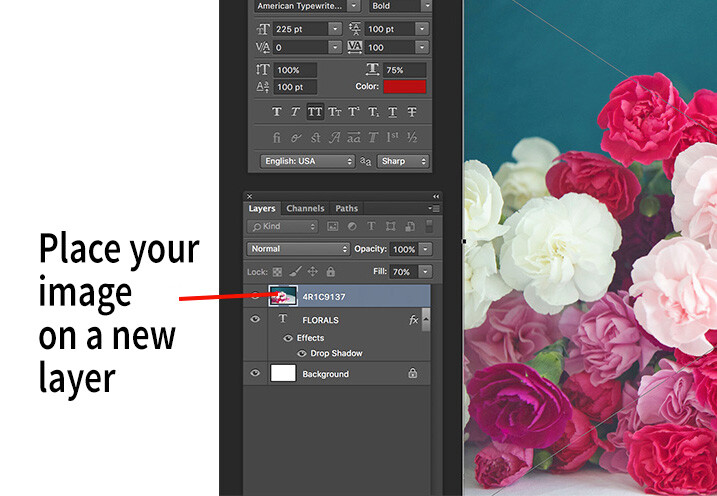
  1. Once you have the text you want, place an image (Select File, Place image). A new layer will be created and the image will be placed on top of the text layer. You will notice that the text layer you just created will be hidden behind the image.
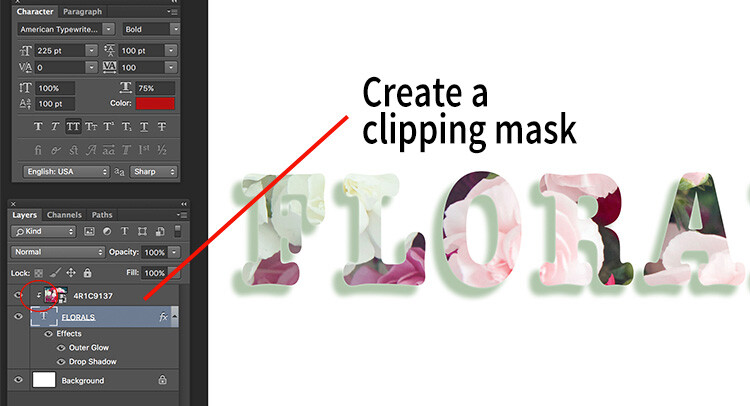
  2. To create the see through effect, you need to add a clipping mask to the image layer. This causes the image to be clipped to the text.
  3. To add a clipping mask, select Layer -> Create clipping mask from the menu options.
  4. You can move the image using the transform tool, to change the position of certain elements in the image to line up to the text if needed. For example I moved the image up to show more of the red and pink flowers through the text.
text-tool-03

Select the image you want to use for the text see-through effect and use the Place function to put it on the text layer. It is automatically selected in the transform mode. Adjust the size of the image to taste.

Add a clipping mask to the image layer (Menu option - layer -> create clipping mask). The image will automatically appear behind the text and the effect will be seen through the text.

Add a clipping mask to the image layer (Menu option – layer -> create clipping mask). The image will automatically appear behind the text and the effect will be seen through the text. When you see the little down arrow (circled) you know the clipping mask is applied between those two layers.

Memorable-Jaunts-Text-Tool-Text-See-through-effect-for-DPS-article-02b

Text with see-through image effect and pink drop shadow.

Be sure to play around with various images to see what images work for you. What are some way you use the Type tool for your images? Feel free to share in the comments below.

googletag.cmd.push(function() {
tablet_slots.push( googletag.defineSlot( “/1005424/_dPSv4_tab-all-article-bottom_(300×250)”, [300, 250], “pb-ad-78623” ).addService( googletag.pubads() ) ); } );

googletag.cmd.push(function() {
mobile_slots.push( googletag.defineSlot( “/1005424/_dPSv4_mob-all-article-bottom_(300×250)”, [300, 250], “pb-ad-78158” ).addService( googletag.pubads() ) ); } );

The post How to Use the Text Tool in Photoshop by Karthika Gupta appeared first on Digital Photography School.


Digital Photography School

 
Comments Off on How to Use the Text Tool in Photoshop

Posted in Photography


Crystal Universe: Digital Maze Invites You to Immerse Yourself in Light

14 Jul

[ By SA Rogers in Art & Installation & Sound. ]

Screen Shot 2016-07-13 at 5.05.53 PM

A kaleidoscopic space filled with reflected and refracted light in all shades of the rainbow makes you feel like you’ve somehow immersed yourself inside a crystal at the DMMPLANETS exhibition in Odaiba, Tokyo. Dreamed up by the art collective teamLab, ‘Wander through the Crystal Universe’ is one of three major interactive installations in place through the end of August for the inaugural show. The work uses accumulated light points to create a sculptural body, “similar to the way distinct dots of color form an image in a pointillist painting.”

crystal universe 2

crystal universe 4


As you walk through the three-dimensional light space, your movement affects the light particles, creating changes in the installation. Each person’s action or change affects the way everyone present experiences the space. The lights are constantly moving and shimmering, going dark to mimic the effect of floating in space and then shifting into new color palettes. Visitors can further interact with the exhibit using their smartphones, selecting certain elements and enhancing them.

crystal universe 3

Screen Shot 2016-07-13 at 5.05.53 PM

crystal universe main

“In Crystal Universe, the particles of light are digitally controlled, and change based on the viewer’s interactivity with the work. The result is an installation consisting of an accumulation of lights, forming a sculpture that expresses the universe.”

floating

floating 2

Equally enchanting is ‘Drawing on the Water Surface Created by the Dance of Koi and People – Infinity.’ In this case, visitors are walking into a pool of water, influencing the movement of projected koi.

floating 3

“When the fish collide with people they turn into flowers and scatter. The trajectory of the koi is determined by the presence of people and these trajectories trace lines on the surface of the water. The work is rendered in real time by a computer program, it is neither a pre-recorded animation nor on loop. The interaction between the viewer and the installation causes continuous change in the artwork. Previous visual states can never be replicated, and will never reoccur.”

Share on Facebook


[ By SA Rogers in Art & Installation & Sound. ]

[ WebUrbanist | Archives | Galleries | Privacy | TOS ]


WebUrbanist

 
Comments Off on Crystal Universe: Digital Maze Invites You to Immerse Yourself in Light

Posted in Creativity


Urban Dystopia: 11 Short Sci-Fi Films Set in Future Cities

14 Jul

[ By SA Rogers in Drawing & Digital. ]

LIMA

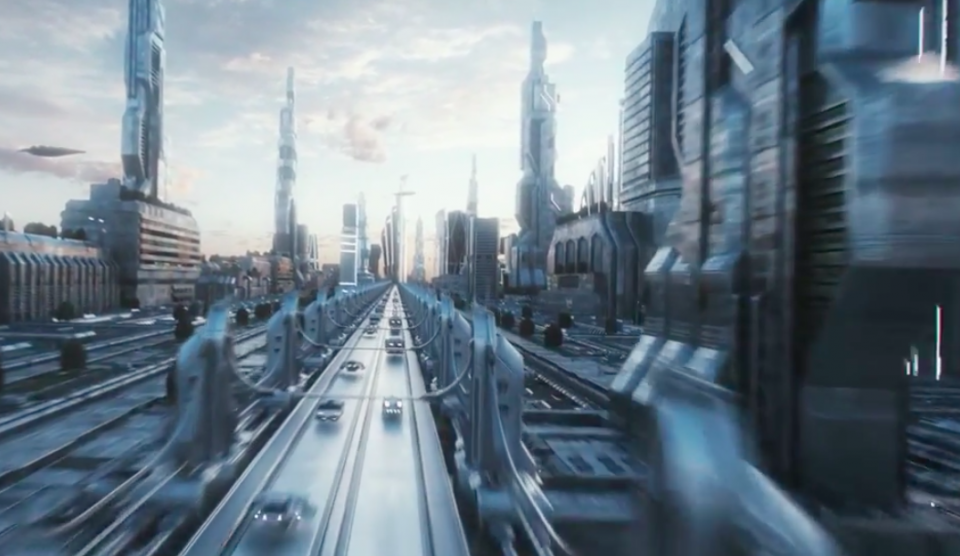
The science fiction of the past thirty years has evolved beyond the midcentury’s optimistic space-age visions into a darker, grittier place, where technology is out of control and resources are running out. Whether you think these imagined dystopian futures are overly dramatic or prescient of harder times to come, their depiction of our downfall can be absolutely riveting, and worth watching for the urban scenery alone. Short films offer an ideal medium for filmmakers of all skill levels to explore these concepts, including architecture that’s taken on a life of its own and high-tech surveillance societies.

In fact, if you want to know what sci-fi films might be coming out in the next few years, keep an eye on the digital shorts that are proliferating across the internet, as many of them get snapped up by major studios to become full-length features.

Spatial Bodies by AUJIK

OSAKA 1

OSAKA 2

OSAKA 3

OSAKA 4

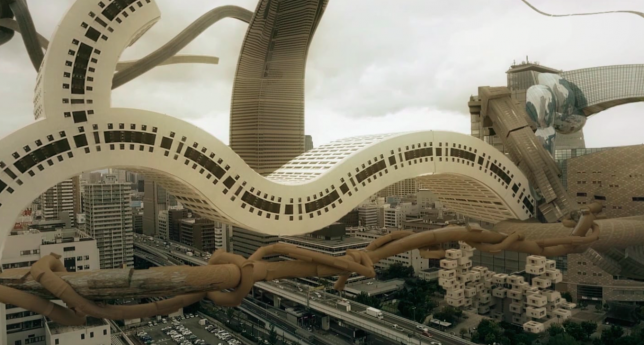
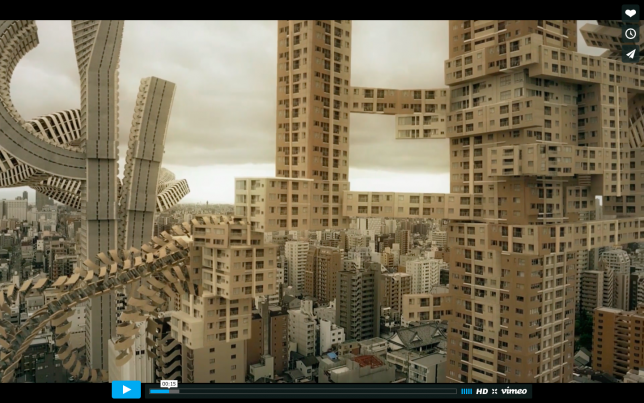
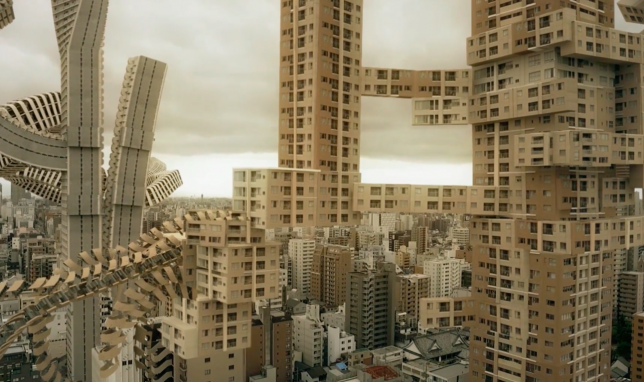
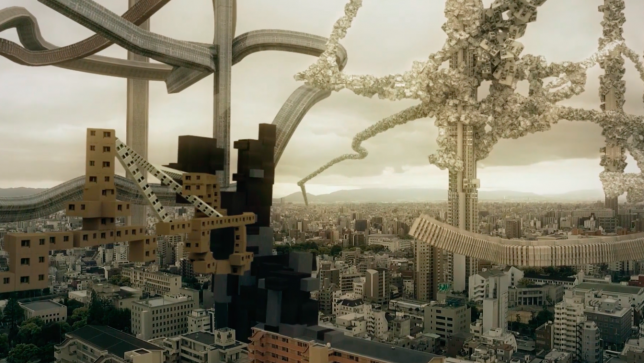
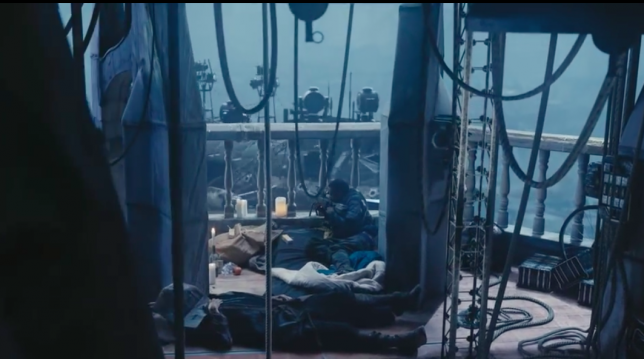
Architecture in Osaka, Japan takes on a life of its own and begins to grow organically like vines and trees in the short ‘Spatial Bodies’ by AUJIK. “Spatial Bodies depicts the urban landscape and architectural bodies as an autonomous living and self replicating organism. Domesticated and cultivated only by its own nature. A vast concrete vegetation, oscillating between order and chaos,” say the creators, a collective referring to itself as a ‘mysterious nature/tech cult.’

Megalomania by Factory Fifteen

factory fifteen 1

factory fifteen 2

factory fifteen 3

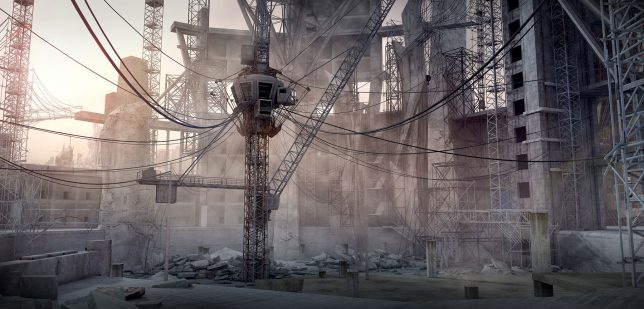
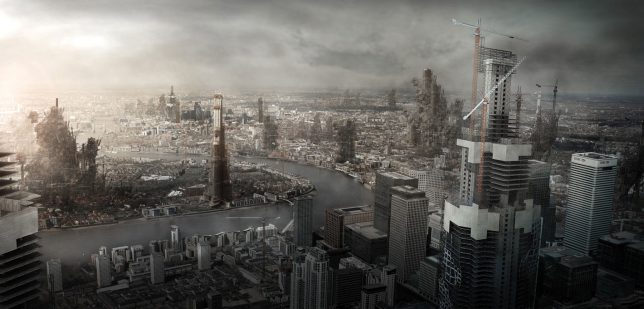
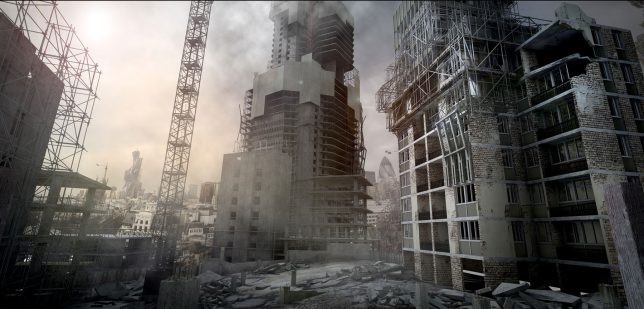
From digital film studio Factory Fifteen, which has produced a number of striking shorts set in the future, Megalomania imagines a world in which cities are constantly in active construction mode. “The built environment is explored as a labyrinth of architecture that is either unfinished, incomplete or broken. Megalomania is a response to the state of infrastructure and capital, evolving the appearance of progress into the sublime.”

TEARS OF STEEL by Ian Hubert/Blender Institute

Tears of Steel

Tears of Steel 2

Tears of Steel 3

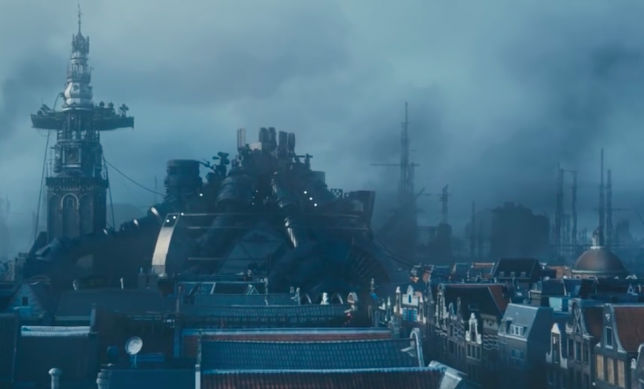
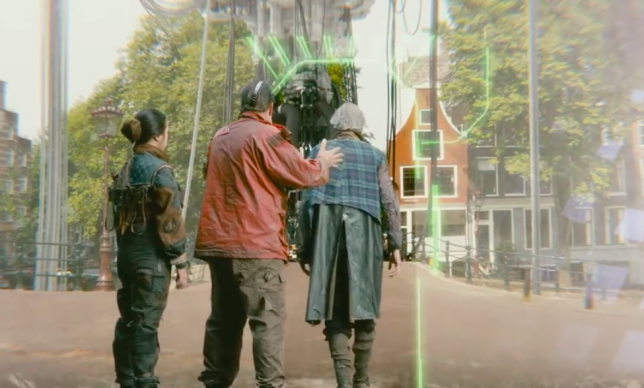
This Creative Commons-licensed short made entirely with free and open source software was made in the Netherlands by the Blender Institute, which crowd-sources funding in online communities of 3D artists and animators. In ‘Tears of Steel,’ a group of warriors and scientists gathered at Amsterdam’s Oude Kerk attempt to stage a crucial event from the past in a desperate attempt to rescue the world from destructive robots.

The Sand Storm by Jason Wishnow and Christopher Doyle

Sand Storm 3

Sand Storm

Sand Storm 2

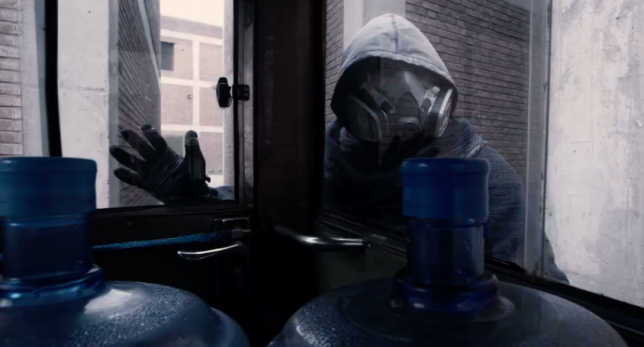
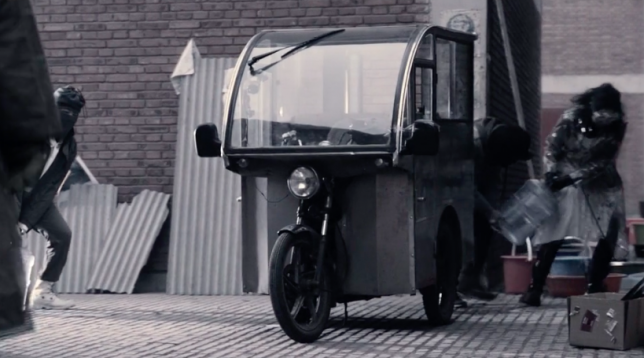
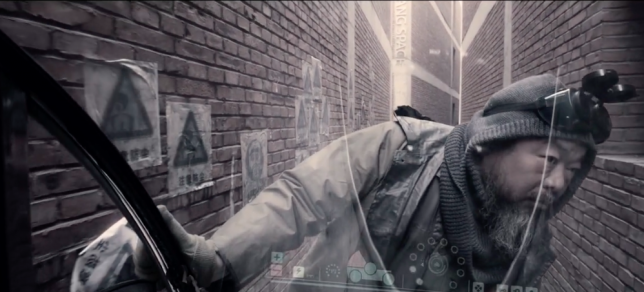
Starring Chinese dissident and artist Ai Weiwei, ‘The Sand Storm’ by Hong Kong-based cinematographer Christopher Doyle and director Jason Wishnow examines a dystopian future that’s not so far away, where society is facing water shortages and technology is not as helpful as we might hope.

Next Page – Click Below to Read More:
Urban Dystopia 11 Short Sci Fi Films Set In Future Cities

Share on Facebook


[ By SA Rogers in Drawing & Digital. ]

[ WebUrbanist | Archives | Galleries | Privacy | TOS ]


WebUrbanist

 
Comments Off on Urban Dystopia: 11 Short Sci-Fi Films Set in Future Cities

Posted in Creativity


A photographer’s intro to the world of video

13 Jul

It took me a long time to recognize the appeal of video shooting. Even in a job where I have to use a camera’s video features, it was only fairly recently that I moved beyond just taking short clips (essentially stills with a little bit of movement in them) and started to think in terms of using video and editing to tell stories.

Given that most modern cameras offer at least rudimentary video tools, I wanted to share my experiences and perhaps encourage others to start thinking about shooting at 24 or more frames per second.

The good news is that a lot of the things you learn as a photographer are immediately useful as you take your first steps in video shooting. But, as I discovered, at almost every stage I encountered differences and additional factors to consider. Many of which I wished someone had told me when I started…

Stop shaking the camera, you’re making me feel sick

The first thing that became apparent when shooting video for the first time was the need to keep the camera steady. I remember my Dad teaching me how to keep my camera steady and be aware of my breathing when shooting relatively long exposures, but no amount of good breathing technique or bracing the camera against a pillar is enough to give steady video.

Even if your camera is hand-holdable, don’t expect that to mean you’ll shoot it hand-held.

This makes sense, of course: most stills shooting only requires you to hold your camera steady for fractions of a second whereas video lets the viewer see how steady you’ve been for seconds or minutes at a time.

What I’ve learned is that in-camera stabilization can be enough to stop your footage looking unwatchably juddery, but unless you’re aiming for a ‘run-and-gun’ aesthetic, you’ll need to use a tripod or some sort of stabilization rig.

Exposing some limitations

Exposure is another area where the lessons I’d learned from stills photography are useful but incomplete. You still get to control the same variables, but the range of control you have is somewhat restricted. It’s still a question of managing light, but with a greater risk of finding yourself with too much of the stuff.

For me it’s a question of shutter speed, which has a more obvious impact on the appearance of your footage than is usually the case in stills shooting. A fast shutter speed in stills photography will freeze motion, a slow one will allow the subject to blur but there’s often a large range in between these two extremes. In video, there’s a narrower range before the viewer starts to notice the difference.

The 180 degree shutter ‘rule,’ where you use a shutter speed that’s half the duration of each frame (so 1/48th seconds for 24 fps shooting) isn’t an inviolable law, but the further you stray from it, the more jarring or muddled your footage will look. This can be a creative choice, of course, but only counts as such if you’ve consciously made it.

This made me think back to when I was first experimenting with stills photography, and getting a feel for the boundaries set by the longest shutter speed I could hand-hold, the widest aperture I had available and the highest ISO setting I found acceptable. Once I was familiar with these, one of the first purchases I made was a faster lens (that’s right: a 50mm F1.8) to get more light to extend these capabilities.

With stills shooting, one of the first things you buy is a bright lens to get more light, with video it’s an ND filter, to get rid of it.

With video and the further restriction over the fastest shutter speed I’m willing to use, it’s a decent ND filter I need to buy, to reduce the light level to fit your boundaries.

A neutral density (ND) filter allows you to use use wide apertures and the relatively slow shutter speeds that a lot of videographers favor. An adjustable ND filter provides even more flexibility.

A return to JPEGs

Added to these exposure limitations has been another throw-back to my first days as a photographer: having to revert to an 8-bit, compressed shooting format. Having spent some time learning the distinctions between video file formats, the main lesson has been that none of the ones I’m likely to encounter are anything like Raw.

Once you’ve been spoiled by the seemingly endless dynamic range that can fit in a 14-bit Raw file and the ability to set and adjust the white balance at the ending stage, it’s a shock to go back to having to get exposure and white balance perfect when you shoot.

Flat tone curves and Log profiles provide a means of squeezing a bit more useable DR into those 8-bit files, but this can make it even harder to judge correct exposure. I’d highly recommend shooting some test footage and trying to grade it back into something useful, before committing yourself to the flattest tone curve you can find.

Articles: Digital Photography Review (dpreview.com)

 
Comments Off on A photographer’s intro to the world of video

Posted in Uncategorized


Parachut is a subscription service for borrowing expensive camera gear

13 Jul

If you’re really keen to shoot with a particular camera or lens, but you can’t afford to buy it, you don’t have many options. Renting gear for long periods of time can get very expensive, very quickly.

Parachut is a new subscription-based service that allows you to borrow from a wide variety of equipment – old and new – for $ 149 per month. Pitched as a service geared around ‘exploration’, Parachut allows subscribers to lease equipment based on their personal interests. You can add specific items to a wish list, but the precise contents of your first delivery – called a ‘Chut Drop’ – will be tailored to your picture-taking preferences, and skill level, and may include ‘surprises’. 

Parachut is a subscription-based service for long-term leasing of photographic equipment, both old and new.

Once you take delivery of a piece of equipment, provided that you maintain your subscription, you can keep it for as long as you like. An additional $ 49 per month covers accidental loss or damage.

Parachut is currently in beta, and only available to US-based subscribers. Expansion to other countries is planned, and an official launch for ‘founding members’ is scheduled for later this year. Right now, $ 149 will get you on the founding members list, ready for the first Chut Drop in autumn. 

For more information, watch the (slightly cringeworthy) video, above, and check out Parachut’s website. What do you think? For what amounts to almost $ 2000 a year, would you make use of a service like Parachut? Let us know in the comments. 

Articles: Digital Photography Review (dpreview.com)

 
Comments Off on Parachut is a subscription service for borrowing expensive camera gear

Posted in Uncategorized


Vorticity: Time-lapse captures the drama of storm chasing

13 Jul

Mike Olbinski recently spent 18 days and drove some 20,000 miles to capture one of nature’s most powerful forces on camera, and in doing so has created one of the most compelling time-lapse videos we’ve seen in a long time. He shot some 60,000 time-lapse frames between April 15th and June 15th, 2016 and compiled them into a six minute long epic that concludes with the holy grail of storm chasing: capturing a tornado on camera. Definitely view this one in full screen mode and enjoy!

Articles: Digital Photography Review (dpreview.com)

 
Comments Off on Vorticity: Time-lapse captures the drama of storm chasing

Posted in Uncategorized


DEAL: $5000 worth of Post Production Tools for Just $79

13 Jul

It’s the 7th and final day of our 2016 Summer Sale… and we’ve saved the biggest deal until last!

The good people over at Photographypla have made their Ultimate Photography Bundle, worth a whopping US$ 5,000+, available to dPS subscribers for just US$ 79.

NewImage

Yes, $ 5,000+, worth of resources for Lightroom and Photoshop for $ 79.

In it you’ll get:

  • 1,000+ Lightroom presets
  • 1,000+ Photoshop actions
  • 500+ actions for Photoshop Elements to apply a huge variety of different effects to your photos in no time.
  • 1,000+ photo overlays for weddings, engagements, graduations and more
  • 130+ print templates with announcements for births, graduation, weddings and more
  • 120+ digital frames
  • Collection of business and marketing resources (including contract templates)

Why buy presets or actions in small packs when you can get this MASSIVE bundle at an amazing price? Get it while it lasts!

googletag.cmd.push(function() {
tablet_slots.push( googletag.defineSlot( “/1005424/_dPSv4_tab-all-article-bottom_(300×250)”, [300, 250], “pb-ad-78623” ).addService( googletag.pubads() ) ); } );

googletag.cmd.push(function() {
mobile_slots.push( googletag.defineSlot( “/1005424/_dPSv4_mob-all-article-bottom_(300×250)”, [300, 250], “pb-ad-78158” ).addService( googletag.pubads() ) ); } );

The post DEAL: $ 5000 worth of Post Production Tools for Just $ 79 by Darren Rowse appeared first on Digital Photography School.


Digital Photography School

 
Comments Off on DEAL: $5000 worth of Post Production Tools for Just $79

Posted in Photography


Take a look around: traditional stills versus VR in Iceland

13 Jul

Introduction

Time to relax – does VR capture lower the barrier for creating memorable vacation content? Let’s take a look. Nikon D810 + Nikon AF-S 35mm F1.4G @ F2 | 1/8000 sec | ISO 200. Photo by Carey Rose

Back in April, two friends and I took a trip to Iceland, spending eight days circumnavigating the island via its famous ring road. Happily, around that time we were looking for some updated content for our review of the Nikon D810, so I took one along and wrote up a shooting experience.

In general, though, I enjoy documenting my travels even when I’m just traveling for fun. I find it to be a nice creative recharge, simply photographing for myself, in my style, with my choice of equipment. Of course, the D810 I borrowed wasn’t my personal equipment, but it was near-ideal for the sorts of situations I found myself in (plus, handling-wise, it isn’t quite so different from the D700 I was originally planning on bringing).

But now we’ve got VR technology beginning to make waves in the consumer electronics industry. What’s more, capture devices are getting more accessible: the Ricoh Theta S retails for just $ 349, making it a cheaper proposition than most DSLRs, as well as my secondhand X100 and Ricoh GR, which are my usual go-to cameras for casual photography.

The Ricoh Theta S carries an MSRP of $ 349, and offers full 360 stills and video capture as well as smartphone integration.

At its core, the act of taking a photograph requires some translation of the 360-degree setting in which the photographer stands into a two-dimensional window, for viewing on the web or in print. But 360-degree VR capture changes that. When you’re literally just capturing the entirety of a scene around you, is there value in it for other viewers? When you’ve removed one of the most basic creative tenets of capturing a photograph, what are you left with?

During our time in Iceland, my friends and I were lucky enough to have the opportunity to borrow a Ricoh Theta S as well. Without any prior experience, we tried to use it as we did our DSLRs – to see if and how it could offer value to us above and beyond our traditional camera kits.

Click-and-drag on a desktop or laptop to view the 360 footage. All ‘traditional’ photographs by Carey Rose, and all Theta S 360 images by Jordan Stead.

360-degree viewing methods

Spoiler alert – when viewing the Theta S footage on a 2D viewing device, such as a laptop or smartphone, I find the results somewhat underwhelming. And throughout this article, you will, of course, notice that the files from the Ricoh are a little low-res, and lack some ‘pop’ that you can see in files from the D810. This shouldn’t really be a surprise given the dramatic differences in hardware, so I’ll be focusing on the viewing experience concerning the 360-stills rather than outright image quality.

Here’s a collection of stills captured on a D810 from a black sand beach outside Vik, in southern Iceland.

The top two images are shot with a 35mm prime, and the bottom two with an 80-200mm F2.8 zoom. Now, as I alluded to in my shooting experience, these may not be your standard picture-perfect postcard images from this setting. But that’s okay, because that’s not generally how I shoot when I’m shooting for myself. I like to use several different photos to focus on several different aspects of a scene, as opposed to shooting wider-angle ‘overall’ photos that get more of a sense of place in a single image. Something approaching the latter is what you get when you use the Theta S. 

I find viewing the 360 as you see it above in a web browser or on a mobile phone to be somewhat ‘distant.’ The distortion is strong, and therefore distorts the sense of place, even though you can see everything in the scene. Everything also feels very far away, which ties in with an overall sense of detachment I feel looking at it, even though I know that I’m just a little ways down the beach in the image. You can zoom into the 360 image to reduce the distortion somewhat, but then the experience becomes even less immersive.

The overall feeling I get is of a person quickly taking an eye-level wide-angle photograph of something in front of them (not a criticism of my friend Jordan who was shooting with the Theta – the 360’s I took on this trip also had the same feel). Also, if you happen to view it on a phone, by default you ‘look’ around the scene by reorienting your phone in 3D space, which makes you look very silly if you are looking at it in public.

But then I looked at it through a Galaxy Gear VR headset, and everything changed.

Articles: Digital Photography Review (dpreview.com)

 
Comments Off on Take a look around: traditional stills versus VR in Iceland

Posted in Uncategorized