RSS
 

Archive for July, 2016

Adobe ACR 9.6.1 update supports Fuji X-T2

21 Jul

Adobe has updated its Camera Raw application to make it compatible with raw files created by Fujifilm’s new X-T2 camera. The latest version, 9.6.1, also fixes some reported bugs that prevented the opening of uncompressed DNG files that had been converted from Fuji X-E2 RAF format files, and an issue that meant panoramas couldn’t be created from two HDR DNG images.

This version of Camera Raw, and the fixes that it brings, are available now to users of Photoshop CC and the Creative Cloud application.

For more information and to download the update see the Adobe Lightroom Journal blog.

Manufacturer information:

Camera Raw 9.6.1 now available

Camera Raw 9.6.1 is now available through the update mechanism in Photoshop CC and the Creative Cloud application. Our focus with this release was to fix reported customer issues.

Thank you for all your feedback and passion for Camera Raw.

Bugs Fixed in Camera Raw 9.6.1

  • Uncompressed DNGs files converted from Fuji X-E2 RAF source images were are unable to be read
  • Errors that preventing customers from creating a panorama from two HDR DNG source images.

New Camera Support in Camera Raw 9.6.1

  • Fujifilm XT-2

Installation Instructions

Please select Help>Updates to install the update. See Keeping Photoshop & Camera Raw up-to-date.

Please note – If you have trouble updating to the latest ACR update via the Creative Cloud application, please refer to the following plugin installation:

http://helpx.adobe.com/x-productkb/multi/camera-raw-plug-in-installer.html

DNG Converter Links: Win | Mac

Articles: Digital Photography Review (dpreview.com)

 
Comments Off on Adobe ACR 9.6.1 update supports Fuji X-T2

Posted in Uncategorized


Tunnel Visions: 15 All-Encompassing Explorable Art Installations

20 Jul

[ By SA Rogers in Art & Sculpture & Craft. ]

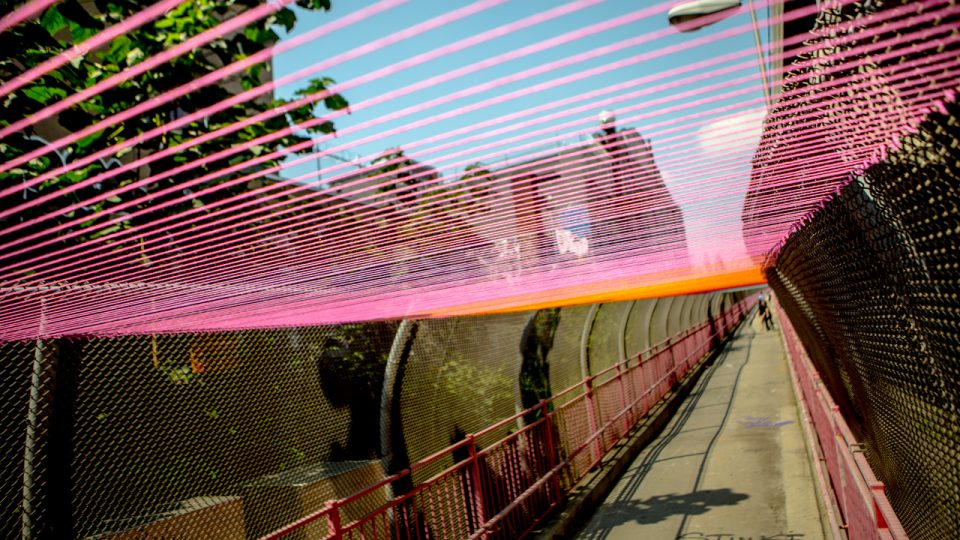
tunnels brooklyn 1

Few art experiences short of virtual reality are quite as immersive as entering a tunnel, literally surrounding yourself with an artist’s vision, blocking out nearly all sensory input not related to the installation. You’re temporarily transported to a dimension that’s not quite real, often unsure where the tunnel might take you. These 15 tunnel-based art installations offer explorable landscapes, inviting you to walk or even crawl through structures made of light, yarn, tape, salvaged wood and textiles.

LED Light Installation in Wellington by Angus Muir

tunnel LED

tunnel LED 2

tunnel LED 3

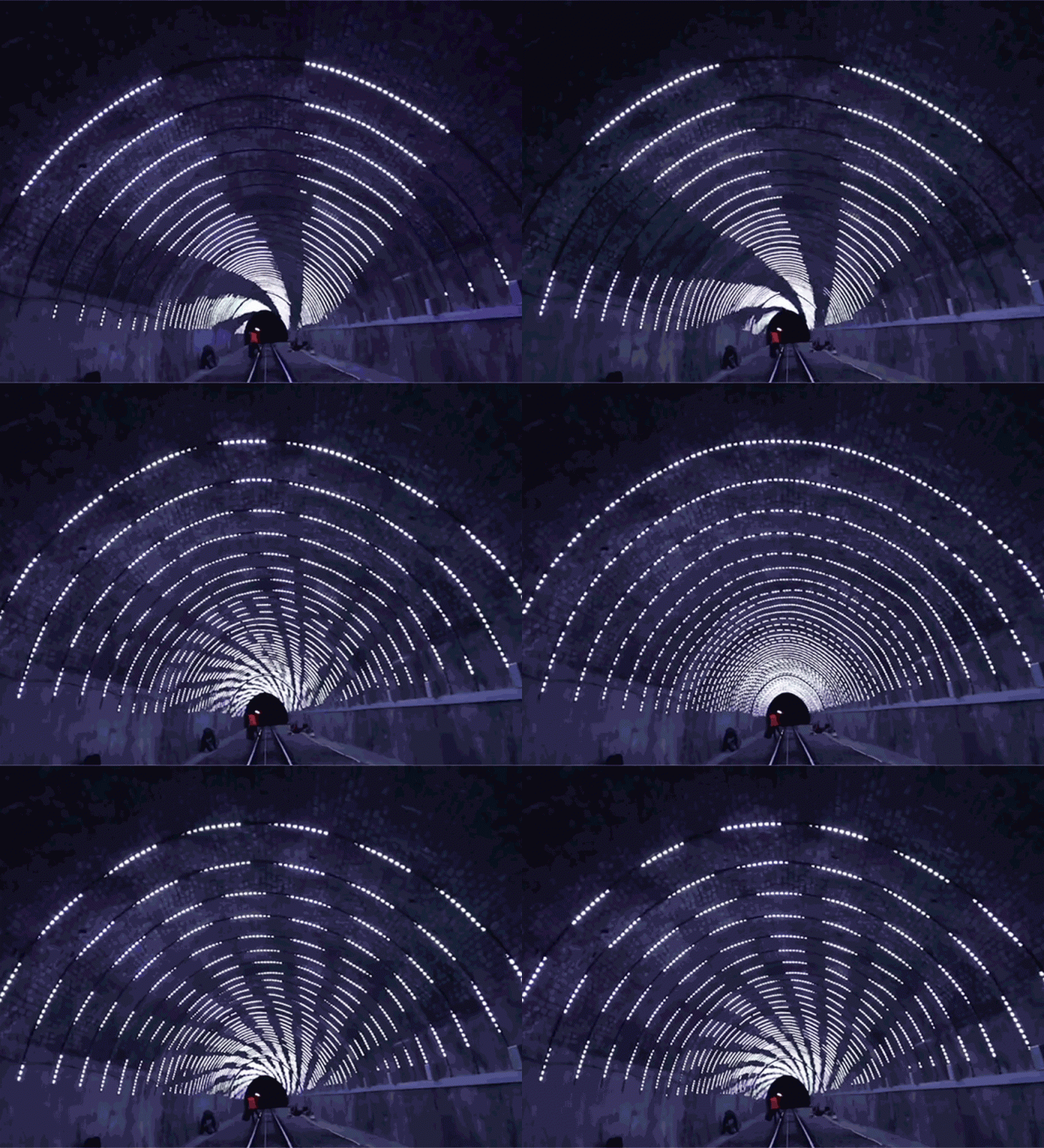
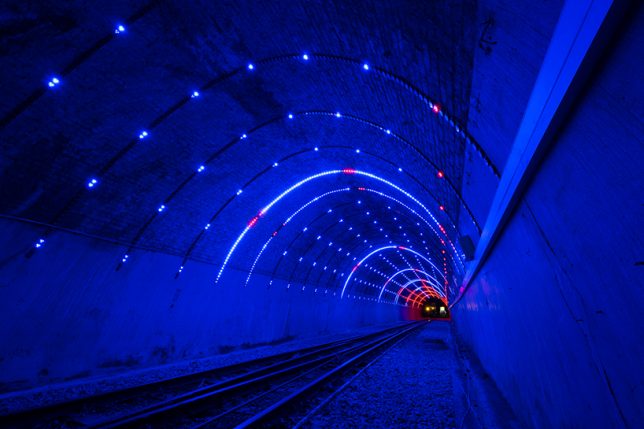
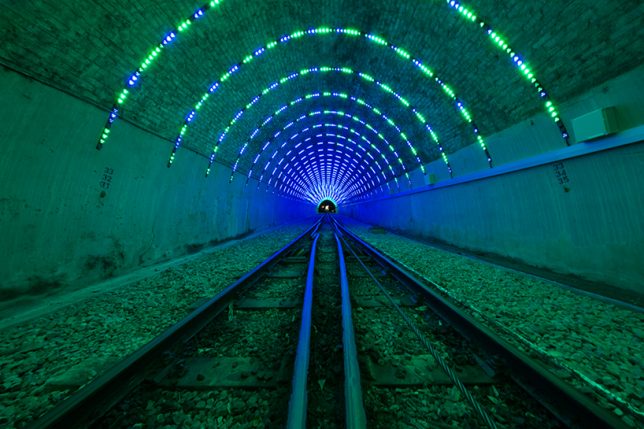
A permanent LED light installation inside a Wellington tram tunnel forms a shimmering, shifting series of arches that blink and change colors. The Wellington Car Cable Company commissioned artist Angus Muir to create the kaleidoscopic landscape of light,

The Pixels Crossing in Paris by Miguel Chevalier

tunnel pixels crossing

tunnel pixels crossing 2

tunnel pixels crossing 3

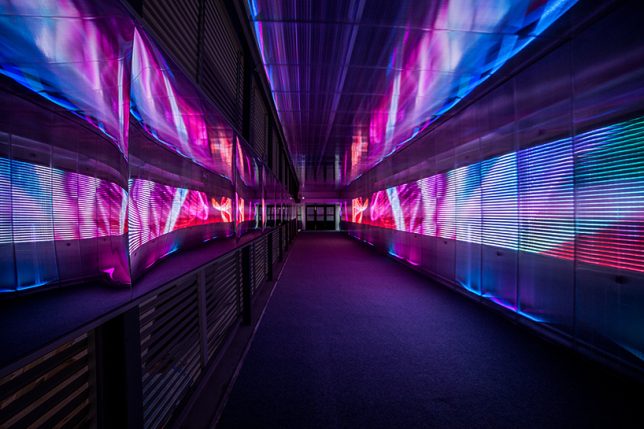
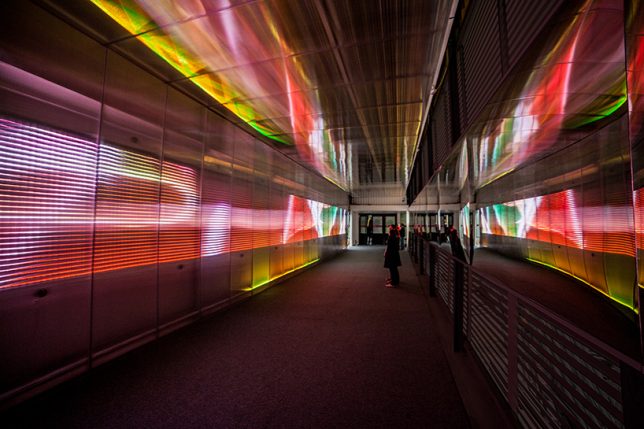
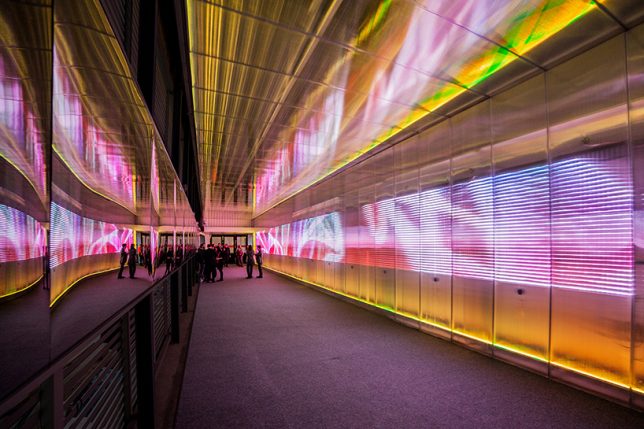
French artist Miguel Chevalier created a temporary tunnel connecting the Forum des Halles and the Place Carée in Paris, with shimmering, multicolored scenes moving in synch with a wave pattern of sound, giving commuters an otherworldly experience as they walked along the transit route.

‘Terminus’ Ribbon Tunnel in Georgia by Megan Mosholder

tunnel terminus

tunnel terminus 2

tunnel terminus 3

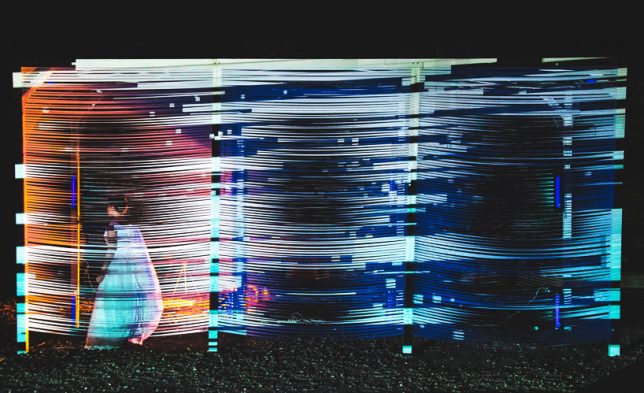
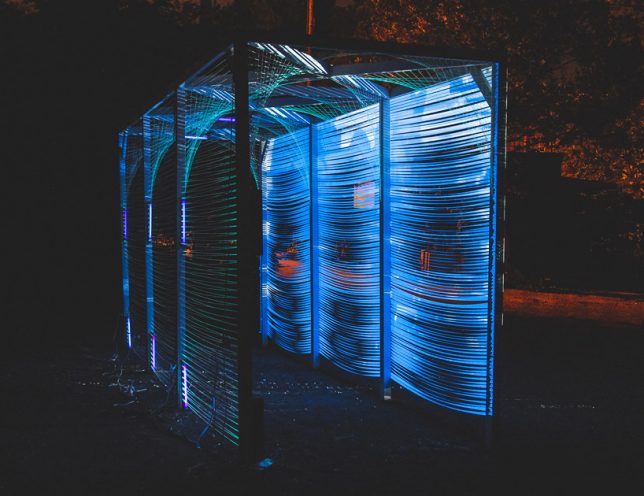
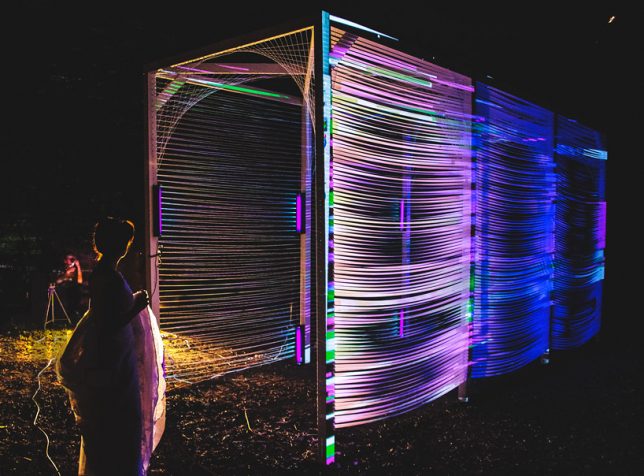
Placed in the grass outside Atlanta’s Hambidge Center of Creative Arts and Sciences, ‘Terminus’ by Megan Mosholder offers a visual representation of the city’s potential if only they solved their transportation problems. The installation consists of ribbons strung along a frame, and light projected onto them to resemble a blurred train passing through a station at night.

‘Tunel’ by Rejane Cantoni & Leonardo Crescenti

tunnel tunel 1

tunnel tunel 2

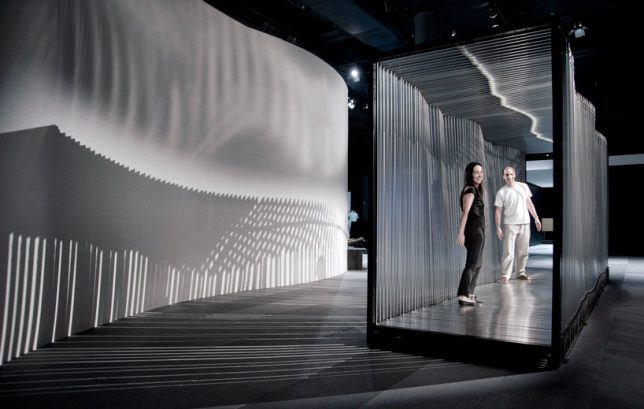
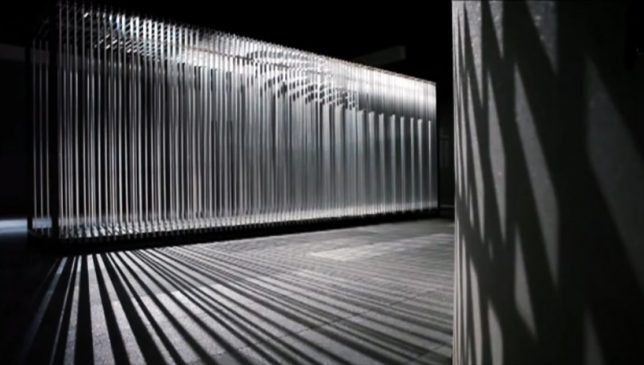
Any visitor stepping inside this interactive kinetic sculpture by Brazilian artistic duo Cantoni-Crescenti watched the architecture of the tunnel shift and transform in response to their own body weight and movement. 92 metal frames are individually controlled by a series of springs and cables, linked in a chain, so that your weight might cause the floor to incline or a section of the walls to rotate toward you.

Tube in Tirol by Numen/For Use

tunnel tube 1

tunnel tube 2

tunnel tube 3

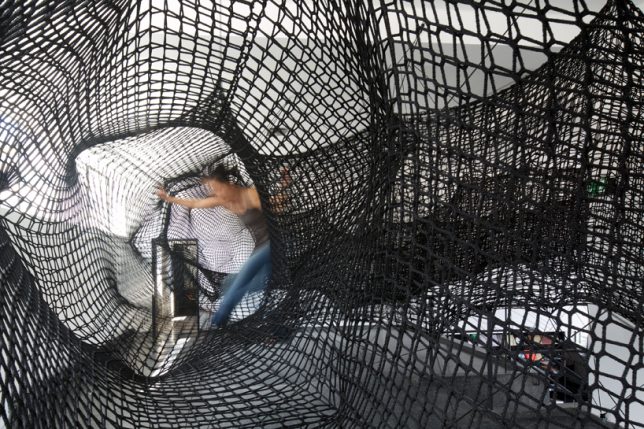
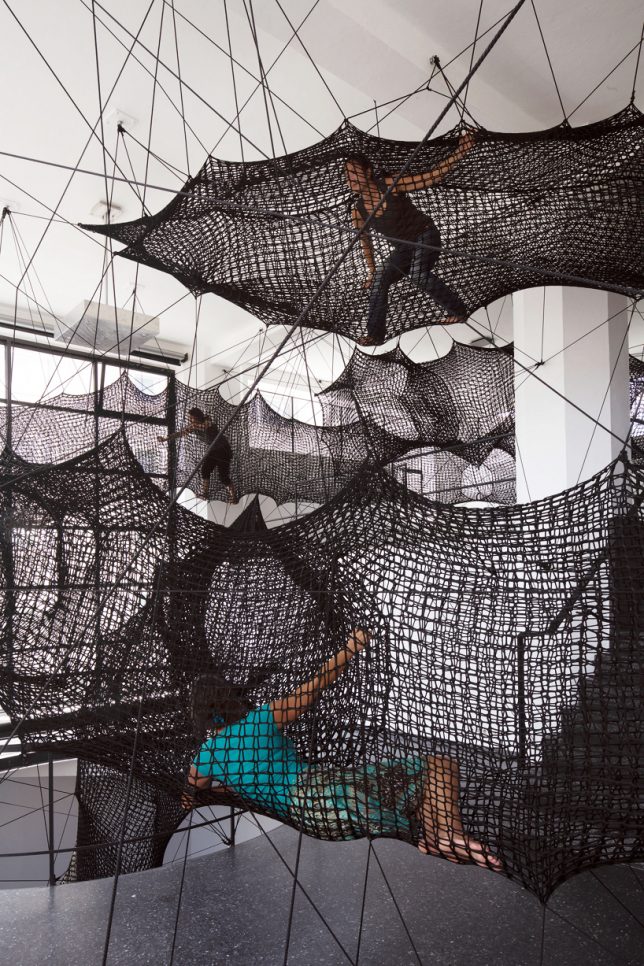
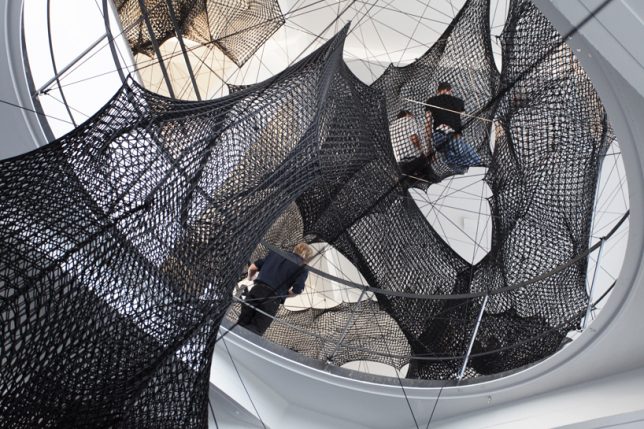
Crawl around in a series of net tubes suspended high up off a gallery floor at this installation by Croatian-Austrian design collective Numen/For Use. ‘Tube’ is a maze of rope tunnels that mostly lead to dead ends, snaking up through an atrium and into the second level of Austria’s Architekturforum Tirol gallery.

Next Page – Click Below to Read More:
Tunnel Visions 15 All Encompassing Explorable Art Installations

Share on Facebook


[ By SA Rogers in Art & Sculpture & Craft. ]

[ WebUrbanist | Archives | Galleries | Privacy | TOS ]


WebUrbanist

 
Comments Off on Tunnel Visions: 15 All-Encompassing Explorable Art Installations

Posted in Creativity


Second Time Around: Canon PowerShot G7 X Mark II Review

20 Jul

Key Features

  • 20MP 1″-type BSI CMOS sensor
  • 24-100mm F1.8-F2.8 lens
  • 3″ tilting touchscreen LCD
  • Click/click-less front dial
  • 8 fps continuous shooting
  • 1080/60p video capture

For nearly two and a half years, Sony had the 1″-type sensor compact camera segment all to itself with its RX100 series. While Canon had its PowerShot G1 X (and the Mark II that followed), they were anything but pocketable. In September 2014 Canon joined Sony, offering up its PowerShot G7 X. From a pure specifications point of view, the G7 X was toe-to-toe with the Sony RX100 II and RX100 III (the current models at the time it was announced) in most respects, especially in terms of focal range and usability.

Despite being so promising on paper, the G7 X proved a disappointment in a few areas. Performance in Raw mode was sluggish, battery life wasn’t great and, its lens wasn’t as good as those on some of its competitors. Canon has addressed most of those problems on the Mark II, due in large part to its Digic 7 processor, which makes its debut in the G7 X II.

From a performance perspective, the Mark II has faster burst shooting, especially when shooting Raw files, which was a big disappointment on the original model. Where the Mark I shot continuous Raw bursts at just 1 fps, the Mark II can now shoot Raws, JPEGs or both at 8 fps. Canon also claims improvements in subject recognition and tracking, which wasn’t a strong point of the original model, either.

The G7 X II offers what Canon calls ‘Dual Sensing IS’, which uses data from the image sensor (in addition to gyro-scoping sensors) to reduce blur caused by camera shake. The company claims that this system is more effective than on the G7 X, with the ability to reduce shake by four stops. There’s also a new panning IS mode that will adjust the shutter speed to ensure that your subject is ‘frozen.’

In the image quality department, the Digic 7 processor brings improved sharpening and high ISO noise reduction algorithms. We’ll see the results of that later in the review.

Perhaps the G7 X’s biggest problem was battery life, which has been boosted by 25% to 265 shots per charge (CIPA standard). Even with that increase, though, the Canon still lags behind the Sony RX100s and Panasonic Lumix ZS100/TZ100.

The G7 X II uses the same lens and 1″-type sensor as its predecessor.  As you can see, the main difference on the front is a much-needed grip. It’s also slightly ‘chunkier’ in general.
Canon has moved the display hinge from the top to the bottom, which allows the screen to tilt downward by 45 degrees, something that the original G7 X could not do.

Cosmetically, the Mark II boasts three major changes. First is the addition of a much-needed grip, as the finish on the camera is quite slippery. Second, while it’s a bit subtle, Canon has moved the hinge on the tilting LCD to the bottom, which allows the screen to tilt downward, itself of just up. Finally, those who can’t decide whether they want the control ring around the lens to be ‘clicky’ or ‘smooth’ can now have both via a toggle switch to the lower-right of the lens.

Spec Comparison

Below is a look at how the key specs vary between the PowerShot G7 X I and II as well as the Sony Cyber-shot DSC-RX100 III, which is arguably the Mk II’s closest competitor.

   Canon G7 X  Canon G7 X II  Sony RX100 III
Sensor 20MP 1″-type BSI CMOS 20MP 1″-type BSI CMOS 20MP 1″-type BSI CMOS
Lens focal range 24-100mm equiv. 24-100mm equiv. 24-70mm equiv.
Max aperture F1.8 – F2.8 F1.8 – F2.8 F1.8 – F2.8
LCD size/type 3″ tilting (180° up) 3″ tilting (180° up, 45° down) 3″ tilting (180° up, 45° down)
Touchscreen Yes Yes No
Built-in EVF No No Yes
Max burst rate
(w/AF lock)
6.5 fps JPEG
1 fps Raw 
8 fps JPEG/Raw 10 fps JPEG
6.5 fps Raw
Video 1080/60p/30p

1080/60p/30p/24p

1080/60p/30p/24p
In-camera Raw conversion No Yes No
Battery life (CIPA) 210 shots 265 shots 320 shots
In-camera charging No Yes Yes
Dimensions 103 x 60 x 40mm 106 x 61 x 42mm  102 x 58 x 41mm
Weight (CIPA) 304 g 319 g 290 g

As you can see, lens focal range, touchscreen and battery life are what separate the G7 X II from its competition.

Lens Comparison

The chart below breaks down the equivalent aperture for each camera, as you work your way through the zoom range. Our article here explains the concept of equivalence, but at a high level all you need to know is that the lower the line is on the graph below, the blurrier the backgrounds you’ll be able to get and, typically, the better the overall low-light performance.

As you can see, the G7 X II and RX100 III start off at the same spot, but up until about 50mm the former has a slight equivalent aperture advantage. The two cameras are matched until the RX100 III’s focal range ends up 70mm. The G7 X continues on to 100mm at F2.8 (~F7.6 equiv.), which is one of its big selling points.

Articles: Digital Photography Review (dpreview.com)

 
Comments Off on Second Time Around: Canon PowerShot G7 X Mark II Review

Posted in Uncategorized


Interview: Celebrity photographer Jeremy Cowart speaks to us about The Purpose Hotel

20 Jul

Imagine staying at a hotel where everything in the rooms – and the nightly rate of the room itself – benefited someone in need. That’s the idea that lodged in commercial and editorial photographer Jeremy Cowart’s imagination, and which has since evolved into ‘The Purpose Hotel’.

With a Kickstarter campaign launching this week, Cowart hopes to open the first Purpose Hotel in Nashville within three years. So why would a successful photographer switch from taking pictures of some of the world’s biggest celebrities, to get into the hotel business?

We spoke to Jeremy recently about his work, and his plans for The Purpose Hotel.


What is the Purpose Hotel?

It’s going to be a hotel where everything in the building is connected to a cause, or a non-profit. So everything you’re interacting with is helping someone, somewhere in the world. Our tagline is ‘Change the World in Your Sleep’.

The Purpose Hotel will be a for-profit hotel, so in that regard it’s a normal hotel business, we just have a very serious cause at the core of our mission, and that cause is to help as many organizations as possible.

There are a million hotels out there, and obviously some are trying to think more along the lines of giving something back, but I’m not aware of any hotel that’s doing it at the level that we’re aiming for.

What inspired you to create the concept of the Purpose Hotel?

I was on a photo shoot four years ago, and I was staying at the Standard, a hotel in LA. And the room number was designed like a name tag – it said something like ‘Hello, my name is Room 121’. And for whatever reason that inspired me, and I took it a different direction, and wondered what if that room number was a story that you felt connected to? And what if that story was a child’s face, and what if by staying in that room you were sponsoring that child?

So it started with that simple idea, and then as I was looking around that hotel room I started thinking, well, I know there are non-profits that make soaps, and shampoo… what if the TV showed inspiring documentaries from filmmakers all around the world… what if the Internet fee went to fight human trafficking… what if room service was connected to Food for the Hungry?

I just had this lightbulb moment – what if everything was helping something? And it grew from there. 

Instead of going out and buying soaps and shampoo from whoever, or artwork just to fill the hotel, we’re going to go and source those from companies that are already supporting non-profits.

$ (document).ready(function() { SampleGalleryV2({“containerId”:”embeddedSampleGallery_8161897269″,”galleryId”:”8161897269″,”isEmbeddedWidget”:true,”standalone”:false,”selectedImageIndex”:0,”startInCommentsView”:false,”isMobile”:false}) });

Is photography core to the concept of the Purpose Hotel?

In a way, yes. It’ll obviously still be a hotel, but as a photographer and an artist I want there to be an amazing display of both, in the hotel. I can’t wait to personally curate those galleries because I have so many friends and peers in the industry whose work I really want on the walls of the hotel.

My dream is for the whole hotel to be a living, breathing art gallery, where we sell the artists’ work, and that money goes to them. I want to help artists make a living through the hotel, and I hope that we can also give a percentage of sales to organizations that do art therapy. So that kids around the world can process their past, their history, through art therapy. I got to do that in Uganda and it was amazing.

At this point, would you say you’ve made a transition of sorts, from making a living purely from photography, to more of a philanthropic way of life?

Sure, it could be called philanthropy, it could be called being an entrepreneur. But at the end of the day I think of myself as an idea chaser. When we have those whispers of ideas, a lot of people don’t pursue them because they think they’re impossible or they think they can’t, but I love the challenge of chasing those ideas no matter how big they are.

I’m passionate about the intersection where creativity and helping people meet. If I can help the community and do it in a really interesting, creative way, I’m passionate about that.

Was there a single experience, or trip that lead you to be more interested in philanthropy?

It was a sort of building, escalating thing. From my first trip to Africa in 2005, followed up by many more trips, doing projects overseas. I’m the founder of Help Portrait, which is a non-profit where we have photographers all over the world giving portraits to people in need. So yeah – I’ve found so much fulfillment from all of those projects. 

Do you see yourself potentially making a living out of projects like this, or will you always be a commercial photographer as well?

Good question, and I’m not sure about the answer. I’ll always be a visual artist first. I think that will continue to morph into different forms – I’ll always have a camera in my hands, I’ll always shoot, but I hope that there are humanitarian projects and personal projects in my future.

What has your photographic career taught you?

Every photographer wants to build a name for themselves, and wants to be famous and all that. But I’ve learned that it’s a lot less fulfilling than you think it is. It’s not that great, it’s not going to change your life. I like to say that greatness should be used to serve a greater purpose. So how do you use greatness to do something even bigger than yourself? That’s a lesson I’ve learned, and I’m continuing to do things that are bigger than me, and which aren’t about me.

Articles: Digital Photography Review (dpreview.com)

 
Comments Off on Interview: Celebrity photographer Jeremy Cowart speaks to us about The Purpose Hotel

Posted in Uncategorized


Accusations fly over Fukushima photos

20 Jul

We recently featured the photography of Keow Wee Loong, who claimed he had entered Fukushima’s exclusion zone without a permit. His photos of the area have been widely shared on social media and by other publications. While controversial in their own right, a blog post by Polish photographer Arkadiusz Podniesinski accuses Keow of mis-representing the images, stating that the photos he released were actually taken in publicly accessible green and orange zone areas that don’t require special permits to enter.

Keow Wee Loong has posted a rebuttal on his own Facebook page, stating that he did in fact enter red zones without a permit, describing the towns he visited as ‘basically empty’ save for a few police patrols.

An image posted by Keow Wee Long on his Facebook page comparing the locations he claims to have recorded for his own photos to recent maps documenting evacuation status of towns in the region.

Singaporean website Mothership.sg flags a few of the locations photographed by Keow on Google Maps, stating that they are in fact in areas where residents are permitted limited access. But areas without red zone restrictions may still look very much abandoned. In an article published in March, the Japan Times reported that while many communities in Fukushima Prefecture had seen restrictions lifted, many residents were reluctant to return.

It’s difficult to say whether Keow is misrepresenting or sensationalizing his story as Podniesinski claims, or whether he may have believed he was in more dangerous territory than he really was. Does the controversy change how you view these photos? Let us know in the comments.

Articles: Digital Photography Review (dpreview.com)

 
Comments Off on Accusations fly over Fukushima photos

Posted in Uncategorized


Pokédrone Go: Micro-Drone Augments Reach for Pokémon Players

20 Jul

[ By WebUrbanist in Gaming & Computing & Technology. ]

pokeman mini drone game

Pokémon Go has hit the ground running, breaking game release records and getting people out of the house and onto city streets. This new drone promises to take the game even further, allowing aerial access to hard-to-reach spots. Designed by TRNDlabs, the Pokédrone lets users slot their smartphone into a controller, then steer the small drone to the target location, extending reach in real life.

The tiny four-prop toy addresses a persistent problem with game: sometimes the spots players need to get to (or at least: get a phone-connected camera to) IRL are located above water or in the middle of roads, either hard or dangerous to reach. Its creators promise it will make the tagline of the game a reality and let you “catch ’em all.”

pokedrones

This design solution release comes amidst an onslaught of press around the game, from stories of player-related accidents and muggings to uplifting tales of people getting out and meeting strangers on the streets.

flying drone capture

Relying on data from Ingress, the Pokémon game is still a work in progress, but supplemental projects like the drone above may prove helpful in fixing its problems and filling in its gaps.

trndlabs-2652-SKEYE-nano-drone-FPV-DIECUT01-aw-v3-OL

It is hard to say whether Pokémon-as-such will retain its popularity over time, but so far it seems to have broken down the wall between console gaming, mobile games and urban exploration. As such, it is opening a (virtual, real and metaphorical) door for similar interactive technologies aiming to gain ground.

pokeman joe

Who knows, maybe the next iteration of the game (Poké-Man Joe?) will let users seek out other players and digitally “capture” them by conversing or swapping data, a kind of meta-Pokémon as it were aimed at generating not just urban but human interaction.

Meanwhile, the game is already helping people rediscover their civic surroundings, getting them to engage with architecture, parks, plazas, monuments and memorials in new and compelling ways (at least when they glance up from their screens).

Share on Facebook


[ By WebUrbanist in Gaming & Computing & Technology. ]

[ WebUrbanist | Archives | Galleries | Privacy | TOS ]


WebUrbanist

 
Comments Off on Pokédrone Go: Micro-Drone Augments Reach for Pokémon Players

Posted in Creativity


Aputure Amaran AL-M9 is a pocket-sized adjustable LED fill light

20 Jul

Still photography and video accessory purveyor Aputure has unveiled the Amaran AL-M9, an affordable pocket-sized LED panel. It uses 9 SMD TLCI 99 bulbs, an integrated rechargeable Li-ion battery, offers 9-step brightness adjustment and 120-degree light beam angle, and is a lightweight at 140g. Aputure bills the Amaran AL-M9 as a multi-purpose light for macro photography and ‘run and gun video,’ among other uses.

Aputure says the Amaran AL-M9 is the size of a credit card with an 11mm thickness, and offers 350 lux at a distance of 0.5m. The light can be attached to a standard 1/4-20” mount, and includes a pair of magnetic diffusion filters.

The Amaran AL-M9 is available for pre-order from Amazon for $ 45 with a launch date of August 6. Shipping is currently estimated to happen between August 17 and 26, however.

Via: PetaPixel

Articles: Digital Photography Review (dpreview.com)

 
Comments Off on Aputure Amaran AL-M9 is a pocket-sized adjustable LED fill light

Posted in Uncategorized


Comparison Review: Sony FE 50mm F1.4 ZA vs 55mm F1.8 ZA

20 Jul

Sony has announced a high-end ‘normal’ prime for its Alpha E-mount line of cameras: the Planar T* 50mm F1.4 ZA lens. As the third normal prime for the system, we wanted to know what it offers over the already excellent FE 55mm F1.8 ZA, so we set about performing some benchmark tests.

We’ll take a look at sharpness on this page, and bokeh, coma, and longitudinal chromatic aberration on the next.

Sharpness

Below, you’ll see a series of aperture progressions for the 50mm F1.4 ZA and 55mm F1.8 ZA. Have a look around the scene at various apertures to get an idea of the capabilities of these two lenses – with the caveat that this performance is only representative of our single copy of each lens.

$ (document).ready(function() { ImageComparisonWidget({“containerId”:”reviewImageComparisonWidget-27965628″,”widgetId”:381,”initialStateId”:null}) })

Wide-open, the 55/1.8 is slightly sharper than the 50/1.4, both centrally$ (document).ready(function() { $ (“#imageComparisonLink2690”).click(function() { ImageComparisonWidgetLink(2690); }); }) and peripherally$ (document).ready(function() { $ (“#imageComparisonLink2691”).click(function() { ImageComparisonWidgetLink(2691); }); }) (the advantage is retained on the left side$ (document).ready(function() { $ (“#imageComparisonLink2692”).click(function() { ImageComparisonWidgetLink(2692); }); }) of the frame as well, despite the fact that our 55/1.8 is slightly decentered and has poorer left side performance). But none of this should be too surprising, since sharpness at F1.4 is far more challenging than at F1.8. In fact, the 50/1.4 holds up very well considering the 2/3 EV disparity in f-stop.

Comparing both lenses at F1.8 (a more level playing field), the 50/1.4 catches up to the 55/1.8 in terms of center sharpness$ (document).ready(function() { $ (“#imageComparisonLink2695”).click(function() { ImageComparisonWidgetLink(2695); }); }), but still lags in peripheral sharpness on the left$ (document).ready(function() { $ (“#imageComparisonLink2693”).click(function() { ImageComparisonWidgetLink(2693); }); }) and right$ (document).ready(function() { $ (“#imageComparisonLink2694”).click(function() { ImageComparisonWidgetLink(2694); }); }) sides of the frame. By F2, though, the 50/1.4 just surpasses$ (document).ready(function() { $ (“#imageComparisonLink2701”).click(function() { ImageComparisonWidgetLink(2701); }); }) the 55/1.8 in central sharpness, though off-center it still lags a bit$ (document).ready(function() { $ (“#imageComparisonLink2702”).click(function() { ImageComparisonWidgetLink(2702); }); }). By F2.8 though, the 50/1.4 pulls ahead$ (document).ready(function() { $ (“#imageComparisonLink2703”).click(function() { ImageComparisonWidgetLink(2703); }); }) of the 55/1.8 even here off-center, and particularly at center$ (document).ready(function() { $ (“#imageComparisonLink2696”).click(function() { ImageComparisonWidgetLink(2696); }); }) where it pulls and stays ahead at higher F- numbers. Peripherally, though, the 50/1.4 never quite catches up to the 55/1.8, not at F2.8$ (document).ready(function() { $ (“#imageComparisonLink2697”).click(function() { ImageComparisonWidgetLink(2697); }); }), and not even by F5.6$ (document).ready(function() { $ (“#imageComparisonLink2698”).click(function() { ImageComparisonWidgetLink(2698); }); }) (the lenses are a bit more even on the left side at F2.8$ (document).ready(function() { $ (“#imageComparisonLink2699”).click(function() { ImageComparisonWidgetLink(2699); }); }) and F5.6$ (document).ready(function() { $ (“#imageComparisonLink2700”).click(function() { ImageComparisonWidgetLink(2700); }); }) due to the weaker performance of our 55/1.8 on the left but, technically, the F1.4 is still a little bit behind).

What does this mean?

The new 50/1.4 ZA displays impressive sharpness and contrast at F1.4. Not quite as much as the venerable 55/1.8 wide open, but a respectable amount considering the 2/3 stop light and depth-of-field advantage. These new lens designs deliver sharp and punchy images wide open, instead of the soft and hazy images you may be used to getting if you slap on old F1.4 designs on such high resolution sensors (remember that we’re using the unforgiving 42MP a7R II for this test).

That said, the new 50/1.4 does not retain this sharpness across the field as well as the 55/1.8, which offers better field uniformity at all apertures. By F2, though, the new 50/1.4 ZA matches the 55/1.8 in central sharpness, and surpasses it at all smaller apertures. Considering the high bar set by the 55/1.8 ZA, this is very impressive. However, you give up off-center sharpness at the widest apertures. If we were forced to pick an overall winner here in terms of sharpness, we’d probably go with the 55/1.8, but really there isn’t a huge difference between the two.

Roger Cicala over at LensRentals found the Sony 50mm F1.4 lens to be the sharpest centrally of any 50mm prime, outperforming the 55mm F1.8 ZA. However, peripherally, the 50/1.4 takes a plunge in terms of resolution, and the 55mm F1.8 pulls ahead. In fact, just 4mm out from center in the image circle, tangential resolution (which we assess by considering the highest frequency MTF trace: 50 lp/mm) drops below that of the 55/1.8 (solid purple line). Source: LensRentals Blog

It’s worth noting that Roger Cicala at LensRentals found the central sharpness wide open of the 50/1.4 to exceed the 55/1.8 (see MTF traces above), while our visual results don’t show the 50/1.4 to exceed the 55/1.8 until F2.8. We can’t rule out the possibility that our copy of the 50/1.4 slightly under-performed relative to the average, perhaps due to decentering; however, it’s reassuring that he found the 55/1.8 to offer greater uniformity. This difference in peripheral sharpness may be the reason for the apparent discrepancy in our results.

Below, we show our infinity scene overlaid with red and blue rings representing image heights of 4mm and 16mm, respectively: the two points where the 50 lp/mm MTF traces of the two lenses intersect. Between these rings, Roger’s 50/1.4 sagittal 50 lp/mm trace falls well below the 55/1.8. Hence, our visual shootout seems to agree with Roger’s results: aside from a very small region in the center, the 55/1.8 does outperform the 50/1.4 wide open (though we don’t see the improvement towards the edges of the 50/1.4: our 55/1.8 remains better). 

Our infinity scene with red and blue rings that represent 4mm and 16mm image heights (distance from center in the image circle). Between these regions, Roger’s own MTF data indicate a dip in sagittal resolution. It’s likely only the small region in the center (within the red circle) where the 50/1.4 resolves more than the 55/1.8 wide open, which would explain the apparent discrepancy between Roger’s results and ours. 

All that said, sharpness isn’t everything. How does the new 50/1.4 fare in terms of bokeh, coma, and purple/green fringing? Let’s take a look on the next page.

Articles: Digital Photography Review (dpreview.com)

 
Comments Off on Comparison Review: Sony FE 50mm F1.4 ZA vs 55mm F1.8 ZA

Posted in Uncategorized


Review: Light Painting Brushes – Tools for Creativity

20 Jul

If you enjoy light painting photography, I think this review of tools from Light Painting Brushes (LPB) will interest you. All photographers know that light is essential to taking a successful photograph. At night, when light is limited, light painting can be a fun and artistic form of photography that may stretch a shutter-bug’s creativity by creating light, solely for the purpose of photographing light. If you are new to light painting please read my article – Beginner’s Guide to Light Painting for some ideas to get started.

Light-Painting-Brushes-10

Also, Light Painting Brushes has a great online presence, full of ideas, examples and tutorials. Check out this example of the great tutorial video available:

There are two main types of light painting:

  1. Off-camera painting, by which a light source, unseen to the camera’s view, is used to illuminate a scene or objects so as to make them appear out of the dark in an image. Here the light is only showing the subject and is not part of the image.
  2. Secondly, on-camera painting, in which the light source is seen by the camera and is a subject to be photographed. So here the light IS the subject.

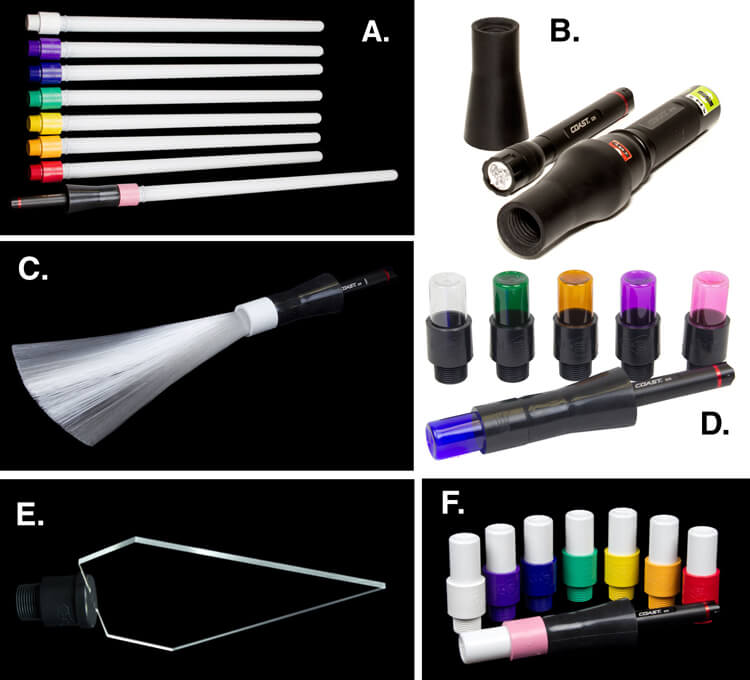
The tools I am reviewing in this article are used for on-camera light painting. With Light Painting Brushes, most of the tools are used to add a graffiti-type light to a scene. This can be lots of fun (especially in social situations) and the creative options are endless! Listed here are the items from Light Painting Brushes that I will be reviewing in this article. (Spoiler alert. they are really cool!)

  • Universal Connectors
  • Set of 8 Opaque Light Writers
  • Set of 6 Translucent Light Writers
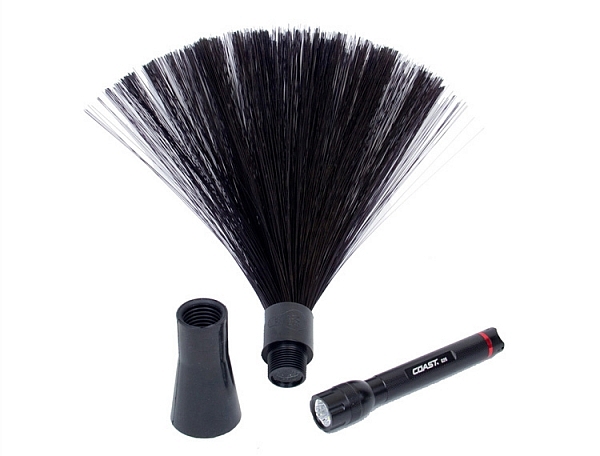
  • White Fiber Optic
  • Black Fiber Optic
  • Plexiglass Diamond
  • 22″ Light Sword
Light-Painting-Brushes-Tools

A. – Light Sword, B. – Universal Connectors, C. – White Fiber Optic, D. – Translucent Light Writers, E. – Plexiglass Diamond, F. Opaque Light Writers

Universal Connectors

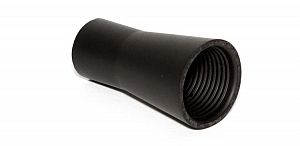
The universal connector is the glue that literally holds this whole system together. Made of a durable rubber, the universal connector allows any flashlight with a diameter of .975″ to 1.5″ to connect to any of Light Painting Brushes’ tools. The end of the universal connector appears to be threaded, but don’t try to screw the brushes into the connector. The thread’s function is to just grip the brush and hold it tightly it in place.Light-Painting-Brush-Universal-Connector-2-750px

Flashlights will easily insert into the other end, but never hold the whole thing by just the flashlight, as the brush may slide out. Instead, hold it by the universal connector. The universal connector may also be used to connect a “brush” of one’s own making, such as a pop bottle, to a light source (your flashlight).

Opaque Light Writers (Set of 8)

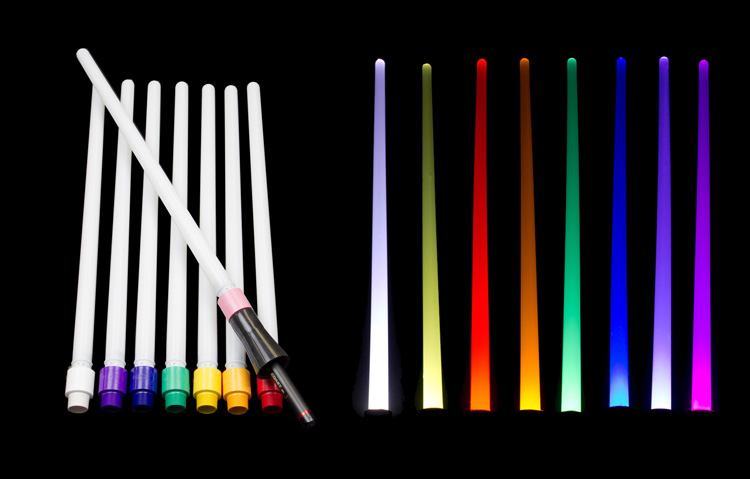
Use the universal connector to connect these opaque colored lights to your light source. The set is available in eight hues including white, purple, blue, green, yellow, orange, red, and pink. The opaque color makes them excellent tools for light writing, drawing or graffiti, and creative uses limited only by one’s own imagination. Because of the opaque colors of these light brushes, a very crisp drawing or writing source results. After some practice with this tool, I am sure some very detailed light drawings can be captured within a photograph.

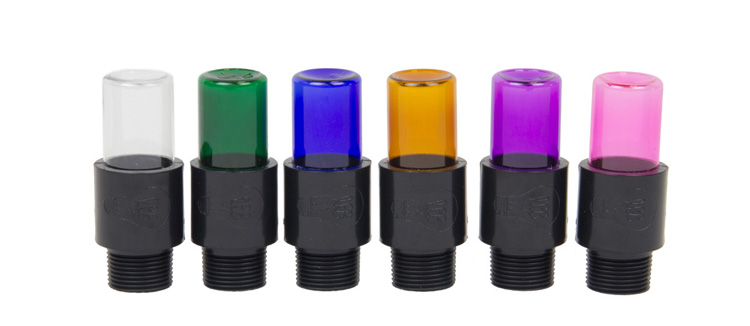
Translucent Light Writers (Set of 6)

Light_Painting_Brushes_Translucent_Light_Writer_Set-750px

These attachments are very similar to the opaque light painting brushes, but because they are translucent the lights create a more textured effect than the opaque lights. Another tool for artistic expression lighting up the night!

White Fiber Optic

Light-Painting-Brushes-9

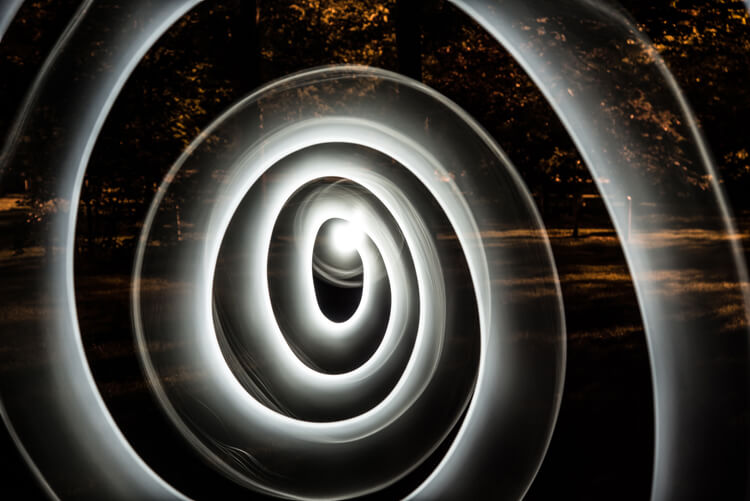
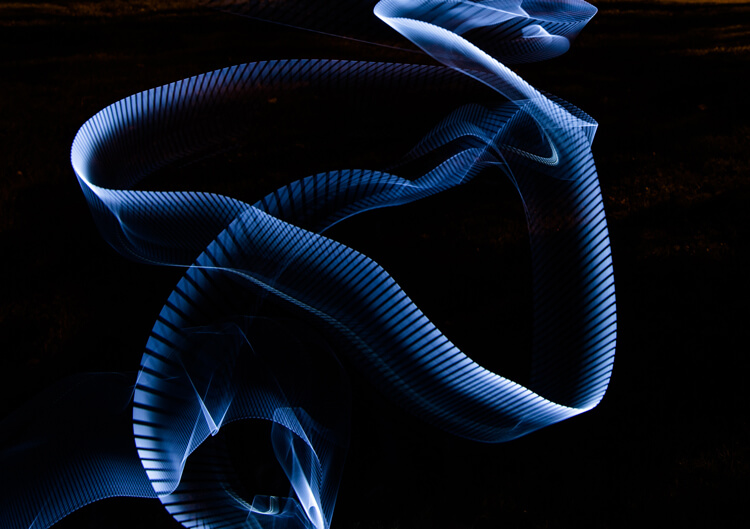
Spiral design created using the White Fiber Optic brush

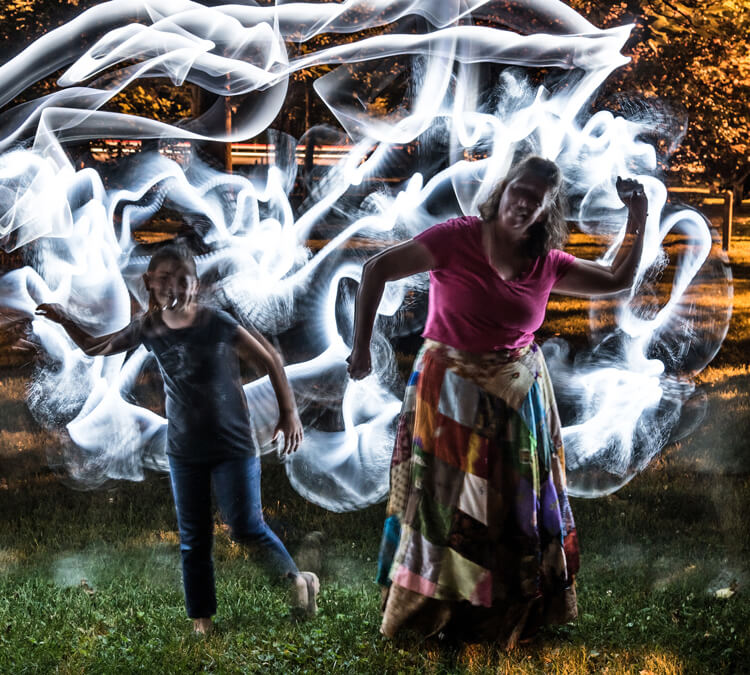
The fiber optic brush connected to a light source really makes some awesome wispy lines. The white light has great depth as the whole strand of the brush lights up. This tool really gave me the feeling that I was actually painting with light! The white fiber optics is so much fun to use, creating some great effects and can be used for many light painting applications.

Black Fiber Optic

Light-Painting-Brushes-Black-Fiber-Optic-02-750px

The black fiber optic tool only lights up the ends of the brush, great for use in portraits. However, I feel it has a more limited use for other types of light painting, since it puts out a lesser amount of light.

Plexiglass Diamond

Light-Painting-Brushes-11

Abstract design created using the Plexiglass Diamond brush

The 9” Plexiglass Diamond shines light out through the cut edges, creating interesting and unique textures when waved about as the image is being shot. This tool is great for light graffiti, portraits, and abstract designs. It is my favorite tool of all the ones I’ve reviewed in this article!

22″ Light Sword

22in-Light-Swords-Illuminated-750px

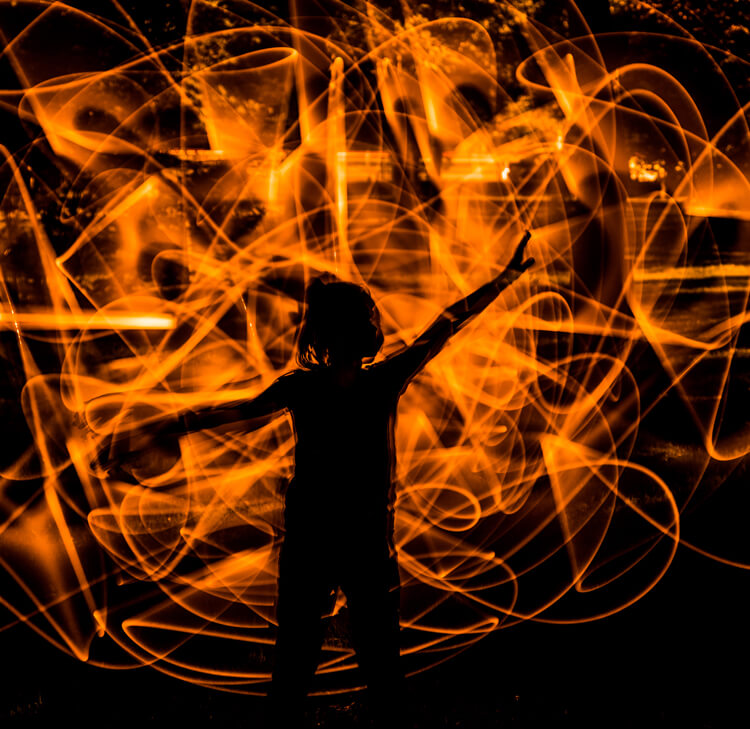
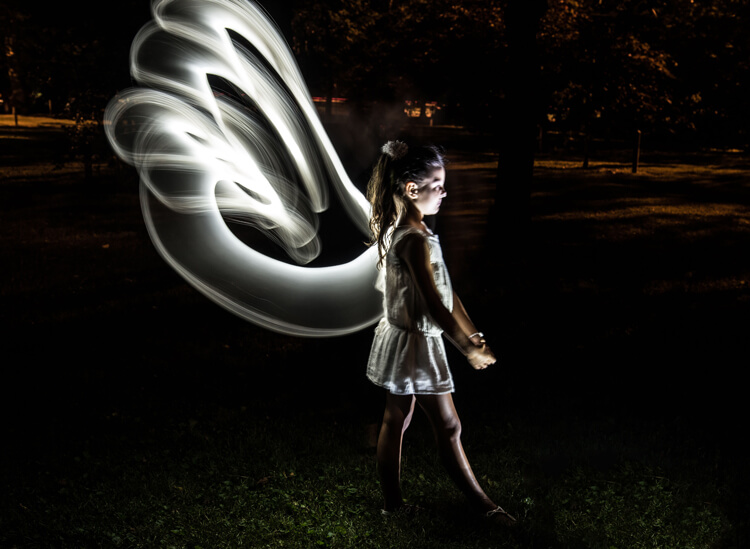
These tools create a very wide path of light, and are available in 8 different colors: blue, green, orange, pink, purple, red, yellow and white. The colored swords cause some stunning effects, but while the white sword can make some nice strokes of light, in my opinion its results are not as exciting as the colors.

Light-Painting-Brushes-8

This silhouetted image of a girl was created using the orange 22″ sword brush

Tips:

  • To remain as invisible as possible when trying to photograph a light painting, wear dark colored clothing, keep moving, and avoid holding the light source too close to your body.
  • Speed of motion can make a big difference with many of these tools: the slower the motion, the more vibrant and textured the effect; the faster the motion, the smoother but fainter the effect.

First impressions

Light-Painting-Brushes-7

I recently had the privilege to lead a light painting workshop with some local photographers, so I introduced the Light Painting Brush system to them during our course. The following feedback comes from a few of the participants:

  • “I felt like a kid, amazed and surprised with all the images we shot and with the numerous options we used to create and express ourselves as we played with the Light Painting Brushes. My favorite was the colored ones because they made things and shapes look like I was using chalk, and the colors were great in the pictures! It helped me to express and to imagine numerous things. I just wish we’d had two more hours!”
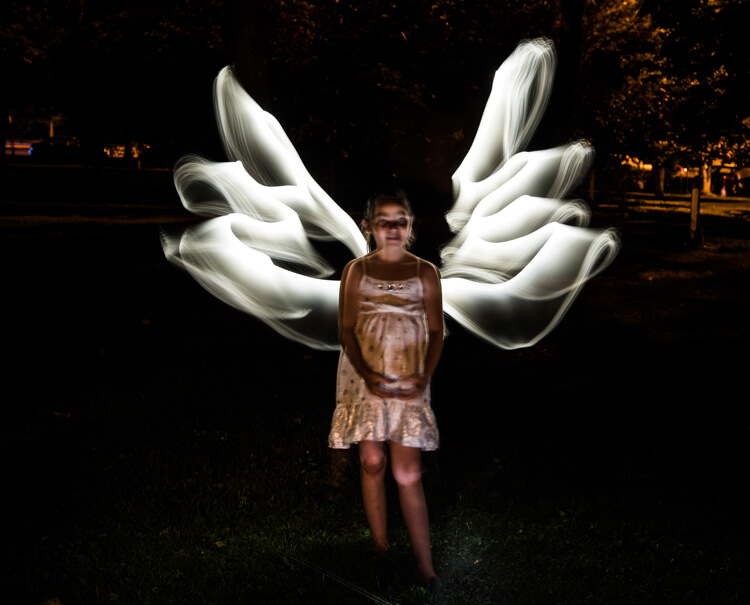
  • “Several lighting methods were demonstrated, but my favorite was using light painting brushes to create an angel figure out of a beautiful little girl.”
  • “My favorite was the white fiber optic, as it made a really pretty effect and I felt I could be more creative with it.”
  • “I was very impressed with the quality and the different possibilities of the light painting tools! I love that it gives you the ability to add your own personal unique touch to a photo!”

The brushes were easy to use, even for beginners, and cast a new “light” giving night photography a new perspective and dream like world.

Light-Painting-Brushes-13


Conclusion

Whether you are an experienced light painter or just wanting to give this technique a try for the first time, these tools from Light Painting Brushes are a fantastic addition to your accessory arsenal. They are designed by light painters who create and use their products. If you watch their tutorials online you’ll see that they have a passion to create tools that are to be used to create works of art in Light Painting.

Here’s another really cool thing you can do with these tools – make a spirograph!

The Universal Connector is the essential tool for using the actual brushes. I really like the unique textures and shaping possibilities of my two personal favorite brushes, the White Fiber Optics and the Plexiglass Diamond. My previous experience with light painting has mostly been of the off-camera type, but after using these Light Painting Brushes my interest has really been piqued to pursue on-camera light painting.

googletag.cmd.push(function() {
tablet_slots.push( googletag.defineSlot( “/1005424/_dPSv4_tab-all-article-bottom_(300×250)”, [300, 250], “pb-ad-78623” ).addService( googletag.pubads() ) ); } );

googletag.cmd.push(function() {
mobile_slots.push( googletag.defineSlot( “/1005424/_dPSv4_mob-all-article-bottom_(300×250)”, [300, 250], “pb-ad-78158” ).addService( googletag.pubads() ) ); } );

The post Review: Light Painting Brushes – Tools for Creativity by Bruce Wunderlich appeared first on Digital Photography School.


Digital Photography School

 
Comments Off on Review: Light Painting Brushes – Tools for Creativity

Posted in Photography


How To Retouch Skin And Still Look Natural

20 Jul

Skin Retouching for Dummies


Hey FashionPhotographyBlog.com readers. Retouching… A LOT of people have asked for it so here it is:


When it comes to retouching skin, it’s really quite simple. In fact, you can do it in two simple steps. However, it’s also really quite time consuming. Take your time and don’t rush through it. Following these few simple steps will pay off in the end!


Whatever you do: DON’T BLUR YOUR SUBJECT’S SKIN! Skin is full of texture – keep it that way. Eliminating pores is an obvious sign of someone who doesn’t know what they’re doing. Study your face in the mirror. Texture changes as you move throughout the face and body, be conscious of this when retouching skin.


Don’t blur your subject’s skin! Skin is full of texture – Keep it that way #fpblog
Click To Tweet


(Remember: It always helps to have a good makeup artist and start with an even base of foundation. A good makeup artist can drastically cut down your time spent retouching skin in Photoshop.)


How To Retouch Skin


First things first, NEVER-EVER work directly on your background layer. This is an extremely bad habit most people have. This is considered destructive. Once you work directly on your background layer, there is no going back. Whereas, if you work on layers independent from your background layer, you can always delete them and start from scratch.


1. Select your image and open it up in Photoshop.


retouching_skin_original_imageOriginal, untouched image


2. Start by removing blemishes. To do this, I typically switch between the Healing Brush and the Clone Stamp.


The Healing Brush (band-aid tool) works by merging texture, color and luminosity from the sample area to the destination area.


The Clone Stamp (stamp) takes the information from the sample area and moves it to the destination area (no automatic blending in of texture, color and luminosity.)


retouching_skin_heal_patch_clone_stamp


Create a new, empty layer and at the top change the setting from “Current Layer” to “Current & Below.”


To remove blemishes and wrinkles, make the brush size just a bit larger than the size of the blemish. To select a source point, hold down “Option” (Mac) or “Alt” (PC) and click, then paint over the blemish to remove it. The healing brush tends to spread out a bit so it works best by using a harder brush rather than a softer brush.


BE CAREFUL* When healing, many people have a tendency to pull source areas from right next to the destination area. Doing this will create repetitions in texture. This is a major no-no. Repetitions in texture make it known that the image has been manipulated. It’s a sign of an amateur. If you see this, take a step back and try again. Are there naturally occurring patterns? Break them up. Keep your hand light – a heavy hand is also a sign of an amateur and leaves your subject looking unnatural. 


retouching_skin_after_healing_cloningAfter Healing/Cloning


2. Next up: Dodge and Burn! Dodging and Burning is the process of manipulating tone in order to even out blotches in skin. This is fantastic for (painstakingly) taking out goosebumps or evening out the blotches most people have on their skin.


Dodging and Burning is derived from a darkroom process. Dodging is lightning of tones and burning is the darkening of tones. By dodging and burning simultaneously, you’re able to even out tones and create smooth, perfect looking skin.


To begin, create a new layer set “mode” to “soft light” and select “fill with 50% grey.”


retouching skin photoshop new options

New layer options: Mode: Soft Light, Select “Fill with 50% grey”


Using the Dodge/Burn tool (J) you can choose which tones to work with – highlights, midtones or shadows. I typically start with midtones and then work my way around the image switching between midtones, highlights and shadows. Keep your exposure low. I usually work around 9%. Start small and you can gradually build your way up. 


Continuously switch between Dodge and Burn – an easy way to do this is to hold down the “Option” key. If you’re dodging midtones at an exposure of 9% and hold down the “option” key, you’ll burn midtones at 9% as long as the option key is held down. Essentially, it gives you the opposite tool of what you’re working on, however whatever settings you already have chosen (midtone/shadow/highlight and exposure) will remain the same.


*Dodging and Burning can be tricky! Until you train your eyes to see the difference between tones, it’s really easy to over-do your dodging and burning. In order to help you better see the differences in tone, you can create a guide to help train your eyes! To do this, create a “Hue/Saturation” adjustment layer and desaturate the image. Then, create a new “Curve” adjustment layer and make a deep curve. This will separate the tones and make it easier to see where you need to dodge and where you need to burn.


retouching_skin_photoshop_eye_guide_d&b_curveEye Guide: Deep Curve


retouching skin eye guide help before dodge and burnretouching_skin_eye_guide_help_before_dodge_and_burnWith Eye Guide on: Before Dodging and Burning. Notice the blotchy patches.


retouching_skin_eye_guide_help_after_dodge_and_burnWith Eye Guide on: After Dodging and Burning. Notice the smooth transitions between tones.


retouching_skin_eye_guide_help_after_dodging_and_burningAfter Dodging & Burning


Over-do it? That’s okay. Lower the opacity of your layer until it looks right. This is the beauty of working on a layer independent from your background layer.


3. After Healing, Dodging and Burning, now is time for color! ALWAYS be careful of where you place your color layers. For those just starting out, it’s best to do color last. If you manipulate color before you retouch, make sure your color layers stay on top of all the retouching layers you create.  IF YOU RETOUCH ON TOP OF COLOR MANIPULATIONS, YOU CAN’T UNDO THE COLOR. 


If you retouch on top of color manipulations, you can’t undo the color #fpblog
Click To Tweet


If you decide you don’t like the color and try to remove or change it, you’ll have to re-do all of your retouching work. Since the healing layer is set to “current and below” it is pulling color and texture from the layers below it (this would include your color layers). When you delete the color layer, the color remains in the areas which have been healed or cloned above it, leaving you with a mess that looks like this:


retouching_skin_on_top_color_manipulationsImage that has had retouching done on-top of color manipulations. The colour manipulations were removed resulting in an unusable mess!


So, those just starting out with this method of skin retouching, play it safe and work with color last.


retouching_final_skin_retouch_with_color_appliedFinal skin retouching with color applied


So – as a reminder, the order you retouch skin:

1. Heal/Clone – Remove wrinkles and blemishes

2. Dodge/Burn – Even out skin tone

3. Manipulate Color


Stay as organized as possible! It helps to make a group for retouching and a group for color to keep everything straight.

retouching_skin_layers_from_completed_retouched_imageLayers from completed retouched image (pictured above)


Good luck! Remember to take your time and practice. It takes a long time to be able to really see what you’re doing. Train your eye and you’ll be able to pick apart tones and see imperfections in skin more easily. Feel free to share your retouching here in the comments for feedback and critique!


And remember, if you have any questions, feel free to ask!


Alana


retouching_skin_animation


IMAGE SOURCE:

Feature image and images 1-12: courtesy of Alana Tyler Slutsky


Fashion Photography Blog

 
Comments Off on How To Retouch Skin And Still Look Natural

Posted in Uncategorized