RSS
 

Archive for May, 2016

How I Learned to Stop Worrying and Love Auto ISO

26 May

ISO is one of the three critical elements of exposure, and yet among the people I have talked to it seems to cause the most confusion. Aperture can be physically represented by simply making a circle with your fingers to represent the size of the opening in your camera lens, and shutter speed can be mimicked by closing your eyes, opening them briefly, and then shutting them. Neither one is a perfect comparison but it helps get the point across, especially to those who are new to photography.

ISO, in my experience, is a bit trickier to explain, and yet it can make or break a picture, even if you have the other two elements set just right. Or…it could make or break a picture in days gone by.

We have reached somewhat of a unique time in the history of photography in that ISO is, to some degree, no longer relevant in the same way that aperture and shutter speed still are. While I certainly would not let my camera choose the aperture and shutter speed for most of my shots, I have all but abandoned my misgivings about Auto ISO, and now almost always let the camera choose for me. As a photographer it has not been an easy leap for me to make, but it has been incredibly liberating, and I think it could be for you too.

A tack-sharp picture shot at ISO 4000 with minimal digital noise.

A tack-sharp picture I shot at ISO 4000 with minimal digital noise.

My first real digital camera, not counting a few point-and-shoot models I had in the early part of the previous decade, was a Nikon D200. It was a beast of a camera, with some features that outclassed even most modern models, like a maximum shutter speed of 1/8000 second and a weather-sealed body. One thing it did not do so well was high ISO values, specifically anything past 400. I could shoot at 800 in a pinch, but going all the way up to 1600 resulted in pictures that were a muddy mess and 3200, its maximum possible value, was an unmitigated disaster. This trained me to use the following thought process in virtually all shooting situations:

  • Shoot in Aperture Priority (I set the aperture and let my camera set the shutter speed)
  • Set the ISO to 100, 200, or 400 depending on the lighting
  • Select an aperture that would give me the depth of field or overall image sharpness I wanted
  • Hope the shutter speed wasn’t too slow so I didn’t get a blurry picture
  • If the shutter speed was too slow, raise the ISO to no more than 800
  • If the shutter speed was still too slow, compromise my artistic vision by opening up the aperture
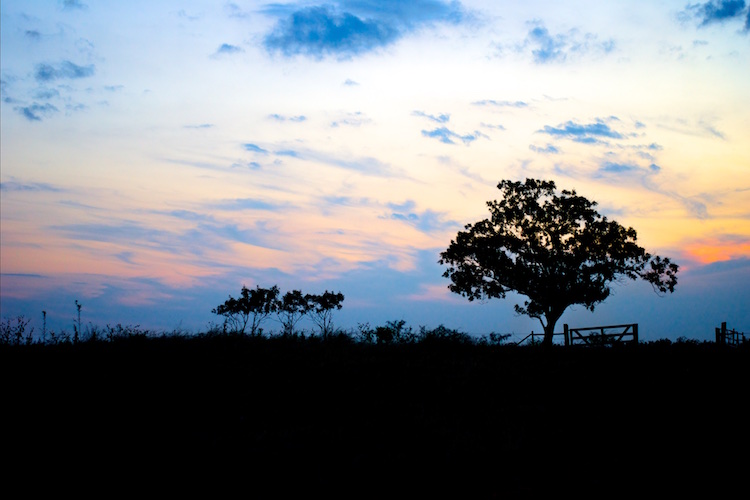
auto-iso-sunset

Even my old D200 could produce some fine images, though things quickly went south above ISO 400.

It was a process that worked somewhat successfully, but often resulted in images that were compromised in one way or another. When I finally upgraded to a much newer camera, a Nikon D7100, I still had the same mindset when it came to setting the ISO. I wanted to do it myself, lest my camera make some kind of silly decision on its own, that resulted in a picture with way too much noise for my taste. For a while I used the same thought process as shooting with my D200, even though the D7100 had vastly superior high ISO capabilities (which have since been surpassed by nearly every modern camera on the market today including its own successor, the D7200).

At first I used the old rule that had been burned in my mind regarding anything higher than ISO 400, which was to avoid it at all costs. Despite the evidence right in front of my eyes I was still used to the old way of doing things, and mentally set my maximum threshold at ISO 800, which I told myself, could only be exceeded in the most dire of circumstances. It took me far too long to discard this line of thinking, and I’m hoping you won’t have to make the same mistakes I did to get there.

Shot on my D200 at ISO 400.

Shot on my D200 at ISO 400.

A Brief History Lesson

The term ISO is somewhat of a holdover from the days of analogue film, when you would go to a camera store and buy an entire roll of film with an ASA value of 100, 200, or 400. ASA 200 was twice as sensitive to light as 100, 400 was twice as sensitive as 200 (which made it four times as sensitive as 100), and so on. Once the film was loaded in your camera you could not simply change your mind and use a different value; you had to shoot the entire roll before changing to another ASA for different lighting conditions.

ASA 100 film was great for outdoor situations or other scenarios where there was a lot of light, just like shooting at ISO 100 on a digital camera. ASA 400 was better for indoor situations when you needed film that was more sensitive to light, if there was simply not much to work with. If you looked hard enough you could get film that went up to ASA 800 or 1000, but anything beyond that was about as common as a polycephalous bos taurus (two-headed cow).
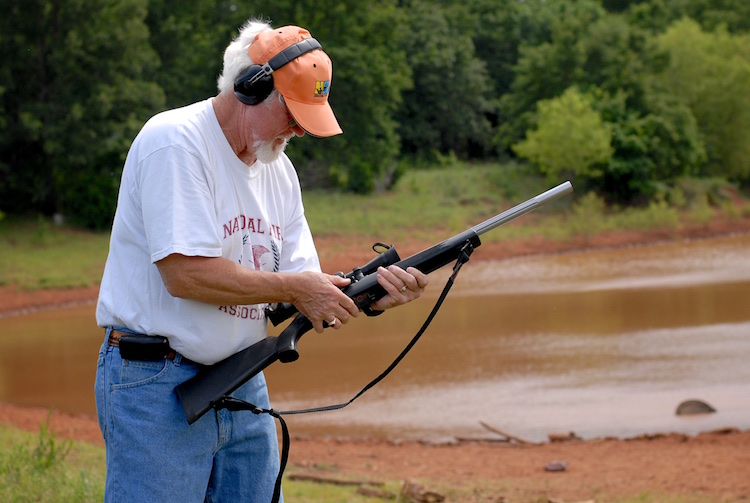
I took this photo of a champion marksman on my old D200 at ISO 400. If you look super close at the trees you will see some noise in the image, but doing that kind of misses the point of the photo.

I took this photo of a champion marksman on my old D200 at ISO 400. If you look super close at the trees you will see some noise in the image, but doing that kind of misses the point of the photo.

Early digital cameras, not unlike my world-weary Nikon D200, did not offer much in the way of low-light shooting capabilities that their film-based counterparts didn’t already have. Even as recently as a decade ago if you wanted to shoot in a low-light situation you might as well just grab a roll of high-ASA film, since most digital cameras just weren’t very good at their (roughly) equivalent high ISO values. (ISO and ASA are not directly 1:1 equivalent, but the measurements can be treated as fairly similar for the purposes of comparison.)

However, all this started to change rapidly as digital sensor technology advanced over the years, and now we are at the point where virtually any consumer camera can shoot up to ISO 3200 or even 6400 (a value that was unheard of with analog film) without much of a penalty in terms of overall color and luminance noise. In fact, most digital cameras are so good they can set the ISO automatically (hence the term Auto ISO), essentially removing a critical element of the exposure equation altogether, and freeing you so you only have to think about aperture and shutter speed.

Why I Use Auto ISO

This line of thinking was what used to stop me dead in my tracks as a photographer. The whole reason I learned to shoot in Manual mode was so I could have more control over my photos! Why on earth would I want to give control back to my camera, as if it knows better than I do what settings I want? The answer, I discovered over several years of shooting, is not as black and white as I once thought.

In most situations, the primary element of exposure that concerns me is the aperture, since it dramatically affects things such as depth of field and image sharpness. Of course I also have to pay attention to the shutter speed, since I generally don’t want motion blur, which then leaves the question of ISO. After shooting with my D7100, and subsequently my full-frame D750, I have realized that in most cases, I’m happy to let my camera decide the ISO for me, because I simply don’t care about it anymore. This might sound a bit extreme, but I humbly submit that perhaps you shouldn’t either.
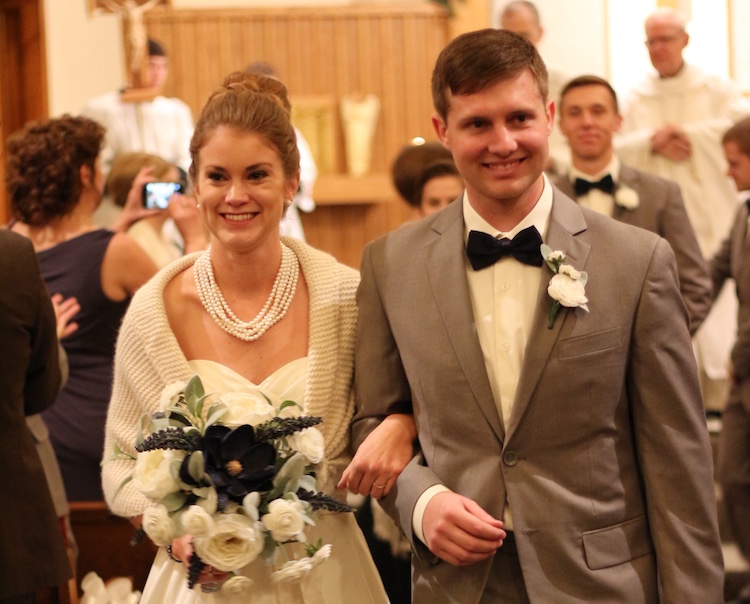
Shot at ISO 2000 on a three-year-old Canon SL1 (EOS 100D)

Shot at ISO 2000 on a three-year-old Canon SL1 (EOS 100D)

Some photographers are prone to pixel-peeping, and I must admit I am certainly one of them. Zooming in on a picture to 100% magnification, in order to take note of barely-visible imperfections is a great way to compare various aspects of cameras, lenses, and even similar photographs. Shooting at high ISO values will often reveal noisy blemishes that stick out like a sore thumb when viewed up close. However, what I have come to realize, even when shooting with my D7100 which is over three years old, is that I simply don’t need to view my photos at ultra-close range to enjoy them, and for the most part don’t care about the noise that shows up when I see those ISO values skyrocketing. If I have to choose between a blurry picture and a noisy picture, I’ll take the latter every time, and twice on Sunday.

How to Use Auto ISO

The exact mechanics of enabling Auto ISO vary from one camera to the next, but on most models from major manufacturers like Canon, Nikon, Sony, Fuji, Olympus and their peers, there is usually an option in one of the menus that allows you to do a few things:

  • Enable Auto ISO
  • Choose a maximum ISO value
  • Choose a minimum shutter speed

Once you learn to find your comfort zone with these settings, you might find yourself thinking less about ISO, and more about things like framing and composition. On my D7100 I’m comfortable shooting up to ISO 3200, so I set that as the maximum value. I have the minimum shutter speed set to 1/(2x lens focal length). This means if I’m using a 50mm lens and shooting in Aperture Priority, my camera will lower the shutter speed to no less than 1/100th in order to get a properly-exposed picture, and if that still doesn’t do the trick it will then automatically raise the ISO clear up to 3200.

Learning to relinquish this amount of control has been incredibly freeing, so much so that for a while it actually felt like I was cheating because I was not manually selecting the ISO for every single shot. On my D750 I use similar settings but set the maximum value at 6400.

As you play around with this on your gear you are going to have to find a solution that works for your individual needs and photographic taste. Some cameras only let you specify one single value for the minimum shutter speed (as opposed to calculating it based on the focal length of your lens) and your mileage for how effective this technique is may vary, but if you can learn to embrace Auto ISO and let your camera do some of this heavy lifting, you might find yourself getting a lot more keepers on your memory card.

For this impromptu Easter photo I set the aperture at f/3.3 and let my camera do the rest. It chose a shutter speed of 1/100 and then raised the ISO as high as it needed to (2800) in order to get a good exposure.

For this impromptu Easter photo I set the aperture at f/3.3 and let my camera do the rest. It chose a shutter speed of 1/100 and then raised the ISO as high as it needed to (2800) in order to get a good exposure.

I would be remiss if I did not mention some of the downsides of Auto ISO as well, as not all is bright and sunny, and warm and fuzzy on this side of the fence.

One of the most significant limitations of shooting at high ISO values is the lack of dynamic range – basically, how much data your image sensor is able to capture in a given picture. If you have a RAW file that was shot at ISO 5000, and you need to use Lightroom to recover detail from the shadows, or raise the exposure of the whole image, you will find you have much less room to work with than if you shot the photo at ISO 100.

Also, depending on your camera, you may also find cases of severe banding, or ugly horizontal lines, that show up when you try to recover shadow detail at high ISO values. Finally, all things being equal a picture shot at ISO 4000 will generally have less vibrant colors, and skin tones will seem a little more artificial and false, than a similar picture shot at ISO 400.

Selecting the ISO was the last thing on my mind; I used an aperture of f/4 and a minimum shutter speed of 1/100. My camera selected an ISO of 5000 and I could not be more pleased with the result. A year ago I would have never gone that high, and would have had a blurry photo instead.

Selecting the ISO was the last thing on my mind when I made this image. I used an aperture of f/4 and a minimum shutter speed of 1/100, my camera selected an ISO of 5000, and I could not be more pleased with the result. A year ago I would have never gone that high, and would have had a blurry photo instead.

Despite these limitations, shooting with Auto ISO has been a huge boon for me, and I think it could be for you too. If you have never tried Auto ISO, I recommend giving it a chance and see how you like the results. For me it was a little like enabling back-button focus, in that I was highly skeptical at first, but after a few weeks I was hooked and now I don’t think I could ever go back.

Do you use Auto ISO? Share your thoughts in the comments below, and I’d love to see some of your favorite high-ISO images as well. Cameras today really are incredible imaging machines, and it’s fun to see what they can do if we push them a little bit.

googletag.cmd.push(function() {
tablet_slots.push( googletag.defineSlot( “/1005424/_dPSv4_tab-all-article-bottom_(300×250)”, [300, 250], “pb-ad-78623” ).addService( googletag.pubads() ) ); } );

googletag.cmd.push(function() {
mobile_slots.push( googletag.defineSlot( “/1005424/_dPSv4_mob-all-article-bottom_(300×250)”, [300, 250], “pb-ad-78158” ).addService( googletag.pubads() ) ); } );

The post How I Learned to Stop Worrying and Love Auto ISO by Simon Ringsmuth appeared first on Digital Photography School.


Digital Photography School

 
Comments Off on How I Learned to Stop Worrying and Love Auto ISO

Posted in Photography


Back to the action: Nikon D500 Review

25 May

The Nikon D500 is a 21MP APS-C DSLR capable of shooting at up to 10 frames per second and featuring an autofocus system derived from the one in the D5. In other words, it’s exactly the kind of high-end DX format body that appeared to have become extinct with the D300S.

The six-and-a-half years that have passed since the D300S’ launch have seen the camera market move on considerably but the D500 does much to reclaim the position as one of the pre-eminent APS-C camera on the market.

As you might expect, much of the improved capability of the camera centers around sports and high-speed shooting, with significant upgrades to the shooting rate and autofocus system, but there are also major upgrades to the viewfinder, video capabilities and connectivity options which expand its utility beyond one particular niche.

Key Features

  • 20.7 MP APS-C (DX Format) sensor
  • 153 point AF module with 99 cross-type points
  • 180,000 pixel RGB sensor for metering and subject recognition
  • AF point joystick
  • 10 fps shooting for up to 200 shots (lossless compressed 14-bit Raw to XQD card)
  • 4K (UHD) video from 1.5x crop of sensor
  • 100% coverage viewfinder with 1.0x magnification
  • 2.36m dot tilt up/down touchscreen
  • Wi-Fi and Bluetooth connectivity with NFC for setup
  • Mic and headphone sockets
  • USB 3.0 connector
  • Anti-flicker option for working under artificial lighting

A good sport

Much of the D500’s capability is built around the ability to focus and shoot very quickly. Its 153-point AF module offers near full-width coverage and is linked to a 180,000 pixel RGB metering sensor to further improve its AF tracking capabilities. Interestingly, and like the D5, the D500’s AF system now offers two parameters for fine-tuning the autofocus tracking behavior, letting the user specify the type of subject movement and the correct response to another object blocking the targeted subject. Existing Nikons only let you specify duration, suggesting Nikon is trying to expand the range of shooting situations for which the AF system can be optimized.

Only 55 of the camera’s AF points can be directly selected and the D500 gains both a joystick and a touchscreen to make it as fast as possible to select the point you want to use. Add to this the ability to shoot up to 200 Raw frames before slowing down (if you use an XQD card), and it becomes obvious that the D500 is intended as a high-speed pro/semi-pro camera in a way the D7000 series never was.

How’s that for coverage? The D500 doesn’t just boast a lot of autofocus points, it also offers them across most of the width of the frame, which is useful whether you’re manually selecting a point or letting the camera track your subject.

The D500 also gains an anti-flicker option designed to ensure the camera shoots in-sync with the brightest point in the flickering cycle of artificial lights. It’s a feature we first saw on the Canon EOS 7D Mark II and we’d expect it to be particularly valuable for shooting indoor sports such as basketball.

Another sign that this is a true high-end camera is the inclusion of a larger viewfinder. Like previous DX00 class cameras it has 100% coverage but it also offers 1.0x magnification, which is the largest optical viewfinder we can remember seeing in an APS-C camera (electronic viewfinders are a different matter, since size and brightness isn’t constrained by sensor/mirror size).

The D500 can also shoot 4K video and includes both an input for using an external mic and a headphone socket for audio monitoring. The camera also offers a flat picture profile to provide more post-processing flexibility, on-screen highlight warnings and power aperture control that allows you to select and change the aperture when in movie mode. There’s no focus peaking option, though, and you can’t zoom-in while you record to confirm or adjust focus as you record.

Connectivity

One of the other big features Nikon is touting is its Snapbridge system that uses Bluetooth LE (a low-power variant of Bluetooth also known as Bluetooth Smart), and Wi-Fi to maintain a connection between the camera and a smart device. This includes the ability to auto-transfer images from the camera, as well as initiating the Wi-Fi connection for remote shooting or manual image transfer.

Context

To show where the D500 sits in the lineup, here are the major feature differences between it and the less expensive D7200, along with a comparison back to the D300S – not because we expect anyone to be choosing between them, but to show how much of a step forward the camera represents.

   Nikon D500 Nikon D7200 Nikon D300S
Sensor Resolution 21MP 24MP 12MP
AF points 153 (99 cross type) 51 (15 cross-type) 51 (15 cross-type)
Max frame rate 10 fps
  • 6 fps
  • 7 fps in 1.3x crop mode
  • 7 fps
  • 8 fps with battery grip
Buffer depths 200 lossless compressed 14-bit Raw

~17 14-bit Raw
~28 12-bit Raw

30 lossless compressed 14-bit Raw
Shutter durability rating 200,000  150,000  150,000
Viewfinder
  • 1.0x magnification
  • 100% coverage
  • 0.94x mag
  • 100% coverage
  • 0.94x mag
  • 100% coverage
Rear screen
  • 2.36m dots 3.2″
  • Tilting
  • Touch sensitive
  • 1.23m dots 3.2″
  • Fixed
  • 920k dots 3.0″
  • Fixed
Video Resolution
  • UHD/30p
  • 1080/60p
  • 1080/60p
  •  720/24p
Mic/Headphone? Yes/Yes Yes/Yes Yes/No
Wi-Fi? Yes (and Bluetooth) Yes No
Built-in flash? No Yes Yes
AF-On Button? Yes No Yes
Body construction Magnesium Alloy + Carbon fiber composite Magnesium Alloy + Carbon fiber composite Magnesium Alloy
Battery Life (CIPA) 1240 shots/charge 1100 shots/charge 950 shots/charge
Weight (Body Only) 760g 675g

840g

Review History

Review History
26 April 2016 Studio scene and Raw dynamic range published.
16 May 2016 Introduction, Body and Handling, Operation and Controls, Wi-Fi and Connectivity and Video pages published
25 May 2016 Autofocus, Loose Ends and Conclusion pages added. Review Finalized

Articles: Digital Photography Review (dpreview.com)

 
Comments Off on Back to the action: Nikon D500 Review

Posted in Uncategorized


How to do Bulk Resize and Edit in Photoshop

25 May

Have you ever found yourself with a batch of photos that you needed to have edited in the same way? Rather than editing each image one-by-one, Adobe Photoshop offers batch editing processes that can help you save time, while preserving consistent quality among your images.

This tutorial will show you how to use Photoshop Actions to resize and edit multiple photos, along with a quick tip on how to replicate this process in Lightroom.

What You Need

The bulk editing process is pretty easy and straightforward, requiring just a handful of things:

  • A batch of images you want to bulk edit
  • Adobe Bridge
  • Adobe Photoshop
  • Basic Photoshop working knowledge

Get Started: Record an Action in Photoshop

The very first step is to determine the process or edit that you wish to have automated, and record it as an Action in Photoshop. In this case, let’s use the example of resizing an image. Then you’ll use Bridge to select your set of images and apply the Action to all of them at once.

Step 1: Open Photoshop and have a sample image open to perform this action on. Go to the main menu bar and click Window > Actions.

Photoshop bulk resizing edits


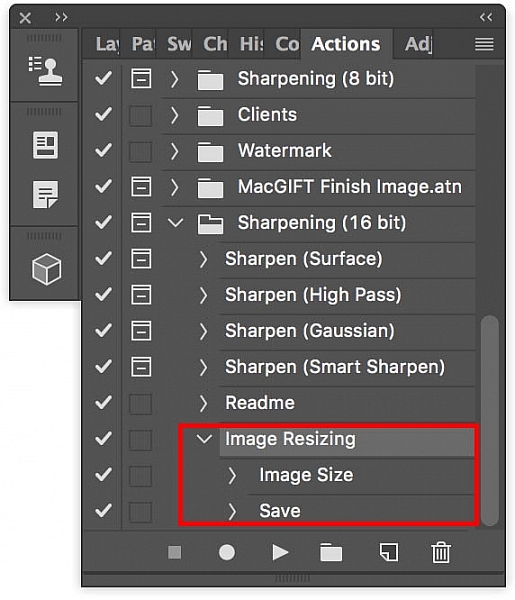
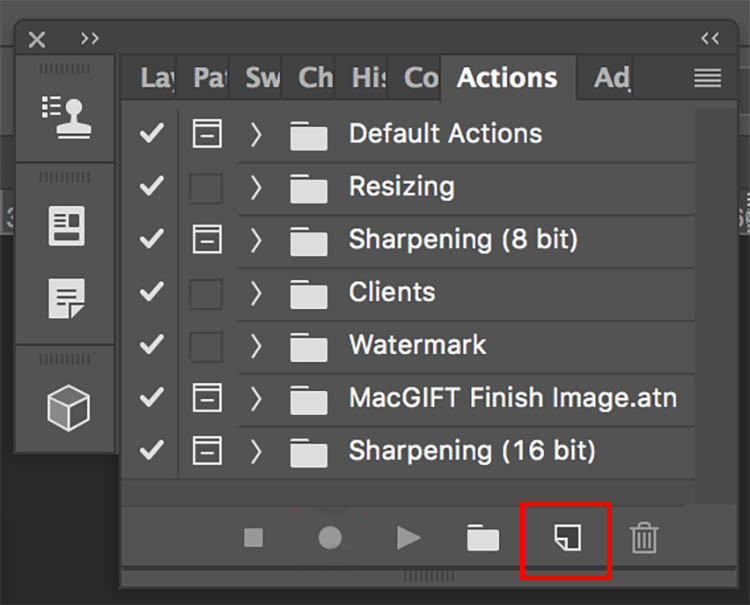
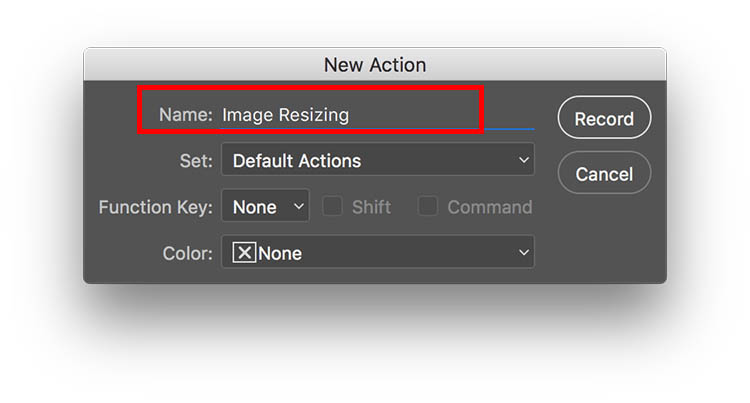
Step 2: When the Actions panel pops up, click the bottom right button next to the trash can icon that says “Create New Action.” Enter a name for your action, such as “Image Resizing.” Then start recording your new action by clicking the “Record” button.

Bulk edits new action

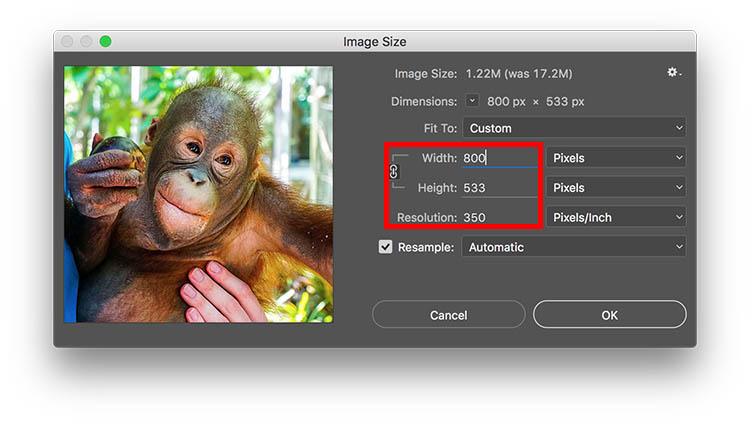
Step 3: Now begin the series of steps that you want to have recorded. For resizing, head up to the main Photoshop menu bar and go to Image > Image Size. Input your ideal photo size, such as 800 pixels wide.

Photoshop bulk resizing edits

Step 4: After you’ve completed all of the steps for your action, go back to the Actions panel and click on the Stop button to end recording. You should now see your saved action within the panel.

Bulk edits image resizing

Run A Batch of Images Through Photoshop

After you’ve created your action, it’s time to apply it to your batch of images.

Step 1: Put all of the photos you want to batch edit into one folder. Open Adobe Bridge and find your folder of images. Click on the folder and select all of the content.

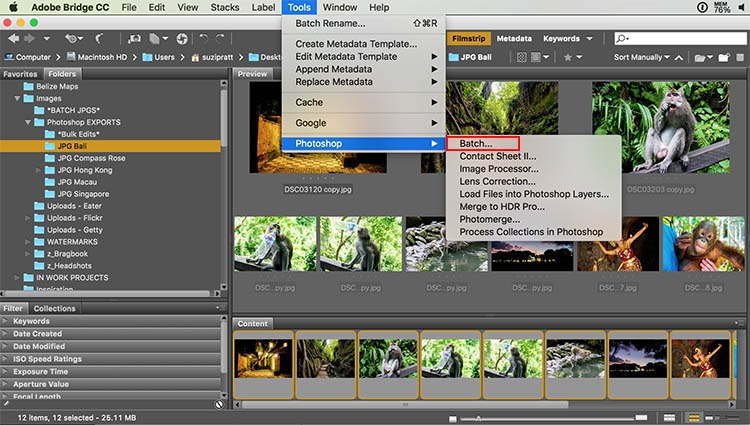
Step 2: Within Bridge, go to Tools > Photoshop > Batch.

Photoshop bulk resizing edits

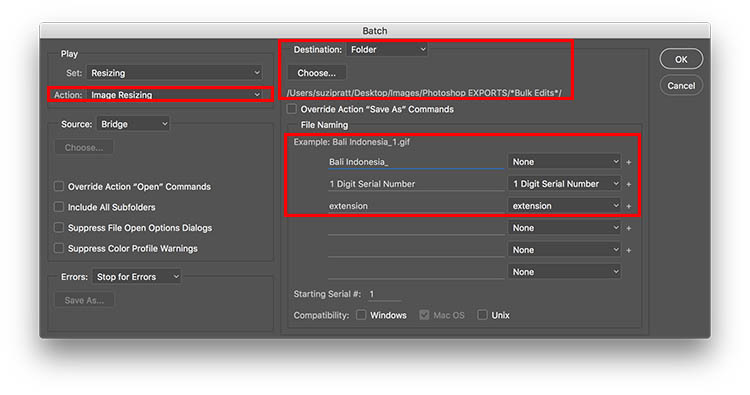
Step 3: A Batch dialogue box will appear and you’ll want to adjust these settings in particular.

  • In the top left corner, select the action that you want applied to your images (in our case, “Image Resizing.”).
  • In the middle of the dialogue box, specify the folder where your bulk edits should end up. I always have a folder called *Bulk Edits* where I automatically have all of my bulk edited images saved.
  • Finally, you can specify a particular image name that you want to give to your batch of images, as well as assign unique identifiers, such as numeric order. Then click OK to have the action applied to your batch of photos.

Photoshop bulk resizing edits

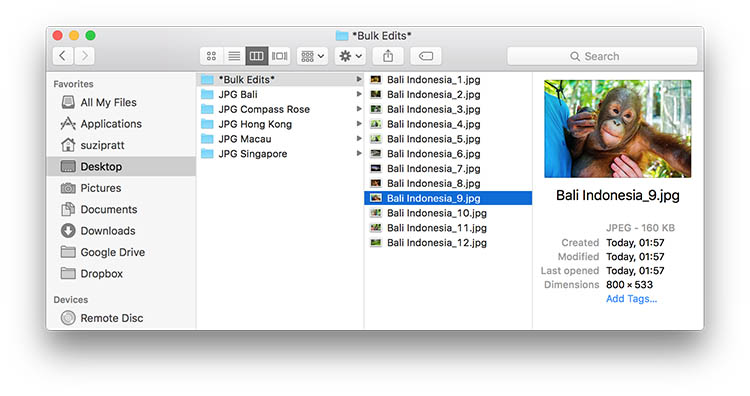
Step 4: After your batch of images are processed, go to your specified folder to check out the results.

Photoshop bulk resizing edits

Making bulk edits in Lightroom

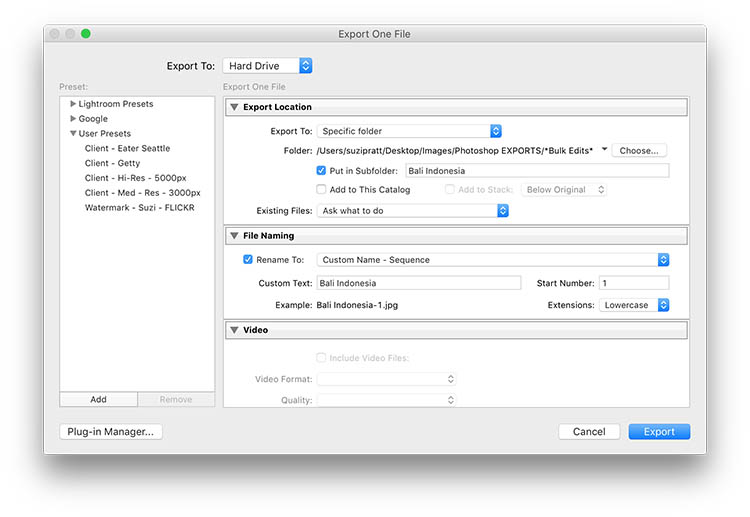
While doing bulk edits in Photoshop is relatively easy to do, it’s even quicker in Adobe Lightroom. If using Lightroom, import your images and select them all. Then go to File > Export. A pop up dialogue box will then appear with fields where you can specify where to save the images and also rename, resize, and watermark the images (you can also save that as an export preset)

Lightroom bulk resizing edits

Over to You

Do you perform many bulk edits in Photoshop or Lightroom? If so, what are the types of processes you tend to bulk edit? Let me know in the comments below!

googletag.cmd.push(function() {
tablet_slots.push( googletag.defineSlot( “/1005424/_dPSv4_tab-all-article-bottom_(300×250)”, [300, 250], “pb-ad-78623” ).addService( googletag.pubads() ) ); } );

googletag.cmd.push(function() {
mobile_slots.push( googletag.defineSlot( “/1005424/_dPSv4_mob-all-article-bottom_(300×250)”, [300, 250], “pb-ad-78158” ).addService( googletag.pubads() ) ); } );

The post How to do Bulk Resize and Edit in Photoshop by Suzi Pratt appeared first on Digital Photography School.

Digital Photography School

 
Comments Off on How to do Bulk Resize and Edit in Photoshop

Posted in Photography


Lensbaby Circular 180+ ultra-wide-angle GoPro lens launches on Kickstarter

25 May

Lensbaby has launched a Kickstarter campaign for the Lensbaby Circular 180+, a lens that attaches to a GoPro Hero’s waterproof housing. The Circular 180+ has an ultra-wide 185° field-of-view and features ‘tack sharp edge-to-edge focus,’ according to Lensbaby, as well as ‘intense depth’ and rugged construction.

The new lens is designed specifically for GoPro’s Hero action cameras, attaching to the waterproof housing with a mount that screws tightly into place. The lens housing is likewise waterproof with an IP68 standard rating, enabling it to handle ‘extended immersion’ to depths down to 3m/9.8ft. The lens is joined by a water-resistant mount, and there’s a waterproof add-on mount as well. Compatibility includes the GoPro Hero, Hero+, Hero+ LCD, and the current standard housing, which supports the Hero4 Silver and Black, Hero3+, and Hero3.

Lensbaby is seeking $ 30,000 in funding on Kickstarter, where the Circular 180+ lens is offered at various price points as low as $ 69. Backers are expected to receive their orders in August 2016, assuming the funding campaign is successful.

Via: Kickstarter

Articles: Digital Photography Review (dpreview.com)

 
Comments Off on Lensbaby Circular 180+ ultra-wide-angle GoPro lens launches on Kickstarter

Posted in Uncategorized


2016 Roundups: Fixed Prime Lens Cameras

25 May

The fixed lens camera market may be a bit niche, but it’s here that you’ll find some of the best cameras you can buy. Sensors ranging from APS-C to full-frame are designed to match their lenses, which cover ranges from 28-75mm equiv., so image quality is top-notch. 

This segment includes both pocketable models without viewfinders to ‘best worn over your shoulder’ cameras with unique or ultra-high-resolution EVFs. There’s a gigantic spread in pricing, as well. The Fujifilm X70 and Ricoh GR II can be had for under $ 700, while the Leica Q sells for nearly $ 4500.

For those who want to zoom with their feet,  here are the fixed-lens cameras we think are worth a look:

  • Fujifilm X70
  • Fujifilm X100T
  • Leica Q (Typ 116)
  • Ricoh GR II
  • Sigma dp Quattro series
  • Sony Cyber-shot DSC-RX1R II

Articles: Digital Photography Review (dpreview.com)

 
Comments Off on 2016 Roundups: Fixed Prime Lens Cameras

Posted in Uncategorized


Canon EOS 80D Field Test: Barney builds a boat

25 May

The Canon EOS 80D is a 24MP APS-C format enthusiast DSLR, with a strong stills and video feature set. When the opportunity presented itself to build a traditional Greenland-style skin-on-frame kayak with craftsman and friend of DPR Kiliii Yuyan, DPReview editor Barnaby Britton used the EOS 80D to document the process.


This is sponsored content, created with the support of Canon. What does this mean?

Articles: Digital Photography Review (dpreview.com)

 
Comments Off on Canon EOS 80D Field Test: Barney builds a boat

Posted in Uncategorized


How to Get the Correct Exposure at Night with These Helpful Tips

25 May
Tappan zee bridge

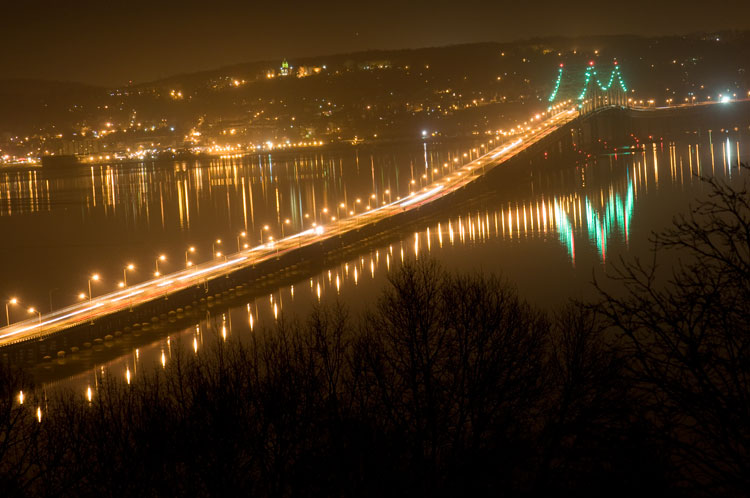
Colorful lights on the Tappan Zee Bridge reflected in the Hudson River at night. Behind the shot: ISO 200, aperture f/8, shutter speed 90 seconds, White Balance tungsten, lens used 80-200mm f/4.5 manual Nikkor zoom.

Exposing your photos correctly at night can be a bit challenging, and will certainly require some trial and error. In this article, you will learn helpful information to minimize the learning curve. Follow the tips outlined below and you will be taking better night photographs in no time.

Tappan zee bridge at night

View of the Tappan Zee Bridge and surrounding landscape at night. Behind the shot: ISO 400, aperture f/8, shutter speed 10 seconds, White Balance auto, lens used 105mm f/2.8 Nikkor.

Claiborne pell newport bridge

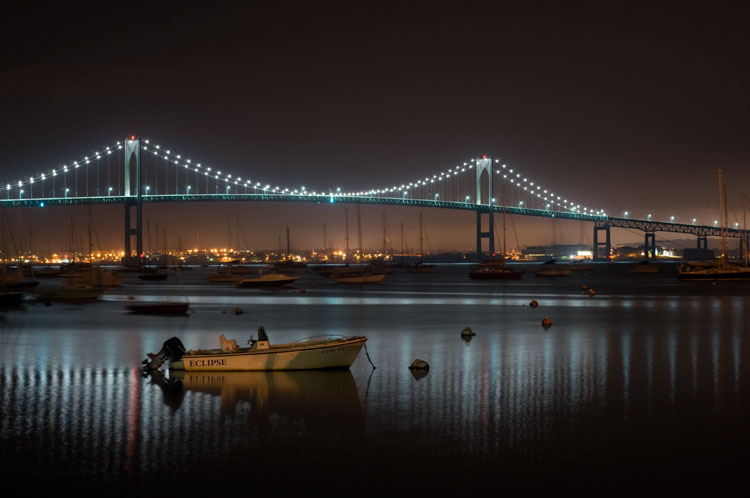
Night-time view of the Claiborne-Pell Newport Bridge and Narragansett Bay, taken in Jamestown, Rhode Island. Behind the shot: ISO 200, aperture f/8, shutter speed 25 seconds, White Balance fluorescent, lens used 50mm f/1.8D Nikkor.

Things You’ll Need

A Tripod

If you’re shooting at night, your exposures are going to be pretty long (anywhere from one to 30 seconds, or more). Since it is impossible to hold your camera perfectly still for that long, you will need a sturdy tripod, so that your camera does not move at all during the exposure. For added stability, you can hang your camera bag (or another somewhat heavy object) from the hook on your tripod’s center column. This is especially handy in windy conditions.

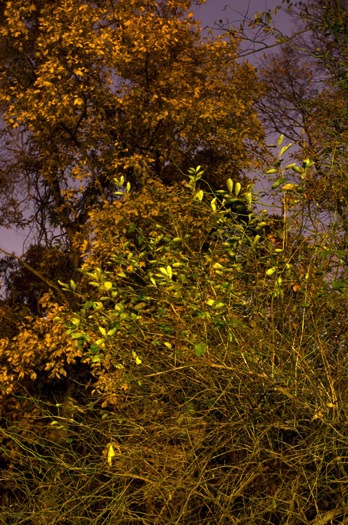
Plants at night

Long exposure of plants illuminated by streetlight at night in Nyack, New York. Behind the shot: ISO 400, aperture f/4, shutter speed 30 seconds, White Balance tungsten, lens used 50mm f/1.8D Nikkor.

Illuminated plant at night

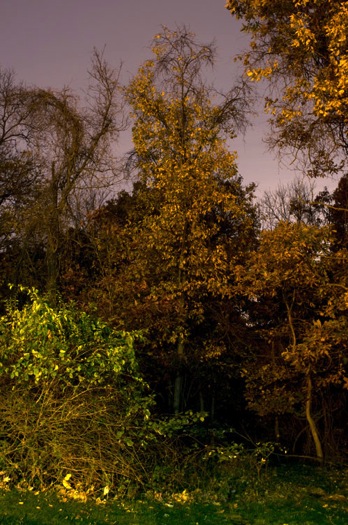
Golden plant illuminated by streetlight at night in Nyack, New York. Behind the shot: ISO 400, aperture f/4, shutter speed 30 seconds, White Balance tungsten, lens used 50mm f/1.8D Nikkor.

Remote Shutter Release

With a long exposure, any camera movement can ruin the shot, making it soft or blurry. To ensure you get a sharp image, use a remote shutter release (remote trigger). The best type of shutter release to use is the kind that functions as a timer remote as well. If you don’t have a remote shutter release, you can use your camera’s self-timer. The only downside to using the self-timer is that you will have to keep your shutter speed at 30 seconds or less. If you don’t have too much light, you can always increase your aperture (decrease the f-stop) or increase your ISO to speed up your shutter speed.

Colors of night

Assorted foliage illuminated by streetlights in Nyack, New York. Behind the shot: ISO 200, aperture f/5.6, shutter speed 30 seconds, White Balance fluorescent, lens used 24mm f/2.8D Nikkor.

Colorful night

Colorful plants and trees in Nyack, New York. Behind the shot: ISO 200, aperture f/5.6, shutter speed 30 seconds, White Balance fluorescent, lens used 24mm f/2.8D Nikkor.

Camera Settings

Shoot RAW

Keeping image quality in mind, you should always strive to shoot in RAW format. It records more pixel information, and does not compress your images at all. RAW provides you with more post-processing options, including white balance correction. If you happen to under or over expose an image, you can easily adjust the exposure if your image is in RAW format.

ISO

When taking photographs with little available light, you are better off using a low ISO (400 and below) and longer exposure times. This is important so you don’t get too much noise (or grain) in your images. Also, make sure you have Long Exposure Noise Reduction turned on in your camera’s settings.

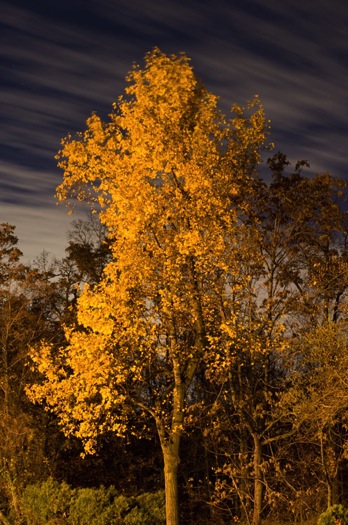
Yellow leaved tree moving clouds at night

Yellow-leaved tree and moving clouds at night in Nyack, New York. Behind the shot: ISO 200, aperture f/5.6, shutter speed 30 seconds, White Balance tungsten, lens used 50mm f/1.8D Nikkor.

Tree in wind

Tree in wind at night in Valley Cottage, New York. Behind the shot: ISO 400, aperture f/2.8, shutter speed 30 seconds, White Balance tungsten, lens used 50mm f/1.8D Nikkor.

Use Manual Mode

While shooting in very low light, your camera’s light meter may not read the scene too well. Your best bet is to use Manual mode, where you control both the aperture and the shutter speed. To find a baseline for the correct exposure, you can use the following trick (which I learned in this blog post):

  1. Set your ISO to 6400
  2. Set the aperture you would like to use
  3. Set your shutter speed at one second

Take a test shot using these settings to get an idea of what your image will look like. Note, these settings are almost equivalent to a 1-minute exposure at ISO 100, a 30-second exposure at ISO 200 and a 15-second exposure at ISO 400, etc. If your scene is too bright with these settings, you can see what a half second exposure at 6400 looks like. This would equal a 30-second exposure at ISO 100, a 15-second exposure at ISO 200 and a 8-second exposure at ISO 400. This baseline is a great guide, you can easily take test shots to figure out what shutter speed to use.

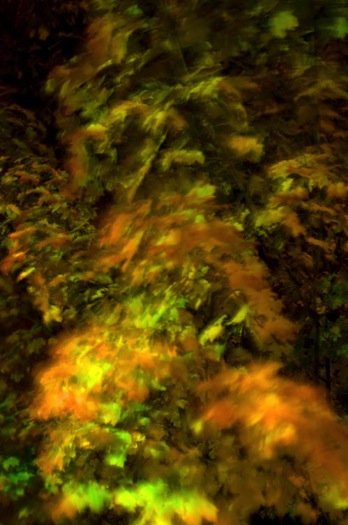
Autumn leaves in motion

Autumn leaves in motion at night in Valley Cottage, New York. Behind the shot: ISO 400, aperture f13, shutter speed 30 seconds, White Balance fluorescent, lens used 24mm f/2.8D Nikkor.

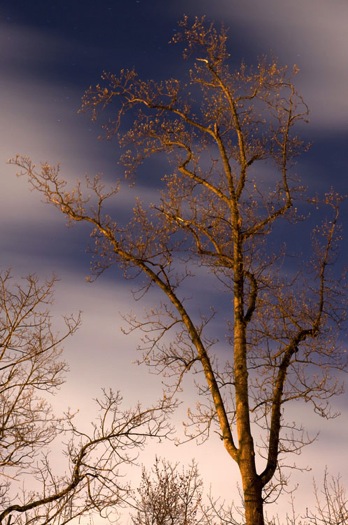
Tree at night

Tree and clouds in motion at night in Nyack, New York. Behind the shot: ISO 400, aperture f/5.6, shutter speed 30 seconds, White Balance tungsten, lens used 50mm f/1.8 manual Nikkor.

If you use the above trick, you won’t unnecessarily waste time taking a bunch of long test exposures. As it is, long exposure night photography is rather time-consuming. Make sure you switch your ISO back to 400, or below, before you start taking photos that you intend to keep.

In scenes where you have a decent amount of available light (e.g. places with numerous streetlights), you may be able to use Aperture Priority mode instead of Manual mode.

In Conclusion

Night photography can be rather tricky, and requires a good amount of practice. In time, you will have a feel for the amount of light in various night scenes, and be able to figure out accurate camera settings with relative ease. Hopefully, the information contained in this post will help you capture great long exposure night shots, that don’t need much post-processing.


googletag.cmd.push(function() {
tablet_slots.push( googletag.defineSlot( “/1005424/_dPSv4_tab-all-article-bottom_(300×250)”, [300, 250], “pb-ad-78623” ).addService( googletag.pubads() ) ); } );

googletag.cmd.push(function() {
mobile_slots.push( googletag.defineSlot( “/1005424/_dPSv4_mob-all-article-bottom_(300×250)”, [300, 250], “pb-ad-78158” ).addService( googletag.pubads() ) ); } );

The post How to Get the Correct Exposure at Night with These Helpful Tips by Marshall Reyher appeared first on Digital Photography School.

Digital Photography School

 
Comments Off on How to Get the Correct Exposure at Night with These Helpful Tips

Posted in Photography


Brian May launches smartphone adapter for stereoscopic virtual reality viewer

25 May

Brian May, guitarist with the band Queen and a stereo photography enthusiast, has launched a kit that allows users to view 3D stereo pairs and virtual reality content on a smartphone for just £25 (approx. US $ 37). The OWL VR Smart Phone Kit is an adaptation of a traditional Victorian-style stereo viewer sold by May’s London Stereoscopic Company. Instead of inserting card-mounted stereo pairs, users fix a plate to the viewer’s aperture that holds the smartphone in place. May says that the device provides a much better value alternative to standard VR headsets, and it is more adaptable and of higher quality than low cost models. It’s in much the same vein as Google’s Cardboard VR and other budget-friendly viewers designed for Google’s VR app.

The OWL has a rigid structure but folds flat for storage, is made from ‘high-grade’ polypropylene and features ‘high quality’ lenses with adjustable focus. The adapter allows access to all the phone’s controls while it is in place, including the headphone socket so audio can be enjoyed during 3D movies and VR experiences.

Although not in continuous existence, the London Stereoscopic Company was founded in 1854. Over the years it created and sold stereo equipment and cards showing scenes from all around the world. Its fortunes have undulated along with the popularity of stereo photography, and was dissolved a number of times. It was revived in 2008 to promote and preserve the work of the photographer Thomas Richard Williams. Brian May has been one of the directors of the business since 2008.

The OWL VR Smart Phone kit will be available from June and will ship internationally. For more information visit the London Stereoscopic Company’s website.

Press release:

Virtual Reality from Brian May. It’s real.

Lifelong stereoscopy enthusiast and collector, and, incidentally, world-famous rock guitarist, Brian May this month launches the OWL VR Smart Phone Kit, a Virtual Reality and 3-D stereo image viewer that brings all the excitement of VR within reach of anyone with a smart phone.

Brian’s London Stereoscopic Company has been supplying his unique original patent OWL Stereo Viewer to 3-D enthusiasts since 2009, enabling a whole new audience to view the company’s reproductions of classic Victorian stereo cards, as well as the originals, plus recently released astronomy and Queen-focused 3-D images. The OWL has been recognised and adopted by 3-D organisations world-wide, as a high quality immersive device.

The new OWL VR Smart Phone Kit takes the existing OWL Stereo Viewer and, through use of a simple but ingenious adaptor, enables its use with a smart phone not only to view online 3-D images, but also those taken by the user, and commercially available virtual reality content. Manufactured from high-grade polypropylene, and fully collapsible to a thin flat configuration, the OWL is supplied ready for use in seconds. Its carefully positioned high-quality optical lenses, plus fully adjustable focus, present every user with the ideal optical geometry for perfect viewing of side-by-side 3-D images.

Working with any smart phone, the OWL VR Kit has a significant advantage over most other VR devices, which are usually tied to just one particular make or model of phone. And, in contrast with most of the low cost viewers available, the OWL kit offers full access to the controls on the phone at all times. Access to the headphone socket is also unobstructed. This is particularly useful when using the OWL to watch virtual reality films of concerts, or other content with a soundtrack. It also enables users to connect their smart phone to a home cinema system to generate surround sound to complement the 360° 3-D visuals.

Commenting on the launch, Brian May said, “Virtual Reality has taken the consumer electronics world by storm over recent months and masses of content is now rapidly becoming available. However, until now, users have had the choice of an expensive VR viewer that puts it out of reach of many people or a very low cost alternative that just doesn’t do the format justice.” He continues, “The OWL Smart Phone Kit changes all that; for a very modest outlay, anyone can now enjoy the VR experience, and also gain access to the fascinating world of Stereoscopy. Plus, with the apps that are available for smart phones, it’s now possible to take your own 3-D images and enjoy them instantly using this simple OWL Kit.”

The OWL Smart Phone VR Kit will be available from mid June 2016 for £25, direct from
www.londonstereo.com/lsc_shop.html

Articles: Digital Photography Review (dpreview.com)

 
Comments Off on Brian May launches smartphone adapter for stereoscopic virtual reality viewer

Posted in Uncategorized


Painting in VR: Kingspray Graffiti Simulator & Google Tilt Brush

24 May

[ By WebUrbanist in Art & Drawing & Digital. ]

graffiti simulator

Virtual reality is not just about interacting with people at distance, or engaging with static worlds designed by others – it can also be a place where users are invited to create their own works of art and design. Games and apps like the two featured here (in videos below) are opening up new digital worlds for creatives to explore and shape.

graffiti simulator experience

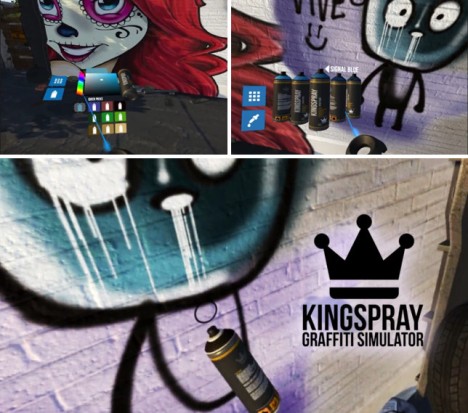
The Kingspray Graffiti Simulator, currently in development, gives players a palette and can of spray paint, adding realism through trips and spraying effects. Walking around the simulated world, artists can paint over and re-tag, then walk around to view other works and step back to enjoy the view.

tilt brush artworks

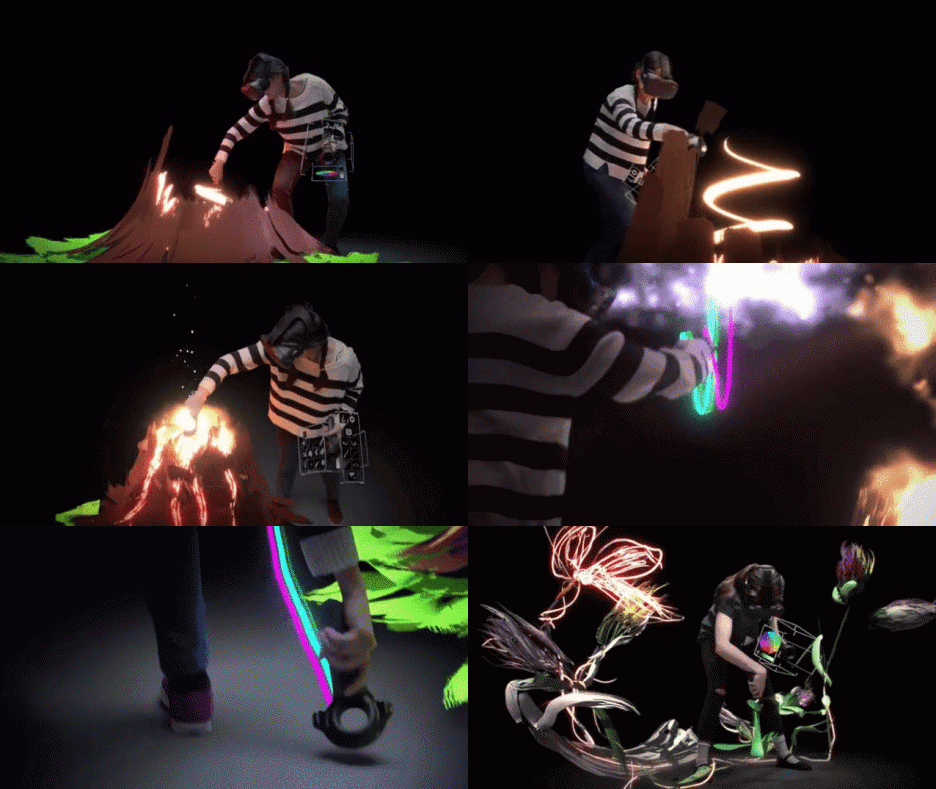
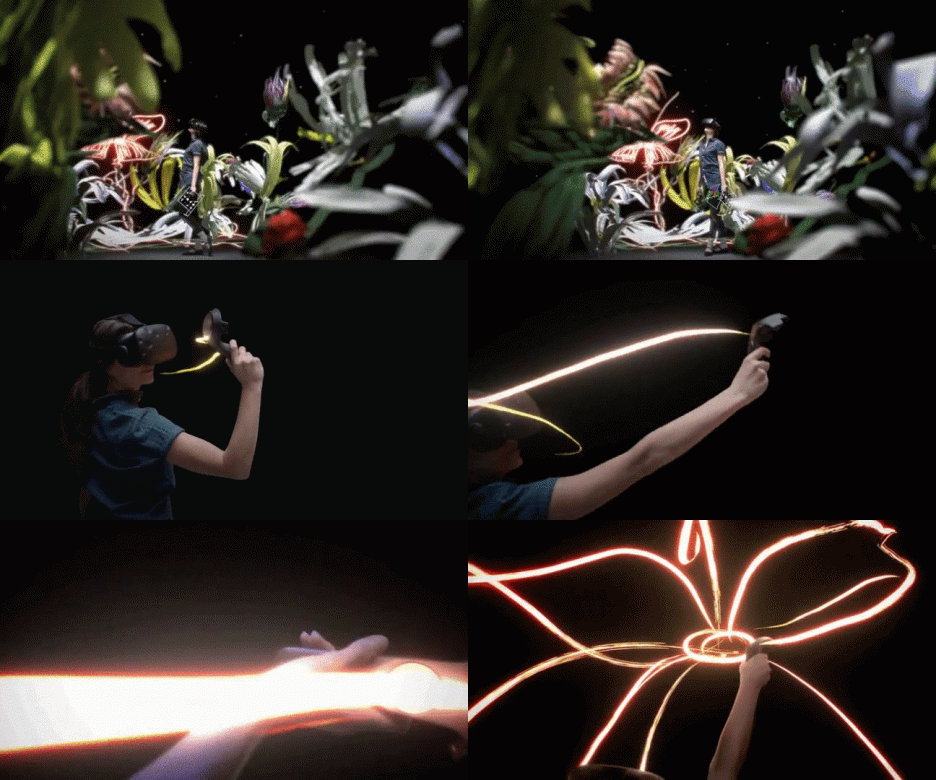
The Tilt Brush app from Google lets users sketch and draw in three dimensions. While the Graffiti Simulator places you in 3D space painting 2D surfaces, the Tilt brush actually lets you paint in space all around you. In turn, the finished pieces can be experienced from various perspectives by the artist and viewers invited to share the experience.

3d art

light painting

“Tilt Brush, at its core, is a virtual reality painting application. It creates something anyone can use, intuitively, for kids, artists, and absolutely anyone,” say the app’s developers. “Within the first 30 or 45 seconds, anyone can start VR painting and making marks in space all around them… It allows everyone to see how powerful VR is and how transformative it will be.”

Share on Facebook


[ By WebUrbanist in Art & Drawing & Digital. ]

[ WebUrbanist | Archives | Galleries | Privacy | TOS ]


WebUrbanist

 
Comments Off on Painting in VR: Kingspray Graffiti Simulator & Google Tilt Brush

Posted in Creativity


Olympus TG-Tracker keeps up with your outdoor adventures

24 May

$ (document).ready(function() { SampleGalleryV2({“containerId”:”embeddedSampleGallery_6448570778″,”galleryId”:”6448570778″,”isEmbeddedWidget”:true,”standalone”:false,”selectedImageIndex”:0,”startInCommentsView”:false,”isMobile”:false}) });

Olympus has updated its tough camera lineup with the Stylus Tough TG-Tracker, a rugged action-cam that specializes in tracking location, temperature, altitude and more. The TG-Tracker takes 8MP stills with a 1/2.3″ sensor and provides 4K/30p and 1080/60p video recording options. It offers a fixed F2.0 13.9mm equiv. lens and the whole unit is rated to be waterproof to 30m/100ft, shockproof from 2.1m/7ft, freezeproof to -10C/+14F and crushproof to 100kgf/220lbf.

Also provided are a 1.5″ flip-out (but non-rotating) LCD and a built-in lamp with 30 and 60 lumen settings, the latter of which can be used for a flashlight mode. The tracking features for which the camera is named for include built-in GPS, barometric pressure sensor, temperature sensor, compass and an accelerometer. A pistol-style SG-T01 grip is bundled with the camera to help keep shots steady. The grip itself bends into a few different configurations to enable high or low angle shooting, and of course, selfies.

The camera syncs with Olympus’ Image Track app via Wi-Fi to display data logs including the user’s route and elevation, and can display detailed summaries of excursions including total elapsed time, distance traveled, average speed and minimum/maximum elevation, among other data points. Images and video (though not 4K clips) can be transferred to the user’s smartphone using the app as well. 

The Olympus Stylus Tough TG-Tracker is due to hit retailers in June for $ 349.99 in green and black body options.


Press release:

TRACK THE EXTRORDINARY: NEW OLYMPUS STYLUS TOUGH TG-TRACKER CAPTURES EVERY DETAIL OF YOUR ADVENTURES

Ultra HD 4K Video Comes Alive with High-Quality Imaging and Rich Log Data That Tells an Immersive Story

CENTER VALLEY, PA, May 24, 2016 — Olympus expands the outdoor video experience with the latest member of the Tough product family, the new Olympus Stylus Tough TG-Tracker. The Stylus Tough TG-Tracker is the first rugged experiential camera that combines Olympus’s Tough rugged capabilities with an advanced Field Sensor System,*1 a 204° ultra-wide-angle F2.0 high-speed lens and Ultra HD 4K 30p video capture to record brilliant action video with corresponding activity data. The Stylus Tough TG-Tracker’s built-in Field Sensors include GPS,*2 a barometric-pressure sensor, a temperature sensor, an e.Compass and an accelerometer. Data logs can be displayed simultaneously with recorded images using the Olympus Image Track app, enhancing the excitement of reliving outdoor action with an immersive, data-rich viewing experience.

Like all other cameras in the Olympus Tough™ series, the Stylus Tough TG-Tracker is optimized for the most extreme shooting environments, with five rugged capabilities: waterproof to depths of 100 feet,*3 dustproof,*4 shockproof from 7 feet,*5 freezeproof to 14°F,*6 and crushproof up to 220 pounds of force,*7 — no protective case required. The Stylus Tough TG-Tracker represents a new category of rugged cameras with its Field Sensor System that’s capable of capturing location, altitude and depth, g-force and air and water temperature while users record videos and still images of their outdoor adventures.

A high-intensity LED headlight is integrated into the camera body for shooting support in low-light conditions. The bundled SG-T01 Steady Grip helps with stable framing during hand-held shooting. The Olympus Stylus Tough TG-Tracker’s compact body and tilt-out LCD monitor provide for quick and easy video capture, including low- and high-angle shooting.

*1 Because the GPS and other field sensors are not intended for use as strictly accurate measurement functions, under no circumstances are measured values (such as longitude and latitude, altitude, shooting direction and temperature) guaranteed. Additionally, information may differ from actual circumstances due to the effects of events such as natural disasters. *2 Depending on the country/region of use, different laws and regulations may be applicable regarding the use of the GPS function. Be sure to follow local laws and regulations. Turn off the GPS function in places where its use is forbidden or restricted, such as inside airplanes. Either the A-GPS Utility computer software or the Olympus Image Track app is required to update the Assist GPS data. *3 Waterproof functionality is equivalent to JIS/IEC protection class 8 (IPX8) according to tests performed following our in-house methods. *4 Equivalent to JIS/IEC protection class 6 (IPX6) according to tests performed following our in-house methods. *5 When the LCD monitor is closed, the Lens Protector is attached and the Mount Coupling, grip and Underwater Lens Protector are not attached, according to tests performed following our in-house methods. *6 The number of shots that can be recorded is reduced at very low temperatures. *7 When the LCD monitor is closed, the Lens Protector is attached and the Mount Coupling, grip and Underwater Lens Protector are not attached, according to tests performed following our in-house methods.

U.S. Pricing and Availability
The Olympus Stylus Tough TG-Tracker will be available in green and black beginning in June 2016 with an estimated street price of $ 349.99 (U.S.) and $ 479.99 (Canada). For a complete list of specifications, visit the Olympus website: http://www.getolympus.com/us/en/digitalcameras/tough/tg-tracker.html

Main Features

Field Sensor System for capturing all the action of outdoor adventures

The wearable-device market has expanded in recent years, offering ways to automatically record location information, steps walked, calories burned and other life-logging data. In the same spirit, the new Olympus Stylus Tough TG-Tracker is equipped with the Field Sensor System, which includes GPS, a barometric-pressure sensor, a temperature sensor, an e.Compass and an accelerometer. Users can select from three different display options on the LCD monitor, including a compass display, level display, and log display, to show the data captured via these sensors. Log Mode records data without video for extended time periods.

  1. GPS
    The camera uses GPS (with GLONASS and QZSS functionality) to precisely calculate the user’s latitude and longitude from satellite signals. Additionally, Assist GPS can significantly increase the speed of the system’s positioning calculations by downloading satellite information ahead of time using the Olympus A-GPS Utility computer app or the Olympus Image Track smart-device app.
  2. Barometric-pressure sensor
    Altitude and water depth are calculated based on air- and water-pressure information. When the camera is submerged below a depth of half a meter, the Underwater Detector will automatically switch the camera to the optimal mode for shooting underwater so you can focus on getting the best shot without worrying about complicated controls. The monitor log display will also automatically switch from altitude to water-depth information.
  3. Temperature sensor
    This sensor records ambient temperature with a high degree of precision. The Stylus Tough TG-Tracker captures water temperature in both Video and Log Mode, and air temperature in Log Mode only.
  4. e.Compass
    This sensor tracks the direction in which the camera lens is being pointed. It provides an easy way to confirm direction when shooting outdoors.
  5. Accelerometer
    This sensor measures acceleration (g-force) on three axes to record the photographer’s movements. When a preset acceleration level is detected while a video is being recorded, the Chapter Function*1 automatically identifies and bookmarks the moment. This feature supports editing and playback of exciting scenes, like when jumping and landing in intense sports such as snowboarding and motocross. Users may choose from two levels of acceleration or may turn this feature off.

Rugged capabilities: waterproof, dustproof, shockproof, freezeproof and crushproof

With its sealed construction, the Stylus Tough TG-Tracker is waterproof to depths of 100 feet (30 meters). The waterproof seal also makes the camera dustproof, so users don’t have to worry when operating the Stylus Tough TG-Tracker in dusty areas. The dual-layer chassis makes for superb shockproof performance, allowing the camera to clear drop tests from heights of up to 7 feet (2.1 meters). Operation is guaranteed in temperatures as low as 14°F (-10°C), so you can shoot in cold-weather environments where other digital devices fear to tread. The Stylus Tough TG-Tracker also boasts a rigid construction that can withstand loads of up to 220 pounds of force (100 kilograms of force).

High-quality images captured with an ultra-wide-angle lens

  1. 204° ultra-wide-angle F2.0 high-speed lens
    The Stylus Tough TG-Tracker’s ultra-wide-angle lens was developed using advanced optical technology. Its 204° angle of view is wider than that which can be captured by the human eye, allowing it to record action videos with a dramatic perspective, especially useful for ultra-wide views of outdoor sports scenes.
  2. TruePicTM VII for 4K Image Processor and backlit CMOS sensor
    The Stylus Tough TG-Tracker is equipped with the TruePicTM VII for 4K Image Processor, the latest iteration of the TruePicTM image processors used in the Olympus OM-D and PEN compact system cameras, now with 4K video capability.*2 It quickly processes data from the high-sensitivity, low-noise backlit CMOS sensor to produce high-quality images.

Versatile shooting style and superb controls

The compact body provides for quick and easy video capture no matter your shooting style, allowing low- and high-angle camerawork. An SG-T01 Steady Grip is bundled with the camera to help with stable framing during hand-held shooting.*3 The MC-T01 Mount Coupling comes with a small mirror on the front to assist in capturing wide-angle group selfies.*4 The high-intensity LED Headlight is built into the camera body for shooting support in low-light conditions.*5 Its quick-action operation lets you swiftly illuminate subjects for high-quality imaging. Even when the camera is turned off, users can press and hold the Info button to activate the headlight for standalone use.

Compatibility with the Olympus Image Track smart-device app

The Stylus Tough TG-Tracker is equipped with built-in Wi-Fi.*6 Using the exclusive Olympus Image Track app, users can easily transfer videos recorded on the camera, along with field data, to a smart device. Users can also display the log data and view images simultaneously, enjoying the experience of the shooting environment during playback. Within the app, the data display can be switched between geographical information and altitude/depth information to best match the scene, and data is saved so that users can conveniently check the information at any time.

Other Features

  • Time Lapse Movie mode*7 for fixed-point observation of movement such as crowds of people, clouds crossing the sky or flowers opening.
  • Loop Recording function for easier video-data handling.
  • Bundled with the UP-T01 Underwater Lens Protector for underwater shooting.*8 
  • Graphical user interface (GUI) for intuitive control.
  • Electronic 5-Axis Image Stabilization*9 for compensation of every kind of camera motion.
  • 4K Video playback via HDMI connection.
  • Remote control and image transfer with the Olympus Image Share app.

*1 A “chapter” is a bookmark designating a scene transition in a movie. This feature lets you quickly find the exact spot you want during movie playback. Chapters can be manually inserted by pressing the OK button on the top of the camera, but manually inserted chapters cannot be transferred to the Olympus Image Track smartphone app. *2 4K videos cannot be transferred to a smartphone. They should be viewed on a large TV that supports 4K playback. *3 Because the Stylus Tough TG-Tracker’s angle of view is a diagonal 204°, part of the tripod will appear on the monitor when it is connected directly to the camera. This can be prevented by using the tripod baseplate on the bottom of the Steady Grip. *4 The Mount Coupling attaches to the top of the Steady Grip for mounting on the camera. *5 The LED Headlight can be used only for a limited duration. *6 “Wi-Fi” is a registered trademark of the Wi-Fi Alliance. *7 Users can select from 1080p, 720p or VGA and can record at up to 30 FPS in full HD. *8 The bundled UP-T01 Underwater Lens Protector is required to shoot underwater. Without it, the camera will not be able to focus underwater. The angle of view becomes narrower underwater; users must change the camera’s angle-of-view setting to Underwater. *9 When the Electronic 5-Axis IS is activated, the angle of view becomes narrower.

Optional Accessories CSCH-125 TG-Tracker Case

This case can be attached to a backpack or belt, and data logs can be recorded while on the go with the camera inside. The camera can be stored in the case on its own or with the Steady Grip attached. The case is equipped with a carabiner and spiral safety cord so users never have to worry about losing the camera. This accessory can even be used in the rain or in saltwater, so it’s perfect for use during outdoor sports or in harsh environments.

Articles: Digital Photography Review (dpreview.com)

 
Comments Off on Olympus TG-Tracker keeps up with your outdoor adventures

Posted in Uncategorized