RSS
 

Archive for May, 2016

Above and beyond: Lenovo Moto G Plus first impressions review

17 May

The Moto G Plus is a brand new model in Motorola’s Moto G mid-range series, but its camera specification looks pretty much top-notch. A 1/2.4-inch Omnivsion OV16860 16MP sensor with a large pixel size of 1.34um is paired with a fast F2.0 aperture. Its contrast detect autofocus is supported by on-sensor phase detection and a laser to measure subject distance. A dual-LED flash is on board for shooting in very dark conditions, and in the camera app a new Professional mode allows for manual control over the most important shooting parameters like shutter speed and ISO.

The new Professional mode allows for manual control over shutter speed and other shooting parameters via a range of virtual dials. It’s also possible to display just one dial at a time.

We have had the chance to use the Moto G Plus for a couple of days before launch and shot a good number of samples in a variety of situations. Read on for our first impressions of the new smartphone and its camera. 

Image Quality

In bright light the Moto G Plus 16MP camera module does a very good job at resolving detail. Thanks to very well balanced sharpening and noise reduction, fine textures and low contrast detail, such as the trees in the distance in the left sample below, are rendered very nicely. The lens in our test unit is sharp,  with only some minor softness toward the edges. Skin tones look natural and color is overall pleasantly neutral, without any white balance issues in natural light. 

 ISO 64, 1/1236 sec  ISO 64, 1/137 sec
 100% crop  100% crop

Some luminance noise is visible in blue skies but it is finely grained and not too intrusive. In the shadow areas some smearing of detail is noticeable, but again this is well within acceptable limits. Shadow noise is very well controlled as well.

 ISO 64, 1/2836 sec  ISO 64, 1/450 sec
 100% crop  100% crop

The well-balanced approach toward noise reduction is maintained throughout the ISO range and while noise and the effects of noise reduction inevitably become more evident in lower light the Moto G Plus performs very well in dimmer conditions. 

 ISO 160, 1/33 sec  ISO 400, 1/30 sec
 100% crop  100% crop

In lower light shutter speeds are reduced down to 1/15 sec which, without optical image stabilization, can result in the occasional shaky image. However, as long as you keep your hands steady the Moto captures very good detail, color and exposures in lower light. Both images below were shot in fairly dim conditions. In the one on the right the camera deals particularly well with the mix of artificial and very low natural light.

 ISO 640, 1/20 sec  ISO 800, 1/15 sec
 100% crop  100% crop

Like on the higher-end Moto models, the Moto G Plus offers a multi-frame Night Mode that kicks in when things get too dark. This allows for decent exposures of even very dark scenes, such as the image on the left below which was captured in a museum in very low light. We also liked the Moto G Plus flash performance which delivered well-exposed images with good color and detail during our brief test. 

 ISO 1250 1/15 sec  ISO 2000, 1/15 sec, flash on
 100% crop  100% crop

Special modes

The Moto G Plus comes with the same panorama mode as previous Moto devices and image output is very similar. Stitching is generally very good but panorama mode does not deal well with moving subjects in the scene. At under 3000 pixels the output size is very small. 

 Vertical panorama, 2472 x 704 pixels

HDR mode works in the conventional way and combines several exposures into one. On the Moto G Plus the effect is much more pronounced in shadow areas, which are noticeably lifted while highlights are only recovered minimally. 

ISO 64, 1/1196 sec,  HDR off  ISO 64, 1/1158 sec, HDR on

In video mode the Moto G Plus can capture 1080p footage at 30 frames per second that is digitally stabilized. Detail is good, the autofocus tends to be stable and the stabilization works efficiently, making for smooth panning and stable hand-held recording.

First impressions

During our testing we were impressed with the image output produced by the Moto G Plus. The large pixels in combination with very well-balanced image processing result in image quality that we would typically expect from devices in a higher price category. Images show good detail and well-controlled noise levels across the ISO range. Colors are pleasantly natural, even in difficult light situations, and thanks to its night mode the Moto is capable of capturing decent exposures even at very low light levels. On the downside, in dim conditions camera shake can lead to some image blur, though it is typically only noticeable at a 100% view.

The new Professional mode is good news for those mobile photographers who want maximum control over the capture process, and the large 1080p display is nice for viewing and composing images. The fingerprint sensor performs very swiftly and increases the security of your image and video files that are stored on the device. The plastic back is in line with a mid-ranger but overall the Moto G Plus looks like a great option for consumers who want excellent camera performance without spending money on a flagship device.

Articles: Digital Photography Review (dpreview.com)

 
Comments Off on Above and beyond: Lenovo Moto G Plus first impressions review

Posted in Uncategorized


Sony expects to restart image sensor production by end of month

17 May

Sony, one of the biggest image sensor manufacturers for the photographic industry, has announced its sensor plant in the earthquake-hit Kumamoto region will be ready to begin production again by the end of this month.

The company says it has been able to resume back-end processes like testing sensors and camera modules, and that assembly lines for new units should begin working again any day now. Wafer manufacture, it says, should begin on 21st May, though not all lines will start on that date. 

Damage caused by the earthquake forced the Sony Semiconductor Manufacturing Corporation to halt production at the Kumamoto Technology Center where it produces imaging sensors for digital cameras. According to a report from the Nikkei Asian Review, the damage and lost business caused by the series of earthquakes and aftershocks has cost the Japanese economy $ 4.6 billion. Sony itself says it is still evaluating the cost of the disaster, and it is due to publish forecast figures for the current financial year on 24 May.

For reports on Sony’s recovery process see the company’s investor relations website.


Press release:

Status of Sony Group Business Operations Affected by 2016 Kumamoto Earthquakes
(Fourth Update)

The status of Sony Group business operations affected by the earthquake of April 14, 2016 and subsequent earthquakes in the Kumamoto region, as of today, is as follows:

Operations at Sony Semiconductor Manufacturing Corporation’s Kumamoto Technology Center (located in Kikuchi Gun, Kumamoto Prefecture), which is the primary manufacturing site of image sensors for digital cameras and security cameras as well as micro-display devices, had been suspended due to the impact of the earthquakes. However, as of May 9, 2016, testing operations, which are one of the back-end processes carried out on the upper layer of the building, have resumed and other back-end processes, such as assembly, are also expected to restart sequentially beginning May 17, 2016.

Wafer processing operations located on the lower layer of the building are expected to restart sequentially beginning May 21, 2016.

Although there was a delay in the supply of components to Sony from certain third-party suppliers that also have manufacturing facilities in the Kumamoto region, inventory adjustments have been made and a timeframe for regaining supply levels is now in place, so no material impact is anticipated on Sony’s business operations.

Based on the above, the effect of the Kumamoto earthquakes on business operations within the Mobile Communications, Game & Network Services and Home Entertainment & Sound segments is not anticipated to have a material impact on Sony’s consolidated results.

On the other hand, regarding the Devices and Imaging Products & Solutions segments, the impact on Sony’s consolidated results due to the effect of the earthquakes, including from opportunity losses, as well as expenses for recovery and reinforcement work, continues to be evaluated. Sony is scheduled to announce on May 24, 2016 its consolidated results forecast for the fiscal year ending March 31, 2017, as well as its forecasts for the Mobile Communications, Game & Network Services, Imaging Products & Solutions, Home Entertainment & Sound and Devices segments for the fiscal year ending March 31, 2017.

Articles: Digital Photography Review (dpreview.com)

 
Comments Off on Sony expects to restart image sensor production by end of month

Posted in Uncategorized


Day at the track: Canon EOS-1D X Mark II samples

17 May

The EOS-1D X Mark II is the latest flagship body from Canon, boasting a 20.2MP CMOS sensor, 14 fps continuous viewfinder shooting and a new 61-point autofocus system. Built like a tank, the 1DX II is as pro-level as pro-level bodies come.

To get some basic impressions of its AF performance and image quality we brought it out to Evergreen Motocross Park in Monroe, Washington to photograph an all-day practice. While this gallery represents only our initial samples with the camera, we will be adding to it frequently in the coming days and weeks. Also, check back later in the week for an in-depth article about the experience of shooting these samples alongside the Nikon D5.

Note: All of the images in the gallery were processed using Adobe Photoshop CC with adjustments made mainly to exposure parameters and saturation only.  All images were edited using the Camera Standard profile.

Articles: Digital Photography Review (dpreview.com)

 
Comments Off on Day at the track: Canon EOS-1D X Mark II samples

Posted in Uncategorized


Unidentified Floating Object: Sea Vessel With Underwater Lookout

17 May

[ By Steph in Technology & Vehicles & Mods. ]

unidentified floating object 1

Here’s one UFO you won’t be seeing in the skies, but rather on the surface of the sea, half of its iconic shape disguised beneath the waves in the form of an underwater viewing dome. The ‘Unidentified Floating Object’ concept is the newest weird watercraft design from Italian water transportation company Jet Capsule, envisioned as a semi-autonomous floating home complete with a vegetable garden, water generator and wind turbine.

unidentified floating object 6

unidentified floating object 2

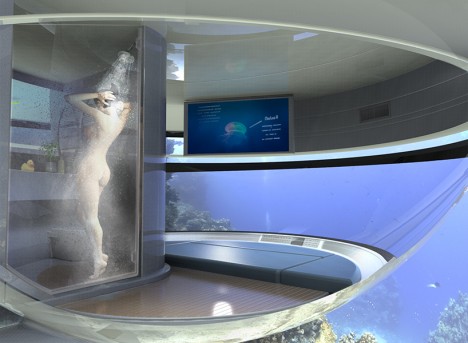
You won’t get very far very fast, as this thing reaches a top speed of just 3.5mph, but it’s not meant to be a speedboat or even really a means of getting from one place to another. It’s a recreational watercraft crossed with a vacation home, offering habitable areas both above and below the surface of the water, including a sub-level bathroom where you can shower while gazing out at the surrounding marine life.

unidentified floating object 5

unidentified floating object 7

unidentified floating object 9

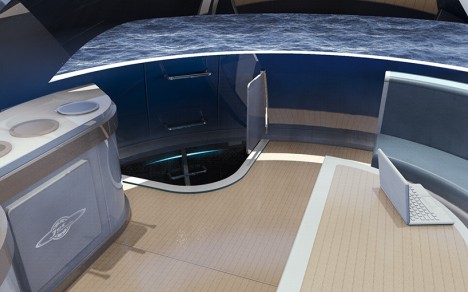
The flat ring around the central sphere functions as an exercise track for jogging or biking, and there’s a plantable strip so you can grow grass, flowers, trees or food. Opening the top hatch enables the collection of both solar energy and rainwater, and underwater turbines gather energy from the currents. There’s an anchor on an elastic cord so you can stay in place when you want to. The top cabin features a built-in kitchen, semi-circular dining area and lots of windows for taking in the views, and the whole thing runs on a battery-powered jet motor.

unidentified floating objet 3

unidentified floating object 4

unidentified floating object 8

Jet Capsule is about to seek funding to create the first working prototype, with a Kickstarter launch reportedly coming soon, so it looks like they’re serious about getting this thing into the hands of consumers. No word yet on an estimated retail price.

Share on Facebook


[ By Steph in Technology & Vehicles & Mods. ]

[ WebUrbanist | Archives | Galleries | Privacy | TOS ]


WebUrbanist

 
Comments Off on Unidentified Floating Object: Sea Vessel With Underwater Lookout

Posted in Creativity


Xiaomi Yi II action camera updates original with 4K video

17 May

Chinese company Xiaomi has updated its Yi action camera with a Sony IMX377 12MP 1/2.3″ sensor, improving its top resolution to 4K compared to the original model’s 1080p maximum. The Yi II Action Camera also features an Ambarella A9SE75 chipset, a 155-degree wide-angle 7-layer optical glass lens and a 2.19″ LCD rear touchscreen display.

According to Xiaomi, the internal 1400mAh battery allows for up to 120 minutes of video recording in 4K. Content is stored on a removable media card, with capacities of up to 64GB supported. Other features include a built-in speaker and microphone, dual-band Wi-Fi, and three color options: Rose Gold, White, and Black.

The international version of the Yi II Action Camera offers the following recording options:

  • WVGA/240fps
  • 720p/240fps
  • 960p/120fps
  • 1080p/120fps
  • 1440p/60fps
  • 2.5K/30fps
  • 4K/30fps

The camera can be pre-ordered from GearBest for $ 249.99.

Articles: Digital Photography Review (dpreview.com)

 
Comments Off on Xiaomi Yi II action camera updates original with 4K video

Posted in Uncategorized


Software Review: Macphun Creative Kit 2016

17 May
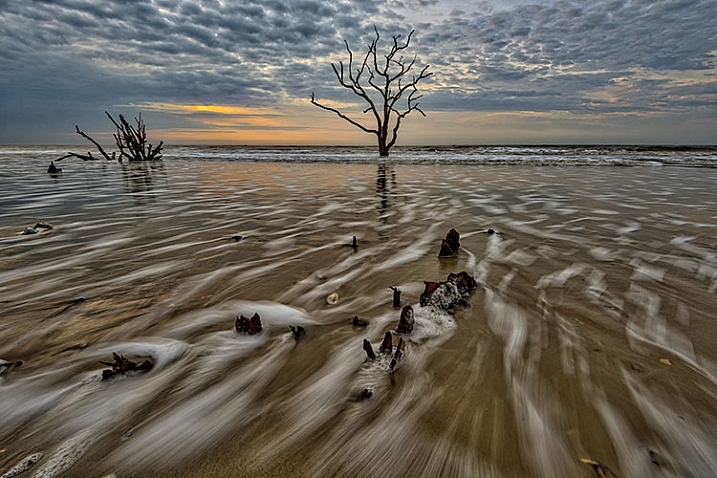
Image edited in Macphun Intensify CK

Boneyard Beach, Botany Bay Plantation, South Carolina. Edited in Macphun Intensify Creative Kit.

My philosophy on photography has always been that photography starts with the push of the shutter button, but it does not end there. Back when film was king, I spend a lot of time in the darkroom, learning and mastering darkroom techniques, and printing my work. With the advent of the digital age, those processes moved to the digital darkroom. Always one for working smarter, not harder, I have often employed plugins with Photoshop to make the work of editing my images a bit easier. I’m a big fan of plugin suites that offer a soup to nuts solution for editing images, so when Macphun released its Creative Kit 2016, I was excited to give it a try.

Note: all Macphun products are made for Mac only.

Macphun’s Creative Kit 2016 includes six plugins for Photoshop or Lightroom. This is a comprehensive collection that can handle all aspects of image editing, from color and contrast adjustments, to black and white conversion, to removing unwanted elements, sharpening, and noise reduction. The six modules are Intensify, Tonality, Snapheal, FX Photo Studio, Focus, and Noiseless. I’ll explain each one individually to give you an idea of the capabilities of each. Macphun Creative Kit, as the name implies, is only for Mac users, and is currently on sale at Macphun for $ 129 (USD)

Intensify CK
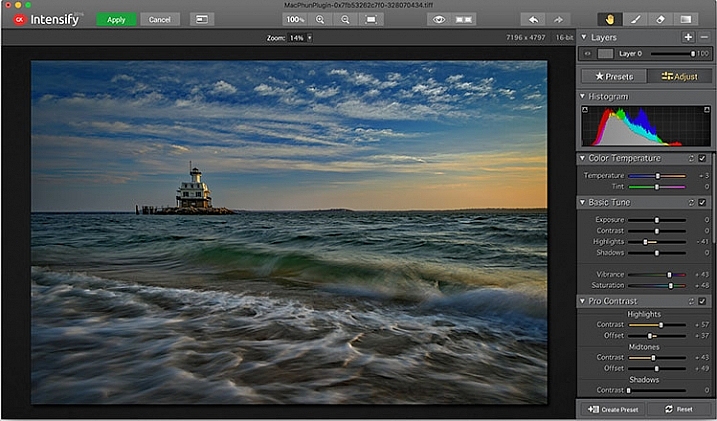
Macphun Intensify CK application window

The Macphun Intensify CK application window.

Macphun Intensify is a plugin in the same vein as Topaz Adjust. You can adjust everything from color temperature and saturation, to contrast, structure, and details.  When you open Intensify, your image will be in the center of the screen with a tool bar on the right, which can alternate between presets and manual adjustments.

The list of presets is broken down into groups: Architecture, Black & White, Creative, Detail Enhancement, Image Tune, Landscape, and Soft. Within each group is a list of presets that pertain to the subject of the main group. For instance, within Landscape is Aerial Photo Enhance -2, Gloomy Day, Natural Enhance, Structured Scape, and Warm Day. When you select a preset, an amount slider appears underneath so you can adjust the amount applied to the image. You also have the option of manually adjusting all the sliders to tweak the preset to to your tastes.
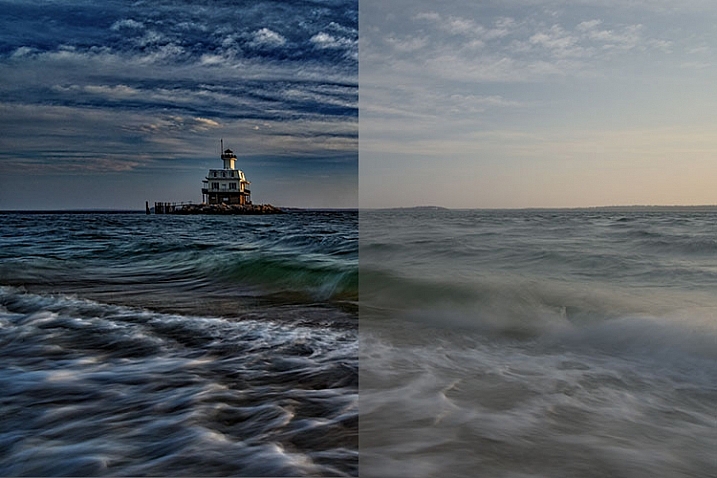
Macphun Intensify CK Comparison Image

Comparison of an image edited in MacPhun Intensify, before (right) and after (left).

While I found many of the presets to be a bit heavy handed, manual adjustments are easy to make, and gave me a much more satisfying result than simply clicking a preset. For a more in-depth look at Intensify, read MacPhun Intensify Pro Software Review. While Macphun Intensify CK is a newer version, the controls and presets are largely the same and Andrew Gibson does an excellent job of breaking them down.
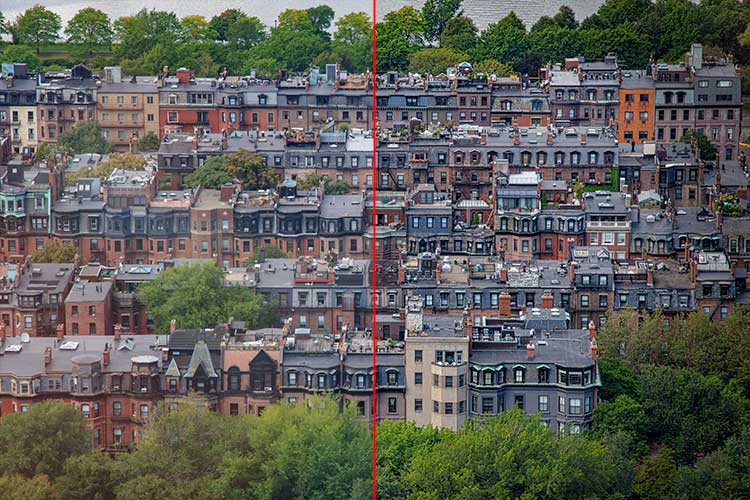
Intensify-Architecture

Before (left) and after (right) Intensify CK

Snapheal CK
Macphun Snapheal CK application window

The Macphun Snapheal CK application window.

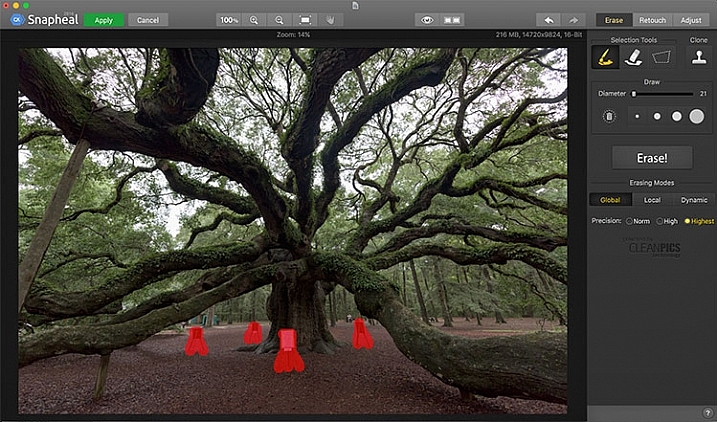
Snapheal CK may very well be the crown jewel of this collection. Think of the healing brush or clone stamp on steroids, and that’s what Snapheal CK is like. Snapheal CK is an amazingly simple way to remove unwanted objects from a scene. When you open Snapheal CK, You’ll notice a tool panel on the right, and a menu bar across the top. You’ll see zoom and move tools, an eyeball icon, which shows the object you’ve removed, a comparison button, arrows to step forward or backward, and finally – Erase, Retouch, or Adjust, which are the different modes you can work in. The selection tools at the top are a paintbrush, an eraser, and a marquee selection. There is also a cloning stamp tool.

Once you have your image in Snapheal CK, if you select Erase mode, you can either use the paint brush or the marquee tool to select the object you want removed from the scene. A red mask will appear over the object you’ve selected. The size of the paintbrush can be adjusted using the slider, or the bracket keys on the keyboard. If you paint in an area you don’t want removed, simply select the eraser tool and erase the painted area.
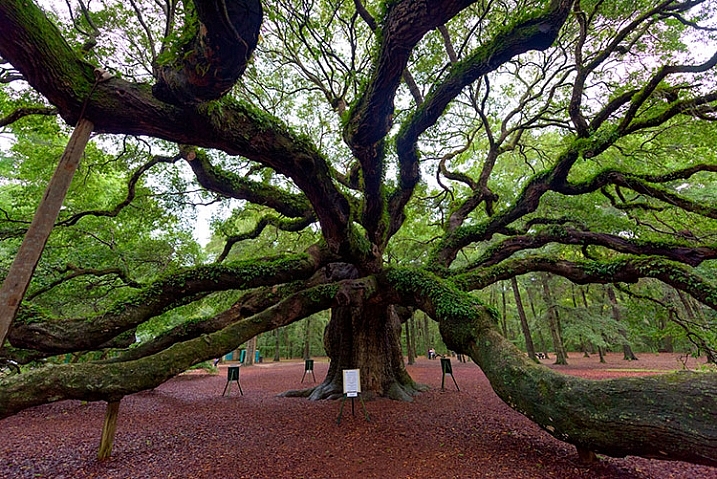
Image before Macphun Snapheal CK.

An image before using Macphun Snapheal CK. The signs in the scene were not allowed to be moved, so I was resigned to having to clone them out.

Underneath the selection tools, you’ll find the options for each tool, such as brush size, polygonal or free marquee, and for the clone stamp, diameter, softness, and opacity. Beneath the options, is a very large button clearly marked as Erase! Under the erase button are three erasing modes: Global, Local, and Dynamic, as well as three Precision options: Norm, High, Highest.

Once you’ve made your selection, you simply press the Erase button and Snapheal CK goes to work. While you wait, the status bar displays a variety of interesting facts to keep you entertained. It does take a few minutes to do its thing, even on my 2015 Macbook Pro with 16GB of RAM. After the process has finished, if the result is not to your tastes, try changing the erasing mode to one of the other modes. Each one behaves a bit differently and will produce a different result. The same goes for the Precision setting.

After Macphun Snapheal CK

The same image after being edited in Macphun Snapheal CK. The signs and other unwanted objects have been removed.

Retouch mode works similar to erase mode, but instead of erasing, it allows you to adjust the selected area for color, contrast, and more. Adjust mode is similar but instead of working on a selected area, it makes global adjustments to the entire image.

Even without the Retouch and Adjust modes, the object removal mode of Snapheal CK makes it worth the price of admission in my book, saving me time every time I need to clone or remove an object from an image for whatever reason.

Note: if you are a Lightroom user and want a more powerful cloning and healing tool without having to purchase Photoshop, this may be a good option for you to look at.

Tonality CK
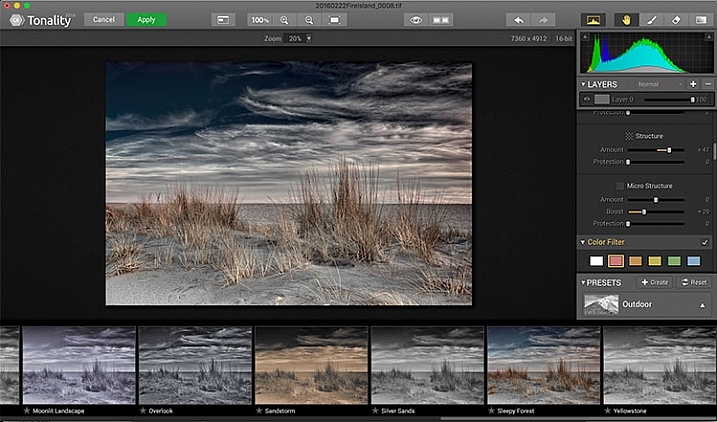
Macphun Tonality

The Macphun Tonality CK application window.

Macphun bills Tonality CK as, “The world’s most advanced black & white photo editor.”  With hundreds of presets available to you, as well as the ability to work in layers and adjust virtually everything about the image, there’s a lot of truth in that statement.

As you open Tonality CK, you will be presented with your image in the main window, a menu bar across the top, tool palette on the right hand side, and preset preview bar across the bottom.  The palette on the right hand side features all of the settings, including; layers, a histogram preview, adjustment sliders for color temperature, tone, clarity and structure, color filter, tone curve, split toning, glow, lens blur, texture overlay, vignette, grain, photo frames, and layer properties. There are a lot of variables to adjust to get exactly the look you want. Beneath these adjustments is a drop-down menu to select various presets, from groups including Basic, Architecture, Portrait, Dramatic, Outdoor, Street, Vintage, Film Emulation, Toning, HDR, a Favorites group, and a group for user defined presets.
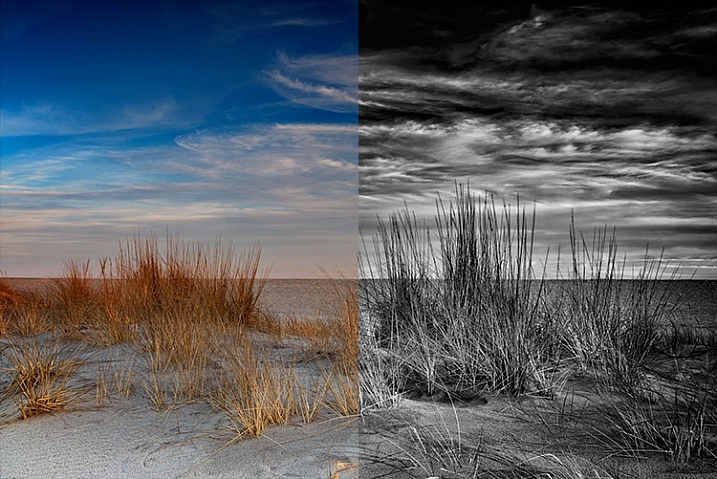
Macphun Tonality CK Comparison

Before (left) and after Macphun Tonality CK (right)

With the use of layers and individual adjustments, there are literally endless combinations and looks that can be creative with Tonality CK. I really like the amount of freedom I have in the editing images, and the ability to create layers with different effects, and mask them off if desired, takes that freedom to a whole new level. For a more in depth review of Tonality, Product Review: Macphun Tonality Black and White Photo Editor goes in depth. As with Intensify CK, Tonality CK is an update to the version reviewed, but both are similar enough that I found the review helpful when I first began using Tonality CK.
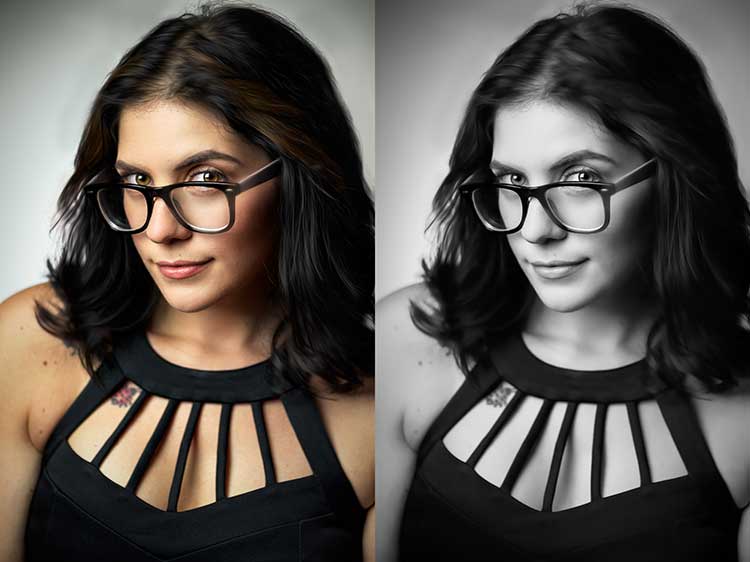
Tonality CK applied on a portrait

Tonality CK applied on a portrait

Focus CK
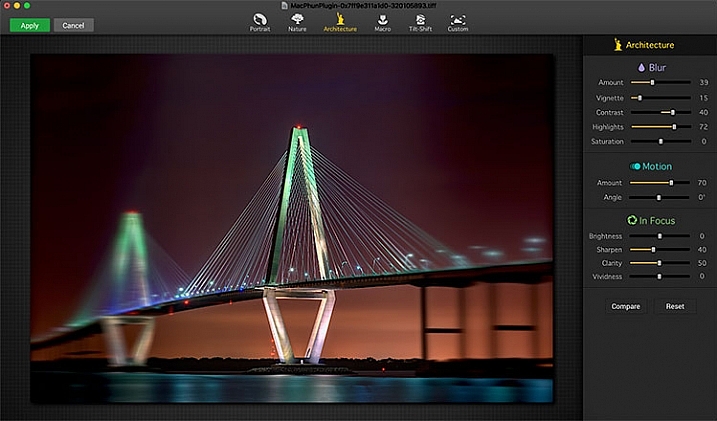
Macphun Focus CK application window

Macphun Focus CK application window.

Macphun Focus CK is a plugin that allows you to create lens focus effects easily and quickly. The interface when the plugin is opened is a minimalistic one, with only six presets across the top of the screen, and your image in the main window underneath. The presets are as follows: Portrait, Nature, Architecture, Macro, Tilt-Shift, and Custom. Truth be told, Nature, Architecture and Tilt-Shift are all similar, in that the blur is similar to that created when using a tilt-shift lens. There are subtle differences in each preset, with the most notable being the angle of the blur. This is user-adjustable, however, as are several settings sliders, which are adjusted slightly differently according to the preset selected. The same can be said for the Portrait and Macro settings, except instead of a parallel blur field, they create a circular blur field.

When you select a preset, a series of sliders appear on the right side of the screen, in three groups. The first group is Blur. This set of sliders, as you may have deduced, adjusts the image in the blurred area. The settings include amount of blur, vignette, contrast, highlights, and saturation.  The next group of sliders is Motion, which allows you to add motion to the blur, rather than simply a normal blur. Here you can adjust the amount and the angle of the motion. The final group of sliders is for the In Focus area of the image, and allows you to adjust the brightness, sharpness, clarity, and vividness of this area of the image.  Beneath these sliders are a Compare button, to allow you see before and after the blur is applied, and a Reset button, to allow you to start over if you don’t like what you’ve done.
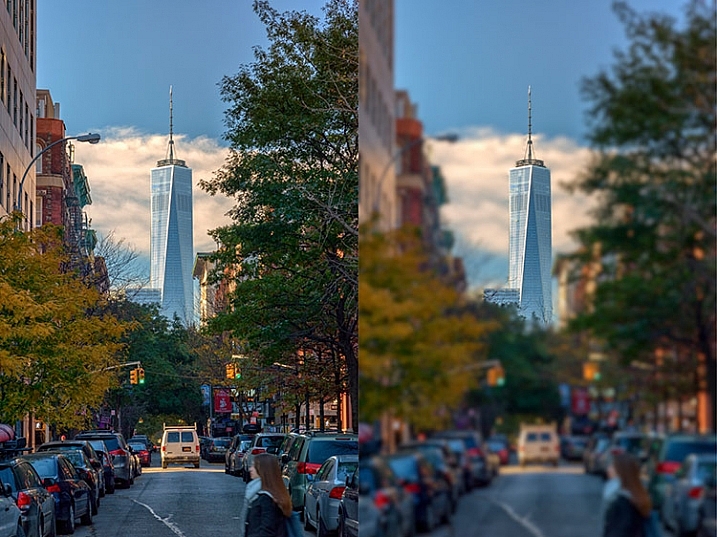
Before and after comparison of Macphun Focus CK

Before (right) and after (left) Macphun Focus CK.

The most fun part of Focus CK is the Custom setting. The custom setting allows you to mask off the areas of the image you wish to remain sharp, using the paint brush. As you paint, you’ll see the effect on the image. There is an eraser tool if you paint in an area you’d like to remain blurred. This custom setting allows you to really create different looks within your image. Have two objects at different depths, and want them both sharp and everything else blurry? No problem. Simply mask each object and adjust the blur of the out of focus areas to taste.

The biggest drawbacks in Focus CK is in this custom mode. There is no ability to zoom in on the area you are masking to do fine detail work, and the brush will not go smaller than 20 pixels, making it very difficult to mask off fine detail, such as the antenna on the building in the example above. If those two deficiencies could be rectified, I could see using Focus CK much more in my personal work.
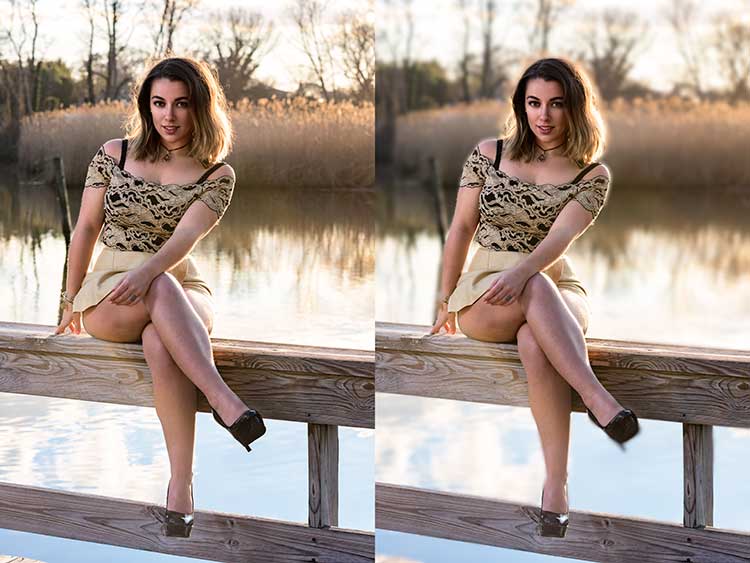
Focus-CK-Portraiture

Focus CK applied to a portrait

Focus-CK-Macro

Focus CK applied to a macro image

Noiseless CK

Noiseless CK is Macphun’s entry into the digital noise removal arena. Like the other plugins in the Macphun Creative Kit, the interface features a large window for your image, a button bar across the top, and a palette of sliders on the right, that allows you to adjust a wide array of settings and customize the noise reduction to your preference.
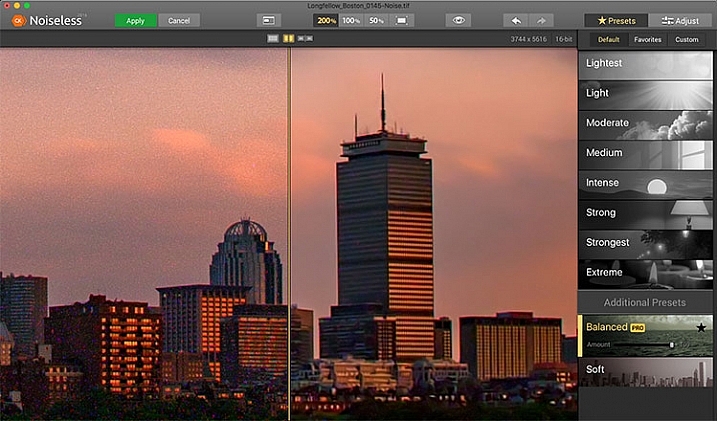
Macphun Noiseless CK application Window

Macphun Noiseless CK application window.

To test out Noiseless CK, I dug out an image I created several years ago that has the worst noise I’ve ever had in an image. It was a four minute exposure, and I had neglected to turn on long exposure noise reduction. I found Noiseless CK was able to subdue the noise pretty easily.

Noiseless is simple to use. Open your image in Photoshop or Lightroom and start the Noiseless Plugin. On this image, I started at the Lightest preset, just to see how that would do with the noise, knowing that most likely it wouldn’t come close to reducing it enough for my taste, due to the heavy noise within the image. As I worked my way down the list of presets, I found that once I hit the Strong preset, it really reduced detail in the image, which I wanted to try and avoid. In addition to the presets ranging from Lightest to Extreme, there are also two additional presets, called Balanced and Soft. The Balanced setting seemed to work the best on this image. There is also an Amount slider to adjust the application of noise reduction using that setting.  From there, I could also select the Adjust tab, and individually adjust the settings individually to get a look I was happy with. If I wanted to save those settings, I can create a custom preset of my own for future use.
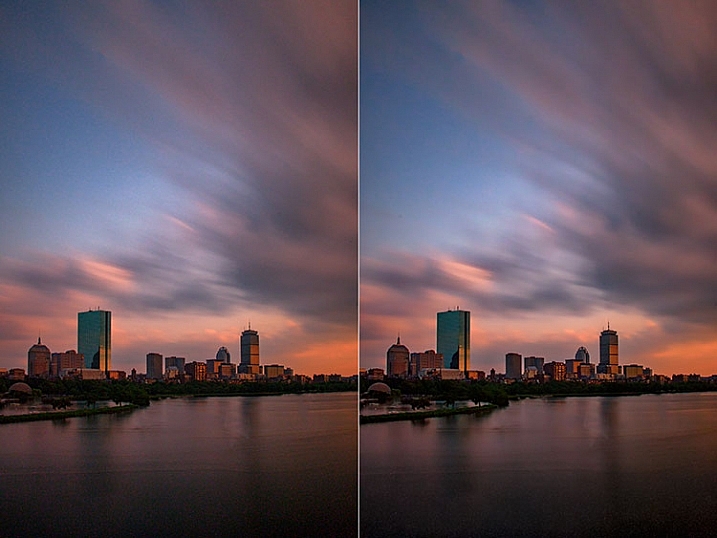
Before and after editing in Macphun Noiseless CK

Before (right) and after (left) comparison of an image edited in Macphun Noiseless CK.

I found that using some of the presets resulted in a greater loss of detail than I was happy with, but once I went into the Adjust tab and started using the sliders, I was able to get some detail back, and get a look I was happy with. As I said, this was an extreme image I was using to test, and I have to say Noiseless CK did a great job with it. The ability to adjust the noise reduction using both the amount slider and individual settings sliders, gives me the confidence that Noiseless CK can handle almost anything I need it to.

FX Photo Studio CK
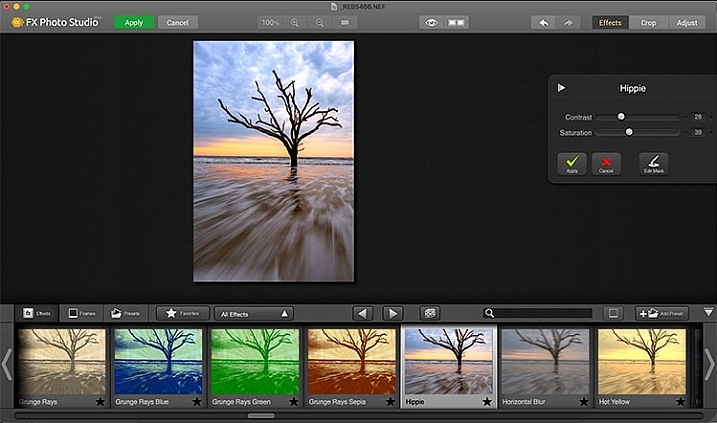
Macphun FX Photo Studio CK

Macphun FX Photo Studio CK application window

FX Photo Studio Ck is a special effects generator and photo editor that, at first glance, looks relatively simple and easy, but doesn’t offer many options. However, if you dig a little deeper, you’ll see there is more than meets the eye here. It offers over 200 different effects and frames, as well as the ability to create your own.

When you first open an image in FX Photo Studio CK, you’ll see your image in the main window, and underneath is a preview bar of presets. You will also notice the menu bar above, and on the right end of that, a mode selector, allowing you to select from Effects, Crop, and Adjust. The presets for Effects include Effects, Frames, and Presets, with Presets in this case meaning user-defined presets. The Effects tab also features a drop down menu with 20 groups of effects. These include Art, Black & White, Blur, Color Fantasy, Color Lenses, Color Strokes, Color Temperature, Cross Processed, Distortion, Glow, Groovy Lo-Fi, Grunge, Hollywood FX, Hue, Photo Styles, SFX, Sketch, Symmetry, Vignettes, and Vintage. When you select the Frames tab, you’ll be presented with a preview of frames below, and a drop-down menu to select different groups of frames appears, allowing you to select between Art, Classic, Grunge & Analog, and Photo Borders.
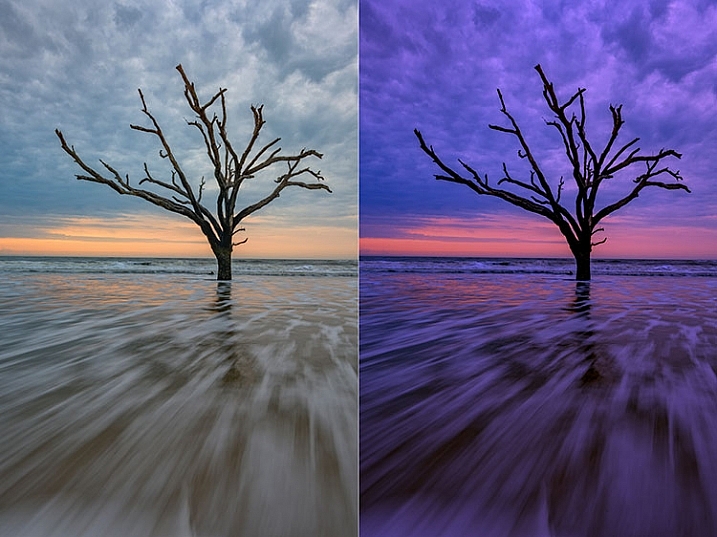
Before and after comparison of Macphun FX Photo Studio CK

An image before editing in Macphun FX Photo Studio CK on the right, and after, on the left.

To be honest, most of the effects and frames do not appeal to me. But there is more to FX Photo Studio CK than just presets and frames. At the right of your image are adjustments for the various effects. These adjustments will vary depending on the effect chosen, and is usually a minimal control of one or two sliders to adjust the effect. You can combine effects, by selecting one, applying it, and then selecting another one to apply to that. FX Photo Studio CK lacks the layer capabilities of Tonality, which would really make it easier to combine multiple effects and adjust how they are applied together. As it stands now, you must commit to one effect before adding another. One great feature of FX Photo Studio CK is the ability to edit the mask on the image, so you can apply the effect only to areas of the image you want, and hide the effect in other areas.
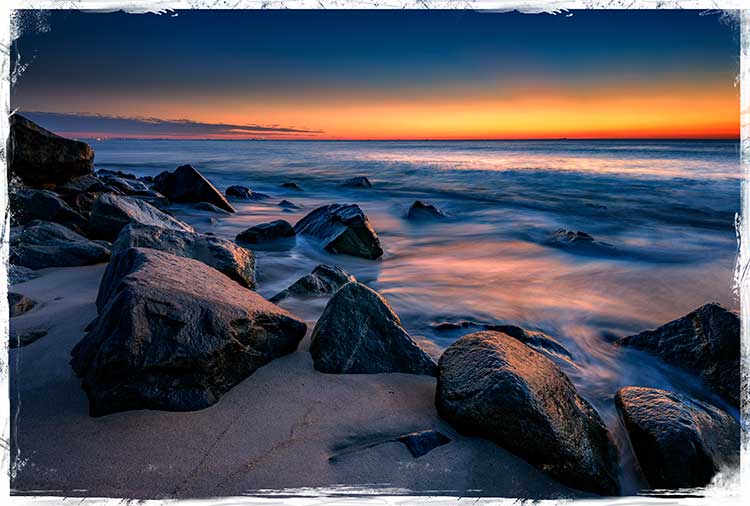
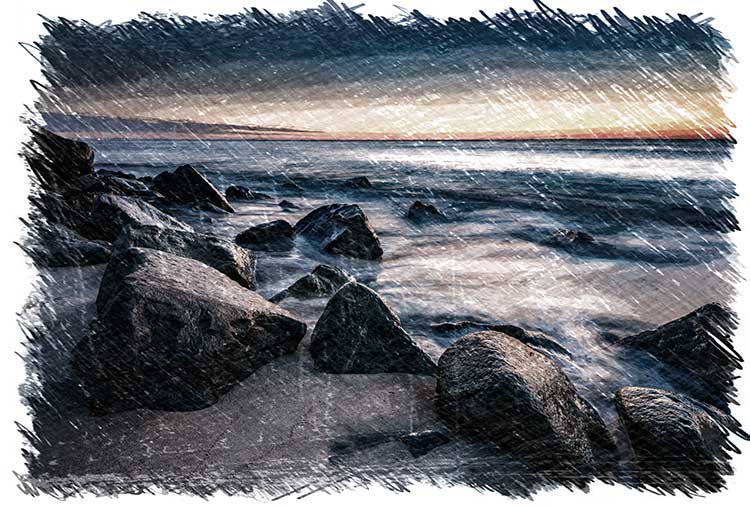
FXPhotoStudio-Frame-Grunge

FXPhottoStudio-Color-Charcoal-Sketch

FXPhotoStudio-Groovy-Lo-Fi-Napa

If you wish to make further adjustments, you can select the Adjust tab, which opens a palette of sliders including Temperature, Saturation, Hue, Exposure, Brightness, Contrast, Shadows, Highlights, Sharpen, Red, Green, and Blue. There are fewer controls available than in Intensify CK, so I’m not sure I see the usefulness of FX Photo Studio CK for in-depth editing, but for someone looking to quickly add an effect or frame to their image, FX Photo Studio CK may be just what they need.
Error using frames

Error using frames

Note: I could not get FX Photo Studio to give me a clean image. Every frame I tried, every file I tried, gave me the same result when I tried to use the Art Frames and Classic Frames. I was able to use a Grunge Frame, and have shown examples above. Not sure if this is a greater bug with MacPhun’s software or a problem with my system specifically.

Conclusion

The Macphun Creative Kit is a full-featured, well thought out, suite of image editing tools that would be welcome in any photographer’s tool kit. While I would prefer more control in certain areas of the suite, Macphun has continued to develop the software for the past several years, and I have no doubt they will continue to make improvements as they move forward.

Overall rating: 3.5 out of 5. I really liked MacPhun Creative Kit and think it has a lot to offer, but I ran into a bug with the FX Photo Studio when trying to add a frame to an image, and I think Focus CK needs a zoom feature and a finer brush to allow for more precise masking. Fix the bug with the frames and add the zoom and finer brushes to Focus CK and I’d give another star.

googletag.cmd.push(function() {
tablet_slots.push( googletag.defineSlot( “/1005424/_dPSv4_tab-all-article-bottom_(300×250)”, [300, 250], “pb-ad-78623” ).addService( googletag.pubads() ) ); } );

googletag.cmd.push(function() {
mobile_slots.push( googletag.defineSlot( “/1005424/_dPSv4_mob-all-article-bottom_(300×250)”, [300, 250], “pb-ad-78158” ).addService( googletag.pubads() ) ); } );

The post Software Review: Macphun Creative Kit 2016 by Rick Berk appeared first on Digital Photography School.


Digital Photography School

 
Comments Off on Software Review: Macphun Creative Kit 2016

Posted in Photography


5 Advantages of Using a Fully Manual Lens

17 May

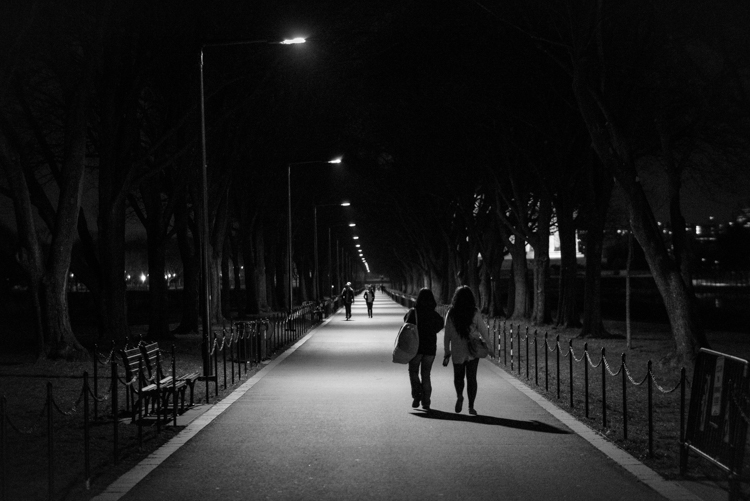
A Stroll in the Night DPS

Shooting with a manual lens centers your attention on the precise image you want to produce. Once you get the hang of shooting manual (here are two prior dPS tutorials: Tips for Using Legacy Lenses and Shooting in Full Manual and Why Every Photographer Should Use a Manual Focus Lens), you learn how to produce some pretty cool images that are easier to manage, than if you leave autofocus on, and that can make for some fun photography.

With all of the computing that’s in a modern autofocus lens, the camera and the lens often take the photo for you. Further, autofocus and shake reduction can actually work against your art. If you shoot frequently on autofocus, then you know the camera can easily focus on the wrong subject. This is particularly true in situations where the light varies greatly.

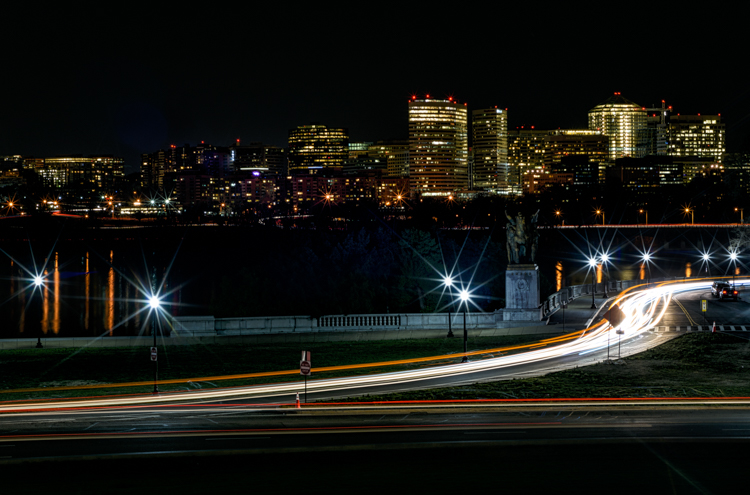
Potomac at Night DPS

Even when you turn off autofocus and go manual, the modern computer-driven lens can be cumbersome. It’s like turning off an automatic mode in a car and using paddles to shift gears. The experience is just not the same, things don’t work right. You want to step on the clutch, and shift through gears, feeling the engine with your right hand as you accelerate.

That’s how I feel about shooting manual. Your eye and hand drive the photo, rather the camera telling you how to drive.

Here are some of the cooler shots I’ve taken while photographing with manual lenses. They are listed from easiest to hardest. I hope you’ll enjoy some of these, too .

1) Nature shots that feature lots of bokeh

Purple Blossoms DPS

It’s spring and that means the world is filled with lots of colorful flowers, and blossoms to admire. Who doesn’t love photographing these beautiful subjects?

Because I live in a populous city, I shoot flowers with a wide-open aperture to create maximum bokeh. It allows me to blur many unwelcome background objects like cars, bikes, telephone polls, people, and even some buildings.

Manual is ideal for this kind of shot, as it is simplistic. I focus as closely as the lens permits, and set the aperture as wide as possible. I calibrate shutter speed to accommodate light and shadow differentials. The rest is easy as could be. I move myself and the camera to a position that frames the relatively still flower (wind not included) and capture the frame. The above crabtree blossoms shot is a classic example of this technique.

2) Spot focus street shots

Don t Fall Down DPS

Street photographers like to capture candid moments of human nature. Capturing cool street shots is hard. Personally, when I do shoot street photography, I tend to find a setting that I like, frame the shot, set my camera, then wait for the right person to come along. So perhaps I cheat a bit if you are a pure zen street photographer.

However, to get that shot, I love manual focus. I can set the focus based on the distance between the camera, and where I anticipate the subject will be. Autofocus often latches on to an object, and frankly sometimes the object is a little off from the spot I want to shoot. So I prefer to use manual focus, on the spot where I anticipate the subject will be.

This shot taken at the National Gallery of Art took about 10 minutes. I focused on the middle stair well and waited for the right person to come through. Unfortunately for me, a bus load of secondary school kids were there at first, but once they cleared out, things happened quickly.

3) Bright night shots

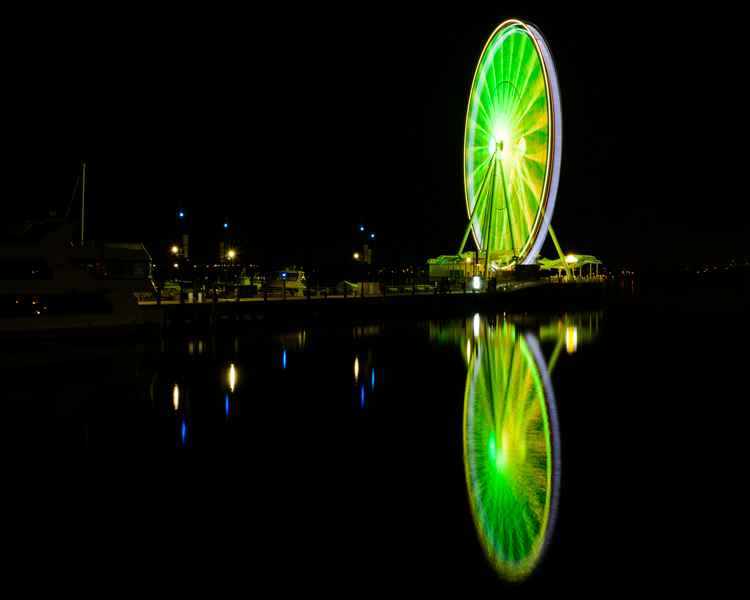
Ferris Wheel DPS

Some objects are brighter at night than others. The moon is a great example. So are ferris wheels, because they shed an enormous amount of light, often rendering all other light sources as dull or non-existent.

For some reason, in darker situations like this, the light meter in my Nikon D810 and the autofocus on some of my lenses, don’t synch well. At times autofocus doesn’t catch the subject at all, or worse, it focuses on the wrong object, like a street light in the background. So I almost always calibrate both focus and aperture manually, to get the sharpness and light just right.

Back to the ferris wheel in the image above. The image was shot with a Figmentum 35mm lens. Focus was easy, as the distance from the subject let me simply set the lens on infinity. But, the aperture required some manipulation, as I started off too bright, and had to close the aperture slightly. I actually shot this at ISO 100for 30 seconds at f5.6, which turned the water reflection into a crazy bokeh as it came closer to me.

4) Panning

Good Catch Panning DPS

Panning is one of the most difficult forms of photography, literally catching an object in motion, at a slower shutter speed. This creates fantastic blur behind the subject, while at the same time keeps the object in focus.

You pretty much need to shoot manual to pan well. Sure, you can lock in your moving target with autofocus and then pan, but really there’s so much that most cameras get wrong with autofocus. When I pan, I like to spot focus with manual. I understand where my subject will be from a distance perspective. I focus, then keep my hands on the focus dial to sharpen as necessary.

In the case of this photo with my dog, I shot it with an 85mm lens, so I set the focus on infinity and planted myself in the middle of a dog park. This fine pup was playing catch with her Dad and was quite happy about it. I caught this shot on her sixth catch.

5) Shutter drag

Shutter Drag DPS

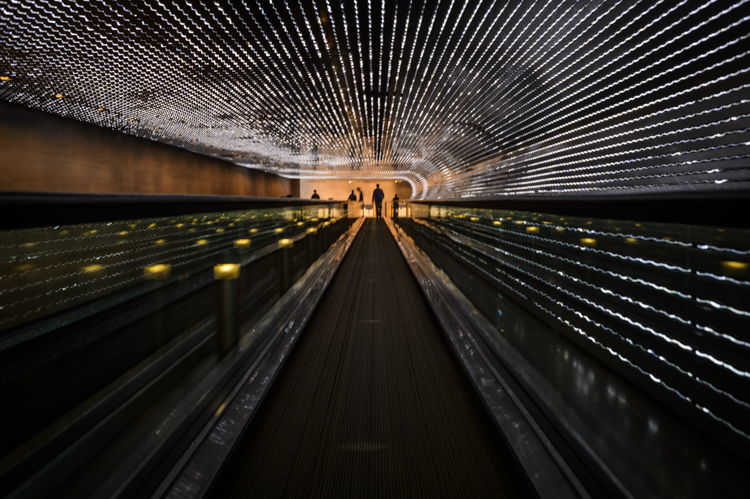
Instagram Rock Star DPS

If you think manual panning produces some cool shots, try dragging the shutter. This is for low light situations where you basically have the same technique as panning, but now use a flash to freeze your subject in motion.

Generally speaking if you are in a low light situation, autofocus may be suspect anyway. That’s why I prefer shooting manually. I’ll confess. If there is an autofocus lens on my body, then I’ll use it to get the camera focused on or close to the subject, then go manual to finish the job.

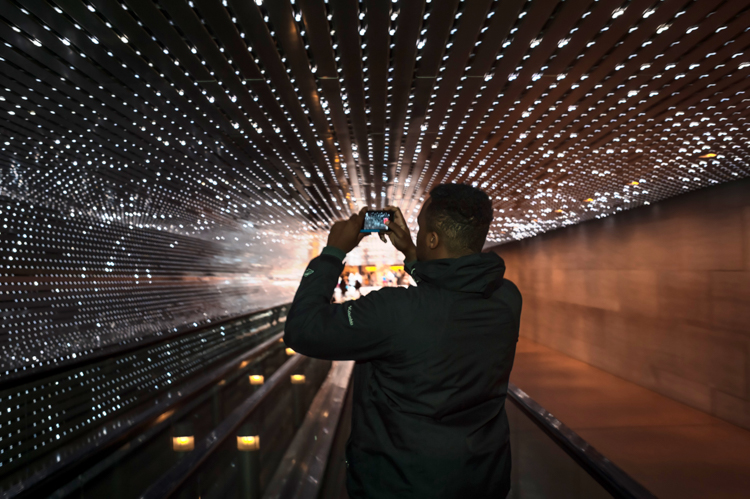
This shot was also taken at the National Gallery of Art, and features the LED light tunnel between the East and West wings. If you are on Flickr or 500 Pixels, you see a great photo of this every week or two. I decided to play double jeopardy with this shot and rode the conveyer belt while I shot the pic, so not only were the lights and the subject moving, but I was also moving at the same speed as the belt. The exposure was 1/4 of a second, with on-camera flash.

What are your favorite manual shots?

googletag.cmd.push(function() {
tablet_slots.push( googletag.defineSlot( “/1005424/_dPSv4_tab-all-article-bottom_(300×250)”, [300, 250], “pb-ad-78623” ).addService( googletag.pubads() ) ); } );

googletag.cmd.push(function() {
mobile_slots.push( googletag.defineSlot( “/1005424/_dPSv4_mob-all-article-bottom_(300×250)”, [300, 250], “pb-ad-78158” ).addService( googletag.pubads() ) ); } );

The post 5 Advantages of Using a Fully Manual Lens by Geoff Livingston appeared first on Digital Photography School.


Digital Photography School

 
Comments Off on 5 Advantages of Using a Fully Manual Lens

Posted in Photography


4th Industrial Revolution: 12 Futuristic Carbon Fiber Creations

17 May

[ By Steph in Conceptual & Futuristic & Technology. ]

carbon fiber robotic pavilion 1

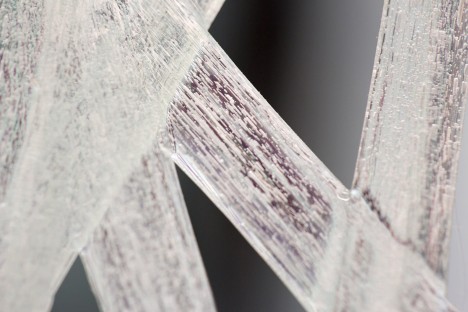
Ultra-strong and incredibly versatile carbon fiber can be woven by robots in a scale as small as furniture and as large as a stadium, a technological advance that could represent the fourth industrial revolution. This fiber-reinforced composite is typically formed in molds, but programming robots to weave it could totally change the way objects and buildings are designed and created. These carbon fiber creations represent this new construction method as well as 3D-printed carbon fiber products and the more time-consuming technique of hand-wrapping up to a mile of carbon fiber for just one piece of furniture.

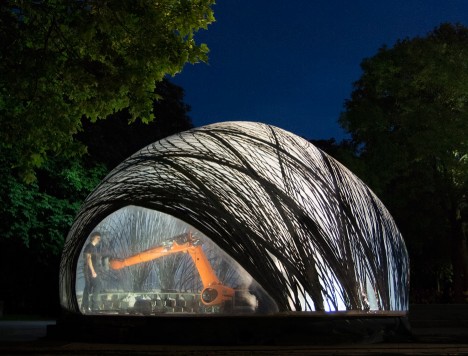
Robot-Woven Pavilion by ICD + ITKE
carbon fiber robotic pavilion 2

carbon fiber robotic pavilion 3

carbon fiber robotic pavilion 4

carbon fiber robotic pavilion 5

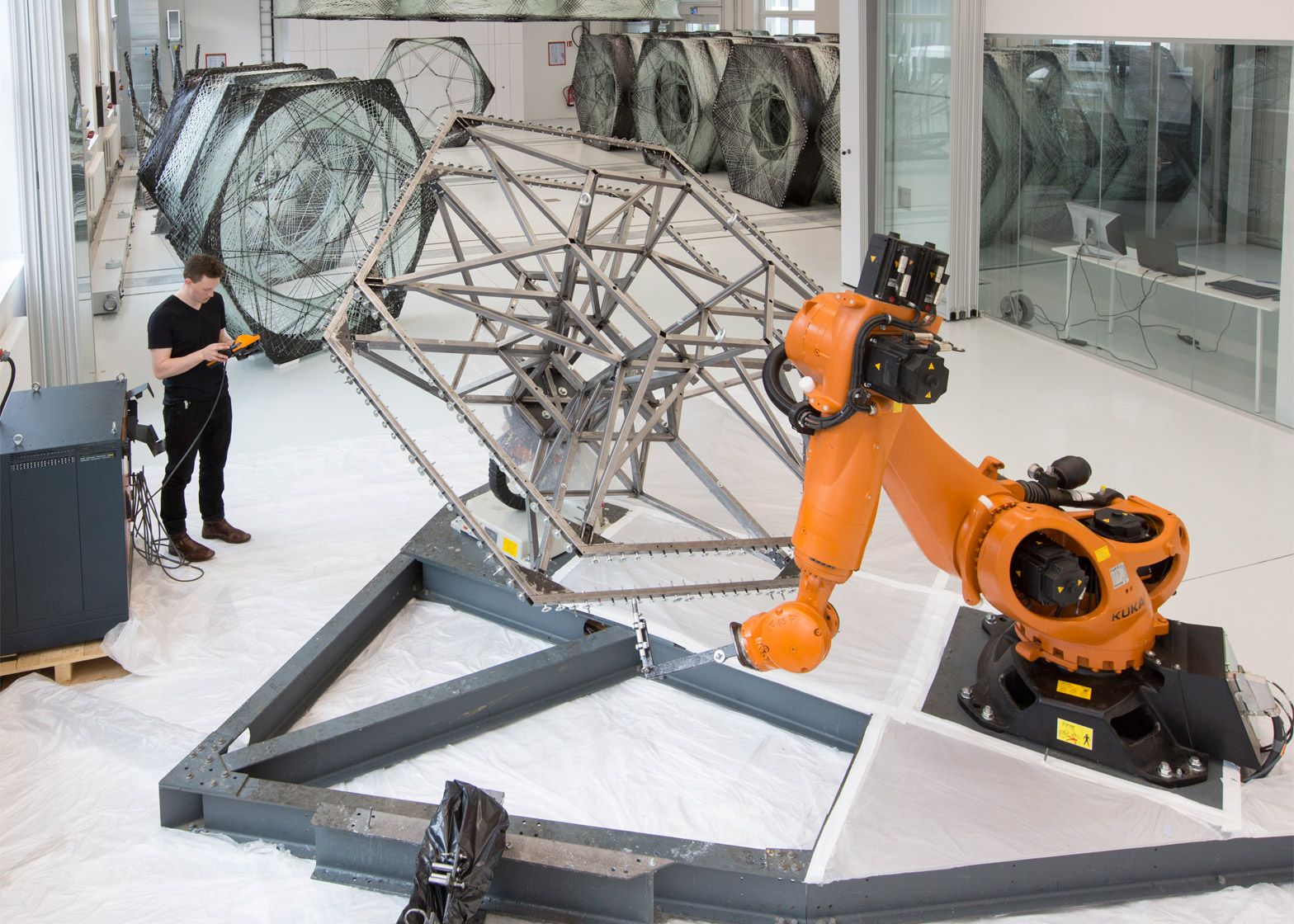
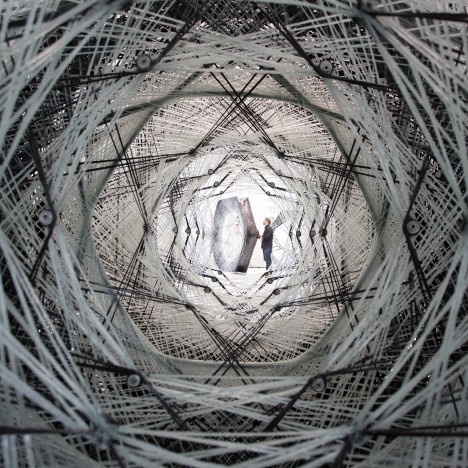
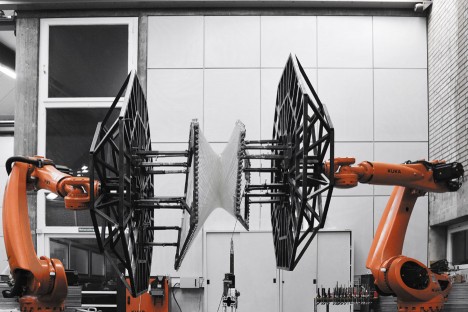
Architect and researcher Achim Menges, who heads up the Institute for Computational Design (ICD) at the University of Stuttgart, is developing software to make robotic construction more intuitive, and his team has built a series of carbon fiber pavilions to show off the technology. We’re at a phase where the full capabilities of the material and method haven’t yet been unlocked, he says, because experiments are still mimicking old materials. To build the pavilions, they robots draw lengths of carbon and glass fiber through a resin bath and wind it around metal scaffolding in a particular pattern. The resin-coated structures are cured in a massive oven and then detached from the framework.

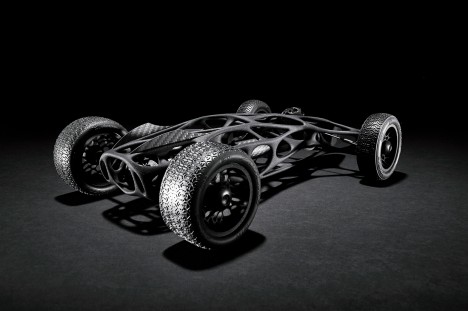
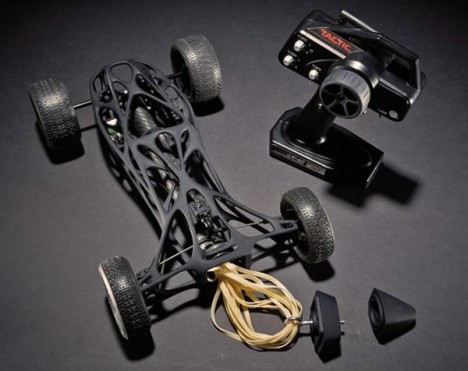
3D Printed Cirin Rubber Band Car
carbon fiber rubber band car 1

cirin rc car 2

cirin rc car 3

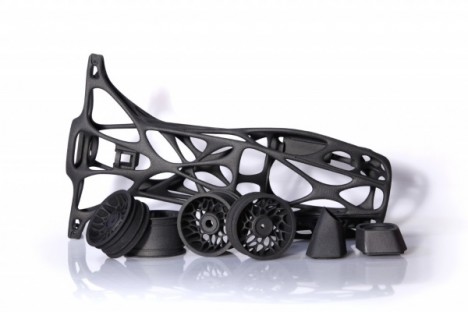
Carbon fiber has been around for decades, typically made by bonding carbon atoms into crystals and then forming the result into loose or woven carbon filaments. It’s often mixed with polymers to create composite materials, and we’re used to seeing it in cars, gloves and all sorts of everyday items, but new technology is broadening its applications. Take, for example, the Cirin, a modern take on the rubber band-powered toy car. A group of college students at the Art Center College of Design in Pasadena, CA made its shell with a 3D printer, giving us a peek at the capabilities of this particular forward-thinking combo.

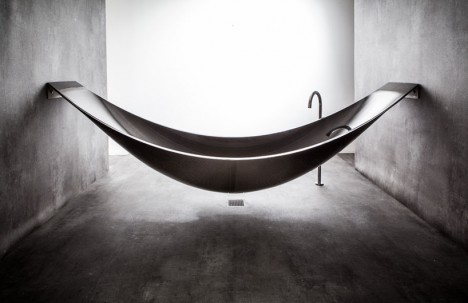
Hammock-Shaped Carbon Fiber Bathtub
carbon fiber bath tub 1

carbon fiber bath tub 3

carbon fiber bath tub 2
One example of the ‘mold’ technique of forming and curing carbon fiber is this stunning hanging bathtub by Splinter Works, which is fixed to walls with steel brackets and paired with a tall faucet. Layers of carbon fiber are arranged on top of a foam core to insulate the tub, which can be adjusted in size to fit a specific space.

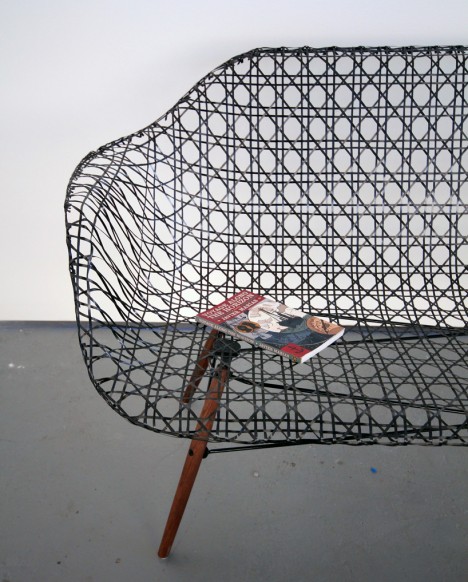
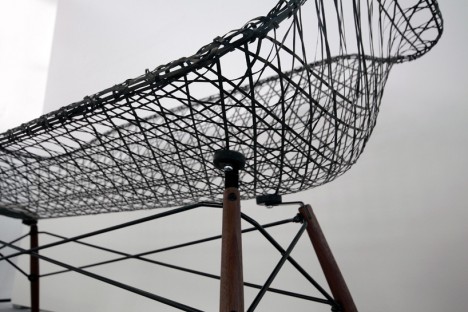
Carbon Fiber Eames Sofa
carbon fiber eames sofa

carbon fiber eames sofa 2

carbon fiber eames sofa 3

Designer Matthew Strong replicates the classic Eames shell sofa of the late 1950s in carbon fiber form, but instead of using a robot to weave it, he has woven it himself by hand using a traditional chair caning pattern for a lightweight yet strong result.

Next Page – Click Below to Read More:
4th Industrial Revolution 12 Futuristic Carbon Fiber Creations

Share on Facebook


[ By Steph in Conceptual & Futuristic & Technology. ]

[ WebUrbanist | Archives | Galleries | Privacy | TOS ]


WebUrbanist

 
Comments Off on 4th Industrial Revolution: 12 Futuristic Carbon Fiber Creations

Posted in Creativity


Improve Your Middle of the Day Photos By Doing Black and White

16 May

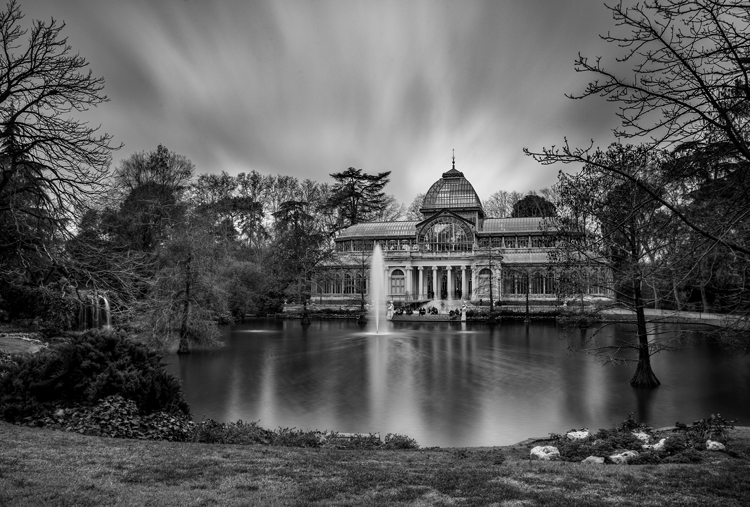
Crystal-Palace

Sometimes beginning photographers ask me to look at their photos and tell them how they can make the photos better. Nearly every time this happens I end up saying the same thing, “You need to stop taking your pictures in the middle of the day.”

I have previously written about how and why photos taken at dawn and dusk are vastly superior to those taken at midday, so I won’t do so again here. I have also talked about a few things you can do to mitigate the damage of the midday sun. But that’s all you are doing – mitigating the problem – not solving it.

At the same time, I understand that you cannot always photograph at dusk or dawn. Family and work commitments limit us all. We cannot always get up so early or stay out so late.  Some places aren’t even open or accessible at dawn. Is there anything else that can be done if you have to shoot in the middle of the day?

There is one way that you can still take great photos in the middle of the day. That way is to convert them to black and white. Black and white photos frequently work much better than color photos in this regard.

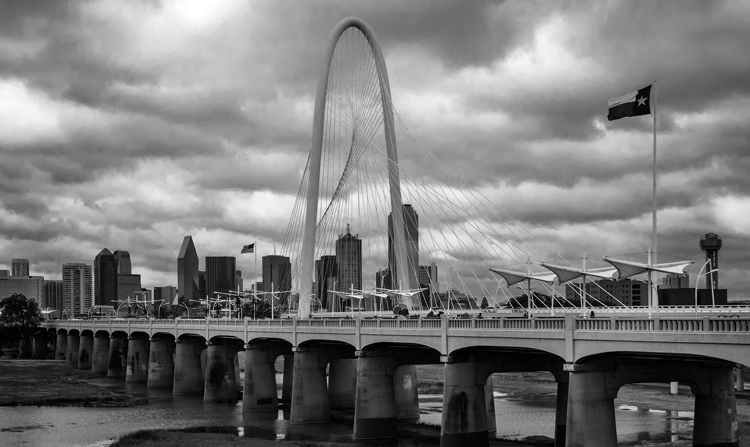
Dallas-1

Look to the old masters

If you don’t believe me, just to check out the work of photography masters. I initially noticed this when looking at the work of Ansel Adams, who many – myself included – consider the greatest photographer ever. A large number of his photos are obviously taken at midday. For example, check out Monolith, the Face of Half Dome (1927). Yosemite Winter Valley (1940), Canyon de Chelly National Monument (1942), Mount Williamson (1944). and Half Moon and Clouds (1968).

All of these photos were obviously taken at midday. You can tell by the bright light and shadows. But they are all still great pictures. In fact, some of them are among his best. Why is that?

Reason #1: High contrast works well in black and white

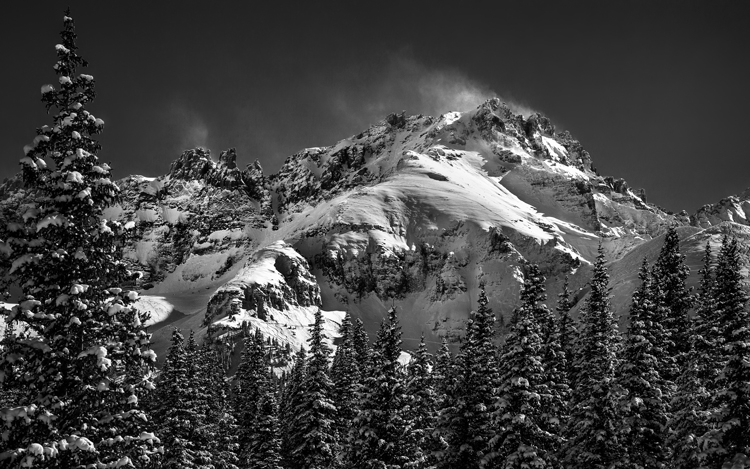
Why does the same picture taken at midday look horrible in color, but pretty good as a black and white? One reason is that black and white pictures handle high contrast really well. That is not to say their dynamic range is any different, but that these pictures look great when there is high contrast within them. In fact, black and white pictures crave high contrast. Color pictures, on the other hand, don’t always do well with stark contrasts. Therefore photographing at midday – with all of its bright areas and dark shadows creating high contrast – can look really nice as a black and white photo.

Mountain-1

Reason #2: Pushing the processing

The other reason why black and white photos taken at midday can still look great, is that they seem to handle processing better than color photos. In other words, you can push the processing further with a black and white photo and get away with it. This was true in the darkroom, and it is also true today with digital tools.

Why is that? I think it is because black and white photos are already unnatural; obviously, the world is not black and white. When you look at a black and white photo, your mind knows that it is not an accurate representation of reality. If the processing is pushed a little further, your mind accepts it more readily.

That is not to say that you cannot over do processing in black and white, you can. But it does offer you a little more flexibility.

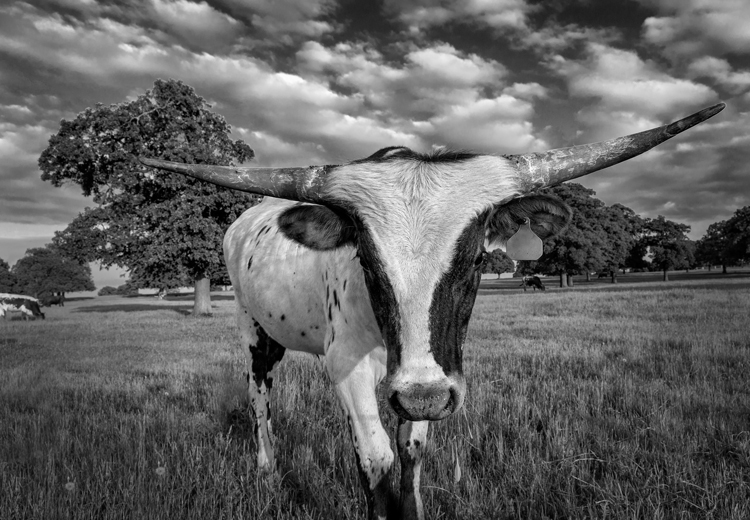
Longhorn

A reason for HDR?

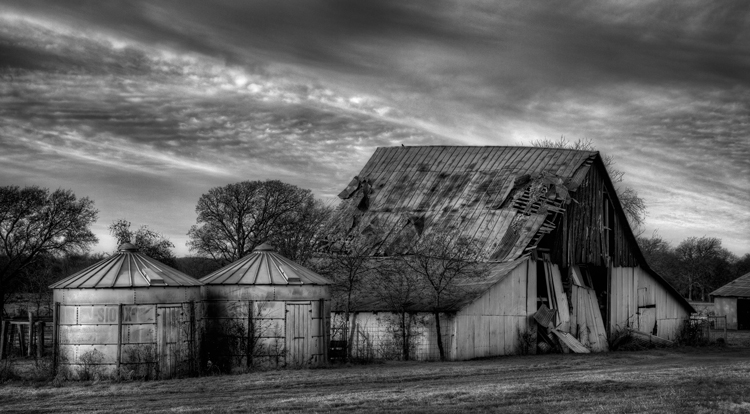
Perhaps, for this reason, this is one area where HDR can still be a really useful technique. There is much discussion these days about HDR being dead. To be sure, almost no one in photography likes the HDR look (oddly, 100% of non-photographers do like that look). In addition, there are a lot of great tools these days for dealing with dynamic range problems without resorting to HDR. Nevertheless, black and white photos are one area where HDR is still very useful. Since there is no color, part of the surreal nature of HDR is avoided. In addition, the same phenomena mentioned above about being able to push the processing further in black and white is at work.

Barn-2

Break out the Neutral Density filter

Another way to improve your black-and-white photos taken at midday is to break out your 10-stop neutral density filter. If there are clouds in the picture, it will give them a sense of movement. If there is water in the picture, it will smooth it out. You can see and example of this in the top picture in this article, which has both clouds and water. Of course, this works for color pictures as well, but it seems to work particularly well with black and white images.

Conclusion

I still maintain that the number one thing you can do to improve your photographs is to start shooting at dawn or dusk. It costs nothing, and you don’t even have to increase your skills to make vast improvements. You just have to get up earlier, or stay out a little later. But for those occasions when that is just not possible, try converting some of your photos to black and white. The high contrast might look good on your photo. In any case, you’ll be able to push the processing a little further. It might prove an easy way to make your photos better.

Please share your black and white midday photos in the comment below.

googletag.cmd.push(function() {
tablet_slots.push( googletag.defineSlot( “/1005424/_dPSv4_tab-all-article-bottom_(300×250)”, [300, 250], “pb-ad-78623” ).addService( googletag.pubads() ) ); } );

googletag.cmd.push(function() {
mobile_slots.push( googletag.defineSlot( “/1005424/_dPSv4_mob-all-article-bottom_(300×250)”, [300, 250], “pb-ad-78158” ).addService( googletag.pubads() ) ); } );

The post Improve Your Middle of the Day Photos By Doing Black and White by Jim Hamel appeared first on Digital Photography School.


Digital Photography School

 
Comments Off on Improve Your Middle of the Day Photos By Doing Black and White

Posted in Photography


2016 Roundup: Interchangeable Lens Cameras $800-1200

16 May

These days, many (if not most) consumers are likely to shop based on price and capability, rather than according to whether a certain model contains a mirror, or not. We think this is a good thing; with all the increased competition, cameras are improving more and at a faster rate than ever before. From the gear perspective, it’s certainly an exciting time to be a photographer.

In this category, you’ll find both mirrorless and DSLR cameras that are highly capable under a variety of shooting situations, offer built-in high-spec viewfinders – either optical and electronic – and an extensive array of external controls. The biggest differences in performance tend to come down to autofocus sophistication and video capability, but neither of those is dictated by the presence or lack of mirror.

The contenders are:

  • Canon EOS 80D
  • Canon EOS Rebel T6s
  • Nikon D7200
  • Olympus OM-D E-M5 II
  • Panasonic Lumix DMC-GX8
  • Pentax K-3 II
  • Sony Alpha a77 II
  • Sony Alpha a6300

Most of the camera in this roundup are built around either Four Thirds or APS-C sensors. Sensor size plays a large part in determining the image quality a camera is ultimately capable of and, in general, the larger a camera’s sensor, the better the image quality and the more control you have over depth-of-field. APS-C sensors are larger than Four Thirds chips, but the differences are rarely huge. 

Of course, the sensor sizes and image quality of these cameras are not the only thing that varies; the feature sets and performance of each camera are also quite different across the board. Within this category you’ll find weather-sealed cameras, cameras that can capture 4K video, cameras that can shoot bursts at incredibly high speeds with autofocus, and cameras that are simply well-balanced all-rounders. Which one should you buy? Read on to find out…

Articles: Digital Photography Review (dpreview.com)

 
Comments Off on 2016 Roundup: Interchangeable Lens Cameras $800-1200

Posted in Uncategorized