RSS
 

Archive for April, 2016

How to Use the Patch Tool in Photoshop

23 Apr

There are tools in Photoshop that I use more than others, and some not at all. The Patch tool is one of my favourites. It is so easy to use and with each version of Photoshop, it has gotten even better.
title-Patch-tool-in-Photoshop

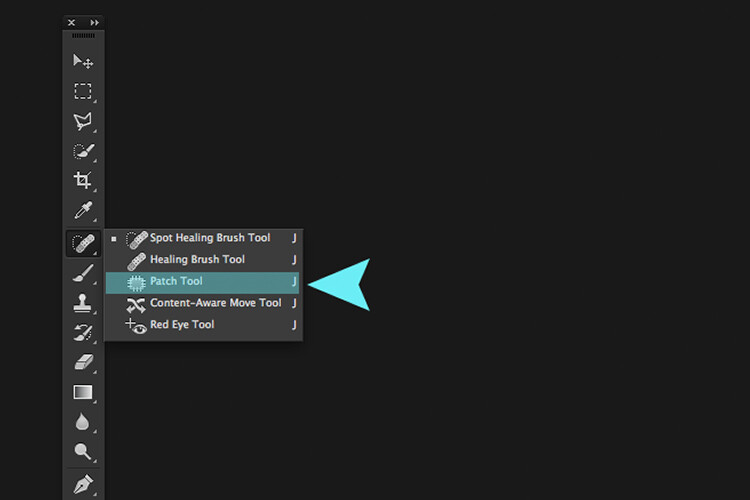
The Patch Tool is located under the fly out menu of the Spot Healing Brush.

What exactly is the Patch Tool for?

The Patch Tool is part of the healing brush set of tools. These are the go-to tools for retouching and repairing your images. The Patch Tool is primarily used to repair larger areas of an image, or get rid of any distractions or blemishes.

The patch tool was introduced into Photoshop at the same time as the Healing Brush. It is similar to the Healing Brush Tool, in that it matches the texture, lighting and shading of the sampled pixels to the source area. But, the Patch Tool uses selection-defined areas instead of a brush.

Prior to Photoshop CS6, you could not work on a separate empty layer when using the Patch Tool, unlike the Spot and Healing Brushes. This meant that you had to duplicate the layer that you were working on. However, in Photoshop CS6, Content-Aware was introduced to the Patch Tool. So you can now work on an image using an empty layer. This has made it quite powerful indeed.

What makes the Patch tool unique is that each time you use, it will give a slightly different result even on the same selection. It is great for retouching larger areas of your image, very fast and quite seamlessly. Or if you are in Destination Mode, this can also duplicate, or clone an object. Although, I rarely use it for that, it’s still an option. I will illustrate this further on in the article. There is also an option to use a pattern or Transparent, neither of which I’ve had a use for yet to date.

What does the Patch Tool look like?

The Patch Tool can be found hidden behind the Healing Brush tool in the Tools panel.
patch tool highlighted in tools panel in photoshop

By clicking on the Spot Healing brush in the tools panel. A fly out menu appears, the Patch tool is the third one down.

How does the Patch Tool work?

  1. Select the Patch tool and draw an area around your selection. It works in a similar way to the Lasso selection.
  2. Move the cursor over the selected area and drag it to the left, right, or in any direction.
  3. Choose whether you choose Source or Destination mode in the Options Bar. You will see a preview of the image as you drag it.
  4. When you release the mouse or stylus, Photoshop does the magic of blending the pixels from the source or the destination area, to merge the pixels with the original selection seamlessly. Deselect by hitting Cmd+D on a Mac. Ctrl+D on a PC.
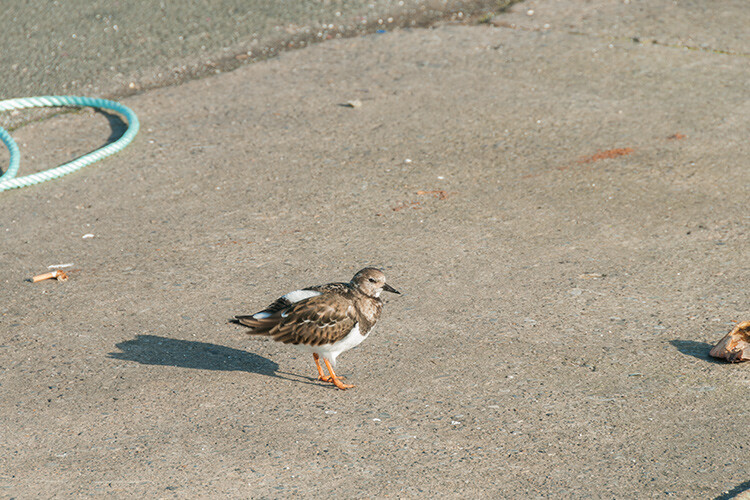
original image before using the patch tool

Image showing definite areas that needs to be removed.
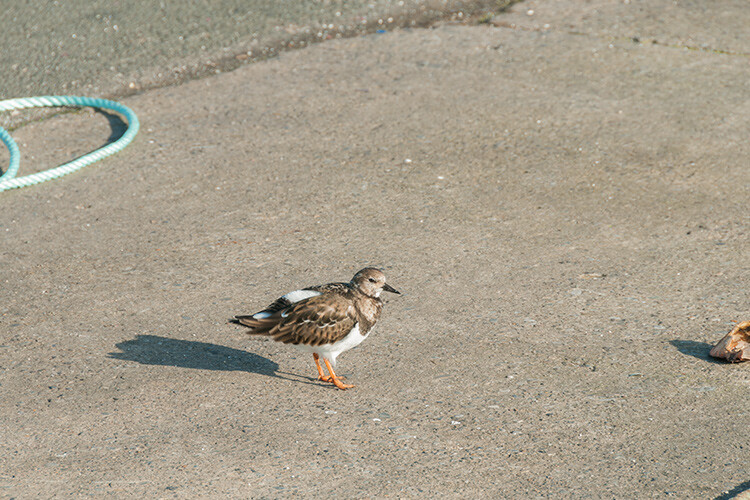
simple-distractions-removed-patch-tool-normal-mode

The Patch Tool in normal mode removed some unwanted things (cigarette butts) in this image very easily and quickly.

It’s that easy, but you probably won’t get a 100% accurate result every time. You may have to make a few attempts. Just make sure you are working on a duplicate background layer, or using a separate empty layer – not your original background layer.

Tip: You don’t have to use the Patch tool to define a selection. You can use any selection tool and then select the Patch tool.

Before I show you how to use the Patch Tool with Content-Aware, I want to demonstrate how the it can be used to clone an isolated area of your image.

Duplication

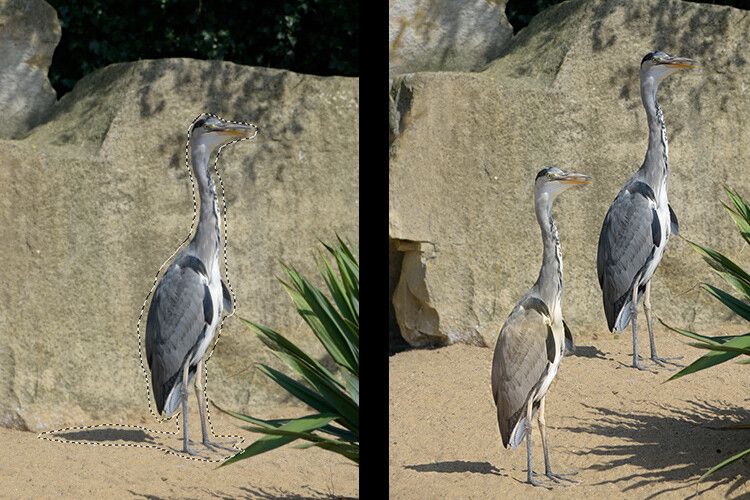
In the following example, I want to duplicate the bird and add another one. Similar to the steps above:

  • Make a selection around the bird.
  • Choose Destination in the Options Bar.
  • With the Patch tool selected, position the cursor over the selection and move it into place.
  • It doesn’t do a bad job, however, if you look closely the surrounding pixels of the selection haven’t blended in so well.

patch-tool-options-bar

Click on the Destination radio button to duplicate or clone a specific area.
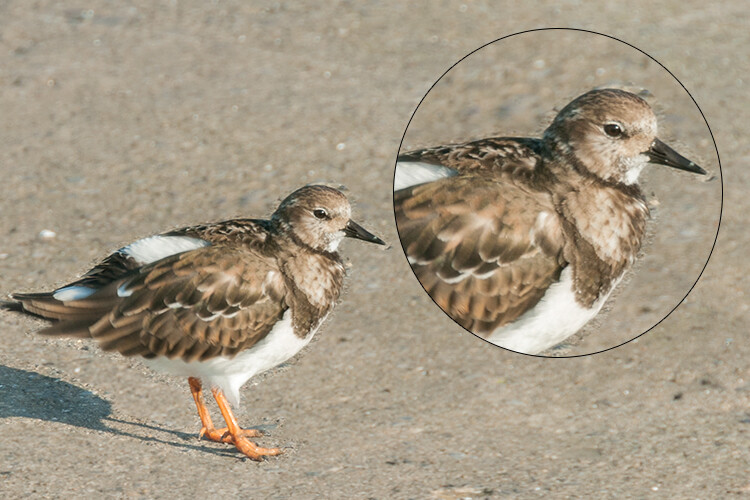
Bird3-duplicated

Using the Patch tool to clone or duplicate an area of an image in Destination Mode. However, the results can produce a noticeably pixelated edge.

Here’s an alternative method in getting a better result. Once you have made the selection for duplicating an area.

Press Cmd+Alt+T on a Mac (Ctrl+Alt+T on a PC). This brings up the free Transform tool. Now move the selection to a new area on the image. Click on the tick box to commit, or press Enter. The selection is still active as the marching ants are visible around it. With the Patch tool selected, move the cursor over the selection, hold down the mouse or stylus and move the selection slightly and then release. You will notice the surrounding pixels are blended better.
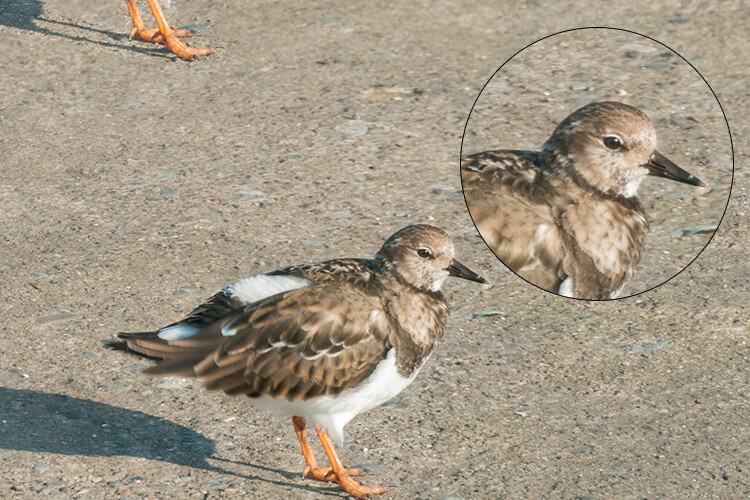
Bird2-duplicated-free-transform

There is a definite improvement using the free transform tool, then holding down the mouse or stylus and moving the selection slightly at the same time just before releasing it.
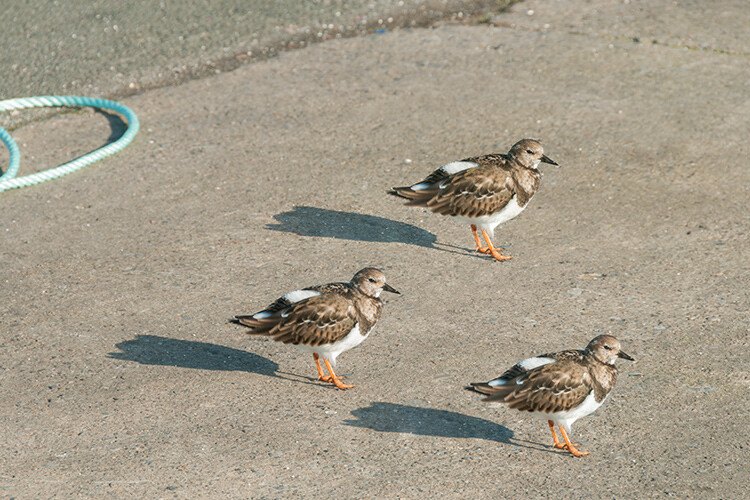
bird-duplicatedx3-after

And voila, three birds!

Another example of using the free transform tool along with the Patch tool set to Destination Mode.

I like to use the Patch Tool in both the normal mode and content-aware. In normal mode the Patch Tool does a great job for general clean up. However, where there are areas close to the edge of the image, the Patch tool struggles to blend or repair the selection. This is where the Patch tool in Content-Aware mode really shines.
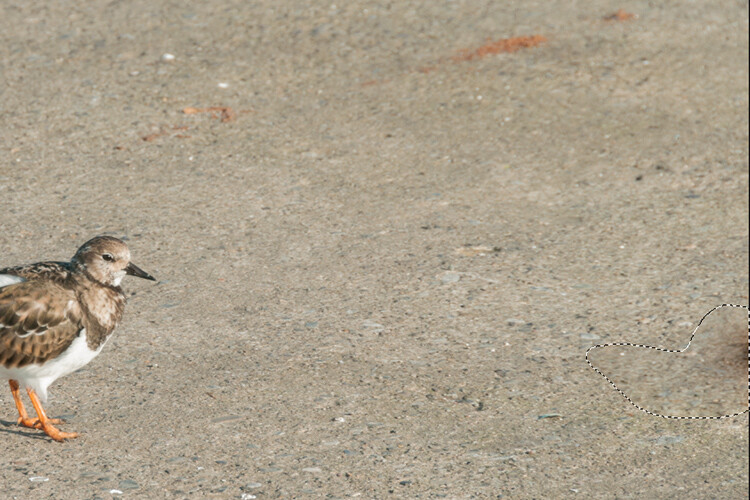
When an area has a sharp contrast, or is up against the edge of a photo, the Patch Tool in normal mode is less effective than using the Patch with Content-Aware. (notice the selection on the right here)
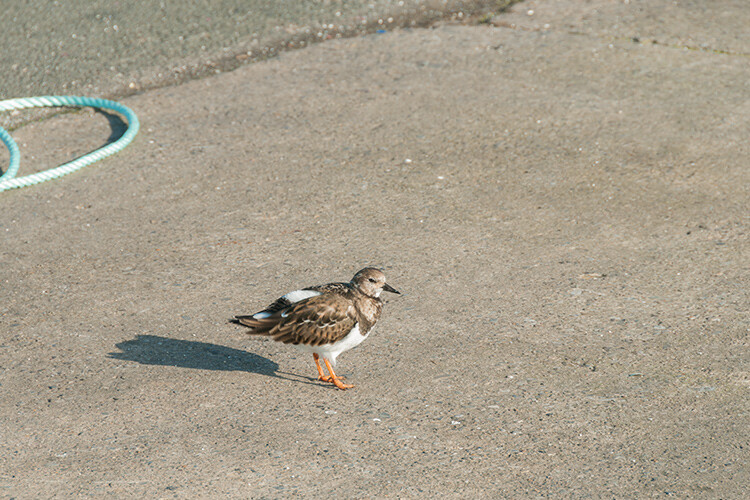
In this image. I removed the unwanted areas using a combination of the Patch Tool in normal mode and Content-Aware.

Content-Aware Mode

In order to use the Patch Tool in this mode, go up to the Options Bar and change it from Normal to Content-Aware. If you want to work using an empty layer above the image, make sure Sample All layers is checked. As well, in the Options Bar, you will also see Adaption.
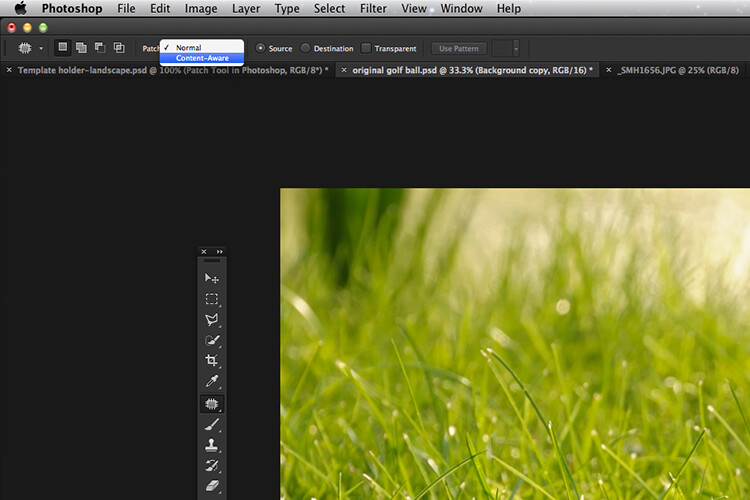
switching-patch-tool-content-aware

Switching the Patch Tool in the Options Bar from Normal to Content-Aware.

By clicking on this, a drop down menu appears with five options. Your choices range from Very Strict to Very Loose, depending on how much blending is required. You will need to experiment to see which one looks best. Before you deselect, press Cmd+H to hide the marching ants and toggle between each option to see which one you prefer.
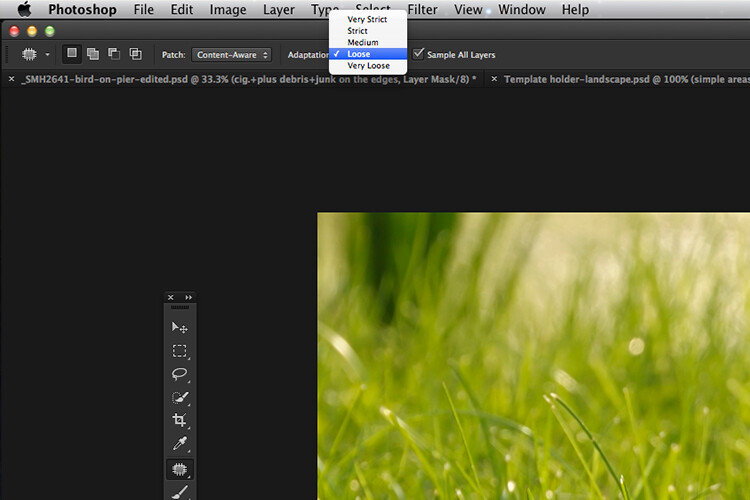
Patch-tool-content-aware-5-options

The five options for the Adaptation setting of the Patch Tool in Content-Aware.

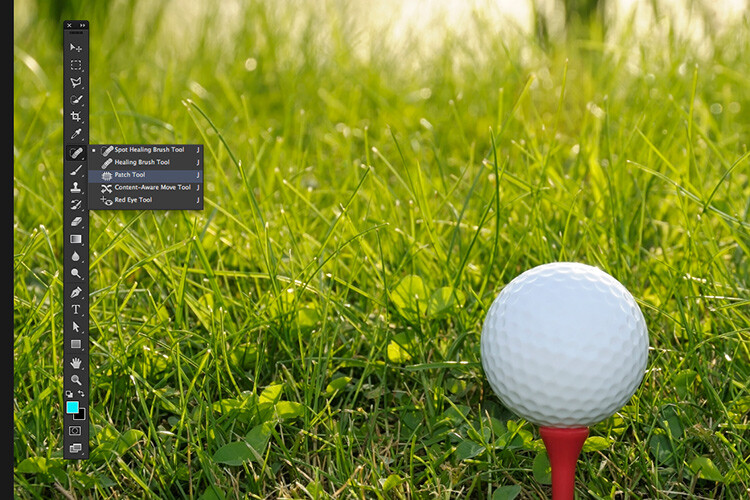
You can see quite clearly the differences between the two modes in the images below.
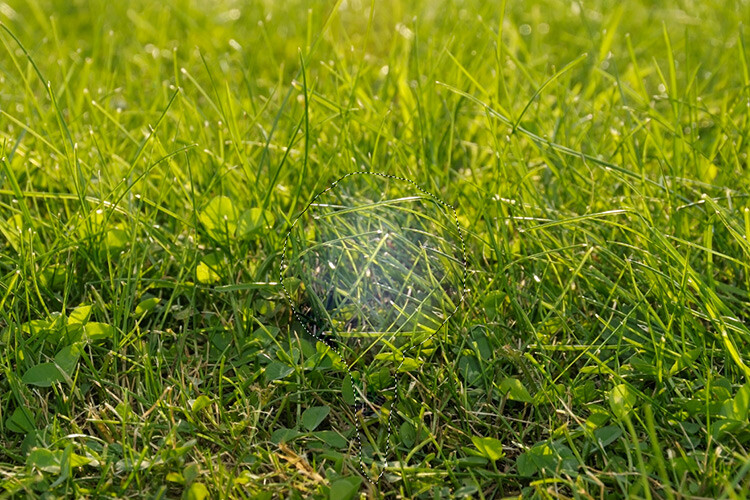
The Patch Tool in Normal Mode is trying to remove the golf ball on the tee from the image.
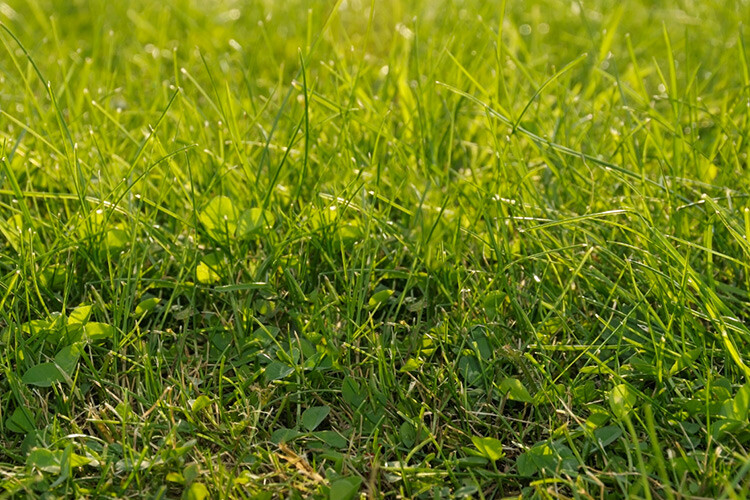
The Patch tool in Content-Aware has successfully removed the golf ball and tee from the image.

I hope you found this article useful. Do you use the Patch Tool in Photoshop? Please let me know in the comments below.

googletag.cmd.push(function() {
tablet_slots.push( googletag.defineSlot( “/1005424/_dPSv4_tab-all-article-bottom_(300×250)”, [300, 250], “pb-ad-78623” ).addService( googletag.pubads() ) ); } );

googletag.cmd.push(function() {
mobile_slots.push( googletag.defineSlot( “/1005424/_dPSv4_mob-all-article-bottom_(300×250)”, [300, 250], “pb-ad-78158” ).addService( googletag.pubads() ) ); } );

The post How to Use the Patch Tool in Photoshop by Sarah Hipwell appeared first on Digital Photography School.


Digital Photography School

 
Comments Off on How to Use the Patch Tool in Photoshop

Posted in Photography


Down to the wire: iFixit Fujifilm X30 disassembly guide

23 Apr

iFixit Fujifilm X30 disassembly guide

Few of us will ever be so bold as to take a screwdriver and a spudger to a beloved camera. But how do we satisfy the urge to know what’s going on inside of it? For curious types with a weak constitution for taking things apart, there’s iFixit. The good people at iFixit publish product-specific disassembly guides, written to help common folk make simple repairs to their own electronic devices. They’re also an easy way to peek inside a modern digital camera without voiding your warranty. This week, we look inside the Fujifilm FinePix X30.

iFixit Fujifilm X30 disassembly guide

Like so many other things, it’s best to start this project at the bottom. After removing the battery, you’ll go about removing screws from the camera’s chassis, including these three on the bottom plate.

Image courtesy of iFixit

iFixit Fujifilm X30 disassembly guide

Once you’ve removed enough screws, the bottom and back panels can be pulled back. So what’s underneath? A whole mess of ribbon cables. 

Image courtesy of iFixit

iFixit Fujifilm X30 disassembly guide

For starters you’ll have to detach these five ribbons that are connected to the motherboard. 

Image courtesy of iFixit

iFixit Fujifilm X30 disassembly guide

After a little spudger action and disconnection of cables from the surrounding circuitry, the copper plate underneath it all is revealed. The copper plate is likely for heat dissipation.

Image courtesy of iFixit

iFixit Fujifilm X30 disassembly guide

Attached to the other side of the copper plate is the X30’s 12MP, 2/3″-type sensor. Lifting it out of the way reveals the lens.

Image courtesy of iFixit

iFixit Fujifilm X30 disassembly guide

With a few screws removed the motherboard can be tilted upward. To completely remove it you’ll need to desolder the black, grey and red wires seen here.

Image courtesy of iFixit

iFixit Fujifilm X30 disassembly guide

And now we come face-to-face with the lens assembly. Remove a few screws… 

Image courtesy of iFixit

iFixit Fujifilm X30 disassembly guide

…and the lens is free for removal. It’s a 28-112mm equiv. F2-2.8 zoom, by the way.

Image courtesy of iFixit

iFixit Fujifilm X30 disassembly guide

Working with the flash capacitor requires some careful maneuvering. As the circuits store charge to power the flash unit, touching the leads at the bottom of the circuit could result in a nasty shock. More desoldering is required here to get this board free.

Image courtesy of iFixit

iFixit Fujifilm X30 disassembly guide

With the eyepiece removed and just a couple more screws taken out of the LCD panel, you’ll have successfully disassembled your Fujifilm Finepix X30. Congratulations, you’re a monster.

Image courtesy of iFixit

Articles: Digital Photography Review (dpreview.com)

 
Comments Off on Down to the wire: iFixit Fujifilm X30 disassembly guide

Posted in Uncategorized


Purple Reign: Photographer Brian Ach shares his experiences of working with Prince

23 Apr

Purple Reign: Photographer Brian Ach shares his experiences of working with Prince

Paris, France. June 2011. Brian wanted to show what it was like to experience a Prince performance, so he decided to shoot in a more artistic and editorial way than is typical for concert photography. This is the first shot he showed Prince, which was the shot that defined Brian’s stint as Prince’s tour photographer. Photo by Brian Ach.

Celebrity and concert photographer Brian Ach was Prince’s European tour photographer during the artist’s 2011 “Welcome 2” tour through North America, Europe and Australia. Brian shared some of his tour stories with us in his closing talk at PIX 2015, and this morning he chatted again with us about his experience photographing and working with Prince, following the musician’s death this week, aged 57.

You were hired to photograph the European leg of Prince’s tour in 2011. As a huge fan of his music, and knowing his reputation for hard work and high expectations, how did you approach this job?

I didn’t get a chance to meet Prince before the first show in Paris. Since I didn’t have any direction from him about how or what I should shoot, I decided that I was going to be true to myself and shoot the show the way I thought it should be shot. I decided to go for broke and shoot it in an artistic way, to make it worthy of his art and his performance.

When I was ready to deliver the edits to Prince after the show, I opted not to show them to him in chronological order. Instead, I picked what I considered to be the most interesting 6 or 7 shots and put those first. Prince entered the room and said, “You have something to show me,” so I pulled the first picture up on the screen. He stared at it for 15 seconds in complete silence and then got up and walked out of the room. I assumed I was going to get fired after a single shot, but a minute later Prince walked back in with his whole band. He pointed at the screen and said, “Look at that,” and then stood back with a smile on his face. He asked his manager, “Where did you find this guy?” and I answered, “Queens.” He laughed, and from that moment we had an understanding. He expected the best, so as long as I did my best work, we’d work well together.

Purple Reign: Photographer Brian Ach shares his experiences of working with Prince

Gdynia, Poland. July 2011. Being Prince’s photographer gave Brian the opportunity to be more creative. Photo by Brian Ach.

You have a lot of experience photographing musicians, from U2 to Taylor Swift, Jay-Z, Kanye West and Bruce Springsteen. Was it different to photograph Prince?

The advantage of shooting for an artist is that you get to shoot the whole show rather than just the first 30 seconds of the first few songs. This gives you time to be more creative as long as you get the basic shots out of the way, and it gives you access to areas of the stage that you wouldn’t normally have.

Prince was an epic performer, so photographing his show meant going for the epic shots. I shot a lot of wide angles from behind the stage to bring people right into the performance, and I had the luxury to swap out different lenses to try different things. Normally I would never shoot a concert with a 50mm F1.4, but I used it during a few quieter moments to really capture the feeling of the moment. I had time to experiment, to catch a strobe, get him backlit, drag my shutter. Prince was an artist, so he was going to “get” it if I took some chances to be more creative. However it was still a huge risk if he didn’t like what I shot!

Purple Reign: Photographer Brian Ach shares his experiences of working with Prince

Rotterdam, Netherlands. July 2011. This shot was initially rejected by Prince because of his animated expression.  Brian argued that it was a powerful and emotive shot, and Prince eventually agreed. Photo by Brian Ach.

Prince owned his public image. He was one of the first artists to start buying out photographers and his music, to refuse to have his interviews recorded. He made sure there was nothing out there that he felt cheapened his image or his music. He had strong opinions about what he wanted, and over time I was able to learn what he was looking for. Sometimes I argued with him about shots that he rejected and sometimes he conceded. Because even though he knew what he wanted, he was also collaborative. His entire career was one risk after another, so he appreciated and respected when I took risks and challenged him.

Purple Reign: Photographer Brian Ach shares his experiences of working with Prince

Paris, France. June 2011. This shot was rejected by Prince because of the empty seats behind the stage. Photo by Brian Ach. 

When I took this shot [above], I thought, “Yes!  I got it!”  I showed it to Prince and he said no, we weren’t going to use it. It was a great shot of him walking on stage singing with the crowd bursting into applause, but it wasn’t going to work. I asked what was wrong with it and Prince said, “There are empty seats behind me.  It can’t look like there were empty seats at my show.” Those seats had to be empty because they were behind the stage, but even though there was a good reason, it told the wrong story. I agreed with Prince and that photo wasn’t used.

Purple Reign: Photographer Brian Ach shares his experiences of working with Prince

Rotterdam, Netherlands. July 2011. Prince didn’t choreograph his shows, so Brian had to be on his toes at all times. He couldn’t just sit back and shoot or he’d have missed shots like this one. Photo by Brian Ach.

Prince didn’t play a concert; he put on a show, and it wasn’t the same show every night. His band had to know at least 300 songs and they had to be ready to play any of them, as they would often see the set list for the first time when they walked on stage. Nothing was choreographed, so it kept you on your toes thinking, “Man, he’s never done that before.”

One time, Prince did a guitar solo, ripped off the guitar, and threw it into the audience. When I saw him after the show he smiled that little smile he’s famous for. “Did you get that guitar in the air?” “You know what?  I did.”  “Right on.”

Purple Reign: Photographer Brian Ach shares his experiences of working with Prince

Rotterdam, Netherlands. July 2011. Prince saw Brian about to take this shot, so he moved his guitar from behind the mic stand to make it a cleaner shot. Photo by Brian Ach.

Do you have a favorite photo you took of Prince?

Prince was an amazingly energetic performer, but this photo [above] was taken during a very calm, peaceful moment. He was completely in the zone, and it was rare to catch him like this. At the same time, even as he committed himself to this moment, he still knew what he needed to do. Before the shot, he saw me there so he pulled his guitar from behind the mic stand. He knew I was going to get the shot and that it would be good. It’s that kind of awareness that you don’t see in many musicians. So confident in his ability that he didn’t have to think about performing; it just came naturally.

I once commented that his guitar playing seemed so effortless for him. He told me, “Yeah, that’s from practicing so long that my fingers bled. I’d play 8 hours a day when I was growing up. That’s called putting in the work. You’ve gotta put in the work.” He said that a lot, that you have to “put in the work”. I’ve found that to be true for my own work as well. I can’t be free to be creative if I’m thinking about the settings on my camera. A violinist plays scales for hours until they can play music without thinking about the notes. You’ve got to put in the work if you want to be good at something, and Prince put in the work.

Purple Reign: Photographer Brian Ach shares his experiences of working with Prince

Rotterdam, Netherlands. July 2011. A photo from the last show Brian shot. Photo by Brian Ach.

What is your favorite memory from working with Prince?

Before the last show I photographed, I left a handwritten note for Prince on the table in his dressing room. I told him how I’d never have believed that the kid in Ohio watching Prince perform ‘Purple Rain’ at the 1985 American Music Awards on TV would some day be living his dream photographing Prince on tour. I thanked him for the opportunity.

Prince didn’t say anything to me before the show or after the show, so I was worried that he didn’t get the note. But at 4am as the night was winding down, he put his arm around me and said, “Thanks for your note; that put me right to go on stage tonight. You make art. These aren’t photos; it’s art.” That was the one of the best things anyone has ever said to me. As a photographer I don’t get feedback or validation very often, so to hear that from one of my heroes was huge for me.

Prince never shared most of the photos I took of him during this tour. By the third show, he said that he wanted to keep the photos for himself rather than send them out on Wire Image. At the end of the tour he told me that the photos were art and needed to be shared, so he picked a few from each show to send to Wire Image. By then the tour was already over so the photos weren’t seen by many people, and Prince kept the rest in his personal collection.

A number of news agencies have called me asking if I have unpublished photos of Prince. I do – I have tens of thousands of them.  But they aren’t mine to share.

Articles: Digital Photography Review (dpreview.com)

 
Comments Off on Purple Reign: Photographer Brian Ach shares his experiences of working with Prince

Posted in Uncategorized


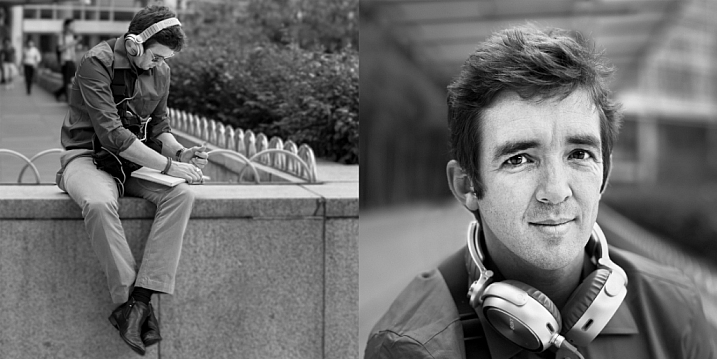
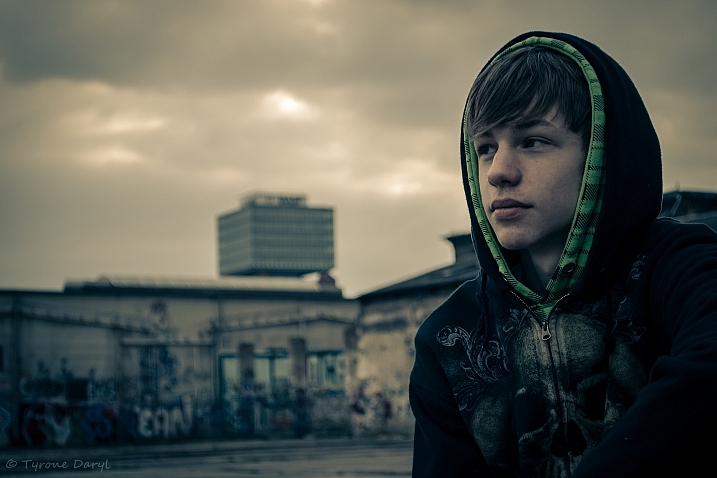
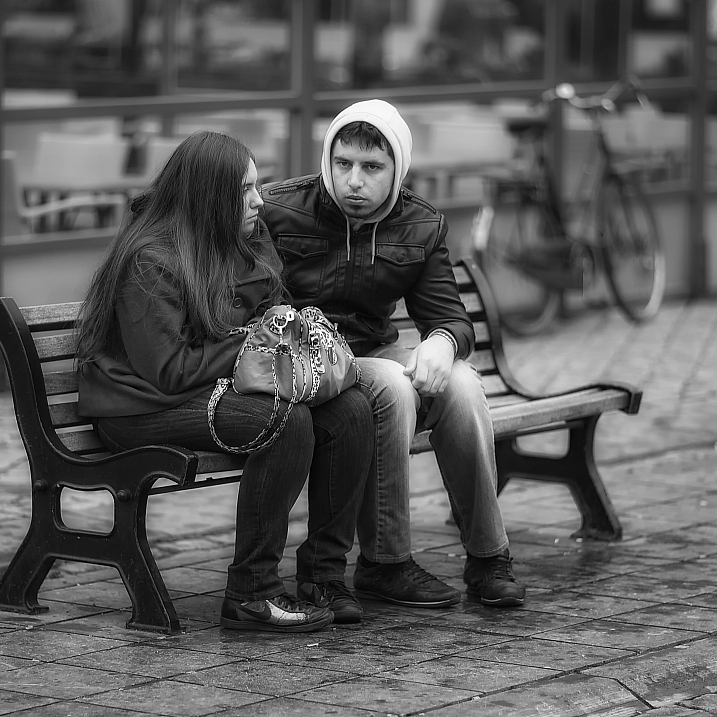
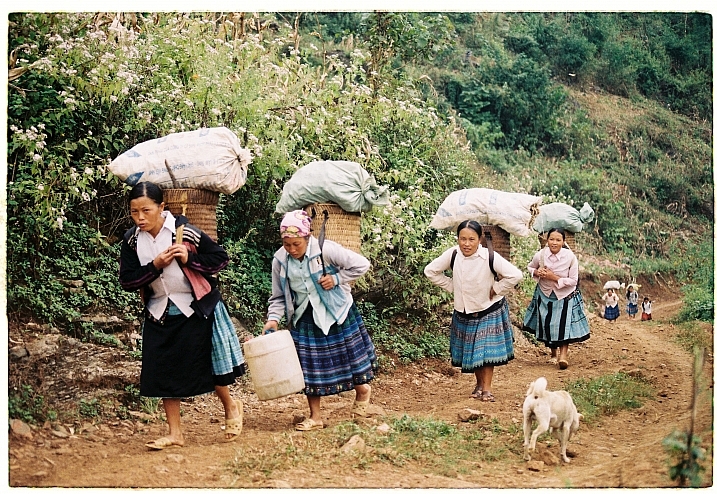
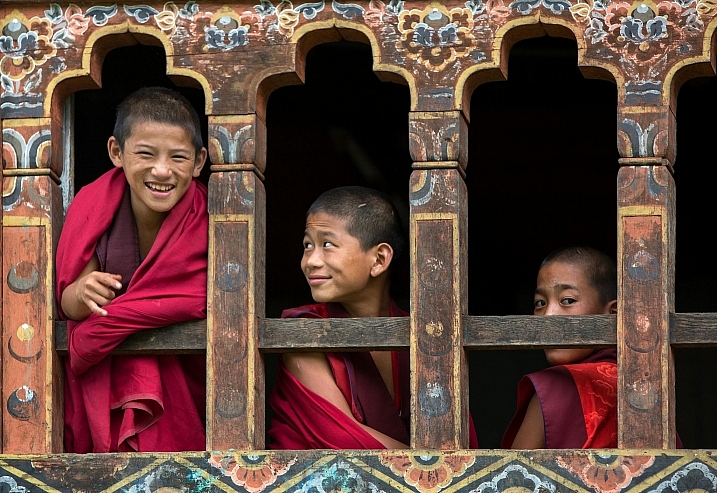
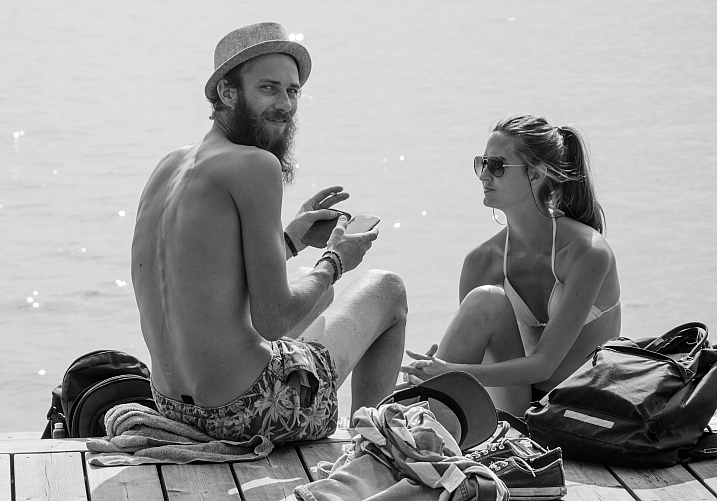
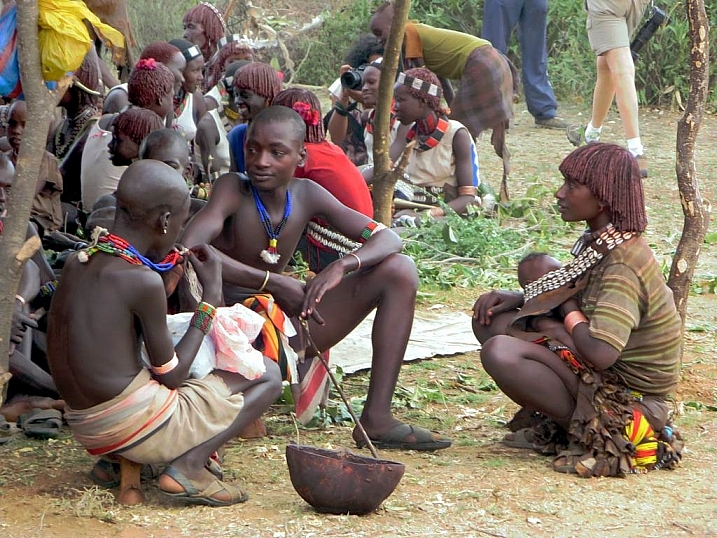
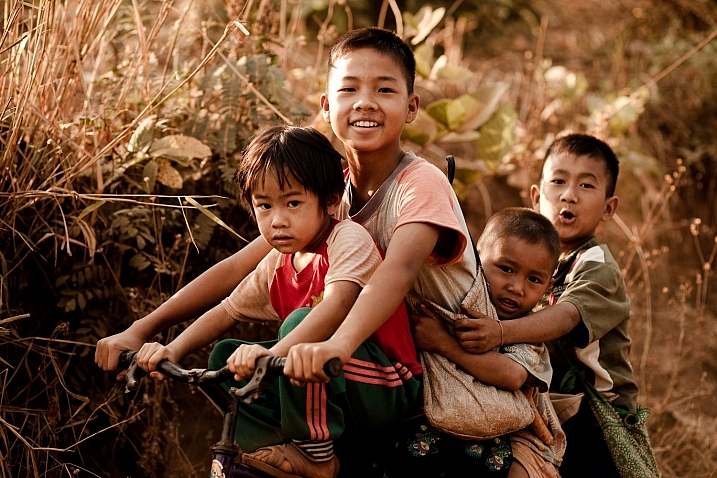
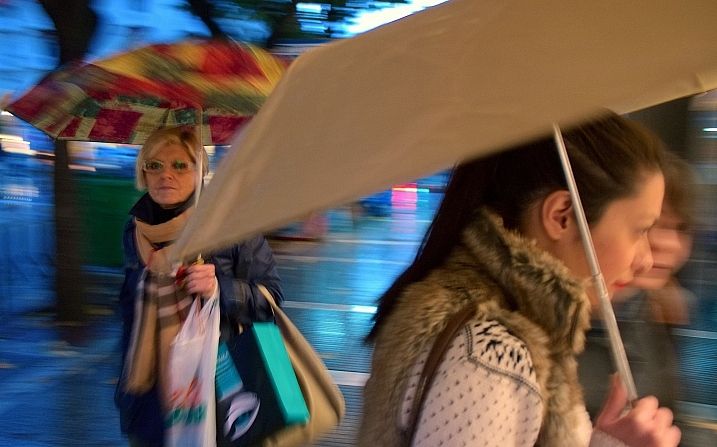
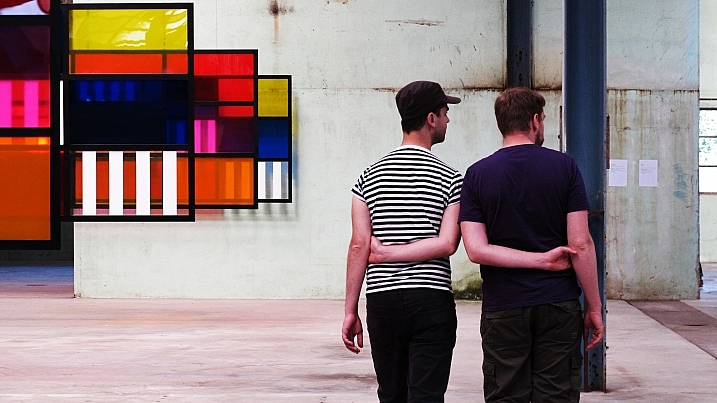
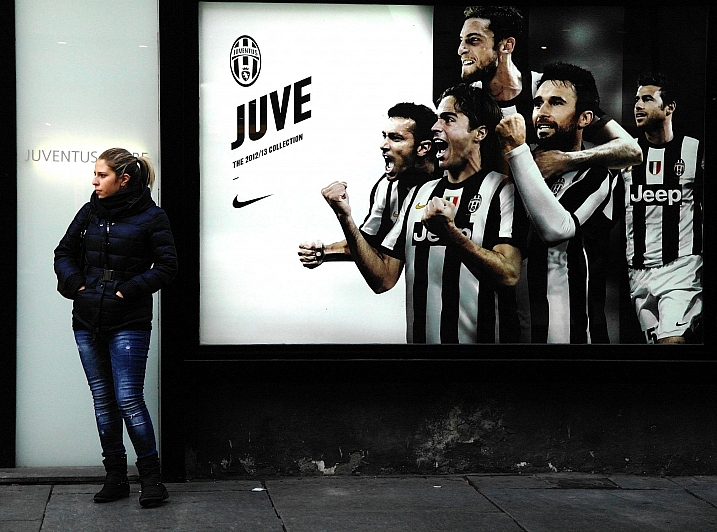
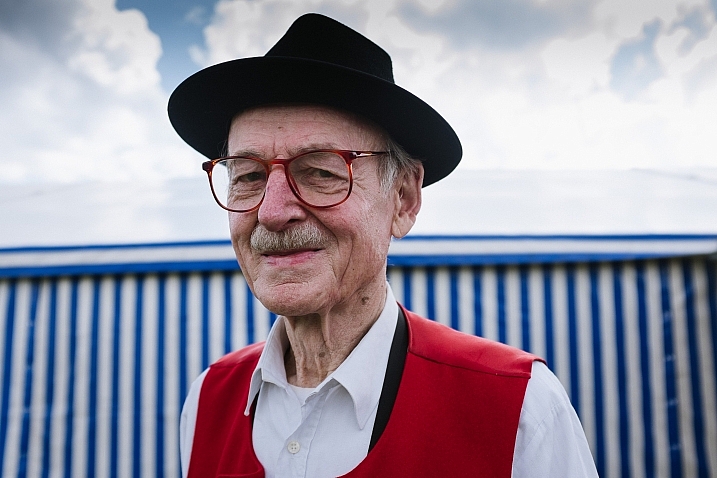
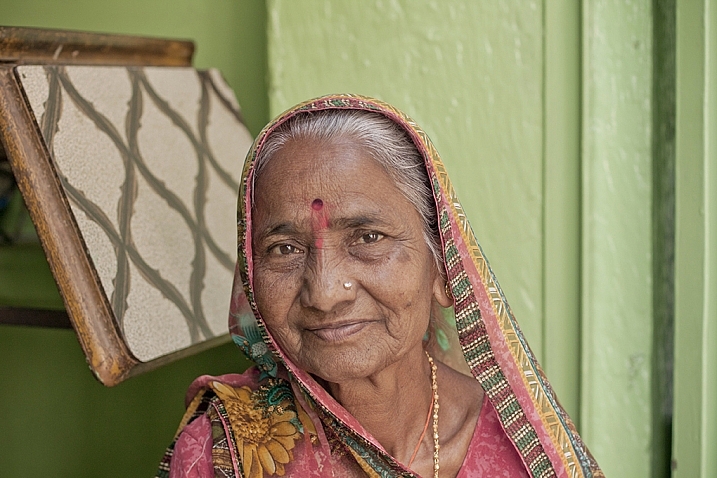
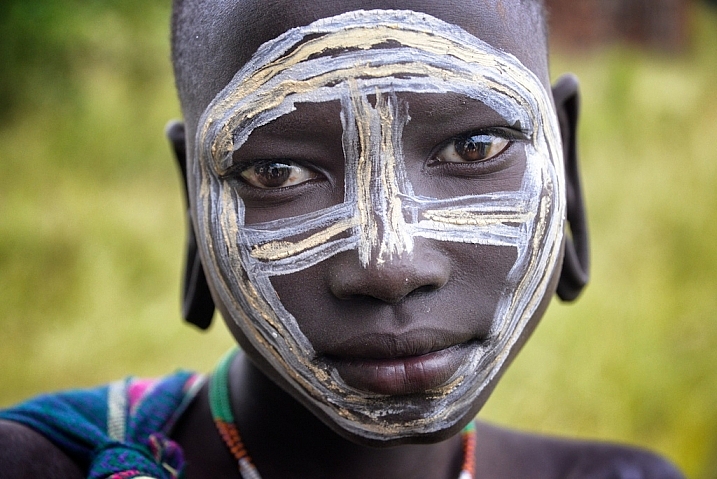
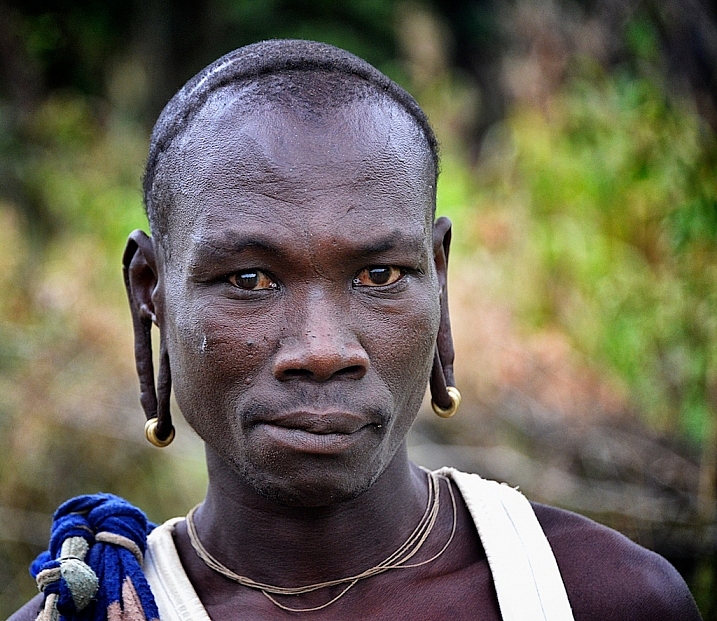
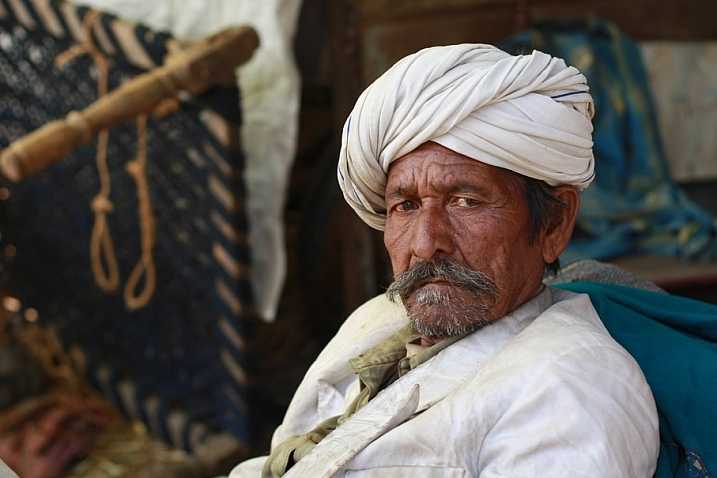
28 Diverse Images That Showcase People Photography

23 Apr

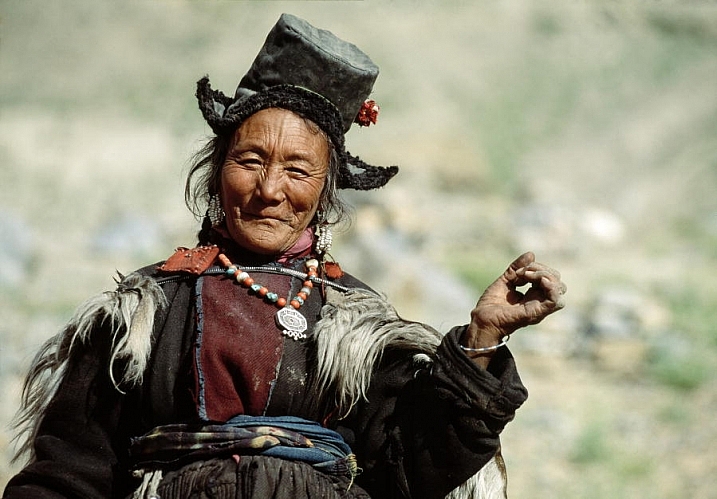
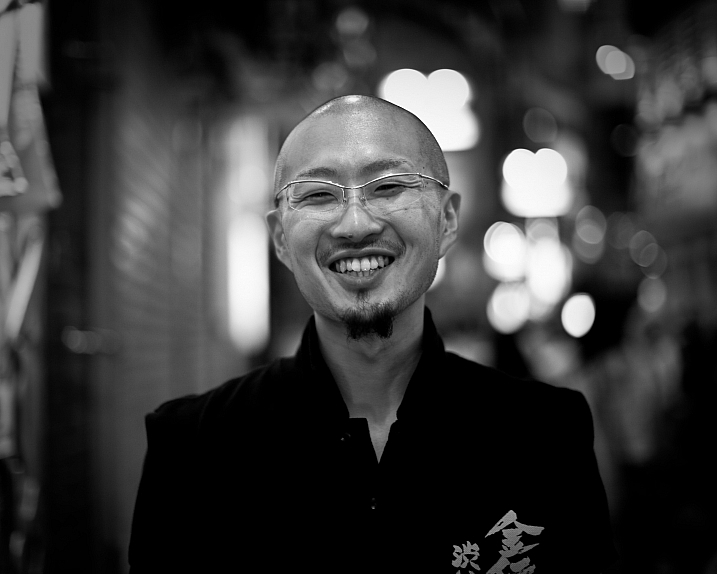
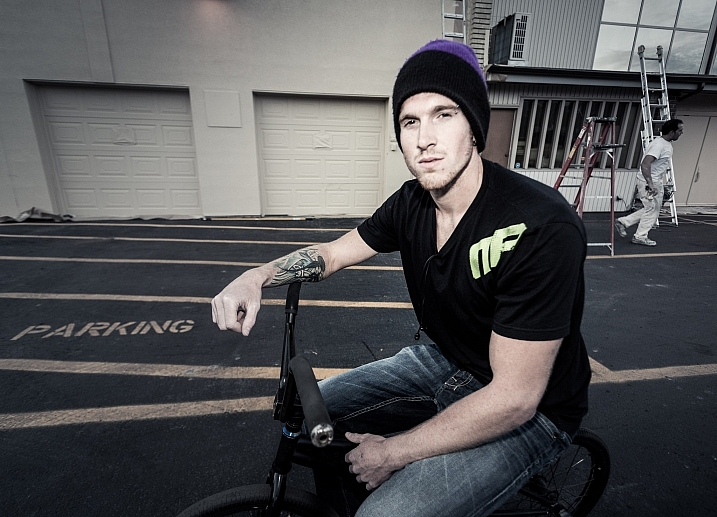
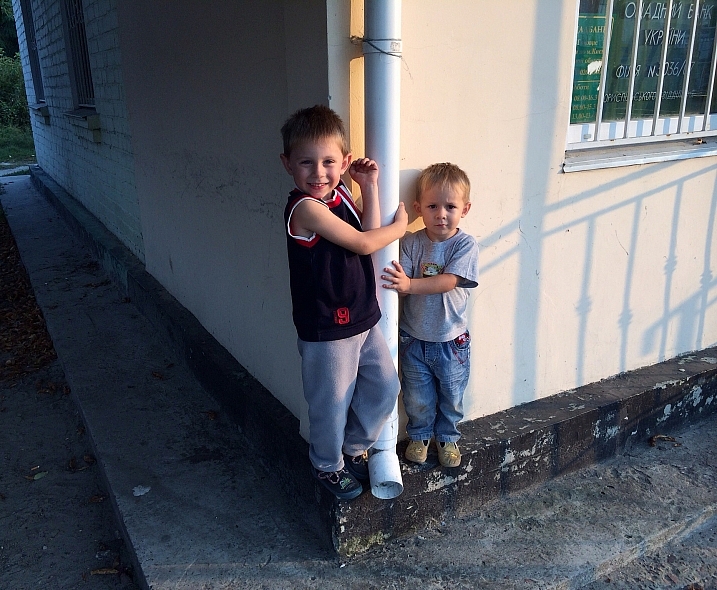
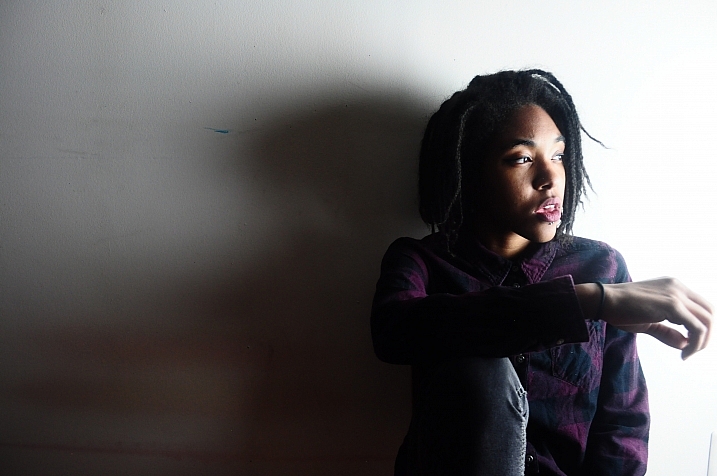
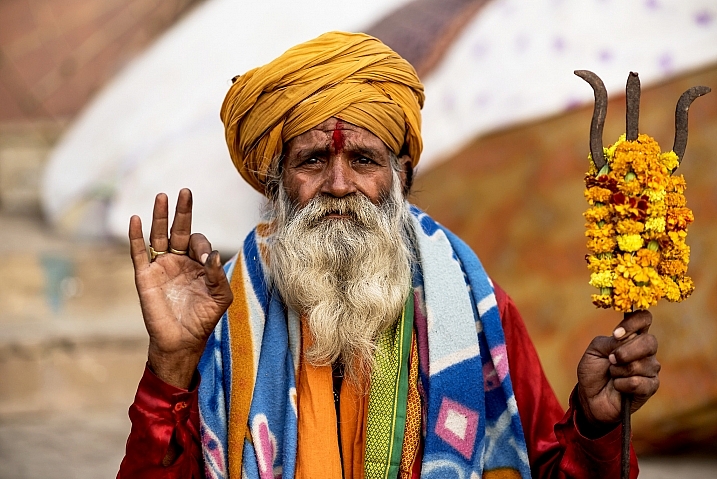
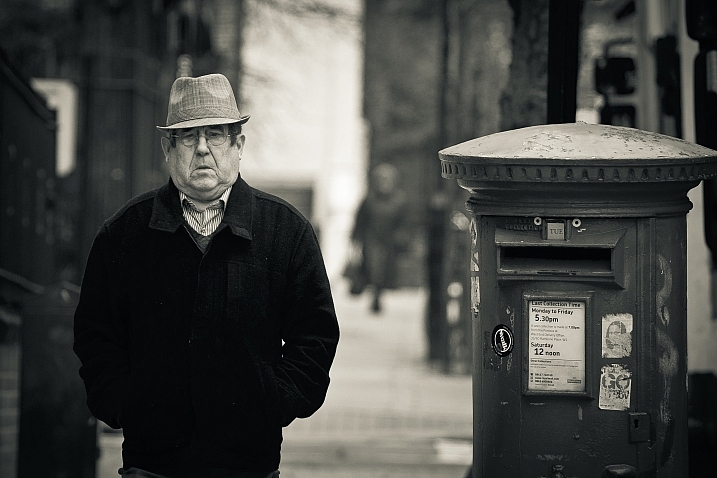
People have a diverse range of emotions, styles, and looks and capturing that with a camera is the photographer’s job. From posed studio portraits, to street photography or candid shots, getting the character and essence of a person in an image is the goal. Let’s see how these photographers did with people photography:

United Nations Photo

By United Nations Photo

Darlene Hildebrandt

By Darlene Hildebrandt

Jim O'Connell

By Jim O’Connell

Darlene Hildebrandt

By Darlene Hildebrandt

Shahab

By Shahab

Tyrone Daryl

By Tyrone Daryl

Fouquier ?

By Fouquier ?

Sebastian Rieger

By Sebastian Rieger

Khánh Hmoong

By Khánh Hmoong

Christopher Michel

By Christopher Michel

Astrid Westvang

By astrid westvang

David Stanley

By David Stanley

Eric Montfort

By Eric Montfort

Chryssa Kotsanidou

By Chryssa Kotsanidou

T W I N K A

By T W I N K A

Enki22

By enki22

Tilman Haerdle

By Tilman Haerdle

Elena Penkova

By Elena Penkova

Monique Prater

By Monique Prater

Ivan Constantin

By Ivan Constantin

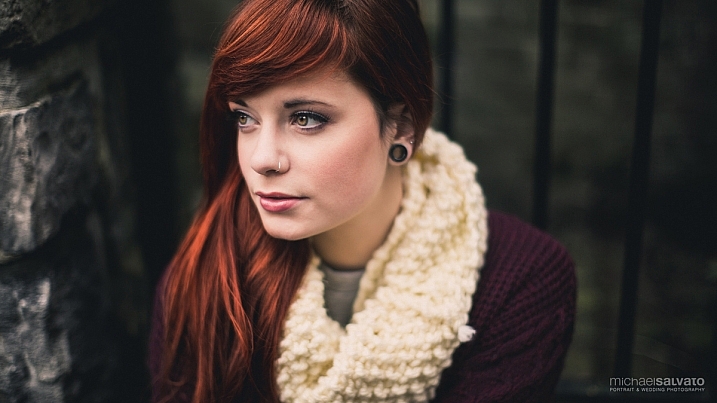
Michael Salvato

By Michael Salvato

Kannan Muthuraman

By Kannan Muthuraman

Hernán Piñera

By Hernán Piñera

Meena Kadri

By Meena Kadri

Rod Waddington

By Rod Waddington

Rod Waddington

By Rod Waddington

Meena Kadri

By Meena Kadri

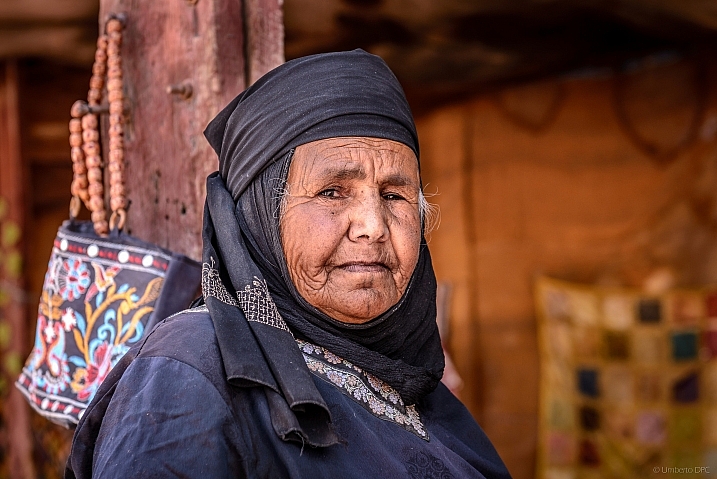
Umberto De Peppo Cocco

By Umberto De Peppo Cocco

People photography week

This week on dPS we’re featuring articles all about different kinds of people photography including portrait, event and travel photography. See all the previous ones below, and watch for more people photography articles over the next few days.

  • How to Take Low Key Head-shots
  • How to Do a One Light Portrait Setup and Use it as Your Back-up Plan
  • Travel People Photography – Tips and Pitfalls
  • 8 Tips for Photographing Men

googletag.cmd.push(function() {
tablet_slots.push( googletag.defineSlot( “/1005424/_dPSv4_tab-all-article-bottom_(300×250)”, [300, 250], “pb-ad-78623” ).addService( googletag.pubads() ) ); } );

googletag.cmd.push(function() {
mobile_slots.push( googletag.defineSlot( “/1005424/_dPSv4_mob-all-article-bottom_(300×250)”, [300, 250], “pb-ad-78158” ).addService( googletag.pubads() ) ); } );

The post 28 Diverse Images That Showcase People Photography by Darlene Hildebrandt appeared first on Digital Photography School.


Digital Photography School

 
Comments Off on 28 Diverse Images That Showcase People Photography

Posted in Photography


Horror at the Met: Psycho House Replica on Museum Rooftop

23 Apr

[ By Steph in Art & Installation & Sound. ]

psycho house main

Set against the New York City skyline, the house from Alfred Hitchcock’s Psycho has never looked more out of place, elevated high above the treetops on the roof of the Metropolitan Museum of Art. British artist Cornelia Parker faithfully recreated the home from the 1960 horror classic as a summer addition to the Met’s rooftop garden, using wood and steel roofing reclaimed from a rural barn to give it that authentic dilapidated feel. The ‘PsychoBarn’ exhibit opened this week and will be in place through October 31st.

psycho house 4

psycho house 3

The artist took inspiration not just from the film, but also from the paintings of famed American artist Edward Hopper, whose ‘House By the Railroad’ is thought to have inspired Hitchcock’s vision for the Psycho house. Contrasting the charm of rural landscapes and vernacular architecture with one of the most modernized cities in America, Parker chose to keep the house a mere facade rather than fleshing it out in additional detail.

psycho house 2

psycho house 6

“I was very excited to find the original set from Psycho was only two flats, all propped up from behind, like a stage set would be, and it was filmed from a particular angle so you only saw the house, side on,” she says. “I’ve built the house in the same angle. I’ve tipped it into the corner, and then if you go around the back, you can see it’s all propped up and you realize it’s a facade. But I wanted it to be believable from this angle. So the roof garden becomes the garden of this house. So I like the idea of the private hedge around the Met roof. And then hunkering in the corner in this sinister house.”

original bates mansion

bates motel

The original Bates mansion still stands on the Universal Studios Hollywood backlot, but it has been expanded, renovated and rebuilt several times over since its original construction. There’s also a replica in Florida, and another in Nevada.  The A&E television series ’Bates Motel’ that’s currently in its fourth season films in British Columbia, where there’s yet another version of the original set – also just a facade.

Share on Facebook


[ By Steph in Art & Installation & Sound. ]

[ WebUrbanist | Archives | Galleries | Privacy | TOS ]


WebUrbanist

 
Comments Off on Horror at the Met: Psycho House Replica on Museum Rooftop

Posted in Creativity


SanDisk iXpand Flash Drive for iPhone and iPad updated with flexible design

23 Apr

SanDisk has launched a refreshed iXpand Flash Drive with a flexible Lightning connector for Apple’s iPhone and iPad. The new model has an updated design that’s compatible with most device cases, according to SanDisk, as well as a USB 3.0 connector for rapid transfers to desktop. Additionally, SanDisk has updated the iXpand Drive mobile app with a new design and additional functionality.

Using the iXpand Drive app, users can open the iPhone’s camera, take photos or record videos, and have the content saved directly onto the iXpand Flash Drive rather than the device’s internal storage. The app can be set up to automatically backup photos and other content to social media, and supports direct music and video playback. For security purposes, the new iXpand drive also includes encryption software for password-protecting the flash drive.

The new iXpand Flash Drive is available in 16GB ($ 44.99), 32GB ($ 69.99), 64GB ($ 89.99), and 128GB ($ 129.99) capacities. The drive is compatible with the following Apple devices running iOS 8.2 or later:

  • iPhone 6s
  • iPhone 6s Plus
  • iPhone 6
  • iPhone 6 Plus
  • iPhone 5s
  • iPhone 5c
  • iPhone 5
  • iPad Pro (12.9-inch)
  • iPad Air 2
  • iPad Air
  • iPad mini 4
  • iPad mini 3
  • iPad mini 2
  • iPad mini
  • iPod touch (5th generation)

Via: SanDisk


Press release:

SANDISK REINVENTS ITS FLASH DRIVE FOR IPHONE AND IPAD

APR 21, 2016

COMPANY EXPANDS ITS INDUSTRY-LEADING MOBILE STORAGE PORTFOLIO WITH NEW IXPAND FLASH DRIVE

MILPITAS, Calif., April 21, 2016 – SanDisk Corporation (NASDAQ: SNDK), a global leader in flash storage solutions, today launched the next-generation iXpand™ Flash Drive, a mobile storage device designed to help people quickly and easily free up space on their iPhone and iPad  with up to 128GB of additional capacity1.  The iXpand Flash Drive features a new, modern design that fits with most iPhone and iPad cases, a USB 3.0 connector for faster transfer speeds to Mac or PCs, and a completely redesigned app to easily manage photos, videos and music.

According to a recent consumer survey2 conducted by SanDisk in the U.S., many iPhone users are looking to free up more space on their phones. “People are using their mobile phones to capture tons of photos and videos, and more than 70 percent of users transfer files off of their iPhones to another storage location,” said Dinesh Bahal, vice president, product marketing, SanDisk. “Our line of mobile storage offerings can immediately help them free up space. With the new iXpand Flash Drive, people can spend more time using their iPhone to capture what they love, and less time worrying about how and where to transfer these photos and videos.”

Designed to be the perfect storage companion for iPhone and iPad, the reinvented iXpand Flash Drive features a flexible Lightning connector and now a USB 3.0 connector so users can quickly and easily move photos and videos between their iPhone and iPad and Mac or PCs.  The iXpand Flash Drive allows users to automatically back up their camera roll and contacts, and watch popular video formats3 straight from the drive. The new drive also includes encryption software that password-protects files, allowing people to share their content while keeping sensitive files secure across devices4.

The product features a redesigned app, the iXpand Drive app, which offers new features and an improved user experience.  Giving users the option to save space instantly, the app now has a camera function so users can shoot and save photos or videos directly to the drive instead of on their iPhone or iPad.  The app also allows users to automatically back up content from popular social networking sites, as well as play back music within the app. 

Built for the next-generation iXpand Flash Drive, the iXpand Drive app is available for download from the App Store for iPhone and iPad. The app launches when the iXpand Flash Drive is plugged into an iPhone or iPad – allowing for immediate storage expansion, access to the user’s content and easy file management. 

SanDisk offers a full range of mobile storage solutions, making it easy for consumers to expand the memory and manage content on their favorite Apple and Android devices.  To see SanDisk’s complete line of innovative offerings, please visit: www.sandisk.com/home/mobile-device-storage

Pricing and Availability

The iXpand Flash Drive features a one-year limited warranty in the United States5. It’s available in 16GB, 32GB, 64GB and 128GB capacities, with MSRPs of $ 49.99, $ 69.99, $ 89.99 and $ 129.99, respectively.  The drive is compatible with iPhone 6s, iPhone 6s Plus, iPhone 6, iPhone 6 Plus, iPhone 5s, iPhone 5c, iPhone 5, iPad Pro (12.9-inch), iPad Air 2, iPad Air, iPad mini 4, iPad mini 3, iPad mini 2, iPad mini and iPod touch (5th generation) running iOS 8.2 or later. The new iXpand Flash Drive is available now at BestBuy.com, Amazon and SanDisk.com.

Articles: Digital Photography Review (dpreview.com)

 
Comments Off on SanDisk iXpand Flash Drive for iPhone and iPad updated with flexible design

Posted in Uncategorized


Weekly Photography Challenge – People Photography

23 Apr

In my career as a photographer I’ve covered many genres from studio product photography, editorial, industrial, food photography, weddings, portraits, fine art, and travel – but through all of that, I’m primarily a people photographer. I like to photograph people.

Darlene Hildebrandt

Shoe repair man in Nicaragua – By Darlene Hildebrandt

Darlene Hildebrandt

Model at sunset – By Darlene Hildebrandt

Darlene Hildebrandt

Cuban beauties – By Darlene Hildebrandt

Whether it’s in a studio environment doing a posed portrait, a candid doing street photography, a shop owner or vendor in a foreign country – people are always interesting and challenging to photograph.

Weekly Photography Challenge – People

We’ve got lots of articles to help you as you go about photographing people this week in fact it’s our feature topic right now. You can see all the ones we’ve done so far this week below, and watch for more people photography articles over the next few days:

  • How to Take Low Key Head-shots
  • How to Do a One Light Portrait Setup and Use it as Your Back-up Plan
  • Travel People Photography – Tips and Pitfalls
  • 8 Tips for Photographing Men
  • 24 Diverse Images That Showcase People Photography
Darlene Hildebrandt

Nicaraguan school kids – By Darlene Hildebrandt

Darlene Hildebrandt

Wedding fun – By Darlene Hildebrandt

Darlene Hildebrandt

Cuban dancers – By Darlene Hildebrandt

You can also check out our ebooks on people and portrait photography:

  • Fast Flash for Portrait Perfection
  • Portraits: Lighting the Shot
  • Portraits: Making the Shot
  • Portraits: Striking the Pose
  • Kids Photography

So if you are not inclined to photograph people and this challenges makes you a bit nervous – maybe now is the time to get out of your comfort zone and just do it. I promise they won’t bite!

Share your images below:

Simply upload your shot into the comment field (look for the little camera icon in the Disqus comments section) and they’ll get embedded for us all to see or if you’d prefer upload them to your favourite photo sharing site and leave the link to them. Show me your best images in this week’s challenge. Sometimes it takes a while for an image to appear so be patient and try not to post the same image twice.

You can see some of mine here on this page – now it’s your turn to share, and show me your people photos.

dramatic-images-using-shadows-750px-01

dramatic-images-using-shadows-750px-15

After lit using a combination of flash and natural light at 1/30th of a second.

dramatic-images-using-shadows-750px-36

googletag.cmd.push(function() {
tablet_slots.push( googletag.defineSlot( “/1005424/_dPSv4_tab-all-article-bottom_(300×250)”, [300, 250], “pb-ad-78623” ).addService( googletag.pubads() ) ); } );

googletag.cmd.push(function() {
mobile_slots.push( googletag.defineSlot( “/1005424/_dPSv4_mob-all-article-bottom_(300×250)”, [300, 250], “pb-ad-78158” ).addService( googletag.pubads() ) ); } );

The post Weekly Photography Challenge – People Photography by Darlene Hildebrandt appeared first on Digital Photography School.


Digital Photography School

 
Comments Off on Weekly Photography Challenge – People Photography

Posted in Photography


Surprisingly sharp: Inmacus 18mm HD Wide Angle Kit lens review

22 Apr

Don’t write off smartphone camera accessories just yet – a three-lens bundle from Singapore-based Inmacus produces surprisingly good results. Read more

Articles: Digital Photography Review (dpreview.com)

 
Comments Off on Surprisingly sharp: Inmacus 18mm HD Wide Angle Kit lens review

Posted in Uncategorized


Behind the Scenes: Hidden Collections Storage at the Smithsonian

22 Apr

[ By WebUrbanist in Art & Photography & Video. ]

smithsonian behind the scenes

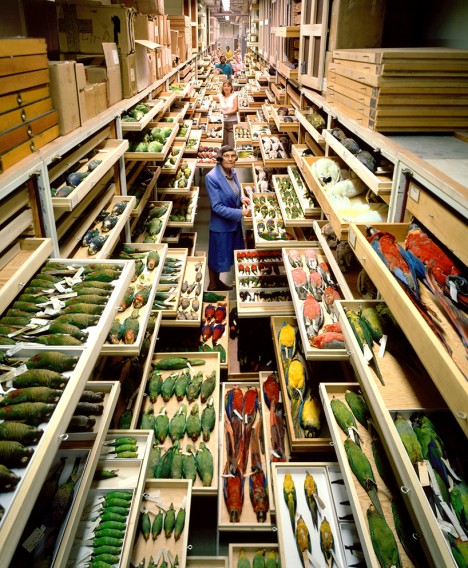
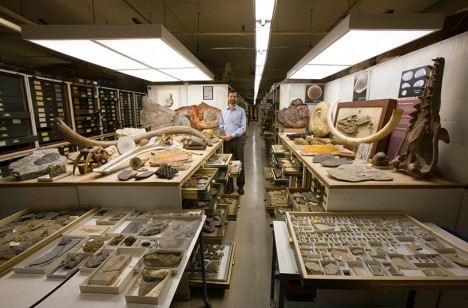
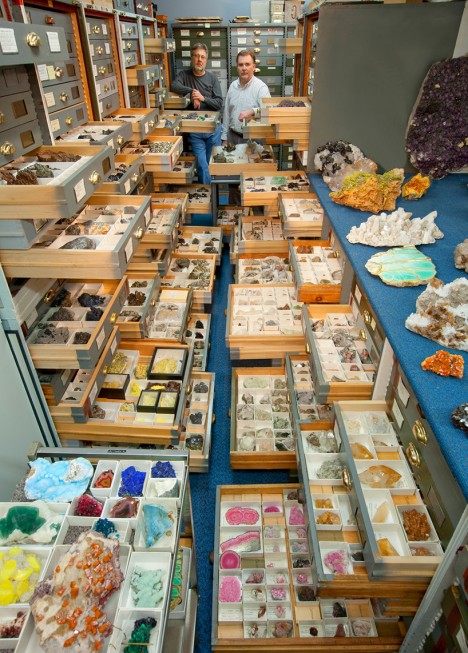
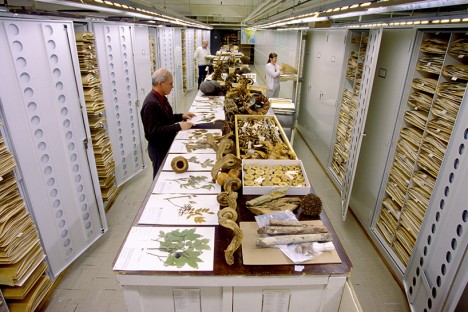
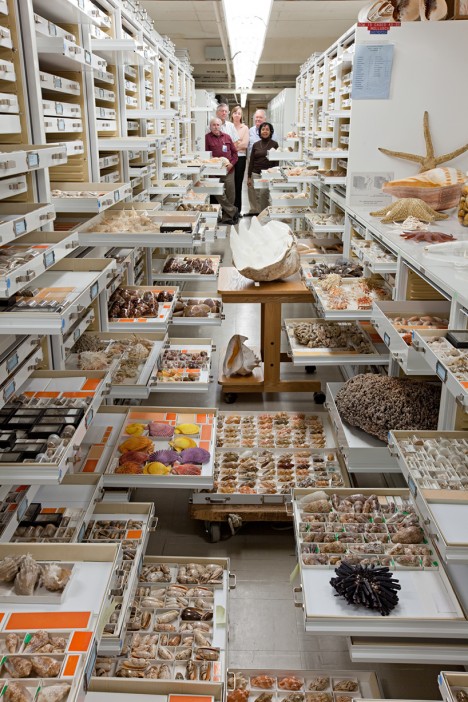
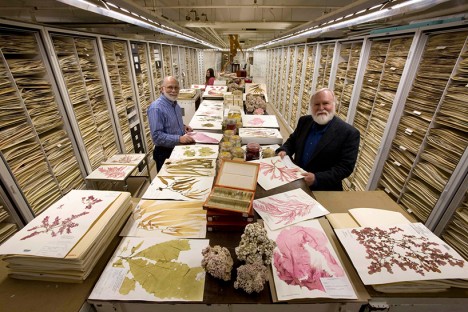
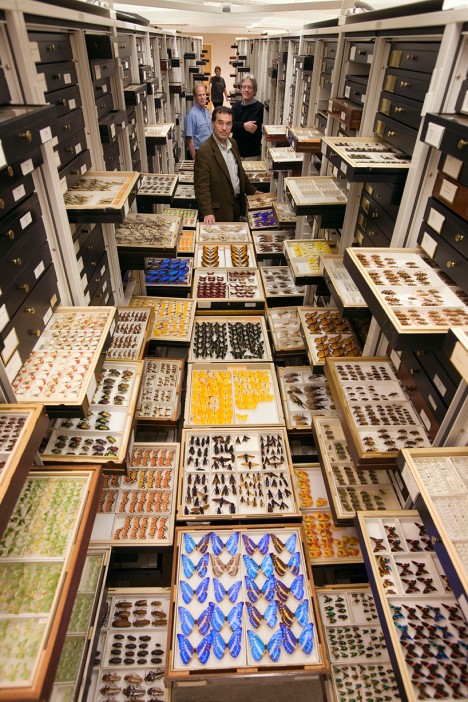
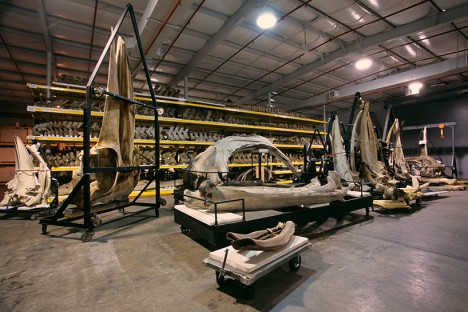
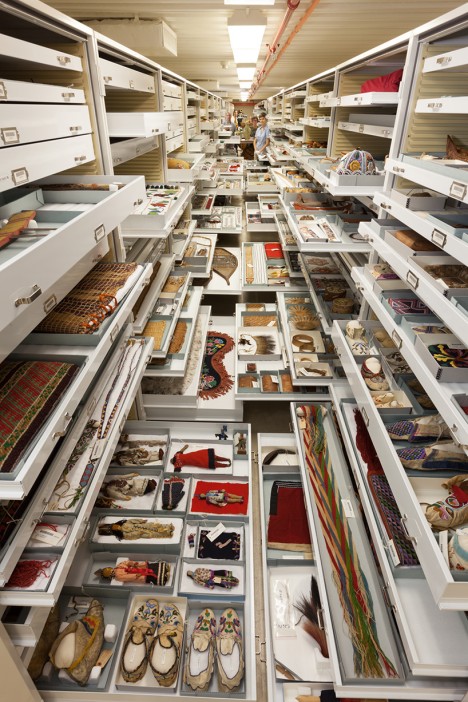
It is hard to imagine just how extensive, colorful and generally amazing the plant, animal, fossil and rock archives at the Smithsonian Museum of Natural History (NMNH) in Washington, D.C. really are … at least until you see the shelves slide out, as shown in this stunning photo series (by Chip Clark).

museum paleobiology

museum rocks minerals

The museum staff has meticulously collected and cataloged plant and animal species as well as rock, fossils and other organic wonders from around the world. Some are on display, but many more live behind the scenes, shelved for reference and study.

museum botany collection

museum zoology collection

Examining these artifacts helps give researchers and scientists insights into biological diversity and evolutionary relationships, but also assist environmentalists studying conservation and climate change.

museum botany algae

smithsonian butterfly collection

There is something particularly humanizing about these images, shot over the decades by a single staff photographer, which feature not on the each collection but in many cases his colleagues as well.
museum mammals

museum anthropology

Departments shown here include botany and algae, invertebrate zoology, mammals, mineral sciences, paleobiology and anthropology.
Share on Facebook


[ By WebUrbanist in Art & Photography & Video. ]

[ WebUrbanist | Archives | Galleries | Privacy | TOS ]


WebUrbanist

 
Comments Off on Behind the Scenes: Hidden Collections Storage at the Smithsonian

Posted in Creativity


DxOMark Mobile report: Nextbit Robin

22 Apr

The Nextbit Robin looks like your standard smartphone, but its cool blue exterior houses the first real cloud-based phone. It’s an innovative device, but unfortunately its camera falls short of the best in its class. DxOMark has put the Robin through its standard mobile tests, awarding it 81 points and putting it in 18th place in DxO’s mobile rankings. While image testers liked the Robin’s good detail preservation and fast AF, unusually high noise levels kept NextBit’s smartphone out of the higher echelon’s of the DxO rankings.

Articles: Digital Photography Review (dpreview.com)

 
Comments Off on DxOMark Mobile report: Nextbit Robin

Posted in Uncategorized