RSS
 

Archive for March, 2016

Affinity Photo coming to Windows

16 Mar

$ (document).ready(function() { SampleGalleryV2({“containerId”:”embeddedSampleGallery_2763137514″,”galleryId”:”2763137514″,”isEmbeddedWidget”:true,”standalone”:false,”selectedImageIndex”:0,”startInCommentsView”:false,”isMobile”:false}) });

Serif has announced its Affinity apps, previously available only to Mac users, will soon be available for Windows. Affinity Photo is an image editing program, first introduced in February 2015. It’s considerably cheaper than Photoshop, but promises robust performance and many tools that will be familiar to those used to Adobe’s programs.

Affinity Photo will debut as a free public beta early this summer, according to Serif. The company promises feature parity with its Mac version, and will offer it for the same one-time price of $ 50/£40. Windows users interested in becoming beta testers can sign up now at Serif’s website.


 Press release:

Affinity applications are coming to Windows

NOTTINGHAM, UK – March 15, 2015 – Serif is delighted to announce that it will be bringing its highly regarded, multi award-winning Affinity creative apps to Windows.

The Affinity apps—which currently include Affinity Designer and Affinity Photo—have enjoyed tremendous success over the last 12 months with both apps regularly charting in the top 10 of the Mac App Store and gaining 1,000s of 5 star reviews from users. They have also received some serious recognition from Apple themselves having won a Design Award in July, and Affinity Photo being chosen as their best app of 2015 in December last year.

But the fact they have only been available on Mac has caused frustration for PC users, and the company has been inundated with requests to produce Windows versions.

“Pretty much any article, blog or social post about our Affinity apps now seems to attract a rush of comments from users asking why we don’t make them available on Windows. Well, I’m really excited to finally reveal we are working on it and the development team are making incredibly rapid progress.” said Ashley Hewson, Serif’s Managing Director. “We already have an early build of Affinity Designer running on our PCs in the office here, and we will be making it available as a free public beta early in the summer”.

Affinity apps for Windows will have exactly the same feature set as the Mac apps that have set the creative world alight, as well as sharing the same single file format that has become a core feature of the Affinity suite. Coming to Windows makes the Affinity range ideal for inter-agency collaborations, cross-platform creative workflows, and for a huge number of design studios, photographers and freelancers who have a PC based set-up.

As well as feature parity, Serif also promises to match the business model of the Mac versions with a purchase price of $ 49.99 / €49.99 / £39.99 with no subscription.

You can sign up for the free beta of Affinity for Windows here: affinity.serif.com/windows.

Articles: Digital Photography Review (dpreview.com)

 
Comments Off on Affinity Photo coming to Windows

Posted in Uncategorized


11 Steps for Basic Portrait Editing in Lightroom – A Beginner’s Guide

16 Mar

I love Lightroom, and use it for the vast majority of my portrait editing. You can achieve a wide variety of portrait effects in Lightroom, from harsh and grungy, to soft and dreamy. My technique varies depending on the kind of portrait I’m editing, although the workflow remains consistent.

The photo I’ve selected for this exercise, is one you can easily replicate at home. It was shot indoors, with a large window as the only light source, and is one of a series shot in the same location.
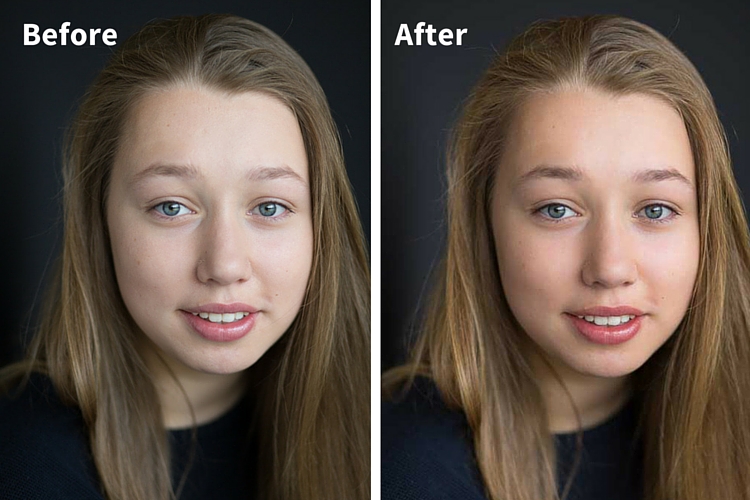
Before and after

One of the great features of Lightroom is the ability to sync settings. It’s a huge time-saver when you have a series of images, all shot in similar conditions. Once you are happy with the general settings (white balance, shadow-highlight ratio, etc.) of one image, you can sync the rest of the images in the series, with the same settings. After that, you’ll only need to fine-tune the others.

This before image is too cool for my liking, and there is not enough separation between the model’s hair and the background. I am also going to smooth out her skin tone, and bring a bit more sparkle to her eyes.

As you work through each step on your own image, play around with the sliders to see what effect each one of them has.

Step #1: Import your file
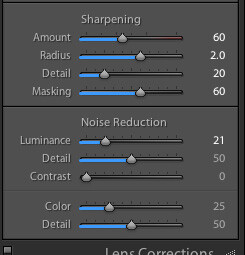
Image showing basic portrait editing in Lightroom

Sharpening preset

In the LIBRARY module, import your image into Lightroom. I have created a custom sharpening preset (shown here), which I find works with the majority of my portraits. I apply this preset upon import – a handy shortcut, especially when you’re importing a large number of images at once. It’s easy to create your own presets in Lightroom, read this tutorial How to Create Your Own Lightroom Presets on dPS, that shows you how.

To apply a preset on import, go to the righthand panel in LR, to the tab labelled “Apply during import”. Go to Develop settings > user presets, then click on the preset you wish to apply.

Once you have imported your file, go to the DEVELOP module.
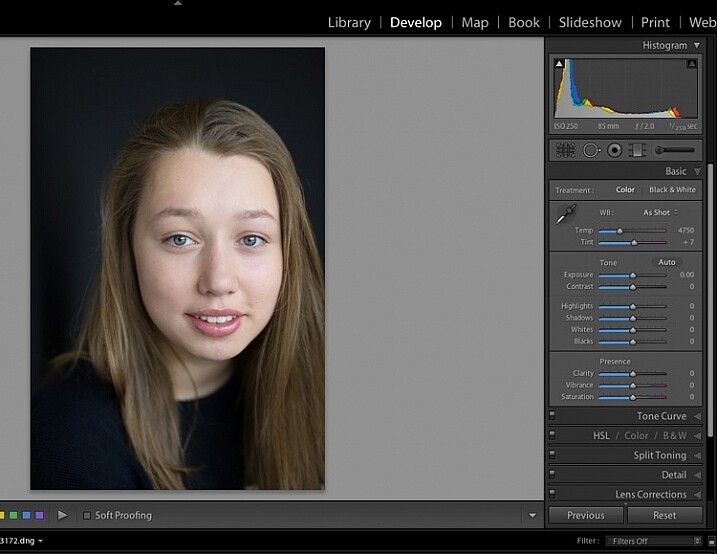
Image for basic portrait editing in Lightroom

Import your file.

Step #2: Adjust  the white balance

The colour tint in this photo is a bit cold. There are a number of ways to adjust the white balance. If there was a neutral wall or surface in this photo, you could use the eyedropper tool. In this case, there isn’t a neutral reference, so I have moved the sliders under the white balance section to give the image more warmth.
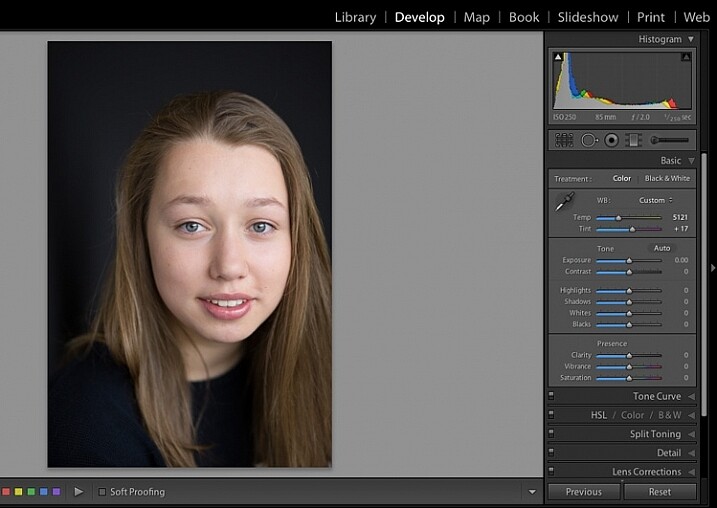
Image for basic portrait editing in Lightroom

Correct the white balance.

Step #3: Adjust highlights and shadows

The model’s skin tone is a little too light, and her hair and the background are too dark. To redress the imbalance, pull back the highlights and lighten the shadows. You can fine-tune this later if necessary.
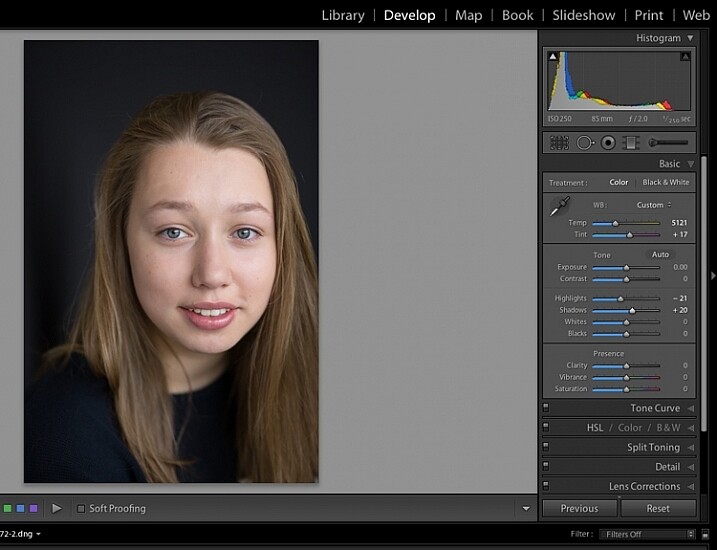
Image showing basic portrait editing in Lightroom

Adjust highlights and shadows.

Step #4: Increase vibrance and saturation

The image still looks a little dull. Use the sliders under the presence tab to increase the vibrance and saturation, and move the whites slider up to give your portrait a nice clean look. Now it’s starting to look like my model’s real-life skin tone.
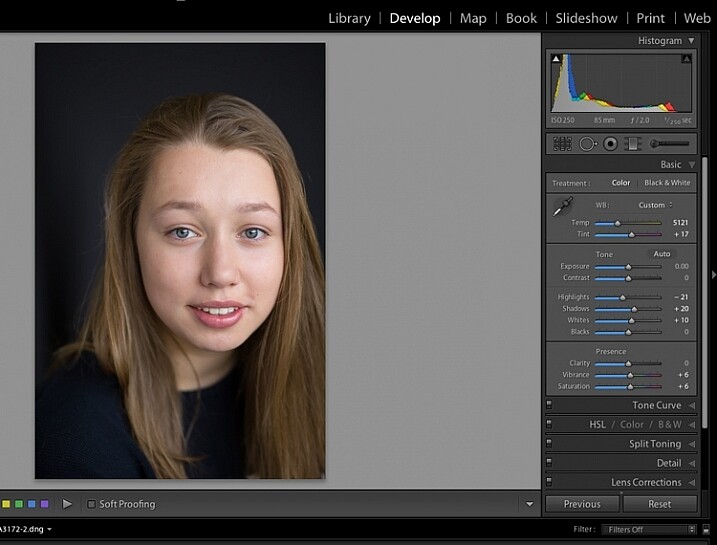
Image showing basic portrait editing in Lightroom

Increase vibrance and saturation.

tep #5: Crop your image

You can crop at any stage. I’ve cropped this image for a tighter, better-balanced headshot.
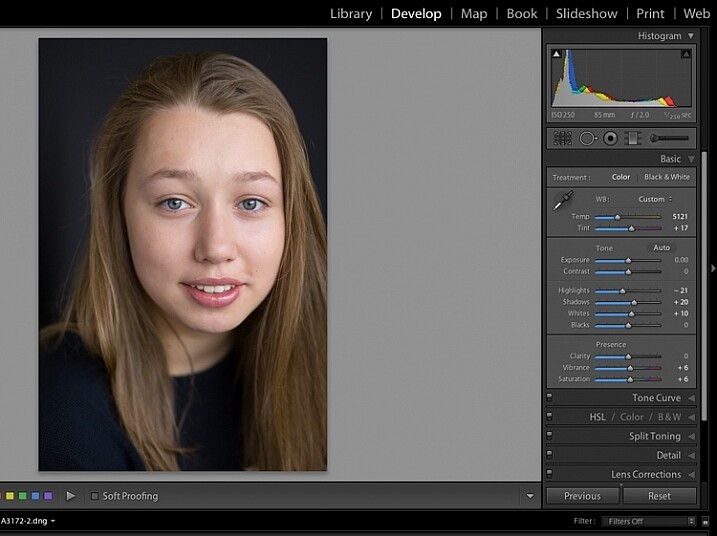
Image showing basic portrait editing in Lightroom

Crop your image.

Step #6: Soften the skin

Zoom in to take a closer look at the skin. This model is very young with almost flawless skin. Usually I wouldn’t do much, if any, softening with such great skin. However, for the purpose of this exercise, I will.

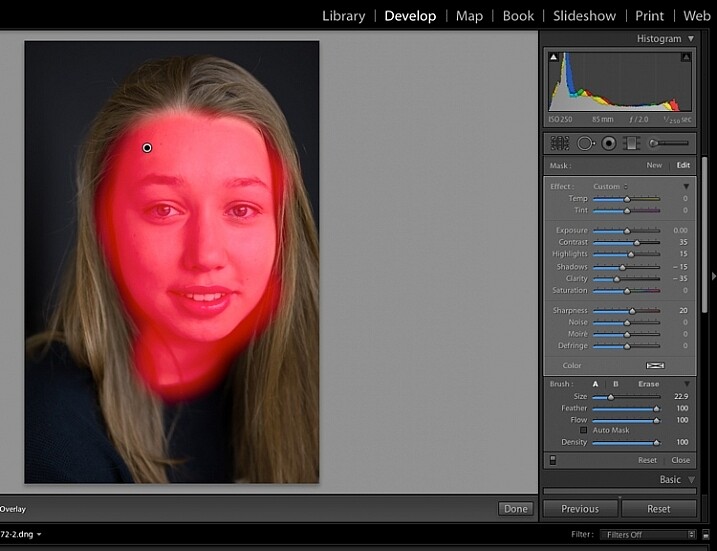
Select the brush tool. You can load your brush with any adjustments you want to apply. Although there are brush presets you can use for skin softening, teeth whitening, etc., I find them too heavy-handed.

Set the clarity slider down to around -35 to -40, and the (contrast to +35, and the Highlights to +15 or so – this will help maintain contrast and keep the face from looking flat) sharpness up to +20. This will vary according to your subject’s skin, and the kind of effect you want to achieve. In this example it will just even out the skin tone and give it a soft, glowing appearance. A mature person photographed in stronger light, will require a different treatment. The lower the clarity slider, the softer the skin will appear. For a grungy look, increase the clarity slider.

Reducing the clarity tends to flatten out the image, so you can increase the contrast, deepen the shadows and increase the highlights to balance this out. Keep the feather and flow at 100%, and brush all over the face with a large brush.
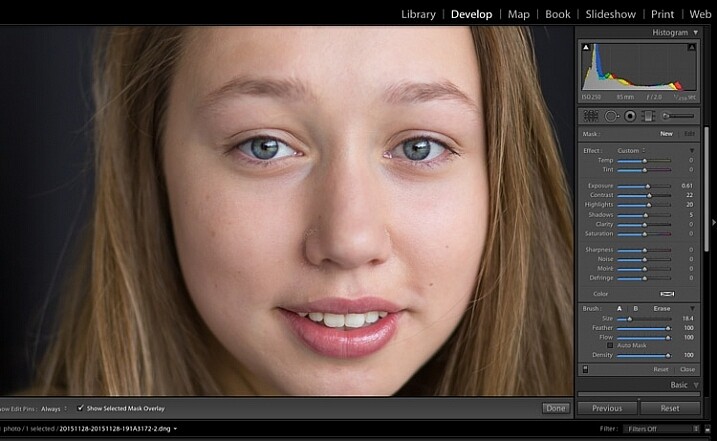
Image showing basic portrait editing in Lightroom

Zoom in close to look at the skin.

Image showing basic portrait editing in Lightroom

Brush all over the area with your adjustment brush.

Step #7: Fine-tune your adjustments

Underneath the image, check the box “Show selected mask overlay”  (or use the keyboard shortcut, O) to see exactly what parts of the image your brush adjustments have touched. Often you’ll find it has covered the eyes and mouth, which is not desirable. Still using the adjustment brush, click on the erase brush tool, and remove the brushed-on effect from around the eyes, mouth, and hair.
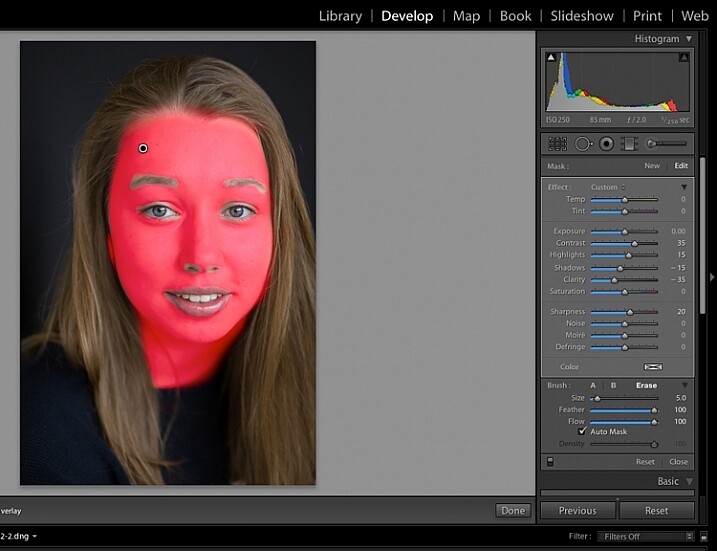
Image showing basic portrait editing in Lightroom

Brush off the adjustments from unwanted areas.

Image showing basic portrait editing in Lightroom

Here are the adjustments so far. Looking good.

Step #8: Brighten the eyes

Zooming in even closer, then use the Adjustment Brush to add clarity and sparkle to the eyes. Note that by increasing the clarity, you also make the affected part of the image darker. Compensate with your exposure slider.

In this photo, I also increased the saturation of the iris a little to enhance the blue of the model’s eyes. Be sparing with this technique to avoid an unnatural look.
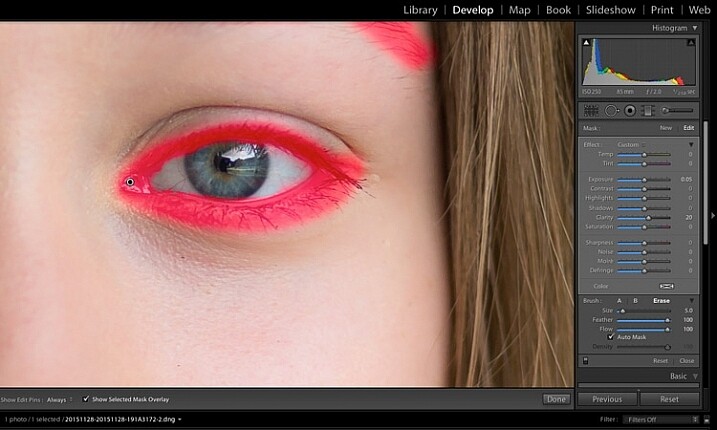
Image showing basic portrait editing in Lightroom

Use the brush tool to sharpen the outline of the eyes.
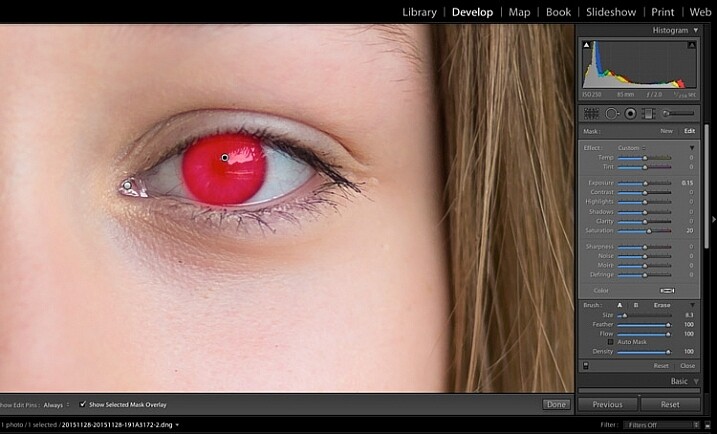
Image showing basic portrait editing in Lightroom

Treat the iris separately.

Step #9: Add colour to the mouth

Moving on to the mouth area now. Again, this model doesn’t need any work on her lips or teeth; this is for the purpose of demonstration. Using the same technique as with the eyes, brush on clarity and increase saturation. I have also moved the temp and tint sliders up to alter the hue of her lips.
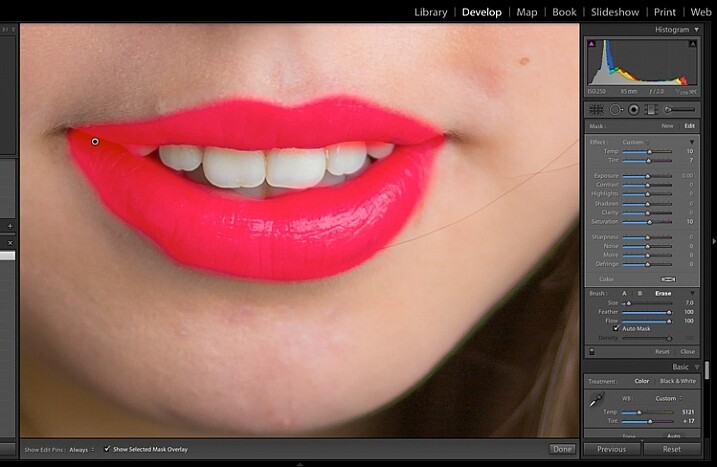
Image showing basic portrait editing in Lightroom

Brush over the lips to add colour and clarity.

Step #10: Whiten the teeth

To lighten teeth, use the brush tool with the saturation slider decreased, and the exposure slider increased just a little. As with the eyes, be sparing with this step.
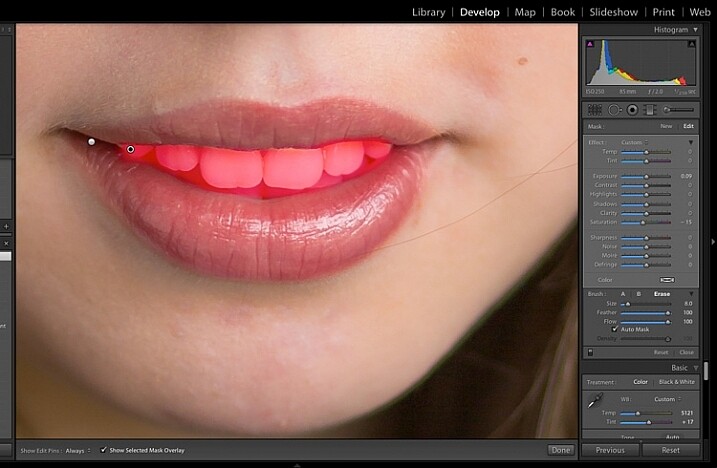
Image showing basic portrait editing in Lightroom

Lighten or whiten the teeth.

Step #11: Lighten the hair and background

Finally for this image I have lightened the hair and background to reduce contrast between her face and the background, and to give separation between hair and background.
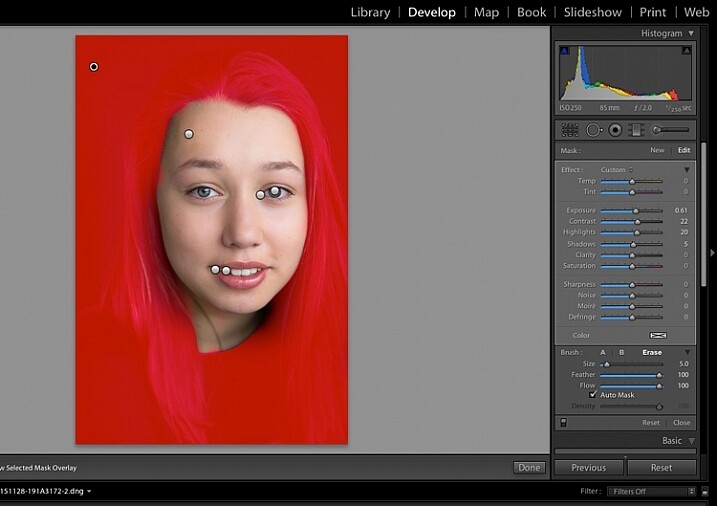
Image showing basic portrait editing in Lightroom

Finally, lighten the hair and background to give separation.

The final image is a vast improvement on the SOOC (straight out of camera) image.

Image showing basic portrait editing in Lightroom

Before Lightroom adjustments.

Image showing basic portrait editing in Lightroom

After all Lightroom adjustments.

Over to you!

Lightroom editing is as much about personal preference as your shooting style, and my workflow and style represents just one approach of many. Share your tips and tricks (and, of course, questions) in the comments section below.

googletag.cmd.push(function() {
tablet_slots.push( googletag.defineSlot( “/1005424/_dPSv4_tab-all-article-bottom_(300×250)”, [300, 250], “pb-ad-78623” ).addService( googletag.pubads() ) ); } );

googletag.cmd.push(function() {
mobile_slots.push( googletag.defineSlot( “/1005424/_dPSv4_mob-all-article-bottom_(300×250)”, [300, 250], “pb-ad-78158” ).addService( googletag.pubads() ) ); } );

The post 11 Steps for Basic Portrait Editing in Lightroom – A Beginner’s Guide by Karen Quist appeared first on Digital Photography School.


Digital Photography School

 
Comments Off on 11 Steps for Basic Portrait Editing in Lightroom – A Beginner’s Guide

Posted in Photography


Sony firmware update 3.10 for a7 cameras, a6000, a5100 now available

16 Mar

Sony has released firmware update 3.10 for the a7R II, a7R, a7S, a7 II, a7, a6000 and a5100 camera models. The update primarily brings new lens support and is available to download now from Sony’s support website.

All updates bring the ability to use AF with the Sony FE 85mm F1.4 GM while recording movies. The changelogs for the a6000, a7, a7 II, a5100, and a7R II all mention ‘Phase-detection AF is supported,’ which we’ve asked Sony for some clarification on. Additionally, updates for all but the a7R II enable the correct lens data to be recorded in EXIF. 

Articles: Digital Photography Review (dpreview.com)

 
Comments Off on Sony firmware update 3.10 for a7 cameras, a6000, a5100 now available

Posted in Uncategorized


Aperture Art: 360 Doors & Windows of the World Sorted by Country

15 Mar

[ By WebUrbanist in Art & Photography & Video. ]

doors of the world

This gorgeous collection of photographic montages highlights regional similarities and differences between types and styles of door and window designs all across Europe, starting with Porto, Portugal:

windows of porto portugal

The Alps:

windows of the alps

Santa Susana, Spain:

windos of santa susana spain

Sesimbra, Portugal:

windows of sesimbra portugal

London, England:

windows of london england

Burano, Italy:

windows of burano italy

Andre Goncalves, a photographer from Lisbon, set about creating this catalog of colors and textures with his ‘Windows of the World’ series (mostly by city and region), then expanded to develop ‘Doors of the World’ as well (sorted by country):

Romania:

doors of romania

England:

doors of england

Portugal:

doors of portugal

Individually, a single door might not say much about a city or country, but taken together: patterns emerge, from tile work around doors to color preferences and decorative touches.

Barcelona, Spain:

windows of barcelona spain

Montemor-o-Novo, Portgual:

windows of montemor-o-novo portugal

Evora, Portugal:

windows of evora portugal

Venice, Italy:

windows of venice italy

Bucharest, Romania:

windows of bucharest romania

Lisbon, Portugal:

windows of lisbon portugal

Share on Facebook


[ By WebUrbanist in Art & Photography & Video. ]

[ WebUrbanist | Archives | Galleries | Privacy | TOS ]


WebUrbanist

 
Comments Off on Aperture Art: 360 Doors & Windows of the World Sorted by Country

Posted in Creativity


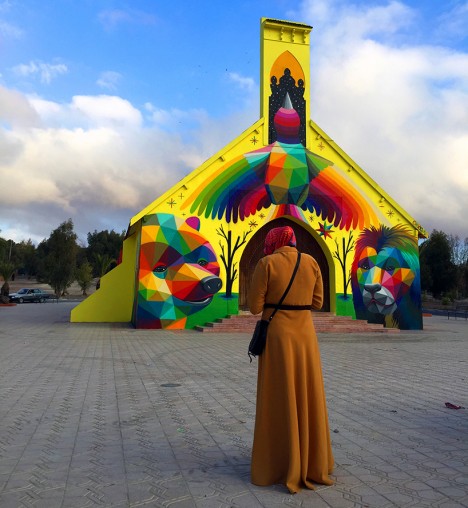
In Praise of Art: Abandoned Church Colorfully Transformed by Okuda

15 Mar

[ By Steph in Art & Street Art & Graffiti. ]

okuda church

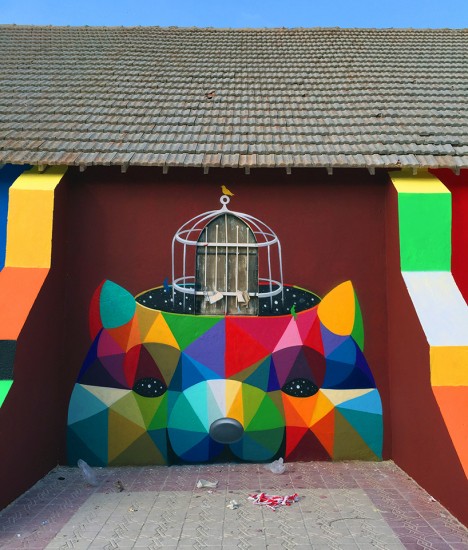
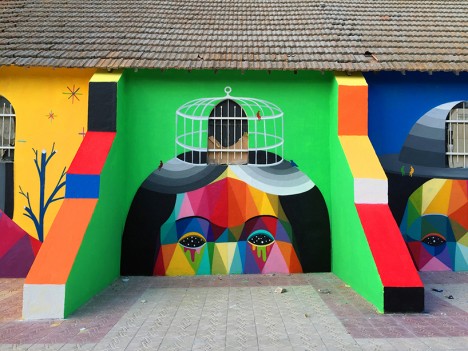
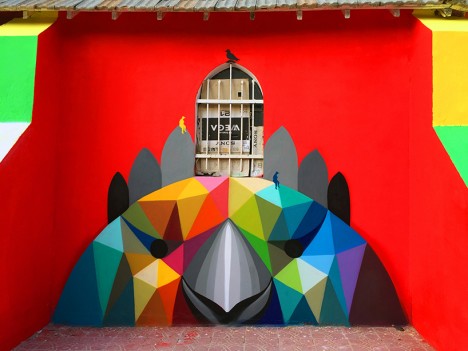
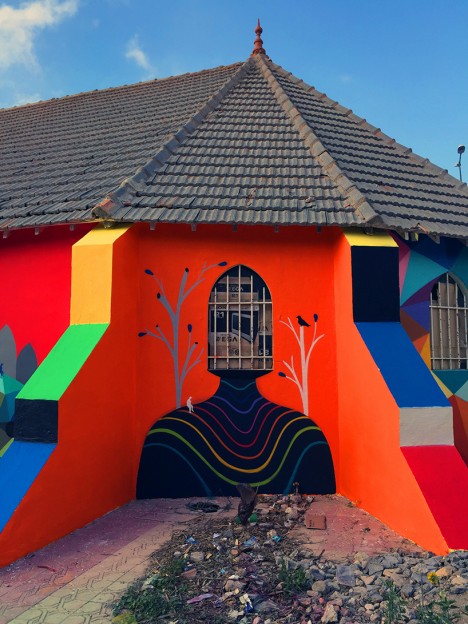
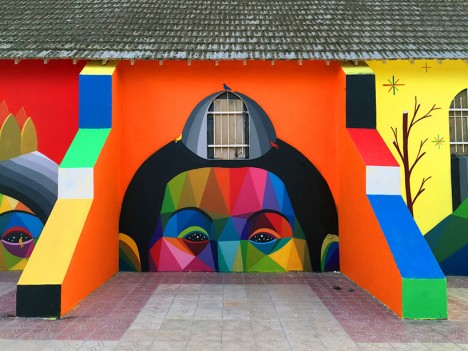
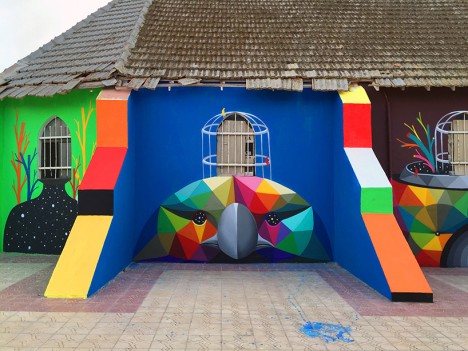
Abandoned and dilapidated not so long ago, a neglected church in Morocco has become a vivid landmark decorated from the ground to the roof with colorful geometric illustrations by the street artist Okuda San Miguel. The project ’11 Mirages to Freedom’ wraps the entire facade of the structure in brilliant rainbow-hued paintings against a sunny yellow backdrop, making symbolic visual use of the architectural elements like the windows.

okuda church 3

okuda church 12

okuda church 8

Rather than just covering the abandoned church with murals, the renowned Spanish artist created an interactive display honoring its past, its structural integrity, the beauty of its lines and shapes. The name of the piece comes from the building’s eleven faces. Bars covering the windows are transformed into bird cages, the windows themselves into hats and crowns.

okuda church 5

okuda church 6

okuda church 7

The murals are in keeping with Okuda’s highly distinctive style, which employs facets of bright colors to render a cornucopia of animals and fantasy creatures. Here, the artist adds traditional Moroccan motifs, paying tribute to the individuality of the building and its setting. The project is part of the British Council’s Street Art Caravane Initiative.

okuda churhc 9

okuda church 10

okuda church 11

okuda church 13

Check out Okuda’s previous works featured on Weburbanist, including a fleet of colorful freighters and a 100-year-old church in Spain transformed into a skate park.

Share on Facebook


[ By Steph in Art & Street Art & Graffiti. ]

[ WebUrbanist | Archives | Galleries | Privacy | TOS ]


WebUrbanist

 
Comments Off on In Praise of Art: Abandoned Church Colorfully Transformed by Okuda

Posted in Creativity


Everyday Carry – Must-Have Tools for Photographers

15 Mar

Besides the camera, there are a lot of accessories, tools and gadgets that photographers choose to carry with them to help them get the job done.

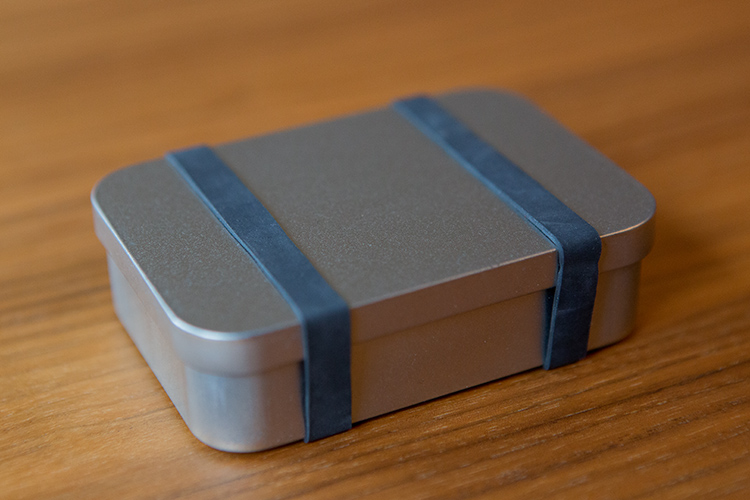
Over the years as a professional photographer, there is a lot of stuff I have added to my camera bag that are really useful in those “what if” situations I get along the way, so I decided to put them all together inside a small tin box, and use it as an everyday carry.

01

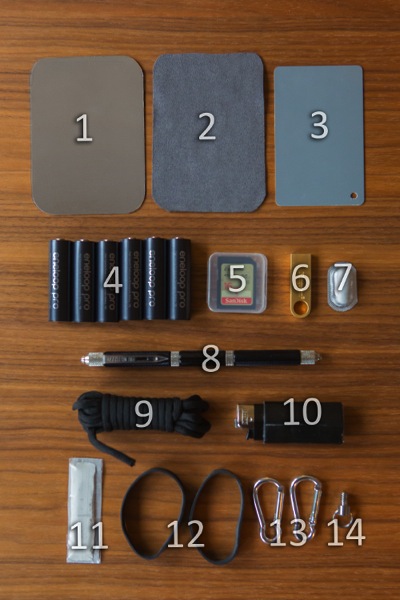
This is not meant to be a survival kit to use in an end of the world scenario, but rather a go-to tools, that helps me out when I face some problems along the way in my photography work. Here is what’s inside:

02

  1. Silver/white card
  2. Soft cloth
  3. gray card
  4. Eneloop pro AA batteries
  5. Sandisk SD card
  6. Kingston DTSE9 silver pen drive
  7. Ibuprofen tablet
  1. 12-in-1 multi-tool pen
  2. Paracord
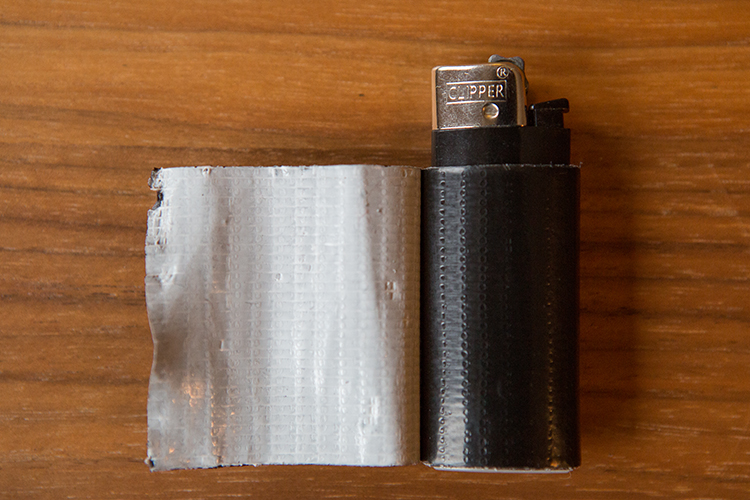
  3. Clipper lighter with gorilla tape
  4. Blu-Tack Reusable Adhesive
  5. Elastic bands
  6. Aluminum small carabiners
  7. 1/4” thread screw with ring

03

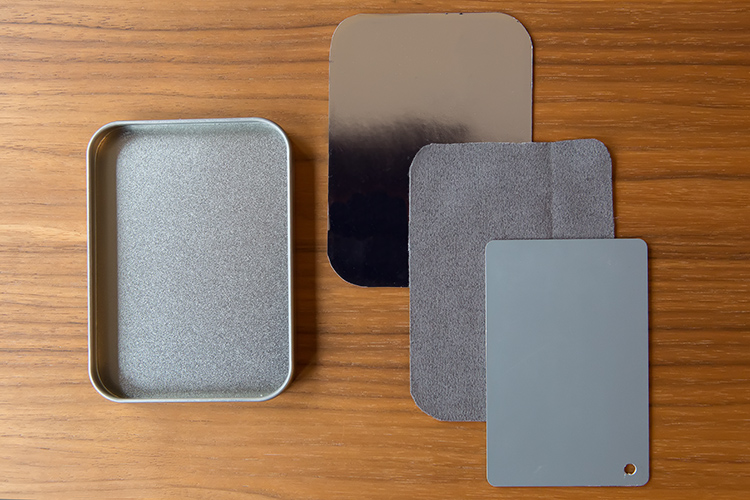
Tucked inside the lid of the box I carry a silver/white card that I use as a reflector for macro photography, or as a bounce card for the flash, a soft cloth that I use to clean the camera lens, and a gray card that I use as reference for color correcting.

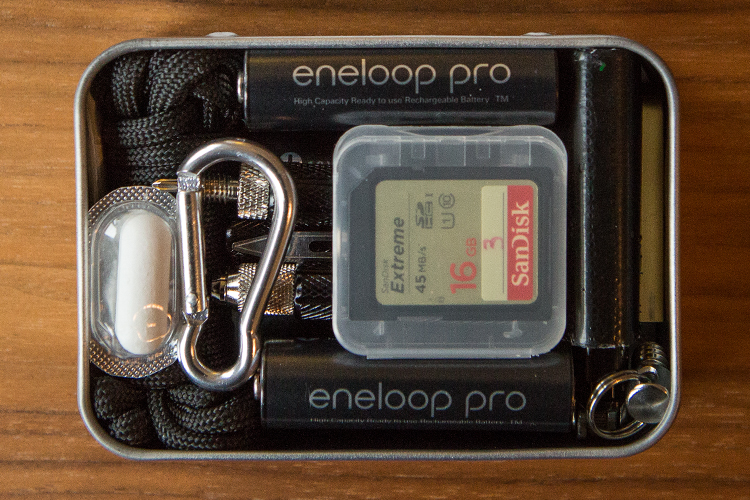
The other things fit inside the box like a puzzle. It’s a snug fit, so there is no rattling, or damage on anything due to bouncing around.

04

  • The Eneloop pro AA batteries are probably the best choice available for photography equipment, because they are high energy, and are advertised as being able to retain 90% of their charge after 6 months, and 70% after 5 years, when stored at 20 degrees Celsius (68F).
  • It might look strange that I carry six batteries, when most pieces of equipment use 4 batteries. But, I use these as a backup for my Canon 600EX-RT flash and the ST-R3-EX transmitter, or I might need them for the battery grip I use on my Canon 5DIII, which holds 6 AAs, instead of the LP-E6 batteries.
  • The Sandisk SD card works along with the batteries as a last resort, because even though I carry backup batteries and cards in my camera bag, it is good to have a backup of the backup inside my tin box, in case something goes wrong.
  • The Kingston pen drive is a handy device to have around, as it doesn’t take up much space in the box, and can help out with backing up, or transferring files.
  • The Ibuprofen pill is something I carry with me all the time, because there is nothing worse thing than having to photograph with a headache, or some kind of pain.
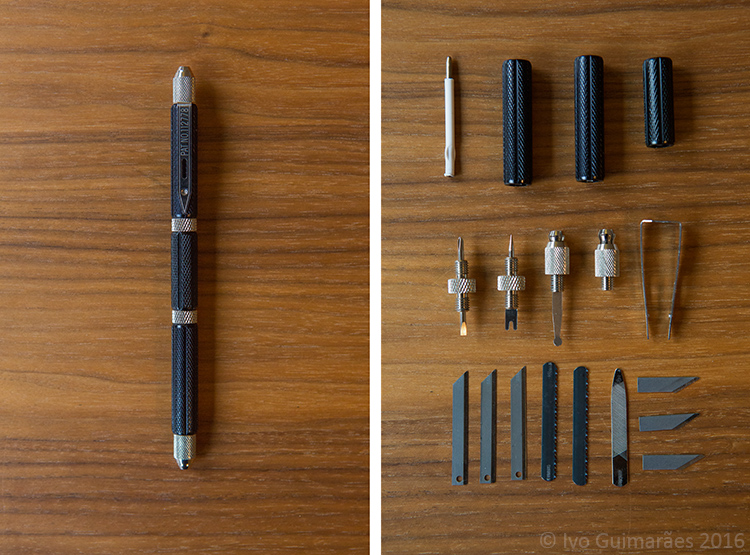
  • The 12-in-1 multi-tool pen was given to me by a friend many years ago, and I carry it everywhere ever since. It looks like a regular pen, but when you open it there are blades, saws, files, tweezers, and screwdrivers that are really useful in many situations.

05

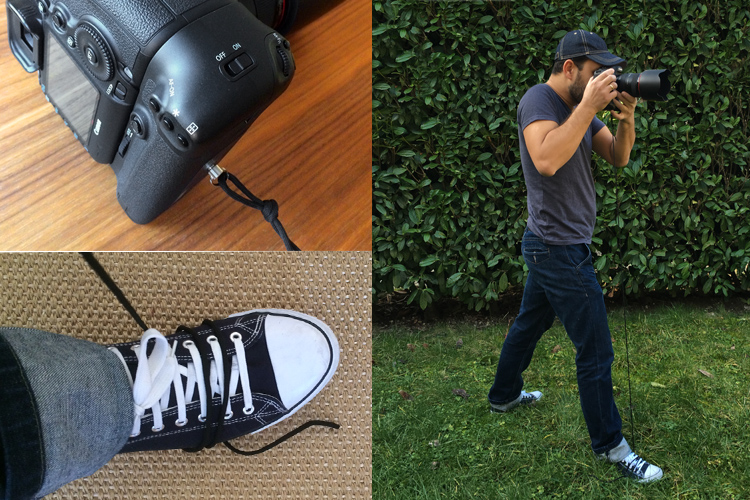
  • The paracord is another very useful thing to have around. I use it often along with the 1/4” thread screw to make a string tripod. It works as a stabilizer when you put tension on the string, wrapped around your foot on one end, and the other end tied to the 1/4” thread screw on the bottom of the camera (see below)

06

  • The clipper lighter is useful for special effects I might want to create with fire, and works great as a wrap-around base, for the gorilla tape I always bring along.

07

  • Gorilla tape has saved me more times than I would like to admit, and besides that, I’m an 80s kid, so I grew up watching MacGyver fixing everything with duct tape.
  • Blu-tack is a reusable, putty-like, pressure-sensitive adhesive, that I use a lot when I photograph food and need to keep things in place.
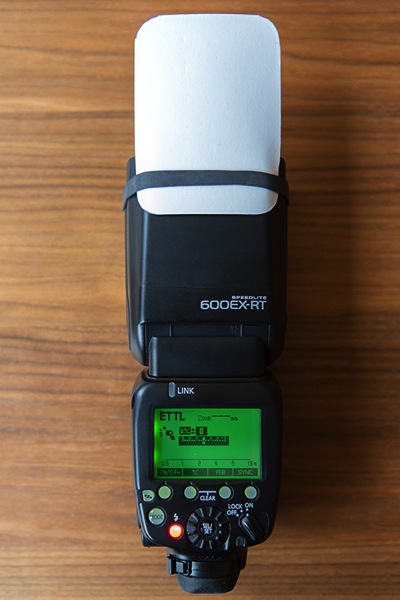
  • The elastic bands are useful to keep the box closed, and I also use them to hold accessories on my flash like bounce cards or color gels.

08

  • Finally, the carabiners, that I use mostly to attach things to my camera bag, or to hold a sand bag on the tripod.
  • I also use my trusty Leatherman Wave Multi-Tool a lot when I have to deal with nuts and bolts, but the fact is that it’s big, heavy, and is not something I can carry all the time.

So, this might seem like just a tin box with useless stuff inside, but the fact is that it helps me a lot to know I have this stuff with me, in case I need it.

What about you, what non-photographic things do you carry with you when you go out to photograph?

googletag.cmd.push(function() {
tablet_slots.push( googletag.defineSlot( “/1005424/_dPSv4_tab-all-article-bottom_(300×250)”, [300, 250], “pb-ad-78623” ).addService( googletag.pubads() ) ); } );

googletag.cmd.push(function() {
mobile_slots.push( googletag.defineSlot( “/1005424/_dPSv4_mob-all-article-bottom_(300×250)”, [300, 250], “pb-ad-78158” ).addService( googletag.pubads() ) ); } );

The post Everyday Carry – Must-Have Tools for Photographers by Ivo Guimaraes appeared first on Digital Photography School.


Digital Photography School

 
Comments Off on Everyday Carry – Must-Have Tools for Photographers

Posted in Photography


Sigma claims new firmware makes 150-600mm F5-6.3 AF up to 50% faster

15 Mar

Lens manufacturer Sigma has announced new firmware for its 150-600mm F5-6.3 DG OS HSM | Sports and Contemporary lenses, saying that it makes the autofocusing system up to 50% faster. The firmware applies to lenses fitted for Canon EOS and Nikon F cameras, and can be installed via the company’s USB dock and the Optimization Pro software program.

The company says that in normal conditions the improved HSM algorithm boosts the AF speed of the lenses by between 20% and 50%. The Optimization Pro software needed to install the firmware can be downloaded from the Sigma website.

Press release:


SIGMA 150-600mm F5-6.3 DG OS HSM | Sports / Contemporary
Firmware update for Canon and Nikon mount

We would like to announce the availability of a new firmware update for the SIGMA 150-600mm F5-6.3 DG OS HSM | Sports in Canon and Nikon mount, and the SIGMA 150-600mm F5-6.3 DG OS HSM | Contemporary in Canon and Nikon mount. This firmware update can be installed using SIGMA Optimization Pro, the dedicated software for the SIGMA USB DOCK.

Benefit of this firmware update
The latest firmware update improves the AF algorithm of 150-600mm F5-6.3 DG OS HSM lenses and further enhances AF speed by optimizing HSM (Hyper Sonic Motor) drive control. Depending on shooting conditions, it is expected to increase autofocus speed by approximately 20%, to a maximum of 50%, during normal shooting as well as when using “Speed Priority” set through SIGMA Optimization Pro.

For customers who own the SIGMA USB DOCK and applicable products listed below, please update the firmware using SIGMA Optimization Pro. Please ensure SIGMA Optimization Pro is updated to Version 1.2 before updating the lens firmware.

For customers who do not own a SIGMA USB DOCK, please contact Sigma Imaging (UK) Ltd for details about updating the firmware free of charge.

SIGMA Optimization Pro Download page
http://www.sigma-global.com/download/en

We appreciate your continued support for our company and products.

Articles: Digital Photography Review (dpreview.com)

 
Comments Off on Sigma claims new firmware makes 150-600mm F5-6.3 AF up to 50% faster

Posted in Uncategorized


Nissin adds radio receiver unit to Air system for branded flash units

15 Mar

Flash manufacturer Nissin has announced it has produced a receiver unit for its NAS wireless flash communication system that allows flash units from Canon, Nikon and Sony to be used within its radio command structure. The new Air R units are designed to convert flashguns that usually rely on line-of-sight optical control when used off camera in a group to come under the company’s 2.4GHz radio network.

Once mounted into the hotshoe of the receiver flash units from Nissin and other brands compatible with Canon, Nikon or Sony systems can be controlled by either an Air transmitter from the hotshoe of the camera, or by a Nissin flash unit that features the Air commander mode – such as the new i60A.

The receiver is equipped with eight channels and can work in one of three groups. The system allows flash exposure compensation of +/-2EV and manual output from full to 1/128th power. The company says the NAS Air system has a range of 30m and supports high speed sync at shutter speeds of up to 1/8000sec. The Nissin Air R units will cost £59.94 or £109.98 with a Nissin Commander Air 1 transmitter.

For more information see the Nissin website or the Kenro website for an English version.

Nissin Air R Specifications:

Compatibility: For Nissin, Canon and Sony flashguns
Wireless system: Radio
Radio specifications: 2.4GHz ISM band
Channel: 8 channels. Auto or manual select
Flash groups: A, B, C (3 groups)
Power source: 2 AAA batteries (not included)
Guide number: Low GN mode / High GN mode (default)
Mode (set at NAS Commander): TTL, manual and manual zoom
EV Compensation on flash: (TTL) -2.0 – +2.0 in ½ EV increments (manual)
Each group can be adjusted independently or synchronised
Manual output: 8 steps of manual output 1/128, 1/64, 1/32, 1/16, 1/8, 1/4, 1/2, 1/1 – full power
Manual zoom: Manual adjustment 24 / 35 / 50 / 70 / 85 / 105 / 135 / 200mm
Continuous shooting speed: 10 shots per second
Number of flashes: Approx 5000
Transmission distance: Maximum 30 metres (dependent upon the environment)
High Speed Synchronisation: 1/8000 sec (controlled by NAS Commander)
External sync socket: Standard PC sync cable
Mode: TTL, N, M zoom, no setting is needed, all settings controlled from the NAS commander
Synchronisation modes: No setting is needed, controlled by NAS commander
Mounting: Built-in stand, cold shoe / 1/4” tripod bush
Dimensions: 60 (L) x 60 (W) x 50 (H) mm
Weight: 55g (excluding batteries)


Press release:

NISSIN LAUNCHES NEW RECEIVER AIR R RANGE 

Kenro Ltd, the specialist photographic and audio-visual equipment supplier, is delighted to announce the launch of a series of revolutionary new products from the Nissin Air System range.
 
Kenro is the exclusive UK distributor for Nissin, a market-leading producer of electronic flash units for photographers. Nissin has a history of developing innovative products with phenomenal quality standards, and the Nissin Receiver Air R is no exception.

The Receiver Air R is a game-changing new addition to the Nissin Air System (NAS) 2.4GHz radio transmission wireless flash system. Compared with the traditional optical wireless transmitters, 2.4GHz radio transmission is less susceptible to the usual issues caused by not having clear line of sight between transmitter and receiver, and provides coverage of up to 30 meters (98 feet). In addition, radio transmission ID technology gives each of the NAS-compatible devices a unique identity to prevent misfiring in the event of signal interference.

The Nissin Commander Air 1 was launched last year and has been very well-received by camera users all over the world – the Receiver Air R adds a new dimension of flexibility to this already popular product. Combined with the Nissin Commander Air 1, it allows a photographer to wirelessly control almost any kind of Nissin camera flash and original manufacturer’s flash in the current market with NAS and TTL & HSS support. Camera users who currently own a Canon, Sony or Nikon original flash will be able to make their existing flashes compatible with the Nissin Air System, utilising full TTL.

High Speed Sync up to 1/8000 seconds, zoom and manual power output can all be controlled wirelessly at a competitive price without giving up quality and reliability. What’s more, one Commander transmitter can control up to 21 separate Air R receivers, which can be programmed into three groups to give the camera user an almost limitless range of lighting options without having to spend precious time readjusting flashguns between shots.

Paul Kench, Managing Director, Kenro, says: “This is a great new addition to the Nissin Air System that will really open up the creative opportunities available to photographers and camera users and allow them to be much more flexible in their approach to lighting, without the need to replace all their existing kit. The Receiver Air R range expands the possibilities without breaking the bank.”

The Nissin Receiver Air R range is available now:
NFG014NR: Nissin Receiver Air R Nikon – SRP £59.94 inc. VAT
NFG014N/AP: Nissin Commander Air 1 + Receiver Air R Nikon – SRP £109.98 inc. VAT
NFG014SR: Nissin Receiver Air R Sony – SRP £59.94 inc. VAT
NFG014S/AP: Nissin Commander Air 1 + Receiver Air R Sony – SRP £109.98 inc. VAT
NFG014CR: Nissin Receiver Air R Canon – SRP £59.94 inc. VAT
NFG014C/AP: Nissin Commander Air 1 + Receiver Air R Canon – SRP £109.98 inc. VAT

Articles: Digital Photography Review (dpreview.com)

 
Comments Off on Nissin adds radio receiver unit to Air system for branded flash units

Posted in Uncategorized


How to Use Leading Lines Effectively in Landscape Photography

15 Mar

Leading lines composition technique is the easiest to understand and apply in landscape photography.

In fact, we compose some photographs using leading lines unknowingly! You may have done that too, it comes to us naturally. Let me show you, using an example.

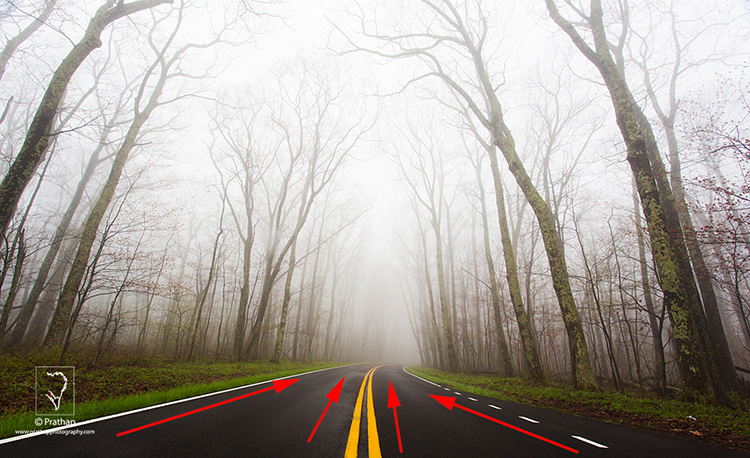
Imagine you are driving through a forest, and you see beautiful line of trees on either side of the road. The autumn leaves are so breathtakingly colorful, that you couldn’t help but pull your car to a side. You want to capture that beautiful moment in your camera. Now…how would you photograph it?

Would you stand parallel to the road and just take trees on one side of the road, or would you consider taking a photograph standing right in the middle of the road, with trees on either side?

01 Leading Lines Composition Techniques Landscape Photography by Prathap Skyline Drive

Invariably, you would likely consider the latter approach. Right? Of course, you don’t want to stand in the middle of a busy road, just be careful when you do it. Don’t hang me for this idea.

When you photograph the road running from the bottom, to the center of the image, you are using the leading lines composition technique, and the road serves as the line.

Leading Lines

Simply put, a leading line is a one that leads you from one point to another in your image. Our eyes naturally follow the line unconsciously.

Check it out now. Your eye will invariably follow the line from left to right (or right to left). Look at the examples below. Your eye connects the dot subconsciously. You make a line, a triangle, and a square! That’s the power of the line.

This very nature of ours is exploited in photography, by composing an image using leading lines. By using this technique, you can force the viewer to follow the line, taking them on a visual journey. The journey becomes more interesting when you have some high drama surrounding the line.

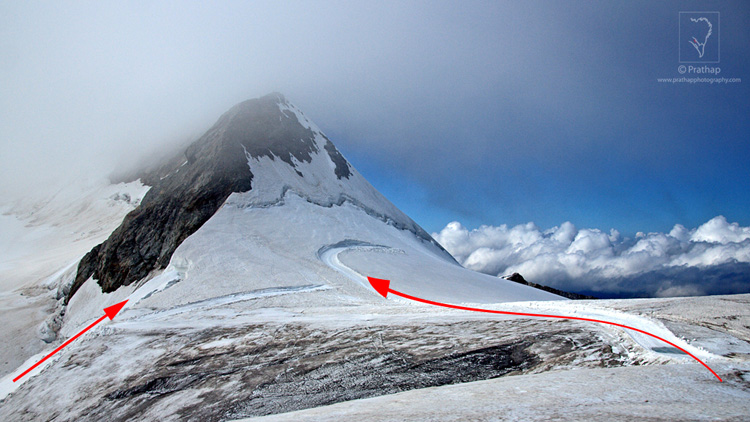
08 Leading Lines Composition Techniques Landscape Photography by Prathap Swiss Alps

It is one of the simplest, and most powerful composition techniques used in the landscape photography. Landscape photographers always look for leading lines in nature, to create a sense of depth in the image, and also to lead the viewer to the main subject of interest.

The idea is to lead the viewer into the scene with the help of literal, or imaginary/implied lines, in the scene. The photograph becomes much more interesting when this line leads the viewer to the main subject of interest, or an anchor point.

Some of the important aspects of using leading lines in composition are:

  • Leads the viewer into the photograph.
  • Leads the viewer from one point to another.
  • Leads the viewer to the main subject of interest.
  • Creates the illusion of depth, that is much needed in landscape photographs.

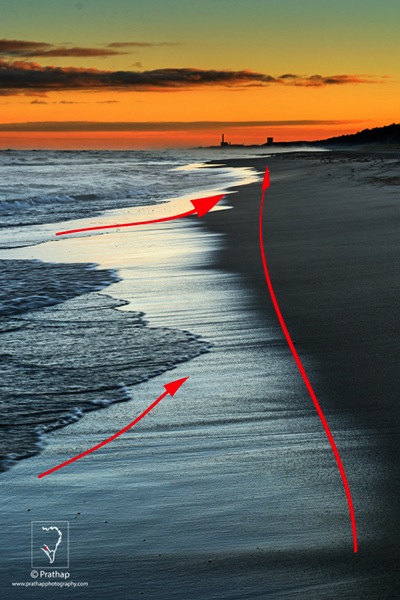
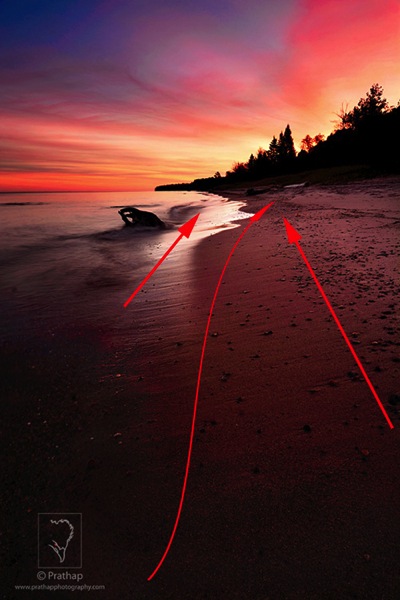
You can make most the compelling landscape photographs, by combining leading line composition technique, with the Rule of Thirds. Below is one such example where I have used leading lines to guide the viewer from the foreground, all the way to the background. Also, I have placed the horizon on the upper third of the frame, following the Rule of Thirds, and creating a dynamic landscape photograph.

02 Leading Lines Composition Techniques Landscape Photography by Prathap Indiana Dunes State Park Beach

The beauty of nature is that there are plenty of elements in nature which can be used as leading lines:

  • Roads
  • Railway tracks
  • Boardwalks
  • Pathways
  • Waterfalls
  • Streams
  • Shorelines
  • Series of trees, poles, etc.
  • Fencing
  • Pebbles or rocks on the shoreline

The list can go on. It’s amazingly simple to use leading lines in your landscape photographs, you just have to look around.

Types of Leading Lines

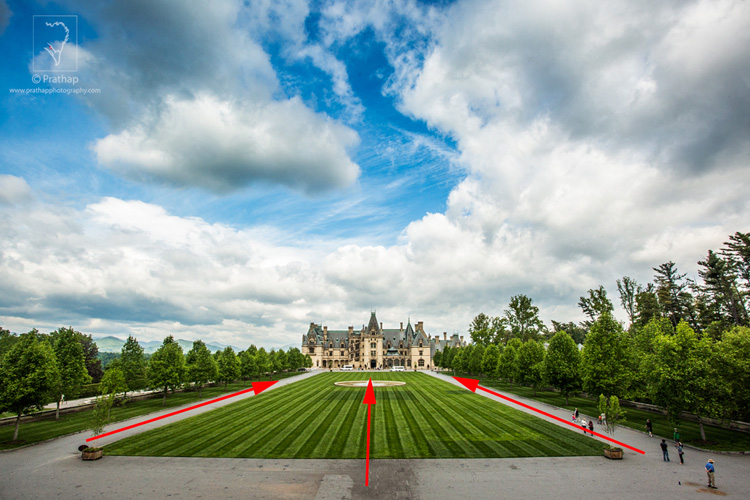
Leading lines can be straight or curved, and straight lines can also be horizontal, vertical, or diagonal.

A horizontal line induces a feeling of calmness, whereas a vertical line represents strength.

03 Leading Lines Composition Techniques Landscape Photography by Prathap Biltmore Estate

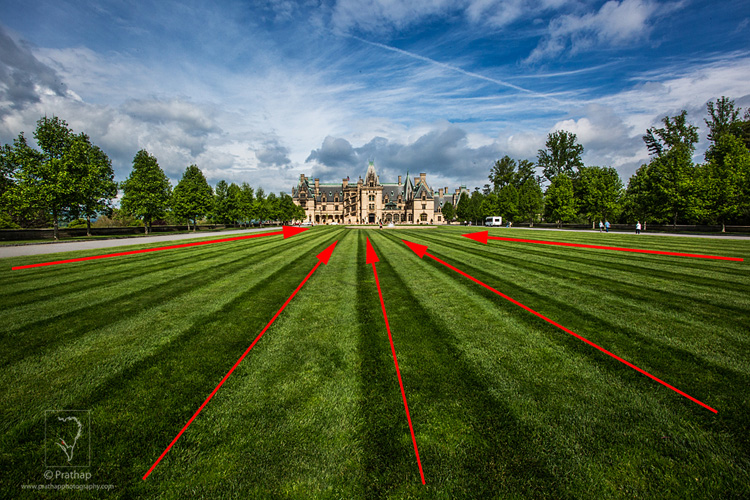
Diagonal lines can be very interesting as they represent energy. If used properly, diagonal lines can make a dull image look more compelling.

04 Leading Lines Composition Techniques Landscape Photography by Prathap Biltmore Estate Closeup

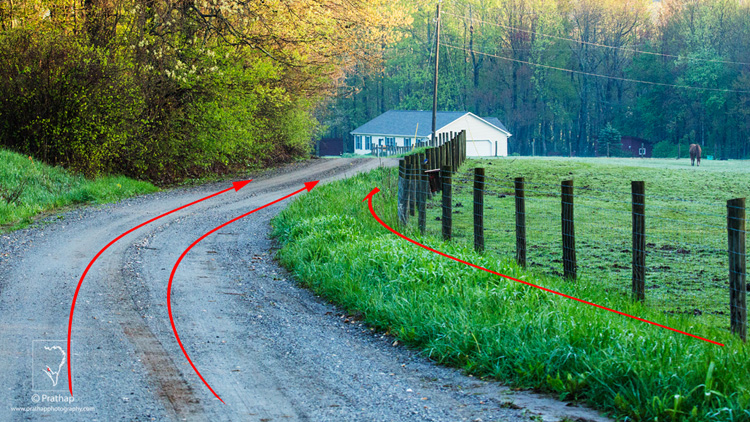
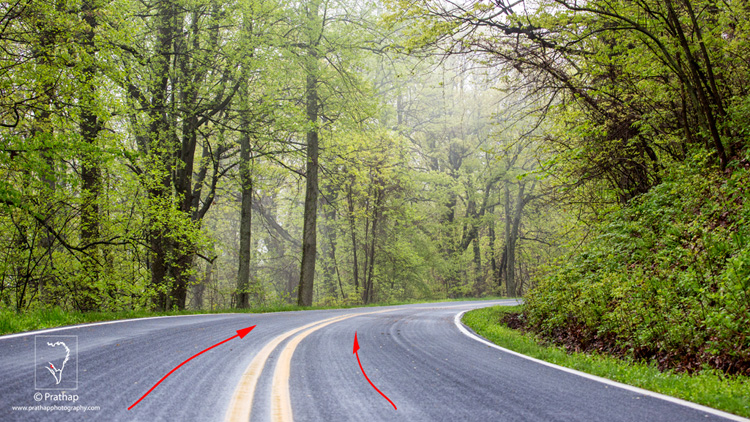
A curved line makes it for an interesting composition, as it spirals around the frame asking for more attention. The viewer will eventually scan more parts of the image.

05 Leading Lines Composition Techniques Landscape Photography by Prathap Blue ridge Parkway Countryside

An s-curve is predominantly preferred by many landscape photographers, for its ability to connect many parts of the image. It gives a soothing feeling in the viewer.

06 Leading Lines Composition Techniques Landscape Photography by Prathap Beautiful Sunrise in Lake Superior

A tighter curve, however, might induce sense of danger.

07 Leading Lines Composition Techniques Landscape Photography by Prathap Blue ridge Parkway

The most important point is to use the leading lines to direct the viewer into the scene. It wouldn’t make much sense, or be effective, if it leads the viewer out of the scene.

Conclusion

Leading line photographic composition is the most powerful natural technique a landscape photographer can use to lead the viewer into the photograph. When combined with the Rule of Thirds, you can make some compelling photographs.

It is by far the easiest method to create a 3-dimensional effect, in a 2-dimensional photograph. Landscape photographers use this very effectively to force the viewer to scan the photograph from foreground to background.

“Lead the viewer in to the scene, not out of the scene.”

Embrace it now, and see how it transforms your landscape photographs into something more realistic and interesting. Think photography! Think Simple!

How do you use leading lines in your photography? Please share in the comments below.

googletag.cmd.push(function() {
tablet_slots.push( googletag.defineSlot( “/1005424/_dPSv4_tab-all-article-bottom_(300×250)”, [300, 250], “pb-ad-78623” ).addService( googletag.pubads() ) ); } );

googletag.cmd.push(function() {
mobile_slots.push( googletag.defineSlot( “/1005424/_dPSv4_mob-all-article-bottom_(300×250)”, [300, 250], “pb-ad-78158” ).addService( googletag.pubads() ) ); } );

The post How to Use Leading Lines Effectively in Landscape Photography by Prathap DK appeared first on Digital Photography School.


Digital Photography School

 
Comments Off on How to Use Leading Lines Effectively in Landscape Photography

Posted in Photography


Retro through-and-through: Fujifilm X-Pro2 Review

15 Mar

The X-Pro2 is a high-end, rangefinder-esque mirrorless camera that directly succeeds the first X-mount camera: the X-Pro1. The Pro2 is based around a 24MP APS-C sensor and a host of feature improvements in a body that very closely resembles that of its predecessor.

Fujifilm X-Pro2 features

  • 24MP X-Trans CMOS III sensor (APS-C)
  • 273 Autofocus points (169 of which PDAF)
  • 2.36M-dot OLED/Optical hybrid viewfinder with pop-up picture-in-picture tab
  • ISO 200-12800, expandable to 100-51200 with Raw shooting at all settings
  • 1/8000 sec maximum shutter speed and 1/250 sec flash sync
  • Acros black and white film simulation
  • Grain Effect option for JPEGs
  • 1080/60p movies

The X-Pro2’s higher resolution sensor also gains wider-spread on-sensor phase-detect AF coverage, which is another significant improvement. In addition it has a small, thumb-operated joystick that allows you to more easily select an AF point and, in turn, the camera lets you select from a any of the camera’s AF points.

Other changes include allowing Auto ISO to extend up to 12800 and the ability to shoot Raw files at all the camera’s ISO settings (extended settings have always been JPEG-only on previous X-series cameras), as well as the ability to apply lossless compression to Raw files. The X-Pro2’s shutter has been improved, too, and can now shoot as fast as 1/8000 sec, with flash sync extended to 1/250 sec of a second.

But much of what else made the original X-Pro1 stand out remains. The genuinely rangefinder-styled body, rather than just being a rectangle with a band of faux leather around it, mimics most of the control points and design accents of a 1960s camera. It still has the all-metal construction but more attention has been made to provide environmental sealing, as you’d expect in a camera at this price.


And, although the body looks broadly the same, it’s been significantly reworked to offer improved ergonomics as well as additional features. The hybrid viewfinder has been improved through the inclusion of an X100T-style pop-up tab in the corner, onto which an LCD image can be projected.

Here’s a spec comparison between the X-Pro2 and its predecessor, as well as the X-T1:

 
Fujifilm X-Pro2
Fujifilm X-T1
Fujifilm X-Pro1
Pixel count 24MP 16MP 16MP
AF points 273 points (169 of which PDAF) hybrid system.
All directly selectable.
77 point (15 of which PDAF) hybrid system
49 directly selectable (9 of which PDAF)
49 point CDAF system
All directly selectable.
Viewfinder 2.36M-dot OLED/Optical Hybrid 2.36M-dot OLED 1.44M-dot LCD/Optical Hybrid
ISO Range 200-12800
(100-51200 Extended)
200-6400
(100-51200 JPEG-only)
200-6400
(100-25600 JPEG-only)
Auto ISO settings 3 1 1
Maximum frame rate
With AFC/With Live View
8 fps / 3 fps 8 fps / 3 fps 6 fps / 3 fps
Maximum shutter speed 1/8000 (Mechanical)
1/32000 (Electronic)
1/4000 (Mechanical)
1/32000 (Electronic)
1/4000 (Mechanical)
X-Sync Speed 1/250 sec 1/180 sec 1/180 sec
Movie shooting 1080/60p 1080/60p 1080/24p
Wi-FI Yes Yes No
Customizable Q Menu Yes Yes No
Custom ‘My Menu’ Yes No No
Direct controls Shutter Speed
Exposure Comp
AF Drive Mode
ISO
Shutter Speed
Exposure Comp
AF Drive Mode
ISO
Drive Mode
Metering Mode
Shutter Speed
Exposure Comp
AF Drive Mode
Direct AF point control Yes – Joystick Optional – At expense of custom buttons No
Custom buttons 6 6 (2 if direct AF select chosen) 2
Exposure Comp Dial ±3EV (±5EV using front dial) ±3EV ±2EV
Rear screen 3″ Fixed (3:2)
1.62M-dot (900 x 600)
3″ Tilting (3:2)
1.04M-dot (720 x 480)
3″ Fixed (4:3)
1.23M-dot (640 x 480)
Command dials 2 (Push-button type) 2 1 (Push-button type)
Card slots 2 (1 of which UHS-II) 1 (UHS-II) 1 (UHS-I)
Film Simulations* 9 8 7
AF Tracking Yes Yes No
Eye-detection AF Yes Yes No
AF in MF mode AF-C or AF-S AF-C or AF-S AF-S
Panorama mode No Yes Yes
Compressed Raw? Optional (Lossless) No No
Battery life 350 OVF
250 EVF
350 EVF ~300 OVF
Battery percentage? Yes No No
Maintain zoom when changing image in playback Yes Yes No
Lens Modulation Opt Yes Yes No
Grain simulation Yes No No
Split prism focus guide Color/Mono Mono No
Brightline display Yes N/A No

*Not including color filter simulation variations

As you can see, compared to the X-Pro1, the Pro2 is significantly improved. Almost every aspect of the camera has been refreshed and these updates quickly add up to a much nicer-to-use, more capable camera.

However, in the four years that have passed since the launch of the X-Pro1, a lot has changed, with mirrorless cameras maturing dramatically and expectations for features such as continuous autofocus and movie shooting leaping forwards. However, neither of these two factors is likely to be a prime concern for would-be buyers, instead, the main thing likely to make life difficult for the X-Pro2 could be the existence of its own sister model: the X-T1.

The X-T1 was described at launch as a flagship model and offers a fully fleshed-out feature set for enthusiasts, semi-pros and perhaps even some professionals. It has sealed magnesium alloy construction, a huge electronic viewfinder, weather sealing and abundant external controls. So is there really still room for a new X-Pro alongside the DSLR-style model?

Scanning through the table above, there are certainly some areas in which the X-Pro2 is more advanced than the X-T1, but details such as shutter speed and pixel count are just generational improvements that would make just as much sense in a X-T2. So one of the main things we’ll be looking to address in this review is: how does the hybrid viewfinder change the shooting experience and is it enough to allow the X-Pro and X-T lines to continue in parallel?

 Review History
15 Jan 2016 First Impression Review based on Pre-Production camera running Firmware 1.00
25 Jan 2016 Raw Dynamic Range, Studio Test Scene & Full-production Samples Gallery added.
8 Feb 2016 Movie page added.
14 Mar 2016 Autofocus and Conclusion published

If you're new to digital photography you may wish to read the Digital Photography Glossary before diving into this article (it may help you understand some of the terms used).

Conclusion / Recommendation / Ratings are based on the opinion of the reviewer, you should read the ENTIRE review before coming to your own conclusions.

We recommend to make the most of this review you should be able to see the difference (at least) between X, Y, and Z and ideally A, B, and C.

This article is Copyright 1998 – 2016 and may NOT in part or in whole be reproduced in any electronic or printed medium without prior permission from the author.

Articles: Digital Photography Review (dpreview.com)

 
Comments Off on Retro through-and-through: Fujifilm X-Pro2 Review

Posted in Uncategorized