RSS
 

Archive for February, 2016

How to Use the X-Rite ColorChecker Passport to Obtain Perfect Color

11 Feb

There are two ways you can approach color reproduction in photography. The first is to try and reproduce the colors of the subject as accurately as you can. If you take a photo of someone wearing a red sweater, then you want the photo of that sweater to have exactly the same shade of red as the real thing. The other way is to produce colors that are pleasing to the eye, rather than accurate.

The key point to understand here is that your camera isn’t designed to produce accurate colors, it is biased towards the second approach. The reason behind this is probably quite simple. Camera manufacturers want you to be happy with the photos that your camera produces, and that means tweaking colors so that they look more attractive.
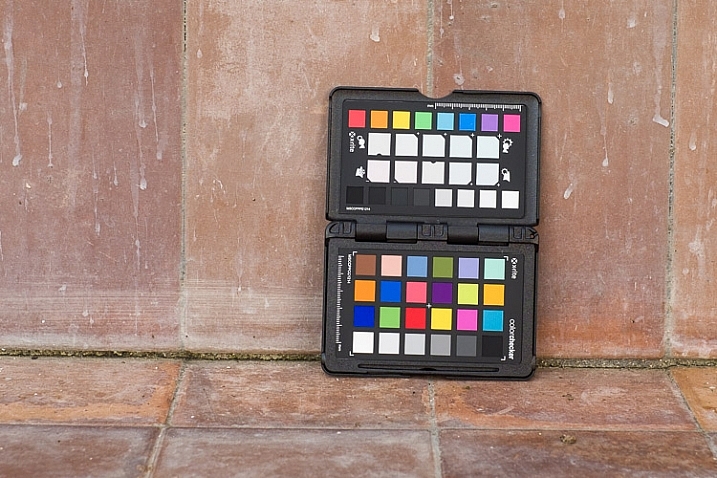
ColorChecker Passport & Lightroom

The way your camera records color is determined by the color and white balance settings selected when you take the photo. This is especially true for JPEG files – if you use the Raw format you have the freedom to change those color settings when you process the file.

Each manufacturer has a different name for the setting used to control color. Canon calls it Picture Styles, Nikon – Picture Control, Sony – Creative Style, Pentax – Custom Image, Olympus – Picture Mode and Fujifilm – Film Simulation.

Let’s look at Canon’s Picture Styles as an example (I’m familiar with these as a long time Canon user). Their neutral and faithful Picture Styles are designed to give reasonably accurate colors, but the others aren’t. Portrait is designed to give good skin tones, landscape for strong greens and blues, and standard to make good reds. You will not achieve accurate color with the portrait, landscape or standard Picture Styles, but you may well end up with pleasing colors.

But what if you simply want accurate color? There are a number of reasons why you might want to do this.

  • When photographing something that needs to be recorded accurately, such as product shots for a commercial client.
  • When photographing flowers, where it is very difficult to tell if the colors are accurate.
  • To make sure that photos taken with two different cameras match as closely as possible.
  • To simply start with a photo that has accurate colors as the first step in post-processing, so you can decide in which direction to go, from a neutral starting point.

The X-Rite ColorChecker Passport

The truth is that if you want accurate color, then for the reasons mentioned above, you can’t rely on your camera’s settings – you need some outside assistance. That’s where the X-Rite ColorChecker Passport comes in. This relatively inexpensive device is simple to use, and just as importantly from the point of view of a Lightroom user, integrates neatly with Lightroom.

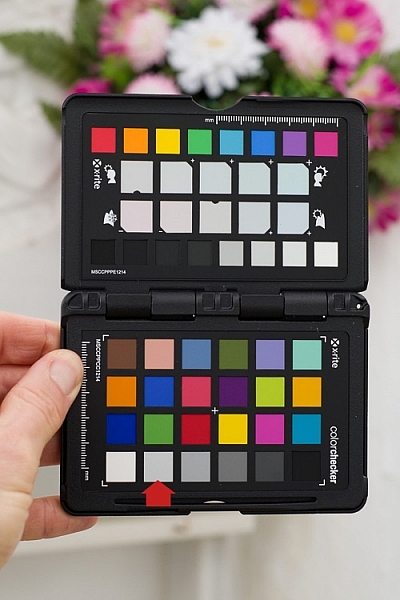
The X-Rite ColorChecker Passport itself is made of grey plastic, and opens up to display the color patches shown here.
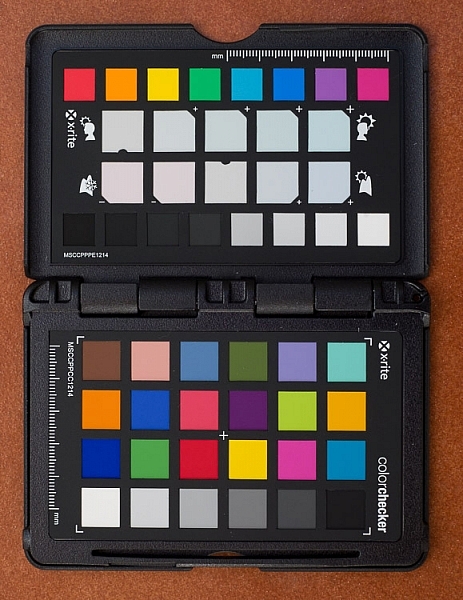
ColorChecker Passport & Lightroom

The ColorChecker Passport is easy to use. Simply take a photo of the Passport in daylight (using the Raw format), convert it to DNG (use the Export option in Lightroom to do so) and drag the DNG file to the ColorChecker Passport software.
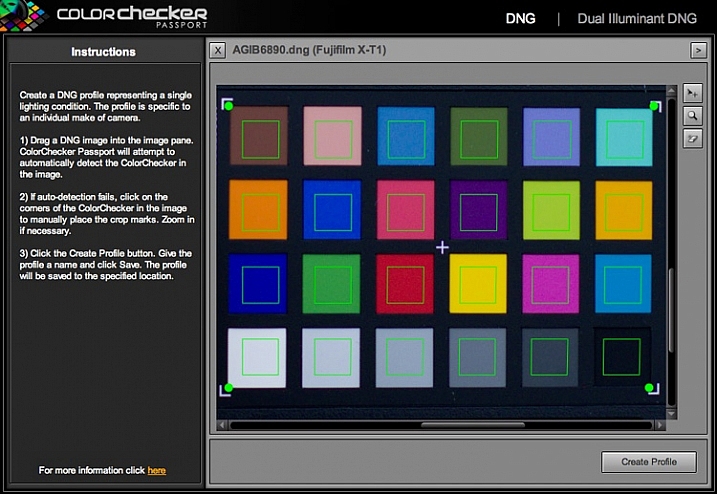
ColorChecker Passport & Lightroom

The software creates a profile, calibrated for your camera, and stores it along with the other profiles found in Lightroom’s Camera Calibration panel. You’ll need to restart Lightroom to see it, but once you have done so, you can apply that profile to any photo taken in daylight with that camera. The profile is also available in Photoshop’s ACR if you need it.

Note: The software also installs a Lightroom plug-in that you can use to create the profile by selecting the photo containing the ColorChecker Passport, going to File > Export and selecting the ColorChecker Passport preset.
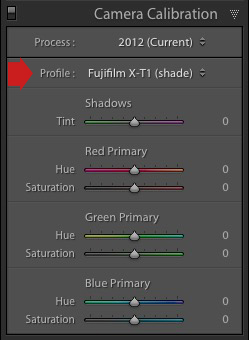
ColorChecker Passport & Lightroom

The next two photos show the difference that using the calibrated profile can make. Both were created from the same Raw file. The first uses the Velvia camera profile specific to Fujifilm cameras. The second uses the Camera profile that I created using the ColorChecker Passport. This photo has the most accurate color, although it may not be as pleasing to the eye as the first, which uses a profile designed to make the photo look good.


ColorChecker Passport & Lightroom

ColorChecker Passport & Lightroom

Dual Illuminant Profile

You can also create a different type of profile called a Dual Illuminant Profile. To do so, you need two photos of the ColorChecker Passport taken with the same camera at the same ISO setting, but under different light sources. One should be daylight, and the best light source for the second one is probably tungsten. A Dual Illuminant Profile is more accurate as it takes into account the way sensors record light differently, under different light sources.

Using the ColorChecker Passport for White Balance

The final part of the color accuracy equation is white balance. You really shouldn’t rely on your camera’s auto white balance setting, as it can be misled by scenes that have more than average amounts of colors like red or blue in them.

The ColorChecker Passport is small enough to carry around with you just about everywhere. That means you can use it on location, to record colors accurately, and set white balance. The Passport also has another panel that you can use to take a white balance reading, and create a custom white balance setting on location.
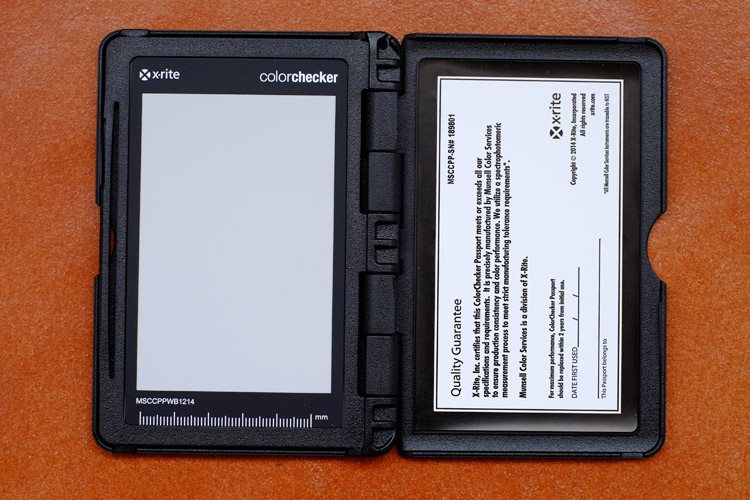
ColorChecker Passport & Lightroom

Alternatively, you can take a photo of the Passport’s color swatches in the same light as the subject, and use it to create a new profile. Then, in Lightroom’s Develop module, you can use the White Balance Selector to click on the 18% grey swatch second from left on the bottom row (indicated below). This method ensures both accurate color (from the profile) and accurate white balance (from the 18% grey swatch).
ColorChecker Passport & Lightroom

Have you use a Coler Checker before? Please share your experiences and comments below.


The Mastering Lightroom CollectionMastering Lightroom ebook bundle

My Mastering Lightroom ebooks are a complete guide to using Lightroom’s Library and Develop modules. Written for Lightroom 4, 5, 6 and CC  they  show you how to import and organise your images, use Collections, creatively edit your photos and how to work in black and white. Grab this book on sale now at 40% off over at Snapndeals, for a limited time only.

googletag.cmd.push(function() {
tablet_slots.push( googletag.defineSlot( “/1005424/_dPSv4_tab-all-article-bottom_(300×250)”, [300, 250], “pb-ad-78623” ).addService( googletag.pubads() ) ); } );

googletag.cmd.push(function() {
mobile_slots.push( googletag.defineSlot( “/1005424/_dPSv4_mob-all-article-bottom_(300×250)”, [300, 250], “pb-ad-78158” ).addService( googletag.pubads() ) ); } );

The post How to Use the X-Rite ColorChecker Passport to Obtain Perfect Color by Andrew S. Gibson appeared first on Digital Photography School.


Digital Photography School

 
Comments Off on How to Use the X-Rite ColorChecker Passport to Obtain Perfect Color

Posted in Photography


The Modern Cyclist: 14 Bold Bike Ideas & Innovations

11 Feb

[ By Steph in Design & Products & Packaging. ]

bike postale

Minimalist frames, technology-equipped accessories, 3D printing and lots of multi-functionality make bikes more convenient, safe, fun and beautiful, as proven by these 14 cycling concepts and innovations. With modular parts, commuter-friendly features and designs that make racing more fun for casual cyclists, bikes get a functional makeover for the modern age.

Archont Electro E-Bike
bikes archont

bikes archont 2

bikes archont 3

Isn’t this bike a beauty? The Archont by Ono features the profile of a vintage motorcycle, but it’s an electric bicycle with a handcrafted stainless steel frame and 29-inch front wheel. The curvaceous cruiser has a 72-volt battery with a range of 99 kilometers and can go up to 80 km/h.

fUCI Bike: Fast Road Bike for Non-Racers
bike fuci

bikef uci 2

bike fuci 3

bike fuci 4

Most racing bikes are designed to the standards of the UCI (Union Cycliste Internationle), the governing body of every major bike tour in the world, to keep the races fair. But not everyone who wants a fast bike wants to compete in official races, and there are lots of fun features their bikes could have without these regulations. Designer Robert Egger presents fUCI (eff UCI), which has a larger back wheel, electric motor in the hub, a storage space in the wheel and a smartphone mount.

Recoiling Plume Mudguard
bike plume mudguard

bike plume mudguard 2

bike plume mudguard 3

This mudguard has literally got your back when it starts raining, keeping you from getting splattered. With a rubber mount stretching to fit any standard seat post size, the simple add-on absorbs shock so it won’t automatically fold up when you hit a bump. Resistant to rust and corrosion, it suspends over the real wheel or retracts within seconds.

Sno-Bike
bike snow

bike snow 2

Combining two entirely separate sports, the Sno Bike concept by Venn Industrial Design Consultancy features a Z-shaped tensile frame linking a rear wheel to a single ski controlled by the handlebars. How would it actually handle in real-life conditions? It’s impossible to say, since it’s just a concept, but it looks like fun.

Shibusa Bicycle with Swappable Electric-Assisted Parts
bikes shibusa

bikes shibusa 2

This sleek black modular bike can be boosted with electric components or made back into a regular bicycle just by swapping a few parts. The award-winning Shibusa design eliminates the bulkiness associated with many electric bikes for a “hassle-free commuter” offering plenty of flexibility. Modular components include a stand-alone bike light, battery pack, storage rack and charge monitor.

Next Page – Click Below to Read More:
The Modern Cyclist 14 Bold Bike Ideas Innovations

Share on Facebook


[ By Steph in Design & Products & Packaging. ]

[ WebUrbanist | Archives | Galleries | Privacy | TOS ]


WebUrbanist

 
Comments Off on The Modern Cyclist: 14 Bold Bike Ideas & Innovations

Posted in Creativity


‘We want to make lenses that can be used forever’: Sony engineer discusses G Master lenses

10 Feb

‘We want to make lenses that can be used forever,’ says a senior engineer behind Sony’s new G master lenses. At the launch of the ‘G Master’ range of high end lenses, we spoke to Motoyuki Ohtake, Distinguished Engineer in Sony’s Lens Design Department about the process and the philosophy behind the latest lenses.

The development process series involved re-thinking several parts of the design and manufacturing process, he says.

Motoyuji Ohtake, Distinguished Engineer, Opto Design Department, Core Technology Division, Digital Imaging Business Group at Sony.

To understand how the lenses came about, he explained the usual process of lens development. ‘Sometimes we propose a new lens but often it comes from the product planning department [the marketing department that assesses potential requirements and demands]. We then make a series of rough designs, some are big, with high optical performance, others are more compact but maybe not so optically strong. We discuss which design to proceed with, based on what we think is the optimal balance or cost, performance and size to make the perfect product.’

After deciding which of the initial designs to pursue, there’s a great deal of collaboration between teams, he explains: ‘we work with the mechanical team, the lens motor team, the lens control team, the lens element team and maybe the equipment team who will have to prepare the manufacturing process.’ Each of these team feeds its expertise into the design. ‘Maybe the optical team proposes a new lens design and the motor team tells us which motor is best. Or warn us if the focus will be too slow. They feed back about the mechanical aspects,’ he says.

The G Master series required many of these teams to re-think their parts of the process, from design to manufacture.

Re-thinking basic assumptions

‘For the G Master lenses we decided we would assess the spatial frequency at 50 lines per mm,’ says Ohtake: ‘Usually lens makers, including ourselves, evaluate lenses at 10 and 30 lpmm (or 10, 20 and 40 for Carl Zeiss-branded optics).’

‘At the start of the process we all agreed we should change the spacial frequency [to a more challenging target],’ he says: ’but which is best to get good performance? We could design for 100 lpmm but the lens would become very bulky and long – which might not be a very practical lens. A balance of the size and the optical performance was very important.’

The target of 50 lpmm wasn’t dictated by the company’s 40MP camera or 4K video, he says. ’All our FE lenses were designed for at least 40MP. Because we have an image sensor team within Sony, we get to see the sensor roadmap, so we’ve been designing for this all along with FE. With the G Master we’d like to make lenses that can be used forever.’

A focus on bokeh

But it’s not just the more stringent frequency assessment that was developed for the G Master lenses, Ohtake explains: ‘We had to discuss what good bokeh means. We have some designers from Minolta who understand that the spirit of the ‘G’ lenses was good bokeh in the background but we had no way to evaluate that.

‘We looked at what is considered good bokeh and how it affects not just the background rendering but also the transition from perfectly sharp to out-of-focus regions. We developed a way to evaluate bokeh and were able to make a simulation. This meant we didn’t have to build a lens to see how it performed, we could now computer model it before taking a design too far.’

This is a significant change, Sony says, as it means bokeh can be one of the primary design considerations, rather than being something that can only be adjusted later in the process, once the main aspects of the design have been settled upon.

Another piece of the puzzle – shape and smoothness

This analysis of the factors that affect bokeh showed that both the precision of the lens molding and the smoothness of the lens surface could have an effect.

‘Traditionally it was very hard to achieve both: current technology gives a roughness on the scale of 20-30nm on the aspheric surface. Improving this usually involved polishing, which can then lead to the lens element being slightly unevenly shaped.’

‘We developed a new way of making the lens element and a new molding process, including a new machine. Now we can get roughness down to around 10nm and get a more accurate shape to the aspherical surface.’

AF technologies

Ohtake wouldn’t budge when we asked which his favorite lens was, but immediately reached for the 85mm F1.4 when we took this group shot.

The first three G Master lenses use three different AF motor technologies between them – emphasizing Ohtake’s point that different technologies work better in different contexts.

The 24-70mm F2.8 uses a Direct Drive SSM system (piezoelectric element). This is very fast, very quiet and very precise. We used a linear motor for the 24-70mm F4 but this lens has a heavier focus element, so direct drive was a better choice.

The focus element in the 85mm F1.4 was even heavier, however. ‘For the 85mm we use a ring type focus motor. This is very good for heavy lens elements and our lens software team developed a good algorithm so that it works well with contrast-detection autofocus’ (a traditional weakness for ring-type designs).

Finally, the 70-200mm uses a combination of a linear actuator and a ring-type focus motor. ‘The focus group had become too heavy so we separated the two focusing lenses. One is very heavy, so we used a ring type motor for that one, then used a linear motor for the other. The ring type is used to quickly achieve approximate focus and the linear motor is used for the high precision aspect.’

Still correct to optically correct

Discussing the idea that bokeh and sharpness have previously been in conflict, we asked Ohtake about other trade-offs. We’ve been told that the ability to correct lateral chromatic aberration in software makes lens design easier, since you don’t have to correct it optically, which can quickly complicate the lens design and detract from other parameters.

Not for G Master lenses, he explains. ‘Light doesn’t separate nicely into red, green and blue’ (the color channels that most cameras capture, and which can be adjusted, relative to one another, to correct lateral CA). It’s a continuum with each wavelength being displaced slightly differently. ‘To get the really high contrast we wanted in G Master, we had to suppress it in the lens.’

The future of APS-C

We also asked Ohtake about Sony’s APS-C lenses for E-mount. His team likes designing APS-C lenses, he says: ‘The focus elements are light, so it’s easier to design. We have all these focus motor technologies in-house and we’d like to try them in APS-C lenses if that’s what the Product Planning team says is required.’

Articles: Digital Photography Review (dpreview.com)

 
Comments Off on ‘We want to make lenses that can be used forever’: Sony engineer discusses G Master lenses

Posted in Uncategorized


Finally! Adobe updates Bridge CC for improved performance

10 Feb

Adobe has released a significant update to Bridge CC, its venerable file management program. Where Photoshop and Lightroom have seen multiple incremental updates over the past few years, Bridge has been left somewhat alone. That all changes today with multiple improvements including improved cache management, and an option to import images from external devices including iOS and Android mobile devices.

Sluggish performance, especially when displaying large numbers of thumbnails has been a perennial complaint among photographers who use Bridge. And although it has taken a while, Adobe seems to have listened to those complaints. Thumbnail previews are now generated on-demand rather than all at once, and metadata is loaded first so that filters can be used before all thumbnails have been generated. In another effort to boost performance, Adobe has introduced improvements to its cache management to automatically purge stale items when Bridge is idle.

This Bridge update also re-instates a feature that automatically identifies and stacks images shot in a sequence either for an HDR or panoramic composite. 

Bridge CC version 6.2 is available for download now.

Press release:

Bridge Reloaded

Today we are pleased to announce the release of Adobe Bridge CC version 6.2.

Bridge was brought back to be managed by Megan Donahue, Director, Creative Cloud and Arno Gourdol, Sr. Engineering Director, Creative Cloud and their awesome teams.  Arno is no stranger to Bridge since he has worked on several past releases.  Our team has been working on several new initiatives that enhance user experience around asset management used by Creative Cloud customers. Most recent initiatives launched by this team include collaboration features in Creative Cloud as well as Creative Cloud Assets, and Creative Cloud Libraries.

This latest release of Adobe Bridge CC includes updates to the following feature set:

Automated cache management

The central cache of Adobe Bridge stores thumbnails, previews, and metadata information in a database. This database improves the performance when users browse or search files. However, the larger the cache, the more disk space it uses. Cache preferences help you manage the trade-off between performance and cache size. We have worked on improving purging cache capability, which is an existing feature in Bridge. In this update, automatic purging of stale cache items has been enabled when the application is idle.

We are also providing a cache compaction option to set up cache clean-up at exit in case the database size increases beyond a certain size. Both these options improve performance of the application and help keep the cache and database clean over extended periods.

For more information see, Work with the Adobe Bridge cache.

On-demand thumbnail generation

To improve the responsiveness of Bridge when you are browsing through a large set of assets, we have made improvements to the way the thumbnails, previews, and metadata are extracted/generated. Now when you select a folder, the thumbnails/previews are extracted on priority for only the on-screen assets. The thumbnails for the remaining files are either generated on demand (when you scroll down/up) or when the application is idle. The metadata extraction happens on priority for all assets, thereby enabling the filter panel and search to become functional sooner.

This change enables you to work with bulky folders without any performance issues like hangs and not-responding states. With this change, you will now have a fully updated Filter panel even before all the thumbnails/previews are generated. This will also enable you to search for the files even before all the thumbnails/previews are generated.

Import from device option on Mac

On Mac OS 10.11.x, Bridge CC did not recognize the following types of devices:

iOS mobile devices

Android mobile devices and digital cameras connected in PTP (Picture Transfer Protocol) or MTP (Media Transfer Protocol) mode

In this update, an alternative to import media from these devices has been provided. You can now choose File > Import From Device to import media from the devices.

For more information, see Import from device on Mac OS 10.11.x.

Note: This is a Mac only feature and launches Apple Image Capture to bring files from devices into Bridge.

Other significant updates

We also reinstated Autostack Panorama/HDR feature. Given our focus was on stability and performance of Bridge, we have made significant updates to the core technology components. This will set the foundation for a technology platform to enable future development and modernization of Bridge.

Our team is very excited to bring this release as a stepping-stone for the work we have set out for 2016!

Articles: Digital Photography Review (dpreview.com)

 
Comments Off on Finally! Adobe updates Bridge CC for improved performance

Posted in Uncategorized


Instagram now supports multi-account use

10 Feb

If you’re juggling multiple Instagram accounts for personal and professional use, the latest version of the app is about to make life a little easier. Version 7.15 for iOS and Android adds support for up to 5 accounts. Read more

Articles: Digital Photography Review (dpreview.com)

 
Comments Off on Instagram now supports multi-account use

Posted in Uncategorized


Eric Kim launches ‘Henri’ Neck Strap (Mark II) and Wrist Strap

10 Feb

$ (document).ready(function() { SampleGalleryV2({“containerId”:”embeddedSampleGallery_9766143136″,”galleryId”:”9766143136″,”isEmbeddedWidget”:true,”standalone”:false,”selectedImageIndex”:0,”startInCommentsView”:false,”isMobile”:false}) });

If you’re one to be tempted by fancy camera straps, you may be interested that street photographer Eric Kim has announced two new ‘Henri’ straps: the ‘Henri’ Neck Strap (Mark II) and the ‘Henri’ Wrist Strap. The newest neck strap is made from a darker leather than the previous version, the same color as ‘a good cup of coffee,’ according to Kim. The wrist strap is also made of leather and offers a similar design.

The straps are handmade by a leather-maker in Saigon, and are then polished and packaged in Berkeley. Both items are available with limited stock. Buyers in the U.S. can purchase the neck strap for $ 79.95 and the wrist strap for $ 39.95 through Amazon. International buyers can purchase the straps through PayPal via Kim’s website for the same rates plus $ 15 USD for shipping.

Articles: Digital Photography Review (dpreview.com)

 
Comments Off on Eric Kim launches ‘Henri’ Neck Strap (Mark II) and Wrist Strap

Posted in Uncategorized


Sekonic expands LiteMaster Pro meter series for wireless control of Elinchrom and Phottix flashes

10 Feb

Japanese light and color meter manufacturer Sekonic has introduced a pair of new ambient and flash light meters to the L-478 series that are dedicated to use with Elinchrom and Phottix flash units. The Sekonic LiteMaster Pro L-478DR-U-EL is designed to be used with Skyport-equipped Elinchrom heads, while the LiteMaster Pro L-478DR-U-PX is aimed at users of Phottix Indra studio heads, Mitros+ hotshoe flash guns, the Strato and Strato II receivers and the Atlas II transceiver.

From the new meters Elinchrom users will be able to adjust flash output in 1/10th stops across four lighting groups, and the meter is capable of triggering and measuring individual groups as well as all the flashes as a whole. Photographers using the Phottix system will be able to make adjustments in 1/3rd stop steps, and can trigger individual or collections of groups at one time. Although the meters are primarily intended for wireless radio triggering they also support standard flash cables. 

The LiteMaster Pro L-478 meters use a color touch-screen interface, and are designed to be used for still and motion picture work. These new models include an ISO 850 setting to suit users of the Canon cinema cameras, and have had their filter compensation factor increased from 5EV to 12EV for people using high-value neutral density filters. These features will be added to the current L-478D-U and L-478DR-U (PocketWizard) models via a firmware update in the near future. 

An interesting feature of the series is the ability to store the dynamic range profile of ten camera/lens combinations so that you can ensure that your lighting set-ups don’t create burnt-out highlights or blocked shadows. 

The new LiteMaster Pro L-478 meters will cost $ 400/£400. For more information visit the Sekonic website.

Articles: Digital Photography Review (dpreview.com)

 
Comments Off on Sekonic expands LiteMaster Pro meter series for wireless control of Elinchrom and Phottix flashes

Posted in Uncategorized


SLR Magic announces anamorphic lenses for filmmakers

10 Feb

SLR Magic, a company known for making affordable optics and accessories for filmmakers, has announced a new set of anamorphic cinema lenses that can be adapted to a variety of lens mounts. The PL mount ANAMORPHOT-CINE line of lenses includes the 35mm T2.4, the 50mm T2.8 and the 70mm T4, all of which can be adapted for Canon EF, Nikon F, Micro Four Thirds and Sony E-mount.

Anamorphic lenses are frequently used by filmmakers to capture wide-screen aspect ratios commonly associated with a more cinematic look. This is accomplished by squeezing the image horizontally onto the sensor or film to capture a wider horizontal angle of view. The image is later ‘de-squeezed’ either in post processing or by a special lens attached to a projector. 

Digital filmmakers sometimes mimic the anamorphic effect by cropping off the top and the bottom of the frame in post processing to create a wider aspect ratio, however this effectively results in throwing away much of the data captured by the sensor. Additionally, anamorphic lenses are directly responsible for some of the looks often associated with cinematic productions, such as horizontal lens flare and elongated bokeh. The ANAMORPHOT-CINE lenses have a 1.33x squeeze factor, making it possible to create a 2.35:1 image from a 16:9 sensor.

The ANAMORPHOT-CINE lenses also provide an alternative to anamorphic adapters that are often used to create an anamorphic image using a standard lens.

The new lenses will be available for demo at the BVE Expo in London from February 23-25. Pricing is yet to be announced.

Press release:

NEW: The SLR Magic Anamorphot-CINE 1.33x PL lens set

Hong Kong, China (Feb 9th, 2016) – SLR Magic is proud to announce the SLR Magic ANAMORPHOT-CINE 1.33x PL lens set for filmmakers which could be adapted to EF/F/mFT/E-mount via adapter.

As a commitment to the film industry, SLR Magic developed the SLR Magic ANAMORPHOT-CINE lenses to deliver the classic contrast, distortion, chromatic, color aberration, and flare characteristics of vintage anamorphic lenses, but with the convenience of a matched lens set without the hassle of aligning and matching lenses to the already popular SLR Magic Rangefinder with Anamorphot adapter combination.

To achieve the much loved scope aspect ratio, which gives a very pleasant, epic effect, filmmakers must crop off the top and bottom of standard 16:9 footage when using spherical lenses with modern digital cameras. As a result, 25% or more sensor/negative information is discarded.

This 1.33x anamorphic lens help filmmakers to maximize their image quality by preventing this loss of vertical resolution. The unique 1.33x squeeze factor uses the entire 16:9 sensor/negative area to achieve the desired 2.35:1 aspect ratio. The SLR Magic ANAMORPHOT-CINE 1.33x does this by compressing a 33% wider field of view to fit the width of the 16:9 sensor/negative without compressing image height. 

The SLR Magic ANAMORPHOT-CINE 1.33x create a unique “artifact” such as horizontal lens flare, commonly referred to as anamorphic streaks, and may create slightly elongated bokeh. Over the history of cinema, these same stylish effects have contributed to the cinematic “look” of epic motion picture photography. Characteristics that shape this anamorphic “look” come from “front-mounted” anamorphic designs such as the SLR Magic Anamorphot while “rear-mounted” anamorphic designs have more suppressed anamorphic characteristics.

Lenses would be on demo at the BVE Expo in London, UK from February 23-25 in the Atomos booth K30

Technical Data:

  • SLR Magic ANAMORPHOT-CINE 35mm T2.4
  • SLR Magic ANAMORPHOT-CINE 50mm T2.8
  • SLR Magic ANAMORPHOT-CINE 70mm T4
  • Lens Type: Anamorphic lens
  • Squeeze factor: 1.33x
  • Objective front filter thread: ?82
  • Mount: Titanium PL compatible with optional SLR Magic EF/F/mFT/E-mount
  • Titanium adapter.
  • Lens Coating: Multi Coated
  • Close Focus: 3’6
  • Weight (oz./g): 38.8/1,100
  • Length (cm): 13.5
  • Diameter (cm): 10
  • Image Circle: S35 for 35mm T2.4, FF for 50mm T2.8 and 70mm T4

Articles: Digital Photography Review (dpreview.com)

 
Comments Off on SLR Magic announces anamorphic lenses for filmmakers

Posted in Uncategorized


Grid Corrections: Rural Detours Reflect Curvature of the Earth

10 Feb

[ By WebUrbanist in Culture & History & Travel. ]

jefferson grid corrections

Driving along a straight highway in the American countryside, you may find yourself forced to turn right or left, then turn again just to keep moving ahead, all to compensate for a rectilinear planning system imposed on a spherical planet.

grid correction

Picture running two fingers along a globe from the equator to the North Pole, starting an inch apart but following parallel lines. Eventually, they will converge and ultimately they will touch. At smaller scales, the effect is all but invisible, but when tens of miles are involved, and as seen from the sky, it becomes quite pronounced.

brid broken road system

Dutch artist and photographer Gerco de Ruijter dug into the history of this phenomena after noticing these periodic “grid corrections” strange during an artist residency at the Ulrich Museum in Wichita, Kansas, that appeared to happen for no immediately apparent reason. They take various shapes and forms, including zigzags, angles and curves, and some are less obvious than others (except from above).

gridded geometry

The cause dates back centuries, to the egalitarian Jefferson Grid, designed to ensure equal and fair land distribution by carving up rectangular townships the undeveloped country west of the original 13 states. Each was six square miles, and framed by borders and roads running in straight lines, parceled for sale and development in part to pay off debts following the Revolutionary War.

grid correction adjustment highway

Those implementing Thomas Jefferson’s plan stumbled upon a flaw in its perfectly geometrical approach, analogous to the classic dilemma of fitting a square peg in a round hole.

gride correction rural america

“It did not take long for legislators to understand that a township could not be exactly six miles on each side if the north-south lines were to follow the lines of longitude, which converged, or narrowed, to the north,” explains landscape architect James Corner in Taking Measures Across the American Landscape. “The grid was, therefore, corrected every four townships to maintain equal allocations of land.”

grid curves

“This added up to a detour every 24 miles, from sea to shining sea,” writes Geoff Manaugh. “These particular doglegs are most clearly seen far from urban centers, in the agricultural countryside, where the regular, quilted appearance of rural land use makes them more visible.” There are perhaps larger lessons to be found in this geometric anomaly, about the best-laid plans and how they intersect with an imperfectly-aligned reality.

Share on Facebook


[ By WebUrbanist in Culture & History & Travel. ]

[ WebUrbanist | Archives | Galleries | Privacy | TOS ]


WebUrbanist

 
Comments Off on Grid Corrections: Rural Detours Reflect Curvature of the Earth

Posted in Creativity


Photo Editing Workflow for Travel Photography

09 Feb

Get Viktor’s Lightroom Rapid Editing System for Travel Photography Course 50% off now at SnapnDeals for a limited time only – February 9th-23rd, 2016.

A few years ago, just as I returned with 5,000 brand new photos from a driving trip to California, Utah and Nevada, I realized that I needed a completely new editing workflow. Two months later, I was not even close to being done with editing.

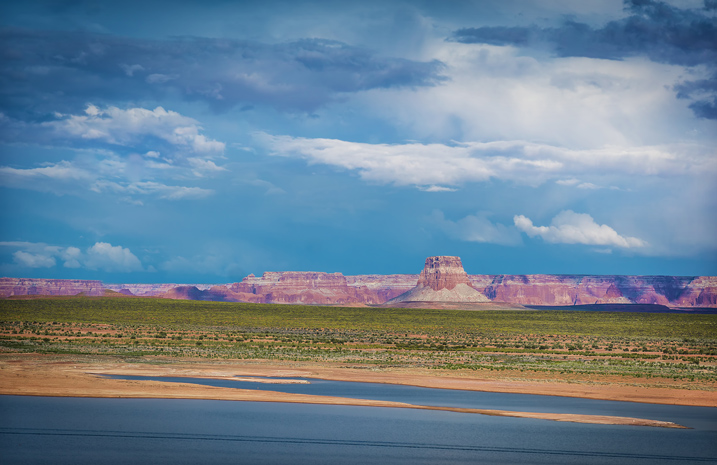
Photo Editing Workflow for Travel Photography Image 01

I spent the following year or so testing different approaches and systems, with the main goal to streamline, simplify, and speed up the entire process – from the moment the picture is taken, until it is published and safely backed up to the cloud.

After implementing my new workflow, using it for over a year and tweaking it along the way, I can now process and edit thousands of photos in a matter of hours. I would love to share my new workflow with you.

On the Road

The biggest change in my editing workflow happened when I practically stopped editing photos while traveling. Instead, I concentrated only on shooting, rather than wasting time on anything else.

Photo Editing Workflow for Travel Photography Image 02

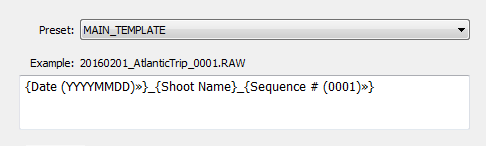
By the end of each day on the road, I import all new photos to a temporary Lightroom catalog, and during the import, I select the option to generate Smart Previews. This allows me to have access to all my photos through Lightroom Mobile on my tablet. I also rename all the images using my renaming template.

Photo Editing Workflow for Travel Photography Image 03

After renaming, my photos then have the following naming structure:

  • 20160201_AtlanticTrip_0001.RAW
  • 20160201_AtlanticTrip_0002.RAW
  • 20160201_AtlanticTrip_0003.RAW

During initial import, I also apply top level tagging based on the location, or type of photos. For example, I might apply very generic tags like “Canada” and “New Brunswick.”

But, even before I import the photos to Lightroom and generate the Smart Previews, I always have another option to access my images. Since switching to mirrorless, I can now connect to my camera using my tablet or smartphone at any time, grab a few images for a quick edit in Snapseed, and post them to social media. As I mentioned before, my editing workflow is minimal on the road.

At Home

The real processing work starts as soon I am home. Sometimes, however, it can start even sooner. If it is a long flight home, I might cull some photos on the plane using Lightroom Mobile, with the main purpose simply to refresh my memories of the trip and make notes.

Import

At home, I connect my master travel external hard drive to my desktop computer, and use the Lightroom option “Import from Another Catalog.” I then bring all the new photos to my main catalog and generate full-size previews for all of them. Because it typically takes a while to import thousands of RAW files and generate full-size previews, I often start the process before going to bed, so that when I wake up in the morning everything is ready.

Culling

Culling is the process of selecting the best photos for editing, and rejecting the bad ones. For a long time, I struggled with this step, as it was always time consuming, and quite often I would get distracted with an interesting image and start editing before finishing my selection.

Lightroom has multiple organizational features for culling that can, to be honest, be overwhelming at times. Features include: Flagging, Starring, Color Tagging, Collections, Smart Collections, Quick Collection. In the past, I tried to use all of them to design an elaborate system that was impossible to sustain for very long. Each time I failed with one system, I would come up with an even more complex scheme. Eventually, I recognized that it was time to simplify the process.

The inspiration for my new culling strategy was from the book, The ONE Thing, by Gary Keller. It states that in order to be 100% efficient you should concentrate on only one thing at a time. In other words, multitasking is evil. Inspired by the book, my process soon changed. My first goal, after importing new photos to Lightroom, is now to remove all the bad shots, the ones that can never be used (out of focus photos, for example). I quickly go through all my photos and use the keyboard shortcut “X” to flag all rejected shots. The process goes very fast even if I have thousands of photos because I concentrate on only one task.

After I finish marking the photos, I immediately delete the rejected files so they do not go to my backup system.
The next step is my favorite. I go through the photos again, and with the help of the keyboard shortcut “P” (P is for PICKED), I flag all the photos that have the potential to be processed and published (keepers). Once again, I only concentrate on a single task as I am not trying to grade picked photos or set star value. This approach allows me to identify the keepers at an incredible and efficient speed.

The next step is to make the keepers pretty.

Rapid Editing

The development of a new Lightroom editing approach was triggered by the realization that 80-90% of the edits I perform in Lightroom are identical for every edited image, and only 10-20% contributes to the uniqueness of any given photograph. The rationale was to automate the 80-90% of the editing process to save time on repetitive tasks.

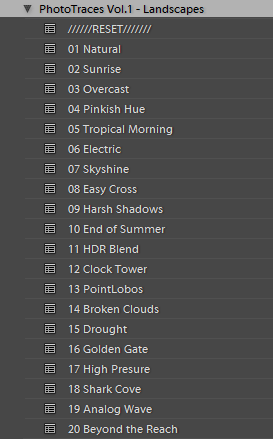
In order to automate the editing, I created a two-level preset based system, one that I call Lightroom Rapid Editing. Lightroom Rapid Editing allows me to overcome the limitation of the presets, such as when any given preset produces a very different result depending on the level of exposure, lighting conditions, shadows and the dynamic range of the scene. With this two-level approach, I am able to compensate for various lighting conditions without touching the main Lightroom editing tool.

Level 1 – Style Presets. The presets that define the “LOOK” and style of the photograph. For example: cool or warm, cross processed or natural, contrasted or soft.

Photo Editing Workflow for Travel Photography Image 04

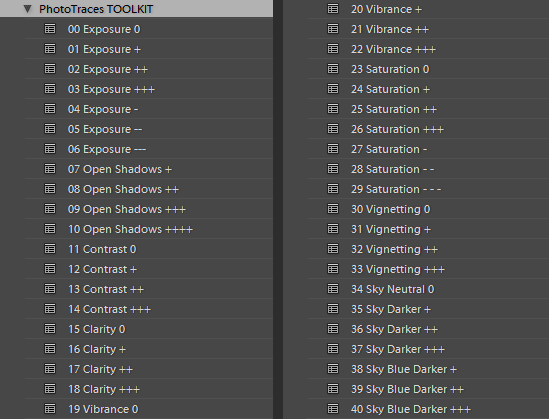
Level 2 – Adjustment Presets. The presets that allow fine-tuning of a photo without altering the style, and without the use of Lightroom editing tools. I named them the TOOLKIT.

Photo Editing Workflow for Travel Photography Image 05

Here is a real life scenario

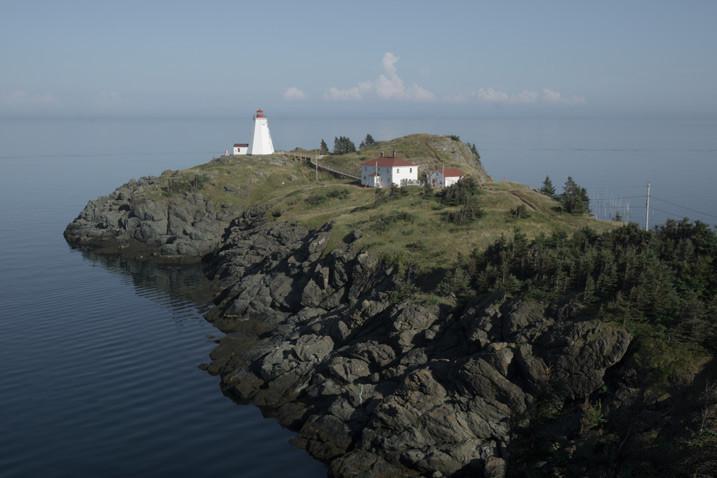
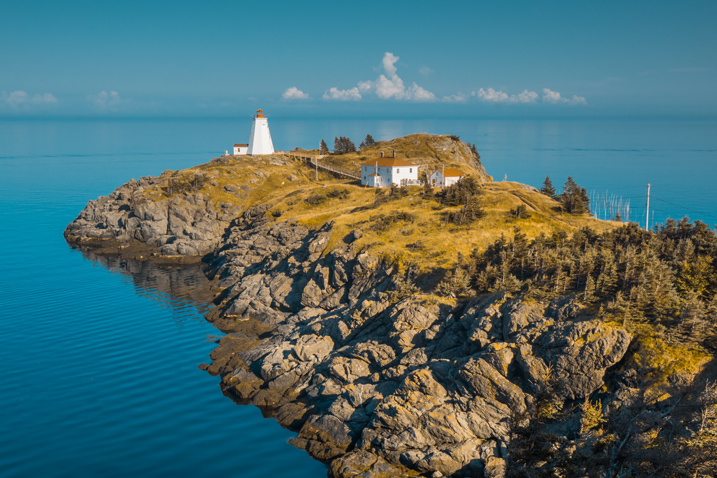
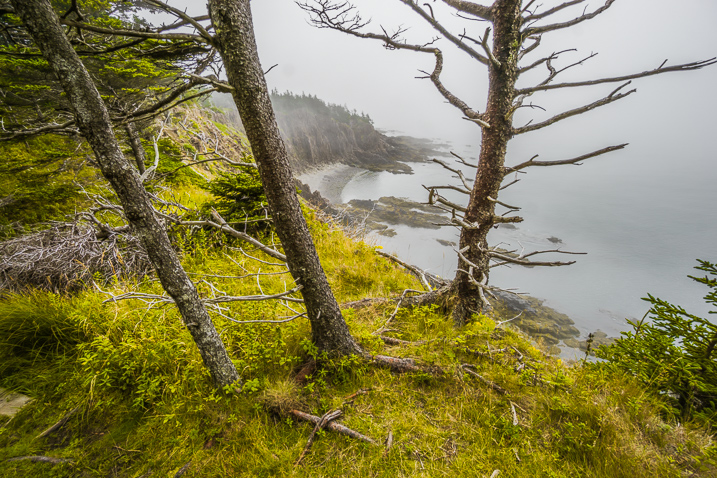
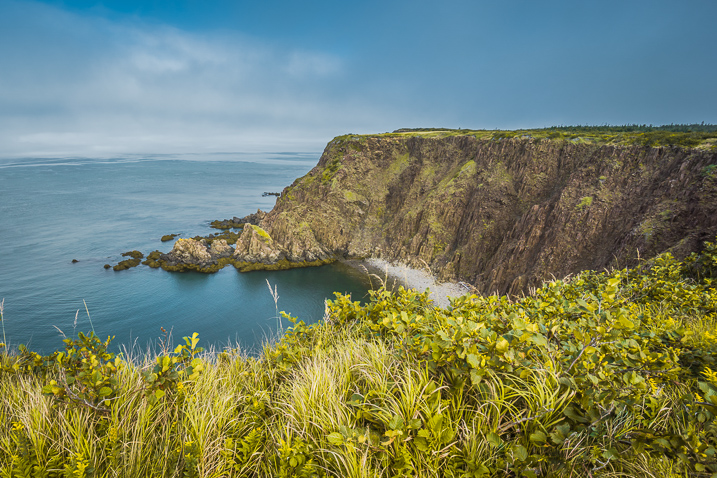
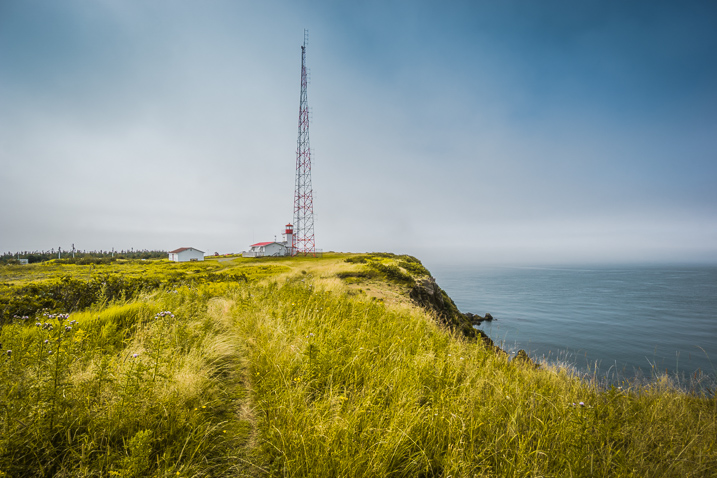
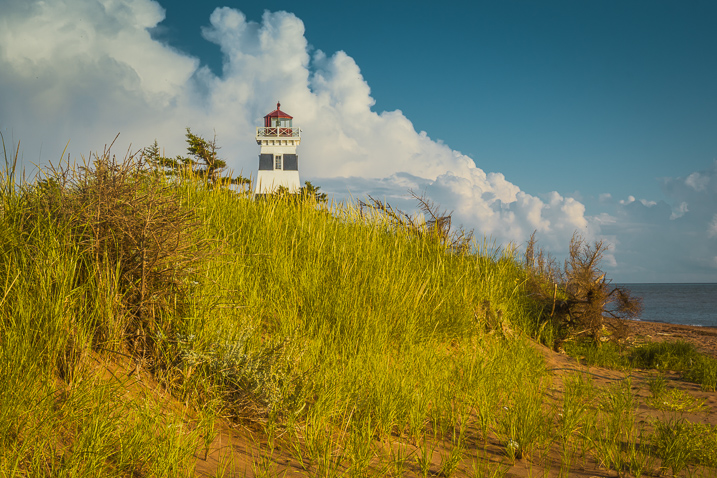
When I returned from a driving trip to Atlantic Canada, I brought back over a thousand new photos. After selecting around 10 keepers, I wanted to edit them using a similar style, and then publish them as the Atlantic Series on my travel photography blog. I started with my favorite photo from the selection.

Photo Editing Workflow for Travel Photography Image 06

I began with Level 1 of Rapid Editing by applying the NATURAL style preset to the selected image (above).

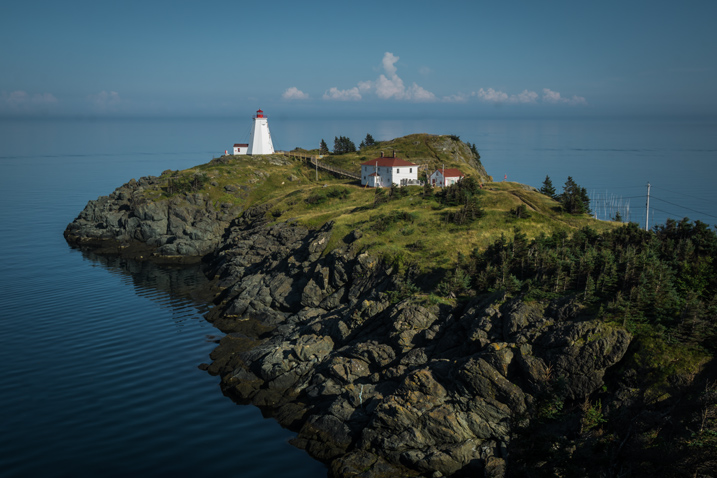
Photo Editing Workflow for Travel Photography Image 07
Natural style preset applied.

Even though I liked the style, the image did not look good at all, because it was too dark, with deep shadows in the background. This is when the second level of editing came into play.

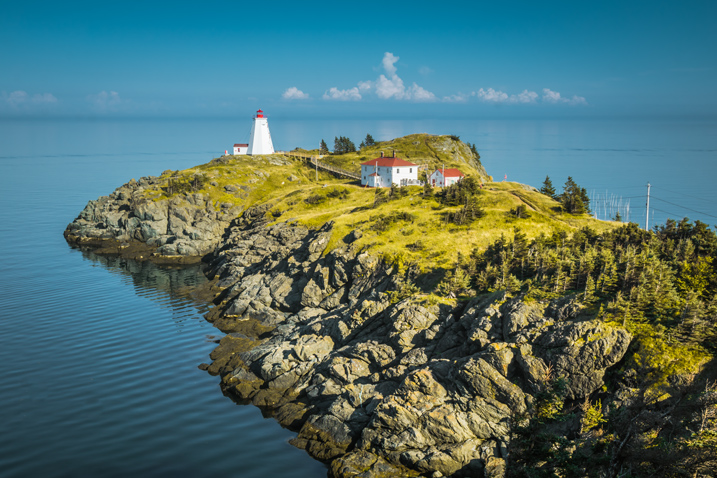
From the TOOLKIT adjustment presets collection, I applied the following presets:

  • 01.Exposure +
  • 09.Open Shadow +++
  • 16.Clarity +
  • 20. Vibrance ++

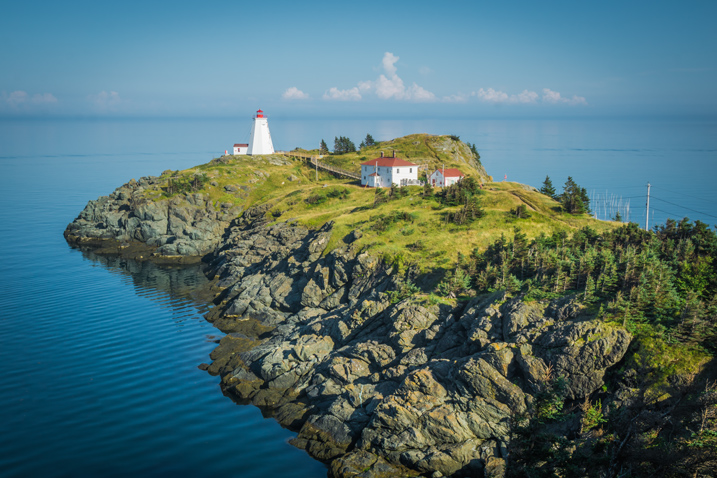
Below is the final result. It took me five clicks to go from the original unprocessed RAW image to the final edit.

Photo Editing Workflow for Travel Photography Image 08

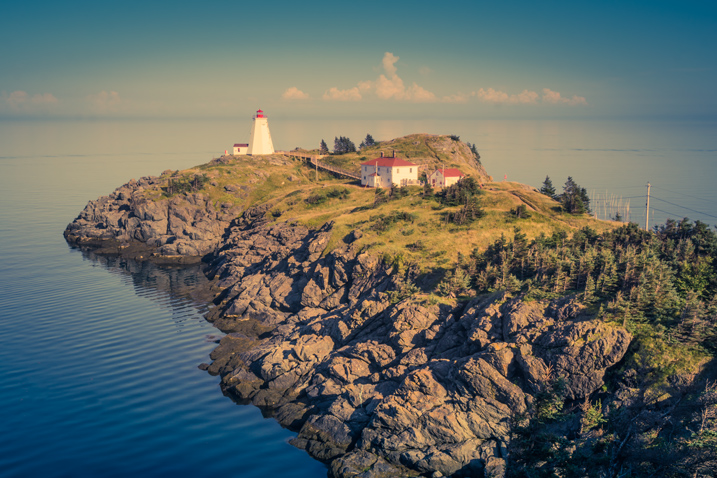
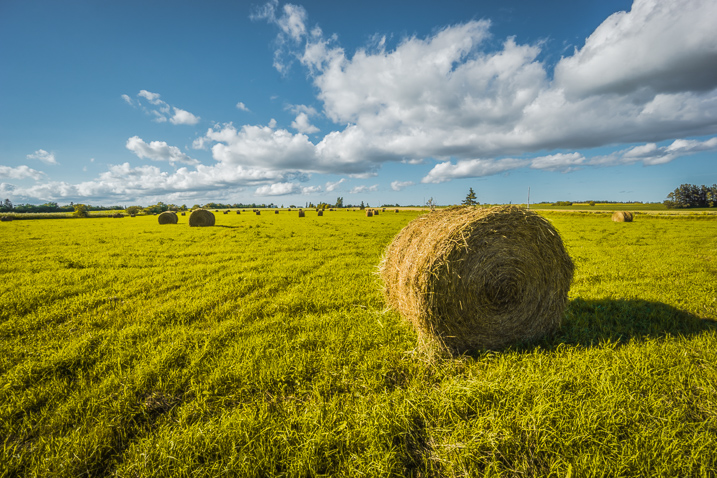
The next step was to come up with a more creative style for this particular photograph. I used the two-level Lightroom Rapid Editing process to produce three more creative versions.

Photo Editing Workflow for Travel Photography Image 09
Preset: Broken Clouds

Photo Editing Workflow for Travel Photography Image 10
Preset: Drought

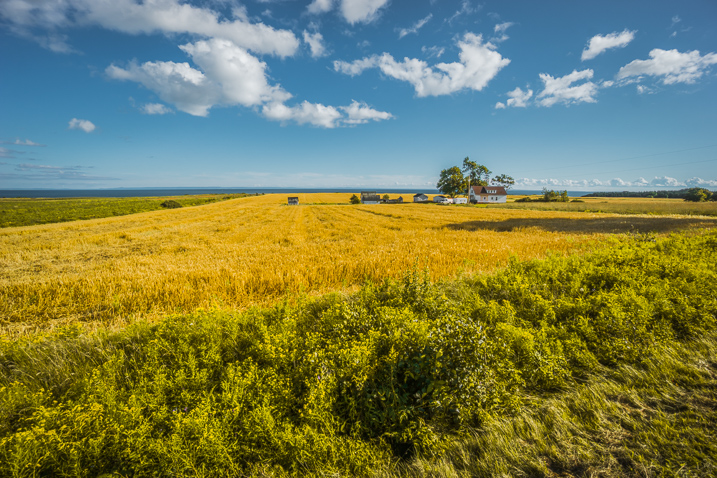
Photo Editing Workflow for Travel Photography Image 11
Preset: Point Lobos

During the next step, I selected the edited version I liked the best. In this particular case, I chose the image with the Point Lobos preset effect. I then used the SYNC SETTINGS functionality of Lightroom, to synchronize the editing settings with the rest of the flagged photos (the other nine keepers).

In the last step, I went through the photos one more time, using only the TOOLKIT, and focused on each photo individually. At this stage, I mostly adjusted the Exposure and Open Shadow to compensate for different lighting conditions and exposure imperfections (underexposure and overexposure). This process typically does not take long – an average of 10-15 seconds per photo.

Photo Editing Workflow for Travel Photography Image 12

Photo Editing Workflow for Travel Photography Image 13

Photo Editing Workflow for Travel Photography Image 14

Photo Editing Workflow for Travel Photography Image 15

Photo Editing Workflow for Travel Photography Image 16

Photo Editing Workflow for Travel Photography Image 17

Photo Editing Workflow for Travel Photography Image 18

Photo Editing Workflow for Travel Photography Image 19

Photo Editing Workflow for Travel Photography Image 20

At this point, I was finished with Rapid Editing. I managed to complete 80-90% of the editing process without touching any of the Lightroom editing tools. As you can see, Lightroom Rapid Editing allows me to process a high volume of photos in a relatively short amount of time, while also giving the photos a similar look and feel, that makes the set distinguished and unique.

After this two-level editing process, it was then time to perform the last 10-20% of editing that cannot be automated.
Depending on the image, I might open it in Photoshop for selective editing. In most cases, I clean the images by removing distracting elements from the composition (electric wires, debris). Another option I often use is Lightroom Adjustment Brushes for selective editing.

Publishing

The very last step of my workflow is publishing. I use the plugin functionality of Lightroom to synchronize my newly created photos with my cloud portfolio on SmugMug. With SmugMug cloud service, I have access to all my photos at full resolution, and 100% quality anytime and anywhere.

One of my favorite features of SmugMug is the ability to create custom sized images on the fly by manually changing an image URL, without using any editing tools.

Conclusion

What I learned after designing my photo editing workflow is that there is no perfect solution for travel photography that fits every photographer. Any system we put in place is in a constant state of fluctuation, and all we can do is keep adjusting it based on the type of photography and our individual habits and routines.

Do you have a workflow you’d like to share with us? Please do so in the comments section below.


If you found this helpful, get Viktor’s Lightroom Rapid Editing System for Travel Photography Course 50% off now at SnapnDeals for a limited time only – February 9th-23rd, 2016.

googletag.cmd.push(function() {
tablet_slots.push( googletag.defineSlot( “/1005424/_dPSv4_tab-all-article-bottom_(300×250)”, [300, 250], “pb-ad-78623” ).addService( googletag.pubads() ) ); } );

googletag.cmd.push(function() {
mobile_slots.push( googletag.defineSlot( “/1005424/_dPSv4_mob-all-article-bottom_(300×250)”, [300, 250], “pb-ad-78158” ).addService( googletag.pubads() ) ); } );

The post Photo Editing Workflow for Travel Photography by Viktor Elizarov appeared first on Digital Photography School.


Digital Photography School

 
Comments Off on Photo Editing Workflow for Travel Photography

Posted in Photography