RSS
 

Archive for February, 2016

Ultra-compact: Sony Cyber-shot RX1R II review

15 Feb

Sony CyberShot RX1R II Review

The Sony Cyber-shot RX1R II is a full-frame, 42MP compact camera with a fixed 35mm F2 lens. The successor to the 24MP RX1R, the Mark II inherits a lot of technology from Sony’s flagship a7R II mirrorless interchangeable lens camera. 

Between the continuing evolution of the RX100 and a7-series’, Sony is on a big roll when it comes to small tech. And in this case, ‘small’ doesn’t mean ‘insignificant’. With many of its recent cameras, Sony has achieved the miniaturization of technology and functionality traditionally reserved for bulkier DSLRs and the like.

With the Cyber-shot RX1R II for example. Sony has somehow managed to cram a high-res electronic viewfinder, a Zeiss Sonnar T* 35mm F2 lens and the same full-frame 42MP BSI CMOS sensor and autofocus system from the a7R II into a coat-pocketable body. For many photographers that probably sounds like a dream come true, but as you might expect, there have been a few compromises along the way.

Key features

  • 42MP BSI CMOS full-frame sensor
  • BIONZ X processor
  • Fixed ZEISS Sonnar T* 35mm F2 lens
  • Hybrid autofocus system
  • Variable low-pass filter
  • Tilting 3″, 1.23 million dot LCD
  • Pop-up 2.36M-dot OLED electronic viewfinder
  • 1080/60p video recording
  • Wi-Fi with NFC

Though the RX1R II bears more than a passing resemblance to its predecessor, there are a lot of changes. And since the introduction of the RX1 and RX1R back in 2012, Leica introduced the Q, a full frame compact with a fixed 28mm F1.7 lens. Though it sits above the RX1R II in price and offers a wider lens, a lot of photographers will see them as natural competitors – at least in spirit. Take a look at how they compare.

  Sony RX1R   Sony RX1R II  Leica Q
MSRP $ 2799 $ 3299 $ 4250
Sensor 24MP CMOS 42MP BSI CMOS 24MP CMOS
Low-pass filter No Variable No
ISO range
(expanded)
50-102400 50-102400 100-50000 
Lens 35mm F2 35mm F2 28mm F1.7
Min. focus distance 14cm 14cm 17cm
AF system Contrast det. Hybrid Contrast det.
AF points 25-pt 399-pt 49-pt
EVF resolution No EVF 2.36M-dot OLED 3.68M-dot LCOS
LCD 3″ 1.23M-dot fixed 3″ 1.23M-dot tilting 3″ 1.04M-dot fixed touchscreen
Burst rate 5 fps 5 fps 10 fps
Video 1080/60p 1080/60p 1080/60p
Wi-Fi No Yes, with NFC Yes
Battery life (CIPA) 220 shots 220 shots N/A
Dimensions 113 x 65 x 70mm 113 x 65 x 72mm 130 x 80 x 93mm
Weight 482 g 507 g 640 g

For some more preliminary impressions of the RX1R II, check out Barney’s Gear of the Year article, and the accompanying video below.

Now, let’s get to the full spec sheet of the RX1R II. 

Articles: Digital Photography Review (dpreview.com)

 
Comments Off on Ultra-compact: Sony Cyber-shot RX1R II review

Posted in Uncategorized


How to Use Exposure Compensation to Take Control of Your Exposure

15 Feb

Chicago-River-2016-01-02You don’t have to shoot in Manual mode to take complete control over the exposure process.

When you use shooting modes other than Manual, the camera will set at least one of the three exposure controls (shutter speed, aperture, and/or ISO) for you. However, your camera provides you with an override called exposure compensation. It gives you the ability to change the camera’s exposure values from something other than what the camera automatically sets for you. In this article, I will show you how to use it to get the exposure you want every time.

When should you use Exposure Compensation?

First, let’s back up and talk about when you might want to use exposure compensation. You may wonder why you’d want to change anything, if your camera is already determining the proper exposure level.

The first reason is that your camera’s meter can be fooled by some of the conditions you face. The meter operates by looking at the tones in its view, then averaging them out. Basically, the manufacturers have determined that most scenes will average out to a middle grey tone, often referred to as 18% grey. Therefore, if the tones in your frame are darker than this middle grey tone, the meter will show that there is not enough light for a proper exposure, and therefore the meter thinks your picture will be underexposed. Conversely, if the tones in your frame are lighter than middle grey, the meter will show that there is too much light for a proper exposure and it thinks your photo will be overexposed. A lot of the time the camera meter is right, but sometimes it is not.

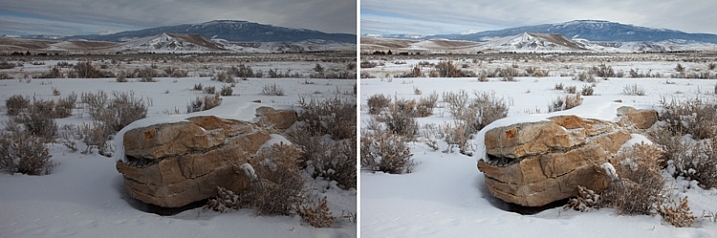
Some situations are supposed to be brighter than middle grey. A classic example is a photograph taken of a snowy scene. Your camera’s meter will assume that all that white snowy scene should be grey, and will therefore choose exposure settings that underexpose the image. Obviously you don’t want that. Here is an example, the picture to the left was taken strictly by the camera’s meter, and the picture to the right overexposed by one stop according to the camera’s meter:

A snowy scene frequently confuses your camera's meter. To the left is a shot taken at normal exposure. To the right is one taken after adding in a stop of exposure compensation (overexposure).

A snowy scene frequently confuses your camera’s meter. To the left, is a shot taken at normal exposure. To the right, is one taken after adding in a stop of exposure compensation (overexposure).

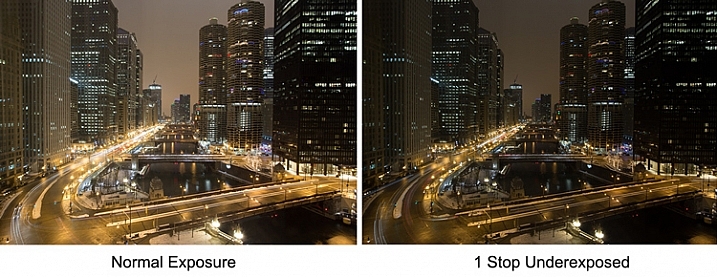
Another example is night photography, where the darkness of the scene should result in dark tones in your picture. The camera’s meter won’t recognize this though, and will tell you to brighten up the picture. Using exposure compensation will allow you to take control, and set a proper exposure.

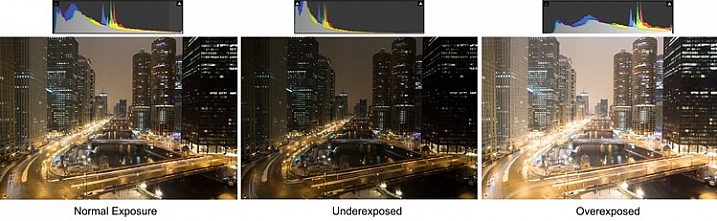
As an example, check out the pictures below. In the picture on the left, taken at normal exposure as per the camera’s meter, it brightened the night scene and it looks a little washed out. To the right is an underexposed (according to the meter) image that more closely resembles the actual conditions of the scene.

Night-Comp

The camera’s meter (and even the histogram) tells you that the normal exposure is correct (see below). But the reason the camera thinks the normal exposure is correct, is that it that the average of the tones closely approximates middle grey. However, the underexposed image actually more closely captures the reality of the situation.

Histogram-Comp

Another reason you may want to use exposure compensation is that you simply don’t like the “correct” exposure. You may want to darken the scene to add some mood or drama, or you may want to brighten things up. Photography is ultimately an artistic endeavor, and is highly subjective, so exposure compensation gives you a tool to put that to work.

Finally, if you subscribe to the theory that you should expose to the right, exposure compensation will allow you to do so in camera modes other than Manual. If you are unfamiliar with this concept, expose to the right means that you slightly overexpose your images so that most of the tones appear on the right side of the histogram (without clipping anything). You later reduce the tones in post-processing and this can sometimes result in slightly better image quality. The overexposure happens by using exposure compensation.

How Exposure Compensation Works

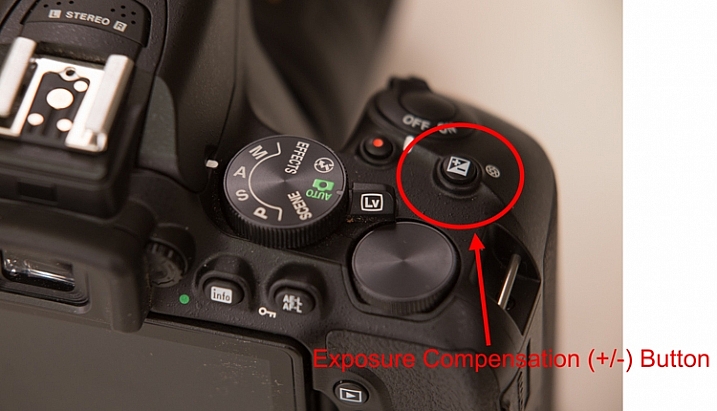
Now that you know what exposure compensation is, how do you use it? In most cases, your camera will have a little button with a +/- on it. That is the button you press to change the exposure compensation. While pressing that button, turn the main dial of your camera right or left (by main dial, I am referring to the dial on the top right of your camera, usually next to the shutter release button). That will change the exposure compensation. Turning the dial one way will reduce the exposure, and the other way increases it. Each click of the dial will usually change exposure settings by 1/3 of a stop.

PlusMinusButton

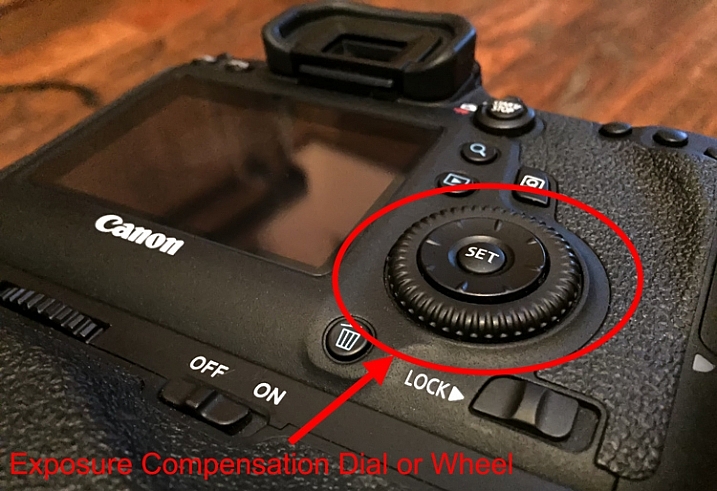
If you have a higher-end DSLR, then your camera will have a second dial or wheel on the back of the camera. Those cameras will usually not have the +/- button, but that second dial will be used to change the exposure compensation settings. The advantage is that you can just turn that dial with your right thumb without needing to press any buttons.

Wheel

Exposure Compensation in Different Camera Modes

So what does exposure compensation actually do? You know that it changes the exposure, but how does it do so? By changing the aperture? Or the shutter speed? Or both?

The answer is that it depends on what mode you have your camera in. I will explain what is going on for each of the camera modes:

  • Aperture Priority Mode – In Aperture Priority mode, exposure compensation changes the shutter speed. Remember that in this mode, you set the aperture and the camera sets a corresponding shutter speed. If you change the Aperture, your camera just sets another corresponding shutter speed, and there is no change in the exposure level. Exposure compensation gives you the ability to change the shutter speed (and the overall exposure value) while staying at the same aperture you originally set.
  • Shutter Priority – In Shutter Priority mode, exposure compensation changes the size of your aperture. It is basically the reverse of Aperture Priority mode. You set a shutter speed, and the camera sets a corresponding aperture. Exposure compensation therefore changes the exposure by allowing you to change that aperture size.
  • Program – In Program mode (P on your mode dial), exposure compensation changes the shutter speed. At least that’s what happened on the cameras I tested. It is possible that yours works differently, or that you can change it in the menu. As with so many things, this is a good excuse to pull out your camera’s user manual and go through it.

What about Manual and Automatic modes? These don’t have exposure compensation. In Manual mode, the camera does not set an exposure value for you in the first place, you set everything yourself. Whenever you change the aperture or the shutter speed, you are changing the exposure value. In Automatic mode, there is no exposure compensation because you have no control over exposure – the camera does everything for you. That is one of the reasons why you should never use this mode.

Exposure-Compensation

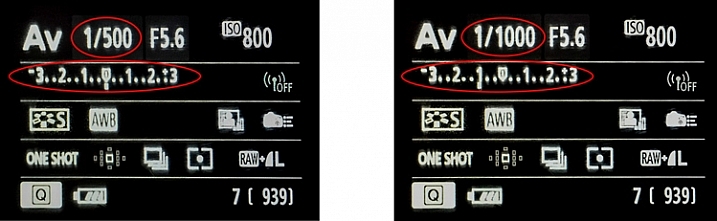
Here we see the back of the camera before and after applying one stop of exposure compensation. In the example to the left, the camera shows a normal exposure with a shutter speed of 1/500 of a second. In the example to the right, the shutter speed is reduced by 1 stop to 1/1000 of a second, and the meter reading reflects that.

Exposure Bracketing

While talking about exposure compensation, there is a related topic that you might find useful as well. It is Auto Exposure Bracketing (AEB, or just bracketing). It is where you set your camera to take multiple pictures in a row with the first at normal exposure, the next one(s) underexposed, and the final one(s) overexposed (if you have Canon it may look more like this:  underexposed>normal>overexposed, you can also change the order on a Nikon if you go to your menu settings).

When you enable the feature in your camera’s menu, you set the amount of under and overexposure. The camera will take three to five pictures in rapid succession (depending on your camera, if you shoot Canon you have to also set your drive mode to high speed burst). In a way, this accomplishes the same thing as exposure compensation, because you are dialling in a certain amount of underexposure or overexposure.

Bracket

Why would you want to do this? Several reasons. Usually it comes into play when there is a wide divergence of tones in the image. Using a little blending later, you can use the brightest tones from the underexposed image and the darkest tones from the overexposed image. In addition, if you are ever going to use any high dynamic range processing on your images, you should have multiple images to work with. Finally, you might just think of it as “exposure insurance” for important shots to make sure that you have nailed the exposure.

Conclusion

We all want to be able to take complete control over the exposure process, but not all of us want to work in Manual mode. When you work in a mode like Aperture Priority mode, the camera offers you a lot of benefits – speed being the main one. By adding exposure compensation to your process, you can get the speed of other modes, along with the control of manual.

If you haven’t used exposure compensation before, give it a try. If you are familiar with it, chime in below with your own tips and experiences.

googletag.cmd.push(function() {
tablet_slots.push( googletag.defineSlot( “/1005424/_dPSv4_tab-all-article-bottom_(300×250)”, [300, 250], “pb-ad-78623” ).addService( googletag.pubads() ) ); } );

googletag.cmd.push(function() {
mobile_slots.push( googletag.defineSlot( “/1005424/_dPSv4_mob-all-article-bottom_(300×250)”, [300, 250], “pb-ad-78158” ).addService( googletag.pubads() ) ); } );

The post How to Use Exposure Compensation to Take Control of Your Exposure by Jim Hamel appeared first on Digital Photography School.


Digital Photography School

 
Comments Off on How to Use Exposure Compensation to Take Control of Your Exposure

Posted in Photography


Win a Pro-Level Portfolio Website CMS for FREE

15 Feb

In this giveaway you can win one of 5 great prizes provided by our friends at MotoCMS. Whether you’re professionally into photography or you just plan to start making money out of your photos, you probably know by now that a good website managing software is a gold find for your business. Something that would have a lot of design Continue Reading

The post Win a Pro-Level Portfolio Website CMS for FREE appeared first on Photodoto.


Photodoto

 
Comments Off on Win a Pro-Level Portfolio Website CMS for FREE

Posted in Photography


Beauty-centric Panasonic Lumix GF8 is all about the selfies

15 Feb

$ (document).ready(function() { SampleGalleryV2({“containerId”:”embeddedSampleGallery_2273125847″,”galleryId”:”2273125847″,”isEmbeddedWidget”:true,”standalone”:false,”selectedImageIndex”:0,”startInCommentsView”:false,”isMobile”:false}) });

Panasonic has introduced the Lumix DMC-GF8, essentially a GF7 with an emphasis on selfie-friendly features. It continues to offer the GF7’s 16MP Four Thirds sensor, 1080/60p video and built-in Wi-Fi, but wraps it all up in your choice of a pink, silver, brown or orange leather-like finish. Not only does the GF8’s 3″ 1.04M-dot touchscreen tilt upward 180-degrees to take the guesswork out of self-portraits, the camera offers a ‘Soft Skin’ mode that can be combined with Panasonic’s Creative Control filters such as Retro or High Key. 

Beautification doesn’t stop at image capture though. The Lumix GF8 offers a new ‘Beauty Retouch’ function to clear up skin texture, whiten teeth and add makeup after the fact. Panasonic’s press releases stresses the appeal of these features to women, but don’t feel left out gentlemen, the silver and brown versions of the camera have plenty of ‘unisex’ appeal. The GF8 also comes with 100GB of storage on Google Drive, which adds up to a lot of selfies.

The DMC-GF8 will not available in the United States, at least at this point in time.

LUMIX GF8 for the Best-Ever Attractive Selfie Shots 
Featuring Advanced Beauty Retouch Mode

Panasonic is introducing a new Digital Single Lens Mirrorless (DSLM) Camera, the LUMIX GF8 that adds even more fun than its predecessor GF7 for users to enjoy more unique photo shooting. The new LUMIX GF8 offers high capability for shooting selfie with a host of options such as newly integrated beauty functions. 

The 3.0-inch 1040K-dot rear monitor with touch control tilts up by approx.180-degree and the camera goes into Self Shot Mode automatically once the monitor is flipped. In the Self Shot Mode, a variety of functions for selfies are available on the LUMIX GF8. The beauty functions enables users – especially women – to shoot portraits more attractively with its Soft Skin, Defocusing and Slimming effects. After shooting, you can even put on an aesthetic/make-up retouch, in camera, with Beauty Retouch function. 

The LUMIX GF8 integrates Wi-Fi® connectivity to offer more flexible shooting experience and instant image sharing with easy operation. 

The basic photographic performance of LUMIX GF8 as a camera is excellent. It enables users high-quality image recording with real-to-life details through excellent resolution, image rendering and color reproduction. Taking full advantage of 16.00-megapixel Digital Live MOS Sensor and Venus Engine, images are produced with highly sharp resolution even shot in low-lit situations and even max. ISO 25,600 high sensitivity can be selected. The Contrast AF System of LUMIX GF8 excels in both speed and accuracy by exchanging digital signal between the camera and the lens at max. 240 fps. A variety of extensive AF functions including Face/Eye Detection AF or Low Light AF assures in-focus shots even in difficult shooting situations. 

The LUMIX GF8 also features full HD 1920 x 1080, 60p (60 Hz) / 50p (50 Hz) high quality video recording in AVCHD progressive and MP4 with stereo sound. The practical full-time AF and tracking AF is available in video recording, too. The LUMIX GF8 features a unique video recording option called Snap Movie Mode which lets users record video in designated short period of time (2/4/6/8 sec) as they shoot “moving photos”.

Last but not least, the iA (Intelligent Auto) mode and the Scene Guide make LUMIX GF8 easy to use even for beginners of digital interchangeable lens system camera. Portrait, Child, Scenery modes, which are used often, have respective shortcuts on the dial. Most appropriate parameters for each scene are automatically applied by just setting the dial to the mode to capture those scenes most beautifully. 

Available in silver, brown, pink and orange, the LUMIX GF8 boasts sleek, stylish profile in traditional camera design. Its high mobility enables to users carry it around and enjoy creative, high quality photography with the unlimited potential of interchangeable lens system camera. 

1. Enjoy Selfies in a More Flexible Way – Beauty Retouch & Hands-Free Selfie

The new LUMIX GF8 is a perfect camera for selfie especially for women. A rich variety of beauty functions in LUMIX GF8 enables users to shoot more attractive portraits. In shooting mode, the Soft Skin mode makes skin look smoother while Slimming looks the subject sharpened up in 10 fine steps. Defocusing gives natural defocus around face to make the picture more impressive.

After shooting, you can even put on virtual make-up on the face in the playback mode with newly added Beauty Retouch function. In Aesthetic Retouch, various effect can be applied to the face including clearing the skin texture, lifting up the face whitening of teeth and so on. In the Make-up Retouch, users can choose the color of foundation, lips, cheeks or eye-shadow

The 3.0-inch 1040K-dot static type touch control monitor boasts 180-degree tiltable structure. Once the monitor is flipped up, the camera activates Self Shot Mode automatically. In conventional selfie pictures, users have to stretch their arms to hold the camera, which makes the selfie pictures all-too-common. However, the hands-free selfie allows users to use their hands as they like, resulting in free, expressive posing. However, Face Shutter and Buddy Shutter functions are integrated for a trigger of shutter release in LUMIX GF8. They work when the face is once covered with a waving hand or when two faces come closer in a frame. 

Creative Control filter that are suitable for impressive selfie shots – Retro, Soft Focus, Expressive, High Key and Toy Effect can be combined with the Self Shot mode, too. 

2. High Performance Digital Single Lens Mirrorless with High Speed Response

The LUMIX GF8 incorporates 16.00-megapixel, large Digital Live MOS Sensor complying with Micro Four Thirds system standard that achieves both higher resolution and higher sensitivity image recording with less noise. The image processor Venus Engine features its advanced noise reduction systems. It features high level of noise is control thanks to the expanded controllable area of noise. This makes it possible to remove large block of noise which was formally hard to detect and helps produce clear, smooth image especially for the nighttime scenery. The combination of the Digital Live MOS Sensor and the Venus Engine achieves fine detail reproduction, making it possible to capture clear image even in low lit situations and allows max. ISO 25600 while achieving minimum ISO 100 (Extended).

The LUMIX GF8 features high-speed Light Speed AF, making it possible to capture even the fast-moving subject clearly. The camera and the lens exchange the digital signal at max. 240 fps to minimize the time to focus. The LUMIX GF8 realizes the high speed burst shooting at approx.5.8 fps (AFS) / approx.5 fps (AFC, 1-area AF) in 16.00-megapixel and max. 40 fps using an electronic shutter. Also, AF Tracking enables consecutive shooting to capture moving subject in sharp focus at approx.4 fps*.

The Low Light AF help users to get in-focus shot even in extremely low-lit situations such as under the moonlight or the starry sky. Sharp focus can be set on the target subject even when you cannot use an AF assist lamp.

In addition to the conventional Face Recognition AF, the LUMIX GF8 incorporates Face / Eye Detection AF which automatically sets focus right on the eye of human face. With the Pinpoint AF, users can magnify the target area to set focus by 5x by just touching it on the monitor. The One-shot AF enables using AF even in MF mode by just touching the icon on the screen to set rough focus on the subject and you can go back to MF just to adjust precise focus.

The LUMIX GF8 records stunningly smooth, high-resolution full-HD 1,920 x 1,080 60p (60 Hz) / 50p (50 Hz) videos in AVCHD Progressive or MP4 (MPEG-4 / H.264) format. High quality sound can be recorded with Dolby® Digital. A Wind Cut function is also available to block out most of the noise from background wind. 

* In 1-area-focusing AF mode.

– Maximum time to record motion pictures continuously with [AVCHD] is 29 minutes 59 seconds in Europe and some Asian areas.
– Maximum time to record motion pictures continuously with [MP4] is 29 minutes 59 seconds or up to 4 GB.
– You can check the recordable time on the monitor. (For [FHD] in [MP4] format, the file size is large and so the recordable time will drop below 29 minutes 59 seconds.)

3. Easy Wireless Connectivity via Wi-Fi® with Smartphones

The LUMIX GF8 integrates Wi-Fi® connectivity (IEEE 802.11 b/g/n) to offer more flexible shooting experience and instant image sharing with easy operation. Once connecting the camera and smartphone/tablet installing Panasonic’s dedicated application software Panasonic Image App for iOS / Android, users can shooting / browsing / sharing images remotely. 

Connecting the camera to the smartphone/tablet is quick and easy with a press of Fn1/Wi-Fi* button or by reading the QR code. Plus, the LUMIX GF8 users are eligible to have free 100GB storage on Google Drive™ to save photo and video data*.

* The service is available for two years after the activation.

4. A Host of Advanced Functions Packed in a Sleek Body with Ease of Use

Although the LUMIX GF8 packs a host of advanced functions, it features sleek, stylish profile with high mobility.  Every part including button and dial is carefully chosen to achieve high quality design and operability. The leather-touch grip is ergonomically designed and easy to hold. Dressed in fashionable colors – silver, brown, pink and orange, the LUMIX GF8 makes perfect match for unisex users to enjoy high quality photo shooting daily.

The LUMIX GF8 comes with Rec.Setting Reset button on the back. All recording settings can be reset with the button and it is helpful for users who made wrong settings unconsciously. 

5. Other Features

iA+ (Intelligent Auto) Mode for Photo and Video

For beginners, iA (Intelligent Auto) mode supports taking beautiful pictures with a variety of shooting-assist functions including AF Tracking, Intelligent Scene Selector, Face Recognition, Intelligent ISO Control and Food Recognition.

Scene Guide

The Scene Guide* offers 20 sample pictures shot by professional photographers. Users can choose the one closer to the situation they are going to shoot and optimum parameters for shooting the scene will be automatically set. Furthermore, shooting procedure, technical advice and recommended interchangeable lens for the scene can be shown for users to learn photography. 

* Video recording using Scene Guide is not possible in some scenes.

Creative Control

The LUMIX GF8 integrates a variety of artistic functions that adds fun to digital photography. The popular Creative Control mode features a total of 22 filter options – Expressive / Retro / Old Days / High Key / Low Key / Sepia / Monochrome / Dynamic Monochrome / Rough Monochrome*1 / Silky Monochrome*1 / Impressive Art / High Dynamic / Cross Process / Toy Effect / Toy Pop / Bleach Bypass / Miniature Effect*2 / Soft Focus*1 / Fantasy / Star Filter*1 / One Point Color / Sunshine*1 mode. Effect parameter of each mode is also adjustable. Also, LUMIX GF8 is capable of taking pictures “with” and “without” filter effect simultaneously, so that users can compare them to choose later.

*1 For photo only.

*2 Sound will not be recorded with [MINIATURE EFFECT] in Creative Control Mode and approximately 1/10 of the time period is recorded. (If you record for 10 minutes, the resulting motion picture recording will be approximately 1 minute long.) 

Snap Movie

Users can record video in designated short period of time (2/4/6/8 sec) as they shoot “moving photos”. In this function, rack focusing or addition of fade effect (color in/out, black in/out, white in/out) are available. Those short video clips are easy to be shared using Panasonic Image App and It is also possible to connect them in any order you like and even to add music instead of recorded sound on the combined file later.

Time Lapse Shot

The camera automatically starts recording photos at time lapse sequence once the start time, interval and the number of pictures to shoot are set. 

Stop Motion Animation

This function enables producing a stop motion (stop frame) video in camera with the pictures that are sequentially shot while moving the object by degrees. This effect makes the object appears as if it is moving by itself.

Silent Mode

This mode switches shutter from mechanical to electronic and turns all sound (AF, operation) off while suppress emission of AF assist lamp and flash with just a single setting for special shooting occasions.


Panasonic Lumix DMC-GF8 specifications

Body type
Body type Rangefinder-style mirrorless
Sensor
Max resolution 4592 x 3448
Other resolutions 4:3 (3232 x 2424, 2272 x 1704), 3:2 (4592 x 3064, 3232 x 2160, 1824 x 1216), 3:2 (4592 x 2584, 3840 x 2160, 1920 x 1080), 1:1 (3424 x 3224, 2416 x 2416, 1712 x 1712)
Image ratio w:h 1:1, 4:3, 3:2, 16:9
Effective pixels 16 megapixels
Sensor photo detectors 17 megapixels
Sensor size Four Thirds (17.3 x 13 mm)
Sensor type CMOS
Processor Venus Engine
Color space sRGB, Adobe RGB
Color filter array Primary color filter
Image
ISO Auto, 200-25600 (extends to 100-25600)
Boosted ISO (minimum) 100
White balance presets 5
Custom white balance Yes (2 slots)
Image stabilization No
Uncompressed format RAW
JPEG quality levels Fine, standard
File format
  • JPEG (Exif v2.3)
  • Raw (Panasonic RW2)
  • MPO (3D)
Optics & Focus
Autofocus
  • Contrast Detect (sensor)
  • Multi-area
  • Center
  • Selective single-point
  • Tracking
  • Single
  • Continuous
  • Touch
  • Face Detection
  • Live View
Autofocus assist lamp Yes
Digital zoom Yes (2x-4x)
Manual focus Yes
Number of focus points 23
Lens mount Micro Four Thirds
Focal length multiplier 2×
Screen / viewfinder
Articulated LCD Tilting
Screen size 3
Screen dots 1,040,000
Touch screen Yes (with touch AF, shutter, playback, menus)
Screen type TFT LCD
Live view Yes
Viewfinder type None
Photography features
Minimum shutter speed 60 sec
Maximum shutter speed 1/500 sec
Maximum shutter speed (electronic) 1/16000 sec
Exposure modes
  • Program
  • Aperture priority
  • Shutter priority
  • Manual
Scene modes
  • Portrait
  • Child
  • Scenery
  • Silky Skin
  • Backlit Softness
  • Relaxing Tone
  • Bright Blue Sky
  • Romantic Sunset Glow
  • Vivid Sunset Glow
  • Glistening Water
  • Clear Nightscape
  • Cool Night Sky
  • Warm Glowing Nightscape
  • Artistic Nightscape
  • Glittering Illuminations
  • Handheld Night Shot
  • Clear Night Portrait
  • Soft Image of a Flower
  • Appetizing Food
  • Cute Dessert
  • Freeze Animal Motion
  • Clear Sports Shot
  • Monochrome
Built-in flash Yes
Flash range 5.60 m (at ISO 200)
External flash No
Flash modes Auto, auto w/redeye reduction, flash on, flash on w/redeye reduction, slow sync, slow sync w/redeye reduction, flash off
Flash X sync speed 1/50 sec
Continuous drive 5.8 fps
Self-timer Yes (2 or 10 secs, 3-shot/10 sec)
Metering modes
  • Multi
  • Center-weighted
  • Spot
Exposure compensation ±5 (at 1/3 EV steps)
AE Bracketing ±3 (3, 5, 7 frames at 1/3 EV, 2/3 EV, 1 EV steps)
WB Bracketing Yes (3 shots in blue/amber and magenta/green axes)
Videography features
Resolutions 1920 x 1080 (60p, 60i, 50p, 50i, 30p, 25p, 24p), 1280 x 720 (30p, 25p), 640 x 480 (30p, 25p)
Format MPEG-4, AVCHD, H.264
Videography notes 24p only available with AVCHD
Microphone Stereo
Speaker Mono
Storage
Storage types SD/SDHC/SDXC card
Connectivity
USB USB 2.0 (480 Mbit/sec)
HDMI Yes (micro-HDMI)
Microphone port No
Headphone port No
Wireless Built-In
Wireless notes 802.11b/g/n with NFC
Remote control Yes (via smartphone )
Physical
Environmentally sealed No
Battery Battery Pack
Battery description Lithium-ion battery & charger
Battery Life (CIPA) 230
Weight (inc. batteries) 266 g (0.59 lb / 9.38 oz)
Dimensions 107 x 65 x 33 mm (4.21 x 2.56 x 1.3)
Other features
Orientation sensor Yes
GPS None

Articles: Digital Photography Review (dpreview.com)

 
Comments Off on Beauty-centric Panasonic Lumix GF8 is all about the selfies

Posted in Uncategorized


Lens Technique: Wide-angle portraiture with the Sigma 24-35mm F2 DG HSM Art

15 Feb

Photographers tend to shy away from wide-angle lenses when shooting portraits, but DPReview Technical Editor Rishi Sanyal thinks that’s all wrong. In this video, he uses the Sigma 24-35mm F2 Art to illustrate his case for wide-angle portraits, capturing a couple of models with a setting sun in Seattle’s lovely Discovery Park. Step away from your 85mm comfort zone and learn some of Rishi’s tips for environmental portraits.

Articles: Digital Photography Review (dpreview.com)

 
Comments Off on Lens Technique: Wide-angle portraiture with the Sigma 24-35mm F2 DG HSM Art

Posted in Uncategorized


3D Four Letter Words: Robert Indiana’s LOVE Sculptures

15 Feb

[ By Steve in Art & Sculpture & Craft. ]

LOVE-sculpture-0
Looking for love in all the right places? Replicas of artist Robert Indiana’s iconic Pop Art “LOVE” sculpture have spread to the 4 corners of the globe.

LOVE-sculpture-1d

LOVE-sculpture-1b

Robert Indiana (formerly Robert Clark) first expressed the essential iconography of “LOVE” in 1958 but it wasn’t until 1964 that the image garnered wide public notice, via a Christmas card commissioned by the Metropolitan Museum of Art. One of the first three-dimensional LOVE sculptures has stood, since 1970, in front of the Indianapolis Museum of Art.

LOVE-sculpture-1c

LOVE-sculpture-1a

Like many metal artworks designed to stand out in the open, the IMA’s LOVE sculpture is made from Cor-ten steel, an alloy that weathers to a rich, slightly iridescent, purplish-brown patina after years of seasonal changes. The sculpture measures 12′ x 12′ x 6′ and has recently undergone a structural and aesthetic restoration.

I LOVE New York

LOVE-sculpture-2c

LOVE-sculpture-2a

LOVE-sculpture-2b

There are currently around 50 LOVE sculptures installed in public and private spaces worldwide. Some are better-known than others, mainly due to their proximity to pedestrian traffic. One of the first NYC LOVE sculptures was installed at 59th Street and 5th Avenue in 1971, while perhaps the most prominent NYC LOVE sculpture stands at the corner of 6th Avenue and 55th Street in Manhattan. Kudos to Flickr users Chee917 and Robert Wright (wrightrkuk), who snapped the sculpture in 2012.

LOVE Is Blue

Vancouver LOVE sculpture

LOVE-sculpture-3b

Most of the world’s LOVE sculptures have red painted facades with blue or blue & green sides to match Indiana’s original MOMA card and popular USPS stamp. This isn’t a must, however, as Indiana famously neglected to properly copyright the work. This bright blue representation outside 1445 West Georgia Street in Vancouver, Canada (later moved) shares its blue & green color scheme with another LOVE sculpture located at the Park Mall in Singapore.

Reflections of LOVE

LOVE-sculpture-4

Photographer Wassily from nl brings us the striking scene above. Featuring a large LOVE sculpture set into the reflecting pool outside the Langen Foundation’s main building in Neuss-Holzheim, Germany, the photo dates from 2005 shortly after the building opened.

Next Page – Click Below to Read More:
3d Four Letter Words Robert Indianas Love Sculptures

Share on Facebook


[ By Steve in Art & Sculpture & Craft. ]

[ WebUrbanist | Archives | Galleries | Privacy | TOS ]


WebUrbanist

 
Comments Off on 3D Four Letter Words: Robert Indiana’s LOVE Sculptures

Posted in Creativity


Why is Monitor Calibration Important and How to do it

14 Feb

Why you need to calibrate your monitor

If there one thing that’s certain about photos on the internet, it’s that nobody is seeing exactly the same thing as you. In general, most screens are too bright, and have whatever default color the monitor happens to ship with. Some are great, others not so much. As the monitor gets older, these colors change too. It’s more of an issue with older bulb light monitors, and less so with LED, but still these colors change over time.

There’s also the matter of print matching. If you’ve ever printed (you’re missing out if you haven’t), and been dissatisfied with the print, it could be that your screen is fooling you when you’re editing.

There is a way to get your screen to a known standard, and doing this means that you know you have good representative color and brightness on your screen, and that you’ve made a step toward better prints. This is screen or monitor calibration.

Calibrating your screen 01

What is monitor calibration?

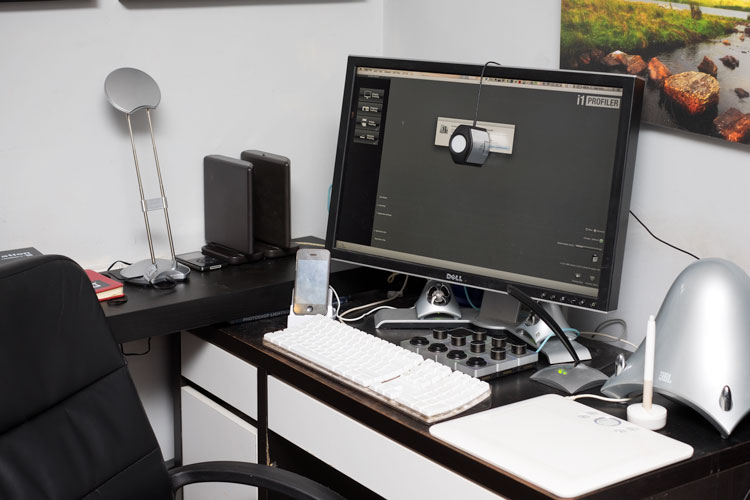
To calibrate your screen, you need a puck-like device that sits on your screen, and measures the color being displayed. This is called a spectrophotometer. It’s just a name for what it does: photo = light, spectro = from spectrum meaning a range of colors, and meter = to measure. So it measures the light color. Don’t worry, you don’t need to buy one of these specifically, and match software to it, they come as kits, with the required software bundled with it.

What do you need to do it?

Some examples of the screen calibration kits include the X-Rite i1 Display Pro (which is what I have), the Spyder Pro, and the Color Munki. The process for each is similar and pretty straightforward. First you install the software, and run it. Next you attach the device. Initially you have to decide the settings, but the correct ones are usually suggested. Usually these are 120cd/m2 or less in brightness, D65 or Native for Illuminant and 2.2 for Gamma. At the start you may need to set the monitor brightness and contrast via the monitors own menu. Finally you just let the software run and it will create a profile automatically at the end. One thing that’s critical is that you need to have your monitor on for a while before starting the calibration. It takes up to 30 minutes for the monitor to settle.

How do you do monitor calibration?

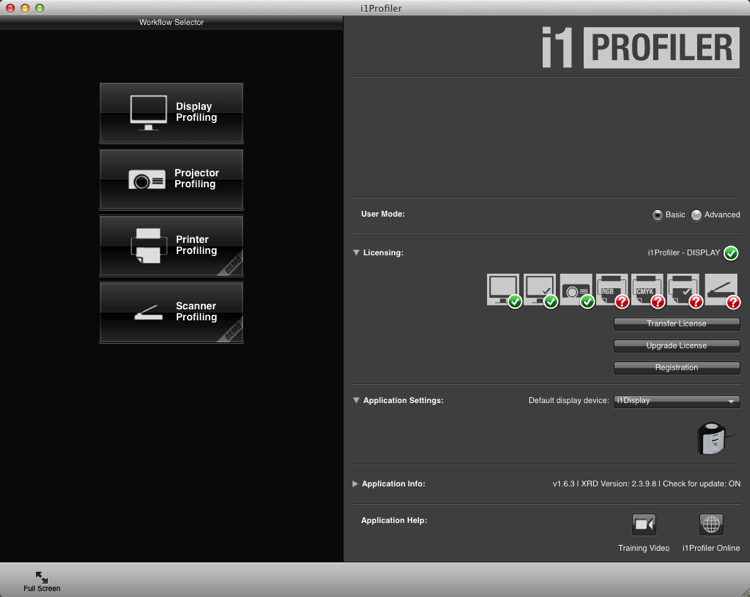
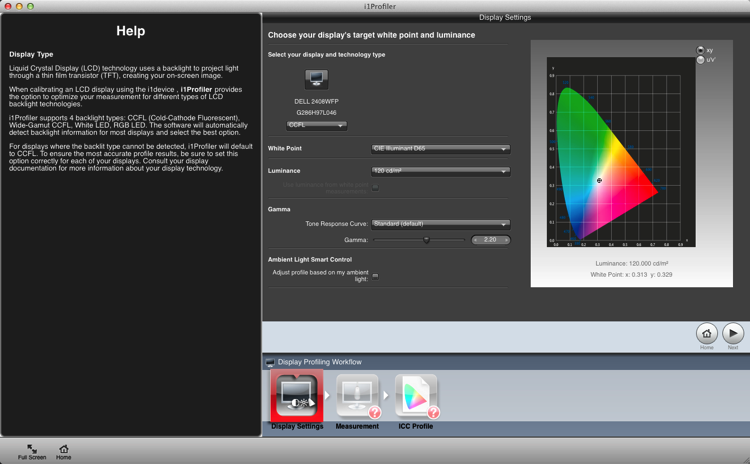
Let’s look at this using the software supplied with the i1DisplayPro, i1 Profiler. Here’s the screen you see at the start (after registering the product).

Calibrating your screen 02

Click on Display Profiling to begin. The software detects your screen type automatically and applies recommended defaults for the screen. Press Next (below).

Calibrating your screen 03

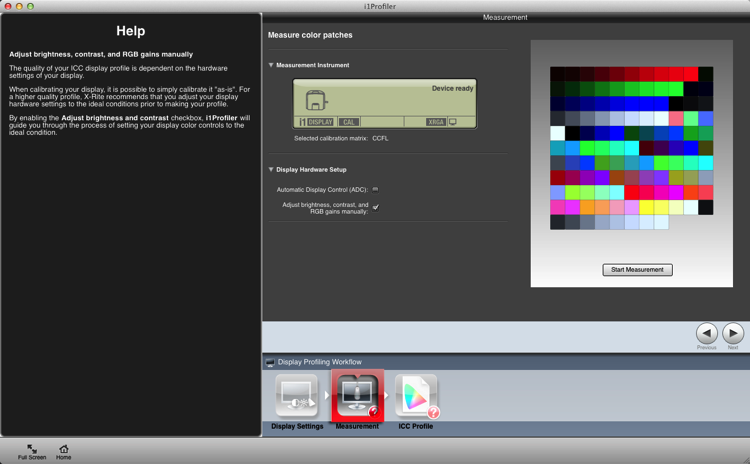
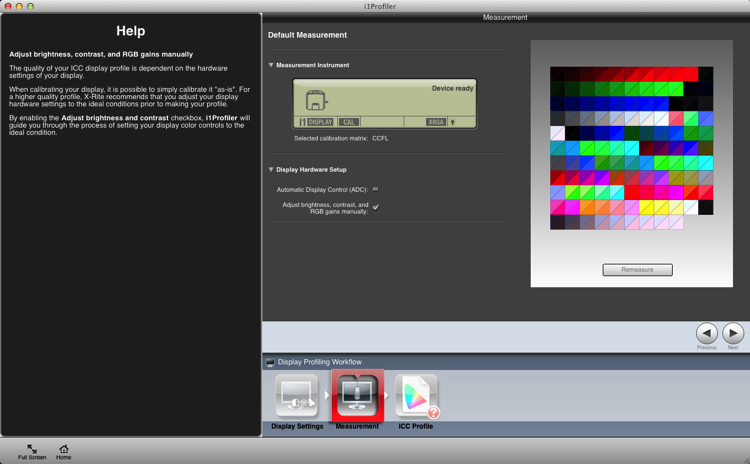
You’re on to the Measurement screen now (below). Choose the manual option for the screen brightness and contrast. The color tiles you see on the right are the colors that will flash on the screen as the calibration runs. Click the Next button to begin.

Calibrating your screen 04

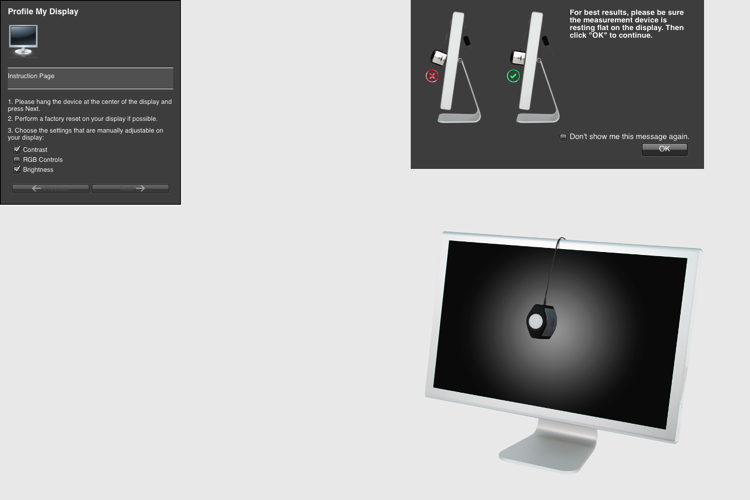
The next figure below, is a cropped version of the screen you will see. Place the device on the screen as instructed. Press ‘Ok’ to continue.

Calibrating your screen puck position

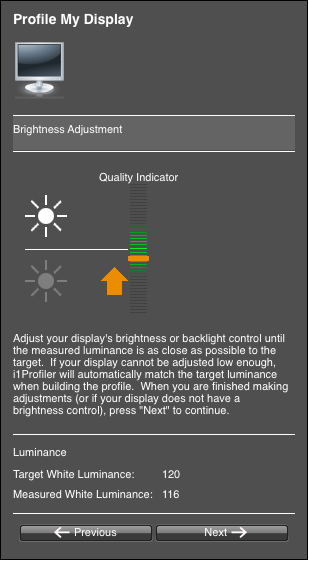
Use the controls on you monitor to get the correct brightness settings (see below) for the profile. Click Next when it’s correct. The screen will cycle through the series of colors seen as tiles back further. As each tile displays, the entire screen changes to that color. This takes about two minutes.

Calibrating your screen 06

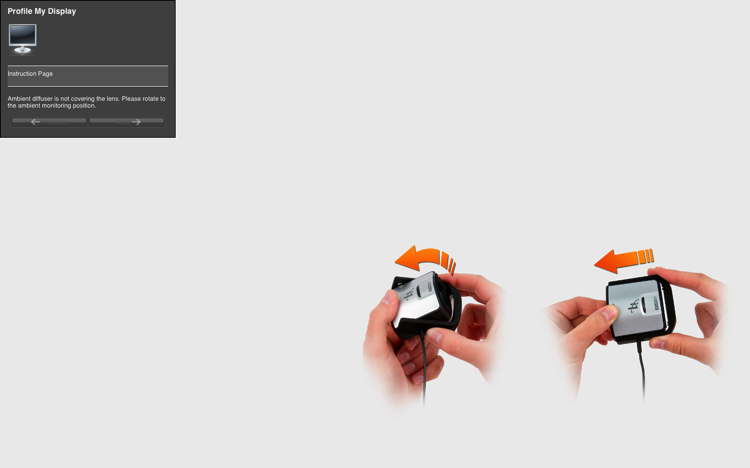
Take the device off and set it for ambient light, even if you don’t use this function.

Calibrating your screen 07

The tiles now show a before and after view of the color changes from the profile. Click next.

Calibrating your screen 08

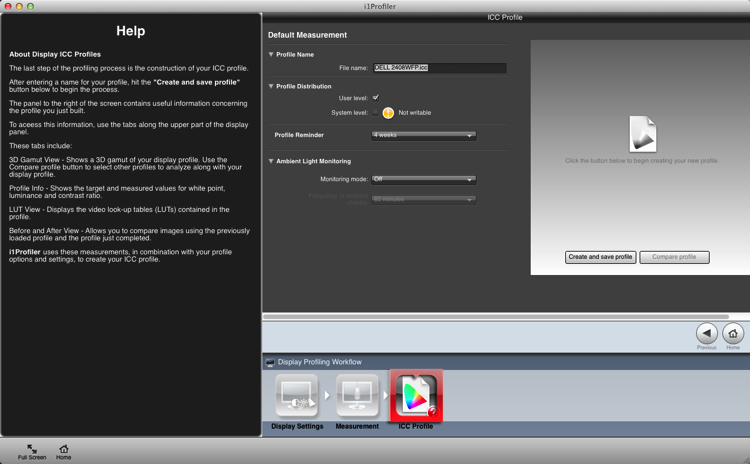
Click Create and Save Profile to make a new monitor profile.

Calibrating your screen 09

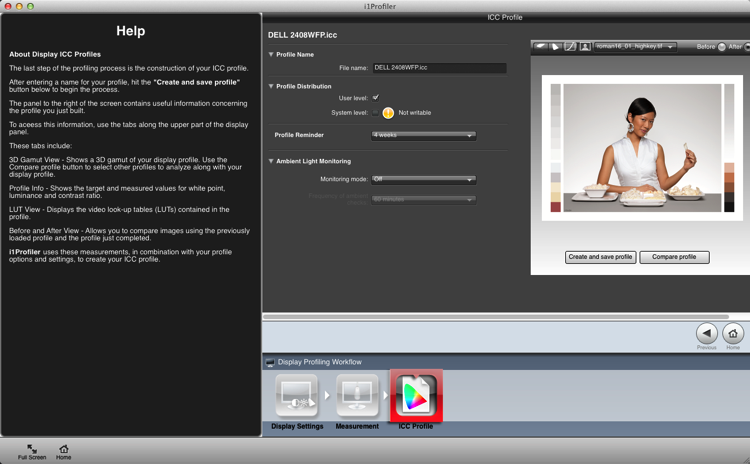
Once the profile is made, you can do a comparison using the test charts in the screen.

Calibrating your screen 10

Summary and questions

That’s it. You’re done. Lightroom, Photoshop and color managed browsers like Safari will use this profile when you view images, allowing you to edit and process images with the best color rendition. Ideally you should do this calibration no less than once a month for best color. You’ve also taken your first steps into color management without knowing it; probably the most important.

Do you have any questions about this process? Have you tried it? Had any difficulties? If you use a similar device which one, and have you had good success with it? Please share in the comments below.

googletag.cmd.push(function() {
tablet_slots.push( googletag.defineSlot( “/1005424/_dPSv4_tab-all-article-bottom_(300×250)”, [300, 250], “pb-ad-78623” ).addService( googletag.pubads() ) ); } );

googletag.cmd.push(function() {
mobile_slots.push( googletag.defineSlot( “/1005424/_dPSv4_mob-all-article-bottom_(300×250)”, [300, 250], “pb-ad-78158” ).addService( googletag.pubads() ) ); } );

The post Why is Monitor Calibration Important and How to do it by Sean McCormack appeared first on Digital Photography School.


Digital Photography School

 
Comments Off on Why is Monitor Calibration Important and How to do it

Posted in Photography


Rugged Landscapes: 3D Art Carpets Transform Indoor Environments

14 Feb

[ By WebUrbanist in Design & Furniture & Decor. ]

3d carpet art

Inspired by natural landscapes and crafted with carpet factory remnants, these labor-intensive creations are as much terrains as textiles.

3d room rug

Alexandra Kehayoglou is an artist from Argentina who uses leftover scraps from the family business, a carpet factory in Buenos Aires, to build her wool room-wrapping creations.

3d landscape carpet

3d island design

3d landscape tufted

Her use of materials mimics natural textures of natural moss, water, trees and ice, providing the functions of a traditional rug with a layer of artistic flair via memory-evoking scenery, often on creations that wrap vertically to become tapestries.

3d chair flowing

3d rug factory

3d creation proces

The source material, she says, are the landscapes of her homeland, from grasslands to deserts, lakes to glaciers. They are richly-textured when on the floor, but gain additional dimensions as they wrap up walls or onto furniture, becoming more than just a horizontal surface.

Share on Facebook


[ By WebUrbanist in Design & Furniture & Decor. ]

[ WebUrbanist | Archives | Galleries | Privacy | TOS ]


WebUrbanist

 
Comments Off on Rugged Landscapes: 3D Art Carpets Transform Indoor Environments

Posted in Creativity


Weekly Photography Challenge – Time

14 Feb

Time – it just keeps on ticking and there’s nothing we can do about it.

Except maybe try and capture the concept of time in an image – like these images I shared earlier.

Niko Knigge

By Niko Knigge

The hands of time can be taken quite literally, as in the image above – or more figuratively such as the images below:

?? ?????

By ?? ?????

Jason Mrachina

By Jason Mrachina

Basheer Tome

By Basheer Tome

Weekly Photography Challenge – Time

As always we have a weekly challenge and this week it all about time. Finding time, time warp, hands of time – however you want to interpret it is up to you. Take it literally and photograph a time piece like an interesting watch or clock, or perhaps a sundial like above. Or get more out there and think about time as in long exposures, star trails, car light trails, a moment frozen in time, etc.

Corie Howell

By Corie Howell

Tom Roeleveld

By Tom Roeleveld

Luc Mercelis

By Luc Mercelis

?ethan

By ?ethan

KHAIRIL FAIZI

By KHAIRIL FAIZI

Share your images below:

Simply upload your shot into the comment field (look for the little camera icon in the Disqus comments section) and they’ll get embedded for us all to see or if you’d prefer upload them to your favourite photo sharing site and leave the link to them. Show me your best images in this week’s challenge. Sometimes it takes a while for an image to appear so be patient and try not to post the same image twice.

googletag.cmd.push(function() {
tablet_slots.push( googletag.defineSlot( “/1005424/_dPSv4_tab-all-article-bottom_(300×250)”, [300, 250], “pb-ad-78623” ).addService( googletag.pubads() ) ); } );

googletag.cmd.push(function() {
mobile_slots.push( googletag.defineSlot( “/1005424/_dPSv4_mob-all-article-bottom_(300×250)”, [300, 250], “pb-ad-78158” ).addService( googletag.pubads() ) ); } );

The post Weekly Photography Challenge – Time by Darlene Hildebrandt appeared first on Digital Photography School.


Digital Photography School

 
Comments Off on Weekly Photography Challenge – Time

Posted in Photography


Review : WD MyCloud Mirror Personal Cloud Storage

14 Feb

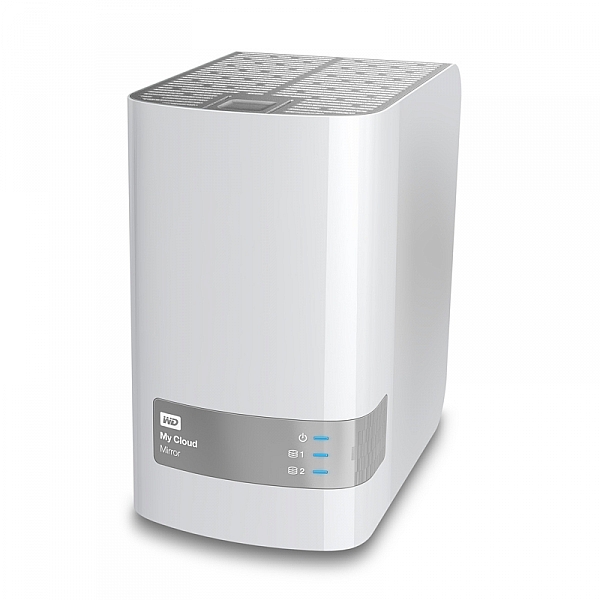
Some would argue that, these days, it’s just as important to backup our mobile (camera) devices for the very reason we backup our regular digital photographs. Here’s my take on doing just that with my review of the My Cloud Mirror.

wdfMyCloud_Mirror (1)

MyCloud Mirror Personal Cloud Storage on Amazon

Even though I have my camera with me most of the time, I still have my iPhone (or your Android or Windows thing or heck, even your Blackberry) with me about 99.8% of the time. That’s maybe more than most people as my 9 to 5 is social media and photography, so I tend to have the phone near, and as a result, I take a lot of photographs with the thing.

It’s the iPhone 6 Plus, it has a half decent camera and as a result I take a lot of photos, videos, time lapse sequences, slow motion videos, etc. The bottom line is, I use it to create a LOT of content, and I know a lot of you guys do too. The theme with my other storage and backup related articles here on dPS has been “don’t lose stuff when you don’t need to!” and really, the same goes for your phone. You use it to create memories, even if you can’t print those memories out at A1 size (23.4 x 33.1″), they are still moments that you might like to remember. (Or they’re just photographs of every coffee you’ve ever had and really, you should just stop that!*)

wdfMyCloud_Mirror

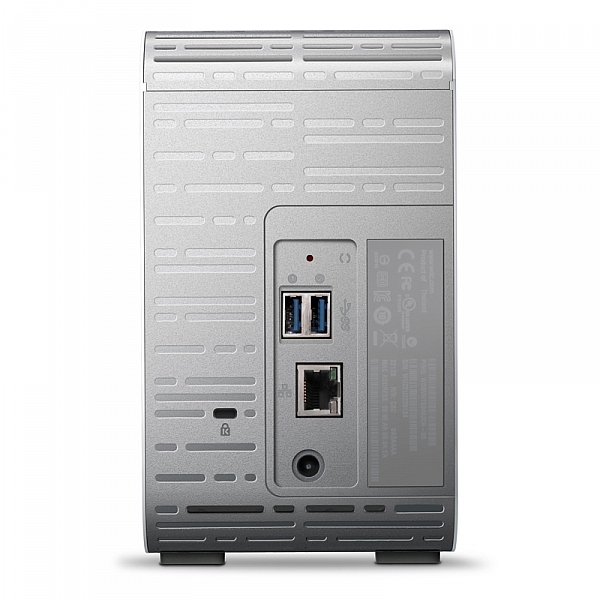
As ever, without slapping down a whole page of technical jargon that you really don’t understand, I shall explain the WD MyCloud Mirror in the easiest way I can. You unbox it, plug it into power and to your network, (Cat5 cable between your MyCloud and your internet modem / router) follow the configuration instructions, and within minutes (unless you really are very very bad at things with buttons and knobs) you will have a storage drive that is both connected to your computer on your home network / wireless, and you will have a storage “cloud” that is available to you on your phone (apps available in Google Play and iTunes app store) and via any internet connected browser.

Maybe the skeptic in you is saying, “but I still have to remember to actually backup my phone!” Actually, and you knew I’d say that, it does it automatically (make sure your app settings are right) so you can shoot on your phone, and have your photos automatically transferred to your MyCloud Mirror (you control if it does it all the time or only when you’re connected via Wifi to avoid crazy mobile data bills).

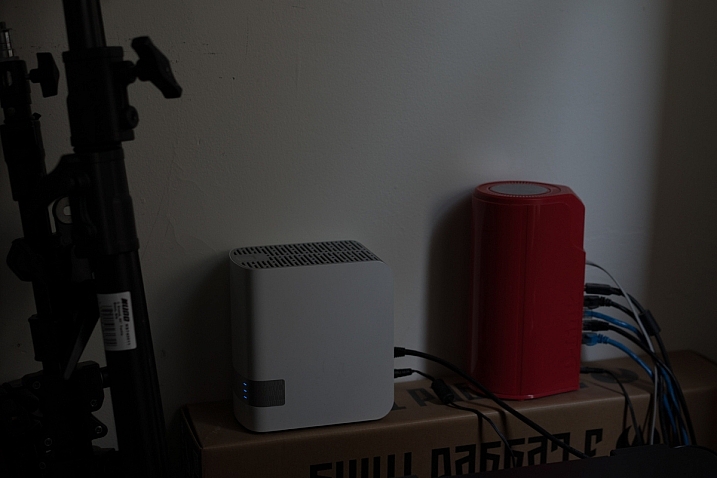
Simon_Pollock_WD_MyCloud_Review

My ultimate test of the WD MyCloud Mirror was on a recent trip to Fiji for a photography workshop. I was using a Fijian sim card in my iPhone and had wifi at random hours of the day. I set the MyCloud app to upload my iPhone content when on Wifi, and that’s exactly what it did – seamlessly! My wife could navigate to a website back in Melbourne and see what I’d photographed on my phone, and show my boys where I was – it was great. Now, you can do that using a camera, card reader, and a laptop with wifi (or a hundred other ways) but for those moments that I simply whipped out my phone and snapped a memory, they were preserved and immediately available for others to see (or to not see, depending on your security settings, obviously).

Some specs for you to wrap your head around

  • Keep your content in one, double-safe place
  • Get abundant, dual-drive storage with access from anywhere
  • Save everything with twice the protection using Mirror Mode (RAID 1-default)
  • Easily transfer to and from Dropbox™ and other cloud accounts

You can use the MyCloud Mirror with the following

  • Windows® 8.1 or earlier, Windows 7, Windows Vista® or Windows XP (32 bit) SP 3 operating systems
  • Mac® OS® X Mavericks, Mountain Lion™, Lion™ or Snow Leopard® operating systems
  • DLNA®/UPnP® devices for streaming
  • Router with Internet connection

Supported browsers:

  • Internet Explorer® 8 or higher
  • Safari® 6 or higher
  • Firefox® 21 or higher
  • Google Chrome™ 27 or later on supported Windows and Mac OS platforms

What’s that about a mirror?

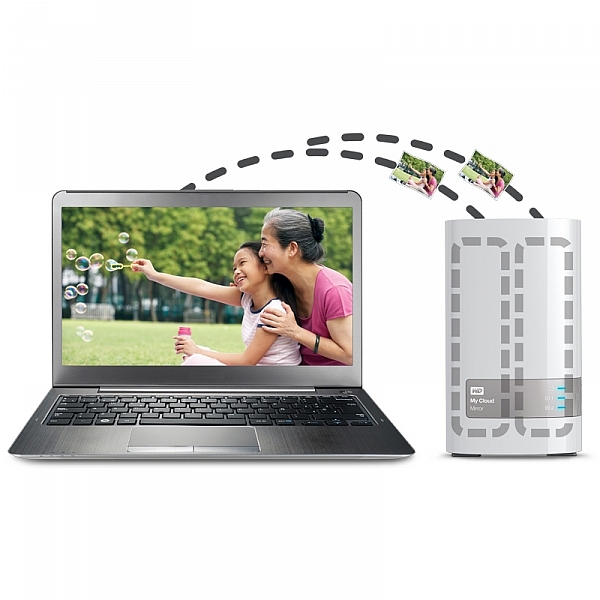
You may also have picked up on the word mirror in the name of the MyCloud, it does indeed have two disks in it and it mirrors your data. While you’re backing it up from your phone, you’re also making a redundant copy of it onto the second drive, so if disk number #1 should fail, disk #2 will still have all of your duck-faced selfies (be honest, who doesn’t love a duck-faced selfie). Here’s a picture of that happening, just perchance I’ve confused you with my techno-babble.

wdfMyCloud_Mirror (3)

In summary, I totally love the WD MyCloud Mirror (I have the 4/2 (mirrored) TB version). I can’t recommend it enough for those of you that are half serious about your phone photography, or even just half serious about storage and content access while you’re anywhere with an internet connection.

The WD MyCloud Mirror has been online for three months to test its reliability. It’s been online, and available all of that time, without a hiccup. I was sent the unit for test and review purposes, and will always give an unbiased opinion of a product. I award the MyCloud Mirror Five stars for simplicity in setup and usage, as well as (three months) constant reliability.

*there’s a good chance that sentence was about, and directed at me :) 

googletag.cmd.push(function() {
tablet_slots.push( googletag.defineSlot( “/1005424/_dPSv4_tab-all-article-bottom_(300×250)”, [300, 250], “pb-ad-78623” ).addService( googletag.pubads() ) ); } );

googletag.cmd.push(function() {
mobile_slots.push( googletag.defineSlot( “/1005424/_dPSv4_mob-all-article-bottom_(300×250)”, [300, 250], “pb-ad-78158” ).addService( googletag.pubads() ) ); } );

The post Review : WD MyCloud Mirror Personal Cloud Storage by Sime appeared first on Digital Photography School.


Digital Photography School

 
Comments Off on Review : WD MyCloud Mirror Personal Cloud Storage

Posted in Photography