RSS
 

Archive for February, 2016

Tips for Removing Digital Noise in Lightroom

17 Feb

One of the most significant advantages that modern cameras have over their film-based counterparts of days gone, by is their ability to change how sensitive they are to light with the touch of a button.

Back in the days of film you had to decide ahead of time whether you wanted to shoot at ISO (then called ASA) 100, 200, 400, or in extreme cases, 800. If you were going to take pictures outdoors, a roll of 24 or 36 exposure, 100 or 200 film would work fine, but woe betide the unsuspecting photographer who wandered inside a dimly-lit building with that same film still in his or her camera. To change sensitivity, and shoot in the new lighting conditions, you had to shoot the rest of the pictures on a given roll of film, remove it from your camera, and hope you brought some ASA 400 or 800 film with you.

Nowadays you just spin a dial on your camera to instantly switch between ISO values like 100 or 200, that work great in broad daylight, to ultra-high values like 6400 or 12,800, that would be positively unthinkable with film. It’s not all sunshine and roses though as one of the biggest issues with high ISO values is that of digital noise. Even the newest cameras produce pictures with noise and grain when shooting at high ISO values, but thankfully Lightroom can help mitigate some of the effects of this noise.
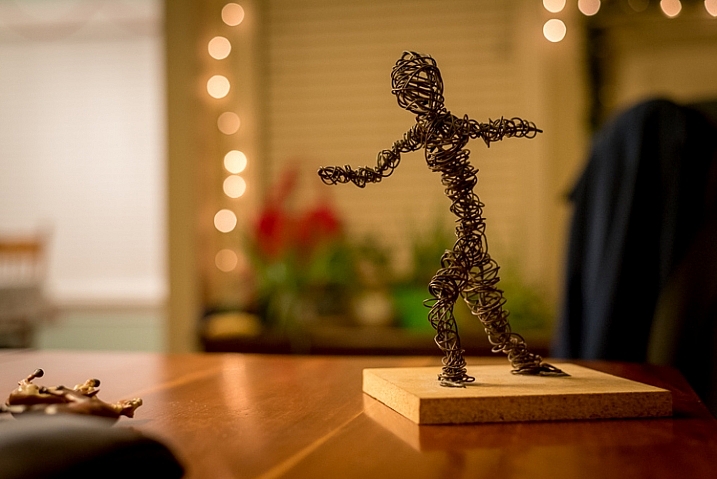
Shot at ISO 5000, the original image was too noisy for practical use. Lightroom enabled me to clean things up significantly.

Shot at ISO 5000, the original image was too noisy for practical use. Lightroom enabled me to clean things up significantly.

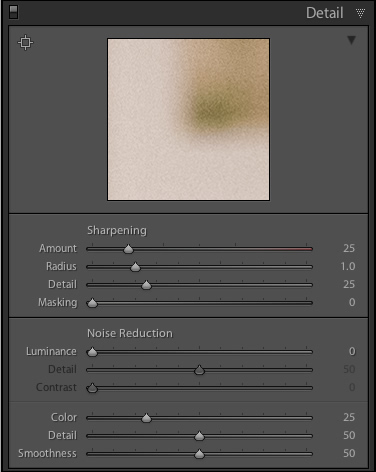
To get started with the noise reduction options click on the Develop module, then find the Detail panel on the right side. Note: this process works best if you shoot in RAW, not JPG.

You will find several options that can seem a bit confusing and overwhelming at first. You can experiment all you want, by just moving the sliders around to see what effects they have on your pictures, but it also helps to examine each one individually, to know precisely what they do. You will also see the Sharpening options, which are related to noise reduction, but I’m not going to focus on them specifically just yet. Before you look at the sliders themselves in the noise reduction area, it’s important to understand the two types of noise that are produced when taking a picture, Luminance and Chroma.
lightroom-noise-reduction-develop-panel

Luminance noise

This kind of noise affects the brightness, but not the color, of individual pixels. If you had a picture of a dark grey piece of paper with a great deal of luminance noise it would appear similar to old-school television static with lots of light and dark fuzz.

Chroma noise

This shows up as oddly-colored pixels, scattered throughout an image, almost like someone has tossed a handful of red, blue, and green grains of sand at it. Lightroom calls this “Color” noise, but it’s just another term for Chroma noise.

Both types of noise are byproducts of how digital image sensors capture data, and while they can be corrected somewhat in Lightroom and other post-processing software, it’s almost impossible to completely remove noise from a picture while still ending up with a usable image. Lightroom does give you some tools to get your digital noise under control, and if you know what you’re doing you can get some fairly decent results. Using separate controls for luminance and chroma noise, in combination with some sharpening adjustments, can help you salvage what you may think is a useless picture. As an example, here’s a picture that I took at ISO 6400, without any noise reduction applied.

35mm, f/5.6, 1/60 second, ISO 6400

35mm, f/5.6, 1/60 second, ISO 6400

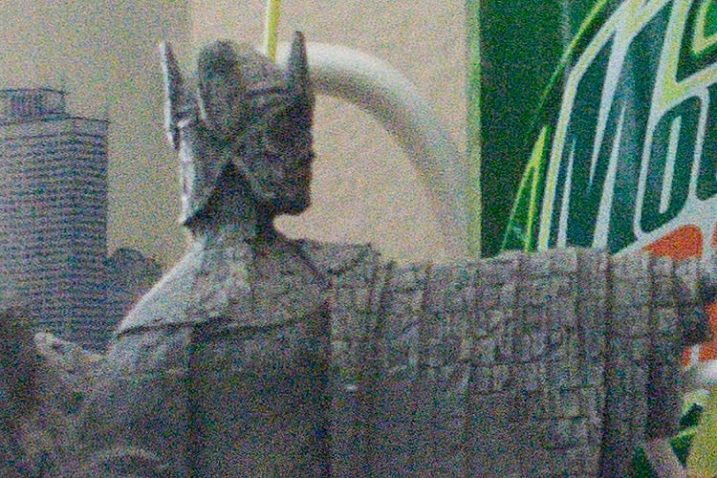
Not bad, right? If this is what ISO 6400 looks like, you might as well shoot like this all day long! Well, before you go and spin your ISO dial all the way up to Ludicrous Mode, you might want to take a look at the same 24-megapixel image zoomed in to 100%.
lightroom-noise-reduction-scene-no-noise-reduction-100-percent

Ow, my eyes! The noise, it hurts! Not only is the picture full of color blotches, but shooting at ISO 6400 has resulted in an image that is far less sharp than it could be at a lower ISO. A great deal of color noise is evident on the torso of the figure, as well as the slanted lines on the left side, and you can see lots of luminance noise in the green letters on the right side too.

This noise is not always visible when you shrink  your files down to share online, but if I were to print this picture it would look like my cat threw up on the paper. Lightroom can help us fix things, and a good place to start, in this case, is with the luminance slider at a value of 30.
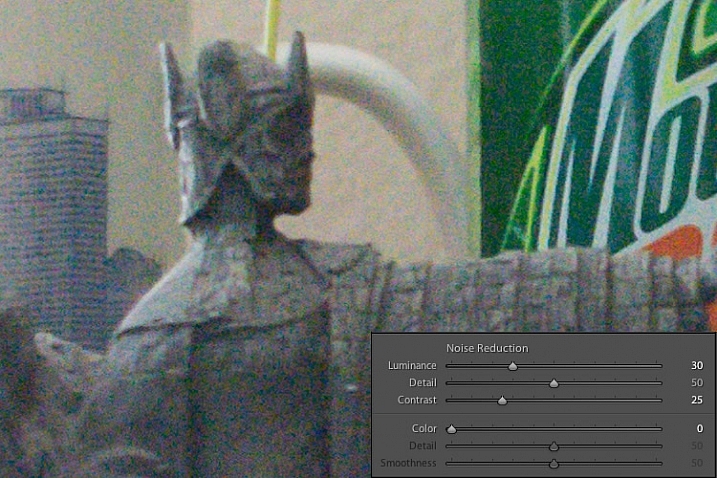
lightroom-noise-reduction-scene-luma-noise-reduction-100-percent

Much of the black and white static has been removed, but there are still splotchy patches of color scattered throughout the image, which can dealt with using the color slider next. Before you start thinking that this is a magical cure-all for your noisy images, take a closer look at the picture. Much of the details have been lost, or blurred, such as the lines on the side, and the patchwork of the figure’s tunic.

You can mitigate these effects somewhat by using the detail and contrast sliders, but again the results are not going to be ideal. Detail acts as sort of a threshold control, allowing you to tell Lightroom what should be treated as noise and what should be left in. I usually leave this slider at 50 but you can experiment with it to get the results you need. The contrast slider helps bring back some of the edges that have gotten blurry, thanks to the noise reduction algorithm, and even though I have set it to 25 in this example, you can clearly see that much of the edge contrast is not as good as the noisy original. Move this slider too far though, and your photo will start looking fake and artificial, so you’ll have to find a good balance depending on your needs.

To continue with the noise reduction, the color slider can be used to get rid of the weird splotches of red, green, and blue, but again you are going to see some tradeoffs.
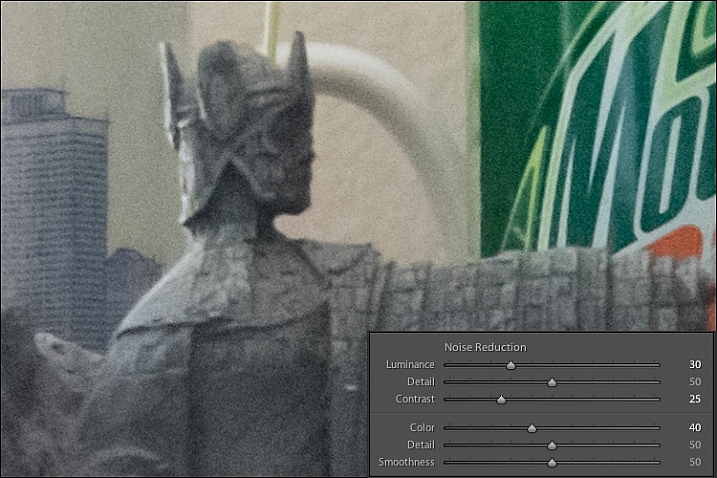
lightroom-noise-reduction-scene-chroma-noise-reduction-100-percent

The results look fine at first, and you may notice that Lightroom automatically applies some degree of Color noise reduction (value 25) to every photo by default. This is because low-grade Color noise reduction is almost always good to have, and generally won’t result in too many tradeoffs for the image as a whole. In this case I used a value of 40, to show the effects a bit more. Even though the result is decent, you might notice something else that’s missing, if you look at the soda bottle label on the right-hand side. Compare it to the original picture and you will see that along with removing some of the color noise Lightroom has actually removed some color from the whole photo.

The Detail slider slider, similar to its counterpart in Luminance noise reduction, acts as somewhat of a threshold so you can tell Lightroom what is, and is not, noise to remove. The Smoothness slider is a fairly recent addition to Lightroom, and can be used to control what’s known as “low-frequency” color noise. Basically, slide it to the right to remove larger splotches of noise or to the left to keep these more intact.

Every time you use Lightroom’s noise reduction tools you will deal with tradeoffs, and one of the most significant of these is the overall sharpness of the image. Photos with more noise reduction will almost always be softer, particularly where there are sharp contrasting edges, and you can bring a bit of this back by using the sharpening tools.

Here’s yet another 100% crop of the image above with the same noise reduction employed in the previous image, but with added sharpening.
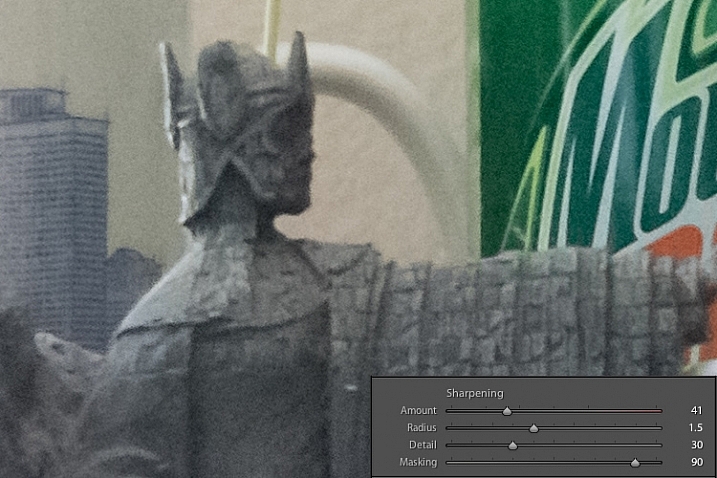
lightroom-noise-reduction-scene-sharpened-100-percent

After a bit of sharpening, the detail in the lines on the left side has returned, and so has the texture of the tunic, but the lower-left corner is still a muddy mess of grey, whereas in the original noisy picture it was more defined. Here’s both the original and edited image side-by-side which might help you get a macro view of how these noise reduction and sharpening tools can affect a picture.
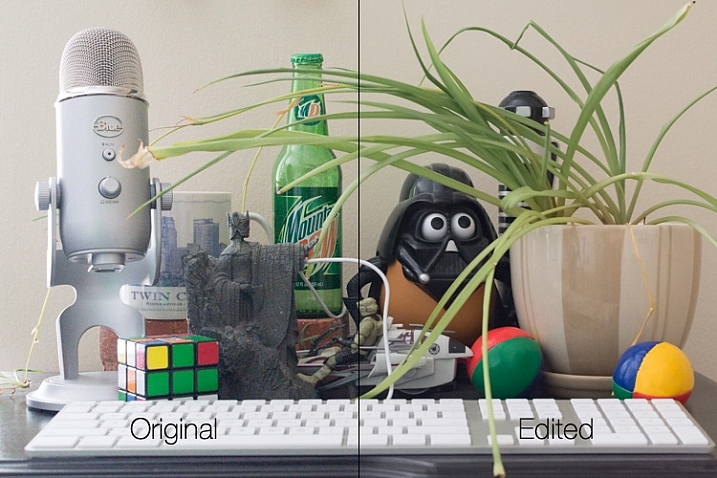
lightroom-noise-reduction-scene-both

At first glance you might not notice too many differences, but one of the most glaring problems with the edited picture is the complete lack of texture on the wall behind the scene, as well as a smoothness to the plant that is almost unnatural. Here’s a side-by-side zoomed in to 100%.
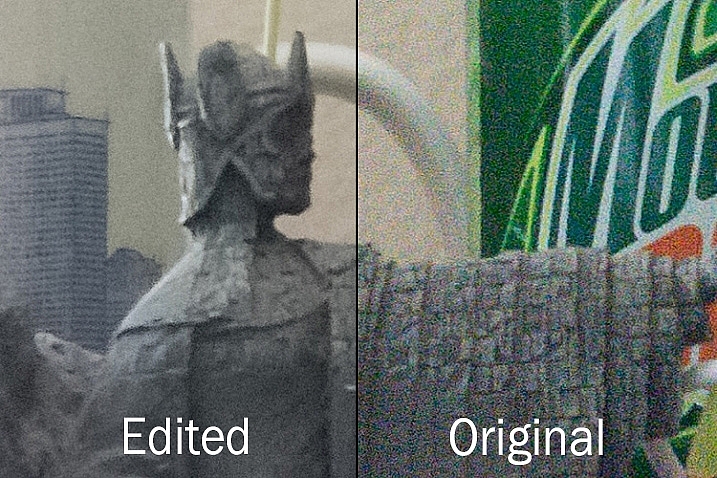
lightroom-noise-reduction-scene-no-noise-reduction-100-percent-before-after

Is it worth these tradeoffs to get a photo with less noise? That question can only be answered by you, but one rule of thumb I like to follow, is that a noisy image can be corrected and edited in postproduction, albeit somewhat imperfectly. A blurry image cannot be fixed.

So, if there is a situation in which I find myself having to choose between a faster shutter speed and higher ISO (i.e. more noise), or a slower shutter speed and lower ISO (i.e. less noise) I’ll usually err on the side of noise, if the slower shutter speed would result in an image that is too blurry.

I also make liberal use of my camera’s auto-ISO feature, which allows me to set a minimum shutter speed and a maximum ISO value. That way I can concentrate on adjusting the aperture to get the composition I want, and always know that my pictures will be free of blur, even if does mean there will be a bit of noise I have to clean up in Lightroom.

The light here was quite dim which required a high ISO value. I didn't mind a slightly noisy image that was sharp and in focus, because I was able to get rid of most of the noise in Lightroom.

The light here was quite dim, which required a high ISO value. I didn’t mind a slightly noisy image that was sharp and in focus, because I was able to get rid of most of the noise in Lightroom.

One final note worth mentioning is you can also use Lightroom’s local adjustments like the Radial Filter, Graduated Filter, and Adjustment Brush to apply noise reduction in specific areas of an image only. However, this is a bit limited, in that these adjustments only perform luminance noise reduction, so you might still be left with some ugly colored spots, that can only be removed using the global adjustments in the detail panel of the develop module.

What are some of your favorite tips and tricks for removing noise? I’d be interested to hear any thoughts you have in the comments section below.

googletag.cmd.push(function() {
tablet_slots.push( googletag.defineSlot( “/1005424/_dPSv4_tab-all-article-bottom_(300×250)”, [300, 250], “pb-ad-78623” ).addService( googletag.pubads() ) ); } );

googletag.cmd.push(function() {
mobile_slots.push( googletag.defineSlot( “/1005424/_dPSv4_mob-all-article-bottom_(300×250)”, [300, 250], “pb-ad-78158” ).addService( googletag.pubads() ) ); } );

The post Tips for Removing Digital Noise in Lightroom by Simon Ringsmuth appeared first on Digital Photography School.

Digital Photography School

 
Comments Off on Tips for Removing Digital Noise in Lightroom

Posted in Photography


5 Must-Have Lenses for Wedding Photographers and Why

16 Feb

Have you ever wondered which lenses are in a wedding photographer’s bag? There is a plethora of choice when it comes to lenses, and lens companies come up with new products all the time. Many photographers are attracted to these bright and shiny things and end up with a mammoth collection of lenses, many of which hardly see the light of day. If you have to pare back to the absolute necessities, and are allowed five lenses in your wedding photography bag, these are the ones that I would recommend. I have been a professional wedding photographer for seven years now, and deciding on these five took some time, and serious consideration over the course of my career.

They are:

  1. The 70-200mm f/2.8
  2. The 24-70mm f/2.8
  3. The 85mm prime
  4. The 35mm prime
  5. A macro lens (105mm or 60mm for Nikon, 100mm or 60mm for Canon)

Let’s look at each individually to see why.

5-must-have-lenses-wedding-photographer_0001

#1 – 70-200mm f/2.8

It’s big, bulky and heavy but I wouldn’t do a wedding without this lens. The 70-200 f/2.8 is my workhorse when it comes to weddings. It is a versatile lens that gives you amazing sharpness at all focal lengths. The bokeh is beautiful, especially at 200mm, even with a stopped down aperture due to the compression caused by the long focal length.

This lens makes a wedding photographer invisible. You don’t have to be so close to people’s faces; you can capture candid expressions and serendipitous moments from a fair distance away. This lens is especially useful during the ceremony, where you would rather be far away and out of sight, or hidden behind a wall or door. It allows you to capture the exchange of rings, vows, and kiss discreetly.

5-must-have-lenses-wedding-photographer

If you require a longer zoom while being at the same fair distance, you can choose to photograph in DX mode (if you shoot full frame and your camera offers this option) on your camera, and the lens will give you 1.5x distance more, making 200mm into a neat 300mm zoom. If you do this, make sure that you have enough pixels for the crop, in case you feel the need to straighten or change your composition in post-processing.

For example, of you are shooting with a 12MP camera such as the old Nikon D700 on FX mode, when you convert to DX mode the camera becomes a 5MP camera, which is below the minimum amount of pixels you can have – 6MP – to be able to enlarge prints to a decent size. If you have to crop in post-processing, this will not give you enough pixels to be able to safely do so without compromising print output sizes.

5-must-have-lenses-wedding-photographer

However, if you are photographing with a Nikon D810 in DX mode, your image goes from 36MP to 15.3MP but still leaves you enough wiggle room for minimal, and sensible cropping if necessary. If you use this functionality, don’t forget that when photographing in DX mode on a full frame camera, or when using a DX lens, the camera only uses the center of the sensor. So if you forget to compose accordingly in camera, you will get a nasty surprise after you have taken the image: cut off heads and limbs, and badly cropped compositions are some examples. When using DX lenses, the rest of the unused sensor area is blacked out but when using FX lenses in DX mode, this is not the default and you would still see the entire full-frame sensor if you don’t change your settings.

5-must-have-lenses-wedding-photographer

The 70-200mm is an excellent focal length for flattering portraits. When photographing at 200mm, I typically stop down to around f/4 or f/5.6 at a shutter speed of 1/200-1/400th, and the sharpness of the image is stunning against a creamy bokeh background. This lens also has a built-in lens collar you can use to steady it when hand holding, or attaching it to a tripod stand. Without a tripod, you can steady yourself as much as possible by leaning against something immovable like a wall, or on a stable surface such as a table, or keeping your arms pinned against something sturdy to reduce camera shake, especially when using this lens for portrait work at the longer end of the focal length.

5-must-have-lenses-wedding-photographer

5-must-have-lenses-wedding-photographer_0033

You can now get a f/4 version of this zoom lens (for Nikon, Canon has always had one) at a vastly cheaper price compared to the f/2.8. I personally do not have the f/4 version but if you’re on a budget, and you don’t mind not having the option to photograph at a wider aperture, then I see no reason why you should not get the f/4. It is lighter and smaller, understandably so because it has less glass elements compared to its more expensive counterpart, and may not only suit the budget better, but also lessens the bulk you have to carry at a wedding.

5-must-have-lenses-wedding-photographer

5-must-have-lenses-wedding-photographer

#2 – 24-70mm f/2.8

The 24-70mm f/2.8 offers the focal length versatility needed when you are photographing on the go, which is what wedding photographers need for most of the day. You can use this lens to capture wider location scenes, candid photos of people, guests arriving, people milling and chatting while waiting for the ceremony to start or during the wedding breakfast, some decorations and details, the first dance, and the leaving photos, to cite just a few.

5-must-have-lenses-wedding-photographer

5-must-have-lenses-wedding-photographer

I use this lens for photos that do not require close portrait work, although it can definitely be used as one. The 50-70mm range will yield pleasing results, like the image directly below. However, my preference is to use prime lenses for portraits. The 24-70mm lens sees a whole lot of action during the wedding day, and is definitely my other workhorse for capturing people, wider shots, and behind-the-scenes.

5-must-have-lenses-wedding-photographer

5-must-have-lenses-wedding-photographer

Many photographers include a much wider lens for location photographs such as the 14-24mm f/2.8. While I would love to add this lens to my arsenal, this is not an absolute necessity, in my opinion. With the 24-70mm, you can photograph location scenes wide enough – but should you need to capture a wider scene, you could photograph a few images and stitch them together in Photoshop as a panorama. This is easy enough to do by making sure the exposure setting for the series of shots are the same, and you stand on a fixed point, inching your way across the panorama. You can do the same for a photograph of all the guests too. These would be the only times I would need an ultra wide angle lens for a wedding, hence I cannot just yet justify adding it to the list of must-haves.

5-must-have-lenses-wedding-photographer

5-must-have-lenses-wedding-photographer

#3 – 85mm prime

This is my all-time favorite lens, and the one I use for portraits of the bride and groom, bridesmaids and groomsmen, individual guests or small groups, and the list goes on. As a fixed lens, this requires more work on your part – you have to zoom in and out with your feet. But, the extra effort is worth it – the portraits are cleaner, the backgrounds are creamier, and it is a fabulous lens in very low light conditions.

5-must-have-lenses-wedding-photographer

The best thing I love about this lens is that it is tack sharp from the sweet spot on. Accurate, light sensitive, great results on skin, this is my go-to lens, and it never leaves my bag. Being a prime lens, the 85mm is fast, small, and extremely reliable.

5-must-have-lenses-wedding-photographer

I have photographed an entire wedding of a relative (as a guest) using only this lens. I was asked on the day if I could cover the wedding and I agreed, with only the D700 and 85mm combination in hand, which I carry with me most times for personal snapshots, and photos of my family. The photos from that wedding are published in one of the UK’s top wedding blogs: proof that you can photograph a wedding with what you have, given that you know your gear well enough.

5-must-have-lenses-wedding-photographer

The 85mm for Nikon comes in either an f/1.8 ($ 479 USD) or f/1.4 version ($ 1595 USD), with a huge price difference between the two, due to the glass elements and optics (Canon also has an f/1.2 available, it’s $ 1999 USD). However, many photographers are divided between which lens is better. I have the f/1.8, and it has always performed marvellously for me. The f/1.4 has been on my lens list forever, and while I could buy it as the 85mm is on my necessity list, I have held off given that I have never felt the need to upgrade.

5-must-have-lenses-wedding-photographer

#4 – 35mm

One of my early serious lens investments was this amazing 35mm f/1.4. If there is a lens I can always rely on, it’s this one. This is an ultra versatile lens that you can use to photograph the bride getting ready – the time when wedding photographers are usually under pressure to capture everything from location, the myriad of accessories, details, candid shots, the dress, the natural interactions between the bride and her loved ones, and group portraits – in a very short amount of time and more often than not, in small spaces like cramped hotel rooms. It is also perfect for photographing wider scenes, and you get images without the exaggerated distortions that you get with the 24mm.

5-must-have-lenses-wedding-photographer

5-must-have-lenses-wedding-photographer

This lens is super fast and sharp, and has yet to fail me. With this lens you can get close, with 0.3m (11.7″) minimum focusing distance – very handy when you are in in a crowded space. As if that weren’t enough, this lens opens up to f/1.4 which can let you photograph in extremely low light, especially if you are so pressed for time and space to use off-camera flashes. Even though the 35mm focal length is already covered by the 24-70mm, the difference between f/1.4 and f/2.8, in its ability to allow more light in (two more stops of 4x the light), cannot be underestimated.

5-must-have-lenses-wedding-photographer

5-must-have-lenses-wedding-photographer

The 35mm also comes in f/1.8, a DX lens you can purchase inexpensively (under $ 200). You may wonder why the astronomical difference in price compared to the professional f/1.4 counterpart. First of all, you cannot use the DX lens on a full frame camera without losing pixels, and without the 35mm focal lens becoming a 52.5mm, which can be very limiting in tight spaces. Secondly, the 35mm view is close enough to what the eye naturally sees which people say is around 40mm in loose terms, and I like that view. As a wedding photographer, it allows you to capture images that gives the viewer the impression that they could have been there, seeing the same view themselves. This is an important element in any wedding photography, specifically that with a documentary style, in my opinion.

5-must-have-lenses-wedding-photographer

If you ever get to physically hold each lens in your hands at the same time, the enormous price difference won’t even be in question. The f/1.4 is considerably heavier, and much bigger than the pocket-sized f/1.8. But, don’t be fooled by appearances. The f/1.8 is also an outstanding lens with exceptional performance in its own right, and for crop sensor cameras may be more than sufficient, and is most definitely easy on the budget.
5-must-have-lenses-wedding-photographer

5-must-have-lenses-wedding-photographer

If you already have the 50mm and your budget is constrained, then the 50mm could replace 35mm on this list. It is also an incredible lens. Although the 50mm doesn’t give you as much room to maneuver in smaller spaces as the 35mm, the bokeh on the 50mm is stunning and it’s impressively sharp too, which is one of the top benefits of prime lenses. Like the 35mm, the 50mm is also available in f/1.8, f/1.4, and for Canon f/1.2.  The price difference is meagre between the f/1.8 and the f/1.4, then it jumps up to a whopping figure with the f/1.2.

5-must-have-lenses-wedding-photographer

5-must-have-lenses-wedding-photographer

#5 – 105mm (100mm) or 60mm macro lens

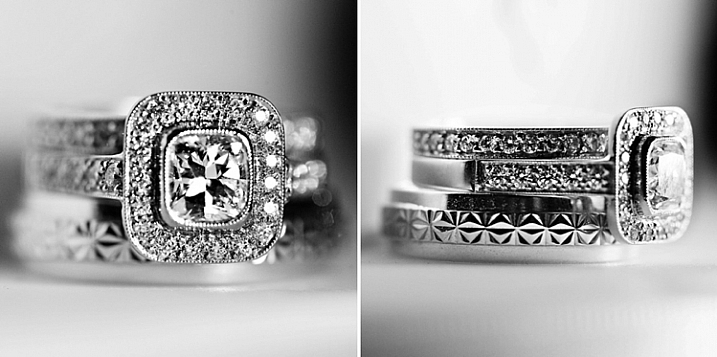
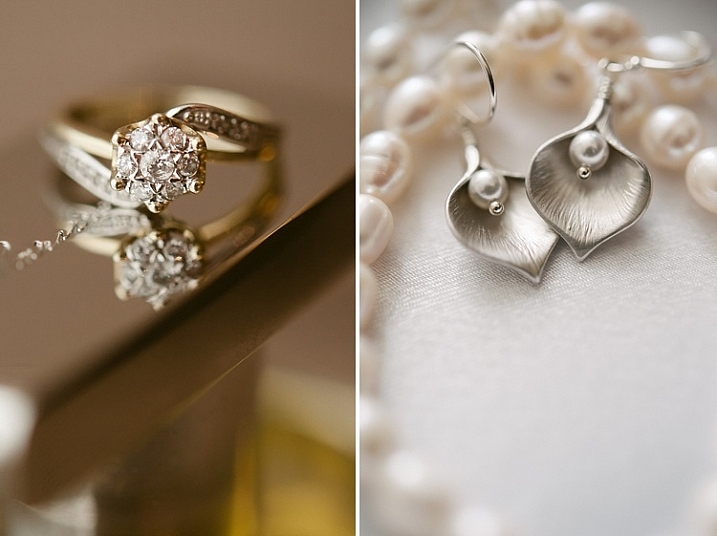
A macro lens is a must for you as wedding photographer, if you want to capture amazing images of rings in close detail. You can also use this lens for photographing jewellery and other accessories when the bride is getting ready. If the bride’s dress is adorned with jewels, the macro lens would also be ideal to photograph the details. In addition, macro lenses are also great to use for portraits if you do not require an aperture wider than f/2.8. This makes it a versatile lens to carry around, especially the 60mm which looks and feels minuscule compared to the 105mm (100mm for Canon). Both lenses can also stop down to f/32, which is handy, especially when photographing location landscapes in extremely bright sunlight.

5-must-have-lenses-wedding-photographer

5-must-have-lenses-wedding-photographer

Some photographers use the 105mm as a close substitute for the 70-200mm, if the latter is just too out of reach.  You can use the 105mm in DX mode which gives you 157.5mm, long enough to enable you to still be very inconspicuous at a wedding. It is also smaller and lighter, and opens up to f/2.8, as well as doubles up as a macro lens.

5-must-have-lenses-wedding-photographer

5-must-have-lenses-wedding-photographer

Do you have other must-have lenses in your wedding camera bag? Please share them here below.

googletag.cmd.push(function() {
tablet_slots.push( googletag.defineSlot( “/1005424/_dPSv4_tab-all-article-bottom_(300×250)”, [300, 250], “pb-ad-78623” ).addService( googletag.pubads() ) ); } );

googletag.cmd.push(function() {
mobile_slots.push( googletag.defineSlot( “/1005424/_dPSv4_mob-all-article-bottom_(300×250)”, [300, 250], “pb-ad-78158” ).addService( googletag.pubads() ) ); } );

The post 5 Must-Have Lenses for Wedding Photographers and Why by Lily Sawyer appeared first on Digital Photography School.

Digital Photography School

 
Comments Off on 5 Must-Have Lenses for Wedding Photographers and Why

Posted in Photography


Surrealism and intimacy: fine art portraiture with Fritz Liedtke

16 Feb

Professional photographer Fritz Liedtke’s work spans the worlds of film and digital, from editorial and commercial work to fine art. A native of Edmonds, WA, Liedtke became fascinated with the creative possibilities and surrealism presented by modifying the focal plane of 4×5 cameras in high school and college. In this presentation, Liedtke guides us through a recent project titled ‘Astra Velum’ (Veil of Stars), wherein he focused on photographing individuals whose faces were peppered with freckles.

‘I wanted to try to create something beautiful out of something that many people see as blemishes,’ Liedke says. Of course, not everyone feels that way about their freckles, but throughout his project, Liedtke noticed that many people he put in front of his camera didn’t necessarily feel like they fit in with the overall concept of American ‘beauty culture,’ with its focus (pun intended) on near-flawlessness.

Liedtke takes us through his post-processing and printing techniques, as well as guiding messages for those looking to start out on a personal project of their own. Keep your eyes open for interesting people to photograph, set goals for yourself, and perhaps most importantly, ‘don’t be afraid,’ Liedtke says. ‘Most people will be flattered that you want to photograph them.’

Articles: Digital Photography Review (dpreview.com)

 
Comments Off on Surrealism and intimacy: fine art portraiture with Fritz Liedtke

Posted in Uncategorized


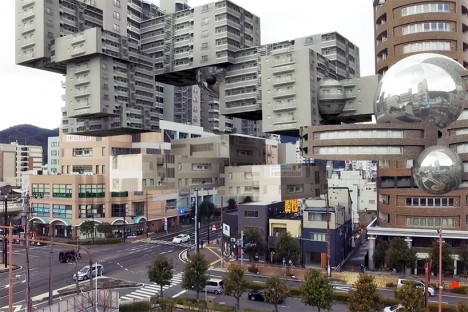
Augmented Reality: Aerial Footage of Distorted Alien Landscapes

16 Feb

[ By Steph in Art & Drawing & Digital. ]

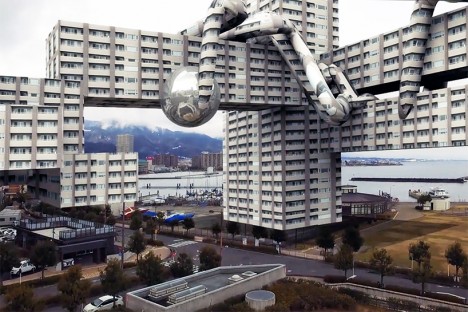
alien landscapes 1

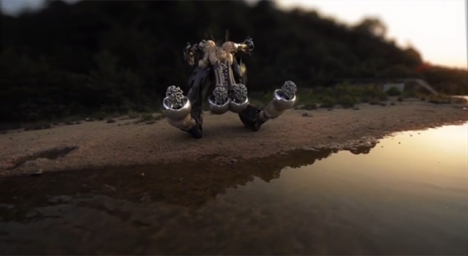
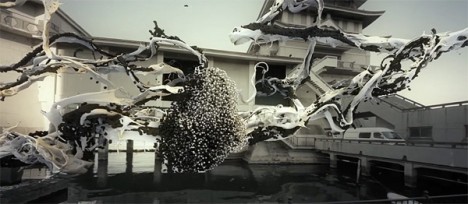
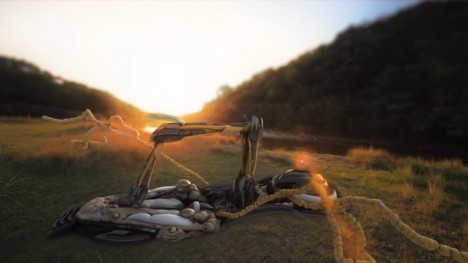
“Technology can help nature understand itself,” says AUJIK, a self-proclaimed cult that melds faux mythologies, fictitious landscapes and wildly distorted architecture with a philosophy they call “animism for the Digital Age.” The quasi-spiritualist Japanese collective gives us a look into the world of their imagination via simulated drone footage, swooping us over and through their vision of nature awakened in a new way by technological integration.

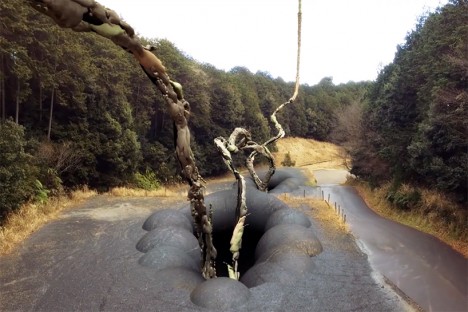
alien landscapes 4

aujik 14

“Since the late 2000’s, the online presence of mysterious nature/tech cult AUJIK quietly spread across video platforms featuring proposed active members and fabricated histories. These virtual appearances suggest decades-old lineage through theoretical schematics outlining their transgression emission, citing faux reports arguing the life of inanimate matter and modern forms of animism from fictional anthropologists and philosophers.”

alien landscapes 2

alien landscapes 3

alien landscapes 5

“For AUJIK, nature is divided into Refined and Primitive categories. This separation presents a conflict that is the root of all chaos in the world, and in order to reach a sublime state, AUJIK generates rituals to harmonize the organic and synthetic realms. Refined nature consists of evolved technology such as robotics, artificial intelligence, cybernetics, DNA manipulations, and body enhancements. The Primitive includes fauna, flora, and the Earth itself with its precious stones, minerals, and metals.”

aujik 12

aujik 13

aujik 11

Natural settings, rocks, plants and even living creatures become something more than themselves, infused with a new power, growing in a way that they never actually could in our current reality, bound as it is by the laws of physics. Digital forces invade and transform everything from dark forests to dense cities, warping the architecture, creating a bizarre parallel universe.

Share on Facebook


[ By Steph in Art & Drawing & Digital. ]

[ WebUrbanist | Archives | Galleries | Privacy | TOS ]


WebUrbanist

 
Comments Off on Augmented Reality: Aerial Footage of Distorted Alien Landscapes

Posted in Creativity


Picasa will be phased out in favor of Google Photos

16 Feb

Last year, Google rolled out a stand-alone Photos app with unlimited storage, stirring up rumors that its photo editing application Picasa’s days were numbered. Sure enough, in a statement on Friday Google announced that Picasa will be phased to make way for Google Photos, detailing what it hopes will be a more uniform photo experience. The change will take place ‘over the coming months.’

Google said in a statement, ‘We believe we can create a much better experience by focusing on one service that provides more functionality and works across mobile and desktop, rather than divide our efforts across two different products.’ To that end, Picasa users with web albums should log into Google Photos, at which point all the content will automatically be available in Photos.

Users who aren’t interested in switching to Google Photos will be given a ‘new place’ to view, download and delete Picasa Web Albums, without the organization, creation and editing tools. Further details on where users will access their Picasa content aren’t provided.

Support for the Picasa desktop app will end March 15. The Picasa Web Album changes will being rolling out on May 1.

Via: Google Picasa Blog

Articles: Digital Photography Review (dpreview.com)

 
Comments Off on Picasa will be phased out in favor of Google Photos

Posted in Uncategorized


DxOMark Mobile report: Sony Xperia M5

16 Feb

In terms of processing power, look and feel the Sony Xperia M5 is categorized below Sony’s Xperia Z flagship line of smartphones. However, like the Z-models it’s dustproof, waterproof and has a lot to offer in the photography department. The rear camera offers a 21.5MP Sony Exmor sensor with on-chip phase detection combined with an F2.2. lens, as well as 4K video recording. Scoring 79 in DxOMark’s Mobile testing, it sets the bar as the best mid-range device in DxO’s rankings – on par with previous-generation flagships like the Samsung Galaxy S5.

Articles: Digital Photography Review (dpreview.com)

 
Comments Off on DxOMark Mobile report: Sony Xperia M5

Posted in Uncategorized


Adobe issues fix for Creative Cloud Mac update that could delete files

16 Feb

Last week, Adobe rolled out a Creative Cloud update with a harmful bug that, for some Mac users, deleted files from the system root directory. Once the bug was discovered with the help of backup platform Backblaze, Creative Cloud version 3.5.0.206 was pulled from release and was replaced Sunday with an update that promises to fix the issue.

The bug appears to have deleted the first file in the root directory for users who downloaded the update, whatever that file might have been. Backblaze users noticed problems because alphabetically, the service’s .bzvol folder sits at the top of their root directory. When Creative Cloud deleted the folder, Backblaze alerted the user that something was wrong.

In a blog post on Friday, Adobe acknowledged the issue, saying that ‘the updater may incorrectly remove some files from the system root directory with user writeable permissions.’ Version 3.5.1.209 was released Sunday with a fix for the problem.

Adobe directs users who experienced problems with the Creative Cloud update to contact customer service. The latest update is available now for Mac and Windows.

Articles: Digital Photography Review (dpreview.com)

 
Comments Off on Adobe issues fix for Creative Cloud Mac update that could delete files

Posted in Uncategorized


Ricoh celebrates 80th anniversary with limited edition silver GR II

16 Feb

$ (document).ready(function() { SampleGalleryV2({“containerId”:”embeddedSampleGallery_0284849097″,”galleryId”:”0284849097″,”isEmbeddedWidget”:true,”standalone”:false,”selectedImageIndex”:0,”startInCommentsView”:false,”isMobile”:false}) });

If the stealth-black GR II isn’t quite showy enough for you, then you may be interested in Ricoh’s new ‘Silver Edition’ camera, which it created to celebrate its 80th anniversary. In addition to its new color, Ricoh has also diamond-engraved the lens’ specs onto its front ring, added a custom on/off ‘termination’ screen and bundled a leather carrying case. Only 3200 of the Silver Edition GR II cameras will be sold worldwide, so get your order in soon. 

The compact GR II features a 16MP APS-C-size CMOS sensor, 28mm equivalent F2.8 lens, 1080/30p video and Wi-Fi with NFC.

The GR II Silver Edition is priced at $ 699.

Ricoh Imaging Unveils GR II Silver Edition Commemorating the 80th Anniversary of Ricoh Company, Ltd.

Special-edition package pairs a silver-colored GR II premium digital compact camera and leather camera case

DENVER, Colo., February 15, 2016 – Ricoh Imaging Americas Corporation today announced the RICOH GR II Silver Edition to commemorate the 80th anniversary of the founding of Ricoh Company, Ltd. This exclusive package consists of a silver-color edition of the GR II premium digital compact camera (launched in July 2015) and an exclusively designed camera case. It will be marketed in a limited quantity of 3,200 units worldwide.

The GR II is the smallest premium digital compact camera, offering digital single-lens reflex (DSLR) image quality with Wi-Fi and Near Field Communication (NFC) functionality. The GR 18.3mm F2.8 lens is a compact, high-performance GR lens with a focal length of 28mm (in the 35 mm format). It also boasts a large, APS-C-size CMOS image sensor with approximately 16.2 effective megapixels.

Features of the GR II Silver Edition include:

  • Stylish silver camera body: The camera body has a high-grade, silver-color leather- tone finish, featuring an elegant, grained texture.
  • Distinctive features compared to the standard GR II: The Silver Edition’s shutter release button and the ring cap have been finished in silver identical to that of the camera body. Additionally, the lens descriptions are engraved on the front ring using a diamond- cutting process and the GR logo’s color on the camera’s front panel has been changed to white. Even the product box has been specially designed for this
  • Termination screen: When the camera’s power is turned off, the camera displays an original termination screen, which has a solid, high-grade design expressing the GR II’s product concept.
  • Genuine leather camera case: The package includes a black, genuine-leather camera case exclusively designed for the GR II camera body. It provides features useful for quick- action snapshot photography, including a belt loop on the back, and a top cover that opens fully for easy removal of the camera body.

Articles: Digital Photography Review (dpreview.com)

 
Comments Off on Ricoh celebrates 80th anniversary with limited edition silver GR II

Posted in Uncategorized


Amazing Animal Art: 50+ Creature-Inspired Creations

16 Feb

[ By Steph in Art & Sculpture & Craft. ]

animal art hammered 9

As seen through the eyes of sculptors, painters, street artists, photographers and even knitters, the animal kingdom flourishes in curlicues of steel and paper, splatters of ink and trailing thread. Working in styles that range from the hyperrealistic to the fantastically surreal, these artists manage to capture some of the complexity of Earth’s incredible wild creatures.

Swirling, Ornate Animal Sculptures by Ellen Jewett

animal art jewett 1

animal art jewett 2

animal art jewett 3

Flora and fauna come together in stunning ceramic compositions by Ellen Jewett. The animals themselves consist of flowers, snails, vines and other plant matter, leaving hollows within each creature’s body to make them seem weightless.

Urban Swarms by Pantonio

animal art urban swarms 3

animal art urban swarms 5

animal art urban swarms 6

Fluid swarms of blue-toned fish, birds and other animals flow across urban surfaces on a large scale in a stunning new series by Portuguese street artist Antonio Correia, aka Pantonio. Set against stark white, the colorful creatures provide a striking contrast to the gaining historic settings in which they’re painted.

Delicate Paper Animal Art by Calvin Nicholls

animal art nicholls

animal art nicholls 2

animal art nicholls 3

animal art nicholls 4

Tiny scraps of paper are cut and layered to create birds, dogs and other creatures in the relief sculptures of Calvin Nicholls. Using an X-acto knife, scalpel and scissors, the artist shapes pieces of paper that can be just fractions of a millimeter in size and builds them on to p of each other until a three-dimensional form is created. Each piece takes three weeks to an incredible two years to complete.

Vivid Microscopic Underworlds by Robert S. Connett

animal art underworlds

animal art underworlds 2

animal art underworlds 3

Creatures too small for us to see with the naked eye are revealed in brilliant color by illustrator Robert S. Connett – whether they’re representations of actual living microorganisms, or plucked from the artist’s imagination. Connett refers to these scenes as “underworlds,” shining a light on fantastical pockets of flourishing life lurking in dark, wet places.

Hammered Steel Animals by Selcuk Yilmaz

animal art hammered

animal art hammered 2

animal art hammered 4

animal art hammered 5

animal art hammered 6

animal art hammered 7

Turkish sculptor Selcuk Yilmaz forms thin strips of steel into mask-like animal heads, including a lynx, tiger and fox., as well as the full body of a majestic lion. Hammering and welding the pieces into form, the artist produces incredibly powerful-looking, life-sized creatures that shimmer in the light.

Next Page – Click Below to Read More:
Amazing Animal Art 50 Creature Inspired Creations

Share on Facebook


[ By Steph in Art & Sculpture & Craft. ]

[ WebUrbanist | Archives | Galleries | Privacy | TOS ]


WebUrbanist

 
Comments Off on Amazing Animal Art: 50+ Creature-Inspired Creations

Posted in Creativity


Beginner Tip: How to Use the Canon Quick Menu to Change Cacmera Settings

16 Feb

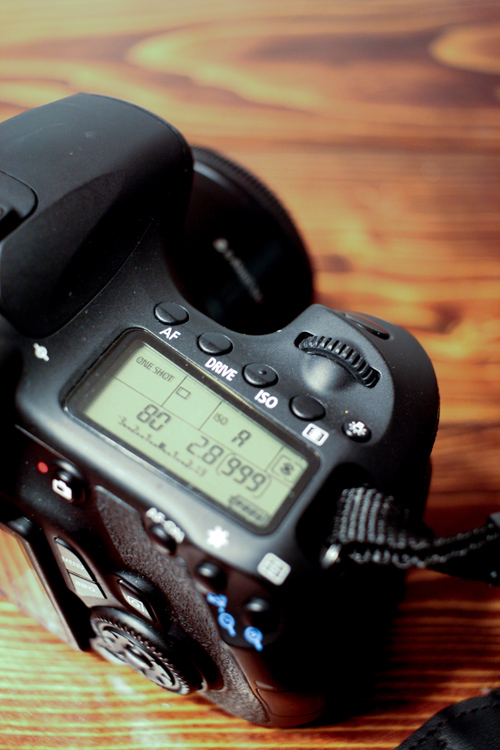
canon-quick-menu-3

When it comes to beginner photographers, one of the first major goals is often to get off Auto. Doing so really is an important step to using your camera to the best of its capabilities. However, the concern that I hear most often from beginners in terms of stepping away from auto mode, is that it takes so long to get their shutter speed, aperture, ISO, white balance, and focal points set, that sometimes they’ve missed the shot that they were hoping for completely. I understand how frustrating that dynamic can be, and I have one Canon tip to share that may make life a little simpler if you’re just starting out.

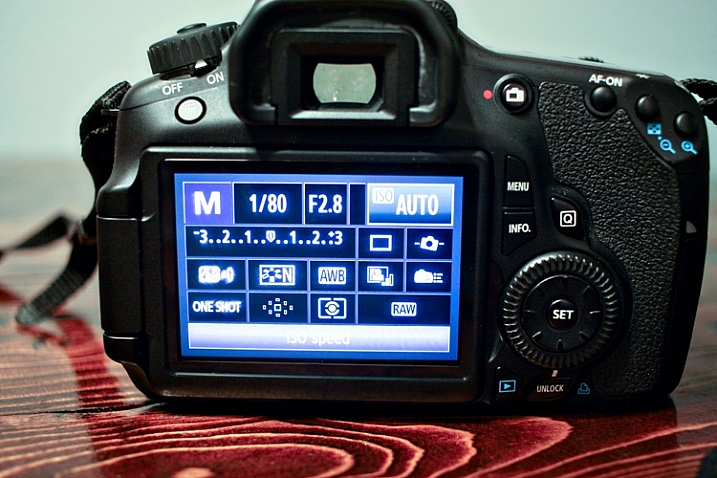
Canon EOS cameras have a feature called the EOS Quick Menu. For the vast majority of EOS cameras, you’ll access the Quick Menu or Control Screen by pressing the button on the back of the camera with the letter Q. For a few older EOS cameras, you’ll have to push the button in the center of the multi-controller (that’s the big wheel on the back of your camera to the right of the screen). Once you hit that button, a very handy screen pops up that looks something like this:

canon-quick-menu-1

Now, you’ve got many of the most commonly changed settings right at your fingertips. You can change shutter speed, aperture, ISO, metering mode, focal point, file type, and several other features, right from the Quick Menu, without having to scroll through several different menus or adjust settings located in several different places on your camera body. You just use the multi-controller to navigate to the setting that you’d like to change, and then press the SET button to access that setting.

It’s worth noting that your available options will change somewhat depending on which camera mode you’re in. In the above image, the camera is set to manual mode and thus there are high number of settings available to be changed.

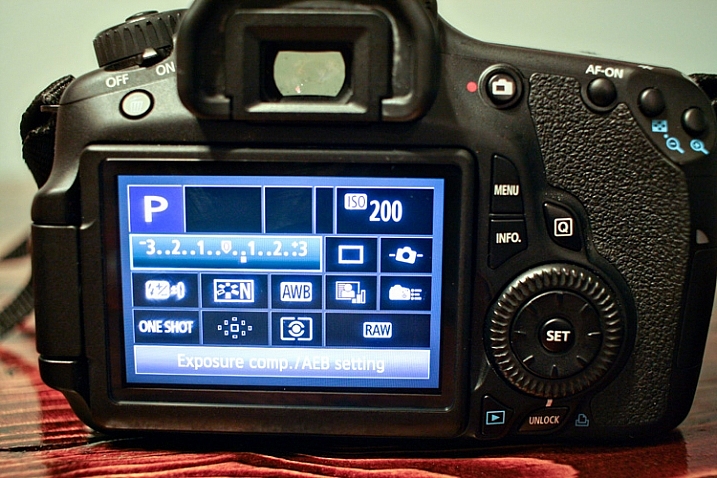
canon-quick-menu-2

If you switch the camera to Program mode, the option to change shutter speed and aperture vanishes, as those are set automatically by the camera. You still have access to other controls like ISO, file type, metering, and exposure compensation through the Quick Menu in this mode.

canon-quick-menu-4

Of course, all of these features can also be accessible via the buttons/dials on the top and side of your camera, or in the standard menu screens. I do think it’s important to learn how to change your settings in those traditional ways, as the Quick Menu may not always be the most effective, or efficient, way to change a particular setting depending on the circumstances. The more you know about your camera, the better you’ll be able to utilize all of its features! That said, it’s never a bad thing to know how to accomplish the same task in more than one way, and the Canon Quick Menu can be a huge help when you’re trying to make changes to your settings in a short amount of time. In my opinion, both shorthand and longhand have their time and place!

If you’re a Canon EOS user, have you found the Quick Menu to be a helpful tool? Are there some settings you still prefer to access and change in other ways? Do you shoot Nikon or another brand of camera – and does it have something similar? Please share in the comments below.

googletag.cmd.push(function() {
tablet_slots.push( googletag.defineSlot( “/1005424/_dPSv4_tab-all-article-bottom_(300×250)”, [300, 250], “pb-ad-78623” ).addService( googletag.pubads() ) ); } );

googletag.cmd.push(function() {
mobile_slots.push( googletag.defineSlot( “/1005424/_dPSv4_mob-all-article-bottom_(300×250)”, [300, 250], “pb-ad-78158” ).addService( googletag.pubads() ) ); } );

The post Beginner Tip: How to Use the Canon Quick Menu to Change Cacmera Settings by Meredith Clark appeared first on Digital Photography School.

Digital Photography School

 
Comments Off on Beginner Tip: How to Use the Canon Quick Menu to Change Cacmera Settings

Posted in Photography