RSS
 

Archive for January, 2016

Hasselblad gives away a camera each to the winners of its Masters competition

17 Jan

$ (document).ready(function() { SampleGalleryV2({“targetContainerClass”:”sampleGalleryImageViewerContainer”,”galleryId”:”4521431257″,”isEmbeddedWidget”:true,”selectedImageIndex”:0,”startInCommentsView”:false,”isMobile”:false}) });

Medium format equipment manufacturer Hasselblad has announced the winners of its Masters competition, and has awarded the winners of each category a high end medium format camera. The company does not specify which cameras will constitute the prizes, but they will be presented at a ceremony during September’s Photokina show in Germany, at which the company is speculated to be launching major new products. 

The competition winners will have their work featured in the Hasselblad Masters book, and will be able to use the title Hasselblad Master for ever. 

This year’s theme was ‘Inspiration’, which Hasselblad says was chosen to commemorate the 75th anniversary of the company’s founding. There were ten categories to enter, and the competition was open to ‘all photographers who have been active professionals for more than three years and who are using digital cameras of at least 16 Megapixel, or film cameras, regardless of brand and format.’ The ‘Project 21’ category was open only to those under the age of 21. 

The judging panel was made up of 23 professional photographers and editors, including some past competition winners. 

For more information see the Hasselblad website. 


Press release:

Hasselblad has announced the ten winners of its Masters Awards 2016 – widely acclaimed as one of the world’s most prestigious professional photography competitions. The winners were selected by a combination of a public vote and a professional Masters Jury – comprising internationally renowned photographers and imaging experts.

For the first time in Hasselblad Masters Awards history each winning photographer not only gains ‘Master’ status but also a brand new Hasselblad medium format camera.

Winners will receive their awards, cameras and trophies at a special photokina 2016 ceremony in Cologne this September.

The Hasselblad Masters Awards 2016 winners:

  • Swee Oh (USA) Architecture
  • Roy Rossovich (Sweden) Fashion/Beauty
  • Katerina Belkina (Germany) Fine art
  • Lars Van De Goor (Netherlands) Landscape
  • Natalia Evelyn Bencicova (Slovakia) Portrait
  • Georgio Cravero (Italy) Product
  • Jake Reeder (Australia) Project//21
  • Ali Rajabi (Iran) Street/Urban
  • John Paul Evans (UK) Wedding
  • David Peskens (Netherlands) Wildlife

Perry Oosting, Hasselblad CEO: “The Masters Awards have always been the ultimate showcase to capture talent that flourishes across the globe. Our 2016 Masters has again demonstrated the outstanding skills out there across the entire spectrum of photo-disciplines”.

Judges scrutinised thousands of supreme quality images from professional veterans to aspiring young photographers determined to make their mark.

Masters Jury member Jonathan Beer said: “Picking my favourites from the 2016 finalists was immensely tough. Some categories had obvious stand-out entries but others were much closer to call. Exciting creativity backed-up with technical excellence was what I was looking for.

He added: “The Hasselblad Masters has always been one of the most prestigious competitions in the industry. The winners can take pride in and benefit from the coveted title ‘Hasselblad Master’ for the rest of their careers. I cannot wait to see what the winners create for the 2016 Masters Book.”

* The ten winners will be tasked to create a new and unique set of images embracing the theme ‘Inspire’ (coinciding with Hasselblad’s 75th anniversary) for the latest edition of the Hasselblad Masters Commemorative Book.

Articles: Digital Photography Review (dpreview.com)

 
Comments Off on Hasselblad gives away a camera each to the winners of its Masters competition

Posted in Uncategorized


Tips for Photographing Football (Soccer)

17 Jan

Football (called soccer in some parts of the world) can be a very challenging sport to photograph. The ball is constantly moving quickly around the pitch, which may make it somewhat of a challenge to capture the action if you don’t have the right knowledge on how to do so. This simple guide will point you in the right direction to get more success at your next football match.

football or soccer photography action

Players contest the ball. © Daniel Smith / Getty Images.

First, let’s start off with equipment, because heading to a game with the wrong kit is definitely not going to help you.

Equipment

For best results, an 18-55mm or similar lens will not be sufficient to cover a game of football; the players and the action will be too far away, and you will most likely end up being disappointed with the results. Using a 70-200mm or equivalent is a great starting point, and will be a fantastic range for areas closer to goal. However, if you do have anything longer in your bag that is always helpful; anything up to about 400mm will be perfect. Anything longer than that can get a little too tight on a football field, unless you want to photograph players at the other end.

If you find that you’re current lens isn’t quite long enough, don’t feel like you need to run out and buy a longer one; cropping can always help quite a lot. With newer cameras having such high resolutions now, you won’t find too much of a drop in final image quality. Renting a lens for a day or two is always an option you may want to consider as well.

Also, bringing a small camping stool will be of great comfort to you, and because you will be closer to the ground than standing, it will help you get less of the field in the frame.

Fig 3

Players competing for possession of the ball. © Daniel Smith / Getty Images.

Settings

If you’re comfortable with using Manual mode, the below will be a helpful guide to getting you started. If you’re not too comfortable with Manual mode just yet, using shutter speed priority set to 1/800th, or faster, should do the trick.

Shutter Speed

Football (soccer), as with the majority of sports, is fast paced. To be able to freeze the action you will need to use a fast shutter speed; 1/800th as a minimum, is a great starting point for more advanced players as they tend to move much faster than younger, junior players. If you’re photographing a very young age group match, you may find that 1/500th could be fast enough, however 1/800tj would be a safer option.

Fig 5b

A fast shutter speed was used here. © Daniel Smith / Getty Images.

To add some variety, slower shutter speeds can create some fantastic images when done correctly. Shooting at around the 1/30th mark is a great starting point. If you find that there is too much blur in your images, then speeding the shutter speed up slightly will help. Conversely, if there is not enough blur, you may need to slow the shutter speed down.

Fig 4b

Try using a slower shutter speed to create motion blur showing speed. © Daniel Smith / Getty Images.

Aperture

For single player shots, f/2.8 would be ideal as it will isolate the player nicely. However, if photographing tackles, etc., where there is more than one player, it is best to use f/4 as this will give you a slight increase in depth of field (DoF), without sacrificing too much shutter speed. If your lens cannot got as wide as f/2.8 or f/4, that’s perfectly fine, just use the widest aperture your equipment offers.

ISO

Now that you have your aperture and shutter speed set, use the ISO to fill in for the exposure, or brightness, you want to have. Depending on what shutter speed/aperture combination you have, you may find ISO 400 on a bright day works, or on the other hand, if you’re in a low-light situation such as at dusk, night, or on a heavily overcast day, ISO 800 or higher may be required. Just be careful with how high you go on your particular camera as each model can perform differently at higher ISO’s. This is something that you may need to play around with a bit to explore.

Autofocus

Using the correct autofocus function on your camera will be a key element in ensuring you capture a sharp shot! Because you will be photographing moving subjects, One-Shot AF on Canon, or AF-S on Nikon, is not an appropriate focus mode to use, as it will not continually track the moving subject. In this situation, using AI-Servo on Canon, or AF-C on Nikon, would be the best solution as it will continually track a moving subject, so long as you keep the autofocus engaged. If you’re comfortable with manually selecting AF points, that will further help you control your camera’s focus even more; just select whichever autofocus point you wish your subject to be placed in the frame.

Positions

As with any sport, sitting in the right position will increase your chances of getting the shot. For football (soccer), this is generally around the corners of the pitch or field.
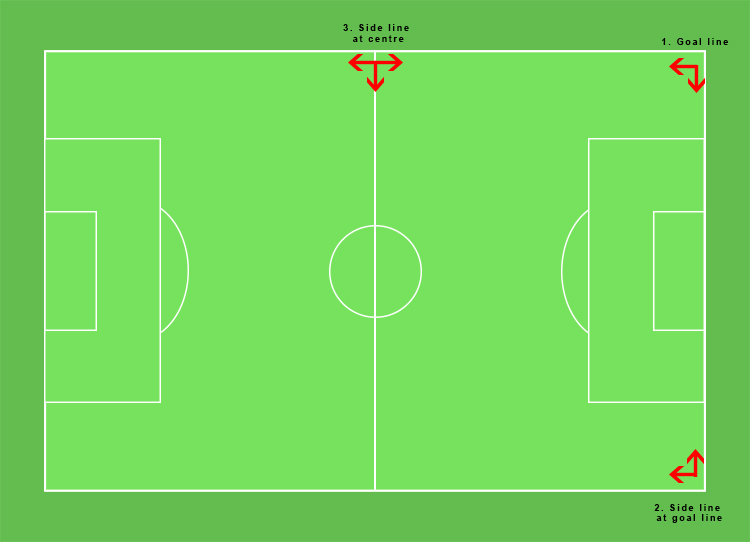
Fig 1

An overview of a soccer pitch with a guide of seating positions. © Daniel Smith / Getty Images.

  • Position 1: Looking down the pitch (field) will give you some great shots of players as they run with the ball toward you. You can also get some great shots of goals here, too. This position is also the most versatile position as you can get a good mix of everything.
  • Position 2: Looking around the pitch (field) is fantastic for shots at goal, as you will generally be able to get the goal shooter, and keeper in the frame. From here, you will also be able to capture players running down the pitch (field), but they will not be as head-on if running down the wings.
  • For some variation, try shooting at position 3, as from there you will be able to get some great panning shots of players with the ball, as they run the length of the pitch. You generally won’t be able to get many great goal shots from here but you may find some great tackle opportunities if they happen around mid-field.

Do not be tempted to run around the pitch following the ball – you will be forever running, and not photographing! It is much better to sit in one location and wait for the action to come to you. You can always move locations, such as at half-time, if you’re wanting to photograph a particular team.

Fig 10

A nice tackle here. A player hslid right under the other for the ball. © Daniel Smith / Getty Images.

What to look for

Here are some things for you to look for at your next game.

Celebrations – This could be of the team that just scored a goal, or after the final whistle, capture the team that won the match.

Fig 6

Teammates celebrate scoring a goal. © Daniel Smith / Getty Images.

Fig 12

A player shows the toll of losing a match. These images are also quite powerful, as the players can often have great expressions.

Action – This will be a major part in the game. Football (soccer) has a lot of tackles, headers, dives, slides, not to mention goals, and goal deflections by the keeper. Staying focused is key to capturing these moments. Also bear in mind, that older players will generally play with a higher intensity than the younger players, so capturing dramatic tackles will happen more often. But be aware that older players also move a lot faster!

Fig 2

Players falls from a push. © Daniel Smith / Getty Images

Fig 7

A player took a shot at goal. Having the goal keeper, and the front goal posts in the frame, clearly illustrates that this is taking place at goal. © Daniel Smith / Getty Images.

Fig 9

Players heading the ball. Getting the ball close to their heads is key with these types of images. If the ball is too far away, it can get lost. Also, the players expressions are generally better when the ball has just hit their head! © Daniel Smith / Getty Images.

The crowd – If the game you’re covering has a lot of supporters, don’t forget to get some shots of them, too, they can add some great atmosphere. Look for emotions on their faces; maybe they’re excited as their team just scored a goal, or they may be very quiet as their team is about to lose. The crowd is a great place for emotions.

Conclusion

Football (soccer) can be a very rewarding sport to photograph. As with any sport, the more you understand about the game, the more you know where to look for action, and will be able to follow it easier. However, if you’re not all that familiar with football (I’m not an expert on it by any meaning of the word) practice makes perfect.

One thing I would suggest is if you are planning on heading down to your local club to photograph a game, as a courtesy ask any match officials or club president if they are okay with you doing so. They will appreciate it, and it will make it easier for future photographers. Happy shooting!

googletag.cmd.push(function() {
tablet_slots.push( googletag.defineSlot( “/1005424/_dPSv4_tab-all-article-bottom_(300×250)”, [300, 250], “pb-ad-78623” ).addService( googletag.pubads() ) ); } );

googletag.cmd.push(function() {
mobile_slots.push( googletag.defineSlot( “/1005424/_dPSv4_mob-all-article-bottom_(300×250)”, [300, 250], “pb-ad-78158” ).addService( googletag.pubads() ) ); } );

The post Tips for Photographing Football (Soccer) by Daniel Smith appeared first on Digital Photography School.


Digital Photography School
 
Comments Off on Tips for Photographing Football (Soccer)

Posted in Photography


Behind the Camera: Sue Bryce’s contemporary portraiture

17 Jan

If there’s been a theme to Sue Bryce’s career, it might be one of evolution. She started making portraits when she was 18 with a Hasselblad film camera, and with grit and sheer determination she built and marketed her own business. Classifying her work as contemporary fashion portrait photography, she’s evolved through decades in a shifting industry, and in addition to running her highly successful studio now offers online workshops for newcomers. We sat down with her recently to learn more about her work, vision and history with photography. 

Articles: Digital Photography Review (dpreview.com)

 
Comments Off on Behind the Camera: Sue Bryce’s contemporary portraiture

Posted in Uncategorized


5 Lightroom Develop Module Secrets Revealed

16 Jan

5-lightroom-develop-module-secrets-revealed

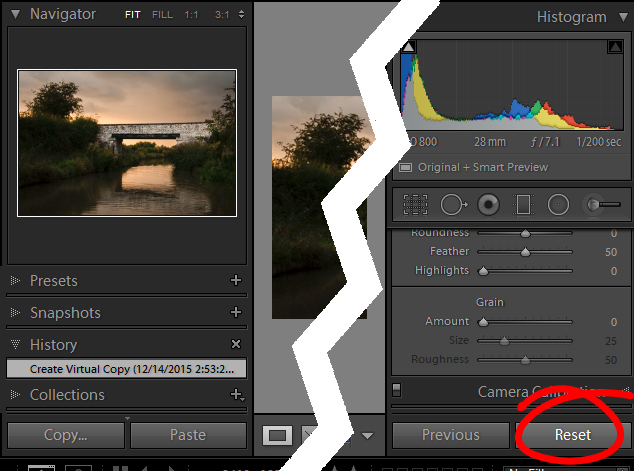
When you’re new to Lightroom, some features of the program aren’t immediately apparent, or easily discoverable. In this article I’ll introduce you to five Lightroom Develop module secrets that will help you get more out of photo editing in Lightroom.

#1 Smarter Virtual Copies

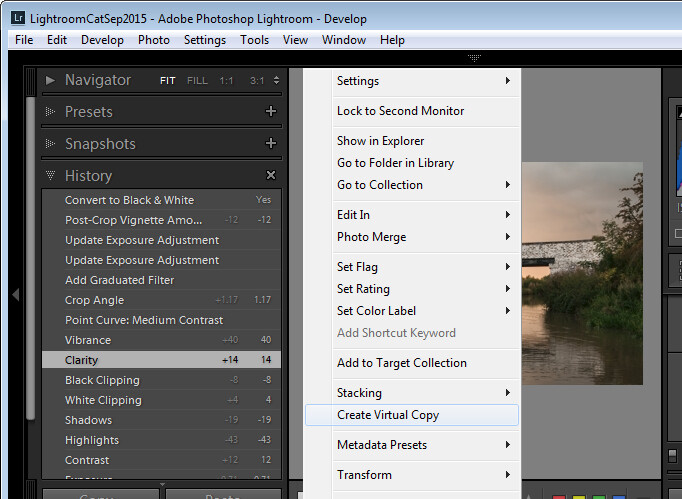
Often when you’re working in Lightroom you’ll edit an image to look one way, and then decide you’d like to try to edit it in a different way – without losing your work. The trouble is, that once an image has been edited, any virtual copy that you create will use the current look of the image as its starting point. So the first entry in the History Panel will be the creation of the Virtual Copy and you can’t, using the History Panel, wind the photo back to how it looked out of the camera.

You can, however, use the Reset button at the foot of the right panel of the Develop module. Click Reset to reset your new Virtual Copy, so it is the original out of camera image with all edits removed. Of course, the edits will remain on your original image (just the Virtual copy will be reset).

reset a virtual copy to the original image state in Lightroom
So far, so good. But what if you want to create a Virtual Copy that starts partway through the editing process? Well, that can be done too. Start with the original image, open the History Panel on the left, and click on the entry which shows the image looking as you want for your virtual copy. Note that the most recent edit is at the top of the History panel.

make a virtual copy from a partially edited image in Lightroom

Notice the History panel is opened, and a state other than the current one is chosen to make the Virtual Copy.

Now right click the image and choose Create Virtual Copy – Lightroom will create a new virtual copy and switch to it. Immediately after you do this, click back on the image that you made the copy from – the original image – and in the History Panel, click the topmost entry. This reinstates your edits to the original image, back to your last edit. It’s important to do this before you start working on the new Virtual copy as it is easy to forget to perform this step and, in doing so, you may lose your edits if you subsequently make changes to the original image.

#2 Comparing Before and After

In Lightroom you can compare the before and after editing state for an image by clicking on the image in the Develop module and pressing the backslash key on your keyboard (\). Press once to see the Before state and once again to return to the current edited state of the image.

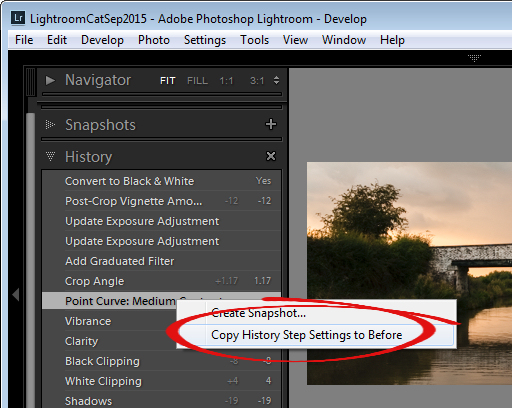
So far, so good. But what if you want to compare the current edited state with an earlier edited state – not with the original out of camera image? You can do this if you open the History panel, then right click the entry in the History list that you want to compare with the current state of the image – you can choose any of the states in the list. From the popup menu choose Copy History Step Settings to Before. Now when you press the Backslash key to compare the before and after, you’ll be comparing a previous state but not the original out of camera image.

change the starting point for a before/after comparison in Lightroom

#3 Reverse Engineer Presets

A Lightroom preset is a set of slider settings that have been saved in such a way that they can be applied to any image, at any time. That said, there is nothing that can be applied using a preset that you cannot also apply manually to an image, by using the tools in the Develop module. This means that Presets contain valuable information for editing images which you can discover by reverse engineering them. So, if you like a preset that ships with Lightroom, or if you have downloaded and installed other presets that you like, use the process that follows to learn how they work.

Start with an image that is in its original out of camera state, and apply the preset to the image. Now look through the settings in the Develop module panels on the right to see what adjustments have been made to the image.

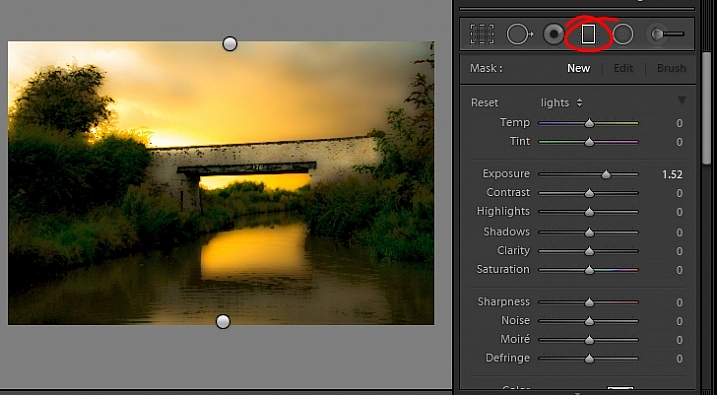
To see if there are any Graduated Filter or Radial Filter adjustments included in the preset, click the Graduated Filter tool, set the Show Edit Pins setting to Always and see if any pins appear on the image. If so, click to see where they have been applied and what their settings are. Repeat this step with the Radial Filter to see if any radial filter adjustments have been made to the image. As presets cannot contain Adjustment Brush edits there’s no point in checking that tool.

reverse engineer a preset in Lightroom

It’s best to study presets without first making any changes to your image, except for applying the preset. This way you will know that all the edits that have been applied to the image are part of the preset, and none of them are your own edits.

#4 The Alt Key works nearly everywhere

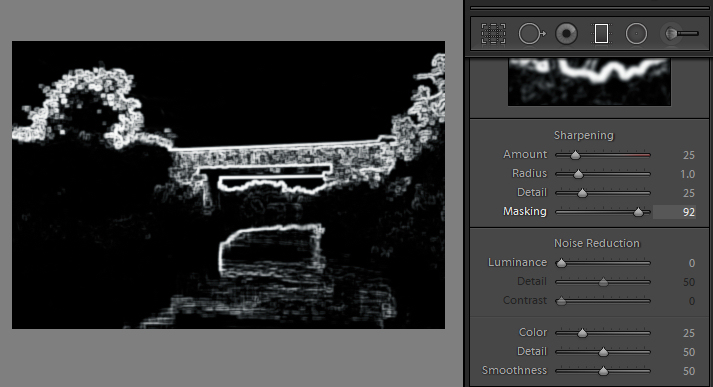
The Alt key is the biggest hidden secret keystroke in Lightroom. When you press it, various things appear on the screen that previously were not visible. For example, in the Basic panel you can use the Alt key to display Reset Tone and Reset Presence options. The Exposure, Whites, Blacks and Split Toning sliders all display visual feedback when you hold the Alt key while adjusting them. So too do the sliders in the Sharpening panel. To learn more about using the Alt key in the Lightroom Develop module, check out this post: Lightroom Tips for the Develop Module – the magic Alt key.

alt key provides visual feedback for many sliders in Lightroom

#5 Keyboard Adjustments

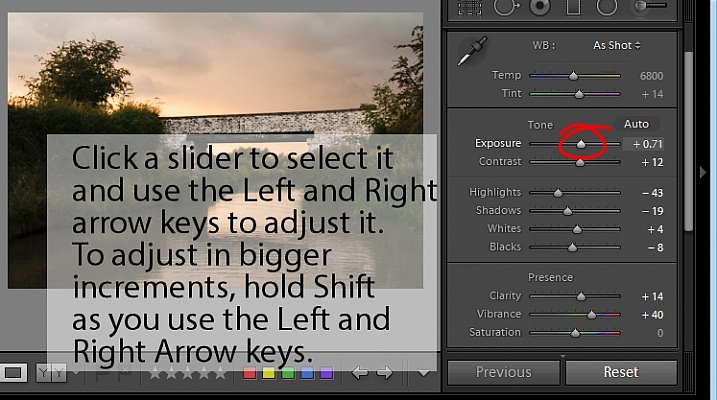
If you find it difficult to adjust the sliders in Lightroom using your mouse, then try adjusting them using the keyboard instead. To do this, click on a slider to target it and then use the left and right arrow keys to adjust the slider in small increments. To move in larger increments hold the Shift key as you press the arrow keys. You will find that the Up and Down arrow keys work identically to the Left and Right arrow keys.

adjust Lightroom sliders using the arrow keys

If you want to continue to use the sliders to make your adjustments, but you find that they travel too fast for you to get an accurate adjustment, hold the Shift key as you drag on a slider. This slows its movement down and makes it easier for you to make small adjustments. You can also click on the numeric value that a slider is currently set to and use the Up and Down arrow keys to adjust the value in small increments.

To reset a slider – double click its name and it will return to its default value for that type of image.

Watch the video

Here is a video version of this article so you can follow along as I walk you through each point.

googletag.cmd.push(function() {
tablet_slots.push( googletag.defineSlot( “/1005424/_dPSv4_tab-all-article-bottom_(300×250)”, [300, 250], “pb-ad-78623” ).addService( googletag.pubads() ) ); } );

googletag.cmd.push(function() {
mobile_slots.push( googletag.defineSlot( “/1005424/_dPSv4_mob-all-article-bottom_(300×250)”, [300, 250], “pb-ad-78158” ).addService( googletag.pubads() ) ); } );

The post 5 Lightroom Develop Module Secrets Revealed by Helen Bradley appeared first on Digital Photography School.


Digital Photography School
 
Comments Off on 5 Lightroom Develop Module Secrets Revealed

Posted in Photography


DxOMark Mobile report: HTC One A9

16 Jan

In the HTC device lineup the One A9 sits just below the flagship One M9. However, in the camera department, with its faster F2.0 aperture and optical image stabilization, it actually offers some advantages over the M9. On the downside it has to make do with a lower 13MP pixel count and Full-HD video instead of the M9’s 21MP still images and 4K video footage. There is also a dual-LED flash and the A9 is, like the M9, capable of recording DNG Raw files.

With a DxOMark Mobile score of 78 the HTC A9 achieves a result 9 points better than the M9 but cannot place itself among the best current smartphone cameras. Read the full analysis and see how it performs.

Articles: Digital Photography Review (dpreview.com)

 
Comments Off on DxOMark Mobile report: HTC One A9

Posted in Uncategorized


Olloclip launches Studio accessory-mount case for Apple iPhone

16 Jan

Mobile phone add-on-lens manufacturer olloclip has announced it is to introduce a new case for the iPhone 6 series that makes it easier to fit additional accessories to complement the process of shooting movies and stills with its products. 

The olloclip Studio features a rail on the lens side that allows finger grips, a tripod thread and a cold-shoe to be attached to the case. The idea is that the case then provides the means for the photographer to fit an LED light panel or a microphone, as well as mount the phone on a tripod, a grip or shooting handle. 

Included accessories: 1. Studio Case 2. Finger Grip 3. Cold-shoe (x2) 4. Kickstand 5. Tripod thread clip (x2)

The case has a cut away section so that the olloclip lenses can be attached, and a kick-stand allows the phone to free-stand to make reviewing images more comfortable.  

The olloclip Studio is due to arrive in February, and will come in two form-factors to be compatible with the iPhone 6/6s or the iPhone 6/6s Plus. Both versions will cost £79.99/$ 89.99, without a lens. 

For more information visit the olloclip website. 

Articles: Digital Photography Review (dpreview.com)

 
Comments Off on Olloclip launches Studio accessory-mount case for Apple iPhone

Posted in Uncategorized


Fujifilm announces development of EF-X500 flash

16 Jan

$ (document).ready(function() { SampleGalleryV2({“targetContainerClass”:”sampleGalleryImageViewerContainer”,”galleryId”:”9790642505″,”isEmbeddedWidget”:true,”selectedImageIndex”:0,”startInCommentsView”:false,”isMobile”:false}) });

Among all of its new cameras announcements, Fujifilm also made public the development of a new external flash. The EF-X500 is a high-end, weather-sealed model with a guide number of 50m at ISO 100, the ability to control up to three sets of TTL off-camera strobes, and a high-speed sync mode that supports the X-Pro2’s maximum 1/8000 sec shutter speed. The zoom head range is 24-105mm equiv., and can go as wide as 20mm with the wide panel pulled into place. 

It has a large, backlit display on its back side along with a control dial for easy setting adjustment. As you’d expect, the flash can tilt and rotate – 10° down, 90° up, 135° left and 180° right. It uses four AA batteries and also supports Fujifilm’s EF-BP1 external battery pack.

The EF-X500 is expected to ship in May at a price yet to be determined.

Press Release:

FUJIFILM ANNOUNCES THE DEVELOPMENT OF A NEW HOT-SHOE MOUNT FLASH FOR X-SERIES CAMERAS

A new high-end external flash is being developed to complement FUJIFILM X cameras with high-speed synchronization and multiple flash TTL auto functions

Valhalla, N.Y., January 14, 2016 – FUJIFILM North America Corporation, a leader in premium mirrorless cameras, today announced that it is developing a new high-end external shoe mount flash, the FUJIFILM EF-X500. The EF-X500 allows users to expand their photography with high-speed synchronization and multiple flash TTL auto functions. It will be added to the premium X-Series camera accessory line-up in May 2016. Price to be confirmed.

Designed with FUJIFILM X cameras in mind
The new FUJIFILM EF-X500 external flash will feature a low-profile, premium design that is perfectly suited to complement the style of the compact and lightweight X-Series cameras.

With high-speed synchronization (FP), the new EF-X500 supports the 1/8000 sec. shutter speed featured in the new, flagship model FUJIFILM X-Pro2, as well as other Fujifilm X cameras.

The multiple flash-unit TTL auto function unleashes users’ creativity by allowing them to control any lighting conditions so it will accompany their X-Series camera in all low light and studio applications.

Fujifilm has added a weather and dust resistant build making the EF-X500 flash the perfect companion for the FUJIFILM X-T1 and X-Pro2 to further enhance their rugged, weather resistant capabilities.

Specifications

Type Hot-shoe mount flash
Guide Number 50/164 (ISO100?m/ft.) at 105 mm zoom head position, equivalent to 35mm format.
Zoom 24mm-105mm equivalent to 35mm format.
When the extendable wide panel is pulled out, the flash coverage is approx.. 20 mm.
Bounce capability Flash head tilts down to 10° or up to 90° and rotates horizontally 135° to the left and 180° to the right.
Color temperature Approx. 5600K
Flash modes TTL / Manual / Multi.(repeating flash)
Flash exposure compensation -5.0 – +5.0, 1/3 step
(The available range and step depend on camera models)
High-speed synchronisation (FP) Capable (supported camera only)
Manual 1/1 – 1/512, 1/3 step

Multi.(repeating flash)

1/4 – 1/512, 1/3 step, 1-500Hz, 2 – 100 flashes
Wireless communication type Optical pulse communication (in multiple flash-unit photography operation)
Wireless modes Master and Remote
Communication cannels From 1 to 4.
Remote groups Up to three groups (A/B/C)
Power source Four LR6 (AA-size) alkaline batteries,
four FR6 (AA-size) lithium batteries, or
four HR6 (AA-size) rechargeable Ni-MH batteries
(optional).
External Power Source BATTERY PACK EF-BP1 (optional)
Dimensions W67.5 x H123.9 x D106 (mm)

* Specifications subject to change without notice.

Articles: Digital Photography Review (dpreview.com)

 
Comments Off on Fujifilm announces development of EF-X500 flash

Posted in Uncategorized


Weekly Photography Challenge – Lightweight

16 Jan

Each week we try and come up with something interesting and different for the weekly photography challenge here on dPS. The images I shared earlier of: 25 Floaty Images of Lightweight Objects might give you a hint! If you haven’t already seen them, take a look.

U.S. Army

By U.S. Army

Weekly Photography Challenge – Lightweight

You could take the term literally, like the image above of lightweight boxers, or figuratively – the choice is yours. Get creative. What things around your own home could be considered lightweight? Something soft and fluffy like a kitten, a tissue, or a feather – or perhaps something even lighter like puffy clouds on a nice day, or marshmallows.

John Watson

By John Watson

Patrik Nygren

By Patrik Nygren

Kate Ter Haar

By Kate Ter Haar

William Clifford

By William Clifford

Fatima

By Fatima

Chris Chabot

By Chris Chabot

Share your images below:

Simply upload your shot into the comment field (look for the little camera icon in the Disqus comments section) and they’ll get embedded for us all to see or if you’d prefer upload them to your favourite photo sharing site and leave the link to them. Show me your best images in this week’s challenge. Sometimes it takes a while for an image to appear so be patient and try not to post the same image twice.

(Seriously, how cute are these little guys?!)

Tim Ebbs

By Tim Ebbs

Belal Khan

By Belal Khan

googletag.cmd.push(function() {
tablet_slots.push( googletag.defineSlot( “/1005424/_dPSv4_tab-all-article-bottom_(300×250)”, [300, 250], “pb-ad-78623” ).addService( googletag.pubads() ) ); } );

googletag.cmd.push(function() {
mobile_slots.push( googletag.defineSlot( “/1005424/_dPSv4_mob-all-article-bottom_(300×250)”, [300, 250], “pb-ad-78158” ).addService( googletag.pubads() ) ); } );

The post Weekly Photography Challenge – Lightweight by Darlene Hildebrandt appeared first on Digital Photography School.


Digital Photography School
 
Comments Off on Weekly Photography Challenge – Lightweight

Posted in Photography


Pay Phones to Free Wi-Fi Hubs: NYC to Replace Outdated Booths

16 Jan

[ By Steph in Gadgets & Geekery & Technology. ]

pay phones NYC

If you’re old enough to remember making quarter calls on pay phones, you might also be old enough to recall an edgier, grittier, graffiti-covered New York City, when the streets were lined with mom and pop shops and punk legends vomited on the sidewalk outside CBGB. Whether you mourn those days or celebrate the city’s evolution, slick corporate facades and general gentrification have swept most of that away, but somehow, the fossil-like remains of half-functional phone booths still stand on many corners. Soon, that will change, too.

link nyc 1

In an age in which just about everybody has a cell phone and people under 25 barely even know what a landline is, the need for these booths has vastly diminished, and they tend to just take up valuable sidewalk space. Soon, most of them will be replaced with something the city could actually use: a system of free, super-fast wi-fi hubs via a project called LinkNYC. These hubs transmit ‘gigabit wi-fi,’ which is up to 100 times faster than average public wi-fi and mobile LTE networks.

link nyc 2

link nyc 4

In addition to offering wi-fi to anyone nearby equipped with their own device, the kiosks will feature built-in tablets that enable web browsing, maps, directions and access to city services like transit. Lest you worry that marginalized people who can’t afford gadgets won’t be able to make calls, the kiosks also offer free phone calls to anywhere in the U.S. using either the Vonage app on the tablet or the tactile keypad and microphone. You can plug in your own headphones for privacy, and there’s a dedicated red 911 button for emergencies. Oh, yeah: you can charge your gadgets here, too.

link nyc 3

The streamlined design of the hubs takes up less public space, and illuminated ads on the sides fund the whole shebang. The city is in the process of replacing over 7,500 pay phones across five boroughs with the kiosks. LinkNYC is currently in beta phase, with trial kiosks going up around the city and at least 500 more set to be installed by summer 2016.

top image via: runs with scissors/Flickr Creative Commons

Share on Facebook


[ By Steph in Gadgets & Geekery & Technology. ]

[ WebUrbanist | Archives | Galleries | Privacy | TOS ]


WebUrbanist

 
Comments Off on Pay Phones to Free Wi-Fi Hubs: NYC to Replace Outdated Booths

Posted in Creativity


Sample galleries from preproduction Fujifilm X-Pro2 and X70 posted

15 Jan

We’ve got our hands on preproduction versions of Fujifilm’s X-Pro2 and X70 and have put together a sample gallery for each. Keeping in mind that these are ‘beta’ cameras, have a look at some photos from both Seattle and Japan.

Articles: Digital Photography Review (dpreview.com)

 
Comments Off on Sample galleries from preproduction Fujifilm X-Pro2 and X70 posted

Posted in Uncategorized