RSS
 

Archive for September, 2015

Metabones adds on-sensor phase-detection AF to Sony and Olympus Speed Boosters

22 Sep

Lens adapter manufacturer Metabones has announced new firmware for its Speed Booster and Smart Adapters that brings on-sensor phase detection autofocus to owners of Sony’s Alpha 7R ll and the Olympus OM-D E-M1. Read more

Articles: Digital Photography Review (dpreview.com)

 
Comments Off on Metabones adds on-sensor phase-detection AF to Sony and Olympus Speed Boosters

Posted in Uncategorized


10 Lightroom Tips for a Smoother Work Flow

22 Sep

If photography has become an integral part of your existence, or is destined to be, chances are fair to good that you will find yourself staring longingly into the eyes of Lightroom like an insatiable lover. That might sound romantic, but in reality it is more like a hypnotic spell which can be difficult to break.

Hypnotic trance

It’s easy to squander away lots of time fumbling your way through Lightroom.

However, when you find yourself in this situation, rest assured that it will hopefully be time well spent as it is an indispensable resource in your photographic arsenal. One of the keys to getting the most out of your Lightroom experience in a reasonable amount of time is to approach it like a dangerous animal – in small, carefully planned steps.

Sure, you can just jump in blindly headfirst, but knowing what lies ahead can save you precious time and unnecessary pain (read=frustration).

In this article, I’m going to lay out some of Lightroom’s features that I like to exploit to achieve my goals in a more direct and timely manner.

1. Apply on Import Settings

You can save time early on in the process when first importing images into Lightroom by utilizing the Apply During Import feature.

When you are in the Library module, the Import button will be live in the lower left corner. Clicking it reveals the Import window which is where you have the Apply During Import dropdown menu in the panel on the right.
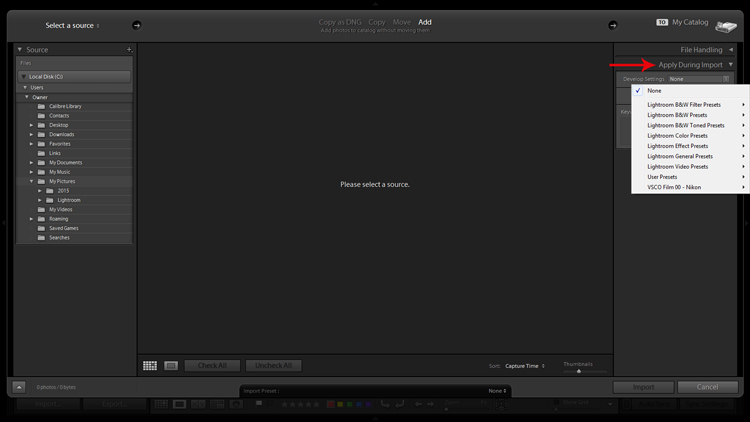
Apply on import screenshot

Applying Develop presets on import is a good way to get a jumpstart on the the editing process.

The Develop Settings dropdown provides access to your Develop module presets. If you haven’t created any, this will only be populated by Lightroom’s built-in preset options.

This is a way to save you some clicks by allowing Lightroom to apply things like sharpening, saturation, color temperature, etc. (any settings savable within a preset) while it imports your new photos to your catalog.

You are also presented with the opportunity to populate the Keywords box and apply common metadata like image location or copyright information. I recommend beginning an unwavering habit of adding keywords on Import and not procrastinating until later to it. You will thank yourself in a few years when you’re looking for a specific picture in your library of 20,000 images.

2.Preview and Selection

Once you have imported your latest batch of soon-to-be masterpieces it’s time to sort through and separate the wheat from the chaff.

There are a number of ways to go about this, but I prefer to start at the beginning, viewing images at full screen (keyboard shortcut F) and using the arrow keys to flip through. When I come across a potential keeper, I mark it by color. You can do this by clicking one of the four colors in the lower tool bar menu (while not in full screen mode) or using keyboard shortcuts 6-9 which correspond to the four colors (while in full screen mode). If the color labels are not visible, click on the arrow on the right side of the lower toolbar and click on Color Label.

I have attached specific meanings to these colors. Red, for example, means that the photo is a potential candidate for editing after closer inspection.
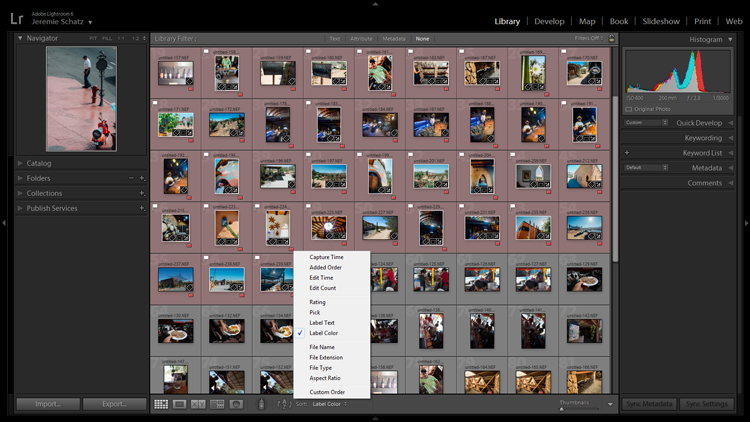
Screenshot of photos grouped by color label

Color labels and flagging are convenient tools for sorting and locating images.

After you sift through a batch of imported photos and have color coded them, you can then sort or filter by label color for quick selection or organizing. To do this, you must be in grid view in the Library module. In the upper Library Filter toolbar, you can click on Attribute and then click the desired color and Lightroom will group all photos with that label color at the top.

If you just want to group together photos with the same color label without hiding all of the other images in that folder, you can click on Sort in the lower toolbar and select Label Color. After you have applied color labels and grouped them together, you now have a convenient way to delete unwanted images by clicking the first one, holding shift, clicking the last one (which will select the whole group) and then hitting delete.

3.Use Keyboard Shortcuts for a Smoother Editing process

As you spend more time using Lightroom, you will find that all of these little tricks which seem to save only trivial amounts of time/effort are compounded quickly.

Keyboard shortcuts are one of those tricks. Don’t be selfish, share the carpal tunnel with your left hand too.

At the very least, learn the keyboard shortcuts for the processes that you use most often.

Although I could list them all here, you really only need to know one: CTRL+/. This will open a pop-up window of some of the keyboard shortcuts for the respective module that is active.
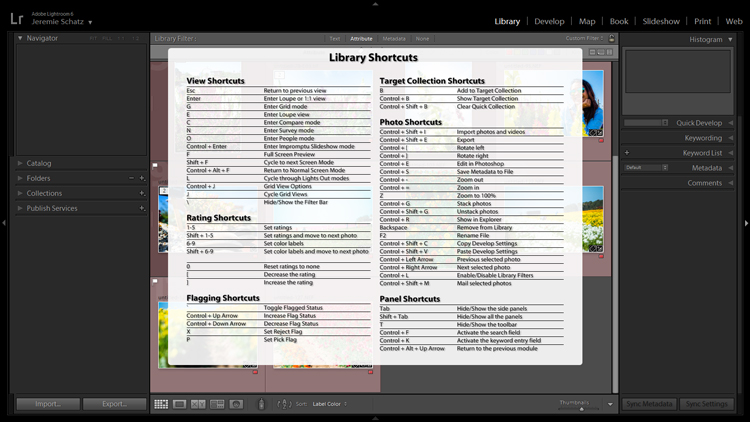
Screenshot of keyboard shortcut cheat sheet

Pressing CTRL+/ brings up the keyboard shortcut cheat sheet for the module you are in.

Another little trick you may not be aware of can be found in the Develop module. Instead of clicking and dragging sliders, you can click on the name of an adjustment (click the word Exposure for example) and then use the (+) and (–) keys to move the slider in incremental amounts.
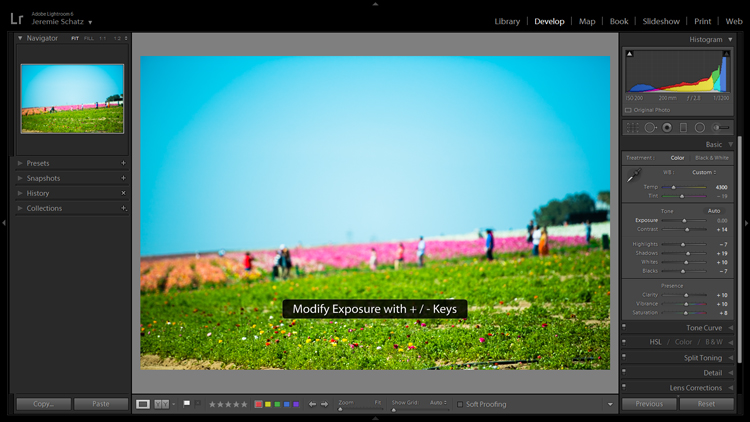
Screenshot for develop adjustments

Clicking on an editing action will activate it and using the + and – keys makes incremental adjustments.

If you’re one who likes to work top to bottom, you can use the (,) and (.) keys to cycle through the adjustments in the active panel.

4.Use the Target Adjustment Tool

You will find this handy little tool in the top left corner of the Tone Curve, HSL and B&W panels. The concept is that once you have clicked on the tool and activated it, click anywhere on your image, drag up or down and Lightroom will make the appropriate adjustments.
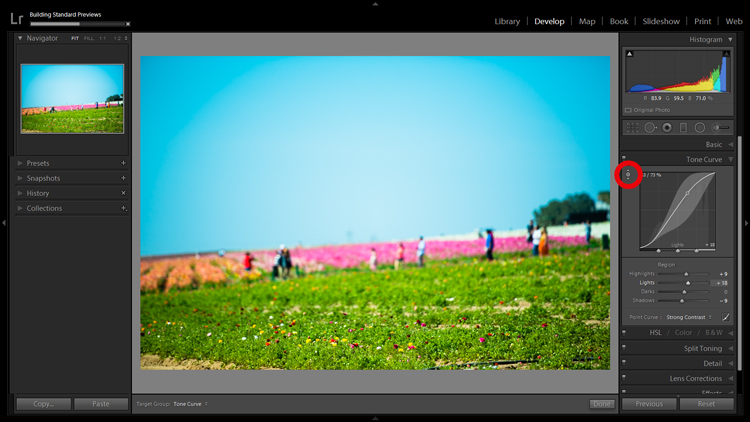
Screenshot of the target adjustment tool

Using the target adjustment tool takes some of the guesswork out of editing.

If used in the Tone Curve panel, the tone you select will fall into one of the four quadrants the tone curve is divided into: highlights, lights, darks, shadows. Within the HSL panel, the tool is a little more intelligent and can be used to tweak combinations of the eight color sliders for hue, saturation and luminance. For example, if you click on some green grass and start dragging, the tool may move both the yellow and green slider to pinpoint the correct hues for adjustment.

The B&W panel does the same as HSL except the adjustments are to the various shades of gray that the image has been converted in to.

5.Create Virtual Copies to Compare Edits

More than likely you are aware of the basic premise which Lightroom uses to edit your images. It’s simple: a tiny little file called a sidecar file (with the .xmp file extension) piggybacks onto your original image and keeps track of all the edits you’ve made to that image.

Lightroom enables you to add some extra info to that .xmp file which allows you to make further edits on the virtual copy while maintaining the edits you’ve made thus far. This can be accomplished by choosing Photo>Create Virtual Copy (keyboard shortcut CTRL+’).

Screenshot of image comparison

Making virtual copies allows you to compare different edits of the same image side by side.

Lightroom also allows boasts the Snapshot feature in the Develop panel on the left of your screen. A Snapshot basically bookmarks a specific spot in your edit history which you can revert the image back to.

One approach can be to work through your editing process, make a virtual copy at some point and go for a different look with the copy. Then you can compare both edited images side-by-side to see which tickles your fancy. Virtual Copies can also be exported in the same way as the original. This is why I use Virtual Copies rather than Snapshots.

6.Create Collections to Group Choice Images

The Collections panel really warrants an entire article to itself as there are many features within it, but let’s discuss its most basic use, which is to create a grouping of images.

There is a plus sign beside the Collections heading and clicking that launches a dropdown menu. The first choice is Create Collection and that’s where you should start. A dialog box will launch and you should name your collection and check the Set as target collection box.
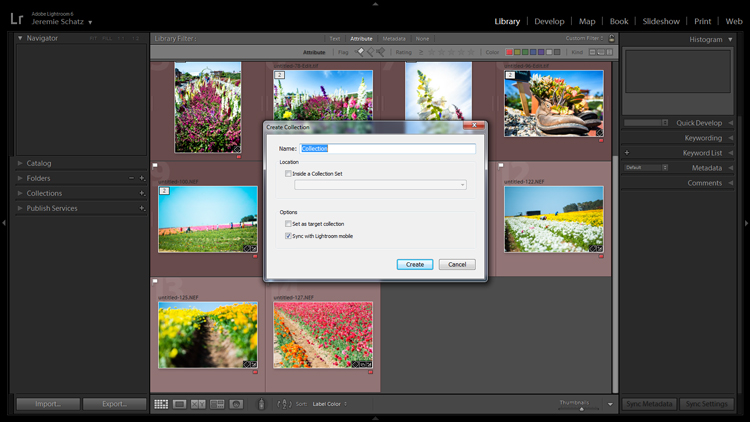
Screenshot of new collection dialog box

Once a new collection is created, pressing B while any photo in your library is selected adds it to the target collection.

Let’s say you embarked on a wild journey across Siberia and have a zillion photos in several folders. You could create a collection called Choice Siberia Pics, then add your favorite images to this collection to show off to friends in a slideshow. To add images to the collection, either right click and select Add to Target Collection or use keyboard shortcut B.

One benefit of using collections is that you add photos easily from anywhere in your library, and Lightroom doesn’t actually make copies so no additional space is taken up on your computer’s memory.

7. Use Camera Calibration Profiles

In the Develop module, the last choice on the right-hand menu is Camera Calibration. If this panel has been shrouded in mystery and, as such, you have pretended it doesn’t exist, it’s time to enter unchartered territory.

What Camera Calibration profiles do is adjust your image to recreate, as closely as possible, whatever various picture profiles your camera may offer. If you are shooting in RAW and reviewing your photos in-camera, you are likely seeing a JPEG preview that the camera whipped up for you. When you import those RAW files, Lightroom ditches that JPEG and you get that unsharp, unprocessed dull-looking image.

In Camera Calibration there is a Profile dropdown menu which offers up the same processing options that you will find in your camera. I shoot with a Nikon so Lightroom gives me the options of:

-Adobe Standard
-Camera Landscape
-Camera Neutral
-Camera Portrait
-Camera Standard
-Camera Vivid
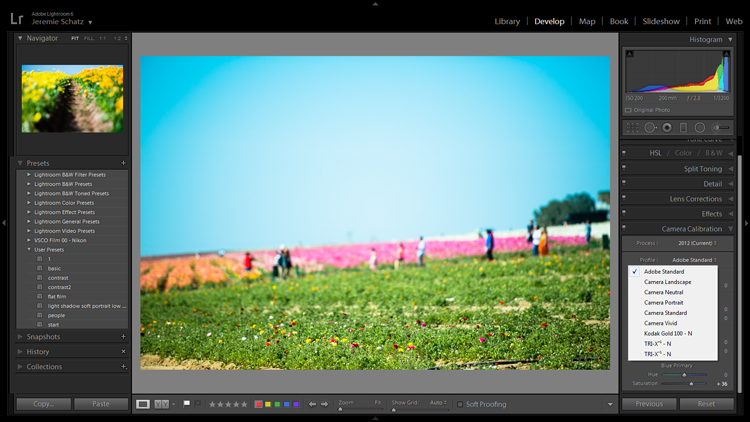
Camera calibration screenshot

Camera calibration profiles offer the same settings found in many cameras.

That first choice is Lightroom’s default. If you find one of these settings appealing and want to make it a default setting, you can hold down the Alt key and click the Set Default button at bottom right.

8.Create Develop Presets for Common Settings

In the Develop module, the first panel item on the left menu is Presets. This is pretty self-explanatory and Lightroom has some loaded in there to get you started.

You can create your own presets for common edits you use. If you want to get started in creating your own presets, click the plus symbol next to Presets and take a peek at all of the attributes Lightroom allows you to save.
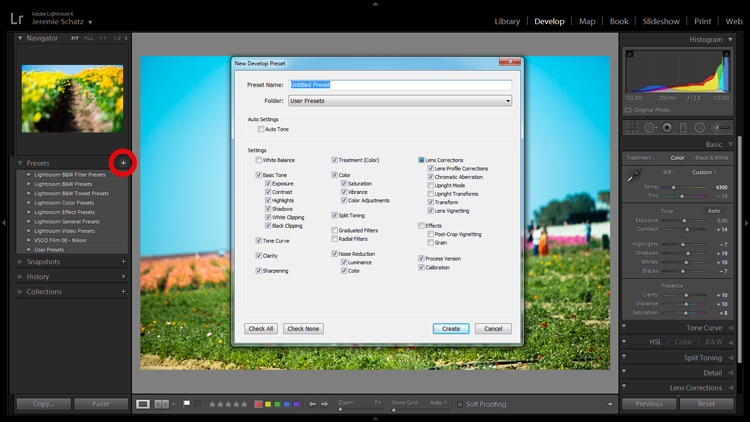
Screenshot of develop presets dialog box

Don’t mess around trying to match edits that you’ve made before – create presets for them along the way.

Remember the Apply on import setting we talked about earlier? Any Develop presets you create can also be chosen to apply on import. Sure, you can always import a batch of photos, hit CNTL+A to select all of them and then choose one of your presets, but that will take some time for Lightroom to process and the idea here is to save yourself time and clicks.

Develop presets are a great way of preserving complex edits or distinct styles which you may want to reproduce again. There is a bottomless well of preset bundles you can purchase online and even some free ones floating around out there on the interwebs if you don’t feel like making your own.

9.Flag and Rate for Easy Sorting

In much the same way you can slap color labels on images in your library for identification and sorting purposes, so too are you able to take it a step farther by flagging and rating them.

Flags (keyboard shortcut P, or U to unflag) show up as a flag which is displayed in the upper left corner of thumbnails when in grid view. I personally use flags as a thumbs which tells me that the photo is final and client-ready, ready for export or printing. There is also the option to use a reject flag (keyboard shortcut X). I don’t use these in my workflow, but you may find them more useful.

Rating images is based on a five-star system. You can use the star system to put a value rating on images which can be used for filtering or whatever significance you place on them.
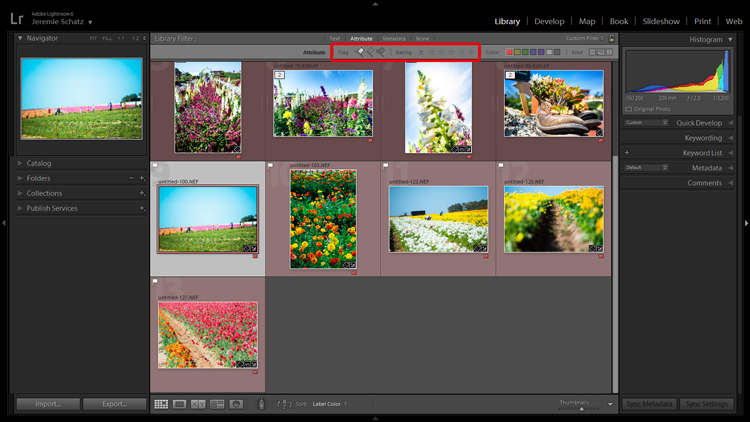
Screenshot showing filter for flagged and rated photos

Flagging and rating are ways you can identify certain images and easily locate them later.

By this point you are probably seeing a clearer picture of Lightroom’s multi-layer system of organizing, archiving and locating images in your catalog. The more identifying markers you have on images in your library, the more specific you can be in narrowing down what you are looking for.

If you are not an old-hand with Lightroom, all of this keywording, color coding and flagging might seem redundant and excessive, but as your library grows to unwieldy proportions you will be forever grateful that you formed these good habits early on.

10.Stack Images for a Tidy Workspace

If you shoot in RAW+JPEG, create virtual copies in Lightroom or use Photoshop or other plugins which make copies of your original images before editing, you may end up with several versions of similar images in your library. Same with you time-lapse shooters who don’t process the video in-camera.

To keep your library looking clean and organized, consider using Lightroom’s stacking feature. Stacking is pretty versatile, allowing you to hide an entire folder behind one image if you wish.
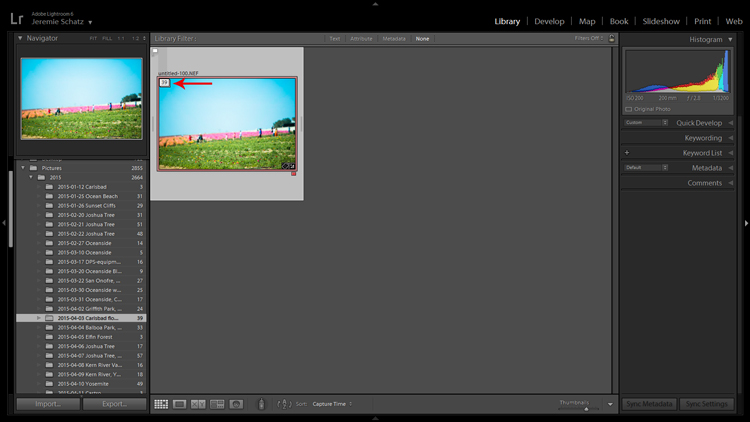
Screenshot of a stacked image folder

Stacking enables you to easily hide groups of photos behind a cover image.

The order which the images were displayed in grid view will be preserved after stacking with the active photo being on top.

Once again, stacking can be used in conjunction with all of the previously mentioned identifying and organizing features.

To stack, select the desired images (CTRL+A to select all, CNTRL+click to select non-contiguous images and CTRL+SHIFT to select a continuous string of images), right click on any of the selected images and hover over Stacking to reveal the sub-menu (keyboard shortcut CTRL+G).

Conclusion

I know there’s a distinct possibility that when you got into photography you didn’t envision spending so much time on your computer cursing Lightroom. However, if you haven’t already, you will have to come to terms with the fact that post-processing is a fact of modern photographic life.

Lightroom and other editing software are tools and like tools for any other purpose, learning the various approaches to using them in the most efficient and productive way is crucial to furthering your craft.

googletag.cmd.push(function() {
tablet_slots.push( googletag.defineSlot( “/1005424/_dPSv4_tab-all-article-bottom_(300×250)”, [300, 250], “pb-ad-78623” ).addService( googletag.pubads() ) ); } );

googletag.cmd.push(function() {
mobile_slots.push( googletag.defineSlot( “/1005424/_dPSv4_mob-all-article-bottom_(300×250)”, [300, 250], “pb-ad-78158” ).addService( googletag.pubads() ) ); } );

The post 10 Lightroom Tips for a Smoother Work Flow by Jeremie Schatz appeared first on Digital Photography School.


Digital Photography School
 
Comments Off on 10 Lightroom Tips for a Smoother Work Flow

Posted in Photography


Blowing Up: 16 Impressive Inflatable Works of Balloon Art

21 Sep

[ By Steph in Art & Sculpture & Craft. ]

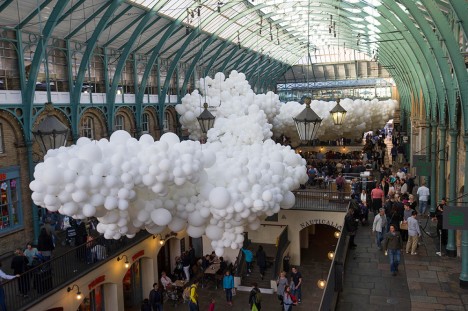
inflatable art covent garden 5

The clown you hired for your kid’s birthday party probably can’t make balloon iguanas with tiny scales, swirling three-story inflatable sculptures inspired by mythology, or floating illuminated installations that blink along with the music. These blown-up works of art go way beyond standard balloon animals, elevating an iconic decorative element at parties to a respectable medium for sculptures of all sizes.

Amazingly Realistic Balloon Animals by Masayoshi Matsumoto

inflatable art balloon animals 1

inflatable art balloon animals 2

inflatable art balloon animals 3

inflatable art balloon animals 4

Our expectations of balloon animals will never be the same after seeing these incredibly detailed creations by Masayoshi Matsumoto. The artist uses nothing but balloons and transparent thread to replicate scales, toenails, whiskers, gills and other small parts of all sorts of creatures.

Three-Story Balloon Sculpture by Jason Hackenwerth

inflatable art three story sculpture

inflatable art three story sculpture 2

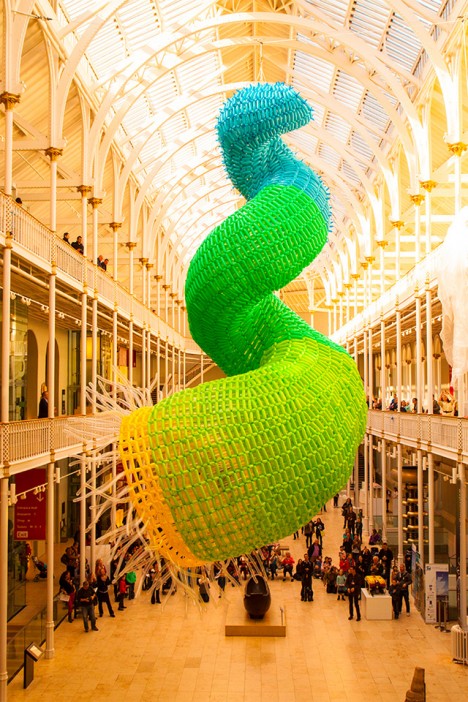
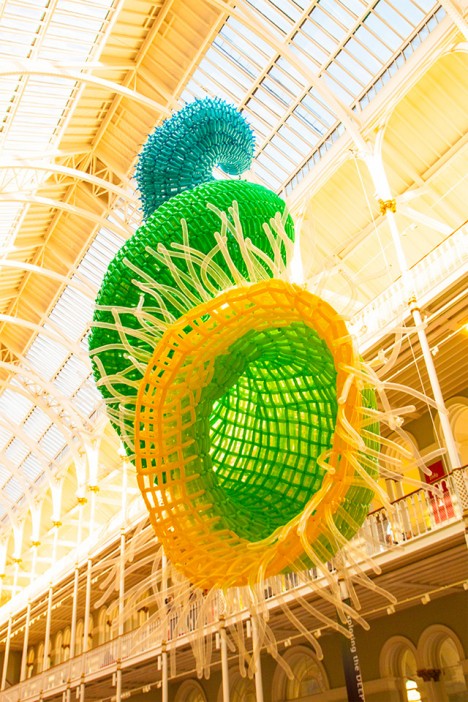
A swirling, organic form seemed to grow overnight in the Grand Gallery of the National Museum of Scotland following the installation of ‘Pisces’ by Jason Hackenwerth. Made of 10,000 individual balloons that took three people nearly six days to inflate, the sculpture references the Greek legend of Aphrodite and Eros, in which they escaped the monster Typhon by transforming into a spiral of two fish.

Balloons Bursting at High Speed by James Huse

inflatable art high speed

inflatable art high speed 2

inflatable art high speed 3

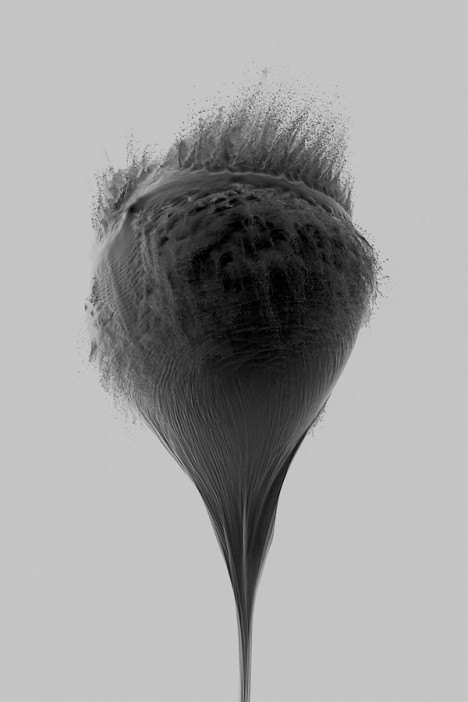
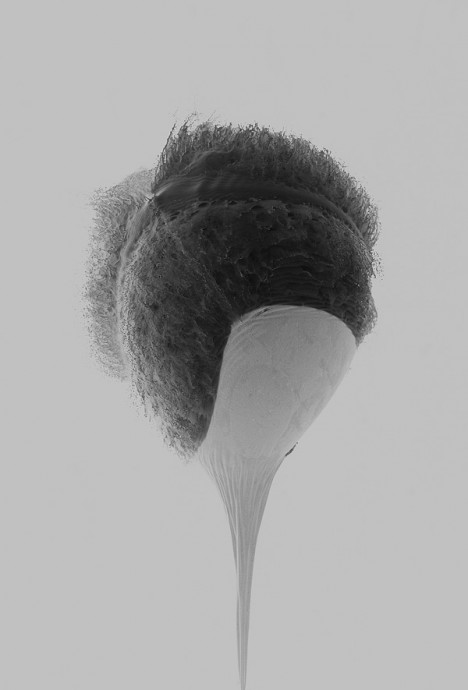
Balloons filled with milk are captured mid-rupture at high speeds by designer James Huse in a photo series entitled ‘An Abrupt End.’ It’s hard to tell exactly what’s going on here, with all of those textures swirling and splashing, but it’s fascinating to look at.

Fruloons & Vegaloons by Vanessa McKeown

inflatable art fruit 1

inflatable art fruit 2

inflatable art fruit 3

inflatable art fruit 4

Artist Vanessa McKeown makes use of cast-off materials and items that can be found around the house, proving that ultimately, the most important aspect of creativity is the ability to stretch your imagination. In this series, ‘Fruloons & Vegaloons,’ she carefully attaches balloons in the appropriate colors to real fruit and vegetable stems, and inserts an orange one in the perfect size inside a peel.

Next Page – Click Below to Read More:
Blowing Up 16 Impressive Inflatable Works Of Balloon Art

Share on Facebook


[ By Steph in Art & Sculpture & Craft. ]

[ WebUrbanist | Archives | Galleries | Privacy | TOS ]


WebUrbanist

 
Comments Off on Blowing Up: 16 Impressive Inflatable Works of Balloon Art

Posted in Creativity


DxO ONE real-world sample gallery

21 Sep

The DxO ONE is a clever little iPhone companion camera with a 20MP 1″-type sensor and 32mm equiv. F1.8 lens. With an integrated Lightning connector it’s designed to be used while attached to an iPhone or iPad, and is an easily transported little device offering a big boost in image quality over a mobile device’s integrated camera. We’ve put it through its paces in the field and have a full gallery of real-world samples to show for it. Read more

Articles: Digital Photography Review (dpreview.com)

 
Comments Off on DxO ONE real-world sample gallery

Posted in Uncategorized


How to Understand Depth of Field to Avoid Blurry Photos

21 Sep

Last week we released our brand new course – Photo Nuts and Shots which is all about teaching the tools, techniques and thought processes for creative photography. It’s by on of our most popular ebook authors, Neil Creek and features over two hours of video teaching.

We asked Neil to create this course as he has a natural knack of explaining technical concepts in a way that makes the intricacies of photography easy to understand.

We’re so convinced that this course will help you that we want to share a couple of minutes from one of the modules about avoiding blurry images with you here today.

Neil Creek runs through an additional 35 minutes of golden focus advice in this lesson – available in full when you purchase the course online today.

Keep in mind that this is just one of ten creative photography lessons included in Photo Nuts and Shots.

So you’ll not only discover practical tips and tricks for producing tack sharp photos, but get step-by-step guidance on:

  • Using light effectively
  • Avoiding and embracing lens flare
  • Composition techniques
  • Choosing creative exposure settings
  • Thinking flexibly on location
  • And much more!

With Neil’s comprehensive demonstrations and easy-to-understand teaching style, it’s like having your very own professional photography mentor.

All packaged in over two hours of streamable and downloadable video content for the terrific introductory price of USD $ 39. That’s 33% off!

Don’t miss out – take the full course today.

We’ve extended the 33% saving to our first course, Photo Nuts and Bolts, too (although you can certainly take one without the other). So both are USD $ 39 each, but for a limited time only. And you can rest assured that all of our video courses come with a 60-day money-back guarantee.   

googletag.cmd.push(function() {
tablet_slots.push( googletag.defineSlot( “/1005424/_dPSv4_tab-all-article-bottom_(300×250)”, [300, 250], “pb-ad-78623” ).addService( googletag.pubads() ) ); } );

googletag.cmd.push(function() {
mobile_slots.push( googletag.defineSlot( “/1005424/_dPSv4_mob-all-article-bottom_(300×250)”, [300, 250], “pb-ad-78158” ).addService( googletag.pubads() ) ); } );

The post How to Understand Depth of Field to Avoid Blurry Photos by Darren Rowse appeared first on Digital Photography School.


Digital Photography School

 
Comments Off on How to Understand Depth of Field to Avoid Blurry Photos

Posted in Photography


Portrait Photography Tips: Tapping The Tween Market

21 Sep

Who’s fun, adorable, up for anything, happy, laughing, totally decisive, and the most undershot market on the planet? They’re the new Seniors… they’re Tweens! This summer I had the privilege of working with the 9-13 set quite a bit, and I absolutely loved it. As a group, tweens will try just about anything once, and it’s so much fun for Continue Reading

The post Portrait Photography Tips: Tapping The Tween Market appeared first on Photodoto.


Photodoto

 
Comments Off on Portrait Photography Tips: Tapping The Tween Market

Posted in Photography


Check Out Our iPhone 6s Giveaway!

21 Sep

We’re giving away a shiny new iPhone 6s as part of our Ultimate Phoneography Kit!

We teamed up with the pro folks at iKan to create this epic kit, which also includes all the tools you’ll need to make the most of that 12mp camera and 4k vids.

Hop on over to check out the goods, enter and share with your friends (if they win, maybe they’ll split the loot!)

Enter Here


© Erin for Photojojo, 2015. |
Permalink |
No comment |
Add to
del.icio.us

Post tags:


Photojojo

 
Comments Off on Check Out Our iPhone 6s Giveaway!

Posted in Equipment


Die 5 Fotobücher des Monats

21 Sep

Ein Stapel Foto-Bücher und Bände sitzen auf einem älteren Sessel.

Liebe Leserinnen und Leser, es ist wieder ein Monat um, in dem eine Menge neuer Fotobände auf den Markt erschienen sind. Um Euch die Auswahl einwenig leichter zu machen, haben Tilman Haerdle (Kürzel: th) und Martin Gommel (Kürzel: mg) fünf Bücher herausgesucht, die ihrer Meinung nach die wichtigsten sind.
kwerfeldein – Fotografie Magazin | Fotocommunity

 
Comments Off on Die 5 Fotobücher des Monats

Posted in Equipment


Im Gespräch mit Ines Rehberger

21 Sep

© Ines Rehberger

Ein Beitrag von: Ines Rehberger

Während eines Fotografentreffens in Belgien habe ich die Gelegenheit genutzt und die wunderbare Ines Rehberger interviewt, deren emotionale und energievolle Portraits mich schon seit einiger Zeit faszinieren. Wir begannen das Gespräch mit ihrer Reise nach Schottland und endeten in einer Liebeserklärung an die Fotografie. Du warst gerade fünf Wochen lang in Schottland. Was hast du […]
kwerfeldein – Fotografie Magazin | Fotocommunity

 
Comments Off on Im Gespräch mit Ines Rehberger

Posted in Equipment


Responsibilities of Landscape Photographers

21 Sep

It is hardly questionable that landscape photography is both rewarding and fun. The whole process from planning and researching an outing, to making your way to a location during ideal conditions and, finally, producing a completed image of an exquisite vista can be so fulfilling it’s easy to see why it is such a popular genre.

Iceberg

Unfortunately, there are costs to this popularity. Even though most landscape photographers do identify as environmentally-minded, the sheer number of visitors to some locations can cause adverse effects despite the best of intentions.

There are a few things you can look out for and practices you can take up to help ensure that you nullify – or at least minimise – your environmental impact on your next photography trip.

Watch your step

Chances are you have heard the often-quoted, “Take only photographs, leave only footprints”. It’s a good starting point that simply means do not intentionally damage your surroundings and do not leave your litter. Sadly, it doesn’t go far enough.

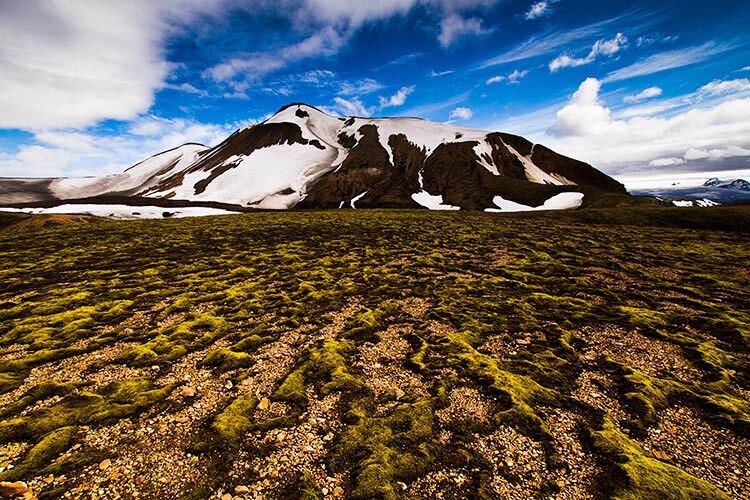
Moss in Iceland takes decades to grow but moments to permanently destroy.

Moss in Iceland takes decades to grow, but moments to permanently destroy.

Many ecosystems are extremely fragile and footsteps alone can cause catastrophic damage. Take Iceland’s mossy lava fields: that moss can take many decades to grow, but it can only handle being stepped on two or three times before it’s destroyed permanently.

There are countless other examples of fragility in the world, such as California’s Mono Lake and its Tufa formations. It is easy, however, to prevent this damage. Just adding a little bit of extra location research before you head out can reveal any extra care you should take to prevent any damage.

If you’re traveling abroad and find that obtaining the relevant information is difficult, don’t be afraid to ask local people or officials. I once listened to an impassioned Icelandic warden rant about a tourist who drove a rented 4×4 and devastated about a quarter mile of moss just to stand at the edge of a lake for five minutes. Just ask around, they will probably be grateful for your concern and may even be able to turn you on to lesser-known opportunities.

Follow local regulations

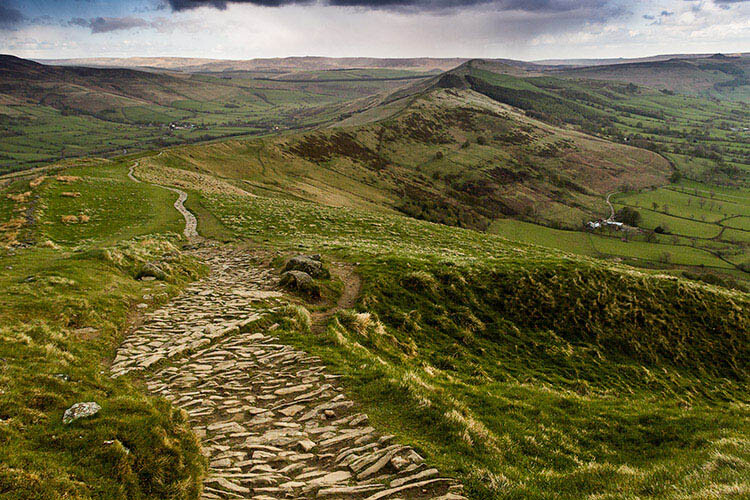
In areas that you're required to stay on marked trails, the rule is usually to keep you safe.

In areas you’re required to stay on marked trails, the rule is usually there to keep you safe.

People failing to keep to required areas on marked hiking trails is one of the most commonly ignored regulations. Although taking a few steps off a trail can seem harmless enough, often those rules are put into place for safety reasons. Things like unstable terrain, sheer drop-offs and even wildlife can all cause danger to visitors.

While it can be rationalised that using common sense should negate most danger, you should consider that most of these regulations will be the product of insurance policies. If, for the sake of photos, these regulations are seen to be constantly ignored then it isn’t much of a stretch to imagine future access to these areas being limited or restricted to photographers.

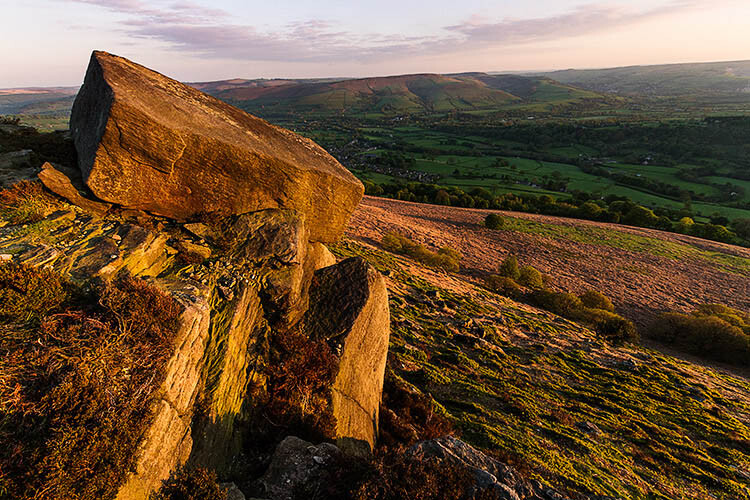
Large rock formations, boulders and cliffs all pose a danger to hikers.

Large rock formations, boulders and cliffs all pose a danger to hikers.

Other concerns when it comes to local regulations involve the law as it relates to photography. While in most places you are well within your right to photograph whatever you see, that is not the case everywhere. Belgium and France are both examples of countries where Freedom of Panorama is limited in some way. For example, when the Eiffel Tower is lit up at night it is considered a copyrighted scene and images of it cannot be published without explicit consent.

Now, a quick search on Flickr reveals a huge number of images of the Eiffel Tower at night and further research reveals that the regulation is primarily concerned with commercial usages. As such, this aspect may not seem extreme and probably will not cause any aggravation while you’re travelling, but you should still pre-empt any possible clashes with local authorities by thoroughly researching relevant laws in the country that you’ll be photographing in.

Consideration of others

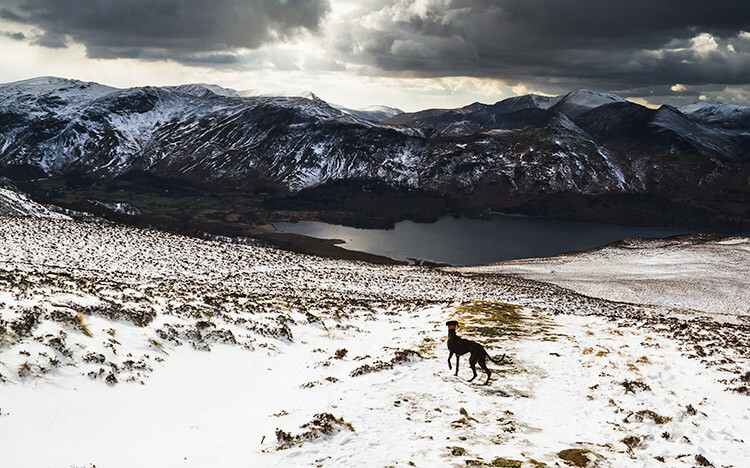
Sheep worrying causes a significant loss of livestock annually and it can cause farmers to revoke access to their land.

Sheep worrying causes a significant loss of livestock annually and it can cause farmers to revoke access to their land.

Beyond legal and environmental implications, it is important to consider other people who are around you. Courtesy and tact go a long way towards this and will often prevent any conflict before there is even a need for resolution. Simple acts like working as quickly as possible to move out of a prime viewing spot in a crowded space and not blocking the passage of others are simple ways to help ensure that you’re not preventing someone else from enjoying a location. If in doubt, try to ask yourself if there’s any way you are being an imposition on others. If so, consider changing your behavior accordingly.

An incident I witnessed at the popular Svartifoss waterfall in Iceland should drive this point home. The waterfall is at the end of a moderately steep half-kilometre trail. As it’s so short a distance, and the waterfall is so spectacular, it gets very crowded. The closest you can get to the waterfall is a rocky outcrop big enough to fit three or four people. To the left, it’s possible to stand in the stream.

While a large crowd awaited their turn for the best views, a woman and her young daughter had commandeered a position in the stream. The girl was dressed in a leotard and was being directed by her mother to perform a variety of dance poses as the latter took photos on her phone. In the forty-five minutes they were doing this, it was obvious that the girl was extremely uncomfortable among the massive group of tourists, yet her mother’s only agitation was her daughter’s apprehension. With the tension between the pair and the presence of a young girl in a leotard dominating the only view of the waterfall, there was a palpable discomfort among the dozens of tourists.

I don’t believe there is anything wrong with what they were trying to achieve, but the whole situation could have been vastly different with a bit of forward planning. Had they known what they were doing beforehand, and then gotten it done in a few altercation-free minutes, they could have achieved their results and the experience wouldn’t have been tainted for everyone else present.

Conclusion

Landscape photography is a great pursuit. The rewards to the photographer and their audiences are many, but certain behaviors can be detrimental for both the landscape and the people in it. For the most part, common sense and thorough research will steer you in the right direction.

googletag.cmd.push(function() {
tablet_slots.push( googletag.defineSlot( “/1005424/_dPSv4_tab-all-article-bottom_(300×250)”, [300, 250], “pb-ad-78623” ).addService( googletag.pubads() ) ); } );

googletag.cmd.push(function() {
mobile_slots.push( googletag.defineSlot( “/1005424/_dPSv4_mob-all-article-bottom_(300×250)”, [300, 250], “pb-ad-78158” ).addService( googletag.pubads() ) ); } );

The post Responsibilities of Landscape Photographers by John McIntire appeared first on Digital Photography School.


Digital Photography School

 
Comments Off on Responsibilities of Landscape Photographers

Posted in Photography