RSS
 

Archive for May, 2015

Successfully Copy Photos from Your Memory Card to your Computer

02 May

Before you can begin editing your photos you need to get them safely off your camera and onto your computer. Unfortunately this process is often hijacked by (well-meaning if misguided) software which purports to do the work for you but leaves you wondering just where your photos really are! So, to help you understand your options for getting your photos onto your computer, here’s what I recommend.

First of all: Take Charge!

The first thing to understand about getting photos from your camera card or camera onto your computer is that you’re in charge. Any application that opens and tries to grab your photos for you can be closed down. If it is not the application you want to use then do just that – close it.

Now you can take charge and manage the process in a way that makes sense for you.

Choose your application

If you’re using Photoshop then you can use Bridge to import your photos. If you are using Lightroom then you can launch Lightroom and import your photos using it. If you don’t have either program, or if you prefer to manage the process yourself, you can do so using Finder on the Mac or Windows Explorer on a PC. I’ll cover this process first, then look at Bridge and Lightroom.

Importing using Finder or Windows Explorer
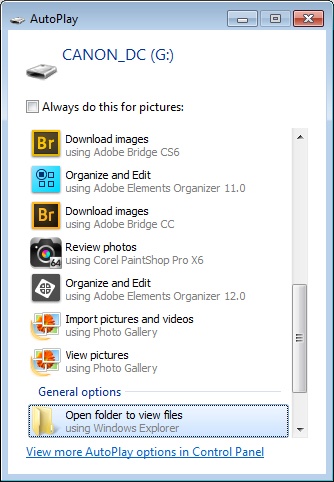
import-photos-using-Windows-1When attached to your computer, a camera or memory card works like any drive, so you can view its contents. You can also copy photos from the memory card onto your computer’s hard drive manually using Explorer or Finder.

On a PC, if the AutoPlay dialog appears when you insert your camera card or attach your camera, choose the Open Folder to View Files option.

If the dialog doesn’t appear, simply launch Windows Explorer and select the drive that represents your camera or memory card.

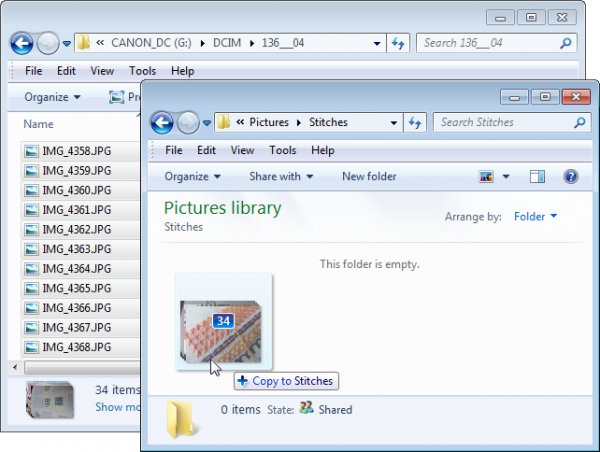
Navigate to the folder that contains your photos – there may be multiple folders depending on how your camera stores images on the card. You can select the photos, then drag and drop them to the folder of your choice. It’s often easier if you first open the target folder in a second Windows Explorer window so you can drag from one to the other.
import-photos-using-Windows-2

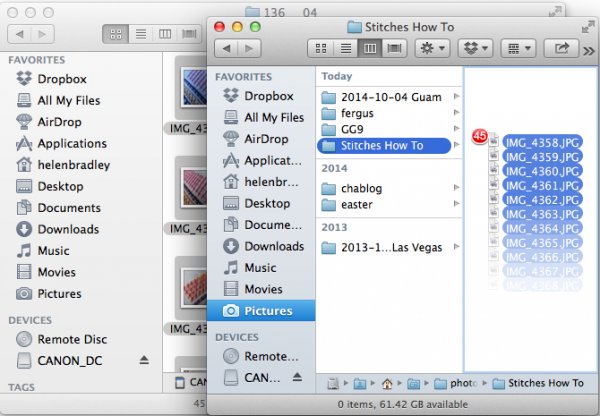
The process is similar using Finder on the Mac. If iPhoto launches – stop it from downloading any photos and close it. Then you can drag photos from your camera card open in one Finder window, to a folder of your choice open in a second window.
import-photos-using-finder-on-the-mac

Importing Photos using Bridge

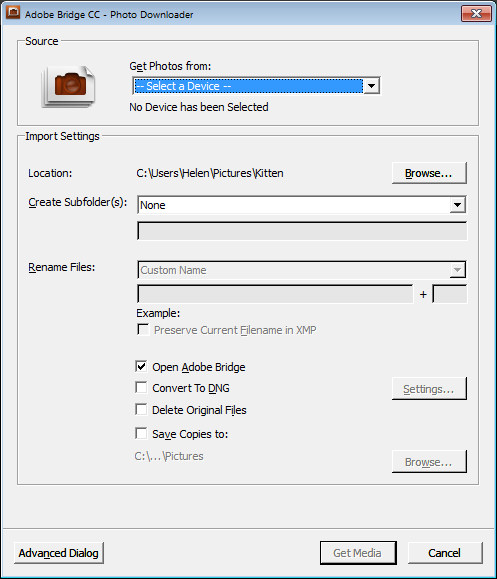
If you are using Photoshop, launch Adobe Bridge and choose File > Get Photos from Camera. Click the button to open the Advanced Dialog.
import-photos-using-bridge-1

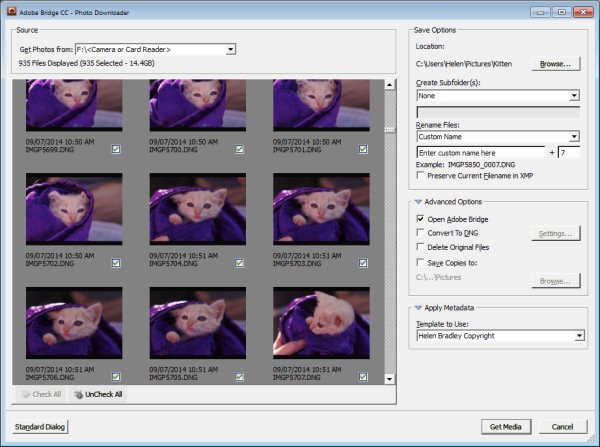
From the “Get Photos from” drop down list select the drive letter that corresponds to your camera or card.
import-photos-using-bridge-2

You can now see and select the photos to import. This is one benefit of using Bridge over Windows Explorer – you will see thumbnail images of your raw files so you can see what you are importing.

On the right of the dialog select the folder in which to place the images. Typically this will be inside your My Pictures folder on your computer but you can choose any location that makes sense to you. However, if you want to find your photos later, on it is essential that you pay attention to the choices you make here.
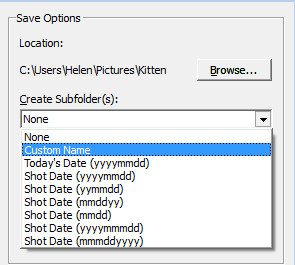
import-photos-using-bridge-3Once you have selected the folder to import the images into, you can, if desired, select a subfolder. In this way you can group photos by shoot, date or something that makes sense to you.  Bridge will create the folder for you if it doesn’t exist, so choose an option from the Create Subfolder(s) list and, if required, type a name for it or choose the date to use – either the capture date or today’s date. If you don’t want to organize photos in a subfolder then click None.
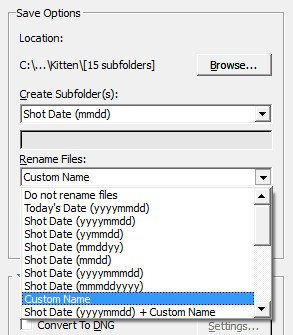
import-photos-using-bridge-4You can also select to rename files on import, or not. Choose Do not rename files if you don’t want them renamed or alternatively select a naming convention from the list.

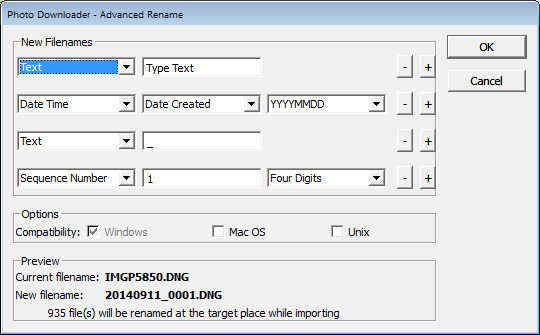
If you have advanced naming requirements for which the dialog does not provide an appropriate choice, scroll to the bottom of the list and click Advanced Rename to open the Advanced Rename dialog where you can create quite complex naming conventions. Whatever choice you make check the entry just below the dialog where Bridge shows you an example of the naming convention in place so you can check to see if it is what you want.
import-photos-using-bridge-5

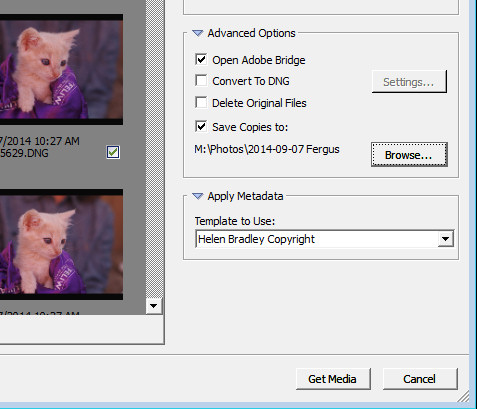
In the Advanced Options area you can choose other options including Convert to DNG – which is handy if your camera captures in a manufacturer specific format such as CRW, NEF, PEF and so on, but you prefer to work with DNG files. Select this option and Bridge will do the conversion for you.

You can also select Delete Original Files although this is not recommended. It’s best to make sure that the images are correctly copied onto your computer before the originals are deleted so I suggest you leave this option disabled.

Bridge offers a backup option so it will make a copy of your photos on import. To do this, click the “Save Copies To:” checkbox and select an alternate location (such as an external drive) in which to save a copy of your photos.
import-photos-using-bridge-6

If you have a metadata template already created you can select this from the Apply Metadata drop down list.

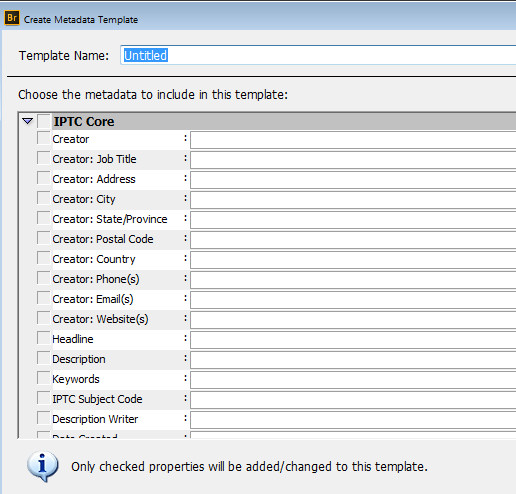
In future you can create such a metadata template in Bridge by selecting Tools > Create Metadata Template. I suggest that you complete the IPTC Core Data for Creator as well as Copyright Notice, Copyright Status and Rights Usage Terms. Also complete the Type Of Source entry in the IPTC Extension group. When completed this will give you a good all round metadata preset to apply to all your images. For more information on IPTC Copyright Metadata check out this article: Lightroom: Add your IPTC metadata on Import.
import-photos-using-bridge-7

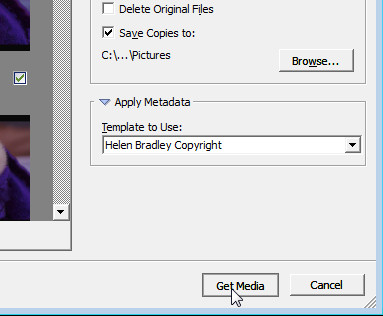
When you have your import settings selected and configured to meet your needs click Get Media to import the images.
import-photos-using-bridge-8

You will see a dialog showing you the progress of the import process.
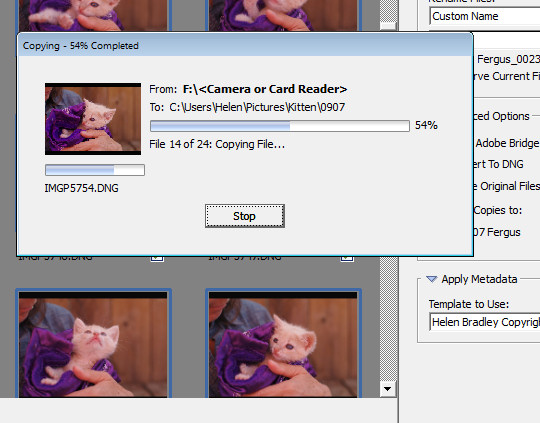
import-photos-using-bridge-9

Importing Photos using Lightroom

If you’re using Lightroom then it is the obvious choice for managing the process of importing photos from your camera or memory card. From the Library module click Import, then select the source in the top left corner of the Import dialog.
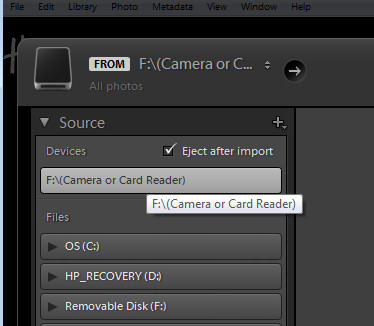
import-photos-using-lightroom-1

Across the top of the screen you will see only two choices, Copy as DNG and Copy. This reflects the fact that you’re importing images from a camera card or camera – the options Move and Add are not available for this process (if you do see Move and Add as available options, it appears that Lightroom isn’t recognizing your camera or camera card correctly and even though they may be available you should not use either of these choices).

import-photos-using-lightroom-2

Next, open the File Handling panel on the right of the screen and select the kind of preview to create – Standard is a good choice. You can choose Build Smart Previews or not (if you’re unsure, check Build Smart Previews).

Checking Don’t Import Suspected Duplicates will ensure that Lightroom doesn’t import images again, that you’ve already previously imported. This is one feature available in Lightroom which is not also available in Bridge.

In Lightroom you can also choose to make a backup by making a second copy of your photos to an alternate location as you import them.
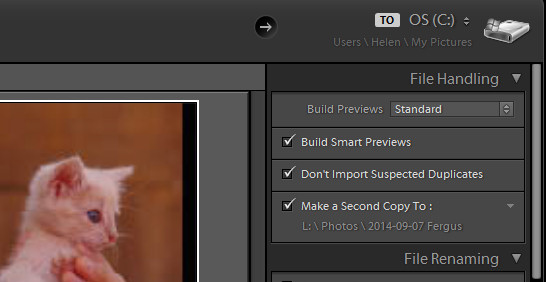
import-photos-using-lightroom-3

File Renaming panel allows you to rename images on import – you can select from a range of naming templates and even create your own. Here I’ve chosen to use the Custom Name – Sequence template so I’ve typed the Custom name and the sequence is set to start at 1:
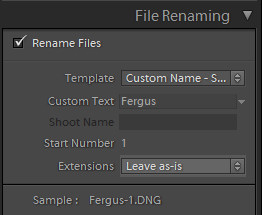
import-photos-using-lightroom-4

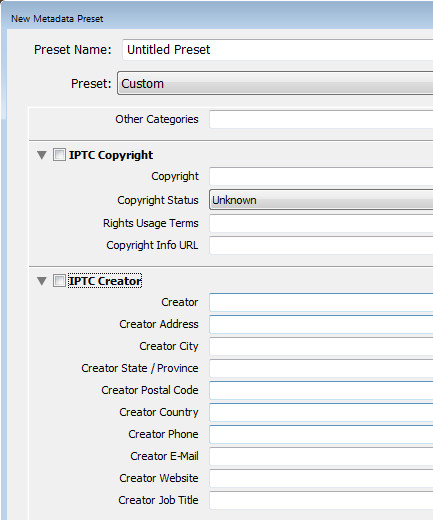
The Apply During Import panel has an option for applying metadata to the image upon import. Unlike Bridge the drop down list for Metadata presets also includes an option New which you can use to create your own metadata preset. I suggest you complete the IPTC Copyright and IPTC Creator details, and in the IPTC Extension Administrative select Original digital capture from a real live scene from the Digital Source Type drop down list. Type a name for the preset and from the Present drop down list click Save current settings as new preset.
import-photos-using-lightroom-5

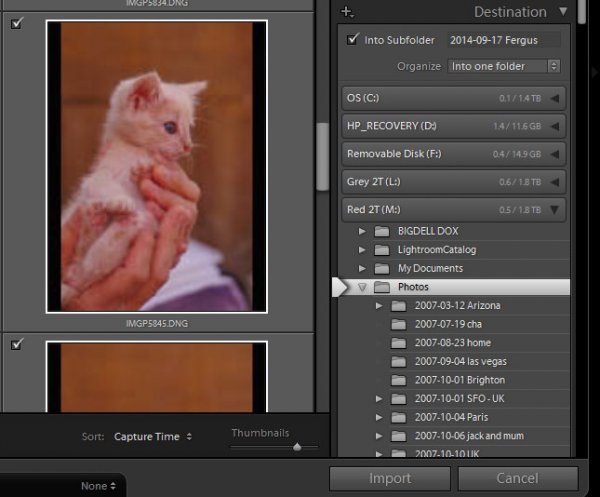
In the Destination panel you’ll need to select the location into which the images are to be copied. If you’re copying them to your hard drive then typically you’ll select your C drive, then your My Pictures folder which should be in your Users area.

If you save your images to an external drive then select the external drive and the folder into which the images should be imported.

If the folder does not exist you can create a subfolder on import by selecting the Into Subfolder checkbox and type a name for the folder that Lightroom should create to import the images into.
import-photos-using-lightroom-6

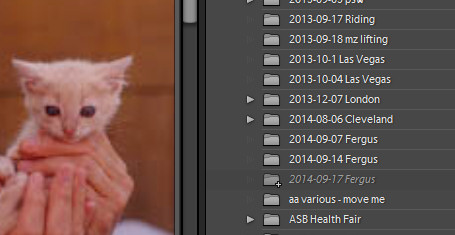
From the Organize drop down list you can select to put the images into this folder (Into one Folder) or to organize them by date. Whichever choice you make you can see a preview of what’s going to happen in the folder list, allowing you to check and make sure that everything is going to be imported and arranged to your requirements before you go ahead and complete the import process.
import-photos-using-lightroom-7

When you’re ready to import the images click Import.

Whatever process you choose to use for getting images off your camera card onto your computer the acid test for whether it is a good system or not will be if you can find your images later on. Also be aware that it’s advisable to make a backup copy of your images in case your computer is stolen, damaged or your hard disk crashes. For this reason a backup on a removable external drive is a sensible choice.

Having an import routine that you understand, and can reliably execute, is a necessary first step for any photographer. The worst possible scenario is to have copied your images from your camera card to your computer and erased them from your card, only to discover that you cannot find the images. It’s a scenario that way too many users have encountered – don’t let it happen to you!

Find a video version of this blog post here:

Do you have any other copy and import tips? Please share in the comments below.

googletag.cmd.push(function() {
tablet_slots.push( googletag.defineSlot( “/1005424/_dPSv4_tab-all-article-bottom_(300×250)”, [300, 250], “pb-ad-78623” ).addService( googletag.pubads() ) ); } );

googletag.cmd.push(function() {
mobile_slots.push( googletag.defineSlot( “/1005424/_dPSv4_mob-all-article-bottom_(300×250)”, [300, 250], “pb-ad-78158” ).addService( googletag.pubads() ) ); } );

The post Successfully Copy Photos from Your Memory Card to your Computer by Helen Bradley appeared first on Digital Photography School.

Digital Photography School

 
Comments Off on Successfully Copy Photos from Your Memory Card to your Computer

Posted in Photography


Abenteuer Alltag

02 May

Ein Portrait

Ein Beitrag von: Diana D. Reinoso

Kürzlich habe ich mit jemandem darüber gesprochen, wie schwierig es mir erscheint, meine eigene Fotografie, meine Motivation und meine Ideen zu beschreiben. Es ist interessant, dass ich ausgerechnet ein paar Tage später damit begann, diesen Artikel für kwerfeldein zu schreiben.
kwerfeldein – Fotografie Magazin | Fotocommunity

 
Comments Off on Abenteuer Alltag

Posted in Equipment


Lending a Hand: Selfie Arm Lets You Fake Your Friends

02 May

[ By Steph in Design & Products & Packaging. ]

selfie arm 5

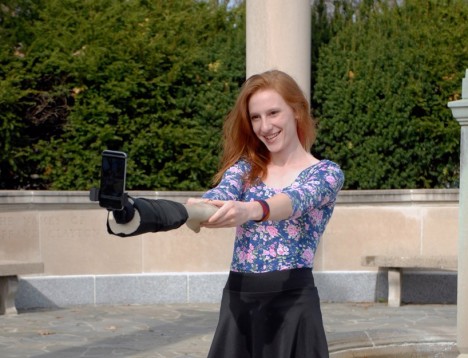
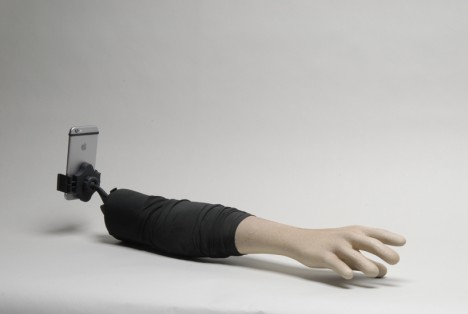
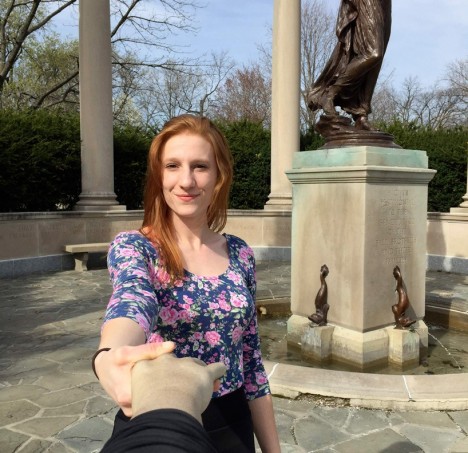
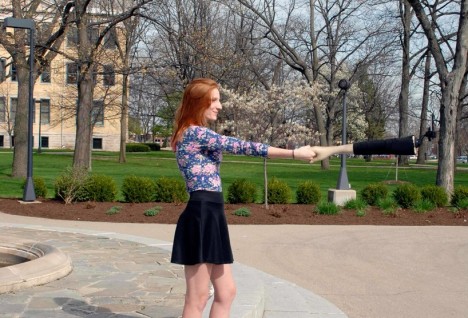
Never mind that given its skin tone, this arm-shaped selfie stick kind of makes it look like you’re dragging a corpse around. Mounting your cell phone onto the end of it to shamelessly selfie away in public places might make you look ridiculous to bystanders while you’re doing it, but at least in the finished photos, you appear to be having a great time with a living companion.

selfie arm 4

selfie arm 3

Artists Aric Snee and Justin Crowe collaborated on the ‘Selfie Arm,’ which is exactly what it sounds like. Poking fun at the self-photography phenomenon and examining the relationships between humans and technology, the device is thoroughly tongue-in-cheek. Ten limited edition, signed copies of the prototype will be made.

selfie arm 2

selfie arm 1

Lightweight and portable thanks to its fiberglass construction, the Selfie Arm also makes for a conversation-starting accessory if you walk around with it poking out of your bag, so maybe it can actually help you meet a human companion who will take photos for you – no fake severed limbs required.

Share on Facebook


[ By Steph in Design & Products & Packaging. ]

[ WebUrbanist | Archives | Galleries | Privacy | TOS ]


WebUrbanist

 
Comments Off on Lending a Hand: Selfie Arm Lets You Fake Your Friends

Posted in Creativity


Meet PJ:Suman Edition

02 May

Welcome to a Special Edition of Meet Photojojo. In honor of Mother’s Day … Meet Suman!

Not only is she the mom of our founder, Amit, she’s been working in the Photojojo Shop since day 1. Her garage was our original warehouse! She’s become everyone’s very favorite work mom, always there to help you out and a real joy to work with. :]

Name: Suman “Mom-in-Chief” Gupta

What Do You Do Here? I take care of the inventory, place orders with vendors. Make sure we have enough stock on hand & that we don’t run out before we get the next shipment.

Favorite Camera: Of course, it is my iPhone 6.

Learn Even More About Suman
(…)
Read the rest of Meet PJ:
Suman Edition (214 words)


© laurel for Photojojo, 2015. |
Permalink |
No comment |
Add to
Suman Edition”>del.icio.us

Post tags:


Photojojo

 
Comments Off on Meet PJ:Suman Edition

Posted in Equipment


Weekly Photography Challenge – Ocean Waves

02 May

There is something about the ocean that is mesmerizing. Check out these images to see some of the power of the sea.

William Warby

By William Warby

Weekly Photography Challenge – Ocean Waves

This week it is your turn to go photograph the ocean. If you do not live near the sea find a body of water you can use as substitute and get creative. A large lake or reservoir could do the trick.

Use some different techniques such as varied exposure times. See this for more tips on photographing the waves. Play with your composition to create a unique result.

Neville Nel

By Neville Nel

Bill Devlin

By Bill Devlin

Aristocrats-hat

By Aristocrats-hat

Susanne Nilsson

By Susanne Nilsson

Share your ocean images here:

Simply upload your shot into the comment field (look for the little camera icon in the Disqus comments section) and they’ll get embedded for us all to see or if you’d prefer upload them to your favourite photo sharing site and leave the link to them. Show me your best images in this week’s challenge. Sometimes it takes a while for an image to appear so be patient and try not to post the same image twice.

Kris Williams

By Kris Williams

Steve Corey

By Steve Corey

googletag.cmd.push(function() {
tablet_slots.push( googletag.defineSlot( “/1005424/_dPSv4_tab-all-article-bottom_(300×250)”, [300, 250], “pb-ad-78623” ).addService( googletag.pubads() ) ); } );

googletag.cmd.push(function() {
mobile_slots.push( googletag.defineSlot( “/1005424/_dPSv4_mob-all-article-bottom_(300×250)”, [300, 250], “pb-ad-78158” ).addService( googletag.pubads() ) ); } );

The post Weekly Photography Challenge – Ocean Waves by Darlene Hildebrandt appeared first on Digital Photography School.

Digital Photography School

 
Comments Off on Weekly Photography Challenge – Ocean Waves

Posted in Photography


New dPS Reader Survey – Tell Us More About You

02 May

At dPS we value you, our readers, above all else. We want to help you take better pictures.

By doing this survey you will be helping dPS serve you better. By knowing what kinds of things are you struggling with, and the types of articles you want to see we can work toward providing more of what you need to move your photography forward.

We value your time, and you, as our regular reader and always strive to improve – you will help us by completing this form, for which we will be especially grateful.

Click on this link, or the image below to start the survey.

FEAT JOHN SMITH CREATIVE DIRECTOR

Thank you for your continued support and being a dPS reader. We wish you all the success on your photography journey.

The dPS Management Team

googletag.cmd.push(function() {
tablet_slots.push( googletag.defineSlot( “/1005424/_dPSv4_tab-all-article-bottom_(300×250)”, [300, 250], “pb-ad-78623” ).addService( googletag.pubads() ) ); } );

googletag.cmd.push(function() {
mobile_slots.push( googletag.defineSlot( “/1005424/_dPSv4_mob-all-article-bottom_(300×250)”, [300, 250], “pb-ad-78158” ).addService( googletag.pubads() ) ); } );

The post New dPS Reader Survey – Tell Us More About You by Darlene Hildebrandt appeared first on Digital Photography School.

Digital Photography School

 
Comments Off on New dPS Reader Survey – Tell Us More About You

Posted in Photography


1. Mai 2015

01 May

Das Bild des Tages von: Klaus Leidorf

Trucks-Parking-©-Klaus-Leidorf-8558020609

Im Ausblick: die kurdischen Fremdenlegion, heute vor 70 Jahren & Mukoviszidose-Patientinnen.
kwerfeldein – Fotografie Magazin | Fotocommunity

 
Comments Off on 1. Mai 2015

Posted in Equipment


The Power of the Sea in 24 Breathtaking Images

01 May

Nature provides a sense of its power in many ways – few with the same effect as the sea. It can be calm and peaceful, or powerful and frightening.

Enjoy these breathtaking images of the sea and think about how you can capture shots like this too:

Photograph Storm Rage by Matthew Jones on 500px

Storm Rage by Matthew Jones on 500px

Photograph New Beginning by Bobby Bong on 500px

New Beginning by Bobby Bong on 500px

Photograph Audience of One by Marc  Adamus on 500px

Audience of One by Marc Adamus on 500px

Photograph Abandoned by Ted Gore on 500px

Abandoned by Ted Gore on 500px

Photograph Rough sea n12 by Giovanni Allievi on 500px

Rough sea n12 by Giovanni Allievi on 500px

Photograph Beat of the Ocean by Hugh-Daniel Grobler on 500px

Beat of the Ocean by Hugh-Daniel Grobler on 500px

Photograph Bending waves by Paolo Lazzarotti on 500px

Bending waves by Paolo Lazzarotti on 500px

Photograph Porthleven Storm by Lloyd W.A. Cosway [DEVONshots.com] on 500px

Porthleven Storm by Lloyd W.A. Cosway [DEVONshots.com] on 500px

Photograph Rising by Andre Luu on 500px

Rising by Andre Luu on 500px

Photograph Waves Hunter by Bobby Bong on 500px

Waves Hunter by Bobby Bong on 500px

Photograph A T T A C K by Thomas Roux on 500px

A T T A C K by Thomas Roux on 500px

Photograph Tropical paradise with turtles by Vitaliy Sokol on 500px

Tropical paradise with turtles by Vitaliy Sokol on 500px

Photograph wave by Vitaliy Sokol on 500px

wave by Vitaliy Sokol on 500px

Photograph beyond the waves by Tu Geo on 500px

beyond the waves by Tu Geo on 500px

Photograph The Modern Force by Toby Harriman on 500px

The Modern Force by Toby Harriman on 500px

Photograph m a u i  .  j a w s  I V by s e n s o r p i x e l on 500px

m a u i . j a w s I V by s e n s o r p i x e l on 500px

Photograph Iceland Through The Lens by Skarpi Thrainsson on 500px

Iceland Through The Lens by Skarpi Thrainsson on 500px

Photograph tracing by Dragan Todorovi? on 500px

tracing by Dragan Todorovi? on 500px

Photograph Gold On The Sea by Sergio Valverde Pérez on 500px

Gold On The Sea by Sergio Valverde Pérez on 500px

Photograph Cool!!  by Emrah Erduran on 500px

Cool!! by Emrah Erduran on 500px

Photograph Coming Back by Plamen Valchev on 500px

Coming Back by Plamen Valchev on 500px

Photograph Morjim beach, Goa, India by Pavel Sokolov on 500px

Morjim beach, Goa, India by Pavel Sokolov on 500px

Photograph Mighty Sea, color version by Joao Brites Moita on 500px

Mighty Sea, color version by Joao Brites Moita on 500px

Photograph Rugged Cliffs and Stormy Seas by Rosie Schneider on 500px

Rugged Cliffs and Stormy Seas by Rosie Schneider on 500px

googletag.cmd.push(function() {
tablet_slots.push( googletag.defineSlot( “/1005424/_dPSv4_tab-all-article-bottom_(300×250)”, [300, 250], “pb-ad-78623” ).addService( googletag.pubads() ) ); } );

googletag.cmd.push(function() {
mobile_slots.push( googletag.defineSlot( “/1005424/_dPSv4_mob-all-article-bottom_(300×250)”, [300, 250], “pb-ad-78158” ).addService( googletag.pubads() ) ); } );

The post The Power of the Sea in 24 Breathtaking Images by Darlene Hildebrandt appeared first on Digital Photography School.

Digital Photography School

 
Comments Off on The Power of the Sea in 24 Breathtaking Images

Posted in Photography


Nocturnal Field Trips: 7 World Wonders Best Explored at Night

01 May

[ By WebUrbanist in 7 Wonders Series & Travel. ]

night light art

When planning out world travel, one typically dwells on destinations more than times, but some of the best sights can only been seen at a particular point in the day or, in the case of these marvels, at night.

fieldtrip

WebUrbanist is pleased to announce a new partnership with Google Field Trip, bringing some of our best and brightest travel articles to their mobile platform, allowing you to find hidden wonders of the world wherever (and whenever) you may be. In this article, we have teamed up to highlight seven amazing places to visit by night, each offering special surprises to the nocturnally inclined.

World’s Largest Urban Bat Colony in Austin, Texas

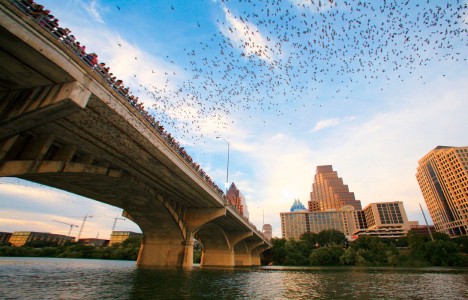
bridge bat experience austin

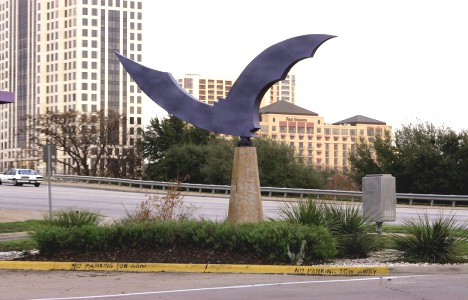
At dusk, people flock to watch the emergence of 1.5 million bats from beneath the Congress Avenue Bridge, designed and built in 1980 in a way that inadvertantly turned out to provide an ideal roost for a particular breed of flying nocturnal predators.

bridge bat sign

Often under-appreciated or even feared, these night flyers consume between 10,000 and 20,000 pounds of food each evening, helping them earn their keep. Today, there is even a dedicated Statesman Bat Observation Center from which visitors are encouraged to experience the spectacle.

World’s Largest Ice & Snow Festival in Harbin, China

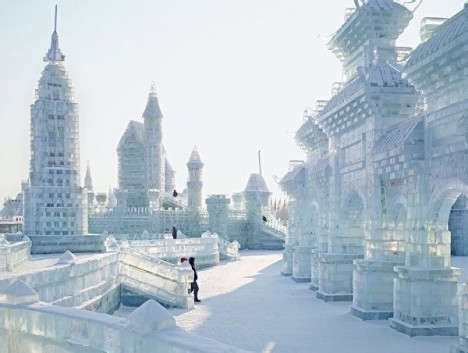
snow festival by day

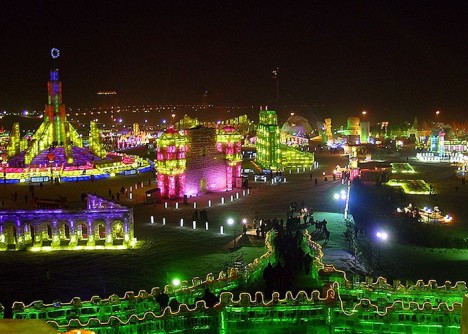
snow festival at night

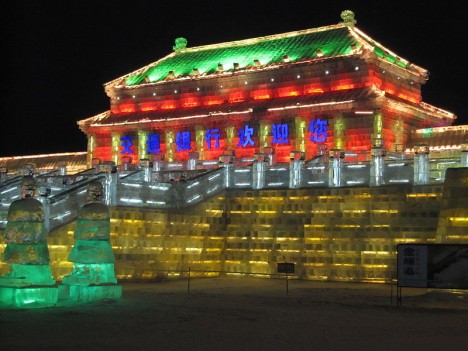
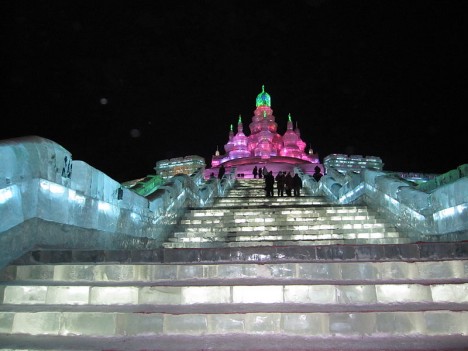
By far the biggest such event in the world, the Harbin International Ice & Snow Sculpture Festival consists of huge works of art and architecture that truly come into their own once the sun sets and glowing lights behind and within bricks of ice come to life.

harbin snow festival building

snow ice festival staircase

Using swing saws to cut ice directly from an adjacent river, artists then turn the frozen building blocks into human, animal and mythical figures as well as huge staircases and structures. Among other honors and awards, a snow sculpture featured at the festival holds the world’s record for size at 750 feet by 28 feet (13,000 cubic meters of snow). Other similarly-impressive global ice festivals can be found in Japan, Canada and Norway as well.

Synchronous Firefly Swarms near Knoxville, Tennessee

night lightning bug sync

lightning bug flying art

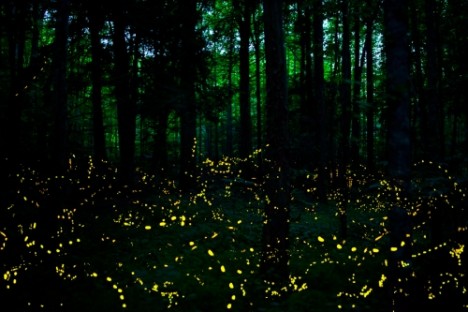
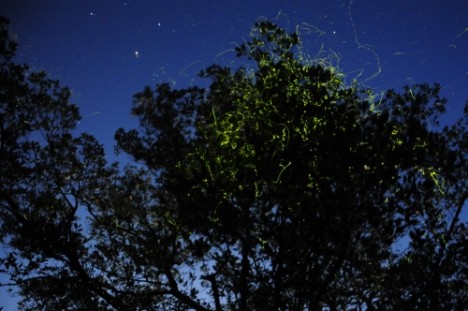
Fireflies can be a wonderful sight regardless of the species, but one rare type in particular (Photinus Carolinus), is even more special than its cousins: the so-called Synchronous Firefly swarms light up in unison, pulsing every few seconds at the exact same time.

synchronous firefly swarms

At Great Smoky Mountains National Park, viewers can buy tickets in advance and be taken by shuttle to special viewing areas from which to observe these lightning bugs. Within the park, 18 other species of firefly can also be found, but only one whose constituents almost all flash simultaneously.

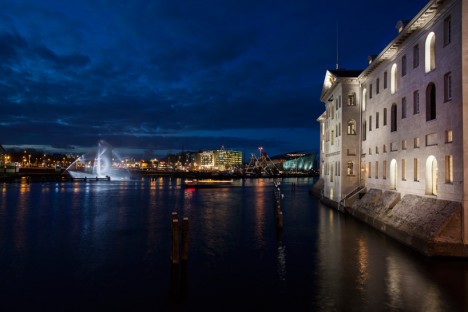
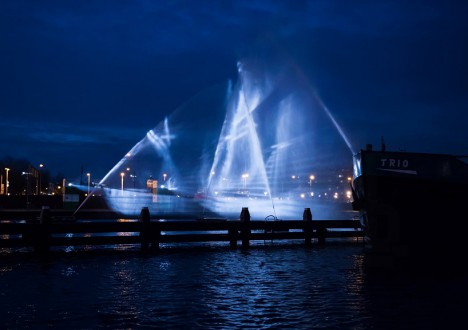
Ghost Ship Water Hologram in Amsterdam, Holland

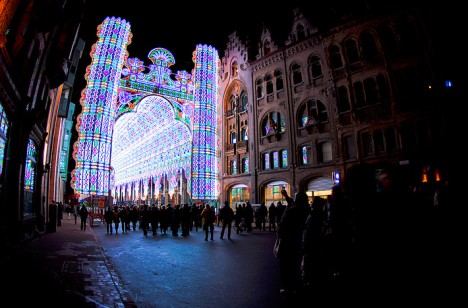
amsterdam light festival ship

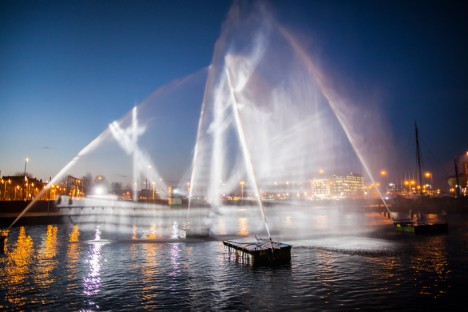
A maritime marvel in more ways than one, this 3D optical illusion involves two intersecting planar projections beamed onto perpendicular planes of vertical water.

amsterdam maritime ghost boat

amsterdam light vessel

Created for the Amsterdam Light Festival by VisualSkin, the resulting real-life rendering looks like a 17th-century seafaring vessel seemingly held in stasis and composed of water and light. The effect, naturally, works best at night, turning a fountain by day into a marvelously surprising evening display.

Next Page – Click Below to Read More:
Nocturnal Field Trips 7 World Wonders Best Explored At Night

Share on Facebook


[ By WebUrbanist in 7 Wonders Series & Travel. ]

[ WebUrbanist | Archives | Galleries | Privacy | TOS ]


WebUrbanist

 
Comments Off on Nocturnal Field Trips: 7 World Wonders Best Explored at Night

Posted in Creativity


Über Crowdfunding und Blitzgeschichten

01 May

Blitzgeschichten Kalender Projekt - Titel

Ein Beitrag von: Stephan Schwartz

Wie funktioniert Crowdfunding bei Fotoprojekten? Das Kalenderprojekt „Blitzgeschichten“ macht es vor!
kwerfeldein – Fotografie Magazin | Fotocommunity

 
Comments Off on Über Crowdfunding und Blitzgeschichten

Posted in Equipment