Sony is releasing a pair of firmware updates this month that will reduce startup times when FE lenses are attached to both full-frame and APS-C bodies. The first update, available now, will make your E-mount camera get ready to shoot in less time when using five currently available FE lenses. The second update, due later this month, will do the same for Sony’s a7 series, this time for the four new lenses announced today. Read more
Month: March 2015
-
Sony brings big zoom power to FE-mount with 24-240mm F3.5-6.3 lens
Another full-frame lens from Sony’s roadmap that hit the market today is a consumer-friendly super zoom. This 24-240mm F3.5-6.3 FE lens features optical image stabilization, five aspherical elements and one ED element, and is sealed against dust and moisture. The lens will ship this month for around $ 1000.
-
Augmented Showroom: Projections Compliment Physical Products
[ By WebUrbanist in Architecture & Offices & Commercial. ]
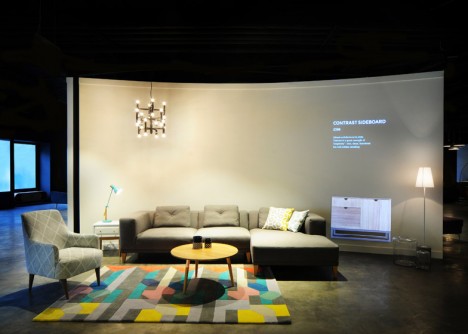
Offering more than a traditional storefront space or conventional shopping website could individually, this hybrid showroom allows shoppers to experiment with different combinations of furnishings and fixtures both physically and virtually.
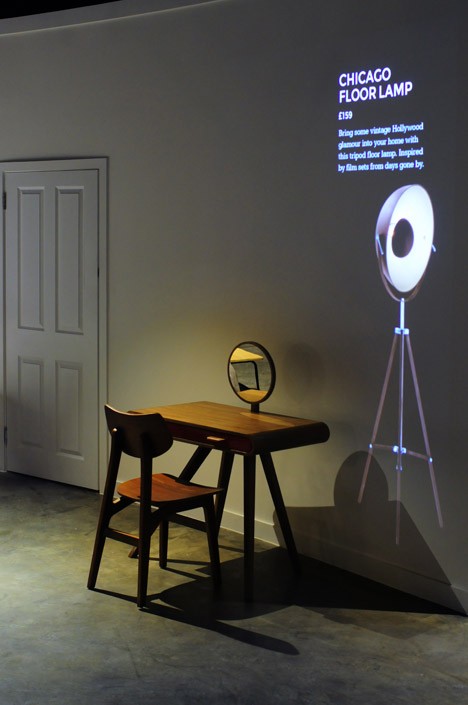
Created by London studio Bureau de Change for Made.com, the space is designed with a series of screens as backdrops for various sets of staged furniture and fixtures, allowing accessory items to be projected alongside for shoppers to compare and evaluate in relation to physically-present pieces.
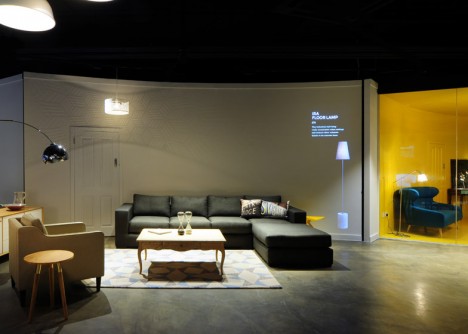
“The projections provide a true, adaptable representation of the products, at the right scale, in the right place. Without them, the room sets feel unfinished, so for us they were the missing link to achieving a flexibility you can normally only achieve online,” say the designers.
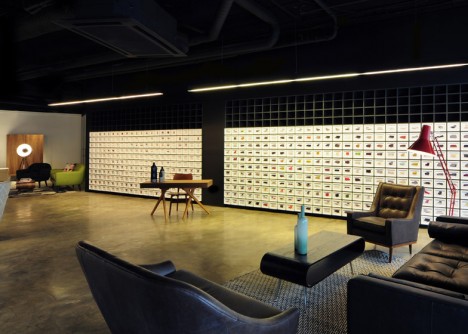
Again bridging the physical and digital, various displays have sample swatches that can be taken by would-be buyers but others also have tablets that will let people peruse related items or rearrange potential settings.
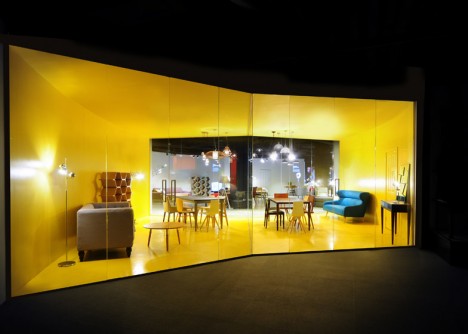
Like a gallery or work of installation art, the idea was to create something interactive that also made maximum use of limited and very expense London commercial real estate, drawing people in, serving a function but also engaging them beyond their past or expected shopping experiences.
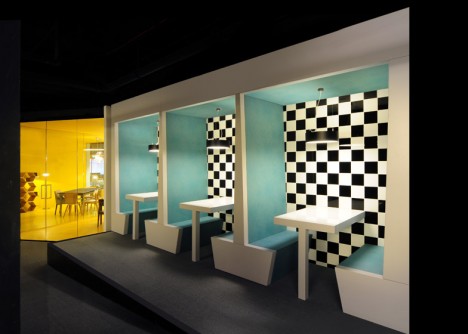
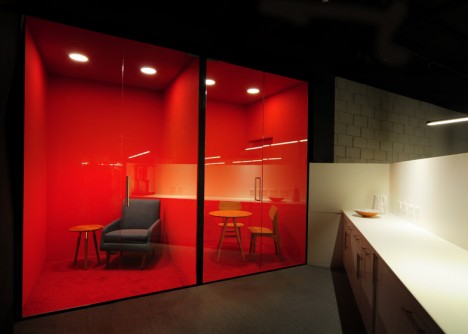
“This is such a bustling street, with so many stores vying for your attention, we wanted to produce something unexpected – an idea that would set it apart from the traditional format of lots of products in a display. The space was designed on a tight budget and timeframe but [the designers] brought a lot of ingenuity and flair and turned an old rundown bookstore into a crisp, spacious and inviting design for our customers”
Want More? Click for Great Related Content on WebUrbanist:

Virtual Interior Design: Augmented Reality IKEA 2014 Catalog
Imagine no more: now you can scan items right out of a physical catalog and watch them pop up in your own bedroom, kitchen, living or dining room at home, …
Click Here to Read More »»

Just Your Type: Kooky, Real & Physical Typography & Fonts
A lot can be said with the font that one chooses for a project. These amazing character sets are far from the usual plain black letters we’re all so used to.
Click Here to Read More »»

Rendering the Digital Physical: 10 Bitcoin Designs & Ideas
Bitcoin breaks its virtual boundaries, begging the question – from coins to wallets, how does the world’s first widespread digital currency manifest in visual …
Click Here to Read More »»


[ By WebUrbanist in Architecture & Offices & Commercial. ]
[ WebUrbanist | Archives | Galleries | Privacy | TOS ]
-
Testbericht Zeiss Planar T* 50mm & 85mm

Ein Beitrag von: Alexander May
Schon seit ich angefangen habe zu fotografieren, war der Name Zeiss für mich immer verbunden mit unerreichbarer, kostspieliger Technik für qualitätsverliebte Individualisten. Daher war ich mehr als aufgeregt, als ich die Möglichkeit bekam, zwei Exemplare dieser historischen Marke einen Monat lang zu testen.
kwerfeldein – Fotografie Magazin | Fotocommunity -
Back Button Focus: What is it and why should you try it?
What operation on a camera could possibly be more simple than pressing the shutter button to take a picture? There’s not much to it, really – you look through the viewfinder (or at the LCD screen on the back of the camera), press a button with your index finger, wait for the camera to focus, and voilà! You’ve got a photo.
Well, as the popular saying goes, what if I told you there was a better way? Hidden deep within the settings of most cameras is a feature called Back Button Focusing, and enabling it can transform your approach to photography.
A Brief History
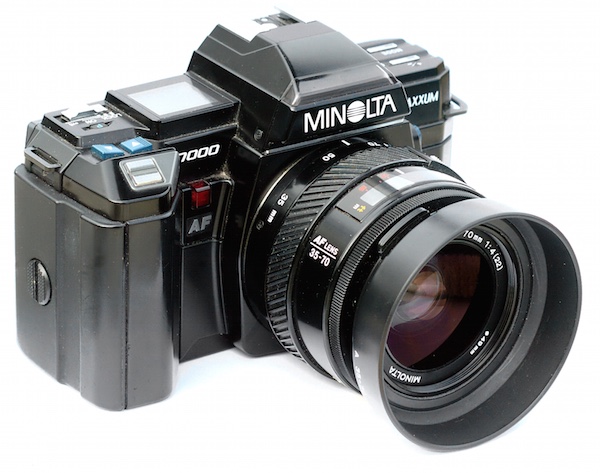
The Minolta Maxxum 7000 was one of the first SLR cameras with autofocus capability in 1985.
To understand what Back Button Focusing is, it’s important to know a little about the history of the autofocus function on your camera. Until the mid-1980s, there was no such thing as autofocus on consumer-level film cameras. You had to hold your camera up to your eye and either turn a ring on the outside of the lens or adjust what’s known as a rangefinder in the top-left corner. It required a great deal of patience and practice, and there are many photographers today that still swear by this method.
In 1985 Minolta released the Maxxum 7000 which integrated the autofocus function into the shutter button, which seemed like a sensible choice because you would normally want to make sure the camera was focused before taking a photo. This implementation of autofocus worked well, but required a bit of maneuvering if the photographer wanted to focus on something other than what was in the center of the photo. To do that, he or she would have to aim the camera at the object to be in focus, carefully hold the shutter button down halfway to keep the focus locked while re-composing the shot, then pushing the button all the way when the picture was ready.
This system remains in place on most cameras today, and it’s probably how your own camera operates. At this point you might be wondering why you should bother to change something that has worked perfectly well for the past 30 years.
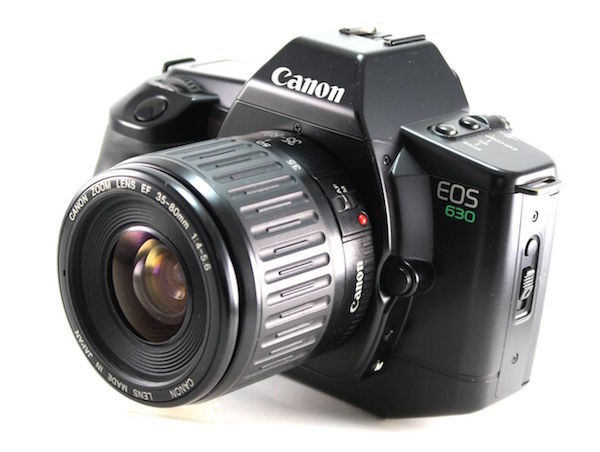
Canon’s EOS 630 was the first camera to give users the option of using a separate button for focusing instead of the shutter button.
The answer is because there really is a better way to focus your camera before you take a picture, and it was invented by Canon in 1989. On their EOS 630 camera they included an option within the camera’s custom settings menu to separate the actions of focusing and snapping the shutter. Users could tell the camera to use a separate button on the back of the camera to handle focusing duties, which left the shutter button to do one thing and one thing alone: take the picture. It was not an immediately obvious feature, and it never really caught on like Canon may have hoped, but the same capability is in every Canon DSLR today as well as virtually all cameras from other manufacturers like Nikon, Pentax, Sony, and the rest. If you have any sort of DSLR or mirrorless camera there is probably an option in your settings menu to enable Back Button Focus, and it’s something I highly recommend trying out.
Back Button Focus requires your thumb to press a button on the back of your camera (hence the name) and your index finger to press the shutter, which does take a few days to get used to, but soon becomes second nature. All this begs the question – why should you re-learn how to do something as basic as focusing your camera when the shutter half-press works perfectly fine? The answer lies in the overall concept of giving more control back to you, the photographer.
More Creative Freedom
Cameras today have a dizzying array of autofocus points – those little dots or squares that light up in the viewfinder when you press the shutter button down halfway. You also have a ton of options in how you use these points. You can select an individual point, you can have the camera select what it thinks is the best one, you can tell your camera to use some of them in conjunction with one another, and many cameras have modes such as automatic face detection as well. To be honest, all these options works really well. But just know that by decoupling the act of focusing from the shutter button, and moving it to a separate button, you will be able to do a lot more with your photography than you may realize.
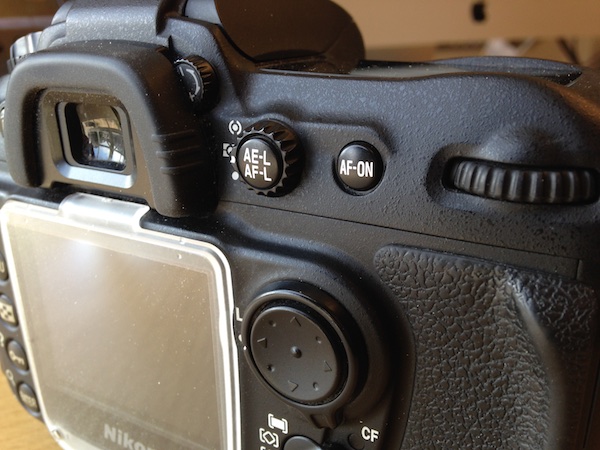
If your camera has an AF-ON button, you can use it to focus instead of the shutter button. If your camera does not have this button, you can usually adjust the camera’s settings to make another button such as AE-L/AF-L perform this function.
By using a button on the back to focus, you will no longer have to hunt around for the specific autofocus point you want to use or wait for the camera to focus on what it thinks you want to before allowing you to take a picture. Trying to keep a moving subject in focus while deftly holding the shutter down halfway is a feat of dexterity that would keep Legolas himself at bay. This is easily remedied by using back button focus. With this method you can hold the back button down as long as you want, which keeps your camera continually focusing on your subject, until you are good and ready to snap a photo. This is incredibly useful when your subject is in motion, whether people, animals, mechanical objects, or simply a flower petal meandering across a meadow.
One of my favorite cameras is the Nikon D7100, which has 51 autofocus points that cover almost the entire frame. For a while I used all of them, frantically shifting from one to the next as I adjusted each shot or tried to track a moving subject. It worked fairly well, especially in conjunction with Nikon’s 3D subject tracking algorithm (variants of that can be found in most cameras today) which did a good job of keeping my subject in focus whether it moved or I altered my perspective. But I found that I often messed up some critical shots because I was either too busy changing the autofocus point, or letting my camera decide what it thought should be in focus. Switching to back button focus remedied all of this, and helped me gets shots that would have been much more difficult otherwise.

To get this shot I used the back button to focus on a different passer-by, and then waited for others to come down the sidewalk. I was then free to snap photos no matter where people were in the frame, because the shutter button was not also refocusing the picture.
By using the back button to focus I will often just utilize the center focus point to get my subject in focus, and then release my thumb from the button while re-composing to frame the subject. It’s much faster than hunting for a specific autofocus point, and allows me to take the photo at the exact instant I want -not when the camera thinks the subject is in focus. This focus-and-recompose technique works great for a variety of situations, but there are certainly times when I like to utilize one of the built-in AF points. When that happens I just go through the motion of selecting one and then taking a picture like normal while using the back button to focus. In essence, using the back button to focus simply gives me more options when taking a photo, which allows me to think more about the pictures I’m taking instead of fiddling with the camera.

I was able to snap a few photos of this husky by holding my thumb down on the back button to continually adjust the focus, and pressing the shutter to snap photos whenever I wanted.
Taking the Power Back
Most cameras have a few common focusing modes: Single, Continuous, and Manual. In Single mode, the camera focuses once and then won’t re-focus again until after you take a picture. This is how many photographers use the focus-and-recompose method without using the back button, and it works fine in a variety of situations. The Continuous method forces your camera to constantly adjust focus while your finger is held down on the shutter button, and doesn’t stop until you snap a photo. Manual, as its name implies, leaves all the focusing duties to the photographer who must adjust a ring on the lens in order to nail the focus without any assistance from the camera. All three of these methods have their uses, and you will often encounter situations in which you need to switch from one to the other (for example, switching quickly from Single to Continuous). Doing this requires digging through menus or flipping a dial on your camera, and it can be a bit of a pain.
Using the back button combines all three focusing modes, giving an incredible amount of power and control to the photographer:
Manual: Take your thumb off the back button and focus by rotating your lens barrel. (Note: do not do this if your lens doesn’t have a “M/A” focus setting. If it is in fully autofocus you will be forcing the gears)
Single: Press your thumb on the back button until your camera is in focus, and then lift your thumb up to keep the focus locked until you press the button again.
Continuous: Hold your thumb on the back button as long as you want, forcing your camera to continually adjust the focus until you take a picture. (Note: you must be using Continuous focus mode for this to work).

Nailing this shot of falling water drops required a lot of switching between automatic and manual focus, and would have been virtually impossible if the shutter button was used for focusing instead of the back button.
You can effortlessly switch between all three methods without doing anything at all except moving your thumb away from the back button, which means you can spend far more of your effort on things like composition and framing, instead of digging through menus on your camera.
Finally, one of the most overlooked benefits of using the back button to focus is that it frees up your shutter half-press to do other functions like lock the exposure. You will have to enable this option using your camera’s settings menu, and you might not use it on every shot, but it’s yet another tool in your photographic arsenal that can help you get better photos. When your subject is in danger of being over or underexposed, you can quickly point your camera at something else to get a better exposure, press the shutter button down halfway to lock the shutter/aperture/ISO values, and then recompose to get the image you want. This trick, combined with back button focusing, has saved my proverbial bacon more times than I can count. Normally this exposure-locking function is handled by its own dedicated button, but I have found it to be far more useful to use the exposure-lock button for locking focus and the shutter for locking exposure – effectively reversing the default behaviours of both buttons, but making your camera much more versatile in the process.
All this talk of button-switching and extra finger-pressing might seem inordinately confusing, but it’s much easier than it sounds. Though it might seem counterintuitive at first the more you use the back button to focus the more it will make sense and help you unlock new creative possibilities with your camera.
If you can’t figure out how to set it up on your camera, try and quick YouTube search for “setting up back button focus on a _________” and fill in your camera model.
Do you like to use back button focus? What other tricks do you have up your sleeve to help you get better photos? Leave your feedback in the comments section below.
googletag.cmd.push(function() {
tablet_slots.push( googletag.defineSlot( “/1005424/_dPSv4_tab-all-article-bottom_(300×250)”, [300, 250], “pb-ad-78623” ).addService( googletag.pubads() ) ); } );googletag.cmd.push(function() {
mobile_slots.push( googletag.defineSlot( “/1005424/_dPSv4_mob-all-article-bottom_(300×250)”, [300, 250], “pb-ad-78158” ).addService( googletag.pubads() ) ); } );The post Back Button Focus: What is it and why should you try it? by Simon Ringsmuth appeared first on Digital Photography School.
-
Sony releases 28mm, 35mm, and 90mm macro full-frame primes
Three full-frame prime lenses on Sony’s lens roadmap officially arrived today which, including the 24-240, brings the total number of FE lenses to eleven. The least expensive of the trio is the 28mm F2 lens, which also supports ultra-wide and fisheye adapters. Next is the long-awaited Zeiss 35mm F1.4 ZA, which is Sony’s fastest FE lens to date. Close-up shooters will be interested in the new 90mm F2.8 Macro G OSS lens, which uses a Direct Drive SSM mechanism for ultra-precise focusing. More details here.
-
How to Retouch a Portrait with the Adjustment Brush in Lightroom
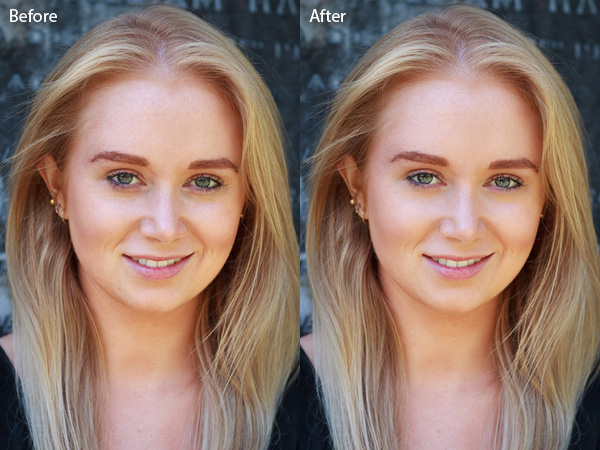
You have probably seen several portrait retouching programs advertised in magazines or online, and wondered if they were worth buying. The answer is no. I have tried out quite a few, and the truth is that the Soften Skin preset in Lightroom does just as good a job as any of them. For most photographers Lightroom’s retouching tools all are you will ever need. For high end retouching purposes you can go to Photoshop.
It’s worthwhile taking some time to think about your personal approach to portrait retouching. Some photographers seem to like the airbrushed, almost plastic look of heavy processing. It’s a style you see used a lot in commercial photography or movie posters.
Others will go for a more natural effect, and use the retouching tools with a light touch. That’s definitely my approach, and it fits with my preference for natural light and for creating portraits that capture character.
Either way,the Adjustment Brush in Lightroom can accommodate your needs.
Retouching portraits of women
When retouching portraits of women it is conventional to use a skin smoothing technique to make the portrait look more flattering. There are exceptions of course, sometimes skin smoothing is not necessary, especially if your model has good skin and you shoot in soft light, or use a wide aperture to throw some of the face out of focus.
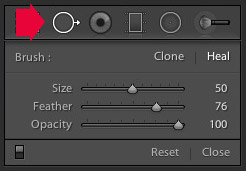 The first step in portrait retouching is to remove any blemishes with the Spot Removal tool. To do so, click on the Spot Removal tool icon to activate it, adjust the size of the brush with the square bracket keys on the keyboard, and click on the spot you want to remove.
Lightroom automatically selects another area of the portrait to sample from, healing the blemish. Sometimes Lightroom won’t select the most appropriate area – in this case you can click on the circle representing the sample and move it to a more suitable location.
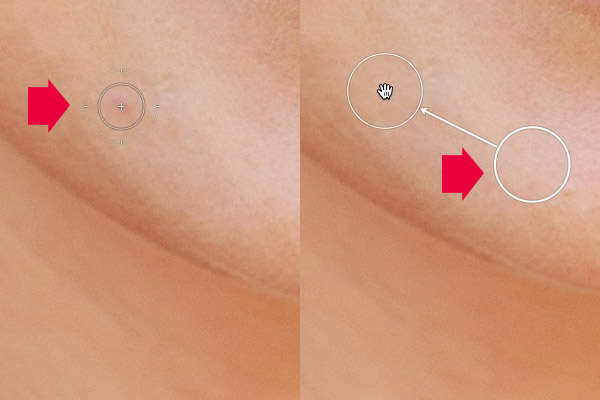
Click on a blemish with the Spot Removal tool (left). In this case Lightroom’s healing algorithm worked perfectly, but if it doesn’t then click on the circle representing the sampled area and move it to a location where the skin matches the tone and texture of the area to be healed (right).
Adjustment Brush adjustments
Now it’s time to look closely at the portrait and decide what other retouching is required. It’s important that you have already made the required adjustments to tone and contrast in the Basic panel before you get to this stage. Increasing Contrast and Clarity, for example, will emphasize skin texture, wrinkles and blemishes. On the other hand, you can move the Exposure or Highlights sliders right to brighten the skin, making wrinkles and skin texture less obvious. Retouching with the Adjustment Brush should be left until last, so you know what you’re working with.
I like to start with the area underneath the model’s eyes. The skin here is thinner than the rest of the face which is why people get dark patches there. There may also be wrinkles, and some people have a strong crease along the lower eyelid.
The idea is not to eliminate these completely (unless you’re going for the heavily retouched, airbrushed look) but to minimize them. They’re a natural part of the skin’s texture and it will look unnatural if they are not there.
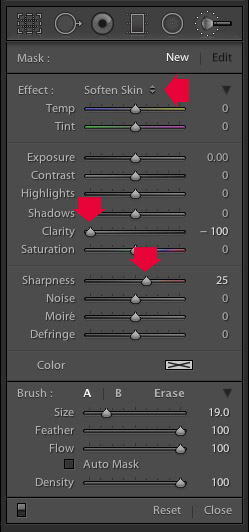 Click on the Adjustment Brush icon to activate it. Select the Soften Skin preset from the Effect menu. Lightroom sets Clarity to -100 and Sharpness to +25. Make sure Feather, Flow and Density are set to 100, use the square bracket keys on the keyboard to adjust the size of the brush and paint over the areas under the eyes. The Soften Skin preset blurs the area that you paint in with the brush.
If the effect is too strong, hover the mouse over the Adjustment Brush pin (a grey circle with a black dot in the middle) until a double arrow icon appears (below). Hold the left mouse button down and move the mouse left. Lightroom reduces the value of the Clarity and Sharpness sliders, effectively lessening the strength of the Soften Skin preset. Stop when it looks about right. You can also reduce shadows by moving the Shadows slider (in the Adjustment Brush sliders) to the right. Every portrait is different so you have to adjust the effect by eye.
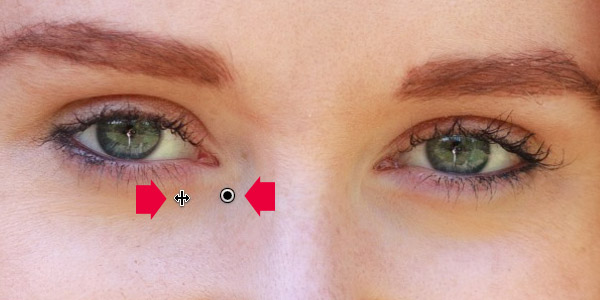
These are the results.
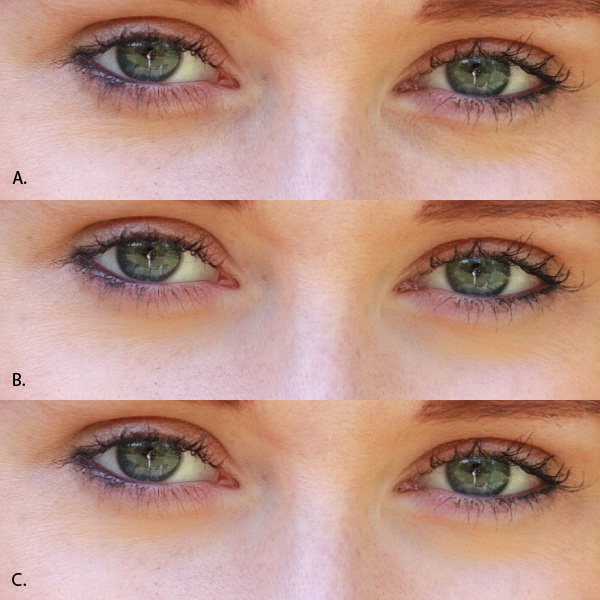
A. Original, unretouched portrait.
B. Retouched, with Soften Skin preset at full strength.
C. Retouched, with strength of Soften Skin preset reduced and Shadows slider moved to the right (subtle difference only).Enhancing eyes
You can also use the Adjustment Brush tool to enhance your model’s eyes. This is useful if the eyes are dark due to the lighting. Be careful of overdoing this effect as it may not look natural.
Click New at the top of the Adjustment Brush panel to create a new Adjustment Brush. Set Feather to around 50 and paint in the pupils of the model’s eyes. If you need to, press O (the letter) on the keyboard to see the masked area (it is displayed in red shown below).

Now set Exposure to around 0.50 and Clarity to 30. The effect will vary depending on the colour of your model’s pupils and the amount of light on them. It’s a good idea to zoom out and look at the entire portrait to see if the effect is too strong. You can see this adjustment on the model’s eyes below, which I think is about right.
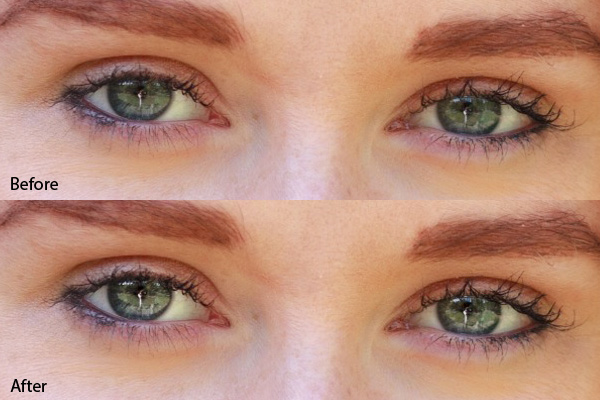
You can make the effect stronger or weaker on your photo using the technique described above. Hover over the Adjustment Brush pin until the double arrow icon appears, move the mouse left to make the effect weaker, and right to make it stronger (you can also just drag the sliders one by one to change the settings)
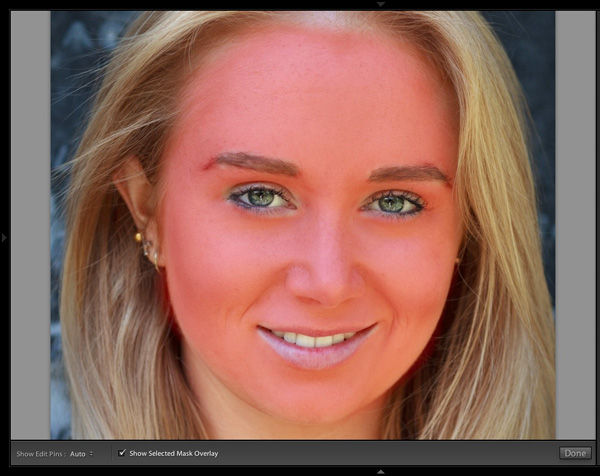
The final step is to apply gentle skin softening to the rest of the face. Create another Adjustment Brush, set Feather to 100 and paint the entire face (use the O keyboard shortcut to display the red overlay). Then select Erase in the Adjustment brush panel, set Feather to 50 and erase the eyebrows, mouth and eyes. The idea is that you only want to soften the skin, not these parts of the face. It should look something like the mask below.
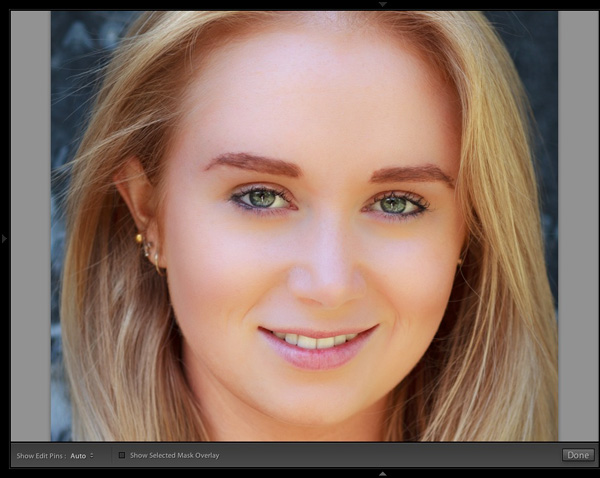
Go to the Effect menu and select the Soften Skin preset. Press O to hide the mask overlay and you will see something like the screenshot below. Remember, this is the Soften Skin preset at maximum strength so it has a strong effect on the photo.
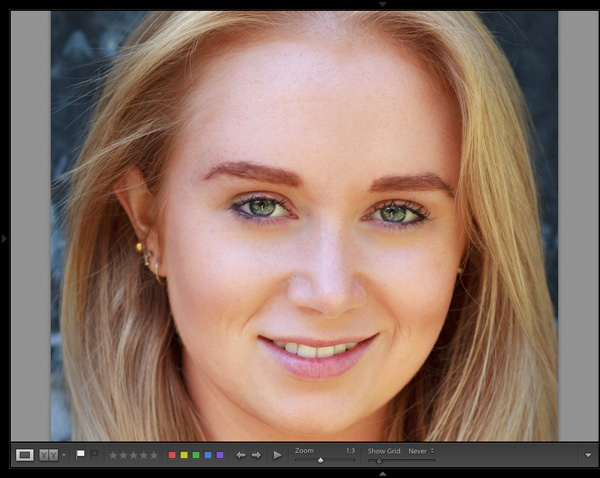
Use the technique we learned earlier to reduce the strength of the effect. How far you go is up to you. I like to apply the Soften Skin preset subtly to retain as much skin texture as possible. Here’s the result with Clarity reduced to -20 and Sharpness to +5.
This video shows how I retouched another portrait, using the Adjustment Brush tool to enhance the model’s eyes and facial hair.
I’ve only touched on the number of ways you can use Adjustment Brushes in Lightroom for portrait retouching. What techniques do you use? Please let us know in the comments.
The Mastering Lightroom Collection
 My Mastering Lightroom ebooks will help you get the most out of Lightroom 4 and Lightroom 5. They cover every aspect of the software from the Library module through to creating beautiful images in the Develop module. Click the link to learn more or buy.
googletag.cmd.push(function() {
tablet_slots.push( googletag.defineSlot( “/1005424/_dPSv4_tab-all-article-bottom_(300×250)”, [300, 250], “pb-ad-78623” ).addService( googletag.pubads() ) ); } );googletag.cmd.push(function() {
mobile_slots.push( googletag.defineSlot( “/1005424/_dPSv4_mob-all-article-bottom_(300×250)”, [300, 250], “pb-ad-78158” ).addService( googletag.pubads() ) ); } );The post How to Retouch a Portrait with the Adjustment Brush in Lightroom by Andrew S. Gibson appeared first on Digital Photography School.
-
As Triggertrap pulls plug on Ada kickstarter, CEO Haje Jan Kamps responds to comments from unhappy backers
Despite a successful round of funding through Kickstarter, Triggertrap has run into difficulties developing its Ada prototype and has announced that it will not be continuing with the project. As of November last year the company had raised nearly £300,000 in crowdfunding for its latest innovation, Ada – a high-speed shutter and flash trigger. Triggertrap CEO Haje Jan Kamps spoke with us about the response he’s heard from disappointed project backers. Read more
-
3. März 2015
Das Bild des Tages von: Jenny Theobald

Im Ausblick: Optische Täuschungen und eine Geschichte über Erfolg.
kwerfeldein – Fotografie Magazin | Fotocommunity -
Cyberpunk City: Reframing Tokyo as a Futuristic Wonderland
[ By WebUrbanist in Culture & History & Travel. ]

With a background and interests in skateboarding, anime and architecture, this photographer brings both a youthful imagination and an outsider’s eye to an area of the world famous for speculative fiction-worthy landscapes and high-tech cityscapes.
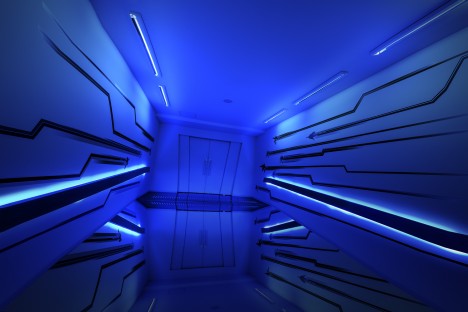
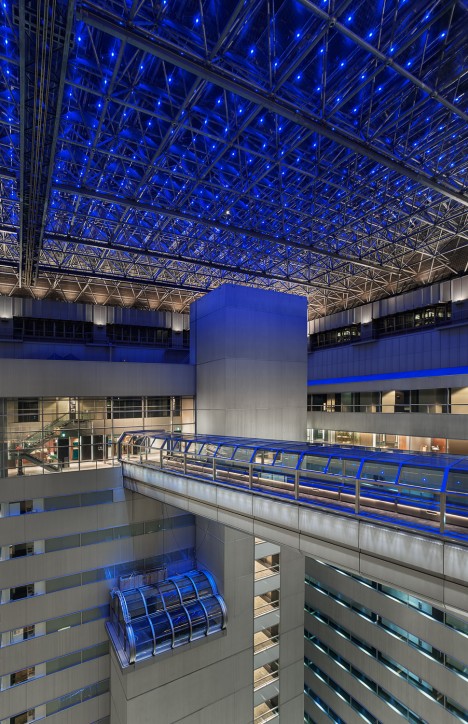
Sam Pritchard‘s interest in architecture evolved alongside his interest in Japanese cities and culture, which in turn helped inspire his recent Phokus Archives remodel (years in the making and with audio accompaniment by Reso). The child of an architect, he grew up seeing the built environment through the lens of a skateboarder and urban explorer in England. Meanwhile, he developed fascination with futuristic cityscapes through (often Japanese) video games and movies, from Sega, Nintendo and Atari to Akira and Ghost in the Shell.
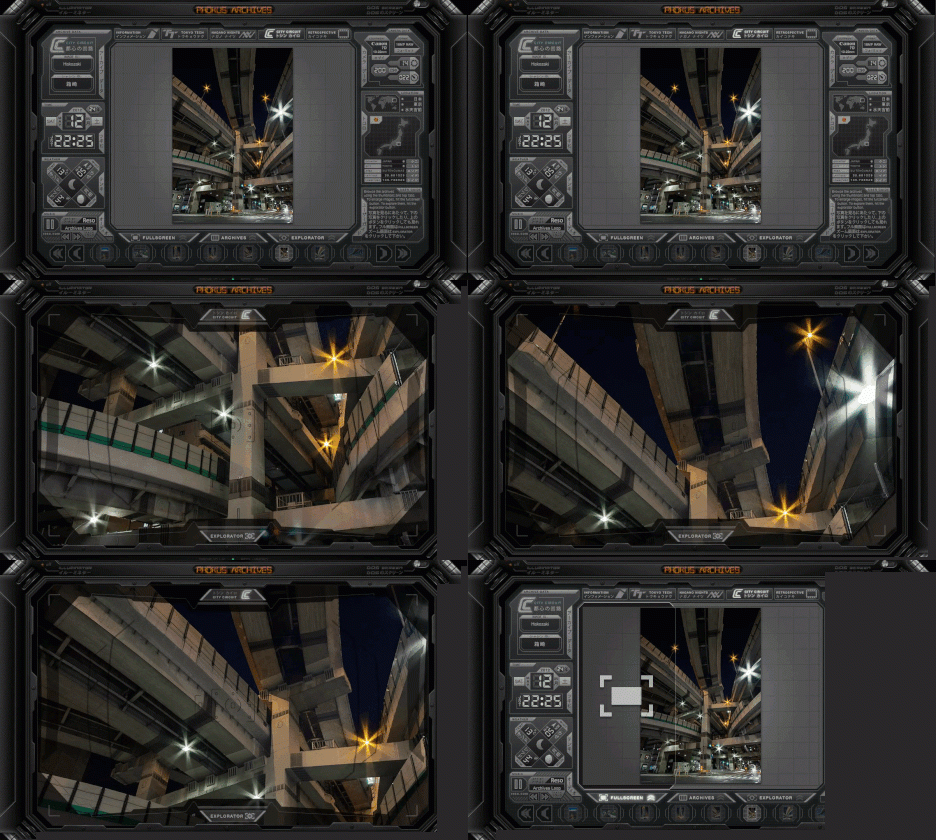
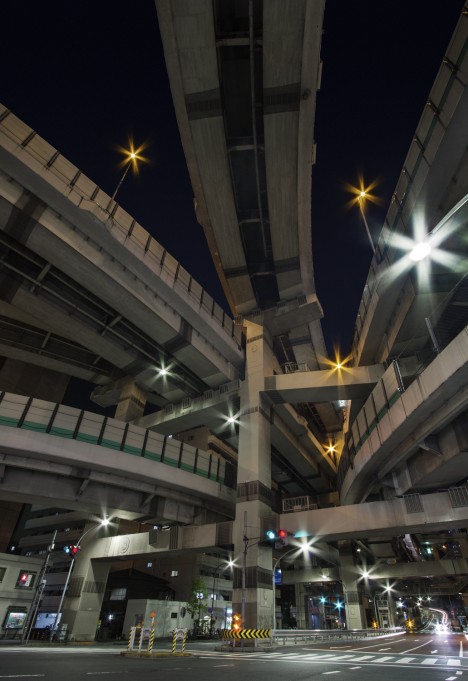
After spending time as an architectural photographer in London, Pritchard moved to Japan to follow up on his childhood fascinations and see what structures are really like in the fabled land of futuristic tech. The results were surprising: “Since living in Japan the reality of day-to-day life in isn’t really any more tech or futuristic than it is in any other developed city or country. But in my photography, I try to create the illusion that it is some kind of digital future world that lives up to my childhood expectation of the place.”
Next Page – Click Below to Read More:
Cyberpunk City Reframing Tokyo As A Futuristic Wonderland
Want More? Click for Great Related Content on WebUrbanist:

Nomadic Urbanism: Futuristic ‘Walking City’ Draws on History
The notion of a mobile city is not new, but in this case, the architect has gone to great lengths to construct a vision that could conceivably be built. So …
Click Here to Read More »»

Dial it Down: Noise-Cancelling Device for City Street Sounds
The background sounds of urban environments can be invigorating when you are out and about, but enervating when you are at home and want to tune them out. Now …
Click Here to Read More »»

Herringbone House: Tiny Tokyo Residence Split into 7 Levels
Measuring just 280 square feet, this tiny house in Tokyo by architecture firm Flathouse includes a public biscuit shop on the first level and manages to fit a …
Click Here to Read More »»
[ By WebUrbanist in Culture & History & Travel. ]
[ WebUrbanist | Archives | Galleries | Privacy | TOS ]