RSS
 

Archive for March, 2014

Hanging Hotel: Camp in a Trunk-Friendly Tree House Retreat

08 Mar

[ By WebUrbanist in Boutique & Art Hotels & Global. ]

tree house in context

Without harming the forest that supports it, this streamlined tree house design is stabilized by a central trunk but ultimately suspended from the branches above to minimize negative environmental impacts.

tree house shade structure

Tree houses typically rely on being either attached to trunks or translating their loads to grounded supports – in short: they either harm trees or are not truly ‘treehouses’. Farrow Partnership Architects proposes a middle path, relying on the tree without constricting its growth.

tree house overlooking lake

And while the structures are open-air for a camping-style experience, they are not lacking in luxuries (at least in terms of what one normally expects from architecture in trees: bedroom, bathroom and living room spaces complete with composting toilet and graywater shower.

tree house wood structure

tree house night module

The streamlined bent-wood structures are designed to be oriented around site-specific views, hung with thin metal wires and covered in semi-translucent material to provide a degree of shade and privacy while letting in natural light during the day (and becoming a kind of glowing lantern at night).

tree house lake context

tree house hanging forest

tree house interior view

This series of sky villas is set to be deployed in a national park near Toronto, Canada. Plans call for them to be sufficiently spaced out so that residents of one structure will not see the other, but simply the forest through the trees.

Share on Facebook


[ By WebUrbanist in Boutique & Art Hotels & Global. ]

[ WebUrbanist | Archives | Galleries | Privacy | TOS ]


WebUrbanist

 
Comments Off on Hanging Hotel: Camp in a Trunk-Friendly Tree House Retreat

Posted in Creativity


Giotto’s launches ‘Air’ range of lightweight tripods

08 Mar

Air_Kit_20_8354-5400-665-3-way-shot.jpg

Giotto’s has announced four new lightweight and compact tripods designed for travel. Coming in both aluminum and carbon fiber models, they all feature four-section legs for portability, a Y-shaped center column and include a carrying case. The new ‘Air’ tripods will retail from £180-£334 ($ 301-$ 559). Learn more

News: Digital Photography Review (dpreview.com)

 
Comments Off on Giotto’s launches ‘Air’ range of lightweight tripods

Posted in Uncategorized


4 Tips for Post Processing Efficiency in Photoshop

08 Mar

post-processing-photoshop

A great deal of post processing can be done in Photoshop, more than most photographers realize actually. As a designer, I didn’t have Lightroom, and just wanted to adjust my photos to look a little nicer, little did I know the power behind Photoshop and its post processing capabilities.

Today I am going to give you some tips and tricks I learned that increased my efficiency within Photoshop.

1 – Photoshop Layout and Organization

The first way to increase efficiency before doing any photo editing, is to organize and optimize your Photoshop layout. Setting up and customizing your Photoshop layout is key to configuring exactly how you want your panels and canvas to look. It is also very easy to do, and can improve your workflow a lot.

Here are a few things to keep in mind when editing your Photoshop layout.

  • Only keep the necessary, delete all panels that are superfluous to your photo editing process. They really just get in the way and clutter your workspace.
  • Organize your panels based on your workflow. Keeping certain windows paired will help you work faster and make adjusting much easier.
  • Adjust spacing and panels so you can have the largest size available for your image.

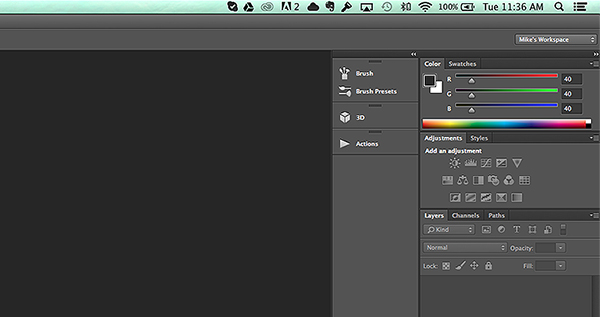
Here is a quick preview of my layout, in case you need some inspiration.
Photoshop-Layout

After you carefully adjust and tweak the panels to perfection, it is really simple to save your workspace. Simply go to the top right corner of your Photoshop Document, where is says Mike’s Workspace in the image above, and click to activate the drop-down menu. Then click new workspace and you can save it as your very own Photoshop layout. You can even save shortcuts and menus within the layout.

2 – The Basic Effects

Now that you’ve organized your layout, it’s time to start editing your photos. When I start editing any photo I have a few basic steps I do religiously. These don’t have to be the same for you, and it is totally ok to completely disregard them (or come up with your own), but it is sort of a habit that can help contribute to your photography style.

The first small task I complete is duplicating the image layer. To ensure I don’t damage my original photo. From there I add a few subtle Adjustment Layers to balance the light in the image. It looks something like the image below.
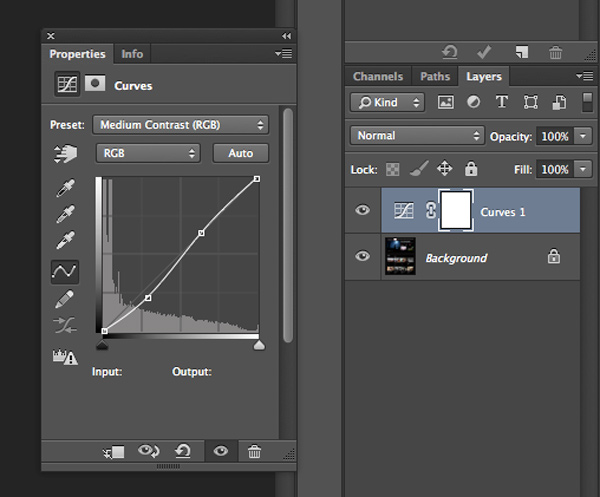
curves-adjustment-layer-photoshop

The above effect is a simple curves adjustment that helps balance light and tone down the colors in a subtle manner. After that I mess with the brightness and contrast just a little bit to get the image looking clean and balanced (as an Adjustment Layer as shown below).
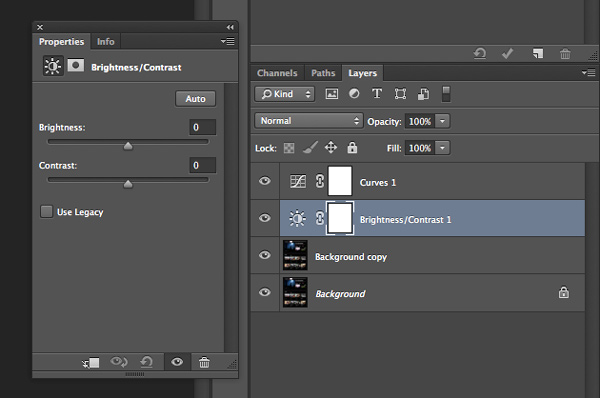
adjustment-layer-brightness-contrast

Consider all the above steps as precursory steps to the actual photo editing process. These are simply done to balance light, prevent error, and it is like a little system I use to keep my style inline.

3 – Grouping and Organizing Layers

The next thing I do that really helps me work more efficiently is to organize and group my layers. It is really easy and not time consuming at all to rename layers so that you know exactly what effect they are applying to your photo. Then you don’t need to go through all your layers, switching them on and off, to find one you want to remove or readjust.

These are the key areas I group and label my adjustment layers and filters.

  • Light and contrast adjustment groups
  • Tints and color variations
  • Strong filters such as HDR and blurs
  • Gradients and vignettes

By labeling these I can easily go to certain effects and adjust them accordingly. This makes photo editing a much faster process, and makes re-editing a photo way simpler and fun.

4 – Subtle Adjustments that Make a Huge Difference

As a final tip for efficiency I am going to share a few subtle effects that work wonders for photo editing. The tools used include:

  • Blend Modes
  • The Levels adjustment tool
  • Tints

Take a look at the difference a simple blend mode can do to an image, with just the click of one button. In the example below I’ve used the Overlay blend mode. Remember to duplicate your original layer and play with the blend modes on the top, copy layer. Blend modes dictate how the pixels in one layer behave and react with the layer below it. Try them all and see what they do.

Blend-Modes

Blending modes can be applied in a few ways. The easiest way, and the way I achieved the above effect is to duplicate your image and select the blend modes drop-down by double clicking your layer (or selecting it right from the Layers panel)
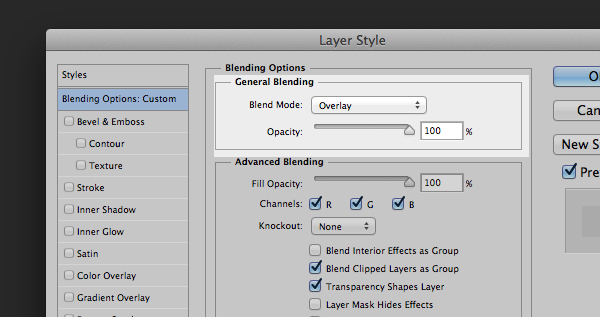
Blending

Double click the layer to get this dialog box
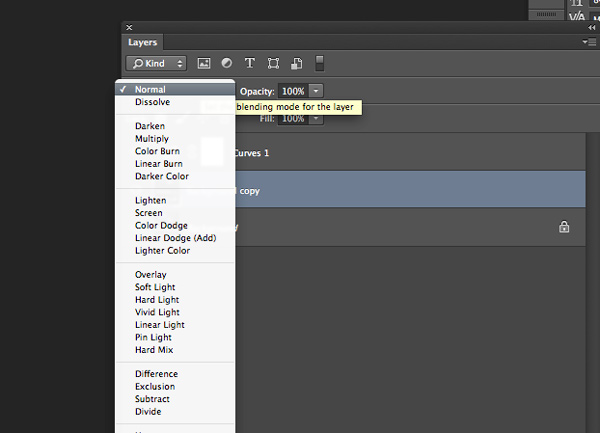
You can also find layer blend modes here on your layers panel

You can also find layer blend modes here on your layers panel

Simply pick the blend mode that looks best and adjust the opacity accordingly. Some of my favorite blend modes are – screen, overlay, soft light, and lighten.

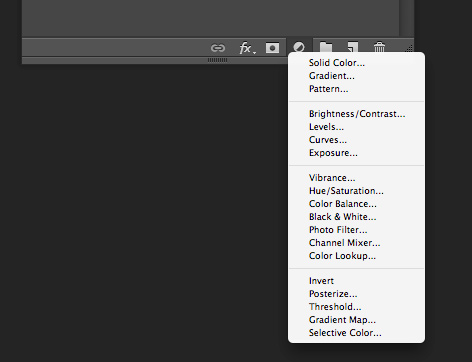
I then use a Levels adjustment layer to adjust light and colors at the same time, adding a crisp and subtle tint. To add a new adjustment layer go to Layer > New Adjustment Layer > then choose the one you want.  Or select it from the bottom of the layers panel as shown below.
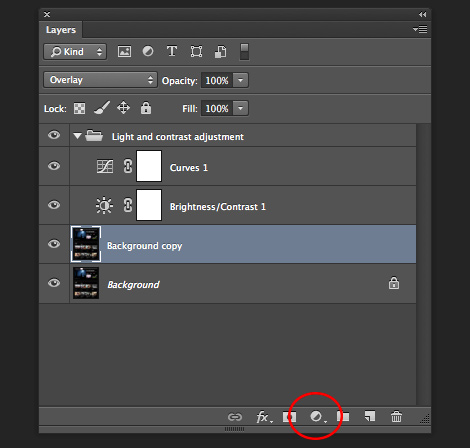
adjustment-layer-icon2

Adjustment layer icon location on the layers panel

adjustment-layer-icon

Adjustment layer options


Adjust the various levels by clicking the drop-down and working on the red, green, and blue tones. It is very versatile and easy to use. Just remember – pulling top sliders the ones under the graph) to the left will darken, to the right will lighten. The bottom sliders under the black-white scale, do the opposite.

Summed Up

This is the process I used to create ultimate efficiency when I started editing my photos more frequently. These steps probably won’t apply to everyone, but they are helpful in getting organized when beginning. To wrap it up:

  • Organize your Photoshop Layout to improve your workflow
  • Use some basic effects for consistency
  • Group and label your adjustments so you can easily find them for future reference
  • Take advantage of the subtle, but highly effective adjustment layers such as photo tints, levels, and blend modes

Now it’s up to you

Got some interesting tips or tricks for efficiency? Share them in the comments and help other photographers improve the way they work and edit photos in Photoshop.

The post 4 Tips for Post Processing Efficiency in Photoshop by Mike Moloney appeared first on Digital Photography School.


Digital Photography School

 
Comments Off on 4 Tips for Post Processing Efficiency in Photoshop

Posted in Photography


500px Prime goes live, photographers now get 70% not 30%

08 Mar

Screen_Shot_2014-03-07_at_4.37.16_PM.png

A few weeks ago we reported on the announcement of 500px ‘Prime’ a licensing service built into the popular photography website that was designed to allow users to make some cash from their images. Originally, the service was set to offer photographers a 30% cut of image sales at a minimum price per image of $ 250. A lot of photographers weren’t happy with the 70/30 split but now Prime is live, the terms have changed and photographers are being offered 70%, with new ‘flat rate $ 250 pricing. Click through for more details. 

News: Digital Photography Review (dpreview.com)

 
Comments Off on 500px Prime goes live, photographers now get 70% not 30%

Posted in Uncategorized


Berechnung und Glück

08 Mar

Ein Beitrag von: Arthur Quejadas II

Seit meiner Jugend interessiere ich mich für die Fotografie. So dokumentierte ich als Teenager Familientreffen und Schulveranstaltungen und war noch recht ungebildet über verschiedene Arten der Fotografie. Ich wollte einfach Bilder von besonderen Gegebenheiten machen.

Ungestellte Momente mochte ich schon immer und Filmfotografie war damals das einzige Medium für mich.

© Arthur Quejadas II

Als ich später mit der sogenannten Straßenfotografie anfing, konnte ich auf einmal Dinge auf eine ganz andere Art umsetzen und das Genre motivierte mich, viel neugieriger auf das Verhalten des Menschen in seiner Umgebung zu sein.

Straßenfotografie betrachte ich als Kunstform, die deshalb außergewöhnlich ist, weil der Betrachter nicht nur den offensichtlichen Kontext sehen muss. Regeln der Realität zu beugen, ist eine Form von Kunst und Poesie zugleich.

© Arthur Quejadas II

Heutzutage fotografiere ich sowohl digital als auch analog. Digital zu arbeiten erscheint mir sehr komfortabel, wenngleich ich das Konzept „Film“ immer noch liebe.

Alles, was ich interessant finde, wird fotografiert, jedoch mache ich nicht sonderlich viele Aufnahmen einer Szene. Eine zweite Aufnahme zu machen ist auch gut, klar. Aber meiner Meinung nach ist das viele Geknipse, um eine bessere Perspektive zu finden, ein bisschen scheinheilig.

© Arthur Quejadas II

Handwerkliches Können hat viel mehr mit Berechnung als mit Glück allein zu tun. Das antizipierte Herausarbeiten einer optimalen Perspektive vor dem „Schuss“ ist für mich dahingehend zentral.

Die sorgfältige Komposition und ihre Ausführung sind für mich Grundlagen der Straßenfotografie. Dabei handelt es sich um einen kontinuierlichen Lernprozess, die bestmögliche Koordination von zwei getrennten Subjekten zu erarbeiten.

© Arthur Quejadas II

Große Ziele für meine Fotokarriere gibt es nicht. Da halte ich es lieber einfach. Wenn ich mir ein Bild vorstelle und das Endresultat meiner Komposition ist das, was ich mir vorgestellt habe, nenne ich das Erfolg.

Die Kamera dient mir als Medium meiner Kunst. Dabei zu genießen, was ich tue und Spaß zu haben, ist das Beste daran.

Dieser Artikel wurde von Martin Gommel aus dem Englischen ins Deutsche übersetzt.


kwerfeldein – Fotografie Magazin | Fotocommunity

 
Comments Off on Berechnung und Glück

Posted in Equipment


Engineering a Dream: Benjamin Von Wong profile, part 1

08 Mar

Benjamin_Von_Wong.jpeg

Benjamin Von Wong describes himself as a combination photographer, producer, artist, visual engineer and, perhaps more than anything, a storyteller. Few of the stories the Montreal-based shooter has to tell are not quite as fantastic as the one that describes his own ascent to fame in the photo world. In part 1, we talk to Ben about his rapid rise to fame and how he transitioned from his day job to a full-time photography career. Learn more

News: Digital Photography Review (dpreview.com)

 
Comments Off on Engineering a Dream: Benjamin Von Wong profile, part 1

Posted in Uncategorized


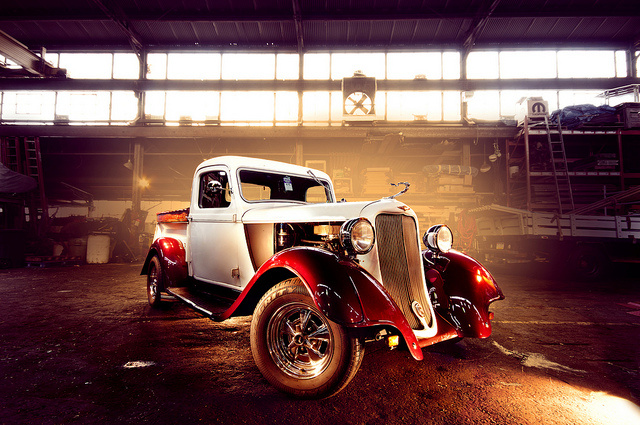
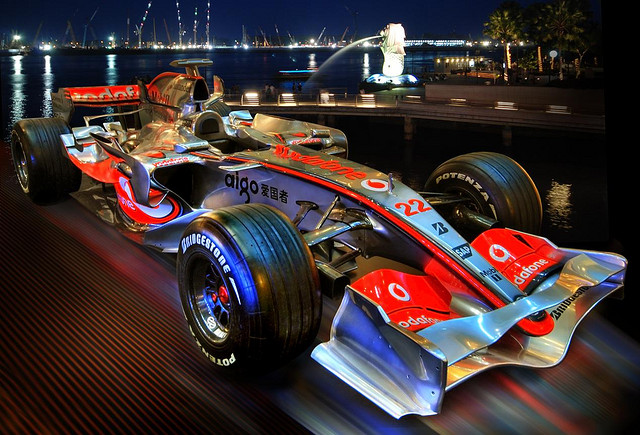
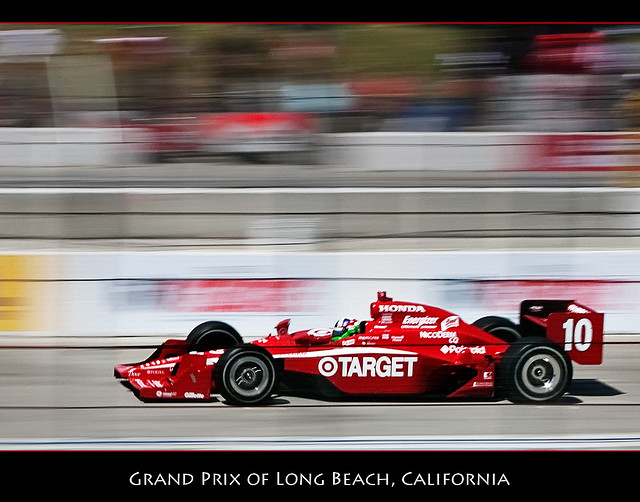
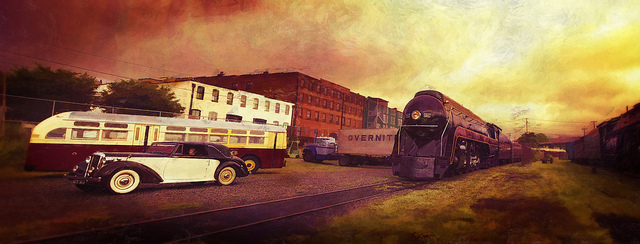
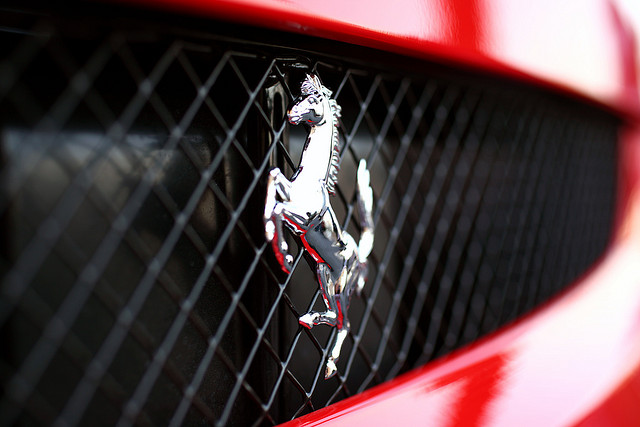
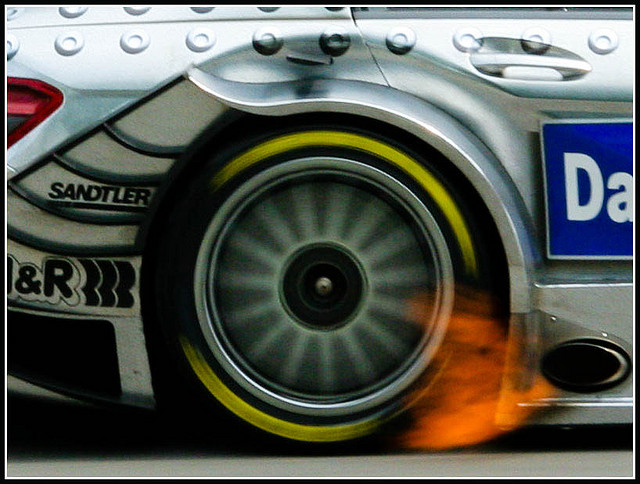
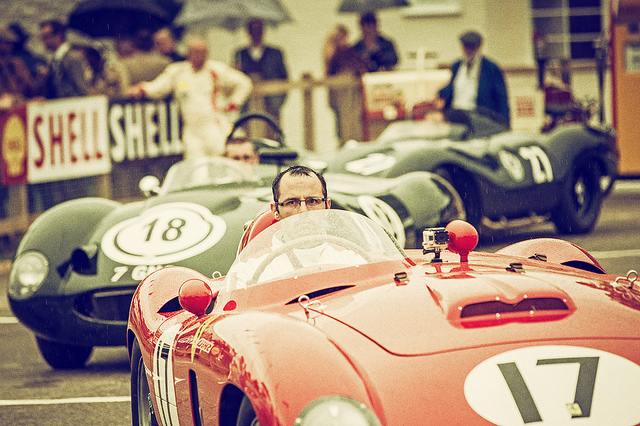
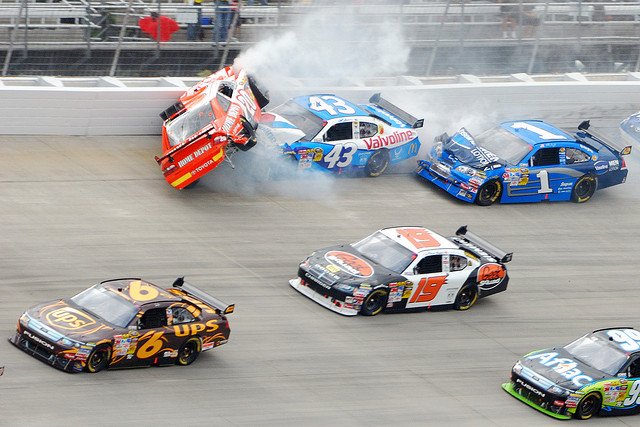
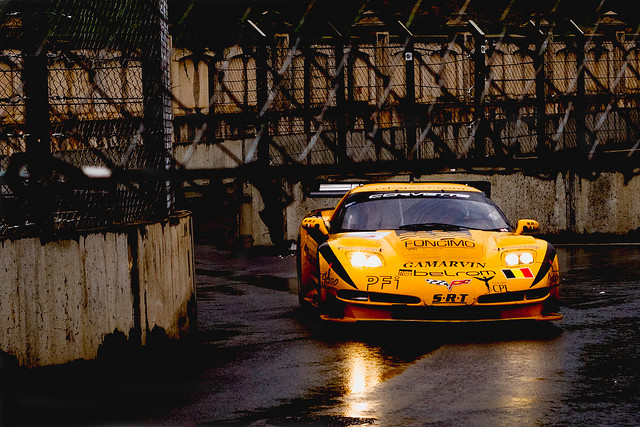
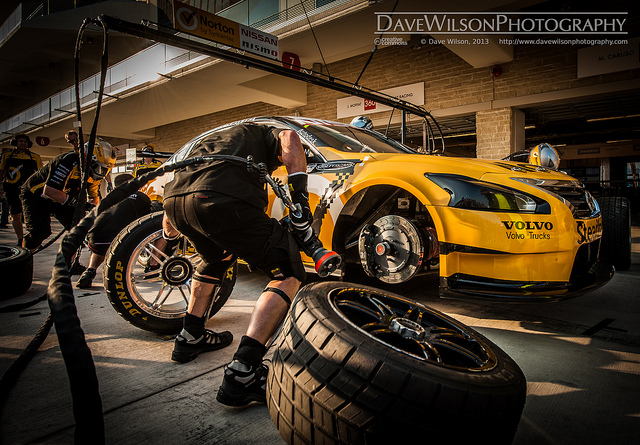
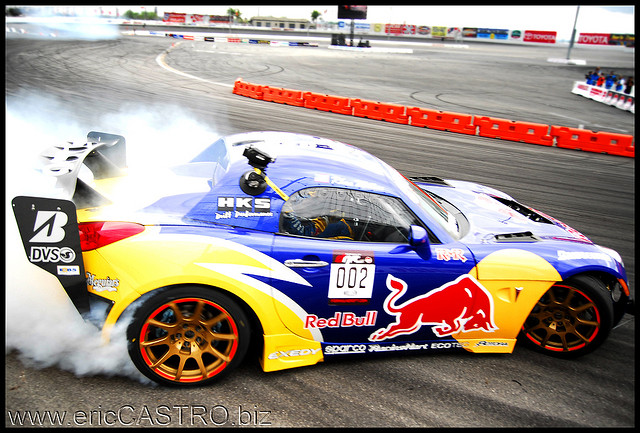
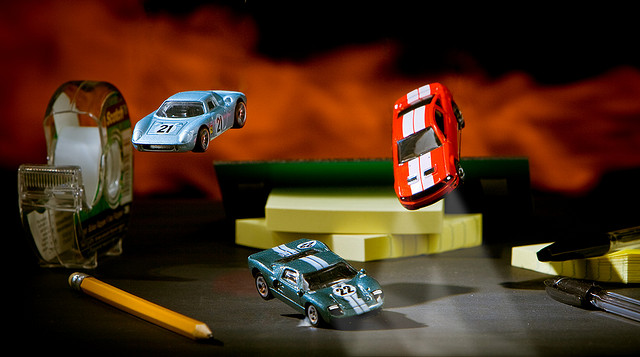
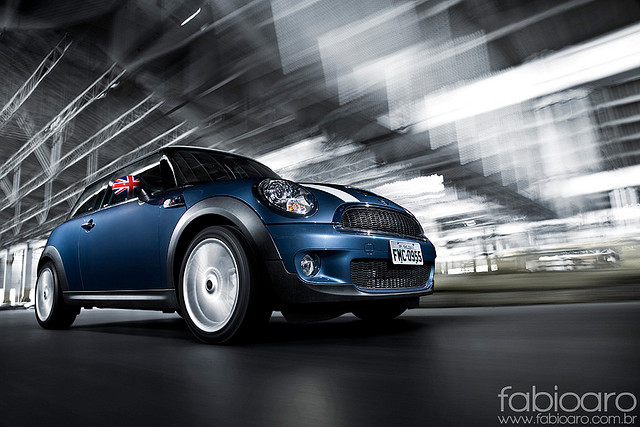
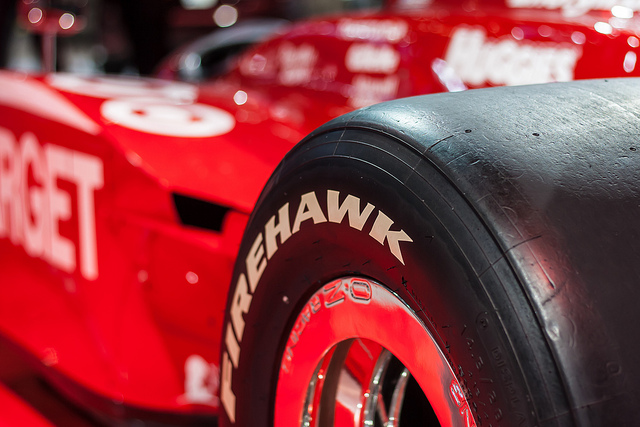
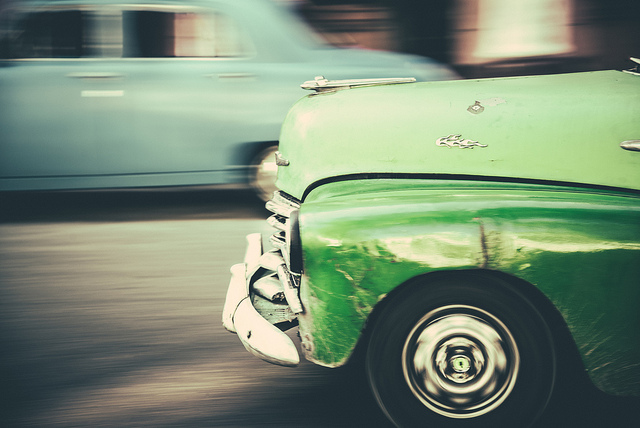
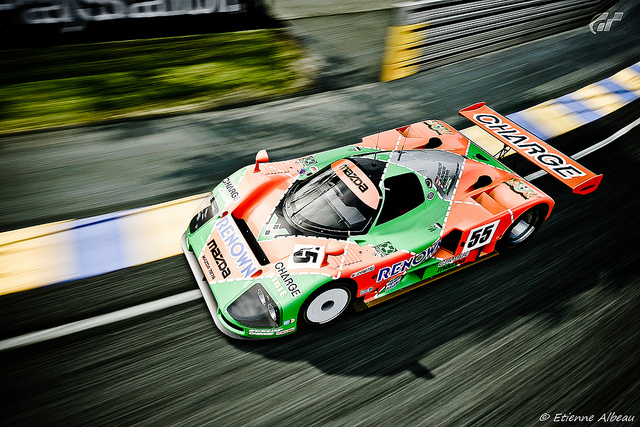
35 Moving Images of Speeding Cars

08 Mar

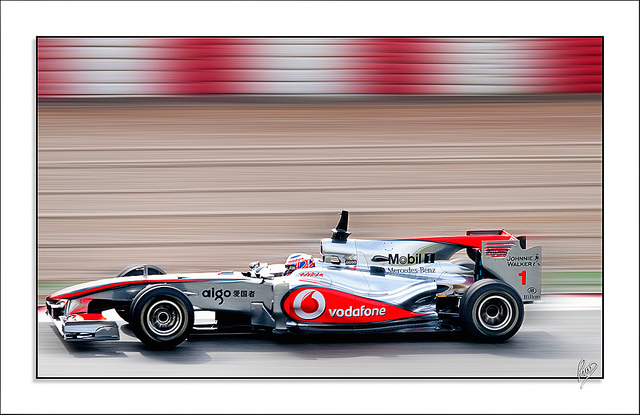
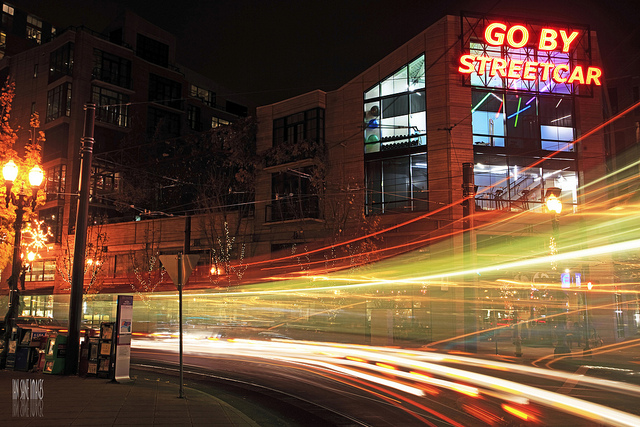
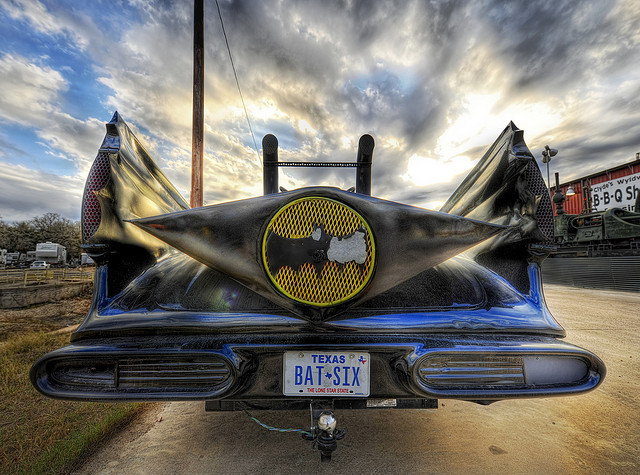
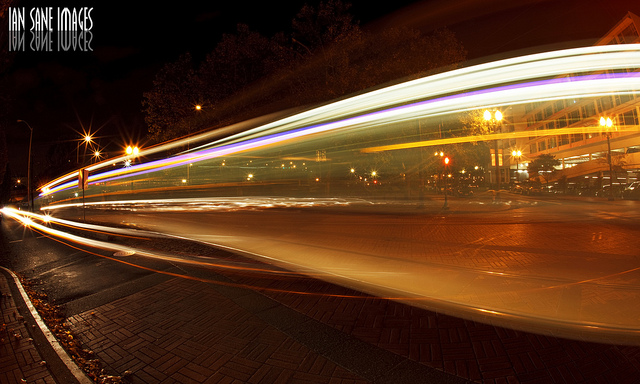
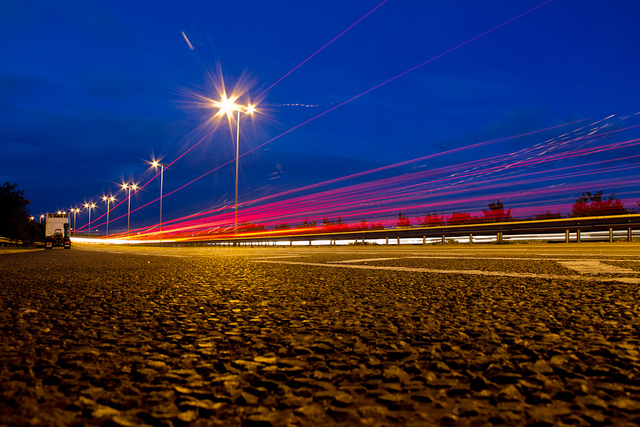
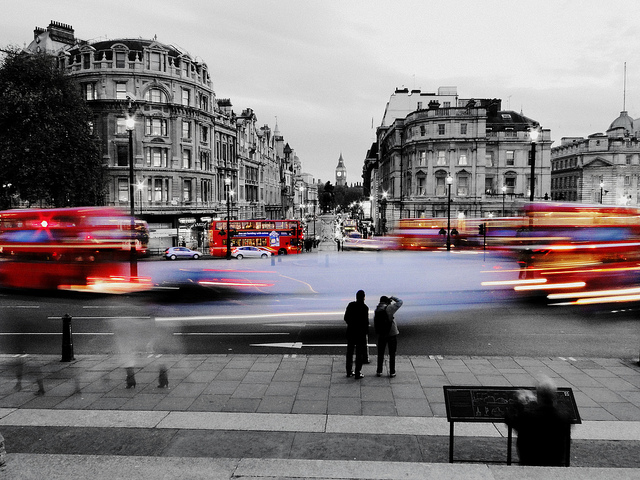
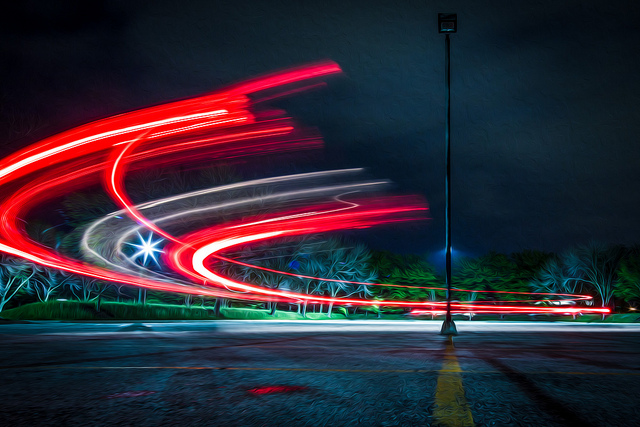
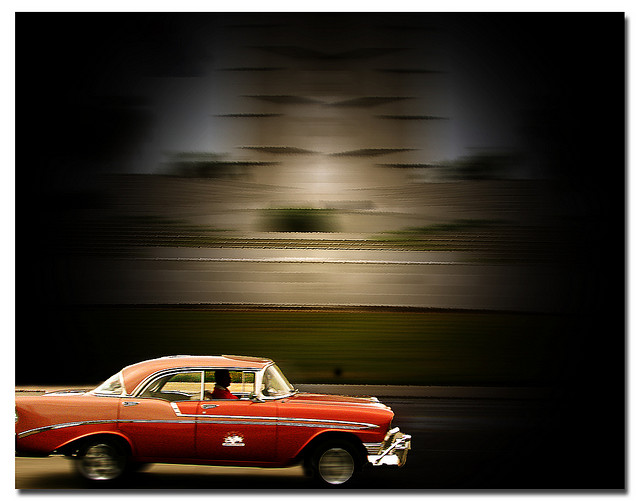
Last week I shared some great images of boats, so I thought I’d continue with the transportation theme and take a look at some images of speeding cars. Fast cars!

In fact, some are so fast they didn’t even show up in the image! You figure that one out.

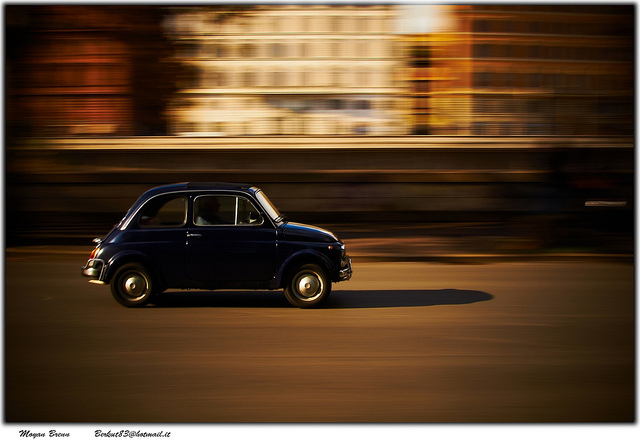
I love shooting cars by panning to create some motion. Having just been in Havana, Cuba classic cars were in abundance.

Enjoy these images of fast cars.

By Moyan Brenn

By Paco CT

By Ernest

By Ian Sane

By Nathan E Photography

By Trey Ratcliff

By Ian Sane

By Romain Ballez

By Om

By Digimist

By dez&john3313

By Fabio Aro

By Caitlin H

By Chris Smith

By Luis Miguel Justino

By Ville Miettinen

By Dustin Spengler

By William Cho

By Derek Walker Photo (Derk Photography)

By Pedro Szekely

By Donnie Nunley

By Mohammed Nairooz

By Patrick Mayon

By Jim Monk

By hjhipster

By bkdc

By Dave Wilson

By Eric Castro

By Nick Wheeler

By Fabio Aro

By drpavloff

By Derek Walker Photo (Derk Photography)

By Didier Baertschiger

By YackNonch

By Nick Kenrick

For some car photography tips check out: 7 Tips for Taking Better Photographs of Cars

The post 35 Moving Images of Speeding Cars by Darlene Hildebrandt appeared first on Digital Photography School.


Digital Photography School

 
Comments Off on 35 Moving Images of Speeding Cars

Posted in Photography


Weekly Photography Challenge – Fast Cars

08 Mar

Now that I have your attention you might be able to guess what this week’s photograph challenge is right?

Weekly photography challenge – fast cars!

You may be thinking, “I don’t live near a race track”, so I’m way ahead of you. Just to clarify this challenge a little, the goal is to make the cars look like they are going fast. They don’t actually have to be doing so!

How to add motion

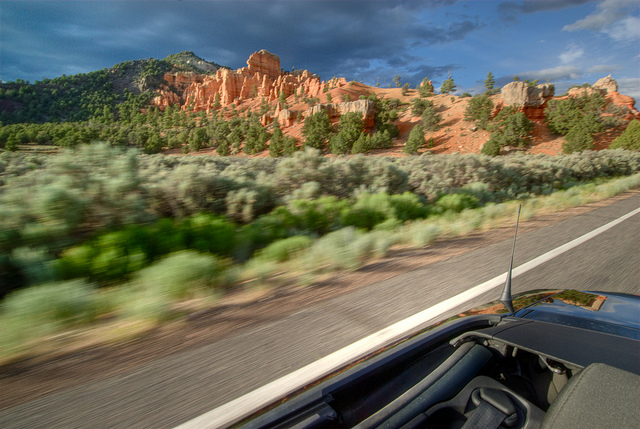
So how do you add motion to your car images? One way is panning. Another is to shoot from inside a moving car – just please make sure you are NOT the driver! Safety first. Here’s some tips if you need a hand:

  • Showing Speed: Using Panning When Shooting Action
  • 13 Places to Practice Taking Beautiful Motion Blur Shots
  • Mastering Panning – Photographing Moving Subjects
  • 3 Tips for Creating Dramatic Images using Motion

By Takashi Hososhima

By Brian Gaid

By Jim Sher

Share your fast car images!

Simply upload your shot into the comment field (look for the little camera icon in the Disqus comments section as pictured below) and they’ll get embedded for us all to see or if you’d prefer upload them to your favourite photo sharing site and leave the link to them.

The post Weekly Photography Challenge – Fast Cars by Darlene Hildebrandt appeared first on Digital Photography School.


Digital Photography School

 
Comments Off on Weekly Photography Challenge – Fast Cars

Posted in Photography


Sony plans March firmware update for Alpha 7 and 7R

08 Mar

ILCE-7R_wSEL35F28Z_right.png

Sony has announced an upcoming firmware update for its Alpha 7 and 7R full-frame mirrorless cameras. Due on March 19th, the update promises faster startup speeds, improved image quality (in what respect is not clear), a pair of new downloadable apps, and ‘smoother’ transitions in time-lapse mode. The firmware will also add support for Fast AF (Hybrid in the case of the A7) and the focus hold buttons on the 70-200 F4 FE lens.

News: Digital Photography Review (dpreview.com)

 
Comments Off on Sony plans March firmware update for Alpha 7 and 7R

Posted in Uncategorized


Not in Kansas: Black House Lands in Front of Oz Museum

08 Mar

[ By Steph in Art & Installation & Sound. ]

Landed Installation Ian Strange 1

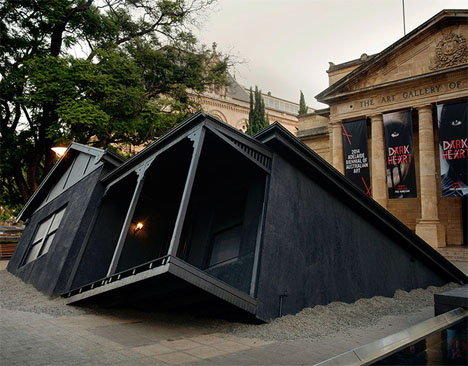
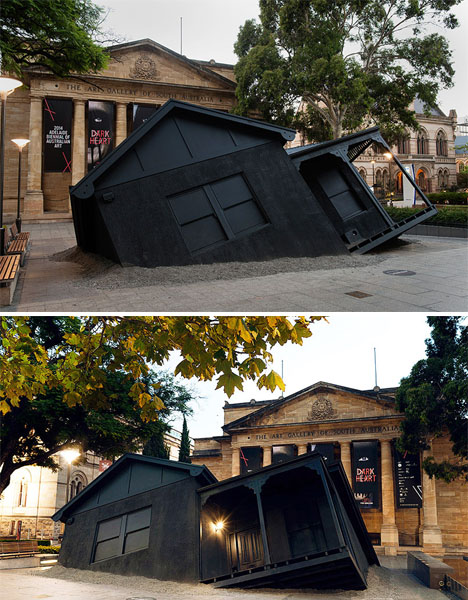
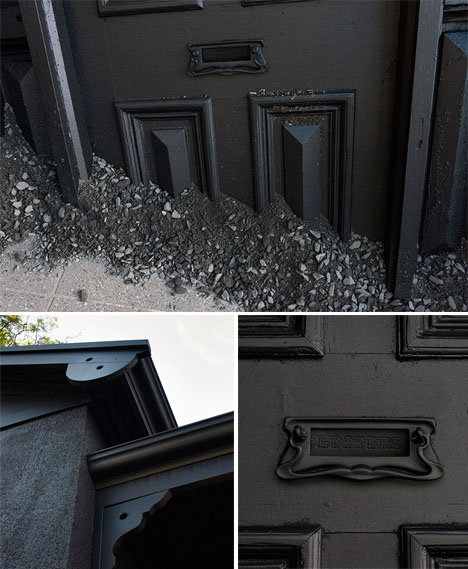
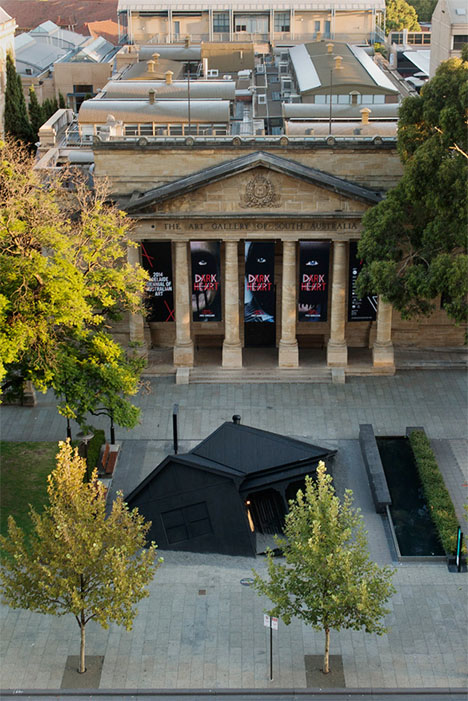
The childhood home of artist Ian Strange has literally landed right in front of the Art Gallery of South Australia as if it were picked up by a tornado and plunked there, Wizard of Oz style. The striking matte black structure is a detailed recreation of the 1920s suburban Australian home Strange grew up in, down to the scrolled ornamentation on the porch and a spigot clinging to one exterior wall.

Landed Installation Ian Strange 2

Installed for the 2014 Adelaide Biennial of Australian Art, the installation makes an intentional reference to Dorothy’s Kansas home and the jarring visual of it crashing in a place where it doesn’t belong.

Landed Installation Ian Strange 3

This visual is a nod to both the continued intrusion of Western pop culture into Australia, and the disconnected nature of suburbia, a recurring theme in Strange’s work.

Landed Installation Ian Strange 4

Strange previously explored the suburban house as a cultural icon in his series SUBURBAN, which involved drastically altering homes that were set for demolition and then burning the down, filming the entire process.

Share on Facebook


[ By Steph in Art & Installation & Sound. ]

[ WebUrbanist | Archives | Galleries | Privacy | TOS ]


WebUrbanist

 
Comments Off on Not in Kansas: Black House Lands in Front of Oz Museum

Posted in Creativity