The post Why It’s Important to Pay Attention to Your Backgrounds in Photography appeared first on Digital Photography School. It was authored by Simon Bond.
In today’s article, you’re going to learn about the importance of backgrounds in photography. Knowing how to best use the background will have a big impact on the success of your photo.
You’re going to discover the different approaches to dealing with the background, and how that background will then work as a counterweight to your main subject.
So turn your eye away from the main subject, and see what a good background will do for your final image.
The strong pattern in the background leads the eye to the model, who is the main subject in this portrait photo.
Background or main subject?
The answer to this question is, of course, both.
As a photographer, you need to pay equal attention to the main subject and the background. It’s easy to lose track of the background while you focus on your main subject. Take a little longer composing your photo and look to the background. You’re looking to avoid clutter in the background while lining up leading lines with your main subject.
In this photo, the street hawker is the main subject, but equally important is the background and the mood the background provides.
Composing with the background
The background is an important aspect of portrait and still life photography. And the background often takes up the entire photograph when shooting landscapes, so you pay particular attention to it by default.
So what are you looking for in the background, when the main focus of the image is your main subject? The answer is design elements, such as:
Lines: Are there leading lines in the background? Then make sure they lead the eye to the main subject. Equally, make sure the background is compositionally sound. This will often mean positioning the subject in the left or right third of the frame.
Patterns: Is there a textured background such as a brick wall behind your subject? Make sure that this fills the background.
Minimalism: Avoid background clutter for a more minimalist photo. Step to the side if this removes an unwanted element from your photo such as a lamp post or a person.
Frames: Like leading lines, if there is a natural frame you can use in the background then line this up with your main subject.
The frame gives the photo a more minimal feel, yet there is still a story captured with the moving person.
Work with the background or remove it?
You have a choice as a photographer whether you want to use the background in your frame, or whether you want to eliminate it.
The choice is an artistic one, and for certain types of photography (such as street photography), you’ll certainly want to include the background.
So let’s look at these two approaches.
This photo has a minimalist feel, produced by a strobe with a snoot attached.
The story is in the background
The background is vital in that it gives your photo context. How your main subject interacts with the background gives your photo more narrative, and hence it becomes a stronger photo. That’s not an excuse to include clutter, though; you should still look to see what elements can be removed from the background.
The ideal photo then shows your main subject, and just enough of the background to provide that story. So how will you achieve this?
Focal length: A change in focal length can have a big impact, especially on the background. Longer focal lengths will allow you to compress the background behind your main subject, but at the (likely) cost of losing narrative content that would have enhanced the photo.
Bokeh: Bokeh refers to the out-of-focus portion of your photo. This effect can be controlled, and you don’t need to completely blur out the background. A soft-focus background can give your photo a story without forcing the eye away from your main subject.
Framing: If you happen to find a natural frame in front of your subject, you can use this. Use it to frame the main subject and the area of the background that’s important. Then the frame can naturally remove unwanted elements in your photo by blocking them from view.
This photo shows how background can add context to the main subject. Soft bokeh is used here.
Minimal backgrounds in photography
The other way to deal with the background is to remove it, blur it out, or ensure it’s one particular texture.
Taking this approach will give your photo a much more minimal feel, and this can be just as effective when producing an interesting image. This option is well worth considering when you have a very interesting main subject or, even better, a main subject that provides its own story by doing something interesting.
So how will you go about producing minimal backgrounds in photography?
Low-Key: A low-key effect involves perfectly exposing the main subject while underexposing the background. The resultant photo will then have a black background. To achieve this, light your subject with a narrow beam of sunlight or use a strobe with a snoot attached.
Bokeh: Now the aim is to completely blur out the background. The best lenses to do this are prime lenses, and you’ll want to use the largest available aperture. The greatest effect will be achieved when there is a large distance between the main subject and the background.
Texture: Backgrounds like brick walls, metal shop shutters, or concrete blocks can work well here. The aim is to fill the background with a particular pattern and nothing else.
Color block: Again, a wall can work here, but it should be a single color. Alternatively, how about aiming at the sky on a clear day, so you have just blue for your background?
This photo includes stronger bokeh with the background blurred out. However, the colors in the background still serve to frame the leaf.
Maximize backgrounds in photography!
Now that you know how important it is to pay attention to the background, how will that change your photography? Are there techniques you use that haven’t been mentioned in this article?
As always, we’d love to see your photos and for you to share your opinions. If you have photos where the background is key to the success of the photo, then please share those in the comments section. And explain why you think the background is so important!
The post Why It’s Important to Pay Attention to Your Backgrounds in Photography appeared first on Digital Photography School. It was authored by Simon Bond.
The post 4 Ways to Shoot Portraits in the Middle of the Day appeared first on Digital Photography School. It was authored by John McIntire.
One of the first things you learn when starting out in portrait photography is that the midday sun does not provide great lighting conditions.
As with all things in photography, there are plenty of exceptions. But, for the most part, this is sound advice. Because of the harsh, contrasty light, and the deep shadows that such light produces, shooting portraits in the middle of the day can be a real challenge.
Creating portraits on location in the middle of the day can prove a real challenge, thanks to unflattering light from the high sun. Fortunately, there are loads of ways to get around this and take back all those wasted shooting hours.
Canon 5D Mark III | Canon EF 50mm f/2.5 Macro | 50mm | 1/800 sec | f/5.6 | ISO 200
Of course, you can always go and find a bit of open shade for more flattering light, but what do you do when isn’t an option? And what do you do when you have a location that you love, but the light isn’t perfect at the moment?
You could always wait. But with portraits, you can’t necessarily count on another person’s enthusiasm for waiting around for the right light. Fortunately, there are a lot of tools that will help you modify the midday sun so that the light is more flattering for portraiture.
By far, the easiest way to shoot in the middle of the day is to do so on an overcast day with heavy cloud cover. Of course, just like waiting around for the golden hour, you can’t always wait around for clouds.
Canon 5D Mark III | Canon EF 85mm f/1.8 | 85mm | 1/2000 sec | f/2.8 | ISO 200
This article will give you an overview, along with the basics, of four techniques for manipulating, or completely altering, the light from the midday sun to help you get better portraits.
1) Reflector as key
The first of these techniques only requires a reflector. Either white or silver will do, but if you opt for a 5-in-1 reflector, you will have both at your beck and call.
In strong sunlight, the white reflector should work most of the time. If the light is a bit dimmer, you may need to opt for the silver reflector.
In direct sunlight, the shadows are heavy and unflattering. An easy and cheap method of countering this is through the use of a silver reflector.
Canon 5D Mark III | Canon EF 85mm f/1.8 | 85mm | 1/1600 sec | f/4.5 | ISO 400
To get started with using a reflector as your key light, place your subject so that the sun is behind (or at least to the side of) them.
Now, raise the reflector up and point it back towards your subject. It should be placed opposite the sun. You should be able to see and watch what the light bouncing off the reflector is doing. Adjust the reflector’s position until you are getting the effect that you are after.
When using a reflector like this, make sure it’s above and pointed at your subject. You will be able to watch what the light is doing.
While using a reflector in this way, there are a few things to keep in mind. Because the reflector is your main light source (or key light), it is usually best to make sure that it is above your subject. Lighting from above in this way will help to ensure more natural and flattering results. Lighting from below will result in unnatural-looking shadows that won’t be flattering to your subject.
The silver reflector has killed most of the shadows from the sun and brought up the exposure of the subject’s eyes for a much more flattering light.
Canon 5D Mark III | Canon EF 85mm f/1.8 | 85mm | 1/800 sec | f/4.5 | ISO 400
Another thing to keep an eye on is your exposure. Because you are working with natural light, you will be able to rely on your camera’s meter. Where you might find a problem is when the light reflecting off of the reflector isn’t as strong as any sunlight in the scene.
Do watch what the light is doing very carefully. Here, the reflector has come down too low and the light is hitting the subject’s arm and the lower side of her face first. This is not flattering.
To ensure a good exposure on your subject, meter from their skin. An easy way to do this is to use your camera’s spot metering mode and meter a place on your subject’s skin that is being lit by the reflector.
Just remember that your camera’s meter is measuring for 18% grey and a lot of skin tones do not fall anywhere near that range. Subjects with lighter skin may require a bit of overexposure, while subjects with darker skin will need you to compensate with underexposure. In most cases, 1/3 to 2/3 of a stop will be good enough.
2) Diffusion
You might not be surprised to see that direct overhead sunlight doesn’t make for a very good portrait.
Canon 5D Mark III | Canon EF 50mm f/2.5 Macro | 50mm | 1/3200 sec | f/5.6 | ISO 400
A diffusion panel is a great option for manipulating the harsh midday sun and achieving better portraits in the middle of the day.
Diffusion panels are sheets of material that you place between the light source and the subject. The material spreads out the light, making it softer and more suitable to portraiture. If you have a 5-in-1 reflector, you probably already have one of these.
Alternatively, there are a lot of options on the market, including massive diffusion panels that cover a large area.
Using a diffuser (or a diffusion panel) is a great and affordable way to soften the light from the sun.
Canon 5D Mark III | Canon EF 50mm f/2.5 Macro | 50mm | 1/500 sec | f/5.6 | ISO 400
To use a diffusion panel for these purposes, simply place it between the sun and your subject. Because we are talking about the middle of the day, depending on where you are in the world, the sun should be pretty close to straight above your subject. In this case, the diffusion panel would go above your subject. This will have the effect of softening the light; once you’ve done this, you should be able to meter and start taking images.
All that you have to do is place the diffusion panel between your subject and the sun. Because this diffuser cuts out two stops of light, you can clearly see how much darker the area in shade is compared to the rest of the scene.
There are a few things to watch out for while using a diffuser. A lot of diffusion panels are made to reduce the exposure of the light in your scene by a certain number of stops. This is important to take into account because the diffuser will only be altering the exposure of the light falling within its area of effect. If your subject is a fair distance from the background, the background will appear two stops brighter than it did in any shots you may have taken without the diffuser.
Here, you can clearly see the effect the diffuser has on the subject and the ground that it covers. You can also see how much brighter the background becomes when you expose for the subject.
This may result in overexposed backgrounds. To minimise this, you can make sure that the diffuser is covering everything in your frame by choosing a background closer to your subject, or by using a background that’s very dark in the first place.
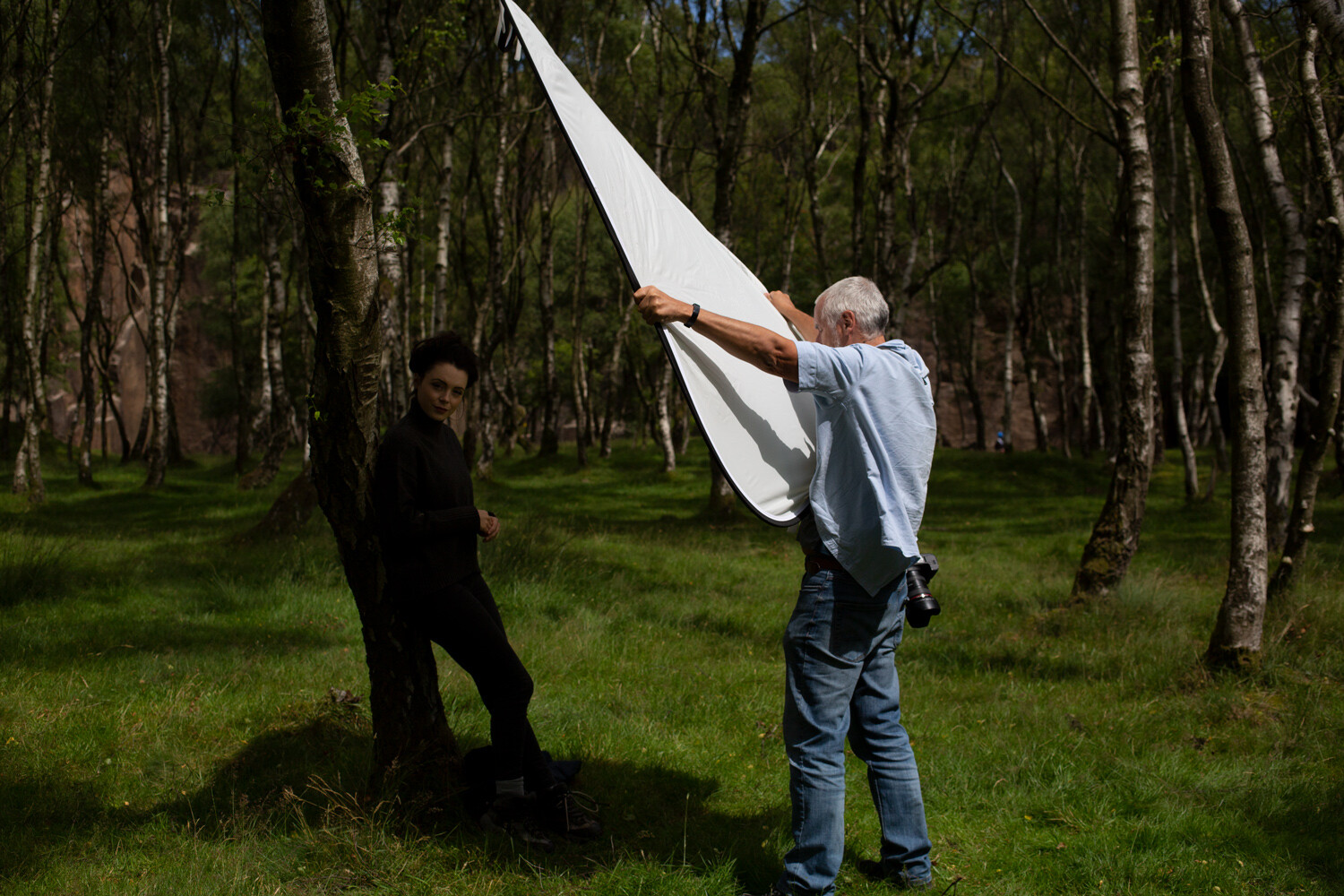
This diffusion panel catches even the slightest breeze very easily. Without a dedicated stand, it required two people to hold it in place and, even then, it had its moments.
Also, large diffusion panels like the one I have used in this example are very light. If there’s even a slight breeze, they pretty much act like a sail. You may need a dedicated stand or extra bodies to hold them in place.
3) Flash as fill
More direct sunlight, more unflattering light. Using flash to fill in the shadows is another useful technique for portraits in the middle of the day.
Canon 5D Mark III | Canon EF 50mm f/2.5 Macro | 50mm | 1/1600 sec | f/5.6 | ISO 400
If you have the equipment, using off-camera flash as fill light to the sun’s key light is a great way to help you take portraits in the middle of the day. The job of the fill light is to bring up the exposure of the shadows created by your key light (the sun, in this case). This will reduce the contrast in your scene and even out the exposure.
Here, you can see that the shadows from the sun still exist, but they are much brighter. This reduction in contrast makes for a much more suitable portrait.
Canon 5D Mark III | Canon EF 85mm f/1.8 | 85mm | 1/640 sec | f/4 | ISO 100
There are a lot of ways to do this, but I’ll go over a basic method that requires the least amount of extra equipment.
It doesn’t matter if you are using a speedlight or a full-powered strobe; the principles remain the same.
The first thing you need to do is obtain an exposure for the ambient light. Do this by using your camera’s meter and taking a test shot as if you weren’t going to be using flash at all. The one exception here is that you need to ensure that your final shutter speed is slower than the max sync speed on your camera. This is often around 1/250 seconds, but do check your manual just in case. Once you’ve ensured that all of the highlight tones are present in your frame and not overexposed, you should have your working settings.
Note: If the sunlight is very bright and you cannot get the shutter speed to go slower than your max sync speed, you may want to consider using High-Speed Sync.
Now, turn on (and connect) your flash. While you are getting started with fill, I suggest placing your flash in an on-axis position. This means the flash is on the same line as the lens of the camera from the subject’s position. Although if you are using a speedlight on top of the camera, I recommend getting it off for more flattering results.
Getting the flash off-camera will always provide a more flattering light. (Please forgive my visitor. He just wanted to see what was going on.)
You can use Manual mode of E-TTL mode on your flash. Either will work fine, but E-TTL might help to get you closer to the desired exposure in less time.
Once your flash is set up, take a test shot. Look at the shadows in your image. Are they too bright? Turn down the power on your flash and take another test shot. Repeat this until the shadows appear how you want them. Do your shadows seem unchanged, or are they still too dark? In the latter case, turn up the power.
One thing that I suggest you take into account immediately is modifiers. For fill lighting, you will generally want as soft a light source as possible. The light from a bare speedlight will never be soft. A modifier like a translucent umbrella is dirt cheap and as portable as an actual umbrella, and they work well with both small and large flashes.
Use as big of a modifier as you can for softer light. Portable softboxes like this one work well. So do translucent umbrellas if you want a cheaper, even more portable option.
Another thing to look out for with fill lighting is how much you are filling in the shadows. Remember, the goal in using a fill light is to bring up the shadows so that they aren’t as dark in high contrast situations. You want to avoid having the exposure of your fill light as bright as the exposure from your key light. Try to aim for at least one stop between the exposure for your key and fill, but don’t be afraid to extend it more. Oftentimes two, three or even four stops of difference is the right choice.
4) Flash as key
Yet more unflattering light, this time with a more extreme solution. Here you will learn how to overpower the sun and use your own light.
Canon 5D Mark III | Canon EF 50mm f/2.5 Macro | 50mm | 1/800 sec | f/5.6 | ISO 200
Another way to use flash for portraits in the middle of the day is to use your flash as the key light. This will require a fairly powerful flash, as you will need it to appear brighter than the sun in your exposure, as you will now effectively be using the sun as a fill light. There are two main ways to go about this. These are using your flash in Manual mode and using your flash in E-TTL mode with High-Speed Sync (HSS).
Because it is fairly easy to get started with your flash in E-TTL mode with HSS (provided that you have the right equipment), that is what this article will discuss.
Using High-Speed Sync on a high-powered strobe allows you to overpower the sun and light the scene with your flash. The sunlight will still be present, but it will be a few stops darker than your key light.
Canon 5D Mark III | Canon EF 50mm f/2.5 Macro | 50mm | 1/800 sec | f/5.6 | ISO 200
High-Speed Sync allows you to use flash at shutter speeds far faster than your maximum sync speed. Since shutter speed is what governs the exposure of ambient light while using flash, this means that you can use a shutter speed that underexposes the light from the sun.
Adding the flash as key at this point will shape the main light on your subject with whatever modifier you are using, while the shadow areas will be filled in by the ambient light. This is a great technique that works in a huge variety of situations, but it does require a bit of specialist equipment.
Most speedlights have HSS functionality and more and more full-sized strobes are coming to market that have it, as well.
To get started using this technique for portraits in the middle of the day, select the aperture that you want to work with. Using the meter in your camera, meter the scene and underexpose it by the desired amount. You can evaluate the histogram to decide whether it is dark enough, or too dark.
Underexposing the ambient light by three stops was too much in this case. Evaluate based on taste and your desired output, then adjust as required.
Canon 5D Mark III | Canon EF 50mm f/2.5 Macro | 50mm | 1/2500 sec | f/5.6 | ISO 200
Now, set up your flash with your chosen modifier for the lighting pattern of your choice. Rembrandt and Butterfly are two basic patterns that work great most of the time. Now, connect your flash to the camera and turn it on, making sure that it is set to both E-TTL mode and HSS mode.
Take a test shot.
Adjust the exposure compensation of your flash as required to get a good exposure of your subject. Referring to the histogram will help you figure out how much exposure compensation you need to use at a glance. If your image is too bright, dial in -1/3 to -2/3 of a stop at a time until you have the desired effect. The same applies for too dark images. Just dial in +1/3 to +2/3 of a stop instead.
The test shot in this instance was way too overexposed. Simply dial in exposure compensation on your flash unit or trigger and keep evaluating until it is right.
Canon 5D Mark III | Canon EF 50mm f/2.5 Macro | 50mm | 1/800 sec | f/5.6 | ISO 200
Once you have a decent exposure, you should find that you have a nicely-lit portrait with all of the shadow and highlight details present in your image.
This is a very basic overview of High-Speed Sync and doesn’t even come close to covering what’s possible with the technique, but it should get you started with the basics.
Outro
Learning how to use just one of these techniques can open up hours worth of time that you would normally avoid shooting portraits in.
Canon 5D Mark III | Canon EF 50mm f/2.5 Macro | 50mm | 1/640 sec | f/4 | ISO 100
While there are plenty more methods for shooting portraits in the middle of the day, the ones listed here should go a long way to get you started.
There is no reason that you should feel limited by the time of day (and the lighting it brings) when you are photographing people.
Even with a few basic tools and techniques, you can stop being at the mercy of the light and, instead, take control of it and manipulate it to your needs. If nothing else, doing so will open up countless hours in the day that you can use for your portrait photography that you would normally be advised to avoid.
The post 4 Ways to Shoot Portraits in the Middle of the Day appeared first on Digital Photography School. It was authored by John McIntire.
Low light photography is one of those types of photography that when done well can produce amazing photos but when not done well can leave you feeling a bit disappointed. It’s a type of photography that at first can seem quite complicated as if you need a PhD to master. Yet all you actually need is a few simple pieces Continue Reading
The post The Ultimate Guide To Low Light Photography: Tips, Settings, Cameras, Lenses appeared first on Photodoto.
The post Weekly Photography Challenge – Details appeared first on Digital Photography School. It was authored by Sime.
This week we want you to focus on ‘details’
Last week we went with self-portraits and there were many of you that submitted really great images, thanks! This week, we want to see ‘detail’ and that could be a detail of yourself if you wanted to continue the theme “here’s my eyeball” seems to be a thing
I’ve decided to photograph the end of a fallen tree at the local park, the cracks, the rings and the ants! #dPSDetail
There’s detail in everything, while not necessarily being a macro photograph, though you can if you want, the detail is a selection of the larger image. An example might be that the photograph above is a detail shot of the scene below. Detail photographs are used in a story to help tell that story. Tag your photos #dPSDetail and we look forward to seeing what you come up with!
From last week’s photographs, this was a stand-out from Belgium based photographer, Katrien Stuyck, thanks and congratulations, Katrien!
Great! Where do I upload my photos?
Simply upload your shot into the comments field (look for the little camera icon in the Disqus comments section) and they’ll get embedded for us all to see. Or, if you’d prefer, upload them to your favourite photo-sharing site and leave the link to them.
Share in the dPS Facebook Group
You can also share your images in the dPS Facebook group as the challenge is posted there each week as well.
If you tag your photos on Flickr, Instagram, Twitter or other sites – tag them as #DPSDetail to help others find them. Linking back to this page might also help others know what you’re doing so that they can share in the fun.
Follow us on Instagram?
The post Weekly Photography Challenge – Details appeared first on Digital Photography School. It was authored by Sime.
The post KUVRD Launches Lens Hood That Fits 99% of Lenses appeared first on Digital Photography School. It was authored by Jaymes Dempsey.
Lens hoods cause photographers a lot of frustration.
On the one hand, they’re necessary. They reduce unwanted flare while protecting the front element from damage.
On the other hand, they’re big, unwieldy pieces of plastic that take up space in your camera bag. And you generally need a different lens hood for every one of your lenses.
Which is why KUVRD, the company behind a universal lens cap, has just launched a new Kickstarter campaign:
For the Universal Lens Hood.
As KUVRD explains on its Kickstarter page, the Universal Lens Hood is carefully designed to fit 99% of lenses, by way of a clever stretch-and-fold system that allows you to expand the hood around your lens, then resize the hood depending on the lens you’re using.
The Universal Lens Hood also offers other innovative features, such as compactness (it can be folded up into a small ring that fits in your pocket) and filter compatibility (you can nestle any circular filter inside the lens hood, regardless of size).
Plus, the Universal Lens Hood promises to eliminate reflections from surfaces. If you’re shooting the skyline through a hotel window, for example, simply press the front of the hood up against the glass and watch as the reflections disappear.
And did I mention that it only costs $ 30 USD?
Now, there are a few drawbacks to the Universal Lens Hood worth highlighting:
First, it actually comes in two sizes, one designed for lenses with a 54mm to 76mm filter size, and the other designed for lenses with a 72mm to 112mm filter size. This isn’t a huge deal, but it does seem to undermine the idea of a single universal lens hood; if you have lenses of different sizes, you’ll need two of the hoods, not one.
Second, I do wonder about adjusting focus rings and zoom rings under the Universal Lens Hood. While KUVRD claims that it’s easy to fold the lens hood back and gain access to these controls, this seems inconvenient at best, especially if you’re trying to zoom and focus manually in a single shoot (and could potentially cost you images while you’re fiddling around).
While the Universal Lens Hood is technically still in the funding stage, it has already shot far beyond its $ 5000 USD Kickstarter goal, which means that orders will be shipped (likely in December). So if you’re looking for a lens hood that is ultra-compact, fits all your lenses, and includes some additional useful features, then the Universal Lens Hood is worth a look.
You can become a Kickstarter backer here, where you can grab a single copy of the Universal Lens Hood for $ 30 USD or two copies of the Universal Lens Hood for $ 50 USD.
Now over to you:
What do you think of the Universal Lens Hood? Is it something you’d be interested in? Do you get frustrated with your current lens hoods? Share your thoughts in the comments!
The post KUVRD Launches Lens Hood That Fits 99% of Lenses appeared first on Digital Photography School. It was authored by Jaymes Dempsey.
Before we all had cameras in our pockets and even before affordable digital, point and shoot cameras, there was the humble disposable camera. A common addition to any holidaymaker’s suitcase and often found scattered around the tables at wedding receptions disposable cameras were the everyday persons go-to camera of choice. Despite the dominance of the camera phone and digital photography Continue Reading
The post Are Disposable Cameras Any Good? appeared first on Photodoto.
The post 4 Simple Ideas to Expand Your Creativity appeared first on Digital Photography School. It was authored by Megan Kennedy.
Creativity ebbs and flows.
But, as Maya Angelou said, the more creativity you use, the more you have. Whether inspiration is proving to be elusive, or you are looking for a new approach to your creative practice, these four simple photographic techniques can help spawn ideas to expand your creativity further.
An example of a false-color infrared effect made in Photoshop. Canon 5D Mark II | Canon EF 24-105mm f/4L IS USM | 1/80 sec | f/4.0 | ISO 250
1. Infrared photography and effects
In infrared photography (technically known as near-infrared photography), film or digital sensors record renderings of otherworldly scenery in wavelengths beyond the bounds of the human eye.
There are a few ways to achieve digital infrared photography. One method is to purchase an infrared filter like the Hoya R72 or the Kenko Infrared R72. These filters block visible wavelengths and permit a small amount of infrared light to reach the sensor.
Another way to achieve infrared photography is with an infrared camera conversion. Camera conversions involve removing a sensor’s hot mirror, a device that reflects infrared wavelengths of light. The hot mirror is then replaced with an infrared filter that blocks visible light instead. Infrared camera conversions can be done DIY style, or by sending the camera off to a conversion company.
An example of a false-color infrared effect made in Photoshop. Canon 5D Mark II | Canon EF 24-105 mm f/4L IS USM | 1/60 sec | f/4.0 | ISO 125
If you can’t get your hands on infrared photography equipment, you can also add infrared effects to images in post-production. By making adjustments in editors like Photoshop, imitation infrared effects can alter an image for eye-catching results.
2. Intentional camera movement
In terms of generating ideas to expand your creativity, intentional camera movement is a simple and refreshing technique. Intentional camera movement, or ICM, involves deliberately moving the camera during the length of your exposure for creative effect.
Canon 5D Mark II | Canon EF 50mm f/1.8 II with extension tubes | 1/320 sec | f/1.8 | ISO 500
The process is simple:
Set your camera to a longer exposure, depress the shutter button, physically alter the camera’s orientation, and review the results. ICM images are rarely exactly the same, which makes the technique a captivating process that emphasizes the physicality and painterly quality of the photographic medium.
3. Creating a photogram effect
Sometimes, a complete change in artistic direction can be a welcome adjustment. Making a photogram is a simple yet valuable insight into the photographic process, and is often one of the first introductions to photography in art class.
The photogram is a cameraless form of photography which usually involves the placement of objects onto a light-sensitive medium like photographic paper. The arrangement is then exposed to light, creating a negative rendering of the objects on the developed paper.
Canon 5D Mark II | Canon EF 24-105mm f/4L IS USM | 1/10 sec | f/4.0 | ISO 1000
Not everyone has access to the materials required to make a photogram. There is, however, a digital process that can be a great way to create a photogram effect.
Collect a handful of objects of different transparencies, arrange them on a flat light source, photograph the arrangement, and make a few adjustments in Photoshop. The project makes for an evocative take on the popular darkroom process.
4. Abstract light trail photography
Abstract photography is a genre that is full of ideas to expand your creativity.
Like ICM, abstract light trail photography encourages the physical movement of the camera by the photographer. By combining the use of a slow shutter speed with camera movement and isolated light sources, luminously-engaging abstracted images can be made.
Canon 5D Mark II | Canon EF 50mm f/1.8 II | 1 sec | f/2.5 | ISO 100
Wait until it gets dark, grab your camera, and head out to locate streetlights, traffic lights, headlights, neon displays, LEDs, sparklers; anything that emits points of light.
Set a slow shutter speed, focus on a light source, depress the shutter button, and proceed to swing, angle, zoom, rotate, or (gently) shake your camera during the exposure. The process creates intricate light paintings that trace the path of the camera during the exposure.
Conclusion
New photographic techniques almost always stimulate ideas to expand your creativity.
Whether you’re making ICM photography, abstract light tails, infrared techniques and effects, or a simulated photogram series, new challenges and perspectives will help cultivate fresh ideas and hone your photographic skills.
The post 4 Simple Ideas to Expand Your Creativity appeared first on Digital Photography School. It was authored by Megan Kennedy.
The post Take Control of Color Adjustments in Lightroom appeared first on Digital Photography School. It was authored by Simon Ringsmuth.
With all the sliders, options, and numerical values to tweak in Lightroom, there is no end to the editing possibilities at your disposal. Sometimes, you just want an easy way to make your images stand out and shine without all the hassle of adjusting dozens of individual options.
Fortunately, you don’t need to go overboard with editing to do some really incredible color adjustments in Lightroom. Three basic parameters can work wonders for your images: the Hue filter adjustment, as well as the Saturation and Vibrance sliders.
Along with White Balance, Hue is one of the most basic color adjustments you can make to a photo. Strictly speaking, Hue refers to the actual color of an image or a part of the image. It’s one of the building blocks of a photo that, along with Saturation and Luminance, affects your pictures on a foundational level.
The HSL panel in the Develop module lets you adjust the Hue of various colors. Essentially, you can make the reds shift from purple-ish to orange-ish. Or change your greens to be more yellow or teal.
Hue allows you to precisely control the overall appearance of your image, but the HSL panel works on an all-or-nothing basis. Moving the sliders affects the hue of every red, orange, yellow, and so on across the entire photograph.
Nikon D500 | Nikon 70-200 f/2.8G ED VR II | 200mm | 1/500 sec | f/4 | ISO 3600
Hue works well in a picture like the red cardinal above because the colors are clearly distinct and separate. Adjusting the Hue slider for the color red will affect the bird but nothing else because there are no other reds in the picture.
A recent update to Lightroom turbocharges the Hue editing tool by also allowing it to be used with filter adjustments. You can make precise Hue adjustments using the Radial and Graduated filters as well as the Adjustment Brush. These are incredibly powerful tools that help you get the precise color adjustments in Lightroom that you were never able to get before.
Hue can now be edited using the Adjustment Brush, Radial Filter, and the Graduated Filter.
The usefulness of this new approach to Hue adjustment is amazing, and using it could hardly be simpler. Just create a new filter or Adjustment Brush, then click and drag the Hue slider to change the colors of the portion of your image affected by the filter or the brush.
The top of the color rainbow stays locked in place while the bottom shows you the degree to which your colors are being changed. For precise control, check the Use Fine Adjustment box or hold down the Alt key (or the Option key on a Mac), which reduces the effect of your left-to-right dragging to give you finely-tuned adjustments.
To illustrate how this works, here is a picture of two yellow flowers. Adjusting the Hue using the HSL panel would allow me to change the yellow of both flowers. Using a Hue Adjustment Brush lets me change the color of one single flower. This is a maneuver that used to require jumping over to Photoshop and using multiple layers and tools, but can now be accomplished in mere seconds in Lightroom.
To change the color of the flower in the foreground from yellow to red, all I have to do is click the Adjustment Brush and paint in a new adjustment over the yellow flower. Then click and drag the Hue slider to the left, and you have an instant red flower.
The Auto Mask option helps ensure that my edits stay within the yellow flower. I can also hold the Alt key (or the Option key on a Mac) to erase parts of the adjustment that I don’t want.
Transforming the flower from yellow to red took me less than 15 seconds in Lightroom. All I did was use an Adjustment Brush and change the Hue.
Using the Hue adjustment with a Radial Filter or Graduated Filter follows much of the same process as the Adjustment Brush. Apply a filter and adjust the Hue accordingly to change the colors of a portion of your image. These additions to Hue options in Lightroom are a bit like selective color editing, where most of a picture is black and white with one portion displayed with color.
Hue adjustments for the filters and Adjustment Brush go one step further by giving you total control over individual colors in specific parts of your pictures. If you haven’t yet tried it, I recommend checking it out and seeing how easy it really is! And if you want even more control over your color adjustments in Lightroom, there are the Saturation and Vibrance sliders to look at.
Saturation and Vibrance
These two sliders can go a long way towards giving your photos an extra degree of refinement. However, they are often misunderstood and misused. They both complete the same basic function, in that they make the colors of a photo punchier or more exaggerated. Where they differ is in the method used to adjust the images and the way the colors are adjusted.
Saturation is kind of a blunt instrument, like editing your image with a hammer. It allows you to adjust the intensity of all the colors in a photo equally, which isn’t necessarily a bad thing if it gets you the result you are aiming for. It’s easy to overdo it with saturation, though, so adjust carefully.
Vibrance takes a more intelligent and subtle approach. This slider analyzes the colors of an image that are already saturated and, therefore, don’t need much adjustment. When you move the slider to the right those colors are generally left alone, as are common skin tones. The result is an image that feels punchier without being overwhelmed with color.
Adjustments with portraits
The image series below shows the difference between these two sliders. The first is an unedited RAW straight out of camera.
Nikon D750 | Nikon 70-200 f/2.8G ED VR II | 180mm | 1/500 sec | f/2.8 | ISO 1600. Original unedited RAW photo, no color adjustments.
Adjusting Vibrance up to a value of +60 makes the background colors more noticeable and also punches up the blue clothing. Faces and hands are relatively untouched, as are some of the clothing colors like orange and green that don’t need much adjustment.
Same photo, but with Vibrance +60. The image feels more lively and dramatic without being overbearing.
In contrast, the Saturation color adjustment in Lightroom ramps up every color indiscriminately. The final image looks like it was run through a series of poorly-implemented social media filters and is a little jarring and unpleasant to look at.
This is the original image, but with the Saturation increased to +60. This picture feels overprocessed and unpleasant.
This example is a bit of an exaggeration, though! Saturation is a perfectly acceptable adjustment, as long as you use it carefully. Generally speaking, ramping up Saturation to such extreme values will not yield the best results. I like to keep it around the +5 to +15 range, which gives a more subtle effect and makes all the colors pop just enough to stand out while not being overbearing.
Another way to take control of color adjustments in Lightroom without getting too complicated is to lower Saturation and Vibrance.
Nikon D750 | 70-200 f/2.8G ED VR II | 200mm | 1/250 sec | f/2.8 | ISO 220. Original unedited RAW, no color adjustments.
Lowering the value of Saturation and/or Vibrance can give your images a subdued look, almost like a sepia filter. I like this effect on portraits, and if you shoot for clients you might find this to be a useful adjustment to keep in your back pocket when editing. Many people like a desaturated look, because it can feel comforting and a bit nostalgic.
This is the same image, but with Saturation decreased to -45. Lots of clients like this type of appearance for portraits.
When working with portraits, I find that little Vibrance and Saturation adjustments in Lightroom go quite a long way. Generally, I do just a little bit of one or both and don’t exceed a value of +10. It might not seem like much, but those small edits can give your images that little extra push to really stand out.
Working with nature images
Vibrance and Saturation color adjustments in Lightroom really come in handy when working with landscapes, flowers, animals, or anything else in nature. Here’s where I like to put my foot on the throttle and really push the sliders a lot more than I would with portraits. Rather than jarring and unpleasant, the results are often dramatic and even captivating.
I shot the photo below in Minnesota just south of the Canadian border, just as the sun was coming up. The image looks fine, but it’s a little bland and doesn’t quite convey the emotion I want the viewer to experience. Thankfully, a little Saturation and Vibrance can fix it.
Fuji X100F | 23mm | 1/125 sec | f/8 | ISO 5000. Original unedited RAW, no color adjustments.
Bumping Saturation up to +55 yields a much-improved image, albeit with a few tweaks that still need to be implemented. Colors are richer, contrast is greater, and the scene is much more similar to how it was when I was standing among the trees listening to the birds chirp overhead.
+55 Saturation has improved the photo quite a lot.
Even though the picture is better with increased overall Saturation, adding some Vibrance gives it just the final touch it needs. I would never add this much Vibrance and Saturation to a portrait or street photograph. When working with shots of nature, these adjustments can make a huge difference without feeling ostentatious or overbearing.
Adding +30 Saturation brings out the colors in the background trees while keeping the foreground intact.
The best of both worlds
If you really want to get creative with Vibrance and Saturation, you can use a combination of both adjustments, but not in the way you might thing. Color adjustments in Lightroom are all a matter of personal preference, but one trick I like to use, especially with people in everyday life and not necessarily formal portraits, is to raise the vibrance while lowering the saturation.
Nikon D750 | Sigma 40mm f/1.4 Art | 40mm | 1/180 sec | f/1.4 | ISO 360. Original RAW with no color adjustments.
Some of the best editing can be almost invisible. I lowered Saturation while raising Vibrance, which shifted everything just enough to give the picture a low-key-but-slightly-enhanced look. It’s a small but noticeable edit when compared to the original, and shows how using both adjustments together can yield impressive results.
+57 Vibrance combined with -22 Saturation gave me just the look I was aiming for.
This technique combines Saturation and Vibrance for a result that is more than the sum of its parts. The entire image feels a little more subdued and welcoming, while important colors are emphasized just a little more. The end result is, like a lot of good adjustments, subtle but effective.
Image editing doesn’t have to be complicated. While there are many tools and options for color adjustments in Lightroom, often just these simple basic features will get the job done just fine. I particularly like the new Hue tools and the unparalleled freedom they offer photographers.
If you have not yet tried this, or if it has been a while since you played around with simple Saturation and Vibrance, you might be surprised at how much these can do to make your images go from just okay to absolutely astonishing.
The post Take Control of Color Adjustments in Lightroom appeared first on Digital Photography School. It was authored by Simon Ringsmuth.
The post How, Why, and When to Use Polarizing Filters appeared first on Digital Photography School. It was authored by Kevin Landwer-Johan.
Polarizing filters are one of the most useful accessories a photographer can own. They are small, inexpensive, and make a significant impact on your photos.
Post-processing allows you to make many alterations to the photos you take. But no post-processing software can mimic the effect of polarizing filters. Using a polarizer cuts down on reflections, haze, and scattered light. They also boost color saturation and contrast.
Many imaging programs have tools to control color saturation and contrast easily and effectively. Some have dehazing tools. But none (so far) have the ability to remove glare and reflections the same as polarizing filters can.
The most common polarizing filters are circular and consist of two glass pieces sandwiched together. They go on the front of your lens, so you need the correct size to fit your lens diameter (or an adaptor).
Once the filter is on the lens, you can rotate the outer layer of the filter. As you turn the filter, the effect it has on light entering your lens changes. At different angles of rotation, the amount of light that’s filtered out will vary. This depends on where the sun is and which direction you’re pointing your camera.
The most noticeable effect of a polarizing filter is when it’s rotated at a ninety-degree angle to the sun.
Here, you can see the effect the polarizing filter has on the reflection of the wood surface it is resting on. The glare coming off the wood is almost totally removed by the filter.
At times, reflections can enhance a photograph or even be the main subject. But they can also be unwanted and distracting.
When you are photographing:
glass
chrome
water
or other reflective surfaces
it can be challenging to create a clear representation in your photos. Reflections from these types of surfaces can invade your composition. They are not always possible to avoid without using a polarizing filter. Even with a polarizing filter, you may not be able to completely eliminate reflections from a surface.
Skies and clouds photographed with a polarizing filter can take on a whole different look. Compare the two images below. For the first one I used a polarizer, and for the second one I did not.
Neither image was post-processed. You can see the difference in the detail of the clouds and in the saturation of the blue sky.
When photographing at the beach or beside a lake, a polarizing filter is especially useful. Being able to control the strength of reflection in the water makes a significant difference in your photos. The added saturation boost also makes water and skies look more appealing.
How to use circular polarizing filters
Polarizing filters work by stopping some light waves from entering your lens. Light waves reflect off uneven surfaces in different directions. A polarizing filter only allows light to enter the lens that’s coming from certain directions.
As light waves vibrate and bounce off different surfaces, the direction and rate of the vibration is altered. This is why colors are also affected by polarizing filters.
When light reflects off a flat surface, using a polarizer will have a more uniform effect on it. This is because the waves are primarily moving in a similar direction. So the reflection of a window will be influenced differently by a polarizer than that of a surface that’s not flat.
When the reflected light reaches the filter, some of the waves will be blocked from entering the lens by the coating on the filter. This dichroic coating has chains of molecules lined up in one direction. Waves of light parallel to these chains are blocked by the filter.
As you rotate the outer ring of a polarizer, you can see how the effect of the filter changes. This is because you are altering the direction of the lines of the filter coating in relation to the light waves.
Putting it into practice
Using a polarizing filter is best done by turning the filter and observing what’s happening. Either by looking through your viewfinder or at your rear LCD screen, you will see the image changing as you turn the filter.
There are techniques you can read about that rely on scientific breakdowns of how these filters work. They will tell you in which direction you’ll see the most effect. But, in reality, every scene you photograph is different. It is impossible to predict correctly how the light gets blocked by the filter.
If you use a polarizer often, you’ll get more used to how it works and how you can use it to manage reflections in your photos. At times, you’ll be able to virtually eliminate reflections; in other situations, the filter will make little difference.
Experimenting with polarizing filters is the best way to make use of them. I usually carry a few in my bag of varying sizes. These fit my 55mm, 35mm, and 105mm lenses, which are the lenses I use the most.
Using a polarizer with a wide-angle lens can create some weird results because of the broad field of view.
If you’re making a series of photos to stitch together as a panorama, take your polarizer off. The edges of your photos may not join seamlessly if you’re using a polarizer.
Remember to attach polarizing filters to your lenses when you want to boost the color of a blue sky or reduce the reflection off a shiny surface. As you’re getting used to using this filter, take some photos of each scene with and without the filter.
That way, you’ll quickly begin to get a feel for the differences it makes.
The post How, Why, and When to Use Polarizing Filters appeared first on Digital Photography School. It was authored by Kevin Landwer-Johan.
Writing is not for photographers. This is the most ridiculous statement I have ever heard, and as a photographer, I have heard many. Do you know what is even more absurd about this declaration? For a long time, I am the one who swore by it. This was following the demise of my first personal photoblog. You can say Continue Reading
The post 8 Amazing Hacks To Be A Pro Photographer Blogger: The Definitive Guide I’m Using To Write How I Shoot appeared first on Photodoto.