The post Good Crop Bad Crop – How to Crop Portraits appeared first on Digital Photography School. It was authored by Gina Milicia.
“Learn the rules like a pro, so you can break them like an artist.” Pablo Picasso
When it comes to knowing what is right for me, there are a few things I know for sure:
First, garlic and ice cream are never meant to be mixed together.
Second, even if I color my hair blonde I’m never going to look like Madonna.
Finally, when my mechanic warns me that the timing chain in my car should be fixed as soon as possible, I need to listen up and act.
If you have read my other articles or eBooks, you will know that I’ve also learned many lessons in my photography career from stupid mistakes or lapses in judgment. It’s through learning from failure, and from trial and error, that I’ve managed to discover what works best for me.
When it comes to how I crop my portraits, there are a few cropping styles I try to avoid because, just like eating garlic ice cream, I have learned what works best for me.
How I crop my portraits is just as important for defining my style as the lens I use, the way I light my subjects, and the way I process my files. I believe the way an image is cropped can change the look from “meh” to “amazing.”
I always crop a shot below the knee, mid-thigh, at the waist, across the forearm, or through the top of the head. If I’m going to crop through my model’s waist, I will usually ask my model to bring their arms up so I don’t have to crop through their arms.
I avoid cropping at any of the joints of the body. This includes fingers, toes, elbows, knees, and wrists. I also think cropping through the model’s chin looks odd.
It took me many years of trial and error, and studying the work of my favorite photographers, to learn that there are actually a few golden rules of cropping worth following. Rules that make a huge difference on the visual impact of my portraits, and on how flattering these portraits can be for the subject.
Like all rules, there are always exceptions, and the art world would implode if these rules were not constantly tested and broken. Pablo Picasso, Vincent Van Gogh, and Jackson Pollack are examples of artists whose styles broke every rule in the “how to paint book,” and in their time they were mocked and ridiculed by other artists and critics alike, yet today their paintings are priceless. Having said that, they all studied conventional painting rules of their time, then went on to break those rules and create their own signature styles. I wonder if they ever considered changing their hair color to look like Madonna.
My shooting, lighting, posing, and post-production style has developed and evolved over the years, but the way I crop my images has remained the same.
Here are my top five tips for how to crop portraits:
#1 Crop in-camera
Cropping in-camera basically means that you compose your image exactly how you want your final crop to look, rather than shooting loosely and cropping the shot in post-production. There are two reasons for this:
First, images cropped in-camera look totally different from images that are cropped in post-production. Filling the frame and cropping tight means that you will create great background blur (bokeh), which removes any background distractions and focuses more attention on your model, which is always a good thing.
The other advantage of cropping in-camera is that your file size is not affected. A cropped image may only leave you with 10-15% of your file size, so a file that was originally 30 MB as a full-size image is reduced to 3 MB with a tight crop. Lower-resolution images have less detail and won’t be as sharp as a full-size image.
#2 If it bends, don’t crop it
Bad crop
Good crop
I think cropping mid-thigh looks visually more pleasing than doing so at the knee. Seeing just part of the knee where the dress ends also looks untidy.
There are also certain ways to pose models that are more flattering to the body. I’m always looking for ways to pose my models that elongate, rather than shorten, their body parts. I try and emphasize their best features, and hide or diminish the features that are not as strong.
As a general rule, I crop in a way that will elongate and flatter the body. Cropping at the knees, waist, elbows, toes, fingers, ankles, or wrists can make your model look stumpy. Cropping off the arms or legs can make your model look square, or larger than they really are.
#3 Avoid cropping into the chin and keep the eyes in the top third of the frame
Bad crop
Good crop
Keeping the eyes in the top third of the frame is visually better than cropping into someone’s chin, which to my eye looks like I wasn’t paying attention when I took the shot, and visually this crop (above left) looks awkward.
I find my portraits look much stronger visually when the eyes are positioned in the top third of the frame. Cropping into the chin is visually jarring in the same way that garlic ice cream was jarring to my tastebuds.
This is the original framing of a shot I took for the cover of my dPS book, Portraits – Striking the Pose. I wasn’t sure how much of the shot we would be using, so I deliberately shot wider, and left space on the left of my frame to allow for text and other images.
The final shot for the cover was cropped very tightly because I felt including the hands looked a bit messy. I cropped this image with the eyes in the top third of the frame because this was visually the strongest option.
#4 Give yourself options
The explosion of social media has radically changed how I shoot my portraits. When a client booked me for a session a few years ago, I would shoot the majority of their portraits as vertical images. Now I make allowances for websites and social media platforms that run vertical, square, and horizontal images.
I will usually start with portraits framed as vertical images and then rotate my camera to shoot some horizontal frames.
I generally position my model to fill the left or right-hand third of the frame. This adds interest to the portrait and makes it visually more dynamic. Having said that, there are times when I will frame my portrait in the center of the shot because I personally love the way it looks.
I also love cropping into people’s heads, but this is not everyone’s cup of tea, so I always shoot a few frames with space above the head just in case.
You never know where the final image may end up in a few weeks or a few years, so I think it’s a good idea to plan ahead. It only takes a couple of minutes to shoot slightly wider, vertical, and horizontal at the end of each setup.
#5 Crop like you mean it!
Use these suggestions as a starting point and find a style that works for you. Start with a full-length portrait and first try cropping using traditional rules, then try breaking the rules and see which way you prefer.
Each person, location, and pose you shoot will always be different, so don’t be afraid to mix it up a bit and create your own signature style. The one question I always ask myself when I’m cropping my images is, “Does this crop look deliberate, or does it look like a mistake?”
Sometimes following cropping rules to the letter will still leave my portraits looking visually jarring. An example of this is if I photograph a model wearing 3/4 sleeves and crop at a point that is technically correct, leaving a tiny amount of arm showing just below the sleeve. This looks like a mistake and would look better if I cropped a little higher to remove the skin.
The more you shoot, the more you will start to get a feeling for what looks right to you. If you’re still not sure, do two versions and compare them.
You might like to deliberately create a series of portraits that are visually jarring because they will evoke an emotional reaction.
Like this article? Check out more of Gina’s work
This article was written by Gina Milicia, who has authored many articles here on dPS as well as the following best-selling eBooks:
Making the Shot: Say Goodbye to Dull and Lifeless Pictures of People
Lighting the Shot: Discover the Secrets of Beautiful Portrait Lighting
The post Good Crop Bad Crop – How to Crop Portraits appeared first on Digital Photography School. It was authored by Gina Milicia.
The post Weekly Photography Challenge – Kitchen objects appeared first on Digital Photography School. It was authored by Sime.
This week it’s simple! We’d love to see you take some regular, everyday object that’s in your kitchen and photograph it! The challenge is to photograph it in a way that adds interest. That might be through perspective (shooting along a bench as I have done with my orange, below) or using a lamp, torch, led light, flash to add some extra atmosphere to your morning coffee.
Use the #dPSKitchenThings hashtag wherever you post!
Here’s that orange! (It wasn’t actually that tasty, it was off the small orange tree, potted, out the back of my house)
Sony a7 Mk3 with a 55mm f/1.8 lens at 1.8 for 1/60th ISO 100
Trying to use a knife to add a leading line of sorts, to bring your viewer’s eye into your subject.
Here’s a neat article on food portraits if your object is food! clickety click
Photographing the espresso below, I used the Sony app to trigger my camera remotely and had a little AputureMW LED light just out of frame to light up the subject but keep the rest of the scene a little darker.
Sony a7 Mk3 with a 55mm f/1.8 lens at 1.8 for 1/125th ISO 100
Great! Where do I upload my photos?
Simply upload your shot into the comments field (look for the little camera icon in the Disqus comments section) and they’ll get embedded for us all to see. Or, if you’d prefer, upload them to your favourite photo-sharing site and leave the link to them.
Share in the dPS Facebook Group
You can also share your images in the dPS Facebook group as the challenge is posted there each week as well.
If you tag your photos on Flickr, Instagram, Twitter or other sites – tag them as #DPSKitchenThings to help others find them. Linking back to this page might also help others know what you’re doing so that they can share in the fun.
Follow us on Instagram?
The post Weekly Photography Challenge – Kitchen objects appeared first on Digital Photography School. It was authored by Sime.
The post Review of PhotoDiva by AMS Software: Can a Free Portrait Editor Be Any Good? appeared first on Digital Photography School. It was authored by Carl Spring.
When I was asked if I wanted to review PhotoDiva, a completely free portrait editor, I was intrigued. I wanted to see if something that you can get for free would actually be worth using as part of your editing routine.
Having now used the software, I can confidently say that (spoiler alert!) Photodiva is an excellent editing tool for those who value their time and other resources.
What can it do?
So what is the PhotoDiva portrait editor capable of? Well, whether you are looking to retouch a beauty shot or want to improve photos of your friends and family, this software will certainly do the job.
Using AI technology combined with the ease of one-click retouching, this free portrait editor is perfect for those who are new to portrait photography. And PhotoDiva can certainly take a large burden off those who are constantly showered with tons of pictures to retouch; thanks to PhotoDiva’s technology, many of the editing processes are now a one-click thing.
Getting started
The first thing to note is that PhotoDiva is currently Windows only. To download this portrait photo editor, you need to visit PhotoDiva’s website. One quick install later, and you will be ready to go.
When you open the software for the first time, you are met with a tutorial video which guides you through all the features and functions of the software. This is a great introduction and shows you how powerful this software can be.
For those of you who like a good feature list (who doesn’t?), the key features of PhotoDiva are as follows:
Edit portraits automatically
Smooth the skin, remove oily glare
Erase unwanted objects
Change facial features
Apply digital makeup (Pro & Ultimate editions only)
Change or blur the background (Pro & Ultimate editions only)
Contour face & add dimension (Pro & Ultimate editions only)
100+ photo filter effects (Ultimate edition only)
Importing your first image to the software is simple: just a click of the button in the middle of the screen. Once I’d done this, I began to work my way through the software, starting with the most common edit people do in portrait editing software: retouching the skin.
This skin tone picker lets you experiment with the model’s complexion.
Automatic skin retouching
When it comes to retouching skin, you have several one-click options. I love the fact that these are quite restrained when compared to other skin smoothing presets I have used. The AI finds facial features effectively and the “Overall Enhancement” preset did a great job of smoothing out the skin without going over the top.
For those who want a more natural approach, there is another preset called “Slight Enhancement” that is great for a lighter retouch that still enhances the skin. Going the other way: For those who prefer a glamour look, there is a “Glamour Portrait” preset that could be just what you are looking for.
When getting started, it is this type of simplicity that people look for in their portrait editing software. However, if you want to get more advanced, you can turn to custom skin retouching.
One click instantly improves the skin and gives you a great starting point.
Custom skin retouching
If you expect that custom retouching will be difficult, then PhotoDiva will subvert your expectations. Most of the custom editing is done with the use of intuitive sliders.
The way I found easiest when starting with the software was to turn each slider up to find out what portion of the image was being affected. I then reset the slider to zero and pushed it until I got my desired effect. Overall, it was simple and let me get exactly what I wanted from the retouch.
The ability to compare the before and after edit is great, as it allows you to easily check if you have pushed things a little far.
Applying a filter and adding a custom skin retouch gives you a great result incredibly quickly.
Other portrait beautifying features
PhotoDiva doesn’t limit you to skin retouching, as it comes with a boatload of other prettifying tools. First off, there is the teeth whitening feature that works both as a preset and as a manually controlled instrument. There is also an eye-circle remover, as well as other tools to highlight the model’s eyes, brows, and lips.
Removing larger objects using the clone tool
In the free version of PhotoDiva, you have the ability to use a clone stamp tool to remove larger objects such as a facial piercing. Using this reminded me of more expensive editing software. When testing, I used it to get rid of a nose stud, and it worked perfectly.
The Clone tool worked well for removing this model’s nose stud.
Face sculpting
The ability to reshape the face is a powerful tool in PhotoDiva. However, with great power comes great responsibility.
The AI is great at finding facial features. You can sculpt not only the width of the face, but also the eyes, nose, lips, and chin. All worked really well in my testing, although I will say that you really need to keep these sliders low. Pushing them to the extremes leaves a really unnatural look and makes the images look fake pretty quickly. That said, you really can get a powerful result when working with restraint.
A subtle use of the sculpting tool can give a great result.
General editing
PhotoDiva calls this “common editing.” Basic correction works well and is simple to use. For those new to editing, the addition of these tools allows you to do the whole edit in one piece of software. The ability to tweak individual colors is great. The color tools are something that is more associated with high-end software, so it is nice to see them included.
The ability to create black and white images using these advanced color controls is another great feature. There is also the option to create a negative which, while nice to see, is something that you may struggle to find a use for in day-to-day editing.
Adding vignettes is also easy. I know vignettes are a love-it-or-hate-it thing, but they are great for techniques such as bringing focus to the face. PhotoDiva has a variety of options for you to explore.
There is a good range of general editing tools included in PhotoDiva. This allows you to edit from start to finish in the software.
Effects
There are over a hundred photo filters within the software. As with all filters, some you will like, some you won’t. There are a good variety to choose from, though, including vintage looks, film based looks, and some more creative ones.
When using the photo filters, most feel heavy-handed when applied at 100%. However, it is really easy to tone down the effect to get a great result. My personal favorite effect was a film simulation called “Fuji FP 100C.” With the variety of styles available, there is sure to be something for everyone.
There are tons of filters included. You are bound to find one you like.
Export options
The exporting process is streamlined and effective. You click the “Save” button and set the picture parameters according to your needs. You can choose the file format, file quality, and even the output type for printing, further processing, social media, or viewing on an HD screen. The ease of this (as with many things in this software) makes PhotoDiva perfect for beginners. You are consistently given just what you need, with none of the options that confuse those new to photo editing.
Pro version perks
While the free version of PhotoDiva is great to get you started, there are also two paid versions of the software that offer you more options: Pro and Ultimate.
Virtual makeup is among those paid features. This is the Achilles’ heel of some portrait editors, since this effect comes out quite gaudy, but PhotoDiva shows remarkable restraint with the makeup tools. These makeup tools include lipstick, eyeshadows, blusher, highlighter, and bronzer. Once again, they are applied with a single slider drag, eliminating any need for manual selection.
The makeup effects are subtle but still fairly impressive.
If you’ve ever shot with poor lighting, then you might be familiar with the flat face effect. There is a way to get rid of it using the Add Dimension tool. Despite the cryptic name, this instrument is just a highlight and shadow adjuster that gives the model’s face the much-needed depth and contrast.
To go above and beyond simple portrait retouching, PhotoDiva also comes with a semi-automatic background-changing feature. It only took me a few brush strokes to completely remove the picture background and add my own. If that is too drastic of an approach for you, then the background-blurring tool might catch your interest instead.
Lastly, when it comes to photo editing, the upgrade gives you the ability to edit RAW images from over 450 different cameras, as well as remove noise and add haze.
These additions make PhotoDiva an even more powerful piece of software for portrait editing.
Upgrading to the Pro version of PhotoDiva gives you even more control over what this software can do.
Is it worth it?
Obviously. It’s completely free! What I will say, though, is that this software is more for those entering into portrait editing. There will be some of you out there who will have scoffed at this software from the moment you started reading this review. That’s fine; it’s not made for you.
PhotoDiva is made for those who want a less time- and effort-consuming way to retouch portraits, and those new to photography who have spent their hard-earned savings buying a camera and want to push their editing without the immediate expense of having to buy some high-end software. It is a great tool that allows you to get professional-level results with a few clicks. For those people, I cannot recommend PhotoDiva highly enough. In fact, if you own a Windows computer and edit photos, I would suggest you try this software.
The fact that PhotoDiva gives away such a powerful set of tools for free is amazing! For those who love it and want to do even more, the upgrade is available to you at a very reasonable price (under $ 30 USD at the time of writing). If the software gets you hooked then you are in luck, since the vendor is offering the upgrade at 55% off for Digital Photography School readers.
Rather than tell you how good PhotoDiva is, I will leave you with this: Try it for yourself. It is free, and if you edit portraits, you have no reason not to try it out. I am pretty sure you will be surprised by how good it is.
Where do I get it?
To download PhotoDiva, simply head over to https://photodiva.net and hit the Download Free button. Enjoy!
AMS Software is a paid partner of dPS.
The post Review of PhotoDiva by AMS Software: Can a Free Portrait Editor Be Any Good? appeared first on Digital Photography School. It was authored by Carl Spring.
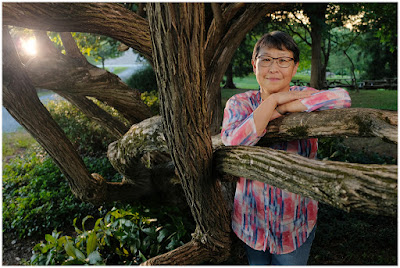
There are two main schools of thought when it comes to lighting. One is to light your subject in a way that is not grounded in reality but merely looks cool. And the other is to use lighting to translate the way your eye sees light into a way that your camera can better understand it.
That latter choice is the option we'll be exploring today in a walk-through of a sunset portrait of artist Wendy Ng for the Howard County Conservancy.
You have filled your iPhone with thousands and thousands of photos over the last few years. Its a nice catalog of memories but now its time to move on. You are looking for a quick and safe way to delete all the photos on your iPhone but dont know how. Don’t despair. In this article we will tell you the Continue Reading
The post How To Delete All Photos From iPhone Using iPhone, Mac or PC appeared first on Photodoto.
The current climate is not ideal for many businesses, particularly photographers. Without an outlet for work, it’s easy to ruminate on how you’re going to weather the storm. Going without work is not an option for many photographers, so what are the alternatives? Fortunately, there’s plenty you can do to pivot your business and retain your income. For example, increasing Continue Reading
The post Working From Home as a Photographer in the Current Climate: A No-Bull Guide appeared first on Photodoto.
The post How to Achieve Dark and Dramatic Food Portraits appeared first on Digital Photography School. It was authored by Charlie Moss.
Unless you’ve been under a rock for the last few years, you can’t have missed the growth of food portraits. They are everywhere, from the high-budget advertising of supermarkets and artisan food brands to amateur photographers on Instagram.
If you’re even slightly interested in food photography, wherever you look you’ll be presented with sensuous images of beautifully-styled food portraits. From burgers with perfectly placed drippy cheese to vintage-styled cakes laden with fruit, it sometimes seems that the photography world has gone food-mad.
What is a food portrait?
One competition with a food portraiture category says that they want to see images of food that are “good enough to eat.” But a look through their gallery of previous competitions suggests something more.
In food portraits, the food is the hero. It’s not about the farmer, the shop, or the packaging; the photograph is unapologetically about the food. And it should make you want to reach right into the picture and take a bite.
There are many styles of food portraits. Sometimes it’s about the hero ingredient and other times it’s about the finished dish. But it’s never about the person who made it or the place the food is being served.
Some photographers love a bright and airy feel to their images. Their shots wouldn’t look out of place in a designer loft apartment. Others prefer a darker-styled shot. And it’s this style that I’m going to focus on in this article.
(If you’d like some inspiration, just search “dark food photography” on Pinterest or Instagram and start scrolling.)
Choosing a subject
Not every piece of food makes for a great subject. If you’re shooting an ingredient before it’s prepared, then don’t be afraid to look for the most perfect or characterful examples you can find in the shop. Every flaw or imperfection will feel like it has been magnified by ten when you photograph it.
Of course, sometimes you might like to deviate from images of perfect ingredients! The potatoes I photographed in the pictures for this tutorial were delightfully gnarled. They come from a period in UK food production called “the hungry gap;” during this time, the last of the winter vegetables are on the table while we wait for the fresh spring produce. Always look for a story in your images.
If you’re planning on shooting a finished dish, then it needs to be plated both beautifully and creatively. This takes practice, and many professional photographers hire food stylists to help them with the job. Don’t be disheartened if it takes a while to get the hang of cooking and plating food that looks good in photographs (besides, you get to eat your attempts while you practice).
Take your time composing your scene. As you can see from the screenshot of my Lightroom catalog above, I knew roughly what I wanted from the start, but ended up making many minor adjustments to the potatoes I was photographing.
Don’t forget to think about your props and background. They are as much a part of the shot as the food itself. You can make your images even more unique by painting your own backdrops.
Keep it simple
To shoot dark food portraits, you don’t need an elaborate, complicated, or expensive setup. These potatoes were simply shot on a tabletop with a painted background and a fake wooden surface. There is natural morning light coming from the left-hand side of the image. On the right, I positioned a piece of cardboard with some tinfoil wrapped around it to act as a reflector.
Once I’ve shot a photograph that I’m happy with, I like to apply a general Lightroom preset to add contrast and color grade the image. This kind of subtle color grading can really help to set your photo apart.
Changing the color tones in this way is something that people who aren’t photographers often don’t do with their images, and so it adds a more polished look in the eyes of many viewers.
Take it to Photoshop
Once I’ve set the basic color that I want in Adobe Lightroom, I open the image in Photoshop. Photoshop lets you use layers, which ultimately allows you to have greater control over the image you are creating.
Apply sharpening
The first thing I always do when I’m opening an image in Photoshop is apply some gentle sharpening. It just crisps up all the details so that you can get to work.
My method for this initial sharpening is to first duplicate the background layer. You’ll need to get a copy of your image onto a new layer in order for this method to work. You can right-click on the existing layer in the layers panel and choose “Duplicate Layer.”
Apply a high pass filter with a radius of about 1.5 on the new layer that you just created. The high pass filter is found in the “Filter” menu (look in “Other” at the bottom of the list). The radius you need will vary, but if you look closely at the image above, you’ll see that the “ghost” of the image is barely visible when you preview the effect that the high pass filter is having.
Once you’ve done this, set the layer’s blend mode to “Overlay,” and you should see the effect of the high pass filter that you just applied.
Dodge and burn
You can make dark food photographs really come alive by using dodge and burn creatively, and that’s the technique at the heart of the example image above.
Rather than using the dodge and burn tools built into Photoshop, try this method instead. First, create two new layers. Name one “Dodge” and one “Burn.” In the “New Layer” dialogue box, make sure that you check the option to fill the layer with an overlay-neutral colour and set the blending mode to “Overlay.”
Then, using a soft brush set to 100% opacity but with a low (2-3%) flow, you can start to bring the image to life. Use a black brush on the burn layer to deepen the shadows and a white brush on the dodge layer to brighten the highlights.
Go gently and try not to lose too much detail! The trick with dodging and burning is to build up the effect slowly. Use brushes and layers like a painter uses light and shadow to shape the food portraits that you have photographed.
Before and after dodging and burning.
You can always turn down the opacity of a layer if you go too far, or you can even delete it and start again altogether. If there’s just a small bit that you’re not happy with, you can apply a layer mask and just mask out that small section.
Finishing the food portrait
To finish off the image, I added a digital texture to the background and faded it until it was almost invisible. It had the effect of softening the painted backdrop slightly, which is a look I preferred.
This basic approach of editing colors in Lightroom (perhaps using a preset), sharpening the image in Photoshop, and then dodging and burning the photograph is one that can be applied to many different kinds of photographs.
I’ve used the same approach in architectural photography as well as portraits, but I feel that it really shines as a technique when it comes to dark and dramatic food portraits.
The post How to Achieve Dark and Dramatic Food Portraits appeared first on Digital Photography School. It was authored by Charlie Moss.
The post S’cuse Me While I Tweak the Sky: Tips for Dramatic Skies in Your Photos appeared first on Digital Photography School. It was authored by Rick Ohnsman.
Singing “Home on the Range,“ a cowboy might picture the perfect place where “the skies are not cloudy all day.”
A cloudless day might appeal to many people, but not to landscape photographers.
The so-called “bluebird day” generally makes for poor landscape photographs with a boring, featureless sky. Maybe you’ve also heard this: “When the weather gets bad, the photos get good.”
So what do you do when Mother Nature gives you few or no clouds to work with? Let’s look at some tips for dramatic skies.
There’s a good sky here, but it’s going to take some coaxing to bring it out. Canon 6D | Canon EF 24-105 f/4 | 1/4 sec | f/18 | ISO 200
In camera
If there are no clouds at all to work with, your options while shooting are pretty limited. You may want to compose your shot so that there is little, if any, sky. However, if you have even a few clouds to work with, here are some ways to make the most of them:
Use a polarizing filter
Polarizing filter effectiveness depends on the angle of your shot in relation to the angle of the sun. The strongest effect is with the sun 90 degrees to the direction your camera is pointing; you get varying degrees of effectiveness at other angles.
Look through the viewfinder, rotate the polarizer, and watch as the contrast between the sky and clouds changes. Sometimes this will be very dramatic, especially with white puffy clouds on a blue sky.
Adjust to your taste, backing off a bit if needed. There is such a thing as too much, however, so remember:
What you do with a polarizer when making the shot can’t easily be undone later in post-processing. Be careful when using a polarizing filter in combination with a wide-angle lens. Parts of the sky may darken more than others across the shot, giving an unusual look you probably won’t like, one that is tough to fix later.
A wide-angle lens (this shot was made at 17mm) plus a polarizer can be a bad combination. Note how the sky is darker in some places than others. This would have been better without the polarizer.
Use a graduated neutral density (GND) filter
Landscape photographers often deal with a wide dynamic range between a bright sky and a much darker foreground. Should you expose for the sky or the land, the highlights or the shadows?
A graduated ND filter that goes from a darker density at the top to clear at the bottom can help even out the exposure. The advent of digital editing tools that emulate this in editing has caused many photographers to dispense with using these filters.
One advantage to working without a GND is that you can change your mind later if you don’t want a GND effect. You can also better deal with scenes where the horizon isn’t perfectly straight across. Still, some photographers favor the traditional graduated ND filter in certain circumstances.
Bracket
Rather than use a graduated ND filter in the field to even-out a composition with a bright sky and dark foreground, take multiple bracketed shots while varying the shutter speed (but not the aperture).
Many cameras have this feature built-in, so you can make a series of bracketed shots with one press of the shutter button. Having a series of the same shot taken at varied exposures will give you the raw materials for some of the editing techniques we’re about to explore.
In edit
Sometimes you are able to capture an image that has clouds in the scene, but they are underwhelming and need some editing help to give them extra pizzazz. Let’s look at some tips for dramatic skies using standard editing techniques.
Basic sky editing
Lightroom is usually my editor of choice, and so the techniques I’ll mention next will use it as a reference. The concepts should translate fine to other editors, however, so if you grasp the ideas you’ll be able to implement the same changes, whether you use Capture One, ON1 Photo RAW, ACDSee, or something else.
Whatever you’re photographing, work to keep your exposure “in-bounds.” That is to say: Don’t blow out the highlights on the right side of the histogram or block up the shadows pushing them past the left side of the histogram. Whether working with a dark or light shot, or maybe an image with both light and dark extremes, if the entire histogram is “between the goalposts,” then you have an image that is workable.
That said, whenever possible, use the ETTR (expose-to-the-right) method. If you are not familiar with this, I suggest you read up on it. The greatest amount of data in a photo file is in the brighter tones. If you have a bright sky (and are trying to get some detail in the clouds) combined with a darker foreground, it is better to have to darken the image while editing. You can purposely expose for the highlights and get the sky correct in-camera, but then you may be later faced with trying to brighten up the shadows. A cleaner, less noisy image will result if you have to later bring down the highlights rather than if you drag up dark shadows “out of the mud.”
Also, we are talking about editing a RAW file, not a JPEG. If you are still shooting JPEGs then you have already limited what you can recover. If you don’t shoot RAW images, I suggest you stop here, learn why and how to shoot and work with RAW files, and then come back.
It’s maybe harsh, but if you want to be a more skilled editor and do things like recover cloudy skies, then learning how to work with RAW files is a prerequisite. ‘Nuff said.
Here is my standard workflow in Lightroom for just about any image. If there are clouds in the shot, it’s Step One that brings them alive.
Adjust the exposure slider. Don’t worry too much about making it just right. you’ll fine-tune again later.
Bring down the highlights. How much? Look at your image and watch the histogram as you work.
Open up the shadows. Move the slider to the right. Watch the image and the istogram.
Set your white point. There are several ways to do this. I like this method: Hold down the Alt key (Option on Mac). Click and hold the Whites slider. The image will turn black. Now while holding the key and the mouse button down, slowly move the slider to the right until you see a few specks of white on the image. Slide back left a bit if necessary. What you’re doing is making the points that you should into the brightest (whitest) points in the image. They will set the extreme right point on the histogram.
Set your black point. This technique is the same: Holding down the Alt/Option key, click the Blacks slider, hold, and drag left. The screen will go white until you reach a point where some black specks appear. I sometimes find I will allow a few more black specks (totally black) points to affect an image than white points, but that depends on the image.
Re-adjust your exposure and contrast. You may need to go back now and re-adjust your Exposure slider a bit and/or adjust the Contrast slider.
With just some basic Lightroom editing, the clouds look better already. Canon 6D | Canon EF 24-105 f/4 | 1/4 sec | f/18 | ISO 200
How much to adjust any of the sliders will depend on the image. In general, this simple workflow will get your image “in the ballpark” and likely help start bringing out detail in the sky.
You may want to move onto other global adjustments like Texture, Clarity, Dehaze, Vibrance, and Saturation, because you can adjust those to your taste. If, however, your sky needs special help, it’s time for some local adjustments.
Going local
It’s quite possible your sky will need some local adjustments to give it the look you seek. If you’re not familiar with Lightroom’s local adjustment tools and techniques, DPS writer Andrew S. Gibson has written a good article on that subject.
I will add a couple of things to try when using Lightroom’s local adjustment tools to help accentuate your sky and clouds:
Try the Range Masking tools to better select your sky. Used in combination with the Graduated Filter, the Radial Filter, and the Adjustment Brush, you’ll be able to apply your effects where you want them and not where you don’t.
Try using the Clarity and Dehaze sliders when seeking to tune the sky to achieve the look you want. Go easy, though. It’s easy to go way overboard, especially with the Dehaze slider.
Combine a Graduated Filter with the Luminance Range Mask in Lightroom to select the sky. Then use the sliders to get the look you seek.Now we’re talking! Compare this to the original image at the top of the article. Canon 6D | Canon EF 24-105 f/4 | 1/4 sec | f/18 | ISO 200
Multiple shots: HDR in Lightroom
I mentioned bracketing your shots while shooting high dynamic range subjects, such as with the bright-sky/dark-land combination you may often encounter.
When editing, having multiple bracketed images to work with will offer all kinds of possibilities. One of them is the ability to do HDR (high dynamic range) work within Lightroom. This is a whole lesson unto itself, and I suggest you learn it.
5 bracketed images are merged into a single HDR photo in Lightroom.
After producing an HDR image from multiple images merged in Lightroom, you’ll have a 32-bit file to work with, rather than the standard 24-bit single image files you are accustomed to dealing with.
The image will now have 10 stops of exposure adjustment (the Lightroom Exposure slider will go from a +/- 5 range to a +/- 10 range).
Make your bracketed shots so the darkest image captures all the bright sky detail and the brightest image picks up all the shadow detail. Combined into a single 32-bit HDR DNG image in Lightroom, you’ll have lots of adjustment possibilities to get a just-right exposure with good sky detail.
The 32-bit DNG file created after a merge-to-HDR routine in Lightroom gives a much larger exposure range to work with.
Moving to Photoshop
You can do a lot in Lightroom, but sometimes you need more control and more power. One of the things Photoshop offers that Lightroom doesn’t is layers. Here are some tips for dramatic skies using Photoshop for editing.
Blending
You will need at least two shots with different exposures for this technique. Let’s outline a very simple approach.
(You will need to use layers and masks in Photoshop, so if you’re not familiar with those, here’s your chance to learn.)
This will work best if you shoot from a tripod so your images are identical except for exposure. Shoot at least two shots, one exposed to capture all the bright details in the sky, the other exposed for the darker areas of the land.
If you’re coming from Lightroom, highlight both images, then click Photo>Edit In>Open as Layers in Photoshop. Have the lighter image on top.
To be sure the images are sized and aligned perfectly, select both layers in Photoshop (F7 turns on the layers palette), click the first layer, hold down Shift and click the second layer, and then from the top menu click Edit>Auto-Align Layers>OK.
Create a mask on the top layer. (With the top layer selected, click the Add Layer Mask icon, which looks like a rectangle with a circle in it).
Use the Brush Tool with the color set to Black. Click on the mask you just created. Now paint over the sky. As you do, you will reveal the darker sky layer underneath. Adjusting brush size, opacity, and brush softness will help you better control things.
One shot exposed for the sky, the other for the land. I then layered, aligned, and blended using a mask in Photoshop. Canon 6D | Canon EF 24-105 f/4
The multi-layer masking approach can also work well if you use Photoshop selections to choose what you will keep from one layer and use from the other layer. Selection techniques can be simple or very complex in Photoshop, depending on how complex a selection you need to make. I will point you to a good entry point for further study: this article by DPS writer Yacine Bessekhouad.
Here’s a different technique to try when you have a blue sky and not much additional blue in your shot. Use the Lightroom targeted adjustment tool in the HSL/Color panel to bring down the luminance level of the blue. You can go even further with a monochrome conversion. The look is similar to having used a polarizing filter.
Do some multiplying
Perhaps you only made one shot, didn’t bracket and, despite some of your editing techniques, the sky and clouds still seem a little wimpy. Never fear.
Here’s something else to in Photoshop:
Make a duplicate of the layer. (Ctrl/Cmd + J.) You will have two duplicate layers on top of each other.
Duplicate that copy again so you now have three duplicate copies. Temporarily turn off the bottommost layer (probably labeled “Background”) by clicking the eyeball icon.
Now, change the blend mode to Multiply. The detail and contrast in the clouds should be amplified.
Duplicate again for further amplification.
Repeat with additional duplicates; hit Ctrl/Cmd + J as desired to keep duplicating. until the sky turns the way you’d like. Don’t worry about the foreground just yet.
To reduce the duplicates into one layer, merge the visible layers: Layer>Merge Visible (or Ctrl/Cmd + Shift + E).
You will now have just two layers, the merged layers and the background layer. Turn the Background layer back on by clicking the eyeball again.
You will now need to use one of the selection and masking techniques to mask out (“erase”) the probably over-darkened land/foreground portion of the top layer.
Here I brought the shot into Photoshop, made a duplicate, and then applied the Multiply blend mode to the top layer. Bringing back the darker portion was easy here with a straight horizon line. This look is similar to what you might get with a traditional glass graduated ND filter.
S’cuse me while I switch the sky
In the rock classic “Purple Haze,” Jimi Hendrix sang, “S’cuse me while I kiss the sky.” Some people later thought the lyrics to be “kiss this guy;” that’s called a misheard song lyric or mondegreen. A website is devoted to them. As a photographer, I prefer to sing my own version: “S’cuse me while I switch the sky.”
Could this sky be any more boring? Let’s help it. Canon 6D | Canon EF 24-105 f/4 | 1/60 sec | f/8 | ISO 100
Sometimes when there’s no clouds at all, or a plain blue sky, a plain gray overcast sky, or maybe you blew out the sky and there’s nothing to recover, you’re left with no alternative. A sky replacement is needed.
Other times, you just want a different sky for a more dramatic effect.
Whatever the case, substituting skies is a great way to get some nice images and a really great way to polish your editing skills.
Now here’s a nice sunset. Let’s work a piece of this in. Canon 6D | Canon EF 24-105 f/4 | f/11 | ISO 200
With Photoshop
Put the clouds layer on top, then use a black brush on a white mask and paint to reveal the lower beach area again.Back in Lightroom for some more fine-tuning. Isn’t this a much nicer image than the original?
Sometimes sky replacement is an easy task, such as when you have a flat horizon or perhaps a hard-edged building against the sky.
Of course, if you have trees with leaves or intricate details to select, it can be much more challenging.
Some might have called this a perfect day when this historic train rolled into the Boise (Idaho) Union Pacific Depot. Not a cloud in the sky. Boring! At least with the hard, straight lines and continuous blue color, making a selection is easy.
My goal here is not to teach you the various techniques of sky replacement. There are many instructional articles and online tutorials for that. Here’s an example from DPS writer Simon Ringsmuth for basic level sky replacement. Here’s an online Youtube tutorial where a more detailed foreground tree is dealt with. Here’s yet another tutorial with different techniques.
As I said, sky replacement can be a deep dive into Photoshop tools and techniques. But what if there was a simpler way? We’re now beginning to see one-click tools that do a pretty good job of sky replacement.
Here’s a dramatic sky. But will it work?Impressive, but does it work? Might you question if this really was the sky that was present when the photo was taken?
With Luminar 4
Sky replacement software has been around for a few years, but it’s only been recently that it’s produced good results with relatively complex subjects. The use of artificial intelligence in applications has made a huge difference in the quality of the finished image.
The “king of the hill” at this writing may be Skylum’s Luminar 4.
This was an easy job for Luminar 4 and this stock sky looks pretty convincing.
Luminar 4 comes with a few dozen skies you can use as replacement, and you can add your own skies.
(If you’re serious about getting into sky replacement, I would strongly encourage you to start collecting sky images, snapping shots whenever you see an interesting sky and adding them to a folder for possible later use.)
Nice shot, but it would be better with a dramatic sky. Canon 6D | Canon EF 70-200 f/2.8 | 200mm | 1/30 sec | f/16 | ISO 100
Something to bear in mind when deciding whether to use the included skies or your own is resolution. The replacement sky should have a resolution at least as great or greater than the image to which you’ll be adding it. Using a low-res sky image with a higher-res original image will just look bad and degrade your shot.
This sunset sky in the Luminar 4 collection was just right for this shot. The program also let me tune the color balance of the original image to match more effectively.
A confession here:
I have only dabbled with sky replacements in Luminar 4 using the free demo version, so I don’t claim to be an expert. I am reasonably impressed with what I’ve seen so far. Even with a fairly complex subject, such as the harbor shot below with lots of sailboat masts and rigging extending into the sky, it did a very nice job.
Might you do better with Photoshop? I guess that would depend on your skill level. Artificial intelligence has not yet reached the level of human skills and intelligence. Then again, much will depend on your level of proficiency with Photoshop. Speaking for myself, I’m not sure I could currently do better than Luminar at this time.
And doing it with a few simple clicks? Good stuff, if you ask me!
With the masts and rigging extending into the sky, replacing the sky with Photoshop selection tools, layers, and masks would be challenging. With Luminar 4, it was done with a few clicks. Perfect? Maybe not, but impressive. It added the birds, too!
Other tools
Luminar isn’t the only program for doing sky replacements. I work on a PC and my tablet and phone are Android devices, so I’m not as familiar with what’s on the Apple side of this kind of software. I do know other forms of software are moving toward the use of AI and doing sky replacement.
I was pleased to stumble across an Android app that may not be as refined as Luminar. And for images you might shoot with your phone and want to do a sky replacement for the web, Enlighten’s Quickshot does an admirable job and is very easy to use, right on your phone. I see it is also available for iOS.
I replaced the sky in this shot right on my Android phone. I used Quickshot, a pretty good little app. For online work that will be posted on the web, it seems plenty capable.
Ethics of sky switching
So if you can, does that mean you should? If you can replace the sky in a photo, should you? When does the result stop being a photograph and become an art piece, a reflection of the skills of a photo editor and not those of a photographer? Would you enter an image in a photo contest where you had replaced the sky?
I don’t claim to have the answers, but I have raised the ethical questions surrounding sky replacement before. Take a look at this article I wrote several years ago which dives deeper into that subject.
If you’re going to do magic…
Have you ever had the misfortune of watching a really bad magician? A show where it is clearly evident the performer really did have something up his sleeve or where there was no doubt about how the trick was done? I’d use that example as a lesson in what not to do if you decide to do sky replacement with your photos.
A shot where the light in the sky comes from one side while the subjects in the foreground are lit from the other side would be an example of “bad magic.” So would different light temperatures between land and sky or evident fringing where poor selection and masking was done. Rather than embarass yourself with a poorly executed sky replacement where even non-photographers can spot the fakery, practice your skills for yourself only. I believe only when you’re ready for “primetime” should you begin showing your sky replacement images.
Then, of course, you will face a new dilemma. Once people are aware you can produce shots with amazing skies, even when you do capture a photo in-camera with a gorgeous sky they will wonder, “Is that real or did you add it?”
If you’re going to “do magic” and replace skies, it had better be convincing. You tell me: Is this the original sky or not?
Conclusion
I hope you picked up some good tips for dramatic skies in this article. I also hope you’ll give consideration into not just when and how to implement these techniques, but if you should or shouldn’t.
Some people really don’t enjoy photo editing and would prefer to do everything in-camera as much as possible. For others, editing is part of the craft and no photo is complete until it has undergone an extensive edit session.
As I write this, the Covid-19 crisis lingers, and so maybe you have more time at home to work on your editing skills. Meanwhile, let me leave you with this sign-off used by Garrison Keillor, host of the radio show, “A Prairie Home Companion.”
“Be well, do good work, and keep in touch.”
The post S’cuse Me While I Tweak the Sky: Tips for Dramatic Skies in Your Photos appeared first on Digital Photography School. It was authored by Rick Ohnsman.
The post 10 Incredible Bird Photography Tips for Beginners appeared first on Digital Photography School. It was authored by Prathap DK.
What is the most important factor in getting your bird photographs noticed by a large audience? Is it the camera or the lens or the bird?
Imagine you have a Canon 1D X Mark III or a Nikon D5 and an 800mm lens. You have been to a place to photograph the magnificent bald eagles. Everything seems perfect! Isn’t it?
But what if you do not know what makes a good bird photograph? Do you think, just by shooting a burst of photographs, you’ll get the best results?
Definitely not. You may get snapshots, but not photos.
“There is nothing worse than a sharp image of a fuzzy concept.”– Ansel Adams
Today you will learn some of the core principles of bird photography. These will give you an understanding of what makes a good bird photo.
1. You don’t need expensive lenses for great bird photography
A great bird photograph does involve several factors, such as:
Quality and direction of the light
Composition
Knowledge about the bird and its activities
Background
Knowledge about the gear you are using
Proper settings
Proper exposure
Your position
3 + 1 Ps (Patience, Perseverance, Practice + Passion)
You see, it takes a lot to become a good bird photographer. A decent APS-C or DX-format camera body with a telephoto lens of up to 300mm is more than sufficient to really get great bird photographs.
It is important to realize that bird photography is much more than just the camera or the lens. There is no denying the fact that the longer the lens, the easier it is to photograph birds that are skittish. But the lens itself cannot make a great bird photograph.
Also, if you do not have a longer telephoto lens, nothing stops you from taking a great photograph of birds like mallard ducks, geese, gulls, and herons that are easily approachable. If you cannot take a close-up of a bald eagle, nothing stops you from taking a unique photograph of a bald eagle in its habitat.
Everything boils down to how you view the situation. “Is the glass half empty or half full?”
2. Light and composition
Photography is all about light. Light has a few characteristics that will make a photograph wonderful.
Early morning and late afternoon light is usually the best time for bird photography. The light during these times is soft. As a bonus, the birds are very active.
Soft light has some wonderful characteristics, such as:
It does not cast harsh shadows on the bird
It brings out a glow in the bird’s plumage
It creates a catchlight in the bird’s eye
Composing a bird photograph helps you convey your message in the best possible way. Bird photography composition is generally very simple. Following a few basic composition principles will help you make a difference:
Use the rule of thirds compositional technique to place the bird off-center
Use color contrast by aiming for a complementary background
Fill the frame with the bird
Use a clean background
3. Transport the viewer into the bird’s world
We see our world at five to six feet high, but birds see the world in few inches to few feet. To get a feeling of the bird’s world, get down on their level!
Go low and go slow.
Always try to photograph the birds on their eye level, except for birds in flight, of course. Getting down low has greater benefits that will overshadow any of your complaints, such as not wanting to bend down, lie down, etc. Some of the obvious benefits are:
You get more intimate photographs of birds since you will get eye contact
You will get pleasing blur both in the foreground and background
You make the bird less scared since you can hardly move
You will transport the viewer into the bird’s world
4. It’s all in the eye
Take a look at any photograph of a bird. What is the first thing you want to see?
It’s the eye, right?
We tend to make an eye connection with any living being. It is no different than with birds. The eyes are the windows to the soul. If there is no light in the eyes, then they look dull or lifeless. Birds look lively when there is light in their eye.
This light in the eye is called a catchlight.
By following a few guidelines you can easily get better bird photographs:
Always keep the bird’s eye in sharp focus
Check for a catchlight in the bird’s eye (this is easy to get if the bird is front-lit)
Make sure to photograph from the bird’s eye level
5. Fill the frame
In bird photography, we generally photograph an individual bird. When photographing individual birds, it is always a good idea to fill the frame.
Advantages of filling the frame with the bird are:
It is easy for the viewer to focus on the bird
It is easy to achieve a pleasing blur or bokeh effect in the background
It is easy to properly expose for the bird
It is easy to compose in the field
6. Tell a story
Storytelling in bird photography should not be confused with stories in books and newspapers. Storytelling is a way to express the time of the day, mood, place, or activity of the bird in a single photograph. Viewers should be able to picture themselves in the scene.
Simply put, a photograph of a bird plus its surroundings will give a better sense of story than just the bird filling the frame. Though the story may not always be true.
Here are few tips you can follow while you photograph a bird in its habitat:
Make the bird an integral part of the photograph by including its natural habitat
Show the interaction of birds if there is more than one bird in the photograph
Indicate the weather conditions by including snow, rain, or mist
Take photographs during sunrise and sunset
Show season by including flowers in bloom, autumn colors, or snow
7. Capture their action and behavior
Birds are always in action. They hardly sit still. Capturing birds in action involves more effort and patience compared to photographing perched birds.
Here are a few tips for capturing birds in action:
Photograph early in the morning or late in the afternoon when birds are very active
Use burst mode to take several photographs during the action
Track the bird until focus is locked before pressing the shutter
Learn to anticipate the action either by observing or reading about birds
Birds tend to ignore you when they are very hungry. It is very easy to photograph them in action during these times. But care should be taken not to disturb them and to maintain considerable distance.
Capturing a bird’s behavior is much tougher than any other aspect of bird photography. This is generally because birds become alert the moment they see you.
The alert bird is always trying to fly away, so you’ll rarely see its behavior. You can observe the actual behaviors of a bird when it is truly comfortable.
There are few ways to make a bird comfortable:
Use a natural place to hide, like a bush or tree or something that obscures you
Wait patiently until the bird ignores you
Visit the location several days in a row until the bird becomes comfortable with your presence or you get the right opportunity
Remember to research and learn everything about the bird you are photographing. This will definitely make you a better bird photographer; also, you will enjoy knowing about the bird.
8. Capture their magnificent flight
The most interesting part of bird photography is capturing their magnificent flight. This is very tricky for beginners and pros alike. It is not easy to take flight photographs that will wow viewers.
Your success photographing birds in flight largely depends on the bird, as well as the technique that you employ. Smaller birds are generally very erratic in their flight and also a bit difficult to track, since they are generally small in the frame. But larger birds are slightly less swift and are not as difficult to track.
If you want to be successful with flight photography, start with larger, slower-moving birds. Learn all the field techniques to capture the perfect photographs of these birds.
Here are some simple tips that will help you capture those magnificent flight photographs:
Learn about the bird’s flight patterns
Know the bird’s landing and take-off patterns
If there is more than one bird, it is almost always the case that, if one flies, the rest will follow suit
Track the bird for a while and let the camera achieve focus before pressing the shutter
Use Aperture Priority so you do not have to worry much about the changing light conditions
9. The background makes the picture
This is one of my favorite questions: Is it the background or the bird that makes the picture?
Go through all your favorite bird photographs and see it for yourself.
Except for extreme close-up portraits of birds, every other type of bird photograph will look great when the background is clean and complements the bird.
It is very important to keep an eye on the background while taking bird photographs. Just follow these simple tips:
Avoid taking bird photographs when the background is too distracting
Avoid taking bird photographs when the background is plain and boring
Wait for the bird to assume a good position or change your position to get an interesting background
Choose maximum aperture values to throw the background slightly, or completely, out of focus
10. Practice with common birds
I urge you to practice photographing common birds. You might have understood by now that these techniques are not dependent on your camera, your lens, or the bird. I was using an 18-200mm lens for the first four years of my bird photography. I learned and practiced most of my birding techniques with common birds like seagulls, mallards, geese, and herons.
I spend most of my time photographing these common birds, and I challenged myself to make some unique photographs of them; this challenge has fueled my passion for a long time.
I put more importance on learning and practicing photography than on whatever gear I possess. I am very happy to say that I learned most of the photography basics here at Digital Photography School.
I hope my story so far is an inspiration to you to embrace the beauty of these common birds.
Wrap up
Focus your time and energy on learning all the core principles outlined above. Prove to yourself that you have the passion to go out and photograph birds every day, or as often as you can.
Remember that proper techniques will always outsmart equipment. Make every attempt to create amazing photographs of the common birds. Enjoy photographing birds. That is the secret to success.
The post 10 Incredible Bird Photography Tips for Beginners appeared first on Digital Photography School. It was authored by Prathap DK.
The post Nikon’s 2019 Mirrorless Shipments Lag Behind Sony, Fujifilm, and Olympus appeared first on Digital Photography School. It was authored by Jaymes Dempsey.
Last month, we reported on Nikon’s decreased 2019 market share (Nikon now sits behind both Canon and Sony, but ahead of Fujifilm, Panasonic, and Olympus).
And we can now follow that up with additional data that highlights Nikon’s struggles, recently published in Nikkei article.
In 2019, over eight million interchangeable lens cameras (ILCs) were shipped, and here’s the breakdown by camera manufacturer:
Canon: 4.16 million ILCs
Nikon: 1.73 million ILCs
Sony: 1.66 million ILCs
Fujifilm: 500,000 ILCs
Olympus: 330,000 ILCs
Other Manufacturers: 280,000 ILCs
These numbers are pretty much what you’d expect, with Canon leading the digital camera manufacturers by a large margin and Nikon in second place, closely followed by Sony. Fujifilm sits at the back half of the pack, then Olympus, while Panasonic and Ricoh/Pentax fail to make the top five.
Here, we can see that Nikon still remains competitive, even as Sony threatens its position. But bear in mind that these numbers include all interchangeable lens cameras, not just mirrorless models.
And when you look at mirrorless cameras (MILCs) alone, Nikon’s position becomes much more tenuous:
Sony: 1.65 million MILCs
Canon: 940,000 MILCs
Fujifilm: 500,000 MILCs
Olympus: 330,000 MILCs
Nikon: 280,000 MILCs
Others: 240,000 MILCs
As the data indicate, Sony is firmly on top, though I expect its lead will narrow over the next year or so. Canon’s dedication to its full-frame mirrorless system, as displayed in the EOS R5/EOS R6 release, will boost Canon’s numbers to at least become competitive with Sony.
But for Nikon, the future isn’t looking so rosy. It’s now been two years since the release of Nikon’s initial mirrorless offerings, the Z6 and the Z7. And while we’ve gotten two additional mirrorless cameras to show for it (the full-frame Z5 and the APS-C Z50), Nikon hasn’t even outperformed Olympus, a company in the process of selling its unprofitable camera division.
It’s clear that Nikon has big plans for the future (rumors of a Nikon Z8 abound), and Nikon recently announced several impressive Z-mount lenses. But right now, the company seems to be held up primarily by DSLR sales, which just doesn’t seem sustainable.
Let’s just hope that Nikon manages to turn things around in the coming years. For me (and, I imagine, for most photographers), more camera choice is pretty much always better.
Now over to you:
What do you think about Nikon’s recent camera sales? Do you think the company will make a comeback? What do you think Nikon needs to do to be successful? Share your thoughts in the comments!
The post Nikon’s 2019 Mirrorless Shipments Lag Behind Sony, Fujifilm, and Olympus appeared first on Digital Photography School. It was authored by Jaymes Dempsey.


 Bad crop
 Good crop
 Bad crop
 Good crop




 Photography is all about light. Light has a few characteristics that will make a photograph wonderful.


 Focus your time and energy on learning all the core principles outlined above. Prove to yourself that you have the passion to go out and photograph birds every day, or as often as you can.