The post 6 Tips for Near-Macro Photography with a Telephoto Lens appeared first on Digital Photography School. It was authored by Elliot Hook.
Macro photography is the art of capturing the fine detail of very small subjects that may not be seen by the naked eye. Technically, to fall under the category of “macro,” the subject should be captured with a reproduction ratio of 1:1 (i.e., the subject will be captured on the sensor at 100% life-size).
Macro lenses are specially designed to minimize the focusing distance, allowing the photographer to get closer to the subject and therefore increase the reproduction ratio.
There are a number of techniques that can be used to help achieve the desired magnification without a dedicated lens (extension tubes, close-up filters, and reversing rings). However, one of the less common techniques is to use something that you probably already have in your bag: a telephoto lens.
Milking Bonnet Fungi (Mycena galopus)
Telephoto lenses offer extreme magnification, but generally have much larger minimum focusing distances. This pushes the photographer farther from the subject and therefore reduces the reproduction ratio. Some telephoto lenses, when combined with camera systems utilizing smaller sensors, are able to offer 1:1 magnification (true macro). However, typically, telephoto lenses are limited to close-up photography at near-macro reproduction ratios.
Using a telephoto lens for this kind of work offers a couple of advantages over a dedicated macro lens that are a direct result of the large minimum focus distance. Because the working distance to the subject is in the region of 1 meter (compared to the 15-30 cm working distance of standard macro lenses), the risk of disturbing your subject as you compose your shot is much reduced.
Also, given the extra distance between the camera and the subject, you are much less likely to cast a shadow over your subject, and you have a lot of freedom with the lighting you can employ to light the subject, both natural and flash.
Common Blue butterflies, mating (Polyommatus icarus)
Using a telephoto lens for such precise work is not without challenge, so here are a few tips to help maximize your chances of getting that near-macro shot with your telephoto lens:
Due to the extreme focal length, the risk of reduced sharpness due to camera shake is higher. Therefore, it is imperative to use a tripod and a remote shutter release to try to limit lens/camera movement.
Even on a tripod, images can still suffer from camera shake. Try to use a tripod collar for your telephoto lens, so that the lens is clamped directly to the tripod, reducing the chances of “lens wobble.” If not, use the “1/focal length’” shutter speed rule to help capture sharp images. (I always use 1/effective focal length, where you multiply your focal length by the sensor crop factor to give the focal length in 35 mm terms.)
Be aware of the depth of field. Using extreme focal lengths at such close distances can reduce the depth of field to fractions of a millimetre. Therefore, to ensure the subject is sharp throughout, use a small enough aperture to ensure the depth of field extends across your whole subject (there are websites and apps to help you do this).
If you want to capture your subject in focus from front to back, ensure that it is parallel to your sensor. The depth of field will be so narrow at the extreme focal lengths that you may not have more than a few millimetres to play with. Therefore, position yourself accordingly to maximize your chances of capturing a sharp image.
If your telephoto lens as an AF/MF switch, switch it to manual focus and compose/focus the shot manually. You may find that, when focusing manually, the minimum focusing distance decreases, meaning that you can get closer to your subject, increasing the magnification.
Use a teleconverter to increase the focal length, but retain the same minimum focusing distance. This will allow you to significantly increase the magnification of the subject, without having to move any further away. Increasing the focal length in this way will have consequences on your choice of shutter speed and aperture, but as long as it is taken into consideration, a teleconverter can successfully be used to increase the reproduction ratio.
Common Blue Damselfly (Enallagma cyathigerum)
Using a telephoto lens for near-macro photography will typically not allow you to magnify your subject as far as if you were using a dedicated macro lens, but you will be able to test the water to see if macro photography is something you enjoy without having to splash out on any additional kit.
If you do decide that macro photography is for you, by putting this technique into practice, you will learn a lot of good fieldcraft that will be beneficial when you get around to picking up that new macro lens.
The post 6 Tips for Near-Macro Photography with a Telephoto Lens appeared first on Digital Photography School. It was authored by Elliot Hook.
The post Wedding Photography – 21 Tips for Amateur Wedding Photographers appeared first on Digital Photography School. It was authored by Darren Rowse.
“Help me, I’m photographing my first wedding! Give me some wedding photography tips, please!”
It’s a question that photographers frequently ask. So while I’m not a pro wedding photographer, I thought it was time to share a few tips on the topic of wedding photography.
I’ll leave the technical tips for photographing a wedding to the pros. But, as someone who has been asked to photograph numerous friends’ and family’s weddings, here are a few suggestions.
1. Create a shot list
One of the most helpful tips I’ve been given regarding wedding photography is to get the couple to think ahead about the shots that they’d like you to capture on the day.
Then compile a list so that you can check each shot off. This is particularly helpful in family shots. There’s nothing worse than getting the photos back and realizing you didn’t photograph the happy couple with Grandma!
2. Wedding photography family photo coordinator
I find that the family photo part of the day can be quite stressful. People are going everywhere, you’re unaware of the different family dynamics at play, and people are in a “festive spirit” (and have often been drinking a few spirits) to the point that it can be quite chaotic.
Get the couple to nominate a family member (or one for each side of the family) who can be the “director” of the shoot. They can round everyone up, help get them in the shot, and keep things moving so that the couple can get back to the party.
3. Scout the location
Visit the locations of the different places that you’ll be shooting before the big day.
While I’m sure most pros don’t do this, I find it really helpful to know where we’re going, to have an idea of a few positions for shots, and to know how the light might come into play. Before one or two weddings, I’ve even visited locations with the couples and took a few test shots (these made nice “engagement photos”).
4. In wedding photography, preparation is key
So much can go wrong on the day, so you need to be well-prepared. Have a backup plan (in case of bad weather), have batteries charged, memory cards blank, think about routes and times to get to places. Get an itinerary of the full day so you know what’s happening next. If you can, attend the rehearsal of the ceremony, where you’ll gather a lot of great information about possible positions to shoot from, the lighting, the order of the ceremony, etc.
5. Set expectations with the couple
Show the couple your work/style. Find out what they want to achieve, how many shots they want, what key things they want to be recorded, how the shots will be used (for prints, etc.). If you’re charging them for the event, make sure you have the agreement of price in place upfront.
6. Turn off the sound on your camera
Beeps during speeches, the kiss, and vows don’t add to the event. Switch off your camera sounds beforehand and keep them off.
7. Shoot the small details
Photograph rings, backs of dresses, shoes, flowers, table settings, menus, etc. These help give the end album an extra dimension. Flick through a wedding magazine at a newsstand for a little inspiration.
8. Use two cameras
Beg, borrow, hire, or steal an extra camera for the day, and set it up with a different lens. I try to shoot with one wide-angle lens (great for candid shots and in tight spaces, particularly before the ceremony in the preparation stage of the day) and one longer lens (it can be handy to have something as large as 200mm if you can get your hands on one; I use a 70-200mm).
9. Consider a second wedding photographer
Having a second photographer can be a great strategy. It means less moving around during ceremony and speeches, and it allows for one photographer to capture the formal shots while the other gets candid shots. It also takes a little pressure off you as “the one” who has to get every shot!
10. Be bold but not obtrusive
Timidity won’t get you “the shot,” so sometimes you need to be bold to capture a moment.
However, timing is everything, and thinking ahead to get in the right position for key moments is important so as not to disrupt the event.
In a ceremony, I try to move around at least 4-5 times, but I try to time my move to coincide with songs, sermons, or longer readings. During the formal shots, be bold, know what you want, and ask for it from the couple and their party. You’re driving the show at this point of the day and need to keep things moving.
11. Learn how to use diffused light
The ability to bounce a flash or to diffuse it is key. You’ll find in many churches that light is very low. If you’re allowed to use a flash (and some churches don’t allow it), think about whether bouncing the flash will work (remember that if you bounce your flash off a colored surface it will add a color cast to the picture), or whether you might want to buy a flash diffuser to soften the light.
If you can’t use a flash, you’ll need to use a fast lens at wide apertures and/or bump up the ISO. A lens with image stabilization might also help. Learn more about using flash diffusers and reflectors.
12. Shoot in RAW
I know that many readers feel that they don’t have the time for shooting in RAW (due to extra processing), but a wedding is one time that it can be particularly useful, as RAW gives so much more flexibility to manipulate shots after taking them. Weddings can present photographers with tricky lighting that results in the need to manipulate exposure and white balance after the fact, and RAW will help with this considerably.
13. Display your shots at the reception
One of the great things about digital photography is the immediacy of it as a medium. One of the fun things I’ve seen more and more photographers doing recently is taking a computer to the reception, uploading shots taken earlier in the day, and letting them rotate as a slideshow during the evening. This adds a fun element to the night.
14. Consider your backgrounds
One of the challenges of weddings is that there are often people going everywhere, including the backgrounds of your shots. Particularly with the formal shots, scope out the area where they’ll be taken ahead of time and look for good backgrounds.
Ideally, you’ll want uncluttered areas and shaded spots out of direct sunlight where there’s unlikely to be a great aunt wandering into the back of the shot. Read more on getting backgrounds right.
15. Don’t discard your “mistakes”
The temptation with digital is to check images as you go and to delete those that don’t work immediately. The problem with this is that you might just be getting rid of some of the more interesting and useable images. Keep in mind that images can be cropped or manipulated later to give you some more artsy/abstract looking shots that can add real interest to the end album.
16. Change your perspective
Get a little creative with your shots. While the majority of the images in the end album will probably be fairly “normal” or formal poses, make sure you mix things up a little by taking shots from down low, up high, at a wide angle, etc.
17. Wedding group shots
One thing I’ve done at every wedding I’ve photographed is attempted to photograph everyone who is in attendance in one shot. The way I’ve done this is to arrange for a place that I can get up high above everyone straight after the ceremony. This might mean getting a tall ladder, using a balcony, or even climbing on a roof. The beauty of getting up high is that you include everyone’s face, and you can fit a lot of people in a single shot.
The key is to quickly be able to get everyone to the place you want them to stand, and to be ready to get the shot without having everyone stand around for too long. I’ve found that the best way to get everyone to the spot is to get the bride and groom there and to have a couple of helpers herd everyone in that direction. Read more on how to take group photos.
18. Fill flash
When shooting outside after a ceremony or during the posed shots, you’ll probably want to keep your flash attached to give a little fill flash. I tend to dial the flash back a little (a stop or two) so that shots are not blown out. But, particularly in backlit or midday shooting conditions where there can be a lot of shadow, fill flash is a must. Read more about using fill flash.
19. Continuous shooting mode
Having the ability to shoot a lot of images fast is very handy on a wedding day, so switch your camera to its continuous shooting mode and use it. Sometimes it’s the shot you take a second after the formal or posed shot when everyone is relaxing that really captures the moment!
20. Expect the unexpected
One more piece of advice that someone gave me on my own wedding day: “Things will go wrong, but they can be the best parts of the day.”
In every wedding that I’ve participated in, something tends to go wrong with the day. The best man can’t find the ring, the rain pours down just as the ceremony ends, the groom forgets to do up his fly, the flower girl decides to sit down in the middle of the aisle, or the bride can’t remember her vows.
These moments can feel a little panicky at the time. But it’s these moments that can actually make a day and give the bride and groom memories. Attempt to capture them, and you could end up with some fun images that sum up the day really well.
I still remember the first wedding I photographed, where the bride and groom’s car crashed into a tram on the way to the park where we were going to take photos. The bride was in tears, the groom stressed out. But after we’d all calmed down, people began to see some of the funny side of the moment, and we even took a couple of shots before driving on to the park. They were among everyone’s favorites.
21. Have fun
Weddings are about celebrating; they should be fun. The more fun you have as the photographer, the more relaxed those you are photographing will be. Perhaps the best way to loosen people up is to smile as the photographer (warning: I always come home from photographing weddings with sore jaws and cheeks because of my smiling strategy).
The post Wedding Photography – 21 Tips for Amateur Wedding Photographers appeared first on Digital Photography School. It was authored by Darren Rowse.
The post Weekly Photography Challenge – Minimalism appeared first on Digital Photography School. It was authored by Sime.
From a recent dPS article by one of our authors, Simon Bond, we’re going to revisit ‘Photographic Minimalism’ (Don’t worry, it’s easy and fun!)
What is minimalism?
Minimalism, as the name suggests, is about keeping things simple. It means avoiding clutter, which in photography equates to removing unwanted elements from your photos.
You do want a main subject, though; this is needed for the minimalist parts of your photos to have something to contrast with. Make sure you tag your photo #dPSMinimalism wherever you choose to share it!
Shooting upward toward the fisherman helped produce a minimalist photo.
Or maybe a ship on the horizon? Whatever your photograph might be, do your best to show us that photographic minimalism! (Bit confused, check out this article)
Great! Where do I upload my photos?
Simply upload your shot into the comments field (look for the little camera icon in the Disqus comments section) and they’ll get embedded for us all to see. Or, if you’d prefer, upload them to your favourite photo-sharing site and leave the link to them.
Share in the dPS Facebook Group
You can also share your images in the dPS Facebook group as the challenge is posted there each week as well.
If you tag your photos on Flickr, Instagram, Twitter or other sites – tag them as #DPSMinimalism to help others find them. Linking back to this page might also help others know what you’re doing so that they can share in the fun.
Follow us on Instagram?
The post Weekly Photography Challenge – Minimalism appeared first on Digital Photography School. It was authored by Sime.
The post Nikon Z6 II and Z7 II to Launch on October 14th appeared first on Digital Photography School. It was authored by Jaymes Dempsey.
Almost exactly two years after the launch of Nikon’s full-frame mirrorless system, it’s time for an update:
The Z6 II and the Z7 II, officially launching on October 14th.
If you want to know precisely when the new models will be announced, you can view a countdown on the Nikon USA website, here.
Unfortunately, Nikon didn’t release any product specifications or extra information to go along with the announcement, other than the title, “The Next Chapter.” But Nikon Rumors has been publishing on Nikon Z6 II and Z7 II specifications for months, which is why we know a lot more about these two cameras than you might expect.
First, as is now clear from the titles, the Z6 II and the Z7 II will offer enhancements on the existing Z6 and Z7 models, Nikon’s first two mirrorless cameras. Both the Z6 and Z7 debuted back in late 2018 to general praise, which means that the Z6 II and the Z7 II, regardless of any major upgrades or innovations, should be formidable cameras.
In fact, it’s looking like Nikon will take a relatively laid-back approach to these successor models.
Nikon Rumors reports that the new cameras will be an “incremental update to the current Z6/Z7 models;” they’ll feature the same sensors as their predecessors (24 MP and 45.7 MP, respectively), the same electronic viewfinder resolution (3.69M-dot), and similar designs.
On the other hand, the Z6 II and the Z7 II should come with plenty of useful upgrades, including:
Dual card slots
4K/60p video capabilities
Next-level autofocus
Enhanced continuous shooting capabilities (with a larger buffer and speedier shooting)
Interestingly, Nikon Rumors also claims that the Z6 II will be “the last Nikon camera with a 24 MP sensor.” Assuming this rumor is correct, it begs the question: Where does Nikon plan to go after this? Perhaps we’ll see a shift to 26 MP sensors, 30 MP sensors, or even a drop back to 20 MP sensors, but I have a hard time believing the change will be any more drastic.
After all, there are several reasons that camera manufacturers stick with lower megapixel counts on some of their cameras (despite their ability to manufacturer 50+ megapixel sensors). For instance, a 45 MP camera will struggle to go toe-to-toe with a 24 MP camera in low light, which is why we’re still getting a 12 MP sensor on the Sony a7S III and a 20 MP sensor on the Canon 1D X Mark III.
Like the Nikon Z6 and Z7, you can expect that the Z6 II and Z7 II will cater to professionals and other experienced photographers. So if you’re interested in a top-notch full-frame camera, one with dual card slots and plenty of other great features, then take a look at these new models!
Now over to you:
What do you think of the Nikon Z6 II and Z7 II? Were you hoping for more significant upgrades? Or are you looking forward to these new models? Share your thoughts in the comments!
The post Nikon Z6 II and Z7 II to Launch on October 14th appeared first on Digital Photography School. It was authored by Jaymes Dempsey.
You’ve got your creation exactly how you want it and now it’s time to save it. You want to save it as a PNG. However, when you go to save it, PNG does not appear in the list of file type options that you can choose. What do you do? Shaking your fist at your computer in frustration will do Continue Reading
The post How To Save PNG in Photoshop (If Its Not Letting You) appeared first on Photodoto.
The post Tips for Using Photographic Minimalism to Great Effect appeared first on Digital Photography School. It was authored by Simon Bond.
In today’s article, you’ll learn a key tip for improving your photography. After all, when you understand that photography is the art of subtraction, it makes sense that minimalism works so well for photography.
This means that employing photographic minimalism in your work will immediately improve your results. Let’s take a look at what minimalism is, where you’ll find it, and how to use it in your own photos.
Shooting upward toward the fisherman helped produce a minimalist photo.
What is minimalism?
Minimalism, as the name suggests, is about keeping things simple. It means avoiding clutter, which in photography equates to removing unwanted elements from your photos.
You do want a main subject, though; this is needed for the minimalist parts of your photos to have something to contrast with.
Key elements of photographic minimalism
The great thing about minimalism is that it can be applied to almost every genre of photography, including portrait, landscape, and still life. The only area where minimalism doesn’t always work well is street photography, where you often want to show more of the scene.
Therefore, the key aspects of photographic minimalism are the following:
Negative space: This refers to an area of empty space in your photo. The negative space still needs to work compositionally, but that space is what will give your photo its minimalism.
Small main subject: The main subject should not fill the frame. It needs to be present, but have enough space around it for the photo to breathe.
Avoid clutter: When you compose a photo, do so in such a way that you include the main subject and the background with little else.
This photo uses a wall similar in color to the ice cream.
The best location for photographic minimalism
It’s possible to produce photographic minimalism in almost any location.
The important factors are the angle you photograph at and the focal length of your lens. Here are a few possible ideas you can use:
Minimal locations: Places like coastlines and deserts offer minimalism pretty much wherever you point the camera.
Urban settings: Look for a plain wall and use this as a background for a minimalist portrait.
A shard of light: Go for low-key minimalism by locating a shard of sunlight, or by putting a snoot on a flash and aiming it at a person. Then expose for the light on that person, while leaving the background underexposed and dark.
Product photos: Use a lightbox to produce high-key product photos that are surrounded by white (or by the background color that you choose).
The ocean is minimal by nature. The ripples on the water add interest to the negative space.
Which lens works best?
The lens that works best for minimalism will depend a lot on the location you’re photographing. It may be hard to produce minimalism with a wide-angle lens in an urban setting, but take the same lens to a desert and it’ll do a great job. The following is a guide to help you choose the correct lens:
Wide-angle: Use a wide-angle lens in a location where you can fill the frame with one particular background. That background will often be the sky, but could equally be rolling green hills. This works best in rural areas.
Telephoto: It’s easier to produce minimalism when you use a telephoto lens. This is because you can zoom in on a specific area to avoid elements that clutter the frame. When using a long focal length, ensure there is enough negative space around your main subject.
It’s possible to take minimal street photos, as well. Simply find a wall with a strong color to photograph against.
Change the angle
A simple change of angle can have a big impact on your photos and help you produce photographic minimalism. Stepping to the side or crouching down to the ground can be all it takes to remove a distracting element from your composition.
Here are some options that will turn a cluttered scene into a minimalist one:
A bird’s-eye view: This works best where you have fields or a coastline, so the location is already minimalist.
Crouching below a wall: Use a wall as the horizon line and aim up towards the sky. The wall blocks out the usually busy horizon, and you can add a person as a silhouette against the sky.
Compression: I already talked about this in the section about lenses and focal length, but zooming in to remove distracting elements from the edge of the frame works well.
Move to the side: A single step can be all it takes to change the background from cluttered to minimal.
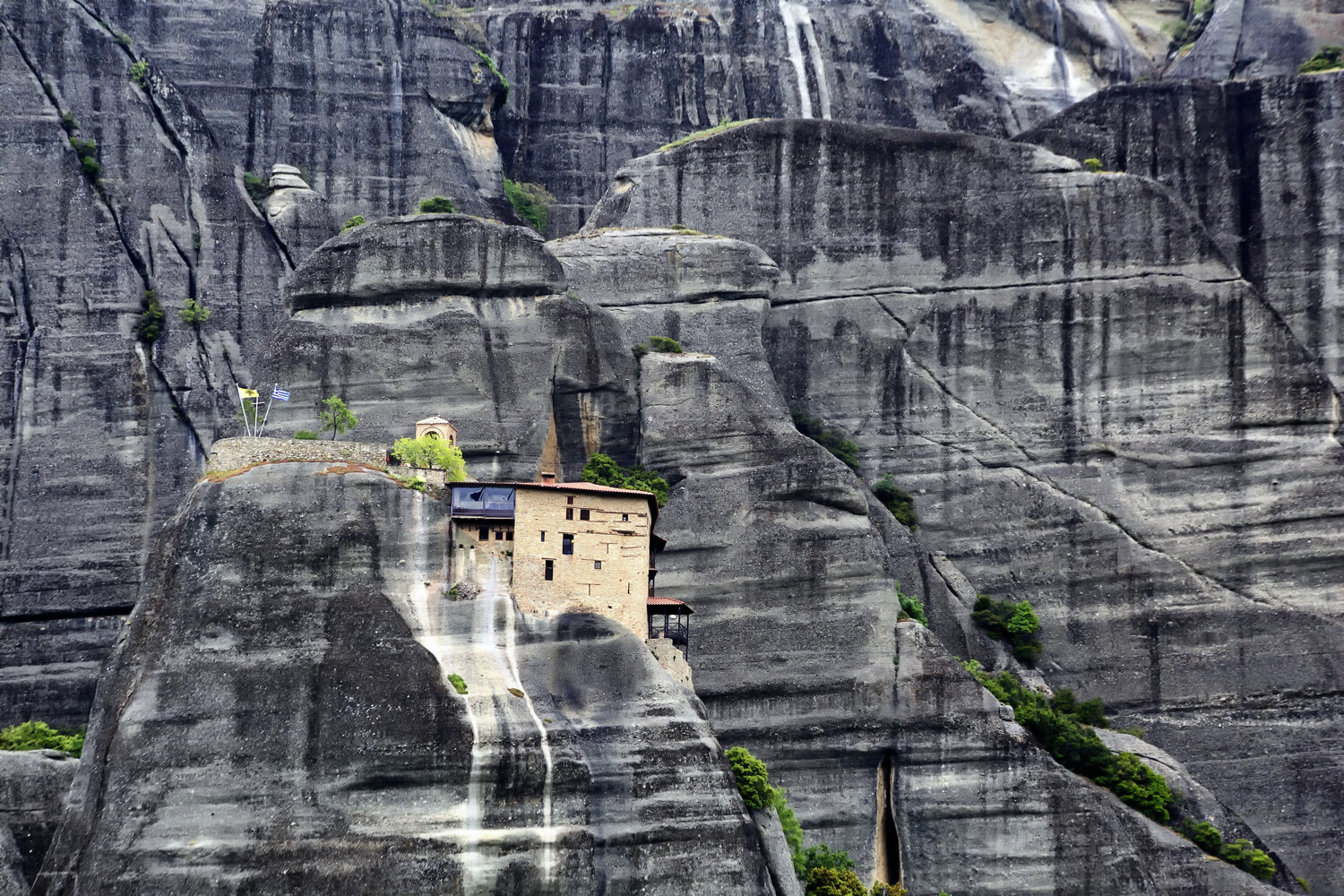
This photo shows a monastery at Meteora in Greece. A long focal length is used and the rocks create a minimal, textured background.
Post processing can help
Now, it’s best to get your photo right from the start and simply change your position so that you can compose a minimalist photo.
That said, there are times that creating a minimalist composition in-camera isn’t possible, yet the photo is still very much there to be taken. There could be a lamppost or an electric pylon that comes into your frame.
Fortunately, it’s increasingly easy to clone out unwanted elements from your photo. And once you’ve done that, you’ll have created minimalism.
This farmworker in Laos works as a great main subject to add interest to the composition.
Maximize your photos with minimalism!
A lot of successful photos use minimalism to great effect. Are you a minimalist with your photography? If so, how do you go about taking photos in the minimalistic style? If you have ideas and photos you’d like to share, please do so in the comments section below.
Now it’s time to maximize your creativity with photographic minimalism!
The post Tips for Using Photographic Minimalism to Great Effect appeared first on Digital Photography School. It was authored by Simon Bond.
The post Tips for Culling Images for Better Results and More Efficiency appeared first on Digital Photography School. It was authored by John McIntire.
When it comes to a photographer’s workflow, there is one stage that might be more important than any other. It is the image selection process, also known as the culling stage. This critical stage is the point where you get your images into Lightroom (or other software) and start choosing which to work on.
But while this is the stage where you choose the photos that ultimately end up representing your work as a photographer, without systems in place it can turn into a huge time sink.
So focusing on the process of culling images can help speed up image selection significantly.
Being able to quickly whittle down a set of photos is an important skill for any photographer. At 36 images, this is a small set of photos, but the principles are the same whether it’s 36 images or 360.
This article aims to show you why having a good system for image selection can be beneficial to your photography and your portfolio. It will also provide an overview of a basic system that you can start to use in your workflow right away, and it will provide tips on how to use Lightroom’s built-in functionality for this purpose.
Note: My examples here are portraits, but the system applies to just about any genre in photography. There are instances where you might not be able to apply some of these principles and the criteria you apply in different genres will be different, but they are exceptions.
The forest for the trees
Take a moment to imagine that you’ve just finished a big session and imported all the images into Lightroom. Now you may have hundreds of images that you have to sift through to find the ones that you want to work on.
When you have hundreds of photos from a shoot all in one place, and test shots, outtakes, and misfires are still included, it can feel like a chore to go through them all.
Without a system for culling images in place, it’s all too easy to find yourself continually scrolling through the same set of images and reviewing the same ones multiple times. This may not be a problem if you only have a handful of frames, but once you get into larger shoots, you can waste a lot of time doing things this way.
Additionally, after going through the same images over and over again, it can also become discouraging. This makes it easy to give up and leave some gems unspotted, which are ultimately relegated to obscurity on your hard drive.
By using Collection Sets to divide a large shoot into ten outfit changes, the images become much easier to manage.
So what type of system can you create?
Using Collection Sets to divide up large shoots into smaller, more manageable chunks is a good place to start.
This is just a small reason why you should consider developing a system for your editing process.
Editing
The image selection process is also known as editing. Now, I know that the word edit (and editing) has come to mean something else in everyday vernacular for photographers. You can call it whatever you want, as I am not one to dictate or prescribe. But as you will be going about image editing in the future, consider thinking about your post-processing workflow in terms of these two job descriptions:
Photo (Picture) Editor: Someone whose job it is to select photos appropriate for the use in question.
Retoucher: Someone whose job it is to alter the appearance of photos and manipulate photos to achieve a final result.
Tools
Lightroom has a huge variety of tools that makes culling images easier. While this is not an exhaustive list, here are a few features that I use regularly:
Fullscreen Mode
Using Fullscreen Mode during the image selection process will help to remove any distractions from your screen. You’ll see the photo that you are evaluating and nothing else.
Being able to view a single image at a time makes this whole process go more smoothly. It also takes away the distraction of Lightroom’s standard interface on the screen. To enter Fullscreen Mode, select any single image in the Library Module and press the “F” key.
Compare
If you want to look at two similar images side by side, use the Compare feature in Lightroom.
The Compare feature allows you to look at two images side by side. Although you won’t use this until later in the selection process, it becomes very useful when you are trying to choose between two similar images with minor differences.
To use the Compare feature, select any two images in the Library Module and press the “C” key. To get back to your normal view, press “G.”
Reject
When you reject a photo in Lightroom, the image will be grayed out and marked by a black flag with an “X.” Any images you mark in this way should be recognizable at a glance.
If you follow my process, you are going to use this tool a lot. When you press the “X” key while any image is selected, you flag that image as a reject. This marks the image with a black flag with an “X” in the upper left-hand corner, and it grays the image out in the Library Module. This makes it very easy to see which images you have already reviewed and marked as unsuitable.
Pick
Marking an image as a Pick will annotate it with a highly-visible white flag.
When you are going through your images, you will eventually come across a photo that you love. You’ll know that you want to work on it no matter what.
In this instance, press the “P” key; the image will be flagged as a Pick. A little white flag icon will appear at the top left of the image in Lightroom.
Star ratings
Using the star ratings in Lightroom is another quick and useful way to annotate images that you want to review again later.
Because you will be going through your images multiple times, you can use the star ratings in Lightroom to mark any images you are unsure of or aren’t able to make a final decision on yet. You can mark them with one to five stars by using the corresponding number key. This makes them clearly labeled when you return to them in the future.
On being ruthless
Before we get into the actual steps of the editing process, there is one thing to discuss. Most everything outlined in this article can be changed up as required, but there is one thing that will be important for you to follow no matter what.
To make this process faster and more efficient, and to ensure that you are only left with your best images, you have to be ruthless. If something is not right about an image, reject it. If you have to think about it for more than a few seconds, reject it. If you have even so much as a niggling doubt, reject it.
Being able to quickly recognize obvious faults will allow you to reject images quickly. Overexposure, outtakes, reflections in glasses, cropped body parts, and awkward arm placements are some of the reasons these images were rejected at first glance.
A lot of the wasted time in this part of the workflow comes from hemming and hawing over an image for a length of time when the image doesn’t wind up getting used anyway. Make decisions fast. Be ruthless.
The system
Keeping the images you are working on separate from the rest will make this process go much more smoothly.
Now that you know the desired end result, you can get started with the actual process of image selection.
The first step is to isolate the set of images you are working on from everything else. There should be no distractions. If you are working on a set from a portrait session where there were multiple outfit changes, separate each outfit into its own folder.
In Lightroom, this is easy. You can create a Collection Set for your shoot, and then create a Collection for every outfit change inside that set. This will keep all of the images from a session in one place, but separated by things like outfit changes or lighting changes.
Criteria
Chances are that you already have preconceived notions of what you don’t like in photos. Whether these ideas come from things you’ve heard from other photographers or opinions you’ve developed yourself, it doesn’t matter. Knowing what these things are is going to help you speed through the process much, much faster.
Technical: Things that fall on the technical side are relatively easy to identify. What you are evaluating for here are things like focus, exposure, the absence of motion blur, etc. When you are going through your images, learn to identify technical faults at a glance.
Technical faults, like reflections in glasses, are easy to spot and make quick decisions on.
Aesthetic: This one is all down to your personal tastes. If you can figure out what you don’t like, then you can spot those things in an instant and rule the photos out of the selection process.
Don’t like when portrait subjects bring their hands to their face? That rules out any photos fitting that description. Don’t like it when catchlights appear in the whites of the eyes? You get where I’m going with this.
Aesthetic faults come down to personal preference and taste. Here, the eyes are dark and the pose isn’t the best.
The first pass
The goal of your first pass is to reject as many images as possible as fast as possible. If you can identify a reject at a glance and mark it as such, you won’t waste any time later going over that image multiple times.
Once you’ve isolated the images that you’re working on, you can begin the first pass of the culling process.
The only goal here is culling images as fast as possible. Select the first photo in your folder and enter Fullscreen Mode in Lightroom (press “F”). Use the right arrow key to scroll through your images one at a time.
You should have an idea of what isn’t a good photo in your mind. You’re looking for things that fall into that category. Did the flash misfire? Are the eyes partly closed? Is the facial expression not flattering? Is the lighting not quite right? Is the focus off?
If there’s a fault in the image, find it and press “X.”
The second pass
Now that you have completed the first run through your images, you should find that you’ve rejected most of them. The next step is to isolate the images that you haven’t culled from the ones you need to review again.
There are a few ways you can do this. You can create a new Collection and add the images that are to be reviewed. Or you could remove the rejected images from the Collection you are working in.
Using the sorting options on the bottom toolbar, you can sort by Pick. This will put all of your rejects at the bottom of the catalog, making it easy to go through for the second pass.
You could also use the sorting options on the bottom toolbar in the Library Module. This will put any rejected images at the end of the gallery. From there, you can select all of the unflagged images and enter Fullscreen Mode again. As you cycle through the images a second time, you’ll first see the shots you have selected.
For this pass, you are trying to achieve the same thing as the first: to reject as many images as possible. This time it will take longer, as these are images that you have already decided don’t have any immediate faults. Feel free to take extra time and have a careful look over the images. Just remember that you are still not picking any photos yet, merely getting rid of the ones that aren’t suitable.
You can repeat this stage as many times as you need in order to narrow down your Collection to the few best images. For the sake of brevity, we’ll move directly on to the next stage and assume you’ve narrowed your images down as much as possible.
The third pass
Using this method, I was able to narrow down this set to three images in a little over ten minutes.
At this point, you should have a much smaller group of images to work with.
(If you still have a lot of photos, go back and be more ruthless.)
You can now go through and start making your final selections. It should be a lot easier now that you have a much smaller pool to go through. Use the Pick flags or star ratings to indicate the photos you want to work on and reject any photos that still need rejecting.
At the end of your culling sessions, you should have a concise selection of images that reflect the best shots from a particular set.
How many should you aim for?
If you’re wondering how many images you should aim to have left once this is all over, the answer is: it depends.
The number of final images is going to vary wildly depending on how you shoot and what you are shooting for. For example, if I am shooting for myself, I will be looking for one or two images per set. That set may start with 10 photos in it. It may start with 100. I am still only looking for one or two.
If I’m doing a short portrait session for a client, I might end up with 15-20 proofs to present. If I was photographing an event, I would go through and get rid of the obvious rejects and keep everything that was left.
Canon 5D Mark III | Canon EF 85mm f/1.8 | 85mm | 1/2000 sec | f/2.8 | ISO 200
There is no right answer. Only you can answer how many images you need in the end. This whole process of culling images is there to get you to those final photos faster, rather than get you to a certain number.
Keeping it basic
The tools and the process outlined in this article are very basic. It’s how I do it and it’s like that for a reason. The process is uncomfortable and forces you, for a little while, to focus on your mistakes.
When I am culling images, I want it completed as soon as possible, and I don’t want my tools to get in the way of the process. That said, Lightroom has a whole host of other features that could be used in the culling process. By all means, use them if they suit you. It doesn’t matter how you get the job done as long as you get it done.
Conclusion
I know that this can be a difficult process. You have a catalog of images on the screen that you created and poured all kinds of effort into. You just want to look through them and feel good about the photos you’ve made. You don’t want to jump in and start finding faults with 90% of them. I understand. I’m the same.
However, as disheartening as it feels at first, once you start culling images and the best images from a shoot start showing themselves (usually after a short while), that allows you to focus only on the best.
Trust me: The images that you cut get quickly forgotten, anyway. It’s best to be done with them fast; that way you can focus the rest of your time and effort on the images that will benefit you and your portfolio.
The post Tips for Culling Images for Better Results and More Efficiency appeared first on Digital Photography School. It was authored by John McIntire.
The post How Expanding Curiosity and Knowledge in Photography Can Help You Improve appeared first on Digital Photography School. It was authored by Kevin Landwer-Johan.
Maintaining curiosity and knowledge in photography is key to helping you improve your craft. Having a good grasp of your chosen subject material will keep you inspired and full of fresh ideas.
It’s easy to photograph what you find attractive. When you have a deeper understanding of what you enjoy, looking at your photos will have more depth and meaning.
In this article, we’ll take a look at some of the ways you can develop curiosity and knowledge in photography that will help viewers engage more with your photographs.
Start with what’s easy. Photograph what you love. When you do this, you’re already well on your way to creating more intimate photos.
Having feelings for your subject helps you see it differently than when you photograph something that looks nice but that you don’t care about. A snapshot made with feeling can be less technically correct but more engaging.
If you have more of a connection to, and concentration on, your camera, rather than your subject, you run the risk of taking technically-correct but otherwise dull photos. Curiosity and knowledge in photography must reach beyond cameras, lenses, and accessories.
Develop a curiosity for your subject. Learn more about it. You will learn to love what you photograph or you’ll grow indifferent. If you lose interest in your subject, find something else to photograph that captures your imagination.
When your imagination is captured, your photos are more likely to capture the imagination of those who see them.
Learning about a topic is easier than ever these days. We have millions of web pages, Youtube videos, forums, and podcasts online. These will teach you anything you desire to learn.
Then there are books, galleries, movies, and all manner of other visually stimulating ways to learn more about your favorite subject.
Open your imagination and you can learn anything you like. Combining your love of photography with becoming an expert on what you enjoy taking pictures of helps you improve.
With a more advanced understanding of the nuances of your subject, you’ll take more intimate, engaging photos of it. If you lack understanding, you’re more likely to miss seeing the subtle aspects that will make your pictures pop.
Even if you’ve been photographing the same subject for many years, I’m sure there’s something else you can learn about it. If you’re not sure that there is, start teaching someone. Once you start teaching about any subject you’re interested in, you’ll soon discover how much more you want to know about it.
Studying a subject until you’re an expert takes commitment. The best photographers know this by experience.
Look at portfolios of any truly successful photographers (not ones who’ve merely acquired large social media followings), and you’ll see what I mean. Their work displays the intimate connection that they have with their subjects.
This takes time and commitment to build. It does not happen quickly or frivolously.
For example, if you love the architecture of the city you live in and photograph it often, take some time to learn more about it. Study its history. Who designed it? Why does it have character? How has it evolved over time? Once you understand the answers to these and other questions, you’ll start to look at your neighborhood in a new light.
Use the internet. Visit your local library. Search out the work of other photographers who have a similar interest. Google is a great source of images. Type in any location and you’ll find others have photographed it and shared their images.
Find well-known photographers whose style and subject material you appreciate. Study how they compose their pictures. When do they take them? Look at the type of light that’s predominant in many of their photos.
You can research any subject you can think of. Taking time to do so on a regular basis will help you become a better photographer. You don’t always have to be out and about with your camera to learn to take better photos.
Taking photos frequently certainly does help you build camera skills, but photography is more than just about using your camera.
Maintain your curiosity and knowledge in photography
No matter how long or how often you’ve photographed a particular subject, it’s best to maintain a curiosity for it.
Explore new ways to photograph the same subject over and over. This should be a healthy challenge. If you find it repeatedly becoming a bit of a drag, consider starting to photograph something different.
The more curiosity you maintain, the more interesting your photos will be to others. Once you’ve covered all the more traditional approaches to taking pictures of a particular subject, a healthy curiosity will lead you further. Your creative journey can really come alive.
Push yourself out of your comfort zone. Think of ways to make new, fresh pictures that you normally would not take. Looking at the work of other photographers is one of the best ways to discover how you can do this.
Photograph your subject in light you normally wouldn’t use. If you typically work with a long lens, use a wide-angle lens next time. Explore alternative angles and different ways of seeing the same thing. You might surprise yourself with the results.
Be prolific. The more time you spend learning about your subject, the more you’ll want to get out and take photos of it. Frequently using your camera helps you remain immersed. This is also how to maintain healthy levels of inspiration.
Start with what you love. This makes learning easy and fun. Becoming immersed in a subject you are halfhearted about can lead to discouragement. Whatever subjects you photograph should be a pleasure to study and become an expert about.
Curiosity and knowledge in photography will improve the level of engagement viewers have with your art. Taking a serious approach to learning more and developing a more informed appreciation of your subject will elevate your photography experience.
The post How Expanding Curiosity and Knowledge in Photography Can Help You Improve appeared first on Digital Photography School. It was authored by Kevin Landwer-Johan.
The post News: ACDSee Photo Studio Ultimate 2021 Released appeared first on Digital Photography School. It was authored by Jaymes Dempsey.
ACDSee has just launched its latest software:
Photo Studio Ultimate 2021, which improves upon ACDSee’s Photo Studio Ultimate 2020 and continues to compete with programs such as ON1 Photo RAW and Luminar as one of the best all-in-one photo editors on the market.
ACDSee’s software is consistently impressive; Photo Studio Ultimate 2020 contained an excellent mix of digital asset management capabilities, basic adjustments, and more advanced, layer-based edits.
So what does Photo Studio Ultimate 2021 offer over its predecessor?
Quite a lot, as it turns out.
For one, Photo Studio Ultimate 2021 features increased performance. ACDSee promises “up to 100% faster start up, up to 50% faster mode-switching, up to 100% faster working with keywords & categories, and more.”
After trying Photo Studio Ultimate 2021, it’s clear that this is true. While I wouldn’t refer to the program as fast, it’s certainly speedier than Lightroom, Photoshop, or Luminar.
Photo Studio Ultimate 2021 also offers a brand-new color wheel, which allows you to make precise adjustments to colors in your images. Using an eye-dropper tool, you can select specific colors in your image. And you can modify the selection by way of an intuitive color wheel graphic:
Honestly, this has to be one of my favorite implementations of selective color adjustments, and should give photographers plenty to have fun with.
But ACDSee didn’t stop there. In addition to the Color Wheel feature, you get a set of handy tone wheels. Here, with a few simple clicks, you can selectively tone the highlights, the midtones, and the shadows. This makes it easy to color grade your images and to create a stylistic look that’s truly your own.
Plus, Photo Studio Ultimate 2021 offers a nifty little Refine Selection feature. While previous versions of the software allowed for selections while editing, you can now contract, expand, and feather your selection for a more precise result.
Additional new features include:
A modified batch rename option
Improved user experience and layout
Enhanced crop capabilities
Enhanced watermark capabilities
Much more!
So if you’re looking for a photo editor that includes complex digital asset management capabilities, powerful layer-based editing, and a whole host of new processing tools, check out Photo Studio Ultimate 2021.
You can grab it on ACDSee’s website for just $ 8.90 USD per month, $ 89 USD per year, or (if you’d prefer to make a one-time purchase), $ 149.99 USD.
Now over to you:
What do you think of ACDSee’s Photo Studio Ultimateseries? And which of the new features are you most excited about? Share your thoughts in the comments!
The post News: ACDSee Photo Studio Ultimate 2021 Released appeared first on Digital Photography School. It was authored by Jaymes Dempsey.
The post Wide Angle Versus Telephoto Lenses for Beautiful Landscape Photography appeared first on Digital Photography School. It was authored by Will Crites-Krumm.
An easy assumption to make, when shooting landscapes, is to use a wide-angle lens. After all, most landscape photographers favor wide-angle lenses for a reason: They naturally give you the widest view and allow you to get the full landscape into the frame, from the foreground to the horizon.
Wide-angle lenses also have the widest depth of field, so you get the whole landscape in focus. And their distortion enlarges objects in the foreground, letting you show off close-up details. The same distortion also emphasizes leading lines, enhancing your compositions and giving your image a more dynamic feel. But when you default to wide-angle glass, you miss many hidden opportunities offered by telephoto lenses.
Field of view: The whole and its parts
This is the most basic difference between the two lens types:
Wide lenses give you a wide view; telephoto lenses give you a narrow view.
And while landscapes look great in their entirety, it’s a good habit to take a moment and look for details. These details are beautiful elements of the landscape that might get shrunken or ignored in the expanse of a wide-angle image. This is where your telephoto lens comes in. Its narrow field of view is perfect for trimming the extra elements and for focusing on small, beautiful scenes like the curve of a mountain, a reflection in a far-off pond, or the silhouette of a tree.
In the two images above, you can see this in action. They were both taken from Olmstead point in Yosemite National Park, one with a wide-angle lens and the other with a telephoto.
In the first image, the wide-angle lens shows off the total landscape. It includes both sides of the valley, the up-close textures of the rocks, and the far-off peak of Half Dome. In the second image, the telephoto lens brings the eye right up to the mountains, showing off their shapes and the details of the geology.
Another pair of images (below) shows this effect even more dramatically. The first image is not just a wide-angle image, but an aerial shot as well, taken from a small airplane over the Okavango Delta in Botswana. From this vantage point, all of the individual elements of the landscape become incredibly small and your eyes pay more attention to their arrangement than their individual shapes. In the second image, also from the Okavango area but this time on the ground, a telephoto lens is used to draw attention to the beautiful curves of a single Acacia tree.
Depth of field: Focusing the eye
The second major difference between wide-angle and telephoto lenses is the innate size of their depth of field.
Put succinctly, the higher the focal length, the narrower the area of focus. In practice, this means that when shooting wide, it’s much easier for you to get everything in focus, from the grass at your feet to the ridge on the horizon. This is especially true when you’re trying to use your lens’s sharpest apertures (the so-called sweet spot).
However, a narrower depth of field is much better for isolating your subject from the background, and this is where your telephoto lens comes into play. Try shooting a close-up detail at a wide aperture, using the landscape as a nice, creamy bokeh backdrop.
The two images above are perfect examples of this effect. In the first image, the wide-angle lens brings the whole landscape into focus, from the close-up sunflowers to the far-off mountains.
In the second image, shooting with a telephoto blurs out the flowers and mountains in the background, turning them into a nice soft background for the main sunflower.
Depth compression: Playing with size
It’s no secret that wide-angle lenses expand the sense of depth in an image by enlarging elements in the foreground and shrinking those in the back. This is great for creating images that make you feel like you could step right into the frame.
On the flip side, you run the risk of making towering, awesome mountains in the distance look like puny hills. Telephoto lenses, on the other hand, compress depth, causing objects near and far to appear more similar in size. A compressed sense of depth is great for abstracting a scene and bringing out its graphical qualities. Colorful forest canopies, layered mountain ridges, and curving sand dunes are all great subjects for this kind of shooting.
In the left image above, notice how the wide-angle lens exaggerates the size of the flowers in the foreground at the expense of the mountains in the background. The mountains are so tall that they’re shrouded in clouds, but the lens keeps them from looking quite as grand.
Pull out a telephoto lens, and you can zoom straight in on the mountain, showing off the contrast between the rugged outline of the peak and the soft wispy form of the cloud (right).
Here are two more images, both taken at the same location in Big Bend National Park, that show off this effect. In the first image, you can see that the wide-angle lens increases the size of the plants and rocks in the foreground while shrinking the large desert mountains in the background. In the second image, a telephoto lens flattens out the depth of the many desert ridges, calling attention to their graphic patterns and outlines.
Summary: Space versus object
Have a hard time remembering all these details? Here’s an easy way to summarize it with a simple idea:
Wide-angle lenses show off space, telephotos show off objects.
The wide-angle lens’s big field of view, ease of uniform focus, and depth-distorting abilities are great at showing off big, expansive landscapes. However, they take focus away from individual elements within the landscape in favor of showing the whole. Telephoto lenses are naturally the opposite: they’re great at showing off the size, shape, and intricacy, of detail of individual elements within the landscape. But their narrow field of view, small depth of field, and depth-compressing qualities make it hard to capture the landscape as a whole.
You can analyze this pair of images to see exactly how all of these techniques work together. Starting with the photo above, you can see how the wide-angle lens fits the whole landscape into the frame, from close-up rocks to far off peaks and sky. Because of the lens’s large depth of field, the whole landscape is in acceptable focus as well. The lens’s depth distortion is readily apparent, as well: the foreground rocks look very large, creating a pleasing sense of depth, and emphasizing the leading lines that draw the eye from the edges of the frame to the center. Overall, you get a very good sense of the space and the expansiveness of the valley.
This image was taken in the same place, but the use of a telephoto lens captures it in a very different way. The photo brings out a single element of the landscape; look closely and you can see this peak in the previous image on the top right. It allows the viewer to appreciate its subtle details.
Because of the telephoto lens’s narrow depth of field, the sky is slightly out-of-focus while leaving the details of the peak itself perfectly sharp. And most of all, the compressed sense of depth flattens the image, showing off the rocky mass of the mountain, and calling attention to the beautiful curve of the ridgeline. Overall, you get a great sense of the mountain as a solid object, rather than a bounded space.
When to shoot what?
The best way to know which lens to use is to get out there, look, and think. What part of the landscape are you most drawn to? Does the landscape’s expansiveness give it its character? Are there stunning details surrounded by less photogenic elements? Are you shooting spaces or objects?
That said, my personal strategy is to just shoot both, because almost any landscape has enough beauty that just one type of lens isn’t enough to get to all of it.
The post Wide Angle Versus Telephoto Lenses for Beautiful Landscape Photography appeared first on Digital Photography School. It was authored by Will Crites-Krumm.