RSS
 

Archive for the ‘Photography’ Category

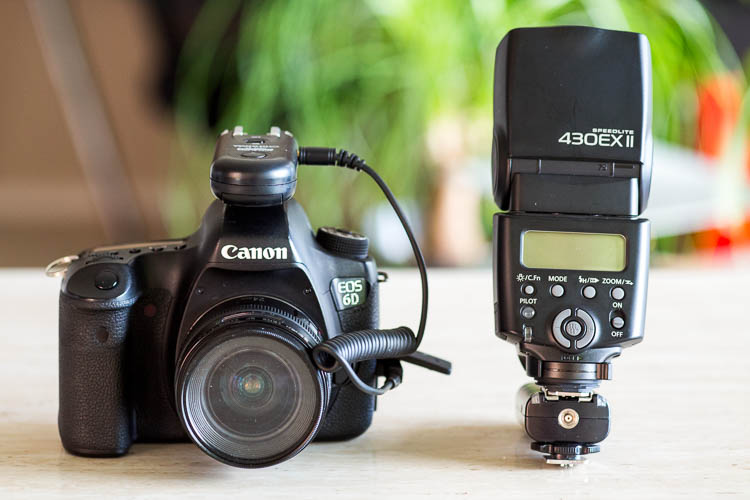
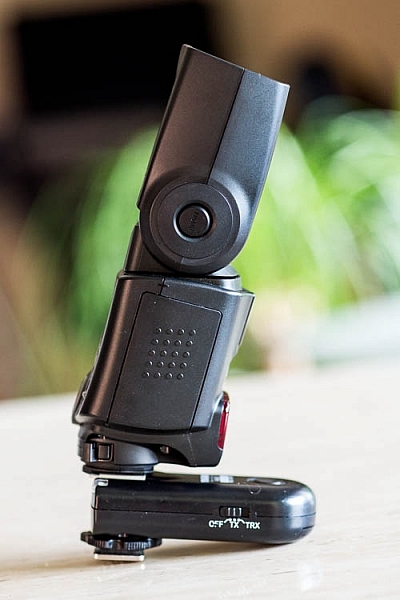
Lighting 103: How to Safely Gel a Speedlight

27 Jan

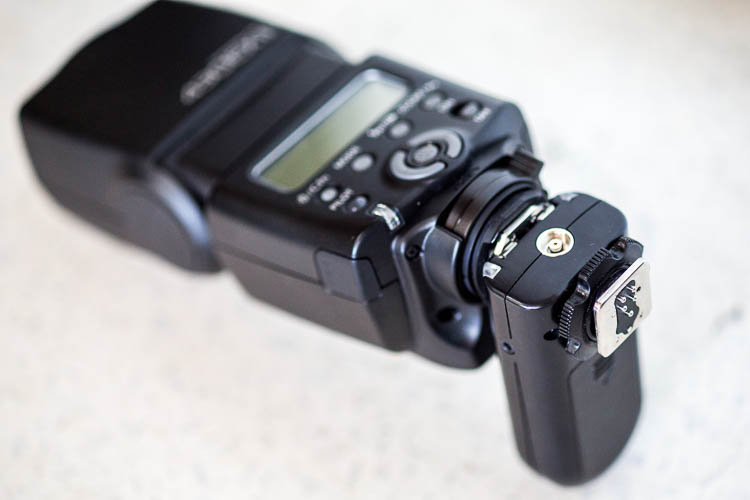
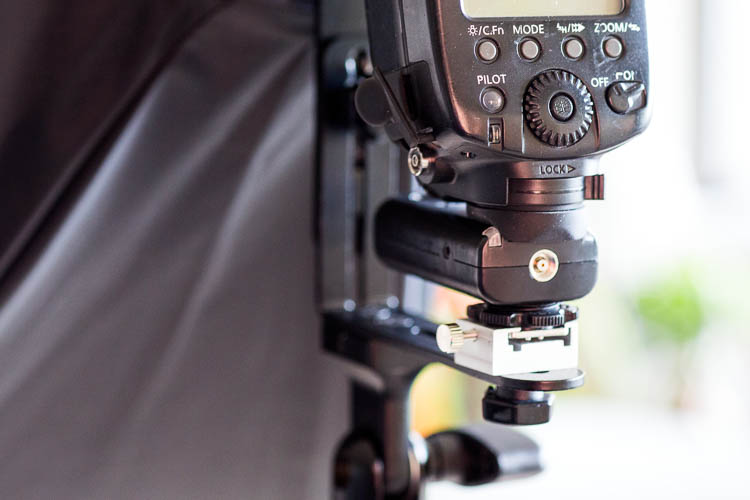
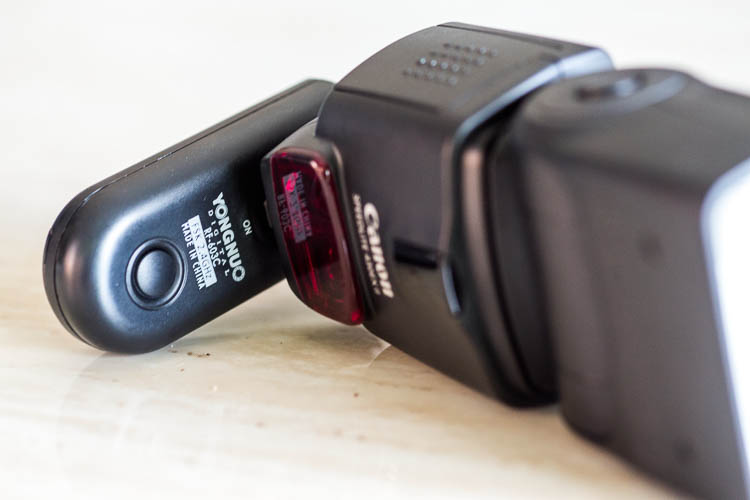
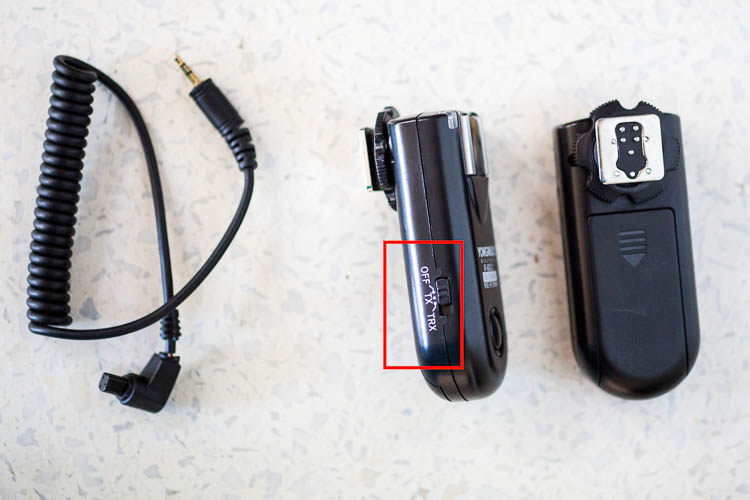
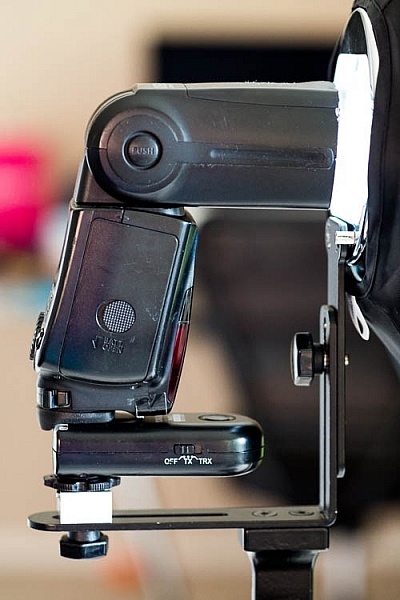
Do you work mostly with speedlights? If so, congratulations. Gelling your lights is going to be quick, easy and cheap. The fresnel lens on your speedlight (where the light comes out) is only about 3-4 square inches. And that is all you are ever going to need to gel on a speedlight.

As far as how to attach the gel, you have several choices and all are simple. But there are also a few things to watch out for, unless you want your gel to be permanently heat-welded to your flash. Read more »
Strobist

 
Comments Off on Lighting 103: How to Safely Gel a Speedlight

Posted in Photography


3 Handy Lightroom Features I Discovered by Accident

27 Jan

When I first started to dabble in photography, I knew very little about post-processing. I used Picasa to edit my photos. It’s free and easy to use. I experimented with the different settings and created some pretty interesting images (they weren’t very good). Needless to say, I had no idea what I was doing.

This was the extent of my early post-processing attempts. I created collages in Picasa.

This was the extent of my early post-processing attempts. I created collages in Picasa.

Self-learning methods and benefits

Like many of you, I am a self-taught photographer. My degree is in English Literature, and photography was something I dabbled in as a hobby. I learned photography by reading books, participating in online forums and through trial and error. It’s been a long hard road but it’s been well worthwhile.

I learned most of my post-processing by watching YouTube videos. It has become one of my favorite ways to learn. There’s some inspirational stuff available that you can use to teach yourself all kinds of different skills. It’s a lot of fun, and the benefit of learning in this way is that you can go at your pace.

This type of learning is perfect for my lifestyle, and I’m sure for many of you the same factors apply. It always amazes me what we can teach ourselves when we put our minds to it. Check out this video. Sean Tucker experiments with landscape photography and discusses how important it is to continue to learn and push ourselves.

Three Lightroom Features Discovered by Accident

Now that we are on the path to self-directed learning I would like to share with you three Lightroom shortcuts, hacks, tricks, or whatever you want to call them, that I learned completely by accident. I just pushed buttons to see what would happen. By just experimenting, the results paid off. I learned some very efficient ways to manage my post-processing workflow, and I want to share them with you.

Accidental Discovery #1 – the Alt key

By simply pushing buttons I discovered some pretty cool functions. If you hold down the Alt key while in the Library module, little numbers appear by each keyword. You can then simply hit the number, and the module will tag your images with that keyword. Brilliant!!!

If you create a set keywords, this little trick becomes even more useful. The keyword set is then added to your images by simply typing in the correct number.

Alt key Lightroom Library module

This little discovery saves me loads of time.

In the Develop module, the Alt key is very useful when setting black and white points in your images. Hold down the Alt key while hovering your cursor over the Blacks slider. The image will go completely white and as you move the slider from side to side (move it left to darken or add black) you will be able to see when the blacks begin to clip in your image.

This is a great way to adjust your image and super easy to see (and adjust) how much contrast range it will have. You can use the same principle to adjust the white points in your image. Give it a try. It’s one of the first steps I take when editing my work.

Note: It’s okay and even desired to have some blacks clipping in your image, but ideally you want to keep any whites from doing so. Clipping means areas with no detail in that tonal range.

Alt key Lightroom Develop module black point slider.

Here’s a screen shot of the black point slider.

Accidental Discovery #2 – Navigator Window

The Navigator window is very useful when you need to zoom in. This is probably really obvious and silly to those who have formal Lightroom training. Before discovering this little trick, I would zoom in and out applying the adjustment brush to small sections of the image. It was very tedious.

Then one day I discovered that if I click the 1:1 button on the Navigator (preview) window and then slide the square around on the screen, I could apply the adjustment brush without the tedium of closing the adjustment brush and moving out to the full-screen view.

Lightroom features 1:1 preview window

When I need to apply the same brush to several different areas of an image I click on the 1:1 feature and slide around the image making adjustments.

Accidental Discovery #3 – Lights Out in the Library

It took me a little while to figure out this trick. Again, I was just experimenting and pushing buttons. I had learned to use the Lights Out feature in the develop module.  When you press the letter L on your keyboard, it dims the surrounding panels so that you can focus more on the image at hand (press L again for total black around your image, and once more to return to normal). This same tool works well in the library module. I now use the “Lights Out” feature to isolate specific images. Simply select the images you wish highlight then hit the “L” button. It’s a neat little trick.

This same tool works well in the library module. I now use the Lights Out feature to isolate specific images. Simply select the images you wish highlight then hit the “L” button. It’s a neat little trick.

Lightroom features Lights Out in Library module

I use this feature to help me analyze an image before I decide it’s finished.

Lightroom features Lights Out in Library module

Look how easy it is to isolate specific images in the library module.

Conclusion

Experimentation is never a bad thing. We live in an age when we are lucky to have so many resources available to us. The internet is a true cornucopia of opportunity. Don’t be afraid to try different things. You really can’t break the program.

Sure there have been times when I have had to call Adobe and ask for assistance because I’ve pushed some button and haven’t been able to reset the program, but those times have been very few and far between.

Let me know about some of the tricks you use when post-processing. I’m sure there’s so much out there I still need to learn and I’m hoping you can add to my list of discoveries. What have you taught yourself about post-processing or using Lightroom in general? Please share in the comments below.

googletag.cmd.push(function() {
tablet_slots.push( googletag.defineSlot( “/1005424/_dPSv4_tab-all-article-bottom_(300×250)”, [300, 250], “pb-ad-78623” ).addService( googletag.pubads() ) ); } );

googletag.cmd.push(function() {
mobile_slots.push( googletag.defineSlot( “/1005424/_dPSv4_mob-all-article-bottom_(300×250)”, [300, 250], “pb-ad-78158” ).addService( googletag.pubads() ) ); } );

The post 3 Handy Lightroom Features I Discovered by Accident by Erin Fitzgibbon appeared first on Digital Photography School.


Digital Photography School
 
Comments Off on 3 Handy Lightroom Features I Discovered by Accident

Posted in Photography


Some Options for Backing Up Your Photos Online

27 Jan

Backing up your data is an essential part of your photography workflow. While many photographers still advocate for using physical external hard drives, there are also many online services where you can store your images. In this article, I will go over the pros and cons of several popular sites to backup your photos online. Please note that these photo solutions are constantly changing their features, so always check with them directly to verify any details.

Photo backups versus photo sharing sites

Some Options for Backing Up Your Photos Online

It’s important to note the differences between a designated photo backup services and photo sharing websites. Traditional photo backup services such as Backblaze and CrashPlan focus purely on backing up data and can be set to backup an entire computer or hard drive. This is good in the sense that you can have everything you’ve ever created on your computer saved to the cloud. However, these backups end up being extremely large files and they take extra time to retrieve. So if you need to constantly and quickly access your backed up photo data, it may not be wise to rely solely on these types of providers.

Photo sharing sites, on the other hand, are not meant to be comprehensive backups of your entire computer. Many of these sites impose limits on the types and sizes of files that can be uploaded. Thus, photo sharing websites are best used to upload, store, and share edited photos.

How I backup my photos

My advice is to have a backup for your backup. As a professional photographer who shoots primarily in RAW, I have terabytes of data to store, but I don’t generally need frequent access to those original files. I opt for CrashPlan to do automatic backups of my RAW images, in addition to storing them on external hard drives.

Charles Wiriawan

Image By Charles Wiriawan – external hard drive method of backing up.

My photography business is such that I constantly need to dig up old high-resolution photos to present to clients, and CrashPlan doesn’t give me easy, immediate access to those files. So I save edited, high-resolution copies of every photo I take and upload them to SmugMug. This way, I have quick access to the photos and can easily prepare an online gallery to share and sell images to clients. I also have Google Photos set to do automatic online photo backups anytime I save a new JPG image to my computer. In the end, I have four ways of backing up my photos.

Backup Services

These are comprehensive backup and cloud storage solutions meant to hold large amounts of data. Set them to automatically backup your entire computer or hard drive, and practically any file type or size will be accommodated. On the plus side, these backup solutions are pretty affordable for what they offer. However, it can take a long time to backup huge files, and file restoration can also take a bit of time.

Backblaze

One of the most popular backup solutions, Backblaze can automatically backup an unlimited amount of data from a single computer (note; it will connect and backup external drives as well). There’s no restriction on file type or size, and there’s only one pricing plan. It costs $ 5.00 per month or $ 50 USD per year for a Backblaze account. You can even pre-pay $ 95 for a 2-year plan. It’s an affordable and reliable solution for making sure everything on your computer is backed up.

Some Options for Backing Up Your Photos Online backblaze

CrashPlan

Virtually the same as Backblaze, CrashPlan also offers automatic computer backups. The main difference is that CrashPlan offers several different subscription plans. Included in the free plan is an automatic backup to a local hard drive or another computer. If you want to backup your data to CrashPlan’s cloud, the cost is $ 5 per month to backup one device for unlimited cloud storage and mobile file access. To add an extra device (as many as 10), the Family Plan is available for $ 12.95 per month.

crashplan Some Options for Backing Up Your Photos Online

Amazon Cloud Drive

At $ 11.99 a year for unlimited photo storage (or free for Amazon Prime members), Amazon offers competitive cloud storage solutions, but at some expenses. The main downside to Amazon Cloud at the moment is its lack of features when compared to other more established solutions. For example, a desktop client must be used to upload files larger than 2GB, there are no automatic backup features, and stored files are not automatically updated. Given these underdeveloped features, Amazon Cloud Drive at this moment seems more like an off-site hard drive rather than a true backup solution.

amazon-online-photo-backup

Microsoft OneDrive

Formerly known as SkyDrive, OneDrive is Microsoft’s cloud storage solution that works with Windows, Mac, iOS, and Android devices (but still no Linux). Base plans include a generous 15GB of free storage. Paid plans start at $ 1.99 a month for an extra 100 GB, or $ 6.99 for 1TB of space. The main downsides are a slow upload and download speed, a 10GB size limit per file, and the need to have a Microsoft, Outlook, or Xbox Live account in order to access OneDrive. This may be a hurdle for those who don’t use any Microsoft or Windows products.

onedrive-online-photo-backup

Google Photos

The photo storage solution offered by Google takes a slightly different approach than that of Dropbox or Flickr. Google Photos offers unlimited backup of a wide variety of file formats (including RAW images). You can also set automatic backups to occur whenever a new photo is taken on your mobile device or saved to your computer. However, all photos and videos must be under 16 megapixels or 1080p HD video.

If you upload larger files under the unlimited plan, your files will be compressed to fit these maximum size requirements. The only way to upload original, full resolution images is to opt for a plan with limited storage. In a way, this makes sense. You pay for more storage space if you need it.

google-photos-online-photo-backup

Photo Sharing and Image Hosting Websites

These websites were not originally meant to be comprehensive backup solutions. However, many photographers have begun using them as such. Most of these websites have limitations when it comes to data storage or file types that you can upload. Thus, they may not be the best all-around backup solution for your photos, depending on your needs.

Dropbox

One of the most popular tools to backup photos online is Dropbox. It exists in the form of a mobile app, website, and desktop app and allows you to store all types of media including photos, documents, videos, and other files. Anything you add to Dropbox can be immediately accessed anywhere when you log in via the corresponding website or app.

Using the free version gives you 2MB of storage space, but you can purchase additional space. Dropbox made an attempt at pushing an automatic photo backup feature in the form of Dropbox Carousel. However, this app along with Dropbox’s email app Mailbox shut down in early 2016. Thus, it’s questionable if they will make future investments into further feature development.

dropbox-online-photo-backup

Flickr

Yahoo’s venerable photo solution, Flickr, has withstood the test of time and continues to be popular among amateur and professional photographers. Even with a free account, you get 1TB of photo storage space. However, you cannot get more than 1TB of space, even with a paid Flickr Pro account. Instead, the paid account just removes ads and gives you access to your account stats. While Flickr isn’t the best for sharing photos with clients, it does give you the option to license and sell your photos.

The main downside to Flickr has to do with file size limits. Uploaded photos cannot be more than 200MB and videos must be 1GB or less in size. Additionally, RAW images cannot be uploaded.

flickr-online-photo-backup

SmugMug, Zenfolio, and Photo Shelter

These three paid photo-sharing websites are popular for presenting and selling photos to clients:

  1. SmugMug
  2. Zenfolio
  3. PhotoShelter

However, the push for offering unlimited photo storage has elevated these sites into becoming viable ways for photographers to backup images. All three sites also offer components that help you build your photography website. SmugMug and Zenfolio are among the most affordable, while PhotoShelter is more expensive.

In Conclusion

So which photo backup solution is best for you? It truly depends on what media you are looking to backup, how often you will access it, and your budget. Whichever solution you choose, remember to always have a backup for your backup. Also, please remember that these services are constantly offering new promotions and features. The information in this article may change, so always check directly with the provider to verify details.

How do you backup your photos? Let us know in the comments below.

googletag.cmd.push(function() {
tablet_slots.push( googletag.defineSlot( “/1005424/_dPSv4_tab-all-article-bottom_(300×250)”, [300, 250], “pb-ad-78623” ).addService( googletag.pubads() ) ); } );

googletag.cmd.push(function() {
mobile_slots.push( googletag.defineSlot( “/1005424/_dPSv4_mob-all-article-bottom_(300×250)”, [300, 250], “pb-ad-78158” ).addService( googletag.pubads() ) ); } );

The post Some Options for Backing Up Your Photos Online by Suzi Pratt appeared first on Digital Photography School.


Digital Photography School
 
Comments Off on Some Options for Backing Up Your Photos Online

Posted in Photography


A Couple of Overviews of the New Nikon D3400

26 Jan

Last fall an update to the D3300 was released, the new Nikon D3400. I looked around and was able to find a couple of videos that go over the features and how it compares to the D3300, and also to the relatively new Canon T6.

The Nikon D3400 Review by Chris Winter

In this video photographer, Chris Winter goes over the features in the Nikon D3400 as compared to upgrades from the D3300, and some pros and cons. He mentions the new Nikon app Snapbridge as one of them, which allows you to receive photos to your smartphone directly from the camera without wifi.

Nikon D3400 versus the Canon T6

This next video compares the Nikon D3400 and the Canon T6 in several areas. See which one Chris rates on top:

  • Size and weight
  • LCD screens
  • Menus
  • Wireless integration
  • Video
  • Battery life
  • Burst mode
  • Autofocus

Field test of the Nikon D3400

In this last video you can see the D3400 in use in the field in more practical situations, and how it performs.

Which camera is for you?

So if you are looking for an entry-level DSLR the Canon T6 or the Nikon D3400 might be for you. Have you given them a look? Which fits your needs and why? Tell us your thoughts in the comments below.

  • Shop for the Nikon D3400 on Amazon.com or on B&H Photo
  • Shop for the Canon T6 on Amazon.com or on B&H Photo

Note: The D3400 also made this list: The 19 Most Popular DSLRs Among our Readers

googletag.cmd.push(function() {
tablet_slots.push( googletag.defineSlot( “/1005424/_dPSv4_tab-all-article-bottom_(300×250)”, [300, 250], “pb-ad-78623” ).addService( googletag.pubads() ) ); } );

googletag.cmd.push(function() {
mobile_slots.push( googletag.defineSlot( “/1005424/_dPSv4_mob-all-article-bottom_(300×250)”, [300, 250], “pb-ad-78158” ).addService( googletag.pubads() ) ); } );

The post A Couple of Overviews of the New Nikon D3400 by Darlene Hildebrandt appeared first on Digital Photography School.


Digital Photography School
 
Comments Off on A Couple of Overviews of the New Nikon D3400

Posted in Photography


8 Tips for Getting Great Expressions in Family Portraits

26 Jan

8 Tips for Getting Great Expressions in Family Portraits

Sometimes as a photographer, you are lucky enough to get a family session full of models with perfect natural smiles in every photo. It doesn’t take much to get a photo that is ready to hang on the wall. However, most of the time with family portraits it isn’t that easy.

Maybe you’ve got somebody who doesn’t want to be there or little kids that have no idea what you’re trying to get them to do. And maybe, just maybe, you’d like to have some photos that show some extra personality. Everyone looking at the camera and smiling is nice, but I always love the ones that show a little more of who the family really is. I’ve got a few tricks up my sleeve to help you through the more difficult sessions, and to help you get some fun full-of-personality shots and great expressions with any family.

1. You’re in charge of the kids

8 Tips for Getting Great Expressions in Family Portraits kids

Many times during a family session, you’ll have parents that are really concerned about whether or not their kids are looking and smiling at the camera. They don’t realize that the moment their little one looks and smiles, their faces aren’t photo-ready because they’re spending all their time wondering what their kid is doing.

Remind the parents to keep their faces ready for photos at all times, and you, as the photographer, will take care of getting their kids to look and smile. If they are talking to their child, it will be hard for their child to look at you, because he’ll think he needs to be looking at mom or dad. Whether you want the parents looking at the camera or not for a particular photo, remind them to do their part for the photo and leave the rest to you.

2. Let the parents help sometimes

parents - 8 Tips for Getting Great Expressions in Family Portraits

This might seem to contradict point #1 above, but there are times when getting those genuine smiles from the kiddos requires a little bit of help from the parents. If you have a reluctant smiler and you want to get a good individual photo of the child smiling, ask the parent to make a funny face, or do something silly off-camera. If you want the subject looking at the camera, ask the parent to get right behind you. Parents often know one silly word that will get their child giggling, or the child might just need the comfort of seeing a parent smiling at them to know that it’s all okay.

You can also have photos with the parents interacting with their children in the frame. These often end up being some of my favorites. I love capturing the genuine interactions, and those expressions that the parent sees every day. Put the parent and child together, and simply ask them to smile at each other. Often this initially awkward directive gets them really giggling together, and you’ve got the perfect expressions.

3. Laugh at the silly one

laugh silly - 8 Tips for Getting Great Expressions in Family Portraits

One of my most effective prompts for natural looking family interaction and genuine expressions is to ask them to laugh at the silly one. Sometimes they all look to the same person right away, and everyone will start truly laughing. Sometimes they all look at someone different, and after a second of bewilderment, they all start laughing.

This one can backfire, though, and needs to be used with caution. Some kids automatically think that laughing means to be over the top silly, and they over-exaggerate a huge laugh that doesn’t look natural at all. Some kids think that laughing also must be accompanied by pointing, and that never looks great in a photo either. In these cases, I tell them to giggle quietly and to keep their hands down. Usually, that solves the problem. If it doesn’t, I just move on to something else and let the moment go.

4. Simply hug

hug - 8 Tips for Getting Great Expressions in Family Portraits

Oftentimes in sessions, I position everyone into a nice arrangement, take a photo of them all smiling and looking, and then I just say, “Now, everyone hug each other.” or “Put your arm around the person next to you.” When I look at the photos side by side later, I’m always amazed at how much more natural the smiles are in the hugging photos.

I think that when photos feel really formal, it’s hard to relax, and people end up with stiff smiles. When they feel comfortable, the true smiles come out. There’s just something about being surrounded and hugged by those you love that makes you feel safe. Sometimes you need to prompt them to hug each other but make sure they’re still looking at you. Occasionally you get the real huggers that will turn right around and give their mom a bear hug. Although that looks cute in real life, it doesn’t work as well for a photo.

5. Let the personalities shine

personality - 8 Tips for Getting Great Expressions in Family Portraits

Sometimes you might have a perfect photo in mind, but you just have some little guys that have big personalities. You could spend the whole session trying to get them to be somebody they’re not, or you can just go with it and laugh about it.

Let’s be honest, sometimes those expressions that just scream personality make the best photos. Families will treasure those photos and laugh about them throughout their whole lives. You can try to get that perfect family photo for mom, but don’t make everyone miserable by insisting on squelching unique poses and expressions every time they pop up. That said, I don’t encourage them in their silliness because sometimes that can make them go a bit out of control. Just simply take the photo, and don’t make a big deal out of it.

6. Big groups are fun too

big groups - 8 Tips for Getting Great Expressions in Family Portraits

Giant group photos can look very dull at times. When you have tons of people in one photo, it can be a task just to get them all arranged, and then after all that work the photo just looks like a bunch of little boring faces.

Try getting a few photos that are just for fun. Ask the entire group to hug or kiss their neighbor. (Give them the option. Nobody likes to be told they must kiss the person next to them.) If you have a bride and groom, you can have the bride and groom kiss, and ask everyone else to cheer or to react however they’d like.

When you have a big group of people with funny happy faces, it makes a photo that you want to look at for awhile, and you can’t help but smile. These photos are never perfect, but they’re fun, and end up being the photos the families really love.

7. Capture life

life - 8 Tips for Getting Great Expressions in Family Portraits

You don’t always need smiles, nor do you need all the eyes showing. Capture the family participating in an activity together, and just let their expressions happen naturally. These lifestyle photos will capture the family as they are, right now. They will be the photos that really bring back memories for your families when they come across them later. You don’t have to set up anything elaborate. It can be as involved as a picnic together with the blanket and basket and everything, or as simple as holding hands and walking together. If you do have them walking away from you, ask the family to look at each other as they walk, so you get some profile expressions, and interaction with each other.

You don’t have to set up anything elaborate. It can be as involved as a picnic together with the blanket and basket and everything, or as simple as holding hands and walking together. If you do have them walking away from you, ask the family to look at each other as they walk, so you get some profile expressions, and interaction with each other.

8. Take a lot of photos in a row

8 Tips for Getting Great Expressions in Family Portraits

When you’ve got a lot of people to capture at once, the chances of getting all of them with a great expression at the same time is slim to none. I snap a lot of photos in a row of one pose because the chances of catching smiles and open eyes for each person go up greatly when you have a lot to choose from. If all else fails, you have a lot in nearly the same position, so you can swap eyes, faces, or heads if needed.

It can be so frustrating when you have a family photo that is nearly perfect, but one family member is blinking. Trust me, even three in a row may sometimes not be enough to get every expression that you need. I don’t head swap often because I usually have one in the series that captures everything as I want, but it’s nice to have the option of swapping something if needed.

I’d love to see your family portraits in the comments! What tricks have you found to capture great expressions in your family sessions?

googletag.cmd.push(function() {
tablet_slots.push( googletag.defineSlot( “/1005424/_dPSv4_tab-all-article-bottom_(300×250)”, [300, 250], “pb-ad-78623” ).addService( googletag.pubads() ) ); } );

googletag.cmd.push(function() {
mobile_slots.push( googletag.defineSlot( “/1005424/_dPSv4_mob-all-article-bottom_(300×250)”, [300, 250], “pb-ad-78158” ).addService( googletag.pubads() ) ); } );

The post 8 Tips for Getting Great Expressions in Family Portraits by Melinda Smith appeared first on Digital Photography School.


Digital Photography School
 
Comments Off on 8 Tips for Getting Great Expressions in Family Portraits

Posted in Photography


How to Conquer the Biggest Fear in Street Photography

26 Jan

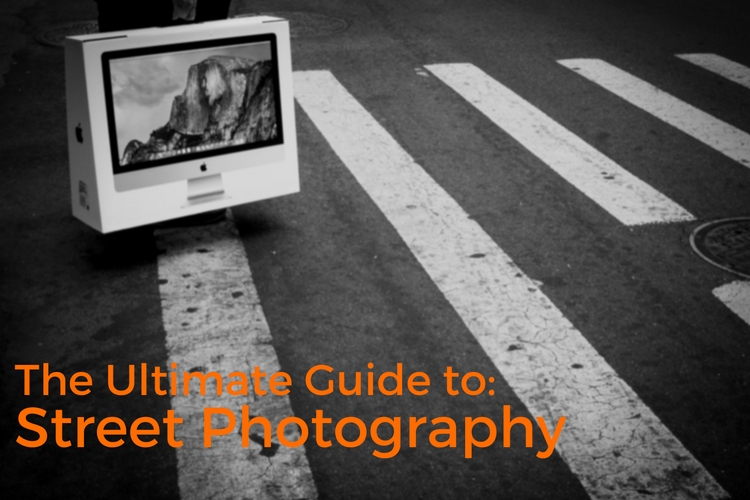
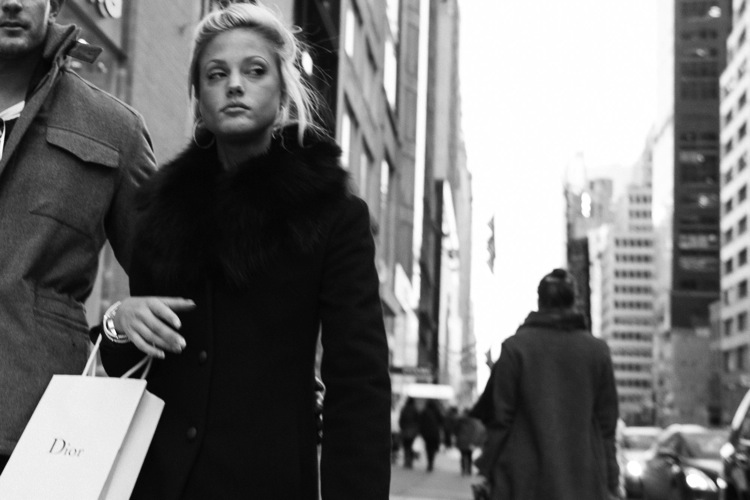
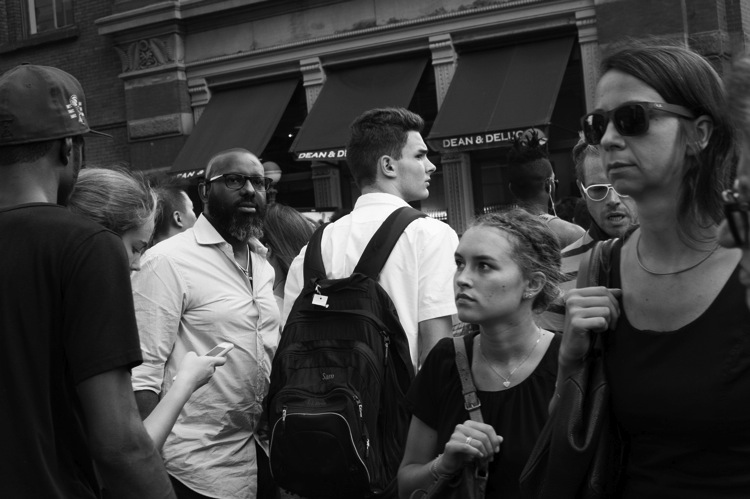
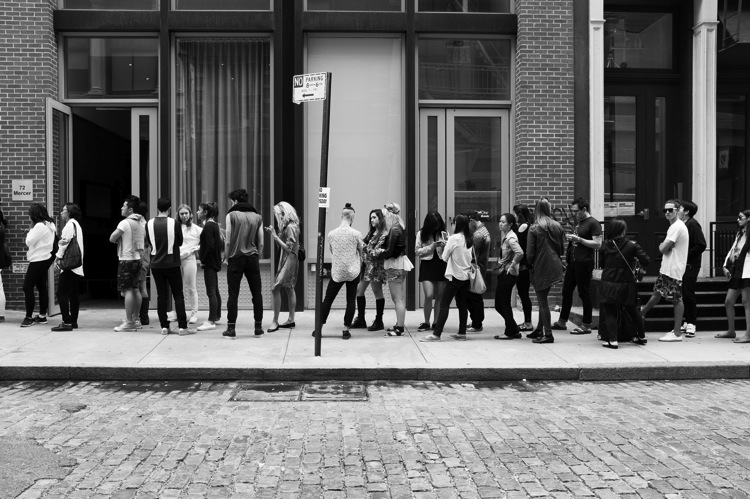
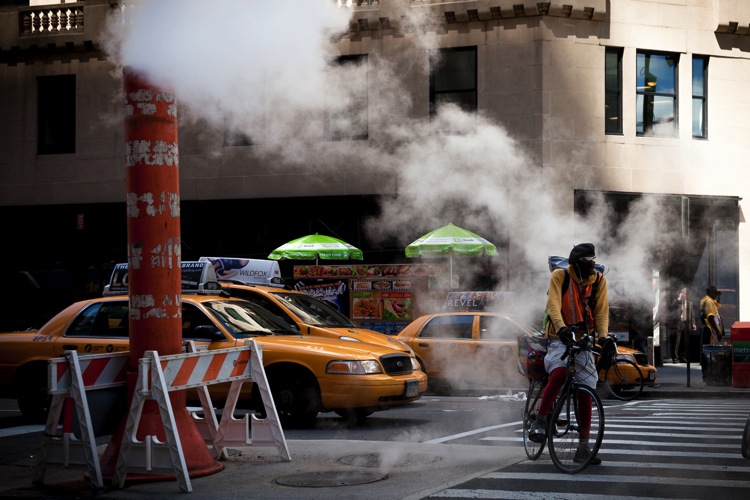
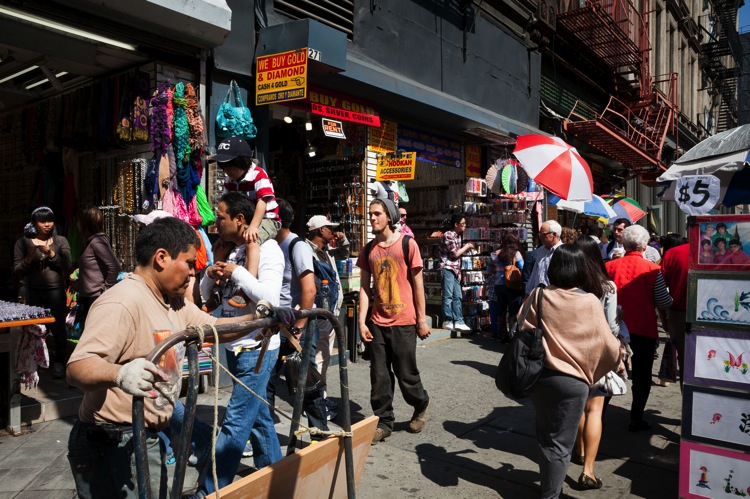
As a street photographer you may have had fear sometimes taking photos on the street. All of us who spend time in the streets shooting know that not everyone likes when you take photos of them. When photographing strangers, our biggest fear is of people noticing that we are taking photos of them or people complaining about being in the frame.

How to Conquer the Biggest Fear in Street Photography

The biggest fear in street photography

Every time this thought hits your mind, just realize that there’s nothing to be afraid of. I’d say that 99% of the fear and anxiety taking photos of strangers comes from inside you, not from the outside. You need to deal with your fears and know that the biggest problem you could have is someone calling the police (which doesn’t happen really often, at least it’s never happened to me). In most of the countries taking photos on the street is allowed and you don’t need permission. Always check the regulations of the country or the province where you are shooting.

If you want to photograph kids I’d recommend always asking for the permission of the parents. In a lot countries you can get in trouble really easily for taking photos of minors without permission. If you want to check in which countries you need consent to take photos, please check this link: Countries that need consent.

Requests to delete the photos

How to Conquer the Biggest Fear in Street Photography

From my personal experience I have to say that sometimes it’s tricky to take shoots of strangers. Some people have come to me asking to delete the photos in front of them. You don’t necessarily need to do that. As per the law in Canada (British Columbia) I can take photos in public places as much as I like. If I want to publish them it’s different story, but you can take photos without having to be worried about getting in trouble. When people ask me to delete their pictures I do it, not because I’m afraid of them because I don’t want to start arguing with someone and lose time that I could be shooting, and out of respect for that person.

Advice to help you be invisible

Since I started shooting I’ve changed my technique a lot. With time you’ll get better and you will feel more confident asking for permission or framing your photo to get an interesting composition.

I have tried different tips and techniques that you can find on the internet, most of them from Eric Kim (one of the biggest street photographers of our time) and from other photographers like Bruce Gilden, among others.

How to Conquer the Biggest Fear in Street Photography

Here is a list of different things people do and my opinion about each of them.

The shooting from the hip technique

You’ll find that this way of taking photos helps you at the beginning but it won’t take you really long if all the photos you do are like this. You need to frame your photo and think about what you want in your frame, otherwise you’ll end up just being lucky.

Shooting from the hip doesn’t allow you to decide, you are just finding something interesting and trying to get lucky pressing the shutter. Let’s be honest, if you want to get good photos don’t do this. Street photography isn’t easy, so you need to be confident and earn the photo. Last but not least it looks pretty shady having your camera on your chest and pressing the shutter when you see something.

How to Conquer the Biggest Fear in Street Photography

Here is my advice to avoid shooting from the hip to give you a better result. What you can do is walk with your camera around like you are shooting a video, people will think that you are just a tourist and won’t care that much what you are doing.

Dress code

There isn’t a proper dress code for street photography, but I will recommend you to dress according to the style of shooting you are gonna be doing. If you go to poor neighbourhoods don’t dress fancy. I often dress with damaged or old clothing to fit in more in that kind of environment.

In case you are shooting in the middle of the city my recommendation would be always dark clothes rather than brighter ones. People won’t notice you that much, and if you want to capture candid moments that’s what you need to blend in more.

Camera and equipment go as light as possible

How to Conquer the Biggest Fear in Street Photography camera gear

In terms of camera equipment, you should always go as light as possible. The less you carry the more freedom you will have when you’re shooting. In my case, I bought my first camera about a year ago (Nikon D7200) and even tho I love the camera I realized after a short amount of time that I couldn’t take the camera around. It was too heavy and too noticeable.

When you are shooting street photography you want to be as invisible as possible, that’s why months later I decided to buy another camera (Ricoh GR II). The advantage of this camera is the fact that it’s super small and I can carry it around all the time. Now I take photos every day, and that helps have no regrets when I see something that I want to shoot.

My personal experience

How to Conquer the Biggest Fear in Street Photography

Since I started I haven’t had a lot of problems. A bunch of people said no when asking for permission but many others said yes. Sometimes people will yell at you for taking photos and others will try to run away from you, but the more shots you take more confident you’ll feel.

I’ve experienced more problems taking photos of rich people than poor people. Which is funny to me, people who have less are seemingly willing to give more than those who have everything.

Rough neighborhood

As a photographer based in Vancouver, I find my inspiration in neighbourhoods like Vancouver East Side which is known for their problems with poverty and drug abuse in some zones. Hastings Street is the part of Vancouver East Side that interests me the most. There is where I take most of my portraits and where I get to talk and share some moments with the people.

How to Conquer the Biggest Fear in Street Photography confidence

In the image above you can see my portrait of a man with tattoos on his face. When I saw him I was by myself and I wished to take his photo. I won’t lie to you I was afraid. Taking photos of people doing drugs or in bad situations is not easy. I get too close emotionally sometimes and feel bad for taking photos of them, like I am stealing something from people who have nothing. But in these cases you need to be strong and see photography not as a weapon but as a way to capture something beautiful and exciting to you. Back to the point, I saw this man and I hesitated taking the picture or not, but eventualy I did.

I asked him, “Excuse me, I really like the tattoos on your face and I would like to take your portrait, do you mind?”. (Always compliment your subject, it gives you a reason for taking the photo.) The man looked at me seriously and said, “Just one, do it fast because I’m mad.” So I took the photo as fast as I could and after thanking him I left and continued taking photos of other people.

Be brave but also be safe

How to Conquer the Biggest Fear in Street Photography

In most cases when you are in areas where is not always safe you don’t want to take a long time taking the photo so I switched to automatic and just took one frame. The outcome was great from my point of view but it is not always like that. Rushing is not always a friend of success, but in some cases you don’t have an option.

Many times some of the tough guys you see if you get closer and ask them for a photo you realize how easy is to take photos of them.

Note from the editor: Always put your own safety first and if you feel it would be dangerous or unsafe to take a photo then do not do so.

My point with this article is to help you realize it’s okay to take photos of strangers in street photography. Think about Robert Frank, Bruce Gilden, or Henri Cartier-Bresson. They didn’t hesitate when the shot showed up in front of them, the question is, would you?

googletag.cmd.push(function() {
tablet_slots.push( googletag.defineSlot( “/1005424/_dPSv4_tab-all-article-bottom_(300×250)”, [300, 250], “pb-ad-78623” ).addService( googletag.pubads() ) ); } );

googletag.cmd.push(function() {
mobile_slots.push( googletag.defineSlot( “/1005424/_dPSv4_mob-all-article-bottom_(300×250)”, [300, 250], “pb-ad-78158” ).addService( googletag.pubads() ) ); } );

The post How to Conquer the Biggest Fear in Street Photography by Camil Adell appeared first on Digital Photography School.


Digital Photography School
 
Comments Off on How to Conquer the Biggest Fear in Street Photography

Posted in Photography


How to Create Magic in Your Photos with the Pixelstick

26 Jan

Who doesn’t want special super powers? Popular culture is awash these days with characters with added extras. To date, these include wizards with magic wands, Jedi’s with light sabers, and now there are photographers with pixelsticks! That’s right, welcome to the future because the pixelstick is here and it’s going to change the way you do photography if you embrace it. The pixelstick enables you to make amazing light paintings in camera, so let’s take a look at it and see why it’s an essential purchase for those who like creative photography.

The light from the pixelstick perfectly framed my friend and fellow DPS write, Pete DeMarco.

The light from the pixelstick perfectly framed my friend and fellow DPS writer, Pete DeMarco.

What is light painting?

Light painting is a technique you can use to create fascinating images. To do it you need to photograph at night, use long exposure, and have a light source. You can divide light painting into two types, those that you do in front of the camera, and those you do with the camera.

  1. Light painting with the camera: Using the camera to light paint is called kinetic light painting and involves techniques such as zoom bursts, or camera rotation.
  2. Lighting painting in front of the camera: You can also move lit or glowing objects in front of the camera during a long exposure, to paint the scene in front of the camera.

In many cases the first time you do any light painting it will be to spell your name using sparklers or a flashlight. The next step if you became more serious would usually be making light orbs, and other light painting shapes with things like fairy lights. Now there is the pixelstick, which makes light painting both easier to do, and more sophisticated.

Light orbs are a lot of fun to create, it's even more fun to light paint with the pixelstick as well.

Light orbs are a lot of fun to create and it’s even more fun to light paint with the pixelstick as well.

The game changer, introducing the pixelstick

The pixelstick is the result of the inevitable evolution of light painting, and the advancement of technology. The pixelstick is a product designed and produced by bitbanger labs, following a successful Kickstarter fundraising campaign. The neat thing about the pixelstick is that you can program it to create any light pattern you want, in fact, you can even use it to create light painted pictures.

How to Create Magic in Your Photos with the Pixelstick

This is possible through importing BMP files onto an SD card, which can then be slotted into the pixelstick’s operating system. You have control of many useful aspects, brightness of the light, the speed of the pattern transmission, repeat firing of the pattern, white balance, and delayed fire, are some of the useful functions.

The pixelstick comes with a controller that you can change the light painting with.

The pixelstick comes with a controller that you can use to change the light painting design.

Vital stats, what you need to know about the pixelstick

The pixelstick at full length is great for light painting, but not so good for traveling. It’s fortunate that the design allows you to break it down to half its length, and store it in the bag. But, the length is still too long for hand luggage on a plane, which presents a problem if you plan on using it in more exotic locales. The essential information about the pixelstick and what comes with it are:

  • Comprised of a strip of 200 RGB LED lights, allowing for a combination of 16 million colors.
  • Has an aluminum case housing, to protect the LEDs from damage.
  • Full-length 187cm (73.5 inches), and a storage length of 109cm (43 inchses).
  • Weight is 1.8kg (4 pounds).
  • The device uses 8 AA batteries.
  • There is a control center with a battery pouch that attaches to the stick, with cables to connect everything together.
The 200 LED lights on the pixelstick come enclosed in a light weight metal case, this protects them from damage.

The 200 LED lights come enclosed in a light-weight metal case which protects them from any damage.

How to do light painting

Light painting is a long exposure technique, which you’ll need a tripod to achieve. You can follow the steps set out below, or for a more detailed guide check out: Beginner’s Guide to Light Painting .

  1. Choose a location and time of day that will be dark. You need to be able to expose for at least 10 seconds in most cases, so locations with less ambient light are ideal.
  2. Dress in black clothes, this will minimize the chance of you showing up in the photo.
  3. Place your camera on a tripod, and compose your scene. As you’re light painting, make sure there is enough space within the composition set aside for the design. In other words, plan where and how big the light design will be, then make sure it will all be contained inside the frame.
  4. Take the light source into the scene you composed, turn it on, and leave it in front of the camera.
  5. Turn on your camera’s LiveView function, and focus on the light source using manual focus (use the + or zoom button to show a magnified view which will make it easier for you to focus). Leave the camera in manual focus to make sure your focus point remains the same.
  6. Set the camera’s self-timer to 10 seconds, and begin the countdown. If you have a remote shutter release you may prefer to use that to trigger their camera.
  7. While the camera is counting down, move into position in front of the camera with your light source in hand.
  8. Just before the shutter releases, begin your light painting pattern.
  9. Carry out any light painting you wish to do. Then, once you have finished painting, turn off your light source and move out of the frame.
  10. Go back to your camera and wait for the exposure to finish. Check your result and repeat if necessary.
A lot of people have fun using sparklers to create light paintings. These can look nice, the pixelstick takes you to the next level.

A lot of people have fun using sparklers to create light paintings. These look nice, but the pixelstick takes it to the next level.

Using the pixelstick to create abstract light paintings

There are many different types of light sources, the pixelstick is just one example. However, these effects can also be achieved by using something as simple as a kid’s toy light saber. The focal point of your image is going to be the light painting itself, or perhaps an architectural feature that you’ll emphasize with light.

How to Create Magic in Your Photos with the Pixelstick

The main thing is to keep it simple, with the light flowing through the scene. If you over-elaborate and make too many movements then it’s the digital equivalent of scribbling on a piece of paper, and it usually doesn’t turn out well. So when you’re making abstract light paintings, keep these things in mind:

  1. Keep the line flowing. You probably know leading lines work well in photos, and light painting is a great way of introducing some into your frame. Have a plan for the direction the line will flow in your frame, and how it will lead the viewer’s eye to the point of interest.
  2. Use repetition. Having a pattern in your frame and repeating it makes a nice light painting. Repetition often works well for photographs, and the control you have with the pixelstick allows you to do this more easily.
  3. Keep it simple. There is a temptation to overcook (do too much) a light painting. With practice, you’ll find the strongest scenes use a more minimalist approach. A simple rotation of the pixelstick or light saber is often all that’s needed.

The pixelstick is really good for abstract work. The preset light patterns that come with the stick will help get you going quickly.

The most effective light paintings can often be when things are kept simple.How to Create Magic in Your Photos with the Pixelstick

The most effective light paintings happen when things are kept simple.

The pixelstick for portraits

The pixelstick can be used to frame a model, and/or create leading lines towards the subject making it a powerful tool for portrait photographers. The difficulty you will encounter when shooting long exposures with a model is freezing them so they’re sharp. The pixelstick itself isn’t any better than other light painting tools you can use, but the following tips can help.

In this photo a Jinbei 600 flash was used to light the model, while the pixelstick produced the light painting.

In this photo, a Jinbei 600 flash was used to light the model, while the pixelstick produced the light painting around her.

  • Keep the exposures short. The shorter the exposure, the less chance there is your model will move. This will mean shorter, simpler light paintings.
  • Use strobes to light the model. Using a strobe (flash) to light your model means that any movement in the model is less likely to show.
  • Ask the model to hold still. This is easier said than done, but if your model can hold really still for 20 seconds, then you can create longer more complicated light paintings.
  • Have the model face away from the camera. Any movement of the model’s face will show in the image. So, having the model face away from the camera helps it look less obvious.

Where the pixelstick really works well is how you make it interact with your model. This may mean that the colors in the light painting contrast with the color of the model’s clothes. Or maybe you can make the model appear to be holding some of the painted light. The creative potential of light painting combined with a model is vast, so you should have fun.

Asking the model to face away from the camera makes it much easier to mask any movements there may have been. How to Create Magic in Your Photos with the Pixelstick

Asking the model to face away from the camera makes it much easier to mask any movements there may have been during a long exposure.

Light painting for product photography

The customization available with the pixelstick makes it a fantastic choice for product photography. One of the main niche genres is car photography, where the ribbon lines or checkered flag designs can be used.

This technique is similar to photographing a model, only your product won’t move, which allows for longer exposures. You can program in the name of the product, or even the company’s logo. The pixelstick really beats other types of light painting hands down, as the light design can be made to specifically match the product or branding.

Cars are great subject for light painting of all forms, the pixelstick gives you even more scope to experiment.

Cars are great subjects for light painting of all forms. The pixelstick provides more options for experimenting.

Personalizing your light design

The ribbon presets, and the downloadable BMP files that come with pixelstick provide a lot of creative variety. But the real fun starts once you begin to add your own designs into the pixelstick. It’s this feature more than any other that gives this tool its power. The creativity is really infinite so here are a few ideas for you:

  • Find images through creative commons of national flags.
  • Edit the color scheme of some of the downloadable patterns that pixelstick provides.
  • Photograph textures shots of leaf beds or brick walls and use them to light paint.
  • Use your own landscape photos.
The texture and patterns of traditional Korean roofing looks beautiful, and made for a great light painting pattern.

The texture and pattern of this traditional Korean roof made for a great light painting pattern.

Converting your files for use with the pixelstick could not be easier. Pixelstick has a drag and drop service on their website where you can do this easily. Alternatively, you could design and edit your image with Photoshop. Your image needs to be sized to 200 pixels high, with the length being as long as you desire. Once this is done the file needs to be flipped counter clockwise and saved as a BMP file. When creating a new file, any black areas will appear as blank (no light) when the light painting occurs.

In this photo the statue of a buddhist grandmaster has been light painted around using traditional Korean patterns as the light source.

In this photo, the area around the statue of a Buddhist grandmaster has been light painted using the traditional Korean pattern I created (above) as the light source.

Vibrant videos with the pixelstick

The pixelstick’s scope of creativity goes beyond still photography, and it can do amazing things for animation. You are going to create a stop motion video with the pixelstick, and use a series of long exposure photos to make this. Think of an animation flipbook, only this is the digital version of that.

Steps to create an animated GIF

Animating a single scene with the pixelstick could not be easier. Follow these steps to make an animated gif (like the one below) or perhaps a short video. You don’t need a pixelstick to create this type of animation of course, but you have a lot more options at your fingertips if you do.

The pixelstick can also be used for make smaller gif animations. The creative potential here is huge.

The pixelstick can also be used for make smaller gif animations. The creative potential here is huge.

  1. Set your camera on a tripod, and ensure it doesn’t move.
  2. Compose your scene, and decide where your light painting animation will occur.
  3. Use a remote cable shutter release, this will prevent any movement of the camera.
  4. Allow a long enough exposure for you to complete the light painting.
  5. Begin the exposure, and move into the frame to start and complete the light painting.
  6. Repeat the exposure and the same light painting at least 10 times.
  7. Take your camera home, and import the photos to your computer.
  8. You now need to import the files to photoshop. To do this go to file>scripts>load files into stack.
  9. Open the timeline window, and select “create frame animation”. This will import one frame into your animation.
  10. On the right-hand side of the timeline window click the menu option, and select “create frames from layers”. Now reverse the order of the frames.
  11. Hit play and remove any frames that interrupt the flow of your animation.
  12. The file is now ready, export it as a gif file.

Stop-motion videos

Creating a longer stop-motion video is very similar to making an animation, in essence, you’re just making an extended version. As opposed to repeating a light painting many times, you may well simply move through a scene when making this type of video.

It’s better to use a dedicated stop-motion app for making this type of video, with stop-motion studios for windows, and istopmotion for mac being a couple examples of options.

pixelstick

One frame from the series used to make the stop-motion video below.

Conclusion

The pixelstick really is a magical tool. You can create spellbinding images that will wow your friends if you decide to purchase one. The size of the stick is something of a double-edged sword, thought. It allows for bigger more dramatic light paintings, but it is also harder to transport, even when broken down into its carry bag. Is the pixelstick worth dropping the extra cash on, versus a cheaper D.I.Y. light stick? If you’re serious about improving your light painting, then yes it’s worth the money in my opinion.

The ability to customize the type of light emitted gives you so much control. Doing this with a DIY light-stick would take many hours, and in many cases would be impossible to replicate what the pixelstick does. At around $ 350, you could spend more money on other photography gear without getting the same level of creative energy you get from this tool. Whether you’re interested in still photos or animation, this will quickly become a vital part of your setup.

The way you make light interact with it's surrounds can be highly effective.

The way you make light interact with the surroundings can be highly effective.

The light paintings the pixelstick is capable of are highly sophisticated.

The light paintings the pixelstick is capable of are highly sophisticated.

In this image the pixelstick was used to add repetition to the scene, and an otherworldly feel.

In this image, the pixelstick was used to add repetition to the scene, and create an otherworldly feel.

The flow and lines that you can create with the pixelstick make the photo stand out much more.

The flow and lines that you can create with the pixelstick make the photo stand out much more.

The petronas towers in Kuala Lumpur are framed using light from the pixelstick, adding a lot of interest to this photo.

The Petronas towers in Kuala Lumpur are framed using light from the pixelstick, adding a lot of interest to this photo.

The light weaves in and out of the pillars, adding direction to this photo.

The light weaves in and out of the pillars, adding direction to this photo.

googletag.cmd.push(function() {
tablet_slots.push( googletag.defineSlot( “/1005424/_dPSv4_tab-all-article-bottom_(300×250)”, [300, 250], “pb-ad-78623” ).addService( googletag.pubads() ) ); } );

googletag.cmd.push(function() {
mobile_slots.push( googletag.defineSlot( “/1005424/_dPSv4_mob-all-article-bottom_(300×250)”, [300, 250], “pb-ad-78158” ).addService( googletag.pubads() ) ); } );

The post How to Create Magic in Your Photos with the Pixelstick by Simon Bond appeared first on Digital Photography School.


Digital Photography School
 
Comments Off on How to Create Magic in Your Photos with the Pixelstick

Posted in Photography


3 Ways to Make Selective Color Portraits Using Lightroom and Silver Efex Pro 2

26 Jan

3 Ways Make Selective Color Portraits Using Lightroom and Silver Efex Pro 2Selective coloring is a post-processing technique where you convert an image to black and white, but leave part of it in color. It has a bad reputation because it can be used to create some truly horrendous images where the only thing on display is the photographer’s lack of ability.

But the good news is that you can use selective coloring in a far more sophisticated way to create some interesting images. The key is to keep it subtle and to use it only on suitable photos. I like to make selective color portraits, but of course you are free to experiment with other subjects as well (but please, no flowers).

I prefer to keep my workflow within Lightroom whenever possible as it saves hard drive space and makes the entire photography workflow much simpler. The first two techniques below are for Lightroom, the third uses Silver Efex Pro 2, a free plug-in you can download from Google.

1. Selective color in Lightroom using the Adjustment Brush

The first example, below, shows what you can do in Lightroom. This is the portrait that I am going to work with for this technique.

3 Ways Make Selective Color Portraits Using Lightroom and Silver Efex Pro 2

The simple background means it’s ideal to use for a selective color portrait.

Start by going to the Develop module and activating the Adjustment Brush tool. Paint in the background to create a mask (as shown below).

3 Ways Make Selective Color Portraits Using Lightroom and Silver Efex Pro 2

The mask is shown here in red.

It may help to zoom in and use a smaller brush around the model for a more accurate mask.

3 Ways Make Selective Color Portraits Using Lightroom and Silver Efex Pro 2

View zoomed in so you can mask more accurately around the model.

Go to the Adjustment Brush sliders and set the saturation to zero.

3 Ways Make Selective Color Portraits Using Lightroom and Silver Efex Pro 2 - set saturation to zero

That removes all color from the background, giving this effect. Don’t forget you don’t have to move Saturation all the way to zero – you can simply lower it to reduce the color intensity of the background. Play around and see what works best for your image.

Selective coloring in Lightroom

It’s important that you chose the correct image for this technique to get the best effect. There are several reasons it works well with this portrait.

  • The background is monochromatic. It wouldn’t work as well with a colorful background.
  • The rocks in the background have plenty of texture, which looks good in black and white.
  • Some of the model’s clothes are black or charcoal gray, so introducing this color into the background fits with the overall aesthetic of the image.

2. Selective coloring in Lightroom using the HSL

The next portrait (below) has a more colorful foreground. I’m not going to remove the color completely, but I would like to make it more monochromatic. That will help the subtle colors in the model’s dress and skin to stand out.

3 Ways Make Selective Color Portraits Using Lightroom and Silver Efex Pro 2

Go to the HSL / Color / B&W panel in the Develop module. Click the Saturation tab, then the Targeted Adjustment tool (marked below) to activate it.

Selective coloring in Lightroom

Move the cursor over part of the image that you want to desaturate. In this case, the foreground has a blue cast that I want to remove, so I chose this spot (marked by the small cross circled in red below).

Selective coloring in Lightroom

Click and hold the button as you move the mouse downward. Lightroom reads the pixels under the cross representing the Targeted Adjustment tool and reduces the saturation of those colors across the entire image. The matching color sliders in the HSL panel move to the left. When I did this, Lightroom set Blue to -80 and Purple to -10.

Selective coloring in Lightroom

This is the result.

3 Ways Make Selective Color Portraits Using Lightroom and Silver Efex Pro 2

I took it further by repeating the technique. This time using the Targeted Adjustment tool on the pink and orange paintwork on the wall, resulted in the following saturation settings.

Selective coloring in Lightroom

This is a before and after of the final portrait showing these extra adjustments.

selective-colored-portrait-01

Notes:

One key thing to be aware of is how the colors in your photo are related. In the photo above reducing the saturation of the pink paint affected the model’s dress, which is also pink.

Reducing the saturation of the orange paint also affected the model’s skin. In this case, it worked out okay, but you should always zoom in and double check, especially when changing the color settings of Red, Orange or Yellow hues, as this can have some strange effects on skin tones.

3. Selective coloring using Silver Efex Pro 2

Silver Efex Pro 2 is one of my favorite black and white plug-ins. I’d like to show you how to use it for making a selective color portrait with a subtle effect that almost looks like an old style hand-tinted black and white print.

This is the portrait I’m going to use. It’s a good photo to use as the colors are subtle.

3 Ways Make Selective Color Portraits Using Lightroom and Silver Efex Pro 2

If you don’t have Silver Efex Pro 2 already, you can download it for free from the official Nik Collection website.

Once it’s installed go to Lightroom’s Library module and select the photo you want to edit. Go to File > Edit In > Silver Efex Pro 2 (you can also find this option by right-clicking the photo).

Select the option that says “Edit a Copy with Lightroom Adjustments” in the next window (it will probably be the only one you can select) and click Edit. Lightroom converts the Raw file to a TIFF file and opens it in Silver Efex Pro 2.

Selective coloring in Silver Efex Pro 2

Your first task in Silver Efex Pro 2 is to decide whether you want to stay with the default neutral black and white conversion or use one of the built-in presets. I selected the Soft Sepia preset (below), then made some adjustments to the tonal values until I was ready to apply selective coloring.

3 Ways Make Selective Color Portraits Using Lightroom and Silver Efex Pro 2

In Silver Efex Pro 2 you make local adjustments by going to the Selective Adjustments panel and adding Control Points. This screenshot shows seven of the Control Points that I added to this photo. Each one is depicted by a yellow dot.

Selective coloring in Silver Efex Pro 2

Using Control Points

Control Points work by analyzing the color and brightness of the pixels underneath them, then applying the selected effect to the pixels within the circle. In this photo, I moved the Selective Coloring slider (SC) to the right to bring the colors back to the model, but not the background.

You control the size of the circle by moving the top slider. Silver Efex Pro 2 displays a circle to show you the area affected by the Control Point.

3 Ways Make Selective Color Portraits Using Lightroom and Silver Efex Pro 2

Add multiple Control Points with circles that cover the model but as little of the background as possible. When you are finished, click the Save button. Silver Efex Pro 2 closes, saving the new TIFF file in the same folder as the original file and adding it to the same Collection in Lightroom.

Here’s the before and after with portrait after selective coloring in Silver Efex Pro 2. Notice it’s very subtle.

selective-colored-portrait-02

Conclusion

Hopefully, this article has shown you how to use selective color in a subtle and sophisticated way that moves on from the garish examples you have probably seen online. Do you have any questions about these techniques? Let me know in the comments below.


If you’d like to learn more about Lightroom, then please check out my popular Mastering Lightroom ebooks.

googletag.cmd.push(function() {
tablet_slots.push( googletag.defineSlot( “/1005424/_dPSv4_tab-all-article-bottom_(300×250)”, [300, 250], “pb-ad-78623” ).addService( googletag.pubads() ) ); } );

googletag.cmd.push(function() {
mobile_slots.push( googletag.defineSlot( “/1005424/_dPSv4_mob-all-article-bottom_(300×250)”, [300, 250], “pb-ad-78158” ).addService( googletag.pubads() ) ); } );

The post 3 Ways to Make Selective Color Portraits Using Lightroom and Silver Efex Pro 2 by Andrew S. Gibson appeared first on Digital Photography School.


Digital Photography School
 
Comments Off on 3 Ways to Make Selective Color Portraits Using Lightroom and Silver Efex Pro 2

Posted in Photography


Tips for Making Natural Light Portraits

26 Jan

Natural light portraits are honestly one of my favourites, they have this extra feel that studio portraits don’t. Compared to studio portraits, they are much easier – you don’t need to learn all the lighting techniques. They are also much cheaper, you don’t need to buy any strobes, flashes, or light modifiers such as soft boxes beauty dishes. Studio portraits are really fun but they are much more difficult than doing natural light portraits.

Starting off, making portraits with natural light is a first great step. It will enable you to work on your composition, your communication with your model, and help you build your confidence. Then you can decide whether or not you want to invest in studio equipment.

Article natural light image1

Camera gear and settings

There are some simple tips and tricks to get the most out of your portraits with natural light. But let’s start with camera settings and camera gear first.

Shoot in manual mode

The ideal situation is to have total control over your settings, so I would highly recommend using manual mode. I recently wrote an article about using manual mode, so you can go check it out here; How to Use Manual Mode to Make Artistic Choices for Your Photography.

Shutter speed

You need a minimum shutter speed of around 1/100th of a second (or faster). This is very important as it helps you avoid blurry images as your model will be in constant movement most of the time.

Aperture and blurring the background

To get a soft background blur, you want to use the largest aperture possible – around f/4 works but the ideal would be f/1.8. If you want a larger aperture than f/1.8 the lenses can become quite pricey.

If you don’t have that kind of lens, you can still get nice results but separation (space) between the model and the background is needed. This really helps to drag the viewer’s attention to the model and avoid any unnecessary distractions. If you want to show the background behind your model then use a smaller aperture. I have an article on how to achieve background blur, I speak about bokeh in more detail there.

Article natural light bokeh

What lens to use?

If you are using a long (telephoto) lens then a large aperture isn’t as critical because you will automatically have some background blur separation. Long lenses are the best for portraits because they compress the subject to background very nicely. Avoid wide angles lenses because they distort the subject’s face and amplify features like the nose or the forehead. Try to use lenses with a minimum focal length of 50mm with a full frame sensor and 35 mm with an APS cropped sensor.

Article natural light long telephoto lens

ISO

For the ISO, choose the lowest possible option taking in consideration that your shutter speed must be 1/100th of a second or higher. Using the light meter in your camera, you can get a fast shutter speed by adjusting your ISO if the lighting conditions are low. But, knowing that you will be using a larger aperture as well, that shouldn’t be a big problem.

Shortcut – Aperture Priority Mode

One tip I can give is to use Aperture Priority mode if you are a lazy photographer (or smart?) like me. During an outdoor shoot, the light will change frequently and you will need to adjust your settings whether it’s the shutter speed or the ISO (I usually never adjust my aperture).

When you are making portraits, you will get into the shoot very quickly and with manual mode you need to constantly change your settings. The probability of missing a lot of good photos because you forgot to adjust your settings is very high. It’s very frustrating when you get the perfect pose only to realize the image is way too dark or way too bright because your settings were wrong.

I gave up on manual mode because I always forgot, so I now only use Aperture Priority and raise my ISO to 400 to force my camera to use a fast shutter speed. Don’t make the mistake of using ISO 100 in Aperture Priority with low light and ending up getting blurry images.

Article natural light aperture priority

Use RAW files and underexpose

I recommend shooting RAW and underexpose your images slighting using exposure compensation.

This is very important because sometimes you will accidentally expose for the shadows and that will automatically overexpose your images. The problem with that is that you will lose all the information in the model’s skin tone and if those areas area burned you may not be able to recover detail there.

A RAW file also lowers the probability of losing any information in your image because you have a bigger margin of recovery. Since you are underexposing your images slightly, you will be able to correct the exposure later in post-production. It’s a bit technical but this is the best way to have all the necessary information in your image, burned-out pixels are the worst enemy a portrait portrait photographer can have.

Another solution is to turn on the highlight alert for your camera (most entry level cameras have this setting) and every time you take an image, the burned-out pixels (clipped highlight areas) will show up in red (or blink). This is very useful because every time you see this it means that there is no information in that area, it’s just a pure white point which is not recoverable.

Article natural light shoot raw underexposue

I underexposed this image to have all the detail in the skin.

Location and lighting conditions

One thing you must avoid is taking portraits with harsh light (during the day and facing the sun). This increases the features of the face (emphasizing any blemishes and flaws) with harsh shadows and the result is not flattering. One tip I can give you to help you determine if you will have good light for a portrait is to look at the shadows (on the ground) of people passing by in the streets. If the shadow is very harsh (strong outline), you will probably not get good light but if the shadow is very soft (fuzzy or undefined) then the light is perfect for making portraits.

One main aspect of natural light portraits is soft light. There are five different possibilities to get beautiful soft light on your model’s face.

Five lighting options

#1 – Use window light, it will give you a very nice soft light on your model’s face.

Article natural light window light

Portrait taking using natural window light.

#2 – Take portraits during sunset, you will have the softest light possible.

Article natural light image7

Portrait taken at sunset.

#3 – Take portraits on an overcast day, the sky will become a huge softbox with very soft light.

Article natural light overcast

Portrait taken during an overcast day.

#4 – Take portraits on a street where buildings or apartments are blocking the sun (like an alleyway).

Article natural light image9

When it’s bright outside, try to look for buildings that block direct sunlight.

#5 – Use a light diffuser in the middle of the day, this will turn harsh light into soft light.

Article natural light image10

The location doesn’t really matter because most of the time the background will be blurred, but the light is crucial so overtime you want to take a portrait make sure to have one of these different possibilities.

Conclusion

I hope that gives you some tips for making natural light portraits. Find a friend to pose for you and try it out. Please share your photos and questions in the comments section below.

googletag.cmd.push(function() {
tablet_slots.push( googletag.defineSlot( “/1005424/_dPSv4_tab-all-article-bottom_(300×250)”, [300, 250], “pb-ad-78623” ).addService( googletag.pubads() ) ); } );

googletag.cmd.push(function() {
mobile_slots.push( googletag.defineSlot( “/1005424/_dPSv4_mob-all-article-bottom_(300×250)”, [300, 250], “pb-ad-78158” ).addService( googletag.pubads() ) ); } );

The post Tips for Making Natural Light Portraits by Yacine Bessekhouad appeared first on Digital Photography School.


Digital Photography School
 
Comments Off on Tips for Making Natural Light Portraits

Posted in Photography


3 Things I Wish I Knew When I Started Photography

26 Jan

There are a some lessons that we all learn the hard way. Trial and error, though equally arduous, are still the two most ingraining teachers any of us will ever have. We often learn more from our failures than our successes. But like Newton tells us, at times we move forward only by hefting ourselves onto the shoulders of giants.

Boldness learn

More than anything, I wish I would have learned a few things sooner. There are so many lessons that would have benefitted me if I had only understood them on the front end of my trip into the photographic unknown.

So, in the spirit of solidarity I will share three things I wish someone would have told me when I started photography. Perhaps there were those who tried but for whatever reason I either couldn’t or wouldn’t understand. Hopefully these hard fought teachings will help you move forward and give you the mentality you need to start creating better images. Here they are in no particular order.

Learning chicago

The type of camera I would need

This is a dodgy subject that plagues many who are just starting out, or those who want to get more serious about their photography. I began my journey shooting a 35mm Nikon N65 with a 18-55mm kit lens that I bought when I was 18 years old. It was my first real camera. The late teenager version of me saved his money and paid $ 265 for it but I still felt as though I needed a better camera in order to make better images. That was 15 years ago.

Even then I was under the impression that I would need a “professional camera” in order to be a professional photographer. If you had asked me then, I wouldn’t have been able to even tell you what a “professional camera” actually was.

Camera types

What I wish someone had told me was that the best camera doesn’t exist. The only thing that truly matters is the knowledge to use whatever camera is in your hands to the utmost of its (and your) ability. True, times have changed and imaging technology has advanced alarmingly fast. Some people now earn a living with only the cameras in their smartphones.

The thing to always remember is that most cameras are capable of producing images of astonishing quality when coupled with a proficient user. Whatever camera you might currently have is likely more than enough. Allow your skills to mature and you will know when it’s time to upgrade.

Photography create

What post-processing is – and what it is not

Before you begin scrolling in horror at the very mention of post-processing let me assure you that this in not a dreaded commentary on what may or may not be considered “Photoshopping.” Instead, we’re going to talk about some misconceptions I had when first beginning to process my images.

I was under the impression that “getting it right in the camera” was an all encompassing mentality that meant nothing needed to be done after the moment of capture other than showing the image to the world. That is not necessarily true.

What I wish someone had told me was that all photographs, even analog (film), virtually always benefit from some extent of work after the image has been made. The quote which changed my thinking towards post-processing came from none other than Ansel Adams himself:

“The negative is the equivalent of the composer’s score, and the print the performance.”

Journey photography

The point Ansel was making is that yes you always want to strive to achieve the best exposure you possibly can in-camera so that you have a more complete representation of the scene in order to manifest a final photograph intermingled with your own creativity. Post-processing is not something to be avoided but rather embraced as a logical second step towards achieving your visualization regardless of what that visualization may be.

Perfection is unattainable

That’s right. No photograph is perfect and very few photographs are ever elevated to the level of fine art, whatever that means. This was an illusion that burdened me during my early days while learning to create photographs. I had an enormous misunderstanding about what actually went into the production of an image both creatively and technically.

One thing that I did know, was that my photographs looked nothing like some of the wonderful images I saw online or in photo magazines. I became discouraged, all the while feeling as if I was doing something completely wrong.

Perfection unattainable

What I wish someone had told me was that even if you labor in photography for the rest of your life, you will never snap a perfect frame. Your photographs will certainly become stronger as you hone your technique and acquire more capable gear, yes. But don’t think that you will ever reach a day when you can say, “Ah, now I’m perfect. All my photographs will be flawless from here on out.” That day will never come.

The craft of photography is a practice in personal evolution. It is a journey of constant learning. So take a breath, relax, and enjoy the process for the beautifully weird trip that it is.

Conclusion

These are just a few of things that I wish someone had told me when I first began making photographs. Do you have any lessons you have learned that could help others? List them in the comments below!

googletag.cmd.push(function() {
tablet_slots.push( googletag.defineSlot( “/1005424/_dPSv4_tab-all-article-bottom_(300×250)”, [300, 250], “pb-ad-78623” ).addService( googletag.pubads() ) ); } );

googletag.cmd.push(function() {
mobile_slots.push( googletag.defineSlot( “/1005424/_dPSv4_mob-all-article-bottom_(300×250)”, [300, 250], “pb-ad-78158” ).addService( googletag.pubads() ) ); } );

The post 3 Things I Wish I Knew When I Started Photography by Adam Welch appeared first on Digital Photography School.


Digital Photography School
 
Comments Off on 3 Things I Wish I Knew When I Started Photography

Posted in Photography