RSS
 

Archive for the ‘Photography’ Category

How to Use Graduated Neutral Density Filters for Landscape Photography

01 Feb

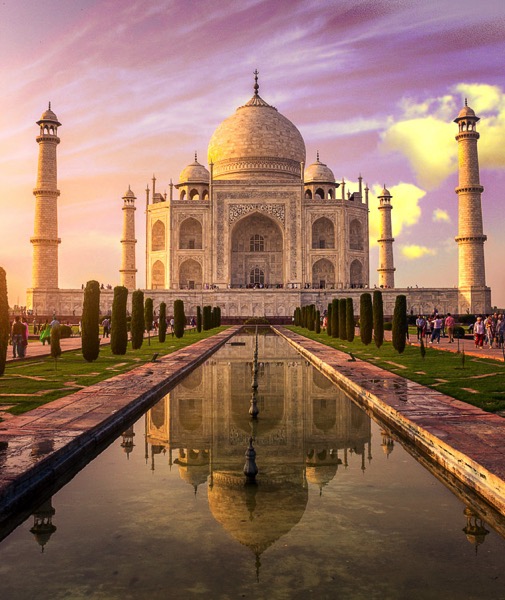
Since the camera was invented, we have tried to copy one of the greatest wonders of our body; the human eye. Unfortunately, despite being over 100 years since the first time that we captured light, we are still far from overcoming Mother Nature.

Why? Because in the visible spectrum your eye sees much better than your camera.

How to Use Graduated Neutral Density Filters for Landscape Photography

Dynamic Range

The parameter that describes this behavior is called Dynamic Range. This basically defines the difference between the minimum and maximum value of brightness that a device (like your eye or the sensor of your camera) is able to record. In the real world, Dynamic Range defines the ability of your camera to see details in very dark areas and very clear (bright) areas of the scene.

If you’re wondering how much more your eye sees, the answer is staggering. Your eyes have about twice as much range that they can see and capture.

How to Use Graduated Neutral Density Filters for Landscape Photography

The problem

That’s why when you look at a marvelous sunset with your eyes you’re able to see all the details in the scene (in both the sky and the land). But as soon as you try to capture it with your camera, you’ll get an overexposed sky or a underexposed foreground. The Dynamic Range of your camera is only able to capture detail in one of those areas so you have to choose.

But if even the best cameras have a Dynamic Range which is only half that of the human eye. So how can we hope to shoot a beautiful sunset or a wonderful sunrise and capture all the marvelous details?

There are different methods to overcome this problem, but my favorite is the use of Graduated Neutral Density filters (GND).

graduated neutral density filters

What is a Graduated Neutral Density Filter?

A Graduated Neutral Density Filter is one made of two distinct parts; a completely transparent area, and a darker section. By setting the darkest part of the filter to correspond with the brightest portion of the scene, you can reduce the exposure difference (dynamic range) in the frame.

To reduce the exposure difference is to reduce the dynamic range of the scene, and thus allow your camera to simultaneously capture detail in both bright and dark areas of the scene. Basically, to make an analogy, GND filters are like a kind of sunglasses for your camera.

Types of GND filters

Graduated Neutral Density Filters are typically distinguished by the type of transition that exists between the transparent and dark areas of the filter. For this reason, we can identify three families of GNDs:

  1. Hard-edge filters, which are characterized by a clear boundary (it’s obvious where one begins and the other ends) between the transparent and dark areas. They are therefore used when the separation between the bright and dark areas of your scene is very defined, such as the horizon at sea.
  2. Soft-edge filters are characterized by a soft transition (they change from light to dark more gradually) and are therefore used when the transition between light and dark areas is not so clear. A classic example is a shot in a mountainous area.
  3. Reverse filters, which are nothing more than hard-edge GNDs with the dark area that fades away the more you move from the line of separation to the upper border of the filter (meaning it’s darker in the middle than on the edge). Basically, they were invented to better manage sunrises and sunsets, where the light is more intense on the horizon line (middle). If you love seascapes like me, this filter will be one of your best friends forever!

How to Use Graduated Neutral Density Filters for Landscape Photography

Which to buy?

Another distinction is between filters is the construction material. Higher quality filters are made of optical glass. Putting an inexpensive resin filter in front of a lens worth hundreds (or thousands) of dollars is not a great idea.

Finally, GND filters are distinguished by graduation, or their ability to block light through the darkest area. Essentially how dark they are at the extreme. Normally in landscape photography, this difference is between one and four stops during sunset and sunrise, depending on weather conditions. This is the reason why you will find these gradations almost exclusively on the market.

Shop for Graduated Neutral Density filters on Amazon.com or on B&H Photo Video’s site (they ship worldwide).

How to use a GND filter in the field

The use of GND filters in the field is very simple; try to take exposure readings in the darkest and in the brightest areas of the scene (usually the sky). The exposure difference will indicate the intensity of the filter to be used. Let’s assume that the light meter reading for the sky is 1/250th, and the one for the rocks in the foreground is 1/30th. The difference between those readings is three stops (250th > 125th > 60th > 30th), so to balance the exposure you must use a 0.9 (3-stop) GND.

At this point, just mount the filter with its dark side over the brightest part of the scene. This is why a GND screw-in filter does not make sense. You would not have the possibility to align the dark area in accordance with the scene as well as a drop-in style filter.

How to Use Graduated Neutral Density Filters for Landscape Photography

To avoid having to hold the filter with your hands (that could be a problem if you are going to use them together with other filters) you can buy a holder, that once mounted in front of your lens will do the job for you. There are many valid solutions on the market, but the best one (in my opinion) is the V5 Pro Holder by NiSi filters. This is the only one that lets you simultaneously install three different filters and a polarizer without any vignetting issues (as wide as 16mm on full frame cameras).

At this point, the limited Dynamic Range of your image will be just a bad memory!

How to Use Graduated Neutral Density Filters for Landscape Photography

googletag.cmd.push(function() {
tablet_slots.push( googletag.defineSlot( “/1005424/_dPSv4_tab-all-article-bottom_(300×250)”, [300, 250], “pb-ad-78623” ).addService( googletag.pubads() ) ); } );

googletag.cmd.push(function() {
mobile_slots.push( googletag.defineSlot( “/1005424/_dPSv4_mob-all-article-bottom_(300×250)”, [300, 250], “pb-ad-78158” ).addService( googletag.pubads() ) ); } );

The post How to Use Graduated Neutral Density Filters for Landscape Photography by Francesco Gola appeared first on Digital Photography School.

Digital Photography School

 
Comments Off on How to Use Graduated Neutral Density Filters for Landscape Photography

Posted in Photography


5 Common Post-Processing Mistakes to Avoid

01 Feb

For today’s photographer, post-processing is a critical element of image making. Sure, when you first get started with digital photography, you might shoot in JPG mode and allow the camera to make decisions about things like color and contrast. But when you’re ready to take control of your images, it’s time to shoot in RAW format and make the important decisions about how you want your final image to look yourself.

Estuary in Campbell River BC by Anne McKinnell - 5 Common Post-Processing Mistakes to Avoid

When you first start shooting in RAW, you might think your images look a bit gray and bland. That’s because the decisions that the camera was making before are now left up to you. That can be a bit daunting! But here are some tips to help you avoid the most common post-processing mistakes and make sure you are helping your images and not hurting them.

Remember, the purpose of post-processing is not to fix bad photos, but to bring out the best in good photos.

Mistake #1 – Lightening shadows too much

Always try to get the best exposure possible in camera. You’ll get a better result when you start out with a good exposure rather than relying on the highlights and shadows sliders in post-processing to balance it.

That said, sometimes you will still want to use the shadows slider to lighten your shadows to bring more detail in the darker areas of your image. Just be careful not to overdo it, or you’ll end up with an image that no longer looks natural.

This is overdone, the shadows have been pulled too far here and it no longer looks natural. Notice it also introduced noise into the sky.

Convict Lake, California by Anne McKinnell - 5 Common Post-Processing Mistakes to Avoid

Shadow adjustment in moderation is better.

If you try to equalize the brightness of the highlights and shadows, you’ll end up with a photo that not only looks unnatural, but the lack of contrast will make the image look boring. Contrast is a good thing! This is especially true when you have a scene with a reflection. The reflection should always be darker than the scene it is reflecting, as it is in nature.

Mistake #2 – Over saturation

Another way to create an unnatural looking image is to over saturate everything. It’s a tempting thing to do because a little bump in saturation and vibrance makes such a big difference. Again, just don’t overdo it. A little goes a long way.

Before you touch those sliders, spend a bit of time thinking about your image and the colors in it. Sometimes adding saturation globally is not the best idea, especially if you have a scene that contains many different colors. Instead, consider using the HSL (Hue/Saturation/Luminosity) panel, choose Saturation, and use the target tool to add saturation to one color in your scene. For example, you might want to add saturation to the main subject to draw attention to it.

Over saturation leaves the colors looking odd.

Yellow flower with bee by Anne McKinnell - 5 Common Post-Processing Mistakes to Avoid

Better saturation levels.

Mistake #3 – Over sharpening

First of all, never use sharpening to try to fix a photo that is out of focus. It just doesn’t work. Sharpening cannot fix blur. However, if you have an image that is in focus, adding a bit of sharpening can make it extra crisp and realistic.

Again, consider adding sharpening locally (to one select area) not globally, especially if you have areas of your scene that are purposely out of focus, such as when you have a shallow depth of field. Also, the sky usually looks better when it is smooth, so you don’t want to add sharpening there. Keep in mind that adding sharpening will increase noise, which is another reason not to add it globally. Rather, just add it to the main subject or areas of your scene with a lot of detail.

This has been over sharpened, you can see artifacts throughout the image here.

Deer by Anne McKinnell - 5 Common Post-Processing Mistakes to Avoid

Better level of sharpening.

In Adobe Camera Raw, use the Detail panel to add sharpening. Then, hold down the option (or alt) key and use the masking slider. As you move the slider, the areas that appear black do not have sharpening applied and areas that are white do. This is an effective way to add sharpening to the areas of your image that have details. Another option is to use the adjustment brush to brush sharpening on where you want it.

Mistake #4 – Over cropping

The crop tool is a handy way to refine your composition, remove unwanted elements on the edges of the frame, and make sure your horizon line is straight. But don’t use it to remove all the “negative space” in your scene.

You don’t need to fill the frame with your subject. A little breathing room keeps the image interesting. Think about creating a balance between the space taken up by your subject and the space around it. This is not necessarily an equal balance.

Cropped too tight on the subject.

Bisti Badlands, New Mexico by Anne McKinnell - 5 Common Post-Processing Mistakes to Avoid

Cropped to leave negative space and lead your eye to the subject.

Mistake #5 – Too much Noise Reduction

Sometimes the nature of the light requires the use of a high ISO. Perhaps you need both a small aperture and a high shutter speed for your scene, so increasing the ISO is the only way to get a good exposure. That’s okay. The noise caused by using a high ISO can be reduced in post-processing using the noise reduction slider.

But nobody said that all images must have no noise. Not all images have to be perfectly smooth looking. Especially if there is a lot of detail and texture in your subject. Using too much noise reduction can create blurry splotches in areas that were previously sharp.

Too much noise reduction has been applied here and overall the image now looks blurry.

Kofa National Wildlife Refuge, Arizona by Anne McKinnell - 5 Common Post-Processing Mistakes to Avoid

Noise reduction scaled back.

You may have noticed a theme in these common mistakes. Don’t over do it! Small adjustments go a long way to bringing out the best qualities of your images, but taking it too far can just as easily ruin them.

After you process your image, take a break from it and look at something else. Maybe even give it a day to settle. Then, when you look at it again, it will be more obvious if you have taken the processing too far.

googletag.cmd.push(function() {
tablet_slots.push( googletag.defineSlot( “/1005424/_dPSv4_tab-all-article-bottom_(300×250)”, [300, 250], “pb-ad-78623” ).addService( googletag.pubads() ) ); } );

googletag.cmd.push(function() {
mobile_slots.push( googletag.defineSlot( “/1005424/_dPSv4_mob-all-article-bottom_(300×250)”, [300, 250], “pb-ad-78158” ).addService( googletag.pubads() ) ); } );

The post 5 Common Post-Processing Mistakes to Avoid by Anne McKinnell appeared first on Digital Photography School.

Digital Photography School

 
Comments Off on 5 Common Post-Processing Mistakes to Avoid

Posted in Photography


Join Me For a Drop-In Studio at GPP2017

01 Feb

Just a quick heads-up for anyone headed to Gulf Photo Plus in Dubai that I’ll be holding a drop-in studio session on the afternoon of Weds., Feb 15th. It’s not an official class, just something cool happening on the side.

You can learn more about it here, but basically it is free and we’ll be experimenting/learning/failing/etc. Specifically, we’ll be working with gels in the context of future posts in the just-started Lighting 103 module. So I thought it would be espcially cool to possibly incorporate photos of some of Strobist’s international readers as we get further into the course.

Which is why you are getting this invite!
Strobist

 
Comments Off on Join Me For a Drop-In Studio at GPP2017

Posted in Photography


East Coast? Late March? Come to Reading, PA.

31 Jan

Hey folks, just a quick heads up that I will be teaching at the Dynamic Images Photo Conference in Reading, PA, on Saturday, March 25th. The conference is put on by the Berks Photographic Society, a rather large camera club that has been doing conferences for 58 years.

Reading, PA is within easy reach of Baltimore, Philly, New York and Intercourse. So if you are looking for something to do on the last weekend in March, there is a whole three-day roster planned with concurrent seminars, workshops, shooting sessions, etc.

My afternoon talk will be a similar approach to that of The Flash Bus tour back in 2011. (Evolved a bit, of course.) So if you missed that, now’s your chance to get a few hour’s worth of start-from-zero flash photography firehose. It’s suitable for beginner through intermediate level lighting photographers, so please do not be intimidated by the planned pace.

I am but a Saturday afternoon cog in the three-day weekend machine. There are lots of other things going on, with multiple instructional paths from which to choose happening at once. The entire three-day weekend is $ 169, but you can get 10% off by using the coupon code “dynamic.”

The seats are opened to their membership first, so if you want to attend I would get on it sooner rather than later. Full info is here.

Hope to see you there. I’ll be the guy in shorts.
Strobist

 
Comments Off on East Coast? Late March? Come to Reading, PA.

Posted in Photography


Four Advantages of Using Lightroom Collections

29 Jan

In this article, I will explain Lightroom Collections, a very powerful cataloging feature. We’ll focus on how using Lightroom Collections and Collection Sets can help you build a significant portfolio of your best work. Then we’ll move on to the difference between Standard and Smart Previews and how combining Smart Previews with Collections makes it even easier to review and process your best work. Next, we’ll learn how Lightroom Mobile dovetails with Collections and finish up with a few tips on using both of them to share your images. It’s a lot of info (it’s a long one) so buckle up.

Four Advantages Lightroom Collections

A little background first

A year ago at a photography conference run by a consortium of local camera clubs, I had the pleasure of introducing Lightroom expert Tim Grey to the audience. After I introduced him, I sat in on his seminar. He asked everyone to raise their hands if they organize their image files chronologically by date. Knowing that most experts agree this is a terrible way to organize your files, very few attendees admitted to organizing this way. I raised my hand because of course, I do. It just makes my brain happy to be chronological. Mr. Gray asked me how I could ever keep track of or find images by date, so I explained how I also used Lightroom Collection Sets and Collections. He laughed at me and told me to put my hand down. He felt I didn’t really organize things chronologically at all.

Use Lightroom Collections to Build Your Portfolios

The main goal of Lightroom Collections is to create cohesive groupings of your best images. Naming and how you sort and organize your images is up to you, based on how and what you shoot. The key to building a portfolio using Collections is to include only your absolute best images. If you shoot 10,000 images on a two-week photo trip, the images you put in your Collections are the top 1%, the best-of-the-best. These are the ones you share online, upload to sell as stock images, prepare an exhibit or your work, or make some prints for your own walls.

How to Create Collections and Collection Sets

You can find Collections in the Develop Module, on the left-hand panel between Folders and Publish Services. To create a new Collection or Collection Set, click the + (plus sign).

Four Advantages Lightroom Collections 1

Once you click the + (plus sign), a dialog box pops up. Click Collection Sets to create a container that will hold multiple, related Collections. Or, if you just have one group of images that isn’t related to anything else, click Collections.

Four Advantages Lightroom Collections

NOTE: In this article, we’re focusing on Collections, not Smart Collections, which work a bit differently. Read this for more on that topic: How to Create and Use Smart Collections in Lightroom.

Collections Versus Collection Sets

Four Advantages Lightroom Collections 1 2

This is the dialog box for creating a Collection.

Four Advantages Lightroom Collections 1 3

This is the dialog box for creating a Collection Set.

Four Advantages Lightroom Collections 1 4

I’m headed to Nevada soon so I created a new Collection Set for Nevada. To do this, type the title of your Collection Set in the 1st box and click Create.

Four Advantages Lightroom Collections 1 5

When I’m in Nevada, I’ll be staying in Ely so I created a Collection within my Nevada Collection Set for Ely.

To do this, first, check the box indicating that this Collection sits inside the Nevada Collection Set. When titling Collections, repeat the title of your Collection Set (e.g. Nevada: Ely Nevada). This is important because it helps maintain the file structure in Lightroom Mobile. (More details on that in a few paragraphs.) Make sure you also check the box to Sync with Lightroom Mobile.

Four Advantages Lightroom Collections 1 6

Second Collection for wild horse images.

I’ll also be photographing the wild horses in the Antelope Valley HMA, so I created a second Collection within my Nevada Collection Set for that called – Nevada: Antelope Valley Wild Horses (as shown above).

Now you can see the new Nevada Collection Set within the Collections tab on the left panel (below). Note that the icon for the Collection Set is like a large file box. The icons for the two collections inside of it are smaller, like file folders. Both say that they contain zero images because I haven’t added anything to them yet.

Four Advantages Lightroom Collections 1 7

How to Name Your Collections Sets and Collections

As you can see, I most frequently organize based on location. My Collection Sets are often names of countries or American states. That works for me since I travel a lot to make my images and I often go back to the same places over and over again. When I create a collection of my best images of Italy, I’m not interested in whether I made the image in 2013, 2014, 2015 or 2016. I’m interested in whether it’s the best image I’ve ever made in that region of that subject.

If you’re a macro flower photographer, it might make more sense for you to name your images by flower type and color. E.g., your Collection Set could be called Peonies, and your Collection names would be Peonies: Pink, Peonies: White, Peonies: Purple.

You would be able to continue that naming structure across all flower types that you photograph: Zinnias, Dahlias, Daisies, etc. By naming this way, if you get a request for an image of a pink peony, you know exactly where to find it. Click your Peonies Collection Set and scroll down to the Collection called Peonies: Pink.

If you want to have more comprehensive portfolio-like collections, you can have a Collection Set called “Best of”. Your Collections can be called Best of: Peonies, Best of: Zinnias, etc. You can even have a Collection called Best of: All Flowers, which would be the most superlative macro flower images you have ever made.

Collections Add a Second Level of Organization to Your Files

Basically, Collections are a secondary organization structure for your images. The first (for me) is chronological organization. Think of those folders as archives. All images live there. Collections are a second tool to harness the best of those images and make them easier to find. How you name them doesn’t matter as much as consistency. By consistently naming your Collections, you’ll be able to take the most advantage of their features and quickly locate your portfolio-worthy images.

Think of a Collection like a bookmark. Each time you create a Collection, you’re basically bookmarking the images inside of it so that you can quickly and easily find them by clicking on that Collection. You can bookmark each image as many different ways as you want by adding them to multiple Collections. A flower image could be in your Collection called Peony: Pink. It can also be in Best of: Peonies and Best of: All Flowers.

The main purpose is always to include your best work. You never want to scramble to find that great image you think you took two years ago in in Italy but you’re not sure exactly when? Or what town? By using Collections, you’ll always know exactly how to find that awesome image which is worth its weight in gold.

Adding Images to Collections

Four Advantages Lightroom Collections 1 7 3

Now that you know how to create and name Collections, and why they’re useful, YOU need to add some images to them. First, select an image. The one above is from a group of images I made on a recent trip to Georgia (USA). I like it and have processed it, so now I select and drag the thumbnail to the Georgia: Cumberland Island Wild Horses Collection. Once the Collection name is highlighted, just release the image and it will drop into the Collection.

Four Advantages Lightroom Collections 1 7 1

To remove an image from a Collection, first select it. You can see it’s highlighted in pale gray, which means it’s been selected. Right-click and when the menu pops up, scroll to the bottom and select Remove from Collection. Voila! The image will be removed from the Lightroom Mobile Collection too.

Four Advantages Lightroom Collections 1 7 2

Bonus Feature That Makes Collections Even More Useful

If you are looking through your Collections and find the perfect image, but wish it was shot in vertical rather than landscape format, you need to be able to find the original folder where your image file lives. Luckily, Lightroom builds in a neat little trick to help you to quickly jump to that folder.

Four Advantages Lightroom Collections 1 8

For example, in the Italy: Tuscany Collection, there is a beautiful landscape looking over Barga with lush green grass and heavy clouds sitting on the mountains above the village. To check whether this image is available in a vertical orientation, select the image and right-click to bring up a menu. Scroll to the top of the menu and click; Go to Folder in Library.

Four Advantages Lightroom Collections 1 9

Lightroom takes us from the Italy: Tuscany Collection to the main folder where all of the RAW images taken that same day actually live on the hard drive. You can see in the left side panel we’re now in the 2015 May 20 folder. I think of these folders as archives. They contain all the RAW images I shoot, even the so-so ones or the ones that are near duplicates of other, better images. And – good news – there is a very similar image in a vertical orientation.

Standard Previews Versus Smart Previews

Whenever you upload images using Lightroom, Lightroom creates a small Standard Preview. This preview is like a tiny little jpeg allowing the program to quickly show you your image. If you want to edit that image, Lightroom usually needs to be able to access the original image file.

If you have just a few images, you can keep the files on your computer’s hard drive but since you’re an avid photographer, you probably have your images saved on external drives. The more images you take, the more external hard drives you probably have containing all of your images. If you’re looking for your best Italy images from the last 10 years, you might have to look through images on four hard drives. That can get a little unwieldy. To solve this problem, create Smart Previews for all of the images that you have organized in your Collections.

Creating a Smart Preview

To create a Smart Preview, click on the icon next to where it says Original Photo in the right side panel. A dialog box will pop up. Click Build Smart Preview.

Four Advantages Lightroom Collections 1 10

Now in the right side panel, you can see that the icon has changed and the text now reads Original + Smart Preview.

Four Advantages Lightroom Collections 2

A Smart Preview is a larger jpeg than the Standard Preview. The advantage is that it lives on your computer with your Lightroom Catalog files. A Smart Preview takes up far less space than an actual image file but it still contains plenty of information available in it for you to increase the size of the image on your screen, to magnify the details, and even to process it within the Lightroom Develop Module. Any changes you make to the Smart Preview will carry over to your original image once you connect your hard drive too.

Four Advantages Lightroom Collections 2 1

This file is a Smart Preview. You can see the icon on the image and also in the side panel on the right.

If you click on that icon, Lightroom shows a dialog box letting you know the image isn’t available but that Lightroom knows where it should be. In this case, if I attach the external hard drive and click Locate, Lightroom will find the image for me. Note that LR is also telling me that I can process the image without the original which is exactly what I want.

Four Advantages Lightroom Collections 2 2

NOTE: You cannot export an image if you are only working from a Smart Preview. You also cannot edit it outside of Lightroom (e.g., like Edit in Photoshop).

Here you can see that since the external hard drive for this image is attached to the computer, the full image file is available. Lightroom doesn’t show the Smart Preview icon in the Grid View since you’re working with the actual file. In the side panel on the right, LR does show you that this image has a Smart Preview available.

Four Advantages Lightroom Collections 2 3

How are Smart Previews Helpful?

Let’s say you’re printing images for a solo exhibition, and want to showcase your images of Italy. There’s no need for you to slog through the 25,000 images on your miscellaneous external hard drives. All you need to do is open Lightroom, click on Collections, and scroll down to your Italy Collection Set.

Because you’ve made Smart Previews for all your images, you don’t even need to have the hard drives which contain the actual images connected to your computer. This is the key to pairing Smart Previews with Collections. Even if your external hard drives are at home and you only have five minutes before you head back to work, you can begin selecting exhibition images on your laptop. Once you get home and can connect to your external hard drives, you can finish the selection and start printing.

How Lightroom Mobile Dovetails with the Collections Feature

If you are an Adobe Creative Cloud member you are getting so many more features than constant updates to Photoshop and Lightroom. One of those features is Lightroom Mobile. The mobile app doesn’t have the processing power of the full version but I don’t typically use it to edit images so that’s not an issue for me. I use it mainly to have my best images at my fingertips all the time.

Sync with Lightroom Mobile

To Sync with Lightroom Mobile, you need to be logged in to your Adobe CC (Creative Cloud) account and you have Sync turned on. Click your nameplate in the upper left corner to ensure you are logged in and Sync is on. My nameplate has been customized, yours might simply say Lightroom. Here you can see that Face Detection and Address Lookup are off but that Sync is on. If you’re ever confused about the on and off positions, just hover your cursor over the box or triangle. A dialog box will pop up letting you know if that feature is on or off.

Four Advantages Lightroom Collections 3

On the left of each collection is a double-sided arrow (see below). This indicates that these Collections are being synced with Lightroom Mobile.

Four Advantages Lightroom Collections 3 1

You can toggle Sync with Lightroom Mobile on and off by clicking this arrow. When you turn syncing off, Lightroom will double check with you and let you know that it will remove these images from Lightroom Mobile too.

Four Advantages Lightroom Collections 3 2

If you leave Sync with Lightroom Mobile on, Lightroom will sync the images in your Collections to the mobile app. This is a good time to install the app on your phone and tablet if you haven’t already. Now that you’ve installed the mobile app and logged in, your phone or tablet will be busy grabbing copies of those collections.

While Lightroom Mobile is working, you’ll see the cloud icon in the upper left-hand corner will have three moving dots. When the dots stop moving, the mobile app should be synced with your desktop or PC.

Four Advantages Lightroom Collections 3 3

Remember earlier when we created a Nevada Collection Set? And then created a Nevada: Ely Nevada Collection and a Nevada: Antelope Valley Wild Horses Collection? Here they are in Lightroom Mobile.

Four Advantages Lightroom Collections 3 4

We’ve been working a lot with the Italy Collection Set too and you can see all of those folders here on the mobile app.

Four Advantages Lightroom Collections 3 5

When you click on one of the folders – for example, Italy: Lucca – you’ll see that the images are exactly the same as they are on the desktop version.

Four Advantages Lightroom Collections 3 6

Four Advantages Lightroom Collections 3 7

Why Collection Names are Important in Lightroom Mobile

Remember back when we were setting up our Collection Sets and Collections on the desktop version? We repeated the name of the Collection Set in each Collection. It seems a little clunky to do it that way but hopefully now that we’re in Lightroom Mobile, you can see why we’ve chosen to name things that way. Lightroom Mobile doesn’t have Collection Sets. Instead, the mobile app organizes everything alphabetically by title.

If we hadn’t repeated the name of the Collection Set when we named our Collections, the names wouldn’t be specific enough. For example, I might not know what images are in a file called Artisan Shops if I don’t know those shops are in Italy. Now, by adhering to this slightly clunky naming structure, if someone (i.e. a publisher, client, gallery owner, friend or fellow photographer) wants to see your Italy images, you can open the app on your phone, scroll down the alphabet to Italy and show them the most important group of images.

NOTE: You can actually change the organization method in Lightroom Mobile by clicking the Organize menu. For our purpose of building portfolios of your best work, it’s best to stick with the default, Alphabetize by Title.

Using Collections to Share Images from the Desktop Version of LR

For many of us, sharing our images is the very heart of why we do what we do. Lightroom has built some handy features right into Collections to make it as easy as possible to share our portfolios.

Let’s start with the desktop or full version of Lightroom. The first way we can share a Collection or portfolio of images is by right-clicking on a Collection. Let’s click on Italy: Lucca. A dialog box pops up. Click on Lightroom Mobile Links. Then, in the second dialog box, under Private Link, click on View on Web.

Four Advantages Lightroom Collections 4

That takes us online to Adobe.com. If you’re not signed in, you’ll need to sign in now. You can see that once again, we’re in the same collection where we started. It’s titled the same and the images are in the same order. You can easily share by clicking on the Shared icon that is a box with an arrow sticking out of it.

Four Advantages Lightroom Collections 4 1

Once you click that icon, another dialog pops up. This dialog gives you a link to share. Here’s the link to my Italy: Lucca Collection. https://adobe.ly/2h76GJn. There are also a few options you can choose to specify how much about your images you want to share.

Four Advantages Lightroom Collections 4 2

Depending on where you’re sharing your Collection and why the only box I would suggest you almost never check is Allow Downloads. If you prefer to be credited for your work and to be paid, do NOT check this box or allow anyone to download your images.

Four Advantages Lightroom Collections 4 2 1

You can share your entire Collection on Facebook, Google+, or Twitter too. Tap the icon for your favorite social media site and follow the prompts. Lightroom will post the link to your entire Collection.

Four Advantages Lightroom Collections 4 2 2

Four Advantages Lightroom Collections 4 3

Four Advantages Lightroom Collections 4 4

Four Advantages Lightroom Collections 4 5

Another way you can share your images from the desktop or full version of Lightroom is to click the Make Public button in the top right corner.

Four Advantages Lightroom Collections 4 6

Once you click that link, Lightroom will generate a public link.

Four Advantages Lightroom Collections 4 7

When you click a public link, Lightroom again takes you to Adobe.com only this time, you’re not the only one who can see it. Anyone online can see your public Collection as a web gallery. To make the Collection private again, just click the button that says Make Private.

Four Advantages Lightroom Collections 4 8

Using Collections to Share Images from Lightroom Mobile

You can also share from the Lightroom Mobile in almost exactly the same way, with the same options.

Here we have the Italy: Lucca Collection. When you tap the Share button (the box with the arrow sticking out of it), you pull up a dialog. Tap Share Collection. Another dialog box pops up giving you the option to make the Collection Public by tapping Share at the bottom of the dialog. If you change your mind, tap Unshare.

Four Advantages Lightroom Collections 4 9 Four Advantages Lightroom Collections 4 10
Four Advantages Lightroom Collections 4 11 Four Advantages Lightroom Collections 4 12

Why do you even need these links?

You might be thinking at this point that while it’s pretty cool to have shareable links to your Collections, you don’t really need them. That brings us back to the idea of building a portfolio. Regardless of whether you are an amateur photographer hoping to go pro someday, or whether you are a very serious enthusiast, building a portfolio is going to help you improve your photography.

More than that, sharing your portfolio enables you to get feedback on what you think are your best images. If you have a trusted mentor, you can share a link to one of your Collections with her, she can view the images, comment, and you can use her feedback to improve.

These links can also be used to share the image files from your shoot if you are a pro and work with clients. If you’re looking to sell your travel images, you can share a link with a local tourism bureau or to a travel magazine when you pitch a story. Or, if you were in Italy with friends and want them to see why exactly you always carry 30 pounds of camera gear with you when you travel, send them a link to one of your Italy Collections. They’ll re-live the trip as they scroll through your images and maybe even offer to carry some of your gear the next time you travel together.

Sharing to Instagram from Lightroom Mobile

Your sharing options from Lightroom Mobile are similar to the sharing options from the full desktop version and also include Facebook, Twitter, and email. One of the best ways to use the Lightroom Mobile app is to share to Instagram. Since uploads to Instagram can only be done from your phone, if you want to share images from your DSLR, it’s always a bit of a trick getting them over to your phone in a quick, easy way. Lightroom Mobile is the perfect solution.

My Instagram feed is only images of horses so let’s jump to Arizona: Salt River Wild Horses Collection. Click on the image you want to share. Tap the Share button (the box with the arrow sticking out of it). In the dialog box that opens, tap Share…. Then, in the Image Size dialog box that opens, tap either one (it doesn’t matter so much for Instagram). Finally, in the next box that opens, click the icon that says Import with Instagram.

Four Advantages Lightroom Collections 5

Four Advantages Lightroom Collections 5 1 Four Advantages Lightroom Collections 5 2
Four Advantages Lightroom Collections 5 3 Four Advantages Lightroom Collections 5 4
Four Advantages Lightroom Collections 5 5 Four Advantages Lightroom Collections 5 6

You might also see an icon that just says Instagram. I don’t use that one because it gives fewer options. The Import with Instagram button takes you right into the app with all the native options to Instagram. Now you’re all set. Caption and hashtag as you normally would and go on your merry way.

NOTE: I’ve really just posted that image to Instagram. Go find it and give it some love so I can give you bonus points for reading all the way through this very long article.

Four Advantages Lightroom Collections 5 7

As long as you consistently sync to Lightroom Mobile, you can easily share your images to Instagram on a daily basis and eventually, your feed will be a living portfolio of your best images.

How do you use Lightroom Collections Sets and Collections?

The goal with this article was to show you how to set up and use Lightroom Collections to build your portfolio, to demonstrate the utility of Smart Previews, to clarify how to sync with Lightroom Mobile, plus a few tips on using Collections to share your images.

Do you use Lightroom Collections? Do these ideas work for you?

Share with me in the Comments below. I’d love to know how you build and share your portfolios.

googletag.cmd.push(function() {
tablet_slots.push( googletag.defineSlot( “/1005424/_dPSv4_tab-all-article-bottom_(300×250)”, [300, 250], “pb-ad-78623” ).addService( googletag.pubads() ) ); } );

googletag.cmd.push(function() {
mobile_slots.push( googletag.defineSlot( “/1005424/_dPSv4_mob-all-article-bottom_(300×250)”, [300, 250], “pb-ad-78158” ).addService( googletag.pubads() ) ); } );

The post Four Advantages of Using Lightroom Collections by Lara Joy Brynildssen appeared first on Digital Photography School.


Digital Photography School

 
Comments Off on Four Advantages of Using Lightroom Collections

Posted in Photography


How to Make Abstract Glitch Art Photographs

29 Jan

Have you ever watched a television system receiving a corrupted signal – misplaced squares, static, jagged frames, freezing, misplaced or inverted colors – and thought “hey, that actually looks pretty neat?” Being eager to get your favorite show going again, the answer might well be no. Yet, these corruptions or glitches can be exploited to add a unique dimension to your photography.

What is glitch art?

Glitch art is a fairly recent phenomenon that has developed from the fast-paced evolution of digital technology. Technically, a glitch is the temporary and slight malfunctioning of a system. Due to the limitations of current technology, time, funding, and human error, glitches run the whole gamut of the digital landscape and can be difficult to pinpoint due to their transient nature. From software and games to sound files, automated systems and phones, there is an endless number of glitches that we encounter, often unknowingly, during day to day life.

Glitch art is an art form that harnesses the visual effects of data corruption. By applying certain encoding or actions to an image, a photograph can become visually corrupted while retaining a usable file. Glitch art is generally an experimental process, with glitch artists walking the fine line between a usable file and a completely broken one.

glitch-art-photography-01

Even the dreaded CF card malfunction can produce intriguing results

Controlled glitching

In analogue photography, glitches came in the form of negative scratches, light leaks, dust, finger prints, and chemical residue. Some problems were solved with a trip back to the enlarger or a re-inspection of chemicals. Other incidences, like exposed negatives and light leaks could be an unmitigated disaster. Nowadays, it’s the defective memory card that could spell certain doom – so the very notion of intentionally breaking an image may well send chills up a photographer’s spine. This is where glitch art comes in, to explore the flaws of our temperamental digital landscape, under controlled circumstances with carefully backed up files.

Glitching with the internet

There are many complex methods of glitching photography, including short-circuiting cameras, applying code, and creating automated programs. Fortunately, there are some less complicated methods too. If you google “glitch art maker” you will see numerous hits for various automated glitching programs. These programs allow you to upload an image and the program will apply a glitch art effect to the file in real time.

Some programs are more in-depth than others, allowing you to adjust the parameters of the effect or emulate several glitch aesthetics at once. Programs that can apply glitch effects to photographs are also available as apps for smartphones, making for easy uploading to social media sites. While quick and easy, the downside of using an online program is that it can produce some generic or bland results, but they are great for an initial induction into the world of glitch art.

glitch-art-photography-17

glitch-art-photography-21

Image file vs text editor

One of the methods of glitching digital image files is called databending. This involves manipulating an image file by opening it in a program designed for another purpose. Be sure to make duplicates of the images you decide to use, as you will not be able to undo the databend later.

For Windows users

If you use Windows – select a BMP, TIF, or RAW image file. Open the image using WordPad (which comes with almost all versions of Microsoft Windows from Windows 95 onward). After loading, you will be met with a wall of seemingly random text. Click File > Save and then close WordPad. Open the saved file in Paint or Photo Viewer to see the result. You can also experiment with entering text from the middle of the document, but doing so can increase the likelihood of an unreadable file.

For Mac users

If you use Mac, select any image. Mac users can use any file type. Open the image in Text Edit (a default program with Mac operating systems). After loading, a document with a wealth of text will appear. The first few lines of text are important and contain information that tells the image how to open. Scroll down to about midway through the text file and select and copy a few lines of text. Paste the copied text into other areas around the middle of the file. Click File > Save and open the glitched image in Preview to view the result.

glitch-art-photography-02

glitch-art-photography-03

This is the result of a .bmp file having been opened in WordPad and saved.

glitch-art-photography-04

This glitched flower image was saved as a .tif file is slightly different in appearance

If the image you’ve saved won’t open, the glitch may have rendered the file unusable. Persevere with a new image or a different file type and make conservative interventions while you get used to the process.

Databending with an audio editor

Audacity is a free audio editing software available for both PC and Mac platforms. Databending with Audacity is a technical process, with a high degree of trial and error involved. As with any databend, files can become corrupt, so make numerous copies of any image you choose to databend. I’m using a PC for this tutorial, but the process is similar on a Mac.

Prepare your file

First, you will need to prepare a file for databending. Open an image in Photoshop and save it as a TIF. Select “per channel” as the pixel order in the TIFF Options prompt. Be sure that “none” is selected for image compression.

glitch-art-photo-08

glitch-art-photo-07

TIF saving settings

Open Audacity and select File > Import > Raw Data and select your file.
glitch-art-photo-09

You will need to input some parameters so that Audacity reads the image as a sound file. Copy the settings in the image below.

glitch-art-photography-10

Drag your mouse over the middle portion of the timeline. Leave the first 5 seconds un-selected as it contains important file data.

glitch-art-photography-11

With the middle portion of the timeline selected, click Effect and choose an effect. Reverb is a good starting point.

glitch-art-photography-12

A window with options to fine-tune the effect will appear, click ok. Once you have applied the effect, click on File > Export Audio.

glitch-art-photography-19

Name the image and enter a .jpg extension at the end. In the “Save as type” menu, select “Other uncompressed files”. Select “Options…”  and copy the specifications in the image below. Click Save. Select OK for the various prompts.

glitch-art-photography-13

Open the file in Paint, Preview, or Camera Raw to view the results of the databend. Save the file as a JPG under a new name if you want to open the file in Photoshop. If you discover that the file has been rendered completely unreadable, try a different image or file formats.

glitch-art-photography-14

Conclusion

The experimental nature of glitch art makes it an intriguing undertaking. As photographers, glitch art allows us the freedom to create visually engaging imagery by deferring to the idiosyncrasies of technology. Databending explores themes of creativity and destruction, control, and unpredictability by exploiting the digital systems with which we surround ourselves.

Visually, glitch art creates unusual, surrealistic, and even abstract imagery via a set of interventions that may likely never be repeated again. Whether you experiment with an automated program or try your hand at data bending – when you leave your images to the whims of digital devices, the results will always surprise you.

glitch-art-photography-16

The repeated effect of the rabbit’s face was achieved with the “Echo” effect

glitch-art-photography-20

I used the “Fade in” and the “reverb” effect for this photograph of a Lion Fish.

glitch-art-photography-23

glitch-art-photography-15

glitch-art-photography-24

googletag.cmd.push(function() {
tablet_slots.push( googletag.defineSlot( “/1005424/_dPSv4_tab-all-article-bottom_(300×250)”, [300, 250], “pb-ad-78623” ).addService( googletag.pubads() ) ); } );

googletag.cmd.push(function() {
mobile_slots.push( googletag.defineSlot( “/1005424/_dPSv4_mob-all-article-bottom_(300×250)”, [300, 250], “pb-ad-78158” ).addService( googletag.pubads() ) ); } );

The post How to Make Abstract Glitch Art Photographs by Megan Kennedy appeared first on Digital Photography School.


Digital Photography School

 
Comments Off on How to Make Abstract Glitch Art Photographs

Posted in Photography


24 Frozen Images of Some Cold Winter Weather

29 Jan

Here in the northern hemisphere part of the world, it is winter. That means two things – cold and snow. But that doesn’t stop some people (nor should it stop you) from doing photography.

Let’s have a look at some frozen images of some cold winter scenes.

By Howard Ignatius

By Neil Howard

By Dan (catching up)

By smilla4

By Ken Mattison

By Sigurd Rage

By Roger S. Hart

By Barbara Friedman

By Julie Falk

By chuddlesworth

By USFWS Mountain-Prairie

By Jack Skipworth

By ShinyPhotoScotland

By B Gilmour.

By Tupulak

By Kamil Dziedzina

By MJI Photos (Mary J. I.)

By Brian Hawkins

By Melinda Shelton

By Simon Doggett

By Nicolas Raymond

By ellenm1

By Gonzalo Baeza

By ravas51

googletag.cmd.push(function() {
tablet_slots.push( googletag.defineSlot( “/1005424/_dPSv4_tab-all-article-bottom_(300×250)”, [300, 250], “pb-ad-78623” ).addService( googletag.pubads() ) ); } );

googletag.cmd.push(function() {
mobile_slots.push( googletag.defineSlot( “/1005424/_dPSv4_mob-all-article-bottom_(300×250)”, [300, 250], “pb-ad-78158” ).addService( googletag.pubads() ) ); } );

The post 24 Frozen Images of Some Cold Winter Weather by Darlene Hildebrandt appeared first on Digital Photography School.

Digital Photography School

 
Comments Off on 24 Frozen Images of Some Cold Winter Weather

Posted in Photography


Weekly Photography Challenge – Frozen

29 Jan

The first thing I want you to do to get ready this week is to have a look at these 24 Frozen Images to get you ready for a spine-chilling challenge!

Weekly Photography Challenge – Frozen

If you live in a northern part of the globe this should be easy for you. Find something frozen, just look around for:

  • Icicles
  • Snow
  • Frost
  • Snowflakes if you want to go ultra macro!

By wiredforlego

By LASZLO ILYES

By Susanne Nilsson

Even if you do not live in the northern parts of the world you can participate in this challenge. Think outside the box what else is frozen? How about:

  • Ice cubes
  • Popsicles
  • Ice skating rink
  • Ice cream!

You could even freeze something inside an ice cube and photograph that! How about a flower or slice of cucumber? Get inventive.

By Barta IV

By Derek Key

By m01229

Share your images below:

Simply upload your shot into the comment field (look for the little camera icon in the Disqus comments section) and they’ll get embedded for us all to see or if you’d prefer, upload them to your favorite photo-sharing site and leave the link to them. Show me your best images in this week’s challenge. Sometimes it takes a while for an image to appear so be patient and try not to post the same image twice.

Share in the dPS Facebook Group

You can also share your images on the dPS Facebook group as the challenge is posted there each week as well.

googletag.cmd.push(function() {
tablet_slots.push( googletag.defineSlot( “/1005424/_dPSv4_tab-all-article-bottom_(300×250)”, [300, 250], “pb-ad-78623” ).addService( googletag.pubads() ) ); } );

googletag.cmd.push(function() {
mobile_slots.push( googletag.defineSlot( “/1005424/_dPSv4_mob-all-article-bottom_(300×250)”, [300, 250], “pb-ad-78158” ).addService( googletag.pubads() ) ); } );

The post Weekly Photography Challenge – Frozen by Darlene Hildebrandt appeared first on Digital Photography School.

Digital Photography School

 
Comments Off on Weekly Photography Challenge – Frozen

Posted in Photography


How to Photograph Close-Up Details of Newborns and Infants

29 Jan

Newborn portraits warm hearts and bring tons of joy to those who view them, especially if they are the new parents or extended family of the newborn. Often, we focus on capturing the new baby among their surroundings with various props and scenes setup. One area we might overlook in our quest to photograph their fresh new life is the tiniest of parts in comparison to the larger world around them. Parents love these special details of newborns just as much, and you’ll enjoy taking them, too.

newborns

The Gear

Using a macro lens or a close-up filter will help you get in tight without the need for cropping in post-processing which may degrade the image quality later. Ideally, you want to use a macro lens as they stay sharp while allowing you to get in closer than ever before.

Close-up details of newborns macro lens

If you don’t have a macro lens or close-up filter in your lineup, a zoom lens works well, too. You can be a short distance away and still get close-up without needing to crop. Post-processing may help with sharpness if you’re using a zoom lens.

Non-macro fixed lenses may be a little more challenging to use for getting close up, depending on their minimum focusing distance (how close you can be to the subject while still keeping it in focus). Investing in a fixed macro lens or close-up filters would be more suitable for this application.

The Hands

Everyone remarks on the small hands of a baby and how soft they are when they’re holding them. There are two ways to photograph close-up details of newborn hands to make an impact.

The first way to photograph new hands is up close. Hands resting near their body or close to their face shows the small details on their hands and provides a glimpse into how soft they are.

Close-up details of newborns hands

The second way to photograph their hands is against another person’s hand, finger, or an object that shows the actual size of their hand. By capturing hands near or holding an object, the viewer easily can gauge how small the baby’s hands are in comparison to the world around them.

Place their hand around a parent’s finger, or a special family heirloom like wedding rings to show their true size.

Close-up details of newborns hands

As the newborn grows, hands become an integral part to how they begin to use their body or hold themselves steady. Make sure to give some focus to their hands in the coming months as they grow and start to grasp objects, use them for balance, or while they are relaxing in a seated position.

Close-up details of newborns hands

The Face

A newborn’s face is priceless to their parents. Photographing details of their face at various angles will give you more than just a straight-on standard image. Their tiny nostrils or eyelashes can have a tremendous impact on the viewer. Ears, lips, and hair are just as valuable to capture in an image when focusing close-up and on details.

Close-up details of newborns face

As the child grows, his or her face will change tremendously from those first few weeks. Photographing their face over the course of infancy will be a proud addition to their baby album as they morph features from one parent to another over a short time.

Close-up details of newborns face

The Feet

The feet are extra soft and cuddly, minus the wrinkles of age or use. They might be pricked and prodded before they get home, but photographing them alone is worth the additional editing time it may take to remove small pricks from hospital needles. Getting in close to shoot details of newborn feet makes the viewer almost want to touch them and feel how smooth and gentle they are.

Close-up details of newborns feet

Try capturing their feet while they are lying on their back and while also snuggled up on their stomach. Both angles will give you options to again add-in family heirlooms in addition to showing just how tiny they are in comparison to their parents’ fingers. Parents love these types of images that embody the love they have for their new addition.

Close-up details of newborns feet

Also, as growing infants become more aware of their feet, you’ll be able to capture them against a backdrop of their face while sucking on their toes, or pulling back from touching the green grass outdoors for the first time.

Close-up details of newborns feet

Wrap-up

Getting close-up with newborns is essential to telling the entire story of their fresh new life.

Photographing these little parts makes for beautiful wall decor, while also capturing the same features one might ordinarily try to get set in ink for their baby book. To cherish their growth over time, getting in close with macro or zoom lenses offers the best option when focusing on these tiniest of parts and parents will absolutely love these details shots.

Please share your newborn details photos in the comment below, or post any questions you have.

googletag.cmd.push(function() {
tablet_slots.push( googletag.defineSlot( “/1005424/_dPSv4_tab-all-article-bottom_(300×250)”, [300, 250], “pb-ad-78623” ).addService( googletag.pubads() ) ); } );

googletag.cmd.push(function() {
mobile_slots.push( googletag.defineSlot( “/1005424/_dPSv4_mob-all-article-bottom_(300×250)”, [300, 250], “pb-ad-78158” ).addService( googletag.pubads() ) ); } );

The post How to Photograph Close-Up Details of Newborns and Infants by Kate Nesi appeared first on Digital Photography School.

Digital Photography School

 
Comments Off on How to Photograph Close-Up Details of Newborns and Infants

Posted in Photography