RSS
 

Archive for the ‘Photography’ Category

9 Mistakes That Can Cause Blurry Photos

09 Feb

While I agree that sharpness is a bourgeois concept, to become a better photographer you will need to learn how to take sharp shots. The key to capturing these sharp photographs is to learn about all of the pitfalls that can cause blurry photos. Once you know all of the ways you can make a mistake, the only thing between you and sharpness is your hand-eye coordination.

The 9 Mistakes That Can Cause Blurry Photos

1. Back focus

Back focus is the bane of almost every photographer’s existence. This occurs when you think you are autofocusing on your main subject, but the camera misreads the situation and focuses on what is behind them instead, ruining the image. This happens primarily in situations where the focus is placed near an edge between your subject and the background.

Gowanus, New York Street Photography

The only way to fix this is to be aware of situations where it could happen. If you are photographing near an edge, be more careful, or lock the focus in a safer area before recomposing. Constantly pay attention to whether you think the focus is accurate or not, and if you have a keeper image, it can’t hurt to capture a couple photographs just to make sure the focus is correct.

2. Shutter speed too slow for shooting handheld

The rule of thumb is that your shutter speed must always be ONE divided by the focal length of your lens to offset handheld camera shake. So if you have a wider angle lens such as a 30mm, then you need a slower shutter speed of 1/30th of a second to guarantee sharpness. If you have a telephoto lens such as a 200mm this tip is even more important since you will need a 1/200th of a second to offset the shake in your hands.

Photographers shooting on aperture priority mode often get caught by this when they do not pay attention to their shutter speed, which can easily dip below the acceptable number.

The 9 Mistakes That Can Cause Blurry Photos

Keep in mind that if you have a cropped or micro 4/3rds sensor, you will need to figure out your full-frame equivalent focal length to calculate the minimum shutter speed necessary. For example, if you have a cropped sensor with a factor of 1.5x, and you are using a 200mm lens – the minimum shutter speed required is:  200mm x 1.5 = 300 or 1/300th of a second.

3. Shutter speed too slow to freeze motion

To freeze motion you need to use a fast shutter speed. The number that I use is 1/250th of a second for people who are walking. Running and sports can be between 1/500th and 1/1000th depending on the speed, but it all depends on how fast your subject is moving. Make sure to pay closer attention to your shutter speed when photographing something in motion (especially if you shooting in Aperture Priority mode).

4. Not focusing on the eyes in portrait photography

The 9 Mistakes That Can Cause Blurry Photos

If you are photographing someone’s face, particularly with a shallow depth of field and close up, the focus needs to be on the subject’s eyes (unless you decide otherwise due to creative reasons). The nose or the chin is not good enough – it needs to be on the eyes. I can’t tell you how many portraits I ruined early on where the person’s ear was sharper than their eye.

5. Not raising your ISO high enough

The 9 Mistakes That Can Cause Blurry Photos

In situations when you are not trying to capture a shallow depth of field, raising the ISO is often a very good strategy, even up to 1600, 3200, or 6400 depending on your camera and the light. Raising your ISO will allow for a faster shutter speed to offset handheld camera shake and freeze motion, and for a smaller aperture so you can have a larger depth of field. The added grain/noise will usually be very worth the added sharpness in the scene.

6. Not stopping fully to take a photograph

The 9 Mistakes That Can Cause Blurry Photos

This is my biggest pet peeve, and I see it done particularly when people are traveling and overstimulated by their environment. If you are going to take a photograph, make sure to stop yourself. Take a second to frame the photograph before you shoot it. If you capture a photograph while you are in motion, it will be slightly blurry unless you are using an insanely fast shutter speed.

7. Not cleaning the front of your lens

Smudges on your lens will reduce the sharpness and can ruin some of your photographs. Carry a lens cloth or use a thin soft t-shirt to clean it.

8. Missing the focus in dark situations

The 9 Mistakes That Can Cause Blurry Photos

Your camera’s autofocus capability, particularly with entry-level cameras, will diminish significantly in darker places. Make sure to pay even more attention to where the camera is locking its focus, and try to look for white, shiny, or contrasty objects to lock the focus on. If all else fails, go to manual focusing.

Using a lens with a larger aperture (like the 50mm f/1.8) will help, as will using the center most focusing point in your camera. It is a cross-point type and as such is more accurate and can often focus better in lower light situations.

9. Tripod mistakes

When using a tripod, you want to make sure to never touch it while a picture is being taken. Even holding it to keep it steady will introduce blur. Use a remote shutter release or set your camera on a 2-second delay before you take the photograph.

The 9 Mistakes That Can Cause Blurry Photos

Pay particular attention to your tripod when photographing on a windy day. The wind can also shake the camera and add some blur. To combat this, try to capture your photographs in-between wind gusts and even consider raising your ISO up so that your shutter speed will be faster. It is much easier to take a 10-second exposure in between wind gusts than a 30-second exposure.

Finally, make sure to turn your image stabilization off when photographing on a tripod. This might not matter with certain newer cameras, but it is always a good habit to get into. The stabilizing system has the potential to add minor vibrations to the camera when it is fully still.

You may also want to read: 5 Tips to Get Sharp Photos While Using a Tripod.

Conclusion

If you follow these nine tips you should be better equipped to avoid getting blurry photos. Do you have any other tips to add? Please post them and any questions you have in the comments section below.

googletag.cmd.push(function() {
tablet_slots.push( googletag.defineSlot( “/1005424/_dPSv4_tab-all-article-bottom_(300×250)”, [300, 250], “pb-ad-78623” ).addService( googletag.pubads() ) ); } );

googletag.cmd.push(function() {
mobile_slots.push( googletag.defineSlot( “/1005424/_dPSv4_mob-all-article-bottom_(300×250)”, [300, 250], “pb-ad-78158” ).addService( googletag.pubads() ) ); } );

The post 9 Mistakes That Can Cause Blurry Photos by James Maher appeared first on Digital Photography School.

Digital Photography School

 
Comments Off on 9 Mistakes That Can Cause Blurry Photos

Posted in Photography


How to Turn Your Kids into Star Wars Characters Using Photoshop

09 Feb

Do your kids love Star Wars? Do you love photography? If so, here’s a great opportunity to join forces and turn your kids into Star Wars heroes or villains by giving them the ultimate Star Wars weapon, the lightsaber.

How to Turn Your Kids into Star Wars Characters Using Adobe Photoshop

All you need to awaken the force are these three steps:

  1. The setup
  2. Capturing the shot
  3. Light up your sabers using Photoshop

BONUS tip – The Jumping Jedi

Step #1 – The Setup

For the setup, you will want to make sure that the photographs of your kids look as close to a Star Wars scene as possible. Don’t just take a picture of your kids wearing a t-shirt standing in the kitchen. Luke Skywalker doesn’t light up his lightsaber in a kitchen. Your kids will have a lot of fun getting into character, so spend some time on the setup.

Costumes

You can buy costumes for your kids on Amazon. Here are the costumes used in this tutorial.

  • Luke Skywalker
  • Rey
  • Kylo Ren
  • Lightsabers
  • Total customs cost ~ $ 40-70

Location

For the location, you will want to find a place that looks like it could be a scene in any of the Star Wars movies. The easiest location to use would be a park with trees, and no noticeable man-made objects in sight.

2 Location - How to Turn Your Kids into Star Wars Characters Using Adobe Photoshop

Step #2 – Capturing the Shot

Action shots

For action shots of a lightsaber battle, you will want to use a fast shutter speed of at least 1/500th of a second, and set your camera to continuous (burst) shooting mode. This will allow you to freeze the action of the battle and take multiple shots in sequence to ensure you capture the best of the action.

4 Action shot - How to Turn Your Kids into Star Wars Characters Using Adobe Photoshop

Shutter speed was 1/800th of a second.

Portraits

For the portraits, give your kids some epic poses to follow. To give you ideas for creative poses, do a Google images search for the Star Wars character of your choice. This will also help your child get more into the character. For example here are some for Rey.

5 Portrait pose - How to Turn Your Kids into Star Wars Characters Using Adobe Photoshop

Do basic edits to the image

After you capture the image, you will need to make a few adjustments to the image to make it stand out. This can be done in Adobe Lightroom and is the final step before your photo is ready to go into Photoshop for the lightsaber effect.

For the look of Star Wars, a few basic edits, such as increasing the contrast and the clarity will help give it a rough and grungy look that Star Wars is known for.

6 Before After Lightroom Edit Star Wars

Notice the differences between the before and after of this image by making a few basic edits in Adobe Lightroom.

Step #3 – Light your sabers up in Photoshop

Adding the lightsaber effect is the last and final step in making turning your kid into the Star Wars character of their dreams. This process should take about five minutes per photo once you have done it a few times.

Part 1: Prepare the layer

Start by creating a duplicate layer by pressing CTRL/CMD + J.

8 Duplicate layer - Star Wars character in Photoshop

Select the icon to create a new fill or adjustment layer, and from that menu select Hue/Saturation. Then, move the lightness slider to -100 to make it black.

9 Hue Saturation

Select CTRL/CMD + E to merge the adjustment layer and duplicate layer. Next, set the blending mode drop down to Screen.

10 merge and screen Star Wars

At this point, your layers are prepped and ready to add the lightsaber.

Part 2: Add the lightsaber by using the brush tool

Select the brush tool, and adjust the size and hardness of the brush. The size of your brush will vary based on the size of the lightsaber and your image. Set the hardness of the brush to approximately 50%.

11 brush selection

Begin to add your lightsaber using brush strokes. Select the end point of the lightsaber, then hold down shift, and click the other end of the lightsaber to draw a straight line. Repeat these lines multiple times to fill in the lightsaber with brush strokes. You will likely need to add free-form brush strokes around the base of the lightsaber to fill it in.

12 draw the saber

Illuminate the lightsaber

The next step allows you to illuminate the lightsaber. Create three duplicate layers of the lightsaber by selecting CTRL/CMD + J three times. For each layer, you will then select Filter > Blur > Gaussian Blur. But, each layer will be set to a different radius setting. For this image, we used 5, 15, 35, 75 for each respective layer. Note, that the amount of Gaussian Blur needed may vary based on the size of your image. Adjust these numbers as needed to ensure you have a nice glow from the lightsaber.

13 Gausian Blur

Select all of the duplicate layers (do not select the background), and merge them into one layer by pressing CTRL/CMD + E. Then set the blending mode to Screen.

14 Merge and Screen

Add color to the lightsaber

It’s now time to add color to your lightsaber. Select the icon to create a new fill or adjustment layer, and choose the option for Color Balance. Activate the clipping mask so that you only add color to the lightsaber, not the entire image. You can choose any color of your choice, but in this example, we are working with green.

You will want to add the color selection to each option for Shadows, Midtones, and Highlights. Adjust the color slider up or down based on the color preferences for your lightsaber. For this photo, we set shadows, midtones, and highlights to green at around +65.

15 Color Lightsaber

Your lightsaber is now complete, but there is still one more important step to get a realistic photo. You need to add some glow to the subject from the illumination coming off of the lightsaber.

Part 3: Add the reflective glow from the lightsaber

Select the background or base layer. Click the icon to create a new fill or adjustment layer, and choose the option for Color Balance. Choose the same color as you used for your lightsaber, but this time as you adjust the color for Shadows, Midtones, and Highlights, it will work best if you emphasize the color around the highlights more than the shadows or Midtones. For this photo, we used Shadows +32, Midtones +38, and Highlights +70

16 Color for Glow

Add a vector mask and then select CTRL/CMD + I to hide all of the color balance. Select the brush tool, and make it a soft edge brush with an opacity around +18. This will allow you to brush in a soft reflection of glow to parts of the image that make it look realistic.

17 Brush in glow reflection

Bonus – Jumping Jedi

A bonus tip that you may want to use in your Star Wars photo shoot is a jumping Jedi. With a few simple tricks, you can give the illusion of your Jedi jumping high into the air over a swinging lightsaber.

First, make sure you use a tripod as you will need the camera to be completely stationary for two different shots. You can have your Jedi jump off a chair at the same time that his enemy swings his lightsaber. Then remove the chair and capture a shot of the exact same scene, but this time without the chair or characters in the shot (tripod use is important for image alignment later).

The second shot should be empty with the exception of the background because it will allow you to take the chair out of the original picture to create the illusion of a jumping Jedi.

19 Jumping jedi tripod shots

Here’s how it’s done in Photoshop.

Start by opening both photos as layers. You will want the empty background shot to be set as the base layer and the action shot as the top one. Select the top layer of the action shot, and click Layer > Layer Mask > Reveal all.

20 Jumping Jedi mask

Select the brush tool, and make sure that your foreground color is set to black, which will allow you to brush away the top layer to reveal some of the base layer. If your foreground color is set to white as opposed to black you can switch it to black by clicking X. Simply brush over the chair (make sure you are painting on the mask NOT the layer) to make it disappear.

21 Jumping Jedi brush away

Add the lightsaber effect from above, and you have the illusion of a jumping Jedi.

22 Final photo Jumping Jedi

Below are some additional examples of the final images from this Star Wars project to give you additional ideas for action shots and portraits to bring your characters to life.

28 Final photo Rey portrait 29 Final Photo Luke portrait

30 Kylo Ren Red

27 Final photo saber battle

Finally

You can watch this whole process in the follow short video as well:

Note: thanks to my co-author on this article, David Kahl.

Try to awaken the force in your family by giving them a lightsaber and following this tutorial. In addition, leave a comment with any other fun photography projects that you have captured with your kids or family. Share your images if you give this a go, we’d love to see them!

googletag.cmd.push(function() {
tablet_slots.push( googletag.defineSlot( “/1005424/_dPSv4_tab-all-article-bottom_(300×250)”, [300, 250], “pb-ad-78623” ).addService( googletag.pubads() ) ); } );

googletag.cmd.push(function() {
mobile_slots.push( googletag.defineSlot( “/1005424/_dPSv4_mob-all-article-bottom_(300×250)”, [300, 250], “pb-ad-78158” ).addService( googletag.pubads() ) ); } );

The post How to Turn Your Kids into Star Wars Characters Using Photoshop by Paul Fontanelli appeared first on Digital Photography School.

Digital Photography School

 
Comments Off on How to Turn Your Kids into Star Wars Characters Using Photoshop

Posted in Photography


8 Tips For Doing Stunning Urban Landscape Photography

09 Feb

As a photographer, when you hear the word landscape your mind will most likely conjure up images of lush valleys, looming mountains, and majestic, sweeping vistas. With good reason, as the natural world can be a place of staggering beauty. But done well, a different type of landscape photography, the urban landscape, can produce shots that are equally as compelling as anything Mother Nature can throw your way.

The energy of a major city lends images a vitality that can’t be found anywhere else. There’s so much movement and life in the urban environment, and the best city shots capture that buzzing vibrancy.

Urban landscape 02

Shooting urban landscapes also has plenty of practical advantages too. Every type of photography is all about the light, and that is one thing cities never run out of. You can shoot in the artificial glow of the metropolis long after you’d have been forced to pack up your kit and make your way home from a day in the countryside.

Couple that with the fact that, for the most part, cities are a lot more accessible for the majority of us, and shooting urban landscapes is the ideal activity for photographers during those long winter months.

So here are our top 8 tips for getting the most out of your time pounding the sidewalks.

#1. Research

You wouldn’t embark on a traditional landscape photography outing by jumping in the car, heading for the hills and hoping for the best. Likewise, the success of an urban landscape shoot depends largely on how well you plan.

Your home town

Even if you’re off to capture the town or city you grew up in, putting in the effort to do a little research up front usually pays dividends.

Urban landscape 01

For example, when I wanted to get a shot from high up, overlooking my hometown of London, I didn’t foresee any problems in finding a suitable viewpoint. However, after a little digging, I learned that while London isn’t lacking in tall buildings offering amazing views, the number you can actually gain access to, that are also well suited for photography, can be counted on the fingers of one hand.

The vast majority are either restricted entry or in the case of The Shard (seen at the top of this article), cursed with a viewing gallery shrouded with ultra-reflective windows.A few minutes Googling directed me to a lesser-known church tower on the banks of the Thames with unrestricted views downriver, saving me hours of fruitless searching.

Visiting another city

If you’re visiting a city for the first time, it’s a good idea to spend a little longer familiarizing yourself with the place before you go. Drawing up a shot list of the locations you want to photograph is a good idea as well.

But all that being said, don’t make yourself a slave to it. Few things are more exciting or rewarding in photography than allowing yourself the freedom to meander through a new landscape, get a little lost, and allow whatever happens to happen.
One word of warning: depending on your location, be sure you know where you can and cannot shoot. Many places these days are understandably sensitive about strangers waving cameras around. If in doubt, ask.

#2. Light

The quality, color, and angle of the light can make or break any shot, and this is especially true for urban landscape photography. A subject that looks dull and uninspiring at one time of day can transform into a truly spellbinding image just with the passing of a few hours.

Urban landscape 03

As with any landscape photography, dragging yourself out of bed before the sun puts in an appearance can reward you with the kind of light show that almost makes up for all that missed sleep. The golden hour, that brief a period right after sunrise and before sunset, can present you with views of a city that you may never have seen before.

Plus, you can carry on shooting long after the sun’s gone down. Cities come alive at night. They never get truly dark, and some of the most interesting shots can be taken with the only illumination coming from artificial light.

Just remember to bring your tripod!

Urban landscape 04

#3. Hustle and Bustle

Major cities are fast and frenetic places. Everyone seems to be moving a million miles an hour and there’s always something going on. It’s the perfect environment for photographers.

If you can manage to avoid getting swept along in the tidal wave and stop to look around, you can capture images that convey all that chaotic frenzy. Using a slower shutter speed will help you pick up a real sense of movement, either tripod-mounted or handheld if you’re feeling brave.

Urban landscape 05

#4. Details

There are countless small and fascinating details in cities. Always be on the lookout for the tiny intricacies, the patterns, and shapes that otherwise go unnoticed.

They won’t all be right in front of you. Keep your eyes moving and your head on a swivel, some of the most rewarding shots are going to be found way above your head or close to the ground.

Urban landscape 06

Whether it’s an advertising billboard, some rugged brickwork, or a set of windows, get in close, fill the frame, and isolate your subject.

This is another time when the quality of the light can make all the difference to the success of a shot. A strong, high contrast light can give interesting areas of highlights and shadow, turning an everyday scene into a beautiful abstract. If you have time, it’s worth revisiting potential subjects at different points throughout the day.

Urban landscape 07

#5. Composition

Moving from the countryside to the urban environment doesn’t mean all the old landscape composition rules go out the window. Much of what applies standing on top of El Capitan in Yosemite Park, is still relevant looking down on New York from the Empire State.

Keep the basics of composition in your mind, things like the rule of thirds, leading lines, and natural frames. Then be prepared to break the rules when necessary.

Urban landscape 08

Always think before you shoot. Look around you and see if taking a different viewpoint would improve your shot. Can you get higher and look down or even lie on the ground and shoot upwards?

Unfortunately, in major cities buildings are often so close together they can restrict your options and movements as a photographer, but make sure you’re at the optimum position for your subject. The difference between a winning shot and a mediocre one can sometimes be measured in the space of just a few feet.

Urban landscape 09

#6. People

One area where urban landscapes differ greatly from the traditional is in the number of people you’re likely to encounter. It can be frustrating when you arrive at your dream location, only to find it swarming with tourists, as well as the locals going about their daily business, all seemingly determined to clutter up your shot. Along with the great light, it’s another good reason to be up and about in the early hours of the day, while everyone else is still tucked up in bed.

But people make great subjects for candid portraits as you wander the streets. Big cities attract some real characters, and capturing them in their home environment can lead to some winning images.

One thing to remember is to always ask your subject’s permission before you shoot. The vast majority will be more than happy to oblige so long as you’re polite. (Take this from a man who once got a severe and humiliating telling off from a Buddhist monk in Thailand for taking his picture without having the courtesy of asking first. They’re not as chill as you’d think!)

Urban landscape 11

#7. Reflections

Modern cities seem to be more glass than anything else. This is great news for you as a photographer. You can use that beautiful reflective quality in your compositions to create some wonderful, quirky effects.

The major landmarks in every city have been photographed a bazillion times. So, you have to work a little harder and think a little more creatively to come away with shots that are distinctly your own. Shooting a famous and easily recognizable building reflected in the windows of another gives an interesting change of context, especially as it often contrasts the old and the new.

Urban landscape 12

Many big cities are built along the banks of hefty rivers as well, which gives you another opportunity to utilize reflections in your shots. Clear skies offer the best results, preferably at the start or end of the day to give a little color. A dull, overcast day will be reflected in the water, giving it an ugly, muddy quality.

Urban landscape 13

#8. Monochrome

Urban landscapes are very well suited to the simplicity of black and white photography. Taking away the distractions of the vast range of different colors on show in any city and focussing on just the tones and textures, gives a completely new dimension to your shot.

Urban landscape 14

The increased contrast of a monochrome image benefits architecture especially, enhancing the shape of buildings and accentuating their details. Again, the light is all-important. A low sun highlights surfaces and gives areas of rich shadow for added depth.

Try and avoid using the black and white function on your DSLR and shoot RAW if you can. Then use your post-production software for the conversion. It allows you much more control over the final image.

Conclusion

Shooting urban landscapes can be a richly rewarding experience and gives you the opportunity to try out several different disciplines at once.

You have the chance to flex your portraiture and architectural photography muscles, as well as experimenting with close-up abstracts and shooting in black and white. Plus, you get to practice all that while staying firmly in civilization and never more than a few feet from a decent cup of coffee!

Urban landscape 15

Of course, all that added convenience comes at a price. Shooting in cities has its inherent risks and you always need to keep your wits about you. Watch where you stand to shoot and make sure you’re not in any danger from fast-moving traffic or trespassing on anyone’s property.

Also, keep a tight grip on your equipment, especially if you’re shooting at night. Cities have more than their fair share of bad people who’d not think twice about running off with your expensive kit. If you’re nervous, it’s the perfect opportunity to buddy up with another photographer and explore the location together.

Please share your urban landscape photos in the comments below.

googletag.cmd.push(function() {
tablet_slots.push( googletag.defineSlot( “/1005424/_dPSv4_tab-all-article-bottom_(300×250)”, [300, 250], “pb-ad-78623” ).addService( googletag.pubads() ) ); } );

googletag.cmd.push(function() {
mobile_slots.push( googletag.defineSlot( “/1005424/_dPSv4_mob-all-article-bottom_(300×250)”, [300, 250], “pb-ad-78158” ).addService( googletag.pubads() ) ); } );

The post 8 Tips For Doing Stunning Urban Landscape Photography by Andy Callan appeared first on Digital Photography School.

Digital Photography School

 
Comments Off on 8 Tips For Doing Stunning Urban Landscape Photography

Posted in Photography


The Fuji XF 18-135mm – a Versatile Travel Lens

08 Feb

From one article comes another – One plus of being a Fuji X Photographer is that Fuji will lend you gear to try. When I did an overview of the 18-55 Kit lens, a commenter asked about the difference between it and the Fuji XT 18-135mm. I don’t own that lens, but through my Fuji connection, I was able to borrow one for a short while and give it a go. So thank you to the commenter that allowed me to find out I could borrow stuff to test!

Fuji XF 18-135mm sunrise

The sunrise on New Years Day. I had no hesitation using the lens, over lenses I own already, to capture this image.

First thoughts on the Fuji XF 18-135mm lens

Straight up, I think this is a great travel lens, despite the issues with the lens that are common to most kit lenses. But, these issues are outweighed by the usefulness of this lens. The weight and size were fine in general use, and I never felt that I was being let down by the lens. When I got the lens, I did a walkabout locally where I familiarized myself with it.

Fuji XF 18-135mm

A wide shot of Long Walk in Galway. The Museum is on the left of the shot.

Fuji XF 18-135mm

Here’s the Museum from the same position at 135mm.

Fuji XF 18-135mm

Galway Cathedral at 18mm.

Fuji XF 18-135mm

A detail shot of the roof to the left of the some at 135mm.

Fuji XF 18-135mm

Salthill with the sun setting near Blackrock Diving Tower.

Fuji XF 18-135mm

I moved slightly to frame the sun in the tower, but still roughly the same distance away, zoomed in to 135mm.

Fuji XF 18-135mm

The sunset didn’t quite pan out, but I used the 135mm end of the lens to frame it with the diving tower.

Specs of the Fuji XF 18-135mm lens

The Fuji XF 18-135mm weighs 409 grams (just shy of one pound). It’s not lightweight, but it’s not heavy compared to similar lenses in this class. Aperture runs from f/3.5 at 18mm to f/5.6 at the 135mm end. The full frame equivalent is 27-200mm. I owned the Canon 28-200mm for a while and sold it because of the softness. This Fuji 18-135mm, while not as sharp as the XF 18-55mm, is not as soft as the Canon version.

The lens extends in length as you zoom it. The lens barrel doesn’t rotate, so attached filters remain in the same relative position. It comes with a plastic lens hood, and the filter ring is 67mm. As with the 18-55mm, the lens has OIS to reduce camera shake. Fuji claims that this offers up to an impressive 5-stops of camera shake reduction. It’s in the WR (Weather Resistant) range of lenses also, meaning you can use it out in the rain, something I did when visiting London.

Fuji XF 18-135mm

Travel and the Fuji 18-135mm lens

Super zooms, by and large, make for great travel lenses. The width is usually good enough for any situation. If you need more, it’s easy to shoot two overlapping shots and create a panorama later. The longer focal length means you can easily capture street portraits or zoom in to get details. Wide shots often have to include other tourists, especially when handheld. Detail shots can give a better flavor of an attraction, and give you something not everyone else thinks to shoot. The best part? Not having to change your lens to get both shots.

The weight of the lens isn’t a cause for concern, even carrying around all day. With a small messenger bag like the Think Tank Retrospective 10, you can use the lens mounted on a Fuji X-T2, while carrying a bottle of water and all your accessories. When traveling I had this combo, a 35mm f/1.4, a flash and trigger set, along with a small shoot-through umbrella. Also in the bag were an iPad mini, a power bank, and a foldable bluetooth keyboard. I never felt like I was weighed down and was quite productive with this setup. Whenever a shot presented itself, I simply grabbed the camera and was ready to go.

London

During the time I had the lens, I was at The Societies convention in London. It was a perfect chance to use the lens as a tourist. Some of the attendees organized a night shoot down by the river Thames. We walked along South Bank to the Millennium Bridge, shooting along the way.

Fuji XF 18-135mm

A shot of the London night skyline showing the OXO tower and St Pauls’ Cathedral.

Fuji XF 18-135mm

The same view at 53mm

Fuji XF 18-135mm

And again at 70mm, longer than the 18-55mm could do.

Fuji XF 18-135mm

The Millenium Bridge and St Pauls.

Fuji XF 18-135mm

Under the Millenium Bridge I light painted the beams with a torch (flashlight) to get a little more detail into them.

Fuji XF 18-135mm

A wide view of the river showing the Moon and the Shard

Fuji XF 18-135mm

A 135mm zoomed-in view of the Shard with a plane flying past.

I also did a little walkabout the morning I was leaving. It was raining, but I kept the lens in the bag when not in use and it performed perfectly. Knowing it was weather sealed also made me more inclined to shoot in these conditions.

Fuji XF 18-135mm

The Albert Memorial, complete with tourists.

Fuji XF 18-135mm

The Asia Group visible in the bottom left of the previous image at 135mm.

Fuji XF 18-135mm

The Houses of Parliament from Westminster Bridge. Technically the bell is called Big Ben, not the clock tower.

Fuji XF 18-135mm

The clock tower that houses Big Ben.

People

I also made use of the lens in the studio, where it performed equally well. Shooting in studio tends to be around f/8-f/11, which is the sweet spot of most lenses. The Fuji XF 18-135mm lens didn’t disappoint.

Fuji XF 18-135mm

A model shot taken in the studio.

Issues

The main problem with the lens is that shots are a little soft. It’s simply a function of producing the zoom range to a price point. This isn’t really a problem, as the files can be sharpened in Lightroom or another raw converter as a batch process.

Versus the Fuji 18-55mm lens

As both the 18-55mm and the 18-135mm are offered as kit lenses, you may wonder which is better for you. The 18-135mm is larger, heavier, and slower than the 18-55mm. It’s also not as sharp. If a smaller size and faster aperture are important to you, go for the 18-55mm. If you want more reach and don’t want to bring two lenses while traveling get the 18-135mm. Here’s what the two lenses look like side by side.

Fuji XF 18-135mm

The Fuji XF 18-135mm lens with the XF 18-55mm.

Here’s the full extension on both lenses. I had to tape the back of the 18-55mm to stop it from slipping (zoom creep) for this shot. The 18-135mm was solid the whole time.

TheFuji XF 18-135mm lens with the XF 18-55mm, both at full extension.

Verdict on the Fuji XF 18-135mm lens

This is a great travel lens that needs a little post-processing to bring out its best. Despite already owing the 18-55mm, I would consider getting this lens specifically for travel

Pros

  • Great reach (zoom or focal length range).
  • You only need one lens for travel making it really convenient.
  • It’s still compact compared to full frame equivalents, like the Canon 28-200mm or 28-135mm IS.
  • The built-in OIS (stabilization) is great for handheld shots.
  • It’s Weather Resistant.

Cons

  • It’s still heavier than the 18-55mm lens.
  • This lens is a  little softer than other Fuji lenses, especially at 135mm.
  • The edges of the frame are a little softer than the centre.

Shop for this lens on Amazon.com or on B&H Photo’s website.

googletag.cmd.push(function() {
tablet_slots.push( googletag.defineSlot( “/1005424/_dPSv4_tab-all-article-bottom_(300×250)”, [300, 250], “pb-ad-78623” ).addService( googletag.pubads() ) ); } );

googletag.cmd.push(function() {
mobile_slots.push( googletag.defineSlot( “/1005424/_dPSv4_mob-all-article-bottom_(300×250)”, [300, 250], “pb-ad-78158” ).addService( googletag.pubads() ) ); } );

The post The Fuji XF 18-135mm – a Versatile Travel Lens by Sean McCormack appeared first on Digital Photography School.

Digital Photography School

 
Comments Off on The Fuji XF 18-135mm – a Versatile Travel Lens

Posted in Photography


How to do Multiple Exposures In-Camera

08 Feb

Combining two or more exposures into a single image is a technique that almost certainly began as an accident (much like photography itself). When using early film cameras, it was all too easy to press the shutter button while forgetting to change the plate – a faux pas that was generally rewarded with an overexposed jumbled mess. When roll films became popular, camera manufacturers thought it prudent to build a mechanical interlock into the film advance mechanism to prevent accidental multiple exposures (unless you used a special override button).

Most digital cameras carried on the tradition of discouraging such mischief by simply not providing the facility at all. As a consequence, a distinctive style of this sometimes serendipitous art began a steady decline – until recently. Today, the thirst for retro styles is gaining popularity and many photographers are once again experimenting with this old technique.

Traditional multiple exposure methods

If you cannot do the electronic equivalent of resetting the shutter without winding the film, how can you achieve this effect? Unless your camera offers you special multiple exposure options, you’re limited to doing everything during one long exposure so that your image can accumulate on the sensor.

One method is to build up your image by firing a flash several times during a long exposure, under low ambient light. This technique is often used by cave photographers as it allows them to create what appears to be a floodlit underground chamber by popping off a number of flashes in different parts of the scene. The disadvantage is that you need a dark environment, but the technique can be effective – particularly when using a flashgun set to produce a rapid burst of flashes in strobe mode to capture fast-moving action.

In normal daylight conditions, the only way to achieve a long exposure is to employ a neutral density filter, which will allow you to achieve an exposure time of ten seconds or more. During this time, you can cover and uncover the lens as needed to superimpose a series of still images.

Since both of these methods rely on accumulating more and more light on the sensor from different subjects during a long exposure, it’s easy to produce a result that’s overexposed unless you carefully compensate by underexposing each shot in the sequence. It’s also somewhat tricky to see how your composite image is turning out until the exposure is complete.

New possibilities

Some digital cameras now offer a multiple exposure function, that not only provides a simple means to recreate the traditional effect but also extends the creative possibilities by using more sophisticated blend modes. In addition, the technology is not limited to just high-end DSLRs. Now even smartphone users can enjoy making multiple exposure images using apps such as Multiple Exposures for the iPhone or Photo Blender for Androids.

Photo #1

Photo #2

Combined using the Photo Bender app.

If you have a recent camera model, it’s increasingly likely that it will sport some form of multiple exposure feature. Check your camera user manual for details. The specific facilities on offer will vary from one camera model to another, but all those that have this feature will be able to simulate the original technique. So let’s start with a simple double-exposure example using a Canon 5D Mark III.

Double-take

In this technique, both images are exposed normally and then added together. This means that the brightest parts of the final image will be made from the brightest parts of either of the two component images, a fact which can effectively be used to make each image cut out the other. Set the camera’s multiple-exposure setting to take two photos and blend them in the Additive mode, as shown here for the 5D Mk III:

In camera multiple exposures 01

Shooting the images

For the best results, you will need two images with light backgrounds. In this example, my subject was photographed indoors against a fairly light background (below left). If your subject is outdoors, it’s often useful to position yourself low down so that your subject is against the sky.

In camera multiple exposures 02 In camera multiple exposures 03

For the second image, look for a high contrast subject that has white areas where you want the first image to be cut-out. In this case, I chose to photograph a tree against the sky (above right), remembering to use the camera in portrait mode but rotating it such that the tree was inverted.

When the images are added in the camera, the light pixels around the subject’s head overwrite the dark pixels from the tree. In the same way, the light pixels from the lower left and right corners of the tree image overwrite the pink feather boa in the first image. Depending on how light the background is in each image, this pixel addition will produce something between a faint high-key effect to a full blown-out white wherever the two subjects don’t overlap.

In camera multiple exposures 04

Camera settings

By default, the multiple exposure setting is disabled. When it is activated on the 5D Mk III, it can be set to either allow you to review and change some settings between exposures or just fire away continuously without slowing down to review images. For this example, I chose the “On:Func/ctrl:” option to allow me time to compose the next shot. One big advantage of selecting that option with Canon cameras is that it enables you to switch to “LiveView where you can see an overlay of your previous shot to help you line up the next one.

Using a previous image

Canon cameras allow you to combine a photo taken the conventional way, with an exposure taken in the multiple exposure mode. To try this, choose the “Select image for multi.expo” option. If you’ve set the total number of exposures to two, you now only have to shoot one extra exposure in multiple exposure mode to complete your composite.

Nikon cameras take this a step further by allowing you to select any two images from the camera’s media card and combine them using a feature Nikon called “Image Overlay”. This is particularly flexible because you can simply keep combining pairs of images and applying exposure adjustments as needed to make your composite raw image.

Auto exposure compensation

If you shoot in this Additive mode and don’t want to exploit the cut-out effect, then you need to reduce the exposure of the individual images according to the number of shots you include in your composite. For example, you should underexpose each shot by one stop if you’re combining two images, or by two stops if you’re combining four images. Alternatively, you can leave the adjustment to the camera. Since you’ve already told the camera how many exposures you wish to combine, it can work out how much exposure compensation to apply in order to create a composite that still retains details in the highlights.

To apply this compensation automatically, simply select “Average” instead of the “Additive” option and set your camera to either aperture or shutter priority mode. If you want to experiment with overlaying textures and making abstract patterns, Average is a good initial blend mode.

Bright and dark

Both the Additive and Average options effectively just accumulate one image on top of another with optional exposure adjustment, so these modes are not that different to conventional film multiple exposures. However, thanks to the increased computing power on some DSLRs, you’re no longer limited to just overlaying images by simply adding their brightness values. Images can also be combined by taking pixels from either one source image or the other, based on which one is brightest (or darkest). To show how this works, consider this combination of window and clouds.

In camera multiple exposures 05

In camera multiple exposures 06

Selecting the Bright mode gives priority to the clouds, which will appear in front of the window at the top of the composite. The dark trees will be excluded in favour of the brighter parts of the window at the bottom of the composite.

In camera multiple exposures 07

If you select Dark, then the darkest pixels win and the clouds appear behind the window in this rather more subtle version.

In camera multiple exposures 08

Other creative techniques

Having tried out the various blend modes your camera has to offer, it’s worth considering what changes you might want to introduce between shots. As long as you don’t turn the camera off, you could swap lenses, filters or even countries between shots so that you could combine, for example, a macro image with a landscape. Since cameras invariably allow you to combine a live image with one previously stored on the card, there’s a great deal of scope for creatively combining images. Here are two simple examples you might want to try.

Layering a landscape

Zoom lenses provide a very convenient way to create a layered effect from a simple skyline. In this example, I combined four shots of different parts of the horizon and also adjusted the camera’s white balance for each exposure to simulate a distance haze.

In camera multiple exposures 09

To produce this effect, follow these steps:

1. Set up your camera to take four exposures in Average multiple exposure mode using either aperture or shutter priority.

2. Set the white balance to 2500ºK to produce a strong blue tint and zoom out for a wide-angle shot. Position the horizon in the top quarter of the viewfinder and take the first photo in the sequence.

3. Turn on LiveView and zoom in slightly so that you can see the magnified overlay which will become your next nearest line of hills. Pan the camera to a different part of the horizon to create some topographic variety and tilt the camera up to position the next horizon just below the previous one. Set the white balance to 4000ºK to create a less intense blue bias and take the second photo.

4. Reposition the horizon lower still on the LiveView screen. Zoom in a little more and with the white balance set to 5500ºK, take the third photo.

5. Finally, zoom in fully, pan the camera again for some foreground interest and position the horizon near the bottom of the screen. Increase the white balance to 7000ºK and take the final photo.

Focus effects

Most of the time, we strive to achieve a sharp focus in our pictures, perhaps with some creative background blur. Shooting multiple exposures enables you to combine a pin-sharp image with a soft out-of-focus one of the same subject to smooth out highlight details or make it glow with an unusual soft-focus effect. Here are the steps used to make a highlight-smoothed image:

1. Set the camera on a tripod and set the multiple-exposure blend mode to Dark.

2. Take a sharply focused photograph of the subject. In this case, some roses were set against a dark background to give them more definition in the final image.

In camera multiple exposures 10

3. Defocus the image (set the lens focus to manual to stop it refocusing on the next shot). In this example, I’ve defocused rather drastically to illustrate the effect.

In camera multiple exposures 11

4. Take the second photo.

Since the highlights are blurred, they become darker. In the Dark blend mode, these darker tones make it to the final image instead of the original highlights. The dark background from the sharper image also takes priority over the fuzzy edges in the defocused image, resulting in a composite image that’s well defined against the dark background but with highlight details smoothed out.

In camera multiple exposures 12

For a more traditional soft-focus effect, it’s necessary to preserve the highlight detail and add the highlight blur around it. You can achieve this effect by simply selecting the Bright blending mode to produce a soft glow, as shown here.

In camera multiple exposures 13

Action shots

In the techniques considered so far, the camera has been set up to review the image after each shot in the sequence and if your camera allows, to store each component image to the media card. This is useful to help line up each new image with the previous one.

But for fast-action shots, this takes too much time to process in-camera. If you want to take a composite photo of someone jumping over a fence, (then apart from arranging for a bull to be located in the same field as the subject) these are the basic steps to follow:

1. Set the multiple exposure mode such that it doesn’t display the image after each shot or write to the card. On the 5D Mk III, this is achieved by setting the Multiple Exposure menu item to “On:ContShtng” for continuous shooting.

2. Set the number of exposures according to the speed of the action you’re anticipating (more exposures for faster action) and set the shutter speed and aperture to values that will be able to capture a sequence of sharp images.

3. Set the camera on a tripod and pre-focus at the distance where the action is to take place. Set the lens focus to manual to ensure the focus doesn’t change during the shoot.

4. Set the drive mode to continuous high speed burst.

5. When the action takes place, press and hold the shutter button to ensure that all the individual exposures are taken.

Blend modes

If you leave the blend mode set to Average, you’ll get a solid background with a number of ghostly overlays corresponding to the various exposures. This is because the exposure of each image in the sequence is automatically reduced to prevent the accumulating image from becoming too bright, but the results can be rather thin and disappointing, like this shot of a Canon camera swinging against a light background.

In camera multiple exposures 14

If you set the blend mode to Dark when using a light background, the results will be much more defined like this:

In camera multiple exposures 15

It follows that the converse is also true. When you are shooting a lighter colored object moving against a darker background, the best results are obtained by selecting the Light blend mode:

In camera multiple exposures 16

Slowing down

Not all multiple exposure action shots need to be frantic. This image was made using an EOS 6D in multiple exposure mode set to take nine exposures in the Bright blend mode. One image was taken every two minutes.

In camera multiple exposures 17

Look for future image material

Much more sophisticated multiple exposure techniques can be achieved by using dedicated editing software such as Adobe Photoshop. At the moment, you may only be interested in combining some images in-camera, but bear in mind that you might want to experiment on your computer in the future. Even if you’re not familiar with powerful desktop editing software just yet, it’s always worth getting together the raw material you can process on a rainy day.

The next time you’re out and about with your camera, think about photographing interesting textures, silhouettes, and fast-action sequences, instead of just taking single photos. You’ll soon be on your way to creating some eye-catching multiple exposure photos.

googletag.cmd.push(function() {
tablet_slots.push( googletag.defineSlot( “/1005424/_dPSv4_tab-all-article-bottom_(300×250)”, [300, 250], “pb-ad-78623” ).addService( googletag.pubads() ) ); } );

googletag.cmd.push(function() {
mobile_slots.push( googletag.defineSlot( “/1005424/_dPSv4_mob-all-article-bottom_(300×250)”, [300, 250], “pb-ad-78158” ).addService( googletag.pubads() ) ); } );

The post How to do Multiple Exposures In-Camera by Dave Baxter appeared first on Digital Photography School.

Digital Photography School

 
Comments Off on How to do Multiple Exposures In-Camera

Posted in Photography


Lighting 103: How to Gel Big Lights

03 Feb

Abstract: How to economically gel umbrellas, beauty dishes and soft boxes

When using bigger lights (such as an Einstein e640, seen above) gelling gets a bit more complicated and expensive. Why? Big lights have protruding flash tubes and modeling lights, and potentially big modifiers.

But for each kind of modifier, there are workarounds that will allow you total gel coverage without having to buy large sheets of gels.Read more »
Strobist

 
Comments Off on Lighting 103: How to Gel Big Lights

Posted in Photography


4 Beginner Tips for Creating Dramatic Portraits with One Flash

02 Feb

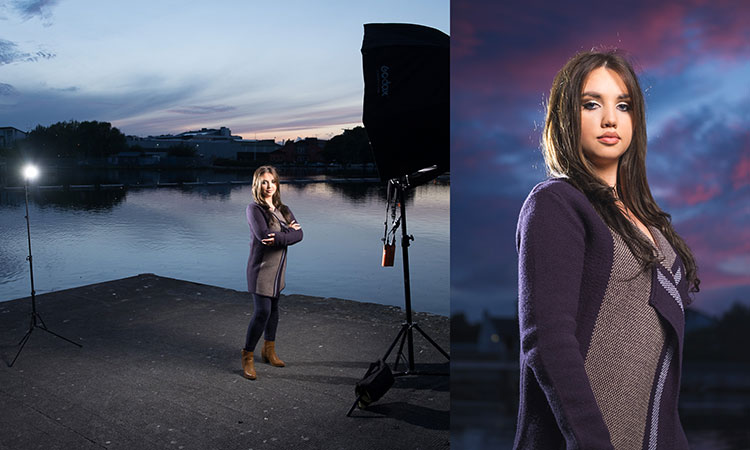
In this article, I will explain how you can use a transmitter/receiver, or transceiver system to achieve simple dramatic portraits using only one flash. Below is a step-by-step guide on how to get you started.

Background

I used to fear using anything other than natural light. One of the reasons was that I had a notion that using artificial lights such as off-camera flash and strobes is too difficult and requires deep technical knowledge. Well, yes and no. To master it, you have to understand lighting ratios and learn to make mental calculations of light from various sources and suchlike. But to start using it, not really.

My first experience of off-camera flash was using the Creative Lighting System (Nikon) capability between my speedlight and my camera. Most of my early attempts were unsuccessful especially with the limitations of the line of sight infrared system. It was unreliable too, especially when shooting under pressure or caught on the hoof. I also used overexposed my light with my very untrained and inexperienced eye when I was just starting out.

4 Beginner Tips for Creating Dramatic Portraits with One Flash

Wireless triggers

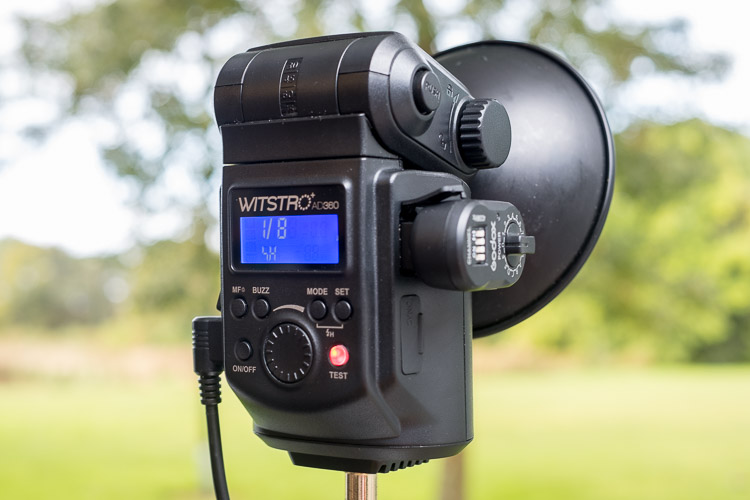
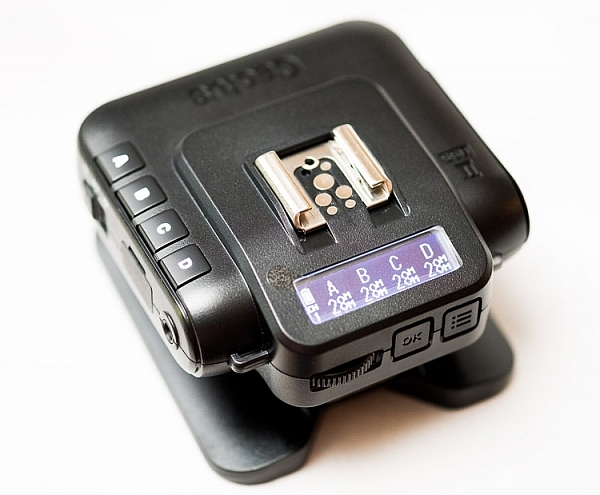
Enter wireless radio transmitters and receivers (or transceivers) such as the Pocket Wizard, CyberSyncs, brand’s own (Nikon and Canon) and the super affordable Yongnous. A transmitter which is connected to your camera sends the message to the receiver which is attached to the flash unit. Transceiver units, on the other hand, can act as both receiver and transmitter so that you can use them on either the camera or the speedlight but you would still need one unit to attach to each piece of equipment.

These wireless transceivers are a game changer without a doubt. They are simple to use and are reliable most of the time as well. I use Cybersyncs for my studio strobes and Yongnous for my speedlights and find the Yongnous are incredibly reliable and user-friendly with hardly any misses. However, the Yongnous cannot be used for strobes.

#1 Choose the look and mood for your portrait

Do you want super dramatic low key portraits or the other end of the spectrum – high key, bright and airy? The mood of your picture will dictate your background and of course the camera and flash settings. I have chosen a black background for these portraits to achieve a high contrast between the brightest parts of the image and the shadows. This will keep the overall mood dramatic and the lighting low key with plenty of black areas.

#2 Set up your equipment

If you have transmitter and receiver units, attach the transmitter to the hotshoe of your camera while the receiver needs to be attached to the flash (speedlight or strobe). If you have a transceiver, this can go on either camera or flash but you still need two units, one on each piece of equipment.

It’s also a good idea to put your flash unit on a light stand. I used a studio strobe mounted on a light stand but attached it to a boom arm for more flexibility in angling the light. Note: A boom arm is not necessary at all for a simple beginner setup. Without a light stand, you can always mount your flash on a cabinet or steady surface, making sure it doesn’t topple over. Most speedlights come with little plastic feet that are handy for this purpose.

4 Beginner Tips for Creating Dramatic Portraits with One Flash

#3 Modify your light

One of my rules is to always modify the light. The only time I shoot with a bare flash is when I use it as a kicker light at wedding receptions or to light a backdrop. At all other times, I will always modify it somehow or bounce it to maximize the softness of the light or to minimize the harshness depending on the situation.

For this look, I wanted the flash to point directly at the subject, in a narrow beam and not have any spill onto the background. A gridded snoot would do the job controlling the light direction, but I didn’t have one. Plus I probably would have found that the light was still a bit harsh without further modification. I ended up McGyvering my own modified snoot using a black card and the diffuser panel of a 5-in-1 reflector. I twisted the reflector (like you would when putting it away) so that it was only a fraction of its size and I then had a 3-layer diffusion panel. This was taped to the strobe and with black card wrapped around it to direct the light onto my subject like a beam.

There are two factors that are crucial for getting soft light; the distance between your subject and the light and the size of the light. The closer the light is to the subject, the softer it is. The larger your light source is, the softer it will be. My light source was not very big at all, so to leverage maximum softness I decreased the distance to the subject. The light was positioned about an arm’s length away from the subject, quite high up at a 45-degree angle. This was to mimic natural light coming from a high window.

#4 Try various settings

I wanted to shoot at f/8 so I metered the flash. You don’t require a handheld light meter to do this, by the way, you can just start with a few trial and error test shots to find the correct setting. I started off with the lowest power on my strobe but ended up cranking it up as the 3-layer diffusion cut out quite a lot of the light. My settings for these were: f/8, 1/60th,  ISO 400 and my strobe power high at 7. The strobe settings will vary depending on the brand you are using.

4 Beginner Tips for Creating Dramatic Portraits with One Flash

This is just one of the many ways you can create portraits with one flash. Try it and experiment with other angles, moods, and light settings and you may be amazed at what one light can do!

Share your portraits here too in the comments below.

googletag.cmd.push(function() {
tablet_slots.push( googletag.defineSlot( “/1005424/_dPSv4_tab-all-article-bottom_(300×250)”, [300, 250], “pb-ad-78623” ).addService( googletag.pubads() ) ); } );

googletag.cmd.push(function() {
mobile_slots.push( googletag.defineSlot( “/1005424/_dPSv4_mob-all-article-bottom_(300×250)”, [300, 250], “pb-ad-78158” ).addService( googletag.pubads() ) ); } );

The post 4 Beginner Tips for Creating Dramatic Portraits with One Flash by Lily Sawyer appeared first on Digital Photography School.

Digital Photography School

 
Comments Off on 4 Beginner Tips for Creating Dramatic Portraits with One Flash

Posted in Photography


Quick Review of the Kupo Click Stackable Light Stand

02 Feb

I’ve recently started using a pair of Jinbei HD600 studio lights for my photography and what I love about them is that they are self-contained units. They don’t have any requirements for power cables, etc., as they’re battery powered, wireless studio lights. What was starting to bug me, though, was that I only had heavy light stands to mount them on. Not a problem when you’re working in a studio, but when you have to visit a client to do a headshot or a quick portrait of someone, having to take a C-Stand along isn’t always ideal (especially if you’re on public transport).

I wanted to stick with Kupo gear as I’m very happy with the quality and innovation of their products, so I asked the crew at ProTog what my options were. They suggested I hold out for the Kupo CLICK stackable lighting stands. I did and I’m very happy I did. Here’s my review…

Check out the Kupo Click Light Stands on Amazon or on B&H Photo’s website.

Kupo click light stand

My wish list

I had a few simple ideal specs for the stands that I was after:

  • I wanted them to be light enough to sling over my shoulder when I was on the go.
  • They need to not suffer from bad build quality due to being light weight.
  • I wanted to be able to quickly use them for either a well-placed strobe on an outdoor shoot, a quick portrait in an office or studio, and maybe even to mount a GoPro on to run a quick timelapse of a session.

Features of the Kupo Click

The Kupo Click had everything I wanted in a portable light stand. Let’s take a look through the feature list.

  • Coming in at 1.3kg (2.9 pounds), the weight was just fine, easily able to attach a pair of stands to the side of my ThinkTank Airport TakeOff roller.
  • In terms of load, the diminutive stands were capable of holding a 5kg (11 pounds) payload, more than I’d need to place atop the aluminum light-weights.
  • The tubes are also double pinned to the threaded ends, this makes them a lot less likely to fail when compared with my old stands, after a few months of heavy use, the stands haven’t loosened up in the slightest.

Kupo click light stand

Kupo click light stand

The Click

The Kupo Click light stands allow you to click them together either side by side or on top of each other. So you can essentially have one of them flat on each side of your bag with some little attachment straps, or you can have them side by side (above) and sitting in the tripod cup on your rolling camera bag, or you can use a strap (sold separately, I didn’t get one as I used a regular strap with a clip attached to sling mine over my shoulder, see below)

Kupo click light stand

Kupo click light stand

Kupo click light stand

The stands have a sweet built-in air damper that prevents damage to your lights if you accidentally undo the locks by cushioning the column on release. I have tested this and it works. The midsection is better than the top section at slowing descent, but it certainly does slow down the inevitable crash and ultimately a replaced flash tube!

Attaching your lights

The stands are equipped with a 5/8″ top stud with a 3/8″ threaded, plus a removable 1/4″-20 threaded top, this lets you mount a whole raft of lighting gear, as well as Sony ActionCam / GoPro mounts (The 1/4 20″ adaptor) which I like to use often on a shoot, or just to pop a camera up high for some reason or other – you can attach a regular ball head and mount your camera on that.

Kupo click light stand

Kupo click light stand

Kupo click light stand

Bottom line

I’ve had these stands a few months now and have had many chances to use them and abuse them. They pack away well, they’re all the things I was after in a light stand. I can’t fault these stands and for the price, I’d say they’re one of the best on the market and well worth your hard earned coin. Five stars.

googletag.cmd.push(function() {
tablet_slots.push( googletag.defineSlot( “/1005424/_dPSv4_tab-all-article-bottom_(300×250)”, [300, 250], “pb-ad-78623” ).addService( googletag.pubads() ) ); } );

googletag.cmd.push(function() {
mobile_slots.push( googletag.defineSlot( “/1005424/_dPSv4_mob-all-article-bottom_(300×250)”, [300, 250], “pb-ad-78158” ).addService( googletag.pubads() ) ); } );

The post Quick Review of the Kupo Click Stackable Light Stand by Sime appeared first on Digital Photography School.

Digital Photography School

 
Comments Off on Quick Review of the Kupo Click Stackable Light Stand

Posted in Photography


An Unconventional Composition Technique to Improve Your Photos

01 Feb

Last month I sat down and reread Michael Freeman’s book, “The Photographer’s Mind.” which I do occasionally. I find that by revisiting the words of other photographers I remind myself of the multitude of tools available to us. There’s so much we can do to create fresh and amazing photographs.

One of those ways is to push our skills and update our thinking. I think I’ve read through Freeman’s book about two or three times now. Every few years I take it off the shelf again. His books are insightful and interesting to read. Freeman offers up unique ideas for composition using both conventional and unconventional techniques. The books are readily available. You can also check out our review of one of Freeman’s other books here; “The Photographer’s Eye”. In this article, let’s journey through one of the concepts he discusses in his book, “Engineered Disorder”.

An Unconventional Composition Technique to Improve Your Photos

The details of the image are broken up into sections by the heavy shadows.

What is Engineered Disorder?

Freeman explains that Engineered Disorder is the active effort of a photographer to use non-conventional methods of composing photographs. Essentially, we are breaking the rules to create interesting images. Engineered Disorder means that we forget about conventional methods like unifying elements within the frame. We might allow ourselves to create uncluttered compositions. In one chapter Freeman talks about different methods of creating Engineered Disorder and bucking the system. He mentions using techniques such as disconnects, disruptive foreground, breaking the frame, superimposed layers and extremes of contrast. Maybe these terms sound complicated and a little too complex to understand, but they don’t have to be.

Let’s break down one of these techniques and see what’s involved in creating Engineered Disorder. We will discuss the use of extreme lighting or chiaroscuro to create disconnect within an image. It’s one of my favorite techniques. I love to include deep blacks and bright highlights in my compositions.

Chiaroscuro

Chiaroscuro – chi·a·ro·scu·ro – the treatment of light and shade in drawing, painting, and photography.

Using this technique means that we employ very hard lighting to break up the unity of a composition. The image becomes a series of pieces that communicate meaning but are broken up by dark shadows and bright highlights. Conventional composition techniques would say that using this type of technique makes for a bad photograph, but remember we are pushing the elements of composition.

An Unconventional Composition Technique to Improve Your Photos

The strong shadows in this image hide some details from the viewer. The leaf can only be viewed in pieces. This means a viewer has to pause and take in each part of the image separately and then piece together the whole scene. Making a viewer stop and study your image is important. Given the number of photographs out there you want to make viewers take some time to digest your images rather than scan through and move on. 


Experimenting with dark and light

Consider my careful experimentation with Chiaroscuro. This image portrays the common Canada goose in a much more unique fashion. In the opening moments of golden hours, these geese become elegant shadows. The different sections of light and dark create interesting graphic qualities within the image.

An Unconventional Composition Technique to Improve Your Photos

In this second image, I’ve used auto tone to create a more conventional image. While the actual shot is very similar, these two different treatments create considerably different photographs. Which one do you prefer?

An Unconventional Composition Technique to Improve Your Photos

A more conventional exposure.

Other examples

Here’s another example of Chiaroscuro. This is a photograph of a unique area near my home. Everyone calls this place The Badlands. The red and gray clay create these beautiful graphic designs which draw visitors to the area. The hills are in danger of being destroyed by visitors, but the area is truly beautiful. The shadows and the light create beautiful diagonal lines in this particular image.

An Unconventional Composition Technique to Improve Your Photos

This are is now off limits to visitors because of the damage caused by walking on the hills.

In this final image, the light and darks highlight different circular objects. Perhaps this image isn’t as disconnected as the others but it still presents a unique treatment for the door of a fishing boat. The image focuses on graphic design elements of the boat rather than the uses of the vessel. The image has been turned into an abstract and most viewers will need to analyze the image before they can determine the exact subject matter.

An Unconventional Composition Technique to Improve Your Photos

Conclusion – your turn

Experimenting with different techniques is never a bad thing. You can learn and improve your photos by playing with unconventional techniques. Creating these images certainly pushed the dynamic capabilities of my camera. Exposing for deep shadows can be a challenge all on its own, but it’s a lot of fun to try out these different techniques.

While we’ve only discussed one of the methods for creating Engineered Disorder, these three examples clearly highlight the technique. It’s better to fully understand just one compositional method rather than scratching the surface of several techniques. Give it a try, and go a little bit extreme. Break away from the conventional and search for ways to compose images that harness the power of Engineered Disorder in your photography. Please share your results in the comments below.

googletag.cmd.push(function() {
tablet_slots.push( googletag.defineSlot( “/1005424/_dPSv4_tab-all-article-bottom_(300×250)”, [300, 250], “pb-ad-78623” ).addService( googletag.pubads() ) ); } );

googletag.cmd.push(function() {
mobile_slots.push( googletag.defineSlot( “/1005424/_dPSv4_mob-all-article-bottom_(300×250)”, [300, 250], “pb-ad-78158” ).addService( googletag.pubads() ) ); } );

The post An Unconventional Composition Technique to Improve Your Photos by Erin Fitzgibbon appeared first on Digital Photography School.

Digital Photography School

 
Comments Off on An Unconventional Composition Technique to Improve Your Photos

Posted in Photography


How to Take Amazing Night Photos

01 Feb

Have you ever been interested in taking night shots, but never known where to begin?

Night photography can be intimidating, even for seasoned photographers who are used to taking shots during the day.

Well, now you can learn how to take amazing photos from dusk till dawn with our brand new Night Photography video course – launched in the last few hours.

Night photography course eml 01

In this online video course by regular dPS writer Jim Hamel you will learn:

  • How to master exposure at night to take your photos from average to amazing
  • The secrets to finding the best subject matter and locations
  • The must-have gear to get these stunning shots
  • Detailed retouching techniques to make your photos pop
  • What to look for and how to set up your shot
  • All the technical aspects to nailing the shot

This is our biggest course ever – with 9 learning modules, 11 practical ‘field work’ videos and over 6 hours of videos so you can learn everything you need to know to take beautiful photos at night.

Here’s just a taste of what’s inside:

Best of all – if you pick it up today you can take advantage of a wonderful early bird offer.

Early Bird Offer – Save 50% and receive a Bonus

As part of our early bird special on this course, we’re offing 50% off the regular price. Normally $ 99 – today you can pick up our new night photography course for just $ 49!

In addition to that great saving we are also including a “The Complete Guide to Shooting the Night Sky”, a 40 page ebook dedicated to photographing stars. This great eBook is yours free if you buy but only for a limited time.

Discover the Secrets to Great Night Photography Today

We’re so excited to share this course with you today. Everyone we’ve shown it to loves what Jim teaches.

The early bird price and bonus is only available at this price for the next 3 weeks, so grab it while you can here and start your journey to learning how to take amazing night photography images.

We Guarantee You’ll Love this Course

Like all dPS products our Night Photography Course comes with a 60 day money back guarantee. While we’re confident you’ll love this course if for any reason you decide it isn’t for you please just contact our support team within 60 days and we’ll refund your money – you can even keep the bonus eBook as our gift to you for checking out the course.

googletag.cmd.push(function() {
tablet_slots.push( googletag.defineSlot( “/1005424/_dPSv4_tab-all-article-bottom_(300×250)”, [300, 250], “pb-ad-78623” ).addService( googletag.pubads() ) ); } );

googletag.cmd.push(function() {
mobile_slots.push( googletag.defineSlot( “/1005424/_dPSv4_mob-all-article-bottom_(300×250)”, [300, 250], “pb-ad-78158” ).addService( googletag.pubads() ) ); } );

The post How to Take Amazing Night Photos by Darren Rowse appeared first on Digital Photography School.

Digital Photography School

 
Comments Off on How to Take Amazing Night Photos

Posted in Photography