RSS
 

Archive for the ‘Photography’ Category

Basic Portrait Post-Processing Workflow Tips to Help You Save Time and Stay Organized

01 Mar

This article will walk you through some tips for how to set up a basic portrait post-processing workflow that can help you save time and stay organized.

The problem

When you’re new to photography, everything is exciting. Every time you come home with a full memory card, it’s a mad rush to the computer to see what you have captured. You’re eager to see every image and each one is treated as a separate entity with every technique you’ve come across. This is great. That excitement is what will keep you moving forward with photography and it is how you rapidly learn and grow as a photographer. That’s how it was with me, at any rate.

What happens, however, as you start taking more and more images? For example, regular portrait sessions a couple times a week can lead to an overwhelming amount of photographs. Approaching every frame as an individual becomes time-consuming and inefficient. If you’re not careful, you’ll have a backlog of images going back months and months. Often, many of your photos will be forgotten at the wayside.

The solution to this problem is to develop a portrait post-processing workflow.

Defining workflow

Basic Portrait Post-Processing Workflow Tips to Help You Save Time and Stay Organized

Straight out of the camera before any adjustments in Lightroom or Photoshop.

Basic Portrait Post-Processing Workflow Tips to Help You Save Time and Stay Organized

After portrait post-processing workflow steps in this article were applied.

In the simplest terms possible, a workflow is a checklist of repeatable actions that you work through as you go through a task. If it helps, in business the equivalent be would systems and in manufacturing, it could be compared to an assembly line.

You can have a workflow for any part of the photographic process, from planning and coordinating sessions to setting up and tearing down equipment and finally the post-processing stage.

This article will outline the steps of the post-processing workflow that I’ve been using on my portraits for a few years.

Starting point

Because every photographer has their own way of importing, organizing and editing their images in Lightroom (and other software), this article starts at the beginning of the post-processing stage for individual images. It assumes you will have already imported your photos into Lightroom and you have already edited (culled) down to the keepers.

Lightroom

This workflow uses both Adobe Lightroom and Photoshop. Each program offers its own strengths. To take advantage of them, consider using both with the Adobe Photographer membership – get 20% off (only $ 7.99/month) by using this link only for dPS readers.

Color corrections

The first step is to conduct any color corrections to your image. I do this in one of two ways. The first involves a ColorChecker Passport. If you don’t have one, just skip past it (or purchase one here on Amazon.com and follow along).

Xrite ColorChecker Passport

In your Lightroom catalog, find the photo you took with the ColorChecker Passport in it. Go to File>Export and export the image as a DNG to a folder where you can find it.

Basic Portrait Post-Processing Workflow Tips to Help You Save Time and Stay Organized

To work in the ColorChecker Passports proprietary software, you need to export your image as a DNG.

Now open the software that came with your Xrite ColorChecker Passport, and import the DNG you just exported into it.

The software does a pretty good job of aligning the photo to the ColorChecker, but if it fails, just follow the instructions on the screen.

Basic Portrait Post-Processing Workflow Tips to Help You Save Time and Stay Organized

The Xrite ColorChecker Passport’s software allows you to create custom color profile unique to each lighting setup.

Press the Create Profile button and give it a name that has something to do with the images you are going to be working on. For example, if you’re working on portraits of Jane Doe in a wedding dress which you took on April 15th of 2017, you could name the profile: JaneDoeWeddingDress041517. That’s optional, of course, but it will help you should you decide to revisit these photos in six months time.

Now, reopen Lightroom, find the image of the ColorChecker Passport, and open it in the Develop Module. Scroll down the panels on the right until you find the Calibration tab.

At the top, there will be the word Profile followed by Adobe Standard. Click there and choose the profile name that you just made in the external software (in the example below I called it “PortraitWorkflow”.

Basic Portrait Post-Processing Workflow Tips to Help You Save Time and Stay Organized

Once created and imported into Lightroom, color profiles can be returned to at any point in the future.

This process has built a custom color profile, individual to the lighting present in the scene. This is a vital step if you want to get the most accurate colors in your photographs.

White balance with the ColorChecker Passport

In the right-hand panel, scroll back up to the top basic panel. Select the eyedropper. To correct the white balance in your image, click in any of the white or gray boxes on the ColorChecker in your image. That will correct your white balance automatically. Each box will have a different effect on your images, so feel free to go through them all to see which works best, or which you prefer.

Basic Portrait Post-Processing Workflow Tips to Help You Save Time and Stay Organized

Any of the white and gray squares can be used to set your white balance. They all have different effects, so experiment until you’re happy.

Press CTRL/CMD+Shift+C and in the dialog box click the Check None box. Tick off only the boxes for Calibration and White Balance, and then click Copy.

Basic Portrait Post-Processing Workflow Tips to Help You Save Time and Stay Organized

Setting the color profile and white balance to an entire set of images at once can save you heaps of time.

With your settings copied, you can go back to the Library Module and select all of the photos that you want these settings applied to. Select them and press CTRL/CMD+Shift+V to do this.

Make sure you deselect the group of images afterwards by pressing CTRL/CMD+D.

White balance in Lightroom

If you don’t have a ColorChecker Passport, you can set your white balance manually by using the eyedropper (click on something neutral in the image) and sliders at the top of the Basic tab. Once you’re done, you can copy and paste the settings to the other images in your set as described above.

Basic Portrait Post-Processing Workflow Tips to Help You Save Time and Stay Organized

To adjust white balance manually, use the eyedropper and sliders at the top of the Basic panel.

Lens Corrections

The next step is to find the Lens Corrections tab and click both the Enable Profile Corrections box and the Remove Chromatic Aberration box.

Portrait Post-Processing Workflow Tips - lens corrections

Enabling lens corrections will correct any distortion, vignetting and chromatic aberrations in your images.

Doing this will correct any distortion caused by your lenses and it will usually deal with any chromatic aberrations. It’s a simple step, but it can make a world of difference to your final images.

Before you move on, however, always zoom in and move around your image looking for any chromatic aberrations (look at the edges of the image) the software failed to correct. It’s usually very good, but sometimes it will fail in tricky lighting situations where there’s a lot of backlighting. For portraits, pay close attention to catch lights in the eyes. If you find any chromatic aberrations there, simply go to the Manual section of the Lens Correction tab, choose the eyedropper and click into any color halos that you find.

Basic Adjustments

For portraits, I try to keep my basic adjustments at this stage to a minimum. I will use the exposure slider as needed, the White and Black sliders minimally, keep the Clarity slider between +15 and -15, and often reduce the Vibrance to -10.

Portrait Post-Processing Workflow Tips - basic adjustments

For more natural portraits, keep your adjustments subtle.

The reason for keeping these adjustments minimal is that they are global adjustments (apply to the entire image). I prefer to work with local adjustments in Photoshop, which give you much more control over the image. But, it is also possible to do local adjustments in Lightroom using the Adjustment Brush, Radial Filter and Graduated Filter if you would prefer.

Client proofs

NOTE: When working on proofs to send to clients so they can make their final image selections, this is where I usually stop. There is little need to spend up to an hour retouching a photo that will never see the light of day. Colour corrections and maybe a few small contrast adjustments are almost always enough at this point.

Black and White (optional)

If you intend to work in black and white and you like doing your conversions in Lightroom, this is the stage where I do the conversion process using the black and white sliders.

If you intend or prefer to do your conversion in Photoshop, then skip this part and make it the first step once your image is opened inside Photoshop.

Export

With the Raw processing complete, it’s time to export (or open) your image into Photoshop. Press CTRL/CMC+Shift+E to bring up the Export dialogue box. Choose a location and name appropriate to your own organizational system and export the image as a TIF or PSD (either of those formats will retain all your layers when you save your work). Close Lightroom and open your image in Photoshop.

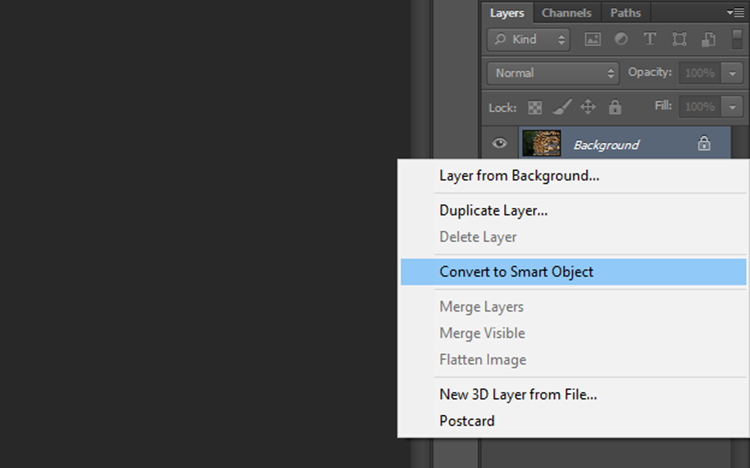
NOTE: Alternatively you can open your RAW file directly from Lightroom into Photoshop by right-clicking the image and selecting: Edit In > Edit in Adobe Photoshop – OR – Edit In > Open as Smart Object in Photoshop.

Photoshop

Blemishes

The first step of this workflow in Photoshop is to remove temporary blemishes from your subject’s skin. Create a new empty layer by pressing CTRL/CMD+Shift+N and pressing OK.

You can use either the Spot Healing Brush Tool or the Healing Brush Tool, or a combination of both. Once you’ve selected your tool, ensure that the All Layers option is selected in the drop-down menu labeled Sample. Also, ensure that you are working on the new empty layer (you just created above) in order to keep things non-destructive.

While using the healing brushes, zoom in to at least 200% on your image and use a brush that is only slightly larger than the blemish you are trying to remove. If you are using the Healing Brush tool, take a new sample after every click by pressing Alt/Option+Click to ensure the best results.

How far you go is going to be a matter of personal preference. I like to limit this step to only temporary blemishes and leave scars and beauty marks unless I’m asked to remove them by the subject.

Portrait Post-Processing Workflow Tips - blemish removal

Before blemish removal.

Portrait Post-Processing Workflow Tips - blemish removal

After blemish removal.

Note: It is possible to remove blemishes in Lightroom, but it is a time consuming and awkward process compared to Photoshop in my opinion. If Lightroom works better for you, go ahead and use it.

Color casts

Although we already covered color corrections in the first step, I like to revisit it at this stage. For example, in this image, the background is still too warm for my taste. Create a new Hue/Saturation adjustment layer.

Portrait Post-Processing Workflow Tips - hue/saturation layer

In the Properties tab, find the icon that looks like a pointing hand. Click it and then find a place in the image you want to adjust the colors. In this image, it’s in the background.

Portrait Post-Processing Workflow Tips

With the pointer selected, click into any area of a colour cast you want to change.

Now adjust the sliders in the Hue/Saturation Layer until it has the desired effect on the color you are trying to change.

In this image, the background and the subject shared a lot of the same warmth. To keep them separate, use a layer mask. Click into the layer mask on your Hue/Saturation layer and press CTRL/CMD+I to invert it (hide all).

Now select the Brush tool (B) and set your foreground color to white and your opacity and flow to 100%. Paint into the areas (on the mask not the layer) you want to be affected by your Hue/Saturation layer. If you mess up, just switch your foreground color to black and paint over the mistake.

Portrait Post-Processing Workflow Tips

Before Hue/Saturation Adjustments

Portrait Post-Processing Workflow Tips

After Hue/Saturation Adjustments

Dodging and burning

The next step is to deal with contrast. Instead of using the contrast sliders at the raw processing stage, it is best to use a technique like dodging and burning for small, local adjustments to get the most control over your images. There are a lot of different methods for dodging and burning, but I prefer the gray layer method.

By using multiple layers, you can obtain really fine control over the contrast and the tones in specific parts of your image with little effort. For example, you can have a set of layers for skin tones, another set for the clothes, a set for hair, and another set for eyes all independently adjusted. You can learn how to dodge and burn here.

Portrait Post-Processing Workflow Tips - dodge and burn

Before dodging and burning.

Portrait Post-Processing Workflow Tips - dodge and burn

After dodging and burning.

High Pass Filter

The last step of my workflow before saving is to use a High Pass filter to sharpen things up a bit. To use the High Pass filter, merge all of your existing layers into a new one by pressing CTRL/CMD+alt+Shift+E. Zoom into 100%, select the layer that was just created, and go to Filter>Other> High Pass.

Portrait Post-Processing Workflow Tips - high pass filter

As long as you are working with a high-resolution file, set the radius between two and five. If you’re working with a smaller file, move the slider to the left until the preview image looks like a faint outline of your original image (as seen below). Press OK.

Portrait Post-Processing Workflow Tips - high pass filter to sharpen

It’s pretty easy to go overboard with the High Pass filter. Try to keep it as subtle as possible.

On the Layer Palette, change the blending mode to Soft Light or Overlay. This is more personal preference than anything, but Overlay will give a far more pronounced effect than Soft Light. I prefer Soft Light for portraits and Overlay for other subjects. The last step is to reduce the opacity of the High Pass layer. Zoom into 100% and move the opacity slider to the left until you can barely see the effect.

Portrait Post-Processing Workflow Tips

Use either the Soft Light or Overlay blending modes for your High Pass layer. Soft Light will be more subtle, while Overlay will be more pronounced.

Saving your image

When the image is finished it’s time to save it. This will different for everyone depending on your own organizational system, but I prefer to save files as 16-bit TIFFs with layers intact. Doing this means that you can go back and adjust any part post-processing at any time. It also means you can go back to your full resolution file at any time to create smaller images for web use and the like without potentially losing them. The downside to this is that 16-bit TIFF files can get very large and they do take up a fair amount of hard drive space, but to me, the peace of mind is worth it.

In the end

Portrait Post-Processing Workflow Tips

Straight out of the camera and before any adjustments in Lightroom and Photoshop.

Portrait Post-Processing Workflow Tips

After adjustments and retouching in Lightroom and Photoshop.

The amount of time it takes to get through this workflow varies from image to image. Some photos take five minutes, others take closer to an hour. Overall, having a workflow like this will save you countless hours of work. Knowing exactly what steps you’re going to take before you sit down removes a lot of guesswork and saves time. This is invaluable when you start doing sessions a couple times a week.

Obviously, this exact workflow may not be for you. However, I encourage giving it a try and then developing your own workflow that fits in with your style and existing skills.

The post Basic Portrait Post-Processing Workflow Tips to Help You Save Time and Stay Organized by John McIntire appeared first on Digital Photography School.


Digital Photography School

 
Comments Off on Basic Portrait Post-Processing Workflow Tips to Help You Save Time and Stay Organized

Posted in Photography


Weekly Photography Challenge – Pets

01 Mar

As usual, start by reviewing the 18 images of our furry friends I shared earlier.

Then it’s your turn to do the challenge.

googletag.cmd.push(function() {
ruleset_slots.push( googletag.defineSlot( “/1005424/_dPSv5topic-rhs(300×250)”, [300, 250], “pb-ad-0” ).addService( googletag.pubads() ) ); } );

Weekly Photography Challenge – Pets

By Yi-Chien Chang

Need some help? Try these articles:

  • 9 Tips for Taking Better Photos of Cats
  • Why Taking Pictures of Your Pets Will Help Make You a Better Photographer
  • Pros and Cons of Photographing Dogs with a Prime Lens
  • 5 Good Reasons to Take Your Dog on Photography Walks
  • 6 Tips for Photographing Dogs in Action

By Madeleine

By Leandro Martinez

By winston hudson

Share your images below:

Simply upload your shot into the comment field (look for the little camera icon in the Disqus comments section) and they’ll get embedded for us all to see or if you’d prefer, upload them to your favorite photo-sharing site and leave the link to them. Show me your best images in this week’s challenge. Sometimes it takes a while for an image to appear so be patient and try not to post the same image twice.

Share in the dPS Facebook Group

You can also share your images on the dPS Facebook group as the challenge is posted there each week as well.

googletag.cmd.push(function() {
ruleset_slots.push( googletag.defineSlot( “/1005424/_dPSv5topic-rhs(300×250)”, [300, 250], “pb-ad-1” ).addService( googletag.pubads() ) ); } );

By out0fwave

By Jonathan Kriz

The post Weekly Photography Challenge – Pets by Darlene Hildebrandt appeared first on Digital Photography School.


Digital Photography School
 
Comments Off on Weekly Photography Challenge – Pets

Posted in Photography


A Photographer’s Shutter Speed Cheat Sheet as a Handy Reference for You

01 Mar

To take your photography to the next level and achieve perfectly exposed photos, it’s important to understand and master shutter speed and its relationship to Exposure. However, what’s even more exciting and challenging is using shutter speed as an artistic tool to achieve stunning effects.

Whether you want to master shutter speed as part of Exposure Triangle or use it artistically, the Shutter Speed Cheat Sheet makes things much easier!

Shutter Speed Cheat Sheet DPS 700px

Full Stop, ½ Stop, 1/3 Stop

The equation behind the relationship between Exposure and Shutter Speed is straightforward; by doubling or halving the shutter speed you are changing the exposure value by 1-stop. However, the introduction of digital cameras changed everything by no longer restricting how much we can change the shutter speed. Some cameras allow us to change the speed by half or even a third of a stop. Use the Shutter Speed Cheat Sheet to help you estimate and calculate your exposure.

Safe Shutter Speed

Using the right shutter speed is vital in photographing moving objects. Look at the Shutter Speed Cheat Sheet to see how speed directly affects image sharpness.

googletag.cmd.push(function() {
ruleset_slots.push( googletag.defineSlot( “/1005424/_dPSv5topic-rhs(300×250)”, [300, 250], “pb-ad-0” ).addService( googletag.pubads() ) ); } );

Light

The Cheat Sheet illustrates how a faster shutter speed means that less light reaches the camera sensor and a longer shutter speed means that more light reaches the sensor.

Artistically Shooting with Shutter Speed Cheat Sheet

Birds in Flight 1/2000

Wildlife photographers typically use a 1/2000th of a second shutter speed to ensure birds in flight are sharp. Ultimately, you can reduce the speed to 1/400th to give the bird a sharp body and blurry wings.

Action Sports

Shutter speed is crucial in fast-moving sports like football and soccer where a shutter speed between 1/500th and 1/1000th freezes the action to create crisp and sharp images.

Street Photography 1/250th – 1/500th

googletag.cmd.push(function() {
ruleset_slots.push( googletag.defineSlot( “/1005424/_dPSv5topic-rhs(300×250)”, [300, 250], “pb-ad-1” ).addService( googletag.pubads() ) ); } );

Most streets are in constant movement with pedestrians and vehicles. That is why shutter speed is critical to produce the right exposure and to avoid soft or blurry images.

Shutter Spped Cheat Sheet StreetPhotography

Street Photography 1/250th, f/8, ISO 100.

Landscapes 1/125th – ¼

Shutter speed varies across landscapes and techniques. When using a tripod, a slower shutter speed of 1/8th or ¼ of a second is acceptable. However, to avoid blurry images when shooting hand held, you need to use a faster shutter speed.

Shutter Spped Cheat Sheet Landscapes

Landscape 1/125th, f/8, ISO 100.

Panning Cars 1/15th – 1/60th

Panning is an artistic effect created when a slower shutter speed of 1/15th to 1/60th is used to track a moving object like a car. This causes the car to stay in focus while its surroundings are completely blurred.

Waterfalls 1/8th – 2 seconds

Capturing fast-moving water with a longer shutter speed creates a visual effect of motion blur which does not exist in reality.

Shutter Spped Cheat Sheet RunningWater

Waterfall 1/6th, f/20, ISO 100.

Blurring Water half – 5 seconds

For slower moving water like ocean, lakes, and rivers you need to use a shutter speed slower than half a second to create dreamy landscapes and seascapes with silky, smooth water.

googletag.cmd.push(function() {
ruleset_slots.push( googletag.defineSlot( “/1005424/_dPSv5topic-rhs(300×250)”, [300, 250], “pb-ad-2” ).addService( googletag.pubads() ) ); } );

Shutter Spped Cheat Sheet Water

Slow Moving Water 4 seconds, f/6.3, ISO 100.

Fireworks 2-8 seconds

Capturing fireworks can be exceptionally difficult. A faster shutter speed yields a speck of light across a dark sky and a slower speed creates a blurry, overexposed image. Try using a 3-5 second shutter speed for optimal results.

Stars 15–25 seconds

Like fireworks, shooting the stars requires balance. A faster shutter speed produces tiny and dim stars, but a longer shutter speed (over 30 seconds) produces a trail effect. For the brightest and clearest stars, try a shutter speed between 15 and 25 seconds.

Star Trails

Take advantage of the earth spinning on its axis by opening the shutter speed long enough to capture the star trail. This is often done with a 15-minute (or longer) shutter speed (exposure time). However, you can create the same effect digitally by taking a series of photos (100+) with a 30 seconds exposure each. Later, blend the images together using editing software to create a gorgeous trail effect.

googletag.cmd.push(function() {
ruleset_slots.push( googletag.defineSlot( “/1005424/_dPSv5topic-rhs(300×250)”, [300, 250], “pb-ad-3” ).addService( googletag.pubads() ) ); } );

The post A Photographer’s Shutter Speed Cheat Sheet as a Handy Reference for You by Viktor Elizarov appeared first on Digital Photography School.


Digital Photography School
 
Comments Off on A Photographer’s Shutter Speed Cheat Sheet as a Handy Reference for You

Posted in Photography


The New Imagely NextGEN Lightroom Plugin Will Rock Your WordPress World

01 Mar

The New Imagely NextGEN Lightroom Plugin Will Rock Your WordPress World

It’s a new year and Imagely has released a great new Lightroom gallery plugin to make our lives easier. If you run your own photography website on WordPress, like countless other photographers, then you have probably come across Imagely and NextGEN Gallery.

Imagely provides WordPress themes and hosting, focused specifically on photographers. They have terrific support, and will make your life much easier when it comes to hosting a website. They are a service that I consistently recommend to photographers looking to create new professional websites.

The NextGEN Lightroom Plugin

Even if you already have a theme or WordPress service that you enjoy, like me, Imagely provides a gallery plugin called NextGEN Gallery. This gives you a variety of options to display your photography. After a significant amount of research on the right gallery plugin, NextGEN Gallery won me over. Both the free and paid (NextGEN Pro) versions provide you with a wealth of visual options for your gallery and make the management, proofing, and selling of your work a breeze.

The New Imagely NextGEN Lightroom Plugin Will Rock Your WordPress World

The NextGEN Pro Thumbnail Grid Gallery

But now they have added a new Lightroom plugin, which makes their offering even more enticing. Enter the Imagely NextGEN Lightroom plugin, which syncs your Lightroom catalog directly to your NextGEN Galleries. Suddenly, you can add or remove photographs and alter your albums without leaving Lightroom.

The NextGEN Lightroom plugin allows you to create new galleries or albums directly in the plugin. You can upload images directly to these galleries, edit the filename and file information, which can help with SEO, as well as specify the image size, format, quality, color space, and sharpening. The convenience cannot be overstated. What used to take five steps, exporting the file to your computer, logging into your website, selecting the correct gallery, uploading the new version of the photo, and editing the photo information – now takes only one step.

googletag.cmd.push(function() {
ruleset_slots.push( googletag.defineSlot( “/1005424/_dPSv5topic-rhs(300×250)”, [300, 250], “pb-ad-0” ).addService( googletag.pubads() ) ); } );

The New Imagely NextGEN Lightroom Plugin Will Rock Your WordPress World

The plugin gives you a variety of export options.

Installation

The plugin can be downloaded here and is simple (5 minutes) to install. Here is the full documentation to get it up and running, but after installing it all you need to do are four steps.

Step 1:

Under the Library panel, navigate to Publish Services, then Imagely and select “Set Up”.

The New Imagely NextGEN Lightroom Plugin Will Rock Your WordPress World

Step 2:

Add the description for the website you are uploading to and the WordPress settings (your website address, username, and password).

googletag.cmd.push(function() {
ruleset_slots.push( googletag.defineSlot( “/1005424/_dPSv5topic-rhs(300×250)”, [300, 250], “pb-ad-1” ).addService( googletag.pubads() ) ); } );

The New Imagely NextGEN Lightroom Plugin Will Rock Your WordPress World

Step 3:

Under FTP Settings, navigate to edit under the preset menu, then enter your FTP or SFTP credentials given to you by your hosting company.

Click the Browse button, navigate to your /wp-content/ folder, and save. Click OK to close the module an then click “Fetch from WordPress” under FTP Settings.

Step 4:

As you would regularly export your images using Lightroom, select the correct settings for the images that you would like to upload to the gallery. This includes color space, size and resolution, sharpening, metadata, and the watermark.

The New Imagely NextGEN Lightroom Plugin Will Rock Your WordPress World

Gallery and Album Creation

googletag.cmd.push(function() {
ruleset_slots.push( googletag.defineSlot( “/1005424/_dPSv5topic-rhs(300×250)”, [300, 250], “pb-ad-2” ).addService( googletag.pubads() ) ); } );

Creating galleries and albums through the plugin is a breeze. The first step is to right click on Imagely under Publish Service and select Collection or Collection Set. Collection will create a new NextGen gallery while Collection Set will create a new NextGen album. Collection Sets can hold other Collection Sets and Collections, while Collections can only hold images.

Add images to a Collection and select “Publish” to add the gallery or album and to add the new images into them. Already published photos will be displayed in the “Published Photos” section while new photos will be under the “New Photos to Publish” section. In addition to adding new photos, you can also modify and delete them through the plugin. Clicking publish after you make these changes will sync them with your website.

Conclusion

There is a lot to be said about how advances like this can make our lives easier as photographers. But the ability to see and alter our website galleries directly in Lightroom, where most photographers do most of their work, is an incredible advantage, both in helping us to figure out the correct sequencing of our portfolios as well as to make it as simple and streamlined as possible to edit these galleries.

Have you tried out this plugin? If you have a WP site what’s your workflow? Please share your thoughts in the comments below.

googletag.cmd.push(function() {
ruleset_slots.push( googletag.defineSlot( “/1005424/_dPSv5topic-rhs(300×250)”, [300, 250], “pb-ad-3” ).addService( googletag.pubads() ) ); } );

The post The New Imagely NextGEN Lightroom Plugin Will Rock Your WordPress World by James Maher appeared first on Digital Photography School.


Digital Photography School

 
Comments Off on The New Imagely NextGEN Lightroom Plugin Will Rock Your WordPress World

Posted in Photography


Review of the Wine Country Camera Filter Holder System

28 Feb

In this article, I will go over why I switched to using the Wine Country Camera filter holder system from others I’d previously used. As well I’ll cover some of the system’s key features so you can decide if it’s right for you as well.

Since the late 60s and early 70s photographers have been using drop-in (slide-in) filters in front of their lenses. The holders which accept such products are usually used for neutral density filters, polarizers, color filters, and sometimes effect filters.

But there has been a problem with this type of holder, even since its inception.  They’re usually poorly made with cheap plastic or mixed aluminum materials. And that’s just the holder’s materials. Other problems are the placement of the polarizers which can cause vignetting, manufacturing errors, and much more.

Review of the Wine Country Camera Filter Holder System

The Wine Country Camera filter holder and vaults.

Although I inherited a Cokin filter kit from my grandfather, my first self-purchased kit was a Lee Filter Foundation Kit. The product is made of plastic, which makes it light weight. But it also makes it vulnerable to bending and breaking.

Eventually, Formatt Hitech released their newer aluminum filter kit, and I made the switch and used it for a couple of years… until now.

Wine Country Filter Holder Materials

Review of the Wine Country Camera Filter Holder System

One of the many tactile points of contact on the holder.

Wine Country Camera was born out of the need for quality filter systems and ongoing standards. Every aspect of the filter kit has been deeply considered and well thought-out from the bottom up, or backward to forward.

Instead of plastic or aluminum, premium materials are used, with purpose. For example, instead of a standard dial, a wooden dial is used, so your fingers don’t freeze in cold weather. That can also be said for the wooden grips on the front of the holder. Every part of the holder is tactile so you know when you’re turning, rotating, and pushing. It’s so tactile that you can even maneuver the holder and filters while wearing gloves.

How It’s Unique

By now you likely already recognize that the holder system from Wine Country Camera is unique. But to reiterate why I thought so, I wanted to point out some of the features that are unlike any other holder on the market.

googletag.cmd.push(function() {
ruleset_slots.push( googletag.defineSlot( “/1005424/_dPSv5topic-rhs(300×250)”, [300, 250], “pb-ad-0” ).addService( googletag.pubads() ) ); } );

Coin locks

Many locations around the system carry the Wine Country Camera logo, a wine glass. At first, you might think it’s about branding. While that might be true, the more important reasoning is so that you know when items are right side up. For example, the filter vaults have this beautiful coin which is turned to lock or unlock the filter. When the wine glass is upside down, the vault is unlocked. When it’s standing on its stem, the vault is locked.

Review of the Wine Country Camera Filter Holder System

The coin which locks and unlocks filters from the vaults.

Vaults

Speaking of the vaults, these are a new concept, already mastered. The vaults are made of a polymer, similar to that found in a Glock. They’re extremely strong. No joke – they can’t be bent. The moment I filled one of my vaults with a filter, I dropped it (I got it on video too). To my surprise, there was no damage to the glass filter inside. The vault serves multiple purposes.

  • The vault seals the space between filters and the holder so that you do not need those annoying foam gaskets.
  • Makes it extremely easy to insert and remove filters from the holder with or without gloves.
  • Protects the filters from normal wear and tear and minor dings.

Vaults are available for 100mm square filters as well as graduated filters. Along with the vaults are two red buttons on the holder. The buttons are designed to remove the friction holding the two outer filters in place. That way you can safely move graduated filters up and down with ease, safely.

Review of the Wine Country Camera Filter Holder System

The red buttons which help adjust how the filters sit in the outer two slots.

Customer service above and beyond

It’s worth noting that due to the high-quality standards of Wine Country Camera, they have identified a flaw of other manufacturers. Although there are so-called standards among filters, they’re not always followed precisely while making the filters. Here is what they said:

Service Advisory: We are noticing that some Lee grads have been produced at a thickness outside of their specification. If you experience difficulty installing your grad, contact us immediately and we will resolve it for you.

As you can see, Wine Company Camera is replacing their filter vaults with new ones, for customers experiencing an issue of their filters not fitting. It’s not their fault, but they’re correcting the issue for their customers. Lots of thumbs up for that customer service decision!

Using the filter holder

The holder allows for three filters to be used at any given time. The reason for this is that the Wine Country Camera filter holder uses an internal polarizer. Because the holder keeps the polarizer in the back, instead of the front like most filter holders, it opens the doors for a third filter.

googletag.cmd.push(function() {
ruleset_slots.push( googletag.defineSlot( “/1005424/_dPSv5topic-rhs(300×250)”, [300, 250], “pb-ad-1” ).addService( googletag.pubads() ) ); } );

Typically when a Circular Polarizer is placed in front of the Neutral Density filters, you lose a slot and have a giant 105mm ring to attach a Circular Polarizer (CPL) too. But with the Wine Country Camera system, the polarizer is easily removed with two red clips and turned using the beautiful wooden dial.

Review of the Wine Country Camera Filter Holder System

The wood dial which turns the internal polarizing filter.

Last, and not least is that because of the extremely low profile of the filter holder, and the polarizer being in the back, there is a reduced the risk of vignetting. The system has been tested as wide as 17mm without any vignetting. That’s a huge jump from the 24mm limit I had with the Formatt Hitech and Lee systems (even with the wide angle adapter rings). I photograph at 20mm quite often and have always experienced vignetting, although minor. Until now.

Is it worth the price?

I’ll be the first to admit when the Wine Country Camera filter holder system was initially announced I was shocked by the price. Especially when compared to systems from other manufacturers. But after getting my hands on it, I understand why.

The amount of pride, thought, and effort that went into every millimeter of the product is the highest possible quality. It’s not cheap plastic. It’s not cheap metal. But for the curious minded, I thought I would include a price comparison on my kit before and after. I will leave out my Neutral Density filters for right now I’m still using my Formatt Hitech Firecrest ones in the Wine Country Camera holder. (I’ll likely switch to WCC once they have their own ND filters)

Wine Country Camera System

  • Holder with internal polarizer, two vaults, and one Adapter Ring: $ 449
  • Two extra 100x100mm square vaults (I have four square filters): $ 75
  • One 150x100mm rectangular vault: $ 35
  • Three Adapter Rings: $ 150
  • Total: $ 704

Formatt Hitech

  • 100mm Aluminum Holder: $ 47.99
  • Four Wide-Angle Adapter Rings:
  • Polarizer Ring: $ 19.99
  • 105mm Firecrest Circular Polarizer SuperSlim: $ 229.99
  • Total: $ 481.92

As mentioned, the price for the Wine Country Camera system is more. But keeping in mind the advantages of the system, the materials used, and that you have the vault advantage, it’s worth the extra money up front. The $ 257.08 savings on a different system might save you up front but could cost you in the long term. Maybe on parts falling apart, lower quality materials breaking, light leaks on your photographs, and potentially more.

But I know that not everyone can afford the kit, so it may not be for you. But if you are like me and want the best of the best when it comes to your photography, then you’ll save up and take the plunge when it’s right for you.

Review of the Wine Country Camera Filter Holder System

Bonus for high megapixel cameras

googletag.cmd.push(function() {
ruleset_slots.push( googletag.defineSlot( “/1005424/_dPSv5topic-rhs(300×250)”, [300, 250], “pb-ad-2” ).addService( googletag.pubads() ) ); } );

Something else to keep in mind, for anyone with a high megapixel camera, like a D810, A7RII or a medium format camera – is that many polarizers have an issue with reflections on higher resolution sensors. The one from Wine Country Camera does not have this issue. The polarizer fits inside the holder body, eliminating reflections and allowing geared rotation. Wine Country Camera worked with a high-end optics manufacturer to develop the highest possibly quality polarizer. Their polarizer uses 2.5mm thick Schott optical glass that is fire polished, and free of surface aberrations. Considering their CPL is less expensive (when purchased alone) than the previous one I was using, it’s nice to know my optics are protected.

Keeping it together

Before theWine Country Camera system, I was using the Mindshift Gear Filter Hive to hold everything in one place. The small bag is incredible, can be stored in a backpack, clipped to a belt, or hung from a tripod.

I was happy to find the Wine Country Camera system almost completely fits in the same bag. Everything but the holder itself fits inside. But fortunately, Wine Country Camera provided a very protective case for the holder and its attached polarizer.

Review of the Wine Country Camera Filter Holder System

Final thoughts

As I mentioned earlier, I was originally a skeptic for the Wine Country Camera system. But I have fallen in love with it. I am so gratefully that this company has now taken steps to improve the lens filter system, as the industry has needed this change for a long time.

I love that every adjustment possible on the holder can be done with the left hand.  That way the right hand can be kept on the camera. To me, the price is worth it, the features are worth it, the quality in craftsmanship is worth it. I hope you recognize the same.

Have you taken a look at the Wine Country Camera filter holder yet? What are your thoughts?

googletag.cmd.push(function() {
ruleset_slots.push( googletag.defineSlot( “/1005424/_dPSv5topic-rhs(300×250)”, [300, 250], “pb-ad-3” ).addService( googletag.pubads() ) ); } );

The post Review of the Wine Country Camera Filter Holder System by Scott Wyden Kivowitz appeared first on Digital Photography School.


Digital Photography School

 
Comments Off on Review of the Wine Country Camera Filter Holder System

Posted in Photography


How to do a Cake Smash Photo Session

28 Feb

How to do a Cake Smash Photo Session

One-year-olds are the best! They’re adorable, of course. They’re hilarious, and you never know what you’re going to get from them. Toddlers are full of wonder and inquisitiveness about everything. Truly, they’re a dream to photograph. One of my favorite moments to photograph is a one-year-old’s first birthday cake – often called a cake smash session.

I’ve laughed so hard that I’ve cried during many of these sessions. Maybe you are lucky enough to have a one-year-old in your life who could enjoy a cake for your camera sometime soon. It’s not too hard to set up, and you almost always get photos that you’ll want to keep forever. Here are some cake smash photo session tips to help you.

How to do a Cake Smash Photo Session

Capture a few frames before it gets messy

Once the cake is put in front of a one-year-old, you’re not going to get one more clean-faced shot. Even after you’re done with the cake, it’s a sure bet that your little subject will be done, and uninterested in posing for one more photo. To be honest, most sessions end with the little one crying because she realizes she’s a mess, or because you took the cake away from him.

How to do a Cake Smash Photo Session

So it’s best to catch a few photos before you even let the child see the cake. I love to capture who he is at the moment because this age is just so much fun. Grab a few photos with his favorite toy, or in her bedroom, or taking some wobbly toddler steps.

googletag.cmd.push(function() {
ruleset_slots.push( googletag.defineSlot( “/1005424/_dPSv5topic-rhs(300×250)”, [300, 250], “pb-ad-0” ).addService( googletag.pubads() ) ); } );

Yes, it’s going to get messy

Choose your location wisely, because you never know what’s going to happen. Some toddlers are very cautious and don’t want to do much except poke at the cake. Other toddlers like to fling cake and frosting across the room. I’ve found it best to do cake smash sessions outdoors in good weather, and in the kitchen if it’s too cold outside. The kitchen table works great, because it’s easy to maneuver around for different angles, it keeps the child somewhat contained (I have mom or dad standing close by in case she decides to dive off for some reason, although most one-year-olds are very aware that they don’t want to go near the edge.)

The kitchen table works great, because it’s easy to maneuver around for different angles, it keeps the child somewhat contained (have mom or dad standing close by in case she decides to dive off for some reason, although most one-year-olds are very aware that they don’t want to go near the edge).

How to do a Cake Smash Photo Session

Put your cute little subject in clothes (or no clothes) that are okay to get ruined or dirty. The parent might want to be prepared to give their toddler a bath right after the session. I’ve seen cake in eyelashes, ears, and every nook and cranny you could think of.

I prefer lighter colored cakes with some bright elements to them. Chocolate cake with chocolate frosting may taste the best (if you’re a chocolate lover like I am), but sometimes ends up looking like a bunch of mud on the little one’s face. Usually, the parent chooses whatever cake they’d like, and I make it work.

Make it festive for the birthday boy or girl

How to do a Cake Smash Photo Session

Since you are celebrating the little one’s first birthday, it’s fun to have some photos where it’s very obvious that it’s a birthday celebration going on. Balloons, streamers, party hats, banners, flags, and festively wrapped gift boxes can all add a nice touch. However, these fun props can sometimes distract your overwhelmed little one, so you may have to just move them away and out of the frame if they aren’t helping to create a fun cake smash atmosphere.

googletag.cmd.push(function() {
ruleset_slots.push( googletag.defineSlot( “/1005424/_dPSv5topic-rhs(300×250)”, [300, 250], “pb-ad-1” ).addService( googletag.pubads() ) ); } );

Remember to keep it fairly simple, because you want the focus to be on the birthday girl or boy, and you may not end up being able to use any of your thoughtful props anyway.

Get close-ups

How to do a Cake Smash Photo Session

Dimpled fingers, cute little toes, and hilarious cake smashing action are a must to capture close up. I love to show cake in between the toes, or frosting in the eyelashes. I adore those little chubby hands grabbing the cake and shoving it in his mouth. Get shots of those dainty fingers poking at the cake, tentatively testing it out.

You can tell a much better story of the cake fun if you get some close-ups of everything, along with the shots that take everything in. Get lots of angles; try shooting from above, from her eye level, from below, and from every side (as long as your light and your background are okay from all of the angles).

Encourage smashing if needed

How to do a Cake Smash Photo Session

Sometimes you’ll get a little one that is really hesitant to dig in, and much more of a “taster” than a “cake shoveler”. Sometimes she might not even want cake on her hands at all. You will want to try to capture some photos showing that because photos showing her true personality will be much more valuable than something that is completely out of character and set up by you.

However, there are only so many photos you can take with nothing happening. It may help to have mom or dad give the little guy a taste, making him want more. Maybe you might give him a baby spoon to attack the cake with. When all else fails, you might try breaking a piece out of the cake and putting it in her hand. Oftentimes, she just doesn’t know what she’s supposed to do. We don’t usually put an entire cake in front of our children and tell them to make a mess of it.

Be prepared for all of the emotions

How to do a Cake Smash Photo Session

googletag.cmd.push(function() {
ruleset_slots.push( googletag.defineSlot( “/1005424/_dPSv5topic-rhs(300×250)”, [300, 250], “pb-ad-2” ).addService( googletag.pubads() ) ); } );

Something this new and different can bring out happiness in some kids, and overwhelmed tears in others. Be prepared for those tears, and make sure to capture a few photos before dad or mom comforts him and cleans him up.

It’s okay if every photo isn’t smiling and happy, because, as any parent of a one-year-old can tell you, they are not always smiling and happy. Toddlers often dissolve into tears when things feel overwhelming. Try to keep the session as light and easy as you can, and don’t plan on everything going your way.

Enjoy it all

How to do a Cake Smash Photo Session

You only get a first birthday once in your life, and it should definitely be something to celebrate! Enjoy every moment photographing your little one’s first cake tasting (smash) experience. Hopefully she will enjoy it as much as you do. After all, it’s not every day that you get an entire cake to yourself.

Have you ever heard of cake smash sessions? Have you ever photographed one? I’d love to see your photos in the comments.

googletag.cmd.push(function() {
ruleset_slots.push( googletag.defineSlot( “/1005424/_dPSv5topic-rhs(300×250)”, [300, 250], “pb-ad-3” ).addService( googletag.pubads() ) ); } );

The post How to do a Cake Smash Photo Session by Melinda Smith appeared first on Digital Photography School.


Digital Photography School

 
Comments Off on How to do a Cake Smash Photo Session

Posted in Photography


How to Make Custom Bokeh Shapes

28 Feb

How to Make Custom Bokeh Shapes

The theory

Bokeh (pronounced b??k?) is a Japanese term that translates to blur in English. Bokeh is used by photographers to describe the quality of the unfocused or blurry parts of a photograph. Every photograph has a depth of field – the area of a photograph that is in focus.

For example, in the image below, the upper half of foreground is sharp and in focus, meaning that it is inside the depth of field. The background, however, is blurry or outside of the depth of field. The reason the leaves in the upper foreground are focused is because I physically positioned myself close to them with my camera set to a wide aperture – resulting in a shallow depth field and an unfocused background. It’s this subsequent softness and shape in the background that is described as Bokeh.

How to Make Custom Bokeh Shapes

Looking at the image again, you’ll notice that the points of light in the unfocused areas of the photograph are circular in shape. That’s because my lens renders them to appear that way. However, you can change this shape to create your own patterns by making simple filters and attaching them to your lens.

googletag.cmd.push(function() {
ruleset_slots.push( googletag.defineSlot( “/1005424/_dPSv5topic-rhs(300×250)”, [300, 250], “pb-ad-0” ).addService( googletag.pubads() ) ); } );

What you need to make custom bokeh

How to Make Custom Bokeh Shapes

  • Camera
  • A large aperture lens (I used a Canon 50mm f/1.8, but the larger the aperture the better the effect)
  • Lens cap for the above lens
  • A sheet of black poster board
  • Scissors
  • Craft knife
  • Pen
  • Compass (optional)

Making the filterHow to Make Custom Bokeh Shapes

To begin, place the lens cap on the sheet of black poster board and carefully trace around the outside of the cap with a pen. Alternatively, you can measure the diameter of your lens, set a compass to the measurements and trace an outline with the compass instead. Mark out an extra little tab coming off of the outline to help remove the filter later.

Cut around the outline of the lens cap and tab so that you have a circle that fits snugly in front of your lens. Usually, the filter diameter is about 0.5 mm smaller than the lens cap size, so you may have to trim the edges of the circle a little more for a tight fit.

In the very center of the circle, draw the outline of the shape or design you want to use. Keep in mind that to work properly, the shape can’t too be too big or small. Making the shape too small blocks so much light that most of your photos will be underexposed and turn out black. Too large a shape and you won’t be able to see the effect in your photos at all. It’s a little fiddly, but keep the shape to at least 5mm and at most 20mm. As an example, I cut shapes that were about 15-20 mm on the longest side for my f/1.8 lens. It may take some experimentation to get perfect.

googletag.cmd.push(function() {
ruleset_slots.push( googletag.defineSlot( “/1005424/_dPSv5topic-rhs(300×250)”, [300, 250], “pb-ad-1” ).addService( googletag.pubads() ) ); } );

How to Make Custom Bokeh Shapes

Keep the design simple

The simpler the design, the easier it is to cut with the craft knife, which will make for a more defined bokeh shape. I recommend shapes like 5-pointed-stars, triangles, hearts, crosses, or even question marks. Cut the outline of the shape out with the craft knife, tidying up any messy corners carefully or they will show up in your photographs.

How to Make Custom Bokeh Shapes

Take your filter and press it into the front of your lens so it sits snugly in the ridges.

Using your custom bokeh filter

Set your camera to Aperture Priority or Manual mode. For maximum effect, you want to set the f-stop to be as wide as possible. On my lens, the lowest aperture available is f/1.8 but depending on the lens you use, you might be able to go wider still (f/1.4 or f/1.2). Because the filter blocks a lot of light, you will need to make longer exposures and/or use a higher ISO, so having a tripod will prove handy.

googletag.cmd.push(function() {
ruleset_slots.push( googletag.defineSlot( “/1005424/_dPSv5topic-rhs(300×250)”, [300, 250], “pb-ad-2” ).addService( googletag.pubads() ) ); } );

Remember that only unfocused points of light in the photograph will be affected by the filter. If you want a dramatic effect, try going out at night with your camera set to manual focus and see the results at different focal lengths. The most dramatic effect will be seen at the closest focus distance (when you’re close to the subject and the background is far away). Have fun with reflective objects, fairy lights, reflections, and even glitter to create some eye-catching bokeh patterns. My favorite shape is the heart, can you tell?

How to Make Custom Bokeh Shapes

How to Make Custom Bokeh Shapes

The outline of a tree is marked out at night by the pretty fairy lights draped on its branches. I couldn’t resist the opportunity to test one of my heart-shaped bokeh filters.

How to Make Custom Bokeh Shapes

How to Make Custom Bokeh Shapes

How to Make Custom Bokeh Shapes

Moving the camera around during exposure with a custom bokeh filter can produce some interesting results

How to Make Custom Bokeh Shapes

googletag.cmd.push(function() {
ruleset_slots.push( googletag.defineSlot( “/1005424/_dPSv5topic-rhs(300×250)”, [300, 250], “pb-ad-3” ).addService( googletag.pubads() ) ); } );

How to Make Custom Bokeh Shapes

Light filtered through an oak tree transforms into an intriguing array of diamonds.

How to Make Custom Bokeh Shapes

This bokeh filter transforms car lights into a sprinkle of stars

The post How to Make Custom Bokeh Shapes by Megan Kennedy appeared first on Digital Photography School.


Digital Photography School
 
Comments Off on How to Make Custom Bokeh Shapes

Posted in Photography


Tips for Photographing Your Own Kids

28 Feb

Are you one of those parents whose kids were born being comfortable in front of the camera? Are your kids complete naturals with no stage fright or anger management issues when you yell, “Look at me…for the last time…please look at me and don’t close your eyes”? If so, then just skip this article and move on to the next one that probably teaches some amazing tips and tricks on night photography, or posing or Lightroom tricks.

But, if you are like me, a camera obsessed parent whose children sprint at what seems like a-mile-a-minute when they see you, camera in-hand, and a determined look on your face, coming towards them to snap a frame, then keep reading. I have a few tips and tricks to help you maintain your sanity and snap a few Kodak moments of your pride and joy that you can “oohhh” and “ahhh” at for years to come! In other words, top for photographing your own kids.

Tips for Photographing Your Own Kids

Is this a family portrait you can relate to?? Imperfect timing + Imperfect expression = Perfect Family Photo

Note: Some of the images in this article are not edited and some are technically flawed – they are simply used to drive home the tips shared below. The images that I print of my family are edited to my particular style. You will find a lot of rules broken here but I am okay with these as my focus was not on photographic perfection but on capturing the moment.

Know when to click and when to back off

This one is a game changer in your relationship with your kids and your camera. Yes, the very definition of being a parent is that we are insanely in love with our kids and want to freeze every moment of their childhood, teen, and adult lives forever in our brain and forever in photographs. I mean, what parent doesn’t want to whip out images of their babies years later at their wedding. Not as a means of embarrassing them but as a way to cherish all the fun times they have had in their parent-child relationship.

googletag.cmd.push(function() {
ruleset_slots.push( googletag.defineSlot( “/1005424/_dPSv5topic-rhs(300×250)”, [300, 250], “pb-ad-0” ).addService( googletag.pubads() ) ); } );

But sometimes, just sometimes, it is completely okay to skip that insane urge to freeze the frame and instead BE in the moment. I still remember many of my children’s “firsts”. Even though I may not have photographs to prove it, I have my memories that I have documented in their journals and talked about with them. I am okay with neither of us remembering these things decades later because I know that every day we create new memories that simply replace some of the old ones.

Tips for Photographing Your Own Kids

I tried for a good 20 minutes to try and get both of them to look at the camera and smile at the same time…but alas, this was the best I could get. But this is one of the most precious memories because a few months after this was taken, I lost my mom to cancer. So this grandmother-grandson memory is priceless…in all its flaws lies its perfection!

Embrace the chaos

This one is a little hard to digest because as photographers we tend to be perfectionists. The lighting has to be right, the styling has to be perfect, and the angle and composition has to be one of the allowed rules. You know, all those things that we learn in Photography 101, Photography 201 and perhaps even Photography 301!

But guess what, all of that doesn’t quite matter when you have all of three seconds to take the shot. Most of the time that my family is together is in the evening hours. When the night is fading and I am only left with either using the overhead florescent light or pop on an off-camera flash, neither of which I really like. But sometimes it is okay to break the rules and just go with the flow. Yes, every frame here will not be PERFECT and more than likely, it will break all the rules of the photography but

googletag.cmd.push(function() {
ruleset_slots.push( googletag.defineSlot( “/1005424/_dPSv5topic-rhs(300×250)”, [300, 250], “pb-ad-1” ).addService( googletag.pubads() ) ); } );

But sometimes it is okay to break the rules and just go with the flow. Yes, every frame here will not be PERFECT and more than likely, it will break all the rules of the photography but that’s okay. It may be more important to capture that fleeting moment than to be technically correct.

Tips for Photographing Your Own Kids

The first Lego car that he completed all on his own. I was just an observer and had one shot. The light was terrible, his clothes were completely mismatched, but it was a moment I wanted to cherish forever.

Tips for Photographing Your Own Kids

Another moment that means nothing to him but everything to me. My boys just hanging out doing their thing – reading and napping!

Tips for Photographing Your Own Kids

A creative lighting exercise gone wrong – thanks to a sleepy and nervous dog who was scared of the shutter clicking!

Follow their lead

This one is a little harder to experience especially if you have little ones. Right now, my kids are at the age where they are opinionated on what, where, and how they want to be photographed.

My son plays soccer and insists I take pictures of his games every weekend. My daughter, who is an equestrian rider, wants several hundred shots of her horse – from every angle, covering every detail. But I have found that if I oblige their photography wants, they are more likely to listen to me when the tables turn (a.k.a a little bribery never hurts). Besides like any parent, I know that these moments are just as precious as their traditional portraits even if they are blurry because I missed focus when he was kicking the ball or when she rides her favorite horse.

Besides like any parent, I know that these moments are just as precious as more traditional portraits – even if they are blurry because I missed focus when he was kicking the ball or when she rides her favorite horse.

Tips for Photographing Your Own Kids

A technically flawed image (out of focus) for my daughter. A shot of her favorite horse and her favorite instructor.

Tips for Photographing Your Own Kids

Something a little bit more my cup of tea – an action shot that makes me hold my breath every time she jumps!

Tips for Photographing Your Own Kids

This was the highlight of my son’s soccer game…for me and for him!

Hand over the reins

googletag.cmd.push(function() {
ruleset_slots.push( googletag.defineSlot( “/1005424/_dPSv5topic-rhs(300×250)”, [300, 250], “pb-ad-2” ).addService( googletag.pubads() ) ); } );

A few years back there was a beautiful article that was written for moms who were also photographers. This really hit home to a lot of us moms. It encouraged moms who are generally behind the camera to be brave and exist in photographs with their kids, for their kids. It is absolutely acceptable if your hair is not perfect, you are in your sweat pants, and have no makeup on. Being present in photographs is more important than taking several hundred photos where you are nowhere to be found.

Since that day, I take the photos that I want but also hand over the camera to my husband or a stranger who volunteers to take our picture. Sometimes I even use the remote trigger so I can be a part of my kids’ childhood just as much as their dad, especially on important occasions like family vacations and birthdays.

Tips for Photographing Your Own Kids

The MUST have photo of any birthday party. Heads chopped off, goofy faces and partial cake – thanks to a helpful, willing volunteer! But I am with my child and that makes me happy!

Tips for Photographing Your Own Kids

Because out of focus photos are so very artistic! For a clearer picture, try switching to Auto mode and then handing the camera over to a willing helper!

Tips for Photographing Your Own Kids

The magic of a remote trigger! Our family in our element!

What are some tips and tricks that work when you photograph your own children? When all else fails, perhaps chocolate and candy are the way to go, for adults and kids alike! Please sure your tips and photos in the comment section below.

googletag.cmd.push(function() {
ruleset_slots.push( googletag.defineSlot( “/1005424/_dPSv5topic-rhs(300×250)”, [300, 250], “pb-ad-3” ).addService( googletag.pubads() ) ); } );

The post Tips for Photographing Your Own Kids by Karthika Gupta appeared first on Digital Photography School.


Digital Photography School
 
Comments Off on Tips for Photographing Your Own Kids

Posted in Photography


How to Create Good Black and White Portraits

24 Feb

The most difficult question I often ask myself is, “Do I convert this image to black and white or leave it in color?” This question is particularly difficult with people, because black and white portraits look really good.

googletag.cmd.push(function() {
mobile_slots.push( googletag.defineSlot( “/1005424/_dPSv5topic-rhs(300×250)”, [300, 250], “pb-ad-124309” ).addService( googletag.pubads() ) ); } );

My go to rule is that if the colors in the image do not match, are not complementary, or simply do not look good, then I convert my image to black and white.

Tips to Making Black and White Portraits

A lot of people prefer black and white images and because of that I always send to my models/clients one black and white image and one edited image in color. I basically force myself to convert all my images to black and white, and in some cases, I get surprised because the result looks really good.

Black and white is less forgiving

Flaws in monochrome images will automatically stand out than in color ones. This is because sometimes color distracts the viewer and it can give the impression that the image is perfect even if the composition, facial expression of the model, or lighting are not the best.

With black and white portraits, you will need to pay more attention to light, composition, contrast, and the whole scene in general.

Tips to Making Black and White Portraits

Lighting for black and white

Contrasty lighting is what makes a black and white image pop. If you look at the work of famous photographers like Ansel Adams, his images stand out because of the light contrast. Fine art photographer, Joel Tjintjelaar, explains very well separation and the grey scale, tonal contrast, separation and presence and depth. Black and white is all about presence and depth. Most of the time this can be created and enhanced using the dodge and burn tools in Photoshop.

It is important to study the work of others. For example, Peter Coulson is a photographer who takes stunning black and white portraits.

When taking portraits in natural light, always use a shallow depth of field to centre the attention on the eyes and avoid slow shutter speed as the image needs to be completely sharp.

Tips to Making Black and White Portraits

Taking images during the magic hour will give a very flattering result as the light will be very soft. In studio sessions, a large softbox or window light will give you very soft light. For more contrasty results, the best solution outdoors is to photograph during the middle of the day and in studio is to use a beauty dish.

The difference will mainly play in the shadows and it will depend on how dark do you want your shadows to be.

Tips to Making Black and White Portraits

Plan for black and white

Most of the time, the best solution is to have black and white in mind for the final image because you will automatically pay more attention to light and shapes around your model. You also need to tell your model that this is your intention because the pose and facial expression will be more important and emphasized.

Black and white portraits are all about facial expression and transmitting emotions. The eyes of the model should always be the centre of attention and facing the light source to create a little sparkle of light (called catch lights), this makes the difference. You can also create a second sparkle if you use a light reflector. You don’t necessarily need an assistant to hold the reflector, you can ask the model to hold it or you can hold it yourself with one hand.

Tips to Making Black and White Portraits

Studio portraits in black and white can be much more creative because you fully control the amount of light in the room. You can control the direction and intensity of that light towards your model. Try to get creative by only lighting one part of the face, by using objects or using a black background to isolate your subject.

Post-processing

Black and white work is not only desaturating an image, it is much more complex. The work flow I usually use is I start by editing my image in color and playing around with the contrast of colors. I adjust my exposure, the sharpness, do skin work and then I do my first dodge and burn. Afterward, I convert my image to black and white using the channel mixer and it is quite simple because the different filters will give you different results.

https://digital-photography-school.com/tips-making-natural-light-portraits/

The most important part of post-processing is using dodge and burn to give life to your image. Brighting and darkening up key areas of the image is the most important step, take your time to do it well. The result will depend on you, so don’t hesitate to do it several times before you are completely satisfied. I recommend using a Wacom Tablet for full control. Finish your post-processing by creating a vignette to add another feel of dimension.

Conclusion

Black and white portraits look amazing when they are done properly. The result will depend on how good you can control and define the light around your subject. In other words, how defined is your contrast between the different tones.

Always think about black and white when the colors in the RAW image do not look good, when when your model has a very strong facial expression, and when you have good looking light whether it’s outdoors or indoors.

Please share your comments and black and white portraits in the section below.

Tips to Making Black and White Portraits

googletag.cmd.push(function() {
tablet_slots.push( googletag.defineSlot( “/1005424/_dPSv4_tab-all-article-bottom_(300×250)”, [300, 250], “pb-ad-78623” ).addService( googletag.pubads() ) ); } );

googletag.cmd.push(function() {
mobile_slots.push( googletag.defineSlot( “/1005424/_dPSv4_mob-all-article-bottom_(300×250)”, [300, 250], “pb-ad-78158” ).addService( googletag.pubads() ) ); } );

The post How to Create Good Black and White Portraits by Yacine Bessekhouad appeared first on Digital Photography School.


Digital Photography School

 
Comments Off on How to Create Good Black and White Portraits

Posted in Photography


How to Capture Mood and Atmosphere in Your Photos

24 Feb

Why is it so difficult to capture the cozy ambiance of a cafe in a picture? Or the casual atmosphere of a warm bonfire with friends on a summer night? Learning how to capture mood and atmosphere of a scene is a skill that is elusive for many photographers.

googletag.cmd.push(function() {
mobile_slots.push( googletag.defineSlot( “/1005424/_dPSv5topic-rhs(300×250)”, [300, 250], “pb-ad-124309” ).addService( googletag.pubads() ) ); } );

A man fishing, in a photo that has been taken to capture the mood and emotion of the scene.

This is because the finished product isn’t only about getting the technical settings and composition correct. The image needs to evoke something in the senses; it has to capture the visceral aspects of a scene, the sights, sounds and smells so that every time you look at the picture, you are brought right back into the moment.

As always, rules in photography are made to be broken. So this list is meant to help you explore the creative aspect of how to capture mood rather than a firm lecture on how x will help you accomplish y.

Here’s a rundown of some of the things to consider when you’re trying to capture the mood, atmosphere, and emotion of a setting. Your goal; looking at the picture later brings you right back into the moment.

Candid Versus Posed

Photography is artificial. That little black box that you use to take pictures necessarily is always between you and the subject. That’s why it is really impressive to see photographers who can take incredibly natural pictures – almost as if a camera wasn’t even involved in the process.

Two boys canoeing, in a photo taken to capture the mood and atmosphere of the shot.

When capturing a moment, your goal should be to take a candid photo, where your subject(s) are unaware of the camera. This helps to create a final image where the viewer feels like a fly on the wall. A picture where everyone is staring straight at the camera, on the other hand, pulls the viewer out of the moment and draws attention to the artificiality of the process.

Walk into a room with a camera and you can see how everyone changes the way they smile, their posture, etc. Everyone wants to look good for the camera. But by being super aware of the camera, the mood of the moment is lost.

Of course, it’s not always an option to take a candid photo. This is where you need to have the skill to make a natural picture by giving direction or helping the subject feel comfortable to the point that the shot looks real, rather than staged.

Consider the Lighting

Lighting always plays a huge role in your image. To capture the atmosphere of a specific moment, your goal should be to emphasize that lighting as much as possible. Typically, a warm or cozy setting will involve soft lighting. For example, with a summer evening comes soft orange light and a radiant glow outlining people lit by the sun.

So how can you show this? Experiment with shooting with the sun behind your subjects. A camera on automatic mode will struggle with this and will make your overall exposure too dark. Try either adjusting your exposure compensation to shoot a brighter picture, or go full manual and explore the creative possibilities!

Shooting into the sun also often results in lens flare – and you can use this effect to your benefit as well. Lens flare can help add a real mood of summer and warmth to a picture.

A warm, summery picture of a couple driving a car - capture the mood and atmosphere of the shot.

Low light pictures can also really stand out. The soft glow of a bonfire or candlelight often throws deep and intriguing shadows. To capture this, you need to consider the direction of the light. Someone looking away from the light source will have their face in deep shadow – and it likely won’t make for a very interesting image. But, by turning them back towards the light, you can really bring out texture and personality.

In low light, your camera will often tell you there isn’t enough light and will flip on the pop-up flash. What should you do then?

Ditch the On-Camera Flash

Using the flash on your camera is a sure way to add an unnatural feeling to an otherwise warm and cozy atmosphere. The main reason for this is because there are different temperatures of light. Some types of light look warmer; some look colder.

The light from your flash is balanced to match the type of light you’d find under the midday sun (daylight). Light from a bonfire or candle, however, contains a lot more orange. The light from your flash will look very blue in comparison, and this mismatch of colors is easy to recognize in the finished image.

Light from the flash is also on nearly same the angle as the image. Since we don’t normally view people or objects with light coming from the same angle as our eyes, this looks strange. This also has the effect of removing the shadows and textures that give the image a sense of dimension.

Of course, the reason your camera will want to use flash is because there isn’t much available light. This brings us conveniently right to the next point…

Use a Wide Aperture

If you can’t add light with flash, you’ll need to find another way to collect enough light to capture the image. This can be done by opening up the camera’s aperture. Aperture is measured by f-stops, with a lower f-stop number (like f/4) meaning that the lens is opened wider to let in more light.

A boy looking at a lantern, where the photo has been taken in low light - capture the mood and atmosphere

Prime lenses, or lenses that don’t don’t zoom, can typically open to a wider aperture. For this reason, they are an ideal choice for capturing the atmosphere of a setting when there isn’t much light to work with.

Besides just gathering more light, a wide aperture will give your image a more precise point of focus (shallow depth of field). Whether the focus is on a person or a detail, the viewer gets a sense of being close and intimate with the scene.

The bokeh, or out of focus area created by using a wide aperture, also throws the background into a creamy blur, which both helps to remove any clutter from the shot and lets our imagination wander to fill in the blanks.

Show the Setting and Environment

A man on a sailboat, with the photo taken to show the setting and capture mood

Whether you are using a wide aperture or not, you’ll want to show the setting the get a clear sense of content. Capture the details that make the setting memorable and put everything into context.

A technique I like to use is to include an object or person in the foreground of the shot. By framing the shot with foreground elements, I can create the illusion of being a participant in the event. This technique also gives a strong sense of depth to the image, which can help make it a more memorable photo.

A man on a mountain, taking a photograph

Capturing Emotions

More often than not, our fondest memories are closely tied together with the people we experienced them with.

For this reason, a good way to capture the essence of a moment is to get a shot of people interacting with each other. It can be through buoyant smiles, a tight hug, or a tear of joy rolling down a cheek.

A soccer player is nervous as her team takes penalty shots - capture mood

It isn’t always so easy to spot these little moments, and they also tend to disappear quickly. Likewise, it takes a bit of observation and creativity to find the moments that really bring out the drama or happiness of a scene.

Bringing out the Textures

Maybe you can’t capture sound and smell with a photo – but you can appeal to those senses by bringing attention to details that are familiar and remind us of a distinct sound or smell.

The sharp texture of stone or the gritty feeling of sand are very familiar to us, so having those textures prominent in a picture helps us experience the image more strongly.

A man explores a snowy entranceway, with sharp textures giving the photo a mood

Editing Your Photos

Often, you can really bring out the mood of a shot during the editing process. Whether you are using Photoshop or a simpler editing program, here are some tips for emphasizing the style you want in your final image.

Consider how color influences your photo

Color is important for establishing the mood of an image. Muted or darker colors can give a feeling of reflection, sadness, or calm. Brighter and vibrant colors, on the other hand, suggest happiness.

Color temperature

A picture’s white balance can be set or adjusted to bring make an image feel hotter or colder. The difference between a warm summer evening and a cool winter’s night should be evident in your pictures.

White balance works on a sliding scale from yellow to blue. Experiment to find the right setting for your image. If you shoot in RAW, you will be able to freely adjust your white balance without any quality loss in your picture. If you shoot JPG, there won’t be nearly as much leeway.

A photo edited in two different ways, showing how white balance can influence the mood of an image

The strong blue tones in the original image on the left feel calming and introspective, while the edit on the right feels much more energetic. These two versions also give a very different impression of how warm or cold the morning was.

The Film Look and Experimenting with Black and White

Some editing styles can help invoke a sense of nostalgia. The “film look” adds a feeling of timelessness to a picture, even to those who are too young to remember the days of taking and developing pictures on film.

An image of a snowboarder, edited in a nostalgic and retro style

The editing of this picture gives it a retro feel, as though it was taken several decades earlier.

If you want to play around with this style, there are many different presets and filters that can get you started. This style will typically desaturate colors, remove some contrast, and add some grain.

Converting your image to black and white can also give your photos this sense of nostalgia. Play around with your edit and see what you can come up with!

An image edited in black and white to give it a feeling of melancholy and emotion

A black and white edit on this image makes the mood feel much more melancholic or thoughtful.

So good luck with your practice of taking images that capture the mood, atmosphere, and emotion of a scene. Until scientists invent a time-machine, it’s the best way we have to travel back and experience a friendly place or memory once again.

googletag.cmd.push(function() {
tablet_slots.push( googletag.defineSlot( “/1005424/_dPSv4_tab-all-article-bottom_(300×250)”, [300, 250], “pb-ad-78623” ).addService( googletag.pubads() ) ); } );

googletag.cmd.push(function() {
mobile_slots.push( googletag.defineSlot( “/1005424/_dPSv4_mob-all-article-bottom_(300×250)”, [300, 250], “pb-ad-78158” ).addService( googletag.pubads() ) ); } );

The post How to Capture Mood and Atmosphere in Your Photos by Frank Myrland appeared first on Digital Photography School.


Digital Photography School
 
Comments Off on How to Capture Mood and Atmosphere in Your Photos

Posted in Photography