RSS
 

Archive for the ‘Photography’ Category

Weekly Photography Challenge – View From Above

30 Sep

If you’ve already looked at this article from earlier on tips for drone photography, you’ll already be in the mood for this challenge. But you don’t need a drone to participate – just a high vantage point, looking down. Are you “up” for it?

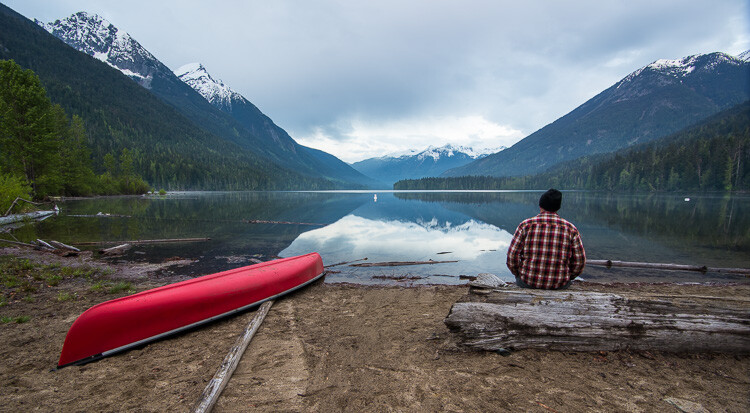
Photo by Jonathan Pendleton on Unsplash

Weekly Photography Challenge – View from Above

This week it’s your job to get up high and look down on the world – literally. Show us the view from above with your photos for this weekly challenge.

Share your images below:

Simply upload your shot into the comment field (look for the little camera icon in the Disqus comments section) and they’ll get embedded for us all to see or if you’d prefer, upload them to your favorite photo-sharing site and leave the link to them. Show me your best images in this week’s challenge. Sometimes it takes a while for an image to appear so be patient and try not to post the same image twice.

Share in the dPS Facebook Group

You can also share your images on the dPS Facebook group as the challenge is posted there each week as well.

The post Weekly Photography Challenge – View From Above by Darlene Hildebrandt appeared first on Digital Photography School.


Digital Photography School

 
Comments Off on Weekly Photography Challenge – View From Above

Posted in Photography


Lake Superior: Journeys on an Inland Sea by Gary and Joannie McGuffin

29 Sep

There are several books which have influenced my paddling and photography. One of them is definitely Superior: Journeys on an Inland Sea, a wonderful coffee table book by a Canadian couple, Gary and Joanie McGuffin, full of great pictures from […]
paddling with a camera

 
Comments Off on Lake Superior: Journeys on an Inland Sea by Gary and Joannie McGuffin

Posted in Photography


10 Lessons from a Guy Who Quit His Job to be a Full-Time Photographer

29 Sep

Every decision you’ve ever made, each image you’ve ever shot, and each chance you’ve taken, has brought you to where you are now as a photographer. Think about that for a second. Regardless of what your goals might be or where you want to go with your photography, it all comes down to a series of moves. So really, all of your success and all of your failures are a beautiful mix of causes and effects. One action yielding one outcome big or small. For most of us, our love for all things photography points to one end and that ever-burning question of “How can I be a full-time photographer?”

If you’ve ever wanted to know what it takes to quit your job and become a professional photographer or how it feels to turn your love of photography into sustainable income, then this is your lucky day. I’m about to share with you some lessons I’ve learned during my three-year journey to become “one of those people”; someone who managed to turn their passion for photography into a full-time job and kiss the rat race goodbye. A few of these lessons are ones you might expect and a few might not be so obvious. So, sit back and get ready to hear some real-world advice from someone who actually made their dream happen, and how you can follow if you choose.

#1 – You have to want it more than anything

It’s easy to say you want something. But have you ever truly desired to make something happen? I’m talking about the kind of want that consumes your very being. Well, maybe not that dramatic but it’s not far off. If you are going to “make it” at anything then you will have to want it more than anything else.

10 Lessons from a Guy Who Quit His Job to be a Full-Time Photographer

The happy upside to finding something that you so completely want is that the challenges you face don’t seem to matter as much as they might otherwise. And yes, there will be oh so many challenges. Which leads us to lesson #2.

#2 – You will have to sacrifice

Don’t get me wrong. The following words aren’t meant to be a deterrent but at the same time, they are quite true. To ultimately reach your goals there will have to be sacrifices made along the way. The nature and exactness of these sacrifices will vary greatly but there will always be things that you will have to give up in order to make your dream a reality.

10 Lessons from a Guy Who Quit His Job to be a Full-Time Photographer

These sacrifices could be anything from giving up sleep and experiencing physical discomfort or missing time out with friends. Photography is a medium that literally requires you to be present for every shot. This means that to truly be there in the moment you won’t always be able to someplace else. It strains relationships and can take a toll on your body, your finances, and even your mind. But much like lesson #1, the sacrifices won’t seem so terrible if they are viewed as a necessary means to make something you truly want happen.

#3 – Understand the “calculated risks”

Taking calculated risks is sometimes misunderstood by some people who are looking to take a leap with their photo work. Let’s break down the very phrase “calculated risk”.

First, we have the word “calculated” which means something that is done with full awareness of the possible consequences. Then we have “risk” which refers to exposing something we value to danger, harm, or loss. So, when we say that we are going to take a calculated risk, it means that we are about to put something on the line knowing full well that the outcome might not be favorable. This is where I feel the point becomes lost with some photographers.

10 Lessons from a Guy Who Quit His Job to be a Full-Time Photographer

To reach your goals you’ll certainly have to take some risks. While that’s true, I’ve learned that it’s the manner in which you take those risks that makes all the difference. When it comes to taking calculated risks, never risk anything that will ultimately prevent you from reaching your next goal.

I’ll admit though, this advice can be somewhat paradoxical. Meaning that in the end, you will have to take the ultimate calculated risk. That is going all in and attempting to make your living exclusively from your dealings in photography. Until that time comes, make sure your risks are of the non-terminal variety.

#4 – You will have to teach yourself patience

This is a hard one. You will have to be patient. Stay ambitiously patient, but be patient nonetheless. If you’re not a patient person then you’ll probably have to teach yourself to be one. And if you come to the conclusion that you can’t teach yourself to be patient then you’ll just have to fake it. I can tell you that there is no set timetable when it comes to reaching a sustainable goal.

10 Lessons from a Guy Who Quit His Job to be a Full-Time Photographer

Being patient doesn’t mean that you should sit back and wait for things to happen. Instead, make every minute of every day count towards achieving the thing you want the most. But understand that there’s no guarantee when that goal will be reached. Just know that you will reach it if you are patient (and persistent) and don’t stop.

#5 – Confidence comes after the fact

This is something that I struggle to remind myself on a daily basis. Confidence is just as important as skill in some cases. Having the gall to try something new, to attempt difficult things, that’s what it takes to make big things happen with your photography.

Some people are born confident (or at least so it seems). But for others, confidence is a learned talent. What’s the downside to becoming confident in your work? Confidence only comes after you do the thing you’re afraid to do.

10 Lessons from a Guy Who Quit His Job to be a Full-Time Photographer

Yeah, that’s a hard idea to swallow but it’s true. To become confident you will have to constantly step outside your comfort zone to varying degrees. This could mean being proactive with clients, taking on jobs that are just slightly outside your assumed skill set, and at times even talking your way into (and out of) a few situations.

#6 – Disregard secret formulas for success

The internet is chock-full of every kind of self-improvement website and video imaginable that all aim at making you better at photography. That’s 100% okay and none of us would know much of anything about making photographs if it weren’t for people who publish good educational information. After all, you’re reading this article on one of the best photo education sites online. But that doesn’t mean that everything that glitters is gold.

10 Lessons from a Guy Who Quit His Job to be a Full-Time Photographer

A big red warning flag should go up whenever you hear or read something that tells you to, “Do this and you’ll be a great photographer” or worse yet, the dreaded, “I’m a master photographer so listen to me” line. Understand that your journey to finding success is completely unique to you. My goals and choices are likely totally different than those you will choose. At the same time, some lessons are universal. Just remember that there is no secret formula, only tested advice.

#7 – Grab opportunity by the throat

I love a good metaphor and grabbing opportunity by the throat is one of the best ones I can think of to describe what I learned about approaching opportunity. Learning to recognize opportunities for advancing yourself and your work is only a small part of the puzzle. You have to also aggressively seize those opportunities when they come along.

For me, there were three or four big opportunities that eventually put me where I am today. Narrowing it down even further, one of those opportunities hinged on a single email that I sent to someone. If I hadn’t sent that one message, things might have turned out much differently.

10 Lessons from a Guy Who Quit His Job to be a Full-Time Photographer

Don’t just say, “I think this is a great opportunity but…” There are no buts when it comes to this sort of action. Unfortunately, you have to decide that for yourself whether not an opportunity is worthwhile. But if you do decide to go for it, do so with everything you’ve got. You never know where it might lead. Which brings us to #8.

#8 – Your destination will change

This is somewhat of a strange lesson which I’ve only come to grasp in the last year or so. The end all be all dream I had when I started making photographs was to take pictures of beautiful things, sell them, and repeat. I thought I would do this enough to make a living.

Well, the hard truth about photography is that it’s nearly impossible to make a living exclusively from selling prints. It’s not impossible, but even the established greats in the photography history books didn’t merely sell prints to support themselves. The ones who did often were only able to do so AFTER they became giants in the art.

10 Lessons from a Guy Who Quit His Job to be a Full-Time Photographer

Don’t be afraid to allow yourself to evolve in a natural direction. Currently, I write for four to five publications, have authored two books on photography, host my own YouTube channel, and dabble in all manner or photo-related adventures. I still love making photos and do so whenever I can, but do I sell a lot of those prints? Not really.

Would I ever have imagined myself as a writer? Absolutely not! But when the opportunity came along I took it, and it’s all been one amazing ride to where I am now. The takeaway here is to be flexible with your attitude and accept that you always understand that a glorious outcome is out there, but it may not be the one you originally set out to achieve.

#9 – Think big but have realistic expectations

Set huge goals for yourself. Dream big. Think big. Never let anyone tell you that something is impossible for this or that reason. While you should never set strict limitations for yourself and your dreams it’s also important to live in reality. This is a reality, isn’t it? The point is to never expect great things to happen quickly or without a lot of work (remember #2 and #4 above) supplied on your part.

10 Lessons from a Guy Who Quit His Job to be a Full-Time Photographer

The most saddening thing that can happen to those who have unreal expectations is that they quit. They stop chasing after what they love and resign themselves to an existence they don’t really want. If you want to go full-time in the photography world always remember that success finds us at different times and with different outcomes. Think as big as you need to but keep your feet firmly on the ground.

#10 – It’s all worth it in the end

As we close out our list, #10 is the lesson that I want you to understand with the most clarity. Of all the lessons I’ve learned on my journey to independence with photography, there is one that had to wait for until the end and it’s this – it’s all worth it. All of it. All your hard work, all your sacrifice, everything that you poured into making your dream of being a working full-time photographer will ultimately lead to one of the greatest feelings imaginable.

10 Lessons from a Guy Who Quit His Job to be a Full-Time Photographer

Honestly, any description I can give of how amazing it feels to make photography (or photo related) your full-time job will ultimately fall miserably short of its mark. So, if you’re struggling with whatever you happen to be doing with photography let this final lesson fortify you enough to keep going. Believe me, it will all be worth it.

Some Final Thoughts

These lessons are just a small portion of a nearly indecipherable culmination of trial and error, ups and downs, peaks and valleys. Your particular path will be different than mine, as it should be. I managed to leave a successful, albeit unfitting, career in healthcare to go on to make a living doing what I really love. The best part? I’m no different than you.

I’m ecstatic to tell you some of the lessons I’ve learned so that you might understand that you can do the same thing I did. It may not happen quickly and it might not be exactly what you originally planned, but when it finally happens…and it will happen, it will be better than anything you can imagine.

The post 10 Lessons from a Guy Who Quit His Job to be a Full-Time Photographer by Adam Welch appeared first on Digital Photography School.


Digital Photography School

 
Comments Off on 10 Lessons from a Guy Who Quit His Job to be a Full-Time Photographer

Posted in Photography


How to Speed Up Your Photo Editing with the Right Lightroom Workflow

29 Sep

Processing photos is fun for me. But as much as I like doing it, I like being out in the field making new photos even more. That’s why I’ve developed a Lightroom workflow that helps me get the job done as quickly as possible.

Following these steps, you’ll learn how to make adjustments to a whole batch of images and then apply image specific adjustments to bring out the best in each frame.

Before you begin, choose a batch of photos taken at the same time under similar lighting conditions. I usually go through and pick my favorite photos from a shoot first, and then work on those.

How to Speed Up Your Photo Editing with the Right Lightroom Workflow

Step 1: Make Global Adjustments to the First Photo

In the Develop Module, pick the first photo in your batch and make the following adjustments to make it look its best.

Remember there are no rules with the sliders other than a little goes a long way. Just go with your gut. And if you’re not sure what a slider does, just take it to one extreme and then the other and you’ll be able to see exactly what is going to happen.

Camera Calibration

You’ll find this at the bottom of the develop module on the right-hand panel. I like to set this first because it makes such a dramatic difference to the color and contrast in an image. Simply go through the drop down box and pick the one that looks the best.

White Balance

Next go up to the top of the develop module and start working your way down. The first slider is white balance and there you can choose from the items in the drop down box. Again, simply choose the one that looks best.

Highlights and Shadows

Try darkening the highlights by moving the slider to the left and lightening the shadows by moving the slider to the right. You don’t want to go so far that you’ve removed all contrast from the scene, just enough that you have more detail in the highlight and shadow areas.

Clarity

The clarity slider will add contrast to the edges of things making them appear more crisp. Try nudging it a bit to the right. On the other hand, if you want your image to be softer and dreamier, you can move the clarity slider to the left.

Vibrance

The vibrance slider is more subtle than saturation since it adds color to the parts of your image that are already less saturated.

Sharpening

Most photos need a little sharpening. In the Detail Panel, try moving the sharpening slider a bit to the right.

Vignette

In the Effects Panel, add a slight post-crop vignette to draw the eye into the frame by dragging the slider slightly to the left.

How to Speed Up Your Photo Editing with the Right Lightroom Workflow

Before any adjustments in Lightroom.

How to Speed Up Your Photo Editing with the Right Lightroom Workflow

After the basic adjustments have been applied in Lightroom.

Step 2: Sync Settings

In the Develop Module, select all the photos in your batch (including the one you just edited) from the filmstrip at the bottom of the screen. Then click the Sync button at the bottom of the develop panel.

How to Speed Up Your Photo Editing with the Right Lightroom Workflow

Voila! All the adjustments you made to your first image have now been applied to the whole group.

Step 3: Make Final Adjustments to Single Photos

The following adjustments need to be made to each photo individually since they are rarely the same in a batch.

Crop and Straighten

If necessary, use the crop tool to adjust the crop. Maintain the aspect ratio of your image by holding down the shift key on your keyboard while you crop. You can also use the angle tool located inside the crop tool to make sure any horizon or shore lines are straight by drawing a line from one side to the other.

How to Speed Up Your Photo Editing with the Right Lightroom Workflow

Don’t Miss a Dust Spot

Using the spot removal tool, check the box next to “Visualize Spots” below the image to help you see the dust spots more easily.

How to Speed Up Your Photo Editing with the Right Lightroom Workflow

Radial Filter

Use the radial filter tool to increase the exposure very slightly on your main subject which will help to draw the viewer’s eye to it. Remember to click the “invert mask” checkbox to affect the area inside the circle. Otherwise, the default is to affect the area outside the circle you draw.

How to Speed Up Your Photo Editing with the Right Lightroom Workflow

Radial Filter in Lightroom.

Summary

I find that processing photos is more fun when it doesn’t take forever! Now with time saved doing basic processing, you may choose to take your photo into another photo editor to add special effects. Or you can just call it done and get back out in the field doing what you love: making photographs.


Want more? Try Anne’s Lightroom video course: Launch Into Lightroom to learn everything you need to know to get started in just a couple of hours.

The post How to Speed Up Your Photo Editing with the Right Lightroom Workflow by Anne McKinnell appeared first on Digital Photography School.


Digital Photography School

 
Comments Off on How to Speed Up Your Photo Editing with the Right Lightroom Workflow

Posted in Photography


Lighting 103: Becoming More Intuitive with Color

29 Sep

As your understanding of light and color grows, how does it affect your daily shooting? Like most things that seem complex at first, color pretty quickly becomes a secondary thought process, just like tying your shoes.

I just had the above archive photo picked up by a nonprofit, to promote children's books. Looking at it, I'm reminded that creating a natural looking color need not be complicated at all.

This was a little more than a snapshot, done with on-camera flash, and no gels. And the thought process behind the light is a good example of how you'll start to see and control color, even if you're just grabbing a snapshot. Read more »
Strobist

 
Comments Off on Lighting 103: Becoming More Intuitive with Color

Posted in Photography


How Can I Be More ______ As A Photographer?

28 Sep

  The number two*  question that every veteran photographer gets asked is: “How can I be more ______ as a photographer?” You can fill that in with any adjective you’d like:  Creative. Wealthy. Original. Successful. Innovative. * The number one question is always about gear. Always. And, as always, the gear matters 10% as much as you think it does. Continue Reading

The post How Can I Be More ______ As A Photographer? appeared first on Photodoto.


Photodoto

 
Comments Off on How Can I Be More ______ As A Photographer?

Posted in Photography


6 Tips for Overcoming Self-Doubt and Building Confidence in Your Photography

28 Sep

Let’s all agree that photography is one of the most frustrating yet creatively satisfying art forms out there. We all remember the passion we felt when we first started out on our photography journey. The thrill of clicking the shutter and excitedly looking at the back of the camera (if you started with digital photography) and that feeling like opening gifts on Christmas morning when you got your prints back from the developing lab (if you started with film). You know you couldn’t get enough of capturing life through a lens. Nothing quite beats the rush of knowing that you have created something cool! Right?

6 Tips for Overcoming Self-Doubt and Building Confidence in Your Photography

My lovely clients – they have been with me for through many of their most important moments, and I love them for trusting me and my creativity.

Why is it, then, that most of us eventually fall into the comparison trap and start to lose confidence in our skills? Our creativity, authenticity, and confidence get shaded in our own eyes by self-manifested doubts and shortcomings. It leaves us dejected, uninspired, and sometimes even angry. We all seem to judge ourselves against someone else’s successes – be it money, opportunities or even social media fame (yes, that seems to be quite the rage these days).

So how does one overcome those self-doubts? Here are some tips I’ve found helpful when the ugly head of self-doubt cripples my creativity.

#1 Take a break from it all

Stop obsessing about photography and go do something else you really enjoy. It could be something big like taking a trip without your camera to something small and simple like going to the movies, cooking your favorite meal, meeting up with friends, or even dancing with your kids.

No matter what you choose, find something that you really enjoy and do it just for the sake of enjoyment. It will help clear your head and allow happiness based endorphins to flow through your body leading to more positive thoughts and feelings. Personally, I pack away my gear and read a book – old romance novels from the 1970s always manages to help me bounce back and feel happy. Other times, we load up the car and head out to the mountains. So my books and hiking shoes are two of my most prized possessions.

K6 Tips for Overcoming Self-Doubt and Building Confidence in Your Photography - Olympic National Park Backcountry Hiking

There is just something about photographing tiny humans among big landscapes that seems to put the whole world and all my personal problems into perspective.

#2 Play on your strengths

When I used to work in Corporate America, we were encouraged to create yearly goals based on our strengths and weaknesses. Try and apply similar principles when you think about what you want to accomplish from a photographic perspective. Think about what multiple people or clients have complimented you on. Focusing on strengths will help you set realistic goals with achievable results and give you that boost of confidence you need.

I have been told that I am good at natural posing. Helping my clients get comfortable in front of the camera is one of my skills. I am good at making the photographic experience easy, comfortable, and convenient for my clients. These are some of my personal strengths. I know that I don’t do high fashion and in-studio sessions well. I am much happier and progress faster when I focus on what I am good at rather than trying to be someone or something I’m not.

6 Tips for Overcoming Self-Doubt and Building Confidence in Your Photography

Happy clients always makes for great pictures. These are the ones that will get shared and hung on walls for years to come – the best compliment for any photographer.

#3 Tackle your weaknesses one at a time

This goes in line with working on your strengths. Now that you have documented both – strengths as well as weaknesses – pick one weakness and really focus on that one area to prevent getting overwhelmed and discouraged.

Do you lack any technical photography skills? There are numerous workshops, articles, and YouTube videos that you can watch to try and get up to speed. Digital Photography School is also a great learning resource.

Do you struggle when interacting with clients? Stand in front of a mirror and practice your introduction pitch. Round up your friends and ask them to help you practice your interaction skills. Do you struggle with building your portfolio? Volunteer your services to organizations that need help.

Apply and practice the things you learn even if it is just with your family, kids, or the family pet. Remember, also, to be patient with yourself. As you improve, take time to appreciate your growth and celebrate your accomplishments. The best morale booster is your own internal vote of confidence. Remember accomplished photographers have all been where you are at some point in their lives. Success takes a lot of hard work and time.

6 Tips for Overcoming Self-Doubt and Building Confidence in Your Photography

I have my own share of weakness that are a mile long but to keep my perspective and love for the art of photography I chose positively over negativity and so far that has worked in my favor.

#4 Have a competitive spirit for the right reasons

A little bit of competition is healthy. As humans, it is what keeps us going at times. But be careful not to confuse competition with jealousy. And never try to compete with other industry peers on price. That is a battle that can quickly go south. You have to just understand that there will always be someone who is willing to work longer hours, for cheaper rates. That’s just the reality of life in any field.

Understand what you bring to the table is unique and there are clients who want to work with you because of the experience and end product that you (and you alone) provide. Focus all your energy on finding those clients and not the ones that pick price over quality.

6 Tips for Overcoming Self-Doubt and Building Confidence in Your Photography

A couple of weeks ago, I set up a styled shoot seminar at my local camera shop with a few of my favorite vendors. All the photographers in attendance shot the same setup, but we each put our own spin to the images based on our shooting as well as editing style. – Community over competition is a very powerful thing.

6 Tips for Overcoming Self-Doubt and Building Confidence in Your Photography

My favorite images from the styled shoot reflect my brand and style. Plus this gave me more confidence in working with studio lighting – one of the areas I am not super confident.

#5 Health is the best kind of wealth

Nothing is worth sacrificing your health – both mental and physical. I have learned that lesson the hard way. Now I don’t overwork myself to the point of exhaustion nor do I sacrifice my sanity over difficult clients.

I always take a day off after photographing a wedding because it is physically exhausting and mentally draining. I avoid scheduling photography gigs one after the other because I know I get mentally exhausted and cannot produce my best creative work. We have to all acknowledge that sometimes self-doubt arises due to our poor health (either mental or physical) and the only way to overcome it is to get our mind, body, and soul in a much better space.

6 Tips for Overcoming Self-Doubt and Building Confidence in Your Photography

Weddings are emotionally and physically draining but are so creatively satisfying for me. I love photographing them but would never do a tripleheader weekend, that would just about kill me.

#6 Remember your why

Why do you love photography? What is it about this art form that has you up at night trying to make it work? What’s your story? Is it the money? Is it the glory? Take the time to figure out your why and write it down.

Then when you start doubting yourself, go read your story. It will help you get things in perspective and ground you. I learned photography so I could:

  1. Document my own family and their crazy and unique personalities.
  2. Spend time at home with a more flexible schedule.
  3. Explore my creativity.
  4. Run my own business and work for myself

Hence my mission as a photographer is to provide my clients with creative images that are a true and authentic reflection of their own individual personalities while running a profitable business.

6 Tips for Overcoming Self-Doubt and Building Confidence in Your Photography

I find that I produce my best work when I am creatively fresh and mentally refreshed.

Remember that your why will be specific and unique to you and it is what will push you to overcome your setbacks and mental roadblocks as you continue on your photography journey.

Conclusion

I hope some of these tactics help you navigate the choppy photography waters. Remember there is nothing like a free lunch! Success in any shape or form takes time and hard work – lots of it. Roll up your sleeves, work your hardest, and you will get there. I look forward to hearing your successes and cheering you on.

The post 6 Tips for Overcoming Self-Doubt and Building Confidence in Your Photography by Karthika Gupta appeared first on Digital Photography School.


Digital Photography School

 
Comments Off on 6 Tips for Overcoming Self-Doubt and Building Confidence in Your Photography

Posted in Photography


Six Important Aspects of Monitor Calibration You Need to Know

27 Sep

Monitor calibration might seem complex. Perhaps it is, but you’ll soon be comfy with it if you can grasp some of the basic principles. It’s just a question of breaking the subject down. In this article, we’ll look at six aspects of a seemingly dark art, and how to calibrate your monitor.

Six Aspects of Monitor Calibration You Need to Know

1) Luminance / Brightness Level

One thing to know about monitor luminance (or brightness, in simple terms) is that it’s typically the only genuine hardware adjustment you can make to an LCD monitor. You are basically altering the backlighting with a dimmer switch.

The above is only untrue if you select a luminance setting that is lower than your monitor can naturally reach, in which case a software adjustment comes into play. Ideally, you don’t want this, since it eats into the monitor’s gamut (the range of colors it produces) and leaves it open to problems such as banding.

Always use software that tells you how bright the monitor is and lets you adjust it interactively.

Software versus hardware

Software adjustments are the ones that go through the graphics processor, while hardware adjustments are those that bypass the GPU and address the monitor directly. The former may cause problems in some cases, which is useful to bear in mind. Expensive monitors tend to allow more in the way of hardware calibration, enabling a higher image quality.

What setting to use?

Monitor luminance is measured in candelas per square meter (cd/m2), sometimes referred to as “nits”. A new LCD monitor is usually far too bright (e.g. over 200 cd/m2). Aside from making screen-to-print matching hard, this reduces the monitor lifespan.

You need a calibration device to measure the luminance of your monitor and always return it to the same level, as the backlighting slowly degrades. The trouble with using onscreen monitor settings to do this (e.g. 50% brightness) is that their meaning changes over time.

Six Aspects of Monitor Calibration You Need to Know

X-rite i1Display Pro

The arbitrary setting

Although arbitrary, the 120 cd/m2 setting that most software defaults to is a fair place to start. Most monitors can reach that level using the OSD brightness control alone, without resorting to reducing RGB levels and gamut. The setting you use is not critical unless you are explicitly trying to match the screen to a print or print-viewing area.

Dictated by ambient light

Ideally, you should control the ambient lighting in your editing area so you’re free to set the luminance you want. The monitor should be the brightest object in your line of vision. If you’re forced to edit in a bright setting, luminance must be raised so that your eyes are able to see shadow detail in your images. Some calibrators will read ambient light and set parameters accordingly. In controlled situations, this feature is needless and even unhelpful.

The paper-matching method

Many printers set their monitor luminance very low. By this, I mean between 80-100 cd/m2. The idea is to hold a blank piece of printing paper up next to your screen and lower the luminance until it matches the paper, or just set a low level so that this is more likely.

Potential downsides include a degraded monitor image since not all monitors can achieve this low luminance level without ill effect. Still, you could try it. This is about finding what works for you and your gear.

Matching the print-viewing area

Another way printers set monitor luminance is to match it to the lighting of a dedicated print-viewing booth or area. Although the light in this area may differ to that of the final print destination, it’s useful to note that monitor calibration is never quite an exact science. As well, print display lighting is always adjustable in its intensity. Using this method, the monitor luminance might be as high as 140-150 cd/m2. This setting should be natively achievable by any monitor.

2) Color Temperature / White Point

Most calibration programs will default to a 6500K white point setting, which is a cool “daylight” white light. This is usually close to the native white point of the monitor, so it’s not a bad setting, but you needn’t accept the software defaults.

By Bhutajata (Own work) [CC BY-SA 4.0], via Wikimedia Commons

Gentle calibration – native white point

If you own a cheap consumer-level monitor or a laptop with low-bit color (that’s most laptops), it’s a good idea to choose a “native white point” setting. This is only typically available with more advanced calibration programs, including the open source program DisplayCAL.

When you choose a native white point or anything “native” in calibration, you are leaving the monitor untouched. Because this means there are no software adjustments being made, the display is less likely to suffer from issues such as banding.

Correlated color temperature

In Physics, a Kelvin color temperature is an exact color of light that is determined by the physical temperature of the black body light source. As you probably know, the greater the heat, the cooler or bluer the light becomes.

Monitors don’t work like this since their light source—LED or fluorescent—doesn’t come from heat. They use a “correlated color temperature” (CCT). One thing to know about correlated color temperature is that it’s not an exact color. It’s a range of colors. This ambiguity is not ideal when trying to match two or more screens.

Six Aspects of Monitor Calibration You Need to Know - color temperature Planckian locus

By en:User:PAR (en:User:PAR) [Public domain], via Wikimedia Commons

This illustration, above, of the CIE 1931 color space plots Kelvin color temperatures along a curved path known as the “Planckian locus”. Correlated color temperatures are shown as the lines that cross the locus, so for instance, a 6000K CCT may sit anywhere along a green to a magenta axis. A genuine 6000K color temperature would rest directly on the Planckian locus at the point where the line crosses, so its color is always the same.

Though color temperatures might not mean the same thing from one monitor to the next, calibration software should be more precise. It’ll use x and y chromaticity coordinates (seen in the graph above) to precisely plot any color temperature. Thus, theoretically, you should be able to match the white point of two different monitors during calibration.

Even if you manage that, gamut differences are still likely to complicate things. It’s often easier to forget about matching screens and just use the better of them for editing.

Matching print output

Your chosen white point won’t always match the light under which you display or judge prints. For that reason, you might want to experiment with settings. Remember you’ll harm image quality if you bend the white point far from its native setting. In calibration, you’re often seeking a compromise and/or testing the boundaries of your monitor’s performance. Once you know these changes may cause problems, you can reverse them easily.

3) Gamma / Tonal Response Curve (TRC)

Digital images are always gamma-encoded after capture. In other words, they’re encoded in a way that corresponds to human eyesight and its non-linear perception of light. Our vision is sensitive to changes in dark tones and less so with bright tones. Although digital images are stored thus, they are too bright at this point to represent what we saw. They must be decoded or “corrected” by the monitor.

Six Aspects of Monitor Calibration You Need to Know

By I, the copyright holder of this work, hereby publish it under the following license: (Own work) [Public domain], via Wikimedia Commons

A digital camera has a linear perception of light, whereby twice as much light is twice as bright. Gamma encoding and correction alters the tonal range in line with the human vision, which is more sensitive to changes in shaded light than in highlights. By the way, the gradients in the above image are smooth. Any color or banding you see is caused by your monitor, and harsh calibration will make it worse.

This is where the monitor’s gamma setting (or tonal response curve) comes in. It corrects the gamma-encoded image so that it looks normal. The gamma setting needed to achieve this is 2.2, which is also the default gamma setting in calibration programs. However, this is another setting that you may stray from if your software allows it.

Gentle calibration – native gamma setting

Like the white point setting, the gamma setting is a software adjustment that might degrade the monitor image. If you calibrate with a native gamma setting, you are less likely to harm monitor performance. The only trade-off is that images outside of color-managed programs might look lighter or darker. However, inside color-managed programs, images will display normally.

4) The Look-Up Table (LUT)

Once you’ve dialed your settings into the calibration software, what happens to them next? They’re attached to the ICC profile (created after calibration) in the form of a “vcgt tag”. This then loads into the video card LUT (look-up table) on startup, at which point the screen changes in appearance.

Having said the above, if you’ve chosen only native calibration settings, you’ll see no change to your screen at startup. The Windows desktop may look different under a native gamma setting since it is not color aware. A Mac desktop will remain unchanged.

With expensive monitors, the LUT is often stored in the monitor itself (known as a hardware LUT), bypassing the GPU. One benefit of this is that you can create many calibration profiles and switch easily between them. This is not possible with most lower-end monitors.

5) Third-party calibration programs

High-end monitors come with software that allows all sorts of tricks, but most monitors and programs are less flexible. It’s worth noting, though, that some calibrators work with third-party programs, no matter what software they came with. Conversely, some tie you down to proprietary software, so this is worth checking when you buy a calibrator.

Ironically, one of the things more advanced programs let you do is nothing. In other words, they let you choose “native” calibration settings. Look at DisplayCAL or basICColor programs if you want more flexibility, but check for compatibility with your device first.

Six Aspects of Monitor Calibration You Need to Know

6) Calibration versus Profiling

The word “calibration” is an umbrella term that often refers to the process of calibrating and profiling a monitor. However, it’s useful to note that these are two separate actions. You calibrate a monitor to return it to a known state. Once it’s in that state, you then create a profile for the monitor that describes its current output. This allows it to communicate with other programs and devices and enables a color-managed workflow.

Six Aspects of Monitor Calibration You Need to Know

DisplayCAL info at the end of calibration and profiling. Gamut coverage is the proportion of a color space the monitor covers. Gamut volume includes coverage beyond that color space.

If you can’t afford a calibration device, it’s better to calibrate it using online tools than to do nothing at all. You’ll still need to get the luminance down from its factory level. Check things like black and white level on a website such as this.

You can’t create a proper profile for your monitor using software alone. Any software that claims to do this is using either a generic profile or the sRGB color space.

Finally

I hope this article has helped your understanding of monitor calibration. Ask any questions you like in the comments below and I’ll try to answer them.

The post Six Important Aspects of Monitor Calibration You Need to Know by Glenn Harper appeared first on Digital Photography School.


Digital Photography School

 
Comments Off on Six Important Aspects of Monitor Calibration You Need to Know

Posted in Photography


A Guide to Creating Stunning HDR Images

27 Sep

The simple contrast between light and shadow can have a powerful effect on a photographic image. In fact, quite often you may find that contrast is what inspires you to photograph a particular scene or subject in the first place. Sometimes, however, the contrast of a scene exceeds the ability of your camera to contain all of that information. Fortunately, with the help of powerful software such as Aurora HDR 2018, you can transform a scene with high contrast into a stunning photographic image with tremendous detail. In this article, I’ll show you how it’s done.

Photographing the Scene

The first step in creating a high dynamic range (HDR) image is to capture a sequence of photos. Put simply, when you aren’t able to capture a single photo that includes detail in the darkest shadows and the brightest highlights of a scene, you’ll want to capture multiple exposures and blend them together with software such as Aurora HDR 2018.

Bracketed Exposures A Guide To Creating Stunning HDR Images

Most cameras include an automatic exposure bracketing (AEB) feature that can help streamline the process of capturing the several exposures which are needed to create an HDR result. If your camera only enables you to capture a bracket of three exposures, you can separate the exposures by two stops each. If you are able to capture a bracketed sequence of five or more photos you can separate the exposures by one stop each. It is highly recommended that you use the RAW capture mode for these exposures, to ensure there is maximum information available for creating your final image.

In most cases you will want to keep the lens aperture setting fixed, altering the shutter speed for each frame to adjust the exposure. This will help ensure consistent depth of field in the scene. The ultimate goal is to be sure that you have one exposure that is dark enough to include full detail in the bright areas of the scene, one exposure that is bright enough to include full detail in the dark areas of the scene, and exposures in steps of one or two stops to transition between the darkest and brightest exposures.

Creating the Initial HDR

There are two basic steps to creating a final HDR image. The first is to assemble the multiple exposures into a single image with a tremendous amount of information. The second is to perform what is referred to as “tone mapping” or translating the huge range of tonal and color values into the range of values available for a “normal” photographic image.

With Aurora HDR 2018, there are a couple of ways you can start the process of creating the initial HDR image. If you’re using other software such as Lightroom or Photoshop as the foundation of your overall workflow, you can employ Aurora HDR 2018 as a plug-in for these other software tools. The other option is to simply open the original captures directly from within Aurora HDR 2018.

Open your images

When you initially launch Aurora HDR 2018 you’ll see the “Open Image” button. You can click that button, or choose File > Open from the menu to get started. Note, by the way, that you could also take advantage of the “Batch Processing” option to assemble multiple HDR images in a single process.

Aurora Open Images - A Guide To Creating Stunning HDR Images

After selecting the option to open images, you can navigate to the folder containing the photos you want to assemble into an HDR image, and select those images. Then click the Open button to initiate the process of creating your HDR image.

The images you selected will then be presented as thumbnails so you can confirm which photos are going to be assembled into an HDR image. More importantly, however, you can adjust the settings for how the individual captures should be combined.

HDR options and settings

Almost without exception, you’ll want to turn on the “Alignment” checkbox. Even if you used a tripod when capturing the bracketed frames, it is possible that there was a tiny movement of the camera during the capture process. By having the Alignment checkbox turned on, Aurora HDR 2018 will analyze the contents of the images and fine-tune the positioning of each to ensure perfect alignment.

Aurora Initial Settings - A Guide To Creating Stunning HDR Images

Next, click the popup with the gear icon to adjust the settings for assembling your HDR image. If there was any movement of subjects within the frame, such as people or cars, or even trees blowing in the breeze, you’ll want to turn on the “Ghost Reduction” checkbox. In many cases having this option enabled can completely eliminate the “ghost” effect that results from objects moving within the frame from one exposure to the next.

Once you have turned on the “Ghost Reduction” checkbox, you can choose which exposure to prioritize by selecting it from the “Reference image” popup. In most cases, you will want to choose the image that would provide the best overall exposure if you hadn’t captured bracketed exposures in the first place.

You can also choose the strength setting for ghost reduction, depending on how much movement there was in the scene you were photographing. If there was minimal movement in the scene you can use the “Low” option. However, there are also settings for Medium, High, and Highest to help you achieve good results even when there was considerable movement within the scene you photographed.

Other settings

For many situations where you might employ HDR techniques, you may be photographing a scene with relatively low light levels. If so, you can turn on the “Color Denoise” checkbox to apply noise reduction to your original captures as Aurora HDR 2018 is processing them.

It can also be helpful to turn on the “Chromatic Aberration Removal” checkbox so that any color fringing that appears in the captures can be removed. This fringing is most common when using a wide-angle lens to photograph a high-contrast scene, but it can also occur with other lenses or photographic situations.

Once you have established the desired settings for the assembly of your HDR image, click the “Create HDR” button. Aurora HDR 2018 will then combine the multiple exposures you selected into a single high dynamic range result.

Presets and Beyond

Put simply, an HDR image contains a greater range of tonal information that can actually be displayed on a computer monitor or presented in a printed output. It is, therefore, necessary to translate that huge range of information into the range used for a normal digital photo. That process is referred to as “tone mapping”. Fortunately, Aurora HDR 2018 makes it easy to exercise considerable control over the interpretation of your image during this process.

One of the great features of Aurora HDR 2018 is the ability to use a variety of presets to quickly achieve the optimal look for your image. Even better, these presets are presented as thumbnails that provide an actual preview of the effect you’ll achieve with each preset. In other words, there is no guessing involved. You can browse the preset thumbnails, and easily find a good starting point for processing your photo.

Preset Categories - A Guide To Creating Stunning HDR Images

The presets are organized into categories, so you can start by clicking the “Categories” popup at the center of the thumbnail display at the bottom of the Aurora HDR 2018 interface. Choose a category from the popup (including an option to view all presets at once), and then browse the thumbnails to find a preset that looks good to you. To apply the effect, simply click on the thumbnail for the desired preset.

Adjust to your taste

Of course, the presets are merely a starting point in the process of optimizing your interpretation of the HDR image. You can still exercise tremendous control over the image with a variety of adjustments.

First, you can tone down the effect of the selected preset by reducing the strength with the “Amount” slider. As soon as you select a preset, you’ll see a slider on the thumbnail for that preset. Simply drag that slider to a lower value if you want to reduce the strength of the overall effect.

In addition, there is a wide variety of adjustment controls available on the right panel within Aurora HDR 2018. The preset you selected will have changed the value for many of these controls, but you can go far beyond the effect applied by that preset.

You will probably want to get started in the “HDR Basic” set of controls, where you can fine-tune the overall color and tonality of the image. For example, you can bring out more detail in darker areas of the image by increasing the value for Shadows. In the Color section, you can adjust the intensity of colors in the photo.

HDR Basic A Guide To Creating Stunning HDR Images

Many options available

You’ll then want to move on to some of the other powerful adjustments available. The HDR Structure section provides controls for enhancing the overall appearance of detail in the image. You’ll also find a variety of special effects available, including a polarizing filter effect, graduated adjustments to refine the top or bottom areas of the image, color tinting, dodging and burning, a vignette effect, and much more.

Be sure to also take a look at the Lens Correction and Transform controls available via a popup at the top of the right panel in Aurora HDR 2018. These enable you to correct for lens distortion as well as perspective issues caused by your position relative to the subject you photographed.

As you refine the settings for the many available adjustments in Aurora HDR 2018, you will likely find it helpful to see a “before” and “after” view of the image. You can click and hold your mouse on the “Quick Preview” button (the eye icon) at the top-center of the Aurora HDR 2018 interface to see the image without any adjustments applied. Then release the mouse to see the final effect. You can also enable the Compare view with the button to the right of the Quick Preview button.

Compare View A Guide to Creating Stunning HDR Images

Tone mapping a single image

By its nature, creating a high dynamic range image involves capturing multiple exposures and combining them into a single image with tremendous detail. However, the powerful adjustments available in Aurora HDR 2018 can also be used to improve the appearance of a single photo.

To use Aurora HDR 2018 to process a single image, you can simply open that image. Instead of selecting multiple exposures when you initiate the process of working in Aurora HDR 2018, you can select a single image. The overall workflow is exactly the same as when assembling an HDR image from multiple exposures, and all of the same adjustments are available.

So after getting familiar with the use of Aurora HDR 2018 to process a series of exposures into a single stunning HDR result, you can use the same basic process to apply similar adjustments to individual photos.

Single Image - A Guide to Creating Stunning HDR Images

Special Pre-Order Offer Now Available!

Don’t miss this opportunity to pre-order Aurora HDR 2018 with over $ 150 worth of bonuses, all for only $ 89. (For a limited time.)


Only the beginning

The ability to assemble multiple exposures into a single image containing a tremendous amount of detail and texture provides you with incredible creative control as a photographer. Aurora HDR 2018 provides a powerful solution for creating high-quality HDR images and creating unique interpretations of those images with a variety of features and effects.

In this article, you’ve learned the basic process of creating great HDR images using Aurora HDR 2018. But this is only the beginning. If you spend a little time exploring the many adjustments available within Aurora HDR 2018, you’ll be able to create stunning HDR images with ease.

Disclaimer: Machpun is a Paid Partner of dPS

The post A Guide to Creating Stunning HDR Images by Tim Grey appeared first on Digital Photography School.


Digital Photography School

 
Comments Off on A Guide to Creating Stunning HDR Images

Posted in Photography


Review of the DJI Spark Drone

27 Sep

DJI doesn’t particularly need an introduction. Their Phantom series brought drone video to the average Joe, while the Mavic Pro brought it closer to the tech and vloggers communities. Now, the DJI Spark aims to bring it to everybody. This tiny wonder goes places no toy drone could hope to go and really packs the tech of its older siblings into a tiny package.

Review of the DJI Spark Drone

Specs of the DJI Spark

The DJI Spark is not much more than palm-sized, and I don’t have particularly big hands. Weighing in at 300 grams (little more than half a pound), you’d think it wouldn’t be up to much, but as I live close to the sea, most of my flights have been in high winds. The DJI Spark has coped admirably, especially considering its petite frame.

Review of the DJI Spark Drone

Aerial views are a breeze in the wind with the DJI Spark.

Toy drones for practice

Let me give you a little of my drone background. I’ve wanted a drone for ages, but with my history of new gear accidents, added to seeing some of my friends destroy really expensive drones, I avoided getting a good one. Instead, I bought loads of toy drones and learned to fly them. While my agenda was always to get a proper drone, flying toy drones is a lot of fun. Best of all, the price means you’re not afraid of crashing them. I found this a great way to get comfortable with flying.

Review of the DJI Spark Drone

A seascape frame from a DJI Spark video.

Let’s look at the rest of the DJI Spark’s specs. It has a 12MP JPEG only stills mode, with video capabilities limited to 1080p 30fps video. This camera sits on a 2-axis gimbal, which, while not in the league of the 3-axis capabilities of bigger drones, works quite well in practice.

The field of view is 25mm equivalent and looks great. The battery is an intelligent type and has its own firmware independent of the drone itself. Charge time is quick, and as well as the dedicated charger, there’s a micro USB port on the drone that can be used to charge the battery. That’s handy when you’re out and have a power bank at the ready.

DJI Spark Options

The DJI Spark comes as a standalone device, flown via the DJI Go 4 app for $ 499 and as the Fly More kit combo with a controller, spare battery, prop guards, 3 battery charger and a bag for $ 699. Don’t waste your money on the basic version. Get the kit. Why?

Well, flight time is quoted at 16 minutes, but it’s less in practice. You’ll need the extra battery after your first flight because you’ll want to fly more! But the main reason is the controller. With just the phone, you’re limited to using an ad hoc phone Wi-Fi network to control the Spark. This is a meager 30m radius. You’ll run out of fun really quickly.

Review of the DJI Spark Drone

In Flight

Now for the crucial question. How does it fly? After flying toy drones for a while, I’m well used to how the controls work. My left hand has throttle and spin, with the right doing forward/back and left/right. It becomes natural quickly. Because the DJI Spark uses GPS for positioning, as soon as you stop flying, the drone stops moving. It’s locked solidly in place.

Review of the DJI Spark Drone

I began using the Beginner mode from the phone only and moved to the controller once I was comfortable. Beginner mode reduces both the distance and speed the Spark can travel. It’s perfect for learning the ropes.

There’s one thing I will stress. Compared to toy drones, the Spark almost flies itself. It makes me regret not getting a proper drone sooner. However, those toy drones did give me more confidence in flying. If you’ve been holding out and just want a drone with a quality camera for basic photography, this is the one for you.

Issues

Are there any issues with the DJI Spark? Yes. I’m happy enough to use JPEG and there are exposure controls available, but there is one thing that I’m not happy about, sharpening issues. In-camera sharpening on the files is horrible. I’m sure they would print fine, but looking at the files at 100%, it’s just horrible. There’s no way to turn it down either. Obviously, DNG would be better, but that’s a selling point of the Mavic Pro.

Review of the DJI Spark Drone

Review of the DJI Spark Drone

100% view showing the weird sharpening and artifacts with the JPEG.

The flight time for the Spark is quite low in comparison to its older siblings. It’s quite long compared to toy drones though and comparing battery sizes, it’s not a wonder. For the size of the drone, the flight time is acceptable.

The App

The DJI Go 4 app is easy to use and contains all the information you need while flying. High wind warnings, along with information on the home point and general flying information show on the screen as you fly. Height, distance and velocity show on the bottom of the screen. There’s a compass in the bottom left. Always check the direction the drone is facing before take off so you can align the drone if it goes out of visual range.

Review of the DJI Spark Drone

Gesture Control

The big selling point in DJI’s advertising is Gesture Control. To use this, you power it on (single tap, then long hold on the power button), then tap twice. If the sensors pick you up, the props will start to rotate and the Spark will take off.

A series of gestures control the device and placing your hand under it will make it land on your palm. Does it work? Yes, it does. Is it a gimmick? Yep, it’s fun, but only up to a point. Flying with the controller is the only way to go. You get bored with the Jedi palm control rather quickly, though most people find it really impressive.

Sport Mode

In the center of the controller is a button marked sport. This removes the handbrake and turns the Spark into a fun monster. It isn’t immediately obvious that you don’t need the app to fly the Spark. Turn on the controller, then turn on the Spark. Once connected you can fly the Spark directly from the controller with Sport mode on.

I found that it wouldn’t fly for me without Sport mode on. Aim the two joysticks in and down to start the propellors, then throttle to take off. Enjoy! It’s fast and furious, but watch out with braking as it needs room to stop or reverse even.

Verdict

The DJI Spark is a great starter drone with a usable camera. It’s fun to use and easy to fly. If you need 4K and DNG, don’t even look at it, go for the Mavic Pro. If these aren’t an issue, you’ll love the Spark, but save yourself some pain and get the kit version.

Pros

  • Small size.
  • Stable even in high winds.
  • Good mix of control options.
  • Beginner mode useful for learning to fly, as is the in-app Flight Academy.
  • Fun. It’s just loads of fun, especially in controller only Sport mode.
  • Controller flying is great.

Cons

  • JPEG only, with terrible sharpening.
  • 1080p with only 30fps. Obviously, a tactic to upsell to one of the big brothers.
  • Low flight time; acceptable, but still a con.
  • Needs controller for best use, but the kit is a great value.

The post Review of the DJI Spark Drone by Sean McCormack appeared first on Digital Photography School.


Digital Photography School

 
Comments Off on Review of the DJI Spark Drone

Posted in Photography