RSS
 

Posts Tagged ‘Using’

A Beginners Introduction to Using Layers

05 May

Using layers in your photo editing software is one of the most important things you can do to create great images. Layers are so powerful, even the most basic understanding of them can improve your photography tremendously. The good news is that using layers is extremely easy, and very quick. If you follow along with this tutorial and incorporate the techniques, you’ll see a huge difference in the quality of your images.
22 use gradient

While there are countless things you can do with layers, it’s convenient to group them into three main categories:

  1. Exposure blending
  2. Local adjustments to specific parts of an image
  3. Special techniques

We’ll go through all three categories in this tutorial. Please keep in mind this guide is meant to demonstrate the power of layers and why you want to use them. It’s not a software-specific guide and the exact mouse-clicks and menu items may vary slightly among the different photo editing packages available. That said, the use of layers is very similar in all software.

EXPOSURE BLENDING

Exposure blending is one of the best techniques you can use to improve your photos. It’s critical to understand and use this skill. It’s also super-easy!

First, let’s understand why you need to blend exposures. We know that a camera has limited “dynamic range”. That means the camera has a hard time capturing very bright parts of a scene and very dark parts in a single photo. As a photographer, you would generally choose to prioritize one over the other. This is a sacrifice photographers have been dealing with for decades.
Exposure blending solves this problem.

You simply take two or more photos of the scene at various exposures and blend the best parts of each exposure to produce a single image where all areas are exposed correctly. Wait you say, isn’t that HDR? In a way it sort of is. The difference between automated HDR software and this technique is that HDR software uses a computer algorithm to choose the areas of your photo to blend, while using layers gives you complete control over the final image. It can also be a much quicker process than using dedicated HDR software. Both processes can be considered “High Dynamic Range” photography, and both have their place.

So how do we do it? It’s very simple, you layer the photos with different exposures on top of each other and then manually blend them. Before we blend exposures, let’s take a quick look at how layers work.

Here we see two photos, one of the Brooklyn Bridge and one from Bora Bora.
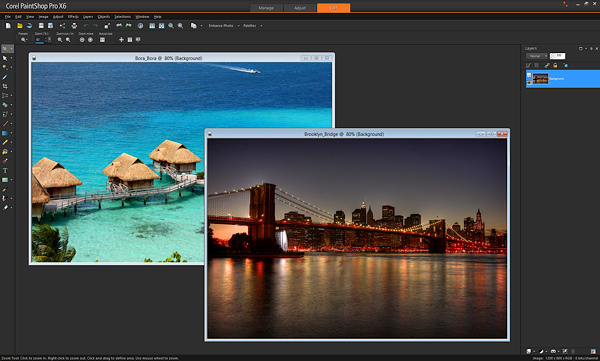
1 Brooklyn and Bora Bora separate

To layer them, I’ll copy-and-paste one photo on top of the other in my editing software. (There are a variety of ways to layer photos depending on the software you use. I use copy-and-paste). After I paste the Brooklyn Bridge photo on top of the Bora Bora photo, you can now see on the right of the screen, where the red arrow points, that the photos are now layered in one document (see image below).
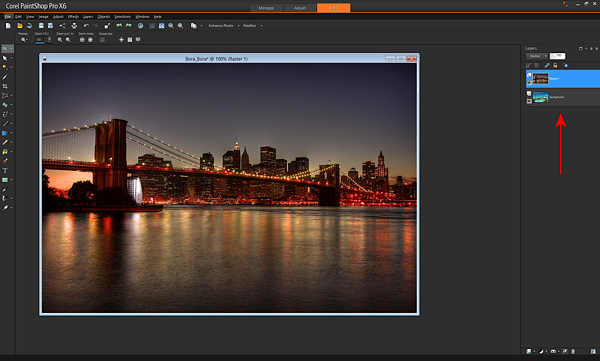
2 Brooklyn and Bora Bora layered

If I were to take an eraser brush and swipe it across the top layer, I will erase that top photo and “reveal” the photo below it. Here’s an example after I’ve taken a swipe with the eraser brush.
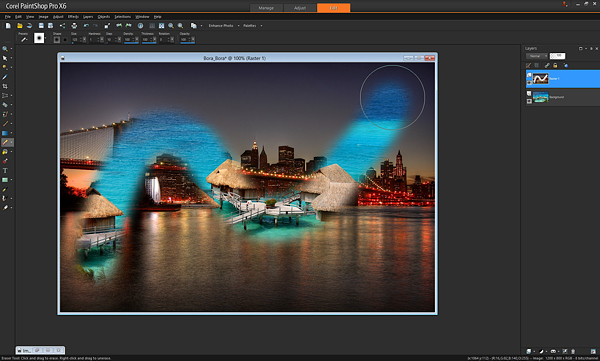
3 Brooklyn and Bora Bora erased

That’s all there is to understanding the very basics of how layers work. With just that little piece of knowledge, your photography can be completely transformed.

In the example above, I used the eraser brush to reveal the layer below. That’s one way of doing it, and I showed you that first because it’s an easy way to demonstrate layers. However, most people use what’s called a “layer mask” instead of the eraser brush. Don’t worry, it’s not complicated.

A layer mask is just another way of revealing the photo below. Instead of using the eraser brush to reveal the bottom photo, you create a middle layer between the two photos called a “mask layer” and you draw on it with a paintbrush – wherever you paint, the top photo is “erased” revealing the bottom photo.

To create a layer mask, just layer two photos on top of each other like I did above, then from the menu click “Create Layer Mask –> Reveal All”. Then you use the paintbrush on the mask to reveal the bottom photo. Painting with the color black reveals the layer below, and if you switch the color to white, it will “undo” wherever you’ve painted black so you can clean up any strokes you didn’t want to make (black reveals, white hides the layer below). Here is the same example below with a layer mask – you’ll see the effect is identical. Notice the new mask layer by the red arrow.
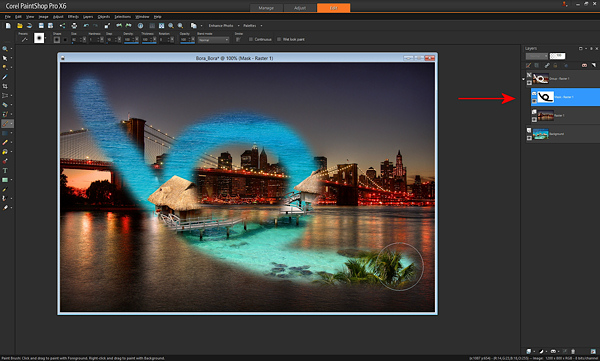
4 Brooklyn and Bora Bora mask layer

The great part about layer masks is that you can save the entire set of multiple exposures along with the masks in a single file, which you can edit later. The original exposures are left completely untouched. That’s the difference between using a mask and using the “eraser brush” directly on your photo. With a mask, you can always go back at any time and paint with the white paintbrush to undo anything you need to.

Now that you know how to use layers, exposure blending is very easy. Here’s a photo I took in Grand Teton National Park. Notice that the mountains and sky look properly exposed, but the foreground foliage is way too dark.
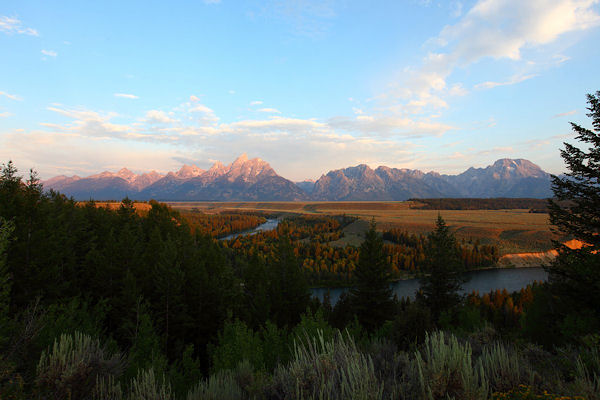
5 Tetons Mountains background

Without exposure blending, the photo above is the best I could do. However, while I was at the location, I also took another photo with the foreground exposed properly. Notice though how the sky is completely blown out and the mountains are overexposed now.
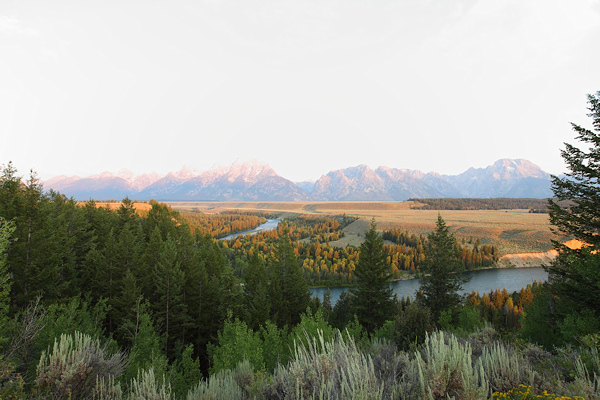
6 Tetons Foreground

With layers, I can easily blend these two images to create the perfect combination, and it only takes a few seconds. I just take the photo with the good exposure for the mountains and paste it on top of the photo with the good exposure for the foreground. With the properly exposed foreground on the bottom, I use the brush to reveal that bottom photo wherever the leaves are too dark. Here it is after one swipe with the brush. You’ll see the better exposure is revealed below.
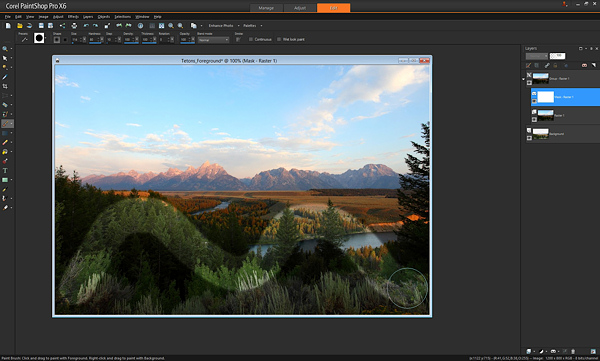
7 Tetons brush swipe

That’s it. After some practice, you’ll be able to do this very quickly, with the final photo looking like this.
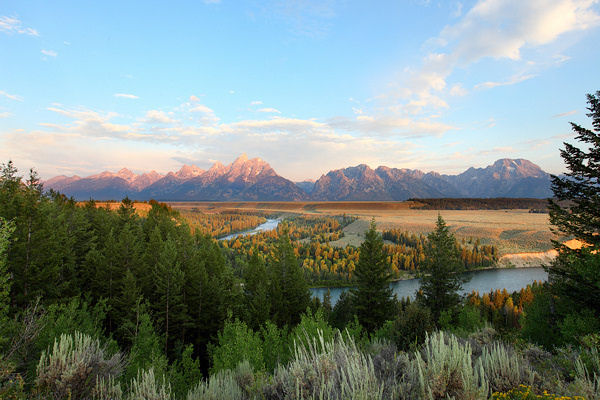
8 Tetons Blend

Of course there is one key thing to remember: You must take multiple exposures at varying brightnesses when you’re at the scene!

If you forget, you can sometimes fudge it and brighten dark areas in your editing software, but you can never darken the overly bright parts if you forget to take a photo with those areas properly exposed. Always make sure at least one photo has the bright areas exposed properly (nothing clipped or overexposed).

Here’s an additional example of exposure blending below. How many of us have taken this shot? Sure would be nice to see what’s outside that window.
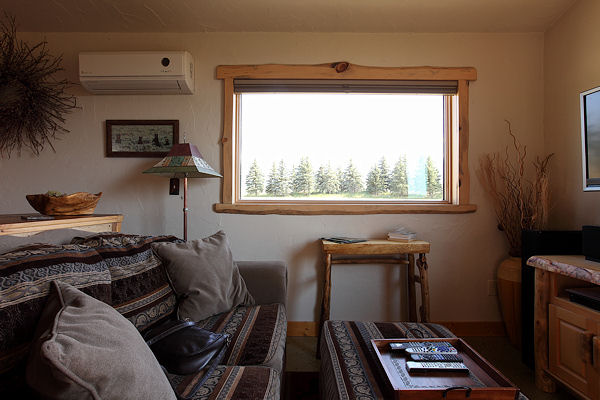
9 Montana Interior

If you took another exposure with the outside properly exposed, it’s simply matter of layering the two photos on top of each other and revealing the bottom photo with the properly exposed window. Here’s the photo for just the outside.
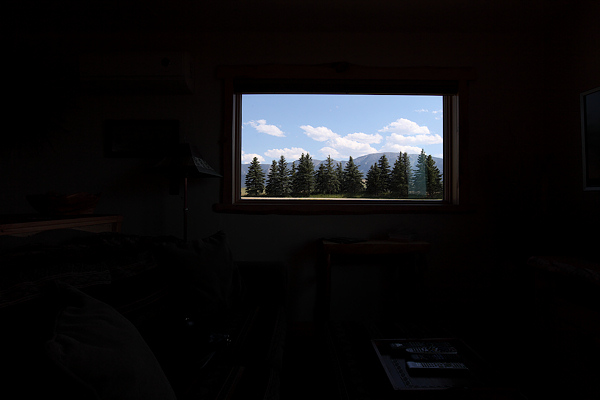
10 Montana Exterior

…and the final blend looks like this.
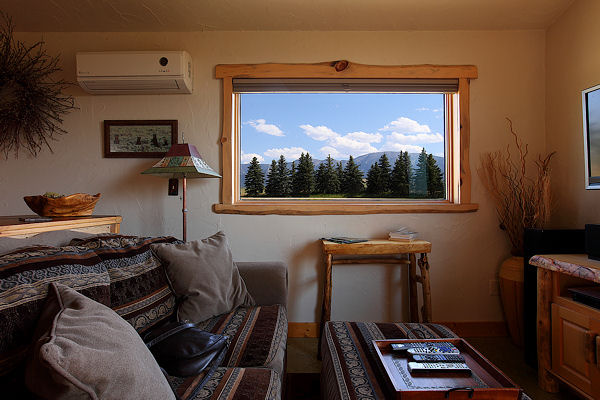
11 Montana Blend

Let’s talk about the opacity and color you can use with the brush when painting on a mask layer. We know that a black paintbrush erases the top photo revealing the photo below, and that a white paintbrush is like an “undo” that puts the top photo back where needed. In addition to just the white and black paintbrush, you can also use any shade of grey. Using a grey paintbrush blends the two photos together, making the top photo slightly transparent so you see both the top and bottom photo at the same time. The darker the grey the more the top photo is erased. The lighter the grey, the more the top photo is visible. This allows for very subtle and realistic blending of the two photos. You may also see it as “opacity” in your software. When the brush opacity is 100%, the brush is at “full strength”. When you swipe the brush, it erases 100% of the top layer fully revealing the layer below. If you set it for 50%, a swipe of the brush works at half-strength.

Here’s an example of a swipe of the brush at 50% opacity or medium grey.
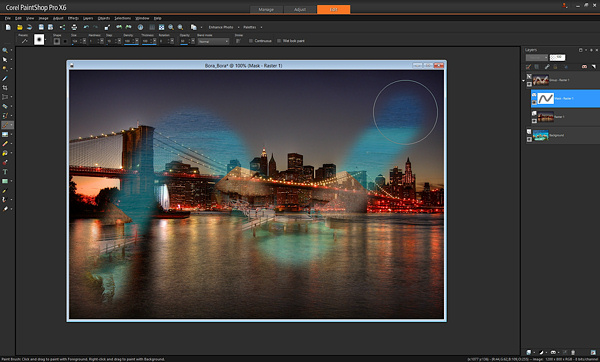
17 Brooklyn and Bora Bora opacity

Notice how you can see both the Brooklyn Bridge and Bora Bora at the same time. Adjusting the opacity or grey-level lets you apply the effects more subtly and with more control as needed. For example, with the Grand Teton photo in the earlier example, where the foreground leaves meet the background mountains, I might use the brush with 50% opacity so it’s a nice seamless blend, that’s unnoticeable. Another way to create a seamless blend is to use a brush with a low “hardness” — that is, the center of the brush is 100% opacity while the outer edges are less strong, creating a smooth effect.

LOCAL ADJUSTMENTS

After exposure blending, one of the most important techniques you can do with layers is to make local adjustments. That just means tweaking certain parts of the photo while leaving the rest of the photo as is.

Below is a great example of using layers for a quick local adjustment. Have you ever taken a photo where different parts of the photo have mixed lighting and different white balances? In the photo below, you can see that the camera’s flash has cast an unflattering blueish tint onto the people’s faces, contradicting the warm glow of the Eiffel Tower in the background.
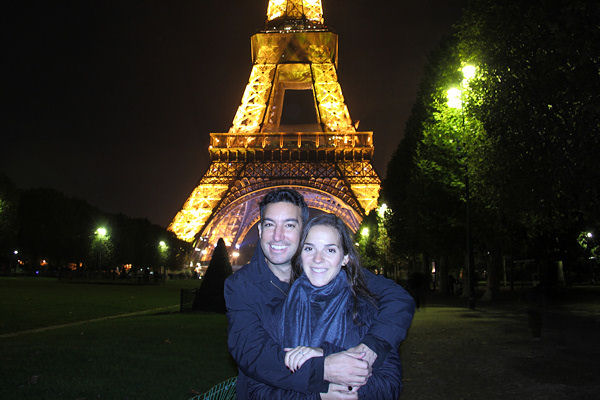
12 Paris 1 White Flash

With layers, you can easily solve this problem. Here is the corrected photo.
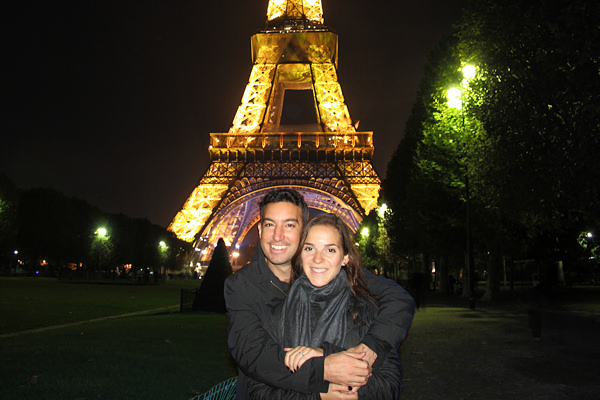
13 Paris 2 blend

To do this requires just three quick steps:

  1. Create a copy of the original photo and set it aside
  2. Adjust the original photo paying attention only to the area that needs to be fixed (in this case adjust the White Balance of the image paying attention to the faces and ignoring everything else)
  3. Paste the untouched copy that you put aside on top of the adjusted photo, and “erase away” the top photo revealing the adjusted layer below, just where you want to see the adjustment.

In this example, you can see exactly where I “erased away” the bad white balance revealing the better white balance below.
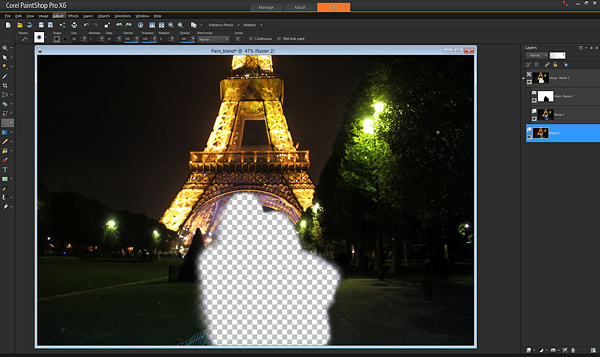
14 Paris 3 layer removed

If you shoot in RAW format, you can create the two versions of the photo with the two appropriate white balances in your RAW converter. If you don’t shoot raw, just create a second copy of the original photo, change the color balance in your editing software, and layer as described above.

Using layers you can selectively apply saturation adjustments, brightness/contrast, sharpening, etc. This allows for an incredible amount of control over the final image. Just create a version of the photo with the adjustments, put it as the bottom layer, and reveal it with the brush just in the spots you choose.

For example, in this photo of the Rockefeller Center Christmas Tree in NYC, just the lights on the tree needed a levels and sharpness adjustment. You can see the difference that local adjustment makes to the entire photo in this before and after.
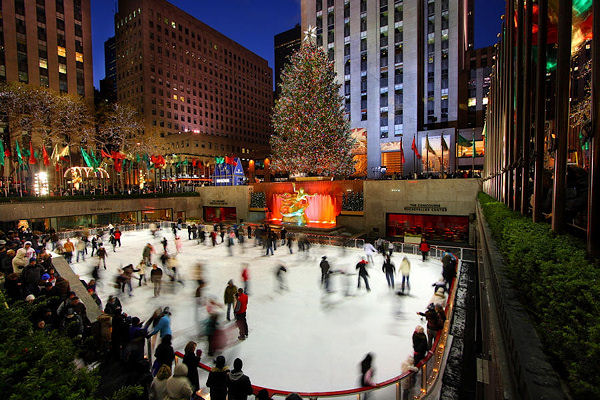
15 Rock Center 1a blurry

Before

16 Rock Center blend

After

SPECIAL TECHNIQUES

In addition to using layers for exposure blending and applying local adjustments, you can use layers for a wide variety of additional purposes. I’ve listed some really cool techniques below.

Blinking in group portraits: Have you ever taken a group shot and there’s always one person blinking or making an odd face? Next time, mount the camera on a tripod and use your camera’s continuous shooting (i.e. rapid-fire) mode to take a few photos in quick succession. If one person is blinking in the photo you like best, just put that photo as the top layer and put another photo without him blinking underneath, and “erase” the top photo with the blink to reveal the bottom photo below with his eyes open.

For cool sports effects, use a tripod and take rapid-fire photos of the action, layer the photos, and “erase” away the top photo to reveal the person moving in the subsequent shots.
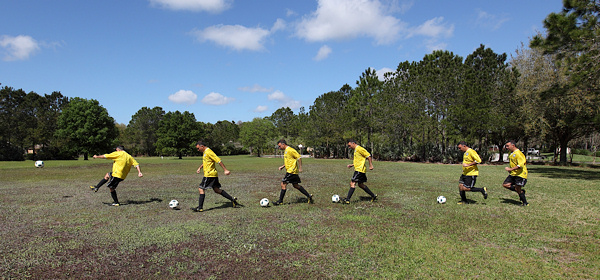
18 soccer line

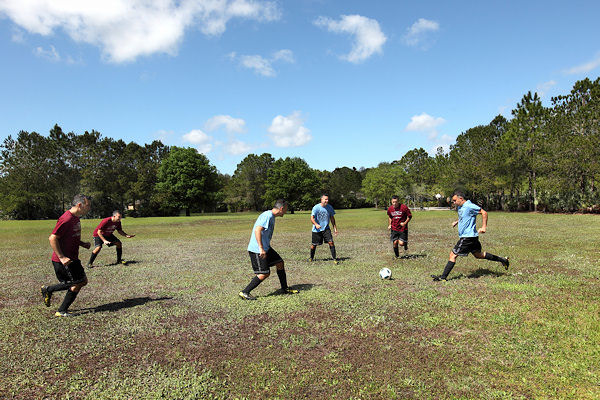
You can get really creative with this effect – here’s six of me playing a soccer game.
19 soccer team

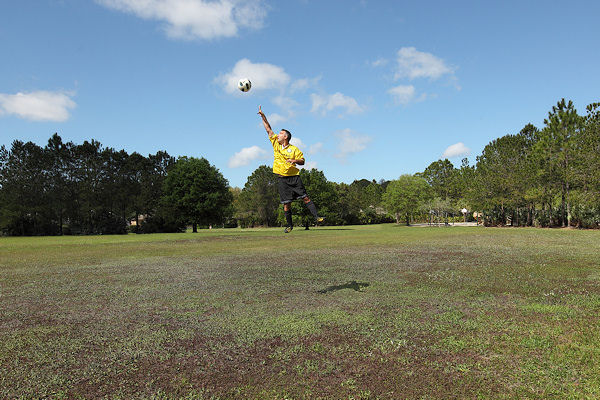
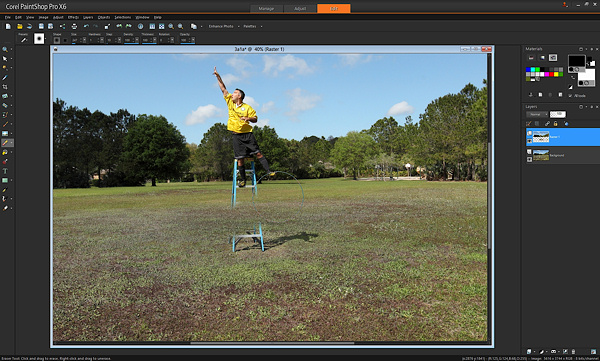
For special “flying” effects, take two photos from a tripod, one with a person on a ladder, one with the just the background (ladder and person removed). Then layer the photos and “erase” the ladder.
20 soccer jump

Here’s what it looked like with one swipe of the brush “erasing” the ladder and revealing the background.
21 soccer ladder

Many people find that automated HDR software can produce unnatural effects. If you’ve used HDR software to create an HDR image that you like, but there are certain parts that appear unnatural (for example, the sky), blend a little bit of the original non-HDR photo using layers to make it more natural.

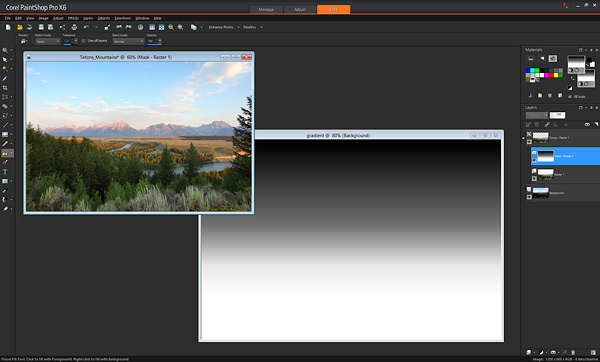
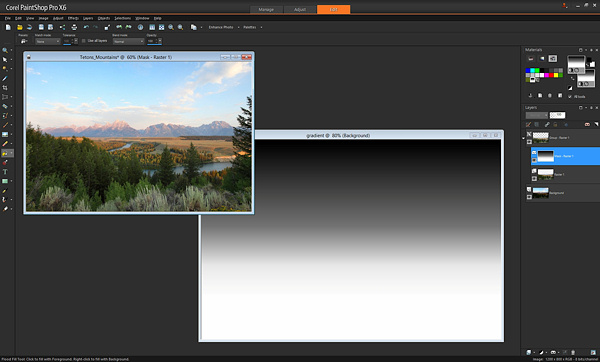
You already learned that painting with a black brush reveals the layer below. Wherever there is black, the top layer is “erased”. What if we didn’t use a brush at all, and instead used another way to paint black? This opens up a whole new set of possibilities. For example, this is a simple gradient, a pattern that goes from white to black gradually.
22 use gradient

If instead of using a black brush to reveal the bottom photo, we used this gradient, we get an instant Neutral Density filter! Apply this gradient using the Fill tool on the mask instead of painting with a brush, and where the black is, the bottom photo will be revealed. Put the black part of the gradient over the area of the photo where you want to adjust exposure and you’ll have a beautiful transition.

You can also use other tools to apply black to the mask. In the earlier example with the view outside the window, rather than painting with a brush, you could use the “draw rectangle” tool to place a black rectangle over the window, revealing the view outside.

Hopefully you’ve seen just how simple it is to use layers in your work, and how powerful they are. From blending multiple exposures, to adjusting your photos and using special techniques, layers take your images to a whole new level.

Please feel free to ask any questions in the comments below.

The post A Beginners Introduction to Using Layers by Paul Timpa appeared first on Digital Photography School.


Digital Photography School

 
Comments Off on A Beginners Introduction to Using Layers

Posted in Photography


Ditch Your Car: Get From A to B Using Real-Time Transit Data

03 May

[ By WebUrbanist in Technology & Vehicles & Mods. ]

transit screen sidewalk projection

What if we could make alternative transportation ultimately faster, cheaper and more convenient than personally-owned cars, the dominant transport devices of the 20th Century? The sharing economy has opened new possibilities for commuters and travelers, but integrating this dizzying array of options together with public transport is an essential next step in this ongoing paradigm shift.

transit car bike bus

OMGTransit is a Minneapolis-based startup that provides free, fast and simple sets of options for getting from your location to your destination without a personal car, be it by bus, shared bike (NiceRide in the case of the Twin Cities), shared car systems like Car2Go or ZipCar or private rides from Uber or Lyft. Available as an iPhone or Android application, OMG also offers a web app version – all with no cost to the user.

omgtransit example page design

Boasting a beautifully-designed interface with attention to usability, color and detail, their free-for-all approach is aimed at helping them grow faster than the competition. Their team, headed by entrepreneur and technologist Matt Decuir, has its sights set first on major cities around the US and then the world (perhaps space thereafter).

transit screen directions wayfinding

More focused on next-step options than A-to-B directions, TransitScreen started out displaying realtime  transit data in residential, commercial and institutional building lobbies. Their boards show people up-to-the-minute information on subways, commuter trains, buses, bike share, ride shares in cities around the United States.

transit screen sidewalk projection

Now, with SmartWalk, this same company has taken to the streets (or rather: sidewalks and walls) outside of offices, apartments and universities, projecting this data onto public surfaces for the benefit of anyone passing by. The data includes color-coded transit option types and times but also wayfinding cues regarding directions and distance.

realtime transit designs

Other players in this space include Roadify and RideScout, though not all offer options for all devices or for every type of regional transport. Some, like Google Maps in its current form, have broader reach but focus more on public transportation schedules (their acquisition of Waze is a step toward realtime data, albeit for personal cars). Whatever system(s) triumph, the goal is a worthy one: reducing friction in the use of alternative transit options to the point where taking, for instance, a bus to a bike to a shared car is easy, fast and cheap enough to obviate the need for a fully-owned automobile.

Share on Facebook


[ By WebUrbanist in Technology & Vehicles & Mods. ]

[ WebUrbanist | Archives | Galleries | Privacy | TOS ]


WebUrbanist

 
Comments Off on Ditch Your Car: Get From A to B Using Real-Time Transit Data

Posted in Creativity


3 Ways to Get Killer Portraits Using a Tripod

21 Apr

As photographers, you’re all looking to “wow” the people we’re taking pictures of, whether they’re clients or just friends. When you show final images, there’s that sense of anticipation, excitement and nervousness as you gauge reactions. And when you hear the words “amazing” or “I love them,” it’s truly a great feeling. So how do you get the “wow” and avoid the “just okay?” Well that’s not always easy. With so many good photographers out there and so much of their work getting exposure via social networks, expectations for good photography is as high as it’s ever been.

shutter-drag-wedding-photography

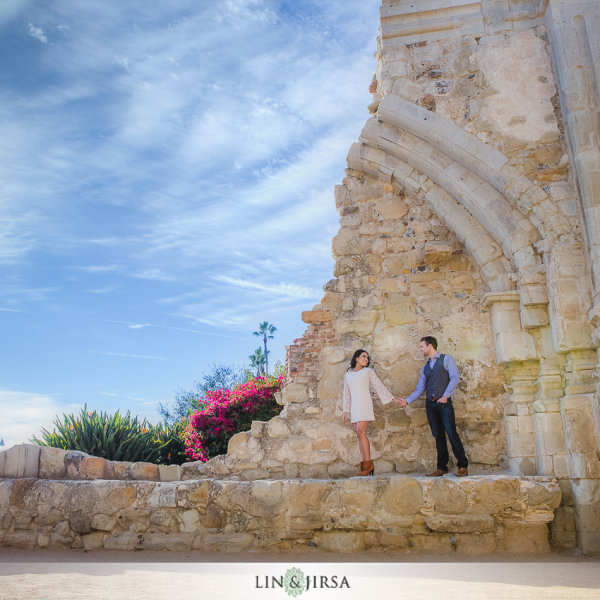
Here are three ways to achieve killer portraits with the use of a tripod that we use in our studio. These include the following, all of which we’ll show you – keep reading:

  1. Shutter Drags
  2. Composites
  3. HDRs

Required Equipment

  • Sturdy tripod – that old hand-me-down tripod might not be stable enough, as any movement will show in the images
  • Shutter release – using a cable release will help you avoid touching the camera and causing movement
  • Wide angle lens – as you can see from the images in this article, a wider lens is going to bring out many of the “wow” elements like the clouds, the ocean, the streaking lights, and more
  • Camera – as with any type of photography, the camera is only as good as the photographer. You can get amazing results with both entry level DSLRs and full frame cameras.

1. Shutter Drags (Long Exposure Photography)

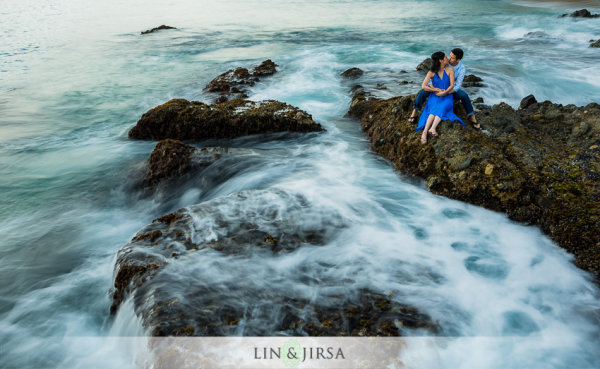
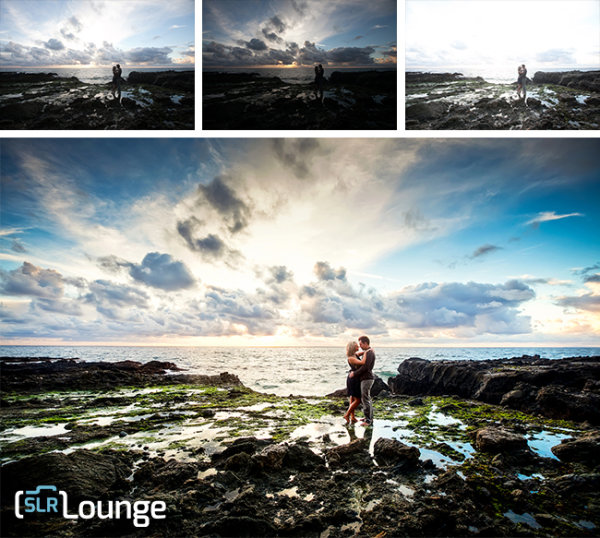
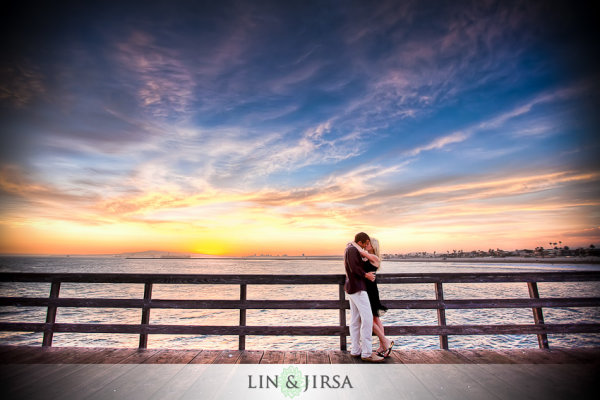
Dragging the shutter refers to using slower shutter speeds to capture movement. This captures motion of anything in your frame that is moving, while keeping the static objects in the scene nice and crisp. If you can get your couple to hold still, you have the opportunity to create awesome effects with moving people, cars or waves like you see in the image below. Additional saturation and contrast is added in post production using some Lightroom Presets.

wedding-photography-los-angeles

Shutter Drag Quick Tips:

  • How slow do you go? – well that depends entirely on how fast the other elements in the scene are moving. If cars are zooming by, you can get away with faster shutter speeds like 1/60 or 1/30, but if you are capturing moving people and they are slowly strolling, you may have to drop it even lower like 1/10th or even lower. For water, like the shots above, we are generally around 1/2 to 1 second.
  • Ensure that your subjects are holding really still – instruct your subjects to hold very still, avoid blinking during the shot or sequence of shots, and even hold their breath.
  • Utilize static poses –  posing for these types of photos will have to be static. Dips, jumps, and walks will add too much motion in the scene and result in blurry photos. However, static does not have to mean boring. You can still have them in flattering, romantic poses.
  • Snap a few extra shots to ensure you have one crisp photo – take a few extra shots because a photo may look crisp on the back of your camera, only to show noticeable motion blur as it’s taken into post production.

2. Composites

wedding-photography-composites-1

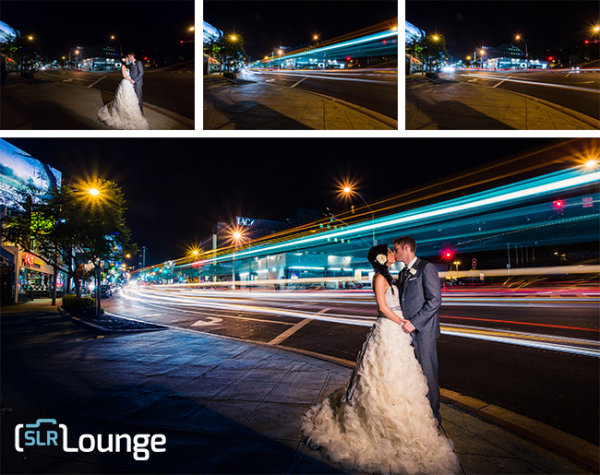
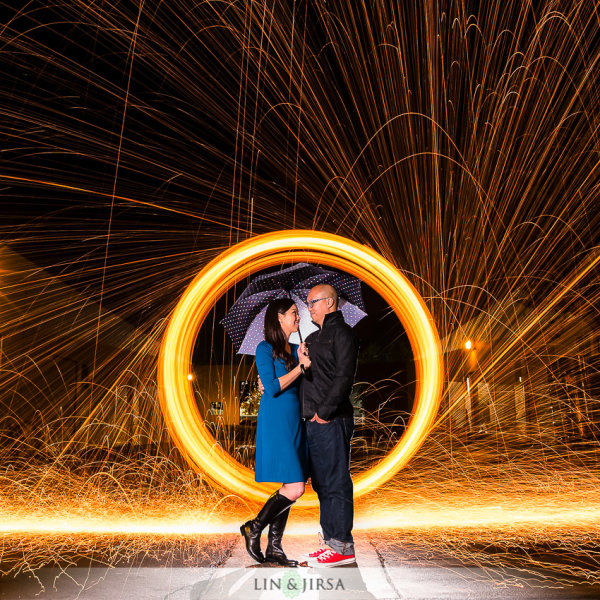
Compositing multiple photographs into one is sometimes the best solution when it’s unreasonable to have your couple hold still for as long as you need to achieve the desired effect. For example, if you’re looking to capture the beautiful stars in a night sky or if you’re looking combine multiple streaks of passing car lights –  the five, ten, or even 30 second exposure time is much too long to expect any live subject to be still. Below is an example where our couple would have had to hold still for around 15 seconds as we spin flaming steel wool just behind them.

wedding-photography

Composite Tips:

The tips for capturing composites are actually very similar as the tips for capturing shutter drags. For example, you still need a sturdy tripod and a shutter release; and you should certainly snap a few extras to make sure you have enough choices to work with in post-production. In addition, here are some more quick tips for capturing composite photos.

  • Expose for the couple’s skin tones first – your lighting can be anything from flash to constant lights; but the most important thing is to focus primarily on the subject.
  • Have the subjects exit the scene – after you’re sure you have a shot with a good pose and good lighting, you can have them exit the scene.
  • Then adjust your settings as needed to expose for the background and create your desired effects. For example, if you’re looking to capture the streaking lights, adjust your shutter speed down and wait for the cars to pass.
  • If you can keep the overall exposures identical between shots, compositing will be incredibly simple. Just layer the images in Photoshop, and then mask in and out elements on each layer. However, if the exposures and look of each image varies, then it will require quite a bit more advanced compositing work which would be beyond the scope of this article.

3. Try HDR Portrait Photography

hdr-wedding-photography-1

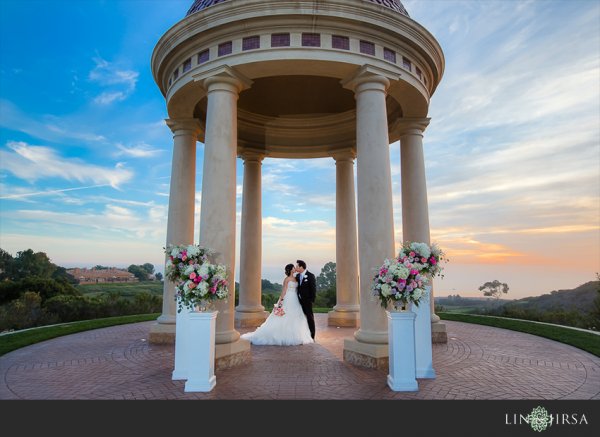
While HDR Photography gets a bad rap sometimes for being gaudy and fake, when done correctly, you have the opportunity to create memorable, distinct photography. This is especially true with outdoor scenes on a cloudy day. Grab your tripod, pose your couple in a static pose, dial in the right settings, and shoot away. What are the right settings? Well start with ISO 100 and a decent aperture (f/4 and up). From there, the shutter will vary depending on the brightness of the scene. For more information, feel free to check out some of these HDR tips on dPS.

hdr-architecture-wedding-photography

HDR Quick Tips:

Here are a few more things to keep in mind.

  • Study how to bracket exposures on your specific camera. Almost all cameras have the AEB (Auto Exposure Bracketing) feature, but you will need to know how to access it to dial in the correct settings.
  • Keep your minimum shutter speed at 1/200 or higher. Any movement in the couple or background can cause unnatural “ghosting,” so keeping the shutter speed high will really help you save time in post production.
  • Avoid strong and overpowering flares. If you’re shooting into the sun, strong flares can desaturate your image and create a loss of sharpness. If you are shooting into the sun for compositional purposes, choose an angle where the flare isn’t going to distract from the subject.
  • Choose the right time of day. Sunrise and sunset are still going to one of best times to shoot, as you are most likely to have amazing color in the sky during that time. Remember that the same general photography rules still apply when shooting HDR, we simply are using the HDR process to bring out more detail.
  • Watch the weather report. Partly cloudy days are great times to shoot HDR photography. Capturing all of the contrast and interest in the clouds, as you see in the sample images in this article, really add the “wow” factor.

Conclusion

intimate-hdr-poses

By no means are these three techniques enough for a solid session. In fact, the majority of the photos you take during any portrait session should revolve around candid posing, story-telling, and emotion. For us, we use these dramatic environmental shots to “set the stage” in a final album, canvas mural or other print medium. They are the big grand images that sets the scene, and they are followed by the close up candid images showing the couple interact in said scene and environment.

These techniques are also wonderful in creating “wow” shots, i.e. the shots they share on Facebook and the shots they end up printing on a canvas at their wedding. The shots that make everyone else go, “how’d they do that!?”

Do you have any other killer tips you’d like to share? Please do so in the comment section below.

sunset-hdr-wedding-photography

The post 3 Ways to Get Killer Portraits Using a Tripod by Post Production Pye appeared first on Digital Photography School.


Digital Photography School

 
Comments Off on 3 Ways to Get Killer Portraits Using a Tripod

Posted in Photography


Exposure Blending Using Luminosity Masks Tutorial

18 Apr

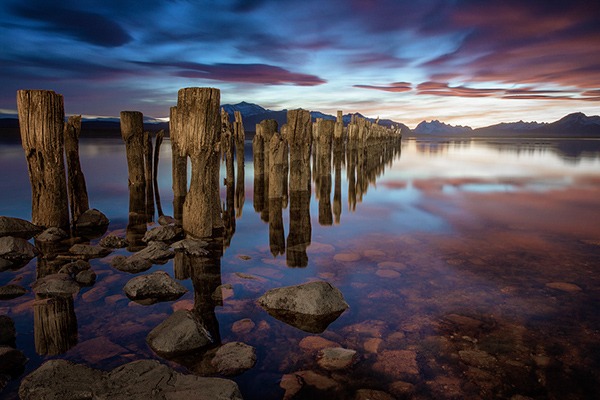
There will be a time when the wizards behind your camera technology conjure up a sensor so powerful they will swallow up any scene and spit it out just as it was – no over, or underexposed areas. Until then, in order to produce an image with a high dynamic range of light, you have to work with the sensors available to you and create your own post-processing magic.

Pink sunset

Image created by blending two exposure with luminosity masks, one for the sky and one for the foreground.

While you, and many photographers, may have relied heavily on HDR programs in your exposure blending quest, many more are now beginning to turn to luminosity masks as a cleaner alternative. Through the use of luminosity masks you can create stunning, balanced images that encapsulate a vast dynamic range of light. They give you incredibly fine control over your imagery in almost every area.

While some HDR programs nowadays produce very natural, clean HDR images, luminosity masks do not affect the original files at all, so there is literally zero image degradation during the blending process. That is why so many digital photographers are beginning to make luminosity masks a staple in their workflow.

What are Luminosity Masks?

Luminosity masks break an image down into various channels of luminosity. In other words, they allow you to make very specific selections in Photoshop based on how bright or dark an area is. Let’s say you were looking at a beautiful nighttime cityscape shot. Everything is exposed correctly apart from the street lights, which are completely blown out. You also have a darker exposure in which the street lights are ideally exposed.

Through luminosity masks you can make an accurate selection of the street lights because you can hone in on their brightness, or luminosity values. With this selection you can simply replace the overexposed streets lights with the correctly exposed ones in the darker image.

What You Need to do Luminosity Masking

Firstly, creating your own luminosity masks is a complex and cumbersome process. However, I have a free Photoshop Luminosity Mask Action Set that will do all of the work for you. You can download it here: Free Luminosity Mask Action Set.

Secondly, it is imperative that you have a good understanding of Masking in Photoshop. If you’re a little bit unsure of the process, you can visit Adobe’s site which has a useful video tutorial for you to follow: Masking in Photoshop.

Which exposures to blend?

Ideally, the exposures you choose to blend should cover the full range of light in a given scene. Your brightest exposure should contain information in the darker areas, while your darkest exposure should contain information in the brightest areas. You are not limited to the number of exposures you can blend. Sometimes, in scenes of extremely high contrast, you may need to use as many as five to ensure a smooth transition between exposures and to cover the full range of light in the scene.

The order you choose to layer the exposures in Photoshop is dependent on your personal preference and the exposures you’re working with. Usually working with your normally exposed image as the base layer will derive the best results, but sometimes you may need to work with a darker or brighter exposure as your base layer.

Once you’ve decided on your exposures and have layered them in Photoshop, you now must decide which exposure you will run the actions on. Generally this will be done on your normally exposed image because it will offer the widest range of usable masks. For example, if you ran the luminosity mask actions on a darker exposure, you would gain a full range of dark and mid-tone luminosity masks, but very few, if any, workable bright masks, because the darker exposure is lacking in highlights. The converse is true for a strongly overexposed image.

Blending Exposures Using Luminosity Masks Tutorial

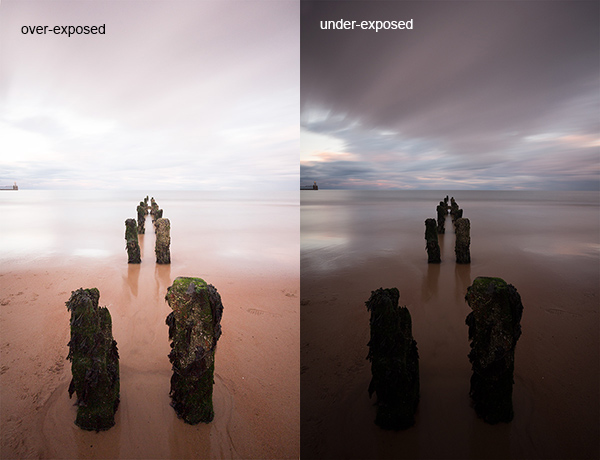
Today you’ll work with two exposures. One is ideally exposed for the sky and sea (download the underexposed image here), while the other is exposed for the foreground elements (download the overexposed image here).

Original files

You want to combine the sky and the sea in the underexposed image with much of the foreground in the overexposed image. To do this, you need to find a way of selecting the sky and the sea (i.e., the blown out areas) in the overexposed shot. Once you’ve done that you just need to replace it with the sky and sea of the darker exposure.

Steps in Photoshop For Blending Exposures

1. Install the Photoshop Action set

Instructions on how to install actions can be found here: Get Creative With Photoshop Actions

2. Import your two images into Photoshop

Bring both images into Photoshop as layers, placing the underexposed image on top. Align the images by selecting both of them on the layers panel, and going to Edit > Auto-Align Layers.

3. Turn off the top layer

Uncheck the eye on the layers panel next to the underexposed layer. This will make it invisible and ensure that the luminosity mask actions will run on the overexposed layer only.

4. Run the Masking Action

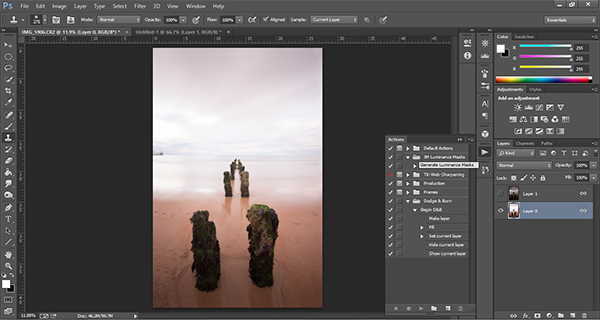
Go to your Actions panel, which looks like a Play button on the toolbar. Open it up and go to the set called JM Luminance Masks. Click on the arrow to the left of that. You will now see an option called Generate Luminance Masks. Select it and press the Play button at the bottom of the Actions panel to begin the process.

Luminosity mask actions

5. Add a Layer Mask to the Dark Underexposed Layer

Now, check the eye next to the underexposed layer, so that it is visible again. Make sure that layer is selected, then go down to the bottom of the Layers panel and, while holding Alt (Option on a Mac), left click the Add a Mask icon. This will create a black layer mask on the underexposed layer, making it invisible again.

6. View Luminosity Masks

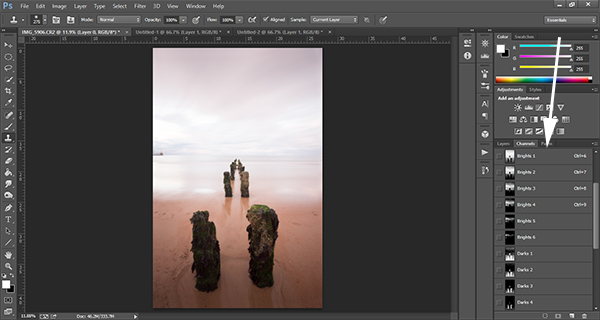
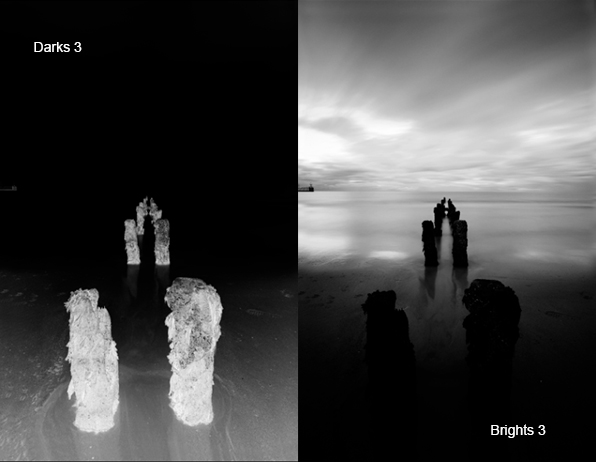
To see the Luminosity Masks that you’ve generated, go to your Channels palette, next to the Layers panel (if it is not showing go to: Window > Channels and it will appear). You’ll see 18 monochromatic channels, ranging from Brights 1-6, Darks 1-6, Midtones 1-6. Every one of these channels is a potential mask.

Luminosity mask channels

7. Comparing and Selecting a Luminosity Mask

For this set of images, you only need to use one mask in order to blend the sky from the darker exposure into the overexposed image. In this instance, you’ll need to select Brights 3.

Comparing Masks

Just as with normal masking, the brighter the pixel the stronger the selection. In other words, in the image above, if you used Brights 3 you are selecting much of the sky and sea, but none of the foreground which is completely black. Conversely, if you selected Darks 3, for example, you would only be making a selection of the foreground sand and the poles that lead out to sea.

When choosing the appropriate mask, you are looking to isolate different areas. Therefore, it’s important that the mask you choose has the greatest contrast between the areas you wish to select and the areas you wish to ignore.

For example, if you were working on an image of a nice green field on sunny day, but the sky was blown out and you wished to exchange it with the sky from a darker exposure. You would run the luminosity mask actions and choose the mask where the field was black and the sky was white. This would ensure you would only select the sky and not the field in the foreground.

To turn Brights 3 into an actual selection, you just need to hold Control (Command on a Mac) and click the left mouse button on the thumbnail of the Brights 3 channel. Marching ants will appear to indicate your selection. Press “Control + H” to hide the marching ants.

8. Get Ready to Paint on the Mask

Now switch back to your Layers panel and select the underexposed layer. Make sure you select the mask, and not the actual layer itself.

9. Set up the Paint Brush Tool

Choose the Paint Brush tool on the toolbar and make sure the foreground colour is set to white. Choose the correct brush size. This will depend entirely on the area you’re working with in a given image, but usually, a larger brush is better. A brush size of 2,000 pixels was used here. Set the opacity depending on the strength of the masking you wish to use. For example, with this image, you will mask the sky with an opacity of 100%, but the overexposed areas in the water and foreground will only be masked at 40% opacity. This is because you don’t want to darken the sea too much.

10. Painting or Applying the Mask

Now you’re ready to begin masking. Freely move your paint brush around the areas you wish to affect. Since you are masking with a luminosity mask selection you don’t have to worry about going over the edges. Try varying opacities in different places. Even if your brush opacity is set to 100%, you can still run your brush through certain areas a few times to strengthen the effect.

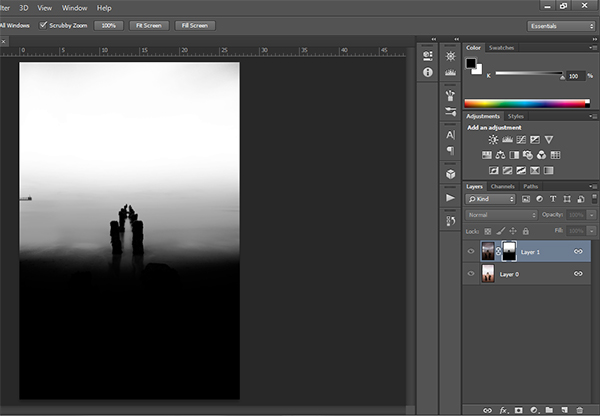
By holding Alt (Option on a Mac) and clicking on the layer mask you’re working on, you can see exactly what the mask now looks like. The image below is the final layer mask after you’ve finished painting. Remember that white equals visible and black equals invisible. So the sky in this layer is completely visible, the sea is grey so it is partially visible. Since the foreground is black, which means invisible, you will be left with a foreground that is 100% from the overexposed layer below.

Final Mask

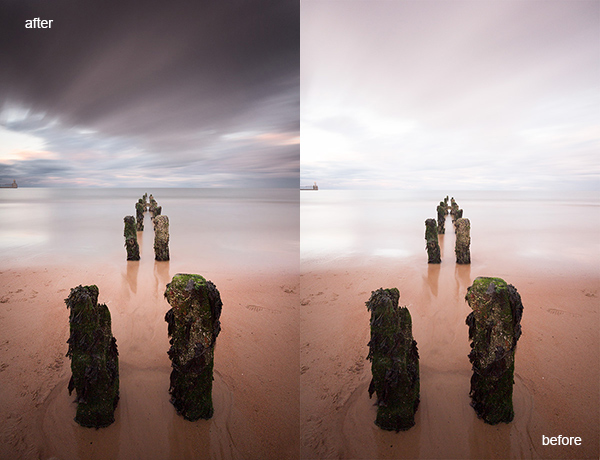
After a small contrast adjustment and a selective vignette added, here’s the final image along side the original overexposed image you were working with.

Final images

You now have a nicely balanced image with a good range of dynamic light and tones.

Deleting the Luminosity Masks

While working in Photoshop, the more layers you work on, the larger the demand on Photoshop and your system. Large workflows can seriously slow down your operating system. To ease the load, you should delete the luminosity masks once you’ve finished working with them.

To do this, go back into your Channels palette and select Brights 1. Then hold down Shift and press your left mouse button on Brights 2 to select this too. Do the same with each luminosity mask below. Once all are selected, click your right mouse button on any of the selected masks and choose the Delete Channels option. This will remove the selected channels.

Summary

At first, luminosity masks seem complex and sometimes daunting, but in truth, this whole workflow took less than 5 minutes. After a little bit of practice you begin to get an intuitive sense of how to use these powerful tools, and once you do, you gain extensive control over your images that can change your photography forever.

Have you tried this method of blending images, if so share your thoughts or images in the comments below. Or do you prefer the HDR tone-mapping process? Do you think HDR is dead or maybe it should be? Or perhaps you are somewhere in the middle in the 10 steps every HDR photographer goes through? What are your thoughts?

Check out the newest dPS ebook – Loving Landscapes A guide to landscape photography workflow and post-production – a brand new dPS ebook by the authors of Living Landscapes

The post Exposure Blending Using Luminosity Masks Tutorial by Jimmy McIntyre appeared first on Digital Photography School.


Digital Photography School

 
Comments Off on Exposure Blending Using Luminosity Masks Tutorial

Posted in Photography


‘Dedicated’: A Nikon D4s video about photographers using the D4s

04 Apr

Screen_Shot_2014-04-03_at_3.32.22_PM.png

Photographer Corey Rich’s most recent project, titled ‘Dedicated’, is a video detailing the working lives of three other notable photographers – Dave Black, Robert Beck and George Karbus – using Nikon’s latest flagship camera, the D4s. Along with the final cut of ‘Dedicated’, a making-of video that shows the 21-day whirlwind tour to capture the footage and interviews for the documentary project was released. See video

News: Digital Photography Review (dpreview.com)

 
Comments Off on ‘Dedicated’: A Nikon D4s video about photographers using the D4s

Posted in Uncategorized


Using Daminion with Lightroom [for Advanced Users]

04 Apr

daminion-opener

If you have Lightroom you might assume that you have all you need for managing your images. That may not be the case and many professional and keen amateur photographers benefit from combining Lightroom with the image management software Daminion.

Daminion is an image management solution which helps you manage large image libraries. You can think of it as being the rough equivalent of the Lightroom Library module operating on steroids. Daminion’s biggest advantage is that it is true multiuser software so, with Daminion server installed, multiple users can access a single catalog. This is something that Lightroom is notoriously poor at doing and which Adobe has so far failed to address despite multi-user/multi-computer access being one of the top ten feature requests for Lightroom.

You can download a version of Daminion at Daminion.net using the Download link. At the time of writing the current release version is 2.5 and version 3 is still in beta. Daminion comes as both a standalone and a server version. The Daminion standalone Free version handles up to 15,000 images per catalog. The for fee versions are Basic, Standard and Pro which give you 25,000, 75,000 and unlimited images in a catalog respectively. There are also multiple Daminion server versions, one for noncommercial use and others for individual professionals and small teams. Daminion is available for the PC only and not for the Mac.

You can install both the server and client versions on the same computer – the server version will run faster than the client version so it has value when you have a lot of images in a catalog. When you consider that some Daminion users have catalogs of a million or more images, speed of accessing and filtering these images becomes important.

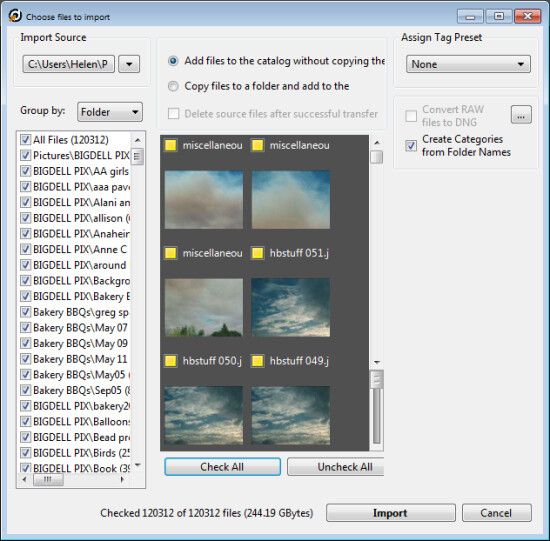
Once you have downloaded and installed Daminion, launch it and you can create a catalog. Like Lightroom you must import the images you want to manage with Daminion into the catalog. If the Add Files dialog doesn’t open automatically you can find it by choosing File > Add Files and then select the folders to import from.

daminion-import

While you can create and manage multiple catalogs in Daminion, like Lightroom, you can’t search across multiple catalogs so you should be careful about how you organize your images in catalogs. What makes sense in terms of catalog organization will depend on how you work with your images and if it makes sense to have them all in one catalog or in separate ones.

Daminion will recognize and manage a wide range of file types including common raster and vector formats as well as camera RAW images, video, music, and PDF formats. This gives it a broader scope as a management tool for digital media collections than Lightroom which is limited to photo and video formats only.

You can copy the images to another location on import or import them from their current locations. You can also group images by folder, date or file type on import. As the images are being imported you can begin to work with those already imported.

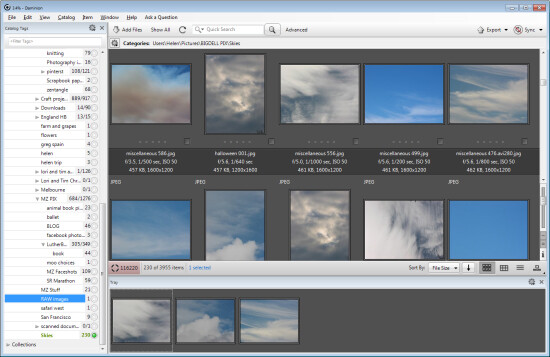
daminion-work-while-importing

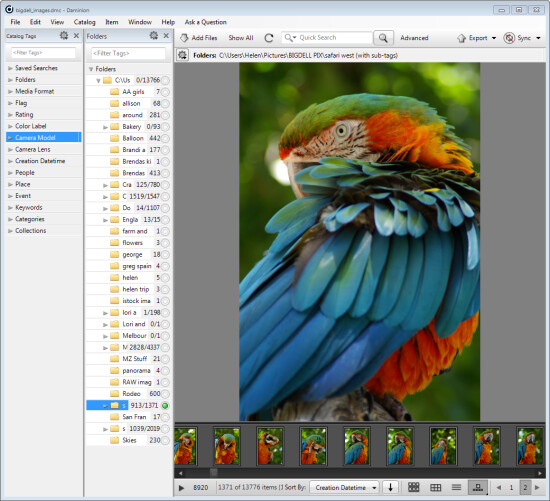
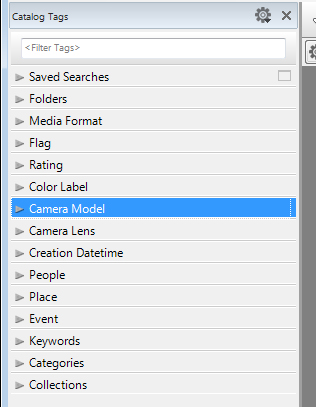
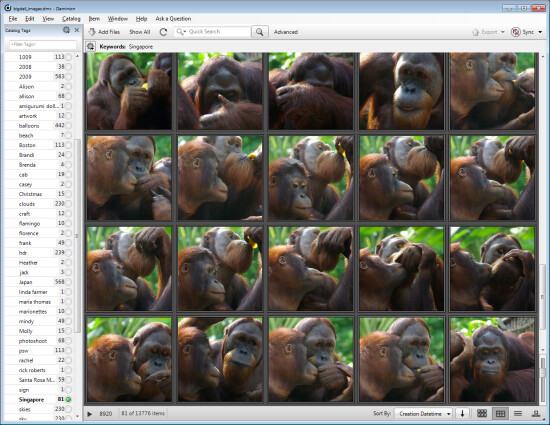
When you have some images imported into Daminion you can investigate the tools you have for managing and organizing them. The Catalog Tags panel on the left of the screen is pre-populated with tags. Some of these are created from the image metadata, such as Camera lens and Camera Model, and others are those that you may have applied to the images in other programs such as keywords, ratings and color labels.

daminion-catalog-tags

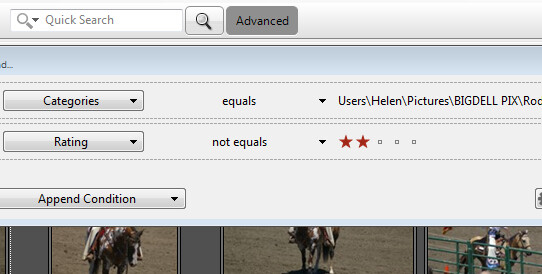
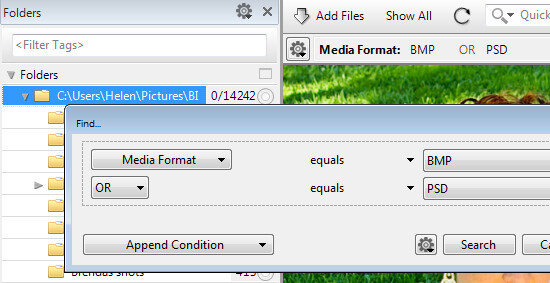
To filter the images by any catalog tag click the tag group and the tag to view and click the circle icon to view images that match that tag. You can perform AND and OR filtering using the Find dialog which you can find by clicking the Advanced link immediately to the right of the search box on the toolbar.

daminion-searches

You can also add tags and keywords to your images using the Catalog Tags panel. These can be written to the image XMP metadata so they will be accessible not only within Daminion but also in other applications such as Lightroom and Bridge.

There are benefits to using Daminion for image management and filtering in preference to Lightroom. Daminion provides multiple ways to categorize your images including Categories, Collections, Events, Places, People and more. It also supports hierarchical tags, with no limitation on nesting levels. So you can configure hierarchical tags for categories, people, places, keywords, events and so on whereas in Lightroom you can create hierarchical keywords only. You can also create your own custom user defined tags in Daminion to categorize images by criteria that are meaningful to you. Daminion can write metadata directly into the RAW images rather than needing to do so to sidecar .xmp files, and it makes it easy for you to filter your image collection by writing complex searches using Boolean (AND/OR) operators.

daminion-boolean

Viewing your images
You can view your filtered images in one of a number of ways. You can sort them using a range of sort options including by shutter speed, file size, file name and so on. You can also view the images as thumbnails, using a compact view, details or filmstrip view.

daminion-compact

In Thumbnail view you can customize the information displayed above and below the image so it is easy to see the image properties that are meaningful to you. At any time you can view an image full screen by pressing Enter or click View.

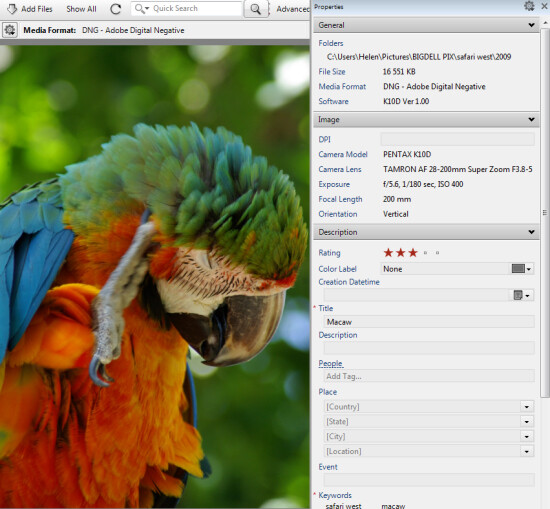
You can select any image and view and edit its properties using the Properties panel. And while Daminion is not an editor you can use it to rotate your images.

daminion-properties

As you work through your images you can drag images you want to do something with into the Tray. The Tray stores these images until you are ready to work with them such as by sending them to an external editor or using the multiuser checkout feature. The checkout feature helps you manage multiple people working with the same catalog, it maintains an audit history and gives you the ability to undo changes if, for example, a newer version of an image is replaced by an older version.

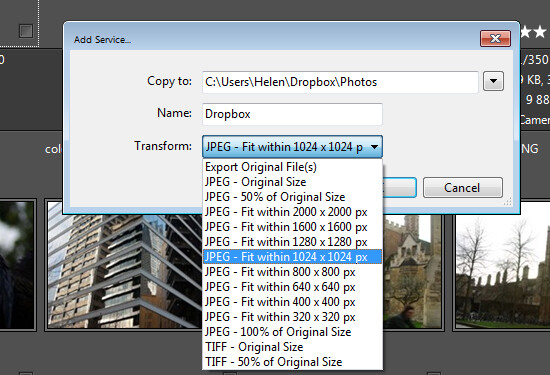
One handy feature of Daminion is the ability for you to publish images from Daminion direct to Dropbox so they are viewable on your iPad or other device. The Publish panel can be set up to convert and resize images including raw format images and then export them to a Dropbox folder on your computer. When this folder syncs to Dropbox the uploaded images can then be viewed on other devices.

daminion-publish

If you’re looking for a way to allow multi-user access to your image collection then Daminion is a great tool. It can be used along-side Lightroom for managing and organizing images which you then develop in Lightroom. The metadata changes made in either program can be easily viewed in the other program and the two work in tandem very well.

The post Using Daminion with Lightroom [for Advanced Users] by Helen Bradley appeared first on Digital Photography School.

Digital Photography School

 
Comments Off on Using Daminion with Lightroom [for Advanced Users]

Posted in Photography


Using a Photography Project to Spark your Creativity

11 Mar

Get out there and create!

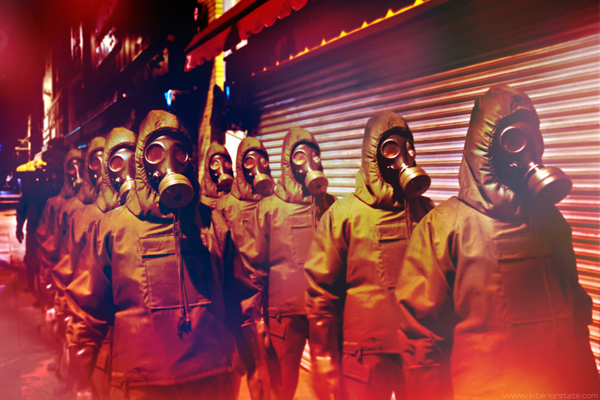
Hazmat Alan

Do a photography project for yourself

As photographers, it’s natural we all reach that point where we become a bit bored with our work, especially if you work on the same type of photography everyday. After thousands of landscapes and flower photos, you can start feeling that desire to do something different. Starting a personal photography project can help ignite that creative fire again.

Don’t sit around and wish you had creative projects to work on. Get out there and create exactly what you want! Working on personal projects allows you to think outside the box. It allows you to play by your own rules, where there are no rules! It’s just you and your own vision. There is great power in that.

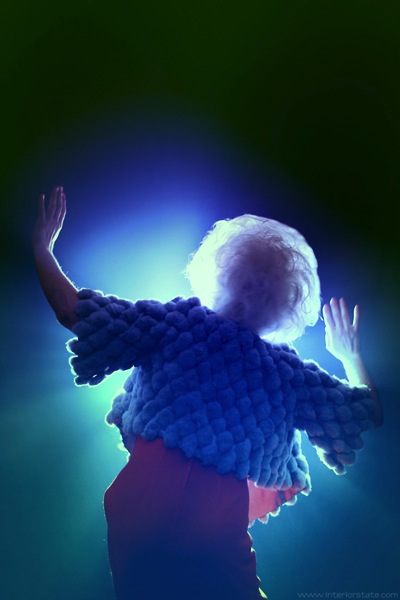
Josh Burst

A project can help overcome a creative slump

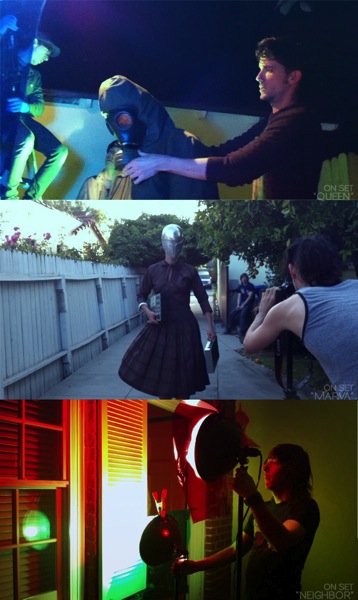
Behindthescenes

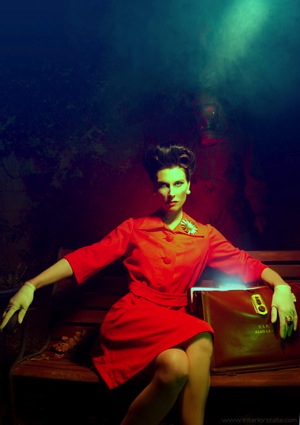
A couple of years ago I was in a creative slump. I had been wanting to do a cohesive photo series but I didn’t know what the subject was going to be. I’ve heard the phrase time and time again, “Go with what you know.” So I got thinking about what inspires me. I knew it had to be a narrative driven project. I knew it was going to be something stylish and probably a bit dark. Then one day, as I was about to wake up, it came to me like a dream. It really did! A sci-fi horror series it was.

Even though I grew up in the 80′s, I found myself watching campy sci-fi shows from the 60′s and 70′s. I loved Lost in Space, Land of the Giants, The Twilight Zone and Star Trek. I was drawn to the unusual locations, the great costumes and bright colors of these shows. I also grew up watching a lot of horror films from the 70′s and 80′s. The abstract lighting and gorgeous sets of Dario Argento and the zombie takeovers from George Romero struck a chord with me. In my photo series, “Invasion” I would combine these two loved genres together.

Think outside the box and be resourceful

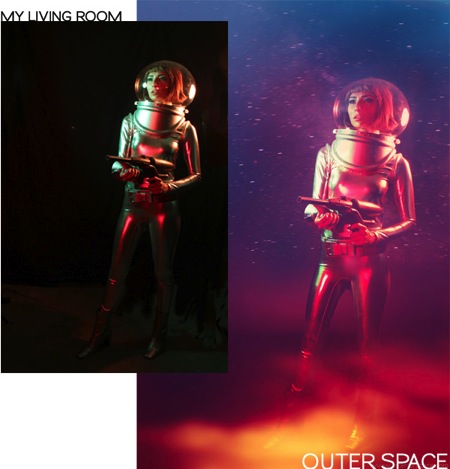
Before After

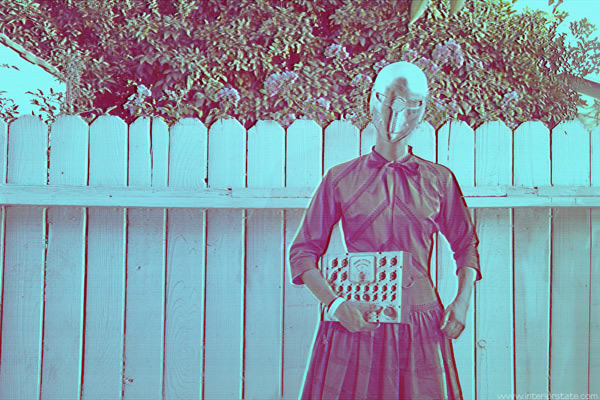
I wanted clones, mad scientists, abductions, robots, aliens, and bombshells in space suits. I hunted up costumes, searched for locations, gathered friends and then I started creating. I shot at friends’ houses that fit the 50′s and 60′s time period. I also found models and friends who were more than happy to be in a cool sci-fi photo. Since shooting in outer space was out of the question, I shot in my living room. Basically, I worked with what I had.

Dare to dream big

Deven faceToday it’s easier than ever to dream up anything you want for free or almost free. You can find great costumes and props in flea markets, at your local resale shop or even in a dumpster! Put ads out on craigslist for models or makeup artists. Use your friend’s house as a set. Take your camera out of auto mode and play around with settings. Maybe use a flashlight or the television as a light source instead. The possibilities are as unlimited as your imagination. Once you have a goal in mind, with a little bit of sweat and photoshop you’ll be amazed at what you can dream up!

This Sci-fi inspired photo series has been the most rewarding project I’ve ever worked on. It’s been an incredible learning experience. I also believe “Invasion” is my strongest and most original photography that I have ever done. I contribute that to the fact that I went with what I knew, and channeled what I was interested in and passionate about. I challenge you to do the same and most important have fun doing it!

Marva2

Here are some other ideas on starting a photography project:

  • Photography projects that make you feel alive
  • Jumpstart Your Photography: Start a 365 Project
  • Lost your Photo Mojo? Ten Tips to Bring Back the Magic

Have some other tips or ideas, please share in the comments! If you’ve done a project, or started one recently – tell us about it!


The post Using a Photography Project to Spark your Creativity by Patrick McPheron appeared first on Digital Photography School.

Digital Photography School

 
Comments Off on Using a Photography Project to Spark your Creativity

Posted in Photography


Stealing Light – Using Street Lights for Portraits

07 Feb

Turn the street into your studio by using street lights for portraits Most people that I see taking photos after dark around the city have a flash mounted on the camera pointing at their subject. If shooting outdoors with nothing to bounce the flash off, the result usually is that rabbit out in front of headlights look, and flat lighting that rarely flatters your subject. As a professional wedding and portrait photographer, I will share with you my secrets of stealing available light when taking portraits around cities. No need for softboxes, beauty dishes, just put that flash away and start hunting for good light available in a city near you. It’s liberating carrying less gear and after a few light foraging trips, you will be well trained to find that tasty light!

Types of light sources

Illuminated advertisement signs

Docklandsphoto 4

f/1.8, 1/100th, ISO 1600

One of my favorite methods is to light up my subjects with illuminated advertisement signs, every city has them. Above is a portrait of the couple lit with the bus stop’s advertisement. Just find a nice one with not too much colour if possible and it’s like photographing with a giant softbox. You get a nice soft light perfect for head shots. I’ve even used this method to great effect shooting friends in a nightclub with an iPhone.

Street lights

Tungsten streetlights are common, you see them everywhere. I prefer wall lights to give a nice directional light. The second bonus with using tungsten lights is that if there is any ambient light in the picture like you see in the back, it turns into a deep shade of blue. Great effect with no photoshop needed, all you have to do is to set your white balance to tungsten or if your camera has a manual colour temperature setting you can set it to 3000K (degrees Kelvin) during the shoot and play around with it. If I am under time pressure I usually leave the WB to auto and do the colour correction in post production. There is no loss of quality that way when shooting in RAW. Below image shot in London, notice how the background ambient light turns blue.

Docklandsphoto 1

f/2.8, 1/80th, ISO 1000, Tungsten White Balance

LED lights

LED lighting can be seen all over cites these days. They are getting popular as they are more power efficient than tungsten lights. They will offer a colder colour temperature compared to tungsten lights. The main thing to remember with LED lights is that there is a rapid light falloff. You need to have your subject as close as possible to the light source, normally within three feet, for the best quality of light. The couple below were lit with the LED lights attached to bridge hand rails. In the left image you can see where the light source was coming from, and I had to get the couple quite close to it for the effect.

Docklandsphoto 2

f/4, 1/30th, ISO 3200

Learn to see the light

When I first started out as a wedding photographer I would quiz other photographers and ask how they took their images. I recall posting on a forum asking a seasoned professional how he created such stunning portraiture, half expecting a response in the form of ISO, aperture, shutter values and lighting setup. He responded to a forum post with what I thought a rather abrupt and smug response. “Learn to see the light”. I now really do “see the light”, excuse the pun. For the photography that I shoot, it really is a case of training myself to understand and recognize good quality light. Below image left was shot after sunset and lit with the flood lights used to light St Paul’s Cathedral. A fast lens such as a 50mm f/1.4 comes in handy in these situations. The right image was just shot outside a Vietnamese restaurant lit with none other than a common halogen spotlight. The key to shooting with light source from above is to pose your subject so that their heads tilt up, to avoid the dreaded panda eyes!

Docklandsphoto 3

f/1.4, 1/80th, ISO 1600 left image
f/1.4, 1/100th, ISO 1600 right image

For more wedding and lighting tips read:

  • Are you Ready to be a Wedding Photographer?
  • “Photography Business Secrets” – A Review
  • Balancing Color for Flash and Ambient Light using Gels
  • 6 Portrait Lighting Patterns Every Photographer Should Know

The post Stealing Light – Using Street Lights for Portraits by Garry Chung appeared first on Digital Photography School.


Digital Photography School

 
Comments Off on Stealing Light – Using Street Lights for Portraits

Posted in Photography


Create a Cast of Light in Your Image using Photoshop or Elements

06 Feb

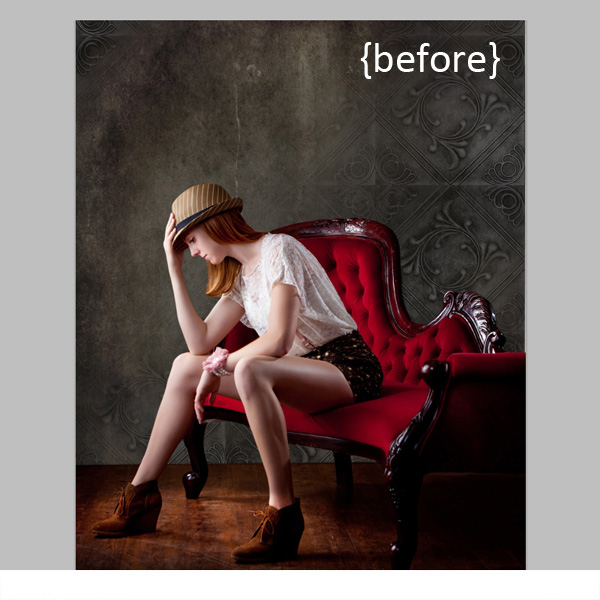
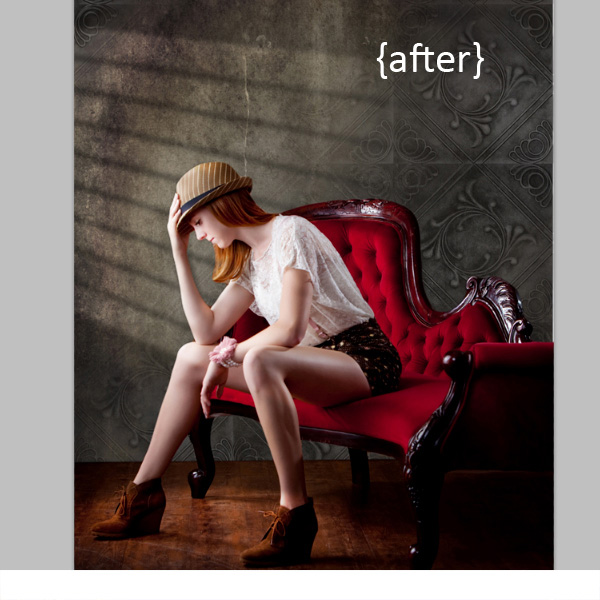
Light sources add depth and interest to your images immediately. By simply adding some window light to this image we added depth and warmth. If you have an image that you love, but it’s falling a little flat, consider adding some light! With just a few simple steps you can add beautiful light to your images.

Follow these steps to create a cast of light – works in Photoshop and Elements

Window Light Cast Before

Window Light Cast After

One thing you’ll want to pay special attention to is pre-existing lighting in your image. Make sure the light source you add works with and compliments your image. You can adjust the angles and direction of your added lights to make them work together so your image is both believable and beautiful.

Let’s get started. Follow these simple steps to make your compositions shine!

Step 1: Start with a light source

This can be an image you’ve taken, something you’ve designed or something you’ve purchased. We are using a light element from our Window Cast Light Set. Choose a light source and shape that you want to bring into your composition.

NOTE: if you want to follow along and try this on one of your images we’re happy to provide our set of Light Casts to you for free. Go here to download them – use the code: FREEBIE when you checkout to get them at no charge.

Step 2: Add the light source to your image

If you have your image and the light source both open in Photoshop, you can use your selection tool to drag the light source to your image. Alternatively, you can also copy (Control + C) the window shape layer in Photoshop (or PSE). Open your image and paste (Control + V) the window shape layer into your image.

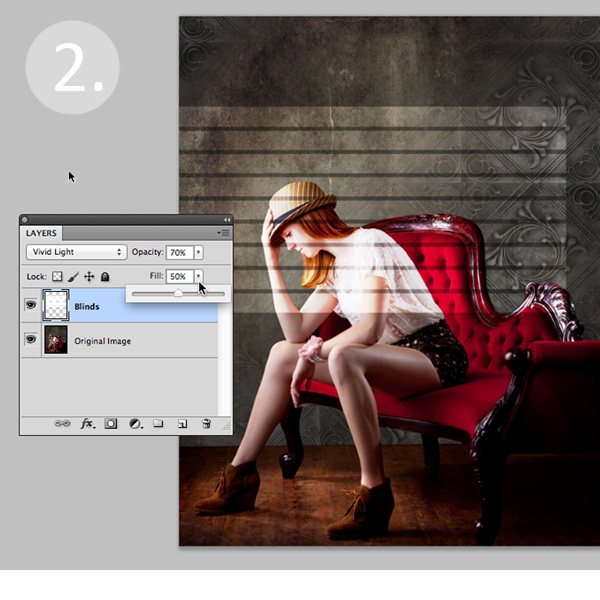
In this case, we placed the light source over our image. Next we adjusted our Layer Blending Mode by setting it to “vivid light” and then adjusted our opacity and fill on the light source until we achieved the desired look. You’ll want to play around with these settings to get the right look for your image.

Window Light Cast La ED2363

Step 3: Adjust the shape of your light

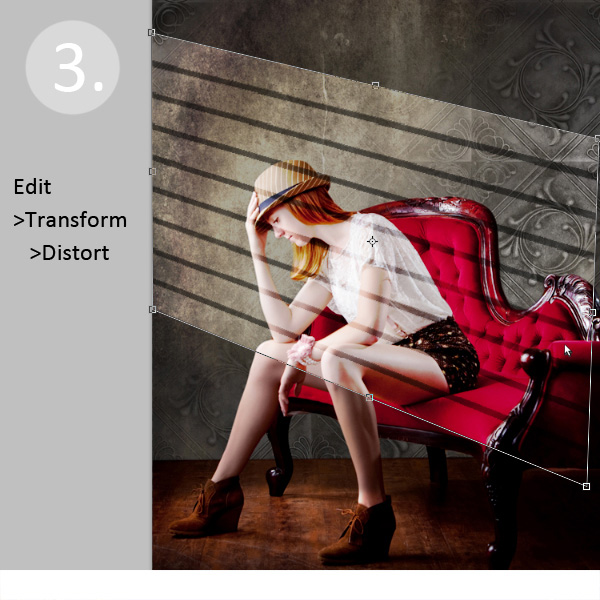
Next, you’ll transform the window shape to your liking. Go to Edit>Transform>Distort and then move the corners to create the
shape that works best with your image.

Window Light Cast Transform

Step 4: Soften your light

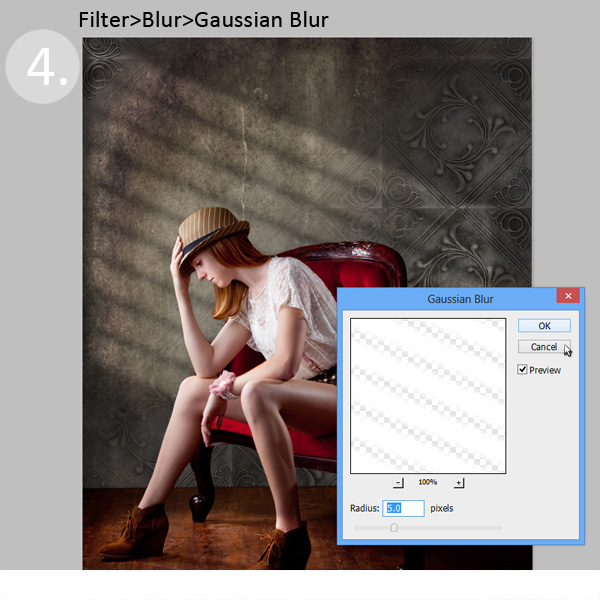
Now you want to soften the edges of your light so that it is not so harsh. Use the Gaussian Blur filter (Edit>Blur>Gaussian Blur) to soften the edges to your taste. In this case, we set the blur amount to 5. Adjust the amount of blur up and down to see how it softens the light in your image.

Window Light Cast Blur

Step 5: Fade your light source for a more natural look

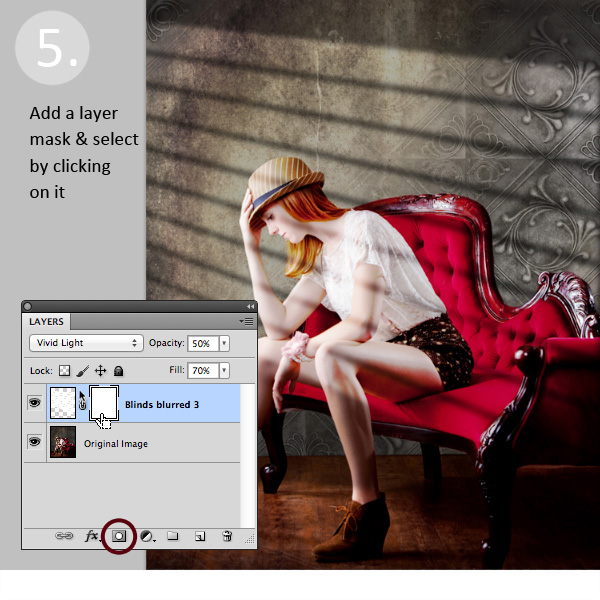
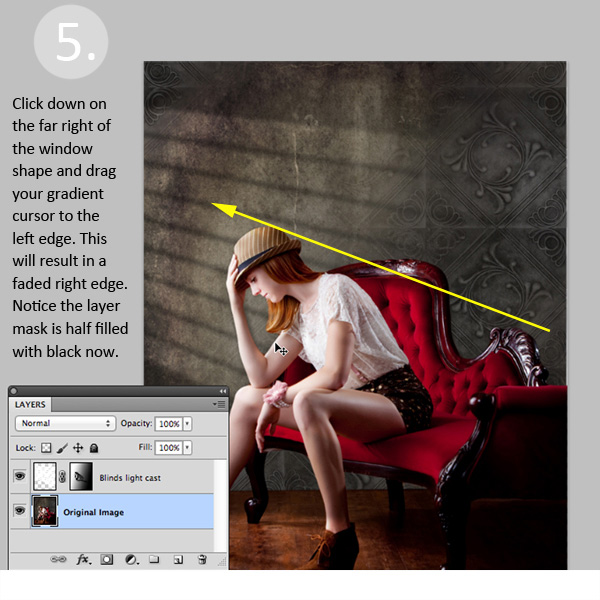
Now you’ll add a Layer Mask to your window shape layer. First, select your layer, and then click the Add Layer Mask Button at the bottom of your Layers Palette. Click on the new Layer Mask in the layer to make sure it’s selected. (VERY IMPORTANT STEP!)

Window Light Cast La ED283A

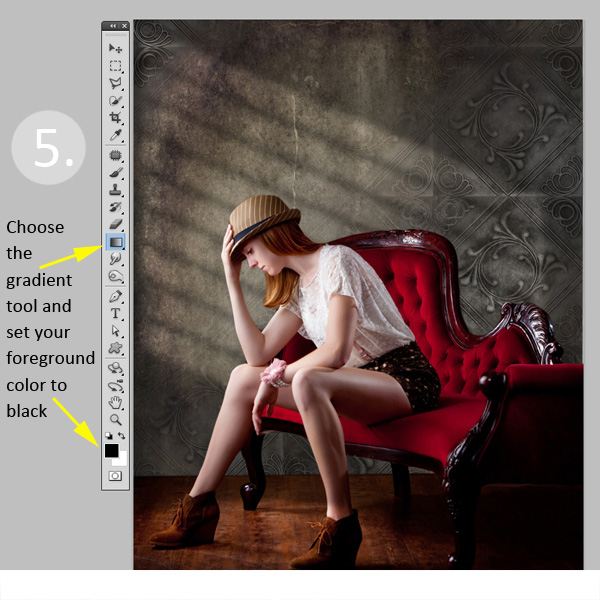
After adding a layer mask to the light cast layer, set your color palette to black and white, with black in the foreground color. Then use the gradient tool set to “foreground to transparent” to fade the light off.

Window Light Cast Gradient

Simply click into your layer mask and drag your cursor from one end (this will be 0% opacity) to where you’d like to see the light at 100% opacity. If you don’t like your results, fill the mask with white and start over.

Window Light Cast Gr ED2331

Step 6: Position the window shape to your liking.

Use your Selection Tool to adjust the position of your light layer to the desired location in your image. You can also use a soft black brush set to 30% opacity to subtly brush away the window light in the layer mask. We did this to remove extra light from her face.

Congratulations! You’ve successfully added a beautiful, warm light effect to your image to create more depth and interest in your image.

Window Light Cast Before

Window Light Cast After

Your turn!

If you’ve tried out this technique please share your images in the comments below, and please ask if you have questions!

The post Create a Cast of Light in Your Image using Photoshop or Elements by Christina Roth appeared first on Digital Photography School.


Digital Photography School

 
Comments Off on Create a Cast of Light in Your Image using Photoshop or Elements

Posted in Photography


Combining Images for Large Subjects using Photoshop Photomerge

31 Jan

Have you ever been so close to a subject that you just couldn’t get it all into the frame? You could use a fisheye lens but they creates so much distortion that it doesn’t always work the way you want it to. You can actually get the photo that you want with the lens that you already have! You can accomplish this by taking multiple images over several columns and several rows, and combining them into one very large, extremely detailed image. With a little practice and some information any photo is possible with the gear that you have in your camera bag.

Combining Images for Large Subjects using Photoshop Photomerge

Fig 2

WIDE LENS VERSUS IMAGE COMBINING

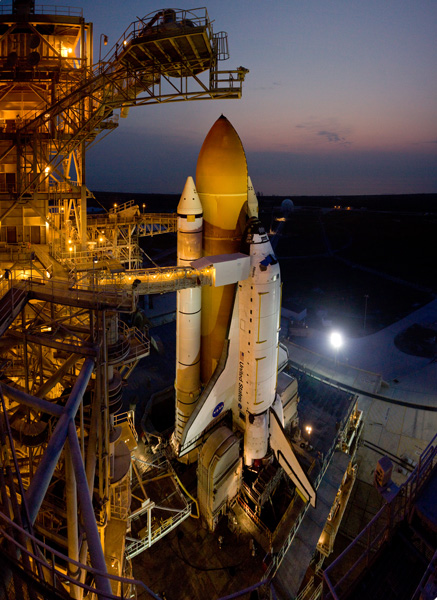
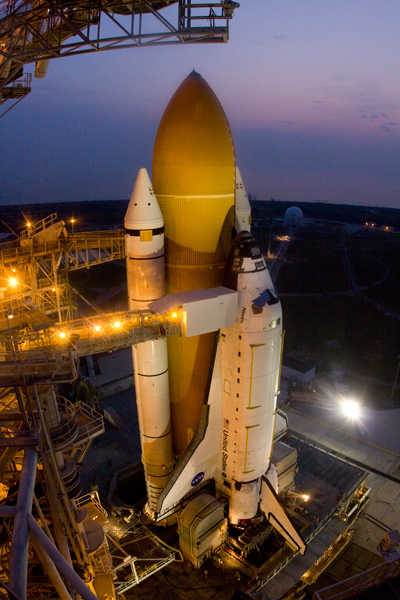
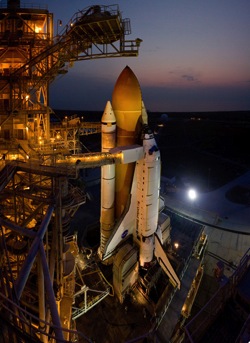
Let’s take a look at how to create one of these images. This photo of space shuttle Atlantis was taken just before sunrise as this incredible (and incredibly large) engineering marvel was being prepared for launch. Here are two photos
for comparison (Image #1 below) and (Image #2 above)

Fig 1

The image directly above was taken with a fisheye lens. More specifically a full-frame fisheye lens; one that covers a 180 degree angle of view, but the image still covers the entire frame with no black borders. As compared to a circular fisheye lens which covers a 180 degree angle of view, but the final image is a circle with a black border filling the rest of the frame. This image may be OK for some, but the cartoon like distortion may not be work for others.

Fig 2

You could buy a superwide lens that is corrected to eliminate distortion but those lenses could cost two or three times as much as a fisheye lens. Or maybe you have one but just don’t happen to have it with you on that particular day.

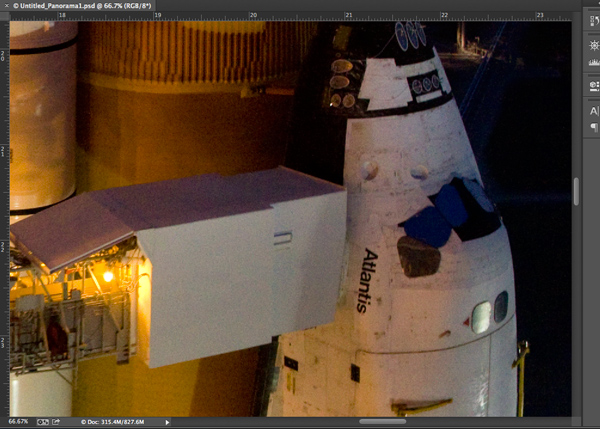
Image #2 (top and right) was created using a 17-40mm wide angle lens. This was accomplished by taking a series of images in a sequence from top to bottom in one column, followed by a second sequence from top to bottom in a second column. You want to make sure that you overlap your images approximately 20-25 percent so that they can be spliced together later using your editing software. The resulting image in this case was a combination of 12 images merged into one very large, very detailed image!

One major benefit of using this method is that you can focus each image separately as you take them allowing you to capture a greater depth of field. And when the images are combined you will have one large digital file that has many more pixels than the single images that you normally take. In this example the individual files were 3168 x 4752 pixels each. The total file size of the combined images is 9179 x 12,009 pixels. This composite image was then cropped to show just the desired image, cropping out this outer portion is something that we will take a look at in a minute. Using this method you can make some really large prints if you wanted to.

USING PHOTO MERGE TO COMBINE THE IMAGES

So now you know that it’s easy enough to take the images as long as you have sufficient overlap, so let’s learn how to combine them. I use Adobe Photoshop and I have successfully created these on every version that has the ‘Photomerge’ capability. You may have other photo stitching software that you want to try and that’s part of the fun of photography. Experiment with different software and experiment with how you take photos. It’s all part of adding knowledge to your photography tool belt. I’ll show you how we can combine these images using Photoshop CC since that’s what I’m currently using (the results are the same with all versions).

STEP ONE – SELECT IMAGES

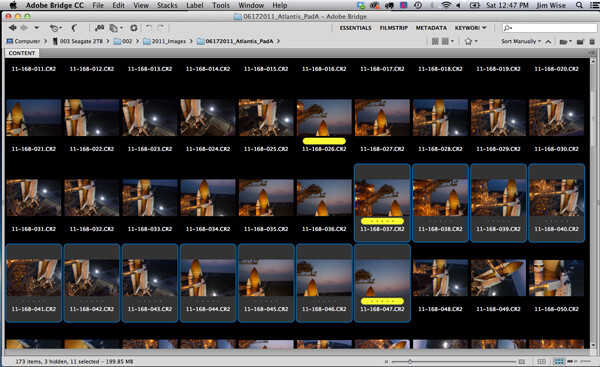
Fig 3

Step 1. Using Adobe Bridge select the images that you want to combine

STEP TWO – PHOTOMERGE

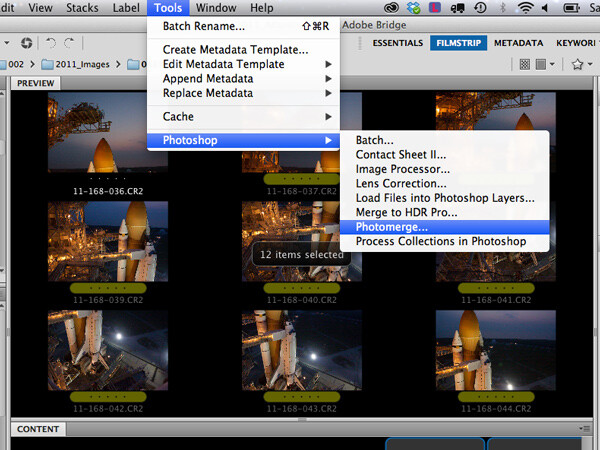
Fig 4

Step 2. In Adobe Bridge go to Tools > Photoshop > Photomerge

STEP THREE – COMBINING SETTINGS

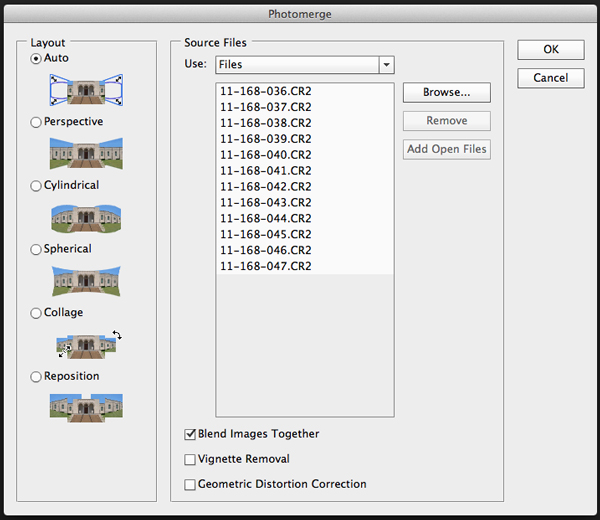
A new window will appear that shows you which files have been chosen to be combined, this allows you to verify that you have all of the correct files. You will see that you also have some options on how you want to combine the images. I have found that letting Photoshop automatically combine them works perfectly well for most things, so select Layout “Auto”, the top option. Check the ‘Blend Images Together’ option box, and leave the others unchecked. The ‘Blend Images Together’ option will automatically create layer masks in each of the layers of your image and it will greatly aid in seamlessly combining all of these images into one. See screen shot below.

Fig 5

Click OK

Note: At this point you may want to go make a sandwich. This part of the process can be time consuming and there are a lot of variables that will determine just how quickly or slowly your computer can crunch all of these pixels into one remarkable image.

  • Q. How many photos are you trying to combine? A. I recommend trying just 3 or 4 the first time.
  • Q. Are you combining RAW files or jpegs? A. For maximum punch you definitely want to use your RAW files, but for trying this out I would recommend using jpegs initially.
  • Q. How much RAM does your computer have? A. More is always better and will significantly decrease the time that your computer takes to process images like these. Combining these 12 images with 4GB RAM on my 2.4GHz Macbook Pro took almost 60 minutes.

How fast your processor is, what type of processor you have, which operating system, etc., are all factors that will determine how quickly this process works. Always use your computer’s hard drive (aka local drive) as opposed to an external hard drive that doesn’t respond as quickly as your local drive.

If you don’t have that super computer that you really would like to have yet, then you could stick to combining jpeg versions of your files instead of RAW files, but if you do that just make sure that your original files are untouched. And by untouched I mean do all of your color correcting AFTER your images are combined into one. That is true for those of you wanting to combine RAW files on your higher end computers also.

STEP FOUR – CROP AND FINAL TWEAKS

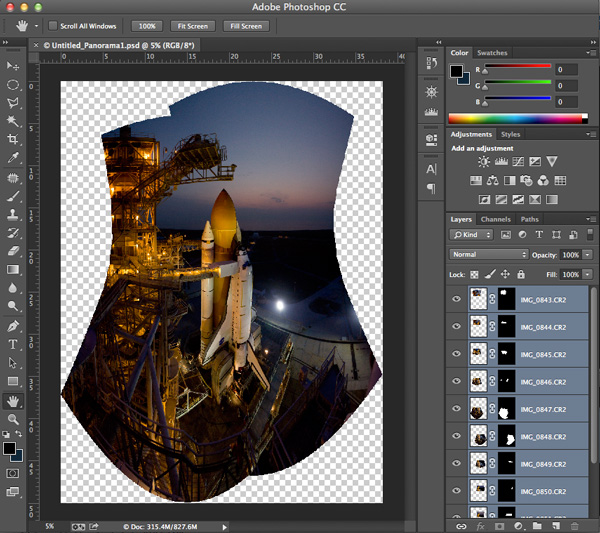
When photomerge has completed combining and blending your images you will see something like this below.

Fig 6

Photomerge has created a PSD file, complete with layer masks for showing just the parts of the image that you need to see from each layer. The blending may not look perfect at this point- you can usually see light edges where the masking is and that’s okay. You can see how Photoshop has automatically corrected for distortion and there will be some parts of the image that need to be cropped away. Let’s save the file ‘as is’ so that you will always have this ‘original’ to go back to.

The next step is to crop the image and save another copy that you can go ahead and flatten. It’s at this point (when the image is flattened) that you will see how well the blending did. Or rather you won’t be able to see it because the blending is seamless. You now have one really large composite image file with lots of detail.

Fig 7

You can save this flattened image as a TIF or JPG and make color corrections in Adobe’s Camera RAW, or any photo editing program. You can size it however you would like at this point.

SUMMARY AND CHALLENGE

So the next time you’re face to face with a larger than life subject, you can go ahead and take that fisheye capture. But while you’re there take a series of images with one of your other lenses as well. Capture them in columns or rows, leaving about 20-25% overlap, and see what you can create by combining those images. It might be a once in a lifetime opportunity so why not maximize your chances to get that great photo that you were hoping for!

Here are a few more photo stitching articles for further reading:

  • How to create a panorama with Photoshop and Photomerge
  • Stitching images for larger prints
  • How to shoot really big panoramas
  • Sending panorama sequences from Lightroom to Photoshop

The post Combining Images for Large Subjects using Photoshop Photomerge by Jim Wise appeared first on Digital Photography School.


Digital Photography School

 
Comments Off on Combining Images for Large Subjects using Photoshop Photomerge

Posted in Photography