RSS
 

Posts Tagged ‘Using’

How to Take Control of Contrast Using Curves and Levels in Photoshop

07 Aug

Have you ever found your photos flat? The colors are muted and it just looks dull? That’s because it lacks contrast. Sometimes regardless of your best exposure skills, the conditions are not suited to get a wide range of tones. Not to worry though, it can be fixed in post-processing. I’ll show you my workflow for how you can take control of contrast in your images using Curves and Levels in Photoshop.

Of course, there are many ways to adjust the contrast on Photoshop, there’s even a tool called Brightness and Contrast, however, it doesn’t give you much control. What I like to do is to manipulate Curves and Levels. In this article, I’ll explain to you why and how I use these tools to boost contrast.

The issue of low contrast

Low contrast can happen for many different reasons; bad weather for example or photographing through glass. In any case, the resulting image doesn’t show a wide range of tones, in other words, there’s not enough difference between the lights and the darks.

I find this problem occurs especially while traveling, because you can’t go back to the location when the weather is better, or because you are seeing things through a pane of glass. For example, the image I will use for this tutorial was taken through the window while traveling on a tour bus.

How to Take Control of Contrast Using Curves and Levels in Photoshop

How do you know it’s low contrast?

I chose an image where the contrast is clearly low so that you can easily see the effects of every step. However, in some cases, it won’t be as obvious, but you can always review the histogram to know the tonal range of your image.

A typically correct exposure should have a histogram that reaches from black (left) to white (right) evenly spread, with the highest values in the middle. Please note that this can change if you are going for a different effect like low key or high key where you purposely choose a specific range to work with, so I am just talking about the average image here.

As you can see, in this case, all the information is concentrated in the middle tones, but it doesn’t reach the black or the white side (see histogram below). This is why the image has no contrast.

How to Take Control of Contrast Using Curves and Levels in Photoshop

Using Curves

First, we are going to manipulate the Curves tool. Remember to do it on an adjustment layer and not directly on your original (this is non-destructive editing), that way you won’t loose any information and you can always go back and start again if you don’t like the results. To do this go to the menu then: Layers > New Adjustment Layer > Curves and a new window will pop up.

Curves

You can also get to Curves on the Adjustment panel.

Curves adjustment

Inside that, you’ll find a graph with the histogram on it. The line that crosses the graph controls the contrast; the steeper it is, the greater the contrast.

Curves- How to Take Control of Contrast Using Curves and Levels in Photoshop

You can fix anchor points along the line that you can move up or down to adjust the contrast of the image. Add as many anchor points as you need. The higher right quadrant controls the highlights and on the lower left one, you have the dark tones.

Curves Anchors - How to Take Control of Contrast Using Curves and Levels in Photoshop

If you want to increase contrast, as we do in this case, add one anchor point in the lower left quadrant and slowly pull it down. Watch how it affects the dark areas of the image. Move it until you’re happy with the result. Then add another anchor point in the upper right quadrant and pull it up slowly until the highlights are bright enough for your preference. By making the straight line into more of an s-curve you will add contrast to the image.

Note: if you have an image with too much contrast the opposite can work. Pull down the highlights, and push up the dark areas on the curve to get an inverted s-curve.

After fixing the curves for the overall image, this tool allows you to fine-tune by channel. The step we did before was working on RGB, however, if you click on the drop down menu you can choose each channel to work with separately.

In this case, let’s start with the Blue channel. If you pull up an anchor point from the highlights (the upper right quadrant) you are making the sky, which is the lighter part of the picture bluer. In the left lower quadrant (the shadows) pulling the anchor a little bit down allows you to remove some of the color cast.

Next is green channel so that you can get a wider tonal range out of the forest and nature of the scene. The adjustments are very subtitle because when you are working in such detail the tools become very sensitive. Move around the graph until you are happy with the result.

Remember different light sources have different colors;  a sunset has warmer colors than at noon, artificial light can be more yellow than natural light, etc. Apart from correcting any color bias, it works to add some special effects and get creative. In the next example, you can see what happens when the graph gets completely inverted in the red channel. You can also achieve this by playing with the different presets, in this case, color negative.


Using Levels

Next, you want to manipulate the Levels, also using an adjustment layer. You can do this by going to the menu > Layers > New Adjustment Layer > Levels (or you can find it on the Adjustments panel just to the left of Curves). Again a new window will appear with a different graph, this represents the darkest parts of the picture (0) to the lightest parts (255).

Levels - How to Take Control of Contrast Using Curves and Levels in Photoshop

You can manipulate contrast by dragging the sliders underneath the graph, however, you will have much more control if you use the eyedroppers. This is how to work with them:

First, choose the white eyedropper (bottom one next to the graph) and click on the lightest part of the image that still has information or detail. You’ll notice how your entire image becomes lighter and brighter. Don’t worry about getting it right on the first try, you can click around on the image until you are satisfied with how it looks.

Levels white eyedropper

Levels White - How to Take Control of Contrast Using Curves and Levels in Photoshop

Then pick the black eyedropper and click on the darkest part of the image with detail. Same as the white one, try it until you get it right. You can always do some final adjustments with the sliders as well.

Levels Black - How to Take Control of Contrast Using Curves and Levels in Photoshop

Finally use the gray (mid-tones) eyedropper to set the ambiance or mood of the scene, as it will change depending on where you click. Here some examples:


In Levels, you can also do the selective adjustments by channel if you need.

Before and after

And there you go, when you are satisfied with your results, flatten the image by going to the menu Layers – Flatten Image. See how the histogram has a much wider range now, and the final image has more impact.

How to Take Control of Contrast Using Curves and Levels in Photoshop

Before image.

Before - How to Take Control of Contrast Using Curves and Levels in Photoshop

Before adjustments for reference.

Histogram After - How to Take Control of Contrast Using Curves and Levels in Photoshop

Histogram after Curves and Levels adjustments.

after - How to Take Control of Contrast Using Curves and Levels in Photoshop

After image.

Handling reflections – example

Remember that when you are photographing through glass there might be reflections, and when you boost the contrast these reflections will be much more noticeable. So think about that before shooting, when you are composing your image.

In order to demonstrate this for you, I made a photo while enjoying a panoramic view from a skyscraper in Milan. It was a 360 degrees glass wall, so I was bound to have a reflection. In order to use it to my advantage, I decided to place my foot strategically so that its reflection would be in between two buildings and entitled the photo “Stepping into Milan”.

Skyscraper Before - How to Take Control of Contrast Using Curves and Levels in Photoshop

Before processing.

Skyscraper After - How to Take Control of Contrast Using Curves and Levels in Photoshop

After processing, notice my foot in the lower left corner?

Dull weather – example

As I mentioned before, it’s not only shooting through glass that can give you low contrast scenes. Here I have another example that had to do with the weather. It was a very cloudy day so there were no shadows, everything looked kind of gray and the light was very flat. This too can be fixed with Curves and Levels following the previous steps.

Canal Before - How to Take Control of Contrast Using Curves and Levels in Photoshop Canal After - How to Take Control of Contrast Using Curves and Levels in Photoshop

Conclusion

Now you know that a low contrast photo doesn’t mean you’ll end up with a flat or dull image, so shoot away! I hope you found this helpful and if you have any doubts or tips about contrast, please share them with us in the comments section below.

The post How to Take Control of Contrast Using Curves and Levels in Photoshop by Ana Mireles appeared first on Digital Photography School.


Digital Photography School

 
Comments Off on How to Take Control of Contrast Using Curves and Levels in Photoshop

Posted in Photography


US Army abruptly stops using DJI drones due to ‘cyber vulnerabilities’

05 Aug

A leaked US Army memo obtained by unmanned aviation news site sUAS News is making some waves in the drone world today. In the memo, the largest branch of the United States armed forces called for its units to “cease all use, uninstall all DJI applications, remove all batteries/storage media from devices, and secure equipment for follow on directions.”

The decision was reached by the US Navy and the US Army Research Lab, which identified ‘operational risks’ and ‘user vulnerabilities’ in DJI’s products.

The memo does not go into detail regarding the specific vulnerabilities, saying only that,

Due to increased awareness of cyber vulnerabilities associated with DJI products, it is directed that the U.S. Army halt use of all DJI products. This guidance applies to all DJI UAS and any system that employs DJI electrical components or software including, but not limited to, flight computers, cameras, radios, batteries, speed controllers, GPS units, handheld control stations, or devices with DJI software applications installed.

DJI’s public relations manager Michael Perry responded to the news in an e-mail to sUAS News, saying the company was ‘surprised and disappointed’ that the Army didn’t consult DJI during the decision process. “We are happy to work directly with any organization, including the U.S. Army, that has concerns about our management of cyber issues,” wrote Perry, saying that DJI would reach out to the US Army to confirm the memo and better understand what they mean by ‘cyber vulnerabilities.’

To read the full memo and response, or dive a bit deeper into some of the cyber security concerns surrounding DJI’s products, head over to sUAS News by clicking here.

Articles: Digital Photography Review (dpreview.com)

 
Comments Off on US Army abruptly stops using DJI drones due to ‘cyber vulnerabilities’

Posted in Uncategorized


How to Make Your Photos Stand Out Using Color Contrast

04 Aug

A great way to make your photograph look attractive is to make it pop! One of the best ways of making your photo pop is to use eye catching colors your image. Those colors will have even more impact when paired with a contrasting color, so in this article, we’ll look at how you can apply this idea. There is a simplicity to these kind of photos, and learning which colors pair well together will help a lot. Let’s take a look at contrast, and color contrast photography to see why this works.

How to Make Your Photos Stand Out Using Color Contrast

How to Make Your Photos Stand Out Using Color Contrast

Red and blue, one of the strongest color contrasts, was used in this still life.

Why does contrast work in photography?

Opposites work well together in an artistic sense, concepts like old versus new are good photographic subject matter. One of the simplest forms of contrast is black and white, which is why photographs that were taken in this style look so effective. The best black and white photos often have strong contrast which makes them stand out.

The aim of many photos is to isolate your subject, and by doing so, tell a story. The use of contrast is one way you can isolate a subject from the background, or bring out a strong repeating pattern in a texture photo. It’s also possible to have color contrast as well, but only certain color combinations work well together.

How to Make Your Photos Stand Out Using Color Contrast

The warm glow of street lights against the blue hour sky is a color contrast.

What is color contrast photography?

Getting color contrast is a bit more complex than it is with black and white photography. Color can be broadly split into two groups, cold colors, and warm colors. Color contrast happens when a cold color is paired with a warm color. You can also use complementary colors – that is when warm colors and cold colors (opposite on the color wheel) are in the same photo.

An easy way to visualize this is by looking at a color wheel, which shows colors that are opposite each other. It’s not uncommon to see color contrast occurring naturally in nature with things like fruits and flowers often displaying this concept. The classic color contrasts are yellow/purple, red/green and orange/blue. Using the color wheel can you come up with some yourself and apply them to your images?

How to Make Your Photos Stand Out Using Color Contrast

Using this wheel you can see which colors are opposite each other. Image credit Todd Weed. Creative commons.

How to take photos that have color contrast

The world is full of color, but it’s often a mess of many different colors. So how do you go about taking photos that have color contrast, if there are so many other colors in the frame? The following are ideas you can use to do color contrast photography.

How to Make Your Photos Stand Out Using Color Contrast

Finding a good location

Look for places with a solid color, walls often provide this. A red brick wall can contrast against green or blue colors. In some neighborhoods you might find a wall that has been painted blue or wood paneling that is a particular color. Artistic areas of town are often good hunting grounds. Once you have a strong color background you will need to find something or someone that has the contrasting color.

How to Make Your Photos Stand Out Using Color Contrast

The vendor knew to lay out their wares using color contrast to attract more customers.

Create your own color contrast

Color contrast photography is creative, so how about creating your own contrasts? This could mean asking a model to wear a particular color of clothes, or you can create still life photos that display color contrast. A quick trip to a local crafts store to buy colored paper will allow you to play with contrast.

How to Make Your Photos Stand Out Using Color Contrast

In this photo, the opposing colors of purple and green have been used.

Finding color contrast in nature

Flowers, especially orchids, have natural color contrast, meaning you don’t need to create it yourself! Another subject with strong colors are fruits, so head to the market and see if you can find contrasting colors with the food on display!

How to Make Your Photos Stand Out Using Color Contrast

The strong color contrast of red and blue gives this street scene more impact. Even the stalls are red and blue.

Let’s see your examples of color contrast photography

The world is much better in color, so let’s see examples of your photos! The chances are you already have some photos of this type in your archive. So which color combinations worked best for you? When you next challenge yourself to try something new with your photography how about using color contrast as a central theme? Go out and get some new photos, post them here, and share your experiences! This is a fun form of photography that anyone can try no matter what camera you’re using, so let’s see some color contrast photography!

When you next challenge yourself to try something new with your photography how about using color contrast as a central theme? Go out and get some new photos, post them here, and share your experience in the comments section. This is a fun form of photography that anyone can try no matter what camera you’re using, so let’s see some color contrast photography!

How to Make Your Photos Stand Out Using Color Contrast

The yellow wall makes the women who are wearing blue stand out more.

How to Make Your Photos Stand Out Using Color Contrast

In this photo, the color contrast was created. I used a pixelstick to paint first in red, then in blue.

The post How to Make Your Photos Stand Out Using Color Contrast by Simon Bond appeared first on Digital Photography School.


Digital Photography School

 
Comments Off on How to Make Your Photos Stand Out Using Color Contrast

Posted in Photography


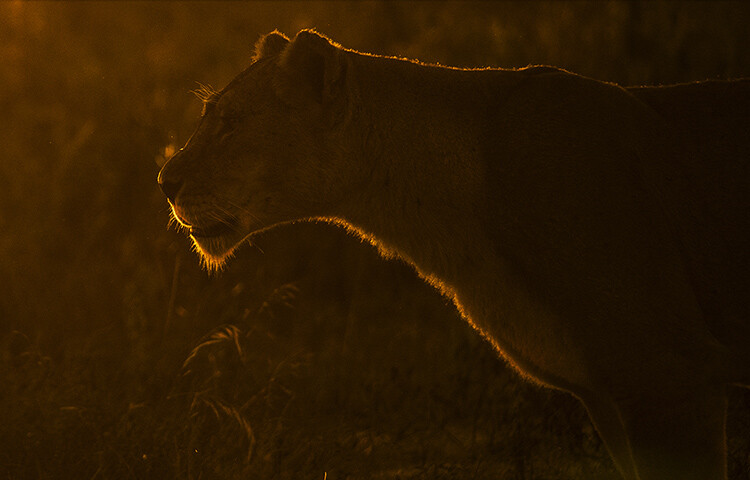
How to do More Creative Wildlife Photography by using Rim Lighting

27 Jul

Wildlife photography is one of the fastest growing hobbies today. With DSLR and lenses getting cheaper by the minute, it is only bound to grow faster. With more and more people taking to wildlife photography as a means to connect with nature and share its beauties, it’s become imperative that you start pushing the bar of your photography ever higher. One of the best and easiest ways to do that is to try out rim lighting shots. If you do not know what that means, you are on the right page – keep reading.

How to do More Creative Wildlife Photography by using Rim Lighting

There are many ways to get creative with your wildlife photography, but in this article I will teach you one of the most impactful. Let’s start with getting to know rim lighting a little better.

What is rim lighting?

By definition, rim lighting in photography means any image where the light at the edges of the subject seems more intense than the other areas. For example, take a look at the image below.

How to do More Creative Wildlife Photography by using Rim Lighting

Notice how the outline of the giraffes stands out? The rim of the subject looks well-lit. Quite simply, that’s what rim lighting is about.

How do you achieve rim lighting?

First and foremost, you need to position yourself such that the subject stands between your camera and the light source (more often than not, that will be the sun in nature photography). Rim lighting will happen in the natural world only if you can see the rim, lit up with your eyes. Some of the easiest subjects for this are animals that have a lot of fur and are not too smooth coated, for example, bears, giraffes, lions, or deer with antlers.

Take a look at the visual below for a quick understanding on positioning yourself.

750

Guidelines

There are a few guidelines that you need to adhere to while trying to obtain a rim-lit image:

  • Rim lighting happens best when the sun is low in the sky, so try to look for a subject around that time.
  • A dark background is necessary (check all the images in this article) so make sure that you try this in an area where your background is conducive to good results.

Speaking about the camera now, composition aside, rim-lit photography can be done using one of two approaches.

Approach #1 – Exposure Compensation

Using exposure compensation is the easiest way to execute rim-lit shots. Once you have ensured that you are able to see a rim-lit subject just go ahead and try a test shot with a little underexposure. Take a look at the sequence of images below.

How to do More Creative Wildlife Photography by using Rim Lighting

Make note, by default when using the built-in metering system in your camera, more often than not the image in such scenarios (a lot of black and little bit of white) will turn out to be a bit washed out. It is just that the camera does not know what is the most important part of the image and makes an error in judgement (it tries to average the exposure).

Knowing where to stop with regards to exposure compensation is a subjective call. You could be happy with the second or the third image above. Just know that the more you underexpose the darker the surroundings will get.

This is a perfectly valid way of getting a rim-lit shot, but I generally recommend the second approach. The simple reason being that exposure compensation doesn’t reset itself. If you forget your camera is set at an EV of -2, it would mean disaster for the next few shots where you may not be trying to create a rim lighting shot.

How to do More Creative Wildlife Photography by using Rim Lighting

Approach #2 – Exposure Lock (AE-L)

This approach is slightly more advanced in terms of understanding. Imagine yourself standing in front of a monkey with the sun setting behind him and the immediate background being dark trees. Now, do the following:

  • Point your camera toward the sky. Half press your shutter-release button to activate metering.
  • Next, press the Exposure Lock Button (AE-L or * button) which often resides right where your right-hand thumb would rest.
  • Now, recompose your image with the subject as needed and click.

What happens is that when you point your camera towards the sky and ask it to meter from there, it takes a light reading from the bright sky and sets up a shutter/aperture combination accordingly. Let’s assume for a minute that the value came out to be 1/2000th at f/4.

Now, if you press the Exposure Lock button, the camera will lock on to these readings and will not change them for your next set of clicks. So when you recompose and photograph the monkey, the camera uses the locked in settings thus rendering only the areas in the frame that are as bright as the sky correctly. In this recomposed image, the only area that is as bright as the sky is the outline of the monkey, giving you a nice, well exposed rim-lit image.

How to do More Creative Wildlife Photography by using Rim Lighting

Practice around home first

Go ahead, practice the AE-L at home and then get out there and try a couple of rim-lit shots. Here is what you can do at home, before heading out to the wild.

Catch hold of a friend or family member and make them stand in front of a car at night. They should be covering the headlight of the car completely. If you stand at the other end with your friend in between yourself and the light source, you should be able to see his entire body with rim lighting.

Now that you know how to get a subject, go out there with your camera and start trying the exposure compensation trick to get some fabulous rim-lit images. Please share your rim-lit wildlife images below as well as any questions you may have about this technique.

How to do More Creative Wildlife Photography by using Rim Lighting

The post How to do More Creative Wildlife Photography by using Rim Lighting by Rahul Sachdev appeared first on Digital Photography School.


Digital Photography School

 
Comments Off on How to do More Creative Wildlife Photography by using Rim Lighting

Posted in Photography


How to Make Funky Colorful Images of Ordinary Plastic Objects Using a Polarizing Filter

27 Jul

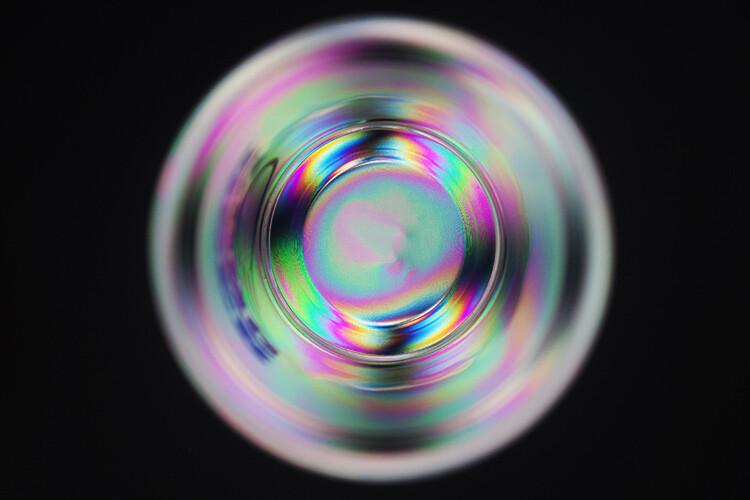
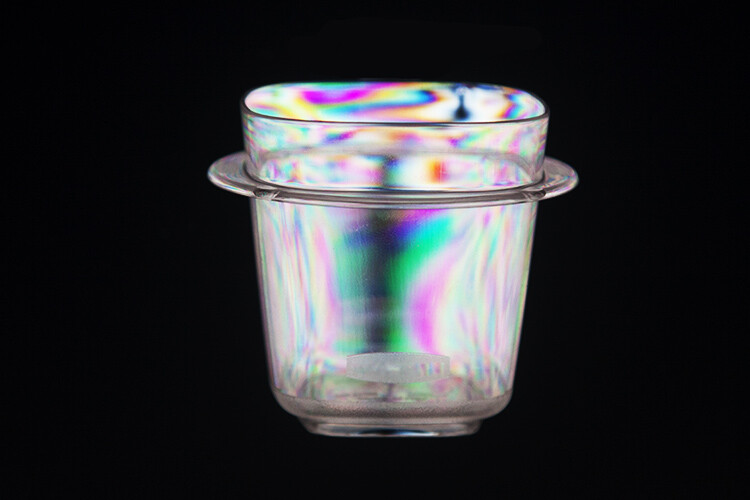
A cornerstone in modern manufacturing, plastic is an amazing thing. Look around and you’ll see an abundance of plastic materials used in an endless variety of products. From pens to planes – yep, even modern commercial aircraft are cutting down on weight by introducing plastic composite components – plastic has revolutionized the way we live. And while much of the plastic we encounter is discarded after the first use – this photography tutorial will give you a good reason to hang onto those plastic knives and forks. By using a polarizing filter, some plastic materials and a computer screen, we can reveal a surprisingly beautiful side to the internal stresses of hard plastic material.

How to Make Creative Colorful Images of Plastic Objects Using a Polarizing Filter

Supplies you will need:

  • Polarizing filter or polarized sunglasses
  • Computer screen
  • Camera
  • Clear sticky tape
  • Sheet of glass
  • Tripod (optional)
  • Transparent plastic objects

Setting up

In basic terms, what we’ll be doing is sandwiching a plastic object between a polarized light source and an on-camera polarizing filter. Polarizing filters that screw into the front of a camera are used by photographers to add contrast and reduce glare.

How to Make Funky Colorful Images of Ordinary Plastic Objects Using a Polarizing Filter

Don’t have a polarizing filter? Use your polarized sunglasses in a pinch.

If you don’t have a polarizing filter, a pair of polarized sunglasses will do the trick. Simply position the sunglasses so that one eye sits over the front of the camera lens like a filter. Keep in mind that the shape of the eyepiece will probably prevent complete coverage of the front lens element. If this is the case, some cropping may be required in Photoshop later. You may also need to do some sticky-taping to ensure the glasses sit correctly.

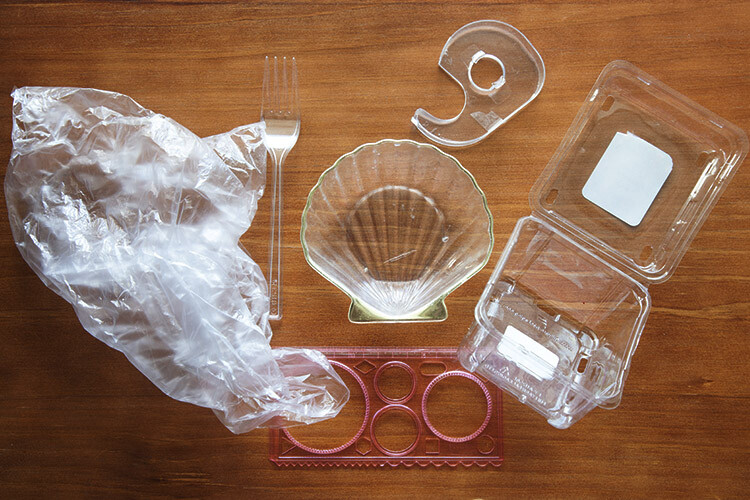
Now gather some clear plastic materials to photograph. Objects like plastic bags, sticky tape dispensers, plastic food containers, clear plastic cutlery and packaging all turn out well. Basically, any cheap, transparent plastic will work to some degree, so have a good scavenge around!

How to Make Creative Colorful Images of Plastic Objects Using a Polarizing Filter

Finding good backlighting

Next, you’ll need a polarized light source to shine through the transparent plastic material. Conveniently, modern desktop and laptop computer screens emit linearly polarized light. First, you need to maximize the white light emitting from our computer screen. To do this, download a plain white background from Google Images. Once downloaded, open the file in a default image viewer and set the image to Full-Screen Mode. This will spread the white backdrop over the entirety of the functional computer screen, providing the backdrop for our polarized objects.

Once downloaded, open the file in a default image viewer and set the image to full-screen mode. This will spread the white backdrop over the entirety of the functional computer screen, providing the backdrop for your polarized objects.

How to Make Creative Colorful Images of Plastic Objects Using a Polarizing Filter

Set the viewing mode of a clean white image to full-screen so that it completely covers the screen.

Arrange the subjects

Once the white background is set, you can start arranging your plastic items on the computer screen. If you have a choice between using a desktop or laptop computer, I recommend going with the laptop. Unlike a desktop computer, you can turn an open laptop upside down, so the screen lays flat on a surface. This turns your laptop into a home-made light box of sorts, perfect for sitting your plastic objects on.

Keep in mind however that laptops with touchscreen capabilities may not work as effectively. From my own experience, these laptop screens deliver far less pronounced results. Note: A large tablet or iPad may work as well.

How to Make Creative Colorful Images of Plastic Objects Using a Polarizing Filter

Viewed through a polarizing filter, this transparent stencil is placed on the top of a touchscreen laptop. While the polarizing effect can still be seen, the finished image falls flat.

Workaround for desktop screens

Because the screen is upright, using a desktop computer for this project can seem a little trickier. Rather than tipping a full sized computer screen on it’s back, I’ve been fixing my plastic materials to a sheet of glass with tiny pieces of clear sticky tape. Easily recovered from old photo frames, the glass sheet means you can avoid sticking tape directly to your computer screen, without blocking out any light. For best coverage, a larger sheet of glass is preferable, just make sure that it’s dust free. Once you are finished taking your photographs, you can remove any evidence of the sticky tape with the “Clone Stamp” in Photoshop.

For best coverage, a larger sheet of glass is preferable, just make sure that it’s dust free. Once you are finished taking your photographs, you can remove any evidence of the sticky tape with the “Clone Stamp” in Photoshop.

How to Make Creative Colorful Images of Plastic Objects Using a Polarizing Filter

I’ve affixed this transparent stencil to a pane of glass to keep it upright against the computer screen. The small amount of tape can be removed easily in Photoshop later.

How to Make Creative Colorful Images of Plastic Objects Using a Polarizing Filter

In this image, a small piece of the clear sticky tape can be seen.

How to Make Creative Colorful Images of Plastic Objects Using a Polarizing Filter

Taking advantage of the solid black background, any trace of the sticky tape can be removed by using the paintbrush tool with a black swatch selected

Getting the shot

Once you have assembled your objects against the computer screen, it’s time to see some results!  Grab the camera you outfitted earlier with either the polarizing filter or the polarized sunglasses. While looking through the viewfinder (or LiveView Mode) point the camera at your plastic assemblage. Like magic, the boring clear plastic materials are filled with a beautiful array of colors.

Change the angle – change the background

Depending on the angle of the polarizing filter, you’ll notice that the backdrop of your image ranges from the white computer screen to jet black. The degree of polarization you see through the lens is dictated by the angle of the filter in relation to the wavelengths emitted by the computer screen. This means that by changing the angle of the polarizing medium, you can adjust the brightness of the computer screen without impacting the color of the plastic objects.

Simply hold the camera in one hand (or use a tripod) and use the other to slowly rotate the filter around. The same effect can be achieved by manually tilting the polarized sunglasses from side-to-side.

How to Make Creative Colorful Images of Plastic Objects Using a Polarizing Filter

An image of a pretty shell shaped container I had on my dresser. The polarization effect highlights the stresses in a plastic material, rendering them as beautiful arrays of color.

The same shell container, this time with the filter angled so that the white light passes through to the camera sensor, rendering a white background

Your turn!

Now that you’ve got the basics, it’s time to raid the recycling bin! Post your results below and have fun.

How to Make Creative Colorful Images of Plastic Objects Using a Polarizing Filter

How to Make Creative Colorful Images of Plastic Objects Using a Polarizing Filter

How to Make Creative Colorful Images of Plastic Objects Using a Polarizing Filter

The polarizing effect caused this plastic bag to take on a rugged, mountainous appearance.

How to Make Creative Colorful Images of Plastic Objects Using a Polarizing Filter

How to Make Creative Colorful Images of Plastic Objects Using a Polarizing Filter

How to Make Creative Colorful Images of Plastic Objects Using a Polarizing Filter

The post How to Make Funky Colorful Images of Ordinary Plastic Objects Using a Polarizing Filter by Megan Kennedy appeared first on Digital Photography School.


Digital Photography School

 
Comments Off on How to Make Funky Colorful Images of Ordinary Plastic Objects Using a Polarizing Filter

Posted in Photography


How to Compose Photos with Impact Using Elements of Design

27 Jul

All visual artists have a common goal of creating an image with impact. But unlike painters who start with a blank canvas and add to it, photographers start with a sometimes chaotic scene and must decide what to remove from it. Which parts of the scene should be included and which excluded to create the greatest impact?

Mobius Arch by Anne McKinnell - How to Compose Photos with Impact Using Elements of Design

This rock arch, known as Mobius Arch, frames the mountains in the background.

Part of your job as the photographer job is to bring order to the chaos by deciding how to arrange the elements in the scene in your camera’s frame. You cannot just hold up your camera and expect to make an impactful image. You have to evaluate the scene and discover what elements of design are there to work with and how you are going to use them to create your composition.

There are visual clues to good composition all around you. Clues that will help you see with your photographer’s eye if you take the time to slow down and take notice of them. The elements of design are there, but sometimes you don’t notice them until you go looking specifically. That’s the key – you have to go looking for them. Once you start looking for a particular element of design, you will be surprised how often you will discover it in the world around you.

Valella Valella by Anne McKinnell - How to Compose Photos with Impact Using Elements of Design

These creatures are called Valella Valella. As they wash up on shore, they create a leading line that guides the viewer’s eye into the frame.

1. Lines

Lines are one of the fundamental building blocks of composition. They direct the eye around an image and give the viewer a path to follow. Understanding the power that lines have in graphic design, and how different lines have different effects on the viewer, will help you add more impact to your images.

  • Horizontal lines exist in almost every scene. They tend to be calming and give a sense of peace and tranquility.
  • Vertical lines tend to be associated with strength and power. Think of skyscrapers, trees in a forest, or waterfalls — all features of strength and grandeur.
  • Diagonal lines add energy to an image and give a sense of movement.
  • Curves create a graphic design that makes an image easy to look at by leading the viewer’s eye through the frame. They can be c-curves, s-curves, arches, circles or spirals.
  • Leading lines can be any type of line that leads the viewer’s eye toward the main subject.
North Algodones Sand Dunes, California by Anne McKinnell - How to Compose Photos with Impact Using Elements of Design

The lines in these California sand dunes lead the viewer’s eye into the frame toward the main subject.

2. Color

Colors determine the viewer’s emotional response to an image. They set the mood and determine what part of an image gets the most attention.

One of the most impactful ways to use color in your composition is to look for complementary colors. Complementary colors are opposites on the color wheel such as blue and orange, red and green, purple and yellow.

Sea Nettle by Anne McKinnell - How to Compose Photos with Impact Using Elements of Design

Blue and orange are complementary colors.

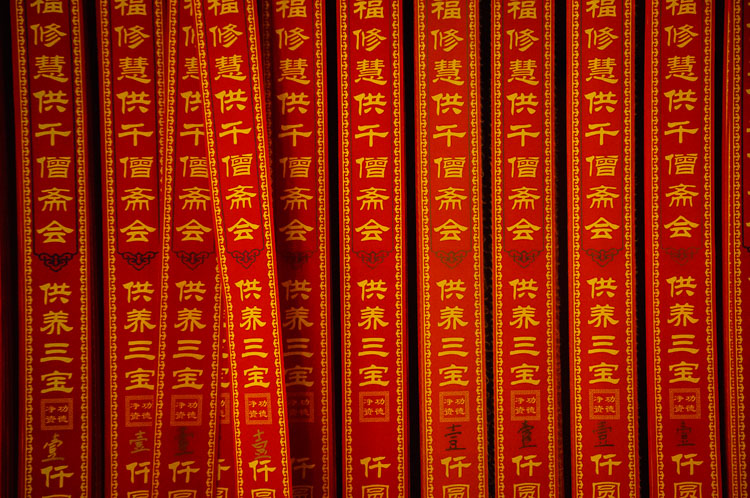
3. Patterns

The human eye is drawn to patterns in the same way that our ears are drawn to the beat of music or the chorus of a song. The visual rhythm that the pattern creates makes order out of the chaos. It can give an image a sense of movement as our eyes travel from the first element to the next.

Filling the frame with a pattern is a sure way of turning a snapshot into a compelling photograph.

A pattern is simply a repetition of a graphic element such as a line, shape or color. Usually, a pattern is made up of at least three repetitions, but the more the better!

Jing'an Temple, Shanghai, China by Anne McKinnell

These prayer ribbons create a repeating pattern in the frame.

4. Symmetry

Despite everything we have been taught in photography about the rule of thirds and keeping things off balance and out of the middle, symmetry has always been associated with beauty. In a symmetrical composition, your main subject is placed at center stage and the eye is encouraged to travel in a circular center around the frame. This will make a scene feel harmonious and calm. But it’s a lot more difficult than it sounds!

The difference is in the details. It’s in the absolute perfection of the symmetry. A composition that is almost symmetrical will seem off and boring, one that is perfect will seem awe inspiring.

To make a photograph that is symmetrical, you will have to hone your eye to find items in the scene that are symmetrical and leave everything out of the frame that does not fit. The composition should have symmetry from corner to corner, which means that the background if there is one, must be symmetrical too.

Legislature in Victoria, British Columbia by Anne McKinnell - How to Compose Photos with Impact Using Elements of Design

This photo uses both symmetry and frame-in-frame as design elements.

5. Frame-in-Frame

One way to quickly add a new dimension to your subject is to give it a frame inside the boundaries of the image. The edges of your photograph are the first frame. Then, you want to add another frame around your subject, which is internal to the photograph.

The idea is to add interest to your photograph by framing your main subject inside another frame. This isn’t always possible, of course, but if you keep your eyes open for opportunities you will start to notice them more often.

Windows and doors are one of the most accessible frames for this technique because you find them everywhere. If you have a wonderful view from your window, try including the window in your image. Remember you can look from the inside out or from outside looking in.

Hatley Castle by Anne McKinnell - How to Compose Photos with Impact Using Elements of Design

This gazebo provides an arch that frames the garden and castle outside.

Conclusion

The next time you are out photographing, keep one of the above elements of design in mind and go looking for it. Being purposeful about your composition is how you will progress from taking snapshots to making great images.


If you’re ready to dive deeper into composition and the elements of image design, be sure to check out Anne’s eBook The Compelling Photograph – Techniques for Creating Better Images.

The post How to Compose Photos with Impact Using Elements of Design by Anne McKinnell appeared first on Digital Photography School.


Digital Photography School

 
Comments Off on How to Compose Photos with Impact Using Elements of Design

Posted in Photography


Quick and Dirty Method of Using the Photoshop Spot Healing Brush Tool

21 Jul

Let’s say you use Lightroom and you’ve tried and tried to get rid of those distracting spots using Lightroom’s Spot Removal Tool but no matter how you set it – using Clone or Heal or changing the Opacity or increasing the Feather – you have a giant, obvious repair on your image. Not good!

Photoshop Spot Healing Brush Tool - wild horses

This is my final, processed image but I had to dive into Photoshop to get there.

You’re a good photographer

For kicks, let’s agree that in addition to knowing your way around Lightroom, you’re a skilled photographer. You also subscribe to Adobe CC, but honestly, you don’t use Photoshop much. Perhaps you’re even a little bit afraid of it. You loaded the software and update it whenever Adobe tells you to but other than the PS icon looking cool and professional in your dock, you don’t actually use it.

You just don’t use Photoshop

I mean, Layers, Masks, Blending? Ugh. I know. I do 90% of my work in Lightroom. No one has ever called me out on that so I keep on keepin’ on with Lightroom. I love Lightroom but – and it’s a great big but – LR’s Spot Removal Tool is no match for Photoshop’s Spot Healing Brush Tool.

Because I know this issue affects so many of us, I’m going to teach you the quick and dirty method for how to Spot Heal in Photoshop. No layers. No tricky stuff. Just easy, quick simple repairs for the problem areas in your images.

Practice as you read this

Grab an image that has a problem area that you can’t seem to fix in Lightroom and follow along with me. Practice is the best way to learn so repeat these steps a few times today. After you Spot Heal a few images in PS, it will naturally become part of your image processing tool kit.

Step #1 – Process the image in Lightroom

In Lightroom, process your image as normal. Here’s my RAW  image before I’ve made any adjustments.

Photoshop Spot Healing Brush Tool - raw image

Canon 7D Mark II, 70-200 plus 1.4x @ 280mm, f/6/3, 1/1600, ISO 400.

Below is a screenshot of all the adjustments I’ve made on my image. I started with a pretty aggressive crop. You can see the White Balance and Basic adjustments but I also dropped in several Radial Filters to add clarity and brightness to key elements like the horses’ eyes. However, I struggled to get rid of the flecks of mud around the black horse’s eye.

Photoshop Spot Healing Brush Tool - Lightroom adjustments

Step #2 – Edit in > Photoshop

Right-click on your image. Select Edit in Adobe Photoshop CC.

Photoshop Spot Healing Brush Tool - Edit in Photoshop

It is very important that you don’t skip this step. Do not open your image directly in Photoshop. For the down and dirty method to be most effective, you must start this process in Lightroom.

NOTE: If you haven’t updated to PS CC 2017 or if you use an older version of PS, you might need to modify these steps. Instead of Edit in Adobe Photoshop CC 2017, you might see Edit a Copy in PS.

Step #3 – Select the Spot Healing Brush

It takes a minute, but eventually, your image will appear in the Photoshop window. Here’s the image I’m working on. Check and make sure your screen looks pretty similar to mine.

Photoshop Spot Healing Brush Tool - PS interface

Click on the Spot Healing Brush Tool. It looks like a band-aid except that it has a little semi-circle handle over it.

Photoshop Spot Healing Brush Tool - band-aid icon

If you can’t find this tool, count seven icons down on the tools pallet and right-click on that. Once you right-click, you should see the rest of the tools. Hover your cursor over the band-aid icon that says Spot Healing Brush Tool. Click to select it. It will now show as the active tool.

Step #4 – Setup the Spot Healing Brush

Review the settings for the tool bar that runs across the top of your Photoshop window.

Photoshop Spot Healing Brush Tool - mode and type

If your Spot Healing Brush Tool doesn’t default to these settings, change them to:

  • Mode = Normal
  • Type = Content Aware

Step #5 – Zoom in

Zoom in and increase the size of your image so you can see the problem area more clearly. Click the Command/Alt key and the + (plus) key simultaneously. Click again to zoom in more. If you’ve zoomed in too far, click the Command/Alt Key and the – (minus) key simultaneously to zoom back out. Grab the drag bars on the bottom and right side of the image to reposition the problem area so that it’s in the middle of the screen and easy to see and repair.

Photoshop Spot Healing Brush Tool - zoom in

Zoomed into 200%, I can see the problem area clearly.

Step #6 – Size the Brush Tool

Hover the Spot Healing Brush Tool over the problem area. You may need to change the size of the brush. The easiest way to do that is to use the square bracket keys on your keyboard.

  • Click the Left Bracket Key [ to decrease the size of the brush.
  • Click the Right Bracket Key ] to increase the size.

Notice that as you click on the bracket keys, the Size number in the bar that runs across the top of your image increases or decreases. (If you click on that number, you’ll get more tool options. Don’t worry about those for now.)

Photoshop Spot Healing Brush Tool - 20px brush

Using the Left Bracket Key, I adjusted my Spot Healing Brush Tool to 20 pixels and started making small repairs around the eye.

Step #7 – Brush over the bad area

After you’ve adjusted the size of your brush, start clicking on the area of your image that you want to repair. You can also drag the brush to make short strokes.

Photoshop is smart and should fill in the area with an appropriate selection but if it doesn’t, click Edit > Undo Spot Healing Brush in the top menu (or Cmd/Ctrl+Z will also undo). That will undo the last thing that you did.

If you want to undo multiple things, go to Edit and click Step Backward repeatedly till you’re at the last point that you liked. Step Backward does have limitations so work slowly and check your repair work often. Note: you can aslo open the History panel and go back to any previous step.

Photoshop Spot Healing Brush Tool - undo

Step #8 – Save

Evaluate your work. Do you like the repairs? If Yes, go to File > Save in the top menu. Photoshop defaults to saving images as a TIFF file. If it doesn’t, select the TIFF option if/when the menu pops up. This will also import the newly edited image into Lightroom.

Photoshop Spot Healing Brush Tool - save

If you don’t like the repairs you made, quit Photoshop without doing anything. Photoshop will ask if you want to save your work. Just say No. Go sip some coffee and try again another day when you’re fresh.

Step #9 – Head back to Lightroom

Almost done!

Go back to Lightroom. You’ll still be in the Develop Module with the original RAW image that you were working on still open. Press G for Grid which will take you to the Library Module. Check to make sure that next to your original RAW file is a new TIFF file. Select the two images and view them in Survey Mode so that you can look at them side by side (N on your keyboard).

If the two files don’t show up right next to each other in Lightroom resort your images by Capture Time (or file name), or drag and drop so that they do.

Photoshop Spot Healing Brush Tool - compare

Side by side of RAW file adjusted in LR (on the left) and TIFF with the addition of spot healing (on the right).

Wait, don’t you have to use layers in Photoshop?

That’s the down and dirty part. When you’re doing simple fixes like this, you don’t need to worry about layers. Why? Well, layers are excellent if you’re doing quite a few things to your image and you want to be able to turn different effects on and off. They’re also important so that you preserve your original image in a background layer (non-destructive editing).

But with this method, you still have your original RAW file. That’s why you want to start in Lightroom and then open your image from there into Photoshop. Lightroom sends a copy of your image to Photoshop. When you save your work in Photoshop in step #8, Photoshop generates a totally separate image file. That new TIFF file shows up in your Lightroom catalog next to your original RAW file.

NOTE: If you haven’t updated to PS CC 2017 or if you use an older version of PS, you might need to modify these steps. You might need to select “Edit a copy” and not “Edit Original.”

Photoshop Spot Healing Brush Tool - final image

This is a wild horse so I didn’t go too crazy fixing every little thing, but the distracting mud around the eye and on the neck is cleaned away nicely, don’t you think?

What if the down and dirty method doesn’t work?

This might not work for your image. Some repairs are finicky and this is definitely a hack method that won’t work for everything. My advice is to experiment. Remember the other tools that were grouped with the Spot Healing Brush Tool? Try one of those. Or, keep using the Spot Healing Brush Tool but change the Mode from Normal to Replace or even Multiply.

Remember when we clicked the Size number? Click that again and adjust the Hardness of the brush or the Roundness. Make only one change at a time and make notes on what each change does. If something works, click File, then Save and remember what you did. If nothing works, exit out of Photoshop without saving (and go have more coffee).

You can always experiment again another day because you still have your RAW image. It’s cataloged in Lightroom right next to the TIFF file. As long as you always start in Lightroom, you’ll be able to try again later.

Photoshop Spot Healing Brush Tool - Essaouira cafe

In this image of an outdoor seafood market in Essaouira, I experimented with a variety of tools to zip out the distracting bit of tree on the left, the construction equipment and the light posts. The RAW image, with Lightroom only adjustments, is on the left. The spot-healed TIFF is on the right.

Share with the dPS community: What hack or down and dirty methods do you use when you process your images?

The post Quick and Dirty Method of Using the Photoshop Spot Healing Brush Tool by Lara Joy Brynildssen appeared first on Digital Photography School.


Digital Photography School

 
Comments Off on Quick and Dirty Method of Using the Photoshop Spot Healing Brush Tool

Posted in Photography


Scammers are using Facebook Marketplace and Venmo to steal camera gear

19 Jul

Following multiple instances of camera store burglaries earlier this year, a new report from The Verge sheds light on an ongoing scam that uses Facebook Marketplace and payment system Venmo to steal camera gear from unsuspecting sellers. According to victims interviewed for the report, scammers operating under the name ‘Andy Mai’ and variations of it have made off with at least $ 25,000 worth of camera gear.

The scam is simple but devious in nature, and it depends on sellers being unfamiliar with Venmo and its policies. After contacting a seller, one of the scammers will request to pay for the camera gear using Venmo; if the seller agrees, the payment is made via a large batch of small, rapid transactions. Though sellers report having found this odd at the time, the money appeared to be safely in the sellers’ possession, and so they proceeded with handing over the equipment to the ‘buyer.’

Upon trying to transfer the money to a bank account, however, the seller discovers that the transfer has been halted and the account frozen. The reason, according to the victims, was cited as a violation of Venmo policy which forbids using the platform to receive money for selling items. About 20 sellers, all in the Los Angeles area, reported being hit with the same scam over the course of two weeks.

The Verge states that out of the 20 or so alleged victims who have come forward, they were able to verify four of the thefts and that those thefts alone totaled $ 25,000; actual victim losses are expected to be much higher. In a statement on the matter, a Venmo spokesperson told The Verge that it ‘strongly’ cautions its users to only receive payments from known, trusted individuals. Though Venmo has fraud protections in place, those protections failed to prevent fraudulent transactions from being made to the victims.

The individuals behind the camera thefts are unknown, though the use of the same name—Andy Mai—indicates they’re working together under some singular scamming collective. The total number of victims is unknown, but it is safe to assume that these scams are ongoing, and anyone selling camera gear should stay on alert for them.

Articles: Digital Photography Review (dpreview.com)

 
Comments Off on Scammers are using Facebook Marketplace and Venmo to steal camera gear

Posted in Uncategorized


How to Remove People from Your Photos Using Photoshop

19 Jul

The worst part about taking photos of monuments and city streets is that you always get cars and people blocking the architecture behind them. It can be very distractive, and they take away from the real subject. In this Photoshop tutorial, you will learn a technique that will allow you to quickly remove people and cars from your photos. You do need to plan ahead and take multiple photos, but the results will be amazing!

Photoshop has this little-known feature that has been around for over a decade called Image Stack Modes.
The Image Stack Modes are sort of like a Blending Mode that blends layers inside of a Smart Object in a certain way depending on the algorithm that you select.

One of those Stack Modes is Median, which takes a statistical average of the content found in all the photos in the stack. It will keep identical areas and remove everything that changes between the different shots. It is very likely that cars and people will move and change locations from one shot to the next. Thus, you can remove people and unwanted traffic when the algorithm is applied, leaving only the background.

The tricky part is to get the right photos for this Stack Mode to work. Ideally, you should take your photos on a tripod so that the images line up better during the blend. However, if you do not have a tripod, hold your camera as steady as possible when shooting your images and you will still get great results.

The pictures that we will be using in this tutorial were shot by hand with a mobile phone. I wanted to use photos that were less than perfect so that you could see the power of this technique.

How to Remove People from Your Photos Using Photoshop

When you take your photos, wait about 20 seconds or so in between each shot. You want to give people and cars enough time to move. In most cases, you will need between 8 to 25 photos.

Bring Your Photos into a Single Photoshop Document

The first step is to bring the image files into Photoshop as layers in a single document. To do so, go to File > Scrips > Load Files into Stack…

In the “Load Layers” window select “Folder” from the “Use” drop down. Then click on the “Browse” button, and look for the folder containing your images. Press OK after you have selected the folder.

The file names will appear within the window (as shown below). If all the files are there, press the OK button. Photoshop will then take all the files and place them in a single document as layers.

How to Remove People from Your Photos Using Photoshop

Auto-aligning Layers

For the Image Stack to work, the layers need to be aligned as best as possible. If you used a tripod when shooting the images, then your layers should already be aligned. The photos used in this tutorial were shot without a tripod, so we will need Photoshop to align them for us.

To align the layers, select them all by pressing Cmd + Option + A (Ctrl + Alt + A on PC). Then go to the Edit menu and select “Auto-Align Layers.” Make sure that “Auto” is selected, and press “OK.” Photoshop will then look through all your layers to find similar pixels and align them accordingly.

How to Remove People from Your Photos Using Photoshop

Put Aligned Layers into a Smart Object

Now that all the layers are aligned, you need to put them into a Smart Object so that you can apply the Stack Mode. Select all your layers again by pressing Cmd + Option + A (Ctrl + Alt + A on PC). Then right-click the space on the left side of any selected layers and choose “Convert to Smart Object.”

You should now only have a single Smart Object in your Layers Panel.

The Median Stack Mode

Now that all the layers are inside a Smart Object you can control how the set blends by using a “Stack Mode.” Go to Layer > Smart Objects > Stack Mode > Median.

This Stack Mode takes a statistical average of the content found in all the photos. It keeps identical areas and removes everything that changes between the different shots, such as people walking through the scene.

Faster Way of Doing This – The Statistics Script

You can get to this point in the tutorial by only using one single command!

The reason that I took the long approach was so that you could see what Photoshop was doing behind the scenes. If you get into trouble, then you’ll know what the steps were to create the effect, and you can backtrack to fix the problem.
To do this whole process in a single command, go to File > Scripts > Statistics…

In the Image Statistics window, select Folder you want to use. Click on the Browse button to find the images that you want to use in the Image Stack.

Once the images load, select Median as the Stack Mode, and check “Attempt to Automatically Align Source Images.”

How to Remove People from Your Photos Using Photoshop

This will Auto-Align the images, put them in a Smart Object using the Median Stack Mode. Getting you to this part of the demo all within one window!

How to Remove People from Your Photos Using Photoshop

Fixing Image Stack Errors

Problems may arise when dealing with background elements that are always moving, such as water, clouds, or flags. In this example, the two flags on top of the Tribune Tower disappear. We can bring them back by copying and pasting a flag from one of the original images.

To see the original images, go to Layer > Smart Object > Edit Contents. A new tab will open that contains the contents of the Smart Object. Then look through your layers to see which of the original layers contains the best version of the item you would like to replace.

Select the Lasso Tool and make a selection around the objects. With the selection active press Cmd/Ctrl + C to copy.

How to Remove People from Your Photos Using Photoshop

Go back to the working document and press Cmd/Ctrl + Shift + V to “Paste in Place.” Repeat these steps with any other object that you need to fix.

Create a Smart Object to Hold it All Together

Select the all the layers by pressing Cmd + Option + A (Ctrl + Alt + A on a PC), right-click on the side of any selected layer and choose “Convert to Smart Object.” This Smart Object can now be adjusted or manipulated as if it were a single layer. You can apply the Camera RAW filter non-destructively to enhance the image color and tone.

Camera RAW Filter to Adjust Tones and Color

Select the Smart Object containing all the layers and open Adobe Camera Raw by going to: Filter > Camera RAW. This filter works a lot like Adobe Lightroom. The controls are in a similar layout and do the same things. Lightroom is built from the Camera RAW engine, so it will be familiar to you if you are a Lightroom user.

How to Remove People from Your Photos Using Photoshop

You can create an HDR effect by darkening the Highlights and brightening the Shadows. Slide the Highlights slider to the left, and the Shadows slider to the right. Slide the Clarity slider to the right. Clarity adds contrast to the mid-tones.

Finalize the effect by adding Vibrance which is a controlled saturation. Vibrance adds less saturation to already saturated areas, and it protects skin tones in portraits.

Crop Your Photo

If you did not use a tripod, you will see that the edges of the photo are likely misaligned. To remove these imperfections, you can simply crop them out by using the Crop Tool. Press C on the keyboard, then use the handles to adjust the size of the crop. Press Return when you’re done.

This is how the final image looks:

How to Remove People from Your Photos Using Photoshop

Conclusion

Give this technique for and go try and remove people and cars from your images. Let me know how you make out and if you have any questions, please post them in the comments area below.

The post How to Remove People from Your Photos Using Photoshop by Jesus Ramirez appeared first on Digital Photography School.


Digital Photography School

 
Comments Off on How to Remove People from Your Photos Using Photoshop

Posted in Photography


3 Creative Exercises for Using a Slow Shutter Speed

18 Jul

The reason I’m a big fan of experimenting with different shutter speeds is that the opportunities seem endless. By only using a fast shutter speed you’ll limit your photography and miss out on so many great images. In my opinion, shutter speed is the setting which allows you to be the most creative and to capture unique and visually interesting images.

By changing the shutter speed only slightly (let’s say from 1/120th of a second to 1/60th) the image can look completely different and tell a whole different story.

3 Creative Exercises for Using a Slow Shutter Speed

A typical use of a slow shutter speed.

If you are already somewhat familiar with using a slow shutter speed, you’ll know that it’s highly recommended to use a tripod for this technique. Doing so will lead to sharper images and you’ll most likely avoid camera shake (at least if you use a delayed shutter or remote trigger as well). I’ll be the first to say that I use a tripod for 99% of my images, but every now and then, I choose to break this rule as I know that leaving it behind will, in that case, be the best choice.

In this article, we’ll look at three creative exercises you can do using a slow shutter speed. They may not be typical or the most logical but the results can be stunning.

Creative Exercise #1 – Tilt and Pan

As I said, one of the main reasons for using a tripod when photographing with a slow shutter speed is to remove any vibration and movement from the camera, leading to crisp and sharp images. This creative exercise goes against those guidelines and instead of leaving the camera on a steady tripod, you’re going to tilt or pan it while taking the image.

The use of a tripod is not necessary for this technique and it’s easy to do without one. If you’re using a shutter speed slower than one second, I do recommend using a tripod though as you’ll most likely get a better result.

You’ll get the best results when your subject contains different colors and also has texture and patterns. When you’ve found the subject you wish to photograph, let’s say a treeline or a patch of grass, slow your shutter speed down to between 1/15th and 1/4th of a second. You can use an even slower shutter speed, but I’ve found that the best results are in this range, as you’ll still get some good texture and detail in the image.

Now, when you press the shutter button, quickly tilt or pan the camera in one direction – make sure that you’re quick enough though! As you can see, the result is an abstract image with lots of lines. This technique doesn’t work for all scenes though and I recommend zooming in on your subject to avoid including the sky.

shutter speed exercises

Photographed with a Nikon D800, Nikkor 70-200mm f/2.8 lens at f/11, ISO125, 1/15th.

Continue repeating this technique and try moving the camera both slower and quicker, as well as making small changes to the shutter speed. You’ll soon see that even small adjustments will have a huge impact on the final image. It may take quite a few attempts before you get an image you’re truly satisfied with, so keep playing.

Creative Exercise #2 – Zooming

Exercise number two is similar to the first in that it will create an abstract image with a lot of movement. Also this time you will forget about the guideline of keeping your camera still when photographing and will deliberately create motion, this time by zooming your lens.

This is a technique you can experiment a lot with, as the results can vary greatly. You may also want to use a longer shutter speed than you did above. For a more detailed description of this method, you can also read: How to Create a Dynamic Zoom Burst Photograph

Let’s try this first. Set your shutter speed to five seconds and place the camera on a tripod. Press the shutter button and wait two seconds before you slowly start zooming your lens, continue until the exposure is completed. As you can see, it appears as if two images are put together into one. The background is sharp but the ghost-like lines going away from it creates a sense of motion and can add a lot of extra depth.

shutter speed exercises

Image courtesy of dPS Managing Editor, Darlene Hildebrandt.

Again, as with all of these creative exercises, trial and error is your friend. Don’t just do it once and leave. Try this multiple times with different settings, vary the exposure, try a different tempo of the zoom (go fast, then try slow), zoom in then try zooming out, zoom and stop at varying intervals, etc. After a while, you’ll hopefully capture something that has potential!

This method can result in fascinating images taken at night. By capturing two images (one where this technique is used and one that’s normal) and blending them together you can get a quite interesting result. The landscape will be normal while the stars look like their shooting out of the image. It’s all about trying the unknown and take a moment to disobey the “rules”. For more on this technique read: How to Create a Dynamic Zoom Burst Photograph or Intentional Blur- How to Create it and Why It’s Awesome

shutter speed exercises

Image courtesy of dPS Managing Editor, Darlene Hildebrandt.

Note: if you want to try this on a bright daytime scene you may need to use a Neutral Density filter to cut down on the amount of light. Otherwise, your image will just be overexposed. 

Creative Exercise #3 – Close-up

This last exercise for practicing using a slow shutter speed is quite different than the other two. For this one, you will use a tripod and delayed shutter or remote trigger to capture a sharp image. Then, you will be zooming in on some details in the landscape and using a slow shutter speed to capture it.

shutter speed exercises

For many years I rarely used anything other than an ultra-wide-angle lens, as I wanted to capture everything in the same image. As I became more experienced and my art began evolving, I realized that I found a much greater pleasure in viewing abstract and intimate shots. In many ways, these simple scenes result in more powerful images that better tell a story.

So, for this exercise, you’ll need to go outside and search for something that includes a moving element, such as a waterfall, river, or perhaps waves. The composition isn’t crucial yet as you’re mostly going to be experimenting with different shutter speeds but if you’re able to find a good one that’s a benefit.

Once you’ve found the subject you wish to photograph, set your shutter speed to 0.5 seconds. Capture an image and start lengthening the shutter speed until you reach somewhere between 5-10 seconds (you might need to use an ND filter and compensate with ISO/Aperture for this to work). By scrolling through the series of images you’ve taken you will see just how much it changes by making only small adjustments. I bet that the 0.5-second exposure looks nothing like the 5-second exposure, right?

slow shutter speed

What fascinates me with this exercise is that every now and then you’re going to find patterns or shapes in the image that you couldn’t see with the naked eye. The motion creates these shapes and in some cases, it can even be scary. Can you see all the screaming faces in this image?

Summary

So now it’s up to you to go out and try these shutter speed exercises. Share your results in the comments section below as well as any questions you may have.

Note: If you want more info, my eBook The Ultimate Guide to Long Exposure Photography, covers the basics of using a slow shutter speed and shares multiple case studies on how changing the shutter speed can affect your image.

The post 3 Creative Exercises for Using a Slow Shutter Speed by Christian Hoiberg appeared first on Digital Photography School.


Digital Photography School

 
Comments Off on 3 Creative Exercises for Using a Slow Shutter Speed

Posted in Photography