RSS
 

Posts Tagged ‘tool’

How to do Color Correction Using the Photoshop Curves Tool

05 Sep

One of the most powerful Photoshop tools at your disposal is Curves. Though it’s often only used to tweak contrast, the curves tool is also hugely effective in correcting color. What’s more, learning how to use it gives you a greater knowledge of image editing in general. It’ll enhance your understanding of the histogram and teach you how to edit photos by numbers.

The idea of correct color

Correcting color in images is about removing unwanted color casts. The “unwanted” part is important because some color casts are desirable. For instance, you wouldn’t want to neutralize the warm hue of a sunset. However, you might want to remove the blue color cast that sometimes pervades photos taken on overcast days or in hazy conditions. By removing an unwanted color cast, you’ll reveal the true color of the objects and subjects in your photo and make the image “pop”.

The content of a photo will dictate how you edit it, so you shouldn’t obsess over correcting color in every photo. Many times, you’ll want to do little or nothing to the color. An appreciation of the curves tool and the numbers around it will help you decide what each photo needs.

A neutral histogram

When working with curves, histograms, and RGB numbers, it’s useful to know what the histogram is telling you. There’s no such thing as a right or wrong histogram, per se, since it only mirrors the pixel data of the image, but it will highlight potential problems.

By looking at all three RGB (red, green and blue) histograms at once, you can immediately get an idea of whether or not the image has a color cast. If there’s no color cast, the three histograms will look very similar. A black and white RGB image illustrates this perfectly because it’s completely neutral. In that case, the three RGB values will be equal in every part of the image and the histograms are identical.

Black and white photo with RGB histograms. How to do Color Correction Using the Photoshop Curves Tool

In this black and white RGB image, you can see that the red, green and blue histograms are identical. You won’t get this in a color photo, but if the histograms look similar, especially from the middle to the right-hand side, there is unlikely to be a noticeable color cast.

Getting ready

Before you start in curves, there are a couple of things you’ll need to prepare in Photoshop:

  • Be sure that the “Layers” and “Info” windows are open.
  • Select a “3 by 3 Average” or “5 by 5 Average” sample size for the eyedropper tool.

Easy one-click color correction using mid-tones

Whenever a photo contains an area that should be neutral gray in your estimation, you can use the mid-tone eyedropper tool in either levels or curves to quickly correct any color cast. Simply clicking on the supposedly gray portion of the image will correct the color. It’s usually worth clicking a few times in different areas until you achieve a result that pleases you. There are ways of calculating precise mid-tones in an image to make this method more precise, but guessing often works well and is far quicker.

RGB values of a magenta color cast - How to do Color Correction Using the Photoshop Curves Tool

By dragging the eyedropper tool over this gravestone, we can see that the green value is less than that of red or blue. We might reasonably expect this stone to have a neutral gray color, which would give roughly equal RGB values, but the green deficit (RGB 160, 149, 160) indicates a magenta (opposite of green) cast.

magenta cast color correction - How to do Color Correction Using the Photoshop Curves Tool

By opening curves or levels and clicking on the stone using the middle eyedropper, the magenta cast is corrected. As a result, the green in the photo is stronger.

Using curves and the info palette to correct color

By introducing the info palette into the equation, you can make far more precise color corrections. The technique you’re about to learn also teaches you to evaluate and edit photos by the numbers. Think about this – when you have nothing to compare an image to—no alternative version—it often looks “okay” at first glance. By studying the RGB values, you’ll get a clear idea of any potential problems in the photo.

Before you proceed, it’s important to note that an image always needs “neutral” areas for color correction to succeed. That’s because a neutral tone provides a known reference point that you can work from. Neutral pixels always have identical RGB values (e.g. 128, 128, 128). Any photo that doesn’t contain a neutral tone is difficult to accurately correct. This is true whether you’re adjusting color yourself or hitting an auto-color-correct button. Photographers often use gray cards to introduce a known neutral into the image for color correction later.

10 Steps to Color Correction with Curves

Here are the steps you might take to correct color using curves, the info panel, and histograms:

Step #1 – Select the eyedropper

With your image open, select the eyedropper tool from the Photoshop tools palette.

hotel in Switzerland - How to do Color Correction Using the Photoshop Curves Tool

This is a picture of a hotel in Switzerland before any color correction. There is no strong color cast, but you might detect its cool bias.

Step #2 – Check white RGB values

Hover the eyedropper tool over a diffuse white highlight in the photo with RGB values in the 230s or 240s (try to avoid high 250 values). Use the info palette to see these values.

How to do Color Correction Using the Photoshop Curves Tool

Hovering the eyedropper tool over diffuse white highlights, I can see the blue channel has consistently higher numbers than red or green. The difference isn’t drastic, but it does indicate a blue color cast.

Step #3 – Create a sample point

Hold down the Shift key and click to create a sample point from this white area, which will show in the info palette as #1. It’s possible to move a sample point after you’ve created it by holding down the Shift key and dragging.

Step #4 – Repeat with mid-tones

Repeat this procedure with a neutral gray mid-tone, if you can find one, with RGB values of around 120-140.

color correction info palette - How to do Color Correction Using the Photoshop Curves Tool

Here, we’re creating a mid-tone sample point. Again, you can see from the numbers (RGB 111, 120, 137) that there’s a strong blue presence. The highlight sample point that I’ve only just recorded is stored on the depicted info palette at the left, third down (marked as #1).

Step #5 – Repeat with shadows

Do the same thing with any black, shadow areas with values of about 10-30. After that, you’ll have created three sample points. Since color casts in shadows are inherently harder to see, this third sample point can often be skipped without ill effect.

color correction sample point shadow - How to do Color Correction Using the Photoshop Curves Tool

A shadow sample point from the trash bag records at RGB 20, 21, 29. We can see now that a cold color cast runs through the entire image from highlights to shadows. Once I’ve clicked on this, my three sample points are all stored and displayed in the info palette.

Step #6 – Analyze the three samples

Looking at the three RGB samples you’ve created, you should get an idea of any color casts that are present. You’ll typically see the same problem across all tones from highlights to shadows, though not always. Remember that a low RGB value in any of the three channels indicates an opposite color cast. Thus, a low red value indicates a cyan cast, low green is magenta, and low blue is yellow. This only applies in areas that should be neutral in color (i.e. white, gray, black).

Step #7 – Open a curves adjustment layer

Open a curves adjustment layer. Hold down the Ctrl and Shift (Cmd + Shift) keys and click once again exactly on the center of the second, mid-tone sample point you created (#2). This has the effect of placing a mid-tone point along each of the individual RGB curves.

How to do Color Correction Using the Photoshop Curves Tool

Holding down Ctrl + Shift (Cmd + Shift in Mac) and clicking with the eyedropper tool places a sample point on each of the three RGB curves. This is useful for adjusting specific mid-tones. Here, I’ve opened the red channel to illustrate this. To correct color, you have to adjust the individual red, green and blue channels until the corresponding output numbers on the info palette match.

Step #8 – Correct the color cast

Now it’s time to correct the color cast. On a curves graph, the top right point represents highlights and the lower left shadows. In between are any mid-tone points that you placed on the curve.

Starting with highlights (your #1 sample), open the individual red, green and blue curves channels one at a time and move the top right point either left or down along the outer edge of the graph so that, eventually, the three values match. As you move each point on the graph, the info palette gives you the updated output value.

Usually, it’s best to choose the lowest or middle of the three existing highlight values and match the other two to that (see “tip” below).

curves color correction - How to do Color Correction Using the Photoshop Curves Tool

This is an exaggerated example of a curves highlight adjustment in the blue channel. I’ve pulled the highlight point to the left, which has added blue to the image (far too much blue). Moving the point down the right-hand side of the graph would increase yellow. In reality, these edits will usually be very slight, moving only a small amount either way. The info palette will reflect these changes in the RGB output numbers.

Step #9 – Repeat for all three points

Repeat this process with the mid-tone and shadow points, so that all of the chosen neutral points in the image are in fact neutral. The bottom-left shadow point is also moved along the outer edge of the graph, either upwards or right. The mid-tone point you’ll drag either up or down. If the color looks wayward at the end of this process, it typically means that you’ve picked a sample point that wasn’t neutral. Ensure that your sample points contain no color noise or reflected color. Zoom in on the area you sample to make certain of this.

color correction curves info palette - How to do Color Correction Using the Photoshop Curves Tool

Here you’ll see that all three sets of RGB values have been equalized – for each point, you see the before (left) and after the (right) value (Red on point #1 went from 238 to 239, Blue from 244 to 239). 

Now all points are roughly similar, in other words, all the sample points I took that were estimated to be neutral have been made neutral. Note that the numbers don’t have to match perfectly like this as long as they’re close. In the curves graph, the red channel has been lifted and the blue channel pulled down slightly as a result of my edits. The green channel was untouched in this instance, so the corresponding line cuts straight through the middle.

Step #10 – Remove samples and save

Once the correction is complete, the sample points are removable by holding down Ctrl + Alt (Cmd + Option) keys and clicking on them. You should see the scissor icon when you hold these keys down. To finish, either save the image with its adjustment layer intact or flatten the layers, as required.

Before – uncorrected image.

color corrected image - How to do Color Correction Using the Photoshop Curves Tool

This is the color-corrected image. With the blue cast gone, other colors in the photo can breathe. In particular, the yellow color of the hotel and the green in the grass and trees are more prominent.

Tip: Since moving the endpoints of the curve line affects all highlights and shadows, you should edit conservatively. In particular, avoid choosing the highest of the three RGB values as the target when matching red, green and blue highlight channels. Otherwise, you may find that you blow out wanted detail in the brightest part of the image. Flaws in the shadows are generally less noticeable, but you still risk blocking detail if you adjust all the shadow RGB points to the lowest of the three values. In general, turn the numbers away from their extremes.

Mixed Lighting

The types of correction discussed in this article work best when there are naturally occurring color casts in the image. In mixed lighting, where the light sources are radically different (e.g. incandescent lighting and daylight), you’ll need to painstakingly address each affected area of the image using layers in Photoshop or the adjustment brush in Lightroom. Avoid this type of lighting wherever possible, since it’s difficult and time-consuming to correct in processing.

Finally

I don’t expect that you’ll use these techniques on every image, but I hope they’ll improve some of your pictures and that you’ll enjoy experimenting using curves in Photoshop. This type of mathematical editing gives you a good understanding of histograms and the meaning of RGB values.

Merely hovering the eyedropper tool over a picture while watching the numbers will tell you something about it. If there are no naturally occurring “neutrals” in the photo and you want consistent or accurate color, a high-quality gray card provides a solution.

Please don’t hesitate to fire questions my way if anything is unclear.

The post How to do Color Correction Using the Photoshop Curves Tool by Glenn Harper appeared first on Digital Photography School.


Digital Photography School

 
Comments Off on How to do Color Correction Using the Photoshop Curves Tool

Posted in Photography


VSCO releases its first video editing tool to VSCO X subscribers on iOS

02 Aug

VSCO has launched a video editing tool for its VSCO X subscribers who use the iOS app, enabling them to directly edit videos and utilize presets on footage up to 4K/60fps resolution. The video tool is compatible with all video lengths and any video format supported by iOS, according to TechCrunch, and it utilizes the company’s own SENS technology.

Though the feature is arriving first for VSCO X on iOS, the company also plans to release the video editing tool for Android in the future. An in-app banner that takes users to the new feature can be found within the ‘Studio’ section of the app. Once opened, users will see videos from their device’s Camera Roll populated into the Studio. VSCO X presets can be applied to these images, and manual adjustments can be made for things like saturation and contrast.

“VSCO’s mission is to help people become better creators, and video is a creative frontier we’re increasingly passionate about and focused on,” VSCO co-founder and CEO Joel Flory told TechCrunch. “Video editing for VSCO X members is a first step into what we see as limitless possibilities for video editing tools on VSCO.”

VSCO for iOS is available now on iTunes. A VSCO X membership costs $ 20/year.

Articles: Digital Photography Review (dpreview.com)

 
Comments Off on VSCO releases its first video editing tool to VSCO X subscribers on iOS

Posted in Uncategorized


Quick and Dirty Method of Using the Photoshop Spot Healing Brush Tool

21 Jul

Let’s say you use Lightroom and you’ve tried and tried to get rid of those distracting spots using Lightroom’s Spot Removal Tool but no matter how you set it – using Clone or Heal or changing the Opacity or increasing the Feather – you have a giant, obvious repair on your image. Not good!

Photoshop Spot Healing Brush Tool - wild horses

This is my final, processed image but I had to dive into Photoshop to get there.

You’re a good photographer

For kicks, let’s agree that in addition to knowing your way around Lightroom, you’re a skilled photographer. You also subscribe to Adobe CC, but honestly, you don’t use Photoshop much. Perhaps you’re even a little bit afraid of it. You loaded the software and update it whenever Adobe tells you to but other than the PS icon looking cool and professional in your dock, you don’t actually use it.

You just don’t use Photoshop

I mean, Layers, Masks, Blending? Ugh. I know. I do 90% of my work in Lightroom. No one has ever called me out on that so I keep on keepin’ on with Lightroom. I love Lightroom but – and it’s a great big but – LR’s Spot Removal Tool is no match for Photoshop’s Spot Healing Brush Tool.

Because I know this issue affects so many of us, I’m going to teach you the quick and dirty method for how to Spot Heal in Photoshop. No layers. No tricky stuff. Just easy, quick simple repairs for the problem areas in your images.

Practice as you read this

Grab an image that has a problem area that you can’t seem to fix in Lightroom and follow along with me. Practice is the best way to learn so repeat these steps a few times today. After you Spot Heal a few images in PS, it will naturally become part of your image processing tool kit.

Step #1 – Process the image in Lightroom

In Lightroom, process your image as normal. Here’s my RAW  image before I’ve made any adjustments.

Photoshop Spot Healing Brush Tool - raw image

Canon 7D Mark II, 70-200 plus 1.4x @ 280mm, f/6/3, 1/1600, ISO 400.

Below is a screenshot of all the adjustments I’ve made on my image. I started with a pretty aggressive crop. You can see the White Balance and Basic adjustments but I also dropped in several Radial Filters to add clarity and brightness to key elements like the horses’ eyes. However, I struggled to get rid of the flecks of mud around the black horse’s eye.

Photoshop Spot Healing Brush Tool - Lightroom adjustments

Step #2 – Edit in > Photoshop

Right-click on your image. Select Edit in Adobe Photoshop CC.

Photoshop Spot Healing Brush Tool - Edit in Photoshop

It is very important that you don’t skip this step. Do not open your image directly in Photoshop. For the down and dirty method to be most effective, you must start this process in Lightroom.

NOTE: If you haven’t updated to PS CC 2017 or if you use an older version of PS, you might need to modify these steps. Instead of Edit in Adobe Photoshop CC 2017, you might see Edit a Copy in PS.

Step #3 – Select the Spot Healing Brush

It takes a minute, but eventually, your image will appear in the Photoshop window. Here’s the image I’m working on. Check and make sure your screen looks pretty similar to mine.

Photoshop Spot Healing Brush Tool - PS interface

Click on the Spot Healing Brush Tool. It looks like a band-aid except that it has a little semi-circle handle over it.

Photoshop Spot Healing Brush Tool - band-aid icon

If you can’t find this tool, count seven icons down on the tools pallet and right-click on that. Once you right-click, you should see the rest of the tools. Hover your cursor over the band-aid icon that says Spot Healing Brush Tool. Click to select it. It will now show as the active tool.

Step #4 – Setup the Spot Healing Brush

Review the settings for the tool bar that runs across the top of your Photoshop window.

Photoshop Spot Healing Brush Tool - mode and type

If your Spot Healing Brush Tool doesn’t default to these settings, change them to:

  • Mode = Normal
  • Type = Content Aware

Step #5 – Zoom in

Zoom in and increase the size of your image so you can see the problem area more clearly. Click the Command/Alt key and the + (plus) key simultaneously. Click again to zoom in more. If you’ve zoomed in too far, click the Command/Alt Key and the – (minus) key simultaneously to zoom back out. Grab the drag bars on the bottom and right side of the image to reposition the problem area so that it’s in the middle of the screen and easy to see and repair.

Photoshop Spot Healing Brush Tool - zoom in

Zoomed into 200%, I can see the problem area clearly.

Step #6 – Size the Brush Tool

Hover the Spot Healing Brush Tool over the problem area. You may need to change the size of the brush. The easiest way to do that is to use the square bracket keys on your keyboard.

  • Click the Left Bracket Key [ to decrease the size of the brush.
  • Click the Right Bracket Key ] to increase the size.

Notice that as you click on the bracket keys, the Size number in the bar that runs across the top of your image increases or decreases. (If you click on that number, you’ll get more tool options. Don’t worry about those for now.)

Photoshop Spot Healing Brush Tool - 20px brush

Using the Left Bracket Key, I adjusted my Spot Healing Brush Tool to 20 pixels and started making small repairs around the eye.

Step #7 – Brush over the bad area

After you’ve adjusted the size of your brush, start clicking on the area of your image that you want to repair. You can also drag the brush to make short strokes.

Photoshop is smart and should fill in the area with an appropriate selection but if it doesn’t, click Edit > Undo Spot Healing Brush in the top menu (or Cmd/Ctrl+Z will also undo). That will undo the last thing that you did.

If you want to undo multiple things, go to Edit and click Step Backward repeatedly till you’re at the last point that you liked. Step Backward does have limitations so work slowly and check your repair work often. Note: you can aslo open the History panel and go back to any previous step.

Photoshop Spot Healing Brush Tool - undo

Step #8 – Save

Evaluate your work. Do you like the repairs? If Yes, go to File > Save in the top menu. Photoshop defaults to saving images as a TIFF file. If it doesn’t, select the TIFF option if/when the menu pops up. This will also import the newly edited image into Lightroom.

Photoshop Spot Healing Brush Tool - save

If you don’t like the repairs you made, quit Photoshop without doing anything. Photoshop will ask if you want to save your work. Just say No. Go sip some coffee and try again another day when you’re fresh.

Step #9 – Head back to Lightroom

Almost done!

Go back to Lightroom. You’ll still be in the Develop Module with the original RAW image that you were working on still open. Press G for Grid which will take you to the Library Module. Check to make sure that next to your original RAW file is a new TIFF file. Select the two images and view them in Survey Mode so that you can look at them side by side (N on your keyboard).

If the two files don’t show up right next to each other in Lightroom resort your images by Capture Time (or file name), or drag and drop so that they do.

Photoshop Spot Healing Brush Tool - compare

Side by side of RAW file adjusted in LR (on the left) and TIFF with the addition of spot healing (on the right).

Wait, don’t you have to use layers in Photoshop?

That’s the down and dirty part. When you’re doing simple fixes like this, you don’t need to worry about layers. Why? Well, layers are excellent if you’re doing quite a few things to your image and you want to be able to turn different effects on and off. They’re also important so that you preserve your original image in a background layer (non-destructive editing).

But with this method, you still have your original RAW file. That’s why you want to start in Lightroom and then open your image from there into Photoshop. Lightroom sends a copy of your image to Photoshop. When you save your work in Photoshop in step #8, Photoshop generates a totally separate image file. That new TIFF file shows up in your Lightroom catalog next to your original RAW file.

NOTE: If you haven’t updated to PS CC 2017 or if you use an older version of PS, you might need to modify these steps. You might need to select “Edit a copy” and not “Edit Original.”

Photoshop Spot Healing Brush Tool - final image

This is a wild horse so I didn’t go too crazy fixing every little thing, but the distracting mud around the eye and on the neck is cleaned away nicely, don’t you think?

What if the down and dirty method doesn’t work?

This might not work for your image. Some repairs are finicky and this is definitely a hack method that won’t work for everything. My advice is to experiment. Remember the other tools that were grouped with the Spot Healing Brush Tool? Try one of those. Or, keep using the Spot Healing Brush Tool but change the Mode from Normal to Replace or even Multiply.

Remember when we clicked the Size number? Click that again and adjust the Hardness of the brush or the Roundness. Make only one change at a time and make notes on what each change does. If something works, click File, then Save and remember what you did. If nothing works, exit out of Photoshop without saving (and go have more coffee).

You can always experiment again another day because you still have your RAW image. It’s cataloged in Lightroom right next to the TIFF file. As long as you always start in Lightroom, you’ll be able to try again later.

Photoshop Spot Healing Brush Tool - Essaouira cafe

In this image of an outdoor seafood market in Essaouira, I experimented with a variety of tools to zip out the distracting bit of tree on the left, the construction equipment and the light posts. The RAW image, with Lightroom only adjustments, is on the left. The spot-healed TIFF is on the right.

Share with the dPS community: What hack or down and dirty methods do you use when you process your images?

The post Quick and Dirty Method of Using the Photoshop Spot Healing Brush Tool by Lara Joy Brynildssen appeared first on Digital Photography School.


Digital Photography School

 
Comments Off on Quick and Dirty Method of Using the Photoshop Spot Healing Brush Tool

Posted in Photography


Silkypix adds clarity tool and compatibility with Sigma dp Quattro series

14 Jun

Ichikawa soft laboratory has included compatibility with the X3F Raw file format of the Sigma dp Quattro series of cameras in the latest version of its Silkypix software application. Developer Studio 8 allows owners of the dp 1, dp 2 and dp 3 Quattro cameras to process the Raw files produced by their unique Foveon sensors.

The version 8 of the application also adds a clarity slider tool for the first time, as well as an updated control slider for noise reduction. Those who like hard copies of their images will be able to take advantage of a new soft-proofing function that displays pictures as they will be printed, and some general improvements to the user interface are said to make using the program more straight forward for everyone. Focus peaking is another new feature, and now a single license permits the software to be activated on up to three computers.

The application costs 16200 Japanese Yen (approx. $ 150) for new purchasers but those with existing licenses from software bundled with cameras can upgrade for a smaller fee.
For more information and to download Developer Studio 8 see the Silkypix website.

Press Release

SILKYPIX Developer Studio 8

RAW Photography Software for Windows and macOS Released

Ichikawa soft laboratory Co., Ltd. (Mihama-ku, Chiba-city, Chiba, Japan : Representative Director Yoshikuni Ichikawa) announces the release of SILKYPIX Developer Studio 8, the latest version of the RAW photo software series for Windows and macOS. It is immediately available on the ISL Online Store.

About SILKYPIX Developer Studio 8
SILKYPIX Developer Studio 8 is the standard version of the SILKYPIX Developer Studio series that includes adjustment of exposure, white balance and contrast, as well a correction tools such as dust removal and lens aberration.
In addition, it incorporates the advanced image processing engine as SILKYPIX Developer Studio Pro8, achieving higher image quality in high color separation performance, excellent noise reduction and more.

SILKYPIX Developer Studio 8 Key Features

Clarity Adjustment
Tone adjustment tools now include a clarity parameter to adjust the luminance level of each pixel based on information from surrounding pixels. Increasing clarity enhances details of the subject in a photo that may otherwise have muted features. Decreasing clarify results in a soft ambience with a soft focus. Clarity adjustment is a powerful tool for achieving desirable results especially in women and children’s portraits.

Soft proofing
Utilizing ICC profiles, SILKYPIX Developer Studio 8 includes a soft proof display that simulates the appearance of a photo as it may appear when printed. With this new feature, printing mistakes can be prevented, and printing result closer to the intent of the photographer can be obtained.*1
*1 It must be an environment where the monitor is color managed

Focus Peaking
Focus peaking detects the parts focused, based on from adjacent pixels in the image, and to display them with colors added to those parts. Focus peaking is extremely useful for analyzing the area of focus when the photo was taken.

One License for Three Computers
SILKYPIX Developer Studio 8 is used by photographers that utilize multiple devices including desktops, laptops and tablets running either Windows or macOS. Now each license can be used on a total of three devices in any combination of operating system.

Supports SIGMA dp Quattro series X3F file (RAW format)*2 (only supported with 64-bit)
SILKYPIX Developer Studio 8 has supported the SIGMA dp Quattro series X3F file (RAW format) equipped with Foveon X3®*3 sensor. With the SILKYPIX image engine color expression and various adjustment tools, the range of possibilities for creative expression in the SIGMA dp Quattro series X3F file (RAW format) expands.
Supported Cameras: SIGMA dp0 Quattro, dp1 Quattro, dp2 Quattro, dp3 Quattro
*2 It is compatible with SILKYPIX Developer Studio 8 series or later.
*3 Foveon X3® is a registered trademark by Foveon Inc.

New function / Improvement list
Tone – Clarity slider addition
Dodge / Color Burn (HDR) – Dodge and Color Burn can be individually adjusted
Noise reduction – Neat noise slider addition
Display warning – Soft proofing addition
Warning indication – Focus peaking addition
Preview display Select background color
Choose Rating Display / Non-display under the thumbnail display
Improved User Interface
One License Can Be Used on Three Computers

Articles: Digital Photography Review (dpreview.com)

 
Comments Off on Silkypix adds clarity tool and compatibility with Sigma dp Quattro series

Posted in Uncategorized


How to Use White Balance as a Creative Tool

02 Jun

White Balance is almost always used to match what colors our cameras detect to the colors we see with our eyes. Our brains are very good at managing how we see color. A sunny day looks warm and bright, but the actual color of the light is skewed heavily blue. Indoors, incandescent lights are notoriously warm (yellow/orange) and though our eyes may detect little of this warmth, you can bet our cameras will. White Balance is how we correct for that difference in light color, and how we can make images appear “natural” which is to say, how our brains detect it.

White Balance as a Creative Tool

Auto White Balance

It’s useful, certainly, but most of us leave it up to the camera to make the decision about White Balance. I know I do. My cameras are almost always set to Auto White Balance. Since I shoot in RAW, any errors that the camera makes can quickly be corrected in post-processing. At this point, I rarely even think about White Balance. But, perhaps I should…

White Balance can be more than a mindless setting of camera functions or a digital slider in Lightroom. Instead, it can be used as a creative tool. Slight changes in White Balance can change the tone and impact of your images. From dramatic color shifts to subtle changes in tonality, it’s time to elevate White Balance into the realm of creative options in photography.

The methods I’ll discuss here can be done either in camera or in post-processing, but it’s easier using the latter since you can see the impact of your choices real time. Although I use Adobe Lightroom, any program that allows you to adjust White Balance will work.

Dramatic Shifts in White Balance

Big shifts in White Balance can completely change the nature of your image. Shifts from cool to warm tones can take the image from looking as though it was made during the blue hour to post-dawn, or even make the weather appear to change.

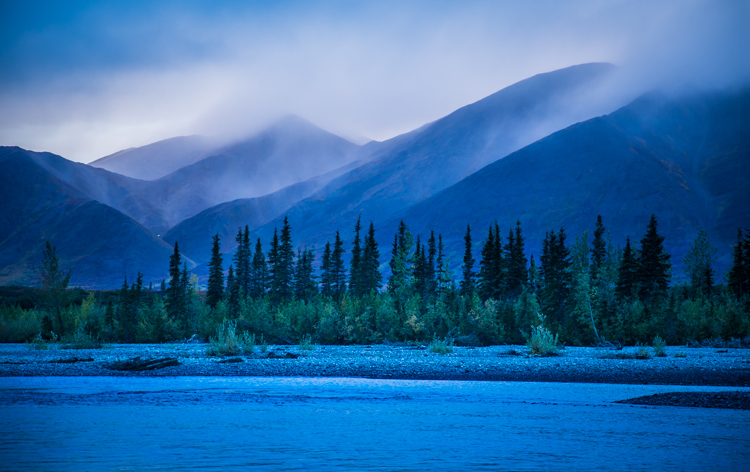
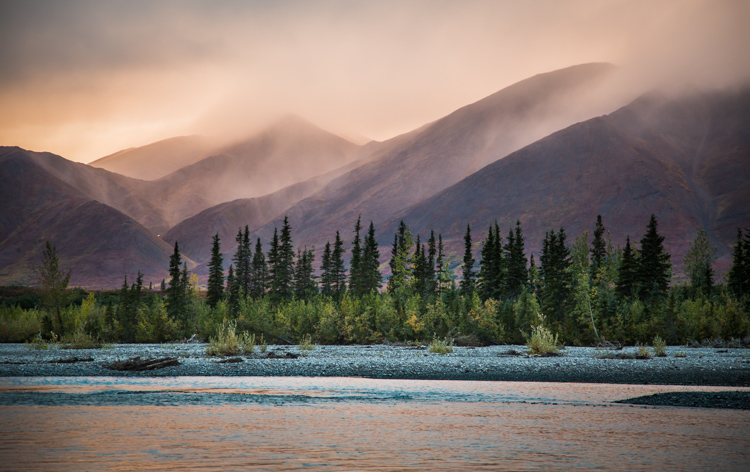
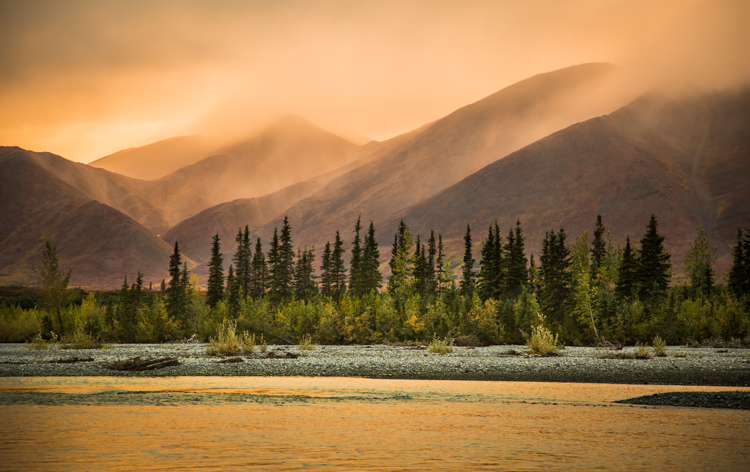
A few years ago I was leading a wilderness/photo tour in the Noatak National Preserve in northwestern Alaska. One evening, an afternoon storm was clearing off the mountains and I went down to the river to make a few images. The light was pink, the rolling clouds and falling rain lit by the low sun.

Below are three versions of the same image with only the White Balance changed. You can see the huge difference made by the shift from warm to cool tones. The bluest image is set 3600K, the warmest to 14750K, and the one somewhere in between is 7000K. In the end, you’ll probably choose an image that is neither overly cool, nor overly warm, but how the White Balance setting changes the feel of the image is worth noting.

White Balance as a Creative Tool

White Balance set to 3600K.

White Balance as a Creative Tool

7000K

White Balance as a Creative Tool

14,750K

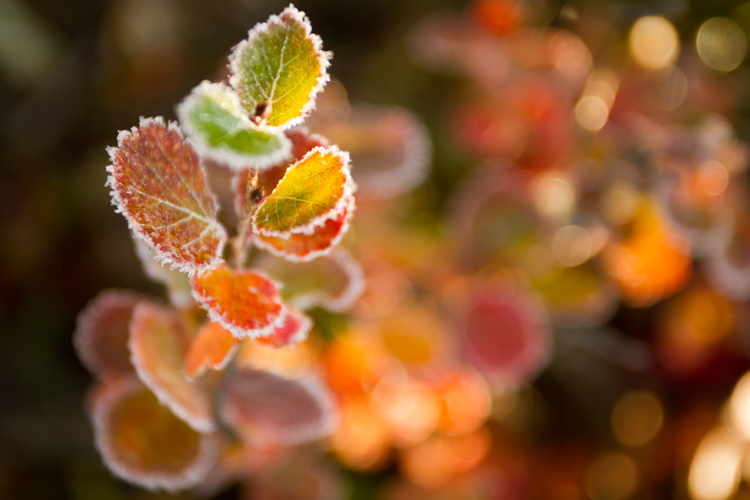
Here is another example using autumn foliage, in this case, a Dwarf Birch in Alaska. The top image is 5050K, very close to what the Auto function on my camera selected, in the second I’ve warmed the image to 9000K. Although I prefer the cooler tones, I could see the second version appealing to editors looking for an autumn spread in a magazine or catalog.

White Balance as a Creative Tool

White Balance set to 5050K.

White Balance as a Creative Tool

White Balance set to 9000K.

Subtle Shifts in White Balance

White Balance as a Creative Tool

White Balance set to 4350K.

White Balance as a Creative Tool

White Balance set to 8700K.

Subtle shifts in White Balance can also be effective, even though differences between images may be less obvious. A change of a few hundred to a couple thousand Kelvin (the K measurement used in White Balance) can make a surprising difference to the impact of an image. In the top photo, I chose a cool setting (4350K) which brings out the cool winter tones. The second is much warmer, set to 8700k, which to me, (aside from being a bit too warm) feels like an evening storm is approaching. Neither is exactly “accurate” to the scene as I saw it, but neither are they necessarily unnatural. I’ll return to this image shortly.

Water

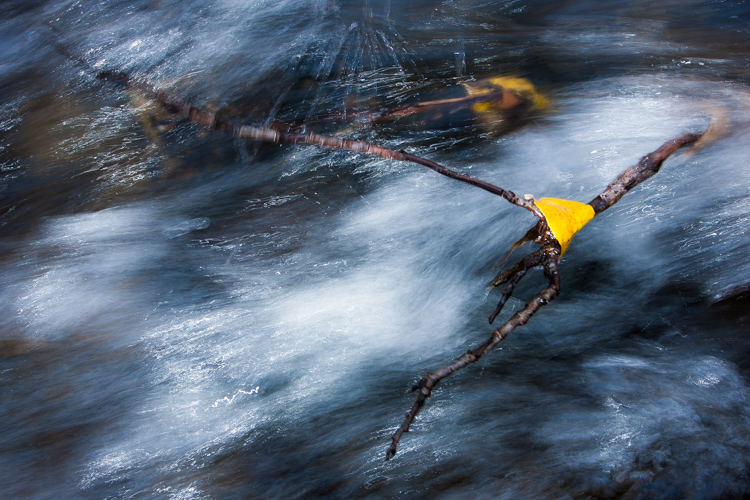
Water strikes most people as a cool substance, and often it looks better when a White Balance with more blue-tone is selected. I made this image on a day with broken clouds, in autumn, in a small mountain range north of my home in Alaska. Tiny patches of the sun were penetrating the yellow, shrubby willows which surrounded this small creek. The yellow leaves and the partially overcast sky gave the scene a notably warm tone which you can see in the top image, set to 4600K (as selected by my camera’s Auto White Balance setting). I think it’s too warm, so just a subtle push to the blue range (4100K) was enough to retain the warm tone in the single yellow leaf but sufficient enough to cool the water.

White Balance as a Creative Tool

White Balance 4600K as chosen by the camera using AWB.

White Balance as a Creative Tool

White Balance adjusted to 4600K in post-processing makes the water feel much cooler.

Sunsets

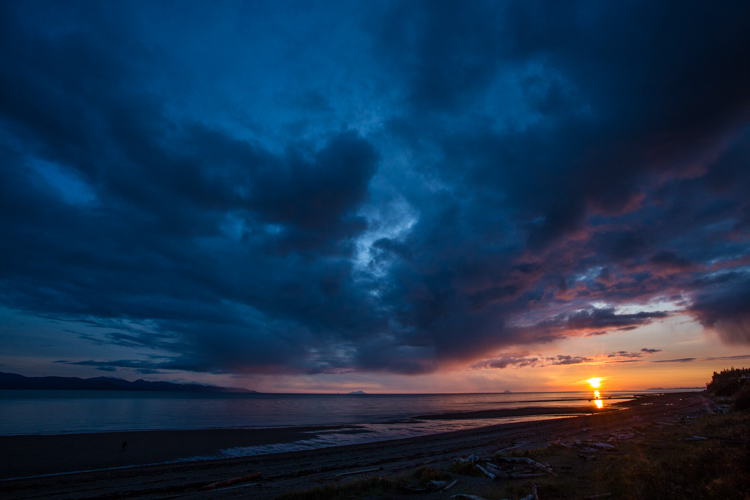
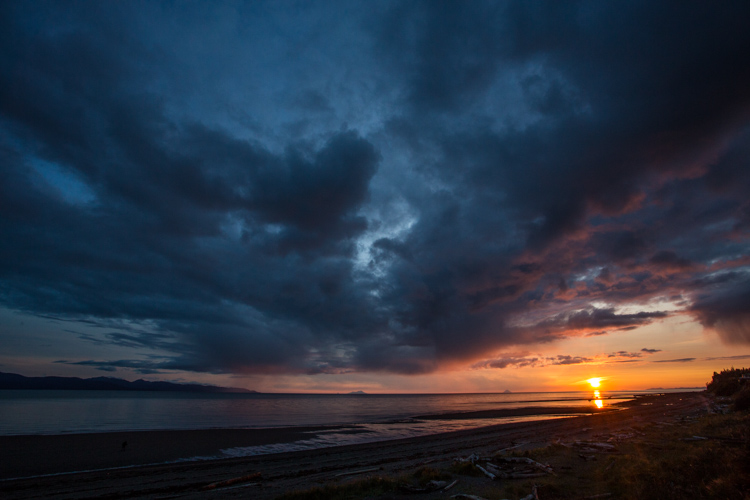
Sunsets too can benefit from a little creative tweaking of the White Balance. From the bluff above a beach in Homer, Alaska, I made the image below. The cooler-toned toned image was shot using Auto White Balance (4600K), while the second I warmed up to 6000K in processing. I like both versions. So you can see that selecting a White Balance is very much a matter of taste, and how you want your image to come across to your audience. Which version do you prefer?

White Balance 4600K as shot using AWB.

White Balance adjusted to 6000K in post-processing.

Selective Changes to White Balance

The great part about digital post-processing is that you don’t have to choose one White Balance or another, you can mix and match. My choice of software, Adobe Lightroom, allows you to use the Adjustment Brush to grab certain parts of your frame, and independently adjust them from the rest of the image.

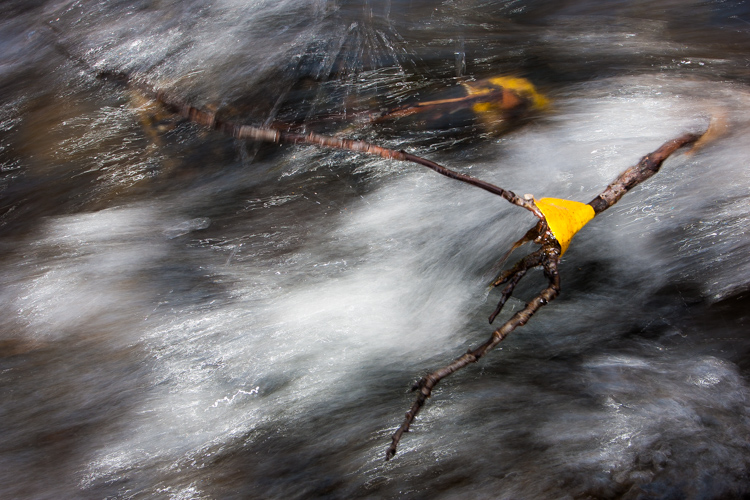
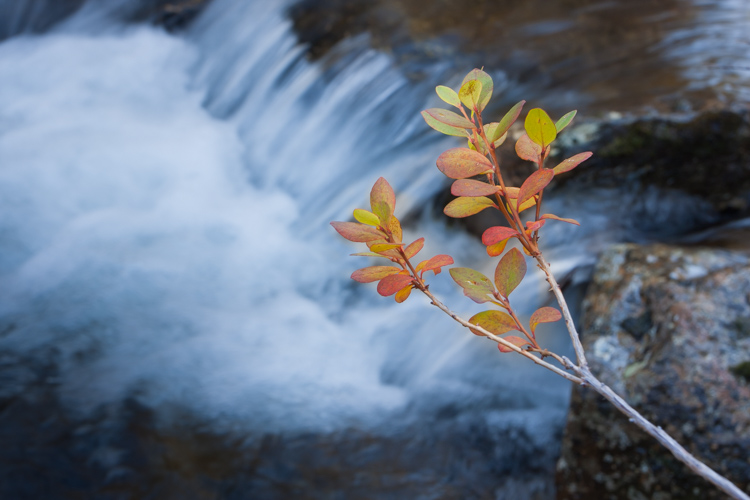
The photo below was made around the same time as the leaf in the stream I discussed earlier. In this case, a global (over the entire image) adjustment made the sprig of autumn colors look too cool and weird, even though the water was about right. So I cooled the whole image off to 3700K, then selected the sprig and bumped the Temperature setting to +35 using the Adjustment Brush.

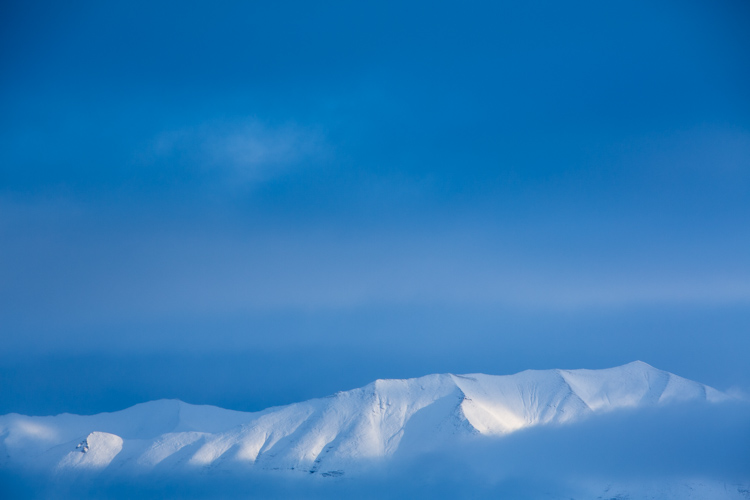
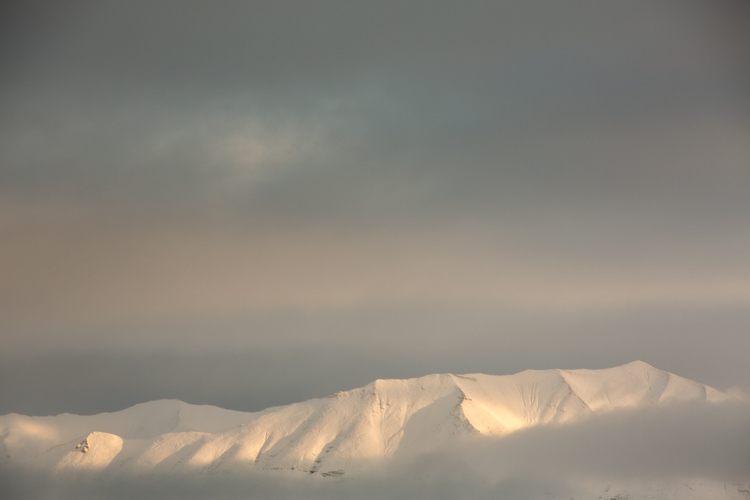
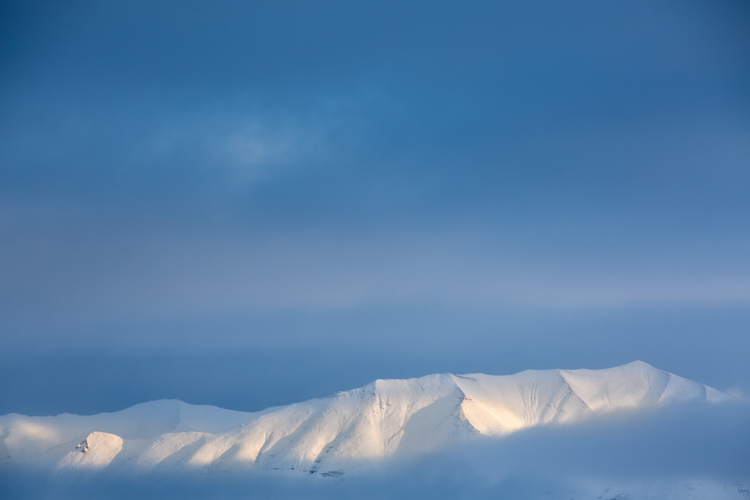
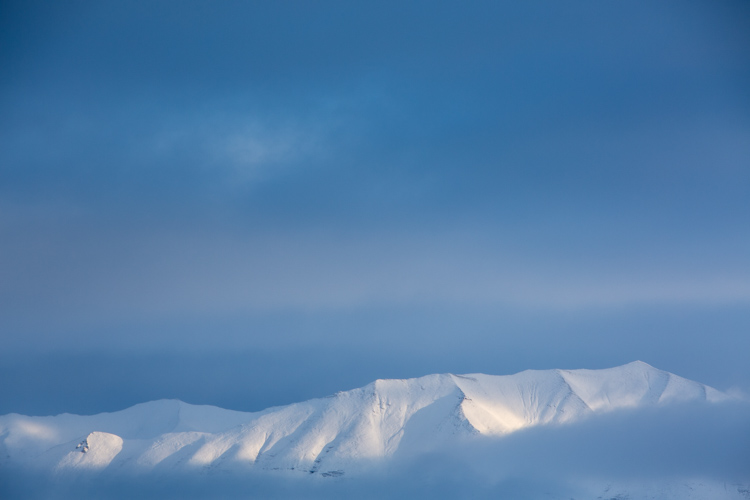
As I was playing with the snowy mountain image I discussed early, I realized I liked neither the blue nor the overly warm version. I thought some combination might work well. So I set the overall tone slightly blue to 5100K and selected just the mountain, where the hint of sunlight was shedding some warmer light and gave that a boost to +23. The result works.

White Balance set to 5100K overall with warmth added to the top of the mountains using the Adjustment Brush.

Compare this version which is at 5000K with no extra adjustments on the mountains. See how subtle the difference is? But the version above feels little warmer in the sunlit areas.

White Balance in Black and White

We think of White Balance as strictly related to color, but in fact, it can play an important role in black and white as well. The White Balance used in your final image can impact cont st, and the way different shades of gray are presented in the final image.

To get the full impact, you need to use that White Balance slider in a big way. That means doing big pushes from warm to cool, not little subtle shifts of a few hundred or thousand Kelvin.

Examples

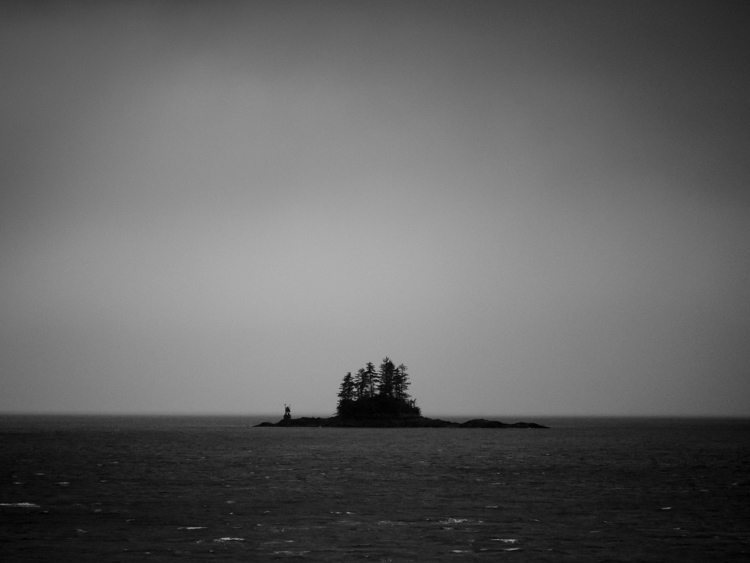
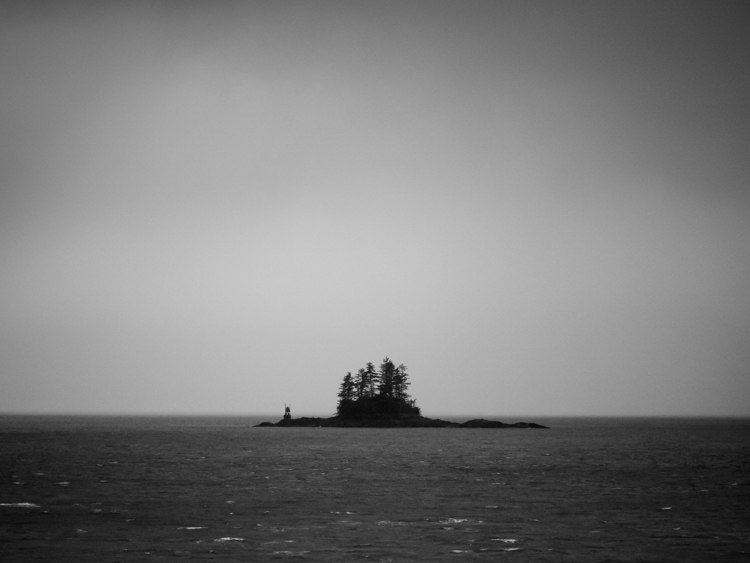
I was on the Alaska Ferry making images on a very gray and rainy winter day when we passed this small speck of an island with a few wind-blown spruce trees growing on it. I knew it was a black and white kind of scene, so I quickly removed the color using Lightroom. When I moved the White Balance to one side or the other it created a big change in the contrast and overall brightness of the photo. The top image is set well to the blue range (3700K) while the second is way over in the warm range (32,700K). You can see how the warm setting removed some contrast and brightened the photo.

3700K

32,700K

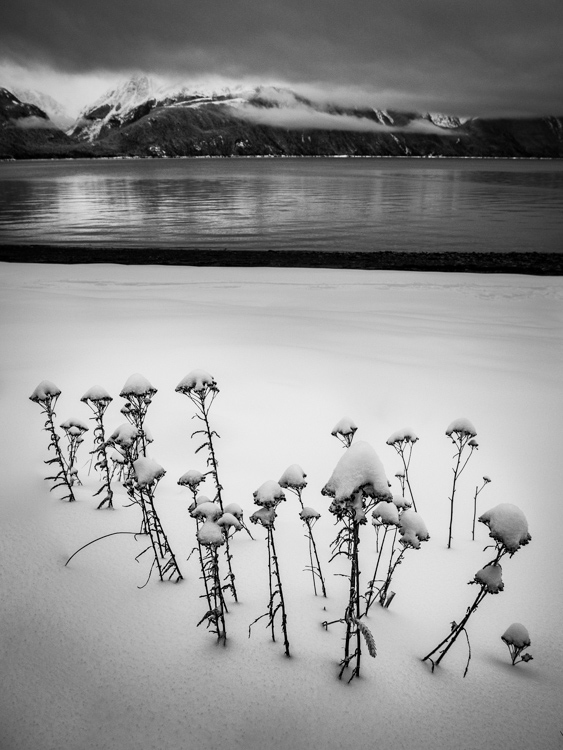
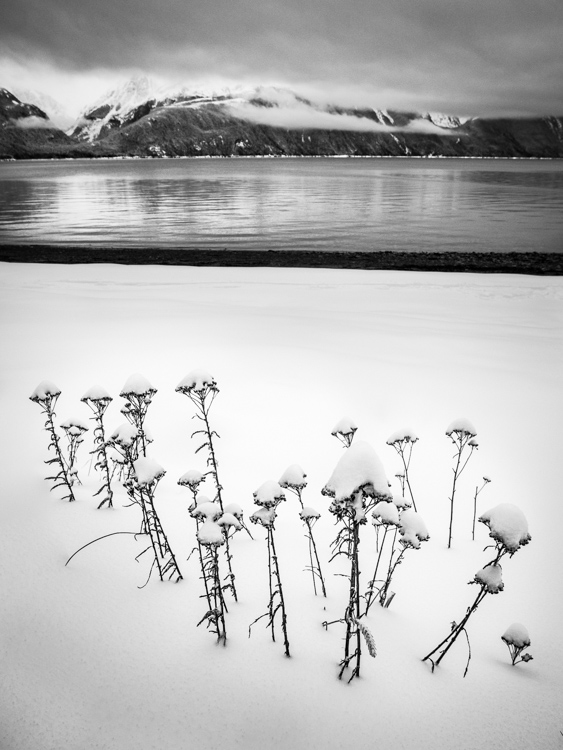
A snowy landscape image on a beach near Haines, Alaska provided another chance to explore how White Balance impacts a black and white scene. The left image is set to 3700K, the right to 35,000K.

3700K

35,000K

Lastly, is this simple composition of a dew-covered spider web. The top image has high contrast, is dark overall, with clean white dew drops and is set 2000K, (as cool as Lightroom will allow). The second is much grayer, with substantially less contrast, and is as high as Lightroom will allow at 50,000K. There is no question, I prefer the first version. But many images, such as the two examples above depend more on personal taste.

2000K

50,000K

Conclusion

It is time to stop thinking of White Balance as strictly a way to accurately present color, and instead, embrace it as a creative tool. Whether it is for dramatic impact, subtle changes, selective adjustments, or even (counter-intuitively) using it in black and white photography – White Balance can play an important part in the outcome of your images. Consider it, use it. Embrace White Balance as more than just a setting.

The post How to Use White Balance as a Creative Tool by David Shaw appeared first on Digital Photography School.


Digital Photography School

 
Comments Off on How to Use White Balance as a Creative Tool

Posted in Photography


How to Understand the Curves Tool in Photoshop

31 Mar

After you’ve mastered Levels, it’s time to take a step up to the tool that is probably the most useful for color and contrast control in Photoshop: Curves. As with levels, you should play around with the basic Curves command to get a feel for it. For safety’s sake, begin by duplicating your background layer, either from the Layer>New Layer from Copy menu, or use the shortcut Control/Command + J. You should make a habit of learning shortcuts because it speeds up your workflow.

The Curves Dialog

Here’s our starting image for this tutorial, shot on a hazy day at Formentor in Mallorca.

How to Understand Curves in Photoshop

Formentor, the northern tip of Mallorca

Use Control/Command + M to invoke the Curves dialog. Taking a look, you’ll see the main part of the dialog is the Curve itself. By default it’s a straight line from bottom left to top right – this is the baseline. There’s faded histogram in the background that corresponds to the tones in the image. There are two other tools to help you work in Curves.

There are two other tools to help you work in Curves. The first is the Channel Overlays, which show you the changes you make when applying curves to the individual red, green, and blue channel curves. The second is Intersection Lines, which appear when you drag a point on the curve. They let you see where the point is relative to the grid. The Channels Overlays, the Histogram, the Baseline, and the Intersection lines can all be turned off in the “Show” section of the dialog box. They’re all on by default.

How to Understand Curves in Photoshop

Another default is that the darker tones are on the left, and the lighter tones are on the right. It can be swapped by clicking the “Show Amount of:” option from Light (0-255) to Pigment/Ink %. Unless you have a specific reason to change it, leave it on the default option Light. The final option is for the Grid. You can change from quarters to tenths by alternating the grid size icon. Alternatively, you can Alt or Option click directly on the Grid to toggle between them.

Starting with Curves

To change the Curve, you click on the baseline to create a control point (we’ll just call them points from here). By dragging the point up, you will lighten the image at those tones and surrounding tone. Drag down, and you’ll see the image darken at the tones around your point.

The most basic change you can make is to click on the center of the curve and drag up. This lightens the mid-tones and acts in a similar way to the Brightness slider, but with more control over the center-point of the effect. By the way, you don’t even need to drag the point. Instead, you can click to create a point and then use the Up/Down/Left/Right arrow keys to move it. A single arrow click moves 1 point (in the range 0-255), while holding the Shift key down as well, moves it 10 points. For utter precision, you can enter the number directly into the Input (that’s the point you click) and Output (that’s the place it moves to).

How to Understand Curves in Photoshop

While it will work as a brightness tool, Curves is really about contrast. Contrast defines the relationship between the tones in your photo. A high contrast image will generally have strong shadows and highlights, with a lot of saturation. Low contrast photos will look flat and almost gray. That’s not to say low contrast is bad, it can be ethereal like the woods in fog, or a flared backlit portrait at sunset. A lot of photos can benefit from an increase in contrast.

So how can you do this? Well, you’ll need to make the shadows darker and the highlights lighter.

Creating Contrast

First of all, click on the line about a quarter of the way in from the left. Next, drag the point you’ve created down. This will darken your entire image. You don’t need to drag it down much to see a difference. After this, you should create a second point, this time about three-quarters of the way along and drag it up a little. Again, only a small amount is needed for this to work.

If you look at your curve, you’ll notice it resembles an S-shape. This S-Curve is probably one of the most common ways for you to create contrast with Curves. Our sample photo has better contrast now, but it is still a little dark, we’ll come to that shortly.

How to Understand Curves in Photoshop

Notice how the line now resembles the shape of the letter S.

As another way of working, start by placing a point in the center. This will be your anchor point. You’re not going to move this one. Now create the point for your shadows and drag it down. You’ll notice that as you drag the shadows down, the highlights will move up automatically across from the anchor point. By clicking and dragging the center up, you both brighten the image and increase contrast. If you want to control the image more, just add more points.

How to Understand Curves in Photoshop

Endpoints and Input

You’re not restricted to making just curves. You can also move the endpoints of the line in. This results in a look that’s similar to when you move the black and white points using Levels. This adjustment makes a huge difference with this image, where most of the tonal information is in the center of the histogram. Notice that as you move the endpoints in the black and white points on the Input Slider move to a corresponding position – so you could also just move these sliders.

How to Understand Curves in Photoshop

Moving the endpoints in curves.

To finish up this look, you can add a little S-Curve after moving the end points. You’ll notice that the increased contrast has also led to increased color saturation.

How to Understand Curves in Photoshop

Erase and Rewind

At any point that you want to start again without closing the dialog and reopening it, you can hold down the Alt or Option key, and click the Reset button that appears instead of the Cancel button.

How to Understand Curves in Photoshop - reset

If you only want to remove a single point, you’ve got a few options. Drag the point right off the grid. Or, you can click on a point and press the Delete key. The last option is to Control/Command+click on a point to remove it.

Presets

Just by way of mention, you should try the Curves presets in the menu to get a feel for what particular points can do to a curve. You can also save any curve you create yourself by clicking on the tiny cog beside the menu and choose “Save Preset”. Your Curves preset will then get added to the menu.

How to Understand Curves in Photoshop

Auto and Options

Just like Levels, there’s an Auto function for Curves. It too depends on the Options section. Rather than repeat it verbatim, go check out the Auto section in the Levels article.

Auto Curves - How to Understand Curves in Photoshop

Using Curves as an Adjustment Layer

Up to now, what you’ve done has been destructive editing. You’re completely changing the layer to which you apply the Curve. Instead, it’s best to use Curves as an Adjustment layer. From the bottom of the Layers panel, click the split circle icon and choose Curves.

How to Understand Curves in Photoshop

The Curve will appear in the Properties panel. Using the information you’ve got so far it should be no problem editing a file like this. I’ve started by pressing the Auto button, then added a curve to both increase contrast and brightness.

How to Understand Curves in Photoshop

Sectioning your photo with Curves Adjustment layers

So far you’ve been using Curves on the entire image. Not all areas in a photo may need the same work, but it’s easy for you to select different areas to work on.

Press L to bring up the Lasso tool, or select it in the toolbar. If it’s not the main lasso, use Shift+L to cycle through the options. At the top, enter 15px in the Feather option. You’re going to select the sky first. In order to draw outside the photo edge, hold down the Alt/Option key. You need to do this so the Feather, which softens the edge of the selection, doesn’t soften the edge of the photo. Join the two ends of the lasso to make a selection.

selection - How to Understand Curves in Photoshop

Now, create a new Curves Adjustment Layer. Notice that the mask beside the curve is white on top, and black on the bottom? That means your curve will only affect the top of the image. White means the effect is revealed, whereas black means it’s concealed. You can use the brush tool to add to a mask or remove from it using a black brush. Shades of gray will work too but act like an opacity control.

You can now go and edit the curve for the sky, separately to the main curve. Another advantage to using Curves as an adjustment layer is you can overdo the look of the curve, and then bring it back using the layer’s opacity slider.

How to Understand Curves in Photoshop

Before Curves adjustments.

How to Understand Curves in Photoshop

Here’s the version after curves have been applied.

The Tip of the Iceberg

Curves is a pretty useful tool and more versatile than Levels for advanced contrast control. You’ve seen a lot of what can be done here, but there’s also the color changes that can be done using the individual color channel curves, but that’s a topic for another article.

The post How to Understand the Curves Tool in Photoshop by Sean McCormack appeared first on Digital Photography School.


Digital Photography School

 
Comments Off on How to Understand the Curves Tool in Photoshop

Posted in Photography


How to Use the Levels Tool in Photoshop

22 Feb

Photoshop is a pretty daunting program when you’re beginning. So this is the first in a series of articles to bring you up to speed on some of the most useful tools to you as a photographer for editing and correcting your photos. If you’ve been a Lightroom only user, and are a CC subscriber, do follow along to start your journey into Photoshop. In this article, you’ll learn how to use the Levels tool, along with Auto Levels and learn to set up Auto Levels to suit your personal preference for the tool’s response.

You’ll also take your first step with Layers by using a Levels Adjustment Layer right at the end. But first, we’ll talk a little about Histograms.

The Histogram

A Histogram is a graphical representation of the colors and tones in your photo. The bottom axis shows the range of brightness in the image from dark to light. The side axis shows the strength a given tone has at that particular brightness. Typically you’ll hear people say that the bulk of tones should be in the middle, but that’s not exactly right. A night scene of stars will have the bulk of the tones in the dark region, with a spike at the top. Same for a dark product shot on a white background.

How to Use the Levels Tool in Photoshop

How to Use the Levels Tool in Photoshop

Histogram of a high key (light) image.

High Key shots will tend to have more information on the right of the histogram, while low key portraits will have them mostly to the left.

In general, most images will have information throughout the range of tones. When they don’t, but should, that’s where the levels tool comes into play.

Levels

To begin, you can use the keyboard shortcut CNTL/CMD+L, or choose Levels from the Image>Adjustments Menu. This is a destructive version of the tool, so it will throw away pixels. You won’t be saving this file, so it’s okay for now.

How to Use the Levels Tool in Photoshop

I’m using an image that I know is underexposed (you can tell by the histogram below as it doesn’t touch the right-hand side of the graph). Let’s look at what’s in your Levels tool dialog.

How to Use the Levels Tool in Photoshop

Preset:

You can save settings as a preset to reuse again quicker, there are a few default ones that ship with Photoshop. You can choose these presets and see both the effect and what’s been done to get it.

How to Use the Levels Tool in Photoshop

Level presets that come with Photoshop.

Channel

As well as the overall tone channel (RGB), you can select the red, green or blue channels separately. This will change the color balance of the image and you can use it to fix white balance issues or to creatively manipulate the look of the photo. For now, you’ll just be using the RGB channel.

How to Use the Levels Tool in Photoshop

Input Levels

This shows the histogram with three triangles (see above). Each triangle has a number below it (the defaults are set at 0, 1.00 and 255). You can edit these points by dragging the triangle along the histogram. They have names too. The leftmost is the Black Point, which controls the darkest tones in the image. The centre one in the Mid-tone Point, while the top is the White Point, or brightest tone in the image.

If you move the Black Point to the right, all tones to the left of the new position are rendered as pure black pixels. If you move the White Point to the left, this means that any pixel to the right of the new position will be rendered as white. Moving the Midpoint, (also referred to as the Gamma) it will shift the histogram the same direction effectively lightening or darkening the mid-tones. Left will lighten the mid-tone, while moving it to the right will darken. You may also have a perceived change in contrast as some tones at the extremes are compressed.

Output Levels

You can dictate the brightest or darkest point allowable in the image using these sliders. In general, you won’t use these as much as input levels.

Buttons

OK applies the Levels change. Cancel ignores any changes. We’ll look at Auto and Options separately. The Eyedroppers allow you to select the Black, Mid-tone, and White Points by clicking on specific parts of the photo. Preview allows you to see the changes you’re making on the image before applying the effect.

In Practice

Now that you know what the bits do, let’s look at them practically. You can see there’s a huge gap between the ends of the mountain in the histogram below and the White Point slider. By moving the White Point to the left, you can brighten the image and fix the underexposure.

How to Use the Levels Tool in Photoshop

Original histogram – notice the gap between the end of the mountain and the right-side of the chart? This indicates underexposure and is easily fixed.

How to Use the Levels Tool in Photoshop

Here the White Point has been moved to the left to touch the bottom of the mountain. This will give the image brighter tones and pure white.

By holding the Alt/Option key as you slide, you also see a heat map that shows where and clipping (pure white with no detail) occurs. For the White Point, the screen goes black, and the clipped areas show as color. For the Black Point, the image goes white, and again, the clipped areas show as color.

How to Use the Levels Tool in Photoshop

Holding Alt/Option while moving the slider, you can see there are some areas being clipped in the highlights. Move the White Point slider back to the right until they disappear in order to have detail in all areas of your highlights.

Here’s the result:

How to Use the Levels Tool in Photoshop

Fixing overexposure

If your image is overexposed (but without the highlights clipping in important areas), you need to do the opposite. In this case, you bring the Black Point up to fix the issue.

How to Use the Levels Tool in Photoshop

See the different left to right here? There is no black in the image on the left.

Low contrast

Another possibility is the detail is all in the middle of the histogram (low contrast or flat image). In this case, you need to move the sliders in from both ends. Notice the increase in contrast between the two photos.

How to Use the Levels Tool in Photoshop

How to Use the Levels Tool in Photoshop


How to Use the Levels Tool in Photoshop

By moving the Black Point to the right and the White Point to the left the contrast has been increased in this image.

While you’ve seen what changing the black and white points can do, you should also know that moving the midpoint will allow you to brighten (by moving to the left), or darken (by moving to the right) the mid-tones in your photo.

Auto Levels

Auto Levels, as the name suggest, will do this for you automatically. How Auto Levels responds depends on the settings in the Options section. These have changed with time as well, so you may not be aware of this. Press Auto Levels for this to work.

How to Use the Levels Tool in Photoshop

Original image.

How to Use the Levels Tool in Photoshop

After Auto Levels has been applied.

Options

To change the Auto Levels default settings you use the Options button.

Enhance Brightness and Contrast

The default option is Enhance Brightness and Contrast, which uses the external Brightness and Contrast tool to get a good rendition of the file. This is the look in the version of the photo above.

Enhance Monochromatic Contrast

The top option, Enhance Monochromatic Contrast is closer to what you’ve done manually in the previous section. Here’s what it looks like (starting from a fresh version of the file). First the settings in Options.

How to Use the Levels Tool in Photoshop

This results in the following, more dramatic, look.

How to Use the Levels Tool in Photoshop

Auto Levels with the default set to Enhance Monochromatic Contrast.

You can also automatically fix the color by clicking the “Snap Neutral Midtones” checkbox.

You’ll notice that the shadows are more than a little crushed in these images, though. That’s because of the mix of the swatch settings and the clip settings below. Clicking on the swatch gives Photoshop the base color for your blacks, neutrals, and white. In general, these should be black, mid gray, and white, but you could set them to suit tasks like having pure white below 255 to render something when printed, instead of paper white. For now, you should leave these at the defaults.

To prevent pure white and pure blacks being so deep, you need to back off the clipping settings. Put them at 0%.

You’ll notice the reduction in the blacks from this adjustment immediately. If you prefer the drama, leave the black clipping at 0.10%.

You can have your images render this way automatically by ticking the “Save as Defaults” checkbox.

Enhance Per Channel Contrast

This setting emulates you going in and setting each channel separately to get the white and black points to the edge of information for each color channel.

How to Use the Levels Tool in Photoshop

This has the effect of changing both the contrast and the color of your photo as seen below.

How to Use the Levels Tool in Photoshop

Find Light & Dark Colors

This option is used by the Auto Color command. It finds the average lightest and darkest pixels in your photo and uses them to get the best contrast while avoiding clipping.

Each person will have their own preference for which looks best on their photo. So choose the option you prefer the most and save it as the default. Now when you use Auto Levels, it’ll give you a quick fix when you need to get done in a hurry.

Levels Adjustment Layer

Everything you’ve done so far has been destructive editing. You’ve been throwing away pixels, which affects the quality of the photo. Have a look at the histogram in Levels when using the Enhance Monochromatic Contrast option.

See all those gaps? That’s information you’ve thrown away. If you change your mind, you’ve got nowhere to go, you can’t get that information back. There are ways to prevent this of course. You could, for instance, duplicate the layer (CTRL/CMD+J) and work on that. But you have an even better option; the Levels Adjustment Layer.

At the bottom of the Layers panel is the Adjustment Layers option. It’s a circle that’s half black and half white.

Click this to bring up the available Adjustment Layers and choose Levels. (Note: you can also open the Adjustments panel by going to: Window>Adjustments and then find the levels option, it’s the one that looks like a graph right after the sun icon).

The Adjustments panel – Levels is the second one on the top row.

A new layer, called Levels, will appear in your Layers panel. The controls for Levels don’t show as a dialog, they’re now in your Properties panel.

How to Use the Levels Tool in Photoshop

If you can’t see the Layers or Properties panel, you can turn them on in the Window menu. Using the Properties panel, set your Levels. If you’re not happy you can just change the settings as often as you like, without degrading the image like repeated use of the normal Levels tool would.

For the plane photo, I used Auto, which had Enhance Monochromatic Contrast, with 0% clipping, and Snap Neutral Midtones on, as the Default. I then brightened the image using the Midtone, set to 1.15.

Levelled Off

Right folks, so that’s been a look at the Levels tool in Photoshop. It’s one of the most fundamental photo tools in Photoshop. I actually think it’s a shame that Lightroom doesn’t have equivalent options in the Basic panel that emulate the options available in the Auto options (Aperture had buttons for both Monochromatic and Per Channel Auto Levels for example).

Give the tool a try, especially if you’re just starting to come to grips with Photoshop.

googletag.cmd.push(function() {
tablet_slots.push( googletag.defineSlot( “/1005424/_dPSv4_tab-all-article-bottom_(300×250)”, [300, 250], “pb-ad-78623” ).addService( googletag.pubads() ) ); } );

googletag.cmd.push(function() {
mobile_slots.push( googletag.defineSlot( “/1005424/_dPSv4_mob-all-article-bottom_(300×250)”, [300, 250], “pb-ad-78158” ).addService( googletag.pubads() ) ); } );

The post How to Use the Levels Tool in Photoshop by Sean McCormack appeared first on Digital Photography School.


Digital Photography School

 
Comments Off on How to Use the Levels Tool in Photoshop

Posted in Photography


Study finds consumers are ready to embrace selfies as a tool

27 Jan

For some, selfies are a form of self-expression. Others find them annoying. But one thing is certain: they won’t go away anytime soon. A Sony-commissioned study has found that the top ten future uses for smartphone cameras will include banking, shopping, healthcare and dating. The study finds that over a third of consumers would feel more secure if banks used selfies as passwords and a quarter would prefer to see their general practitioner via a selfie or video call than in-person.

The study was undertaken by futurologist organization Futurizon with the market research company OnePoll who conducted data research and surveyed 6500 people across the UK, Germany, France and Spain.

The report identified the top ten ways consumers believe selfies could be used in the next five years:

  1. Dating: Taking a selfie with your date to find out what they really think
  2. Medical: Over a quarter of people would prefer to see their GP via a selfie or video call, in the first instance
  3. Banking for the selfie generation: Nearly half of 25-34 year olds would feel more secure if accessing their bank through a ‘selfie password’
  4. In leisure: Around half of thrill-seekers would like to try a ‘selfiecoaster’ – a rollercoaster that puts you in control of capturing your experience on the ride
  5. In a gym / fitness: selfies that work with AI (Artificial Intelligence) to capture body monitoring e.g. testing heart rates and even suggesting how to improve on technique and how accurately a move is being performed
  6. Made to measure clothes: taking a 3D body image for made-to-measure clothes
  7. In retail: using your smartphone camera to try on different outfits suited to your body shape, at the touch of a button
  8. Social currency: paying for entry to the cinema or a tourist attraction through a selfie
  9. Robots: Using your smartphone to control drones or robots to take selfies from other or extreme locations
  10. Home: Using selfies to secure and access our homes and cars

Dr Ian Pearson, Futurologist and creator of the Future of Selfies report said, “The results clearly show that selfies are well on their way to transitioning from frivolous fad to technological phenomenon, and provide food for thought to a number of industries. The potential is huge, and it will be exciting to watch this unfold over the coming years.”

Most of the selfie applications described above seem technologically possible today. So, if there’s a market for them, we’ll probably be able to use them at some point in the short to medium term.

Would you be interested in using selfies in any of the ways listed above? Let us know in the comments. 

Articles: Digital Photography Review (dpreview.com)

 
Comments Off on Study finds consumers are ready to embrace selfies as a tool

Posted in Uncategorized


Handy tool helps you say no to work for ‘exposure’

16 Dec

Graphic designer Jessica Hische has developed a tool to help creatives respond to requests for work. Made with designers in mind, photographers who are frequently asked to work ‘for exposure’ or very little pay might find it appealing too. The choose-your-own-adventure style tool helps you build a letter based on the client and the proposed budget – none, very low or good. It will also help you negotiate other tricky situations like an ambiguous timeline or very quick turnaround. 

Hische’s tool creates a letter that’s polite but firm, and more than just saying ‘no,’ aims to inform the asker why creative professionals must insist on being paid for their work. It also offers terms for taking on no-budget projects for charities and friends. 

Articles: Digital Photography Review (dpreview.com)

 
Comments Off on Handy tool helps you say no to work for ‘exposure’

Posted in Uncategorized


Canon EOS M5 added to studio scene comparison tool

08 Dec

The EOS M5 is Canon’s current enthusiast-grade mirrorless camera. With a 24.2MP APS-C sensor, Dual Pixel autofocus and a pleasant-to-use interface, the M5 is the most competitive EF-M camera Canon has released.

We’ve put a production EOS M5 through our studio scene so you can see how it compares with its peers. Note that we’ve used a different lens on the M5 compared with the M3; we may re-shoot the scene in the future for the sake of consistency.

View the Canon EOS M5 in our studio scene comparison tool

Articles: Digital Photography Review (dpreview.com)

 
Comments Off on Canon EOS M5 added to studio scene comparison tool

Posted in Uncategorized