RSS
 

Posts Tagged ‘Tips’

5 Quick Tips for Coastal Photography

27 Nov

There’s nothing like a great coastline to get me excited about photography. Whether it be unmarked sand dunes, sea grasses blowing in the sea breeze, rugged outcrops of rocks and cliff faces or a beach scene complete with all the color of families on their day at the beach – coasts can present photographers with some great opportunities.

Here’s 5 tips for your next coastal photography outing!

1. Look for Reflections

Image by midlander1231

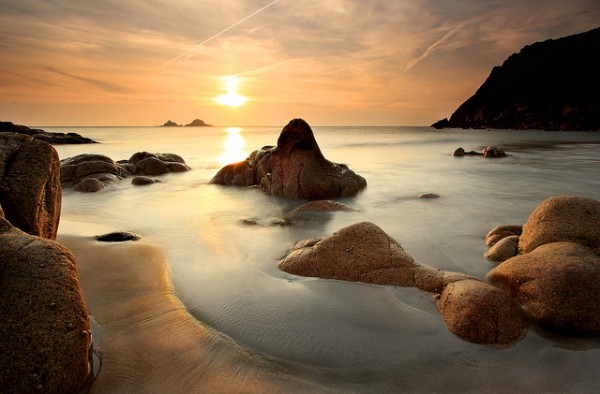
Any time you’re shooting around bodies of water you should be aware of the potential for enhancing your image with reflections. This is particularly relevant when shooting at sunrise or sunset where your images can be brightened and have interest added to them by reflecting those pretty pinks and oranges in the water before you.

2. Focus in on Details

Image by Max xx

What often grabs your attention most on coastal shoots is the grandeur of the landscape – so it’s easy to overlook what might be at your feet as you’re lining up your shot. The coast is full of smaller opportunities for amazing shots – whether it be sea shells on the waters edge, the footprints of an animal in the sand, small wild flowers growing in the dunes or patterns in rock formations. Take the time to look around you at the detail of what surrounds you. Oh… and don’t forget your macro lens!

3. Add Foreground Interest

Image by Kyle Kruchok

When shooting seascape shots its very easy to end up with images that contain few focal points of interest (ie: shots that are half sky and half sand). One way to add interest to these shots is to look for opportunities in the foreground of your shots. If you’re able to place something interesting in the foreground (perhaps some interesting rock pools) you’ll lead the eye into the image. When doing this test shooting from different heights – sometimes getting down quite low and will add more interest to the shot while sometimes a higher vantaage point might work better. Also remember that if you want the foreground and background to be in focus that you’ll want to shoot with small aperture (high f numbers).

4. Slow things Down

Image by Matthew Stewart

Another way to add interest and atmosphere to seascape shots is to slow your shutter speed down so that blur any part of the image that is moving. In this way you might get a misty looking sea that captures the movement of waves or a furry carpet of swaying sea grasses. Of course to do this you’ll want to shoot with a tripod to make sure your camera is perfectly still.

5. Horizons

Image by Garry

Two last tips when it comes to horizons. Firstly – make sure they’re horizontal with the framing of your image. There’s nothing like a horizon that slopes unnaturally down at one edge of the frame to make those looking at your shot a little sea sick. If you’re going to break this ‘rule’ – break it well and make it an obviously intentional thing. Secondly – the convention is to avoid placing your horizon in the middle of your frame but rather to position it nearer one of the thirdway points (depending upon whether there’s more interest in the sky or foreground of the shot). Of course ‘rules’ are made to be broken but for balanced shots keep these in mind.

Post originally from: Digital Photography Tips.

Check out our more Photography Tips at Photography Tips for Beginners, Portrait Photography Tips and Wedding Photography Tips.

5 Quick Tips for Coastal Photography


Digital Photography School

 
Comments Off on 5 Quick Tips for Coastal Photography

Posted in Photography


1 CHICK LOTS OF TIPS!!!!!!!

27 Nov

WATCH FINISHED VIDEO HERE: bit.ly ****************** Enter the Nikon Festival contest to win a chance at 0000 plus a brand new Nikon camera 🙂 Leave a comment on my video at their site and let me know if you liked it! ..and if you didn’t, just remember.. somewhere a kitten is crying and it’s all your fault. ****************** READ MY FULL BLOG ENTRY FOR MORE TIPS: ijustine.com Some wise youtubers once told me that if you put chicks in the title.. more people click Oooh youtube, I love you! Let me know what you think and leave questions in the comments! I’ll be answering as many as I can 🙂
Video Rating: 4 / 5

 
Comments Off on 1 CHICK LOTS OF TIPS!!!!!!!

Posted in Nikon Videos


5 Uncommon Snow Photography Tips That Can Transform Your Winter Scenes.

24 Nov
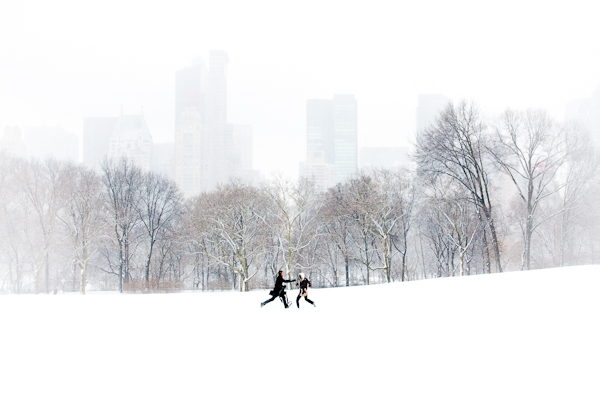
Couple in Sheep Meadow, Central Park

Couple in Sheep Meadow, Central Park

It’s that time again when we get to burn off those holiday pounds by trudging through the snow to capture those stunning winter shots.  I’ve got a few extra ones this year, so you’ll see me out there a bit more than usual.

In this article, I want to share with you a few, fairly uncommon tips that I often use, which can make the difference between an average snow photo and an epic one.  Do you do any of these things?

1.  Use a Reverse, ‘White’ Vignette.

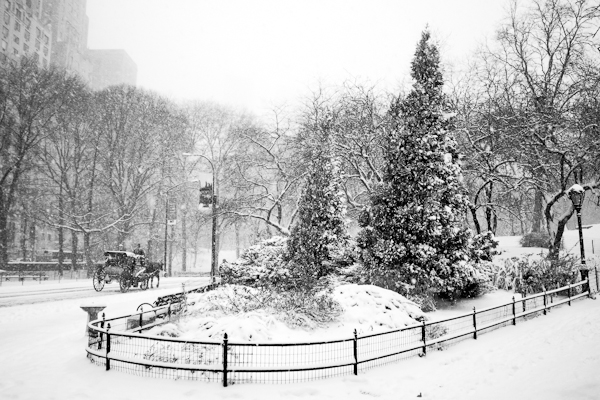
The purpose of a vignette is to keep the eyes from falling off the edge of an image and to lead the eyes back to the center of it.  With the amount of white and grey in snow photos, you generally can’t use a traditional dark vignette, since it will be too obvious and look out of place.

So use a white one!  White vignettes can add a magical quality to snow photographs and can further enhance the middle-of-the-storm effect.  Adobe Lightroom is the tool I use to add my vignettes and it works well.

This is such a simple tip, but it can make all the difference, as seen in the photo above.


Brooklyn Bridge at Sunset, During Snowstorm

Brooklyn Bridge at Sunset, During Snowstorm

2.  Colorize and Add Contrast (Lots of it).

I’m usually one to hold back a bit when retouching photos, but for winter captures I often throw all of that out the window.

When you photograph in the middle of a snowstorm, the photos will often come out grey and lack contrast and will have the streaks of snow that will give the capture a painterly texture and quality.  Use this quality to your advantage and enhance this look by increasing the contrast and saturation to help the photo become even closer to the look of a painting.  Over-saturating photographs is generally a bad idea, but for snowstorm scenes it can be a great one.

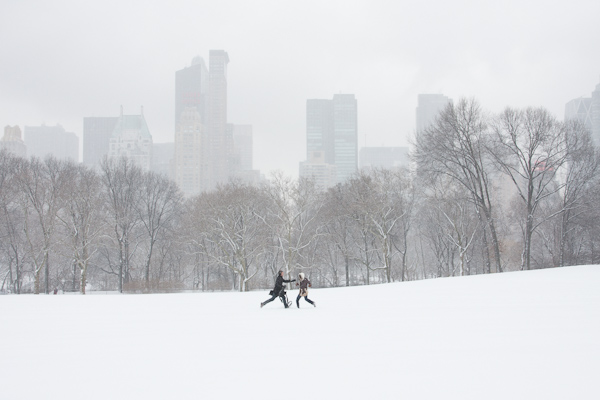
Compare the untouched negative below to the print at the top of the post.  Enhanced color, added contrast, and a white vignette were pretty much all that was needed to completely transform the scene.

Couple in Sheep Meadow, Original Negative

Couple in Sheep Meadow, Original Negative

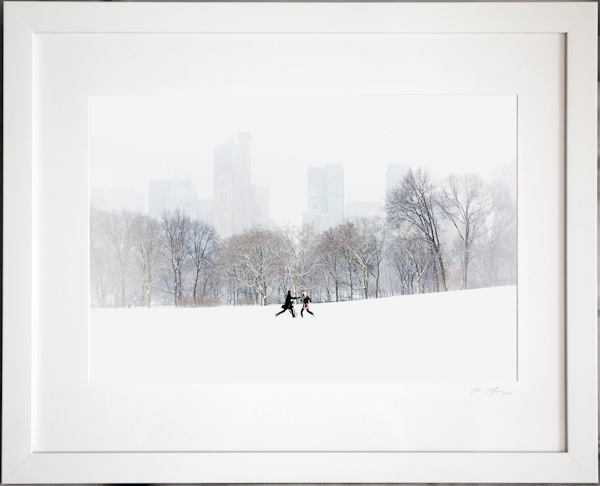
3.  White Mat, White Frame.

If you’ve got a photograph with a lot of white snow and especially one where you have add a white vignette, further emphasize the look by adding a white mat and white frame to it.  The frame will merge to become part of the effect.

Couple in Sheep Meadow, Framed

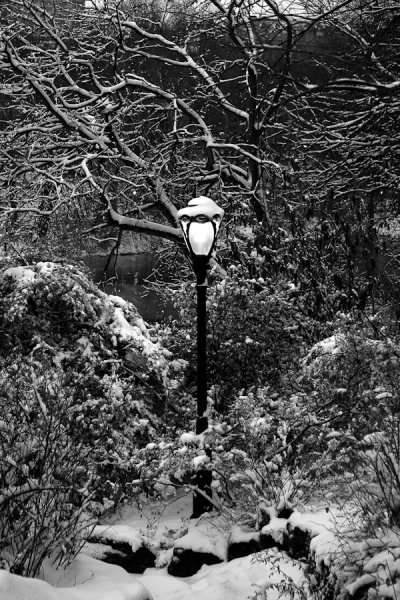
4.  Photograph at Dusk and into the Night to Create Menacing Winter Scenes

Snow doesn’t only have to be portrayed as friendly, peaceful, and simple.  It can often have a dark and menacing feel when captured in the right way, particularly at dusk or night.

When the light levels go down, the contrast between the white of the snow and the dark of everything else becomes further emphasized.  This can lead things like tree branches to look like tentacles or mangled fingers swirling through the scene.  The contrast between the beautiful quality of the snow and the menacing quality of the scene is unique and different.

Lamppost at Dusk, Central Park

Lamppost at Dusk, Central Park

5. Use HDR

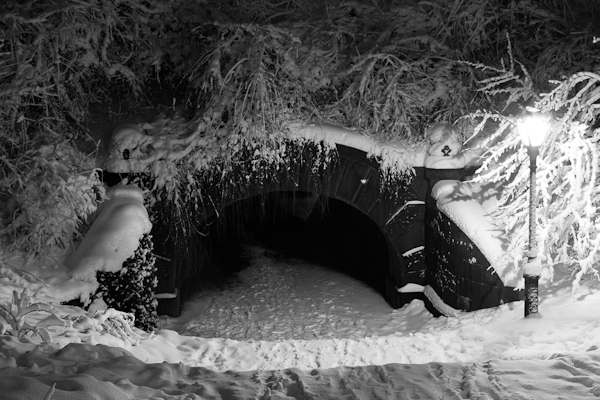
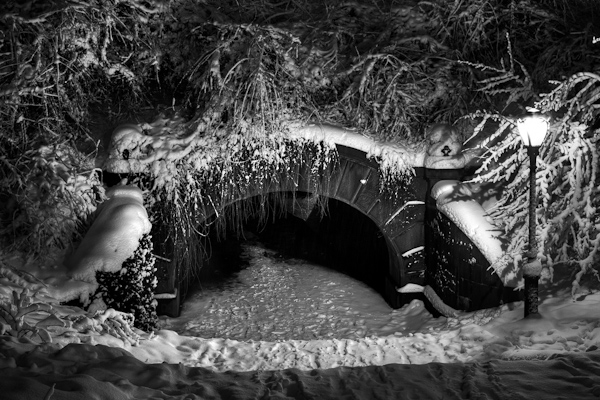
I’ll admit, I don’t typically do much HDR.  However, I do use it sometimes for black and white photographs and particularly for black and white snow photos.  I prefer to use HDR with black and white scenes because it can add that great, textural HDR quality, without the unrealistic HDR colors.  Depending on the lighting, snow can often lack texture, and the difference between the bright whites and deep shadows within these scenes can be so pronounced that it just doesn’t work well.  For scenes like this, HDR is the perfect tool to make them work.

Here is a before and after, made with Photomatix, to show you an example.

Central Park Tunnel at Night

Central Park Tunnel at Night, Original Negative

Central Park Tunnel at Night, HDR

Central Park Tunnel at Night, HDR

And don’t forget a sled!  Here are a few more snow photographs to take a look at.

Happy trudging!

Stuck Cab, 5th Avenue

Stuck Cab, 5th Avenue

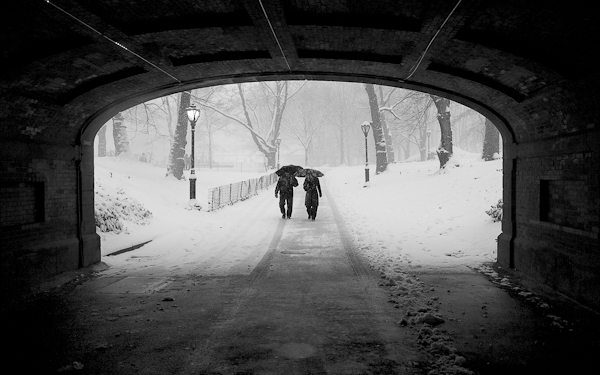
Couple in Snowstorm

Couple in Snowstorm

Carriage and Trees

Carriage and Trees

Post originally from: Digital Photography Tips.

Check out our more Photography Tips at Photography Tips for Beginners, Portrait Photography Tips and Wedding Photography Tips.

5 Uncommon Snow Photography Tips That Can Transform Your Winter Scenes.


Digital Photography School

 
Comments Off on 5 Uncommon Snow Photography Tips That Can Transform Your Winter Scenes.

Posted in Photography


Do Good with your Camera Street Photography tips. John Free

23 Nov

To learn more about John Free: www.facebook.com To inquire about a John Free Street Photography Workshop email John directly to johnnienikon@yahoo.com

 
Comments Off on Do Good with your Camera Street Photography tips. John Free

Posted in Photography Videos


DSLR Tips: How To Attach A Lens

23 Nov

I am starting a new series giving beginners tips on how to use their DSLRs. In this video: How to attach a lens. Keep in mind that this is on my Rebel T1i, so if you have a different camera, make sure to apply my directions and compare them to your manual so that you don’t break anything.

 
Comments Off on DSLR Tips: How To Attach A Lens

Posted in Nikon Videos


Documentary Photographer Daniel Milnor Photography Tips and Advice

20 Nov

www.silberstudios.tv Documentary photographer Daniel Milnor joins us today on the Marc Silber show to talk about his approach to photography and the work he loves to do. He loves focusing on documentary work, especially long-term black and white documentary projects, both domestically and internationally. In the field, Dan uses a very stripped down system of equipment. He often works with a single camera and a lens and occasionally mixes cameras and formats only when he teaches. Typically, he advises against mixing formats, such as color and black & white photographs. You only have a split second to catch an image when analyzing a scene, and having too complex a set-up may cause you to miss the moment. Developing the idea of a project’s story is crucial, so he always does his research beforehand. Nowadays, it is easy to do documentary work by going out into the field and winging it, but when you have a theme in mind, it’s better to perform research for a more complete picture. BTW, a big thanks you to the folks at Calumet San Francisco for helping us out with the shoot. Thanks to WPO for their assistance with the interviews.

 
Comments Off on Documentary Photographer Daniel Milnor Photography Tips and Advice

Posted in Photography Videos


Editing Software Tips For Beginners – Digital Photography Lessons by Berger Bros Camera

19 Nov

www.Berger-Bros.com One of the things that has made digital photography fun is the ability to use editing software to play around and do fun things with your photos. A big question for beginners is what digital editing software to use. Yvonne Berger, one of the instructors at Berger Brothers Camera in Amityville and Syosset Long Island, NY, warns that, for beginners, it is a mistake to go out and buy a whole bunch of software. She explains that a good program to start with (for MAC users) is iPhoto…because it’s very user friendly. However, if you’re on a PC you should start with Picasa. The next level of software would be the program Adobe Photoshop Elements. In fact Yvonne teaches an excellent 4 week course on Photoshop Elements which you can learn more about here: www.berger-bros.com
Video Rating: 4 / 5

The Pixel Racing Harness V2.0 is designed to distribute your equipment’s weight between your shoulders and hips. The rear quick release buckle is a new feature added to V2.0, making it a snap to attach the harness to any Think Tank Belt. Attaches to Pro Speed Belt, Thin Skin Belt, and Steroid Speed Belt Lightweight and compressible Foam padded Two stretch pockets Fully adjustable D–Rings to attach accessories One size fits all
Video Rating: 5 / 5

 
Comments Off on Editing Software Tips For Beginners – Digital Photography Lessons by Berger Bros Camera

Posted in Nikon Videos


5 Tips for a Faster Lightroom Workflow

17 Nov

At a recent workshop I joined, several of the attending photographers expressed frustration with the slowness of Lightroom, and were surprised to see how quickly I am able to process my photos in Lightroom. So I thought I’d share some of the workflow tricks that I’ve picked up over the last few years that have helped me get faster in Lightroom.

In addition to specific workflow practices, there are also some important configuration changes you can make to optimize Lightroom performance. However, in this post I will focus on workflow technique, not application configuration. Check out this post for more information on configuring Lightroom for optimal performance.

Note: The tips and screenshots in this article are from Lightroom 4.2, but most of these ideas are also applicable to older versions of Lightroom.

Let’s get on to the tips.

1. Start with Spot Removal, and use the 2003 process

As you begin to stack up edits in Lightroom, some of the tools get slower and slower. This is the nature of nondestructive editing. None of your edits have changed the underlying image data, so the more you do with an image, the more work your computer has to do to update the preview of your image in real time as you move sliders or work with other controls.

I’ve found this phenomenon to be the most annoying when using the Spot Removal tool to retouch portions of an image. Using the Spot Removal tool at the end of your workflow can be painfully slow. To address this, I’ve formed the habit of always doing spot removal first, before applying any other edits to an image. This is much faster, and there is also a creative advantage to removing the small distractions, before you go on to more serious editing work.

To further improve the performance of the Spot Removal tool, you can change to the “2003 Process.” This is especially helpful if you have an older computer. The process version is the algorithm that Lightroom uses to decode your Raw image file and display it in the Develop Module. Different process versions give you different options in the Development Module, with significant improvements in the later versions. The 2003 Process is the most basic, and therefore the fastest. The 2012 Process gives you much more flexibility, but is more resource intensive and forces your computer to work harder.

Check out this post for more information on process versions.

The process version setting is in the Camera Calibration section of the Develop Module:
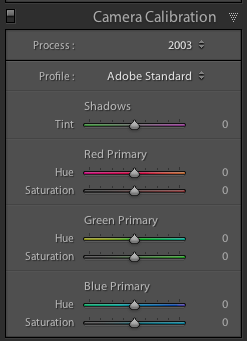
screenshot showing Lightroom Camera Calibration Settings

In my own workflow, especially for portrait retouching were I use the Spot Removal tool extensively, I start by changing to the 2003 process, doing only spot removal, and then changing back to the 2012 process for the rest of my edits.

CAUTION: since the process versions are very different, some controls get zeroed out when you move between process versions. Avoid making adjustments like contrast, tone curve, noise reduction, sharpening, etc while you’re in the 2003 process as you might lose some of those settings when you return to the 2012 process. Just do your spot removal in the 2003 process, and then go back to 2012 process for the rest of your editing work. Doing this at the very beginning of your workflow saves time and makes for a happier, snappier, spot removal experience.

2. Learn (and use) keyboard shortcuts

There’s a lot going on in the Lightroom interface. Using just your mouse or trackpad to get from place to place can really slow you down. Use keyboard shortcuts to jump straight to the tool you need.

Lightroom has a help screen that will show you the keyboard shortcuts for the module you’re currently in. Look under Help > Lightroom Module Shortcuts, or use this keyboard shortcut:

Mac: CMD /
Windows: CTRL /
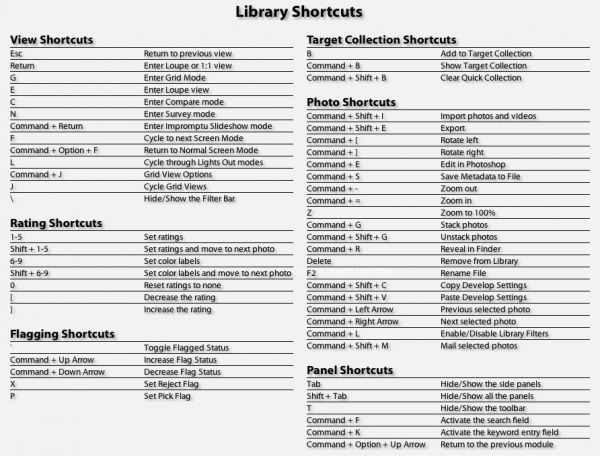
screenshot of the Lightroom Keyboard Shortcut help screen

In additional to consulting this screen, I also recommend learning the shortcuts as you go. As you navigate a menu for a certain control, take note of the keyboard shortcut and try to use it next time:
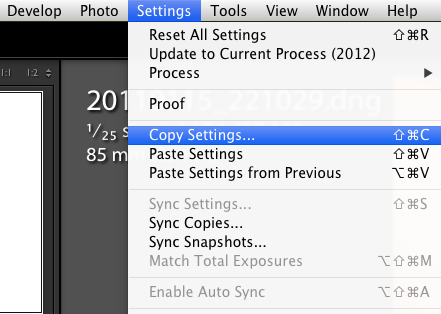
screenshot showing one of the menus in Lightroom

“Note to self, press SHIFT CMD C next time!”

Or when you reach for your mouse to access a tool in the interface, like the crop tool for example, hover over the tool and take note of the keyboard shortcut, then try to remember it for next time.
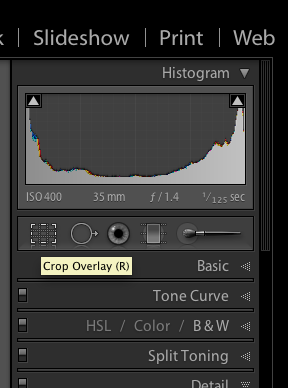
Screenshot showing a tooltip in Lightroom

“Note to self, press R next time!”

This is a good way to teach yourself the keyboard shortcuts that are most useful for you in your own workflow. You’ll be learning them in the order that is most useful for you personally.

There are lots of keyboard shortcuts in Lightroom, but here are the ones I use the most:

Changing Modules and Views

E – Enter Loupe View
D – Enter Develop Module
G – Enter Grid View

Develop Module Shortcuts:

\ – Toggle before / after view
Q – Enter Spot Removal Mode
M – Enter Graduated Filter Mode
K – Enter Adjustment Brush Mode
V – Toggle between Black and White and Color
W – White Balance Selector
R – Enter Crop Mode
Shift CMD C (Shift CTRL C on Windows) – copy develop settings
Shift CMD V (Shift CTRL V on Windows) – past develop settings

3. Enable Lens Correction at the end of your processing workflow

Lightroom includes lens profiles for many common lenses. Lens Correction works well to remove distortion and vignetting, especially from wide angle lenses. Sometimes this improves the image, sometimes it doesn’t.

If you choose to enable lens correction for a particular photo, enable it near the end of your workflow after you’ve made your other adjustments. Many of the controls in Lightroom, especially the Spot Removal tool and the Adjustment Brush, run more slowly with Lens Correction turned on.
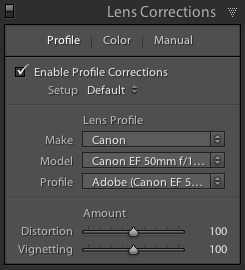
screenshot showing Lightroom Lens Corrections Settings

4. Create Develop Presets for commonly used settings

In addition to using develop presets to quickly apply a desired visual effect, I also use them to reduce the number of mouse clicks required to access certain controls in the GUI, for which there is no keyboard shortcut. This is particularly useful for changing process versions quickly, as mentioned in #1 above, or for toggling lens corrections on or off.
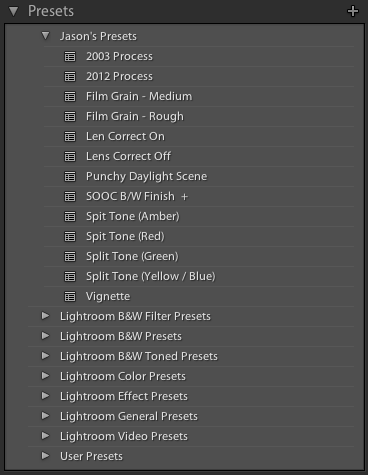
screenshot showing Lightroom Develop Presets

I’m basically using develop presets to pull some commonly used controls to the top of the GUI. It’s like creating a custom button.

To create a Develop Preset:
1. Apply some settings to a photo in the develop module.
2. Navigate to the Develop menu and select “New Preset…”
3. Check the box next to the settings you want captured in the new Develop Preset
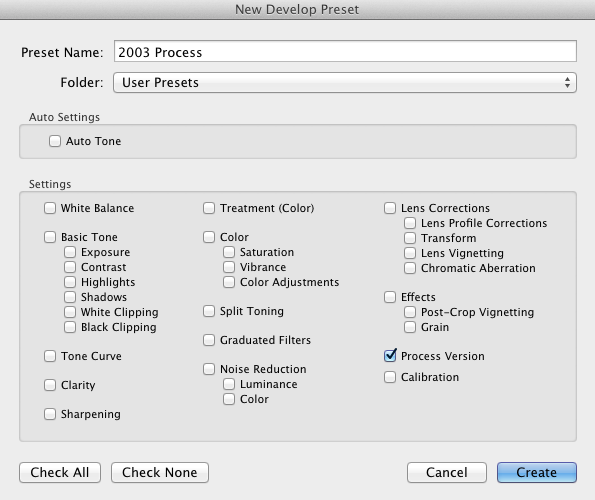
screenshot showing how to create a Lightroom Develop Preset

5. Shoot smaller files

This is not for everyone, and not for every situation, but there are times when you don’t need that full 18, or 22, or 36 megapixel Raw file. Depending on the project at hand, a 10mp file may be more than enough, and shooting smaller files are much faster to work with on the computer. Personally, I have a hard time letting go – when I shoot smaller files I always worry that I’m missing something. But it’s worth considering a smaller file size from time to time. What are you going to do with the photo? If you have a specific usage in mind and you know that you don’t need the full resolution your camera can capture, try shooting a smaller size.

I hope this article has been helpful, and that you’ve found at least one trick that you can use to get a little faster in Lightroom. Studying and processing your photos improves your creative vision, which over time impacts your shooting decisions. So a solid post-processing workflow is essential to developing yourself as a photographer.

Post originally from: Digital Photography Tips.

Check out our more Photography Tips at Photography Tips for Beginners, Portrait Photography Tips and Wedding Photography Tips.

5 Tips for a Faster Lightroom Workflow


Digital Photography School

 
Comments Off on 5 Tips for a Faster Lightroom Workflow

Posted in Photography


Photography Tips from Landscape Photographer Andy Katz

17 Nov

Photographer Andy Katz joins us today on the Marc Silber show to share advice on achieving great natural lighting and composition for photographs. He does not confine himself to only one type of photography—although he mainly shoots landscapes, he also enjoys working with people, especially when he’s able to shoot record album cover photographs. Andy enjoys working outdoors to use the light of the sun, rather than staying in a studio with lighting equipment. He refers to the three elements present in any great photograph: content, composition and light. Any photo must have all three of these to successfully draw a viewer into the image. He loves taking photos when the sun is close to the horizon, since it produces a rich, golden light and creates gorgeous shadows. He is adamant about shooting photos only when the light is ideal and will often wait until the sun hits the right angle for that perfect shot. As a seasoned photographer, Andy understands how crucial it is to have reliable equipment with him at all times. When working with natural light, he needs to capture as many photographs as he can in a limited amount of time. With SanDisk large-capacity memory cards, photographers never have to worry about missing that perfect photograph.

 
Comments Off on Photography Tips from Landscape Photographer Andy Katz

Posted in Photography Videos


Tips For Buying a Tripod: Product Reviews: Adorama Photography TV

15 Nov

Adorama Photography TV presents Tips For Buying a Tripod. This week, Mark Wallace has some tips on purchasing the right tripod for you. Mark also recommends a tripod that is perfect for traveling. For related articles and videos, and for more information about the products mentioned in this video, go to www.adorama.com Visit www.adorama.com for more photography videos! E-mail your questions to AskMark@Adorama.com
Video Rating: 4 / 5

 
Comments Off on Tips For Buying a Tripod: Product Reviews: Adorama Photography TV

Posted in Photography Videos