RSS
 

Posts Tagged ‘Time’

NPPA to raise dues for the first time in 11 years, because defending truth ain’t cheap

10 Aug

The National Press Photographers Association, the professional organization that regularly advocates for and defends the rights of visual journalists in and outside its ranks, has announced that it will be raising its membership dues for the first time in 11 years starting this coming January. Because, as they explain, “defending the rights and freedoms of visual journalists isn’t free.”

The news was announced in a blog post published earlier this week by photojournalist and NPPA President Melissa Lyttle. As more and more photojournalists are forced to work freelance, without the backing of a major media organization, the NPPA has had to adapt, writes Lyttle.

“This has made our legal advocacy work more critical than ever, as our members experience a rise in interference, harassment, and arrests along with an increase in assaults of journalists,” she writes. “We also see a public increase in the distrust of the media, challenges to the First Amendment by the current administration, state, and local government, an ever-increasing number of copyright infringements, and a rash of ill-conceived anti-drone laws.”

But all of this advocacy and legal work comes at a price, and so the NPPA board has voted to increase membership dues for the first time in 11 years, starting January 1st, 2018.

If you’re interested in joining the NPPA or re-upping your membership, you can do so at the old rates by the end of 2017. Once January 1st rolls around those annual rates will go up to $ 75 for student and retired member memberships ($ 10 increase), $ 145 for a professional membership ($ 35 increase), $ 240 for a family membership (households with more than one working photojournalist), $ 170 for international membership with surface mail, and $ 245 for international membership with air mail.

NPPA membership comes with several perks, including: discounted insurance, services and products; being listed in a searchable database of photojournalists; the ability to participate in the NPPA’s mentorship program; and more.

To find out more about the price increase, perks, NPPA’s mission or anything else about membership, head over to the official announcement or visit the NPPA homepage.

Articles: Digital Photography Review (dpreview.com)

 
Comments Off on NPPA to raise dues for the first time in 11 years, because defending truth ain’t cheap

Posted in Uncategorized


Lighting 103: Use Color to Evoke Time and Place

21 Jul

It can be scary to add a lot of color to your light. But it’s easy to underestimate how much color it takes to transform a scene and set a mood. Don’t be shy. Those gels won’t bite.

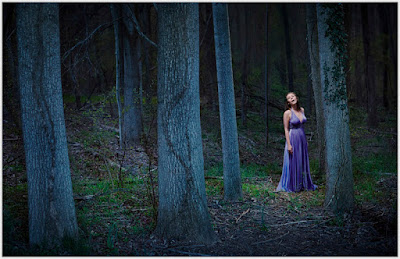
This nighttime portrait of soprano Alexandra Rodrick was a big step for me. It was made about five years ago, when I was just starting to realize how color-fluid real light could be. I kinda knew it, but I still didn’t have the nerve to actually do it.

So I took a deep breath and threw way more blue into the environment than I normally would. And not only did I come out alive on the other side, but I ended up pretty happy.
__________

I prevsiouly wrote in more detail about how we made the photo in On Assignment. It’s a two-part post, if you’re interested. So I won’t fully rehash that here.

We wanted to evoke nighttime, but you can’t really shoot this photo at night. Especially with the PhaseOne camera I shot this with. (You can see a full-sized version here.) The Phase effectively maxes out at ISO 100, and we wanted to get some depth and detail going way back into the scene. So we shot at twilight, and underexposed the ambient before adding three light sources into the mix.

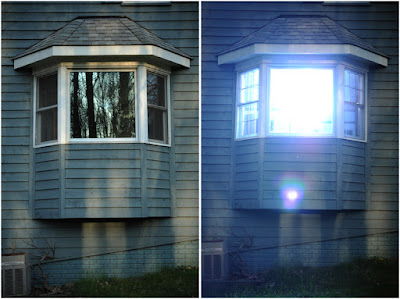
Looking back, this photo was big leap forward for me. I took a chance and pushed a lot of CTB into the scene—full CTB, to be exact. We had to move the lights way back to light the scene evenly. In fact, here’s my fill light coming from my second floor dining room, here:

Before this point, I would have weenied around with a 1/2 CTB, or even a 1/4 CTB.
The result would have been very much muted. Safer, maybe. But not nearly as evocative.

This is the first time I had really tried to connote the feeling of full night in a photo and actually had been willing to push some real color. Am I fully happy with it now? Not totally, and more on that in a minute.

But my advice is, while it is very tempting to try partial/interim color shifts, do yourself a favor and experiment with pushing some real color density into your frame. You may be pleasantly surprised at the result.

In the past I tried lesser color densities and ended up with pictures that were okay, but didn’t really live up to what I pictured in my mind’s eye. (Fortunately, no one else had access to my mind’s eye, so my comparative failures were private affairs.)

What I am learning going forward is that the 1/4- and 1/2-measure color shifts come across as subtle in the final image. In fact, in many cases they would only be noticeable in their absence via side-by-side comparison.

And that subtlety is actually pretty cool and useful. Because as we have seen with portraiture, you can define what is in shadow with color as much as you can with density.

Think about it. By using a 1/2 CTB (maybe with a little green in there) in the shadows of a portrait against a 1/2 CTO key light in the highlights, you are defining shadows with color as much as you are with light levels.

This means you can not only get a more evocative palette of light on your subject, but you can vastly expand the range of visible detail in your photo. Because it is the color of light that is informing you in the shadow, rather than a harsher underexposure—and a corresponding lack of detail.

Our brain reads that relatively subtle blue shift also as signaling the transition to shadow. So if you are going to shift a whole scene to evoke a time and place—night in the woods, for instance—you’d better be willing to bring more color density to the party.

Don’t be shy. Take a chance. You can always back off if you don’t like it.

What I Would Do Differently Now

Back to Alexandra, I look at this frame and see that I was being relatively couragious (for me, then) in some parts of the photo, and a weenie in other parts.

Let’s talk about the light on her face, courtesy a 1/4 CTO’d speedlight in a China ball.

Yes, it separates from all that blue night woodsy light. But why is it warm? I told myself at the time that it felt more theatrical (warm spotlight in cool environment and all). But really, it was also me long being comfortable throwing a warm light at my subject’s face.

If I were shooting this today, I’d be more looking to integrate that key light into the scene. Less spotlight, more moonlight. As if she was catching a moon ray in the clearing.

I’d probably start with a 1/4 CTB. Cool her down, but but as much as the night woods. After all, moonlight is just reflected daylight.

And to that 1/4 CTB, I might consider adding a little green. Maybe 1/4 PlusGreen? Dunno, until I try it. But the idea would be to blend the moonlight with the influence of the green grass and leaves that would be filtering/reflecting it.

Would it be scary to try? Yeah, a little. I’m not used to blue-green faces in my photos. Not even a little bit. But it wouldn’t be nearly as scary now as it would have been for me back in 2012.

And to be honest, 2017 me thinks the slight blue-green face would look better. Which is the point of taking chances with your light, finding new things that work and the result being growth as a photographer.

This is the most recent post in Strobist’s Lighting 103 module. New installments publish on the first and third Thursday of each month. If you would like to be notified as they become available, please sign up here.
Strobist

 
Comments Off on Lighting 103: Use Color to Evoke Time and Place

Posted in Photography


CamFi Matrix Time software makes it easy to shoot the ‘bullet time effect’

15 Jul

China-based camera trigger company CamFi has announced the launch of CamFi Matrix Time, a software application that is free for all of the company’s users. As the name suggests, the software is designed to produce the ‘bullet time effect’ made famous by The Matrix, doing so without the high cost typically associated with this effect.

CamFi makes wireless digital camera controllers, and its new Matrix Time software works in conjunction with those controllers. With the software, users can set up a multi-camera arrangement to shoot one after the other with less than a 1/100th-second delay. The images captured by each camera are then automatically grouped and compiled into a video featuring this special effect.

The company explains that its Matrix Time product can easily set all of the cameras in the multi-camera setup to the same shutter speed and aperture; a live view from the cameras in the software, meanwhile, enables operators to arrange the angle of each camera before shooting. All in all, it seems like a very simple and straightforward way to capture a complex special effect.

Of course, there is a catch… actually two. First, while the Matrix Time software is free, each CamFi Wireless Camera Controller costs $ 130 USD / $ 185 CAD / £110. And second, for now, CamFi Matrix Time is only available for the Windows operating system.

Articles: Digital Photography Review (dpreview.com)

 
Comments Off on CamFi Matrix Time software makes it easy to shoot the ‘bullet time effect’

Posted in Uncategorized


Canon 7D Mark II torture test: See a shutter fail in real time

10 Jul

YouTube channel ContinueCrushingTech recently had that chance to ‘crush’ something of interest to us: a Canon EOS 7D Mark II. The camera was broken and awaiting a service appointment with Canon anyway, so the channel’s host decided now was the good time to push the 7D to its literal breaking point.

Specifically, he shot the camera continuously for hours, until the shutter finally gave up its mechanical ghost and displayed the Canon screen of death: Err 20.

The experiment isn’t exactly complex. Using a remote trigger and a clamp, ContinueCrushingTech set the 7D Mark II to continuous mode and shot at 10fps for as long as it took to kill the camera’s shutter.

Under normal use, the 7DII’s shutter should last about 200,000 actuations, according to Canon. That means, under continuous use at 10fps, the camera has to shoot for 5+ continuous hours before it hits that theoretical breaking point.

So how long did it take for CCT’s camera to give up and die already?


Spoilers incoming


Unfortunately, the poor little camera didn’t quite live up to its manufacturer’s expectations. It passed away just shy of the 200K number, after 199,591shots:

But more interesting than the number itself is getting to see a shutter fail in real time with your own eyes—seeing how it starts behaving erratically after 190K actuations, freezing more and more frequently as it approaches that fated 200K failure.

Finally, at exactly 199,591 (according to FreeShutterCounter) Err 20 emerged and the 7DII would shoot no more.

You can watch the whole thing for yourself up top. And if you like this torture test, you can find more feature tests, reviews, and other gear-related videos on the ContinueCrushingTech YouTube channel.

Articles: Digital Photography Review (dpreview.com)

 
Comments Off on Canon 7D Mark II torture test: See a shutter fail in real time

Posted in Uncategorized


Is it time to adopt DaVinci Resolve for video editing?

06 May

Blackmagic’s DaVinci Resolve has a well deserved reputation as one of the best (if not the best) color grading software for film and video editing. But over the past few years, the company has put a lot of effort toward developing Resolve into a full suite of editing tools as well. With Resolve 14, introduced last week at NAB, Blackmagic has now added Fairlight audio editing tools to complement the software’s color and nonlinear editing tools.

NewsShooter posted a video interview with Blackmagic president Dan May, who talks about some of the improvements in Resolve 14. You can see the original story at newsshooter.com.

Would you consider switching to Resolve for video editing? Tell us in the comments.


Articles: Digital Photography Review (dpreview.com)

 
Comments Off on Is it time to adopt DaVinci Resolve for video editing?

Posted in Uncategorized


TIME Lightbox tells the story behind a viral May Day photo

03 May

Photographer Zakaria Abdelkafi, a Syrian refugee, explains how he reacted to a Molotov cocktail thrown at police, and how the experience impacted him.

Articles: Digital Photography Review (dpreview.com)

 
Comments Off on TIME Lightbox tells the story behind a viral May Day photo

Posted in Uncategorized


Circular Logic: “Endless Runways” Rounded to Save Energy, Time & Space

02 Apr

[ By WebUrbanist in Architecture & Public & Institutional. ]

circular takeoff

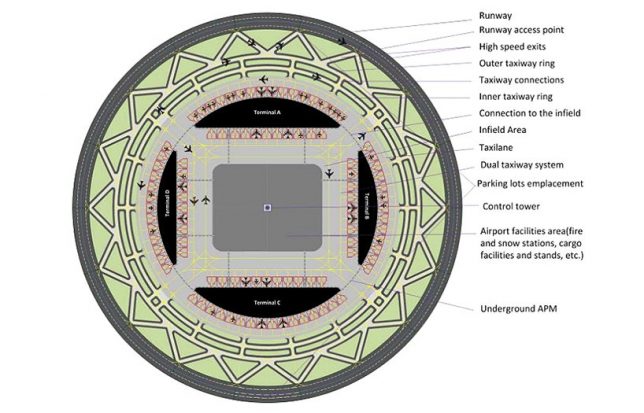
Designed to reduce real estate needs for runways in ever-more-crowded cities, this “endless runway” system encircles a central terminal building and lets multiple planes take off and land at the same time.

Developed by Dutch scientist Henk Hesselink, the two-mile-circumference shape also lets planes land or take off in alignment with the wind (rather than fighting crosswinds) since they can line up with any point on the strip.

round runway solution

In theory, the system would improve the flying experience for both passengers and pilots, making for smoother departures and arrivals. They would also save energy and space, increasingly an issue for once-suburban (or rural) airports now encroached upon by growing cities.

circular runway

Critics have expressed skepticism regarding the difficulty of landings and take-offs in such a setup, but big backers seem to believe in the potential. Also, even if not immediately feasible, increased automation could make it increasingly viable over time, since computer systems can coordinate ideal landing and arrival trajectories for optimal safety and comfort and across multiple planes.

runway system

Each such setup provides the length of three airstrips and could be deployed or at least tested at scale in Europe soon — participating backers include the Netherlands Aerospace Centre (NLR), along with DLR Germany and ONERA in France.

round runway backers

From the designers research report: “The results of the literature survey in this document are promising and suggest that a circular runway can be developed with current and expected technology. Today’s aircraft characteristics allow to take off and land with speeds and low altitude bank angles compatible with the operation on a circular track. The Endless Runway fits in future concepts that specify improved planning of operations, new navigation equipment, and intermodal transport.”

Share on Facebook


[ By WebUrbanist in Architecture & Public & Institutional. ]

[ WebUrbanist | Archives | Galleries | Privacy | TOS ]


WebUrbanist

 
Comments Off on Circular Logic: “Endless Runways” Rounded to Save Energy, Time & Space

Posted in Creativity


Transforming ordinary landmark photos one paper cutout at a time

31 Mar

Rich McCor’s clever paper cutout photography

Getting a fresh shot of a thoroughly-photographed landmark is tough. So Rich McCor takes a different approach: his clever paper cutouts add an unexpected element of humor to what would otherwise be just your average photo. Take a look at some of his work here and find out more about his process in our Q&A.

Follow him on Instagram to keep up with his latest work. What are you tricks for getting unique photos of often-photographed subjects? Let us know in the comments.

What inspired you to start making your paper cutout images?

It began when I realised that after four years of living in London I wasn’t really appreciating the landmarks, the sights and all the things that people fly thousands of miles to see. So I used photography as an excuse to go and explore my city a little more, and through doing so I joined Instagram. However I realised that all the photos I was taking were the same as everyone elses’, so that’s when I decided to add a twist to my images with paper cutouts.

What’s the process like creating one of these images?

It used to be that I’d wander around and wait for ideas and then cut them out on the spot. I’m a bit more strategic now in that I research destinations before I visit them, and I hunt down the best vantage points through various photo websites and image libraries. That said, I still take my paper cutting equipment and black card with me in case I see something that sparks an idea.

How long have you been making these images?

My first paper transformation was in June 2015, but I’ve been into paper cutting since my early twenties when I used to make stop motion music videos for my friend’s band.

Is there anywhere you haven’t been yet that you’re itching to go to and photograph?

Tokyo. It’s full of quirky architecture, bold skyscrapers and colourful scenery. It’s the perfect playground for what I do.

Do you have any suggestions or advice for your average photographer trying to take a picture of a famous landmark?

I’d suggest walking around it 360, just to see if there’s an interesting vantage point that might not be obvious. I remember walking behind the Statue of Liberty when the sun was in front of her and it creating a perfect silhouette which was an image of the statue I hadn’t seen that often. I think, as any photographer will tell you, patience is the key. Patience for the light to do something interesting, patience for tourists to get out of the way, patience for experimenting with your style. Most of all of course, have fun and experiment with your own style of photography.

Articles: Digital Photography Review (dpreview.com)

 
Comments Off on Transforming ordinary landmark photos one paper cutout at a time

Posted in Uncategorized


Basic Portrait Post-Processing Workflow Tips to Help You Save Time and Stay Organized

01 Mar

This article will walk you through some tips for how to set up a basic portrait post-processing workflow that can help you save time and stay organized.

The problem

When you’re new to photography, everything is exciting. Every time you come home with a full memory card, it’s a mad rush to the computer to see what you have captured. You’re eager to see every image and each one is treated as a separate entity with every technique you’ve come across. This is great. That excitement is what will keep you moving forward with photography and it is how you rapidly learn and grow as a photographer. That’s how it was with me, at any rate.

What happens, however, as you start taking more and more images? For example, regular portrait sessions a couple times a week can lead to an overwhelming amount of photographs. Approaching every frame as an individual becomes time-consuming and inefficient. If you’re not careful, you’ll have a backlog of images going back months and months. Often, many of your photos will be forgotten at the wayside.

The solution to this problem is to develop a portrait post-processing workflow.

Defining workflow

Basic Portrait Post-Processing Workflow Tips to Help You Save Time and Stay Organized

Straight out of the camera before any adjustments in Lightroom or Photoshop.

Basic Portrait Post-Processing Workflow Tips to Help You Save Time and Stay Organized

After portrait post-processing workflow steps in this article were applied.

In the simplest terms possible, a workflow is a checklist of repeatable actions that you work through as you go through a task. If it helps, in business the equivalent be would systems and in manufacturing, it could be compared to an assembly line.

You can have a workflow for any part of the photographic process, from planning and coordinating sessions to setting up and tearing down equipment and finally the post-processing stage.

This article will outline the steps of the post-processing workflow that I’ve been using on my portraits for a few years.

Starting point

Because every photographer has their own way of importing, organizing and editing their images in Lightroom (and other software), this article starts at the beginning of the post-processing stage for individual images. It assumes you will have already imported your photos into Lightroom and you have already edited (culled) down to the keepers.

Lightroom

This workflow uses both Adobe Lightroom and Photoshop. Each program offers its own strengths. To take advantage of them, consider using both with the Adobe Photographer membership – get 20% off (only $ 7.99/month) by using this link only for dPS readers.

Color corrections

The first step is to conduct any color corrections to your image. I do this in one of two ways. The first involves a ColorChecker Passport. If you don’t have one, just skip past it (or purchase one here on Amazon.com and follow along).

Xrite ColorChecker Passport

In your Lightroom catalog, find the photo you took with the ColorChecker Passport in it. Go to File>Export and export the image as a DNG to a folder where you can find it.

Basic Portrait Post-Processing Workflow Tips to Help You Save Time and Stay Organized

To work in the ColorChecker Passports proprietary software, you need to export your image as a DNG.

Now open the software that came with your Xrite ColorChecker Passport, and import the DNG you just exported into it.

The software does a pretty good job of aligning the photo to the ColorChecker, but if it fails, just follow the instructions on the screen.

Basic Portrait Post-Processing Workflow Tips to Help You Save Time and Stay Organized

The Xrite ColorChecker Passport’s software allows you to create custom color profile unique to each lighting setup.

Press the Create Profile button and give it a name that has something to do with the images you are going to be working on. For example, if you’re working on portraits of Jane Doe in a wedding dress which you took on April 15th of 2017, you could name the profile: JaneDoeWeddingDress041517. That’s optional, of course, but it will help you should you decide to revisit these photos in six months time.

Now, reopen Lightroom, find the image of the ColorChecker Passport, and open it in the Develop Module. Scroll down the panels on the right until you find the Calibration tab.

At the top, there will be the word Profile followed by Adobe Standard. Click there and choose the profile name that you just made in the external software (in the example below I called it “PortraitWorkflow”.

Basic Portrait Post-Processing Workflow Tips to Help You Save Time and Stay Organized

Once created and imported into Lightroom, color profiles can be returned to at any point in the future.

This process has built a custom color profile, individual to the lighting present in the scene. This is a vital step if you want to get the most accurate colors in your photographs.

White balance with the ColorChecker Passport

In the right-hand panel, scroll back up to the top basic panel. Select the eyedropper. To correct the white balance in your image, click in any of the white or gray boxes on the ColorChecker in your image. That will correct your white balance automatically. Each box will have a different effect on your images, so feel free to go through them all to see which works best, or which you prefer.

Basic Portrait Post-Processing Workflow Tips to Help You Save Time and Stay Organized

Any of the white and gray squares can be used to set your white balance. They all have different effects, so experiment until you’re happy.

Press CTRL/CMD+Shift+C and in the dialog box click the Check None box. Tick off only the boxes for Calibration and White Balance, and then click Copy.

Basic Portrait Post-Processing Workflow Tips to Help You Save Time and Stay Organized

Setting the color profile and white balance to an entire set of images at once can save you heaps of time.

With your settings copied, you can go back to the Library Module and select all of the photos that you want these settings applied to. Select them and press CTRL/CMD+Shift+V to do this.

Make sure you deselect the group of images afterwards by pressing CTRL/CMD+D.

White balance in Lightroom

If you don’t have a ColorChecker Passport, you can set your white balance manually by using the eyedropper (click on something neutral in the image) and sliders at the top of the Basic tab. Once you’re done, you can copy and paste the settings to the other images in your set as described above.

Basic Portrait Post-Processing Workflow Tips to Help You Save Time and Stay Organized

To adjust white balance manually, use the eyedropper and sliders at the top of the Basic panel.

Lens Corrections

The next step is to find the Lens Corrections tab and click both the Enable Profile Corrections box and the Remove Chromatic Aberration box.

Portrait Post-Processing Workflow Tips - lens corrections

Enabling lens corrections will correct any distortion, vignetting and chromatic aberrations in your images.

Doing this will correct any distortion caused by your lenses and it will usually deal with any chromatic aberrations. It’s a simple step, but it can make a world of difference to your final images.

Before you move on, however, always zoom in and move around your image looking for any chromatic aberrations (look at the edges of the image) the software failed to correct. It’s usually very good, but sometimes it will fail in tricky lighting situations where there’s a lot of backlighting. For portraits, pay close attention to catch lights in the eyes. If you find any chromatic aberrations there, simply go to the Manual section of the Lens Correction tab, choose the eyedropper and click into any color halos that you find.

Basic Adjustments

For portraits, I try to keep my basic adjustments at this stage to a minimum. I will use the exposure slider as needed, the White and Black sliders minimally, keep the Clarity slider between +15 and -15, and often reduce the Vibrance to -10.

Portrait Post-Processing Workflow Tips - basic adjustments

For more natural portraits, keep your adjustments subtle.

The reason for keeping these adjustments minimal is that they are global adjustments (apply to the entire image). I prefer to work with local adjustments in Photoshop, which give you much more control over the image. But, it is also possible to do local adjustments in Lightroom using the Adjustment Brush, Radial Filter and Graduated Filter if you would prefer.

Client proofs

NOTE: When working on proofs to send to clients so they can make their final image selections, this is where I usually stop. There is little need to spend up to an hour retouching a photo that will never see the light of day. Colour corrections and maybe a few small contrast adjustments are almost always enough at this point.

Black and White (optional)

If you intend to work in black and white and you like doing your conversions in Lightroom, this is the stage where I do the conversion process using the black and white sliders.

If you intend or prefer to do your conversion in Photoshop, then skip this part and make it the first step once your image is opened inside Photoshop.

Export

With the Raw processing complete, it’s time to export (or open) your image into Photoshop. Press CTRL/CMC+Shift+E to bring up the Export dialogue box. Choose a location and name appropriate to your own organizational system and export the image as a TIF or PSD (either of those formats will retain all your layers when you save your work). Close Lightroom and open your image in Photoshop.

NOTE: Alternatively you can open your RAW file directly from Lightroom into Photoshop by right-clicking the image and selecting: Edit In > Edit in Adobe Photoshop – OR – Edit In > Open as Smart Object in Photoshop.

Photoshop

Blemishes

The first step of this workflow in Photoshop is to remove temporary blemishes from your subject’s skin. Create a new empty layer by pressing CTRL/CMD+Shift+N and pressing OK.

You can use either the Spot Healing Brush Tool or the Healing Brush Tool, or a combination of both. Once you’ve selected your tool, ensure that the All Layers option is selected in the drop-down menu labeled Sample. Also, ensure that you are working on the new empty layer (you just created above) in order to keep things non-destructive.

While using the healing brushes, zoom in to at least 200% on your image and use a brush that is only slightly larger than the blemish you are trying to remove. If you are using the Healing Brush tool, take a new sample after every click by pressing Alt/Option+Click to ensure the best results.

How far you go is going to be a matter of personal preference. I like to limit this step to only temporary blemishes and leave scars and beauty marks unless I’m asked to remove them by the subject.

Portrait Post-Processing Workflow Tips - blemish removal

Before blemish removal.

Portrait Post-Processing Workflow Tips - blemish removal

After blemish removal.

Note: It is possible to remove blemishes in Lightroom, but it is a time consuming and awkward process compared to Photoshop in my opinion. If Lightroom works better for you, go ahead and use it.

Color casts

Although we already covered color corrections in the first step, I like to revisit it at this stage. For example, in this image, the background is still too warm for my taste. Create a new Hue/Saturation adjustment layer.

Portrait Post-Processing Workflow Tips - hue/saturation layer

In the Properties tab, find the icon that looks like a pointing hand. Click it and then find a place in the image you want to adjust the colors. In this image, it’s in the background.

Portrait Post-Processing Workflow Tips

With the pointer selected, click into any area of a colour cast you want to change.

Now adjust the sliders in the Hue/Saturation Layer until it has the desired effect on the color you are trying to change.

In this image, the background and the subject shared a lot of the same warmth. To keep them separate, use a layer mask. Click into the layer mask on your Hue/Saturation layer and press CTRL/CMD+I to invert it (hide all).

Now select the Brush tool (B) and set your foreground color to white and your opacity and flow to 100%. Paint into the areas (on the mask not the layer) you want to be affected by your Hue/Saturation layer. If you mess up, just switch your foreground color to black and paint over the mistake.

Portrait Post-Processing Workflow Tips

Before Hue/Saturation Adjustments

Portrait Post-Processing Workflow Tips

After Hue/Saturation Adjustments

Dodging and burning

The next step is to deal with contrast. Instead of using the contrast sliders at the raw processing stage, it is best to use a technique like dodging and burning for small, local adjustments to get the most control over your images. There are a lot of different methods for dodging and burning, but I prefer the gray layer method.

By using multiple layers, you can obtain really fine control over the contrast and the tones in specific parts of your image with little effort. For example, you can have a set of layers for skin tones, another set for the clothes, a set for hair, and another set for eyes all independently adjusted. You can learn how to dodge and burn here.

Portrait Post-Processing Workflow Tips - dodge and burn

Before dodging and burning.

Portrait Post-Processing Workflow Tips - dodge and burn

After dodging and burning.

High Pass Filter

The last step of my workflow before saving is to use a High Pass filter to sharpen things up a bit. To use the High Pass filter, merge all of your existing layers into a new one by pressing CTRL/CMD+alt+Shift+E. Zoom into 100%, select the layer that was just created, and go to Filter>Other> High Pass.

Portrait Post-Processing Workflow Tips - high pass filter

As long as you are working with a high-resolution file, set the radius between two and five. If you’re working with a smaller file, move the slider to the left until the preview image looks like a faint outline of your original image (as seen below). Press OK.

Portrait Post-Processing Workflow Tips - high pass filter to sharpen

It’s pretty easy to go overboard with the High Pass filter. Try to keep it as subtle as possible.

On the Layer Palette, change the blending mode to Soft Light or Overlay. This is more personal preference than anything, but Overlay will give a far more pronounced effect than Soft Light. I prefer Soft Light for portraits and Overlay for other subjects. The last step is to reduce the opacity of the High Pass layer. Zoom into 100% and move the opacity slider to the left until you can barely see the effect.

Portrait Post-Processing Workflow Tips

Use either the Soft Light or Overlay blending modes for your High Pass layer. Soft Light will be more subtle, while Overlay will be more pronounced.

Saving your image

When the image is finished it’s time to save it. This will different for everyone depending on your own organizational system, but I prefer to save files as 16-bit TIFFs with layers intact. Doing this means that you can go back and adjust any part post-processing at any time. It also means you can go back to your full resolution file at any time to create smaller images for web use and the like without potentially losing them. The downside to this is that 16-bit TIFF files can get very large and they do take up a fair amount of hard drive space, but to me, the peace of mind is worth it.

In the end

Portrait Post-Processing Workflow Tips

Straight out of the camera and before any adjustments in Lightroom and Photoshop.

Portrait Post-Processing Workflow Tips

After adjustments and retouching in Lightroom and Photoshop.

The amount of time it takes to get through this workflow varies from image to image. Some photos take five minutes, others take closer to an hour. Overall, having a workflow like this will save you countless hours of work. Knowing exactly what steps you’re going to take before you sit down removes a lot of guesswork and saves time. This is invaluable when you start doing sessions a couple times a week.

Obviously, this exact workflow may not be for you. However, I encourage giving it a try and then developing your own workflow that fits in with your style and existing skills.

The post Basic Portrait Post-Processing Workflow Tips to Help You Save Time and Stay Organized by John McIntire appeared first on Digital Photography School.


Digital Photography School

 
Comments Off on Basic Portrait Post-Processing Workflow Tips to Help You Save Time and Stay Organized

Posted in Photography


When is the Right Time to Upgrade Camera Gear?

21 Jan

Knowing when to upgrade camera gear can be a little tricky. Picking the right time to upgrade is about knowing who you are as a photographer, and who you want to become.

When is the Right Time to Upgrade Your Camera Gear?

What makes upgrading tricky is the pace at which technology advances. New form factors, features, and capabilities will continue to be innovated over the years to come. It’s certainly possible that new trends could make traditional photography obsolete. For example, 360 degree photography is one new trend that has garnered a lot of interest.

If that wasn’t enough, the amount of money that companies spend on marketing their innovations is continuing to increase. This means that there are more deals, more packages, and more attempts to convince you that it is the right time to upgrade your gear.

So how do you know when you are actually ready to upgrade your photography gear?

Five Signs you’re ready to upgrade your camera gear

Your needs and wants will be different from mine and from that of your neighbor’s so it’s difficult to offer a blanket “This is when you should upgrade” statement. But, there are at least five key things to consider when upgrading your gear.

When is the Right Time to Upgrade Your Camera Gear?

1. Your current gear is struggling to keep up with your creative needs

It’s a good sign that you are ready to upgrade your gear when your current gear fails to give you the results you are looking for.

When this might be the case is if you are trying to take portraits of people with sharp focus in the foreground and creamy bokeh in the background. If you’re still using the kit lens that came with your camera, odds are the results you’re getting aren’t meeting your needs. In a case like this, buying a new lens might be worth considering.

2. If you’ve decided to go to a more professional level of work

When you decide to make the move from hobbyist to being a professional photographer, upgrading could become a viable option. Higher quality gear tends to be more durable and offers more flexibility, both of which are important in a professional setting.

As an added bonus once you start working professionally you will be able to deduct the costs of your gear from your taxes making the cost of upgrading more bearable.

3. Your gear is showing its age

While tomorrow’s technology will always make today’s look old, and upgrading to stay current is not usually the right choice – there will come a time when you gear does get so dated, that upgrading is actually your best option.

You may even be able to save some money by upgrading to generation body or lens that is a year or two old. This will still allow you to make a leap in terms of the technology that you are using, at a fraction of the cost of jumping to the current generation technologies.

When is the Right Time to Upgrade Your Camera Gear?

4. The manufacturer has dropped support

Sometimes you’ll find out that the manufacturer has dropped support for the product you own. In cases like this, it might be time to consider upgrading. (Note: this means you ignored point #3 above and kept using your aging gear until it effectively died).

5. Your current gear is “hacked” together to meet a need

Finally, let’s say that your current gear does what it needs to do to achieve the photographs that you want, but it does so in a way that requires a cumbersome process or a jerry-rigged system. If there’s a solution available that would simplify your current process in a way that saves you time and frustration it’s certainly worth considering an upgrade.

Two good reasons you are not ready to upgrade

When is the Right Time to Upgrade Your Camera Gear?

1. Upgrading when a new model is released

New model releases are always going to tempt you into upgrading. Marketing teams do a fantastic job at showcasing the new improvements, and how they will enhance your photography. However, rarely will these improvements have a substantial impact on your overall photography. It’s not about whether the new features are better than the ones that you currently have, but will they actually impact the results that you can not achieve with your current camera.

More concisely – does the new model help justify one or more of the reasons listed above? If not, then it’s probably not worth upgrading at this point in time.

2. Keeping up with your friends

As if you need another reason to upgrade – your best photography buddy just did – so now you have to as well. If the reason you’re buying something is because you’re trying to outdo, or one-up someone you know – it’s the wrong reason to upgrade your gear.

What are other valid reasons to upgrade?

Read more here:

  • 3 Valid Reasons it Might be Time to Upgrade Your Camera Equipment
  • Ready to Upgrade Your Kit Lens? Tips for Which Lens to Invest in Next
  • Do You Need to Upgrade to the Latest Camera?

When have you felt the need to upgrade your camera gear? Let us know in the comments below.

googletag.cmd.push(function() {
tablet_slots.push( googletag.defineSlot( “/1005424/_dPSv4_tab-all-article-bottom_(300×250)”, [300, 250], “pb-ad-78623” ).addService( googletag.pubads() ) ); } );

googletag.cmd.push(function() {
mobile_slots.push( googletag.defineSlot( “/1005424/_dPSv4_mob-all-article-bottom_(300×250)”, [300, 250], “pb-ad-78158” ).addService( googletag.pubads() ) ); } );

The post When is the Right Time to Upgrade Camera Gear? by John Davenport appeared first on Digital Photography School.


Digital Photography School

 
Comments Off on When is the Right Time to Upgrade Camera Gear?

Posted in Photography