RSS
 

Posts Tagged ‘step’

Step by Step how to Brighten the Walls in Your Indoor Photos

06 Aug

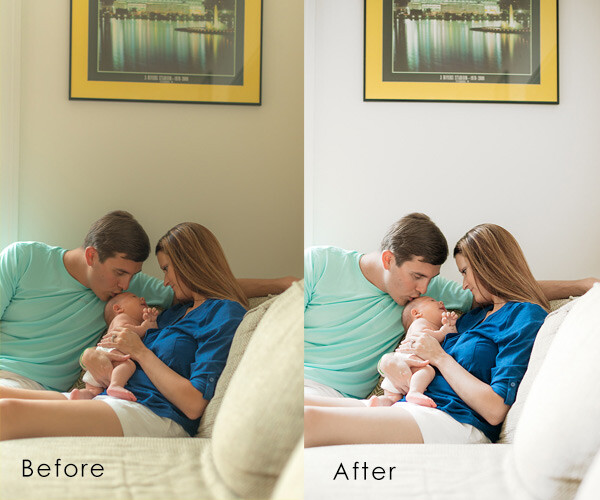
“I swear, the walls were white!” you exclaim as you look through indoor photos taken from an earlier shoot, that now appear to have an annoying yellow tint over everything. Sound familiar? Don’t worry, you’re not crazy. This is a common frustration, photographers of all experience levels face due to what’s referred to as “color casting”. Color casting is simply the effect of light striking different surfaces and bouncing back other colors into your camera’s sensor. Though annoying, it’s also relatively unavoidable without careful calculation and additional equipment.

Before.After2_.jpg

Powerful photographs are created before, during, and after the click of your camera. Sometimes, especially when it comes to photographing wiggly, unpredictable children, you don’t exactly have time to calibrate with a gray card, adjust your camera settings, or take a test shot. If you’re not already bored by the thought of it, by the time you actually work through this process, the moment has passed, and you’re still fiddling with a camera instead of chasing after your little subject.

Since some of the best natural shots occur in the comfort of your home, it’s important to make sure the walls surrounding you aren’t obstructing the emotion you could be catching with awkward color casts. Even though grasping skills like proper exposure, white balance settings, and other in-camera techniques are key to creating good photos, they are only pieces of the greater puzzle. Sometimes, it’s the things like communicating effectively with your subject, learning to naturally direct posing, and mastering basic post-processing tricks that truly take that in-camera image and reveal the emotion behind it. Luckily, correcting dingy-wall syndrome is a quick and easy way to improve your indoor shots. With just a few quick steps in Photoshop, you can restore brightness to your walls and subjects and drastically improve your shot.

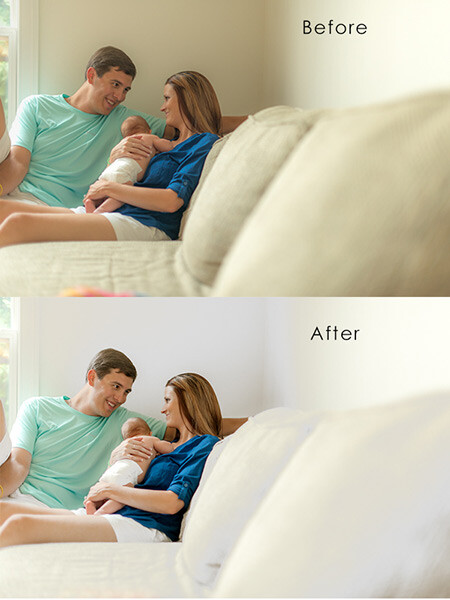
Before

Above is the image I started with. The walls were white and the couch was tan, but the color cast over the image makes everything appear dingy. This is what we’re working towards:

After

How to fix this – steps:

Step one

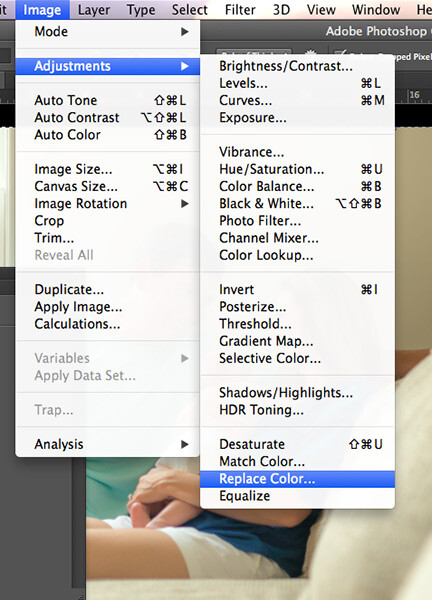
Operating on a new layer, navigate to the ‘Replace Color’ tool by clicking on Image > Adjustments > Replace Color

ReplaceColorSS

Step two

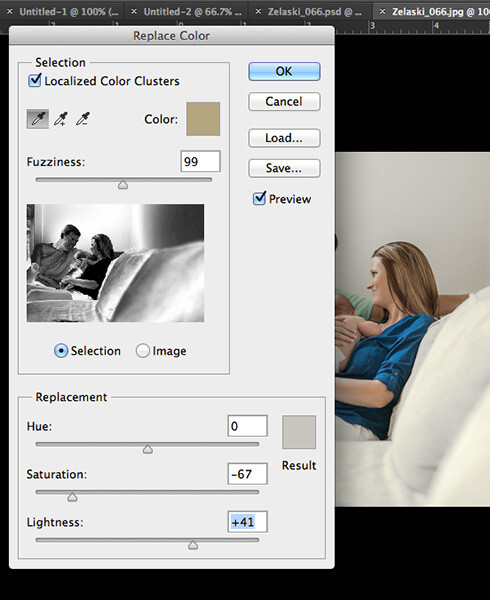
A dialog box will pop up. Make sure the ‘Localized Colors’ box is checked and the ‘Eyedropper’ tool is selected. Sample a section of the wall from the original image you want to adjust. With the ‘selection’ option active, your preview shows what color will be affected by with adjustment in white. Play with the fuzziness slider until your preview shows the best selection. It’s okay if it picks up some colors from other parts of the image you don’t want to adjust; we’ll go back and fix that later.

Option: You can also select just the portion of the image you want to change by using the Quick Select tool.

Step three

Slide the saturation bar to the left to decrease the color tones, but not too far that it creates noise (grain) from the contrast. Slide the ‘lightness’ bar to the right to adjust the brightness of your white, but again, not so much that it creates unusual contrast. Use your judgment based your particular photo to determine the levels that achieve the best result. Click ‘Ok”.

ReplaceColorSS2

Step four

If your fuzziness picked up any samples from areas that you did not wish to change, like faces for example, simply select the ‘Eraser’ tool and paint over those areas to restore the original color. You can adjust the opacity of your eraser to control the amount of color you wish to restore as well. (You can also use a layer mask to do this)

That’s it! Now you can make any other changes or adjustments to the image. This one simple fix makes a huge difference in the impact of your images and takes less than a minute to complete once you get the hang of it. Normally, “I’ll fix it in post-processing” is not a great motto to adopt as a photographer and of course, you should aim to do as much in camera as possible. But hey, life is spontaneous! This quick little trick is an easy way for you to truly enhance the natural beauty of your indoor images and you’ll never have to worry about missing the shot again because of your in-camera white balance.

Before After

The post Step by Step how to Brighten the Walls in Your Indoor Photos by Leah O’Connell appeared first on Digital Photography School.


Digital Photography School

 
Comments Off on Step by Step how to Brighten the Walls in Your Indoor Photos

Posted in Photography


One step ahead: Nikon 1 V3 Review

16 Jul

We’ve just completed our full review of the Nikon 1 V3, that manufacturer’s enthusiast mirrorless camera. The V3 offers an 18.4 megapixel 1″-type CMOS sensor, a significant gain in resolution over its 14.2 megapixel V2 predecessor. Since its introduction the 1 system has offered impressive auto focus and burst shooting capabilities – see just how well it performed in our testing. Read review

Articles: Digital Photography Review (dpreview.com)

 
Comments Off on One step ahead: Nikon 1 V3 Review

Posted in Uncategorized


Step into Edgar Martins’ Time Machine

20 Jun

01-Caldeirao-Water-Tower.jpg

Edgar Martins is drawn to documenting off-limits places. This was part of the appeal for him in a project titled ‘The Time Machine,’ in which he gained access to hydro-electric power plants in Portugal, the country where he was born. Built between 1950 and ’70, these facilities were designed to accommodate dozens, even hundreds of employees working side-by-side with state-of-the-art technology. They’re now operated with only a handful of personnel and are largely disused. He answered a few questions for us about the project. See gallery

News: Digital Photography Review (dpreview.com)

 
Comments Off on Step into Edgar Martins’ Time Machine

Posted in Uncategorized


Step By Step How to Make Panoramic HDR Images

03 Jun
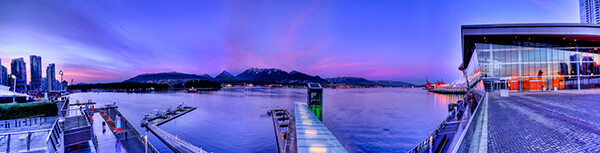
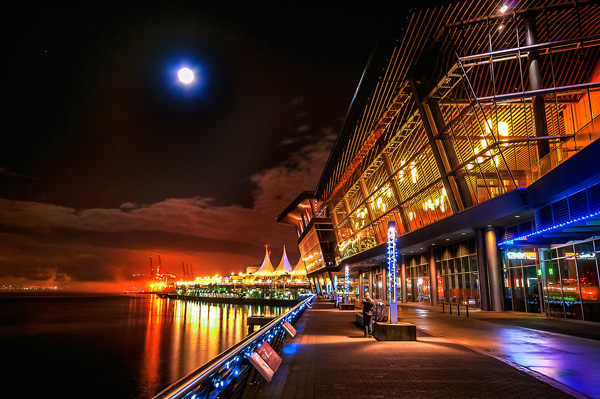
Panoramic HDR image of Coal Harbour - Vancouver BC

Panoramic HDR image of Coal Harbour – Vancouver, Canada

I am convinced that digital photography has changed so many aspects of photography forever.  HDR and photo stitching are just two of those aspects. In the film era you could achieve a lot in the darkroom with blending, dodging and burning, but not to the extent that HDR allows us to achieve now. Photostitching has also allowed us to produce images that were not possible a few years ago. In the days of film, panoramic images were possible, but required a camera made for that purpose, nowadays we can shoot panoramic shots with any digital camera, they can even be shot using an iPhone. So the merging (excuse the pun) of the HDR and Photostitching was inevitable.

This process is a little time consuming and needs to be planned beforehand, but the results can be really spectacular and make your images very dramatic. This article will give you a starting point into exploring the world of bringing HDR and Photostitching together.

What is a panoramic HDR image?

A panoramic HDR is quite simply a series of HDR images that have been stitched together using photo stitching software. It is an image comprised of any number of images, sometimes up to 60, depending on how you plan your shots. Sounds complicated right? It’s really not. If you follow a simple plan, it’s actually pretty easy. It is all in having the correct workflow, so here it is.

The panoramic HDR workflow outlined

The quick process we will be running through is as follows:

  1. Plan and shoot your HDR and panoramic images
  2. Edit your HDR images
  3. Stitch your HDR images together
  4. Edit the final image in Lightroom or Photoshop

That’s it, simple and we will do it in small steps, so it is easy to follow.

Step 1 – plan and shoot your HDR and panoramic images

HDR Images

I have written Getting Real with HDR – a Step by Step Tutorial for Realistic Looking HDR. Take a look at that if you need a refresher on how to get your HDR images into good shape. Normally, when you shoot an HDR image, you will be using between three and seven images of the same scene to create the HDR. In panoramic HDR shots, you will repeat that HDR shot across the scene for five to seven shots that will capture the panoramic. The key point to remember when shooting a panoramic image is your subject matter. Choose a scene that works in the panoramic format; i.e. a seascape, mountain range, forest or a cityscape from a distance. If you are too far away from your subject, the stitched photo may lack impact, so choose your scene with that in mind.

Panoramic Images

Of course, it’s up to you how many images you want to shoot for your HDR shots. In the example shot at the top of the article, I used three shots per HDR set and used a total of seven images to capture the scene panoramically. Keep in mind that you may want anywhere between three to seven shots per HDR image and use as many images as you need to capture the scene.

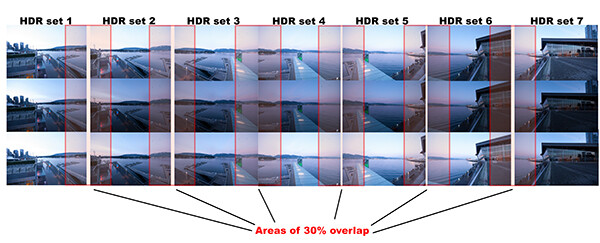
Here is a visual breakdown on how this shot worked. I have broken the shots I took into sets. Each set consists of three HDR images. So, Set #1 consists of three HDR images, Set #2 consists of three HDR images. Set 1 and Set 2 overlap by 30%. Set 2 and Set 3 overlap by 30% as well, and so on.

HDR sets and flow for the image of coal harbour. Note the overlaps

HDR sets and flow for the image of coal harbour. Note the overlaps

What you will notice is that you must take your HDR images and complete the set before moving your camera for the next set. This ensures that you will get the best possible HDR shots, and that they will blend properly. Once you have your HDR shots done on Set #1, move your camera over to frame and shoot Set #2. With panoramic photography, you must overlap your images by at least 30%. It’s not necessary to overlap much more than this, but less than 30% could cause the software to struggle to find linking points in the images. If you have a scene that has lots of detail in it, 30% will be good, if you have a scene that is not very detailed (let’s say a beach scene with sand, water and sky) you may need to overlap more to make sure that the photos can stitch. Continue this process until you have captured your scene in the sets you have decided on.

Some quick tips to remember when you shoot Panoramic HDR images

1. Choose a preset white balance setting that works well for the scene, avoid using auto white balance. If you use auto white balance (AWB), your overall colours in the scene may change as you shoot your panoramic and this could cause some unusual colour  shifts in your image
2. Keep your aperture between f/8 and f/11. Once you have chosen your aperture, don’t change it throughout the sets.
3. Use a tripod to make sure that your images are sharp. Also, as you move the camera onto the next set, be sure to overlap by 30%.
4. Be sure not to allow the camera to move up or down as you shoot the images. If it does, the result will be that the images might stitch but the resulting shot will be dropping down or sweeping up and you may not be able to get it right afterwards.
5. The best idea is to use a tripod and keep the focal plane as flat as possible, to avoid distortion, particularly with a wide angle lens.

Step 2 – edit your HDR images

Edit your images by set. Start with Set #1 and take them into an HDR product such as Photomatix Pro. You could used Photoshop too, but my preference is Photomatix Pro. For more details on making your HDR images, take a look at my HDR article to get into the details of the editing process in Photomatix.

Save each set and name them chronologically. I will name my images as follows: SCENENAME – HDR PANO 1, SCENENAME – HDR PANO 2 etc. Once you have taken all your sets through the HDR process and named them in order, the photostitching part is pretty easy.

Step 3 – stitch your HDR images together

For the photostitching part of this process, you can use the photo stitching function in Photoshop or any other photo stitching tool of your choice. I have used Photoshop in the past and it works well, but for more complex stitching I find that Autopano Pro works extremely well. It has been rated as one of the best stitching packages available. I have used it to stitch some pretty crazy panos together and almost anything I have thrown at it, it has been able to process.

Lets look at how this process works in Autopano Pro:

  1. Open Autopano Pro and on the first screen that you see, click on the second icon from the left to select your images to be stitched
  2. Navigate to the HDR images that you have processed and select them
  3. Click on “detect” on the top left hand side of the screen
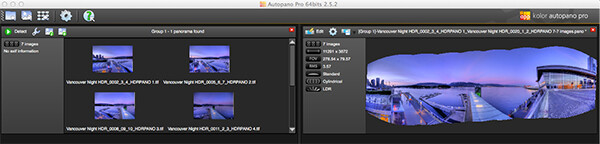
  4. Autopano will now scan your images and do a preliminary stitch, this preview stitched image will be displayed on the right hand side of the screen that is open. This process may take a few minutes.
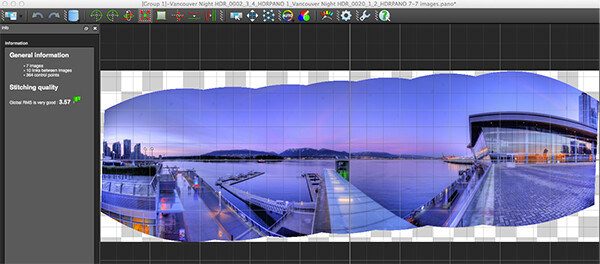
  5. Once the preview image is displaying, click on the “edit” button (Right hand side of the screen) this will open the image in the Autopano edit screen
  6. There are a number of options here, below is a high level overview of the most important functions
Autopano Pro - Images selected for the pano stitch on the left and a preview of the stitched image on the right

Autopano Pro – images selected for the pano stitch on the left and a preview of the stitched image on the right

Autopano edit screen with preview of stitched image

Autopano edit screen with preview of stitched image

Autopano functions on the edit screen:

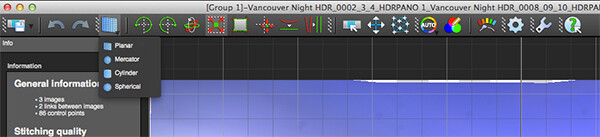
Autopano has a number of options you can use to render your panoramic image. These projections help with distortion and skewing. Below is an explanation of the most commonly used projections.

  • Spherical – the spherical function allows any panorama to be assembled. It is a commonly used function for building panoramic images.
  • Planar or rectilinear projection – this is a good choice if the angle is low, It’s recommended for architectural shots because it is the only mode that does not curve lines that are deemed to be straight lines. Sometimes if the angles are too extreme there may be a loss of sharpness, so be aware of this.
  • Cylindrical projection – this projection can be used up to 360° (horizontally).
  • Mercator projection – the mercator projection can also be used up to 360° (horizontally). The effect of stretching up and down the image may seem to become distorted.

The key factor in choosing a projection is in how the projection affects your image visually. Does it work for the subject matter? Does the image look correct? Ask yourself these questions as you experiment with the projections.

Once you are happy with your projection and the way the image looks, you can now save the image to a folder on your computer.

Choose the projection that works best for your image

Choose the projection that works best for your image

Rendering

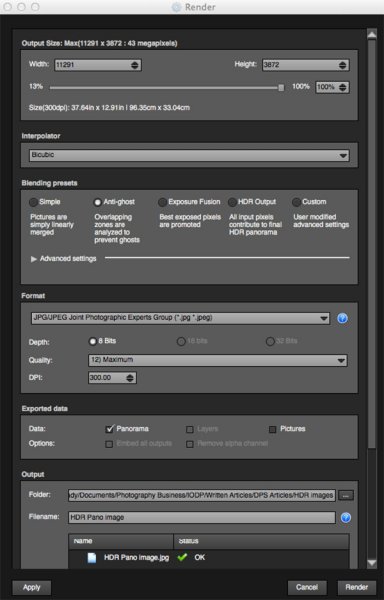
Render screen and options

Render screen and options

This is the process of saving your panorama.It is called rendering because the software needs to perform the final stitching and edits to your image. On the rendering screen, you will need to take note of the following:

Interpolator – the interpolator is the method used to assemble the pixels of your panoramic image  and will determine the quality and sharpness of your image. There are a few different options here, but the most commonly used options is Bicubic. The other options are useful for advanced stitching.

Blending settings – the purpose of the blending settings is to allow the combining of the overlapped sections of your panoramic to look smooth and seamless. You will notice  the following presets:

  • Simple – this is fast, but it is possible that defects are seen where the areas overlap
  • Anti-ghost – conserve the image’s strong characteristics (stops, lines, curves) when mixing while automatically removing objects that have moved
  • Exposure Fusion – to be used if the panorama was created with a bracket shoot. Keeps the best of different exposures.
  • HDR output – to be used by users who wish to create a “.hdr” format file in order to create post-production or special effects. Don’t use this on these images as they have already been processed as HDR images.
  • Custom – this is enabled when you manually change the parameters and they no longer correspond to a profile.

On the advanced settings, I generally leave that on the default.

Format

This section allows you to determine what the format in which you want your image to be saved. The two formats I use most are TIFF and JPEG. TIFF is an uncompressed file (which means all the information is still in the file, this is great if you are planning to print the image out large) The downside to TIFF is that the files are big. JPEG is a compressed format, that means that some image information has been discarded, the quality will still look the same to the naked eye, but if you print a JPEG image up really big, you may notice some image degradation. Depending on your final output and your space constraints you can choose the format that works best for you. Take the quality up to 12 and set the DPI to 300. This will ensure that you have the best quality image saved.

Output

On this screen, the software needs to know where to save your panoramic and what you want to call it. Choose your destination folder and name the file. Once this is done (it sounds more complicated than it is) click on the render button and the software will begin rendering your image. Depending on the size of the files being stitched, this rendering process can take a few minutes. Once complete, a screen will pop up to let you know that the image is now rendered.

4. Edit the final image in Lightroom or Photoshop

Your image is now stitched together, but the final step in the process is to edit the image in your choice of image editor (Lightroom, Photoshop, Gimp or any other) You will want to follow the basic workflow I outlined in a previous article.  Once that is done, you will now have a fantastic Panoramic HDR image. Not too many photographers attempt these images as they take some time to get right, but the results can be spectacular. Give this a try, let me know where you struggled or any insights you had during the process, above all go out and have fun with it!

Panoramic HDR image of Coal Harbour - Vancouver BC

Panoramic HDR image of Coal Harbour – Vancouver BC

The post Step By Step How to Make Panoramic HDR Images by Barry J Brady appeared first on Digital Photography School.


Digital Photography School

 
Comments Off on Step By Step How to Make Panoramic HDR Images

Posted in Photography


Step By Step How to Do a Head Shot on a White Background

14 May

Today you are going to come ride along with me as I shoot head shots for a client in San Diego, California. I was hired by a company to create simple head shots of their instructors in the San Diego area.

There is a very big market for head shots and quite a few people want them shot on a white infinity backdrop. There are many ways to do this but I’m going to take you along on a shoot with me and show you how I do it:

Step by step how to do a head shot on a white background

Digital-Photography-School-Steven-Head-Shot-Thumbnail

First off, what is a seamless backdrop?

It’s a giant roll of paper – thats it! I used an 8-foot long roll in ‘alpine white’ color. Again, it’s just a big white roll of paper. When properly lit, this roll of paper gets ‘blown out’ or overexposed, so it appears as a perfectly white void on which your subject sits/stands in the middle. This white void makes the viewer focus on your subject rather than a cluttered background.

Setting up the seamless backdrop

As you can see in the animated GIF below, I start by finding an open area at least 8 feet wide. This is easier to set up with two people, but on this corporate shoot it was just me.

To make this easier to set up by yourself just lay the roll of paper on the ground and position the light stands on either side of the end of the roll of paper at their lowest height. Make sure the paper is set to unroll from underneath the back of the roll ,and not over the top and front of the roll.

When you pull from the back of the roll the natural curl of the paper will let the paper roll straight to the floor then curl toward your camera  into the room. This will provide a smooth curved transition from the vertical roll of paper into the floor and toward you so the background and floor will appear seamless. If the paper is pulled from overhand when it hits the floor it will want to curl backwards toward the back of the room. This won’t create seamless transition as you pull the roll into the room.

Run the cross bar through the center of the paper roll – the cross bar will stick out about 2 inches on either side of the roll. The cross bar has 2 slots at each end and the light stands have two vertical screws. Lift up the roll and place these two slots into the two vertical screws and then screw in the included wing nuts to secure the roll onto the light stands.

Raising the seamless backdrop

Now that we have the paper roll secured on the light stands at their lowest height, it’s time to raise it up. The light stands have two sets of clamps and two sets of vertical poles that raise up. With two people you can simply raise the paper roll at the same time to the desired height and lock the clamps down to secure the paper roll at your desired height. With only one person you have to slowly raise one side, then the other, until you get the roll to the desired height. Check out the GIF below and try not to laugh at the CEO jumping in during setup.

Digital-Photography_School

Unrolling the backdrop

Now that we have the bar to the height we want it, we can unroll the backdrop. I always keep little clamps on each end of the roll to keep it from unrolling on its own. Unclamp the little A-clamps on either side of the paper roll and slowly pull the roll down. If you don’t pull slowly the roll can gain momentum, unroll really fast, and go much further than planned! Since we were only doing head shots I just pulled the backdrop down to the floor. Once the roll is at the desired length clip the A-clamps back in place to keep the roll from unrolling further on its own like you see below.

seamless backdrop, studio lights, corporate headshots

Lighting the shoot

The way to make lighting easy is to light in layers, one step at a time. In this case I’m going to light the backdrop first. Once I get that done I’m going put a subject in front of the backdrop and light them separately. Once that is lit correctly we are ready to rock!

Lighting the backdrop

Now that the backdrop is set up properly we want to light it so that it appears solid white. I placed an Alien Bees 1600 studio strobe 3 feet away from the backdrop on the left side and angled it to shoot across the backdrop. The light had a reflector on it to contain the direction of the light. This will make the light rake across the middle of the backdrop to light it up white.

Dialling in the camera settings

I set my camera to f/8 aperture as it’s a good middle ground depth of field to start. The studio lights will give me all the light I need so I set the ISO low at 200. I then set the shutter speed to 1/160 which is the maximum shutter speed sync my camera allows. In this room a 1/160 shutter speed is fast enough that none of the lights on the ceiling would register – essentially I’m killing any ambient light in the room so the only light that shows up in the photo is from the studio strobes.

I take a guess and set the studio strobe light at 1/4 power. I do a quick test at f/8, ISO 200, 1/160 shutter speed and get this:

corporate headshots, white seamless backdrop, studio strobes, lighting setups

Looks pretty good to me! You can see the area closest to the light is perfectly blown out white, but as you move to the right the light is becoming weaker and the white backdrop appears more grey. Because the light is weaker on the right side it’s also showing the wrinkles in the paper. Because I’ll be placing people several feet in front of the light stand and zooming into the middle of the backdrop I’m not concerned with the right side of the backdrop. If I were shooting a wider shot I would add another light on the right side of the backdrop to light up that side, but that isn’t necessary for this shoot.

Lighting the subject

Now that we have the backdrop dialled in it’s time to light the next layer – the subject. I place an Alien Bees 800 studio strobe to the right of the backdrop, about six feet in front of the first light. I put an umbrella on the light which spreads the light out (diffuses it) as it passes through the umbrella and gives it a nice, soft appearance. I set the light at 1/4 power, at a 45 degree angled downward, and raised to about 8 feet high to test it out.

I step in front of the backdrop like the goofball that I am and get this:

studio lighting, seamless backdrop, corporate headshots

The backdrop still looks good, but I (the subject) am overexposed. This means the umbrella light is too strong. I reduce the power from 1/4 power to 1/8th power, have the CEO grab two nearby Nerf guns, step back in for a test, and get this:

seamless backdrop, studio lights, corporate head shots

Looking much better!

The light hitting the white background is bouncing onto the back of the subject and wrapping around his body too much. To correct this I need to move the subject a few feet toward the camera so the light bouncing off the background falls off before it reaches him. When I do this I also need to move the umbrella light the same distance toward the camera to keep the same exposure.

I also want more room to the right to compose my subjects so I move the umbrella light two feet camera-right, and one foot toward the camera. I then have the subject move two feet camera-right and one foot toward the camera so the background light won’t reach the subject as much.  I take another test and get this:

seamless backdrop, corporate headshots, digital photography school, seamless backdrop

This looks great to me. The background layer is blown out white, the subject layer is properly exposed, and as a bonus just enough light is bouncing off the backdrop to give some backlighting to the subject. Here is a closer crop to see what we are working with:

studio lights, seamless backdrop, corporate headshots

The only thing I should do to improve this is have the subject turn his body to face the umbrella so there isn’t so much shadow on the camera-left side.

Positioning the subject

headshot, seamless backdrop

The client wanted simple head shots of their instructors for use on their website profiles. I had the subject stand in the same place, square up their shoulders to face the umbrella light, and smile. You’ll notice that the umbrella placed up above the subject and pointed down at 45 degrees leaves a nice catch light (the white reflection of the light) in the top right corner of the subject’s eyes. When you can place a catch light at the ten or two o’clock position (like on an analog clock) in the subject’s eyes it brings them to life. Here is what we end up with:

 Quick positioning tip

To keep everything consistent, place some tape on the floor where you want people to stand. I didn’t have any tape with me but I did have an extra umbrella. I simply placed the umbrella at a diagonal angle and told the subjects to place their toes against the umbrella. This squared them up with the light so each portrait was consistent.

Wrapping it up

Overall it was a very quick setup, shoot, and breakdown. We shot 45 different instructors in about 45 minutes! Once everything was dialled in we just photographed one instructor after the next. The shoot was fun, the client was happy, and the instructors loved their head shots!

Digital-Photography_School-Portaits

Would you like to see more real shoots?

Did this post help you and did you enjoy seeing some behind-the-scenes info on real client shoots? If so sound leave me a comment below. If it would help I’d love to start sharing more live client shoots to show everyone how they come together!

For more portrait tips using a white background see these articles on dPS:

  • 4 Tips for a Perfect White Background in High Key Photography
  • White Seamless – Studio How-To
  • Awash In Light: High Key Portraiture

The post Step By Step How to Do a Head Shot on a White Background by Mike Newton appeared first on Digital Photography School.


Digital Photography School

 
Comments Off on Step By Step How to Do a Head Shot on a White Background

Posted in Photography


Getting Real with HDR – a Step by Step Tutorial for Realistic Looking HDR

11 May
Try to make your HDR images look as realistic as possible

Try to make your HDR images look as realistic as possible

If you have been photographing for more than a year or two, you will have heard about HDR (which stands for High Dynamic Range). We have probably seen them, the “overcooked”, over processed HDR images that float around the photo websites. For some photographers, the process seems to force them to overdo their images and after a while that seems to be the only result they are trying to achieve. Do a Google search on “bad HDR” and you will see what I mean. The images have halos,  the colours are surreal and look metallic, the contrast is off and in short, the image is really messy.

When I first shot HDR, I fell into this trap too. These results caused many photographers to say that HDR is not a useful technique and is really gimmicky. That perception is partly true. HDR in the hands of someone who cannot use it effectively can result in some weird looking images, however, HDR done properly can produce some incredible results. To see some good examples of HDR done properly, visit the website HDR Spotting and take a look at the editors picks. There are some astounding images there. The colours are amazing, the contrast is perfect and the detail in the shadows and highlights, sublime. That is what HDR should be. It should be the best combination of the highlights and the shadows properly exposed, the image should look as real as it can. So, how do you get this right you might be asking, read on to find out.

What is HDR?

As I said earlier, HDR stands for High Dynamic Range. Your cameras sensor has the ability to capture light and colour. The extent to which your camera can do this is called the dynamic range. More specifically, if your camera can render lots of details in the shadows and the highlights in the same shot, then it has a high dynamic range. Over the past few years, digital sensors have become so much better at capturing more detail. This is a huge benefit for photographers and of course for HDR photography. This means that we can get more details out of every image and as a result, the HDR images will be that much more detailed.
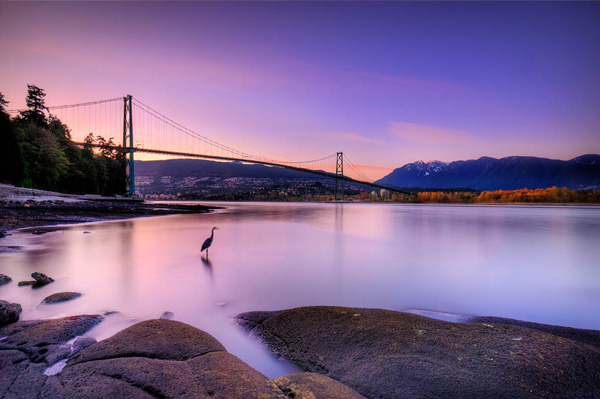
Lions Gate Bridge Vancouver - HDR image

Lions Gate Bridge Vancouver – HDR image

How do I shoot HDR?

Making an HDR image involves 3 distinct and separate processes. I will go into detail on each one, but at a high level, they are as follows:

  1. Image Capture
  2. HDR Processing
  3. Image editing in Photoshop

Lets start with image capture first. This is the photography part of this process. It’s pretty simple really. Set up for your shot as you normally would. Make sure you have your subject well composed and you are ready to go. The difference between HDR and normal photography, is that with HDR you will take either three to five bracketed images of the same scene. The reason for the number of images is that you will blend these images together in a dedicated HDR product.

My recommendation for HDR software is Photomatix Pro. It is a programme that has been around for many years now and has some really good editing functions. It’s probably the most widely used software when it comes to HDR. Photoshop also has an HDR function, but in my opinion, its not as refined as the Photomatix Pro yet. Don’t get me wrong, I am a huge Photoshop fan, it is an incredible tool, I am sure that Photoshop will have something within their functions that will be competitive in time, but for now, I still use Photomatix.

Step #1 –  Image capture

These are the steps I follow when I intend to do an HDR shot. They are not rules, nor are they inflexible, they just work for me. You need to find what works for you and gives you the best results, this method has helped me get my best results, so try it out. Tweak it and change it as you need.

  1. Use a tripod – it is a good idea to put your camera on a tripod for HDR, especially if you are shooting in low light. I have done some handheld HDR but only in bright conditions. The tripod will also help you get your composition right.
  2. Put your camera into Manual mode “M”
  3. ISO Settings – it is a good idea to keep your ISO settings at 100 or as low as your camera will go. That way you will avoid introducing unnecessary noise into your images. The process of HDR allows you to capture the dynamic range of light and colour in the scene. Using high ISO settings is great when you are trying to shoot a low light scene and capture it in one shot, but for HDR you will want to keep it as low as possible.
  4. Set your aperture to anywhere between F/8 and F/ 11 and don’t adjust your aperture between shots.
  5. Adjust your shutter speed so that you are exposing the scene perfectly according to your cameras light meter.
  6. Capture one image at this reading
  7. Underexpose by one or two stops (depending on the scene) and capture another image by adjusting your shutter speed.
  8. Do this twice on either side of the perfectly exposed image.

This will result in five images being captured.

Below are the three images I used in making the HDR image you see above. Take a look at how the colours and exposure don’t look good at all.
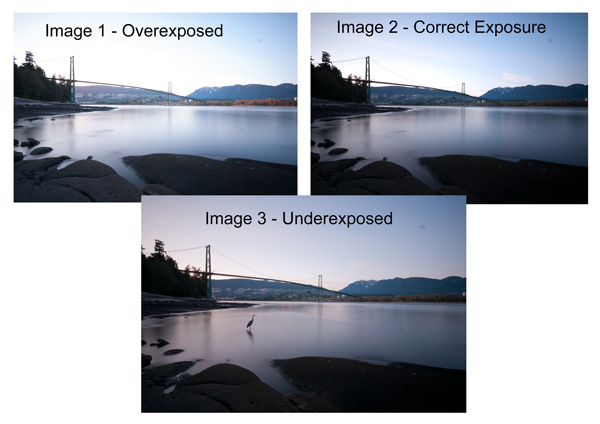
3 Different exposures for the HDR image above

3 Different exposures for the HDR image above

Some photographers use five shots for their HDR shots, some use seven or up to nine. I have found that three to five shots seem to work best for most scenes. I have only used nice shots on a few occasions, but have not been happy with the results. The colours seem to be “muddy” and unclear once processed. If necessary, shoot seven images and see how that works.

Once you have completed the shoot, download the images to your computer. It is important NOT to edit the images before blending them into an HDR image. Some of the shots might look over exposed or under exposed, thats OK, in fact they must look like that. The software will deal with these issues, so don’t be concerned that the images look bad out of camera, they need to be processed and then the magic begins.
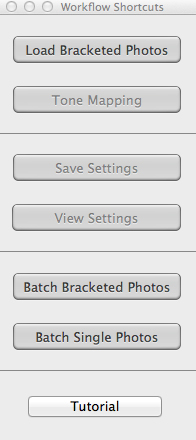
Click on - Load Bracketed Photos

Click “Load Bracketed Photos”

Step #2 – HDR processing

I will be explaining the Photomatix software in this article. I have tried HDR with each new version of Photoshop and I am still happier with the results I get from Photomatix Pro. You can download a trial version of Photomatix from their website. It is fully functional, the only thing is that the trial version puts a watermark on the image. This is OK for trying it out, you will see exactly what the software can do, if you think it is worth it, then you can buy it. Ok, so here is how you take your images into Photomatix Pro

  1. Open Photomatix Pro (or if you’ve set it up as a Lightroom plugin, select your bracketed images, right click and choose “edit in” and Phototix Pro)
  2. Click  ”Load Bracketed Photos” and then click on “Browse” and select the images you have taken (you can also drag and drop them into the box)
  3. Click OK once the images appear in the box
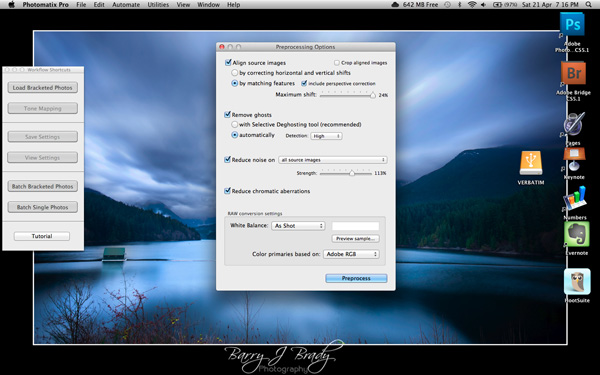
Select the options displayed on the screen above

Select the options displayed on the screen above

Preprocessing options are available.  Make selections on the box as shown in the screenshot above. Then click preprocess and Photomatix Pro will begin to tone map the images into a composite 32-bit image. This process is generally quite quick, between 30 seconds and a minute.  Once complete, click on the Tone Mapping button.

Use the “Remove ghosts” function if you have people or moving objects in your images. If you don’t have this, then you wont need to use this function.

The HDR editing screen

On this screen, you are able to select a variety adjustments that will create an overall change to the image. There are no absolutes here. Each adjustment makes minor or major differences to the image and the combination of the adjustments provides diverse options.
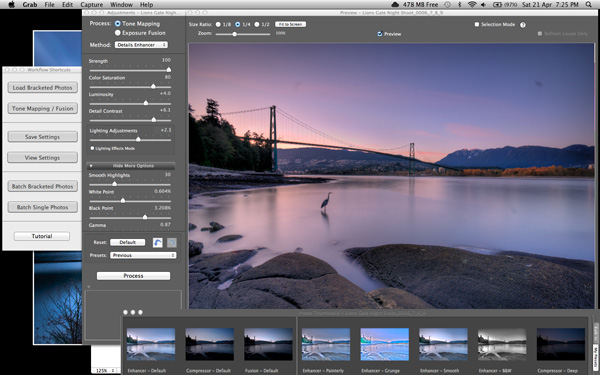
HDR-Screen-600

At the bottom of the screen you will see different “treatments” (or presets) which you can use as a starting point to your image editing process. I would avoid using these as they are generally overdone. Try and use the functions on the left hand side to edit your image.

Below are the details about each function on the left hand side of the screen and what each does. One of the best ways to see what a function does is to slide it all the way over to the left and then to the right and see how it affects your image, but here are the details:

General Settings

  • Strength – affects the degree to which contrast and detail are enhanced in the image. A value of 100 gives the maximum amount of enhancement. To get a more natural effect, move the slider to the left. The default value is 70.
  • Color Saturation – controls the saturation of the RGB color channels. The greater the saturation, the more intense the color. Move the slider right or left to change the setting. A value of zero produces a grayscale image. The value affects each color channel equally. The default value is 46.
  • Luminosity – controls the compression of the tonal range, which has the effect of adjusting the global luminosity level. Move the slider to the right to boost shadow details and brighten the image. Move it to the left to give a more “natural” look to the resulting image. The default value is zero.
  • Detail Contrast – controls the amount of contrast applied to detail in the image. Move the slider to the right to increase the contrast of the details and give a sharper look to the image. Note that increasing the contrast also has a darkening effect. Move the slider to the left to decrease the contrast of details and brighten the image.
  • Lighting Adjustments – affects the overall ‘look’, controlling the extent to which the image looks natural or surreal. When the Lighting Effects Mode box is unchecked, move the slider to the right to make the image look more natural and to the left to make it look more ‘painterly’ or ‘surreal’. Use this carefully as it can have an unpredictable effect on your image.
  • Lighting Effects Mode – the checkbox lets you switch between two modes for the Lighting Adjustments setting,where each mode produces slightly different results. Checking the box tends to produce results with a type of ‘Magic Light’ effect.

More Options

  • Smooth Highlights – reduces the contrast enhancements in the highlights. The value of the slider sets how much of the highlights range is affected. This control is useful for preventing white highlights from turning grey or uniform light blue skies becoming dark blue-grey. It is also useful for reducing halos around objects placed against bright backgrounds. The default value is zero.
  • White Point and Black Point – these sliders control how the minimum and maximum values of the tone mapped image are set. Moving the sliders to the right increases global contrast. Moving them to the left reduces clipping at the extremes. The White Point slider sets the value for the maximum of the tone mapped. The Black Point slider sets the value for the minimum of the tone mapped image.
  • Gamma – adjusts the mid-tone of the tone mapped image, brightening or darkening the image globally. The default value is 1.0.
  • Temperature – adjusts the color temperature of the tone mapped image relative to the temperature of the HDR source image. Move the slider to the right to give a warmer, more yellow-orange colored look. Move the slider to the left for a colder, more bluish look. A value of zero (default) preserves the original color temperature of the HDR source image.

Advanced Options

  • Micro-smoothing – smoothes local detail enhancements. This has the effect of reducing noise in the sky, for instance, and tends to give a “cleaner” look to the resulting image. The default value is 2. Important note: The Loupe may not properly show the effect of the Micro-smoothing setting when the area magnified is uniform. If you want to see the effect of the Micro-smoothing setting at 100% resolution on a uniform area such as the sky, you will have to select an area that contains an object in the scene in addition to the sky.
  • Saturation Highlights – adjusts the color saturation of the highlights relative to the color saturation set with the Color Saturation slider. Values higher than zero increase the color saturation in the highlights. Values lower than zero decrease it. The default value is zero.
  • Saturation Shadows – adjusts the color saturation of the shadows relative to the color saturation set with the Color Saturation slider. Values higher than zero increase the color saturation in the shadows. Values lower than zero decrease it. The default value is zero.
  • Shadows Smoothness – reduces the contrast enhancements in the shadows. The value of the slider sets how much of the shadows range is affected. The default value is zero.
  • Shadows Clipping – the value of the slider sets how much of the shadows range is clipped. This control may be useful to cut out noise in the dark area of a photo taken in a low-light situation. The default value is zero.

Once this part of the process is finished, then it is time to take the image into Photoshop. Save the tone mapped image and then re-open it in Photoshop.

Step #3 Image Editing in Photoshop

This is a very basic workflow. It will enhance the lighting and tonality in your images. These techniques are discussed here at high level.

Shadows and Highlights

Photoshop has a function called Shadows and Highlights. Use this tool to bring out detail in the shadows of your image. Use it carefully, if you overdo the treatment on the shadows, there may be some unsightly image degradation or “noise”. This function is not great for adjusting highlights, so use it for the shadows only. This tool is found in Photoshop as follows: IMAGE > ADJUSTMENTS > SHADOWS AND HIGHLIGHTS. The adjustments of AMOUNT, TONAL WIDTH and RADIUS should all be kept aligned close to one another to ensure that the adjustment looks realistic.
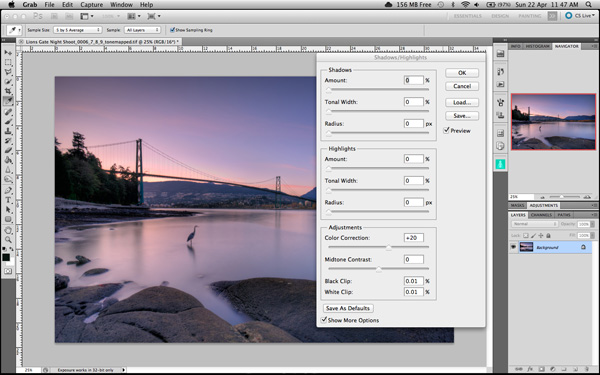
Shadow and Highlights function in Photoshop

Shadow and Highlights function in Photoshop

Levels Function

The levels function in Photoshop is for adjusting the lighting in an image. This means that if your image is a little dark you can push up the exposure slightly and see more details in the image. The levels function shows a representation of a histogram. Move the sliders in to touch the edge of the histogram as a general rule. This will ensure that your image has a good representation of highlights and shadows.
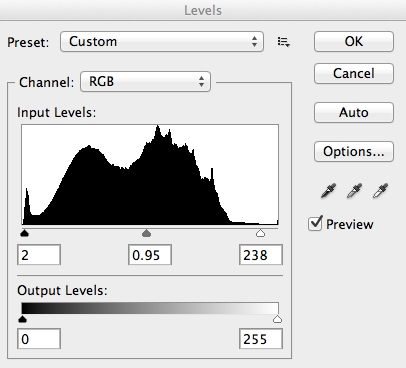
The Levels functioning Photoshop

The Levels functioning Photoshop

Hue and Saturation

Once the exposure and lighting has been adjusted and looks correct, then you may begin adjusting the colour in the image. The tool to use will be the Hue and Saturation tool. The important tip here is not to adjust the master channel but rather to adjust by each channel independently. To do this, click on the top toggle button that says “default”. A drop down menu will appear and each colour channel will be available from there. Slide the Saturation Slider to the left to desaturate (remove colour) or to the right to saturate. That way you have the best control of the colour in your image.
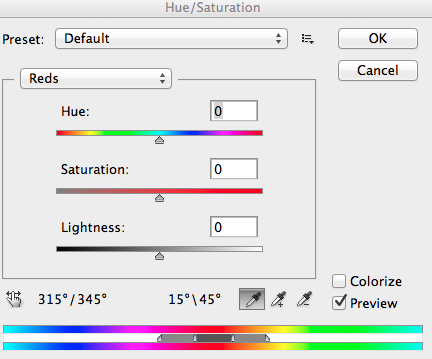
Hue and Saturation Function in Photoshop

Hue and Saturation Function in Photoshop

Dodging and Burning

These functions are localized adjustments. By using a brush tool, you are able to make certain areas of the image darker and other areas of the image lighter. This is useful for adding the finishing touches to your image. There is also the sponge function which is a saturation tool which can saturate colours at a local level.

Sharpening

Almost every image that comes out of a digital camera requires sharpening of some sort. The easiest and quickest tool to use is the Unsharp Mask tool and it works effectively.
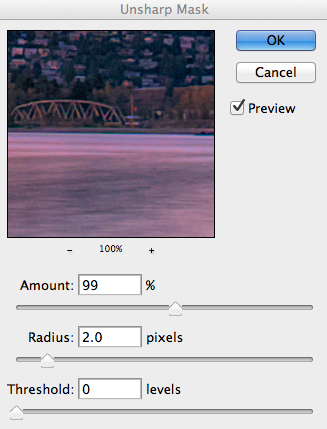
Unsharp Mask Tool in Photoshop

Unsharp Mask Tool in Photoshop

The Unsharp Mask has three separate sliders: Amount, Radius and Threshold. As a general rule you can keep the Amount anywhere between 80 and 120%, Radius can be set between 1.0 and 3.0 pixels and Threshold is generally at zero. Adjust the sharpness of the image according to each image requirement and beware of degrading the image by over sharpening. You will easily notice if an image is over sharpened by the appearance of a “halo” around certain edges in the image. The idea is to sharpen the image but not make it overly sharp and lose image quality.

Once you are done, save your image and thats it! Have a go, try different settings in different light, let me know what you think and how your images turn out. If you have any questions, drop them into the comments box below.

Please leave your comments and questions below. If you want more HDR tips, try some of these articles:

  • HDR Vertorama Photography – How to Create Mind-bending Images
  • Five Minutes to Realistic HDR using Lightroom and a 32-Bit Plugin
  • The 10 Steps Every HDR Photographer Goes Through
  • Exposure Blending Using Luminosity Masks Tutorial

The post Getting Real with HDR – a Step by Step Tutorial for Realistic Looking HDR by Barry J Brady appeared first on Digital Photography School.


Digital Photography School
 
Comments Off on Getting Real with HDR – a Step by Step Tutorial for Realistic Looking HDR

Posted in Photography


A Step By Step Guide to Making Your First Panorama Photo

08 May

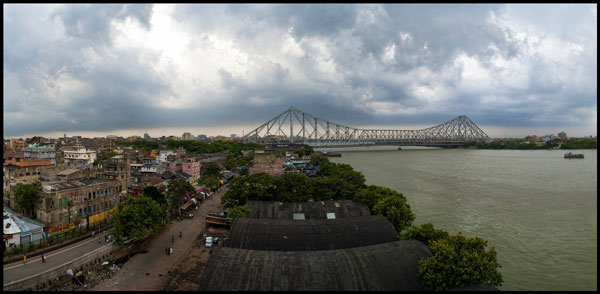
Image 4

While visiting an art gallery or a photography exhibition, at times you may have noticed certain landscape photographs have extremely elongated fields of view. They seem quite impossible to have been photographed with a standard camera. If you wonder how such elongated photographs are made, you are not alone. I had my first encounter with a panoramic image of the Himalayan mountain range being displayed at Das Studios in Darjeeling, a Himalayan resort town in West Bengal, India. That photograph had a huge impact on me and it led me to searching for ways and means to photograph panoramic images.

During my initial search I figured panoramas were probably made with highly specialized cameras and lenses. But, to my surprise I found that panoramic photographs can be made with any kind of camera at your disposal. All you need is a camera, preferably one capable of shooting in Manual mode. Yes, with certain cameras and Smartphones you can get Apps for recording a panorama in a sweep but I never found the results quite satisfactory. Shooting your own panorama gives you the creative freedom and a sense of satisfaction.

How to shoot a panorama

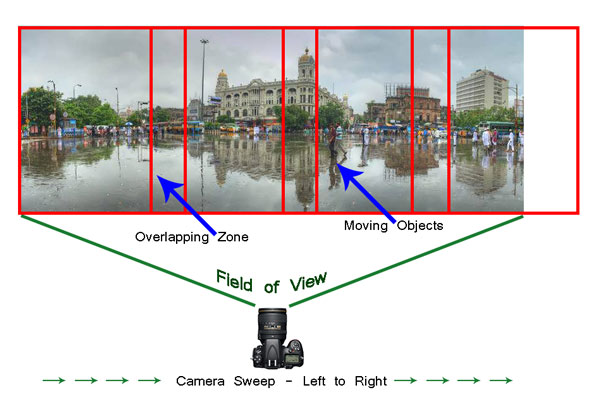
A panorama is a combined set of individual photographs, in which two adjacent photographs have at least 20% overlapping areas. These two, or more, overlapping photographs are “stitched” with the help of software to produce extremely elongated fields of view. The overlapping is required as the software is able to understand the common areas in two adjacent photographs and hence can eliminate duplication of a scene by stitching the same into a single photograph.

Image 1

Before shooting a panorama, you need to plan out well. Here is a list of guiding factors for creating your own panorama.

#1 Shoot in Manual Mode

Since a panorama is shot over a large field of view where lighting conditions can be different, it is imperative to shoot in Manual mode with Manual Focus. This will ensure all the photographs shot have an exact exposure value and focus throughout all the images. Shooting in Automatic, Program or Semi-Automatic modes (like Shutter priority or Aperture priority) will result in different exposure values for each photograph, which in turn may cause the final merged photograph to have varied exposure and color casts in different parts of the photograph.

#2 RAW or JPEG

While you generally want to shoot in RAW, it is preferable to switch to JPEG for panoramas. Shooting in RAW is absolutely fine, but since the photographs will not be edited individually (we will see this at a later stage) and to reduce shutter lag, shooting in JPEG is preferred. A word of caution – as we will be shooting in JPEG make sure the exposure values are correctly adjusted.

#3 Tripod or handheld?

If the weight of your tripod is not a factor, carrying it is always preferable. However on a bright day you can very well rely on your own hands. A steady posture, or using your camera bag or any sturdy object available to rest the camera on, will save you the weight of carrying a tripod.

#4 Horizontal or vertical

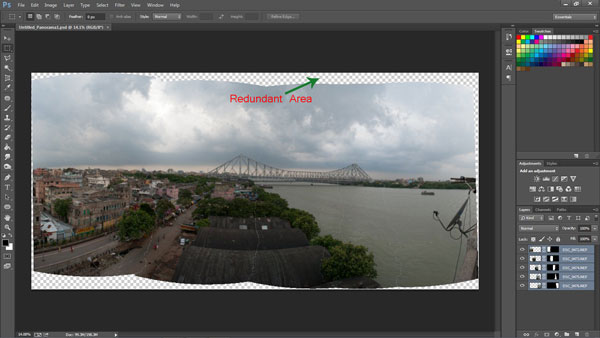
We are generally accustomed to shoot in Landscape (horizontal) mode. Shooting in Landscape is fine but the resulting panorama will be short in height, since Landscape photographs will be stitched together. Additionally, during the stitching process there will be a lot of redundant or blank areas (you will see later during the post-processing) which need to be cropped out. This will further reduce the height of the panorama. To overcome this issue you may choose to shoot the panorama in Portrait (Vertical) mode. This will help in achieving a greater image height which can be cropped out as per requirement, say for printing or aesthetics.

#5 Be fast

Be very quick in shooting since light conditions change fast. Additionally if you are shooting a cityscape, a populated beach or a scenario where there is movement, be cautious. If you are not shooting fast enough, you will find moving objects (e.g., people, cars, bikes) will be duplicated across the frames. You would not want to see the same object twice across the panorama.

# 6 Plan it out well

Stand at the selected spot and plan the number of shots in advance. This will help you in keeping a control of the number of shots rather than shooting randomly. Be sure to do a mock round without actually shooting.

When you are ready, start shooting from left to right. Make sure you have at least 20% overlapping areas in two consecutive photographs. An visual estimate will suffice. Look through your viewfinder and shoot. Do not look at the individual photographs on your LCD screen until you finish shooting. Before leaving the scene turn on the LCD screen and review the photograph series. If you are not happy, shoot again.

Image 2

Stitching your panorama

The sext step is stitching your panorama. There are plenty of panoramic stitching software available on the internet. I will put a list of links to some of the best software at the end of this article. The stitching process is similar across software but as of now we will use the standard photo editing tool – Adobe Photoshop. The stitching process in Adobe Photoshop is fully automated.

Since you may have shot more than one panorama series, for the purpose of identification it would be easier to store each series in a separate folder. You may have shot in JPEG or RAW but make sure you do not edit individual photographs.

Steps to stitch a panorama:

  1. Open Photoshop
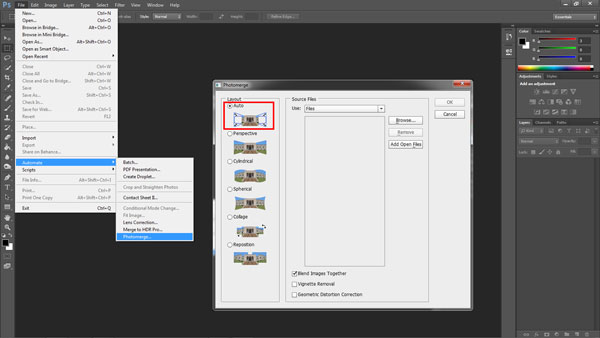
  2. Click File > Automate > Photomerge
  3. “Auto” is the default Layout option. Photoshop analyzes the source images and applies either a Perspective, Cylindrical, and Spherical layout, depending on which produces a better Photomerge. Choose “Auto” if it is not selected by default.
  4. Check “Blend Images Together”
  5. Next Click “Browse” and locate the separate Folder where you have put in your panorama series. Select the series and click “Ok”

Image 3

  1. Depending on the number and size of the photographs, it may take a while for Adobe Photoshop to stitch together the images.
  2. After the stitching process is completed you will find a roughly shaped panorama (with a few redundant spaces). Refer to the image above
  3. Right click on a Layer in the Layers panel and click Merge Layers
  4. The next step is to use the Crop Tool to trim out the redundant portions of the panorama
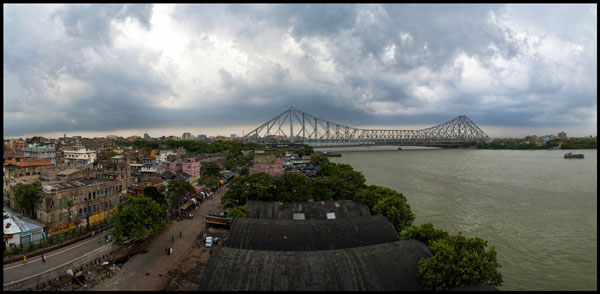
  5. After the final touches you are done with your very own first panorama

Image 4

Links to panorama stitching software:

  • AutoStitch
  • pTGui
  • Hugin
  • Autopano
  • Microsoft Image Composite Editor

If this is the first time you are creating your panorama, I would love to receive your feedback or to share your panorama in the comments below.

The post A Step By Step Guide to Making Your First Panorama Photo by Soumya Shankar Ghosal appeared first on Digital Photography School.


Digital Photography School

 
Comments Off on A Step By Step Guide to Making Your First Panorama Photo

Posted in Photography


Google+ Takes An Evolutionary Step With Online Photography

03 Jun

Social media has brought about the ability to share images across the world in seconds, something unthinkable a decade ago. There are several major firms who dominate this market – Facebook, Flickr, Pinterest, and Instagram to name but a few. Sleepy old Google+, however, hasn’t had much of a say. With 500 million registered users it’s officially the second most Continue Reading

The post Google+ Takes An Evolutionary Step With Online Photography appeared first on Photodoto.


Photodoto

 
Comments Off on Google+ Takes An Evolutionary Step With Online Photography

Posted in Photography


A Simple 3 Step Culling Workflow: The “Editing Out” Culling System

29 Apr

Introduction

This tutorial has been transcribed from the SLR Lounge Lightroom 4 Workshop on DVD, a 14 hour Lightroom 4 A – Z guide with over 130 tutorials for mastering Lightroom from start to finish. The Digital download can be purchased from SLR Lounge while the physical copy is available through Amazon Prime.

Overview

In this article, we will go over one of our culling systems that we use at Lin and Jirsa Photography. We currently use the “Editing In” System at our studio, but in this article, we will go over the “Editing Out” System. Both systems are fast and effective; however, the “Editing In” System works a bit better for us (We will cover that “Editing In” workflow in an upcoming tutorial). Keep in mind that there is no one right culling system, so feel free to set up one that works best for you.

Either way, it is a good idea to keep your culling system as streamlined as possible. Our “Editing Out” System is a quick way to cull through images, so keep reading to see how you can save time in your production workflow!

KISS – Keep It Simple Stupid

As mentioned before, it is best to have a simple culling system because it can save you a lot of time. In most cases, the KISS acronym is quite fitting. Keep it simple, stupid. Seconds saved per image can end up being hours by the time you work through a large image catalog. Sometimes, photographers create rather complex culling systems to try and keep their images meticulously organized right from the start. For example, they may use the 5-star rating system like the one below.

  • 5 stars = Portfolio photo
  • 4 stars = Blog photo
  • 3 stars = Average photo (delivered)
  • 2 stars = A little potential but unsure (undelivered)
  • 1 star = Reject image

While this kind of a rating system sounds great in theory, it can become too cumbersome when working from image to image since it requires you to carefully analyze each image and make too many decisions at once. “Is it good enough to keep, if so, is it blog worthy, or portfolio worthy, etc.” This is why we stress creating a simple culling system. We won’t truly know what images are blog or portfolio worthy until we are done culling, editing and finishing our images. At that point, we can scan through and quickly select and mark our blog/portfolio images in just a minute or two. Trying to make that decision during the initial culling is not only time consuming, it is impossible to make correctly.

So, let’s go over the 3 steps of the “Editing Out” System that you can adopt into your workflow to help speed things up.

The 3 Step “Editing Out” Culling Process

If you have seen our Lightroom 4 Workflow System DVD, you know that Lin & Jirsa Photography currently uses the “Editing In” System, which we mentioned earlier. In the “Editing Out” System, we will select all of our images in the catalog as a “pick” by pressing “P”. Then, we will go through each individual image and reject the images we do not want to deliver. The “Editing Out” System is simple because we now only have 1 choice : keep the image and move to the next or reject the image by pressing “X.”

Immediately, our workflow process has moved from 5 possible decisions with 5 different keystrokes, to only 1 decision and 1 keystroke.

Step 1: Flag All Images as Picks
We need to flag all images in our catalog as a Pick. Return to the Grid View by pressing “G.” Then, select all of your images by pressing “Ctrl + A.” Next, press “P” to flag all images as Picks. Then deselect your images by pressing “Ctrl + D.” This will allow us to go through our images and un-flag them during the culling process.

Step 2: Filter by Flag Status
Next, we need to filter our images, so that when we “reject” an image it disappears from view. We are going to filter by flag status, so click on the first flag, as shown below. Now, we can only see flagged images. Anytime we press “X” to mark an image as a “reject” it will disappear from view.

11_filter-flag-status

Step 3: Culling Images
While we view and cull our images, we want to have as much screen space as possible. Press “F” twice to go into Full Screen Mode. Then press “Tab” to get rid of the left and right panels. Double-click on your image to view the image in full screen. Now, we are going to start culling our images. If you want to reject an image, press “X.” Since the Filter is set to only display “Flagged” images, any rejected image will automatically disappear from the lineup. Continue moving through your images by pressing the Right Arrow on your keyboard.

With the “Editing Out” System, we only have 1 option to consider, is the photo deliverable, or is it not. Is it worth keeping, or is it not. Deciding on whether it belongs on your blog, or portfolio should really come after all the images have been finalized and edited, not during the initial culling.

If you turn off all filters, you can see that the rejected images are grayed out. If you want to look at the rejected photos, just turn on the Rejected Filter, down in Filters.

So, hopefully this article was helpful to you. In the next culling article, we will show you are simple “Editing In” workflow. Just remember to keep your culling system simple, and it will save you many hours of time!

Learn More with the Lightroom 4 Workshop Collection!

This was a sample tutorial from the Lightroom 4 A to Z DVD which is one of the DVDs in the Lightroom 4 Workshop Collection. A collection of nearly 30 hours of video education teaching everything from Lightroom basics to advanced raw processing techniques.

The LR4 Workshop Collection also includes the critically acclaimed Lightroom 4 Preset System which is designed to enable users to achieve virtually any look and effect within 3-5 simple clicks. From basic color correction, vintage fades, black & white effects, tilt-shift effects, faux HDR, retouching, detail enhancing, and so much more. Click the links above to learn more.

Post originally from: Digital Photography Tips.

Check out our more Photography Tips at Photography Tips for Beginners, Portrait Photography Tips and Wedding Photography Tips.

A Simple 3 Step Culling Workflow: The “Editing Out” Culling System


Digital Photography School
 
Comments Off on A Simple 3 Step Culling Workflow: The “Editing Out” Culling System

Posted in Photography


Tack Sharp – A Step By Step Guide to Nailing Focus: 40% off Today Only

23 Dec

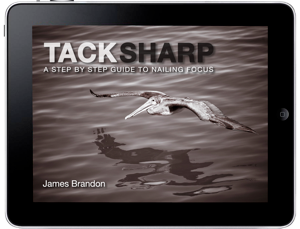
NewImageToday’s deal in our 12 Deals of Christmas features a great eBook from one of our regular dPS writers – James Brandon.

‘Tack Sharp – A Step By Step Guide to Nailing Focus‘ is all about – as the title suggests’ getting consistently sharp images.

There’s nothing worse than getting back to your computer to look at your shots after a day of shooting only to have that sinking feeling when you realise your shots were not quite in focus.

This eBook will identify small things that you can build into your shooting style that’ll eliminate that sinking feeling and help you achieve consistently tack sharp images for years to come.

For today only it is just $ 5.97 (40% off the normal price) if you use the coupon code of CHRISTMAS during the checkout process.

In this eBook you will:

  • Learn the art of consistently nailing focus on your images
  • Discover custom functions that have been hiding right within your cameras menu settings
  • Say goodbye to the frustrations of blurry, unusable images

Tack Sharp was written for anyone who has ever struggled with getting sharp images in different situations. Maybe you recently purchased a fast lens, but can’t figure out why the camera keeps focusing on the wrong part of the subject. Or perhaps you feel as if you’re doing everything right but still come out with slightly soft images. This process can be extremely frustrating and hard to deal with.

Within the pages of this ebook, you’ll discover the tips and tricks used by the pros to take full control over the advanced systems of focus within today’s digital camera systems. Along the way you’ll see actual examples of images where these practices were put in place, often times in situations where focus would have been next to impossible to achieve otherwise. If you struggle with getting consistently sharp images then look no further, this ebook is for you!

Grab your copy today for just $ 5.97 (40% off) when you use the coupon code of CHRISTMAS during the checkout process.

Post originally from: Digital Photography Tips.

Check out our more Photography Tips at Photography Tips for Beginners, Portrait Photography Tips and Wedding Photography Tips.

Tack Sharp – A Step By Step Guide to Nailing Focus: 40% off Today Only


Digital Photography School
 
Comments Off on Tack Sharp – A Step By Step Guide to Nailing Focus: 40% off Today Only

Posted in Photography