RSS
 

Posts Tagged ‘step’

Total Beginner’s Guide to Lightroom – Step by Step

13 Jun

I had tried Lightroom in the past, but always preferred using Apple’s Aperture photo editing program. But in the spring of 2014, when it was announced that Apple was no longer supporting Aperture, I decided to make the leap to Lightroom. At first I found it difficult to use and not really intuitive, but I soon found my way around and I was a Lightroom convert.
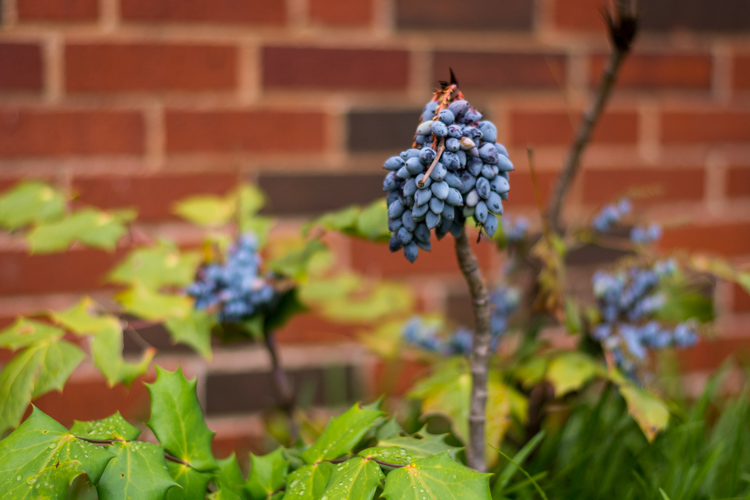
beginners-guide-lightroom-blue-buds

If you are new to Lightroom and don’t know where to start, or have thought about using it but feel overwhelmed, then please know I feel your pain, and know where you’re coming from. I wrote this Beginner’s Guide to Lightroom to help you, and I wish I would have had something like this when I first got started. It’s designed to help you through a few basic steps from opening up Lightroom for the first time, making two basic edits, and exporting (saving) a final version of your picture.

What is Lightroom and what does it do?

In a nutshell, Lightroom is a program that can manage and edit your images. The catch, though, is that it doesn’t really edit your images, or actually manage anything either. Instead, the program works by looking at pictures you have stored on your computer, and allows you to create instructions for how you want to change them.

For example, let’s say you have a photo of a squirrel that’s a bit dark so you want to make it brighter. Lightroom doesn’t touch the original image! It doesn’t move it, copy it, rename it, or change it in any way. Instead Lightroom, is a non-destructive editing program, that allows you make changes to a preview or thumbnail version of the picture, which means you can see what the final image will look like after you make it brighter. When you are finished with your editing you export (or save as) a final image from Lightroom (again leaving the original file completely un-touched) and voilá, you now have a second, much brighter photo, to print or share with others.
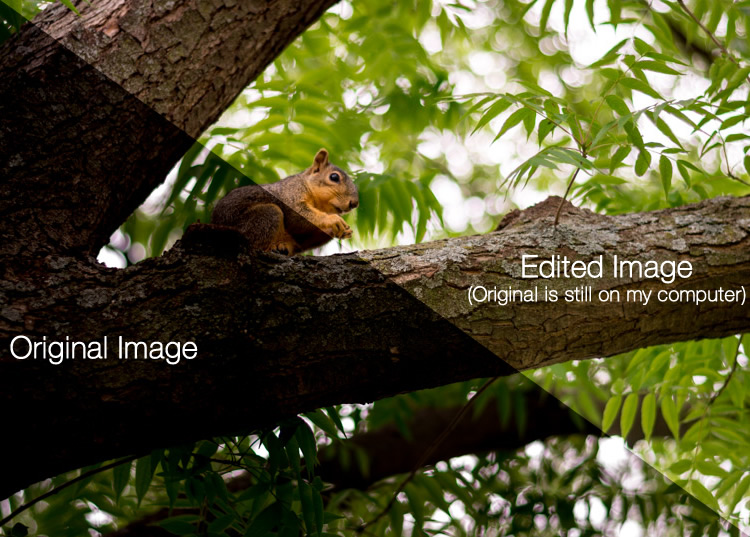
beginners-guide-lightroom-squirrel-comparison

The Lightroom catalog is like a recipe book

Lightroom stores a record of all the changes you want to make to your images in a separate file called the Catalog, which is stored independent from your pictures. The best analogy I can think of is that of a kitchen: your original pictures are kind of like the raw ingredients in your cupboards, and the Lightroom Catalog is like a recipe book. Lightroom doesn’t do anything to your ingredients (your original files), but instead saves the instructions for transforming your supplies into actual finished products (in this case output edited images), just like recipes for your photos. When you are finished, your original image files still remain, but you have a new creation (i.e. an edited picture) that you can share with others.

The Importance of Adobe Camera Raw

Before we get too deep into the weeds here, it’s important to back up a bit and look at another program called Adobe Camera Raw (ACR), which allows you to perform all sorts of edits and changes to your Raw images – from simply making them brighter or darker, to selectively editing colors, or working with curves. You may already have it on your computer and not even know it, and it’s actually the engine that powers everything Lightroom does in terms of editing your images. Every change, adjustment, and tweak you do to one of your photos in Lightroom, is actually being done by ACR. Understanding how this fits in might seem a bit extraneous to the overall Lightroom discussion, but it’s important to know how all it works together if you want to make sense of Lightroom itself.

beginners-guide-lightroom-brothers

You and Lightroom: best buds for life.

Opening Lightroom for the First Time

When I initially launched my copy of Lightroom four years ago, things started to go south within a matter of seconds. It asked me about making a Catalog, and wanted to know where to store it, and I started channeling my inner Gob Bluth while muttering to myself, “I’ve made a huge mistake.” If this sounds like you, don’t worry – there’s really not much going on here that you need to worry about, and everything will be fine. Remember the kitchen analogy I mentioned earlier? All your computer wants to know right now is where to store the Catalog, or recipe book, that it will use to keep track of the changes you want to make to your pictures. You will need to create a new Catalog, and specify its location on your hard drive. I just keep mine within my Pictures folder.
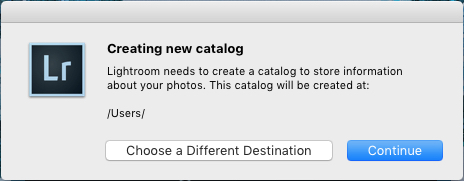
beginners-guide-lightroom-catalog-dialogue

Lightroom wants to know where you would like to store its Catalog, or database of edits you want to make to pictures. If you’re not sure what to do here, just click the “Continue” button.

Some people are very specific about where they want this Catalog to be located, and professional photographers will often have multiple image collections and many catalogs as well. Honestly, if you just want to figure out how to use Lightroom you can just click the “Continue” button and go about your business. For casual photographers the exact location of the Catalog file is not all that important, so don’t sweat it.

Note: do not store your catalog on an external hard drive though, it will not run optimally or may not run at all. Keep it on your computer’s main drive. If in doubt just click Continue as noted above.

In terms of new-user-confusion, the next screen (the Library module) you see is not much better. Upon encountering it for the first time I felt like someone had quashed my photography enthusiasm with a scary dull grey veil. There are a few tutorial hints that pop up in the middle, which aren’t very helpful, and after you dismiss them you’re left staring at an empty dark wasteland, wondering why you didn’t just stick to using Instagram filters like everyone else.
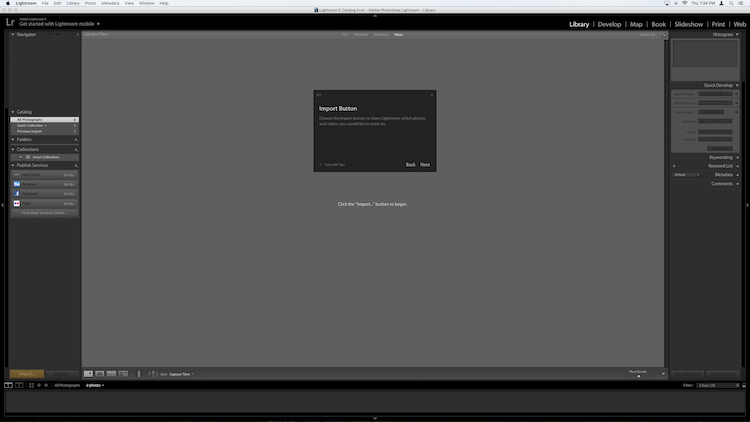
If this screen doesn't make a new user run screaming from Lightroom, I don't know what would.

If this screen doesn’t make a new user run screaming from Lightroom, I don’t know what would.

What you’re looking at here is your entire library of photos, but it’s empty because none have actually been imported yet. There’s plenty of other options and buttons here as well – enough to confuse even the most experienced user – so for now just ignore the Catalog/Folders/Collections stuff on the left side, and all those Quick Develop options on the right side. And for heaven’s sake, don’t give a second thought to those strange chessboard-like icons at the bottom. Just take a breath, grab your memory card and your favorite beverage, and get ready to import some photos. Plug your memory card into your computer, then click the “Import” button in the lower-left corner to start transferring your pictures over to your hard drive. You can also import photos that are already sitting on your computer, but for now I want to focus on the kind of workflow you might encounter, as a photographer who just wants to figure out this program.

Importing Photos

The first thing you see once you have your memory card connected is a grid with tiny thumbnail previews of all the pictures on your memory card.

Note: You can also connect to your camera directly – however, it’s a better idea to use a card reader then plug in your camera directly. If the camera battery dies during import you can crash the card and damage or lose your images.
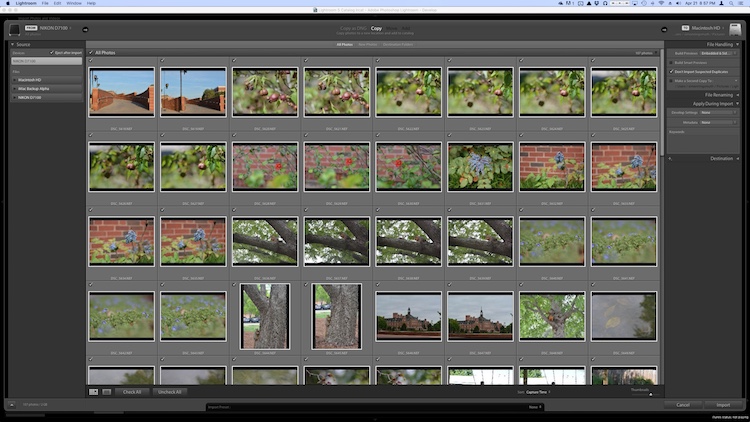
beginners-guide-lightroom-import

There are all sorts of options on this screen, but if you just want to get the basics down, here’s what you need to look at:

  1. At the top of your screen, select the option that says “Copy.” This will, as you may guess, copy the pictures over to your computer, and add them to the Lightroom catalog so you can make edits to them later.
  2. On the right-hand side you have to choose a Destination so the program knows where to put the original photos on your computer. You can select a specific destination or just let Lightroom figure this out for you. You can also do things like rename your pictures as they are imported, apply specific edits (called “Develop Settings”) to all of them, or give them keywords such as “Wedding” or “Camping.” For now don’t worry about any of this, and I promise everything will be just fine.
  3. Choose which pictures to import by making sure they have checkmarks in the top corner of each thumbnail preview. They should all be checked by default (if they aren’t just click Check All), but if there are any images you don’t want to import, you can just un-check the box next to them.

When you’re all set, click the Import button in the lower-right corner of your screen. Your computer will beep or chime when everything is done, and you’ll be ready to start editing your photos!

Organizing and Developing (Processing)

After your photos are imported things start to get really crazy, but once again just try to ignore all the new things that show up on the side of your screen, and focus on just a few of the essentials. First of all, don’t start making edits or changes to your pictures just yet.

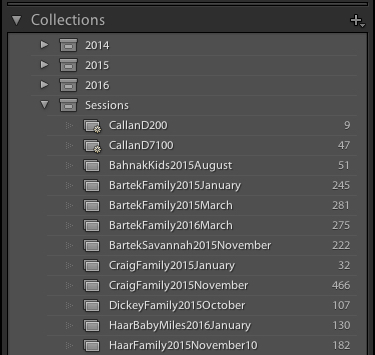
Instead, look at the left side of your screen and find an area called “Collections.” beginners-guide-lightroom-collectionsRemember that Lightroom doesn’t actually do anything with the original pictures. When you clicked Import, it copied them over to a folder on your hard drive where they will remain, intact and untouched, until the end of time. What you can do is organize the pictures into Collections within Lightroom itself, in order to keep track of them more easily. Collections function just like playlists in iTunes or Spotify, and allow you to sort photos manually or automatically, based on how you want them to fit together. Click the + button on the right side to make a new Collection (i.e. Playlist), Smart Collection (where sorts your photos automatically based on criteria you specify) or Collection Set (a folder containing multiple Collections). Once you have a Collection created you can populate it by dragging and dropping your photos over to it, just like in iTunes. During this process the original images stay exactly where they are on your hard drive, you are just using Collections to help manage them a little easier.
Read more on collections and organizing here: How to Organize Your Photos in Lightroom

Once you have your images sorted into Collections it’s time to start editing them. (Or you can start editing without doing any sorting at all. It’s up to you.) Click the “Develop” option in the top-right corner of your screen to begin making changes (or click D on your keyboard). At first I was put off and confused by the term Develop, but Adobe used it to hearken back to the days of darkrooms and analog film photography. (which some photographers still use even today). Before digital cameras you had to actually get your film developed before you could see your pictures, and that’s essentially what Lightroom is trying to emulate here in the Develop module. If it doesn’t make sense to you yet, just pretend it says “Edit” instead of “Develop” and you’ll be fine.
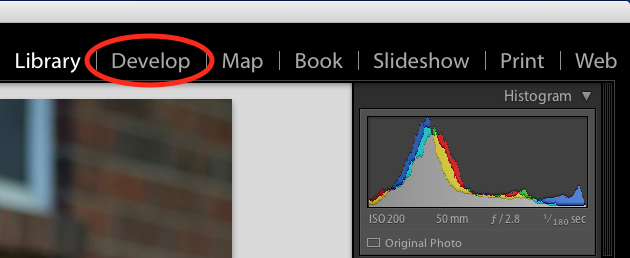
beginners-guide-lightroom-develop

You are now in the Develop module, which is one of seven different working states available inside Lightroom, the rest being: Library (which you started in), Map, Book, Slideshow, Print, and Map. I ignore all the others, and spend about 98% of my time in either Library or Develop, and as a new user I would recommend the same for you.

At first when you click on the Develop module it might not seem like anything is different, but look again and you will see that all the metadata information that was on the right-hand side of your screen has been replaced with a series of panels like Basic, Tone Curve, Lens Corrections, and more. Don’t start hyperventilating! I promise this is easier than it may seem at first. There are a metric ton of tutorials and web pages online devoted to helping you understand the Develop module, but right now I just want you to focus on two simple things: Cropping and Exposure.

One of the most basic edits many people do, is to trim them down so just the important parts are in the frame, and get rid of things along the edge like trees, trash cans, bystanders, and the like. To do this click the square icon under the colorful graph called the Histogram, (or use the keyboard shortcut R) and you will see a nifty overlay appear on your image that you can use to crop it down how you want. Also read: How Cropping in Post-Production Can Improve Composition
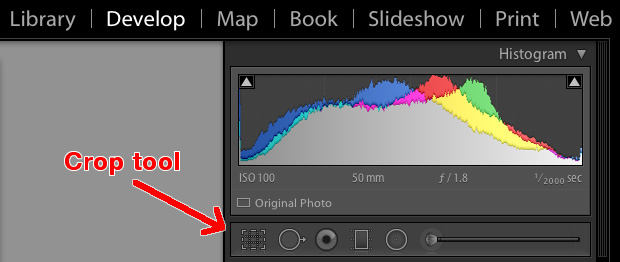
beginners-guide-lightroom-crop-tool

Use the corners of the rectangle overlay to crop your picture down so it contains only what you want, then when you are done press the [enter] or [return] key to see the results. Remember what I said earlier about Lightroom being nondestructive? It might look like you have just removed part of your photo, but the original is entirely untouched, and remains fully intact on your computer. What you are actually editing here is a placeholder – a preview of what the final image will look like – not the actual image itself. None of your edits in Lightroom are permanent, and you can reverse or undo any editing decision you make, so don’t be afraid to play around with it, kick the tires, and just start trying things even if you’re not entirely sure what the result will be.
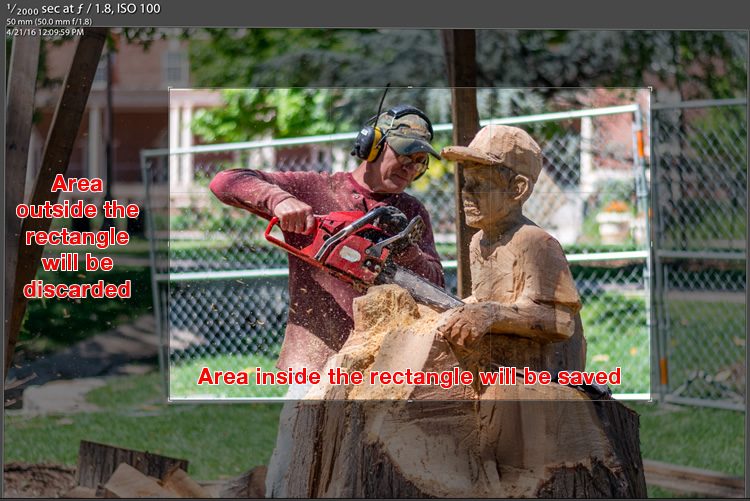
beginners-guide-lightroom-crop-tool-example

But your original file remains uncropped on your computer – Lightroom only shows how it will look if you apply this setting.

The other common edit that people make to their images is adjusting the brightness, often to fix an image that is too over or under-exposed. This can easily be done with the top panel on the right side of the Develop module, appropriately titled “Basic.” Look for the slider called “Exposure” and move it to the right or left in order to make your picture brighter or darker.
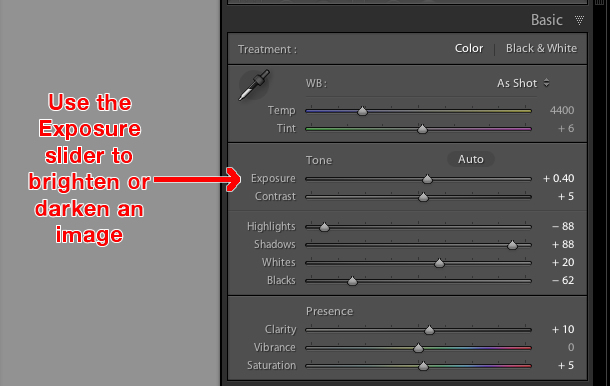
beginners-guide-lightroom-exposure-tool

Once again you will notice the changes you make reflected on the picture you see, but keep in mind you are not actually editing the original photo. Your instructions to crop, brighten, or otherwise change the picture are being stored in the Catalog file, while the original remains untouched. At this point you can go ahead and experiment with all the other options, tools, and sliders you see in the Develop module and take note of how they alter your photo. Even if you are not at all sure of what is happening just remember that Lightroom is nondestructive so you may as well play around with things to your heart’s content, since your original pictures will never be altered, and are safe.

Read more on the basic editing tools and sliders here:

  • Master These Five Lightroom Sliders and Your Photos Will Pop
  • Understanding the Basic Sliders in Adobe Camera Raw

Exporting (Save As)

Once you have made all the changes to a picture that you want, it’s time to export the final photo. This is again where the cooking analogy may come in handy, since this step is similar to putting your cake, casserole, or quiche, in the oven so it can bake. You still have the original ingredients on your counter and in your pantry, but once your timer beeps you will have an entirely new creation based on the recipe you used.

In Lightroom you edit photos instead of making pastries or pies, and the Export step is when you put them in your virtual oven to be processed. You may also think of this as opening up a document or spreadsheet, making some changes, and then choosing “Save As” instead of “Save.” This leaves the original document intact while creating a new one with your changes, much like exporting a picture in Lightroom leaves your original image as it was, and gives you a new edited version, complete with all the edits you made.
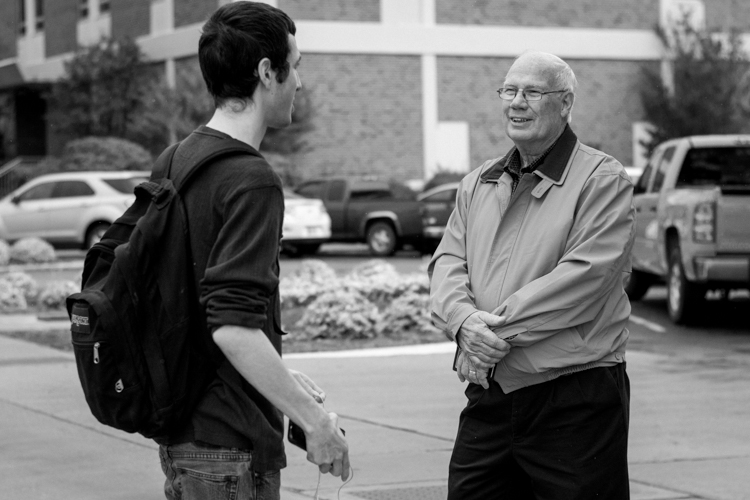
beginners-guide-lightroom-conversation

When you are ready to export a photo or multiple photos, select the ones you want while in the Library or Develop module and choose “File > Export”, which will bring up yet another confusing dialog box filled with head-spinning options and choices. Hopefully by now you are getting a little more used to this sort of thing when using Lightroom, but if not just focus on a few specific items on this screen.

On the left side you will see a few presets for exporting your photos, depending on whether you want to print them, email them, etc. You can also create your own presets for exporting, but for now don’t worry about that and just focus on a few specific settings.
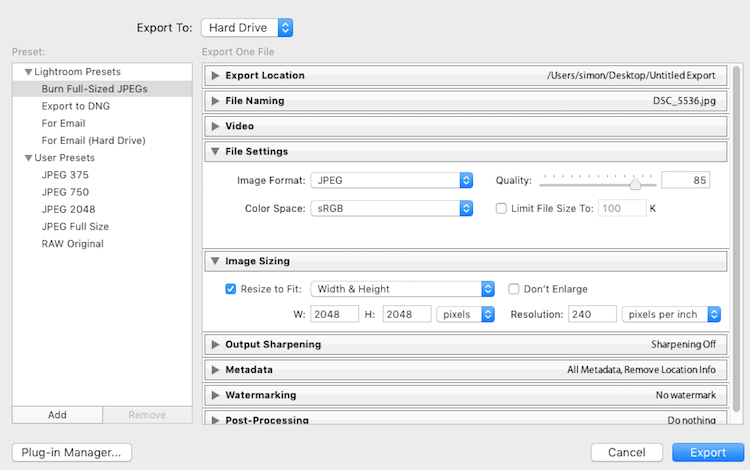
Once you get the hang of the Export box you can create your own presets for saving pictures with specific parameters that you set.

Once you get the hang of the Export box you can create your own presets for saving pictures with specific parameters that you choose.

If you’re not sure which option to choose, start with “Full-Sized JPEGs” and then modify things just a bit by tweaking a couple settings (make sure Export To: is set to Hard Drive at the top of the box). Then find and adjust the following:

  • File Settings – Choose “JPEG” as the Image Format, set the quality slider to 85, and Color Space to sRGB.
  • Image Sizing – Tick off “Resize to Fit” then choose “Width & Height” and then enter 2048 in both the W (Width) and H (Height) boxes, (make sure it says “Pixels after Height, not In or Cm.). Leave the rest of the parameters alone.
  • Post-Processing – make sure After Export is set to:  Show in Finder (or Show in Windows Explorer if you use a PC).

These settings will give you pictures that are large enough to print up to about 5×7″ size, or share on social media sites, (for email use a slightly smaller size like 1200 or 800px). When you’re ready, click the “Export” button in the lower right corner and you’re all set. As long as you did the last part, Lightroom will open a Finder (or Windows Explorer) window showing you all your new images, and where they are on your harddrive. Lightroom will probably save the edited copies of your pictures to your Desktop (the default) but you can double check this using the “Export Location” option (at the top of the box) in the Export pop-up box if you want.

Read more here:

  • Organizing Images in Lightroom 5 (still applies in 6 and LR CC)
  • Photography Workflow Tips – From Memory Card to Computer and Beyond
The original photo was OK, but Lightroom helped me coax much more detail, color, and vibrance out of it.

The original photo was okay, but Lightroom helped me coax much more detail, color, and vibrance out of it.

Let’s Review

This all seems like a lot, but hopefully if you have made it this far, you now have a good understanding of a very basic Lightroom workflow. If you take away nothing else from this tutorial, remember these few precious nuggets of wisdom:

  • Lightroom does not edit your original images. They will always remain wherever you put them, and Lightroom does not change them in any way.
  • You are looking at preview versions when you are editing your photos in Lightroom, and not the actual images themselves.
  • A complete record of edits to your photos is kept in a database called the Catalog. Think of this like a recipe book, where you have instructions for how to cook your images, but you are not altering the original ingredients in the kitchen.
  • The editing process is not complete until you Export your images, which saves a new copy of your photos, complete with the changes you made in Lightroom.

I hope this Beginner’s Guide to Lightroom was helpful. Please leave any thoughts or questions in the comments section below. Good luck, and feel free to share some of your favorite images that you have edited in Lightroom too!

googletag.cmd.push(function() {
tablet_slots.push( googletag.defineSlot( “/1005424/_dPSv4_tab-all-article-bottom_(300×250)”, [300, 250], “pb-ad-78623” ).addService( googletag.pubads() ) ); } );

googletag.cmd.push(function() {
mobile_slots.push( googletag.defineSlot( “/1005424/_dPSv4_mob-all-article-bottom_(300×250)”, [300, 250], “pb-ad-78158” ).addService( googletag.pubads() ) ); } );

The post Total Beginner’s Guide to Lightroom – Step by Step by Simon Ringsmuth appeared first on Digital Photography School.
Digital Photography School

 
Comments Off on Total Beginner’s Guide to Lightroom – Step by Step

Posted in Photography


Step by Step How to Make a Moody Desaturated Image in Lightroom

12 Jun

Often times we occupy our processing time with thoughts of what can be added to our images in order to make them more impactful; more sharpness, contrast, or color. But, this may not always the best route to take. The old expression “Less is more” can be applied to many aspects of photography, and it is especially true when it comes to dealing with colors.

Example 1

Desaturated images are becoming more and more popular, especially with nature, landscape, and street photographers. As counterintuitive as it might seem, removing some color saturation can be more effective than adding it in some situations. That being said, there is more to making a strong desaturated photograph than simply working with the saturation and vibrance sliders in Lightroom or ACR.

In this article I will walk you through all the steps needed to process a moody, desaturated image in Lightroom. It’s extremely easy, and will help you add a unique look to your images. But first, a little bit of knowledge that you need to understand before we get started processing our photos.

What is Saturation?

It might seem to be one of those “It goes without saying” type of situations, but have you ever really thought about what saturation means, or how it can impact your images? As it relates to photography, saturation is the overall intensity of a color. Technically, saturation can be viewed as how far a color differs from pure white in the color spectrum.

For our purposes, saturation is the depth of colors present within a photograph. How intense the colors are in an image can be controlled globally (affecting the entire photo) in multiple ways such as: the saturation slider, HSL panel, and tone curve. Also, saturation can be controlled selectively, to only certain areas of the image, by using the filter and brush tools. In the end, saturation adjustments apply themselves to all colors no matter their luminance.

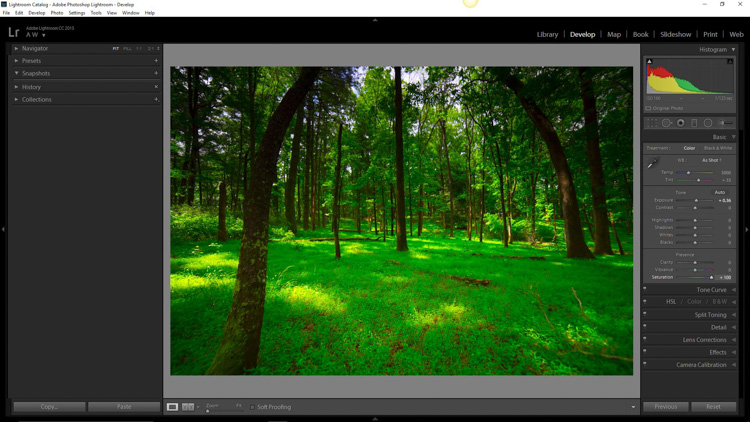
Full saturation applied

Full +100 saturation applied – notice the histogram here.

What is Vibrance?

Vibrance is a somewhat more interesting concept. This is a term Adobe has used to label something that is very similar to saturation. The difference between saturation and vibrance isn’t always black and white (color humor), but there is a distinction.

The saturation slider controls the intensity of all color tones throughout the image, regardless of their luminance. This means any colors whose brightness falls into the highlights, mid-tones, and shadows are all affected. Vibrance is different, in that it only affects the saturation of colors whose luminance falls into the mid-tone range. It has been referred to as smart saturation, and I tend to agree. Vibrance is very useful for enhancing, or in our case desaturation of the colors within a photo, without being as harsh as the saturation slider.

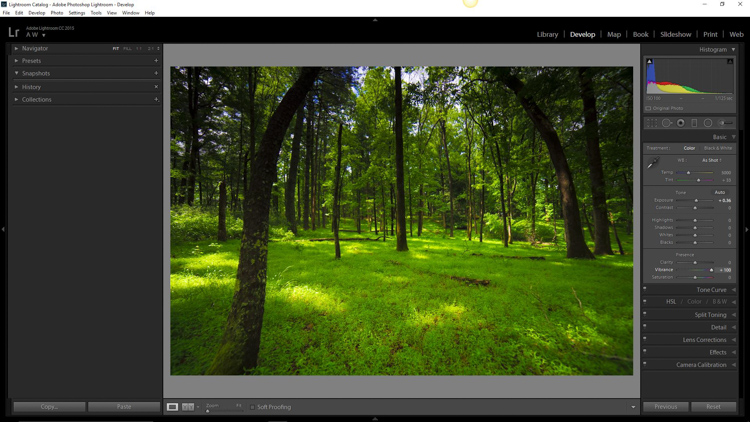
+100 Vibrance applied - notice the difference between this histogram and the saturation one.

+100 Vibrance applied – notice the difference between this histogram and the saturation one.

When Does Desaturation Work Best?

Bright colors lend themselves to photos when the intent is to bring an upbeat or more cheerful feel to the image. Not to say that all less saturated images have to be melancholy or less cheerful, most times it is quite the opposite. The purpose of desaturated, or muted tones, is not to dampen the spirit of a photo, but rather to enhance the mood. Still, more often than not, photographs that benefit the most from desaturation are those which carry an underlying sense of brooding. Images that work well with desaturation include but are definitely not limited to:

  • Moody portraiture
  • Earthy outdoor photographs
  • Urban landscapes and cityscapes
  • Emphasizing dank weather conditions such as rain, mist, or fog

Now that you’ve been patient and endured the why, we will move onto the how.

How to Desaturate Images Effectively

More often than not, the actual desaturation process is accomplished with the vibrance slider more so than the saturation slider itself. They key is the desaturate the image without making it appear flat and completely colorless. There should almost always points of color which are emphasized. As with most aspects of photography less can actually be more. Don’t take away too much color and be sure to work with the colors that enhance the photo. It should be about harmony.
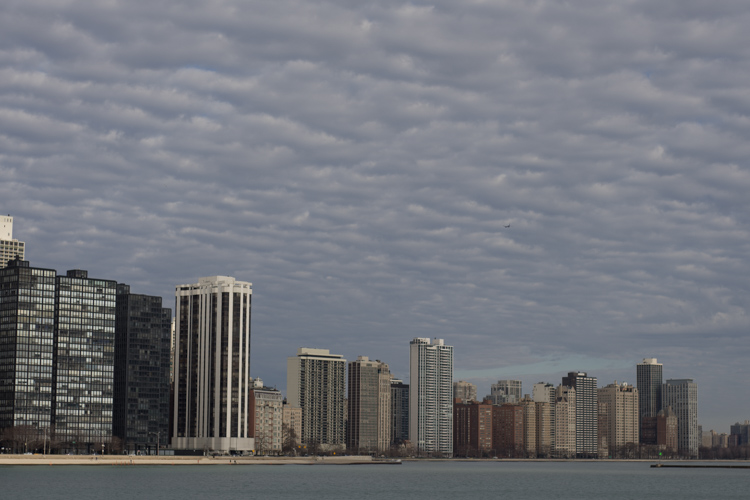
We begin with a RAW file straight from the camera.

RAW Chicago

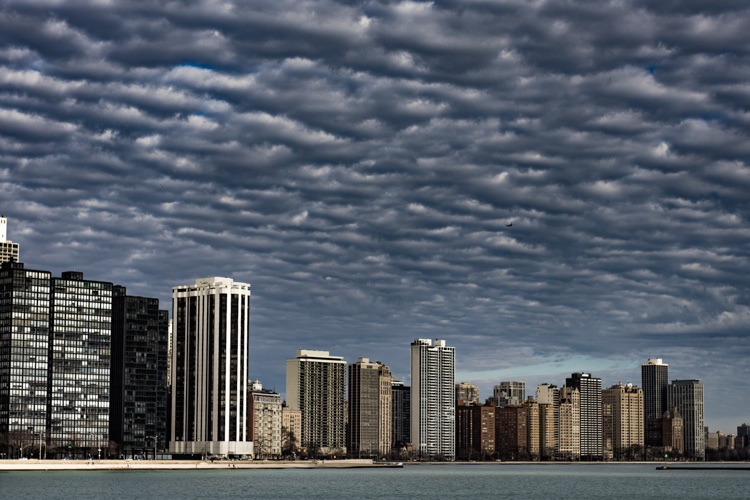
Here we have the same image after being straightened, and some adjustments in the basic panel of Adobe Lightroom applied. I also used the neutral density filter tool to equalize the exposure of the sky, buildings, and water. Then +45 dehaze was added.

Chicago Basic

Now that we’ve finished with our basic adjustments, the desaturation process can begin. I find it usually works best to save the saturation adjustments for toward the end of the editing process. Please keep in mind that there are an infinite number of directions you can take your saturation effects, so have some fun with this part.

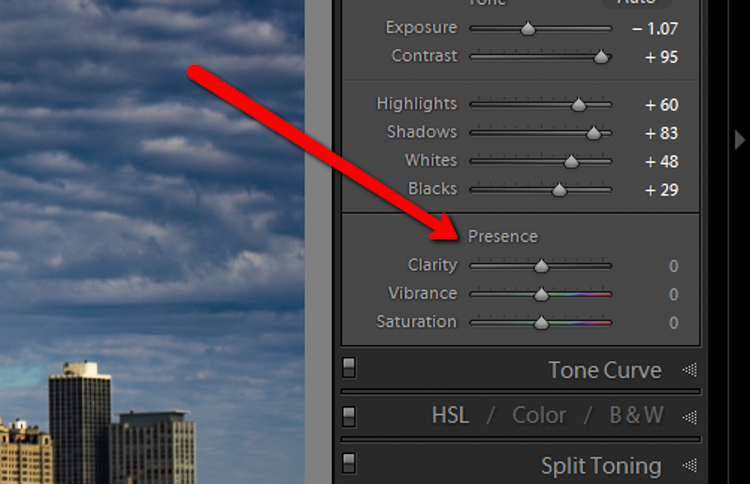
Find the Presence section of the basic Panel in the develop module of Lightroom.

Presence

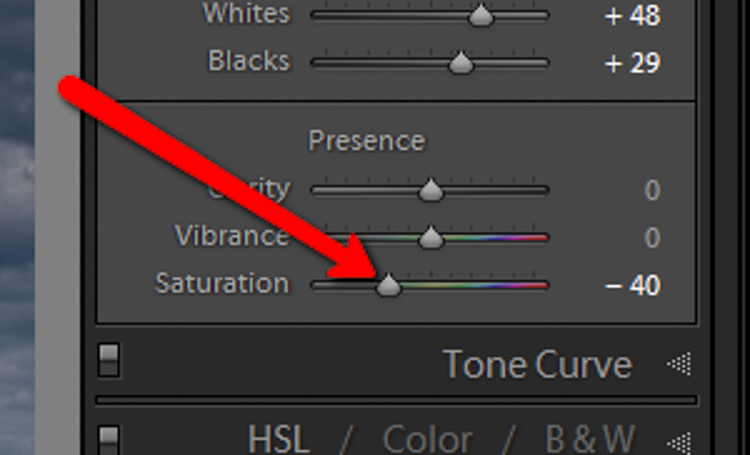
For this image I took the saturation to -40.

Desat Slider

This brings the entire photo into a considerably desaturated state.

Desaturation Chicago

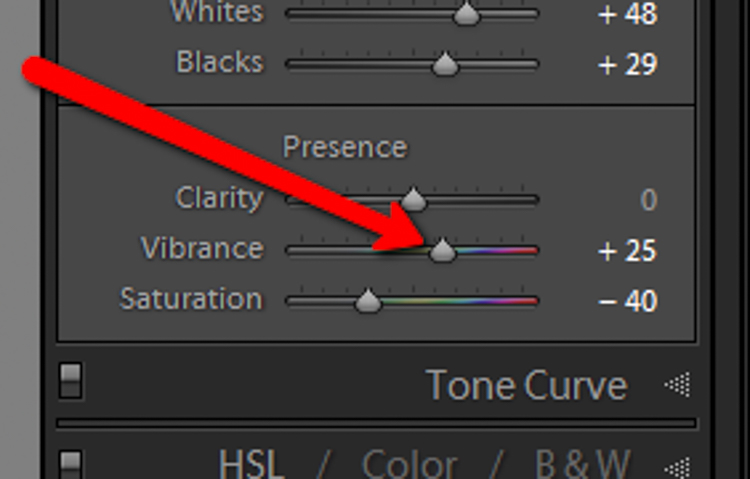
By itself the desaturation leaves the image a little flat. To counteract this, let’s increase the vibrance to +25.

Vib Slider

Remember that vibrance affects the colors in the mid-tones only. In this case, the blue, orange, and yellow tones are amplified. This makes them stand out more within the image, adding a little more pop.

Increased Vib Chicago

Now, this is where things get interesting. Instead of settling for an image that is merely desaturated, we will now take full control with some advanced options, in order to make the photo stand out.

To do this, we turn to the curves panel. The tone curve is simply a graphic representation of the luminance present within the image. If you’ve ever seen a vintage style photo, most likely some edits have been applied using this technique. What we want to do is to slightly fade the image, in order to add a washed out feel to the scene. Mainly the blacks will be lightened and the highlights enhanced. This forms somewhat of an S-curve and looks something like the following image:

Tone Curve

Which leaves us with a subtly faded effect.

Tone Curve Update

The buildings and the water still look a little drab, so to add a little color intensity we will once more turn to our old friend, the graduated filter tool. This will allow a little more color to be added where it is needed, without affecting the entire image.

Grad Filter Sat

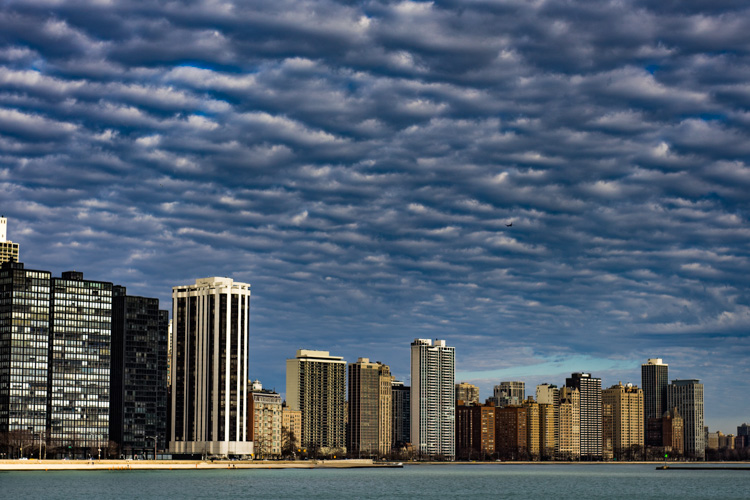
Which leaves us with a photograph much different than the one we began with just a few minutes earlier.

Final Desat Chicago

The difference is quite apparent when compared to the original RAW file.

Before_and_After_Desat_Update

Desaturating a photograph goes much further than merely taking away color. Sure, you can move those sliders to the left and continue on your merry way, but why not go further to the next level, and really make them unique? Remember these key points:

  • Begin with a RAW file in order to give you the most dynamic range possible.
  • Complete all basic adjustments such as exposure, contrast, and clarity first.
  • Don’t go too far with your desaturation.
  • Make use of the tone curve panel to add additional ambiance.
  • Fine-tune your finished product using local adjustments such as graduated filter tool or the adjustment brush.

The important thing to remember is to never underestimate the possibilities for your images. Take the time to experiment with different effects until you discover what you like best. It may be something entirely different that what your expected.

Here are a few more examples of images processed with a desaturated look:

Desat 1

Desat 2

Desat 3

Desat 4

Desat 5

Have you got some photos that you purposely desaturated? Be sure to share them with us in the comments below.


Editor’s Note: Adam also has a Lightroom Preset pack called Desaturated Cinematic that will give you this sort of look. Inspired by motion pictures and tv series, this pack of 25 lightroom presets will achieve great-looking desaturated effects. Perfect to give your images a simulated cinematic look. You can get more info on that by clicking the link.

googletag.cmd.push(function() {
tablet_slots.push( googletag.defineSlot( “/1005424/_dPSv4_tab-all-article-bottom_(300×250)”, [300, 250], “pb-ad-78623” ).addService( googletag.pubads() ) ); } );

googletag.cmd.push(function() {
mobile_slots.push( googletag.defineSlot( “/1005424/_dPSv4_mob-all-article-bottom_(300×250)”, [300, 250], “pb-ad-78158” ).addService( googletag.pubads() ) ); } );

The post Step by Step How to Make a Moody Desaturated Image in Lightroom by Adam Welch appeared first on Digital Photography School.

Digital Photography School

 
Comments Off on Step by Step How to Make a Moody Desaturated Image in Lightroom

Posted in Photography


Step by Step How to do Cloud Stacking

31 May

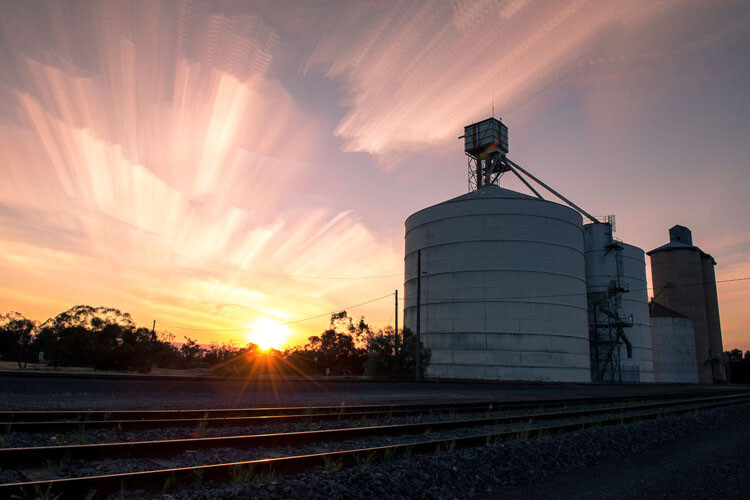
The effect of the clouds streaking across the sky is a very popular look now, but not everyone has ND filters and can get those photos. However, there are other ways of getting similar results. Cloud stacking can give a similar look. The process is much like what you do for stacking car light trails. You have to be more careful with how you take the original images, but you can get some wonderful results if you follow these steps.

LeanneCole-cloud-stack-original

One of the original images.

You need a lot of photos for cloud stacking, and the best way to get them is by doing time lapse photography. Take a series of images over time, then try stacking them to see if they will work. Unfortunately, you don’t always get enough movement in the sky to get a good cloud stacking image, but others will be fantastic.

How to do Time Lapse Photography to get the images for stacking

Time lapse is about taking a series of images, one after another with a break in between, to capture the movement of a scene. Normally, once they are taken, you would put them on your computer and make a video from them to show that movement, however for cloud stacking you will be doing something else.

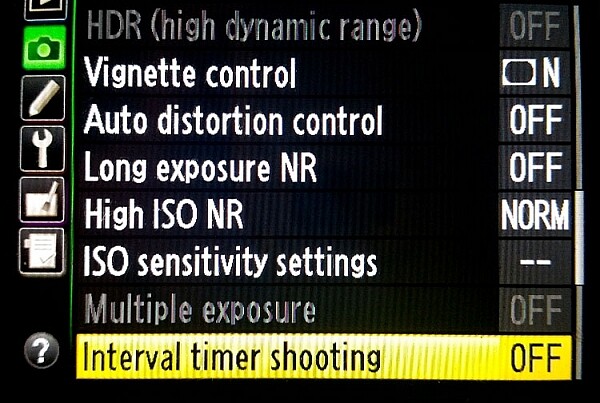
There are several ways of capturing your photos for a time lapse sequence. Many Nikon cameras come with a feature that allows you to do some, called Time Lapse Interval. You can set it up so that it will take the images at certain intervals, how many shots to take each time, and the final number of images you want. Basically, you can tell your camera to take a photo every 5 seconds, and to stop when you have 300 images.

LeanneCole-cloud-stacking-camerasetting

The Interval Timer Shooting on a Nikon Camera

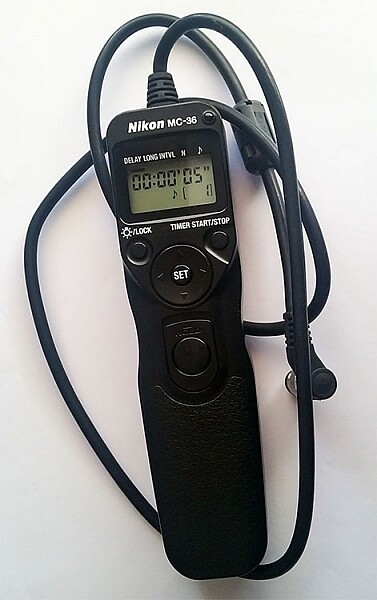
If you have an intervalometer it will do the same sort of thing. Set what the interval will be, and how many shots to take. If you have neither of those options you can still do them, but it will mean you will have to keep an eye on the time and remember to press the shutter button at the intervals.

LeanneCole-cloud-stacking-intervalometer

The Nikon Intervalometer, but you can also purchase other ones as well, get the one that works with your camera.

Usually what you do first is determine what the interval (time between shots) needs to be. Look at the sky and see how fast the clouds are moving. If they are moving fast, then the interval in between shots might need to be shorter. If the clouds are slower moving, then longer times will be needed. It does take experience, and the more you do it the better you get at figuring out the time between the shots you need.

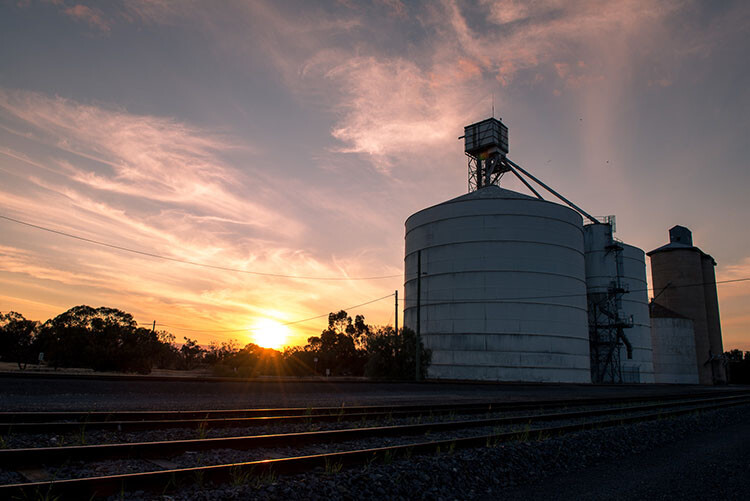
The images for this tutorial were done at sunset, and the clouds were moving moderately fast. The camera was set to take an image every 10 seconds. A total of 122 photos were taken, but only 54 frames were used for the final image.

Direction of the Clouds

Cloud stacking seems to work best if the clouds are moving towards or away from you. Look for the clouds that appear to flow in a V shape. The base of the V is on the horizon and the arms come out over the top.

Using the photos

Once you have the photos on your computer, you need to work out which ones to use. The photos do need to be loaded into Adobe Photoshop as layers, the first consideration has to be the size of the images. If they are raw files they are likely to be too large to do this, so they will need to made smaller.

You can process the images in Lightroom first. Do a basic edit, and then sync, so that all the images have been treated the same. Resize the images when you export them from Lightroom, saving as smaller jpegs. (As this was going to be a tutorial for dPS the images were resized so the long side was 1500 pixels – if you want to print your image make sure you size appropriately, but do a test smaller first.)

Loading the images

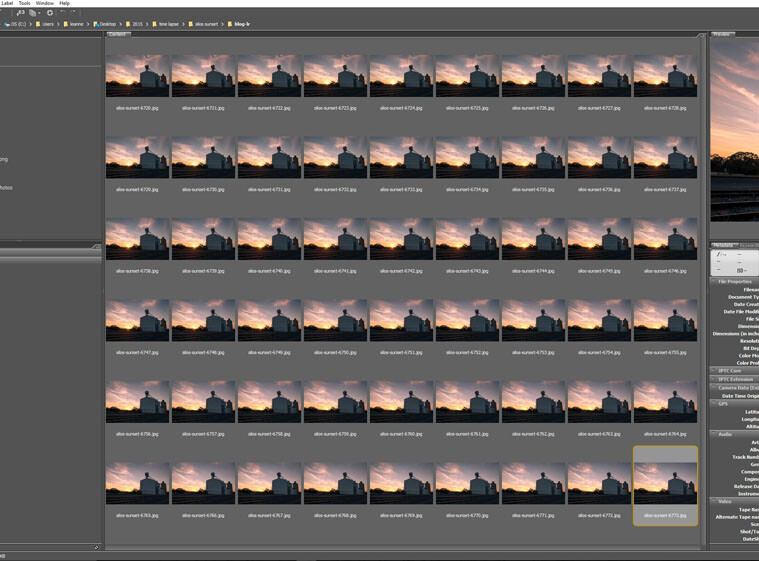
For this tutorial I used Adobe Bridge, but you can also do it in Lightroom.

LeanneCole-cloud-stack-1

All the images to be used for the cloud stacking.

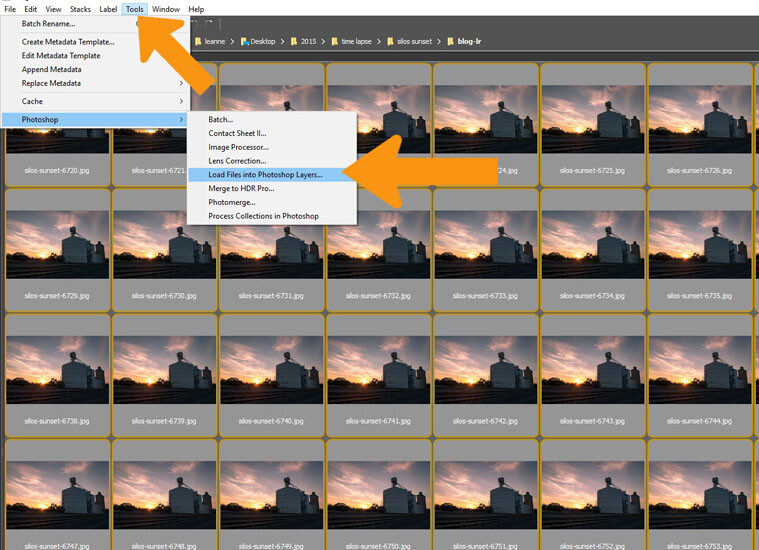
Select all the images you want to stack, using either Ctrl+A, or click on the first one, press the Shift key and hold, and click on the final image. Load all the images into Photoshop as layers. Select Tools > Photoshop > Load Files into Photoshop Layers (in Lightroom right click and select Edit in > Open as layers in Photoshop).

LeanneCole-cloud-stack-2

Select all the images and open them as layers in Photoshop.

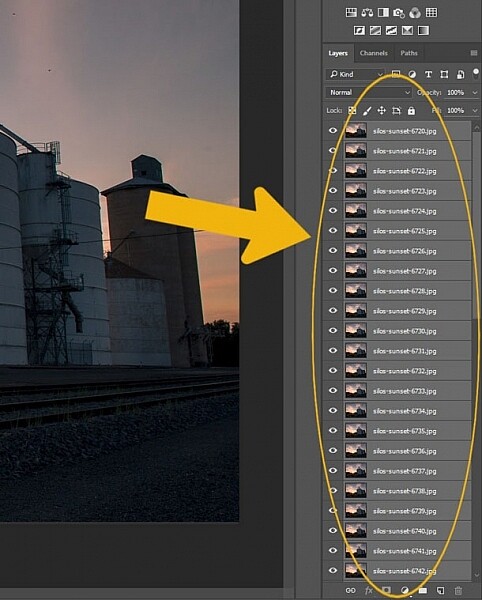
This can take a while, depending on how many images you are using, and how large the files are. Once they are loaded select all again. Click on the top layer, hold the shift key down, then click on the bottom layer and it should select them all.

LeanneCole-cloud-stack-3

In Photoshop select all the layers.

Stacking the clouds

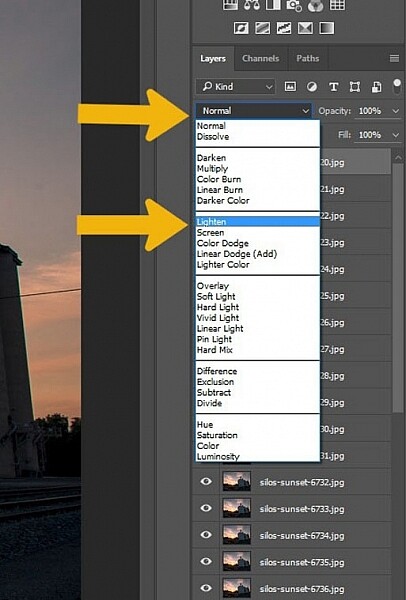
Go to the layer blending options, at the top of the layers panel and select Lighten.

LeanneCole-cloud-stack-4

Go to the Blending options and select Lighten.

You should notice a difference straight away.

LeanneCole-cloudstack-first stack

The image after the stacking process.

You could leave the image there and be happy with your stack, but for this tutorial I’ve added some extra ideas on processing . They are relevant to this image, but you can try some ,or all of these ideas for your own image.

Some Additional Processing Tips

There are no hard and fast rules with what you can do when processing an image, it is up to you how you want to go. Here are some ideas to get you started.

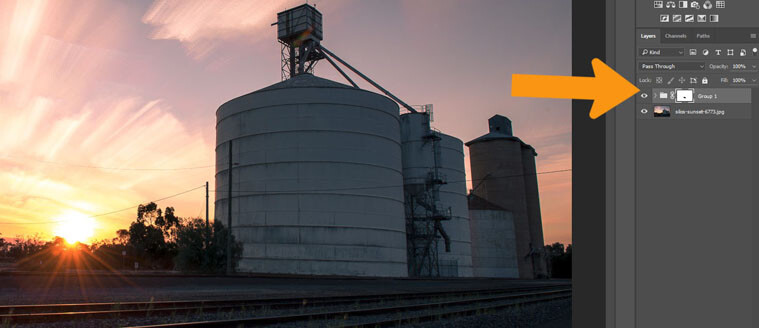
Select all the layers, except for the bottom one, and put them into a group. This will make it easier to process the images. In this image it was windy, and the trees moved around, so in the final image they look blurry. By adding a mask to the groups you can carefully use the brush tool, painting with black, to go over the trees so only one is seen and they appear sharper.

LeanneCole-cloud-stack-6

Add a mask to the Group layer and remove anything unwanted, like the trees in this image so only layer one is seen.

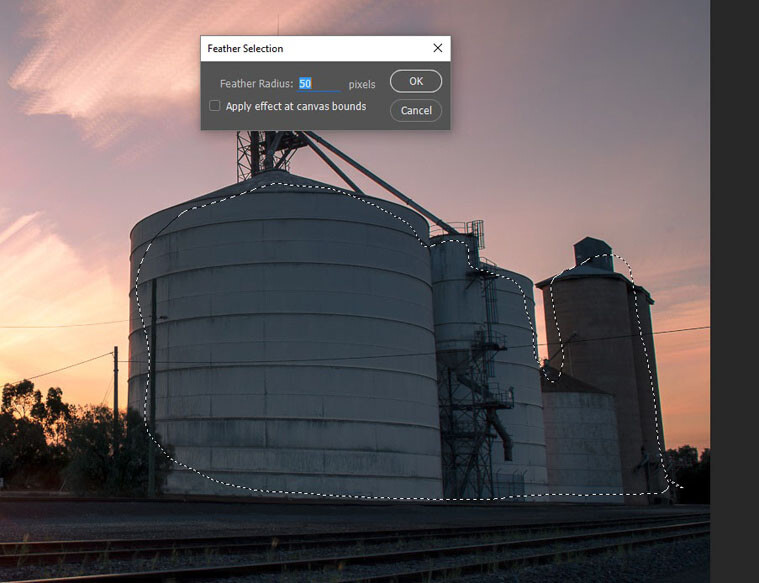
The silos appear a bit too dark, and lightening them up a bit would make them stand out a little more as well.

Select the Lasso Tool, and draw a line just inside the silos. Press Shift F6 to get the feather tool. For this image a small amount of feathering was chosen as it is a small image, but on larger sized ones you may prefer to use a feathering of around 200 pixels.

LeanneCole-cloud-stack-7

Use lasso tool to draw a selection, and then feather it.

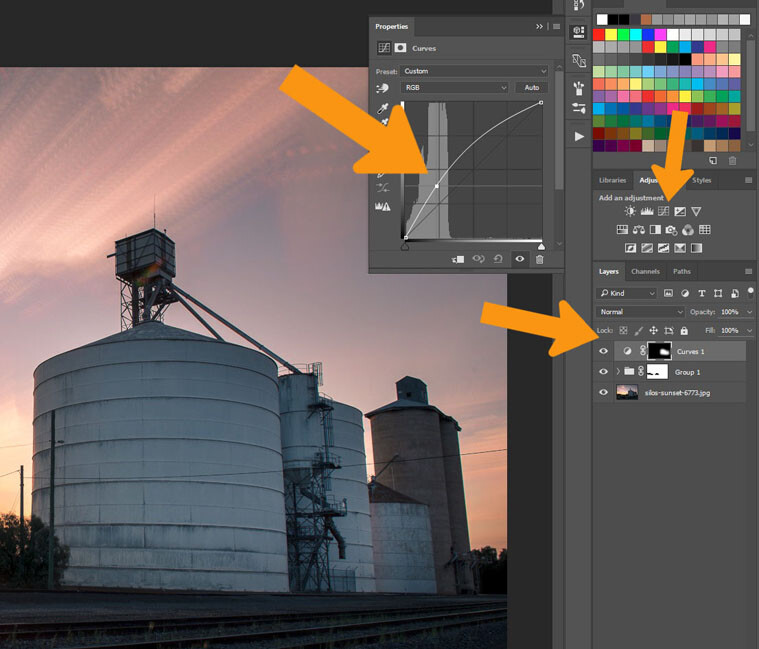
Go to the Adjustments above the layers panel and click on Curves. Try to always use these ones as they do the adjustment as a layer, and if you decide you don’t like it later you can simply edit it, lower the opacity of the layer, or delete the layer (this is non-destructive editing).

Add some light or dark depending on what the image needs. For this one the silos were made brighter.

LeanneCole-cloud-stack-8

For this selection curves was used to lighten up the silos.

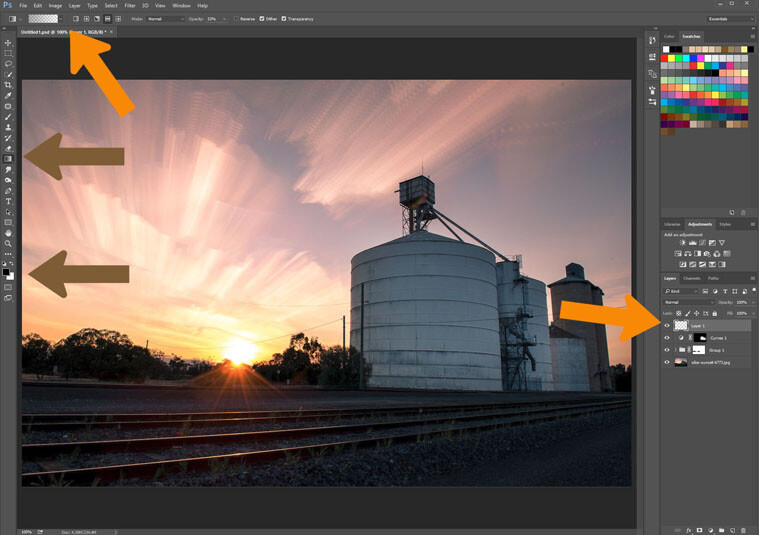
The final bit of processing will be to add a little vignetting or gradient. Add a blank layer to the image, click on the symbol at the bottom of the layers panel, it is the one next to the rubbish bin. Make sure it is selected, then select the gradient tool from the toolbar.

LeanneCole-cloud-stack-11

Use the gradient tool to add some darkness to the sky.

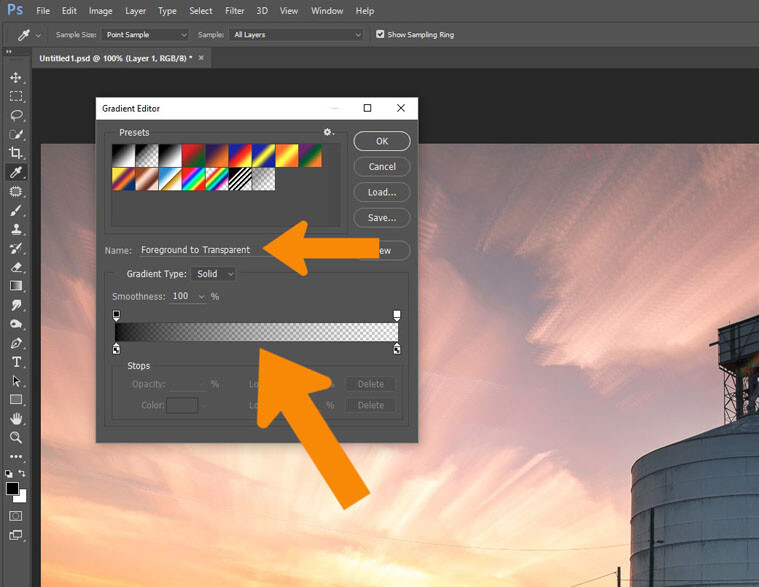
At the top under the menu bar you will see the options for the gradient tool. Make sure the tool selected is the Foreground to Transparent is the one you are using (make sure the foreground color is set to black).

LeanneCole-cloud-stack-12

Make sure you have the right tool option for what you want to do.

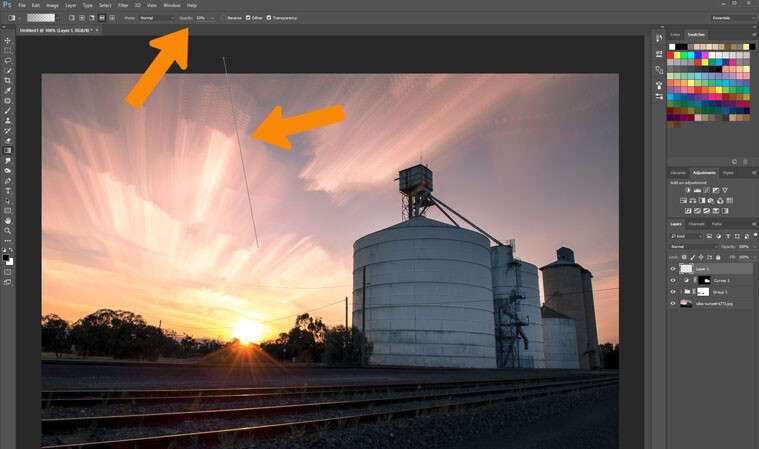
You don’t want this to be 100%, it’s best to use it at around 50%. You can build it up, but start with that. You can change that by going to the tool options and changing the 100 to 50.

LeanneCole-cloud-stack-13

Add some gradient to the sky to darken it slightly.

To use the tool, click and hold outside the image then move inside the image and release. It will do a gradual lightening of the colour, so the darkest area is where you did the first click.

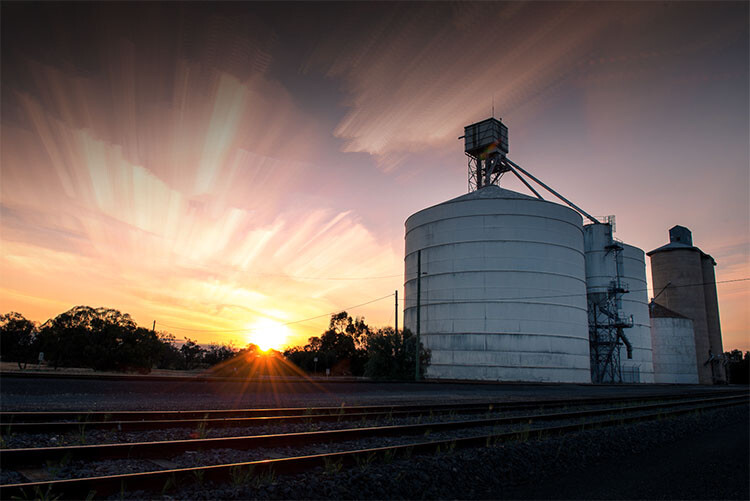
If you want it darker you can repeat until you get the desired effect. The image here it was done twice.

LeanneCole-cloud-stack-final

The final image

That is a very basic edit on this image, but is enough for now. The image is fine as it is, but, as with all images, the only thing stopping what you can do, is your imagination.


googletag.cmd.push(function() {
tablet_slots.push( googletag.defineSlot( “/1005424/_dPSv4_tab-all-article-bottom_(300×250)”, [300, 250], “pb-ad-78623” ).addService( googletag.pubads() ) ); } );

googletag.cmd.push(function() {
mobile_slots.push( googletag.defineSlot( “/1005424/_dPSv4_mob-all-article-bottom_(300×250)”, [300, 250], “pb-ad-78158” ).addService( googletag.pubads() ) ); } );

The post Step by Step How to do Cloud Stacking by Leanne Cole appeared first on Digital Photography School.

Digital Photography School

 
Comments Off on Step by Step How to do Cloud Stacking

Posted in Photography


Step by Step How to Use HDR Merge in Lightroom

13 Apr

HDR merge in Lightroom
There are lots of plug-ins that you can use with Lightroom to create High Dynamic Range (HDR) images. Photomatix and HDR Efex Pro are two of the best known, and MacPhun’s Aurora HDR (Mac only) is a new application that has received good reviews.

But, if you have Lightroom 6 or CC, you can create HDR images right within Lightroom itself, without having to buy a plug-in. There are several advantages to using Lightroom for your HDR conversions:

  1. You save money. Most HDR plug-ins are not free, and are an additional cost for you.
  2. Lightroom’s HDR merge creates natural looking HDR images. Not everybody will see this as an advantage – but if you want to create garish, over-saturated images the aforementioned plug-ins will help.
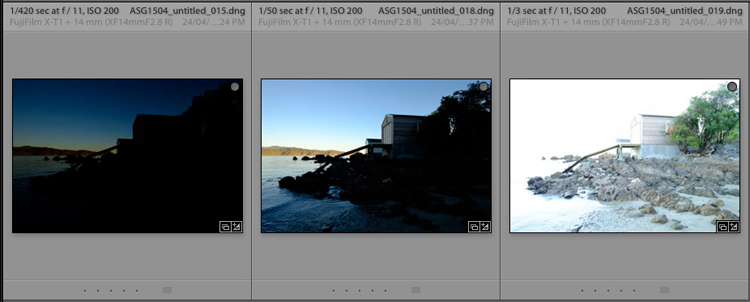
  3. You don’t need a lot of bracketed images. Two seem to be enough (you can use more if you want, or if you have a really contrasty scene), one exposed at -2 stops, the other at +2 stops.
  4. The final HDR image is saved as a DNG file. Not only is this smaller than a TIFF file, but you can process it in Lightroom the same as you do with any other DNG or Raw file. The main difference is that the Exposure slider runs from -10 to + 10 stops, rather than the normal -4 to +4. There is also much more information in the file for Lightroom to work with, when you make adjustments with the Shadows and Highlights sliders (and local adjustment tools like the Graduated and Radial filters).
  5. You can take bracketed sequences hand-held, and Lightroom will align them automatically. Having said that, I’ve found the best results come from bracketed photos taken with a tripod mounted camera.
  6. There is less noise in shadow areas than you would expect from a regular, single photo.

Lightroom HDR merge in action

Let’s look at a couple of practical examples to see how it performs.

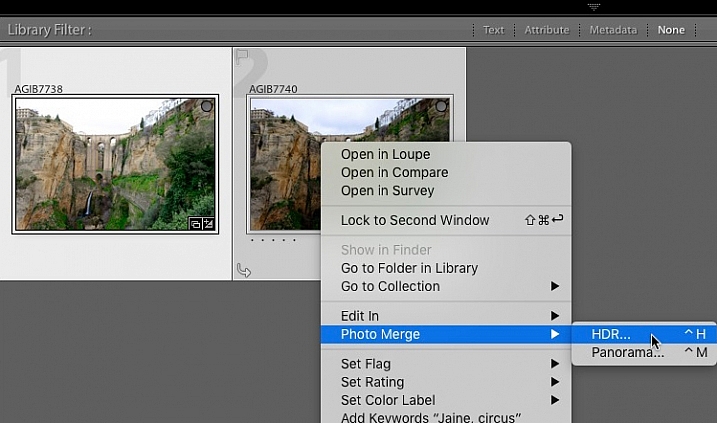
Start in Grid View in the Library module, and select the images you want to merge. Alternatively, you can select the images in the Filmstrip in the Develop module. Then, go to Photo > Photo Merge > HDR. Or, right-click on one of the selected photos and select Photo Merge >HDR.

HDR merge in Lightroom

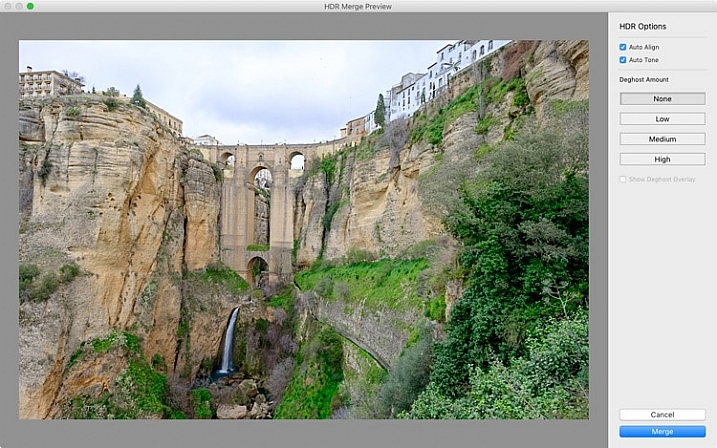
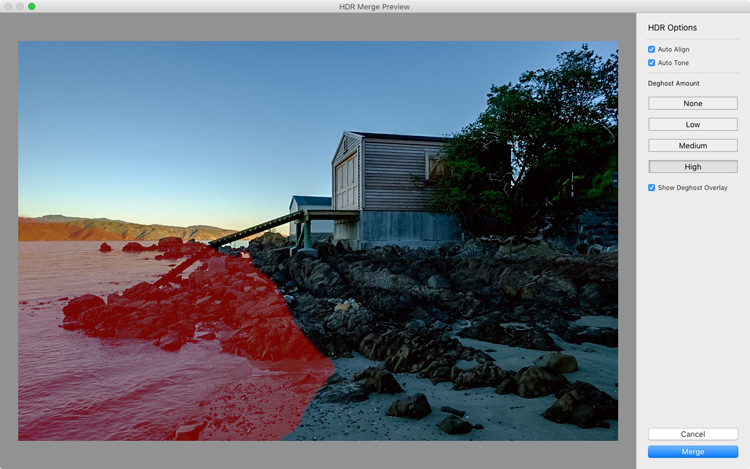
The HDR Merge Preview window opens, and Lightroom creates a preview of the HDR image. This may take some time, especially if you have selected several images. The Auto Align and Auto Tone boxes are ticked, and the Deghost Amount is set to None, by default. Lightroom remembers the last settings used, if you have changed them.

Auto Align is useful if the camera moved between exposures (for example if you hand-held the camera) and Auto Tone performs a similar function to the Auto Tone settings in the Basic Panel of the Develop module.

I find HDR merge works best with the Auto Align and Auto Tone boxes ticked (see below). If there is subject movement between frames you can set Deghost Amount to Low, Medium, or High (trial and error is the only way to see what works best, and is different for each set of images).

HDR merge in Lightroom

You may be surprised to learn that there are not many settings to adjust. This is deliberate, as the aim is to let Lightroom produce a natural looking HDR image, which you can then process in the Develop module to achieve the desired look.

You can set Deghost Amount to Low, Medium, or High if you see any ghosting (double images) in the image. Ghosting takes the form of lines, white patches, or other artefacts caused by subject movement taking place between frames (such as trees blowing in the wind, clouds moving across the sky, or people walking through the scene).

You can’t zoom in to a 100% in the preview mode, so you may only become aware of ghosting once you move on to the Develop module and zoom in to 1:1 magnification. You can simply go back and reprocess the images if you notice ghosting at that stage. Tick the Show Deghost Overlay box, to reveal the areas in which Lightroom has detected and attempted to clean up ghosting (it is shown in red).

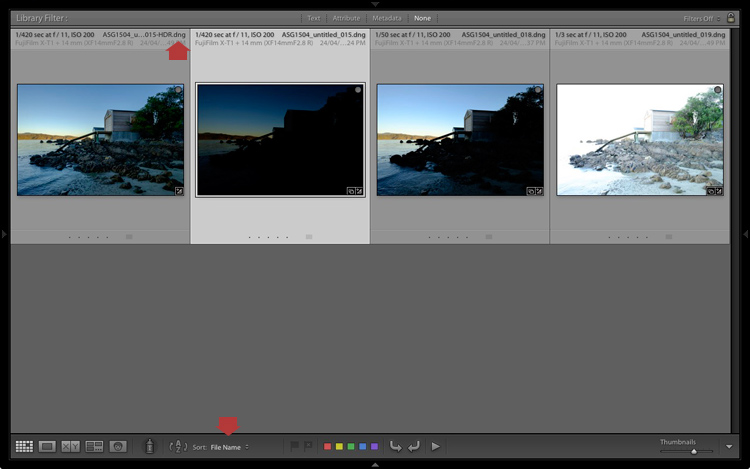
Click the Merge button when you’re done. Lightroom saves the merged image as a 32-bit DNG file, with the suffix -HDR appended to the file name, and takes you back to the module where you started. From there you can edit the image as normal in the Develop module.

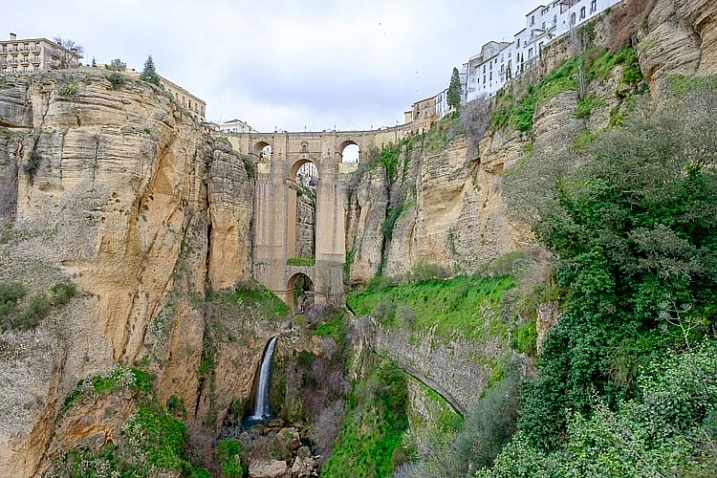
This is the result from my HDR merge. I used two photos, bracketed one stop apart. That’s not a lot, but it was a cloudy day and what I wanted was a photo that captured detail in both the landscape and the sky. On a sunny day you would use images that were bracketed further apart.

HDR merge in Lightroom

The result should be treated as a starting point in your processing – a new Raw file that you can edit in the Develop module to achieve the desired effect. In this case photo was too light, so I darkened it, made some tonal adjustments, and increased clarity. This is the result.

HDR merge in Lightroom

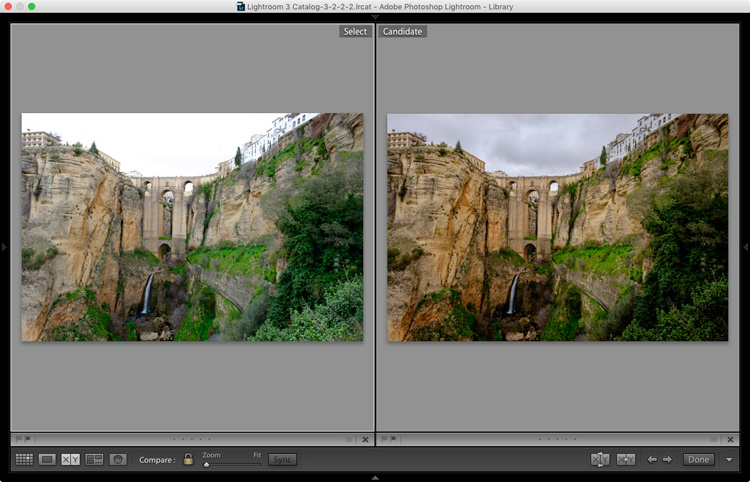
The screenshot below shows a comparison between the HDR image (right) and the same photo taken without any exposure compensation (left). As you can see, merging two exposures has allowed me to capture the details in the grey clouds. If, at this stage, you think the image has too much of an HDR feel, you can use the Basic Panel sliders, or local adjustments, to alter the tonal values. For example, you can increase Shadows or the Blacks setting to add contrast, so you don’t have the unnatural detail in every shadow effect that typifies overdone HDR.

HDR merge in Lightroom

Here’s another example, this time with photos taken in the sun, and a much greater brightness range. These two photos were taken at +1 and -1 stops respectively.

HDR merge in Lightroom

This is the result that Lightroom gave after the HDR merge process.

HDR merge in Lightroom

Below is how it looks after editing in the Develop module. The differences are subtle, I just made the image a little darker, and moved the Highlights slider to zero, to bring out as much detail in the clouds as possible.

HDR merge in Lightroom

High contrast example

Here’s another example, this time taken with three photos with a total of seven stops difference in exposure. You probably don’t need to make the exposure differences that drastic, but it’s always interesting to try.

HDR merge in Lightroom

Here’s the result.

HDR merge in Lightroom

The water looks different in each version of the photo so I set Deghost to High. The deghosted area (shown in red below) covers all of the water – when I compare the three original images I can see that Lightroom has used the water from the first photo in the sequence, avoiding the ghosting that would be caused by merging three photos with a different level of water in each shot.

HDR merge in Lightroom

Can’t find your new HDR file?

By the way, if you’re not sure where to find the newly created HDR file, set Sort to File Name in Grid View, and it will appear next to the first image in the sequence (also make sure you are in the folder of originals, not inside a collection).

HDR merge in Lightroom

Here's an extreme contrast example

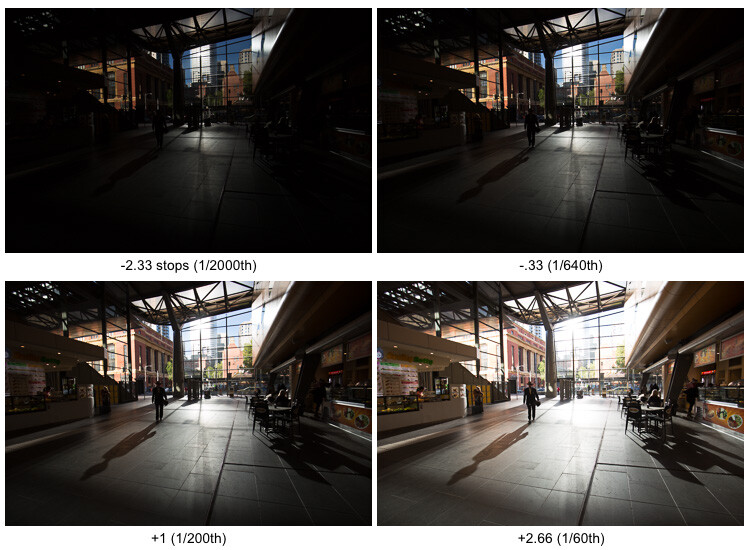
Here’s an extreme contrast example – a tototal 5 stops bracketed to keep details in the buildings outside, and capture some inside.

The final HDR merged and edited version.

The final HDR merged and edited version.

Final notes

You should be aware that it is best to carry out the HDR merge process with files that haven’t yet been edited in the Develop module, as Lightroom only retains some of the adjusted settings. These are taken from the most selected photo and applied to the HDR image. They are listed below (all other settings are returned to their default):

  • Presence sliders (Saturation, Vibrance and Clarity).
  • HSL / Color / B&W panel
  • Split toning panel
  • Detail panel
  • Lens Corrections (excluding Upright)

Lightroom also requires access to the original photo files. It can’t create a HDR image from Smart Previews alone.

Over to you

Have you tried Lightroom’s HDR merge tool? If so, what did you think? Is it a worthwhile addition to Lightroom’s toolset or would you prefer to use a plug-in. Please let us know in the comments below.

Mastering Lightroom

If you’d like to learn more about Lightroom, then please check out my Mastering Lightroom series of ebooks.

googletag.cmd.push(function() {
tablet_slots.push( googletag.defineSlot( “/1005424/_dPSv4_tab-all-article-bottom_(300×250)”, [300, 250], “pb-ad-78623” ).addService( googletag.pubads() ) ); } );

googletag.cmd.push(function() {
mobile_slots.push( googletag.defineSlot( “/1005424/_dPSv4_mob-all-article-bottom_(300×250)”, [300, 250], “pb-ad-78158” ).addService( googletag.pubads() ) ); } );

The post Step by Step How to Use HDR Merge in Lightroom by Andrew S. Gibson appeared first on Digital Photography School.

Digital Photography School

 
Comments Off on Step by Step How to Use HDR Merge in Lightroom

Posted in Photography


How to Give Your Images the Hollywood Treatment Step by Step

27 Mar

fig 1-1

Do you have an image that you would like to give the Hollywood treatment to, and really help make it pop? In this article, I’ll be showing you a method that you can use to give your images the blockbuster treatment, and take them to the next level. The best part about it is that you don’t have to be a Photoshop genius to do it!

The technique that we’ll be exploring is referred to as color-grading. The term color-grading is generally reserved for motion pictures where the editors would apply a creative color correction to films, but now it’s something that is appearing more and more in the vocabulary of still photographers. Color-grading is not to be confused with color correcting; it’s something quite different. Where color correcting is the process of ensuring that color casts are removed and colors are more accurate as a result, color grading is the process of altering and/or enhancing colors in specific areas in your image, such as shadows and highlights, to communicate a particular emotion or simply make the subject pop more, for example. If you have seen a movie then chances are extremely likely that you have seen color-grading at work.

The most common, and easiest color-grading, is the use of  complimentary colors; for example teal/blue tones in the shadows and the opposite color, yellow/orange, in the highlights. These two groups of colors sit opposite each other on the color wheel and being complimentary colors, they work harmoniously together and help the subject stand out more. See these other examples of complimentary colors in action. There are other types of color-grading using different color theory methods, such as analogous and triad, however complimentary is the simplest to learn and it can provide great results.

Before you begin, please ensure that the image you wish to work on has no color cast already, as this will affect the final result. Correcting your white balance is a great place to start. If you are unsure how to do that, 3 Ways to Change White Balance in Lightroom may help you.

In this article, I’ll be using curves in Photoshop to add the color-grading, so if you are unfamiliar with curves, How to do a Quick and Easy Curves Adjustment in Photoshop. As with many other things in Photoshop, there is always more than one way to get the job done, but for a straight forward process that gives fantastic results, you cannot beat curves! (Curves would have to be one of my favourite adjustments in Photoshop, as you can control so many aspects to your image with this function alone.) I won’t be giving you exact numbers to dial in with each adjustment, as your tastes may vary to mine, and you will also be working on an image different to mine, so what will work for my image will not necessarily work for yours.

Step 1: Add two adjustment layers

Base Image

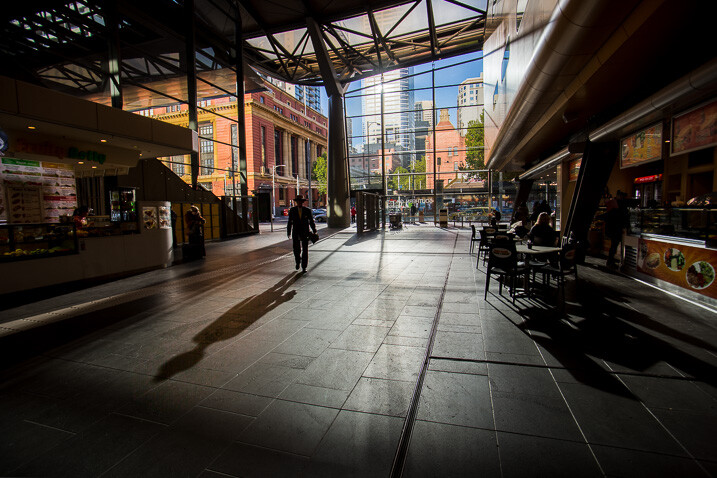
I have the image that I would like to color-grade, and I want to add the teal/orange color combination, to give it that blockbuster look. I’ve ensured that there are no color casts already so I am good to go with this file. Get your image ready, and follow along.

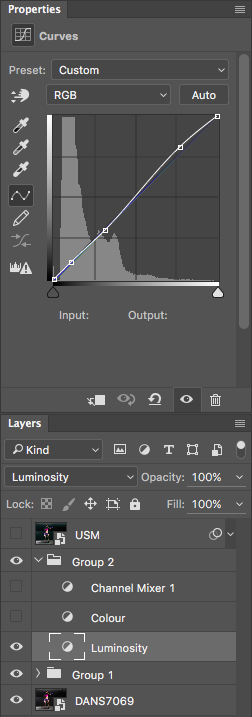
The first step now is to add two curve adjustment layers; name the first one Luminosity and the other Color (I always like to name each of my layers as part of my workflow as it quickly helps me remember what each layer is doing). Now change the blend mode of the Luminosity layer to Luminosity. To do this, simply click on Normal in the layers panel; this should bring up a drop-down menu. Now scroll all the way to the bottom and select Luminosity.

Next, do a similar process with the Color layer selected; only instead of selecting Luminosity blend mode, you’ll be selecting Color. What these two steps are doing is very helpful when making adjustments to the curve in each layer. By changing one layer to a luminosity blend, you are effectively making only adjustments to the luminosity, or light levels of the image, and not adjusting color in any way. This is very help when increasing contrast, for example, as increasing contrast can alter the saturation of colors in the image.

Conversely, altering the blend mode of the Color layer to Color ensures that only color adjustments in the curve layer will be applied, and it will have no affect on the luminosity values of the image at all.

Step 2: Adjust the curve layers

Now that you have the two curve layers made and named, it’s time to adjust them and let the magic happen. Firstly, we want to increase the contrast of the image. So with the Luminosity curve layer selected, add a simple S-Curve to the curve layer. This is referring to a curve that is in the shape of an S, and this style of curve increases contrast.

Contrast Curve Layer

As you can see, I have made a very slight adjustment with contrast here; the shadows have been darkened slightly and the highlights increase slightly. The image was already quite contrasty so I didn’t want to add too much more to it.

Contrast Curve

Here’s the effect of adjusting the contrast curve.

Step 3: Add color-grading

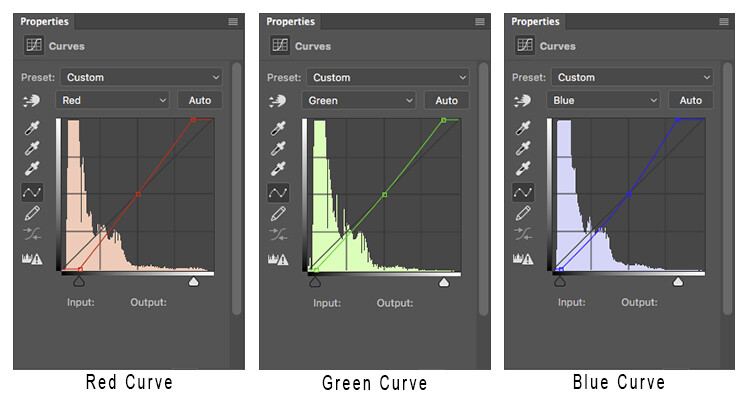
With the overall contrast of the image looking pretty good, it’s now time to move on to add the color-grading. To add teal to the shadows and yellow to the highlights, select the Color curve adjustment layer and click on the RGB drop down menu. First up is red. we need to remove red from the shadows, but add some to the highlights. If you click on the bottom left of the curve and drag the shadow anchor point to the right, you will see a drop in red from the shadows and green begins to appear. To add red in the highlights, simply click the anchor point at the top right and slide it toward the left.

Repeat this step for each of the green and blue colors in the drop-down menu.

There is no set amount as to how much each should be moved. Start off with small amounts and increase as, and if required. To prevent the skin tones from being affected, I added an anchor point to the middle of the curve. To do this, I simply clicked on the curve in the centre of each color curve. This will lock that specific part of the curve and skin tones are around the mid-tone area.

Curves

Here is how each of the color curves looks with this image.

If there are areas where you feel the color has been affected too much – perhaps you have too much red in the face, for example – clicking on the targeted adjust tool (TAT) will allow you to pinpoint the exact area on the curve that needs adjusting. Simply select the TAT and click in the image, on the area you want to target, and this will place an anchor point on the curve. You can now move that anchor up or down to suit. Using the keyboard keys to move up and down is most accurate.

Colour Curve

Now I have adjusted the colors in the curve to how I would like them to look. Switch this adjustment layer on/off to see what impact the adjustments have for you. You may need to revisit each of the color curves and readjust slightly.

Step 4: Add a Channel Mixer layer

The final step in this is to add a Channel Mixer adjustment layer. For this image, I selected the Black and White with Red Filter, but feel free to experiment with different options for your image. You want to use one that creates a nice amount of contrast in your subject and background. You can also adjust the RGB sliders to suit, and finally, reduce the opacity of this layer (I usse 34%).

Here is the final product.

fig 2

There is quite a difference when compared with the original image below.

Base Image

Let’s look at them side by side:

Before

Before

After

After

Where to now?

Now you have an introduction to color-grading using curves in Photoshop. With this example I showed you how to add a teal cast to the shadows, and a warmer orange tone to the highlights, but don’t feel that you are trapped with just this color combination. Experiment with moving the shadow and highlight anchor points in each color channel in a different direction; not just horizontally. Just remember that as a general rule, cooler colors such as greens and blues are more prevalent in shadow areas, and warmer colors such as reds and yellows should be in the brighter areas.

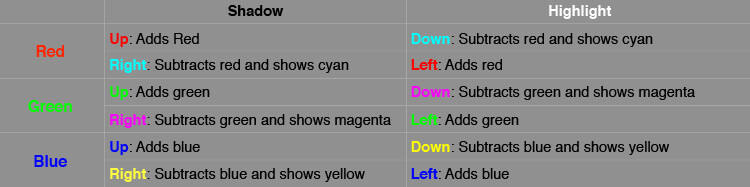
Here is a run down on the effects of moving the shadow and highlight anchor points for each color channel:

Table

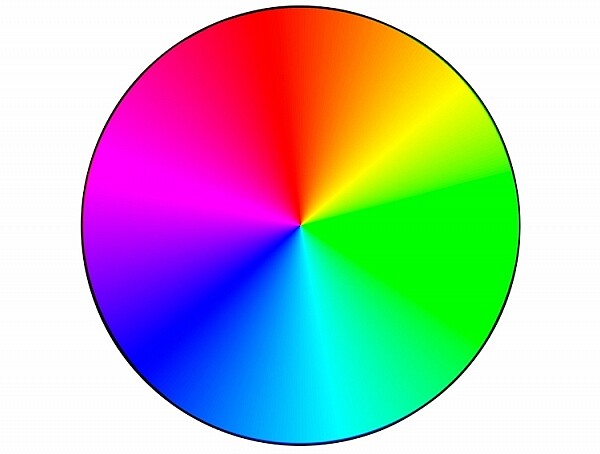
If you ever forget what the opposite colors are, here is a handy color wheel.

Color Wheel

googletag.cmd.push(function() {
tablet_slots.push( googletag.defineSlot( “/1005424/_dPSv4_tab-all-article-bottom_(300×250)”, [300, 250], “pb-ad-78623” ).addService( googletag.pubads() ) ); } );

googletag.cmd.push(function() {
mobile_slots.push( googletag.defineSlot( “/1005424/_dPSv4_mob-all-article-bottom_(300×250)”, [300, 250], “pb-ad-78158” ).addService( googletag.pubads() ) ); } );

The post How to Give Your Images the Hollywood Treatment Step by Step by Daniel Smith appeared first on Digital Photography School.

Digital Photography School

 
Comments Off on How to Give Your Images the Hollywood Treatment Step by Step

Posted in Photography


A 10 Step Personal Development Strategy for Photographers

25 Aug

In this article I want to lay some foundations, on which I will build in future articles. I am not talking here about image development, but your personal and professional development as a photographer. As a full-time working photographer, I am well aware of the 10,000 hours I have invested in my art and craft – not just once, but many times over the last two decades – and it doesn’t end. This is ongoing and if you don’t continue to invest in your personal development, you will not improve and remain static.

Hidden Kingdom

Regardless of whether you are at the start of your journey, having just recently picked up a camera, or have been working in the field for decades, this overview will apply and help you improve.

“If you don’t know where you’re going, don’t complain about the destination!”

1: Nobody is born brilliant

Pick any field: from music, sports, arts, academia, whatever, and pick the best-known people in any of them. They started off as babies playing in mud and sucking their thumbs. Yes, they applied themselves and made life choices to get where they are, but they are all the product of hard work and dedication. We all have a capacity to be brilliant in our own way.

2: Education should never stop

You invest the best part of your childhood in school and the better part of your 20’s and 30’s climbing ladders at work – whatever that may be. This is normal; you accept it as the necessity of making a living.

When it comes to hobbies and pastimes we vary in our commitment to study. There are plenty of folks who only do photography to wind down on the weekend and get away from the stress of a professional career. If that’s you, don’t worry, as I often say, “Learning should be Fun.”

Into the West

3: Effortless development

Be inspired – surround yourself with excellence. When I started to get serious about wanting to become a better photographer, I sought out the very best photography in the fields that interested me. This can be found in many of the excellent online forums these days – images are everywhere and you need to find the best.

Why? Excellence inspires excellence. It allows you to set the bar for yourself and establish a standard for which you aspire. I don’t mean to offend, but if you surround yourself with mediocrity, it will drag you down and create a “that’s good enough” mentality.

Inspiration should be used to help seek out styles you gravitate towards, themes, moods and forms of expression. Plagiarism is a great way to grow, we all do it, but I would recommend trying to develop your own style as soon as you can, rather than copying others. Why, because you’re the best in the world at being you!

4: Truly evaluate where you are right now

This is actually harder than it sounds, as you are trying to compare yourself to a massive spectrum of talent out there in the world. Many times I have gotten to the stage where I thought, “Hey, I’m not bad at this.” Only to find the work of some unknown guy from Romania, whose work blew me away! Honest evaluation can be very humbling.

Life on the Edge

Remember when you were a kid and you used to get your height measured with a pencil mark on the kitchen wall? Remember that feeling when you’d grown an inch over the summer? That’s what photographic development is like – you can feel the inspirational creative muscles stretching and growing.

5: Ask yourself WHY?

I can answer one question about every one of my images, “Why did I make it?”

To be honest, those reasons have changed significantly over the years, especially now this is my career. But typically the more you understand why you are making (or taking) photographs, the sooner you can begin to channel purpose, and specific expression into your work.

I have been through every stage of WHY in my own development. I know when I am forcing it and making images just because I have a camera in my hand. I know when I am making contrived compositions, because I feel I have to make images, even when I don’t feel like it. Equally, I know when I am on fire, running on instinct in the fast lane, charged up with a lot of technique and subconscious understanding.

Professional photographers often talk about utility, having a preset use for an image even while it is being envisaged. For example, while I am in the field, I may be thinking, “That image can be used to advertise a workshop, that one will work well in an eBook or article, that’s a portfolio image to showcase my work, that one is great for Social Media” and so on.

Symphony of Light

6: What is photography?

I am well aware that you could ask a million people and get a million different answers, but this is mine!

“Photography is a visual language: its aim is to communicate something to another person. That something is in the voice of the person who made the photograph. The clearer the photographer’s intention, the more likely the viewer will understand the intent.”

As with spoken language, the more articulate you are, the better you can be understood – by people who understand your language!

Leading on from the why in point #5 above, you have to ask yourself what? – “What am I trying to say with this photograph?”

7: Speak the language of photography

When you admire an image, think about words that explain why you like it. I would imagine the majority of those words would be adjectives, for example: Moody, evocative, dramatic, calm, reflective, soothing, energetic, sad, happy, etc.

Only photographers use technical language to describe photographs. Shutter speeds, exposures, apertures, noise, depth of field, etc.

When you make your images, concentrate on the adjectives. If you make an image to be moody, you can bet the viewer will think it is moody too. Advertising agencies do this all the time, they manipulate their viewers with subliminal messages in film, photographs to make them more likely to buy a product.

This was one of the biggest developments in my own images – I always try and instil a very distinct mood, or feeling, into my work. Start to think in terms of key words that describe your work.

The Wester Isles

8: Understand the creative cycle

Many people describe photography as a process – as if it is linear and follows a set path. In some regards this is true, and certainly from a teaching point of view it is the only way to explain it without melting your student’s brain.

However, recall what it was like learning to drive a car, especially a manual transmission with a stick shift. All those things you have to learn to do simultaneously: steering, mirrors, signals, brake, accelerator, clutch, gears, changing lanes, avoiding pedestrians and cyclists. Now, you manage it with ease, totally subconsciously while having in depth conversations with passengers, kids in the back, or on a hands-free phone to the office.

Photography is the same – the trick is to determine what can become subconscious, and what needs to be at the front of your mind. I call it the creative cycle because there is feedback.

You are unique, because when you look at one of your own photographs, it triggers memories for you – you were there when it was taken and you crafted it in-camera and in processing. When you see the final image, you get it. Other viewers only get what you show them – they have no experiential perspective. You need to be super-articulate with your images to allow a viewer to feel something.

The photograph itself forms an emotional bridge between the event experienced by a photographer and a viewer who only experiences it second hand – but gets it!

9: Disciplines

The First Dawn

Again, I’ve seen the whole process written in many ways, with lots of subsets. For me it is this:

Seeing – Shooting – Expressing

You see something; you organize it, get the light in the camera and then use a computer (typically these days anyway) to make it look the way you want. You can hold up that image and compare it to what you wanted to say about that moment in time, and determine how successful you have been in your expression.

How other people feel about it is a product of how well you get that message across.

The shooting phase is mostly technical and you should become very adept with your camera. Know what it does, know how to expose well and get the light into the computer where it’s useful.

10: Aim for second impressions

The world is full of images. We see thousands every day, and every one we see sparks a snap decision in our brains.

  • First Impression – Wow/Yuk – I like/don’t like that (formed in maximum two seconds)
  • Second Impression – Wait a minute, there is something about this one! (10-30 seconds)
  • Third Impression – This image changes my view of the world, inspires me, makes me want to change, etc. (one minute to the rest of your life)

The Heart of Me

If you are going to open your mouth, you normally think before you speak. It saves a whole lot of trouble. Do the same before you post an image online. You’re still saying something – just with an image instead of words. It represents you; it is a statement from you. Value your work and value what you have to say – then others will too.

googletag.cmd.push(function() {
tablet_slots.push( googletag.defineSlot( “/1005424/_dPSv4_tab-all-article-bottom_(300×250)”, [300, 250], “pb-ad-78623” ).addService( googletag.pubads() ) ); } );

googletag.cmd.push(function() {
mobile_slots.push( googletag.defineSlot( “/1005424/_dPSv4_mob-all-article-bottom_(300×250)”, [300, 250], “pb-ad-78158” ).addService( googletag.pubads() ) ); } );

The post A 10 Step Personal Development Strategy for Photographers by Alister Benn appeared first on Digital Photography School.

Digital Photography School

 
Comments Off on A 10 Step Personal Development Strategy for Photographers

Posted in Photography


A Step Above The Rest: 15 Spectacular Modern Staircases

16 Jun

[ By Steph in Design & Fixtures & Interiors. ]

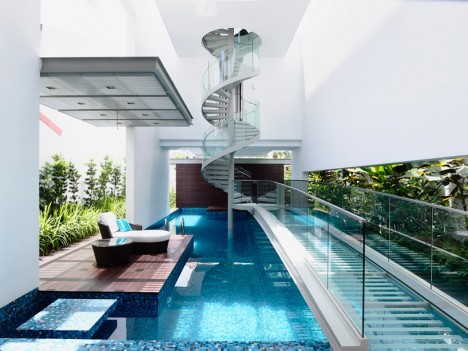
modern stairs pool bridge

Going far beyond their practical function of connecting one level of an interior to the next, these modern staircase designs make a striking statement, often doubling as a sculptural element or offering some other additional purpose. Some act as amphitheater seats, some have built-in gardens and some simply steal the spotlight no matter what else is in the room.

Amphi-Staircase

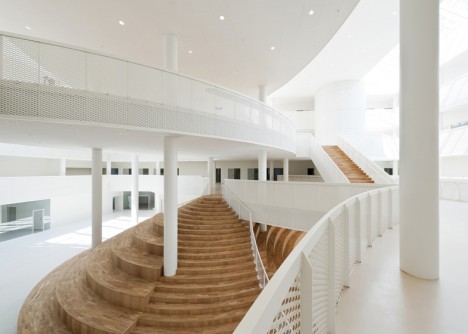
modern stairs amphista

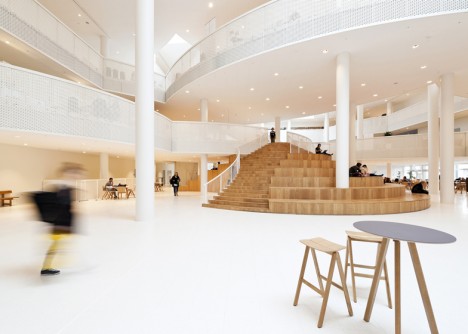
modern stairs amphi-staircase 2

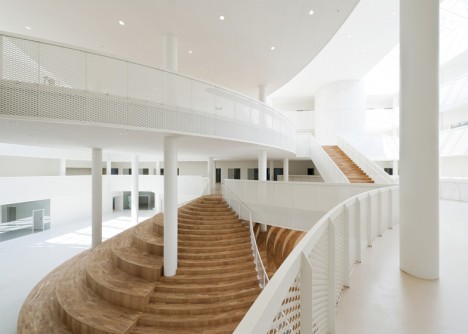
modern stairs amphi-staircase 1

Inspired by the ‘circles and ovals’ that make up Disney characters like Mickey Mouse, this amphitheater-style staircase stands as the heat of an adult learning center in Denmark by architecture studio CEBRA. The lines of the multi-functional staircase echo those of the curving white balconies that jut out into the atrium at every level.

Glossy Spiral Stairs in a Modular Library

modern stairs glossy library

modern stairs glossy library 2

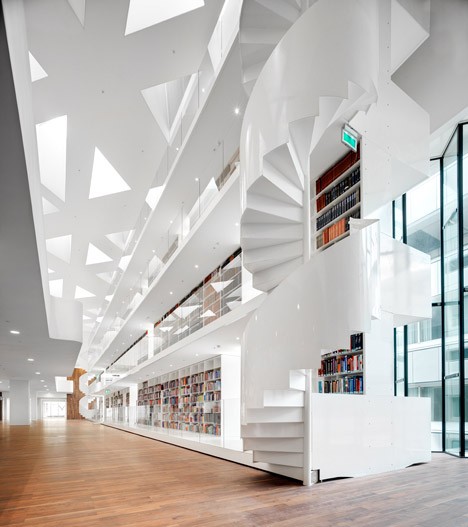
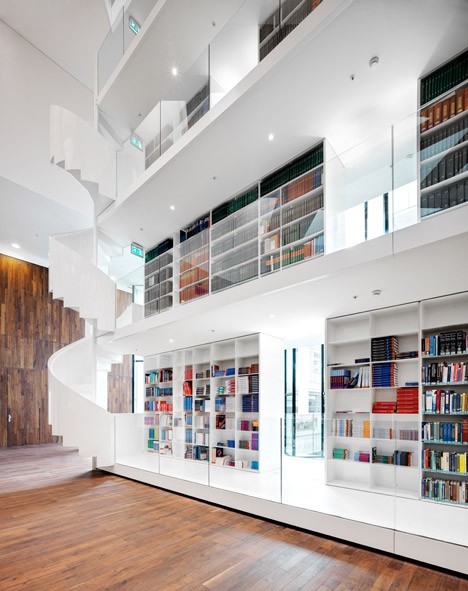
Soaring 115 feet toward the elevated ceiling, this glossy white building-within-a-building adds a library to a modern medical research center at a Rotterdam hospital. It basically functions like one very big bookcase within the large open space, featuring spiraling staircases on either end.

4-Story Living Staircase

modern stairs planted circle

modern stairs planted circle 2

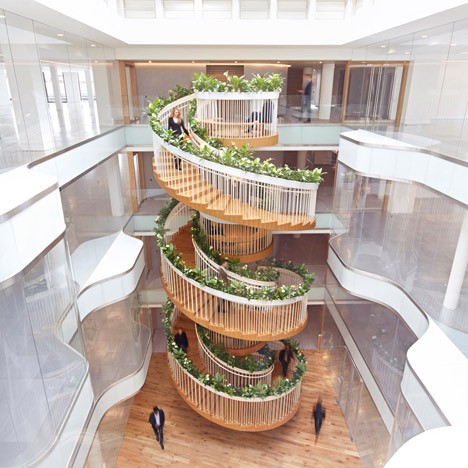
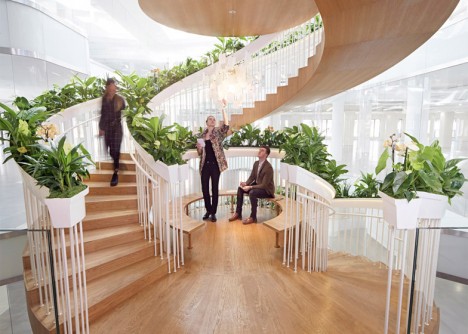
A garden, tea bar and library can be found within a stunning four-story spiraling staircase by designer Paul Cocksedge at the Ampersand office building for creative technology businesses in London. Designed to encourage interaction between workers, it features a different function at every level, including a small curated selection of books on the first floor. Pick your own mint from the garden boxes along the railing to make tea at a hot water machine once you’ve reached the top.

Floating Staircase in an All-Black Room

modern stairs floating

modern stairs floating 2

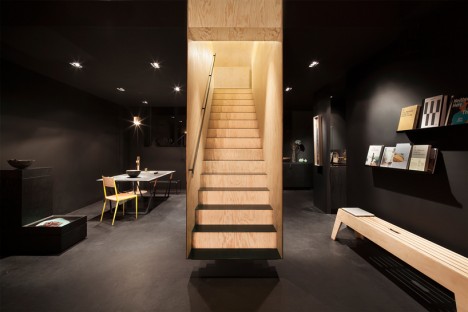
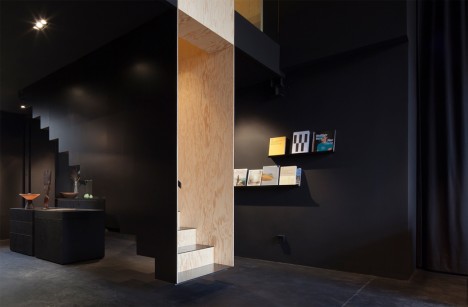
The warm wood lining the interior of this floating staircase by Hidden Fortress makes it glow against the black surfaces of a Berlin concept store, giving it the feel of an optical illusion. The maritime pine used throughout the store is left in its natural state upstairs, so the staircase serves as a visual connection to the next level as well as a literal one.

Partially Suspended Staircase

modern stairs partially suspended

modern stairs partially suspended 2

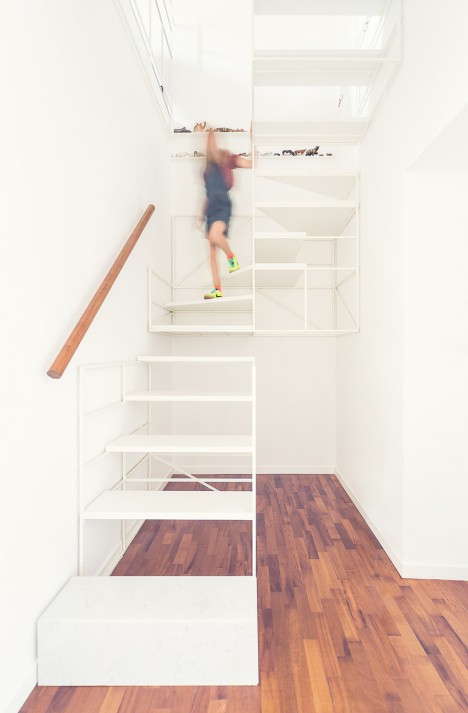
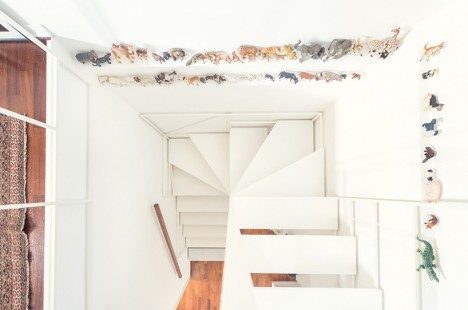
Italian architecture firm Francesco Librizzi Studio suspends most of a white-framed staircase from the stairwell, making it seem as if it’s supported by nothing but the walls. A separate section stands on its own at ground level. The designers were trying to use the stairs as a narrative scheme, asking questions like “Can a staircase tell us that time passes and children grow up?”

Next Page – Click Below to Read More:
A Step Above The Rest 15 Spectacular Modern Staircases

Share on Facebook


[ By Steph in Design & Fixtures & Interiors. ]

[ WebUrbanist | Archives | Galleries | Privacy | TOS ]


WebUrbanist

 
Comments Off on A Step Above The Rest: 15 Spectacular Modern Staircases

Posted in Creativity


Step by Step Using Merge to Panorama in Lightroom

09 Jun

Do you ever find yourself struggling to include everything you want to capture in a single frame? Well then, panoramic photography might be exactly what you need to solve this problem. With the new release of Lightroom 6, Adobe has made it possible to take multiple single frames of a panorama and stitch them seamlessly together with a few clicks of the mouse.

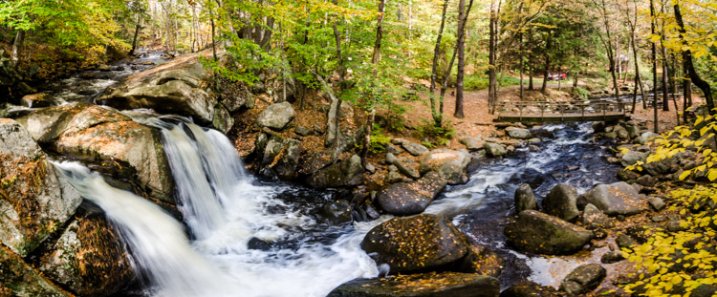
trap-falls-pano-2

Before we dive into the post production aspect of making a panoramic photograph, let’s take a step back and make sure you have a basic understanding of what you’ll need to capture in order to create an panoramic photograph.

Panoramic Photography 101

A quick guide to capturing suitable images

You’ll need at least two different frames to stitch together to create your panorama, but three to five will give you more to work with, and allow for a much richer image. When capturing these frames make sure to overlap each frame by about 30% or so to allow enough information for the algorithms to match each image with its neighbor.

A few other quick pointers to make it as simple as possible for yourself when you get back to the computer include:

  • Use a tripod to line up each shot.
  • Manually set your white balance, ISO, aperture and shutter speed as consistency between each frame is extremely important.
  • Make sure your area of focus remains consistent throughout the series of shots. Use back button focus, or autofocus and then switch to manual to lock it.

Of course, that was only a quick taste of what it takes to capture images for a panorama. For more on the subject of capturing the images read these two great dPS guides:

  • How to shoot panoramas
  • Getting started in panoramic photography

Panoramic Photography with Lightroom 6

Once you’ve captured a set of images for a panoramic photograph, and imported them into your Lightroom library, Adobe makes creating the panoramic photograph about as easy as: select, click, done. Let’s walk through the process.

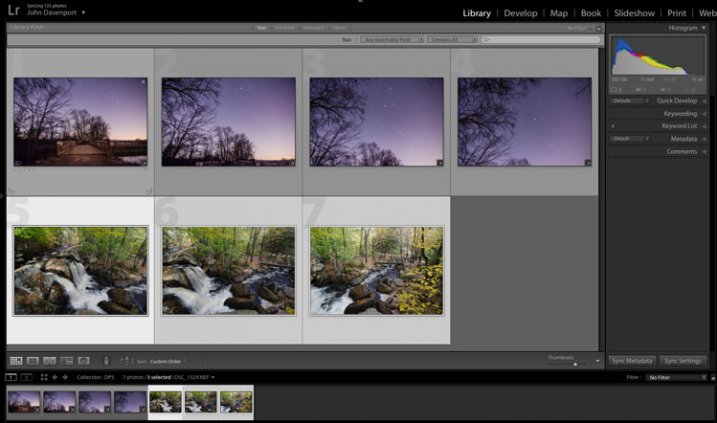
Step #1 – Select the images you want to merge

panoramic photography

Here I’ve selected the three separate frames that make up the panorama attached at the top of this article. It doesn’t matter if you’re in the Develop module or the Library as you’ll be able to create the panoramic image from either place.

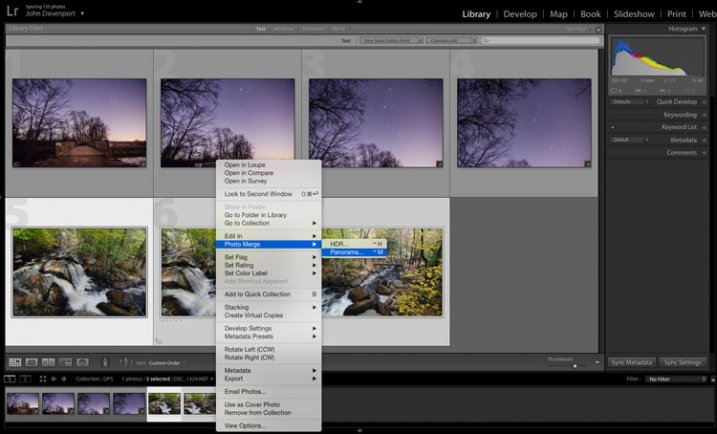
Step #2: Right click and select Photo Merge > Panorama

panoramic photography

Yep! It’s really that simple!

Once you’ve selected Panorama you’ll be brought into a new window called the Panorama Merge Preview. There you’ll be able to see what the resulting panoramic photograph will look like, and you’ll have a few options for customizing it.

panoramic photography

The settings here are not exactly self explanatory, and Lightroom doesn’t really provide any popup hints to help you out – so here’s the basic rundown of these options.

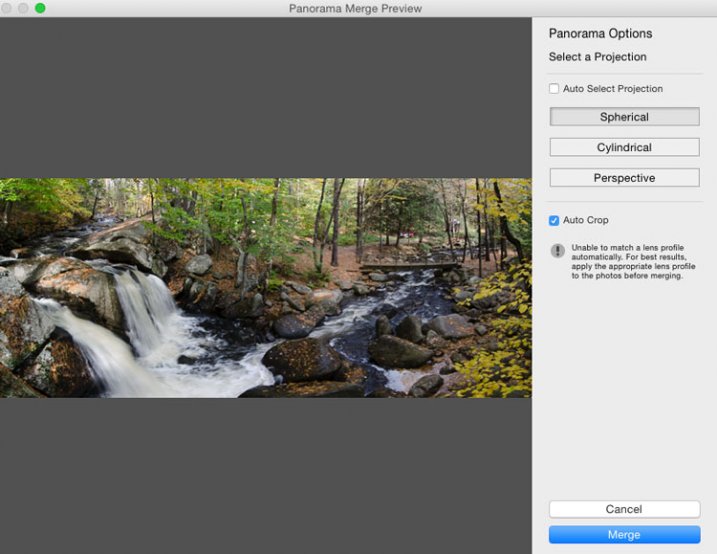
You have three options to choose from as to how you want your image to be projected as a panorama: Spherical, Cylindrical, and Perspective. This setting will determine how Lightroom merges the single frames together to control the distortion of the image.

Spherical – Great for wide panoramas and essentially transforms your selected images as if they were placed on the inside of a sphere.

Cylindrical – Similar to the spherical algorithm except that you’re images are now placed on the inside of a cylinder. In this case the vertical lines will remain straight.

Perspective – Great for architectural photography as it will try to keep all straight lines straight, however, wide panoramas may experience excessive distortion.

By selecting Auto Set Projection you can take the guess work out of this process by allowing Lightroom to pick the best option for you based on the images you’ve selected. In my experience Lightroom usually does a good job at choosing.

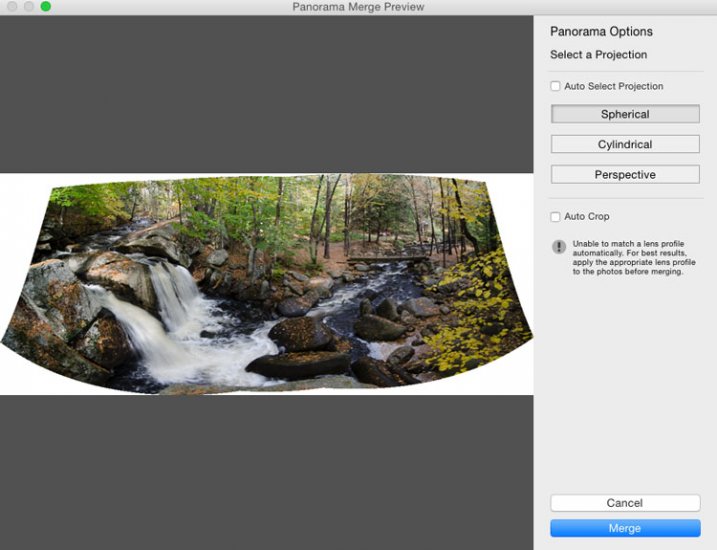
Finally, inside of the preview window you have the option to tell Lightroom to automatically crop the image. If left unchecked this is how the waterfall image above would have looked.

panoramic photography

However, even if you leave the Auto Crop box checked, using the crop tool once you’re back inside Lightroom will allow you to get back the uncropped image should you want to change anything at a later time.

Step #3 – Final Touches

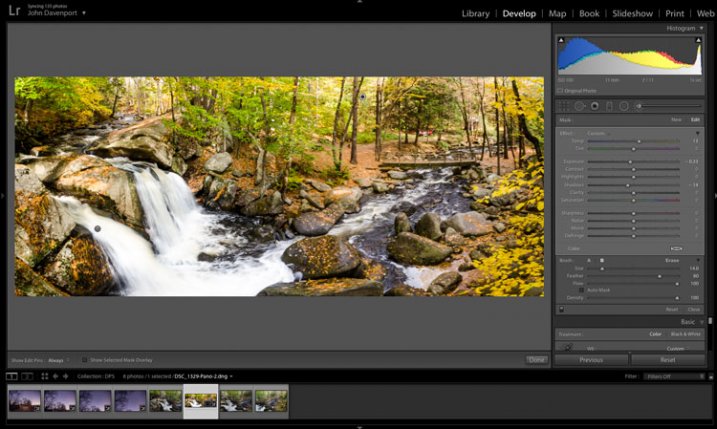
Once you’re done merging your image it will be brought back into Lightroom, ready for you to finalize as you desire. Here I’ve just made a few small tweaks to bring out the colors and brighten the image up a bit.

panoramic photography

Another example – if you prefer video

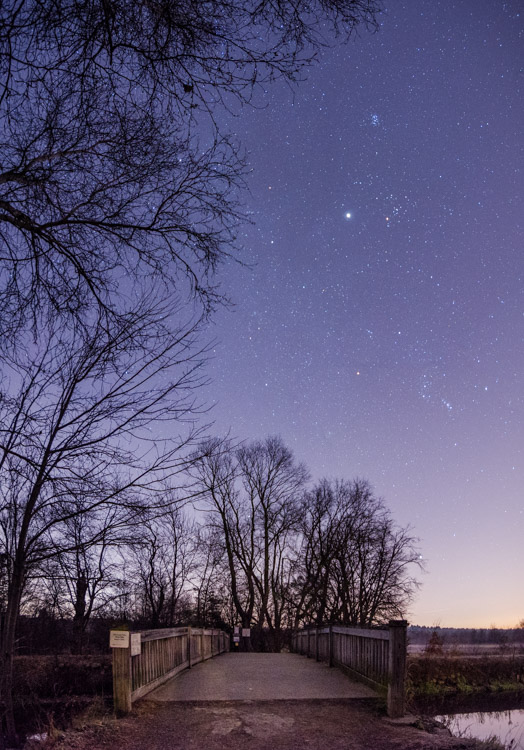
Don’t forget that you can also use Lightroom to create panoramic images of a vertical scene as I’ve done here with this photograph below.

panoramic photography

Because everyone learns differently I’ve also created a simple video walkthrough of the process explained above, using this photograph to demonstrate the process click for click. Watch it below.

See more of Lightroom 6’s new features here.

googletag.cmd.push(function() {
tablet_slots.push( googletag.defineSlot( “/1005424/_dPSv4_tab-all-article-bottom_(300×250)”, [300, 250], “pb-ad-78623” ).addService( googletag.pubads() ) ); } );

googletag.cmd.push(function() {
mobile_slots.push( googletag.defineSlot( “/1005424/_dPSv4_mob-all-article-bottom_(300×250)”, [300, 250], “pb-ad-78158” ).addService( googletag.pubads() ) ); } );

The post Step by Step Using Merge to Panorama in Lightroom by John Davenport appeared first on Digital Photography School.

Digital Photography School

 
Comments Off on Step by Step Using Merge to Panorama in Lightroom

Posted in Photography


How a Step Ladder is Useful for your Photography

11 Jan
An-assistant

The invaluable photography assistant

Normally assistants play a key role on commercial shoots. They are integral to the team effort that is required to ensure a photo shoot goes as planned. They do a lot of the donkey work; moving lighting gear from one position to another; lugging camera gear around in general, and much more. The work of an assistant is unglamorous, tedious, and the hours are long.

Assistants salaries will vary according to their level of skill, experience and employer, and they generally work freelance.

When you are starting out in your photography career/hobby, a lot of time you are working solo trying build a nice portfolio, be it portraits, stock, etc. You don’t need to hire an assistant but an extra pair of hands is always welcome.

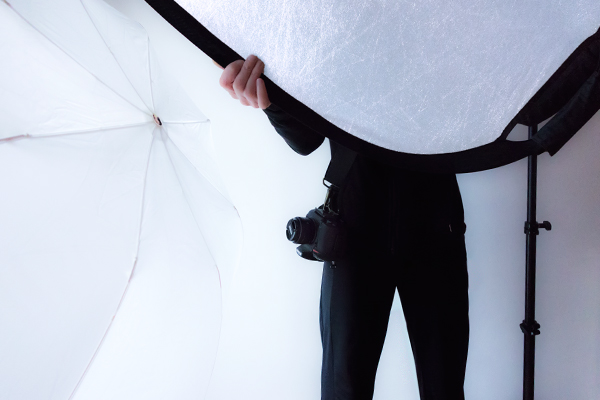
I’ll paint a scenario. You have enlisted a family member or friend to volunteer for some portrait shots outdoors. You’ve also got another friend to help out as you need that extra pair of hands to hold a reflector. This is great way to keep costs down.

However, such is life, your friend can’t make it on the day planned for the shoot. He/she has been struck down with a tummy bug! Blast, now what do you do? I’ve yet to work out how to hold a reflector and press the shutter button at the same time.

Here are some of your options:

  1. You can still go ahead and work solo – you may not get the required lighting on your subject but you are getting the shooting practice which is always a good thing.
  2. Use your cell phone to call yet another friend.
  3. Ask a blank stranger who happens to be walking by.

The first option is probably the safest. The other two require potentially losing a friend and trusting a blank stranger is risky.

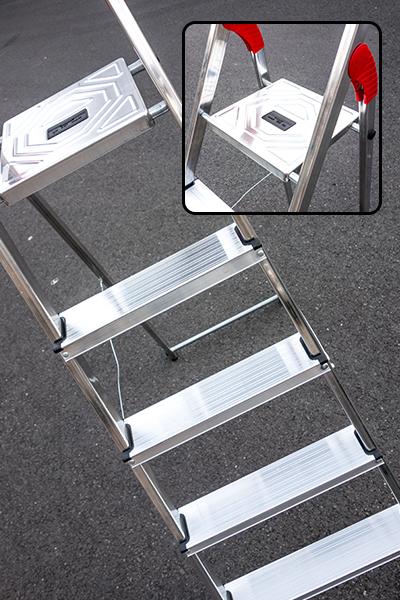
Let me introduce you to the 5-step aluminium ladder. This is by no means a replacement for an actual pair of hands. But I have found it quite useful, and anything that helps is better than nothing at all.

5-Step-Aluminium-ladder

This 5-step aluminium ladder is very versatile and extremely lightweight.

 5 tips for using a step ladder in photography

  1. Portability – This particular ladder that I have weighs only 4.2kg/9.2Ibs. It can fit into my Volkswagon Golf car on the inside. If you have a roof rack, this is a better option, as it is so light to put it up and take it down. It is extremely easy to move it around with one hand.
  2. Point of view – Getting that extra height for an overhead shot by standing on the fourth step and resting your knee on the top platform gives you more stability. A small child could sit on the top shelf and you could get a nice shot from underneath with a blue sky as the background.
  3. Reflector holder – I find using reflectors for taking portrait shots indispensable, especially outdoors. For my reflector, I cut three self-adhesive velcro strips and attached them to the reflector and to the corresponding areas on the ladder. Once in place, you can then direct your subject from behind the camera on how far or near they stand next to the reflector. I tried it out on a really windy day. The day was overcast and I chose a spot under a tree to really test out the reflector. The reflector was securely attached using the velcro strips but as the ladder is so light, it was inclined to take off in the wind. I placed my camera bag on the top rung of the ladder which acted like a sandbag to stabilize it. Although crude, it did work.
  4. Helps eliminate camera shake – Hand holding your camera and resting your elbows on the top platform helps to reduce camera shake and provides added stability when holding your camera.
  5. As a make-shift light stand – You want to use one of your flashes off-camera but you have forgotten your light stand. Light stands can topple over if there is a gust of wind. Although, you could use sand bags arranged around the base of the stand to make it more stable. But, that is assuming you have such an item(s) or thought to bring them in the first place! This is where the extra pair of hands is great to hold the light stand.
POV_worm_eye_view

The top rung of this ladder is quite narrow, so there is only room for a small child.

Velcro_strips_on_reflector_and_ladder

Velcro self-adhesive strips on the reflector and on one of the ladder legs.

Shot_reflector-in-place

The reflector is attached to the ladder on left of the subject.

reflector_ladder_self-adhesive_velcro-tape

The reflector is attached to the ladder using three self-adhesive velcro strips.

The design of this ladder is very stable considering how light weight it is.

I really love this Joby tripod where you pop on your flash and wrap it around the top part of the ladder. It is then easy to move the head of the flash in the direction you want.

Flash_on_ladder

Flash attached to the ladder using a Joby tripod.

This type of ladder can be found in most people’s garages. Even if you don’t use it for your photography, it is still a very useful item to have. At this time of year, if you buy fir trees to decorate with baubles, tinsel and fairy lights, a step ladder is handy to put that star or whatever on top. In a few weeks time, you’ll need that step-up to take it down.

googletag.cmd.push(function() {
tablet_slots.push( googletag.defineSlot( “/1005424/_dPSv4_tab-all-article-bottom_(300×250)”, [300, 250], “pb-ad-78623” ).addService( googletag.pubads() ) ); } );

googletag.cmd.push(function() {
mobile_slots.push( googletag.defineSlot( “/1005424/_dPSv4_mob-all-article-bottom_(300×250)”, [300, 250], “pb-ad-78158” ).addService( googletag.pubads() ) ); } );

The post How a Step Ladder is Useful for your Photography by Sarah Hipwell appeared first on Digital Photography School.
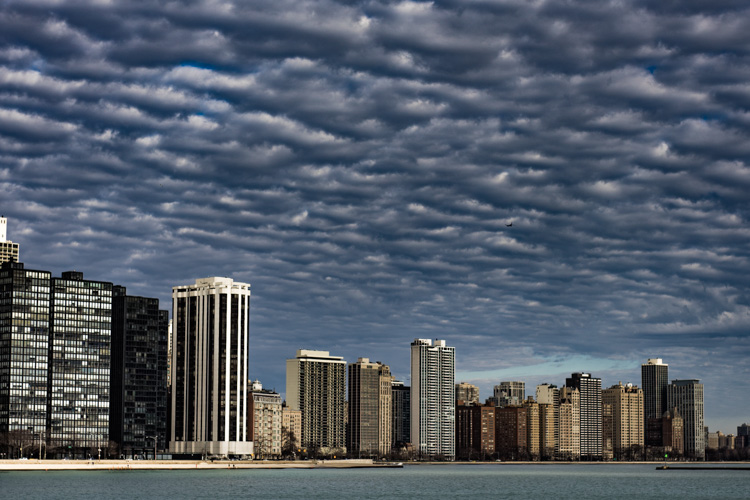

Digital Photography School

 
Comments Off on How a Step Ladder is Useful for your Photography

Posted in Photography


Step by Step Portrait Processing in Lightroom

21 Sep

Andrew’s ebook Mastering Lightroom: Book Four – The Photos is available now at a special price of 40% off for a limited time from Snapndeals. It’s an advanced guide to processing photos in Lightroom’s Develop module, explaining how to use Lightroom’s powerful processing engine plus Develop Presets and plug-ins to create beautiful images. This photo is one of ten case studies from the book.

Portrait processing in Lightroom

The story

When you are photographing someone who enjoys being in front of the camera, take advantage of it. This was a simple portrait to take and its strength comes from the model’s spirit, not fancy technique. I’ve worked with her before and know that she is good at creating different facial expressions. I asked her to give me a series and every time she changed her expression I took another photo. Experienced models will pose, pause until you take the photo, and then move onto the next one, making your job as a portrait photographer much easier.

You can’t see it in this photo but the model was holding a silver reflector slightly beneath her shoulders. The reflected daylight created a wonderful clean lighting effect that made processing the portrait much easier.

First steps

Here’s the original portrait as it appeared straight out of the camera. It was taken with an 85mm lens set to f/1.8, throwing the background out of focus.

Portrait processing in Lightroom

I knew from the start that I wanted the model’s expression to be the focal point of the portrait. The use of a short telephoto lens and a wide aperture has partly achieved that, but the photo required more work. The first task was to tackle the background. Although out of focus, its brightness was a big distraction. My main job here was to make the background darker so the viewer’s eye goes straight to the model.

My hope today is that by following this tutorial and applying the techniques I used to your own photos, you will learn how to create better portraits in Lightroom.

Step 1: Basic adjustments

I prepared the photo by going to the Camera Calibration panel and setting Profile to Camera Portrait. Next I went to the Lens Corrections panel and enabled Chromatic Aberration removal and Profile Corrections, setting Vignetting to zero.

I wanted clean, neutral skin tones, so I went to the Basic panel and moved the Temp slider slightly (from 4850 to 4520) to remove the warm tint.

Step 2: Add a vignette using the Radial Filter

Next I used the Radial Filter tool to make the background darker. I placed the filter so that the top half surrounded the model’s face and shoulders. In this position the Radial Filter can be used to make the area either side and above the model darker, without affecting the bottom part of the portrait. I set Exposure to -4.0 to see the area affected by the adjustment.

Portrait processing in Lightroom

When I was happy with the position of the Radial Filter I reset Exposure to zero, then reduced it until the background went quite dark. I also set Saturation to -70 to remove colour from the background. How much you push the Exposure slider in this situation is always subjective. Some of you will want to retain a fair amount of detail in the background, others will be content to make it go completely black.

Portrait processing in Lightroom

Note: Radial filters are new to Lightroom 5. In earlier versions the best way to achieve a similar effect would be to place a Graduated Filter on either side of the model, and use Adjustment Brush adjustments to fill in the gaps. An alternative technique is to use the Post-Crop Vignetting tool, and lighten any areas that are too dark (such as the model’s shoulders in this example) with the Adjustment Brush tool.

Step 3: Refine the vignette with the Adjustment Brush

While the Radial Filter is an excellent tool for making backgrounds darker, it’s not perfect. The feathering required for a gradual transition may leave some areas of the background close to the subject too light. In this case there were still areas around the hood that were a little bright.

So I used the Adjustment Brush tool to select those areas and reduced Exposure (to -0.65) to make them darker. I didn’t have to be precise with the placement of the Adjustment Brush as the background was already quite dark and out of focus.

Portrait processing in Lightroom

Tip: If you find that the use of the Adjustment Brush is obvious, try setting Feather to 100 and Flow to 50%. This lets you build up the effect little by little instead of doing it all in one brush stroke.

Step 4: Retouching with the Adjustment Brush

This portrait didn’t need much retouching, but there were still a couple of things I wanted to do. The first was to minimize the lines under the model’s eyes. Note that I didn’t want to get rid of them completely, as they are a natural part of her expression. The lines were created by her smile and winking action, and removing them would look unnatural.

I used the Adjustment Brush tool (zoomed in), and carefully painted over the lines under her eyes. I kept the brush size small so as not to affect the neighbouring areas.

Then I selected the Soften Skin preset from the Effect menu. Lightroom applied the skin smoothing effect at full strength by setting Clarity to -100 and Sharpness to +25. This was too strong. To reduce it, I clicked on the pin that marked the Adjustment Brush, held the left mouse button down and dragged the mouse left. Lightroom reduced the intensity of the effect by moving the Clarity and Sharpness sliders in proportion (this technique works with any setting from the Effect menu). I stopped when it looked right (Clarity -45, Sharpness +11).

Portrait processing in Lightroom

I created a new Adjustment Brush to cover the model’s eyes, mouth and eyebrows. I pushed the Clarity slider to +40 to bring a bit of extra sharpness and contrast to those areas. The screen shot shows the areas covered by the Adjustment Brush.

Portrait processing in Lightroom

Step 5: Framing the portrait

The model’s hood creates a natural frame for her face and is an essential part of the composition. I decided to emphasize it by using Clarity to bring out the texture of the fur.

I created another selection using the Adjustment Brush tool and increased Clarity (to 56), Contrast (to 22) and Exposure (to 0.26). The hood is a frame that draw the viewer’s eye to the centre of the frame, and these adjustments help to emphasize it. I needed to find the balance between emphasis and distraction; highlighting the beautiful texture of the fur lined hood without pulling too much attention away from the model’s expression. This screen shot shows the area covered by the Adjustment Brush.

Portrait processing in Lightroom

Next I went to the Basic panel and reduced Vibrance to -14 to de-emphasize the colours a little more. Finally, I used a small Adjustment Brush to lighten the edge of the model’s right shoulder, which had been darkened by the Radial Filter adjustment earlier. The area covered by the Adjustment Brush is shown in the screen shot.

Portrait processing in Lightroom

Comparing before and after results

Here are the original and final versions together so you can compare them.

Portrait processing in Lightroom

What do you think of these processing techniques? There’s more than one way to process most photos – do you have any suggestions for an alternative interpretation of the original Raw file? Please let me know in the comments.

Mastering Lightroom: Book Four – The PhotosAndrew’s ebook Mastering Lightroom: Book Four – The Photos is available now at a special price of 40% off for a limited time from Snapndeals. It’s an advanced guide to processing photos in Lightroom’s Develop module, explaining how to use Lightroom’s powerful processing engine plus Develop Presets and plug-ins to create beautiful images. This photo is one of ten case studies from the book.

The post Step by Step Portrait Processing in Lightroom by Andrew S. Gibson appeared first on Digital Photography School.
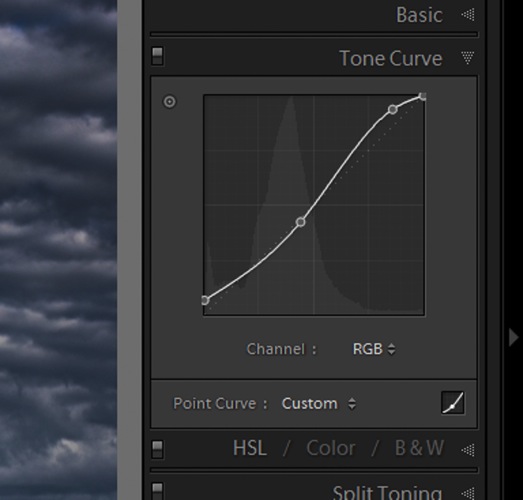

Digital Photography School

 
Comments Off on Step by Step Portrait Processing in Lightroom

Posted in Photography