RSS
 

Posts Tagged ‘Star’

How to Turn Your Kids into Star Wars Characters Using Photoshop

10 Feb

Do your kids love Star Wars? Do you love photography? If so, here’s a great opportunity to join forces and turn your kids into Star Wars heroes or villains by giving them the ultimate Star Wars weapon, the lightsaber.
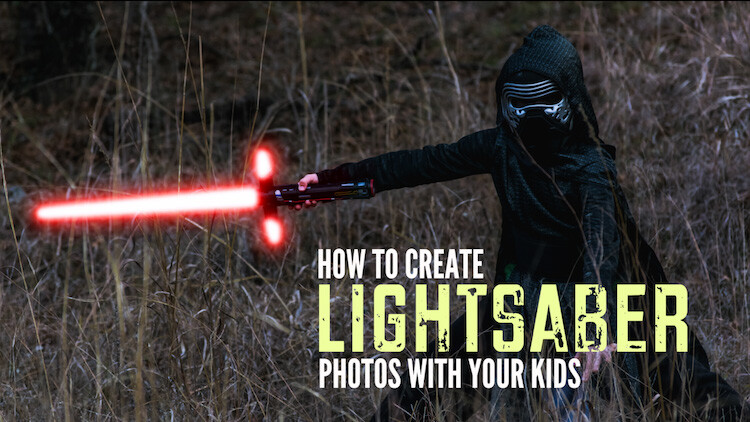
How to Turn Your Kids into Star Wars Characters Using Adobe Photoshop

All you need to awaken the force are these three steps:

  1. The setup
  2. Capturing the shot
  3. Light up your sabers using Photoshop

BONUS tip – The Jumping Jedi

Step #1 – The Setup

For the setup, you will want to make sure that the photographs of your kids look as close to a Star Wars scene as possible. Don’t just take a picture of your kids wearing a t-shirt standing in the kitchen. Luke Skywalker doesn’t light up his lightsaber in a kitchen. Your kids will have a lot of fun getting into character, so spend some time on the setup.

Costumes

You can buy costumes for your kids on Amazon. Here are the costumes used in this tutorial.

  • Luke Skywalker
  • Rey
  • Kylo Ren
  • Lightsabers
  • Total customs cost ~ $ 40-70

Location

For the location, you will want to find a place that looks like it could be a scene in any of the Star Wars movies. The easiest location to use would be a park with trees, and no noticeable man-made objects in sight.
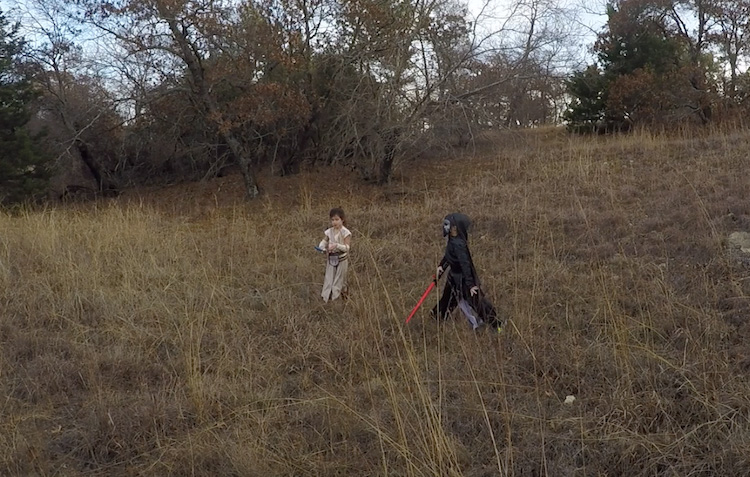
2 Location - How to Turn Your Kids into Star Wars Characters Using Adobe Photoshop

Step #2 – Capturing the Shot

Action shots

For action shots of a lightsaber battle, you will want to use a fast shutter speed of at least 1/500th of a second, and set your camera to continuous (burst) shooting mode. This will allow you to freeze the action of the battle and take multiple shots in sequence to ensure you capture the best of the action.
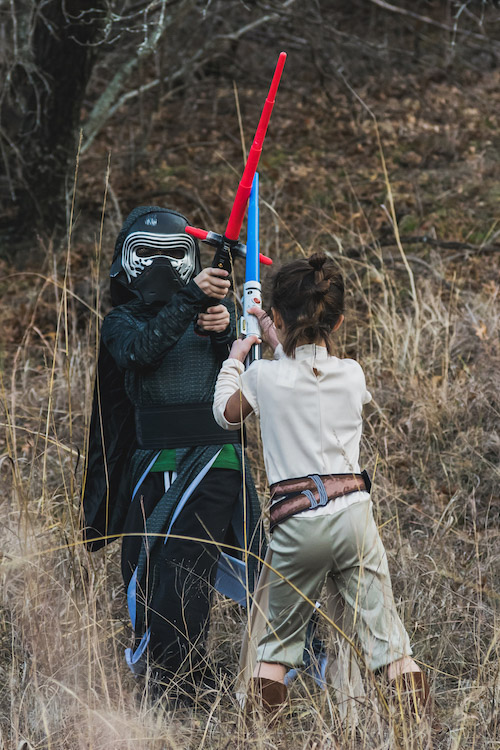
4 Action shot - How to Turn Your Kids into Star Wars Characters Using Adobe Photoshop

Shutter speed was 1/800th of a second.

Portraits

For the portraits, give your kids some epic poses to follow. To give you ideas for creative poses, do a Google images search for the Star Wars character of your choice. This will also help your child get more into the character. For example here are some for Rey.
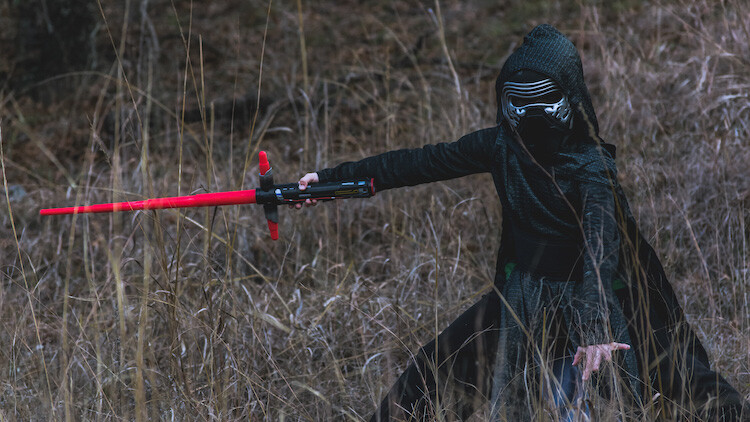
5 Portrait pose - How to Turn Your Kids into Star Wars Characters Using Adobe Photoshop

Do basic edits to the image

After you capture the image, you will need to make a few adjustments to the image to make it stand out. This can be done in Adobe Lightroom and is the final step before your photo is ready to go into Photoshop for the lightsaber effect.

For the look of Star Wars, a few basic edits, such as increasing the contrast and the clarity will help give it a rough and grungy look that Star Wars is known for.
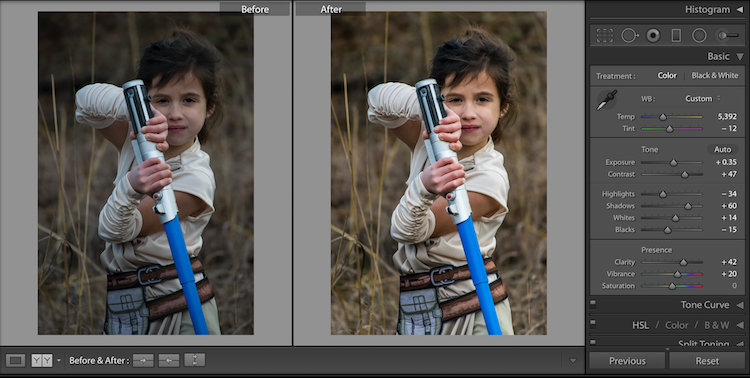
6 Before After Lightroom Edit Star Wars

Notice the differences between the before and after of this image by making a few basic edits in Adobe Lightroom.

Step #3 – Light your sabers up in Photoshop

Adding the lightsaber effect is the last and final step in making turning your kid into the Star Wars character of their dreams. This process should take about five minutes per photo once you have done it a few times.

Part 1: Prepare the layer

Start by creating a duplicate layer by pressing CTRL/CMD + J.
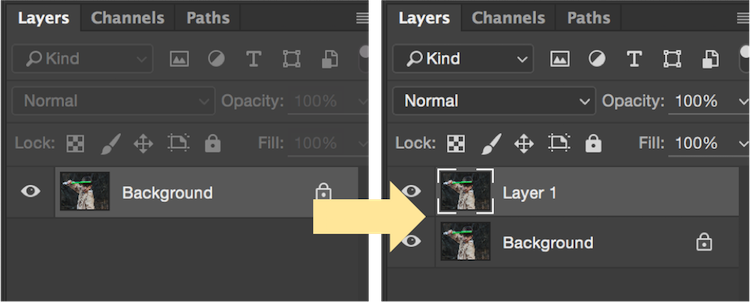
8 Duplicate layer - Star Wars character in Photoshop

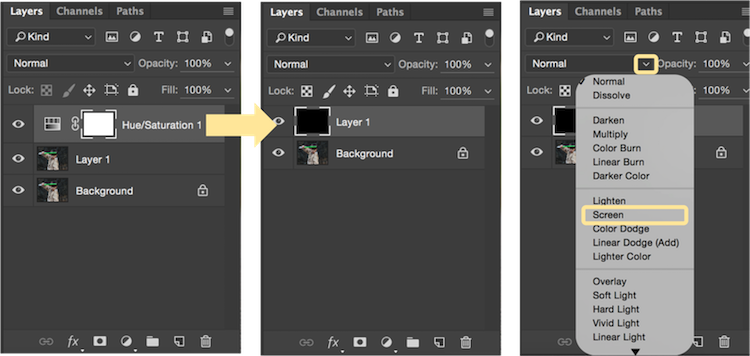
Select the icon to create a new fill or adjustment layer, and from that menu select Hue/Saturation. Then, move the lightness slider to -100 to make it black.
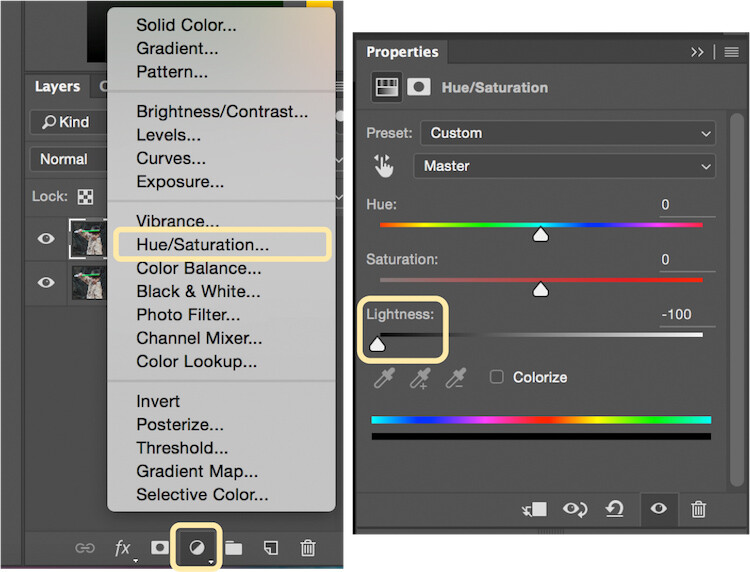
9 Hue Saturation

Select CTRL/CMD + E to merge the adjustment layer and duplicate layer. Next, set the blending mode drop down to Screen.
10 merge and screen Star Wars

At this point, your layers are prepped and ready to add the lightsaber.

Part 2: Add the lightsaber by using the brush tool

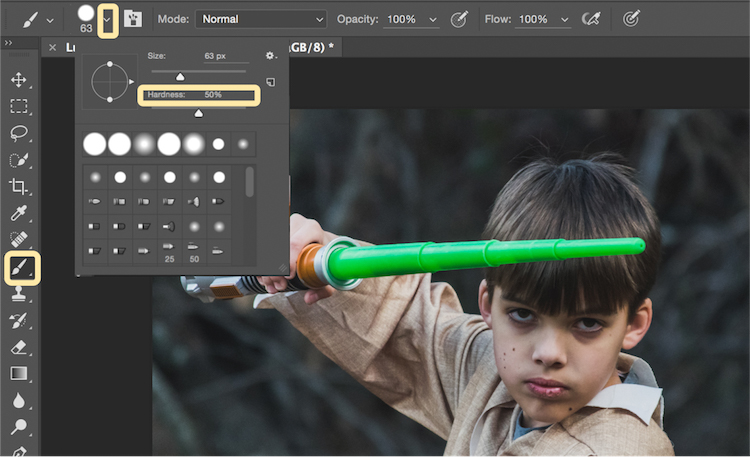
Select the brush tool, and adjust the size and hardness of the brush. The size of your brush will vary based on the size of the lightsaber and your image. Set the hardness of the brush to approximately 50%.
11 brush selection

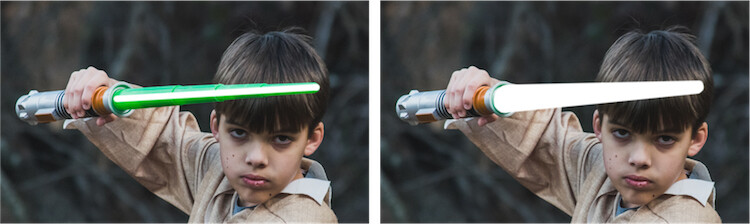
Begin to add your lightsaber using brush strokes. Select the end point of the lightsaber, then hold down shift, and click the other end of the lightsaber to draw a straight line. Repeat these lines multiple times to fill in the lightsaber with brush strokes. You will likely need to add free-form brush strokes around the base of the lightsaber to fill it in.
12 draw the saber

Illuminate the lightsaber

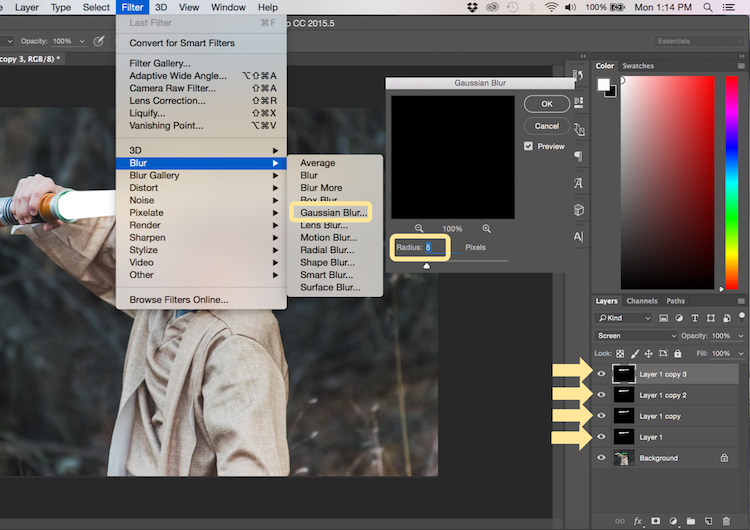
The next step allows you to illuminate the lightsaber. Create three duplicate layers of the lightsaber by selecting CTRL/CMD + J three times. For each layer, you will then select Filter > Blur > Gaussian Blur. But, each layer will be set to a different radius setting. For this image, we used 5, 15, 35, 75 for each respective layer. Note, that the amount of Gaussian Blur needed may vary based on the size of your image. Adjust these numbers as needed to ensure you have a nice glow from the lightsaber.
13 Gausian Blur

Select all of the duplicate layers (do not select the background), and merge them into one layer by pressing CTRL/CMD + E. Then set the blending mode to Screen.
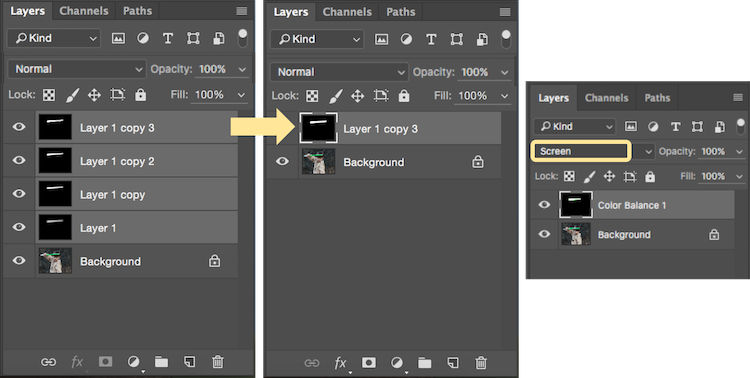
14 Merge and Screen

Add color to the lightsaber

It’s now time to add color to your lightsaber. Select the icon to create a new fill or adjustment layer, and choose the option for Color Balance. Activate the clipping mask so that you only add color to the lightsaber, not the entire image. You can choose any color of your choice, but in this example, we are working with green.

You will want to add the color selection to each option for Shadows, Midtones, and Highlights. Adjust the color slider up or down based on the color preferences for your lightsaber. For this photo, we set shadows, midtones, and highlights to green at around +65.
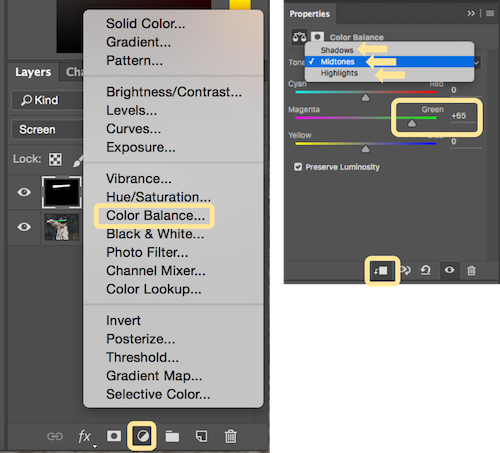
15 Color Lightsaber

Your lightsaber is now complete, but there is still one more important step to get a realistic photo. You need to add some glow to the subject from the illumination coming off of the lightsaber.

Part 3: Add the reflective glow from the lightsaber

Select the background or base layer. Click the icon to create a new fill or adjustment layer, and choose the option for Color Balance. Choose the same color as you used for your lightsaber, but this time as you adjust the color for Shadows, Midtones, and Highlights, it will work best if you emphasize the color around the highlights more than the shadows or Midtones. For this photo, we used Shadows +32, Midtones +38, and Highlights +70
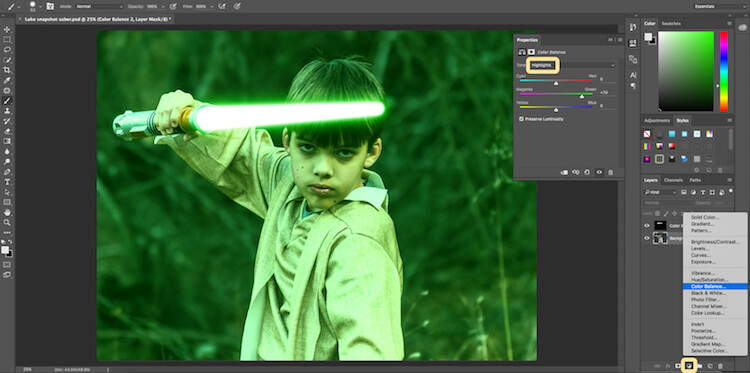
16 Color for Glow

Add a vector mask and then select CTRL/CMD + I to hide all of the color balance. Select the brush tool, and make it a soft edge brush with an opacity around +18. This will allow you to brush in a soft reflection of glow to parts of the image that make it look realistic.
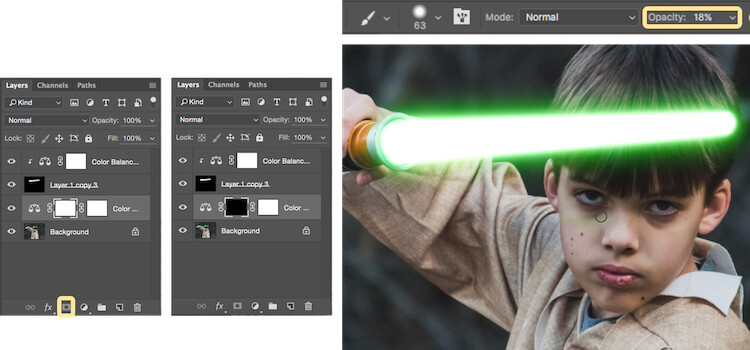
17 Brush in glow reflection

Bonus – Jumping Jedi

A bonus tip that you may want to use in your Star Wars photo shoot is a jumping Jedi. With a few simple tricks, you can give the illusion of your Jedi jumping high into the air over a swinging lightsaber.

First, make sure you use a tripod as you will need the camera to be completely stationary for two different shots. You can have your Jedi jump off a chair at the same time that his enemy swings his lightsaber. Then remove the chair and capture a shot of the exact same scene, but this time without the chair or characters in the shot (tripod use is important for image alignment later).

The second shot should be empty with the exception of the background because it will allow you to take the chair out of the original picture to create the illusion of a jumping Jedi.
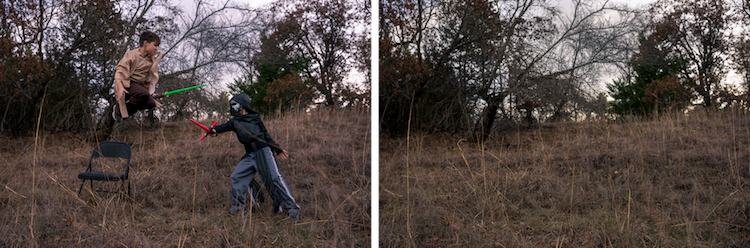
19 Jumping jedi tripod shots

Here’s how it’s done in Photoshop.

Start by opening both photos as layers. You will want the empty background shot to be set as the base layer and the action shot as the top one. Select the top layer of the action shot, and click Layer > Layer Mask > Reveal all.
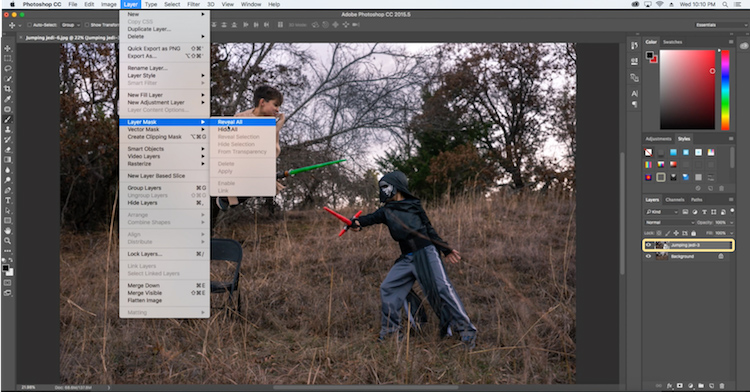
20 Jumping Jedi mask

Select the brush tool, and make sure that your foreground color is set to black, which will allow you to brush away the top layer to reveal some of the base layer. If your foreground color is set to white as opposed to black you can switch it to black by clicking X. Simply brush over the chair (make sure you are painting on the mask NOT the layer) to make it disappear.
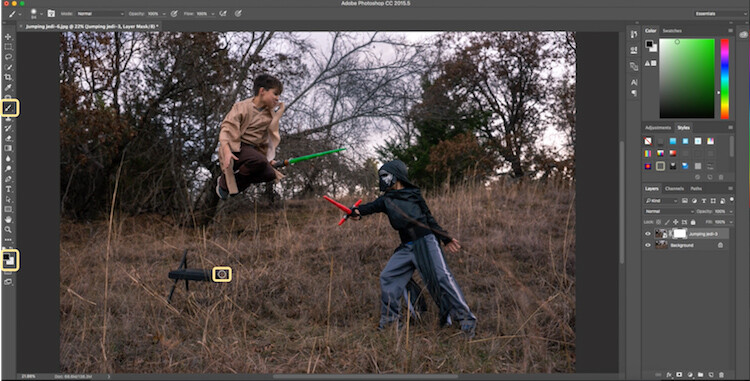
21 Jumping Jedi brush away

Add the lightsaber effect from above, and you have the illusion of a jumping Jedi.
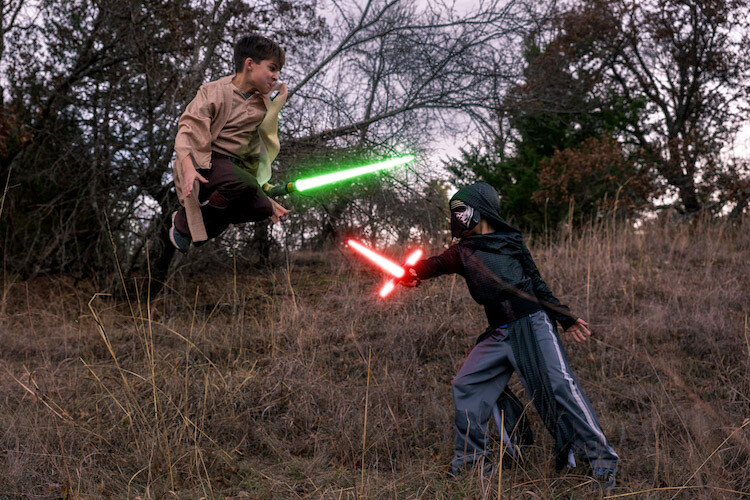
22 Final photo Jumping Jedi

Below are some additional examples of the final images from this Star Wars project to give you additional ideas for action shots and portraits to bring your characters to life.
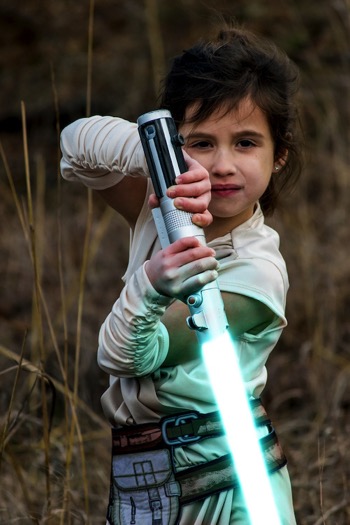
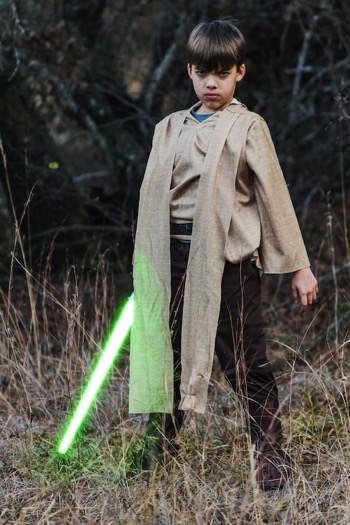
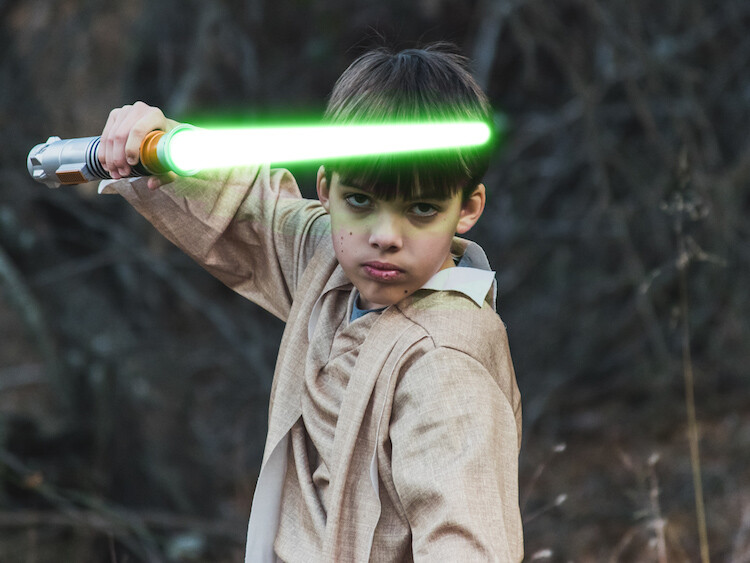
28 Final photo Rey portrait 29 Final Photo Luke portrait

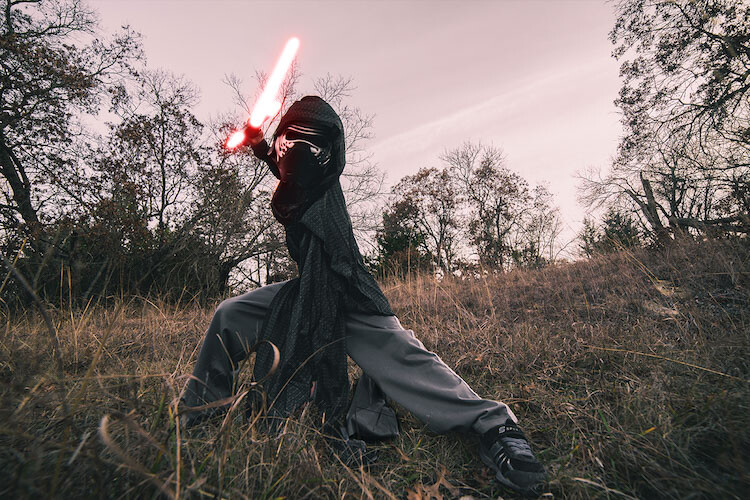
30 Kylo Ren Red

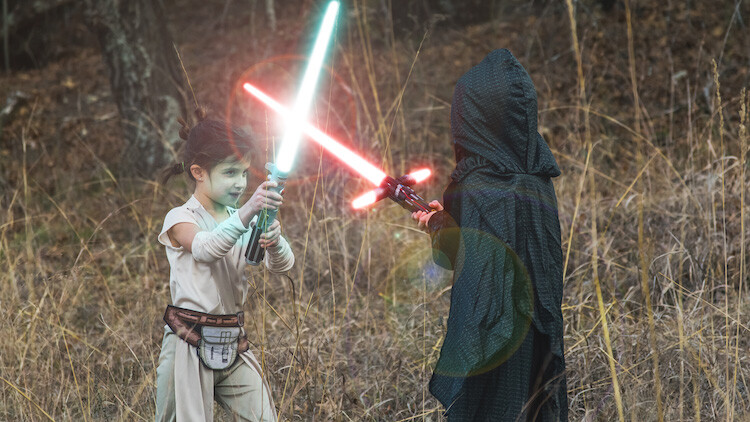
27 Final photo saber battle

Finally

You can watch this whole process in the follow short video as well:

Note: thanks to my co-author on this article, David Kahl.

Try to awaken the force in your family by giving them a lightsaber and following this tutorial. In addition, leave a comment with any other fun photography projects that you have captured with your kids or family. Share your images if you give this a go, we’d love to see them!

googletag.cmd.push(function() {
tablet_slots.push( googletag.defineSlot( “/1005424/_dPSv4_tab-all-article-bottom_(300×250)”, [300, 250], “pb-ad-78623” ).addService( googletag.pubads() ) ); } );

googletag.cmd.push(function() {
mobile_slots.push( googletag.defineSlot( “/1005424/_dPSv4_mob-all-article-bottom_(300×250)”, [300, 250], “pb-ad-78158” ).addService( googletag.pubads() ) ); } );

The post How to Turn Your Kids into Star Wars Characters Using Photoshop by Paul Fontanelli appeared first on Digital Photography School.
Digital Photography School

 
Comments Off on How to Turn Your Kids into Star Wars Characters Using Photoshop

Posted in Photography


How to Turn Your Kids into Star Wars Characters Using Photoshop

09 Feb

Do your kids love Star Wars? Do you love photography? If so, here’s a great opportunity to join forces and turn your kids into Star Wars heroes or villains by giving them the ultimate Star Wars weapon, the lightsaber.

How to Turn Your Kids into Star Wars Characters Using Adobe Photoshop

All you need to awaken the force are these three steps:

  1. The setup
  2. Capturing the shot
  3. Light up your sabers using Photoshop

BONUS tip – The Jumping Jedi

Step #1 – The Setup

For the setup, you will want to make sure that the photographs of your kids look as close to a Star Wars scene as possible. Don’t just take a picture of your kids wearing a t-shirt standing in the kitchen. Luke Skywalker doesn’t light up his lightsaber in a kitchen. Your kids will have a lot of fun getting into character, so spend some time on the setup.

Costumes

You can buy costumes for your kids on Amazon. Here are the costumes used in this tutorial.

  • Luke Skywalker
  • Rey
  • Kylo Ren
  • Lightsabers
  • Total customs cost ~ $ 40-70

Location

For the location, you will want to find a place that looks like it could be a scene in any of the Star Wars movies. The easiest location to use would be a park with trees, and no noticeable man-made objects in sight.

2 Location - How to Turn Your Kids into Star Wars Characters Using Adobe Photoshop

Step #2 – Capturing the Shot

Action shots

For action shots of a lightsaber battle, you will want to use a fast shutter speed of at least 1/500th of a second, and set your camera to continuous (burst) shooting mode. This will allow you to freeze the action of the battle and take multiple shots in sequence to ensure you capture the best of the action.

4 Action shot - How to Turn Your Kids into Star Wars Characters Using Adobe Photoshop

Shutter speed was 1/800th of a second.

Portraits

For the portraits, give your kids some epic poses to follow. To give you ideas for creative poses, do a Google images search for the Star Wars character of your choice. This will also help your child get more into the character. For example here are some for Rey.

5 Portrait pose - How to Turn Your Kids into Star Wars Characters Using Adobe Photoshop

Do basic edits to the image

After you capture the image, you will need to make a few adjustments to the image to make it stand out. This can be done in Adobe Lightroom and is the final step before your photo is ready to go into Photoshop for the lightsaber effect.

For the look of Star Wars, a few basic edits, such as increasing the contrast and the clarity will help give it a rough and grungy look that Star Wars is known for.

6 Before After Lightroom Edit Star Wars

Notice the differences between the before and after of this image by making a few basic edits in Adobe Lightroom.

Step #3 – Light your sabers up in Photoshop

Adding the lightsaber effect is the last and final step in making turning your kid into the Star Wars character of their dreams. This process should take about five minutes per photo once you have done it a few times.

Part 1: Prepare the layer

Start by creating a duplicate layer by pressing CTRL/CMD + J.

8 Duplicate layer - Star Wars character in Photoshop

Select the icon to create a new fill or adjustment layer, and from that menu select Hue/Saturation. Then, move the lightness slider to -100 to make it black.

9 Hue Saturation

Select CTRL/CMD + E to merge the adjustment layer and duplicate layer. Next, set the blending mode drop down to Screen.

10 merge and screen Star Wars

At this point, your layers are prepped and ready to add the lightsaber.

Part 2: Add the lightsaber by using the brush tool

Select the brush tool, and adjust the size and hardness of the brush. The size of your brush will vary based on the size of the lightsaber and your image. Set the hardness of the brush to approximately 50%.

11 brush selection

Begin to add your lightsaber using brush strokes. Select the end point of the lightsaber, then hold down shift, and click the other end of the lightsaber to draw a straight line. Repeat these lines multiple times to fill in the lightsaber with brush strokes. You will likely need to add free-form brush strokes around the base of the lightsaber to fill it in.

12 draw the saber

Illuminate the lightsaber

The next step allows you to illuminate the lightsaber. Create three duplicate layers of the lightsaber by selecting CTRL/CMD + J three times. For each layer, you will then select Filter > Blur > Gaussian Blur. But, each layer will be set to a different radius setting. For this image, we used 5, 15, 35, 75 for each respective layer. Note, that the amount of Gaussian Blur needed may vary based on the size of your image. Adjust these numbers as needed to ensure you have a nice glow from the lightsaber.

13 Gausian Blur

Select all of the duplicate layers (do not select the background), and merge them into one layer by pressing CTRL/CMD + E. Then set the blending mode to Screen.

14 Merge and Screen

Add color to the lightsaber

It’s now time to add color to your lightsaber. Select the icon to create a new fill or adjustment layer, and choose the option for Color Balance. Activate the clipping mask so that you only add color to the lightsaber, not the entire image. You can choose any color of your choice, but in this example, we are working with green.

You will want to add the color selection to each option for Shadows, Midtones, and Highlights. Adjust the color slider up or down based on the color preferences for your lightsaber. For this photo, we set shadows, midtones, and highlights to green at around +65.

15 Color Lightsaber

Your lightsaber is now complete, but there is still one more important step to get a realistic photo. You need to add some glow to the subject from the illumination coming off of the lightsaber.

Part 3: Add the reflective glow from the lightsaber

Select the background or base layer. Click the icon to create a new fill or adjustment layer, and choose the option for Color Balance. Choose the same color as you used for your lightsaber, but this time as you adjust the color for Shadows, Midtones, and Highlights, it will work best if you emphasize the color around the highlights more than the shadows or Midtones. For this photo, we used Shadows +32, Midtones +38, and Highlights +70

16 Color for Glow

Add a vector mask and then select CTRL/CMD + I to hide all of the color balance. Select the brush tool, and make it a soft edge brush with an opacity around +18. This will allow you to brush in a soft reflection of glow to parts of the image that make it look realistic.

17 Brush in glow reflection

Bonus – Jumping Jedi

A bonus tip that you may want to use in your Star Wars photo shoot is a jumping Jedi. With a few simple tricks, you can give the illusion of your Jedi jumping high into the air over a swinging lightsaber.

First, make sure you use a tripod as you will need the camera to be completely stationary for two different shots. You can have your Jedi jump off a chair at the same time that his enemy swings his lightsaber. Then remove the chair and capture a shot of the exact same scene, but this time without the chair or characters in the shot (tripod use is important for image alignment later).

The second shot should be empty with the exception of the background because it will allow you to take the chair out of the original picture to create the illusion of a jumping Jedi.

19 Jumping jedi tripod shots

Here’s how it’s done in Photoshop.

Start by opening both photos as layers. You will want the empty background shot to be set as the base layer and the action shot as the top one. Select the top layer of the action shot, and click Layer > Layer Mask > Reveal all.

20 Jumping Jedi mask

Select the brush tool, and make sure that your foreground color is set to black, which will allow you to brush away the top layer to reveal some of the base layer. If your foreground color is set to white as opposed to black you can switch it to black by clicking X. Simply brush over the chair (make sure you are painting on the mask NOT the layer) to make it disappear.

21 Jumping Jedi brush away

Add the lightsaber effect from above, and you have the illusion of a jumping Jedi.

22 Final photo Jumping Jedi

Below are some additional examples of the final images from this Star Wars project to give you additional ideas for action shots and portraits to bring your characters to life.

28 Final photo Rey portrait 29 Final Photo Luke portrait

30 Kylo Ren Red

27 Final photo saber battle

Finally

You can watch this whole process in the follow short video as well:

Note: thanks to my co-author on this article, David Kahl.

Try to awaken the force in your family by giving them a lightsaber and following this tutorial. In addition, leave a comment with any other fun photography projects that you have captured with your kids or family. Share your images if you give this a go, we’d love to see them!

googletag.cmd.push(function() {
tablet_slots.push( googletag.defineSlot( “/1005424/_dPSv4_tab-all-article-bottom_(300×250)”, [300, 250], “pb-ad-78623” ).addService( googletag.pubads() ) ); } );

googletag.cmd.push(function() {
mobile_slots.push( googletag.defineSlot( “/1005424/_dPSv4_mob-all-article-bottom_(300×250)”, [300, 250], “pb-ad-78158” ).addService( googletag.pubads() ) ); } );

The post How to Turn Your Kids into Star Wars Characters Using Photoshop by Paul Fontanelli appeared first on Digital Photography School.

Digital Photography School

 
Comments Off on How to Turn Your Kids into Star Wars Characters Using Photoshop

Posted in Photography


Clone Wars: How Star Architect Frank Lloyd Wright Inspired the Design of Naboo

26 Jan

[ By WebUrbanist in Architecture & Public & Institutional. ]

naboo-architecture

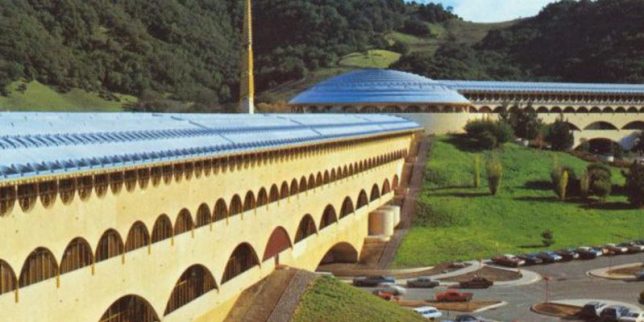
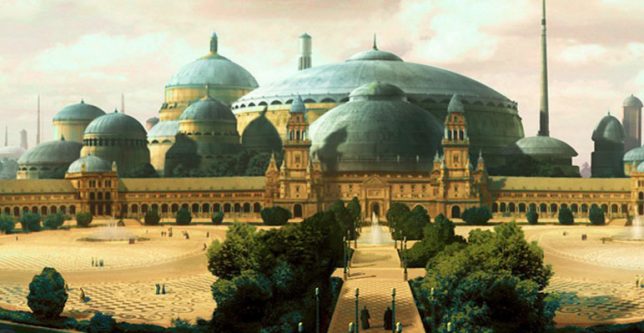
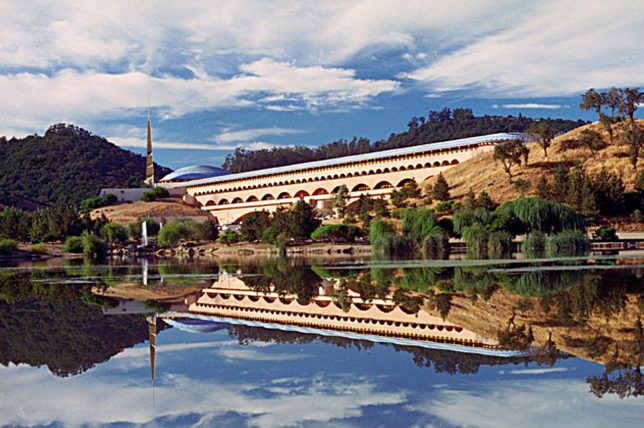
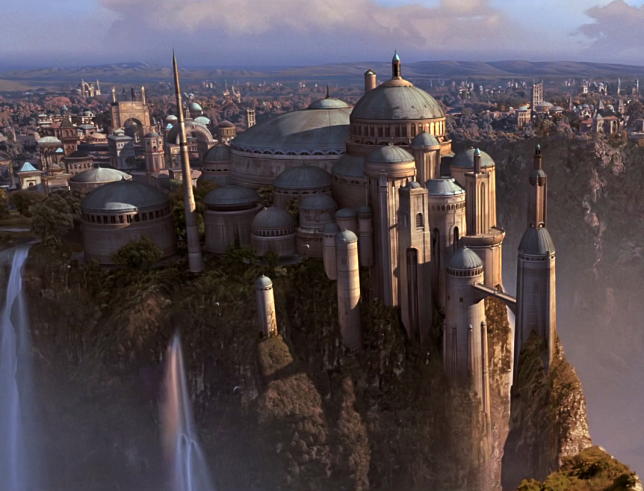
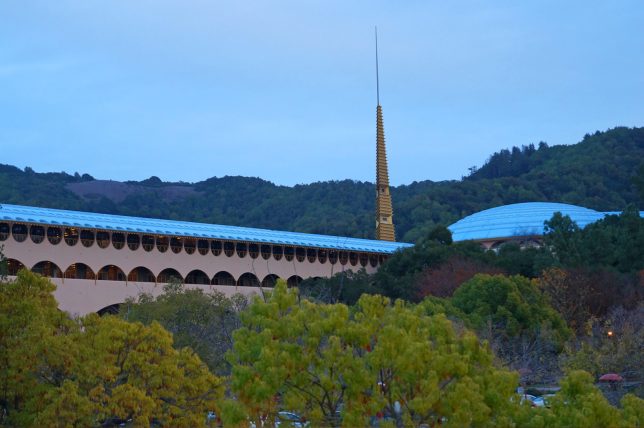
Much of the magic of the Star Wars films derives from the fantastic landscapes and exotic built environments that serve as backdrops for its intergalactic tales of empires and rebellions. But when world-makers like George Lucas create these places, they often draw on real architects and architecture for inspiration, including the last and largest work of starchitect Frank Lloyd Wright.

democratic-design-star-wars

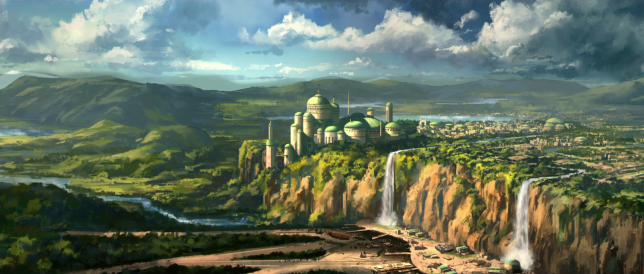
Located north of San Francisco, the Marin County Civic Center consists of a massive rotunda housing a public library, offset by a strong vertical spire and long Hall of Justice (a classic Wright move to emphasize and juxtapose both horizontals and verticals). These same features can be found in the heart of Naboo, a Mid Rim world (near the Outer Rim Territories) featured across a series of Star Wars films.

marin-count-city-civic

royal-palace

As with their cinematic counterparts, Wright’s structures for Marin were designed to relate to the landscape – curved blue roofs pick up on the tones of the sky above while beige/pink walls tie into the earthen surroundings. Arched supports and the voids they create at different scales are also immediately recognizable as similar between the original Terrestrial architecture and its echos in Star Wars scenes.

civic-center-design

views-of-naboo

For Wright as well as Lucas, there is an underlying idea at work in the design: a combining of grandeur worthy of civic architecture but also an aspiration toward something democratic, beautiful but accessible. The settings are also similar: complex and lush landscapes, fitting a similar vision found in both the architect’s and filmmaker’s works: a focus on working architecture into natural settings rather than envisioning dense cities. Lucas has directly acknowledged a debt to Wright for inspiring the architecture found in the Star Wars franchise, but has yet to announce whether he will be working on a sequel story: some of us are still waiting on Starchitecture Wars.

Share on Facebook


[ By WebUrbanist in Architecture & Public & Institutional. ]

[ WebUrbanist | Archives | Galleries | Privacy | TOS ]


WebUrbanist

 
Comments Off on Clone Wars: How Star Architect Frank Lloyd Wright Inspired the Design of Naboo

Posted in Creativity


Wars Star: Street Art & Graffiti Tributes to Princess Leia

02 Jan

[ By Steve in Art & Street Art & Graffiti. ]

leia-street-art-1a

Star Wars character Princess Leia, played by the late Carrie Fisher, has been feted in street art and graffiti for a long time in countries far, far away.

leia-street-art-1b

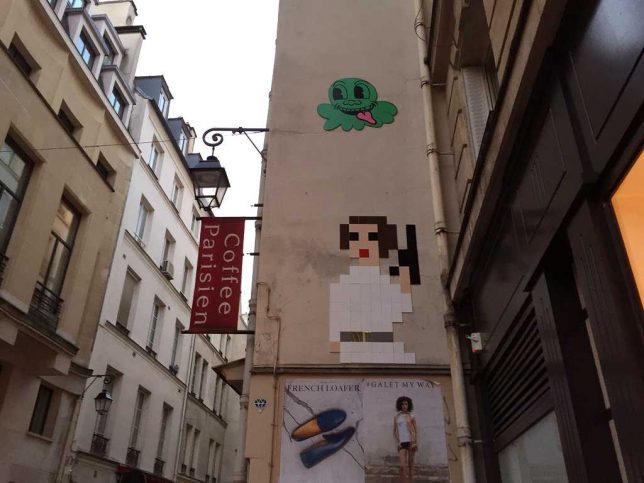
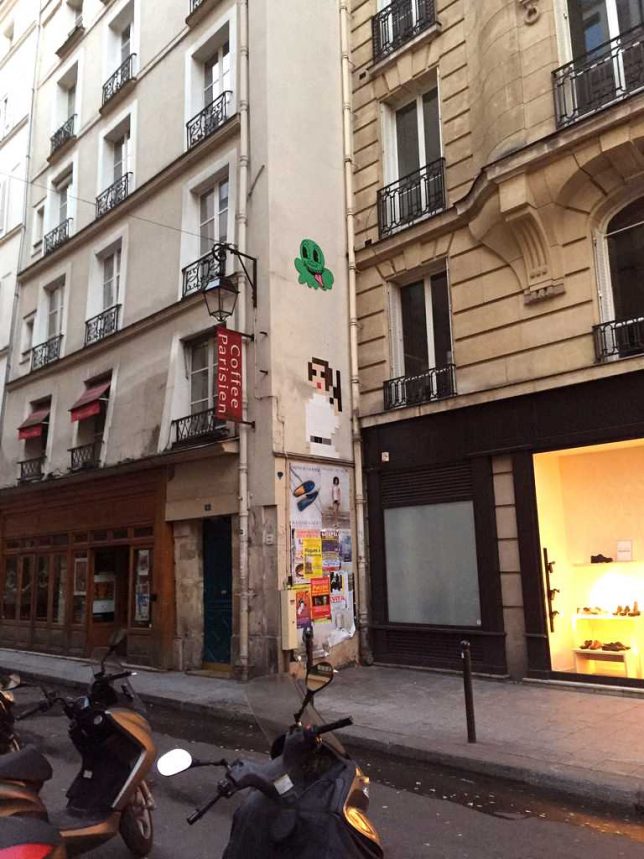
While spray-painted graffiti and, especially, stencils have been the most common methods of applying Princess Leia to urban infrastructure, there is another unlikely yet undeniably successful medium: tile mosaics. Since 1998 the secretive street artist known as Invader (after his Space Invaders-inspired style) has applied over a thousand 8-bit tile mosaics in over 30 nations around the world. His economical rendering of Princess Leia, as captured by Flickr user ratskaweiller, looks down from the wall of a building on Paris’ 6th arrondissement.

Maid in the Shades

leia-street-art-9a

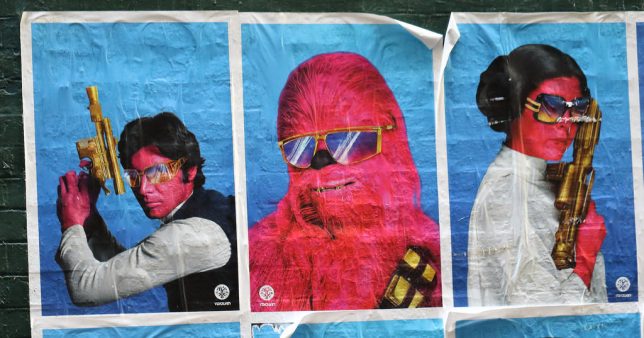
Flickr user Aaron Kinzer (ascension9studios) captured this vivid triptych of Star Wars characters plastered to a wall in Melbourne, Australia. Yeah, we’d ALL need shades if everyone was really that pink.

Hello Princess

leia-street-art-3b

leia-street-art-3c

“Most of the characters I created before Lucasfilm and Sanrio lawyers came knocking at my door (no joke),” explains creator Dan Knispel of his Hello Wars character stickers.

leia-street-art-3a

leia-street-art-3d

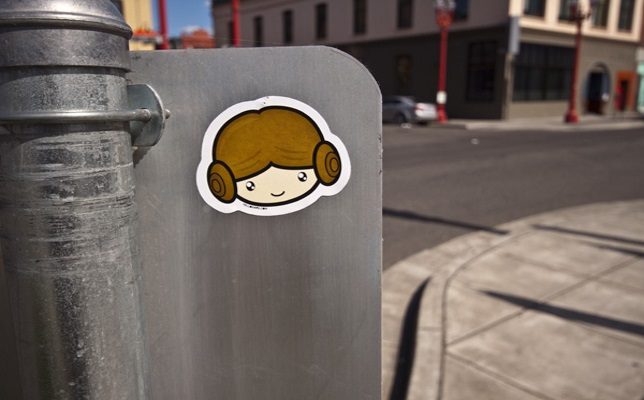
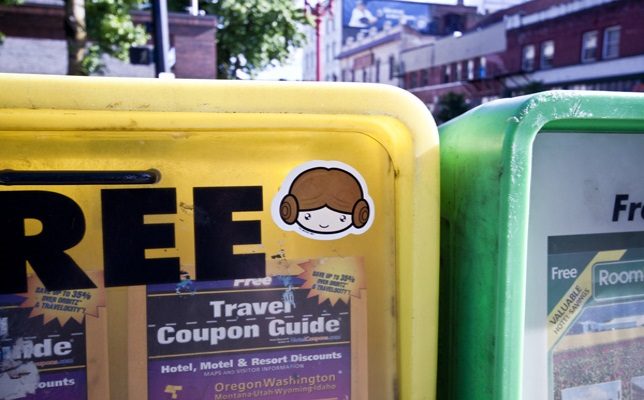
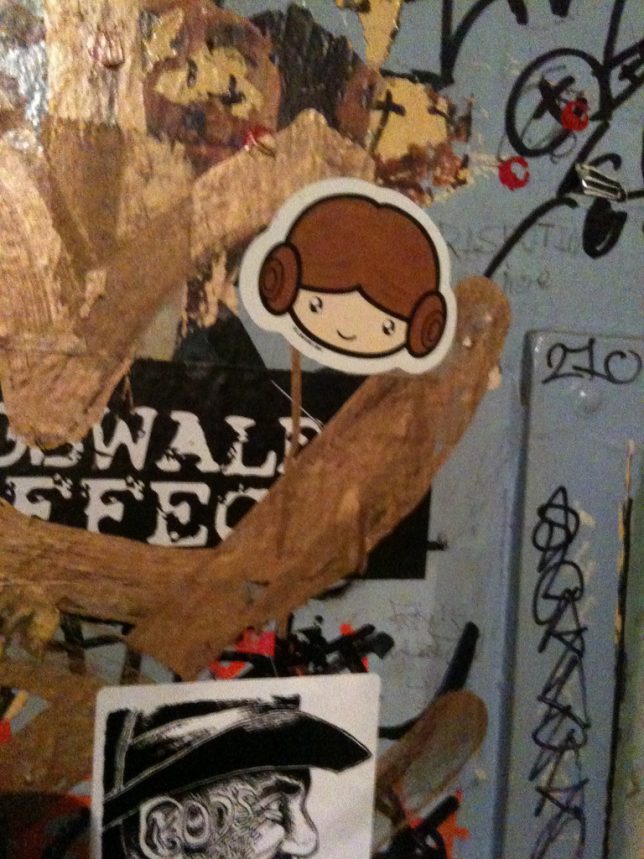
Due to their conveniently adhesive nature, Hello Wars stickers have turned up on applicable surfaces ’round the globe. Flickr user Darth Admin captured several such appearances of the Princess Kitty character as shown above.

Graffiti Wars

leia-street-art-2a

leia-street-art-2b

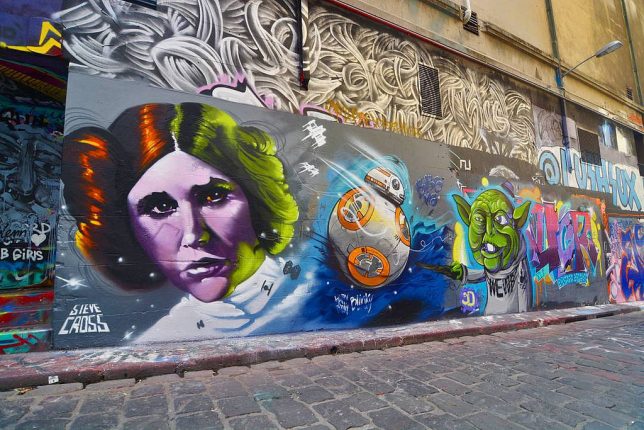
The revival of the Star Wars film franchise with The Force Awakens in late 2015 sparked a corresponding explosion of relevant street art. You’ll find the expansive multi-artist mural above in Melbourne’, Australia’s graffiti mecca of Hosier Lane. Flickr users City of Melbourne – Official and sherlockedtxh snapped the images above on December 21st of 2015, shortly after the blockbuster film was released worldwide.

Next Page – Click Below to Read More:
Wars Star Street Art Graffiti Tributes To Princess Leia

Share on Facebook


[ By Steve in Art & Street Art & Graffiti. ]

[ WebUrbanist | Archives | Galleries | Privacy | TOS ]


WebUrbanist

 
Comments Off on Wars Star: Street Art & Graffiti Tributes to Princess Leia

Posted in Creativity


Gifts for Star Wars Geeks: Millenium Falcon Multi-Tool & Death Star Waffles

20 Dec

[ By SA Rogers in Gadgets & Geekery & Technology. ]

star-wars-gifts-main

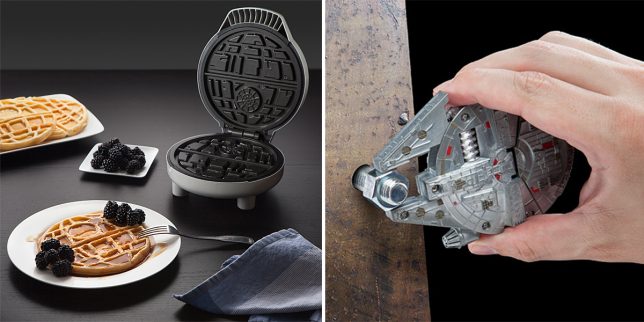
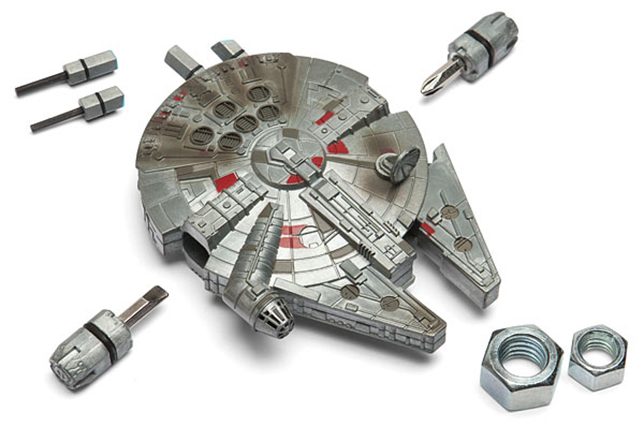
It may not slip into your pocket with quite the ease of a Leatherman, but this Millennium Falcon multi-tool is a lot more fun to use when the hyperdrive breaks down and R2 isn’t around to fix it. Packed with four hex keys, two screwdrivers and a wrench, it features a magnetically sealed hatch and a built-in adjustment wheel built into the helm.

star-wars-gift-multitool-1

The handy implement is just one of dozens of Star Wars gifts available at ThinkGeek – which can still get to you in time for Christmas if you order by Wednesday the 21st.

star-wars-gifts-death-star-waffles

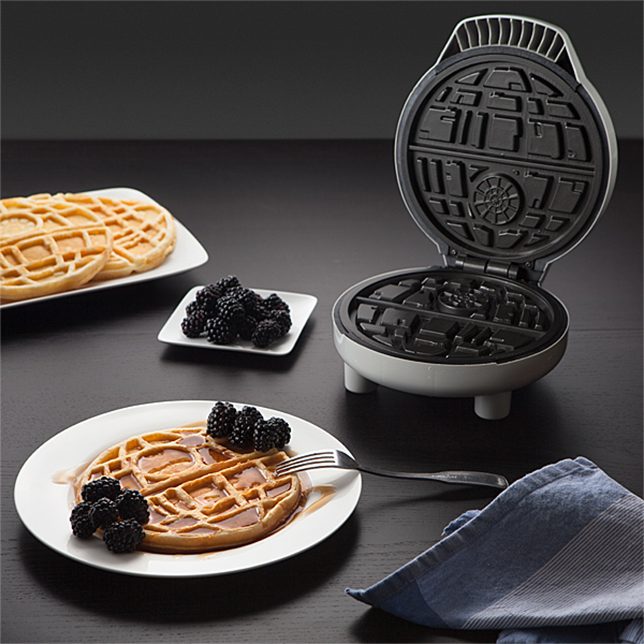
If you’re going to own a waffle iron, it might as well imprint something cool onto your breakfast, right? The dark side has waffles, and they pop out in the shape of the Death Star. If one side doesn’t come out perfect, just flip it over – “there’s a concave dish composite beam suppresser indentation on both cooking plates, so you’re covered.”

heat-change-mug

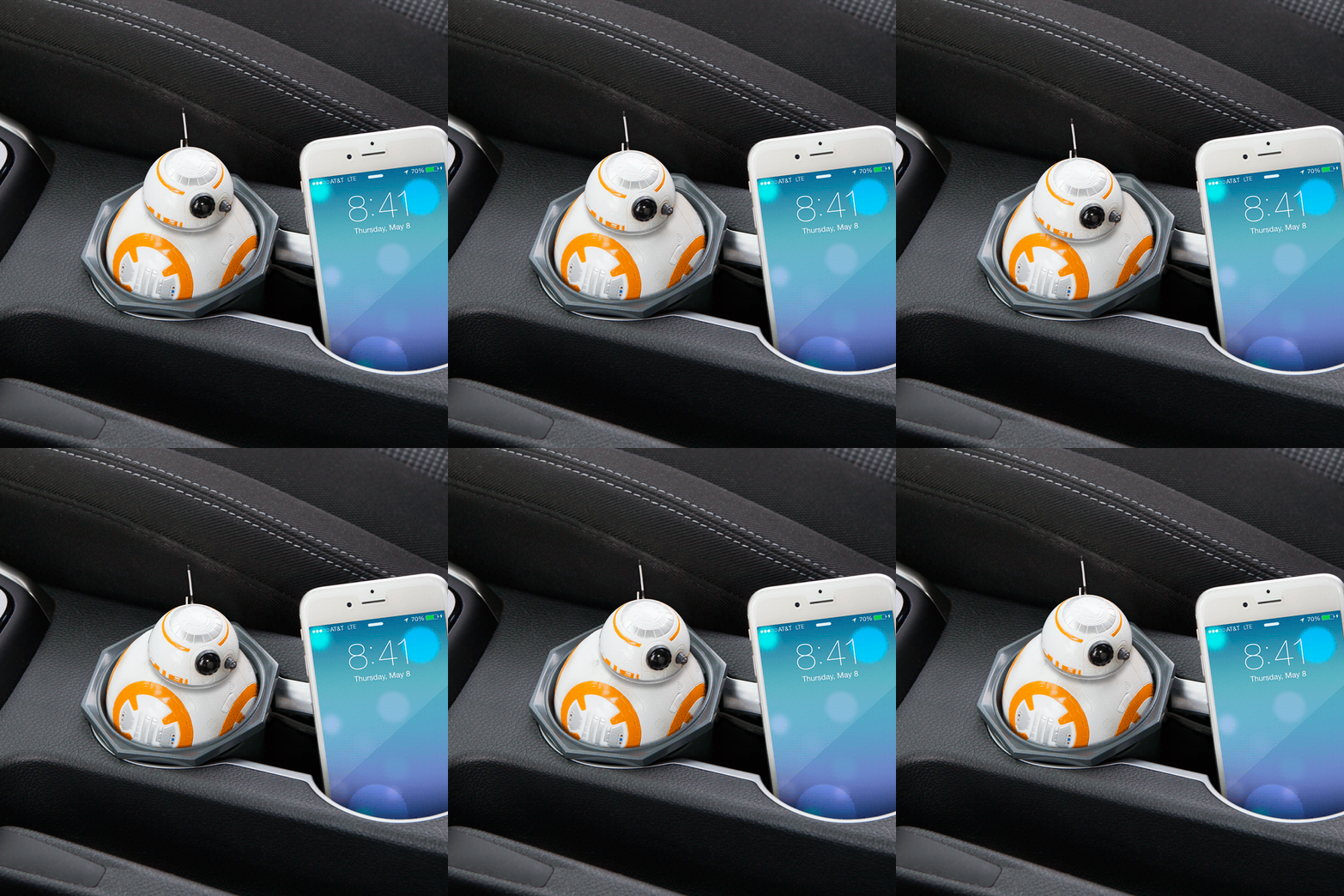
star-wars-gifts-bb8-charger

star-wars-gifts

If a luxurious Wampa rug is more your style, they’ve got those, too, along with Rogue One Deathtrooper fleece robes, hooded scarves just like Rey’s in The Force Awakens, Chewbacca foot stockings, Tauntaun sleeping bags (bound to be better-smelling than the real thing!) and Darth Vader silicone oven mitts. Practically anything Star Wars-related you can think of is here. Check it all out at ThinkGeek.

Share on Facebook


[ By SA Rogers in Gadgets & Geekery & Technology. ]

[ WebUrbanist | Archives | Galleries | Privacy | TOS ]


WebUrbanist

 
Comments Off on Gifts for Star Wars Geeks: Millenium Falcon Multi-Tool & Death Star Waffles

Posted in Creativity


Tips for Successful Star Trails Photography

06 Jul

Star trail photography – not so difficult with the correct planning and appropriate gear

In this short article I will show you, the night sky enthusiastic, that by using the right gear and proper planning, you too can make beautiful star trail photo.

Actually, shooting the stars is not that much different from any other kind of photography, and a decent composition is the key to an outstanding photo. Here are some star trail photography tips to help you.

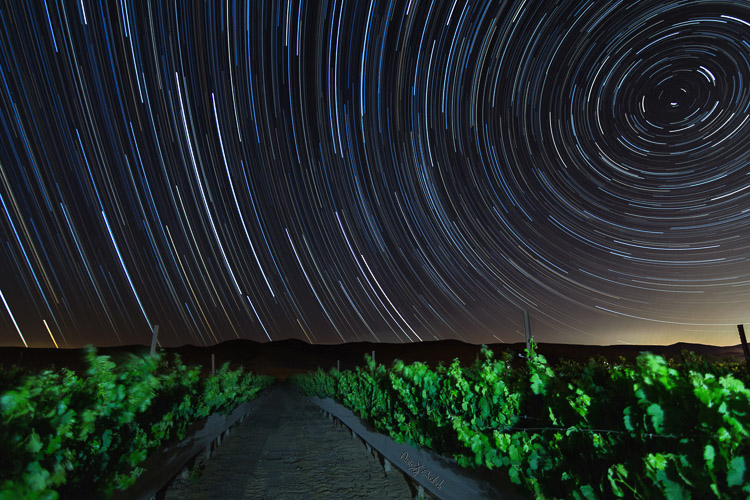
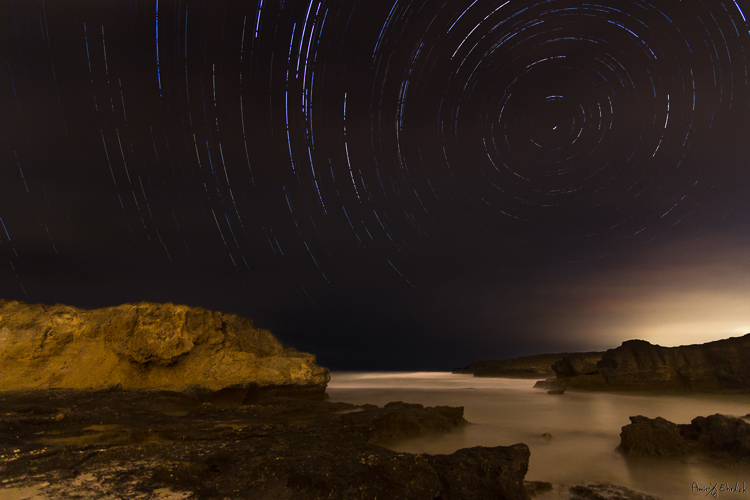
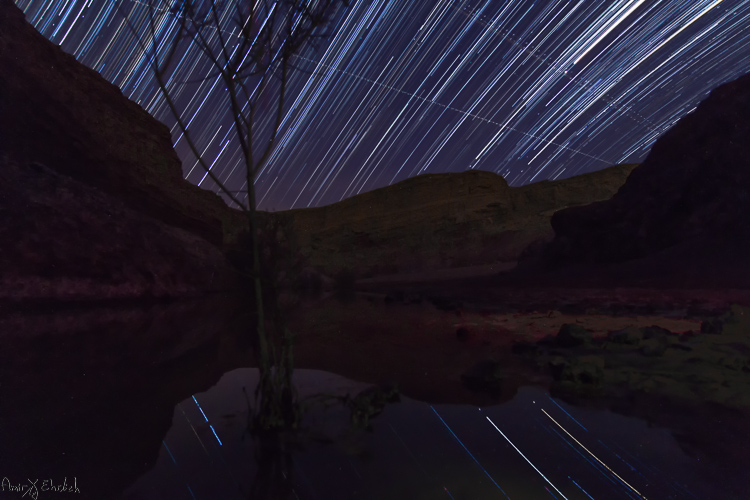
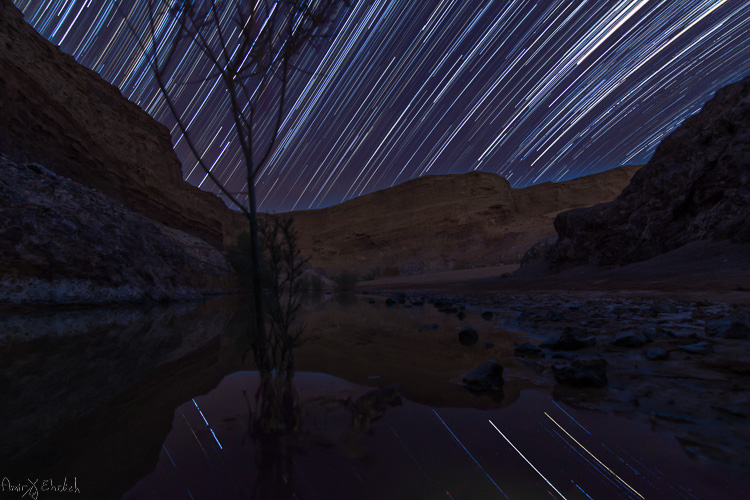
Camera pointed to NorthNorth West

Camera pointed to North/North-West with an artificially lit foreground.

Prepare your gear

  • A DSLR camera (or one that has Manual shooting mode) with fully charged battery.
  • Plenty of room on your memory card. I suggest shooting all in RAW as you’ll get better results later in post-processing.
  • A wide angle lens. Anything between 10-20mm will give you good results. You can shoot also with a longer focal length but the results will be less impressive. Using a wide aperture is also essential to allow lower ISO.
  • A strong, steady, tripod. When placing it, make sure nothing will cause it to shiver from a passing wind.
  • A remote control (preferably not wireless). If you have a way to program intervals in your camera, the remote is not necessary.
  • Stuff to help you pass the time – coffee set, snacks, a comfortable chair, etc.
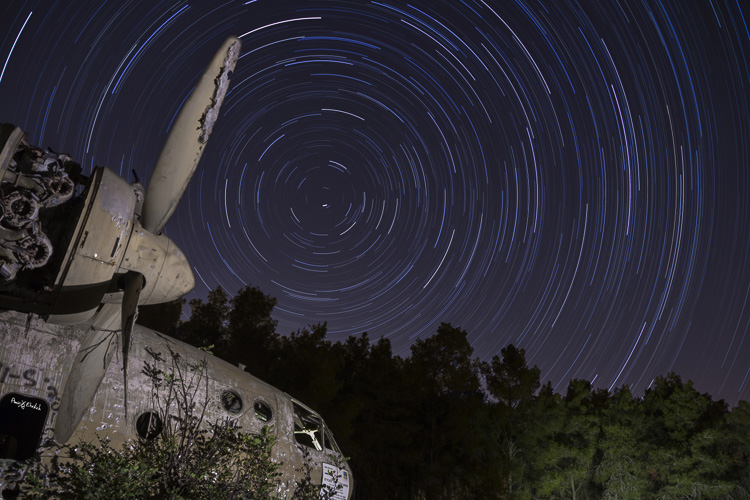
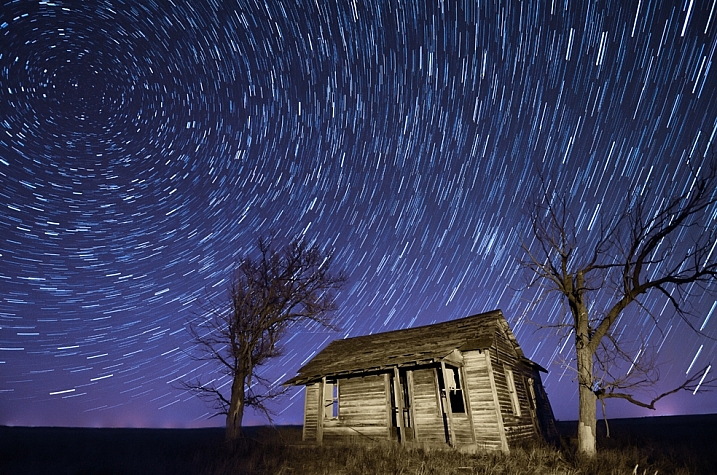
Camera pointed to North with an artificially lit foreground .

Camera pointed to North with an artificially lit foreground .

Planning ahead

Before going out there, you must consider there is some planning needed to be done.

  1. Choose your location carefully (there is no place for spontaneity). There are several things to consider, but most importantly you need a dark location, as far as possible from light polluted areas. Consider that city halos are visible at night for a very long distance, so get as far as possible from light sources. The darker the area you’re, the more stars you’ll see.
  2. Consider an interesting foreground item to be used as your anchor in the photo. It is not enough to shoot the stars, you want to have a nice foreground to make your photo interesting and unique. Find yourself a big tree, an interesting rock formation, a pier on a lake, or any other item to be used as your anchor.
  3. Learn about the weather and the moon phases – to get a good, clean shot you need a good, clear, dark sky. Choose that period of the month when the moon is not visible in the night sky (or is smaller like crescent moon), and make sure the forecast does not predict too many clouds. High humidity is also not good, as it may accumulate on your lens and result in blurry frames.
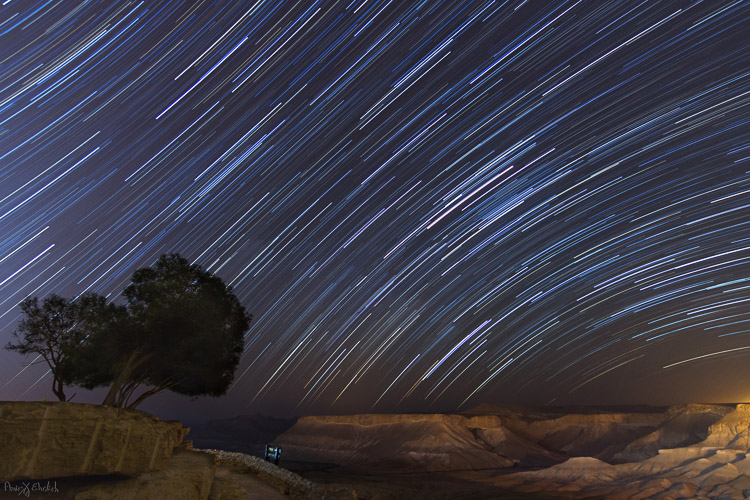
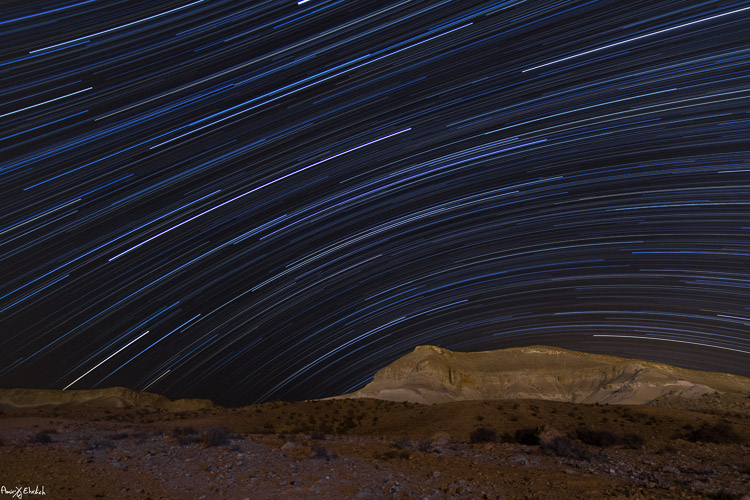
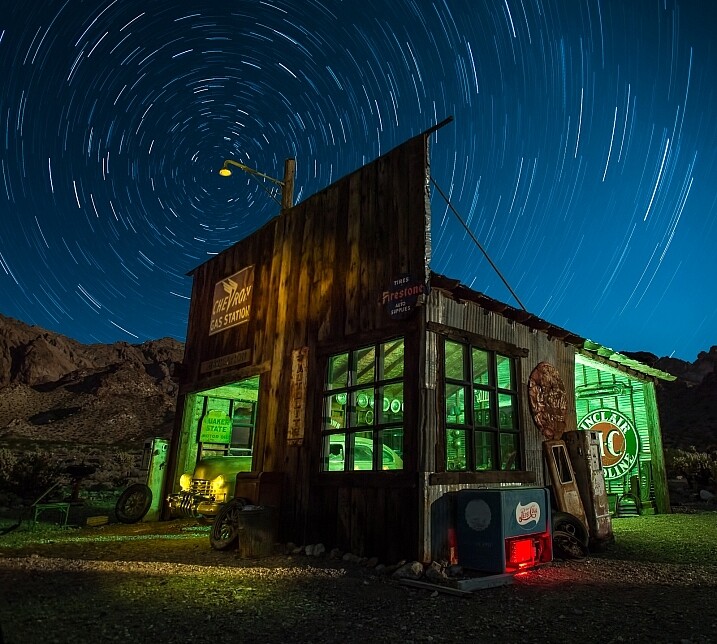
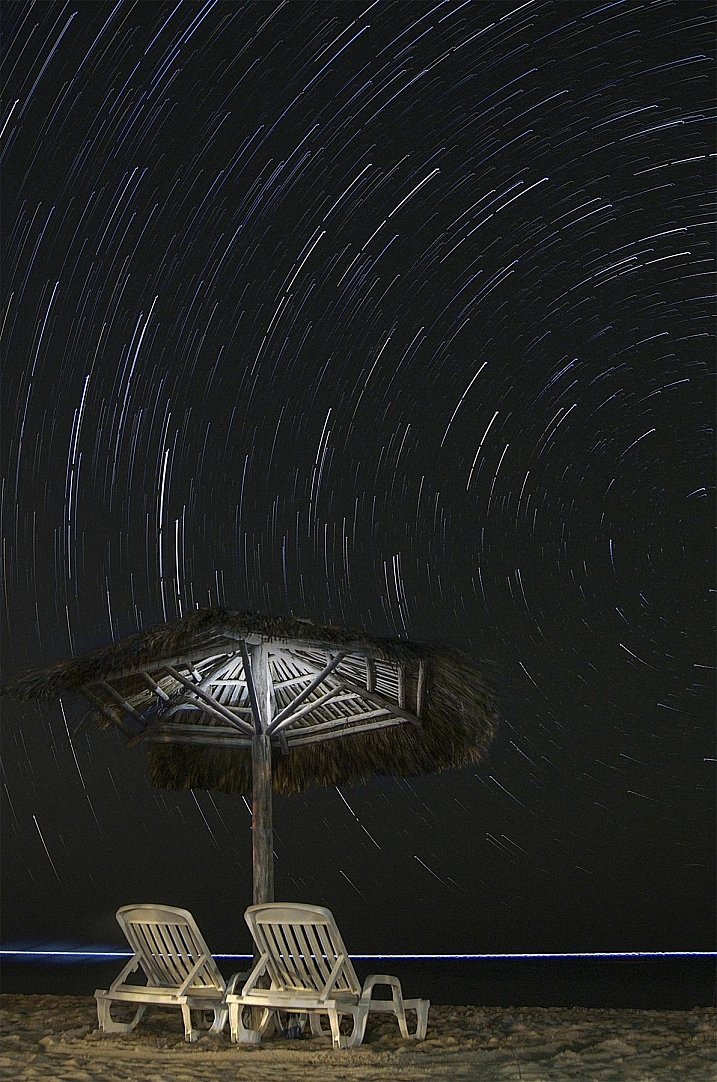
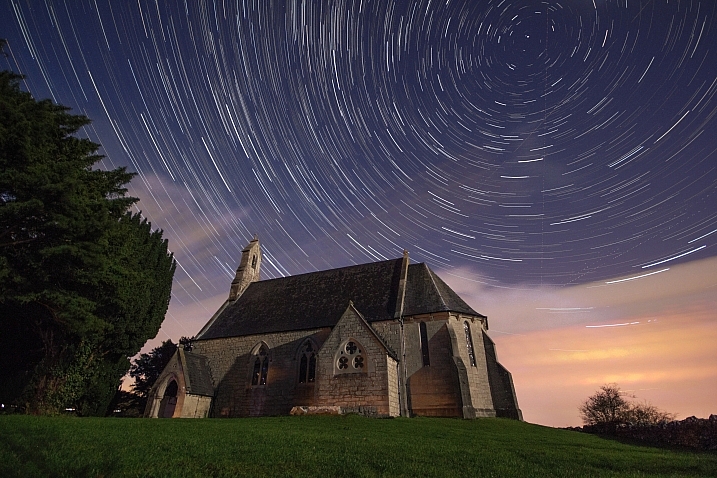
  4. Consider the rotation of the stars and the Earth, as this will determine the appearance of the final result. The best results (in my opinion) will be achieved by shooting to the North (photo above) or to the South-East (photo below). Since Earth and the North Star are moving in the same direction, at the same pace, it appears as if all stars are rotating around the North Star, so having it in your frame will result in getting circles of stars. Shooting to the South-East will grant you with an almost horizontal line, that is concave in one corner and convex in the opposite corner. The stars rotation speed is 15 degrees per hour around the North Star. That means that stars closer to the North Star will make a shorter distance in comparison to those further away (also, the longer you’ll shoot, the longer the lines will be).
Camera pointed to South East

Camera pointed to South-East with foreground lit by surrounding light pollution.

Getting started

#1 Pick a foreground anchor

Although you may want to show as much of the night sky as possible, it cannot stand alone. Your photo must rely on a “strong” anchor / foreground if you want your viewers to be really impressed.

#2 Get there before dark

In most cases, it will be quite difficult, to the verge of impossible, to build your composition at night, in total darkness. It is better to arrive before night falls and it gets too dark to see. The last minutes of the day are your best time to plan and build your composition.

#3 Compose your shot

This is now the moment you place your camera and composing your frame. Remember to consider not only the appearance of your foreground in the frame, but also the direction that the camera is facing (as explained above).

Camera pointed to North/North-West lit by surrounding light pollution. Trails looks fragrant due to passing clouds.

Camera pointed to North/North-West lit by surrounding light pollution. Trails looks fragmented due to passing clouds.

#4 Shoot for the foreground

Take the first shot which will be used as the foreground of the frame. If you want your foreground to be a silhouette then all is good. But, if you want details to be shown, you will need to have at least one frame lit up. This can be achieved if few ways

  • Shooting one frame during twilight
  • Use a high ISO and longer exposure
  • Using an outside light source such as flash (it is good to use a CTO gel for the right color temperature). Your goal here is to get one frame that has good detail of your chosen foreground. It is better to take few options using different ISO level / exposure time / lightning options to be able to choose the best result afterward. When satisfied, you can move on to do a test frame of the sky.

#5 Setup and test camera settings for the night sky

Change the settings of the camera to get the best result for the night sky, without interference of light pollution. You need to see as many stars as possible, and to make sure they are in focus. The camera needs to be in Manual mode (or Bulb if using intervals). White Balance needs to be decided by you, and not on Auto mode (preferably in Tungsten mode, it will give you more blue in your image). Aperture set as wide as possible and an exposure time of around 30 seconds (with intervals you can set it to longer, but not more than a minute, for the sake of your sensor – it gets too hot).

You can change the ISO to get lighter or darker sky as needed, but not too high to keep a smooth, clean frame. Once satisfied with the result, keep the settings and erase these test frames (just make sure to keep the foreground frames you did in step #4 above).

#6 Take a couple dark frames

Camera pointed to South-East with foreground lit by surrounding light pollution coming from behind.

Camera pointed to South-East with foreground lit by surrounding light pollution coming from behind.

Take one or two dark frames. This is done by putting on the lens cap, and shooting with the settings you chose in step #5 above. These frames will be used later in post-processing. Make sure you remove the cap once you’re done this part!

#7 Take your interval shots

Lock the shutter release controller or press start if doing intervals. Wait to see that it works properly, and a new exposure starts immediately after one ends. Now it’s time to let the camera work for as long as you decided, while you rest or go do something else, but make sure you keep a distance and are not adding light into your camera or composition. For a good result, it is advised to shoot for at least two hours, especially when shooting to the North.

#8 Take two more dark frames

Once your intervals are finished, before moving the camera, repeat on step 6 and take a couple more dark frames.

This is it, YOU made it! All is finished and you can go back home for the post-processing part.

Post-processing star trails

First, from the foreground frames, choose the one that looks the best and process it to your liking. In this frame you can ignore the look of the sky, and if possible, it’s even better to darken it. When you’re happy with it, convert to JPEG or TIFF.

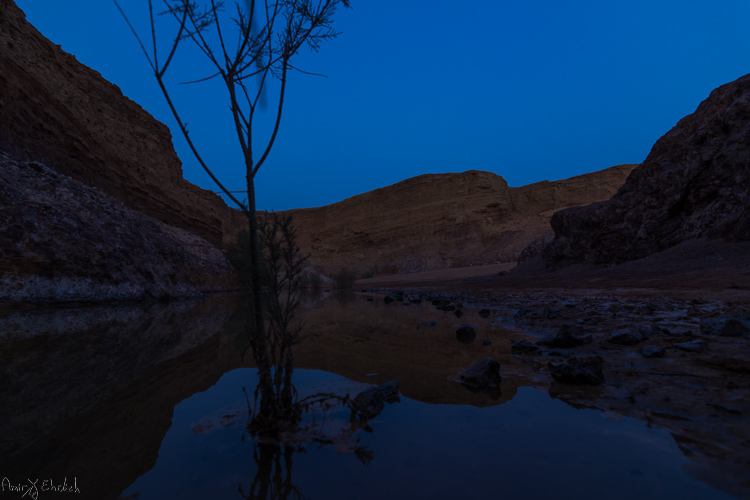
Foreground frame

A frame taken during blue hour to be used as foreground.

Next, move on to the sky frames. Process the first one to improve the appearance and visibility of the stars. In this frame you can ignore the look of the foreground, and if possible, it’s better to darken it. Synchronize your settings to the rest of the sky frames. Export or convert the files to JPEG or TIFF.

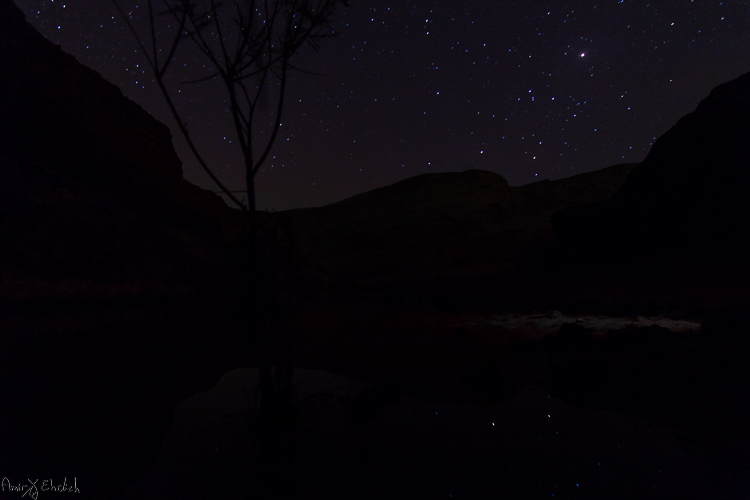
Sky frame

One of the frames taken for the stars.

If you did any lens corrections, apply them also to the dark frames, then convert them to the same format as the sky frames.

Move on to the software you use for combining the frames – you can choose StarStax (Mac and Windows) or Startrails (Windows only) which are both free, very easy, and efficient. Upload the frames to their dedicated location (dark frames goes separately – the software is using them to subtract burned pixels from the final result).

Stacked frame

The result of merging all the sky frames in Starstax.

The foreground frame can be handled in one of two ways – (a) placed together with all other sky frames or (b) left aside for merging it later to the final result, in Photoshop.

If you are working with StarStax, I recommend marking the Gap Filling option (in Startrails it is called: Lighten-screen-blend). It will make the processing time a bit longer, but the final result will be smoother.

If you chose to add the foreground image in when stacking the sky image, the result you’ll get is the final one and you may need only some fine-tuning to be done in Photoshop. Due to the time passed from the shooting of the foreground frame to the sky frames, you will notice a dot in front of every trail. These are the stars captured in the foreground frame. I see them as an interference in the overall look and erase them one by one.

If adding the foreground image in Photoshop later was your choice, then now is the time to put it all together. Load the foreground frame and the star trail frame as layers in Photoshop, and merge them into one using a layer mask. This option is better when the sky in the foreground frame is too bright.

Final after merging and cleaning

The final frame after cleaning up any disturbing lights in the sky, and merging with the foreground.

googletag.cmd.push(function() {
tablet_slots.push( googletag.defineSlot( “/1005424/_dPSv4_tab-all-article-bottom_(300×250)”, [300, 250], “pb-ad-78623” ).addService( googletag.pubads() ) ); } );

googletag.cmd.push(function() {
mobile_slots.push( googletag.defineSlot( “/1005424/_dPSv4_mob-all-article-bottom_(300×250)”, [300, 250], “pb-ad-78158” ).addService( googletag.pubads() ) ); } );

The post Tips for Successful Star Trails Photography by Amir Ehrlich appeared first on Digital Photography School.

Digital Photography School

 
Comments Off on Tips for Successful Star Trails Photography

Posted in Photography


23 Star Struck Images of Celestial Subjects

01 Jul

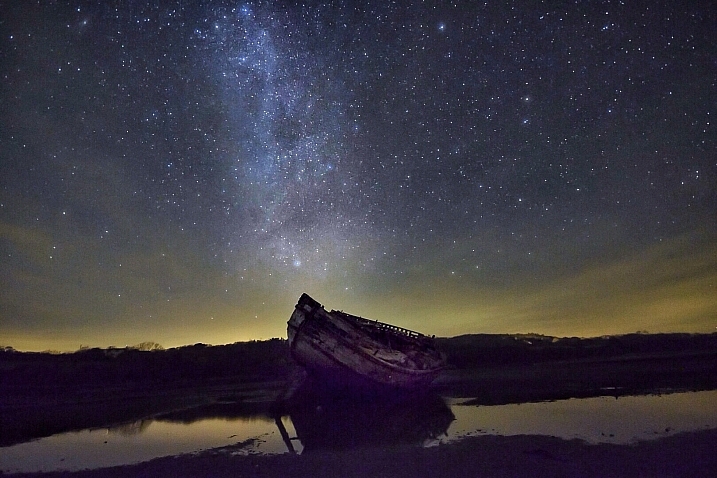
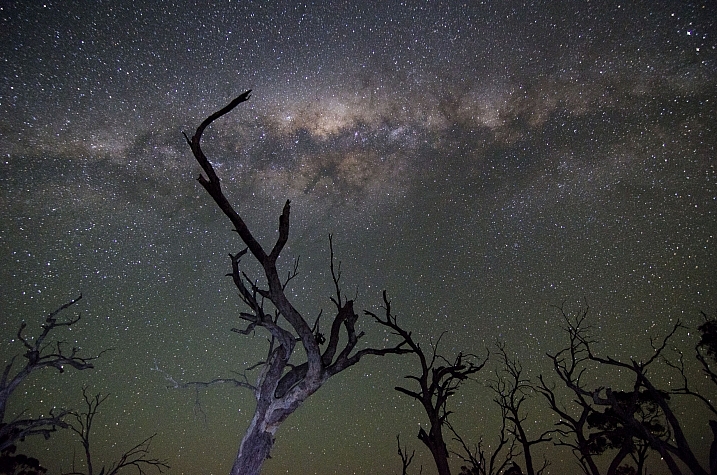
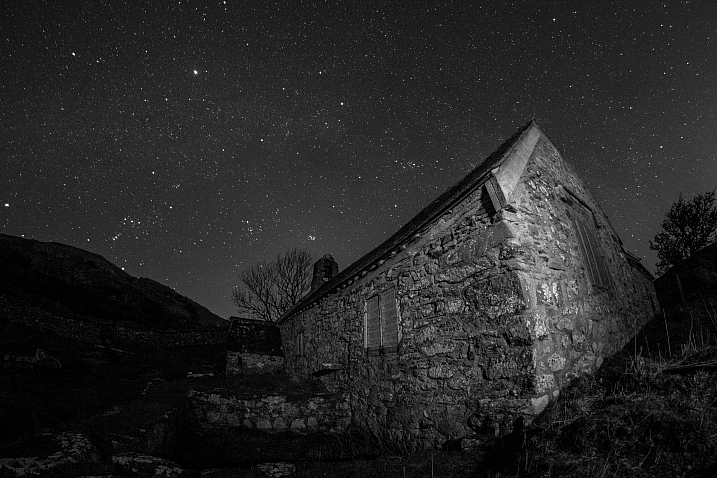
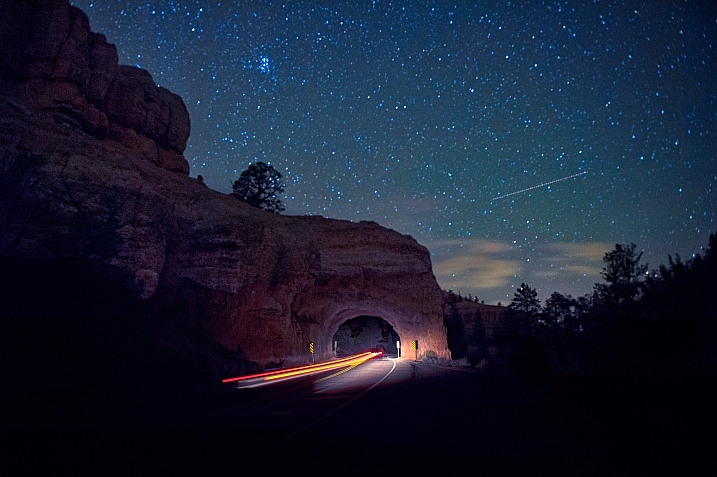
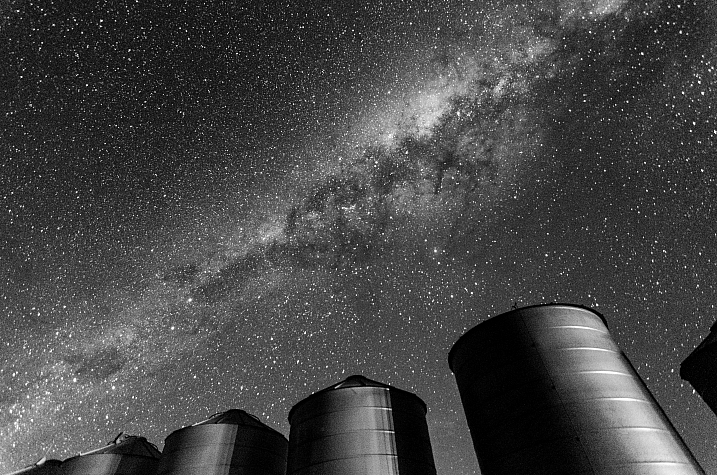
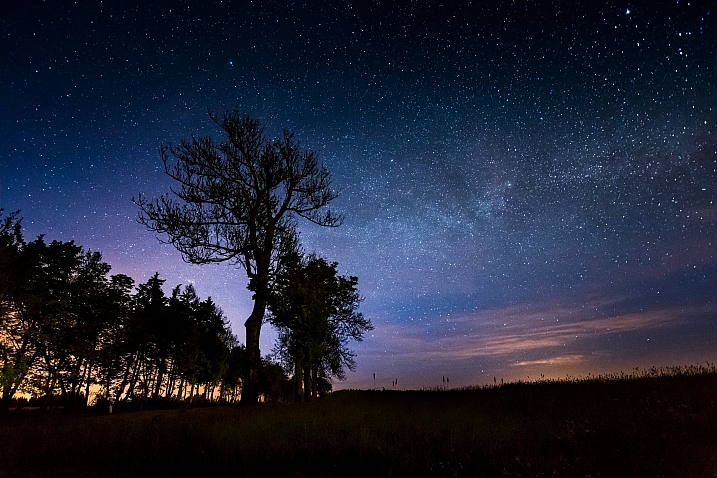
We can be star struck in more than one way. Celebrity sightings of famous Hollywood stars is one way, the other is by the celestial stars themselves – literally!

Let’s look at a few images of celestial subjects and see how they can be captured in photographs:

Star trails

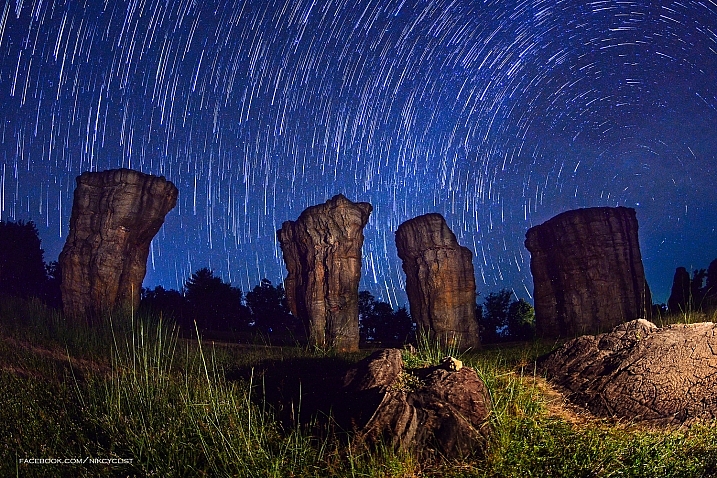
Shannon Dizmang

By Shannon Dizmang

Prachanart Viriyaraks

By Prachanart Viriyaraks

Howard Ignatius

By Howard Ignatius

Howard Ignatius

By Howard Ignatius

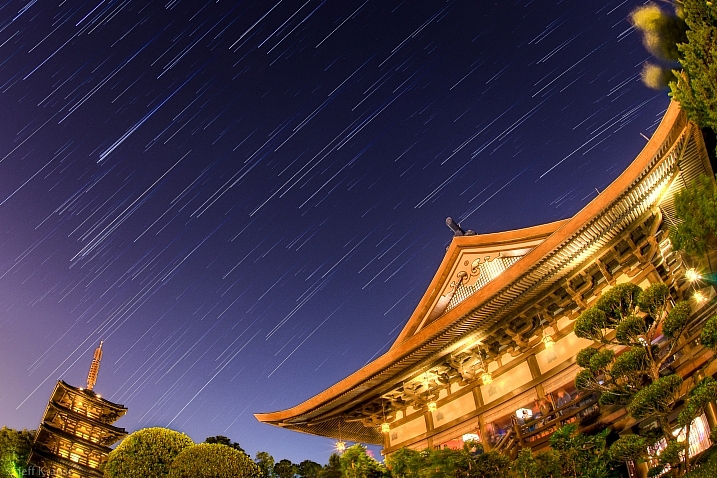
Jeff Krause

By Jeff Krause

Rodger Evans

By Rodger Evans

Andrew

By Andrew

Aaron

By Aaron

Starry skies

Sian Monument

By sian monument

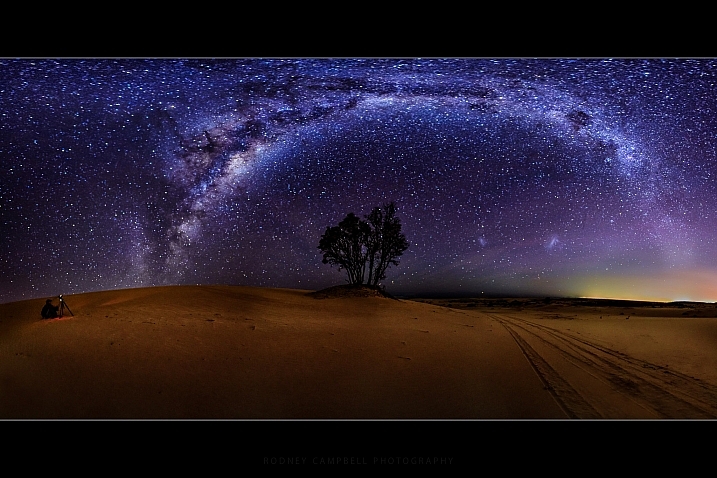
Rodney Campbell

By Rodney Campbell

Indigo Skies Photography

By Indigo Skies Photography

Aaron

By Aaron

Diana Robinson

By Diana Robinson

Indigo Skies Photography

By Indigo Skies Photography

Olli Henze

By Olli Henze

Dennis Behm

By Dennis Behm

Other kinds of stars

Alexey Kljatov

By Alexey Kljatov

Neal Fowler

By Neal Fowler

Nanabcn19

By nanabcn19

Ra1000

By ra1000

Thomas Hawk

By Thomas Hawk

Peter Miller

By Peter Miller

Roadsidepictures

By Roadsidepictures

Bonus – some from NASA

NASA's Marshall Space Flight Center

By NASA’s Marshall Space Flight Center

NASA's Marshall Space Flight Center

By NASA’s Marshall Space Flight Center

NASA's Marshall Space Flight Center

By NASA’s Marshall Space Flight Center

NASA's Marshall Space Flight Center

By NASA’s Marshall Space Flight Center

googletag.cmd.push(function() {
tablet_slots.push( googletag.defineSlot( “/1005424/_dPSv4_tab-all-article-bottom_(300×250)”, [300, 250], “pb-ad-78623” ).addService( googletag.pubads() ) ); } );

googletag.cmd.push(function() {
mobile_slots.push( googletag.defineSlot( “/1005424/_dPSv4_mob-all-article-bottom_(300×250)”, [300, 250], “pb-ad-78158” ).addService( googletag.pubads() ) ); } );

The post 23 Star Struck Images of Celestial Subjects by Darlene Hildebrandt appeared first on Digital Photography School.

Digital Photography School

 
Comments Off on 23 Star Struck Images of Celestial Subjects

Posted in Photography


May The Art Be With You: Star Wars Stormtrooper Graffiti

04 Jan

[ By Steve in Art & Street Art & Graffiti. ]

stormtrooper-graffiti-1a
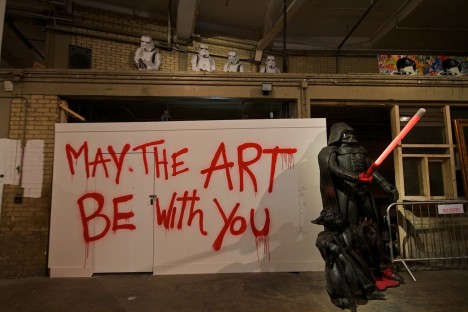
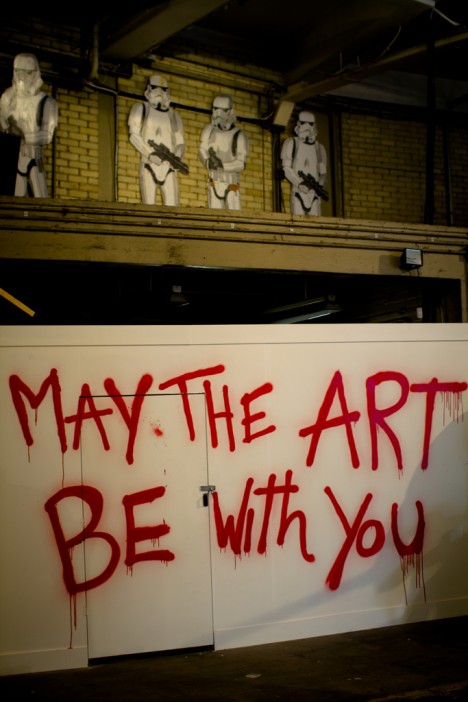
White-armored stormtroopers of the Star Wars universe may be the true face of the franchise if their stenciled images on walls worldwide is any indication.

stormtrooper-graffiti-1b

Sure their aim is lousy and low door frames are their nemesis but the stormtroopers of Star Wars have done a decent job of conquering pop culture since their 1977 debut. Just ask Los Angeles-based street artist Thierry Guetta – aka “Mr. Brainwash” – who employed them in his “Better to Dream Big” art exhibition in 2012. A gentle top o’ the cap to Artc. and Flickr user Jonas Bengtsson (Jonas B) for posting the above images.

Start the Revolution Without Me

stormtrooper-graffiti-4

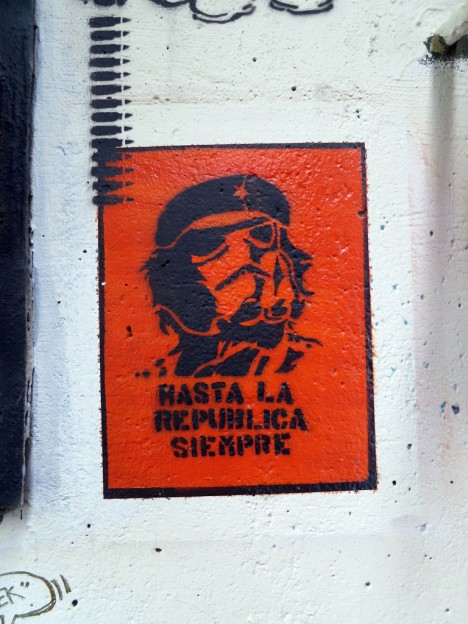
“Hasta la republica siempre” (“To the republic always”) states this subversive stormtrooper stencil snapped by Flickr user Daniel Lobo (Daquella manera) at Washington DC’s Garfield Skatepark on July 28th, 2013. Did this red renegade deliberately disobey Order 66 or merely read it upside-down as 99 reprO?

Go Home Stormtroopers, You’re Trunk

stormtrooper-graffiti-2a

stormtrooper-graffiti-2b

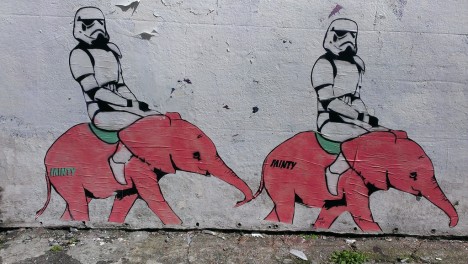
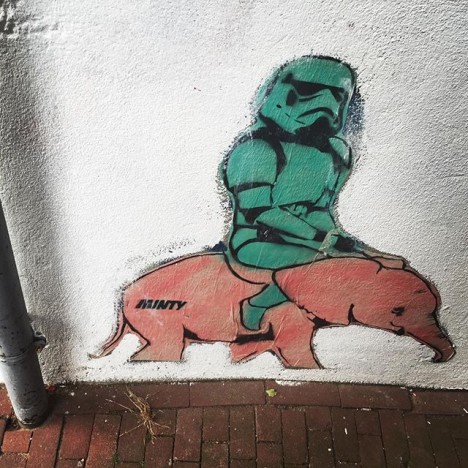
If you start seeing pink elephants after leaving a Brighton, UK pub, maybe you’ve had a pint too many. If larger-than-life stormtroopers are riding those elephants, on the other hand, fear not – it’s just the local street art. Credit presumed street artist “MINTY”, Flickr user Quick HR (quickhr) and Instagram user @gallie23 for the above mildly hallucinogenic scenes. Right then, back to the pub!

Fashion Fighter

stormtrooper-graffiti-5

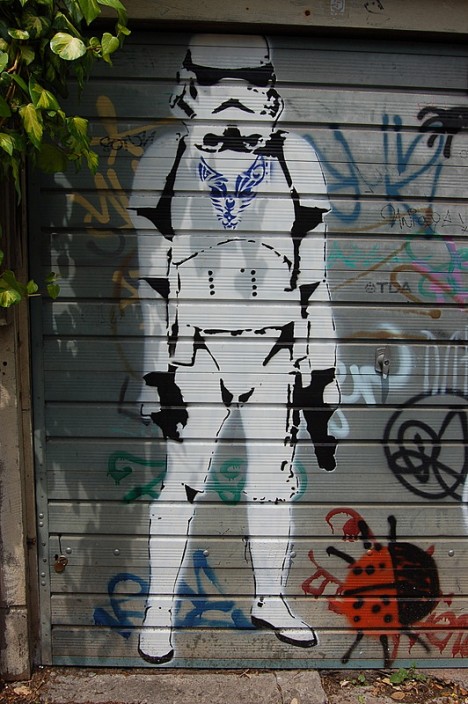
“I love Star Wars and in particular Stormtroopers when used in Graffiti or Stenciling,” states Flickr user Walt Jabsco, who captured this fashionable film fighter on a sunny May 30th afternoon in 2008. “I don’t like the fact someone has given this one a blue pendant or Chest Logo but it’s still cool,” adds Jabsco, and with or without the blue bling we have to agree.

The Best Bad Thing

stormtrooper-graffiti-3

stormtrooper-graffiti-3b

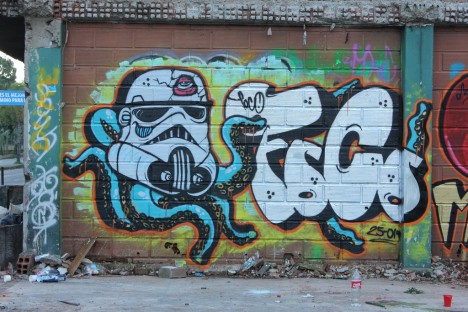
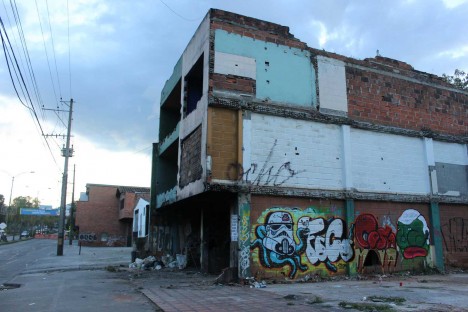
May the Foco be with you, amigos! All things considered, prolific graffiti artist Foco’s colorful mural is the highlight of this run-down district in Itagüí, Colombia. Featuring a cute c’thulu-esque stormtrooper, the mural is captioned “Buena compañía, buenos consejos, las mejores cosa mala” by Flickr user Foco Graffiti, translated as “Good company, good advice, the best bad thing.” Make of that what you will.
City of Lightsaber

stormtrooper-graffiti-19

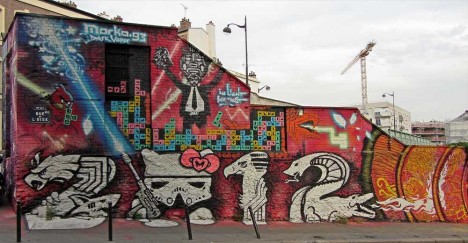
It’s been over three years since Flickr user Geoffroy65 captured the stunning tableau above, located near the Bassin de la Villette in Paris’ 19th arrondissement. Let it be said that street art this good deserves to be preserved for posterity. The piece is signed “Marko93″ though it’s indeterminable whether the numeral denotes the artist’s age or the year he composed this piece.
Rooster Trooper

stormtrooper-graffiti-17

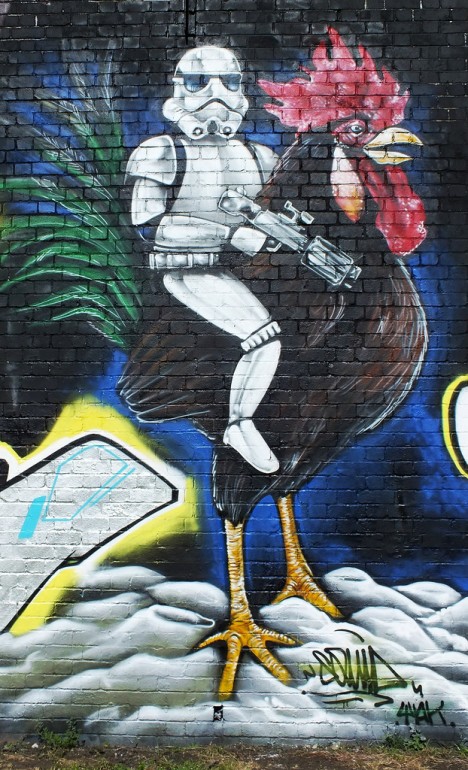
Strange goings-on in Cardiff, Wales, where Flickr user Squid…Mk recorded this rooster-riding stormtrooper on August 3rd of 2012. Will we ever see such a sight in some yet-to-be-made Star Wars flick? At the rate they’re being planned & produced, it might not take as long as you think!

Next Page – Click Below to Read More:
May The Art Be With You Star Wars Stormtrooper Graffiti

Share on Facebook


[ By Steve in Art & Street Art & Graffiti. ]

[ WebUrbanist | Archives | Galleries | Privacy | TOS ]


WebUrbanist

 
Comments Off on May The Art Be With You: Star Wars Stormtrooper Graffiti

Posted in Creativity


Lighting Up the Dark Side: Star Wars Shadow Art Portraits

24 Dec

[ By Steph in Drawing & Digital. ]
star wars shadow 1

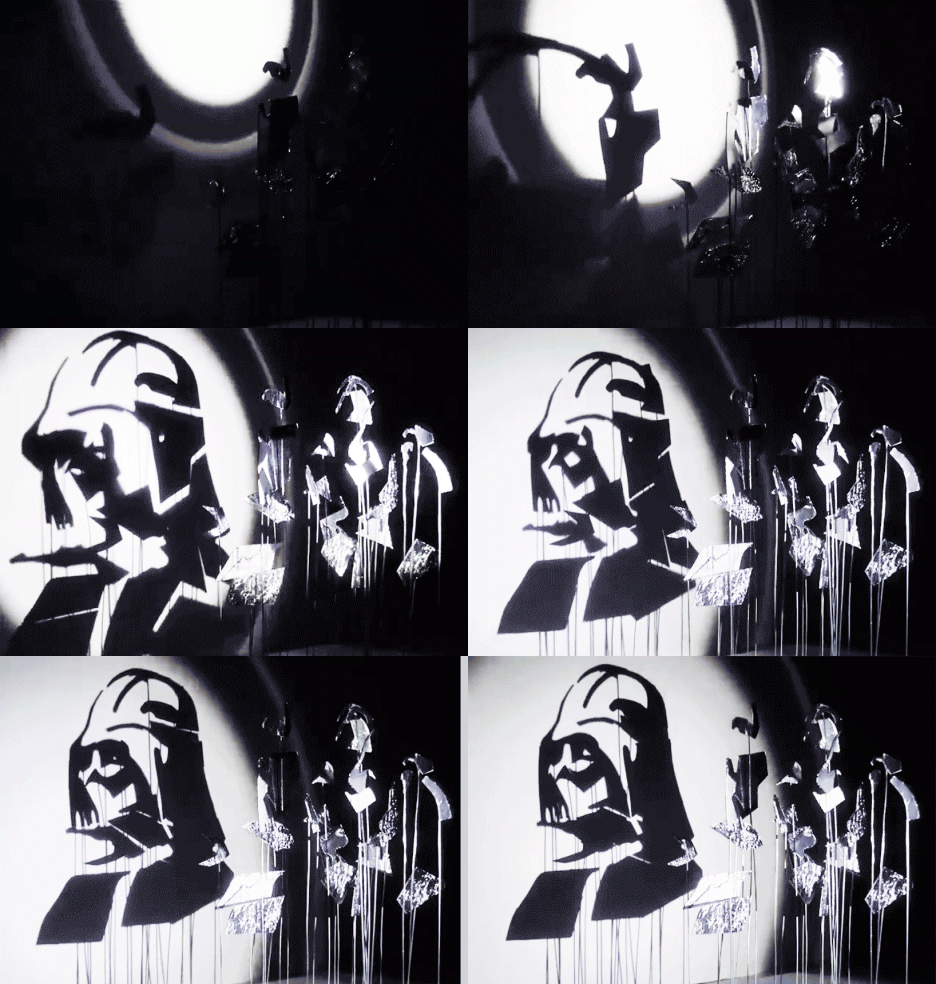
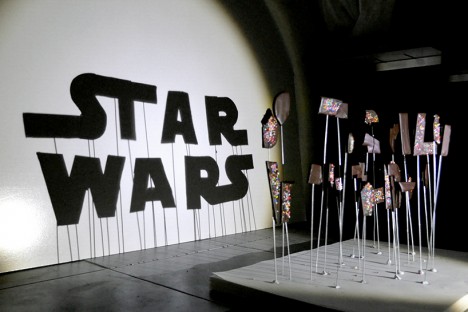
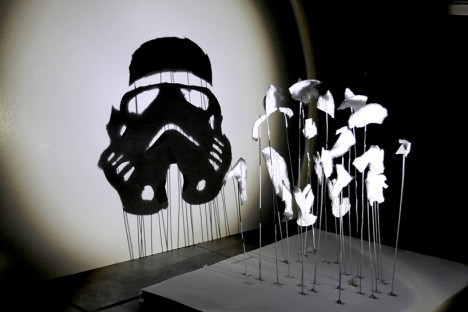
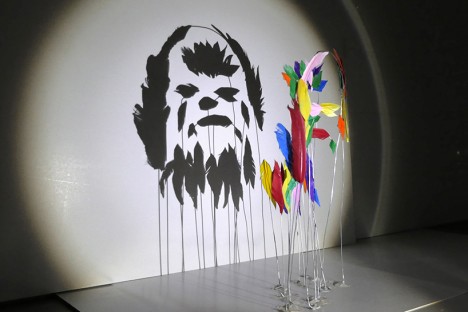
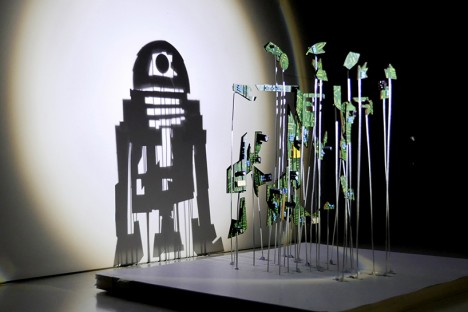
Balls of aluminum foil transform into Darth Vader and irregular chunks of chocolate cookies covered in rainbow sprinkles become the Star Wars logo when a single light source is shined upon them in just the right way. Artist ‘Red’ Hong Yi of Malaysia created an entire series of Star Wars shadow art with a range of materials, from feathers to discarded computer guts.
star wars shadow art 7

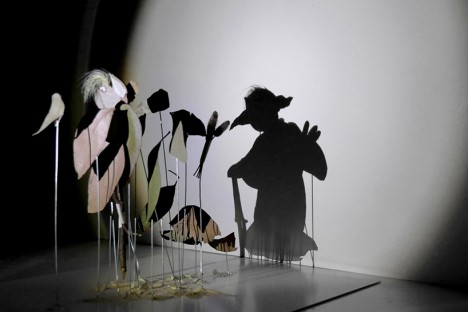
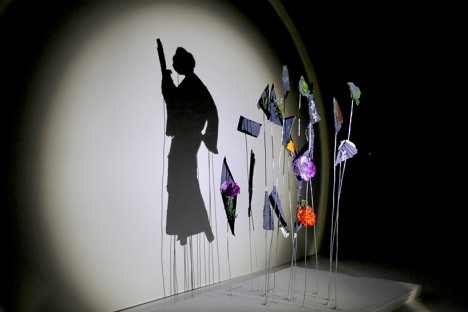
The artist turns on a lamp and begins attaching her bits of materials to pieces of wire embedded in a base, watching the shadows on a plain white wall until her seemingly random compositions start to make visual sense. Some of the portrait are more complex than others; a Stormtrooper made of cotton is simple and graphic while a Yoda silhouette crafted of nothing more than a handful of leaves  and weeds seems as if it could spring to life.

star wars shadow art 5

star wars shadow art 3

star wars shadow art 4

“It started with a spark of curiosity and then a lot of tweaks and experiments,” says the artist on her Instagram. “As an artist/designer, I’ve learned to not be afraid of experimenting and failing; you’ll get better at what you do with each step you take. Our responsibility as creators is to sit down and create again and again. May the force be with you!”

star wars shadow art 2

star wars shadow art 6

Get inspired with 24 more amazing works of shadow art, and follow Red Hong Yi on Instagram for more creations made from unexpected materials, like tea bag portraits and intricate arrangements of edible items.

Share on Facebook


[ By Steph in Drawing & Digital. ]

[ WebUrbanist | Archives | Galleries | Privacy | TOS ]


WebUrbanist

 
Comments Off on Lighting Up the Dark Side: Star Wars Shadow Art Portraits

Posted in Creativity


Star Wars x Starchitects: Lightsabers Meet Modern Design

26 Nov

[ By Steph in Design & Products & Packaging. ]

architect star wars 7

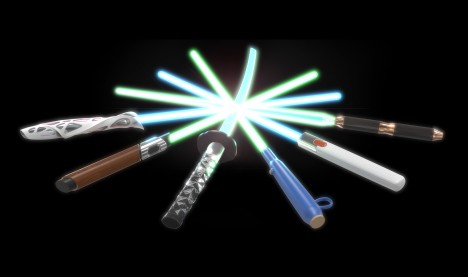
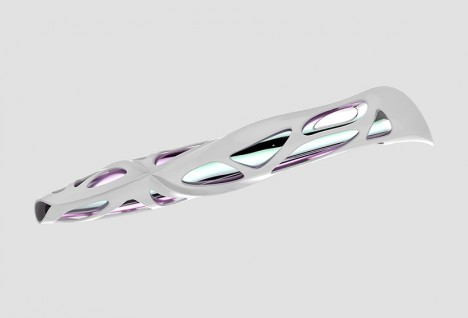
How would Zaha Hadid’s signature brand of futuristic bio-inspired architecture translate to the design of a lightsaber if she were a Jedi? The project ‘Design x Saber’ mashes up the iconic Star Wars weapon with some of the design world’s biggest names of the 20th and 21st centuries, from the midcentury modern furniture sensibilities of Ray and Charles Eames to the graphic minimalist fashions of Issey Miyake.

architect star wars 6

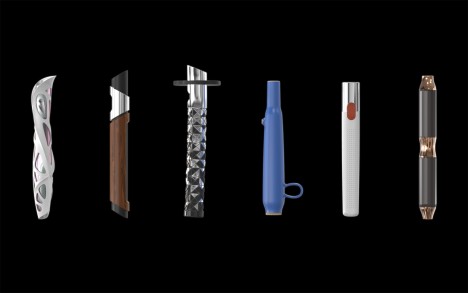
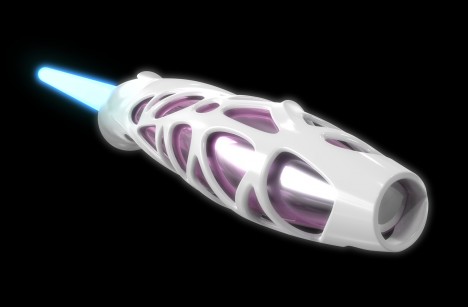
Y Studios, a San Francisco-based research company, identified five distinguished designers whose styles could be creatively applied to the Star Wars universe and then created a signature lightsaber for each one. Hadid’s saber, for instance, features a curvaceous white web wrapping around an iridescent metallic core for the hilt.

architect lightsabers

architect star wars 2

“With the Hadid saber, we wanted to explore movement through the form as an idea for designing the hilt,” says the studio. “By taking an exoskeletal structure and wrapping it around a chrome metal insert, it gave us a natural grip zone that related directly to the Hadid aesthetic. The simple, flowing and always changing curvature draws the eyes around the hilt from all angles, making it a true 360 degree design example.”

star wars starchitects 8 architect star wars 3

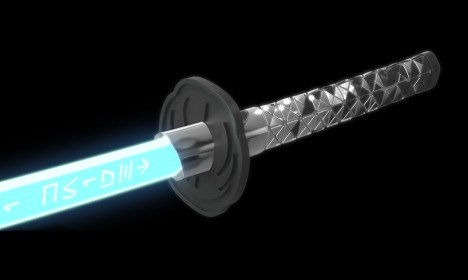
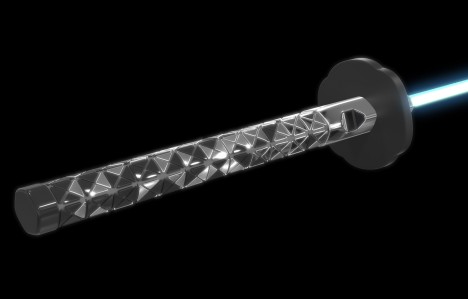
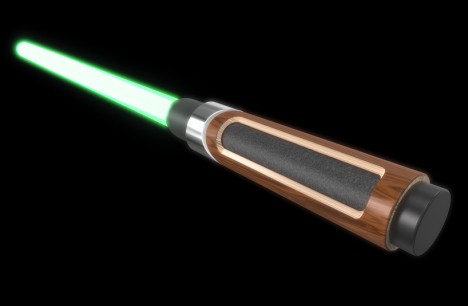
Miyake’s saber features a black faceted texture inspired by his famous Bao Bao bag paired with the silhouette of a Japanese katana sword, with the Aurebesh characters for ‘Jedi knight” etched into the blade. The Eames design, made primarily of wood, takes after the designer brothers’ most sought-after creation, the iconic Eames lounge chair made of plywood and leather.

architect star wars 4 architect star wars 5

German industrial designer Dieter Rams is best known for his pleasingly simple, pure white aesthetic and a “less but better” principle for good design; his saber is appropriately clean and balanced, free of unnecessary ornamentation. See the others and get more details at the Y Studios Vimeo channel.

Share on Facebook


[ By Steph in Design & Products & Packaging. ]

[ WebUrbanist | Archives | Galleries | Privacy | TOS ]


WebUrbanist

 
Comments Off on Star Wars x Starchitects: Lightsabers Meet Modern Design

Posted in Creativity