RSS
 

Posts Tagged ‘Speed’

How to Speed Up Your Photo Editing with the Right Lightroom Workflow

29 Sep

Processing photos is fun for me. But as much as I like doing it, I like being out in the field making new photos even more. That’s why I’ve developed a Lightroom workflow that helps me get the job done as quickly as possible.

Following these steps, you’ll learn how to make adjustments to a whole batch of images and then apply image specific adjustments to bring out the best in each frame.

Before you begin, choose a batch of photos taken at the same time under similar lighting conditions. I usually go through and pick my favorite photos from a shoot first, and then work on those.

How to Speed Up Your Photo Editing with the Right Lightroom Workflow

Step 1: Make Global Adjustments to the First Photo

In the Develop Module, pick the first photo in your batch and make the following adjustments to make it look its best.

Remember there are no rules with the sliders other than a little goes a long way. Just go with your gut. And if you’re not sure what a slider does, just take it to one extreme and then the other and you’ll be able to see exactly what is going to happen.

Camera Calibration

You’ll find this at the bottom of the develop module on the right-hand panel. I like to set this first because it makes such a dramatic difference to the color and contrast in an image. Simply go through the drop down box and pick the one that looks the best.

White Balance

Next go up to the top of the develop module and start working your way down. The first slider is white balance and there you can choose from the items in the drop down box. Again, simply choose the one that looks best.

Highlights and Shadows

Try darkening the highlights by moving the slider to the left and lightening the shadows by moving the slider to the right. You don’t want to go so far that you’ve removed all contrast from the scene, just enough that you have more detail in the highlight and shadow areas.

Clarity

The clarity slider will add contrast to the edges of things making them appear more crisp. Try nudging it a bit to the right. On the other hand, if you want your image to be softer and dreamier, you can move the clarity slider to the left.

Vibrance

The vibrance slider is more subtle than saturation since it adds color to the parts of your image that are already less saturated.

Sharpening

Most photos need a little sharpening. In the Detail Panel, try moving the sharpening slider a bit to the right.

Vignette

In the Effects Panel, add a slight post-crop vignette to draw the eye into the frame by dragging the slider slightly to the left.

How to Speed Up Your Photo Editing with the Right Lightroom Workflow

Before any adjustments in Lightroom.

How to Speed Up Your Photo Editing with the Right Lightroom Workflow

After the basic adjustments have been applied in Lightroom.

Step 2: Sync Settings

In the Develop Module, select all the photos in your batch (including the one you just edited) from the filmstrip at the bottom of the screen. Then click the Sync button at the bottom of the develop panel.

How to Speed Up Your Photo Editing with the Right Lightroom Workflow

Voila! All the adjustments you made to your first image have now been applied to the whole group.

Step 3: Make Final Adjustments to Single Photos

The following adjustments need to be made to each photo individually since they are rarely the same in a batch.

Crop and Straighten

If necessary, use the crop tool to adjust the crop. Maintain the aspect ratio of your image by holding down the shift key on your keyboard while you crop. You can also use the angle tool located inside the crop tool to make sure any horizon or shore lines are straight by drawing a line from one side to the other.

How to Speed Up Your Photo Editing with the Right Lightroom Workflow

Don’t Miss a Dust Spot

Using the spot removal tool, check the box next to “Visualize Spots” below the image to help you see the dust spots more easily.

How to Speed Up Your Photo Editing with the Right Lightroom Workflow

Radial Filter

Use the radial filter tool to increase the exposure very slightly on your main subject which will help to draw the viewer’s eye to it. Remember to click the “invert mask” checkbox to affect the area inside the circle. Otherwise, the default is to affect the area outside the circle you draw.

How to Speed Up Your Photo Editing with the Right Lightroom Workflow

Radial Filter in Lightroom.

Summary

I find that processing photos is more fun when it doesn’t take forever! Now with time saved doing basic processing, you may choose to take your photo into another photo editor to add special effects. Or you can just call it done and get back out in the field doing what you love: making photographs.


Want more? Try Anne’s Lightroom video course: Launch Into Lightroom to learn everything you need to know to get started in just a couple of hours.

The post How to Speed Up Your Photo Editing with the Right Lightroom Workflow by Anne McKinnell appeared first on Digital Photography School.


Digital Photography School

 
Comments Off on How to Speed Up Your Photo Editing with the Right Lightroom Workflow

Posted in Photography


Advertising vs reality: microSD memory card speed test

08 Aug

When you’re purchasing a new memory card, the card’s “read” and “write” speed is an important spec. If it’s too slow, you might pass on the card; if that number is big enough, you break out your wallet. But are those speeds accurate? In this video, Tom David Frey of Tom’s Tech Time tested 10 different microSD cards to see how the advertised speeds on the box compare to real-world performance. The results are mostly disappointing… but not surprising.

Frey tested the top-of-the-line microSD cards out there—all 4K-ready, speed class 10 and UHS class 3. And while we wish the test involved regular SD cards, CF cards or XQD cards, since those are more relevant to photographers, the difference between the cards’ read/write speed and real-world performance is still telling. Plus, drone photographers need some love too.

The cards tested include: The SanDisk Extreme PRO, Sandisk Extreme, Transcend Ultimate 633x, Samsung PRO, Sony SR-32UZ, Kingston, Panasonic, Toshiba Exceria Pro, Verbatim, and Patriot EP Series in either 16GB or 32GB sizes. Here are the contenders alongside their advertised read and write speeds:

Frey performed two tests. First, he used a USB 3.0 card reader and ran several programs to test the actual read/write speeds. Then, he took a 4.1GB video file from his hard drive and copied it to each of the cards in turn to gauge real-world write speed.

So… how did these cards perform in real life? All of them (except Panasonic, which doesn’t give read and write speeds…) advertise read speeds of 90MB/s and up, and the fastest of them claim a write speed of 90MB/s. But not a single card topped even 80MB/s read speed, and the fastest write speed reached was 78.81MB/s by the SanDisk Extreme PRO.

The good news is that some of the cards actually outperformed their advertised write speeds, but none of them were the cards claiming lightning fast 90MB/s write.

You can see all of the results for yourself at the 7:30 mark of the video.

Articles: Digital Photography Review (dpreview.com)

 
Comments Off on Advertising vs reality: microSD memory card speed test

Posted in Uncategorized


3 Creative Exercises for Using a Slow Shutter Speed

18 Jul

The reason I’m a big fan of experimenting with different shutter speeds is that the opportunities seem endless. By only using a fast shutter speed you’ll limit your photography and miss out on so many great images. In my opinion, shutter speed is the setting which allows you to be the most creative and to capture unique and visually interesting images.

By changing the shutter speed only slightly (let’s say from 1/120th of a second to 1/60th) the image can look completely different and tell a whole different story.

3 Creative Exercises for Using a Slow Shutter Speed

A typical use of a slow shutter speed.

If you are already somewhat familiar with using a slow shutter speed, you’ll know that it’s highly recommended to use a tripod for this technique. Doing so will lead to sharper images and you’ll most likely avoid camera shake (at least if you use a delayed shutter or remote trigger as well). I’ll be the first to say that I use a tripod for 99% of my images, but every now and then, I choose to break this rule as I know that leaving it behind will, in that case, be the best choice.

In this article, we’ll look at three creative exercises you can do using a slow shutter speed. They may not be typical or the most logical but the results can be stunning.

Creative Exercise #1 – Tilt and Pan

As I said, one of the main reasons for using a tripod when photographing with a slow shutter speed is to remove any vibration and movement from the camera, leading to crisp and sharp images. This creative exercise goes against those guidelines and instead of leaving the camera on a steady tripod, you’re going to tilt or pan it while taking the image.

The use of a tripod is not necessary for this technique and it’s easy to do without one. If you’re using a shutter speed slower than one second, I do recommend using a tripod though as you’ll most likely get a better result.

You’ll get the best results when your subject contains different colors and also has texture and patterns. When you’ve found the subject you wish to photograph, let’s say a treeline or a patch of grass, slow your shutter speed down to between 1/15th and 1/4th of a second. You can use an even slower shutter speed, but I’ve found that the best results are in this range, as you’ll still get some good texture and detail in the image.

Now, when you press the shutter button, quickly tilt or pan the camera in one direction – make sure that you’re quick enough though! As you can see, the result is an abstract image with lots of lines. This technique doesn’t work for all scenes though and I recommend zooming in on your subject to avoid including the sky.

shutter speed exercises

Photographed with a Nikon D800, Nikkor 70-200mm f/2.8 lens at f/11, ISO125, 1/15th.

Continue repeating this technique and try moving the camera both slower and quicker, as well as making small changes to the shutter speed. You’ll soon see that even small adjustments will have a huge impact on the final image. It may take quite a few attempts before you get an image you’re truly satisfied with, so keep playing.

Creative Exercise #2 – Zooming

Exercise number two is similar to the first in that it will create an abstract image with a lot of movement. Also this time you will forget about the guideline of keeping your camera still when photographing and will deliberately create motion, this time by zooming your lens.

This is a technique you can experiment a lot with, as the results can vary greatly. You may also want to use a longer shutter speed than you did above. For a more detailed description of this method, you can also read: How to Create a Dynamic Zoom Burst Photograph

Let’s try this first. Set your shutter speed to five seconds and place the camera on a tripod. Press the shutter button and wait two seconds before you slowly start zooming your lens, continue until the exposure is completed. As you can see, it appears as if two images are put together into one. The background is sharp but the ghost-like lines going away from it creates a sense of motion and can add a lot of extra depth.

shutter speed exercises

Image courtesy of dPS Managing Editor, Darlene Hildebrandt.

Again, as with all of these creative exercises, trial and error is your friend. Don’t just do it once and leave. Try this multiple times with different settings, vary the exposure, try a different tempo of the zoom (go fast, then try slow), zoom in then try zooming out, zoom and stop at varying intervals, etc. After a while, you’ll hopefully capture something that has potential!

This method can result in fascinating images taken at night. By capturing two images (one where this technique is used and one that’s normal) and blending them together you can get a quite interesting result. The landscape will be normal while the stars look like their shooting out of the image. It’s all about trying the unknown and take a moment to disobey the “rules”. For more on this technique read: How to Create a Dynamic Zoom Burst Photograph or Intentional Blur- How to Create it and Why It’s Awesome

shutter speed exercises

Image courtesy of dPS Managing Editor, Darlene Hildebrandt.

Note: if you want to try this on a bright daytime scene you may need to use a Neutral Density filter to cut down on the amount of light. Otherwise, your image will just be overexposed. 

Creative Exercise #3 – Close-up

This last exercise for practicing using a slow shutter speed is quite different than the other two. For this one, you will use a tripod and delayed shutter or remote trigger to capture a sharp image. Then, you will be zooming in on some details in the landscape and using a slow shutter speed to capture it.

shutter speed exercises

For many years I rarely used anything other than an ultra-wide-angle lens, as I wanted to capture everything in the same image. As I became more experienced and my art began evolving, I realized that I found a much greater pleasure in viewing abstract and intimate shots. In many ways, these simple scenes result in more powerful images that better tell a story.

So, for this exercise, you’ll need to go outside and search for something that includes a moving element, such as a waterfall, river, or perhaps waves. The composition isn’t crucial yet as you’re mostly going to be experimenting with different shutter speeds but if you’re able to find a good one that’s a benefit.

Once you’ve found the subject you wish to photograph, set your shutter speed to 0.5 seconds. Capture an image and start lengthening the shutter speed until you reach somewhere between 5-10 seconds (you might need to use an ND filter and compensate with ISO/Aperture for this to work). By scrolling through the series of images you’ve taken you will see just how much it changes by making only small adjustments. I bet that the 0.5-second exposure looks nothing like the 5-second exposure, right?

slow shutter speed

What fascinates me with this exercise is that every now and then you’re going to find patterns or shapes in the image that you couldn’t see with the naked eye. The motion creates these shapes and in some cases, it can even be scary. Can you see all the screaming faces in this image?

Summary

So now it’s up to you to go out and try these shutter speed exercises. Share your results in the comments section below as well as any questions you may have.

Note: If you want more info, my eBook The Ultimate Guide to Long Exposure Photography, covers the basics of using a slow shutter speed and shares multiple case studies on how changing the shutter speed can affect your image.

The post 3 Creative Exercises for Using a Slow Shutter Speed by Christian Hoiberg appeared first on Digital Photography School.


Digital Photography School

 
Comments Off on 3 Creative Exercises for Using a Slow Shutter Speed

Posted in Photography


How to Boost your Lightroom Performance and Improve Speed

22 Jun

Are you running out of space on your hard drive? If you’re both a prolific photographer and a Lightroom user the answer may be yes. A hard drive that’s close to being full is bad news because it slows down Lightroom and just about every other application that you use on your computer. So how can you boost your Lightroom performance and make your computer run faster?

Luckily, there are ways to both minimize the amount of hard drive space Lightroom uses and to free up some space that is being used unproductively. As a result, Lightroom will run faster, as well as your entire computer usually.

So, how much spare hard drive space is required for Lightroom?

Ideally, you need at least 20% of your hard drive space to be free. If you have a 1TB drive, that means you should aim to keep at least 200GB free. If you have a smaller drive, such as the 256GB solid state drive I have on my iMac, then you need less. In my case, I need to keep at least 50GB free to keep Lightroom happy.

So, here are some tips to help improve Lightroom performance:

1. Store all your photos on an external hard drive

This has nothing to do with Lightroom per se, but it’s important because your photos are likely to take up a lot of hard drive space (especially if you shoot in Raw). The best approach is to use a separate hard drive for your photos, either an external drive or another internal drive added to your computer (if this is possible on your machine).

For example, my Raw photos take up 1.96TB of hard drive space. I keep them on a 3TB external hard drive like the one shown below.

How to Boost your Lightroom Performance and Improve Speed

It’s important that the hard drive on which your photos are saved also has at least 20% of its space free. Otherwise, it might slow Lightroom down as well.

It’s good practice to use the external drive for photos and Lightroom catalog backups and nothing else. That means it won’t get cluttered up with other files. It’s easier to backup to other hard drives.

2. Save fewer LR catalog backups

It’s important to backup your Lightroom catalog regularly in case it becomes corrupted or the hard drive it is saved on fails.

Many photographers recommend that you set up Lightroom to backup the catalog every time you exit the program. The only problem is that the hard drive space occupied by those catalog backups can soon add up to a considerable amount.

It’s less of an issue in Lightroom 6 and Lightroom CC, which compress the backup catalogs than it is with older versions of Lightroom. But even compressed backups take up a lot of hard drive space. For example, my backup folder currently has six backups in it and is 2.94GB in size.

There are two steps to take to minimize this problem:

1. Save catalog backups on an external hard drive. The same one you use to store your photos is ideal.

Each time you quit Lightroom the Back Up Catalog window appears. Click the Choose button to select the folder where you want it to save the Catalog backups. NOTE: this is the only time this option appears!

Also worth noting is that you want to save your backups on an external drive anyway because if your main hard drive crashes, both your main catalog and all the backups are gone. That is not good and defeats the purpose of having backups.

How to Boost your Lightroom Performance and Improve Speed

2. Delete old backups. You don’t need to keep anything older than the two most recent catalog backups.

I deleted my four oldest backups and freed up nearly 2GB of hard drive space. It may not sound like much if you have a 1TB or larger hard drive, but it does make a difference on a 250 GB solid state drive.

It may be tempting to move your catalog to an external drive, but this will slow Lightroom down. It’s best to keep the working catalog on your internal hard drive.

3. Keep an eye on the Preview Cache

If you go to Lightroom > Catalog Settings (Mac) Edit > Catalog Settings (PC) and click on File Handling you will see something like this.

How to Boost your Lightroom Performance and Improve Speed

Lightroom gives you a lot of useful information about how it uses hard drive space here. First, it tells you the size of your Preview Cache. This is where Lightroom stores all the previews it builds which enable you to view your photos in the Library module.

As you can see, my Preview Cache is currently 36GB, which is a large chunk of a 250GB hard drive. It’s less of an issue if you have a bigger hard drive.

How to Boost your Lightroom Performance and Improve Speed

If your Preview Cache is too large, there are some tips for reducing its size in the next two sections.

4. Regularly delete 1:1 Previews

Of all the Library module previews Lightroom uses the 1:1 Previews take up the most space. But they are essential for zooming into your photos at 100%, which is why many photographers build them.

You can manage 1:1 Previews by setting Automatically Discard 1:1 previews to After 30 Days. You can also set it to After One Week or After One Day. Just pick the one that works best for you. Avoid the Never option, otherwise, your Preview Cache will grow out of control.

How to Boost your Lightroom Performance and Improve Speed

Set your File Handling Preferences in the Catalog Settings to automatically delete 1:1 Previews after 30 days.

There’s another way to delete 1:1 previews:

1. Go to the Catalog panel in the Library module and click on All Photographs.

How to Boost your Lightroom Performance and Improve Speed

2. Go to Edit > Select All (or click CMD/CTRL+A for the keyboard shortcut).

3. Go to Library > Previews > Discard 1:1 Previews (click the Discard option in the next window).

There are a couple of things you should be aware of, though:

  • Lightroom doesn’t delete the 1:1 previews from the Preview Cache right away. There is a delay, so in case you change your mind you can use the Undo function. You may have to wait a day or so to see the benefit.
  • Lightroom only deletes 1:1 previews that are at least double the size of your Standard previews.

5. Build Standard Previews that aren’t too large

You can set the Standard preview size in your Catalog Settings as well. If you select Auto Lightroom sets the smallest size required for your monitor resolution. You can also set Preview Quality to Medium or Low to reduce the space the previews take up.

How to Boost your Lightroom Performance and Improve Speed

6. Build fewer or dump Smart Previews

The Catalog Settings also show you the amount of space occupied by Smart Previews. If that is too large, you can delete them.

How to Boost your Lightroom Performance and Improve Speed

  1. Go to the Catalog panel in the Library module and click on All Photographs.
  2. Go to Edit > Select All.
  3. Go to Library > Previews > Discard Smart Previews (click the Discard option in the next window).

7. Regularly dump the Camera Raw Cache

Lightroom creates more previews to use in the Develop module when you process your photos. These previews are saved in the Camera Raw Cache.

You can set the maximum size of that cache by going to File Handling in Preferences. The larger the number you set the more hard drive Lightroom’s Develop module previews will potentially take up. But, Lightroom may run slower if you set it too low – so you need to find a balance between too big and too slow. Try around 20GB to start with and see how you go.

How to Boost your Lightroom Performance and Improve Speed

You can delete the Develop module previews by clicking the Purge Cache button. It’s probably a good idea to do this every now and then to free up hard drive space. The last time I did it I gained over 20GB of space (see below).

How to Boost your Lightroom Performance and Improve Speed

If you edit or view video files in Lightroom you can also gain space by purging the Video Cache (below).

How to Boost your Lightroom Performance and Improve Speed

Conclusion

Lightroom is essential for most photographers but it can use up a lot of hard drive space. The tips in this article let you take back control of your hard drive. Any questions? Let me know in the comments below.


If you’d like to learn more about Lightroom, then please check out my popular Mastering Lightroom e-books.

The post How to Boost your Lightroom Performance and Improve Speed by Andrew S. Gibson appeared first on Digital Photography School.


Digital Photography School

 
Comments Off on How to Boost your Lightroom Performance and Improve Speed

Posted in Photography


How to Have Fun with Shutter Speed and Added Motion Blur

21 Jun

If you think learning is a boring task, you definitely haven’t studied photography. To make this point, I decided to explain the relationship between shutter speed and movement by spending the day at a theme park.

Image blur – unwanted or not

When you get an unwanted blur in your photograph it can be very frustrating. However, this shouldn’t stop you from experimenting with your camera’s shutter speed. Perfectly sharp images can be great for composition and color but they don’t really reflect everything that’s going on and can fail to convey the atmosphere.

Composition - shutter speed

Shutter speed 1/640th, f/9, ISO 200.

Movement shutter speed

Shutter speed 1/50th, f/22, ISO 200.

Theme parks can be the most fun, but even so, they can appear a bit dull in still images. However, just adding a little movement can do the trick. Don’t you agree?

Still shutter speed

Shutter speed 1/1000th, f/3.5, ISO 200.

Moving shutter speed

Shutter speed 1/15th, f/22, ISO 200.

If you are comfortable using Manual Mode on your camera, then please do so. However, if you are not used to adjusting your settings you can always do these exercises by using Shutter Priority Mode. To do this you have to set the dial of your camera to the S (Nikon, Sony) or Tv (Canon) symbol on your mode dial. This mode gives you the flexibility to choose the shutter speed that you want, and the camera figures out the rest of the settings for you in order to have a well-exposed photo.

However, there is one thing that you do need to know first . . .

What is shutter speed?

The shutter is a curtain inside your camera that opens to allow light to enter the camera and hit the digital sensor (or film) in order to create your photo. Shutter speed refers to how fast or slowly it opens and closes. The longer you leave the shutter open, the more light will come in.

Therefore, as long as it’s opened everything in front of your lens is leaving an imprint. In the case of a moving object, this results as a halo or a ghost and is why you get blurry photos when using slower shutter speeds. The longer the exposure time, the blurrier the subject will be.

Faster shutter speed

Shutter speed 1/60th, f/22, ISO 200.

Slower shutter speed

Shutter speed 1/30th, f/29, ISO 200.

Creative effects of shutter speed

#1 Blurry subject sharp background

Now that you have that clear, let’s dive into the fun part and start doing some creative effects with this knowledge. First, we’ll start with a sharp background and a blurry object/subject, as this is the easiest one to achieve. For this one, you need to be standing still and have something or someone in motion in the scene in front of you. As for your camera, you need to use a slow shutter speed. How slow depends on the speed your subject is moving, so just make a few tries.

Note: All movement gets registered in the image when you are using slow speeds, including your own. So if your subject requires for you to shoot lower than the length of your lens (i.e. slower than 1/50th with a 50mm lens) it’s better if you use a tripod or else your fixed background will look blurry as well.

Cars shutter speed

Shutter speed, 1/6th, f/22, ISO 200 and an 18mm lens.

Twirls shutter speed

Shutter speed, 1/50th, f/29, ISO 200 and a lens focal length of 33mm.

#2 Blurry background sharper subject

For the second effect, let’s do the opposite; a blurry background and a sharper subject. You don’t want the moving subject completely sharp because then you can lose the purpose and it will look dull or worse, fake (as in Photoshopped into the image). So it’s always better for the subject to have a small halo around it that shows its movement, direction, and speed.

This one is a little bit trickier because, on top of choosing the correct shutter speed, you also need to follow the moving subject with your camera, matching its speed (this is called panning). So please don’t get frustrated if you don’t get it right on the first try because the results are worth the effort!

Follow Circular shutter speed

Shutter speed, 1/50th, f/29, ISO 200. The camera was moved in a circular motion to follow the subject.

Follow Vertical shutter speed

Shutter speed, 1/40th, f/32, ISO 200. The camera was moved in a vertical motion to follow the subject.

Follow Horizontal panning shutter speed

Shutter speed, 1/60th, f/22, ISO 200. The camera was moved in a horizontal motion to follow the subject.

#3 Mix it up

When you feel comfortable with the previous techniques, try introducing some mixed movements. In other words, your subject moving one way and you in another.

Mix shutter speed

Shutter speed, 1/50th, f/22, ISO 200.

Mix shutter speed

Shutter speed, 1/40th, f/32, ISO 200.

#4 Still objects

Liking it so far? It gets better! You can even put some movement into photos of still subjects.

Ducks shutter speed

Shutter speed, 1/50th, f/22, ISO 200 with an 18-35mm lens.

To achieve this effect you need to use a zoom lens. What you have to do is to twist (zoom) so that you go from one focal length to another while the shutter is still open. The bigger the zoom, the more intense the effect.

Barrel zooming shutter speed

Shutter speed, ½ a second, f/29, ISO 200, focal length 18-28mm.

Barrell shutter speed

Shutter speed, 1/50th, f/29, ISO 200, focal length 18-45mm.

Barrell shutter speed zoom

Shutter speed, ½ a second, f/29, ISO 200, focal length 18-55mm.

Your turn to go try it

There you go, you are ready to enjoy your day in the park while making some amazing looking shots. Take a ride, have fun, and let all your problems all blur away!

Blur

Shutter speed, 1/15th, f/22, ISO 200.

Please share your comments, questions, and motion blurry images below.

The post How to Have Fun with Shutter Speed and Added Motion Blur by Ana Mireles appeared first on Digital Photography School.


Digital Photography School

 
Comments Off on How to Have Fun with Shutter Speed and Added Motion Blur

Posted in Photography


Sony a9: all that speed appears to have dynamic range cost

18 May

The Sony a9 is a powerhouse of technology, particularly when it comes to speed and autofocus. But does its image quality stack up? We’ve taken an initial look at Raw and JPEG image quality and have come away impressed, but how does the a9 stack up in terms of dynamic range?

At the recent launch in New York City, I had a chance to shoot our standard ISO-invariance test but on a real-world scene (our studio scene isn’t so portable…). Have a look at the performance below.

$ (document).ready(function() { ImageComparisonWidget({“containerId”:”reviewImageComparisonWidget-19343974″,”widgetId”:522,”initialStateId”:null}) })

It’s immediately obvious the a9 is not ISO-invariant (what is ‘ISO-invariance’?). This means the camera is adding a fair amount of read noise that results in noisy shadows, limiting dynamic range at base ISO. That’s why, for the same focal plane exposure, performing analog amplification by increasing ISO in-camera gets you a cleaner image than performing that amplification (or brightening) in post-processing.

It’s not the typical performance we’ve come to expect from Sony sensors and we suspect the higher readout speed is leading to greater noise. In other words, it appears this sensor was likely optimized for speed at the expense of low ISO dynamic range.

This sensor was likely optimized for speed at the expense of dynamic range

Ultimately, this limits the exposure latitude of a9 Raws so, much like with older Canon DSLRs, you’ll have limited ability to expose high contrast scenes for the highlights, then tonemap* (raise) shadows in post. You can check the effect of changing the Drive mode in the widget (EFCS = electronic first curtain, S = single, C = continuous), but there’s not much difference between them.

Effect of Drive mode

There is little to no difference in base ISO dynamic range in different drive modes. So the good news is that the drop to 12-bit in continuous drive comes at no cost. The bad news is that the 14-bit Raws aren’t any better than the 12-bit ones. Click here to load the above as a widget.

As we mentioned above, there’s no difference in shadow noise as you change Drive mode. This is particularly interesting because all Single drive modes, including fully electronic, support full 14-bit Raw (we shot uncompressed). The Continuous drive modes, however, switch the sensor into a 12-bit** readout mode which, by definition, means files with no more than 12 stops of dynamic range.

This indicates that even the 14-bit Raws have at most 12 EV of dynamic range at the pixel level, placing our estimates of base ISO dynamic range almost a full stop behind the a7, and likely further behind the a7R II at equivalent viewing size (normalized).

‘Dual Gain’ helps improve high ISO dynamic range

In our widget up top, you may have noticed that noise suddenly starts increasing once you fall below ISO 640 (how’s that for sounding completely back-to-front?). Below you’ll see this more clearly: shadow noise dramatically clears up as you go from an ISO 500 image (with a 3.7 EV push) to an ISO 640 image (with 3.3 EV push):

$ (document).ready(function() { ImageComparisonWidget({“containerId”:”reviewImageComparisonWidget-12344692″,”widgetId”:521,”initialStateId”:null}) })

Things clean up at ISO 640 (as with the a7R II) because of the sensor’s ‘dual gain’ architecture, where the camera increases the conversion gain (effectively amplification) at the pixel-level during readout, helping overcome the camera’s relatively high (for a Sony design) read noise.

Above ISO 640, the camera is fairly ISO-invariant, since it’s overcome most of its downstream read noise, but there’s still some benefit to increasing ISO to keep noise levels low if your scene demands it. Below ISO 640, the lower conversion gain means that you’ll start to see read noise if you push shadows.

Take home

The good news is that those worried about the camera dropping to 12-bit readout in continuous shooting needn’t worry: there’s no decrease in quality, since a 12 bit file can contain all its dynamic range. The bad news is that this is because the a9 doesn’t appear to have more than 12 EV pixel-level dynamic range to begin with, putting its base ISO dynamic range well behind that of the a7R II. By high ISO, general image quality catches up as the higher downstream read noise is overcome by the sensor’s (similar to the a7R II) dual gain architecture. Take a look at this ISO 51,200 comparison with the a7R II:

ISO 51,200 comparison of a7R II vs a9. Not much difference at all. In fact, normalized signal:noise ratio (SNR) measurements place the two neck-to-neck: 1.82 vs. 1.48 for the a7R II and a9 at the dark patches here, respectively. At ISO 25,600, the normalized SNR is exactly the same.

This means that if you’re shooting in conditions demanding high ISO, for any given focal plane exposure you may wish to at least increase in-camera amplification to ISO 640 to get most tones above the noise floor, if your scene demands the extra amplification to get a usable image. Dropping below ISO 640 to preserve highlights, and then raising shadows afterwards, will come at a greater noise cost than, say, Sony’s own a7R II.

Interestingly, this means there’s little advantage to those large (47MB) uncompressed 14-bit Raw files, save for the lack of compression artifacts. In a perfect world, Sony would have offered a 12-bit Raw mode with a lossless compression curve (without that second stage of localized compression that leads to edge artifacts) for smaller file sizes with minimal loss in quality.


Footnotes:

* There’s a very specific reason I like to use the word ‘tonemap’ instead of ‘raise the shadows’. We’re forced to raise shadows of high contrast Raw files exposed for the highlights today because of the limited brightness of most current displays. Future displays capable of far higher brightnesses (perhaps even ten-fold) will need less shadow pushing, or tone-mapping, to make visible what you currently see as ‘shadows’ in such traditionally underexposed Raw files. For example, shadows you currently push +4 EV will likely be visible without any pushing at all on a 4,000 nit-capable display. 

** We confirmed that continuous modes were in fact 12-bit, while single modes were in fact 14-bit, by comparing histograms of respective Raw files. The 14-bit single drive files do, in fact, have 14-bits of data compared to the 12-bit files (the histogram shows the latter missing levels 1, 2, and 3, in between 0 and 4, but the 14-bit files do have pixels with these values).

Articles: Digital Photography Review (dpreview.com)

 
Comments Off on Sony a9: all that speed appears to have dynamic range cost

Posted in Uncategorized


Spring on Speed: Time-Lapse Video Captures 3 Years of Blooming Flowers

13 May

[ By SA Rogers in Art & Photography & Video. ]

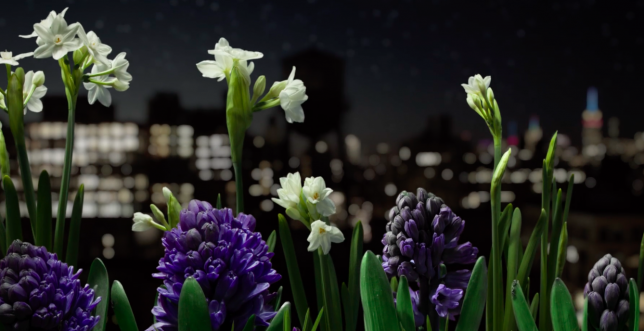
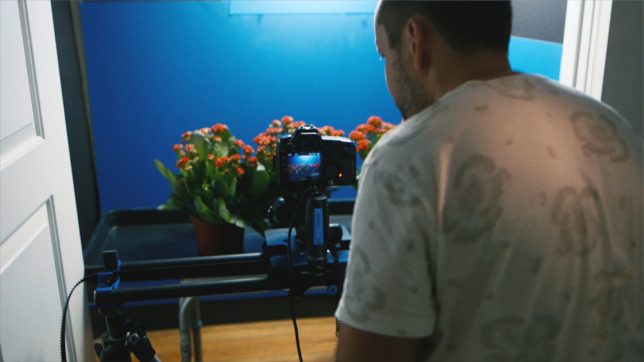
A single sweeping shot seems to capture an entire spring season of blooming flowers in this artfully directed time-lapse video, which took three years to record and complete. Filmmaker Jamie Scott captured almost all of the footage on a soundstage in the closet of his New York home, often against a black backdrop, placing the flowers in stark relief as they unfurl.

The sped-up result almost makes them look like sea creatures waving around under the sea, tentatively opening and then closing again as the camera passes over them. Scott started out filming the flowers from the front, but realized the effect was more dramatic if he shot them from above instead, shifting focus as he went.

In a behind-the-scenes interview with F-stoppers, Scott explains that he made the film in contrast to his previous time-lapse work entitled Fall. The difference between the two films isn’t just the season, but also the close-up shots, shallow depth of field, classical score and placing the camera on a slider.

Share on Facebook


[ By SA Rogers in Art & Photography & Video. ]

[ WebUrbanist | Archives | Galleries | Privacy | TOS ]


WebUrbanist

 
Comments Off on Spring on Speed: Time-Lapse Video Captures 3 Years of Blooming Flowers

Posted in Creativity


Serious speed: Sony a9 real world samples gallery

27 Apr

The Sony a9 made headlines shortly after its announcement due in no small part to its laundry list of impressive specifications. With 20fps burst shooting, 693 autofocus points and a 3.7m dot electronic OLED viewfinder with no blackout at all in continuous shooting, this camera’s got some serious specs and Sony has made some serious claims about its performance.

During our time in New York for the announcement, we were able to learn the ins-and-outs of the camera while photographing hockey players, figure skaters, and a full-on track meet to see just how the camera fared – and it fared well. But don’t take our word for it, check it out for yourself in our real world samples gallery. The AF system combined with 20 fps allowed us to nail the exact moment, while the excellent JPEG engine retained detail and minimized noise even at ISOs in the thousands.

See the Sony a9 real world samples gallery

But we’ve also been hard at work digging into the Sony a9 as much as we could, given our limited time with it and lack of Raw support. Our shooting experience has been updated with impressions of both JPEG image quality and autofocus performance.

DPR’s updated impressions of the Sony a9

$ (document).ready(function() { SampleGalleryStripV2({“galleryId”:”5484254968″}) })

Sample photoSample photoSample photoSample photoSample photo

Articles: Digital Photography Review (dpreview.com)

 
Comments Off on Serious speed: Sony a9 real world samples gallery

Posted in Uncategorized


A Photographer’s Shutter Speed Cheat Sheet as a Handy Reference for You

01 Mar

To take your photography to the next level and achieve perfectly exposed photos, it’s important to understand and master shutter speed and its relationship to Exposure. However, what’s even more exciting and challenging is using shutter speed as an artistic tool to achieve stunning effects.

Whether you want to master shutter speed as part of Exposure Triangle or use it artistically, the Shutter Speed Cheat Sheet makes things much easier!

Shutter Speed Cheat Sheet DPS 700px

Full Stop, ½ Stop, 1/3 Stop

The equation behind the relationship between Exposure and Shutter Speed is straightforward; by doubling or halving the shutter speed you are changing the exposure value by 1-stop. However, the introduction of digital cameras changed everything by no longer restricting how much we can change the shutter speed. Some cameras allow us to change the speed by half or even a third of a stop. Use the Shutter Speed Cheat Sheet to help you estimate and calculate your exposure.

Safe Shutter Speed

Using the right shutter speed is vital in photographing moving objects. Look at the Shutter Speed Cheat Sheet to see how speed directly affects image sharpness.

googletag.cmd.push(function() {
ruleset_slots.push( googletag.defineSlot( “/1005424/_dPSv5topic-rhs(300×250)”, [300, 250], “pb-ad-0” ).addService( googletag.pubads() ) ); } );

Light

The Cheat Sheet illustrates how a faster shutter speed means that less light reaches the camera sensor and a longer shutter speed means that more light reaches the sensor.

Artistically Shooting with Shutter Speed Cheat Sheet

Birds in Flight 1/2000

Wildlife photographers typically use a 1/2000th of a second shutter speed to ensure birds in flight are sharp. Ultimately, you can reduce the speed to 1/400th to give the bird a sharp body and blurry wings.

Action Sports

Shutter speed is crucial in fast-moving sports like football and soccer where a shutter speed between 1/500th and 1/1000th freezes the action to create crisp and sharp images.

Street Photography 1/250th – 1/500th

googletag.cmd.push(function() {
ruleset_slots.push( googletag.defineSlot( “/1005424/_dPSv5topic-rhs(300×250)”, [300, 250], “pb-ad-1” ).addService( googletag.pubads() ) ); } );

Most streets are in constant movement with pedestrians and vehicles. That is why shutter speed is critical to produce the right exposure and to avoid soft or blurry images.

Shutter Spped Cheat Sheet StreetPhotography

Street Photography 1/250th, f/8, ISO 100.

Landscapes 1/125th – ¼

Shutter speed varies across landscapes and techniques. When using a tripod, a slower shutter speed of 1/8th or ¼ of a second is acceptable. However, to avoid blurry images when shooting hand held, you need to use a faster shutter speed.

Shutter Spped Cheat Sheet Landscapes

Landscape 1/125th, f/8, ISO 100.

Panning Cars 1/15th – 1/60th

Panning is an artistic effect created when a slower shutter speed of 1/15th to 1/60th is used to track a moving object like a car. This causes the car to stay in focus while its surroundings are completely blurred.

Waterfalls 1/8th – 2 seconds

Capturing fast-moving water with a longer shutter speed creates a visual effect of motion blur which does not exist in reality.

Shutter Spped Cheat Sheet RunningWater

Waterfall 1/6th, f/20, ISO 100.

Blurring Water half – 5 seconds

For slower moving water like ocean, lakes, and rivers you need to use a shutter speed slower than half a second to create dreamy landscapes and seascapes with silky, smooth water.

googletag.cmd.push(function() {
ruleset_slots.push( googletag.defineSlot( “/1005424/_dPSv5topic-rhs(300×250)”, [300, 250], “pb-ad-2” ).addService( googletag.pubads() ) ); } );

Shutter Spped Cheat Sheet Water

Slow Moving Water 4 seconds, f/6.3, ISO 100.

Fireworks 2-8 seconds

Capturing fireworks can be exceptionally difficult. A faster shutter speed yields a speck of light across a dark sky and a slower speed creates a blurry, overexposed image. Try using a 3-5 second shutter speed for optimal results.

Stars 15–25 seconds

Like fireworks, shooting the stars requires balance. A faster shutter speed produces tiny and dim stars, but a longer shutter speed (over 30 seconds) produces a trail effect. For the brightest and clearest stars, try a shutter speed between 15 and 25 seconds.

Star Trails

Take advantage of the earth spinning on its axis by opening the shutter speed long enough to capture the star trail. This is often done with a 15-minute (or longer) shutter speed (exposure time). However, you can create the same effect digitally by taking a series of photos (100+) with a 30 seconds exposure each. Later, blend the images together using editing software to create a gorgeous trail effect.

googletag.cmd.push(function() {
ruleset_slots.push( googletag.defineSlot( “/1005424/_dPSv5topic-rhs(300×250)”, [300, 250], “pb-ad-3” ).addService( googletag.pubads() ) ); } );

The post A Photographer’s Shutter Speed Cheat Sheet as a Handy Reference for You by Viktor Elizarov appeared first on Digital Photography School.


Digital Photography School

 
Comments Off on A Photographer’s Shutter Speed Cheat Sheet as a Handy Reference for You

Posted in Photography


Mobile Speed: Portable SSDs for photographers

02 Dec

Like many photographers, I spend a lot of time working in the field away from my office. By extension, that translates into a fair amount of time in front of my laptop computer backing up, organizing, and working with my images and videos before I get home.

For years my workflow depended on portable hard drives, but thanks to increased camera resolution and the need to shoot more video, particularly 4K video, I discovered that I was spending increasingly more time waiting around while bits moved across wires. And when I wanted to work with those files, the experience kept getting slower. I also worried a lot about spinning drives getting damaged in transit.

Mobile office? A perfect place for portable SSDs.

A couple years ago I switched to using external solid state drives, or SSDs, for all my mobile work. Back then there weren’t a lot of off-the-shelf products to solve my problem, so I took a DIY (do-it-yourself) approach and made my own. Times have changed, and there are now a proliferation of external SSDs to meet your needs.

Despite this, I still run into a lot of photographers who haven’t made the switch, and I’m continually surprised at how many of them have never even considered external portable SSDs, despite the fact that they often have one in their laptop.

Fortunately, we’ve reached a point where SSDs strike a reasonably good balance between price and performance. In this article I’ll take a look at some of my favorite portable SSDs that I’ve used over the past year, each of which appealed to me for a different reason, and let you know what I like about each one.

The portable SSD solutions featured in this article: (L to R) The do-it-yourself solution, Samsung T3, SanDisk Extreme 510, OWC Envoy Pro EX, Glyph Atom, Glyph Atom RAID

The DIY Solution

For those willing to get their hands dirty, the DIY (do-it-yourself) solution is a viable option. SSDs designed for laptops are plentiful online and there’s a huge selection of brands and sizes. At the time of publication, it’s possible to get a 1TB SSD for under $ 240, which is probably enough portable storage to meet the needs of most mobile photographers.

Turning a bare SSD into an external peripheral is surprisingly simple; all you need is an inexpensive hard drive case, like this one from Anker, and a USB cable. Snap the SSD inside, connect it to your computer, and format the drive.

The DIY (do-it-yourself) approach is the most economical method, and is also a great way to recycle an old SSD when you upgrade a laptop. Total assembly time: about 2 minutes.

There are plenty of cases available for around $ 10, and you can reuse them if you get a larger SSD later. I’ve been using the Anker case mentioned above for about two years and have upgraded the SSD inside three times. An external case is also a great option if you’ve upgraded the SSD in your laptop and want to recycle the old one as external storage.

Samsung T3

The Samsung T3 first caught my attention at CES in January, and I’ve been using one almost since then. The T3’s most compelling feature is that it’s small; a bit shorter than a credit card, and only 1cm thick. It also weighs close to nothing, making it great for travel. It uses a USB-C plug, but ships with a USB-C to USB-A cable so you can plug it into the existing ports on your computer right out of the box. 

The T3 has become one of my go-to SSDs when I’m traveling really light, as in 11-inch Macbook Air light. I barely notice it in my bag, and often carry it around in a shirt or pants pocket when I’m out working. In fact, this is the SSD that people ask me about most often when they see it, once they realize it’s not a card reader for my camera. This is the SSD to take with you if you want compact size, speedy performance, and a bit of style.

The Samsung T3 is a bit shorter than a credit card and 1cm thick. Put it in your pocket and you’ll barely know it’s there.

The T3 is also comes in a variety of capacities ranging all the way up to 2TB of storage, making it an incredibly compact way to store a lot of data. It’s available in several sizes including 250GB ($ 119), 500GB ($ 199), 1TB ($ 399), and 2TB ($ 799)

SanDisk Extreme 510

The SanDisk Extreme 510 gives the Samsung T3 a run for it’s money when it comes to portability, being just slightly larger due to it’s square shape. However, the difference in size is negligible when you consider how small they both are.

What sets the Extreme 510 apart from the T3 is that it’s designed for slightly more rugged use, with an IP55 rating for water and dust protection, including an integrated cap that fits over the USB port. It also has a rubber bumper around the edges to protect against drops, and it really works. Finally, there’s a small metal loop on one corner in case you want to attach a lanyard or clip the drive to your other gear.

This has turned into my favorite SSD when I need to travel light in potentially adverse conditions, such as during our Nikon D810 Field Test where dust seemed to get everywhere. I’ve even found myself using the metal loop to clip the drive to an attachment on the inside of my pack for security. My only complaints about the Extreme 510 are that the rubber cap over the USB port comes off a little too easily, and that it’s currently only available in one size (480GB).

The SanDisk Extreme 510 might look unconventional, but it’s a great choice for mobile use thanks to its water and dust resistance, and rubber bumper to protect against drops.

One interesting note about the Extreme 510 is that in my performance testing it had slightly slower than average write speeds, though I didn’t really notice this in practical use. The 480GB SanDisk Extreme 510 costs $ 249.

OWC Envoy Pro EX

Other World Computing (OWC) is known for high quality products with a focus on the Macintosh market, so it comes as no surprise that the OWC Envoy Pro EX’s case is a perfect match for a MacBook computer, right down to the anodized aluminum case. (Well, the silver variety at least.) That said, it should work with any computer as long as you format it correctly.

The Envoy Pro EX is in the middle of the pack when it comes to size, but leads the way when it comes to style, and its build quality is excellent, right down to the smallest details. I would almost call it Apple-esque, which I suppose is the point. I’ve received lots of comments about this drive, particularly from other Mac users.

The Envoy Pro EX is a great choice if presentation and appearance are of importance, particularly if you’re a Mac user. Whether you’re visiting clients or just trying to project a professional image, it does the job well. Or, if you just want a SSD that will match your MacBook’s style, and potentially outlast it as well, the Envoy Pro EX is a great choice. 

The OWC Envoy Pro EX is a well-built, stylish SSD that’s relatively compact. It’s also a perfect visual match for a silver MacBook or MacBook Pro. 

The Envoy Pro EX is available in a range of sizes including 240GB ($ 195), 480GB ($ 339), and 1TB ($ 559).

Glyph Atom and Atom RAID

The Atom and Atom RAID from Glyph Technologies are a bit heavier than the other SSDs in this article, but that simply reflects their build quality. These things are solid. Really solid. As in, I’m pretty sure I could run over them with my car and they would still work, solid. Both are enclosed in a very sturdy aluminum housing which is encased in a rubber sleeve to add some shock protection.

The Atoms are also the only SSDs in this article that feature support for USB 3.1, Gen 2. In a nutshell, this means they have twice the theoretical maximum data transfer rate of the other devices in this article (10 Gbps vs. 5 Gbps). The Atom comes in a candy bar shaped case similar in size to the OWC Envoy Pro EX.

The Glyph Atom is one of the most solid portable drives I’ve ever come across and is a great fit for serious production use where things get banged around a lot. 

The Atom RAID includes two SSDs in a RAID 0 configuration to provide even greater speed when transferring data, and it can deliver. Physically, it’s about 50% wider than the standard Atom and a bit heavier, but otherwise similar in design.

The Glyph Atom RAID is every bit as solid as the Atom, but includes two SSDs in a RAID 0 configuration for even more speed.

Both Atom devices use a USB-C connection and ship with native USB-C to USB-C cables as well as USB-C to USB-A cables. It’s a nice touch that Glyph provides cables for both types of connections out of the box. My only complaint about the design is that the LED status light on these drives is bright enough to illuminate the corner of a room in the dark.

The Atom and Atom RAID are hands-down the most durable SSDs I’ve tried, and the ones I would choose for a production environment where they get used, abused, and banged around every day. I’ve been using them non-stop for several weeks, shoving them in and out of bags with other gear, and am consistently impressed with how rugged they are. Whether the additional speed of the RAID model is justified depends on your requirements, but it’s there if you need it.

The Atom is available in capacities of 275GB ($ 129), 525GB ($ 229), and 1TB ($ 399). The Atom RAID is available in capacities of 1TB ($ 419) and 2TB ($ 819). You pay a bit of a premium for the RAID version, but if you need the speed it will probably cost you one way or another.

Performance

DPReview doesn’t do in-depth performance testing of products like hard drives. There are other sites that do a great job of things like that. However, in addition to using all these drives over the past several months, I put them all through some real world use tests on a 5K iMac using a Lightroom library with about 10,000 photos, as well as a 250GB Final Cut Pro X project. I also ran some common benchmarking software for a baseline comparison.

In real world use there was very little noticeable performance difference between any of the drives, with the exception of the DIY solution, which seemed just a bit slower when importing large amounts of data. Of course, this will depend on what SSD you use for a DIY build, so results may vary.

For slightly more objective results I ran speed tests on all the SSDs using Blackmagic Disk Speed Test and AJA System Test, both of which provided almost identical results. I also included a popular portable spinning hard drive, the WD My Passport, in the test for comparison.


Capacity Tested

 Write Speed Read Speed
DIY solution*  250GB  253 MB/s  266 MB/s
Samsung T3  1TB  383 MB/s

 406 MB/s

Sandisk Extreme 510  480GB  285 MB/s  420 MB/s
OWC Envoy Pro  960GB  378 MB/s  409 MB/s
Glyph Atom**  1TB  472 MB/s  431 MB/s
Glyph Atom RAID**  2TB  804 MB/s  572 MB/s

WD My Passport 5400 rpm portable hard disk

2TB  69 MB/s  104 MB/s

* Average results for two SSDs: a Samsung EVO 840 and SanDisk Extreme Pro. (Results for both drives were similar.) Actual performance for DIY solutions will depend on the SSD used.

** Tests for the Atom drives were performed using a new MacBook Pro with Touch Bar, which has Thunderbolt 3 ports capable of supporting the drives’ USB 3.1, Gen 2 interface.

When looking at these numbers, keep in mind that it’s possible to get slightly different results by adjusting the test parameters, though when I did so the overall trend stayed the same between drives. The take home message here is that all the drives are insanely fast compared to a portable spinning hard drive. That in itself shouldn’t be a surprise, but the table shows just how much faster the SSDs can be.

There are some interesting things to note from the data, however. I was surprised that my home-built DIY drive was consistently slower than the commercial offerings, especially since it’s basically just a bare SSD plugged directly into a USB 3.0 interface. It’s possible that different SSDs would have performed better in the same enclosure.

It’s also possible to see the advantages of the newer USB 3.1, Gen 2 transfer rates on the Atom drives, especially when you throw a RAID 0 configuration into the mix. Of course, to take advantage of these speeds you’ll need a computer that supports the new standard as well.

Conclusion

If you’re still using regular hard drives for your mobile photo work, there’s never been a better time to make the switch to portable SSDs. Of course, there are compelling reasons to stick with spinning hard drives; they deliver huge amounts of storage at low cost. Every photographer has their own price/performance threshold, but that ratio is getting better all the time.

From a performance perspective, almost any portable SSD will likely meet the needs of most photographers. The most economical solution is the DIY approach. It’s incredibly easy to assemble your own portable SSD, and prices for bare drives have come down a lot, especially if you’re willing to pick up a recently discontinued model.

When it comes to commercial SSD models, the best choice will likely come down to your specific needs. Do you need fast and light? Style? Rugged build? Each one has a sweet spot. Finally, don’t limit yourself to the SSDs included in this article. There are lots of options on the market today, and some may meet your needs better than these. If you haven’t made the switch, go online, see what’s available, and take the plunge!

Articles: Digital Photography Review (dpreview.com)

 
Comments Off on Mobile Speed: Portable SSDs for photographers

Posted in Uncategorized