RSS
 

Posts Tagged ‘size’

Lighting 102: Apparent Light Size

02 Aug

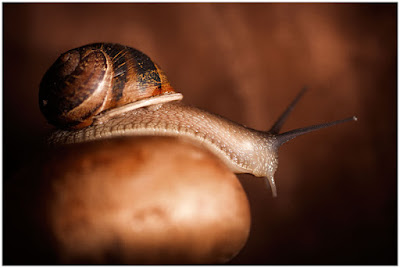
This is Gary. Gary is a snail. And he's beautifully lit by my friend Sara Lando. While babysitting Gary for a friend, Sara decided to actually build a miniature set and then photograph the snail in the style of Irving Penn. Because this is what creative people do in their spare time.

And pray tell, what beautifully soft light source is she using to subtly caress Gary and reveal his form?

Oh look, it's a bare speedlight:Read more »
Strobist

 
Comments Off on Lighting 102: Apparent Light Size

Posted in Photography


How to Size Images for Online Sharing

03 Feb

Whether you’re running a photography business, or sharing your photography on the web with friends, it’s important to know how to properly size your images for various uses. Generally speaking the smallest size you can share, while still retaining enough quality for the viewer to appreciate the photograph, is what you’ll want to aim for, but let’s dive into this with a bit more detail.

First rule – use the sRGB Color Space for anything going on the web

Before you even think about sizing an image for the web, you’re going to need to make sure that you’re using the correct color space. The web is standardized on the sRGB color space, which means that if you want your photography to appear accurately across the web, that’s the color space you need to use when you save your image.

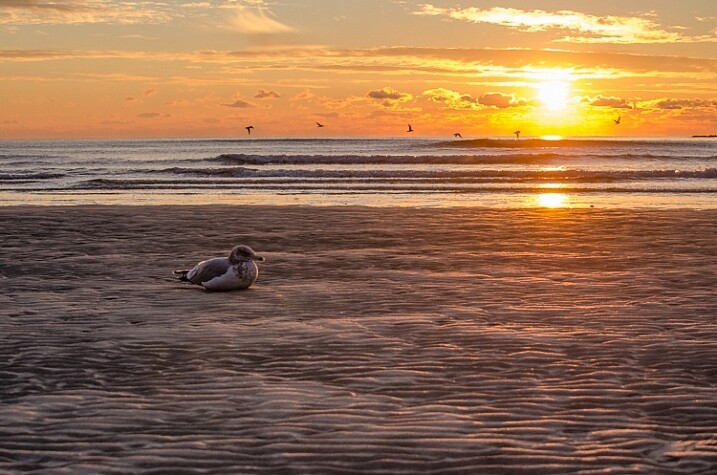
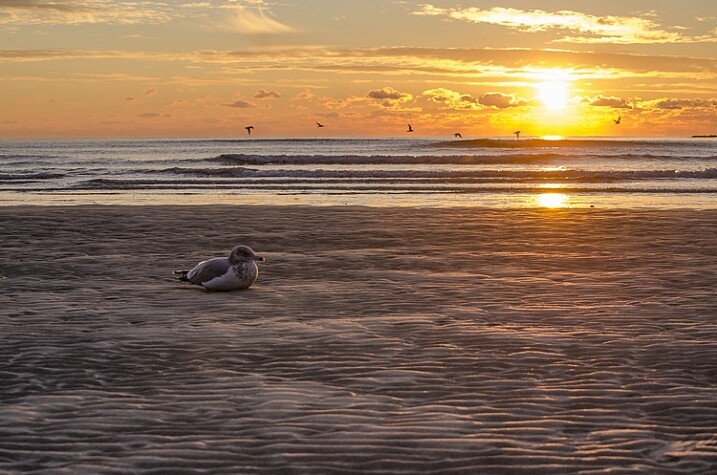
Take a look at this side by side comparison of the same photograph, saved directly from Lightroom, using the sRGB color space versus the AdobeRGB color space.
sRGB
sRGB

AdobeRGB-750

AdobeRGB

You’ll notice that the AdobeRGB color space appears slightly more muted in terms of color and it has a slightly more greenish tint when compared to the sRGB image.

Second rule – Smaller size over image quality

Even in this world of high resolution monitors, it’s still the best practice to use smaller sizes when sharing images on the web.

Here at dPS, images in the articles are sized to be 750 pixels on their longest side at an overall size of around 200kb. The reason you want to reduce the size of your images for use on the web is primarily to improve the user experience for your readers. The more data a webpage has to load, the longer it will take for the reader to be able to see content.

Social media and dedicated portfolio sites, like Smugmug or Zenfolio, are the exception to this rule as they have optimized their backends to handle large image files when necessary, and actually require the full size image for printing purposes.

How to size your images?

Knowing why to size your images is only the first piece to the puzzle, now it’s time to learn how to size your images. This article will show you two ways to size images, one with Lightroom and another with Photoshop, as they are the two most commonly used pieces of software among dPS readers.

How to size an image in Lightroom

The best thing to do with Lightroom is to set up an export preset specific for your needs. Once this preset is set up, all you’ll have to do is select it, and everything will be done for you.

Step 1: Select any photograph and right click. Navigate to Export and select Export from the fly out menu.
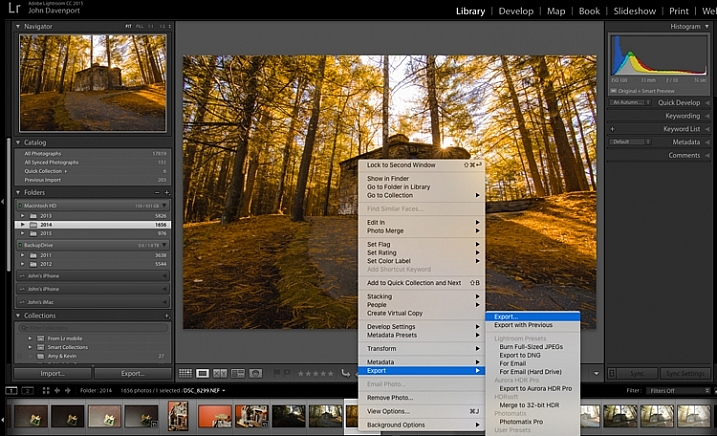
export-images-lightroom

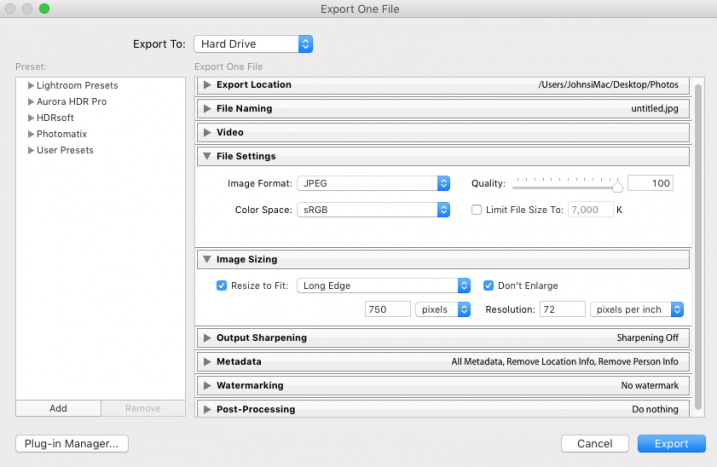
Step 2: In the box that opens, after selecting your Export Location and File Naming options, you’ll want to navigate to the File Settings and Image Sizing sections.

In the File Settings Section: Make sure that Image Format is set to JPEG, and that Color Space is sRGB. You can choose to limit the file to a specific siz,e if this matters to you, but know that too much size reduction can result in noticeable quality loss of an image.
sizing-images-with-lightroom

In the Image Sizing Section: You’ll want to check “Resize to Fit” and make sure that the drop down is set to Long Edge. Check the box “Don’t Enlarge” which will mean that any time you export an image smaller than your “Long Edge” setting, it won’t stretch the to fit that dimension. Finally, you’ll need to pick what size you want your image to be – here it’s set to 750px and 72 pixels per inch which is what we use at dPS.

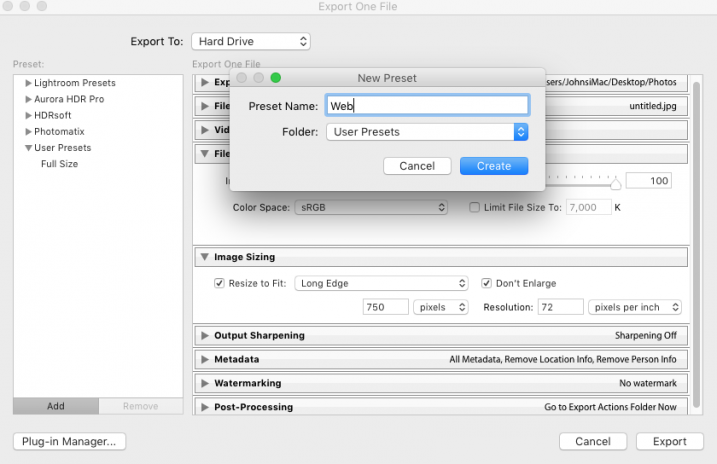
To save this as a preset that you can use over and over again, click on the “Add” button in the lower left corner, and name your preset when the dialogue box opens.
sizing-images-with-lightroom2

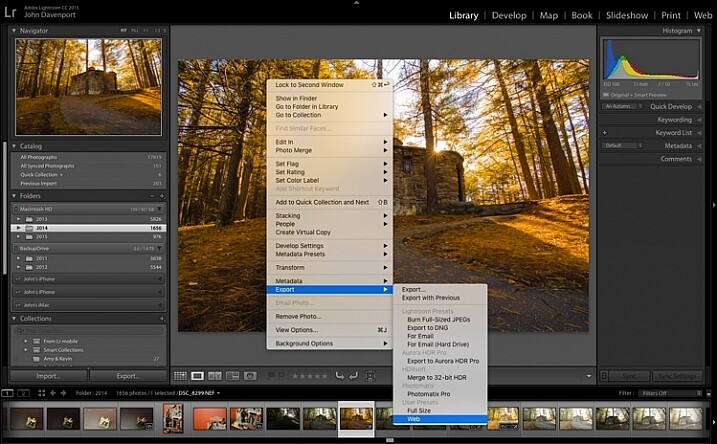
Now, whenever you want to export a photograph to the web, all you have to do is right click on the image you wish to export, and navigate to the preset you’ve just created. Super easy!
export-images-lr2
How to size images with Photoshop

When you want to save your images for the web with Photoshop, the best option is to use Photoshop’s “Save for Web” tool. This will let you choose from various file types (in most cases you’ll want JPEG), and also allow you to convert the image to the all important sRGB color space.
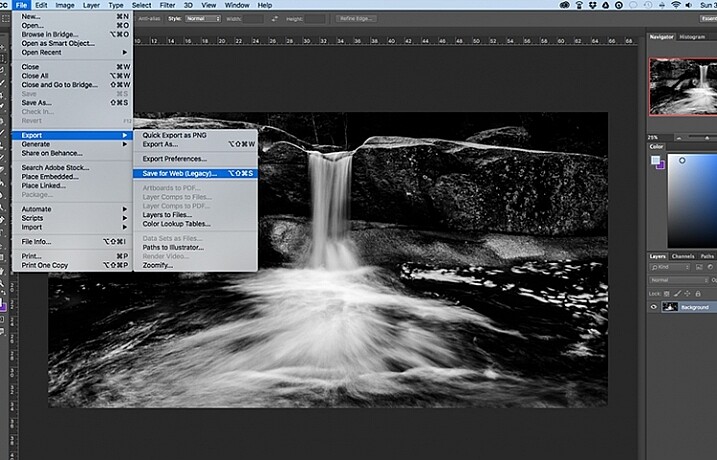
photoshopsaveforweb

To find the Save for Web option you’ll want to navigate to File > Export > Save for Web

Once you select this option a new window will open, providing you with a number of options for exporting your image from Photoshop. Here you’ll want to make sure that “Convert to sRGB” is checked, and that your file format is set to JPEG. Sizing can be done by picking a width or height, and as long as the two are connected with the link symbol, Photoshop will calculate the other’s value based on the one you input and maintain the image proportions accurately.

The most important part about saving photographs for use on the web is getting the color space correct, and realizing that people browsing photographs on the web are often doing so on smaller screens, with limited time on their hands. Fast load times not only improve your user’s experience, but they also will reflect favorably on Google’s search engine’s algorithm which is used to determine if your content is worthy of being shown to people searching Google for answers.

How do you size your images for online use? Please share in the comments below.

googletag.cmd.push(function() {
tablet_slots.push( googletag.defineSlot( “/1005424/_dPSv4_tab-all-article-bottom_(300×250)”, [300, 250], “pb-ad-78623” ).addService( googletag.pubads() ) ); } );

googletag.cmd.push(function() {
mobile_slots.push( googletag.defineSlot( “/1005424/_dPSv4_mob-all-article-bottom_(300×250)”, [300, 250], “pb-ad-78158” ).addService( googletag.pubads() ) ); } );

The post How to Size Images for Online Sharing by John Davenport appeared first on Digital Photography School.


Digital Photography School
 
Comments Off on How to Size Images for Online Sharing

Posted in Photography


Cut It Art! Paper Cut-Outs Cut Landmarks Down To Size

02 Nov

[ By Steve in Art & Photography & Video. ]

paperboyo-paper-cut-outs-6
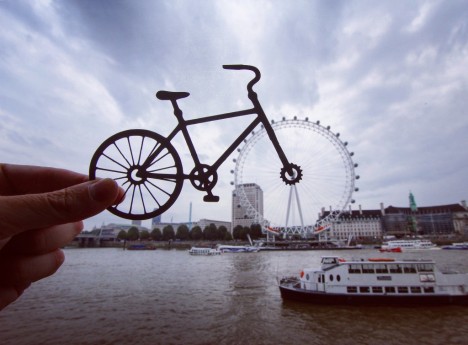
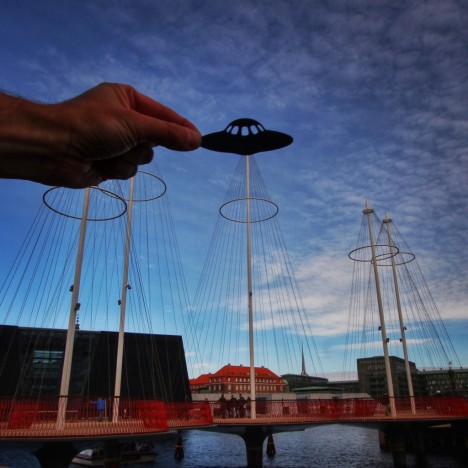
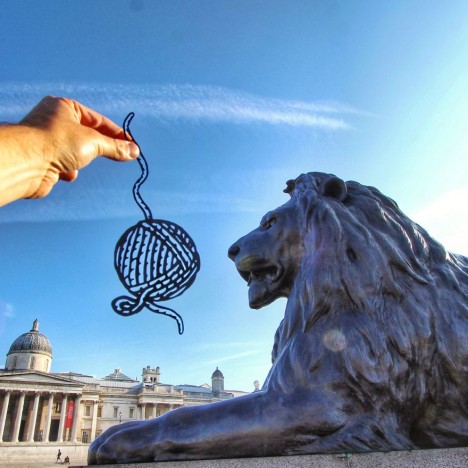
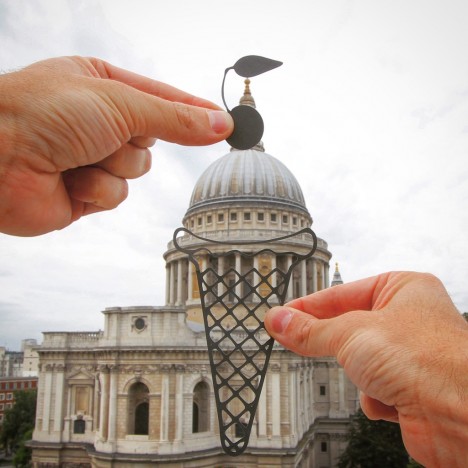
An imaginative Instagram user’s unique way of capturing the world’s most famous landmarks for posterity involves a scissors, paper and a camera.

Instagrammer transforms famous landmarks using paper cut-outs

paperboyo-paper-cut-outs-10

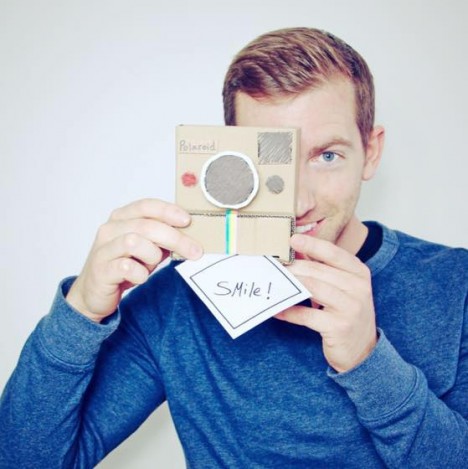
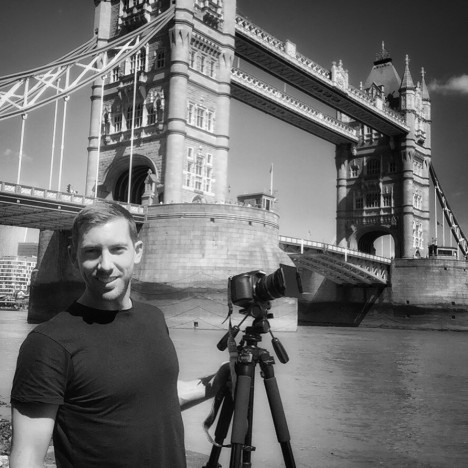
“I take photos with paper & sometimes without”, states Instagram user @paperboyo, but it’s safe to say those “with paper” have garnered him most of his nearly 70,000 followers. London-based Rich McCor (to use his given name) came up with his intriguing take on travel photography while brainstorming on how to make his photos more original and memorable.

paperboyo-paper-cut-outs-11a

paperboyo-paper-cut-outs-16

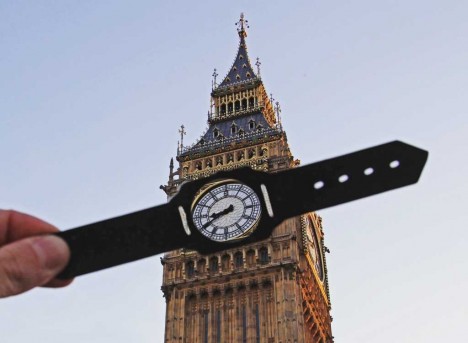
Changing his POV was McCor’s number one priority. “I decided I would become a tourist in my own city,” he explained. “I wanted to see the London that I ignored, to explore the landmarks and the quirky history.” His first efforts depicted Big Ben transformed into a wristwatch (or vice-versa) and some graphic teasing of a lion outside St. Paul’s Cathedral. Nice kitty!

Instagrammer transforms famous landmarks using paper cut-outs

paperboyo-paper-cut-outs-2

Positioning the various paper cut-outs takes much precision and no doubt McCor attracts a certain amount of attention during the process. No doubt there’s a certain degree of trail-and-error as well: what works well in one’s imagination doesn’t always pan out in reality. When everything goes right, well, that’s just the cherry on the sundae!

Next Page – Click Below to Read More:
Cut It Art Paper Cut Outs Cut Landmarks Down To Size

Share on Facebook


[ By Steve in Art & Photography & Video. ]

[ WebUrbanist | Archives | Galleries | Privacy | TOS ]


WebUrbanist

 
Comments Off on Cut It Art! Paper Cut-Outs Cut Landmarks Down To Size

Posted in Creativity


Image Size and Resolution Explained for Print and Onscreen

17 Sep

One of the most confusing things for a new photographer is understanding image size, resolution, and printing. I’ll try and explain what these things mean, and how to make the best choices depending on what you want to do with your photos.

Megapixels and photo size

Find information about a photo using File > File Info

As a photographer you will already have confronted the term megapixel when you first purchased your camera. While technically a megapixel is equal to 1,048,576 pixels, in reality, camera manufacturers round this number to 1,000,000 when stating how large an image the camera will capture.

So, my camera, for example, is stated to capture 14.6 megapixel images which is around 14,600,000 pixels per image (14.6 x 1,000,000). This information tells you nothing about the actual pixel dimensions of the image – it only tells you the total number of pixels that comprise the image.

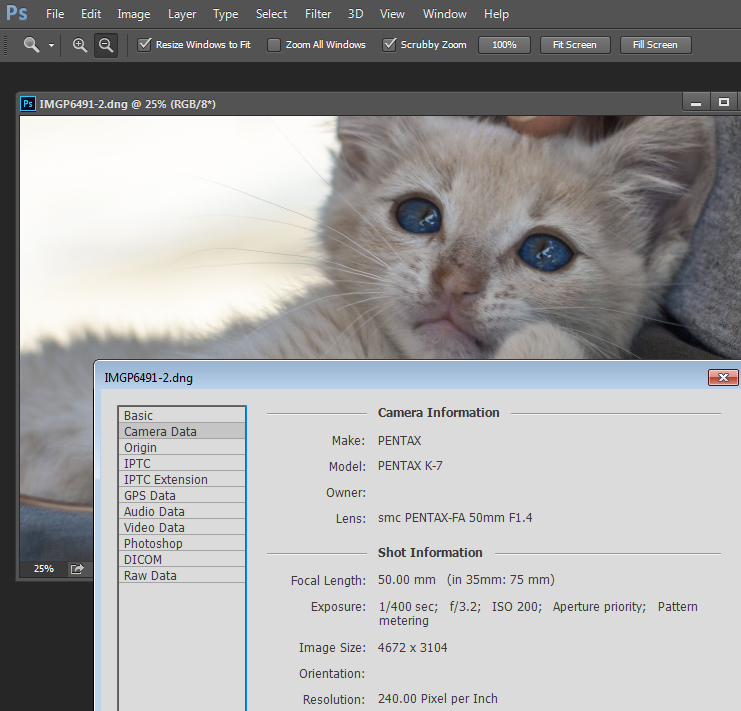
My camera, like most dSLRs, captures images with an aspect ratio of 1.5. So the ratio comparing the number of pixels along the long edge of the image, to the short edge is 3:2. Each full size raw image is 4672 x 3104 pixels in dimension. So, by multiplying the number of pixels along the width by those of the height (4672 x 3104 = 14,501,888) we get the actual number of pixels in the image. You and I might call this 14.5 MP but the camera manufacturer rounds this up and calls it a 14.6 MP camera.

You can check the width and height of an image using your photo editing software. In Photoshop, with the image open, choose File > File Info > Camera Data. The image above shows this information dialogue box.

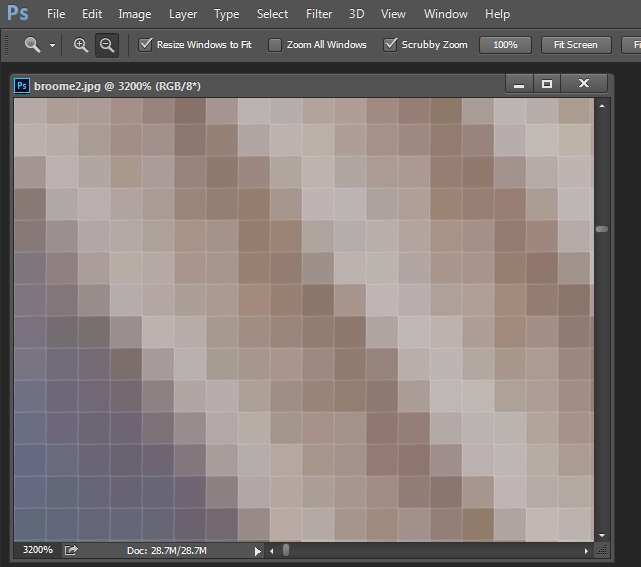
A pixel itself is a single picture element, and for our purposes it’s the smallest element that your photo can be divided into. A pixel can be only one color, and a photograph is made up of a grid of thousands of pixels, each of varying colors that together make up your image. You can see these pixels if you open a photo inside a photo editing program and zoom in until you see single blocks of color (like below). Each of these is a pixel.

An image of pixels in a photo

Why size is important when printing

When you’re printing an image you may encounter the term ppi or pixels per inch. Most printing services, and indeed your own printer, will require a certain density of pixels in the image (ppi) to be able to render an print that looks good, with smooth color transitions so you can’t see each individual pixel. Typical printing ppi values range from 150 to 300 ppi, although some high-end magazines may require images which are 1200 ppi.

So, for example, if you want to print an image 4 x 6 inches at 300 ppi, then you need a file that has at least 4 x 300 (1200) pixels along its short side and 6 x 300 (1800) pixels on the long side. So, it needs to be at least 1200 x 1800 pixels in size.

To print an 8 x 10 inches at 300 ppi use the same math – multiply the printed image width and height in inches each by 300 pixels. The result is 2,400 x 3,000 pixels, which is the size image you need to print an 8 x 10 at 300 ppi.

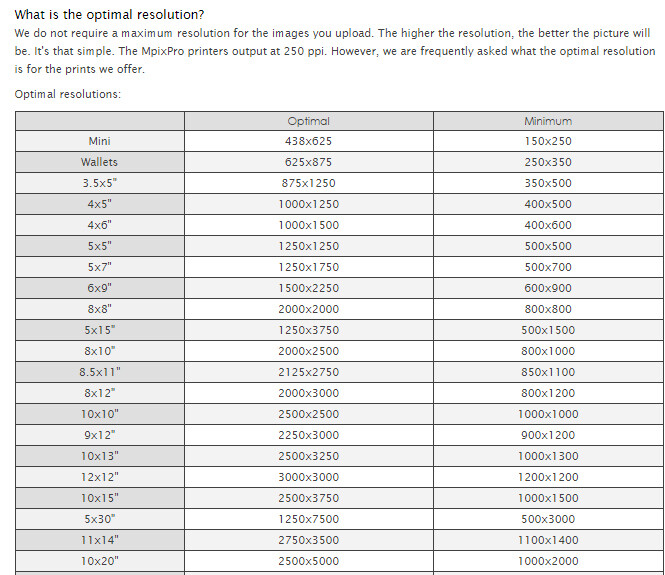
When cropping and sizing an image for printing, you’ll need to know what ppi the image should be – your printer manual or the printing service should be able to tell you this. This is a screenshot from the MpixPro.com website showing their Optimal and Minimum image sizes for standard print sizes. Their printer outputs at 250 ppi (but can handle 100 ppi images) – other services may differ – so always check before preparing your images:

Print size required for MpixPro printing

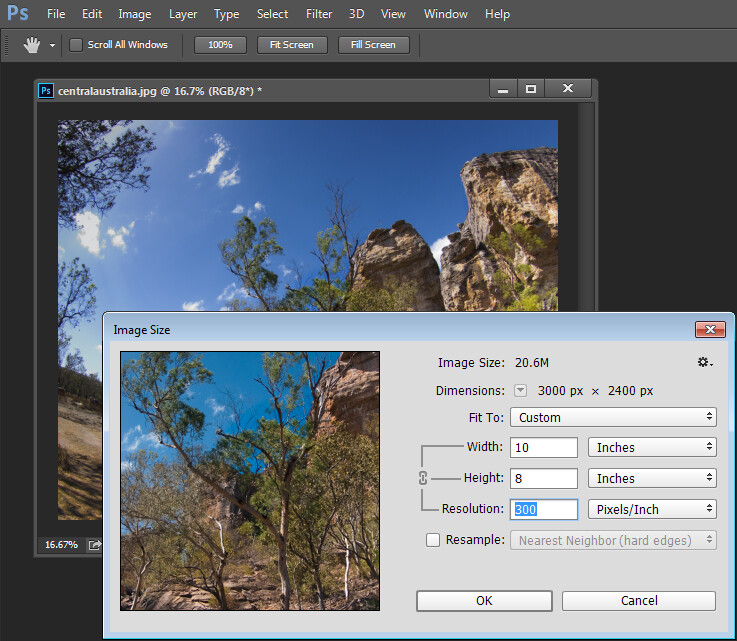
Use the crop or resize feature in your software to size the image to the desired width and height, and the ppi resolution. Here an image cropped to a size of 3000 x 2400 pixels is being adjusted from 72 ppi to 300 ppi in preparation for printing at 300 ppi. There is no resampling required as the image is already the correct dimension and only the resolution requires adjusting.

Adjusting resolution in a photo without resampling it

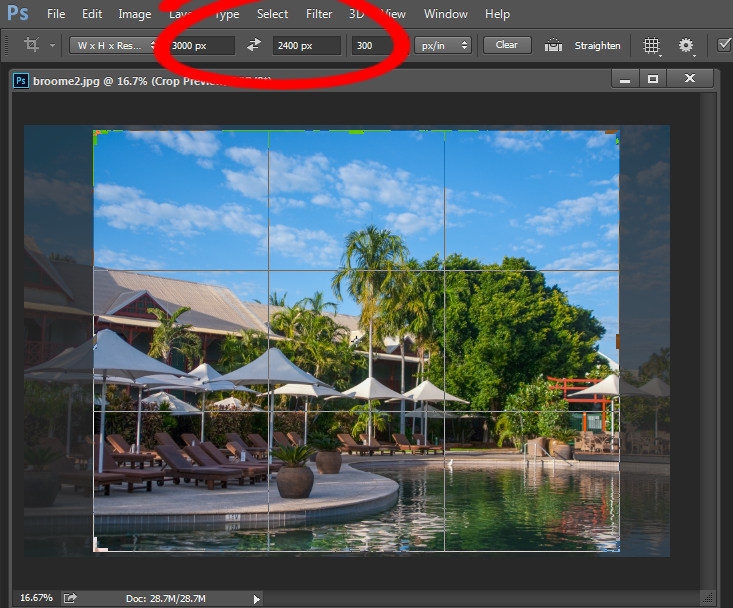
Photoshop, like other applications, will also crop an image to a fixed size and resolution if you type these value into the tool options bar when you have the Crop tool selected (see below). If your image is smaller than the typed dimensions then the image will be enlarged using the default resampling method as it is cropped. While it isn’t generally advisable to enlarge images – provided the image is already close in size to the desired size, enlarging it a little bit generally won’t cause a noticeable loss of quality.

Crop an image in Photoshop setting size and resolution

Sizing for screen

When it comes to displaying images on the screen you need far less pixels than you do for printing. This is because the density of pixels on the screen is far less than what is required for printing. So, for example a typical monitor is 1920 by 1080 pixels in size so, to fill the monitor you only need an image that is 1920 by 1080 pixels in size. That’s about the same size image you need for a 4 x 6 print at 300 ppi, yet this size image displays perfectly on a 23 inch diagonal monitor.

googletag.cmd.push(function() {
tablet_slots.push( googletag.defineSlot( “/1005424/_dPSv4_tab-all-article-bottom_(300×250)”, [300, 250], “pb-ad-78623” ).addService( googletag.pubads() ) ); } );

googletag.cmd.push(function() {
mobile_slots.push( googletag.defineSlot( “/1005424/_dPSv4_mob-all-article-bottom_(300×250)”, [300, 250], “pb-ad-78158” ).addService( googletag.pubads() ) ); } );

The post Image Size and Resolution Explained for Print and Onscreen by Helen Bradley appeared first on Digital Photography School.


Digital Photography School

 
Comments Off on Image Size and Resolution Explained for Print and Onscreen

Posted in Photography


Telescoping Trailer: Expanding Teardrop Camper Triples in Size

11 Sep

[ By WebUrbanist in Architecture & Houses & Residential. ]

trailer triplings

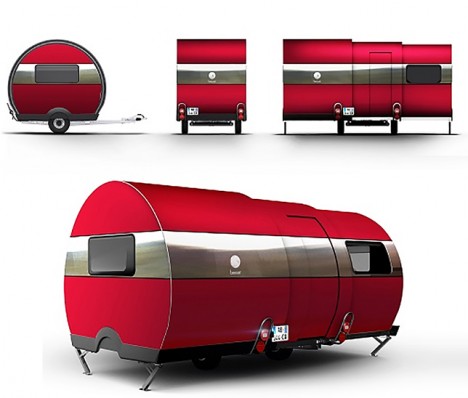
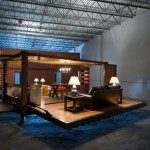
The 3X trailer deploys with the push of a button, tripling its interior space in a matter of seconds, turning a cramped road can by day into an expansive set of rooms at night.

3d trailer interior

telescoping trailer bedroom

Designed by French company Beauer, the nesting camper is about 8.5 by 6 feet in its travel-ready configuration, but the shorter dimension turns in the longer one (15 feet) when deployed.

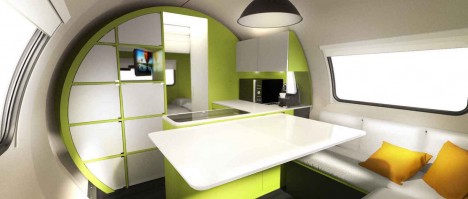
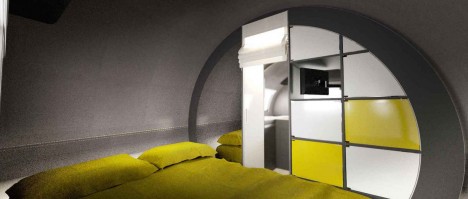
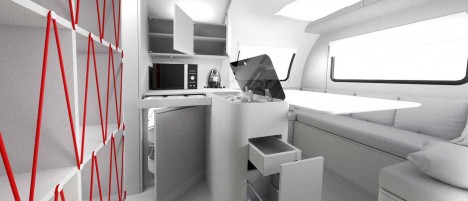
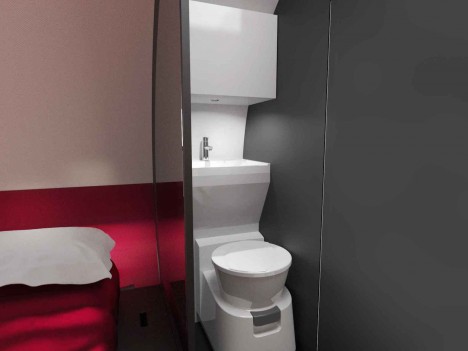
Its fixtures conveniently slot into place, unfolding to become parts of a set of bedroom, kitchen, living and dining areas (complete with refrigerator, stove, microwave, sink and toilet).

trailer work space

Portable tanks for potable and gray water systems are also included. Its compact configuration is ideal not just for taking it on the road but storing it in parking spots, driveways or garages when not in use.
telescoping toilet system

With a price tag of around $ 25,000 USD, the units may not be cheap but come packed with amenities. Currently for sale in France, plans are in place to expand sales throughout Europe and eventually around the world.

3x trailer new

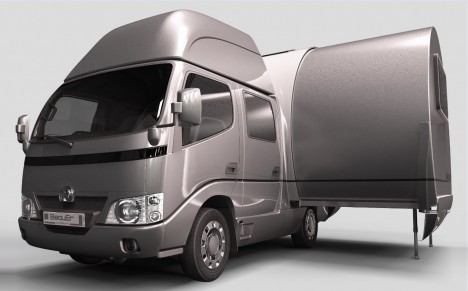
A larger variant with built-in towing vehicle (shown above) is also in development, utilizing similar space-saving and expansion strategies in addition to other caravan buildouts. Perhaps one model or another could take the action as its name: the Tripling has a nice ring to it.

Share on Facebook


[ By WebUrbanist in Architecture & Houses & Residential. ]

[ WebUrbanist | Archives | Galleries | Privacy | TOS ]


WebUrbanist

 
Comments Off on Telescoping Trailer: Expanding Teardrop Camper Triples in Size

Posted in Creativity


Fujifilm X-T10 cuts X-T1 features down to size

18 May

Fujifilm has announced the X-T10 – a smaller, beginner-friendlier version of its flagship X-T1. Using the same 16MP APS-C X-Trans image sensor as its big brother, the X-T10 is equipped with new subject tracking AF modes introduced via firmware to the X-T1. Read more

Articles: Digital Photography Review (dpreview.com)

 
Comments Off on Fujifilm X-T10 cuts X-T1 features down to size

Posted in Uncategorized


Size matters: Hands-on with Canon PowerShot G7 X

18 Sep

Canon has been busy – its latest high-end compact, the PowerShot G7 X slots in beneath the G1 X Mark II, and offers a 20MP 1′-type sensor, 24-100mm equivalent F1.8-2.8 zoom lens and a host of other enthusiast-friendly features. We spoke to Canon recently and got access to a pre-production G7 X. Click through for a hands-on tour of the new camera. 

Articles: Digital Photography Review (dpreview.com)

 
Comments Off on Size matters: Hands-on with Canon PowerShot G7 X

Posted in Uncategorized


3-in-1 Cargo Shelters: Expandable Containers Triple in Size

02 Sep

[ By WebUrbanist in Architecture & Houses & Residential. ]

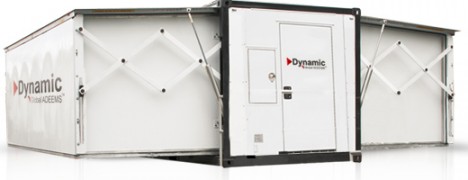
dynamic shipping container shelter

Shipping container shelters combine the appeal of ultimate portability with rugged durability, but these structures add another dimension lacking in the default configuration: three times as much space thanks to their transforming designs. Below are four examples with varying degrees of technological sophistication for a wide range of applications.

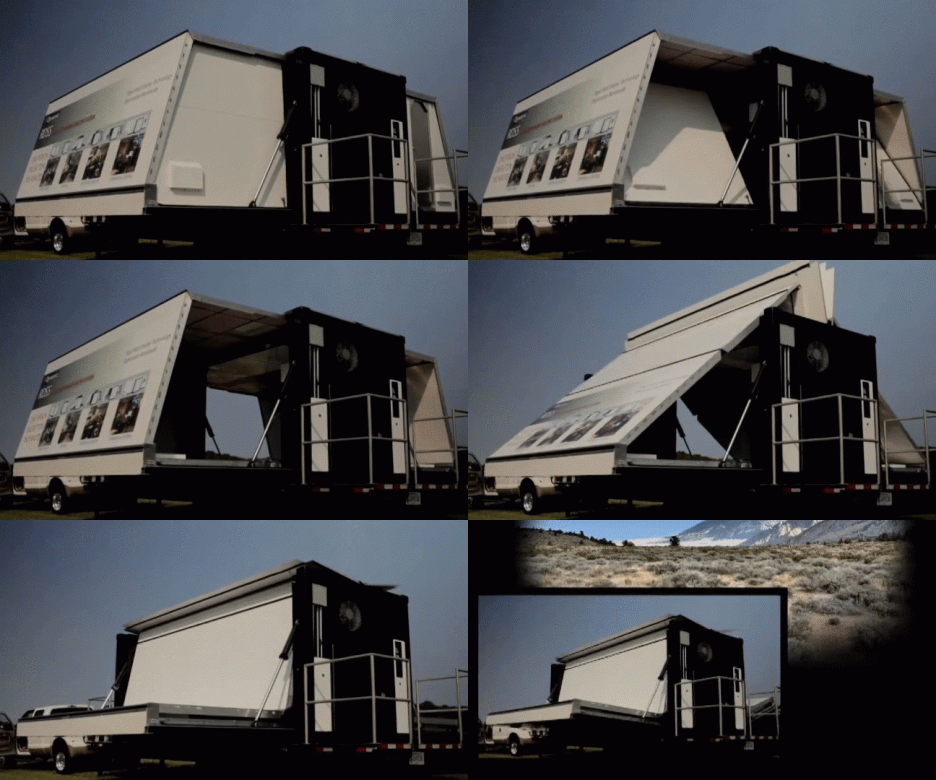
The RDSS (Rapid Deployment Shelter System) shown above can be deployed by one person in less than two minutes, expanding into a 400-square-foot, rigid-walled shelter – all from a single 20-foot ISO (International Standards Organization) shipping container module.

dynamic folding shelter design

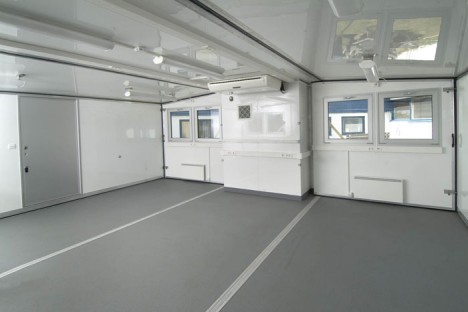
interior cargo container module

While the same company offers a variety of similarly convertible solutions, the particular model in the video comes equipped with on-board heating and air conditioning systems and its own generator. The units can be sent by ship or rail, towed by trucks or flown by helicopters and stacked nine containers high.

Three-in-one cargo modules are made by a variety of manufacturers for deployment under various conditions, including military use, communications headquarters, medical triage, disaster relief centers, homes or offices – the one above is from Mobile Shelter Systems.

A soft-walled variant on the same theme of spatial expansion, the above patent-pending design unfolds two side panels that become floors with curved ceilings arcing overhead. A lower-tech approach, to be sure, but also one that could theoretically be done for much less money and in a do-it-yourself fashion for those inclined to create their own shipping container building.

shipping container home office

illy push button house

transforming pushbutton house design

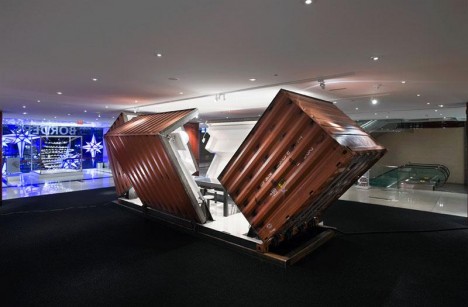
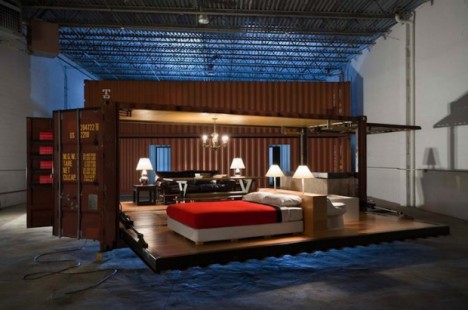
While less suited for rugged outdoor use, any discussion of convertible shipping container spaces should include a mention of the Illy Push-Button House (which has both commercial and residential applications) designed by Adam Kalkin, the sides of which fold down to form an open-air living room area or temporary storefront space.

Share on Facebook


[ By WebUrbanist in Architecture & Houses & Residential. ]

[ WebUrbanist | Archives | Galleries | Privacy | TOS ]


WebUrbanist

 
Comments Off on 3-in-1 Cargo Shelters: Expandable Containers Triple in Size

Posted in Creativity


Olympus OM-D E-M10 brings E-M5 down to size

29 Jan

NC_F10_BLK_right_M14422R_BLK_off_RV.png

Olympus unveils the OM-D E-M10, a smaller and budget-friendly Micro Four Thirds ‘Digital OM’ with many parts borrowed from the E-M5 – including its 16 megapixel sensor. It also manages to snag a few features from the flagship E-M1, like a TruePic VII processor and built-in Wi-Fi for image transfer and remote control. It falls short of its siblings with ‘3-axis’ image stabilization rather than the ‘5-axis’ system in the E-M5 and E-M1, and doesn’t provide an accessory port, but these concessions help nudge the E-M10 to its attractive $ 699/£529 body-only price point.

News: Digital Photography Review (dpreview.com)

 
Comments Off on Olympus OM-D E-M10 brings E-M5 down to size

Posted in Uncategorized


Porta-Park: Mobile Urban Square the Size of a Parking Spot

23 Aug

[ By WebUrbanist in Art & Installation & Sound. ]

portable urban square project

Compact and portable, this crafty collaborative design-build project is part art installation and part impromptu gathering space. This student-built platform pushes people to think about the flexible potential of public space – it also showcases the power of group brainstorming and rapid prototyping.

portable student public space

Facilitated by Izmo in Italy, participating students followed a process-oriented approach. They were presented a framework for construction – a metal-framed rectangle – divided into four quadrants. Each of these sections was assigned to a group along with a set of discarded building materials ready to be reused and a time limit for construction.

portable public space deployed

The cut, pasted and painted result looks somewhat like a three-dimensional patchwork quilt. Its various sides feature fold-out furniture, sliding drawers and secret slots from which various interactive objects are deployed on demand. The structure itself sits on wheels and is sized to fit into public parking spaces or other small and slim sites.

portable park design build

About Izmo itself: “The name Izmo originates from the word isthmus, a thin strip of land that joins two areas. Our research topic is in fact the territory: where interactions take place between individuals and public space . Our mission is to link the territories, the people with the land and the citizens with each other. We do this, for instance, through projects of urban design, installation; organization of seminars, meetings and workshops; and development of Web platforms. In all cases, the projects designed by Izmo come from reading and from listening to people and places that will benefit from our operations.”

Share on Facebook


[ By WebUrbanist in Art & Installation & Sound. ]

[ WebUrbanist | Archives | Galleries | Privacy | TOS ]


WebUrbanist

 
Comments Off on Porta-Park: Mobile Urban Square the Size of a Parking Spot

Posted in Creativity