RSS
 

Posts Tagged ‘Seeing’

Seeing Double: Learn How to Clone Yourself

04 Apr

Extra photos for bloggers: 1, 2, 3

Have you ever had a dream where you looked around the room and everyone looked exactly like you?

Wait, was that a dream?

Either way, you can turn your camera into the ultimate cloning device and make like a million clones of yourself!

With our guide, you can learn how to make carbon copies of yourself (the best photo subject around).

Lay on the couch while vacuuming, or build a human pyramid out of 10 versions of yourself.

You can make images where you (appear to) do it all. You’ve always wanted a stunt double, right?

Go Ahead, Duplicate Yourself

p.s. Learn the elements of lighting and sweet power-moves you didn’t know your phone had in our Phoneography 101 course. All the cool kids are doin’ it. Sign up!

Why it’s cool:

ingred-sm We thought about actually cloning ourselves, which would be awesome in so many ways.

But then we thought digital clones might be better, and a lot less complicated in the long run.

Duplicating yourself is easier than you think.

And you can fool everyone into thinking you have a twin, or a triplet.

Ingredients:

paint-sm

  • A model (yourself or a friend)
  • Camera
  • Tripod
  • Computer
  • Editing Software
  • Props (optional)

STEP 1: Find Your Scene:

paint-smFirst, find the scene you want to photograph.

Set your camera up and compose your image.

Think about where you will place your carbon copies and what each figure will be doing.

It is best to use your camera on a tripod, so that your background stays exactly the same throughout this process.

If you don’t have a tripod, place your camera somewhere stable, like on top of a bookshelf or stool.

Make an exposure to check your composition.

Step 2: Meter Your Scene:

paint-smPlace your model in the scene.

Make another exposure to check the light falling on the person.

You can use the light meter in your camera, or if you want to be more specific, use a hand held light meter.

Did you know there’s a light meter app for the iPhone and Android?

For our first shot, we metered the light for the furthest distance from our lens to make sure it wouldn’t be too dark.

Step 3: Make Your First Image:

paint-sm With your camera on a tripod, get ready to take your first photo.

Focus on the area where your model will be.

For focusing self portraits, place something in the scene that can be easily moved. You could prop up a pillow or set a stool where you are going to be.

If you are using yourself as a model, set your camera to self-timer mode.

Once you’ve got your camera set, make sure your model is in place.

Make an exposure.

Step 4: Make your Second Image:

paint-smThe important thing here is to make sure your model is the only thing that moves in the scene.

Move your model to the another part of the scene.

Make sure to focus on your model in the new part of the image.

If your camera has a live view mode, you can use the zoom button on the back of the camera to make sure your focus is precise.

Make your second exposure.

Step 5: Repeat:

paint-sm Place your model in a third part of the scene.

Check your focus and make an exposure.

Repeat this as many times as you’d like to have multiple individuals throughout your scene.

Step 6: Import Images:

paint-smOnce you have made your exposures, it’s time to put them on the computer.

Open the photos you want to combine in Photoshop or another photo editing software.

Hold off on cropping or editing just yet.

It’s best to work with images straight out of the camera before making any color, brightness, or white balance adjustments.

For this tutorial, we’ll be using Photoshop CS6. Other editing programs, such as Gimp, will have similar methods, but the commands and tool placement may be slightly different.

Step 7: Copy and Paste:

paint-sm Starting with the second image from your series, select the entire image.

Use the copy function to copy the image (Command + C on macs, Control + C on PC’s).

Paste that image as a new layer onto the first image from your series.

You can use keyboard shortcuts (command or control + V), or go up to “Edit” in the menu, and select “Paste in Place.”

“Paste in place” ensures that the images will be lined up on your canvas.

Step 8: Make a Layer Mask:

paint-sm Now, looking at your image, the photo you just pasted is Layer 1. Your first image is the “Background”.

By adding layers stacked right on top of each other, you will be able to erase parts of the Layer 1 to reveal the background image underneath.

This is how you will appear to be in multiple places at the same time.

Because you left your camera on a tripod, the background of each image should line up perfectly.

Erasing part of the layer will reveal what is different between the photos (i.e. yourself within another part of the frame.)

To make things easier in the long run, create a layer mask for Layer 1 by clicking the layer mask icon at the very bottom of the layers palette. It looks like a square with a circle in it.

By making a layer mask, you’ll be able to erase from your layer and paint parts back in with the Paintbrush tool if you mess up.

If you don’t use a layer mask and you accidentally erase something important, you won’t be able to paint parts back in.

Here’s a little more info on layer masks if you’ve never used them before.

Step 9: Erase:

paint-smSet your eraser to a pretty decent size to start with.

Erase all of Layer 1, except your model.

You will see your background image and first figure start to appear

Use a large brush for the background, and zoom in close and use a smaller brush to get the details and edges.

Step 10: Brush Tool:

paint-sm When using a layer mask, it’s okay to make a mistake.

If you happen to erase too much, like we did here with the model’s hand, it’s not a big deal.

Use the brush tool to paint that part of the layer back in.

By working back and forth with the eraser and the brush tool, you can remove what you want from the image with precision.

Step 11: Repeat:

paint-sm Repeat steps 7-10 for your third image.

Select it, copy it, and paste in place.

Don’t forget to make a layer mask for this new layer as well.

Erase the extra info from your layer, revealing the figures underneath.

Step 12: Save your Layers:

paint-sm It’s always important to save your work as you go along.

Saving your image as a PSD (photoshop file) or a TIFF will allow you to save the layers and layer masks.

This way, you can come back and edit them at any point.

Step 13: Share:

paint-sm Once you’re satisfied with your photo, save your final version as a jpg.

When you go to File, select “Save As”, then select JPG. Doing this automatically flattens the image into one layer, and compresses the file size a bit.

JPG is more friendly with websites and social media sites, and will make emailing your creation easier.

Take it further

  • Make elaborate scenes, like the one above, with the live-view zoom to focus method.
  • Create composite photos on your phone! Photoshop Touch lets you work with layers.
  • Use this layering technique to create levitating photos.

Related posts:

  1. Learn How To Mat. Matting Gives Photos Teh Snappiness! There’s no question about it, a mat and frame make…
  2. The Fastest Way to Learn Keyboard Shortcuts for Photoshop, Aperture, FCP, and more This Photojojo made possible by… ~Have a cool photo product…
  3. Double Exposures: A DIY Project That Brings Friends Together With Photos! Extra photos for bloggers: 1, 2, 3 We love hanging…
Photojojo

 
Comments Off on Seeing Double: Learn How to Clone Yourself

Posted in Equipment


Seeing vs. Photographing the Moon: The Moon Illusion

20 Feb
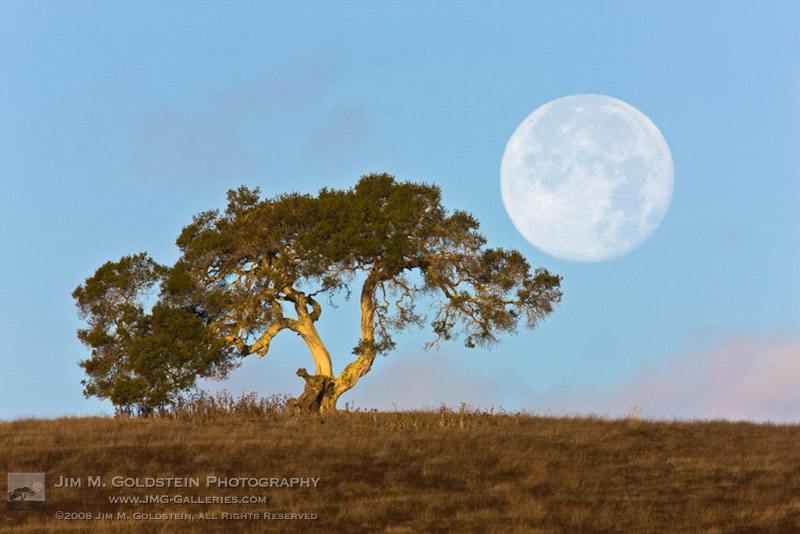
Perigee Moon & California Oak

Perigee Moon & California Oak near the Monterey coast, California

One of the more intriguing visual phenomenon is seeing a giant moon on the horizon. One might think that there is some physical explanation as to why the moon is larger when low on the horizon, but its actually a visual illusion where your brain is playing a trick on you. This illusion is aptly called the “Moon Illusion“. This illusion is incredibly well explained in the following video:

So how do people capture a super large moon in their photographs?
There are a few ways:
1) Use a large telephoto lens to photograph the moon so that it fills a larger portion of the frame
2) Add the moon to a scene using the in-camera technique of double-exposures
3) Use a Photoshop or other image editing software to composite two images together.

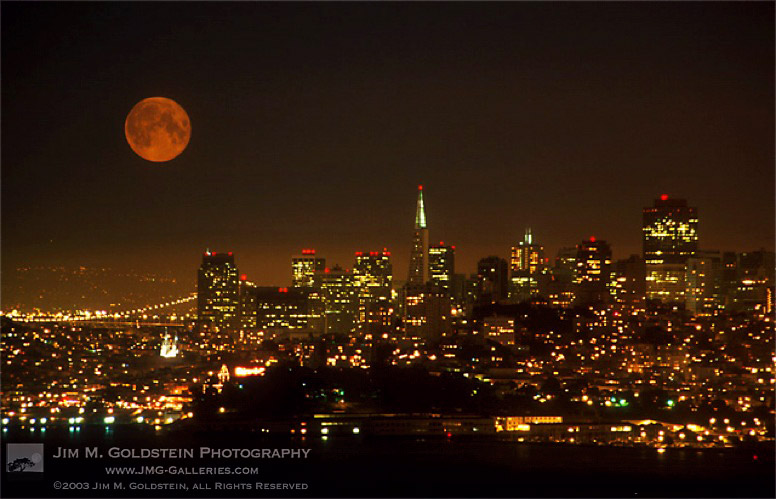
No one way is right or wrong as the end result pursued is at the creative discretion of the photographer. Still some people can get confused between real and altered photos to display large moonscapes. The photo at the top of this post was taken with  a 600mm lens and 1.4x teleconverter for a net focal length of 840mm. The photo below was taken with a 70-300mm lens employing my film cameras double-exposure functionality.

San Francisco Moonrise

Photoshop clearly can provide the fastest path to high impact photos, but not always the most natural rendition. A perfect example of this is comparing the two images of a moon above a Los Angeles skyscraper taken at 105mm. Moon photo composite made with Photoshop versus a straight 105mm photo of the moon. Clearly the first image has had some artistic license applied while the second is a straight representation of what a 105mm lens can capture.

All in all photographing the moon can be incredibly challenging and fun. How you represent the scene you see with your naked eye is up to you, but take into account the “Moon Illusion” when creating your final photo. It might just explain why what you see in your photo doesn’t match up to your memory of the scene.

Copyright Jim M. Goldstein, All Rights Reserved

Seeing vs. Photographing the Moon: The Moon Illusion

The post Seeing vs. Photographing the Moon: The Moon Illusion appeared first on JMG-Galleries – Landscape, Nature & Travel Photography.


JMG-Galleries – Landscape, Nature & Travel Photography

 
Comments Off on Seeing vs. Photographing the Moon: The Moon Illusion

Posted in Equipment


Seeing The Light

07 Nov
Robyn

Bright midday sun can be harshest to work with. Using a reflector or fill flash can help soften the harshness.

There are several factors that set apart good photos from mere snapshots, and good photos from great photos.  Things such as exposure, composition, and decisive moment all play a part in setting apart great photos. Equally important is light. Quality of light can make or break a photo.  Whether you take photos with a DSLR or take quick snaps with your cell phone, seeing the light will help improve your images.

For the most part here, we are discussing natural light. Often, photographers will create their own light to match their vision.  But when photographing using available light, we are at nature’s mercy. There are many different kinds of light: harsh, soft, warm, or cool, among others. The direction of the light plays an equally important part. Direct, frontal light, low angular light, side light, and backlight all create different qualities in an image.  Learning to use the different types of light, and even manipulate them to taste, means always being able to find a photo.

Midday light is  generally not a photographer’s friend.  The sun is bright, and high in the sky.  The light tends to be harsh.  Shadows are cast straight down, causing people to look less than their best with deep shadows in the eye sockets and under the chin.  On landscapes, this can cause things to flatten out and look uninteresting. When shooting portraits in this light, fill flash or a reflector can work wonders, creating a second light source that adds depth. Finding some shade can be helpful in using the bright light while the shade reduces the harshness.

Late Afternoon Glow

Late afternoon and early morning light tends to be very directional and warm. It creates soft shadows that can define your subject.

Late afternoon and early morning sun tends to be the most beautiful light.  When the sun is close to the horizon, it shines at a low angle and casts long, deep shadows that add interest and define those subjects that catch the light.  The sun takes on a warmer, softer glow due to atmospheric haze when it is at this low angle, making it very pleasing for use in portraits as well as nature and landscape photography.  Add in a reflector to help soften shadows. Fill flash can be used but be aware that flash is much cooler compared to late afternoon and early morning sun.  Using a CTO (color to orange) gel on the flash can help to match the color temperature of the available light. That late day and early morning light is very directional, so depending on where you stand in relation to the sun, you could have front light, side light, or back light. Try all three and compare the quality of the light from each direction.  Each can provide beautiful, yet very different lighting.

In addition to late afternoon and early morning light, there is what is knows as “The Blue Hour”.  This is the time just before the sun comes up in the morning, and just after the sun goes down in

Montauk Point

The Blue Hour, before the sun rises, as in this case, or after the sun sets, is a mystical time where the light takes on a soft blue hue.

the evening.  While the horizon will have a pleasing warm glow, the ambient light takes on a bluer tint than what is usually seen during the day.  It’s a very mystical light that leaves a dreamy feeling over the scene, and is well worth getting out of bed early to photograph in, or staying out after sunset to capture.

In terms of direction, front light tends to be the least interesting of light. The reason for this is the light is coming from directly behind the photographer, hitting the subject and fully lighting the scene.  Very few shadows are cast. While there are times when shadows are not desirable, more often than not shadows add interest to an image.  Light can reveal your subject, but shadows define your subject, so a direct, frontal light source is not usually what is wanted.  This is the kind of light direct, on-camera flash creates.  There is a reason most pros try to find ways to bounce the flash off of walls and ceilings rather than aiming it directly at their subject.

Golden Canopy

During midday sun, finding some shade can be a good way to reduce to the harshness of the light.

Side light has the effect of splitting your subject in half.  This can be a very effective light when used properly.  The shadows created have the effect of slimming portrait subjects, and creating depth with other subjects. It can at times be very contrasty and harsh, but often it will provide soft, warm light that enhances the beauty of whatever it is you’re shooting.  For portraits, the use of a reflector can be helpful in softening the shadows.  It’s difficult to use fill flash in this situation due to the split lighting.  The flash will be coming from the front of the subject, so it will illuminate both the bright areas and the shadow areas. Off-camera flash positioned to the shadow side of your subject works well for this situation.

Backlighting can be beautiful, but it’s also very difficult to work with.  Your subject is lit from behind, so for portraits some sort of fill will be necessary.  A reflector can work wonders in this situation.  When shooting with a cell phone or point and shoot camera, turn on the flash or use the HDR option, if available. For subjects where a reflector or fill flash is impractical, such as sports or wildlife, exposure compensation will be necessary to open up the shadows. Backlighting is nice in that it adds a nice rim light around your subject, really defining the outlines.  It creates the perfect conditions for dramatic silhouettes as well.

Misty

Fog, mist, and clouds create a soft, diffuse light that can add a mysterious or dreamy quality to an image.

Fog, mist, and clouds create a softer, more diffuse light that can at times be boring, but ultimately is easy to work with because it is so even, creating soft shadows that aren’t too deep, and soft highlights that aren’t too bright.  It can create a mysterious or a dreamy mood depending on how thick it is.  It can help create beautiful landscapes, a soft even light portraiture, and be desirable for shooting wildlife and sports due to the even light.

Paying attention to the light, watching how it falls on your subject, can help you improve your images, regardless of what you use to shoot them.  Learn to recognize the type of light you’re in, and how best to work with it. Doing so will help you create better images.


Post originally from: Digital Photography Tips.

Check out our more Photography Tips at Photography Tips for Beginners, Portrait Photography Tips and Wedding Photography Tips.

Seeing The Light


Digital Photography School

 
Comments Off on Seeing The Light

Posted in Photography


2 November, 2012 – Two Shows Worth Seeing

02 Nov

Photographer Steve Levinson’s new show Outer Beauty opens at the ARTA Gallery in Toronto’s Distillery District (14 Distillery Lane). November 7 – November 20, 2012.

The official opening reception – Friday, November 9, 2012 from 5:00 PM to 9:00 PM.


HBO will be broadcasting a four-part documentary series from award-winning filmmaker Michael Mann. Witness debuts this Monday, November 5th at 9:00p.m.ET/PT with Witness: Juarez. The film follows combat photographer Eros Hoagland as he explores Juarez, Mexico, the "murder capital of the world" where drug violence has left over 10,000 dead.

Presented in four parts – JuarezLibyaSouth Sudan and Rio – Witness focuses on three determined photojournalists: Eros Hoagland, who explores the gang- and drug-related violence in both Juarez, Mexico and Rio de Janeiro, Brazil; Michael Christopher Brown, who chronicles escalating ethnic tensions in the wake of Muammar Gaddafi’s ouster last year in Libya; and Véronique de Viguerie, who follows the “Arrow Boys” and their struggle against General Kony in South Sudan.


"Yes I downloaded the videos. THEY ARE AWESOME!!! I learned so much I think my brain is going to explode.


Now I need to get the LR4 video to see how much of Lightroom 4 I don’t know".


The Luminous Landscape – What’s New

 
Comments Off on 2 November, 2012 – Two Shows Worth Seeing

Posted in News


Seeing Scotland – Seeing Scotland – Season 01 – Episode 06

23 Oct

This six part series explores photography, and demonstrates ways in which you can improve on your skills. Charlie teams up with wildlife photographer Laurie Campbell to learn some secrets to achieve the best photos with animals.
Video Rating: 5 / 5

 
Comments Off on Seeing Scotland – Seeing Scotland – Season 01 – Episode 06

Posted in Photography Videos


Seeing Scotland – Seeing Scotland – Season 01 – Episode 04

20 Oct

This six part series explores photography, and demonstrates ways in which you can improve on your skills. Charlie reveals several tips and tricks that you can use while taking pictures. He visits Glenfinnan railway bridge.

www.adorama.com Adorama Photography TV Presents DSLR | Video Skills with Rich Harrington. Join Rich as he explains the essentials of green screen production. Follow along as he walks you through the steps from lighting, testing, to keying in post production. When preparing to record a subject in front of a green screen, it is important to find the correct lighting and backdrop. Once you have the green screen set and a test subject lit, you are ready to record and key your new background in post-production In this episode, Rich demonstrates several techniques to keying in Adobe After Effects. AdoramaTV features talented hosts including Mark Wallace, Gavin Hoey, Joe McNally, Joe DiMaggio, Tamara Lackey, Bryan Peterson, and Rich Harrington. Related Products Adobe Master Collection CS6 Software www.adorama.com www.adorama.com Westcott Green Screen Digital Photo Kit www.adorama.com Westcott Green Screen Lighting Kit with Software www.adorama.com Matthews 6′ x 6′ Green Screen www.adorama.com Cool-Lux Chroma Key Chameleon Blue/Green Screen www.adorama.com Matthews 6′ x 6′ Blue Screen www.adorama.com Sunbounce SunScrim Butterfly Seamless Textile www.adorama.com Westcott Photo Basics 40″ 5-in-1 Collapsible Reflector www.adorama.com Westcott Background Support System with 2 Stand www.adorama.com Linco Cross Bar for Background Support www.adorama.com JTL B-1030 Background Support System www.adorama.com Sunbounce Sandbag www.adorama.com Manfrotto G100 Sand Bag Weight for Boom and

 
Comments Off on Seeing Scotland – Seeing Scotland – Season 01 – Episode 04

Posted in Photography Videos


Seeing Beyond the Human Eye | Off Book | PBS

01 Aug

Technology defies the boundaries of human perception. From photomicrography to astrophotography, size and distance are no longer barriers, and through slow-mo and timelapse, we are allowed to see time and humanity in a new light. Through our curiosity and thirst for the unknown, the beauty of the universe can now be explored beyond the limits of the naked eye. Featuring: Liza A. Pon, PhD, Columbia University Peter Lipschutz, Hayden Planetarium Mike Nichols, Albecine Jonathan Bregel, Variable Cameron Michael “8 Hours In Brooklyn” vimeo.com “Holi” vimeo.com “The Manhattan Project” vimeo.com Additional Slow-mo Footage: Mark Warner, vimeo.com Tom Guilmette, vimeo.com Rick & Lynne, vimeo.com Final Cut King, www.youtube.com Photographs: old microscopy images: cwfp.biz Hubble Telescope images: hubblesite.org Nikon Small World Images: www.nikonsmallworld.com Music: The Time To Run – Dexter Britain vimeo.com Sintaxis B – Da Robotz www.jamendo.com Synth Horizons – ERH www.freesound.org Goodbye Now – Ghosts soundcloud.com Weightless – Luke F soundcloud.com Our Memory – James Reesor soundcloud.com Star Trek Theme – RAC Remix freemusicarchive.org Follow Off Book: Twitter: @pbsoffbook Tumblr: pbsarts.tumblr.com Produced by Kornhaber Brown: www.kornhaberbrown.com
Video Rating: 4 / 5