RSS
 

Posts Tagged ‘Save’

Save Ferris! 12 Abandoned & Overgrown Ferris Wheels

21 Dec

[ By Steve in Abandoned Places & Architecture. ]

abandoned-ferris-wheels-1a
What goes around comes around, especially for these dozen abandoned Ferris Wheels whose former clockwork precision has spun down to a permanent turn off.

abandoned-ferris-wheels-1b

abandoned-ferris-wheels-1c

Originally centering the Kulturpark Plänterwald (1969-1989) and, after German reunification, the Spreepark Berlin, this magnificent Ferris wheel was abandoned in 2002 along with the rest of the amusement park when its criminally negligent owner high-tailed it to Peru. Mired in debt and steadily deteriorating, the park was bought by the City in 2014 though future plans for the site remain unclear.

abandoned-ferris-wheels-1d

Flickr user gordon.shumwaay snapped these vertigo-inducing HDR images of the Spreepark’s Ferris wheel on August 9th, 2014, and one must say his timing was most fortuitous… about a day later, delinquent teen arsonists set two fires that burnt down much of the park (though the Ferris wheel was unaffected). Maybe they could rename it Post-Jurassic Park.

Kudzu Never Sleeps

abandoned-ferris-wheels-2

The South’s relentless “green menace” appears to have devoured this former Ferris wheel located somewhere in North Carolina. Flickr user Kyle Telechan (City Eyes) captured the astonishingly overgrown state of the once-charming amusement park ride while on vacation in June of 2009, noting that “when the remnants of Katrina hit the area (in 2005), a few places were left abandoned.” Could kudzu grow so much in just a few years? Yes, yes it could!

8 Arms to Hug You

abandoned-ferris-wheels-3a

abandoned-ferris-wheels-3b

Looking disturbingly like a malevolent metallic sea monster, this de-seated Ferris wheel from the former Fun Park Fyn in Mollerlund, Syddanmark, Denmark seems to be waiting silently for some ancient signal to rouse it from its dreams… much like C’thulhu. Flickr user Troels Dejgaard Hansen brilliantly captured the long-abandoned ride on April 3rd of 2010.

No Joy in Joyland

abandoned-ferris-wheels-4

Joyland Amusement Park in Wichita, Kansas styled itself as “The Southwest’s Finest” and during its run boasted a Ferris wheel offering unparalleled views over the windswept prairies. All that would end in 2006 when, after 55 years of continuous operation, Joyland’s management pulled the plug and the big wheel ground to a permanent halt. Flickr user Kenzie Alizabeth snapped Joyland’s abandoned Ferris wheel’s spidery yellow skeleton on June 10th of 2011.

Next Page – Click Below to Read More:
Save Ferris 12 Abandoned Overgrown Ferris Wheels

Share on Facebook


[ By Steve in Abandoned Places & Architecture. ]

[ WebUrbanist | Archives | Galleries | Privacy | TOS ]


WebUrbanist

 
Comments Off on Save Ferris! 12 Abandoned & Overgrown Ferris Wheels

Posted in Creativity


104 Brand NEW Hacking Photography Lightroom Presets for $10 [Save 94%]

19 Dec

Ever looked at a stunning image and wondered “why don’t mine look like that”?

Here’s the secret: great photo editing – achievable with this ALL-NEW collection of 104 Lightroom presets from Hacking Photography!

DPS Xmas Bundle Promo

Today’s deal in our 12 Deals of Christmas is deal #7 and it’s our biggest one yet with a whopping 94% off the normal retail price.

This preset collection from Mike Newton at Hacking Photography has never been released before – in fact Mike created it specifically for today’s deal!

Created specially for dPS, this deal includes:

  • The Evolution collection – 54 presets that turn up the volume of color adjustment and creativity (48 color, 6 black and white)
  • The Light Leaks collection – 25 special effects presets that emulate Holga-style, instant film, film burns and toy camera effects
  • The Custom Vignettes collection – 25 presets that add custom vignette styles around your images, in both black or white

Head over to Mike’s site to see lots of before and after examples of these presets

Screen Shot 2015 12 18 at 9 41 30 AM

And with an INCREDIBLE discount of 94% for today, it works out to be just over 10 cents per preset!
To be clear – these presets have never been available in any previous collections – they’re all brand new for you to grab today – but only at this price for 24 hours only!

FAQ: These presets are for use in Lightroom and work on Lightroom 4, Lightroom 5, the standalone Lightroom 6 version (non Creative Cloud), and the Lightroom Creative Cloud version. They come with step by step instructions on how to install them.

googletag.cmd.push(function() {
tablet_slots.push( googletag.defineSlot( “/1005424/_dPSv4_tab-all-article-bottom_(300×250)”, [300, 250], “pb-ad-78623” ).addService( googletag.pubads() ) ); } );

googletag.cmd.push(function() {
mobile_slots.push( googletag.defineSlot( “/1005424/_dPSv4_mob-all-article-bottom_(300×250)”, [300, 250], “pb-ad-78158” ).addService( googletag.pubads() ) ); } );

The post 104 Brand NEW Hacking Photography Lightroom Presets for $ 10 [Save 94%] by Darren Rowse appeared first on Digital Photography School.


Digital Photography School

 
Comments Off on 104 Brand NEW Hacking Photography Lightroom Presets for $10 [Save 94%]

Posted in Photography


dPS 12 Days of Christmas: Save up to 94% on Some Great Photography Training

13 Dec

It’s that time of year where we at dPS kick off our annual 12 days of Christmas campaign!

12 deals christmas dps

This is the sixth time we’ve run this and this year we’ve got our biggest deals yet!

Here’s how it works.

Every day between now and Christmas we have put together a fantastic deal on some photography training products. We’ll set them live on this page (the first one goes up tomorrow).

In the coming 12 days you’ll see some of our own dPS eBooks at discounts we’ve never offered before as well as some deals from other photography sites that we’ve negotiated on your behalf.

Deals this year are as high as 94% off!

Each deal only lasts for 24 hours so you’ll need to be quick!

Get Notified of Each Deal

To get notified of each deal as soon as it goes live simply subscribe via email here:


(function($ ) {window.fnames = new Array(); window.ftypes = new Array();fnames[0]=’EMAIL’;ftypes[0]=’email’;fnames[1]=’FNAME’;ftypes[1]=’text’;fnames[2]=’LNAME’;ftypes[2]=’text’;}(jQuery));var $ mcj = jQuery.noConflict(true);
Don’t worry we keep your email completely private and you can unsubscribe at any point if you find the deals are too many!

We’ll also be updating the deals here on the blog and on our Facebook page.

Our first deal goes out to those who are subscribed in the next 24 hours so keep an eye on your inbox and don’t forget you only get 24 hours to grab each one!

googletag.cmd.push(function() {
tablet_slots.push( googletag.defineSlot( “/1005424/_dPSv4_tab-all-article-bottom_(300×250)”, [300, 250], “pb-ad-78623” ).addService( googletag.pubads() ) ); } );

googletag.cmd.push(function() {
mobile_slots.push( googletag.defineSlot( “/1005424/_dPSv4_mob-all-article-bottom_(300×250)”, [300, 250], “pb-ad-78158” ).addService( googletag.pubads() ) ); } );

The post dPS 12 Days of Christmas: Save up to 94% on Some Great Photography Training by Darren Rowse appeared first on Digital Photography School.


Digital Photography School

 
Comments Off on dPS 12 Days of Christmas: Save up to 94% on Some Great Photography Training

Posted in Photography


How to Save Images Using Export in Lightroom

26 Nov

Reader feedback tells me that some people are confused by Lightroom’s Export process. I think the confusion is caused by not completely understanding how Lightroom works, especially when processing Raw files. So let’s start by recapping the process that a single Raw file goes through when you import it into Lightroom.
How to export photos from Lightroom

1. Lightroom adds the Raw files to the Catalog

The Catalog is a database containing information about all the photo files you have imported into Lightroom (for further clarification on this process read my article How to Import Photos into Lightroom). Lightroom keeps track of the location (where it is saved on your hard drive) and metadata of each imported Raw file.

2. Open the Raw file in the Develop module and process the photo

The key thing to understand here that Lightroom keeps track of every single edit you make in the Develop module by storing them as a series of text commands in the Catalog. This means that (a) the Raw file itself remains unchanged and most importantly that (b) at this stage even though you can see it on your computer screen, you haven’t yet converted the Raw file into another format that other programs can use. This is where the Export function comes in.

JPEG and TIFF files

By the way, it’s a similar process if you are processing a JPEG or TIFF file. Lightroom saves the edits you make in the Lightroom Catalog, and doesn’t change the original file in any way. This only happens at the export stage, where you create a new version of the file that incorporates the changes. This is important to note, because it is different from the way Photoshop and Photoshop Elements work.

Exporting image files

All this means is that if you want to view or use your photos in a program other than Lightroom, you need to export them first and save them in a format that other programs understand.

There’s just one exception to this. If you go to Catalog Settings > Metadata and tick the Automatically write changes into XMP box, Lightroom will save the Develop settings in a .xmp file in the same folder as the original file. These files can be opened successfully using Adobe Camera Raw in Photoshop.

Note: Export in Lightroom simply means: Save As! Just like in MS Word or any other program. 

The Export process

Now that you understand why you have to export photos, let’s see how to do it.

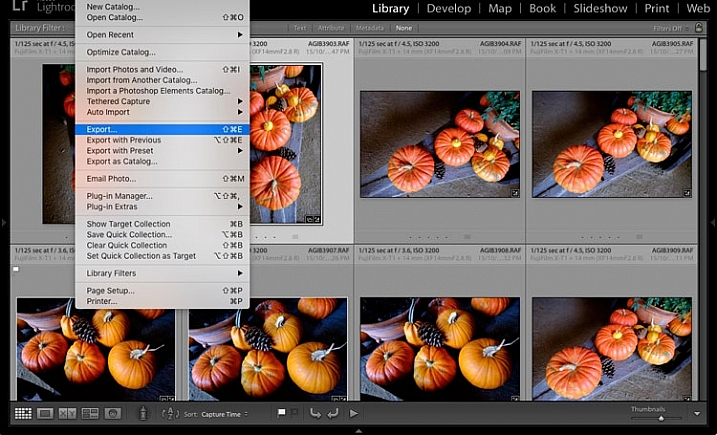
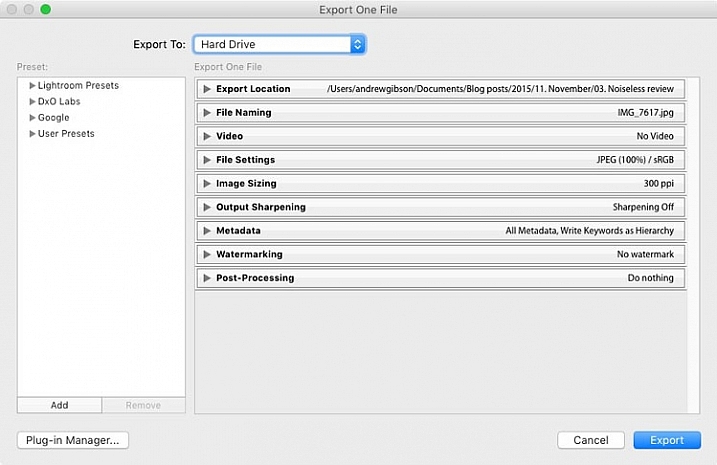
Start by selecting the photo, or photos, to be exported. It is easiest to do this in Grid View. Then go to File > Export to start the export process and bring up the Export window. This is what it looks like.
How to export photos from Lightroom

The Export to menu at the top defaults to Hard Drive. You can also choose to export the photos as email attachments, burn them to a CD/DVD or export them to a plug-in. For this article I am going to work on the basis that you have selected Hard Drive. The settings change slightly if you choose one of the other options.

Export Location

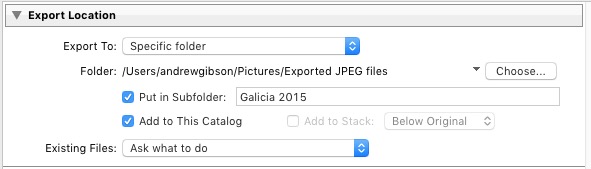
This is where you tell Lightroom where to save the exported files. Select “Ask what to do” or “Choose a new name” for the exported file from the Existing Files menu, to avoid accidentally overwriting existing files with the same name. Tick the Add to This Catalog box if you want to add the exported images to the Lightroom Catalog. This saves time that would otherwise be spent re-importing the new images.
How to export photos from Lightroom

File Naming

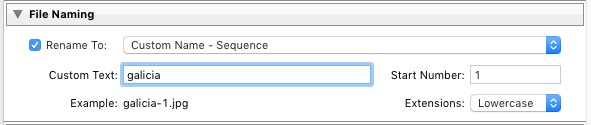
When exporting you can opt to keep the original file names, or create new ones. What you choose to do here depends partially on whether you created new file names at import, or kept the original names made by your camera. The most obvious use here is creating a naming format for images to be sent to clients. If you are exporting photos to send to a stock library, for example, the stock library will have its own file naming requirements that you need to stick to. You have the option of selecting one of Lightroom’s naming presets, or you can create your own by choosing Edit from the Rename To menu.
How to export photos from Lightroom

Video

Only applies if you are exporting video.

File Settings

This is where you select the format, quality, and colour space of exported files. It is important to get these settings correct, otherwise you risk creating files that are unsuitable for the intended purpose. There are five Image Format options to choose from:

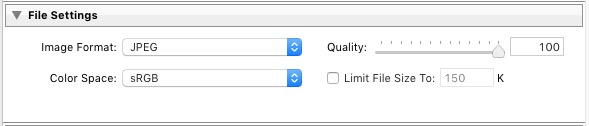
JPEG: This format is for creating small files for sending to other people or uploading to websites.

For web use: Set Quality to between 60 and 80 and Color Space to sRGB. You may also wish to tick the Limit File Size box to ensure that files are below a certain size. If you are exporting photos to use on a web page, restricting file sizes to less than 150kb will help the page load faster in a browser. You also need to set the pixel size of the exported files under the Image Sizing heading.

For full size images: Set Quality to 100 and Color Space to sRGB. You should only select a Color Space other than sRGB if you instructions to do so (for example, you are sending the files to a magazine publisher who wants them in the AdobeRGB (1998) colour space).
How to export photos from Lightroom

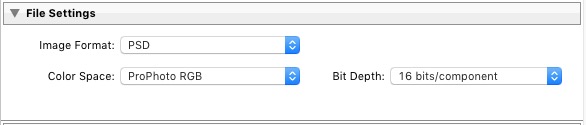
PSD: This is for creating PSD files to work on in Photoshop. For maximum quality set Color Space to ProPhoto RGB and Bit Depth to 16 bits/component. This gives Photoshop all the available information for that image, and the highest quality possible.
How to export photos from Lightroom

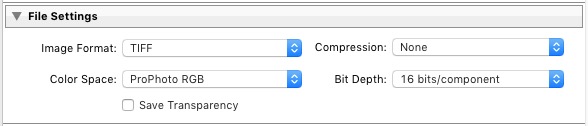
TIFF: These files are large, 16 bit files similar to PSD files. For maximum quality set Compression to None, Color Space to ProPhoto RGB and Bit Depth to 16 bits/component. The assumption here is that you are creating the file to work on in Photoshop or another plug-in.
How to export photos from Lightroom

Note that the reason I recommend using ProPhoto RGB for both TIFF and PSD files is because I’m making the assumption that when you’re finished editing the photo you will then convert it to either sRGB or AdobeRGB (1998) afterwards. If you’re not sure what colour spaces are or how they work then my article Everything You Need to Know About Lightroom and Colour Space will help.

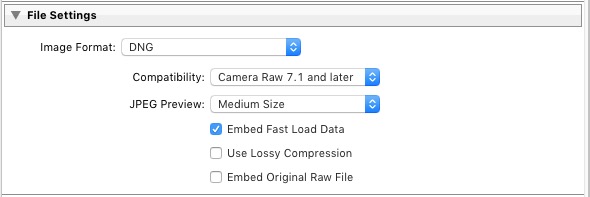
DNG: Use this setting to convert native Raw files to the DNG (Digital Negative) format. Tick the Embed Fast Load Data box to create DNG files that load faster in Lightroom.
How to export photos from Lightroom

Original: Retains the original photo file format. If the original is a Raw file, Lightroom exports the unmodified original, with a sidecar .XMP file containing the changes made in Lightroom.

How to export photos from Lightroom

Image Sizing

This option lets you alter the size of the image and set the resolution. Use this to upscale the photo for printing, or to create a smaller file for uploading to a website. If you simply want to export a full size version of your photo, you won’t need to alter any settings here.

How to export photos from Lightroom

Output Sharpening

Lets you add sharpening for display (Screen) or printing (Matte Paper and Glossy Paper). Select from three levels: Low, Standard and High. There is no need to sharpen if you are exporting photos to edit in another program such as Photoshop.

How to export photos from Lightroom

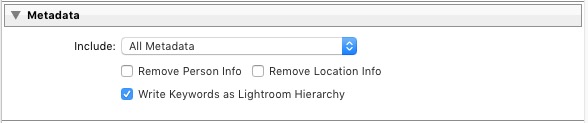
Metadata

Here you choose whether to include all metadata in the exported image, or just some of it. You may want to leave out Person Info (keywords that include people’s names) for privacy reasons, and Location Info for security or privacy reasons (for example, if you post a photo of your home online).
How to export photos from Lightroom

Watermark

Tick the Watermark box to add a watermark to your images. Select Edit Watermarks from the menu to create your own watermark. The main purpose of this is to add a copyright logo to photos that are going to be published online.

How to export photos from Lightroom

Post-Processing

Tell Lightroom what to do after exporting the images. Do Nothing is the most appropriate setting most of the time, but you may find the other options useful from time to time.

How to export photos from Lightroom

Export Presets

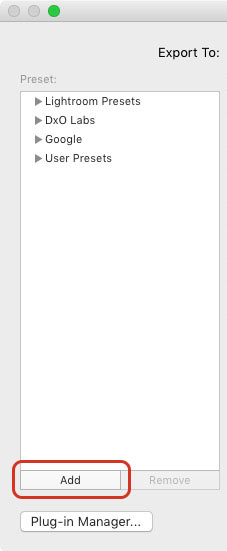
If you find yourself using the same export settings a lot, you can save them as a User Preset. Click the Add button in the bottom left corner of the Export window to do so. You’ll be prompted to enter a name for the Preset, and to select the folder to save it in (the default is User Presets).
How to export photos from Lightroom

As you can see, the export process in Lightroom is quite simple. If you have any questions about it, or indeed any questions about Lightroom, please let us know in the comments.


The Mastering Lightroom CollectionMastering Lightroom ebooks

My Mastering Lightroom ebooks will help you get the most out of Lightroom. They cover every aspect of the software from the Library module through to creating beautiful images in the Develop module. Click the link to learn more or buy.

googletag.cmd.push(function() {
tablet_slots.push( googletag.defineSlot( “/1005424/_dPSv4_tab-all-article-bottom_(300×250)”, [300, 250], “pb-ad-78623” ).addService( googletag.pubads() ) ); } );

googletag.cmd.push(function() {
mobile_slots.push( googletag.defineSlot( “/1005424/_dPSv4_mob-all-article-bottom_(300×250)”, [300, 250], “pb-ad-78158” ).addService( googletag.pubads() ) ); } );

The post How to Save Images Using Export in Lightroom by Andrew S. Gibson appeared first on Digital Photography School.


Digital Photography School

 
Comments Off on How to Save Images Using Export in Lightroom

Posted in Photography


Save the dates: PhotoPlus Expo next week in New York

16 Oct

Next week sees the return of PhotoPlus Expo, the largest photography and imaging show in the United States. Held October 21-24 in the Javitz Center in New York City, PPE 2015 will play host to more than 100 educational seminars, Photo Walks and Master Classes, and over 250 exhibitors displaying thousands of products. As usual, DPReview will be at the event, reporting from the show floor. Read more

Articles: Digital Photography Review (dpreview.com)

 
Comments Off on Save the dates: PhotoPlus Expo next week in New York

Posted in Uncategorized


Slide & Hide: Stealth Staircases Save Space in Micro-Suites

17 Aug

[ By WebUrbanist in Design & Fixtures & Interiors. ]

modular space saving interior

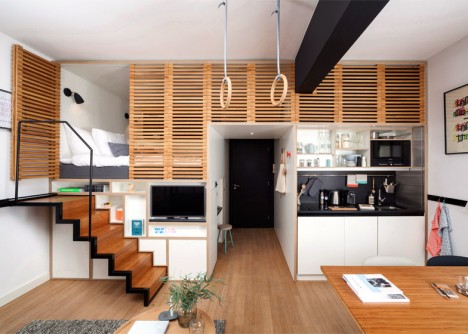
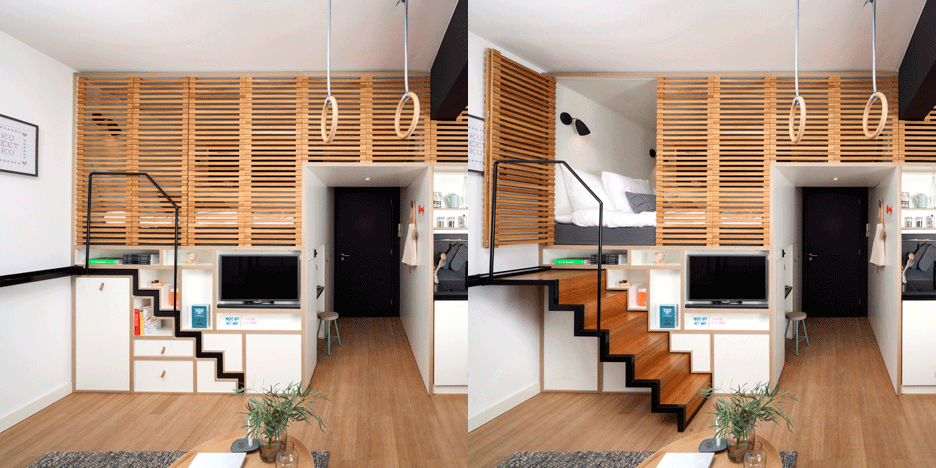
Maximizing usable space in a series of compact short-term apartments, these retractable steps slip back into a wall, all but disappearing beneath lofted bedroom areas when not needed. Drawers and other storage slots are designed around the dimensions of the zigzag shape created by the profile of the stairs while the railing above sits flush with the bedroom space divider.

retractable staircase apartment

modular bedroom steps view

Driving these space-saving retrofits is a desire to make hotel rooms feel more like homes, particularly since many guests of Zoku in Amsterdam end up staying for longer than a typical traveler would.

modular interior design

modular gymnast hoops ceiling

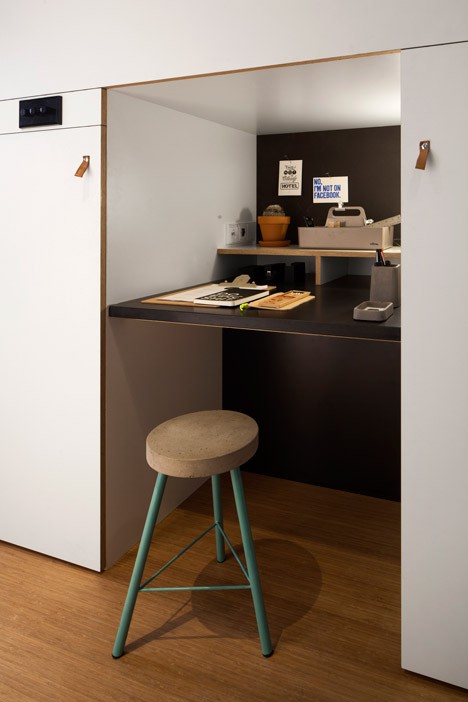
Each of the 133 units (270 square feet each) redesigned by Concrete features a similar set of unconventional amenities: a secret desk tucked beneath the bed, a slatted wood divider providing both privacy and light to the bedroom area above, hidden stairs that slide into the wall for access and a pair of suspended gymnast hoops hanging from the ceiling.

modular bedroom elevated nook

modular hidden workstation desk

A combination of black and white, wood and bamboo, ceramic and organic elements help the spaces feel more variegated, like a house populated with individual furnishings and objects over time rather than a place made by a corporate hotel.

modularl living room window

modular hoop hanging

From the owners and architects: “A room at Zoku is much more than just a hotel room. It is a spacious micro-apartment. As space is becoming scarcer in urban areas, the way we use it sustainably to meet long-term accommodation requirements is more and more relevant. Smart solutions that create the opportunity to use less square metres and facilitate 24/7 multifunctional use are needed.”

Share on Facebook


[ By WebUrbanist in Design & Fixtures & Interiors. ]

[ WebUrbanist | Archives | Galleries | Privacy | TOS ]


WebUrbanist

 
Comments Off on Slide & Hide: Stealth Staircases Save Space in Micro-Suites

Posted in Creativity


Cable TV is So Broken, Can Apple and Google Save Us All?

31 Jul

Comcast CEO Brian Roberts, Allen & Company, 2015
Billionaire Comcast CEO Brian Roberts

Last night I spent a frustrating hour trying to cancel Showtime with Comcast, my current cable TV provider. I could not find (nor is there) any way to cancel any Comcast service online and their customer service department was closed.

Finally I was able to get chatty with one of those chatbots online who confirmed to me that there is simply no way to cancel Showtime on Comcast without speaking with a human representative. Even though the chatbot convinced me they were a human, they were not allowed to cancel it for me and I would need to try again tomorrow on the phone only. Interestingly enough I had no problem signing up for Showtime online originally, it’s just when you want to cancel that Comcast gives you such a hard time.

This morning after navigating the Comcast phone voice response menu I was finally able to talk to a human being, who tried to talk me out of cancelling my Showtime. I was committed though and I did finally get it cancelled.

I actually love Showtime and don’t mind paying for it. Masters of Sex and Ray Donovan are two of my favorite shows on right now. I also like the series Homeland. I had several reasons for cancelling it with *Comcast* though.

1. Why am I paying Comcast $ 19.99/month for Showtime when I can just buy it direct from Showtime on my AppleTV for a free 30 day trial and then $ 10.99/month after that?

2. Watching Showtime using the AppleTV app through Comcast is a royal pain in the ass. I’ve had to re-authenticate and prove I’m a paying cable customer at least 20 times with the app.

I go to watch one of my shows and am interrupted with a message and code on the AppleTV telling me that I have to go to Showtime online on my phone or computer and authenticate. Next I have to log into my Comcast account enter in the code from my television set and then after that I finally get my access.

I wouldn’t mind it if I did this one time, the first time I signed up for the app, but having to re-authenticate over and over and over again, especially late at night when I’m in bed and just want to watch my favorite show is a drag.

3. Last night I wanted to watch episode 2 of the current season of Master’s of Sex on the app but it wasn’t available. I could only watch episode 3. I have no idea why Comcast customers were not allowed to watch episode 1 or 2, but I didn’t want to watch episode 3, before episode 2, so I just gave up and didn’t get to watch a show that I’m paying $ 20/month for. No wonder so many people just say screw it and go to bitTorrent.

4. I hate the way Comcast abuses the AppleTV ecosystem. If I pay for CNN with Comcast, why do they not allow me to watch it on my AppleTV. Comcast’s decisions here feel entirely arbitrary. They will let me watch CNBC if I subscribe, but not CNN. I can watch HBO (although I have the same re-authentication problem there over and over again) but when my wife wants to watch Lifetime she has to figure out some weird hack to try to authenticate the app through some hard to find link in a forum on the internet.

It is clear to me that Comcast is purposely trying to make your AppleTV experience an ugly and difficult one and so any chance I can get to bypass Comcast and purchase premium content elsewhere, I’d rather do that — by contrast Netflix has always been an absolute breeze to use with my AppleTV.

According to Buzzfeed today, Apple is rolling out a new version of AppleTV in September which will be setting AppleTV up to offer their own subscription service in 2016. This is such welcome news. I love my AppleTVs and if I could get my content directly through Apple I’d love to cancel my Comcast cable TV subscription entirely.

I’m much more optimistic about an AppleTV service working on my AppleTV than Comcast’s current service. Also with AppleTV I can just buy a device one time and don’t need to have a cable box for every single TV in my house at a price of $ 10/month each. Will Apple finally be the one that saves us from Comcast?

My other beef with Comcast is their highspeed internet service. At present I’m paying for the maximum speeds I’m allowed which give me 120MBps down and 10MBps up. Frankly, in today’s world these just feel too slow to me — especially the 10MBps upload speeds. I use the internet a lot for uploading high res photos and I wish I could get faster upload speeds.

I was excited about Comcast’s new residential gigabit service announcement the other day until I saw the pricing for it: $ 1,000 to set it up and $ 320/month with a two year commitment. PC World lists the service at $ 300/month, but when I called to ask about it they told me that there would also be a $ 20/month equipment rental fee on top of that fee. That’s just too expensive for high speed internet.

By contrast Google sells their gigabit internet service for $ 70/month with no installation fee — which is even less than I’m paying Comcast today for my crappy 10MB/second upload speeds — for less money Google Fiber users can upload 100x faster than I can.

I was reluctantly willing to pay Comcast’s highway robbery fees for gigabit internet and was hopeful when a Comcast rep told me I could get it. They told me though that they would need to do a survey of my house in person to confirm and would call me for an appointment. I never heard back from them on this appointment so after a week I called them back only to be told that they did in fact do the survey and that I did not qualify at present.

Unfortunately AppleTV’s subscription television is not here…. yet. Unfortunately Google Fiber is not here… yet. Hopefully both of these services will eventually get to my neighborhood though. It would be so nice to just be able to cut Comcast out of my life entirely.

While I realize I could just go ahead and cut the cord right now, with a family of six, the rest of my household is just not ready to cut the cord yet and I’d have a mutiny on my hands if I cancelled our Comcast — so for now I continue to pay my $ 233/month. However, I’m looking optimistically towards the future, to a day when Apple and Google will let me cut Comcast out of my life for good.


Thomas Hawk Digital Connection

 
Comments Off on Cable TV is So Broken, Can Apple and Google Save Us All?

Posted in Photography


Discover the Secrets to Perfectly Focused Photos [Save 50% on Jay & Varina Patel’s Focus Collection]

06 Jul

It’s deal #6 in our mid year sale and this one is courtesy of two of our favourite photography teachers, Jay & Varina Patel.

For the next 24 hours, you can save 50% off their Focus Collection — In Sharp Focus & Hyperfocal Distance!

The $ 44.50 discount will be automatically applied when you click ‘Add to the Cart’ here.

These two in-depth courses will help master your focusing techniques.

You’ll learn the best practices and camera settings for getting sharp focus every time, and gain the confidence to get in close using a wide angle lens.

With 15 video lessons, over 80 minutes of invaluable content taught in the field, case studies and a post processing workflow walkthrough, not only will you be shown how to handle difficult focusing situations, but you’ll see how to get creative with focus too.

One day is all you have, so get this great training now before time runs out!

googletag.cmd.push(function() {
tablet_slots.push( googletag.defineSlot( “/1005424/_dPSv4_tab-all-article-bottom_(300×250)”, [300, 250], “pb-ad-78623” ).addService( googletag.pubads() ) ); } );

googletag.cmd.push(function() {
mobile_slots.push( googletag.defineSlot( “/1005424/_dPSv4_mob-all-article-bottom_(300×250)”, [300, 250], “pb-ad-78158” ).addService( googletag.pubads() ) ); } );

The post Discover the Secrets to Perfectly Focused Photos [Save 50% on Jay & Varina Patel’s Focus Collection] by Darren Rowse appeared first on Digital Photography School.


Digital Photography School

 
Comments Off on Discover the Secrets to Perfectly Focused Photos [Save 50% on Jay & Varina Patel’s Focus Collection]

Posted in Photography


6 Steps to Save Your Ass With Lightroom Catalog Changes

22 Apr

Avoid downtime with these 6 steps to keep your Lightroom Catalog in tip top shape:

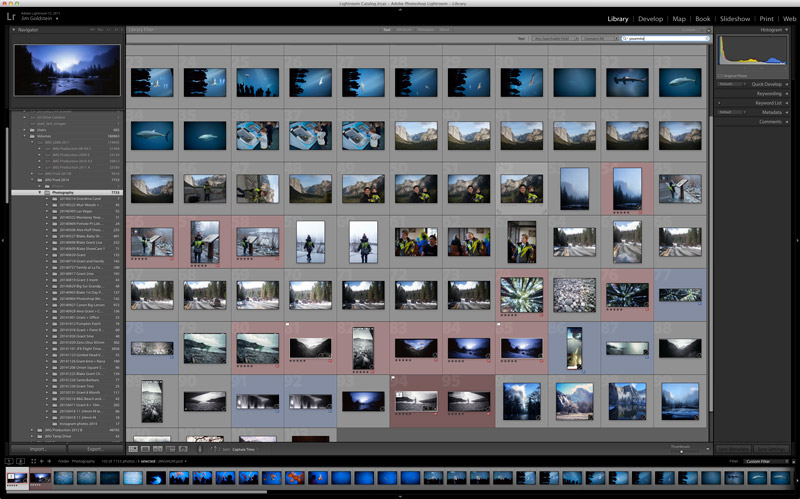
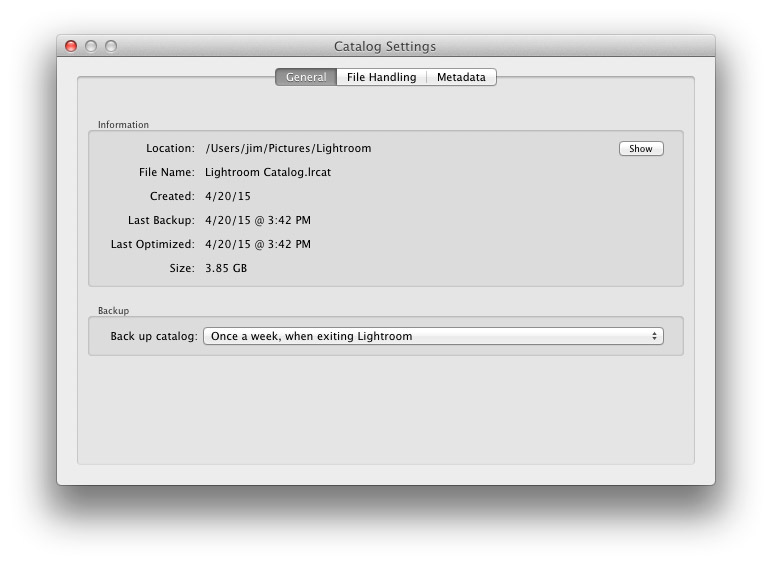
1. Know Where Your Catalog Resides

Lightroom saves catalogs in the following folders:

  • Windows: \Users\[user name]\Pictures\Lightroom
  • Mac OS: /Users/[user name]/Pictures/Lightroom

When in doubt check here:

(Mac OS) Lightroom > Catalog Settings

(Windows) Edit > Catalog Settings


Know Where Your Lightroom Catalog Resides

2. Save Metadata to Your Files

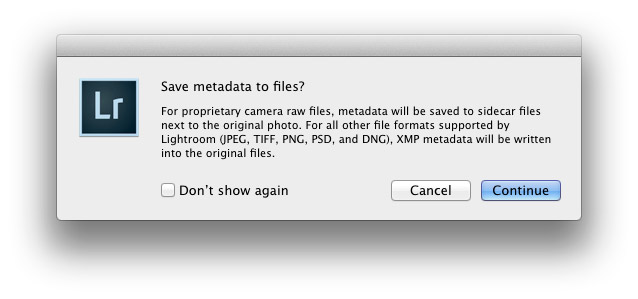
To save metadata to your files highlight your images and hit Command-S on Mac or Control-S on Windows. This will save author’s name, resolution, color space, copyright, and keywords to a sidecar file for proprietary RAW files or directly to the file if JPEG, TIFF, PSD, and DNG. This is a great precursor step that builds in redundancy in case there are any catastrophic failures in your future.
Why you should use DNG:  DNG, RAW and JPEG: What I Use & Why

More on Metadata: Metadata Basics and Actions via Adobe


Save Metadata to Your Files

3.  Back Up Your Catalog Regularly

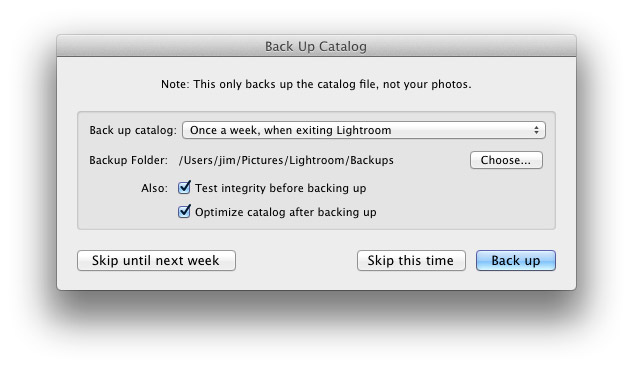
There is one key prompt you should never ignore in Lightroom and it is the “Back Up Catalog” prompt.  Always take the time to regularly backup your catalog in the event your hard drive fails, you suffer file corruption or a meteor crashes into your home destroying your computer. Well for the last point see step 4 below.


Back Up Your Lightroom Catalog Regularly

4. Save Your Back Up Catalog to the Cloud

Redundancy is the name of the game in case you suffer a catastrophic data corruption or loss of equipment at home. By having your most recent catalog saved to the cloud (Dropbox for example) you can restore the organization (color coding, stars, edits, etc.) of your entire catalog assuming you have an off site backup of your image files.

The quick and dirty of how I back up my image files in case you’re wondering…

I have a hard drive enclosure that mirrors 2 drives (RAID 1). As I work on my files they’re saved to 2 drives simultaneously. At regular intervals I back up these mirrored drives to a 3rd drive that I keep offsite. In the event of a catastrophic event I always have 1 copy of my image files at an outside location. This combined with my Lightroom Catalog being saved to the cloud means that I can restore my Adobe Lightroom environment at any time.


Save Your Back Up Catalog to the Cloud

5. Before You Upgrade Lightroom Make A New Catalog Back Up

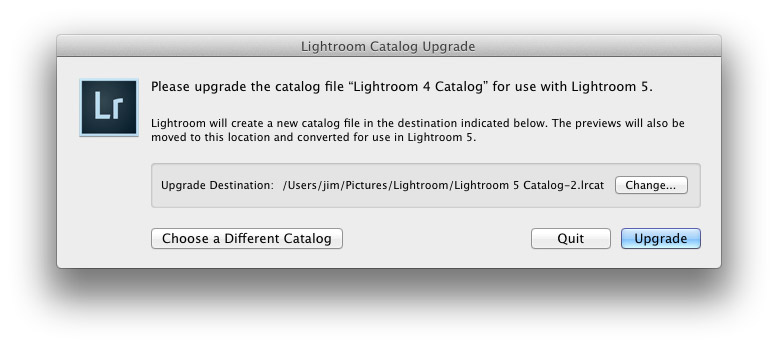
Lightroom will prompt you to upgrade your catalog when you upgrade your copy of Lightroom to the latest version.  To avoid any risk of a fluke corruption when you upgrade your Lightroom Catalog always make sure you have a very recent back up copy of your catalog. Before any upgrade my first step is to make sure I have a recent catalog backup.

Before You Upgrade Lightroom Make A New Catalog Back Up


6. Regularly Optimize Your Catalog

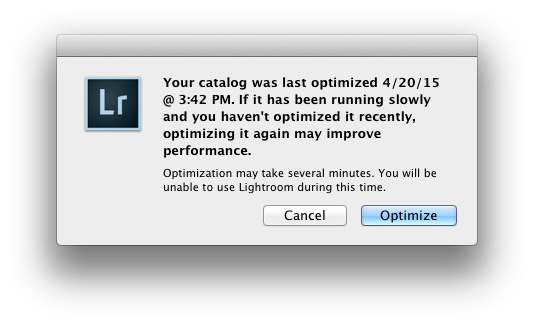
If you’re experiencing performance issues or you want to make sure that your catalog is in optimal condition then be sure to optimize your catalog from time to time. To do this go to Lightroom > Optimize Catalog

Regularly Optimize Your Lightroom Catalog


Recommended Reading: Lightroom Catalog FAQ and Lightroom Help / Optimize performance

Did I miss any precautions you take? If so add them to the comments.


Copyright Jim M. Goldstein, All Rights Reserved

6 Steps to Save Your Ass With Lightroom Catalog Changes

The post 6 Steps to Save Your Ass With Lightroom Catalog Changes appeared first on JMG-Galleries – Landscape, Nature & Travel Photography.


Related Stories

  • 6 Steps to Save Your Ass With Lightroom Catalog Changes – Enclosure
  • Talking Lightroom & Photography
  • Talking Lightroom & Photography – Enclosure


JMG-Galleries

 
Comments Off on 6 Steps to Save Your Ass With Lightroom Catalog Changes

Posted in Equipment


Save The Memory Project restores over 400,000 photographs from Tsunami-hit areas of Japan

15 Apr

A project to salvage, clean, scan and return photographic prints found in the areas devastated by the August 2011 Great East Japan Earthquake and Tsunami has reunited over 90,000 images with their rightful owners since shortly after the disaster struck. The Save The Memory Project has recovered over 400,000 prints from the rubble of affected areas, having cleaned, scanned and posted digitized versions to an online system for owners to claim. Learn more

Articles: Digital Photography Review (dpreview.com)

 
Comments Off on Save The Memory Project restores over 400,000 photographs from Tsunami-hit areas of Japan

Posted in Uncategorized