RSS
 

Posts Tagged ‘Save’

Apple ad hints that its Portrait mode is so good it will save your family business

16 May

They say a picture’s worth a thousand words. But in a tongue-in-cheek new Apple ad, a picture turns out to be worth hundreds of new customers, thanks to the iPhone 7’s Portrait mode. The minute-long spot features a quiet family barbershop that sees its business boom after posting photos of its clients and their sleek new haircuts in the window. The photos, of course, are taken with the iPhone 7’s bokeh-imitating Portrait mode. 

Photographers will likely find the premise a little tiresome, as they’ve heard for ages how easy it is to replace their experience and skill set with an incredible new camera/auto mode/photo app. But as much as we want to dislike this ad, it’s just too darn upbeat and clever to hate. See what you think.

Articles: Digital Photography Review (dpreview.com)

 
Comments Off on Apple ad hints that its Portrait mode is so good it will save your family business

Posted in Uncategorized


Circular Logic: “Endless Runways” Rounded to Save Energy, Time & Space

02 Apr

[ By WebUrbanist in Architecture & Public & Institutional. ]

circular takeoff

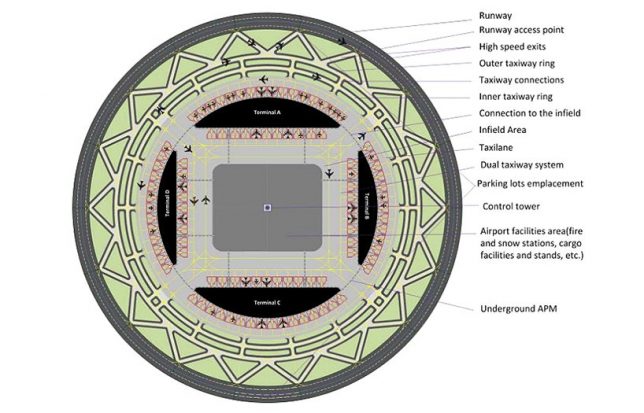
Designed to reduce real estate needs for runways in ever-more-crowded cities, this “endless runway” system encircles a central terminal building and lets multiple planes take off and land at the same time.

Developed by Dutch scientist Henk Hesselink, the two-mile-circumference shape also lets planes land or take off in alignment with the wind (rather than fighting crosswinds) since they can line up with any point on the strip.

round runway solution

In theory, the system would improve the flying experience for both passengers and pilots, making for smoother departures and arrivals. They would also save energy and space, increasingly an issue for once-suburban (or rural) airports now encroached upon by growing cities.

circular runway

Critics have expressed skepticism regarding the difficulty of landings and take-offs in such a setup, but big backers seem to believe in the potential. Also, even if not immediately feasible, increased automation could make it increasingly viable over time, since computer systems can coordinate ideal landing and arrival trajectories for optimal safety and comfort and across multiple planes.

runway system

Each such setup provides the length of three airstrips and could be deployed or at least tested at scale in Europe soon — participating backers include the Netherlands Aerospace Centre (NLR), along with DLR Germany and ONERA in France.

round runway backers

From the designers research report: “The results of the literature survey in this document are promising and suggest that a circular runway can be developed with current and expected technology. Today’s aircraft characteristics allow to take off and land with speeds and low altitude bank angles compatible with the operation on a circular track. The Endless Runway fits in future concepts that specify improved planning of operations, new navigation equipment, and intermodal transport.”

Share on Facebook


[ By WebUrbanist in Architecture & Public & Institutional. ]

[ WebUrbanist | Archives | Galleries | Privacy | TOS ]


WebUrbanist

 
Comments Off on Circular Logic: “Endless Runways” Rounded to Save Energy, Time & Space

Posted in Creativity


How To Use Lightroom To Save An Underexposed Photo

30 Mar

Sometimes you  come home with what you thought was a great shot, just to find out that it is way underexposed and without any better exposures of that composition. But, how can you save the underexposed photo in Lightroom? Of course, first of all, it would be better to get the exposure right on location, lesson learned, right. But if Continue Reading

The post How To Use Lightroom To Save An Underexposed Photo appeared first on Photodoto.


Photodoto

 
Comments Off on How To Use Lightroom To Save An Underexposed Photo

Posted in Photography


Basic Portrait Post-Processing Workflow Tips to Help You Save Time and Stay Organized

01 Mar

This article will walk you through some tips for how to set up a basic portrait post-processing workflow that can help you save time and stay organized.

The problem

When you’re new to photography, everything is exciting. Every time you come home with a full memory card, it’s a mad rush to the computer to see what you have captured. You’re eager to see every image and each one is treated as a separate entity with every technique you’ve come across. This is great. That excitement is what will keep you moving forward with photography and it is how you rapidly learn and grow as a photographer. That’s how it was with me, at any rate.

What happens, however, as you start taking more and more images? For example, regular portrait sessions a couple times a week can lead to an overwhelming amount of photographs. Approaching every frame as an individual becomes time-consuming and inefficient. If you’re not careful, you’ll have a backlog of images going back months and months. Often, many of your photos will be forgotten at the wayside.

The solution to this problem is to develop a portrait post-processing workflow.

Defining workflow

Basic Portrait Post-Processing Workflow Tips to Help You Save Time and Stay Organized

Straight out of the camera before any adjustments in Lightroom or Photoshop.

Basic Portrait Post-Processing Workflow Tips to Help You Save Time and Stay Organized

After portrait post-processing workflow steps in this article were applied.

In the simplest terms possible, a workflow is a checklist of repeatable actions that you work through as you go through a task. If it helps, in business the equivalent be would systems and in manufacturing, it could be compared to an assembly line.

You can have a workflow for any part of the photographic process, from planning and coordinating sessions to setting up and tearing down equipment and finally the post-processing stage.

This article will outline the steps of the post-processing workflow that I’ve been using on my portraits for a few years.

Starting point

Because every photographer has their own way of importing, organizing and editing their images in Lightroom (and other software), this article starts at the beginning of the post-processing stage for individual images. It assumes you will have already imported your photos into Lightroom and you have already edited (culled) down to the keepers.

Lightroom

This workflow uses both Adobe Lightroom and Photoshop. Each program offers its own strengths. To take advantage of them, consider using both with the Adobe Photographer membership – get 20% off (only $ 7.99/month) by using this link only for dPS readers.

Color corrections

The first step is to conduct any color corrections to your image. I do this in one of two ways. The first involves a ColorChecker Passport. If you don’t have one, just skip past it (or purchase one here on Amazon.com and follow along).

Xrite ColorChecker Passport

In your Lightroom catalog, find the photo you took with the ColorChecker Passport in it. Go to File>Export and export the image as a DNG to a folder where you can find it.

Basic Portrait Post-Processing Workflow Tips to Help You Save Time and Stay Organized

To work in the ColorChecker Passports proprietary software, you need to export your image as a DNG.

Now open the software that came with your Xrite ColorChecker Passport, and import the DNG you just exported into it.

The software does a pretty good job of aligning the photo to the ColorChecker, but if it fails, just follow the instructions on the screen.

Basic Portrait Post-Processing Workflow Tips to Help You Save Time and Stay Organized

The Xrite ColorChecker Passport’s software allows you to create custom color profile unique to each lighting setup.

Press the Create Profile button and give it a name that has something to do with the images you are going to be working on. For example, if you’re working on portraits of Jane Doe in a wedding dress which you took on April 15th of 2017, you could name the profile: JaneDoeWeddingDress041517. That’s optional, of course, but it will help you should you decide to revisit these photos in six months time.

Now, reopen Lightroom, find the image of the ColorChecker Passport, and open it in the Develop Module. Scroll down the panels on the right until you find the Calibration tab.

At the top, there will be the word Profile followed by Adobe Standard. Click there and choose the profile name that you just made in the external software (in the example below I called it “PortraitWorkflow”.

Basic Portrait Post-Processing Workflow Tips to Help You Save Time and Stay Organized

Once created and imported into Lightroom, color profiles can be returned to at any point in the future.

This process has built a custom color profile, individual to the lighting present in the scene. This is a vital step if you want to get the most accurate colors in your photographs.

White balance with the ColorChecker Passport

In the right-hand panel, scroll back up to the top basic panel. Select the eyedropper. To correct the white balance in your image, click in any of the white or gray boxes on the ColorChecker in your image. That will correct your white balance automatically. Each box will have a different effect on your images, so feel free to go through them all to see which works best, or which you prefer.

Basic Portrait Post-Processing Workflow Tips to Help You Save Time and Stay Organized

Any of the white and gray squares can be used to set your white balance. They all have different effects, so experiment until you’re happy.

Press CTRL/CMD+Shift+C and in the dialog box click the Check None box. Tick off only the boxes for Calibration and White Balance, and then click Copy.

Basic Portrait Post-Processing Workflow Tips to Help You Save Time and Stay Organized

Setting the color profile and white balance to an entire set of images at once can save you heaps of time.

With your settings copied, you can go back to the Library Module and select all of the photos that you want these settings applied to. Select them and press CTRL/CMD+Shift+V to do this.

Make sure you deselect the group of images afterwards by pressing CTRL/CMD+D.

White balance in Lightroom

If you don’t have a ColorChecker Passport, you can set your white balance manually by using the eyedropper (click on something neutral in the image) and sliders at the top of the Basic tab. Once you’re done, you can copy and paste the settings to the other images in your set as described above.

Basic Portrait Post-Processing Workflow Tips to Help You Save Time and Stay Organized

To adjust white balance manually, use the eyedropper and sliders at the top of the Basic panel.

Lens Corrections

The next step is to find the Lens Corrections tab and click both the Enable Profile Corrections box and the Remove Chromatic Aberration box.

Portrait Post-Processing Workflow Tips - lens corrections

Enabling lens corrections will correct any distortion, vignetting and chromatic aberrations in your images.

Doing this will correct any distortion caused by your lenses and it will usually deal with any chromatic aberrations. It’s a simple step, but it can make a world of difference to your final images.

Before you move on, however, always zoom in and move around your image looking for any chromatic aberrations (look at the edges of the image) the software failed to correct. It’s usually very good, but sometimes it will fail in tricky lighting situations where there’s a lot of backlighting. For portraits, pay close attention to catch lights in the eyes. If you find any chromatic aberrations there, simply go to the Manual section of the Lens Correction tab, choose the eyedropper and click into any color halos that you find.

Basic Adjustments

For portraits, I try to keep my basic adjustments at this stage to a minimum. I will use the exposure slider as needed, the White and Black sliders minimally, keep the Clarity slider between +15 and -15, and often reduce the Vibrance to -10.

Portrait Post-Processing Workflow Tips - basic adjustments

For more natural portraits, keep your adjustments subtle.

The reason for keeping these adjustments minimal is that they are global adjustments (apply to the entire image). I prefer to work with local adjustments in Photoshop, which give you much more control over the image. But, it is also possible to do local adjustments in Lightroom using the Adjustment Brush, Radial Filter and Graduated Filter if you would prefer.

Client proofs

NOTE: When working on proofs to send to clients so they can make their final image selections, this is where I usually stop. There is little need to spend up to an hour retouching a photo that will never see the light of day. Colour corrections and maybe a few small contrast adjustments are almost always enough at this point.

Black and White (optional)

If you intend to work in black and white and you like doing your conversions in Lightroom, this is the stage where I do the conversion process using the black and white sliders.

If you intend or prefer to do your conversion in Photoshop, then skip this part and make it the first step once your image is opened inside Photoshop.

Export

With the Raw processing complete, it’s time to export (or open) your image into Photoshop. Press CTRL/CMC+Shift+E to bring up the Export dialogue box. Choose a location and name appropriate to your own organizational system and export the image as a TIF or PSD (either of those formats will retain all your layers when you save your work). Close Lightroom and open your image in Photoshop.

NOTE: Alternatively you can open your RAW file directly from Lightroom into Photoshop by right-clicking the image and selecting: Edit In > Edit in Adobe Photoshop – OR – Edit In > Open as Smart Object in Photoshop.

Photoshop

Blemishes

The first step of this workflow in Photoshop is to remove temporary blemishes from your subject’s skin. Create a new empty layer by pressing CTRL/CMD+Shift+N and pressing OK.

You can use either the Spot Healing Brush Tool or the Healing Brush Tool, or a combination of both. Once you’ve selected your tool, ensure that the All Layers option is selected in the drop-down menu labeled Sample. Also, ensure that you are working on the new empty layer (you just created above) in order to keep things non-destructive.

While using the healing brushes, zoom in to at least 200% on your image and use a brush that is only slightly larger than the blemish you are trying to remove. If you are using the Healing Brush tool, take a new sample after every click by pressing Alt/Option+Click to ensure the best results.

How far you go is going to be a matter of personal preference. I like to limit this step to only temporary blemishes and leave scars and beauty marks unless I’m asked to remove them by the subject.

Portrait Post-Processing Workflow Tips - blemish removal

Before blemish removal.

Portrait Post-Processing Workflow Tips - blemish removal

After blemish removal.

Note: It is possible to remove blemishes in Lightroom, but it is a time consuming and awkward process compared to Photoshop in my opinion. If Lightroom works better for you, go ahead and use it.

Color casts

Although we already covered color corrections in the first step, I like to revisit it at this stage. For example, in this image, the background is still too warm for my taste. Create a new Hue/Saturation adjustment layer.

Portrait Post-Processing Workflow Tips - hue/saturation layer

In the Properties tab, find the icon that looks like a pointing hand. Click it and then find a place in the image you want to adjust the colors. In this image, it’s in the background.

Portrait Post-Processing Workflow Tips

With the pointer selected, click into any area of a colour cast you want to change.

Now adjust the sliders in the Hue/Saturation Layer until it has the desired effect on the color you are trying to change.

In this image, the background and the subject shared a lot of the same warmth. To keep them separate, use a layer mask. Click into the layer mask on your Hue/Saturation layer and press CTRL/CMD+I to invert it (hide all).

Now select the Brush tool (B) and set your foreground color to white and your opacity and flow to 100%. Paint into the areas (on the mask not the layer) you want to be affected by your Hue/Saturation layer. If you mess up, just switch your foreground color to black and paint over the mistake.

Portrait Post-Processing Workflow Tips

Before Hue/Saturation Adjustments

Portrait Post-Processing Workflow Tips

After Hue/Saturation Adjustments

Dodging and burning

The next step is to deal with contrast. Instead of using the contrast sliders at the raw processing stage, it is best to use a technique like dodging and burning for small, local adjustments to get the most control over your images. There are a lot of different methods for dodging and burning, but I prefer the gray layer method.

By using multiple layers, you can obtain really fine control over the contrast and the tones in specific parts of your image with little effort. For example, you can have a set of layers for skin tones, another set for the clothes, a set for hair, and another set for eyes all independently adjusted. You can learn how to dodge and burn here.

Portrait Post-Processing Workflow Tips - dodge and burn

Before dodging and burning.

Portrait Post-Processing Workflow Tips - dodge and burn

After dodging and burning.

High Pass Filter

The last step of my workflow before saving is to use a High Pass filter to sharpen things up a bit. To use the High Pass filter, merge all of your existing layers into a new one by pressing CTRL/CMD+alt+Shift+E. Zoom into 100%, select the layer that was just created, and go to Filter>Other> High Pass.

Portrait Post-Processing Workflow Tips - high pass filter

As long as you are working with a high-resolution file, set the radius between two and five. If you’re working with a smaller file, move the slider to the left until the preview image looks like a faint outline of your original image (as seen below). Press OK.

Portrait Post-Processing Workflow Tips - high pass filter to sharpen

It’s pretty easy to go overboard with the High Pass filter. Try to keep it as subtle as possible.

On the Layer Palette, change the blending mode to Soft Light or Overlay. This is more personal preference than anything, but Overlay will give a far more pronounced effect than Soft Light. I prefer Soft Light for portraits and Overlay for other subjects. The last step is to reduce the opacity of the High Pass layer. Zoom into 100% and move the opacity slider to the left until you can barely see the effect.

Portrait Post-Processing Workflow Tips

Use either the Soft Light or Overlay blending modes for your High Pass layer. Soft Light will be more subtle, while Overlay will be more pronounced.

Saving your image

When the image is finished it’s time to save it. This will different for everyone depending on your own organizational system, but I prefer to save files as 16-bit TIFFs with layers intact. Doing this means that you can go back and adjust any part post-processing at any time. It also means you can go back to your full resolution file at any time to create smaller images for web use and the like without potentially losing them. The downside to this is that 16-bit TIFF files can get very large and they do take up a fair amount of hard drive space, but to me, the peace of mind is worth it.

In the end

Portrait Post-Processing Workflow Tips

Straight out of the camera and before any adjustments in Lightroom and Photoshop.

Portrait Post-Processing Workflow Tips

After adjustments and retouching in Lightroom and Photoshop.

The amount of time it takes to get through this workflow varies from image to image. Some photos take five minutes, others take closer to an hour. Overall, having a workflow like this will save you countless hours of work. Knowing exactly what steps you’re going to take before you sit down removes a lot of guesswork and saves time. This is invaluable when you start doing sessions a couple times a week.

Obviously, this exact workflow may not be for you. However, I encourage giving it a try and then developing your own workflow that fits in with your style and existing skills.

The post Basic Portrait Post-Processing Workflow Tips to Help You Save Time and Stay Organized by John McIntire appeared first on Digital Photography School.


Digital Photography School

 
Comments Off on Basic Portrait Post-Processing Workflow Tips to Help You Save Time and Stay Organized

Posted in Photography


Save 96% On The Ultimate Photography Bundle – 41 Training Resources That Will Transform Your Photography

23 Feb

Unspecified

This is a post I’ve been looking forward to publishing for months now because it has the potential to transform your photography and take average photos to great!

googletag.cmd.push(function() {
mobile_slots.push( googletag.defineSlot( “/1005424/_dPSv5topic-rhs(300×250)”, [300, 250], “pb-ad-124310” ).addService( googletag.pubads() ) ); } );

googletag.cmd.push(function() {
mobile_slots.push( googletag.defineSlot( “/1005424/_dPSv5topic-rhs(300×250)”, [300, 250], “pb-ad-124309” ).addService( googletag.pubads() ) ); } );

Today dPS is proud to be part of putting together one of the most unbelievable bundles of photography teaching that has ever been assembled – it’s called the Ultimate Photography Bundle.

Now I don’t claim that this bundle is “unbelievable” lightly. When you see what’s included you’ll see what I mean.

It’s got so many photography training resources including 10 courses, 16 eBooks, 4 sets of video training and 11 interactive tools – all bundled together at 96% off the regular cost of buying them all individually.

This bundle is worth over $ 4100 but today you can grab it for just $ 147.

Here’s just some of the teaching you’ll get in this bundle:

  • Master Your DSLR by David Molnar (normally $ 297)
  • Family Session with Family Posing Guide by Angie Monson (normally $ 129)
  • Photograph the Everyday Understanding Light and Composition by Courtney Slazinik (normally $ 199)
  • Master Editing in Lightroom by David Molnar (normally $ 297)
  • Milky Way Mastery by Joshua Dunlop (normally $ 147)
  • 6 Weeks to 6 Figure Business Course by Zach and Jody Gary (normally $ 599)

And that’s just a few of the resources you’ll get – there’s so much more included, including our very own ‘Going Pro’ eBook (one of our most popular guides).

Check out the full list of included resources here.

But pleasez don’t wait – the Ultimate Photography Bundle is available for six days only – so grab it before it disappears.

PS: as with all the photography training we promote – this one comes with a 30-day happiness guarantee – so there’s no risk at all.

googletag.cmd.push(function() {
tablet_slots.push( googletag.defineSlot( “/1005424/_dPSv4_tab-all-article-bottom_(300×250)”, [300, 250], “pb-ad-78623” ).addService( googletag.pubads() ) ); } );

googletag.cmd.push(function() {
mobile_slots.push( googletag.defineSlot( “/1005424/_dPSv4_mob-all-article-bottom_(300×250)”, [300, 250], “pb-ad-78158” ).addService( googletag.pubads() ) ); } );

The post Save 96% On The Ultimate Photography Bundle – 41 Training Resources That Will Transform Your Photography by Darren Rowse appeared first on Digital Photography School.


Digital Photography School

 
Comments Off on Save 96% On The Ultimate Photography Bundle – 41 Training Resources That Will Transform Your Photography

Posted in Photography


Google Sunroof: Search to Save Money With Home Solar Power

26 Dec

[ By WebUrbanist in Architecture & Houses & Residential. ]

google sunroof

Google has rolled out a search engine with a specific target in mind: your house, more specifically how much area of your roof could be covered in solar panels, what that would save you and where you can look for companies to install a system for you.

Interested homeowners can input their addresses and get realistic illustrations of how many solar panels would fit and what their potential cost savings on energy bills are likely to be.

google solar savings calculation

A complex data comprising everything from your home’s location and orientation to the presence of shade from adjacent trees or buildings – but this set is broken down into simple information for users.

google solar energy savings

Google, of course, is well-positioned to make this Sunroof tool effective, combining its Google Maps and Earth data that can sort out not just the footprint of a building but its 3D space too, and thus shadows. It also has all of the other information at hand, like average temperatures, sun exposure, cloud cover.

new google solar energy

Users of the tool can tinker with variables, but ultimately are given a recommended installation that maximizes the potential output and thus puts more back in homeowner pockets long-term. For now it is limited to the San Francisco Bay Area, Boston and a few other locations, but they have plans to expand around the country.

Share on Facebook


[ By WebUrbanist in Architecture & Houses & Residential. ]

[ WebUrbanist | Archives | Galleries | Privacy | TOS ]


WebUrbanist

 
Comments Off on Google Sunroof: Search to Save Money With Home Solar Power

Posted in Creativity


Save 60% off with these Professional Photoshop Actions & Lightroom Presets

21 Dec

It’s Day 5 of our 12 Days of Christmas sale and today our friends over at Shutter PulseShutterPlus are offering an exclusive 60% off to dPS subscribers.

Shutter pulse

Today you can save 60% on their Professional Photoshop Actions and Lightroom Presets.

Quality Photoshop Actions and Lightroom Presets allow you to save a massive amount of time during post processing, and they can also help you to achieve impressive looks and effects with ease.

Today you have the option to pick up the following ShutterPlus Packs:

  • 300+ Photoshop Actions Bundle – Just $ 29, normally $ 39
  • 330+ Lightroom Presets Bundle – Just $ 29, normally $ 59
  • OR… get Both Bundles for an even bigger saving of just $ 39, normally $ 98!

These Bundles Include 100’s of effects including:

  • Stunning HDR Effects
  • Vintage Effects
  • Cinema-Inspired Effects
  • Film-Inspired Effects
  • Matte and Haze Effects

Pick up your bundle before it’s gone!

P.S. You’ll need a copy of Adobe Lightroom and/or Photoshop to use Presets or Actions.

P.P.S These presets are completely different to the dPS presets on sale yesterday, so here’s your chance to build up your preset collection so you have the right look for every occasion!

googletag.cmd.push(function() {
tablet_slots.push( googletag.defineSlot( “/1005424/_dPSv4_tab-all-article-bottom_(300×250)”, [300, 250], “pb-ad-78623” ).addService( googletag.pubads() ) ); } );

googletag.cmd.push(function() {
mobile_slots.push( googletag.defineSlot( “/1005424/_dPSv4_mob-all-article-bottom_(300×250)”, [300, 250], “pb-ad-78158” ).addService( googletag.pubads() ) ); } );

The post Save 60% off with these Professional Photoshop Actions & Lightroom Presets by Darren Rowse appeared first on Digital Photography School.


Digital Photography School

 
Comments Off on Save 60% off with these Professional Photoshop Actions & Lightroom Presets

Posted in Photography


dPS 12 Days of Christmas: Save up to 85% on Some Great Photography Training and Tools

13 Dec

NewImage

In 24 hours our dPS 12 Days of Christmas celebration begins!

This is when you’ll score HUGE savings on our most popular products and MASSIVE discounts with some very special dPS partners so that you have the best resources to reach your photography goals for 2017.

It works just as you’d expect. Over 12 days, we’ll announce a brand new deal every 24 hours.

To get notified of each deal just add your email address below.

(function(d, s, id) {
var js, fjs = d.getElementsByTagName(s)[0];
if (d.getElementById(id)) return;
js = d.createElement(s); js.id = id;
js.src = “//forms.aweber.com/form/33/1265496433.js”;
fjs.parentNode.insertBefore(js, fjs);
}(document, “script”, “aweber-wjs-srgepzl3e”));

Each day you’ll receive an email from us with a special offer from us or a partner.

Many of our deals are offering 70% to 85% off the normal price.

We’ll also share the deals on our Facebook page, but the best way (so you don’t miss a thing), is to sign up for the emails above.

On signing up you’ll also get a special free downloadable gift from dPS – our mini-guide and checklist for photographing the holidays.

NewImage

Our annual 12 days of Christmas is the most anticipated event on the dPS calendar – and this year is going to be bigger than ever! It starts in less than 24 hours and is always lots of fun. We hope you’ll join us.

We can’t wait to unveil the first deal with you…just 24 hours to go!

Again – to get the deals via email just sign up below.

(function(d, s, id) {
var js, fjs = d.getElementsByTagName(s)[0];
if (d.getElementById(id)) return;
js = d.createElement(s); js.id = id;
js.src = “//forms.aweber.com/form/33/1265496433.js”;
fjs.parentNode.insertBefore(js, fjs);
}(document, “script”, “aweber-wjs-srgepzl3e”));

googletag.cmd.push(function() {
tablet_slots.push( googletag.defineSlot( “/1005424/_dPSv4_tab-all-article-bottom_(300×250)”, [300, 250], “pb-ad-78623” ).addService( googletag.pubads() ) ); } );

googletag.cmd.push(function() {
mobile_slots.push( googletag.defineSlot( “/1005424/_dPSv4_mob-all-article-bottom_(300×250)”, [300, 250], “pb-ad-78158” ).addService( googletag.pubads() ) ); } );

The post dPS 12 Days of Christmas: Save up to 85% on Some Great Photography Training and Tools by Darren Rowse appeared first on Digital Photography School.


Digital Photography School

 
Comments Off on dPS 12 Days of Christmas: Save up to 85% on Some Great Photography Training and Tools

Posted in Photography


How to Save and Use Stackable Lightroom Presets

02 Oct

Lightroom presets are basically post-processing shortcuts that can save you tons of time and really speed up your editing workflow. They allow you to save a particular set of edits and apply them later with a single click. Presets can either be a final solution or a great starting point from where you can further tweak and perfect your images.

Processed Image featured

Making development presets is incredibly easy and effective working in Adobe Lightroom CC. It even gives you the option to import presets made by others into your own library. Chances are, if you’re a seasoned photographer, you have used presets at some point.

But are you really getting the most from the huge range of editing control that presets can give you? In this article, you will learn just how versatile your Lightroom preset options can be and how you can essentially stack multiple presets to achieve the exact result you want.

The Basics

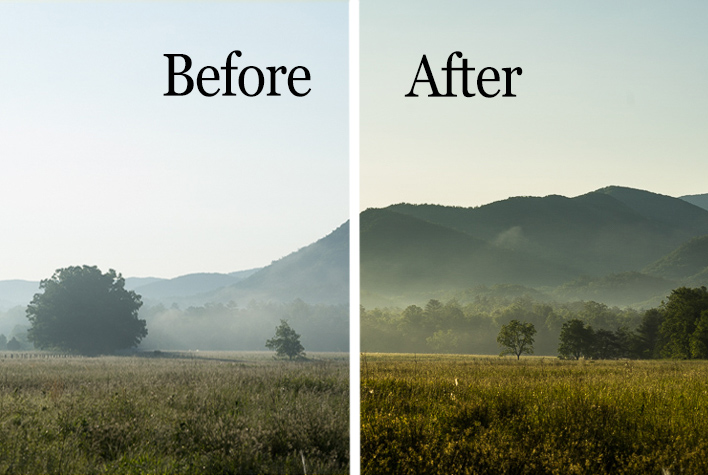
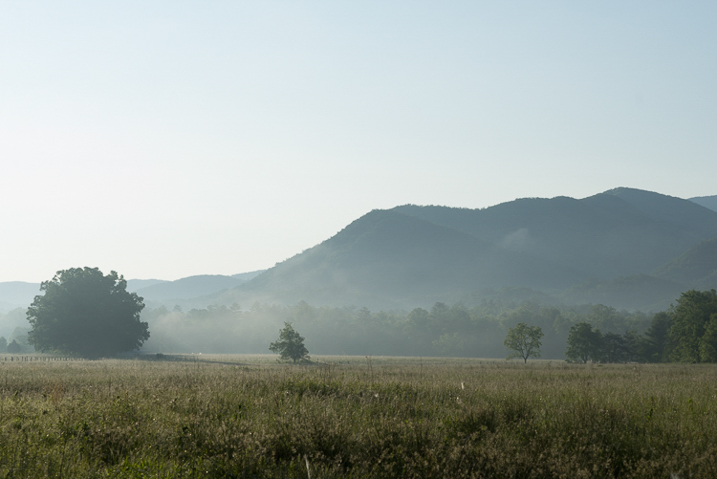
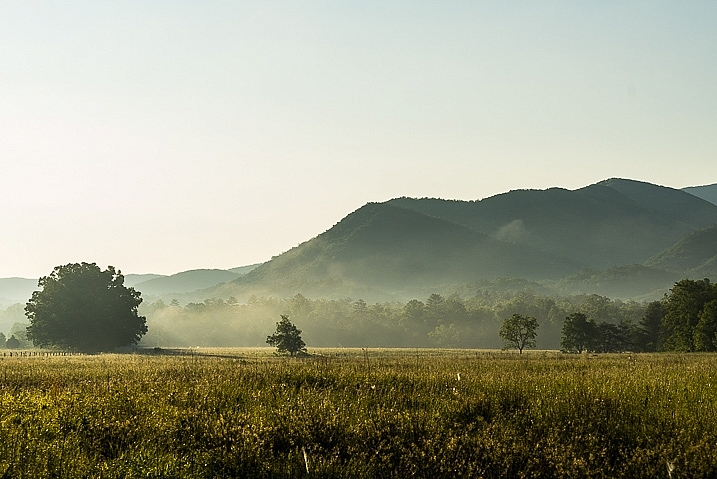
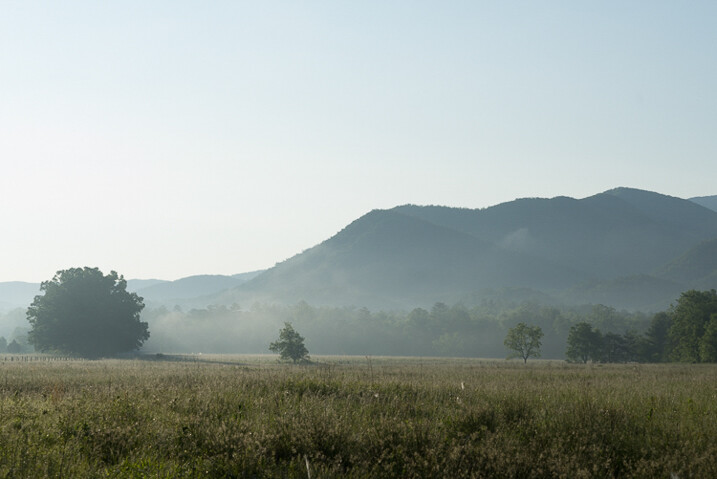
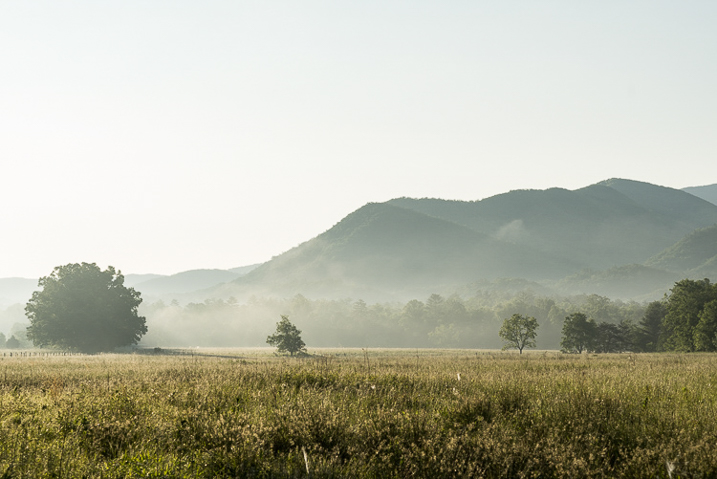
Just as a refresher, let’s go over the steps for creating and saving presets in Lightroom. Here is a original RAW file of a mountain meadow in the early morning mist.

RAW Image

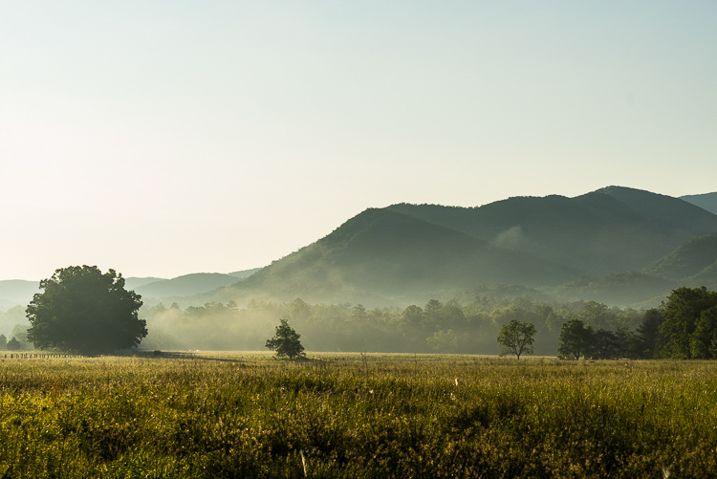
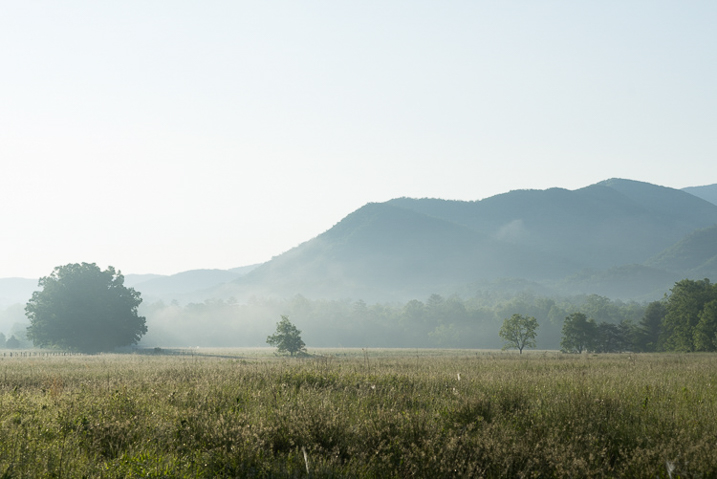
I applied some basic edits to the RAW file which consist of contrast, clarity, whites and shadows, warming, and then finally sharpening to get the following result:

Processed Image

How to save a Preset

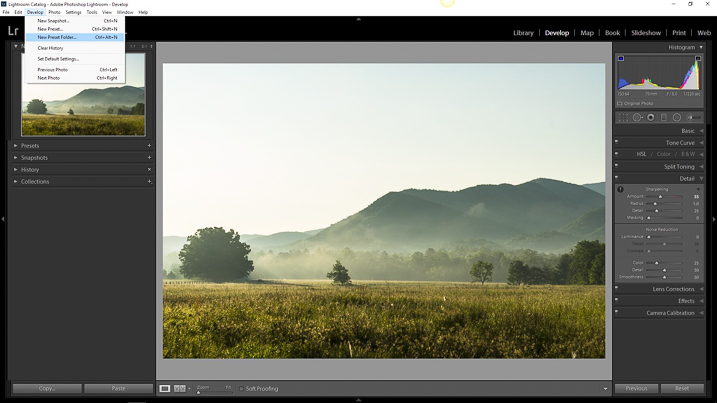
It’s looking decent. Hmmm, if you feel these edits might work for some similar images later, why not make a preset to save some clicking next time? To do this, you must first create a folder to house your presets. Click the Develop dropdown at top left or use the keyboard shortcut Ctrl+Alt+N (Command+Option+N for Mac).

Preset Folder

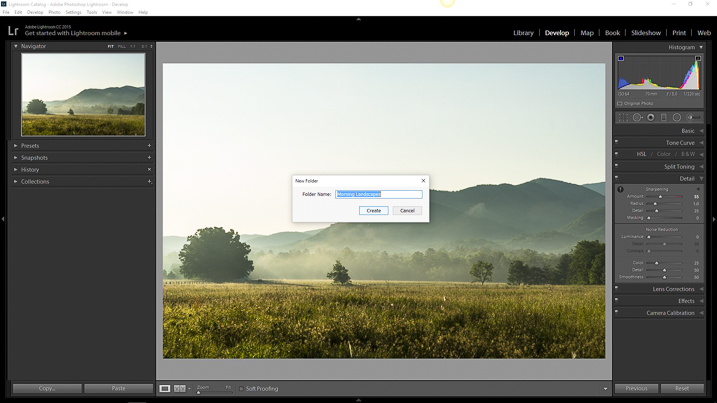
Then name your freshly minted folder so you can easily locate it later.

Preset Folder Naming

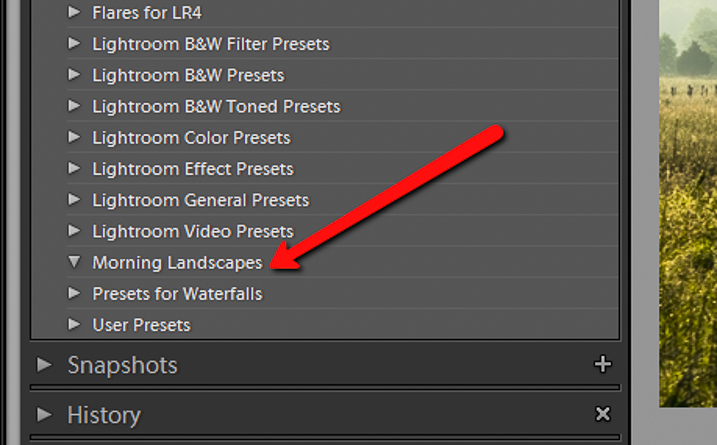
Now you will see your brand new folder appear under the Presets drop down menu.

Preset Folder Location

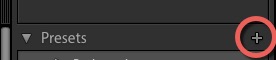
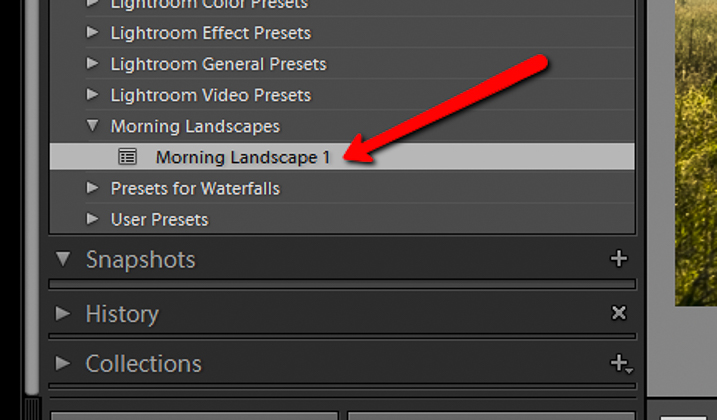
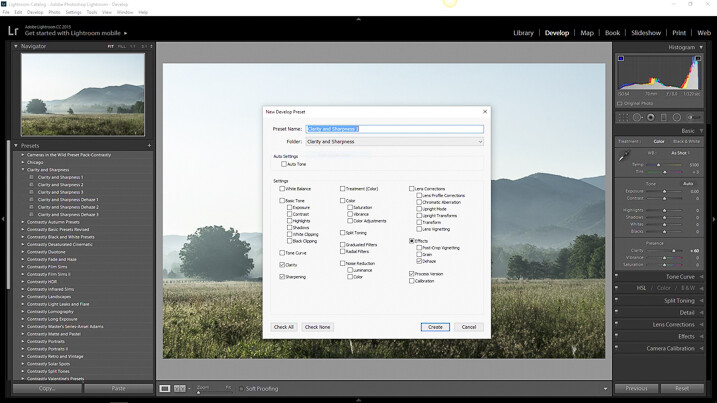
Since you now have a destination for your preset you can go about actually saving the preset itself. To do this, simply go back to the Develop drop down and select New Preset. You can also use the keyboard shortcut Ctrl+Shift+N (Command+Option+N for Mac) or just click the + symbol next to the Presets menu on the left panel (see below). A fairly large dialog box will appear bring along with it a host of options for saving your preset. First things first, come up with a name for your preset and then select the folder you made earlier as the destination.

Save preset

If you leave the Check All option selected, all the edits you made with any of the sliders and filter tools will be saved. Click on Create at the bottom right of the dialog box and viola! You will see your newly created preset appear in the folder to the left.

Preset Location

Preset conflicts

In most Lightroom preset tutorials that would be all you would do. But this isn’t most tutorials. In order to have full control over your presets you have to go a little deeper and that hinges on just how far you are willing to venture down the post-processing rabbit hole.

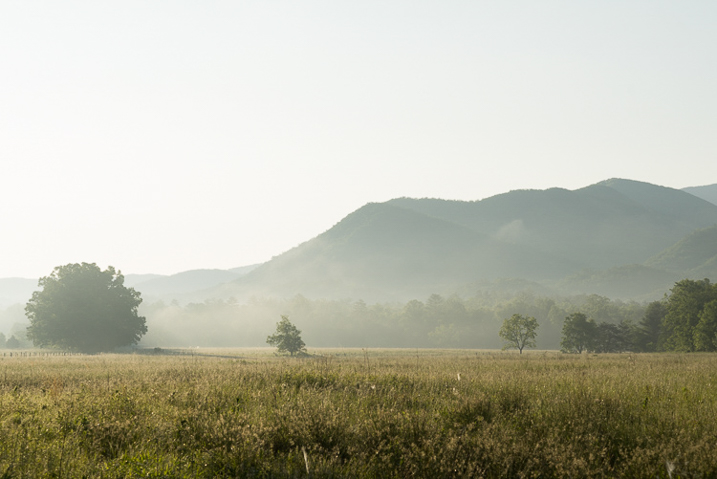
Here is the final image from which I saved the Morning Landscape 1 preset with the Check All settings applied.

morning_landscape_preset


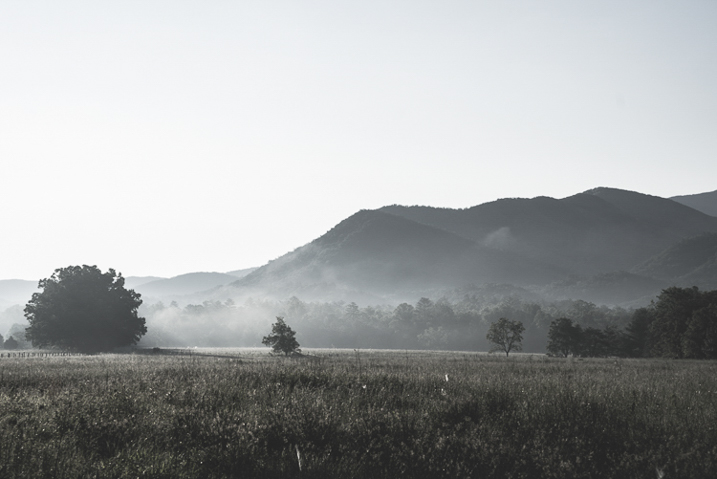
If I attempt to apply another preset, all of the current settings will be changed to whatever values the new preset dictates. Here is the same image after clicking another preset from my preset library.

Preset Conflict

The problem that arises when you try to combine multiple presets is that you can’t do it without the processing values conflicting and overriding one another. Or can you? Well, yes and no.

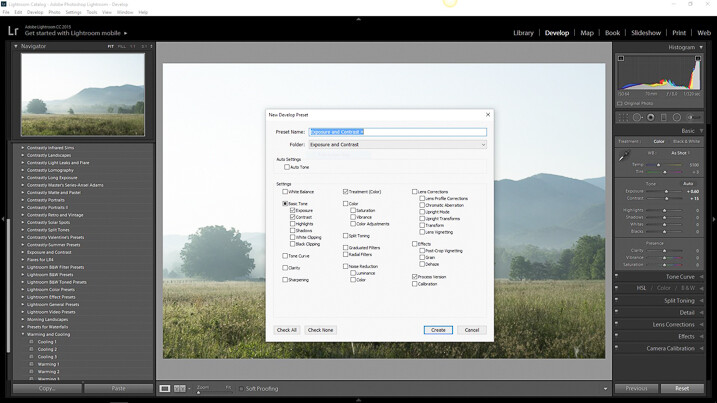
Remember, that dialog box asking which edits you wanted to save that appeared earlier while you were making the preset? That dialog box is the key to being able to stack multiple editing presets so you can apply different adjustments without them overriding one another. Let me show you how.

Stacking Lightroom Presets

It comes down to which edits you choose to save when creating your preset. Instead of selecting to save each and every adjustment, you can select only the ones you want. This way, you can avoid conflicting edits when you apply multiple presets. That means you can have a preset folder for various Clarity edits, a folder for Contrast and Exposure, a folder for Vignettes, or virtually any combination of any adjustment in Lightroom. Here’s how it’s done.

How to do it

I’ve created a folder called Clarity and Sharpness. This will be where I keep the Sharpness and Clarity (and even Dehaze) adjustments. I then created a folder for Exposure and Contrast and another for warming and cooling effects aptly titled Warming and Cooling.

Each one of these folders contains presets related to their respective edits to varying degrees of intensity. When saving for the Clarity and Sharpness folder click the uncheck all box and then select ONLY the Clarity, Sharpness, and Dehaze boxes. This way, any other edits will be left as they are and only these settings will change once you apply your presets.

Do this with the presets you save for the Exposure and Contrast and Warming and Cooling folders except only check the respective edit boxes to save for each.

Exposure and Contrast Selection

For Exposure and Contrast, select only the relevant boxes as seen here.

Calrity and Sharpness Selection

Do the same for the Clarity and Sharpness folder.

Saving separate presets which only affect certain aspects of your processing will allow a huge range of preset adjustments to be applied without affecting all the other unrelated edits from another preset. Essentially letting you stack one preset on top of another.

Applying the new presets

Let’s look at an example. Here is the RAW image again to which we will now apply our selective presets one by one.

RAW Image

RAW image.

First I will apply the Exposure and Contrast + preset.

Exposure and Contrast +

Next, I will add the Warming 2 preset.

Warming 2

And lastly, I will Sharpen and Clarify the photo with my Clarity and Sharpness Dehaze ++ preset.

Clarity and Sharpness Dehaze 2

Conclusion

By saving your presets in a way which targets only specific edits, you essentially enable yourself to allow the presets to work together. This way, quickly editing your photos becomes much more controllable and streamlined because you can apply different presets in tandem without disrupting the edits applied by each.

This advanced knowledge of creating, saving, and applying Lightroom presets can remove a lot of the headache from your post-processing conundrums. It can give you, for lack of a better word, limitless combinations of adjustment possibilities. What might have taken you an hour’s worth of post-processing can now be reduced to only three or four clicks of your mouse.

While presets might not be a one and done method for editing your photos they can still give you a wonderful starting point to base your more in-depth editing. By being able to apply multiple presets to one image you will have even more of a head start in your processing workflow. Work smarter – not harder.

How do you use Lightroom presets? Please share in the comments below.

googletag.cmd.push(function() {
tablet_slots.push( googletag.defineSlot( “/1005424/_dPSv4_tab-all-article-bottom_(300×250)”, [300, 250], “pb-ad-78623” ).addService( googletag.pubads() ) ); } );

googletag.cmd.push(function() {
mobile_slots.push( googletag.defineSlot( “/1005424/_dPSv4_mob-all-article-bottom_(300×250)”, [300, 250], “pb-ad-78158” ).addService( googletag.pubads() ) ); } );

The post How to Save and Use Stackable Lightroom Presets by Adam Welch appeared first on Digital Photography School.


Digital Photography School
 
Comments Off on How to Save and Use Stackable Lightroom Presets

Posted in Photography


Instagram officially launches ‘save draft’ feature

23 Sep

Instagram has finally launched a ‘save draft’ feature following months of testing. With the feature, a post-in-progress can be saved as a draft when the user hits the back button, making it available for continued edits and eventual posting later on. Such functionality is common on many platforms, including Twitter, and has been requested by Instagram users for years.

Saving a draft is simple. Once the post creation process has started (a filter has been added to a photo, for example), hitting the back arrow in the upper left corner of the screen will pull up a “Save Draft” prompt. Tapping that prompt saves the draft, which can then be reopened later on within ‘Library’ under the ‘Drafts’ designation.

Via: Twitter (1), (2)

Articles: Digital Photography Review (dpreview.com)

 
Comments Off on Instagram officially launches ‘save draft’ feature

Posted in Uncategorized