RSS
 

Posts Tagged ‘Right’

Memistore lets you store two extra memory cards right on your camera

14 Dec

There are two kinds of photographers out there: those who have lost a memory card, and those who are going to lose a memory card… it’s only a matter of time. That’s where Memistore comes in: this interesting little camera attachment lets you store two extra SDHC cards right on your camera itself, either using the tripod mount or your hot shoe.

The idea behind Memistore is that, unlike a memory card wallet, you’re not going to misplace your camera (and if you do, you have bigger issues to address…). This way, you always have two spare cards at the ready, securely housed in a splash-proof hard case that you can simply rotate out while your camera is still attached to the tripod:

This is the standard way the memistore creators imagine you’ll use their gadget, but it’s not the only way. A hot shoe adapter is in the works as well. Check out the campaign’s Kickstarter video below to learn more or see Memistore in action:

It’s a ridiculously simple idea, but one that we could actually see being quite popular, assuming they raise the requisite funding to bring this prototype to market.

To that end: Memistore hopes to raise ~$ 48,000 in funding on Kickstarter. As of this writing, you can still grab an early backer deal and get your own Memistore for just $ 20 AUD (~$ 15 USD), half the price it will cost if and when this little creation goes retail. And the first shipment to early backers is scheduled for May of 2018.

For more info, or if you’d like to order one or two of these for yourself, head over to the Kickstarter campaign page.

Articles: Digital Photography Review (dpreview.com)

 
Comments Off on Memistore lets you store two extra memory cards right on your camera

Posted in Uncategorized


These are the best cameras you can buy right now

03 Dec

Best cameras you can buy right now

Suppose you’re the kind of person who reads movie spoilers online, or unwraps all of your presents on Christmas Eve. Does that make you a monster? Sure, but we’re not here to judge. You’d probably also like to know which are the very best cameras on the market right now without reading our meticulously prepared and exhaustively researched buying guides. That’s fine. You can cut right to the chase and find out which cameras we picked as category winners right here, you utter fiend.

Canon EOS M6

It’s light, offers a healthy dose of direct controls and includes Canon’s excellent Dual Pixel autofocus technology. It’s our pick for parents, but it’s a great option for someone who wants DSLR-like capabilities and controls in a compact package.

Read more about the Canon EOS M6

Canon EOS M100

It’s an incarnation of the M6 with less direct control, but it’s also several hundred dollars cheaper. We think it’s an ideal lightweight point-and-shoot and it’s our top pick if you’re looking to spend around $ 500 on a new camera.

Read more about the Canon EOS M100

Canon EOS Rebel SL2

Beginners looking for an unfussy DSLR to get started will feel right at home with the SL2. We think its Feature Assistant is useful, and it offers all of the same guts of the M6 in a more approachable form.

Read more about the Canon SL2

Fujifilm X100F

You love it. We love it. Everyone loves the X100F. It’s truly the photography press’s darling, and it’s our pick in the fixed prime lens category thanks to its excellent JPEG processing and dreamy form factor. To a large chunk of the photo-taking population it’s an impractical novelty, but it sure is nice if you just want to enjoy the heck out of making photos.

Read more about Fujifilm X100F

Nikon D5600

The D5600 is our pick for both photography students and anyone looking to spend less than $ 1000. It’s not sexy, but it’s reliable, versatile, and offers modern refinements like a touchscreen and Wi-Fi with Bluetooth.

Read more about the Nikon D5600

Nikon D7500

We recommend the D7500 in the sub-$ 1500 category for many of the reasons we picked the D5600 in the category below it: it’s just an extremely well-rounded camera. Impressive subject tracking, good AF, and a proven 20.9MP sensor all contribute to making this the best buy in its price category.

Read more about the Nikon D7500

Nikon D750

Speaking of cameras that just don’t quit, the D750 is over three years old but it’s still competitive – and is attractively priced lately. Despite its age we think it’s the best you can do for under $ 2000 thanks to reliable autofocus and excellent image quality.

Read more about the Nikon D750

Nikon D850

The D850 shares a spot with the Sony a7R III as a top pick for landscape photographers and cameras over $ 2000. ISO 64 gives it a slight edge for photographers who need the ultimate in dynamic range, and it inherits a highly capable autofocus system from the D5. It comes up a little short in terms of pro video capabilities, but outside of that it’s simply one of the best all-around performers you can buy now.

Read more about the Nikon D850

Nikon D5

For sports, the D5 is hands-down the most capable camera out there. It’s ultra-tough and couples 14 fps shooting with the best phase-detection AF on the market. Plenty of shooters would find its smaller sibling, the D500 to be more than enough to suit their needs, but for the pro who needs the absolute best, there’s nothing to top it at the moment.

Read more about the Nikon D5

Panasonic Lumix GH5

If you’re serious about video and you want the best hybrid camera money can buy, get the GH5. It’s outfitted with pro-level tools and boasts excellent stabilization for handheld shots. Oh, and it’s a pretty darn good stills camera too.

Read more about the Panasonic GH5

Sony a7R III

The a7R III ranks as one of the very best cameras we tested this year, tying the equally impressive Nikon D850 as winner in the best for landscape photography and $ 2000 and up category. It’s also our top pick for event photography, thanks to incredibly fast and accurate Eye-AF.

Read more about the Sony a7R III

Sony Cyber-shot RX10 III

Our top pick for travelers is the previous-generation RX10, which saves you several hundred dollars off the price of the Mark IV if you can live without a touchscreen and state-of-the-art autofocus. You’ll still get that generous 24-600mm equiv. zoom range and top notch 4K video capture for all of those vacation memories.

Read more about the Sony RX10 III

Sony Cyber-shot RX10 IV

If we’re going to talk about the very best cameras available now, we do need to mention the latest and greatest in the RX10 series. If there’s a superzoom that can convince us we’re shooting with a pro sports camera, this is it. It’s incredibly pricey but its hybrid AF, 24 fps shooting and oversampled 4K are unparalleled in its class.

Read more about the Sony RX10 IV

Sony Cyber-shot RX100 V

Ten years ago, if you’d told us that a camera that fits in your pocket can record incredible 4K video, shoot 24 fps, and offer 315 point phase detection AF we’d have laughed in your face. Yet here we are in the year 2017, and the RX100 V has made fools of us all. Do you pay handsomely for all of that cutting edge technology? Of course. But if you’re looking for the best of the best, look no further.

Read more about the Sony RX100 V

Articles: Digital Photography Review (dpreview.com)

 
Comments Off on These are the best cameras you can buy right now

Posted in Uncategorized


New Lightroom CC or Lightroom Classic: Which Version is Right for You?

10 Nov

You may have heard that Adobe recently unveiled some pretty significant changes to Lightroom. When you consider using Lightroom, you will now have two different versions to choose from; both are aimed at different audiences. In this article we will take a look at both the new Lightroom CC and Lightroom Classic, so you can choose the one that best meets your needs.

New Lightroom CC or Lightroom Classic: Which is Right for You?

How we got here

There are a lot of letters and numbers associated with Lightroom, so it might be helpful to walk through a quick timeline of how we got here.

In the beginning, way back in 2007, there was Lightroom. At first, Adobe was content to come out with periodic new releases and number them. So we had Lightroom 1.0, 2.0, 3.0, 4.0, 5.0, and 6.0, with each version they added some new features. If nothing else, the system was easy to understand.

After that, however, Adobe moved to a subscription model. They simply called it Lightroom CC, which stood for Creative Cloud. With the change to the subscription model, there wouldn’t be big periodic launches. Instead, new features would be rolled out periodically. That’s the world we lived in until recently.

Now, however, Adobe has essentially split Lightroom into two different applications. They are Lightroom CC and Lightroom Classic. Let’s take a closer look at each of them.

Lightroom Classic

Let’s start with the simple one, Lightroom Classic. If you are already familiar with Lightroom, then this is the easy one to understand. Lightroom Classic is basically the same Lightroom you have been using but it’s just updated a little bit. There are really only two changes.

The first is that it is faster. It uploads (imports) image faster, it moves through pictures faster, it edits faster – it seems to do everything faster. There have been a lot of complaints about speed in recent versions of Lightroom. As Adobe added more and more features, it gummed up the works so it was moving slower and slower. Adobe clearly made fixing this a priority.

So Lightroom Classic is faster – a lot faster – than previous versions of Lightroom. How much faster? I haven’t seen any numbers, but the increase in speed will be noticeable to you immediately. It is much faster.

Beyond the speed, is there anything actually different between Lightroom Classic and the prior version? Yes, but not that much. In fact, when it comes to making global changes to your pictures, there is nothing different. The features and controls are all exactly the same. There is one change that is small but is really handy if you make local adjustments to your pictures (i.e. changes to discrete portions of your pictures rather than the whole thing).

New Lightroom CC or Lightroom Classic: Which is Right for You?

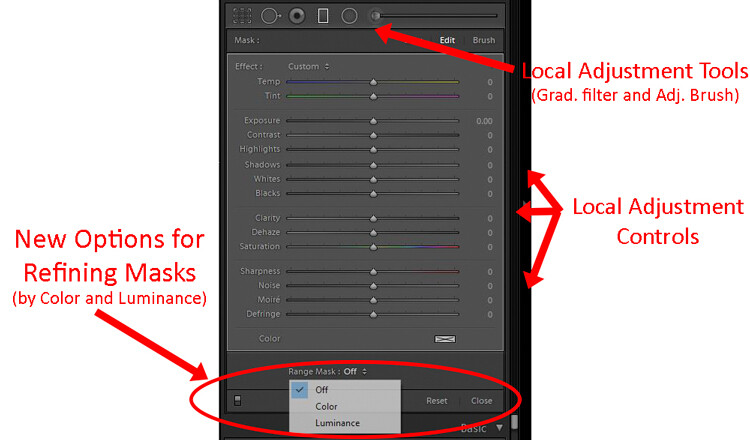
Adobe added new masking controls to the local adjustment tools – those being the Adjustment Brush, Graduated Filter, and Radial Filter. It is called the Range Mask feature, and it allows you to limit the selection you make by either the Luminance or the Color. In other words, if you make a selection with the Adjustment Brush or one of the filters, but there are things you don’t want to be included in your selection, you can remove them using these tools. This promises to make local adjustments much more doable in Lightroom.

Lightroom CC

Now comes the new part, and the one everyone is talking about (for good or for bad), Lightroom CC. This is a whole new Lightroom. It really comes down to three principles.

  1. Lightroom CC is simpler to use
  2. It is designed for mobile devices
  3. It relies largely on cloud storage

Let’s take a look at each of these.

#1 Lightroom CC is simpler

Lightroom CC has a simpler interface. It is streamlined and more intuitive. Those new to Lightroom will find it easier to navigate and use.

New Lightroom CC or Lightroom Classic: Which is Right for You?

Simplified Lightroom CC editing controls.

This comes at a cost though. Experienced Lightroom users will find the experience a little like switching from Photoshop to Photoshop Elements. There are entire modules of Lightroom that are missing from Lightroom CC.

There are no Print, Maps, or Books modules. There are some editing functions that are missing as well (the Tone Curve and Camera Calibration). There is no Photo Merge or HDR. In fairness, however, over 90% of the editing functions in traditional Lightroom are present in Lightroom CC.

New Lightroom CC or Lightroom Classic: Which is Right for You?

Expanded Lightroom CC editing controls.

#2 Lightroom CC is for mobile

Lightroom CC is designed for mobile platforms. It will look and work exactly the same whether you use it on your phone, your tablet, or your desktop. You’ll be editing full resolution versions of your photos, and they will be synced to all your devices. What’s more, Lightroom CC makes it easy to share your photos to various social media channels. Because of this, however, you can only export to JPEG (no PSDs or TIFFs) and only in sRGB, which is the color space that is used for all online photos.

#3 Cloud storage

All your edits in Lightroom CC are backed up to cloud storage. Of course, this will cost you extra. More about the plans below, but the first TB of data will cost you $ 10 a month, and it goes up from there. There is also an additional element of organization added in; Lightroom CC uses Adobe’s Sensei to automatically add keywords to your photos.

The Plans

Here’s the deal, though, you don’t necessarily have to choose between the different versions of Lightroom. If you subscribe to the Photography Plan (in my opinion, most readers of this website should be doing that) you already get Lightroom CC. It has just been added to your subscription, along with a token 20 GB of cloud storage. If you aren’t already familiar with the Photography Plan, it is where you get Photoshop and Lightroom for $ 10 a month.

If you want additional cloud storage, it will cost you more. 1 TB of cloud storage costs another $ 10 a month, taking the Photography Plan plus the 1 TB of cloud storage up to $ 20 a month.

Finally, if you only want the new Lightroom CC, you can get it along with 1 TB of cloud storage for $ 10 a month. That might be a good option for those that are very mobile, store everything to the cloud, and/or are just getting started with Lightroom.

Here is a chart from Adobe showing the options:

Purchased outright version is going away

There is one more thing you need to know. If you want to purchase Lightroom outright and avoid the monthly charge, you can still do so, but Lightroom 6 is your last chance. Adobe will also stop updating that fairly soon (meaning if you buy a new camera and LR 6 can’t open the raw files there will be no update for that – you’d have to convert them all to DNG before importing). The days of being able to purchase Lightroom (as opposed to renting it) appear to be just about over.

Which version of Lightroom is right for you?

So, which one is right for you? If you are just starting out with Lightroom and your photography is based on mobile platforms, then Lightroom CC might be for you. But if you are already using Lightroom, I think Classic is the way to go.

If you are used to Lightroom, then switching to CC will probably seem like a step backward. Further, if you tend to use desktops and laptops for your editing, then Classic is clearly the way to go. For those instances when you need to do something on your phone, there is always Lightroom Mobile (not ideal, but it works in a pinch).

Of course, all this assumes that Adobe keeps updating Lightroom Classic (the use of the term “Classic” has a lot of people scared since that is often the kiss of death in the tech world).  For the moment at least, Adobe is promising continued updates to it.

Poll

Fill in this quick poll and tell us what you’ll be choosing in regards to Lightroom.
Note: There is a poll embedded within this post, please visit the site to participate in this post’s poll.

The post New Lightroom CC or Lightroom Classic: Which Version is Right for You? by Jim Hamel appeared first on Digital Photography School.


Digital Photography School

 
Comments Off on New Lightroom CC or Lightroom Classic: Which Version is Right for You?

Posted in Photography


How to Speed Up Your Photo Editing with the Right Lightroom Workflow

29 Sep

Processing photos is fun for me. But as much as I like doing it, I like being out in the field making new photos even more. That’s why I’ve developed a Lightroom workflow that helps me get the job done as quickly as possible.

Following these steps, you’ll learn how to make adjustments to a whole batch of images and then apply image specific adjustments to bring out the best in each frame.

Before you begin, choose a batch of photos taken at the same time under similar lighting conditions. I usually go through and pick my favorite photos from a shoot first, and then work on those.

How to Speed Up Your Photo Editing with the Right Lightroom Workflow

Step 1: Make Global Adjustments to the First Photo

In the Develop Module, pick the first photo in your batch and make the following adjustments to make it look its best.

Remember there are no rules with the sliders other than a little goes a long way. Just go with your gut. And if you’re not sure what a slider does, just take it to one extreme and then the other and you’ll be able to see exactly what is going to happen.

Camera Calibration

You’ll find this at the bottom of the develop module on the right-hand panel. I like to set this first because it makes such a dramatic difference to the color and contrast in an image. Simply go through the drop down box and pick the one that looks the best.

White Balance

Next go up to the top of the develop module and start working your way down. The first slider is white balance and there you can choose from the items in the drop down box. Again, simply choose the one that looks best.

Highlights and Shadows

Try darkening the highlights by moving the slider to the left and lightening the shadows by moving the slider to the right. You don’t want to go so far that you’ve removed all contrast from the scene, just enough that you have more detail in the highlight and shadow areas.

Clarity

The clarity slider will add contrast to the edges of things making them appear more crisp. Try nudging it a bit to the right. On the other hand, if you want your image to be softer and dreamier, you can move the clarity slider to the left.

Vibrance

The vibrance slider is more subtle than saturation since it adds color to the parts of your image that are already less saturated.

Sharpening

Most photos need a little sharpening. In the Detail Panel, try moving the sharpening slider a bit to the right.

Vignette

In the Effects Panel, add a slight post-crop vignette to draw the eye into the frame by dragging the slider slightly to the left.

How to Speed Up Your Photo Editing with the Right Lightroom Workflow

Before any adjustments in Lightroom.

How to Speed Up Your Photo Editing with the Right Lightroom Workflow

After the basic adjustments have been applied in Lightroom.

Step 2: Sync Settings

In the Develop Module, select all the photos in your batch (including the one you just edited) from the filmstrip at the bottom of the screen. Then click the Sync button at the bottom of the develop panel.

How to Speed Up Your Photo Editing with the Right Lightroom Workflow

Voila! All the adjustments you made to your first image have now been applied to the whole group.

Step 3: Make Final Adjustments to Single Photos

The following adjustments need to be made to each photo individually since they are rarely the same in a batch.

Crop and Straighten

If necessary, use the crop tool to adjust the crop. Maintain the aspect ratio of your image by holding down the shift key on your keyboard while you crop. You can also use the angle tool located inside the crop tool to make sure any horizon or shore lines are straight by drawing a line from one side to the other.

How to Speed Up Your Photo Editing with the Right Lightroom Workflow

Don’t Miss a Dust Spot

Using the spot removal tool, check the box next to “Visualize Spots” below the image to help you see the dust spots more easily.

How to Speed Up Your Photo Editing with the Right Lightroom Workflow

Radial Filter

Use the radial filter tool to increase the exposure very slightly on your main subject which will help to draw the viewer’s eye to it. Remember to click the “invert mask” checkbox to affect the area inside the circle. Otherwise, the default is to affect the area outside the circle you draw.

How to Speed Up Your Photo Editing with the Right Lightroom Workflow

Radial Filter in Lightroom.

Summary

I find that processing photos is more fun when it doesn’t take forever! Now with time saved doing basic processing, you may choose to take your photo into another photo editor to add special effects. Or you can just call it done and get back out in the field doing what you love: making photographs.


Want more? Try Anne’s Lightroom video course: Launch Into Lightroom to learn everything you need to know to get started in just a couple of hours.

The post How to Speed Up Your Photo Editing with the Right Lightroom Workflow by Anne McKinnell appeared first on Digital Photography School.


Digital Photography School

 
Comments Off on How to Speed Up Your Photo Editing with the Right Lightroom Workflow

Posted in Photography


Is a Career in Travel Photography Right for You?

04 Sep

It sounds tempting and exotic. Traveling the world taking photos and seeing those photos appear in newspapers and magazines can be thrilling but are you made for a career in travel photography? Here are seven ways to know if a career in travel photography is right for you.

Is a Career in Travel Photography Right for You?

#1 – You have a longing to travel

The first requirement of being a travel photographer is actually enjoying traveling but it’s more than that. It’s a restlessness that simply doesn’t go away no matter what you are doing or where you have already been. You simply can’t sit still and want to explore everything and everywhere. Does that sound like you?

But it’s also important to remember that taking photos while traveling is different than traveling to take photos. Your time on the road as a travel photographer has one reason and one reason only and that’s to take photos. Nothing else matters and nothing can come between you and your next great shot.

Is a Career in Travel Photography Right for You?

#2 – You enjoy your own company

Travel photography is a lonely business and most of your time is spent on the road with your own thoughts. Yes you’ll have the odd conversation with a local but ultimately you are working alone. You are usually awake and out and about before others and you usually end up being the last one back to the hotel room. While spending time on your own can sometimes be nice, can you handle days, weeks or even months by yourself?

Is a Career in Travel Photography Right for You?

#3 – You can adapt quickly

There is a common theme amongst travel photographers and that is “not enough time”. You will usually find yourself with a long shot list and not enough time to fulfil it. So you need to be able to adapt quickly and hit the ground running straightaway, even in new destinations. There won’t be time to spend a couple of days getting to know a destination and every second wasted is eating into your time needed to cover off your shot list.

But you also need to learn to adapt while you are at a destination, for example, if the weather is causing problems to your shot list. You need to be able to think, act, and plan quickly and efficiently.

Is a Career in Travel Photography Right for You?

#4 – You have an eye for what people want

I remember learning very early in my career as a travel photographer that you need to learn what people want to see. This is a business after all, and the only way that you can earn a living from it is by being able to sell your images or getting paid for assignments. Some photographers are better at this than others. Ultimately the success or failure of your photography business comes down to being able to give people what they want to see and what they will pay for.

Part of this will come with experience through years of seeing which of your images sell. But you also need to actively spend time researching and looking at trends in the travel industry, be in the know with up and coming destinations and the news. For example a major airline could be starting a new route, or a previously “closed off” country could be opening its doors to tourists.

Is a Career in Travel Photography Right for You?

One of my images recently used by Tatler.

#5 – You can function with little sleep

There’s no getting around it, being a travel photographer on location is tiring work. You often have to function on little sleep as you’ll be getting up before sunrise, spending all day walking around, then hanging around until well after sunset to capture great shots.

In the summer months that could mean having to get by with just a few hours of sleep a night. Add to that carrying camera equipment all day and not eating properly and you will quickly learn that being on a photo assignment is completely different than being on holiday.

Is a Career in Travel Photography Right for You?

#6 – You are confident

As a travel photographer, you often have to do things by yourself. Whether that is adapting to a new location, finding your way around a city or trying to explain to a local why you want to take their photo. But arguably the biggest requirement for a travel photographer is being confident in your ability to capture great photos that will go on to sell.

Unlike working in a studio when you can set up and art direct your shoot and make adjustments as necessary, as a travel photographer sometimes you only get one shot at documenting a location. You may only have a few days at any given place so you have to capture what you need to in that time.

Because of this you need to believe in your ability both to compose and frame your photos, making sure things like the lighting and the subject are right, but also in your ability to execute that shot perfectly. Sometimes there are no second chances to correct a photo that is blurred or poorly focused.

Is a Career in Travel Photography Right for You?

#7 – You can work quickly

Travel photography is about telling the story of that destination. Whether it’s a famous monument, a beautiful cityscape or a local going about their day, a travel photographer’s job is to capture that. Often those moments are fleeting and don’t stay around for long. For example the gap in the flow of traffic in front of that famous monument could just be a few minutes. Or the interaction between a market vendor and a customer could last a few seconds. Even capturing landscape or city shots could only have a short window where the light is perfect.

The only way to ensure you don’t miss these moments is to be able to work quickly. This means being ready and knowing how to use your camera completely. With practice over time you will naturally improve and get faster in your work and your camera will become an extension of your arm.

Is a Career in Travel Photography Right for You?

Conclusion

Despite all of these points, there really aren’t many jobs that can give you the same excitement, anticipation, and satisfaction as being a travel photographer. Seeing your work published makes all of the early mornings and endless hours of walking around and waiting worth it.

So do you think a career in travel photography is right for you? Share your thoughts below.

The post Is a Career in Travel Photography Right for You? by Kav Dadfar appeared first on Digital Photography School.


Digital Photography School

 
Comments Off on Is a Career in Travel Photography Right for You?

Posted in Photography


There’s no right way to be a photographer, and no right way to shoot (or not shoot) an eclipse

28 Aug
Photo by Allison Johnson

After speaking with a bone-a-fide eclipse expert a few months ago, I’ve been a proponent of not taking photos of the solar eclipse. So, on the morning of August 21st, 2017, I was on my way to the office with no plans to take pictures. I happened to have the Nikon D810 and AF-P 70-300mm at my side, but that was only because I’d been shooting with it over the weekend and planned to bring it to the office and pass it off to someone else.

My grand plan for the morning included mooching my colleague Jeff Keller’s eclipse glasses and safely viewing the event from our building. This scheme was almost waylaid when I was initially turned away from the at-capacity roof deck by an actual bouncer. But I persisted, and by that I mean I just hung around for a few minutes, and eventually made it outside into the utter spectacle when someone else left.

Equally as good as the show in the sky was the show on the ground

As it turned out Jeff actually had glasses to spare, because he is good at planning ahead, so I found myself with a coveted spot on the deck and a pair of eclipse glasses just as the show was getting good. But I was surprised to find that equally as good as the show in the sky was the show on the ground.

There’s something that happens to your face when you put on these glasses and look at the moon in front of the sun. I felt it happen to my face, and I saw it on countless other faces Monday morning. Your mouth opens in awe. You smile, or laugh, or just stare.

Photo by Allison Johnson

I watched, and eventually started photographing my fellow eclipse-viewers. And though I hadn’t expected to take any photos at all, I found myself really enjoying capturing the reactions around me. Not one person put on those glasses and looked bored or unimpressed. Staring at the moon eclipsing the sun turns out to be a great equalizer, because it makes us all feel like little kids again. In fact, Wenmei can verify this, because she took photos of actual kids.

Photo by Wenmei Hill. Also, two of these children.

My lackadaisical approach to the whole thing was just one of a range of ways DPR staffers captured the eclipse. My colleague Dale Baskin planned for the big day months in advance. He traveled south to Oregon, where he’d staked out a place for himself in the path of totality. He’s an experienced night sky photographer and had a mostly set-it-and-forget it rig in place, so he photographed the whole enchilada and even managed to enjoy it too.

And then there’s Rishi. Never one to back down from a scientific challenge, he Frankensteined a rig that he was mostly certain would not fry his camera’s sensor. It worked, and his sensor is still intact.

Photo by Rishi Sanyal

Stacking filters and doing math seems like entirely too much trouble to me, but if I’ve learned anything working at DPReview it’s this: that’s just how some people enjoy photography. It’s different from how I enjoy photography, but that’s okay – each is valid.

Really, the “don’t photograph the eclipse” advice wasn’t directed at every photographer. It was meant for people like me: hobbyists who might be tempted to try and capture the event at the expense of their own enjoyment of it.

There’s no one right way to be a photographer, and there’s no one right way to enjoy an eclipse

The more precise advice would have been, “Enjoy the eclipse,” and for many people, that means photographing it: scouting a location, acquiring the right filter, picking a lens, getting in place and coming away with a once-in-a-lifetime shot. And it wouldn’t really matter whether that eclipse shot looks more or less like everyone else’s: what matters is that they did it and enjoyed the process. That means something different to me than it does to Dale or Rishi.

As a baseball fan with little interest in advanced stats, the sentiment I often hear that “there’s no one right way to be a fan” makes a lot of sense to me. For some people, enjoying the game means understanding how to calculate a player’s slugging percentage. I’m content just baselessly speculating whether Nelson Cruz will hit a 400-foot home run in his next at bat. To each their own.

Just as there’s no right way to be a fan, I believe there’s no one right way to be a photographer, and no one right way to enjoy an eclipse. It really is too good of a thing to miss, however you take it in.

Articles: Digital Photography Review (dpreview.com)

 
Comments Off on There’s no right way to be a photographer, and no right way to shoot (or not shoot) an eclipse

Posted in Uncategorized


The Olympus TG-5 is the best rugged compact you can buy right now

09 Jul

Washington State’s Pacific coastal beaches are quite the contrast to what you usually find around Puget Sound near Seattle. The pebbles, barnacled rocks and copious sickly sea foam give way to pillow-soft sand, waves you can surf and mountainous, craggy rock formations that make for an otherworldly visual experience. As a local, I’ll admit that I love both varieties. But despite how picturesque a trip to the beach can be, I absolutely hate going with a camera in tow. Sand can kill.

Even brief exposure to sand and saltwater can make for a deadly combination for just about any electronic device, so in planning for a three-day, two-night camping trip to Washington’s Second Beach in La Push, I had basically written off any possibility that I’d bring a camera along. Then, I remembered we had the Olympus Tough TG-5.1

The first leg of the journey was a ferry across Puget Sound to get us closer to the ocean.

And in considering the TG-5, I was reminded of a well-worn saying; ‘it’s not the camera, it’s the photographer.’ I happen to think there’s an awful lot of truth in that, but even so, as a nerd as well as a photographer, there are usually lines in the sand (apologies) I don’t cross. One of them is using a dedicated camera with a smartphone camera-sized sensor.

There are usually lines in the sand I don’t cross.

But then again, my smartphone isn’t rugged or waterproof, and doesn’t have an optical zoom. Adding to that, the TG-5 offers Raw capture, GPS logging, good external controls, a more powerful flash and a crazy good macro mode. With the Tough, you’ve got a pretty compelling, compact package without the hassle of endless smartphone apps, clunky waterproof cases and fiddly lens attachments.

The TG-5’s ‘microscope’ mode sounds a little goofy, but it results in very good macro performance. And check out that background blur despite the small sensor!

Besides, I still find some satisfaction in using a dedicated camera as opposed to a smartphone for even casual photography. So, was the TG-5 the absolute perfect camera for this trip? Turns out, it’s got a couple of quirks. But it was still darn good.

What worked

One of the joys of visiting La Push with the TG-5 was access to tide pools at low tide. Then I discovered they were all just occupied by the same green sea anemones. Maybe next time I’ll try snorkeling to get some more variety.

The very first thing I did with the TG-5 when I grabbed it from our camera cabinet was run it under the tap. Of course, it’s fun to do that just because you can, but it also had some sunscreen on it from a previous user that I wanted to rinse off.

So the TG-5 is very well-sealed against both moisture and dust and dirt intrusion. This meant I could comfortably leave it lying around our beachy campsite even though everything was covered in sand.

The very first thing I did with the TG-5 when I grabbed it from our camera cabinet was run it under the tap.

I could put it in my sandy pocket, or deposit it in my sand-filled bag in our sand-filled tent and not have to worry at all. I brought it along on rocky beach hikes where it was likely I would fall into the ocean. This capability alone is pretty much worth the price of admission in my book, especially if you spend a lot of time outdoors.2

The TG-5’s resolution and sharpness never blew me away, but the Raw files have at least some flexibility in them for the sensor size, and I ended up with a ton of photos I wouldn’t have taken if I was leaving a DSLR in a bag the whole time for protection.

Every image you’re seeing in this article is the result of a Raw file from the TG-5 processed through a beta version of Adobe Camera Raw (more samples available in the gallery). This is probably my favorite thing about the Tough; even though the images can be noisy even at base ISO, I was able to salvage some clipped highlights and lift some shadows to bring detail back in high-contrast scenes, which you’re likely to encounter in outdoor photography.

The TG-5 is, thanks to an updated processor, also a very responsive camera. Start-up, focus and shot-to-shot times were all very quick, making it easy to whip the camera out for a quick shot on the move (and the well-sculpted grip makes it feel secure in the hand). But sometimes, quick shots on the move proved to be a problem for the TG-5. Let’s explore what Olympus could improve on the next iteration of their tough cam.

The TG-5’s metering did a pretty good job here, but I was able to go into the Raw file and pull down some highlights that had clipped in the JPEG file due to the dark background.

1. Okay, and a Nikon D7200 that stayed safely tucked away in a bag for much of the trip.

2. Some sand will still get stuck around the screen and port doors, but nothing another good rinse under a tap won’t take care of.

Articles: Digital Photography Review (dpreview.com)

 
Comments Off on The Olympus TG-5 is the best rugged compact you can buy right now

Posted in Uncategorized


There’s no ‘right way’ to use Instagram as a professional

22 Jun

Okay so it might not be super minimalist….it might not fit the feed… but rules are meant to be broken right?! ???

A post shared by Jennifer Moher (@jennifermoher) on

I don’t view my Instagram feed very seriously. I put some ‘work’ photos on there that I’m proud of, both from reviewing cameras and my freelance work. I definitely don’t do a very good job of curating – people who are interested in both motorcycles and cats would probably like my feed, but I’m not sure how much overlap there really is for those audiences.

So for those who are full-time, working professional photographers who need to hustle clients for a paycheck, how does Instagram fit in? Rangefinder Magazine asked five photographers about their posting philosophies, and got five pretty different results.

Jennifer Moher likes to show people that she’s more than just a wedding photographer, so while her feed has a pretty consistent visual aesthetic, there’s a lot of her personal life on there, with everything from hikes to coffee cups. Caroline Briggs, on the other hand, says ‘a random snap of my coffee cup would be too jarring and off-topic,’ and therefore keeps her personal and professional photography in two separate accounts.

Are you on Instagram? How does it fit into your photographic world? Let us know in the comments, and head on over to Rangefinder for the full writeup.

Via: Rangefinder

Articles: Digital Photography Review (dpreview.com)

 
Comments Off on There’s no ‘right way’ to use Instagram as a professional

Posted in Uncategorized


4 times when a Hail Mary might be the right move

10 Jun

4 times when a Hail Mary might be the right move

A bee hops between blackberry flowers on a sunny day in North Tacoma. By holding the stem of the flower in one hand and camera (with a full-frame fisheye) in the other, I could adjust the composition quickly and blast frames whenever the bee appeared close. My slow noggin just couldn’t keep up. July 2014. Photo and caption by Peter Haley.

More often than not, the ‘decisive moment’ doesn’t happen exactly where you want it. Sometimes the best angle is one that’s impossible to achieve with the camera to your eye – players huddling on a field, a crowd on a dance floor. For such occasions, there’s what’s known as a Hail Mary.

The Hail Mary takes its name from a long shot pass in American football, a low-percentage shot when there are no other options. It’s a last ditch effort, but you don’t have much to lose by trying. In photography, the Hail Mary is most often thought of as holding your DSLR far above your head and pointing it down toward your subject, but the term can apply to any shot you take with the camera away from your body, pressing the shutter button and hoping for the best.

Sure, cameras with tilting LCDs can give you an advantage nailing the shot, but especially when time is of the essence, sometimes the best you can do is point your lens in the right direction and pray.

Photojournalist Peter Haley has found himself in more than one situation that called for a shot from a tricky angle. Whether it’s for an unexpected angle of a familiar subject, or an effort to keep your distance, here are a few occasions that call for a long shot.

1. When body language would tip-off the subject

I had seen her umbrella blow backward once, and thought it might happen again. I didn’t want her to see that I was focusing on her, so I walked in front of her, glancing over my shoulder, with the camera held down at my side and already pointed back toward her. When the umbrella blew, my camera was shooting even before I finished turning my own body around. January 2007. Photo and caption by Peter Haley.

Says Haley, ‘If you don’t want a subject to notice that you’re taking photos, not pulling your camera up to your eye is helpful.’

1. When body language would tip-off the subject

The photojournalism didn’t stop even during a break in a cramped bathroom at the King County Fair. July 1989. Photo and caption by Peter Haley

2. When your body would be in the way

A largemouth bass is tossed back. For an interesting composition the camera needed to be against the stomach of the fisherman. No room for my body there. May 2008. Photo and caption by Peter Haley.

‘A good angle is often from the point-of-view of the subject, so sometimes I hold the camera against the person’s chest where there’s no room for my body. Or the camera needs to move farther back, but I’m up against a wall, so I hold the camera flat against the wall.’

2. When your body would be in the way

The Washington DOT avalanche crew at Snoqualmie Pass fires a 105mm recoilless rifle. Everyone must huddle close to the center of the length of the barrel to minimize the concussion. But the camera needed to be farther away, so I held it up in classic ‘Hail Mary’ position. February 1999. Photo and caption by Peter Haley.

3. When you need to get lower, closer, or farther away

The camera needed to be forward of the gun, but my own body didn’t. I suppose my hand took a slight risk. Note the usefulness of the dimly-lit pistol range and a slow shutter speed. January 2013. Photo and caption by Peter Haley.

‘I don’t like to lay down on a wet beach if I don’t have to. I prefer to keep my body away from snarling dogs, even if the camera needs to be close with a wide angle lens. Or I don’t want to put my whole body close to the line of fire, so I’ll risk only a hand.’

3. When you need to get lower, closer, or farther away

The teeth look better from close up with a wide angle, but I didn’t want to risk getting cut. So I held the camera at arm’s length. April 2010. Photo and caption by Peter Haley.

4. When you need to move quickly

I was standing below a cornice, off of which I expected some young skiers to jump, but I didn’t know exactly where. I was sure that it would be very close to where I was, so I was able to use a very wide lens. I needed all my peripheral vision in order to see as soon as possible where they were going to pop into view. I had only a fraction of a second to point the camera that way– not enough time to acquire sight through a viewfinder. November 2012. Photo and caption by Peter Haley.

‘Sometimes the camera needs to bob, weave and dip quickly to stay close to a moving subject. Keeping my eye attached to the viewfinder – which would necessitate my whole upper body to move with it – slows the camera’s movements too much, so I just move the camera at the end of my arm.’


Peter Haley grew up in Tacoma, studied science at UC Berkeley, but forged his career from a passion for photography. He’s shot for The News Tribune (Tacoma) since 1986.

Like all photographers, he’s won plenty of awards (photographers love contests), and his work has appeared in coffee-table photo books (A Day in the Life of…, etc). He has been embedded with the army in Iraq three times and Afghanistan once.

His favorite things to shoot: Live events. People doing ordinary things. No posed photos! Outside of family, his passions include skiing, and… well… more skiing.

Articles: Digital Photography Review (dpreview.com)

 
Comments Off on 4 times when a Hail Mary might be the right move

Posted in Uncategorized


How to Choose the Right Monitor for Photo Editing

03 May

Photographers rarely think twice when it comes to buying expensive camera bodies or high-end lenses, but often seem willing to skimp on a monitor. Why is that? In many cases, it’s because one monitor appears very much like another, especially when purchased over the internet, which is how many of us shop for such things.

This article will help you know what you should look for in a monitor, and show you how to interpret many of the tech specs you’ll see when shopping online. Not so long ago, buying a monitor for photography was an expensive business, but today there is more choice available at every price point.

By Senado Federal

Panel Technology

One of the things you must think about when choosing a monitor is panel technology. The “panel” is the main part of the monitor — the screen. It includes polarizing layers, glass substrates, a liquid crystal (LCD) layer, and a color filter. It’s a high-tech sandwich.

The main difference between monitor technologies lies in the way the liquid crystals are oriented, which fundamentally affects the way your monitor behaves. Here are the main three panel types:

TN (Twisted Nematic) Panels

These type of panels are often favored by gamers for their fast response times, which reduces unwanted ghosting and blurring effects in moving pictures. The biggest downside of TN panels is that their viewing angles are greatly inferior to other panel types. If you move in front of the screen, the color and contrast are liable to shift in appearance. This flaw varies in severity between monitors.

Be aware that, in monitor specs, viewing angle numbers are highly misleading. They’re based on a lenient contrast test, so you should ignore the common claim that a TN panel has 170/160° horizontal and vertical viewing angles. Those figures bear little relevance to what you’ll experience when editing a photo.

Laptops are almost always made with TN panels, which makes them sub-optimal for photo editing in a perfect world. They’re more usable if you can fix your position in front of the screen and maintain a consistent viewing angle.

Macbook Air Notebook

Image from Maxpixel CC license.

IPS (In Plane Switching) Panels

Plane Switching panels are consistent in appearance from almost all probable viewing angles. In this respect, they are far superior to most TN panels and better than VA panels. IPS panels are also favored for their innately high-quality color reproduction. In most regards, a monitor with an IPS panel is better for photo-editing than one with a TN panel.

A drawback of IPS technology is a phenomenon known as “IPS glow”, which is a glowing effect that appears across much of the panel when viewing dark screens in subdued light. The more money you spend on an IPS monitor, the less likely you are to encounter this, but it’s probably fair to say that it’s more problematic for gamers. IPS glow is different to backlight bleeding, where light appears to seep out from the edges of the screen. That, too, is more likely in budget or mid-priced monitors.

There are various sub-categories of IPS panel, including S-IPS, e-IPS, H-IPS, and P-IPS. The basic benefits of an IPS panel apply to all of them, though the different types may vary in areas like color depth or response time. An e-IPS panel, for instance, is usually cheaper because it typically runs a lower color depth (i.e. 6-bit) than other IPS types. We’ll look at color depth anon.

Proprietary technologies that are similar in behaviour to IPS panels are Super PLS (Samsung) and AHVA (AUO).

VA (Vertical Alignment) Panels

These type are not considered as good as IPS in terms of their viewing angles or color reproduction, but better than TN panels in both respects. They are a kind of a happy medium. The technology is relatively rare, but still used by some of the leading manufacturers in a minority of displays (the proper word for monitors).

A VA panel typically has a bigger contrast ratio than an IPS panel, with an ability to display dark tones and blacks very effectively. Big contrast ratios are not always as desirable to photographers as they are to gamers, however, because they make it harder to imitate the dynamic range of a print when soft-proofing.

Standard or wide gamut?

Comparison between wide and standard gamut monitor color

Image courtesy Wiki-Media Commons.

There is no right or wrong answer when deciding whether you should buy a standard or wide-gamut monitor, but there are pros and cons attached to either choice. Let’s look at some of them:

Standard gamut monitor

Pros

  • Cheaper.
  • Wide variety of models available at all price points.
  • Doesn’t need immediate calibration and profiling (an OS monitor profile will truncate the color of a wide-gamut monitor).
  • Won’t display garish colors in non-color-managed programs.
  • Less prone to banding (usually offset by more color depth in wide-gamut).
  • Syncs okay with the output of most photo labs.
  • Smaller gamut might suit wedding or events photographers, for whom a large color gamut is less of a draw.

Cons

  • Not so good for color-managed inkjet printing, since the monitor gamut won’t encompass the color output of the printer
  • Less attractive, especially for landscape fans, who lose significant color particularly in cyans and greens

Wide gamut monitor

Pros

  • Just looks better, especially skies, sea, grass, foliage, etc. More colorful and more nuanced detail in cyans and greens – good choice for landscape shooters.
  • Much better for anyone wanting to soft-proof (preview) the color of an inkjet print, since the monitor gamut will cover the output of most inkjet printers.

Cons

  • More expensive.
  • Ideally requires immediate profiling, otherwise the OS monitor color will severely prune the monitor’s gamut.
  • Colors in non-color-managed environments will appear garish (e.g. Windows desktop).
  • More prone to banding, though this is usually countered by increased color depth.

Rather oddly, I run standard gamut and wide-gamut monitors side-by-side, and the difference in colors is marked. However, with monitors as with many other things, ignorance is bliss, you don’t miss what you never had.

Twin monitors

Image from unsplash CC license.

Aspect ratio, resolution, and screen size

Aspect ratio

You’ll find the cheapest monitors typically have a 16:9 aspect ratio, which is fine for watching movies, but a 16:10 aspect ratio is worth aiming for if you can afford it. The latter allows a little more vertical working space and, as Wiki observes, is a closer fit for the classic 3:2 ratio used in many photos.

Resolution

For many years, a myth circulated that said your photos should have a 72ppi resolution for the web. In fact, as most of us now know, a monitor screen is oblivious to image resolution. This is proven, if proof is still needed, by the fact that Photoshop’s “Save for Web” feature does not attach resolution to images, even though they appear as 72ppi when reopened.

Dot pitch

Image courtesy of Wiki-media Commons.

Although several factors may affect the sharpness of an image on your screen (e.g. contrast, anti-glare filters, viewer-to-screen distance), the central thing that dictates sharpness is the monitor’s pixel density, or dot pitch. A greater pixel density or a finer dot pitch is indicative of a sharper onscreen image, all other things being equal. If you google “dot pitch calculator” or “PPI calculator”, you’ll find an easy means of calculating the pixel density of any screen.

As an example, an average desktop monitor might have a pixel density of around 90-100 ppi, while the 27” 5K iMac with Retina display has a pixel density of 217 ppi. That’s impressive in a big screen.

An extremely dense pixel pitch tends to have a flattering effect on photos, just like every photo looks sharp on a smartphone, but isn’t a necessity for efficient photo editing.

Smartphone photo

Photo from Pixabay, CC0 public domain license.

Screen Size

These days, “bigger is better” seems to be the mantra when it comes to choosing a monitor. Of course, it is pleasant to view your photos on a big screen, but my advice is to buy what you can afford and don’t give precedence to screen size over other important attributes. Also remember that big screens need big resolutions to look as sharp as smaller screens from the same distance, so don’t be deceived by pixel dimensions alone. Scrutinize the pixel density, as outlined above.

Anti-glare Filters

Apart from Apple iMacs, nearly all desktop monitors are equipped with anti-glare filters for the obvious purpose of cutting out distracting reflections. This creates a matte finish to the surface of the screen. The degree to which this affects the sharpness of the screen image varies a lot, ranging from imperceptible to adding a noticeable grainy effect. You might make an analogy with glossy versus matte prints; the glossy print typically looks a little sharper.

An anti-glare filter is not something to be avoided in a monitor (almost impossible, anyway), but it is worth researching how much it affects the image in your desired screen before buying. Ideally, of course, it’s a good idea to get a look at a monitor before investing. Always check negative reviews when buying online.

Screen to print

Photo by Rawpixel CC license.

Color Depth

On to a slightly complicated subject, which we’ll attempt to keep simple. Color depth relates to how many distinct colors a monitor can display.

Theoretically, the more colors a monitor can display, the more smoothly it can reproduce gradual changes in tone and the less prone it is to frustrating “banding” or posterization effects (characterized by ugly pixelated blocks of color).

Most monitors on the market have one of the following two specs:

  1. 8-bit color (native)
  2. 6-bit color + FRC (2 bits)

The second of these uses dithering to create colors that aren’t there, which is theoretically inferior to a monitor that can natively display 8-bit color. A monitor with 6-bit color is more prone to banding problems, as previously described.

Note that calibrating a monitor increases the likelihood of banding, so more color depth offsets this and effectively makes a monitor more adjustable. Laptop screens nearly always use 6-bit color, so should ideally be calibrated conservatively.

You may see 10-bit color in more expensive monitors. This, again, could be genuine 10-bit color depth or 8-bit + FRC. Bear in mind that a 10-bit monitor can only display its 1.07 billion colors if 10-bit is supported by your graphics processor, software and video connection.

Hardware LUT calibration

Hardware LUT calibration is a fancy feature you’ll find in some high-end monitors from Eizo and NEC as well as a few consumer brands.

Monitor Eizo CG277 BK 27 inches

Image courtesy of Wiki-media Commons.

What is an LUT?

An LUT is a lookup table, which maps the input signals from your PC into, typically, 8-bit RGB color output from your LCD monitor.

In a monitor, greater color depth allows for smoother, more nuanced tonal transitions without banding. Like a monitor, an LUT may also vary in its color depth; the more colors it can process, the better the monitor will be at displaying smooth tones and precise color.

The above is true even if the final output is an 8-bit monitor, so a 10, 12, 14, or 16-bit LUT produces better color in an 8-bit monitor than an 8-bit LUT. The difference between a 10-bit and 16-bit LUT may be less appreciable.

Hardware Calibration

The type of hardware calibration under discussion here doesn’t refer to use of a hardware device like a Spyder. Instead of storing an 8-bit LUT in your video card, like most monitors do, expensive graphics monitors usually have a high-bit LUT built-in to their own hardware for more refined calibration. You’ll still use a calibration device to measure your monitor’s color, but the final color reproduction should be superior.

Expensive graphics monitors often allow you to store and switch between calibration profiles, so you can alter calibration settings with the click of a mouse using proprietary software. This is impossible in normal monitors, where calibration data is loaded into the video card LUT on startup and not changeable without recalibrating your monitor.

A Final Word

When choosing a monitor for photography, panel type is king. If you buy the best IPS (or equivalent) monitor you can afford, the other features are frosting on the cake. Good luck!

The post How to Choose the Right Monitor for Photo Editing by Glenn Harper appeared first on Digital Photography School.


Digital Photography School

 
Comments Off on How to Choose the Right Monitor for Photo Editing

Posted in Photography