RSS
 

Posts Tagged ‘REVIEW’

Nikon Z7 II review

15 Mar

Introduction

$ (document).ready(function() { SampleGalleryStripV2({“galleryId”:”5855925593″,”isMobile”:false}) })

Sample photoSample photoSample photoSample photoSample photo

Product shots: Dan Bracaglia

Silver Award

89%
Overall score

Late last year, Nikon announced the Z7 II, the second iteration of its (for now) range topping high-resolution full-frame mirrorless camera. As the name implies, this is a refinement rather than a reimagining; and while the updates may not knock your socks off, we really enjoyed the original Z7 and this new model builds on an already successful formula.

The Z7 II still has a 45.7MP full-frame BSI sensor, but it’s now backed up by dual processors compared to the single processor in its predecessor. The exterior of the camera is largely unchanged, which is fine by us: Nikon’s Z-series cameras offer some of our favorite ergonomics on the mirrorless camera market. Blessedly, though (especially for those of us that moderate online comment sections), Nikon has included dual card slots in the Z7 II for users that need immediate backup or want to easily separate their still images and video clips. See? Something good came out of 2020 after all.

Out-of-camera JPEG.
ISO 200 | 1/160 sec | F2.8 | Adapted Nikon AF-S 70-200mm F2.8E
Photo by Barney Britton

Key specifications:

  • 45.7MP BSI-CMOS sensor with native ISO 64
  • 4K/60p video with 93% coverage of the sensor (a ~1.08x crop)
  • 5-axis in-body stabilization (3-axis with adapted F-mount lenses)
  • 10 fps burst shooting with single-point AF
  • 3.69M-dot EVF, 3.2″ 2.1M-dot rear screen
  • -3EV focusing with F2.0 lens
  • 1 CFExpress / XQD card slot, 1 UHS-II SD card slot
  • New EN-EL15c battery, CIPA rated to 420 shots (LCD), 360 shots (EVF)
  • Compatible with new MB-N11 battery grip with vertical controls

The Z7 II, being the high-resolution model in Nikon’s mirrorless lineup, is all about outright image quality. It remains one of the only cameras on the market that provides a low native ISO of 64: this helps maximize dynamic range for high-contrast scenes like sunset or sunrise landscapes.

The Z7 II is priced at $ 2999 body-only or $ 3599 kitted with a 24-70mm F4 lens. The new MB-N11 battery grip with duplicate vertical controls will cost you $ 399.


What’s new and how it compares

Ask, and ye shall (sometimes) receive: The Z7 II now has one SD card slot and one CFExpress / XQD card slot. All control points shown are identical to those on the original Z7.

The big story in the Z7 II (if you don’t count the new card slot) is its dual Expeed 6 processors – so what exactly do those give you?

To start with, the Z7 II is a more credible action camera than its predecessor. Its burst speed tops out at 10 fps with continuous autofocus instead of 9 fps (albeit with a single AF area, and not subject tracking), and the buffer is up to three times deeper, giving you a total of 77 12-bit Raw images before slowing down. Helping you follow the action is a claimed reduction in blackout in the viewfinder, which is welcome, though we would have liked to see a boost in EVF resolution as well. Maybe next time.

Autofocus modes

New AF modes have also been added and are accessible in the main and ‘i‘ menus. They include the addition of face / eye detection in the ‘Wide area AF’ mode instead of just ‘Auto Area AF’; this means you can place an AF box over a person’s face to tell the camera to focus on that particular person’s eyes, which is especially handy if there are multiple people in a scene. An equivalent mode is available that prioritizes animals.

The new processors also allow the camera to focus in light as low as -3EV with a lens at F2 (and you can still push this even lower for static subjects by enabling the ‘Low Light AF’ feature).

Video and other updates

For video, the Z7 II is rather more competent than its predecessor, and now includes 4K/60p capture with a slight (1.08x) crop. It will also output 10-bit N-Log or HDR (HLG) footage to a compatible external recorder, and you can output Raw video in 1080p if you’re using the full sensor and 4K if you’re using a cropped APS-C sized region. We’d expect good video quality, but hardcore video shooters should set their sights on the Z6 II and its oversampled 4K video which should offer much better fine detail.

And of course, there’s those dual card slots. One supports CFExpress (Type B) and XQD cards, and the other is a UHS-II compatible SD slot. The Z7 II also includes a new EN-EL15c battery, which boosts battery life to a CIPA-rated 420 shots using the rear LCD with energy saving modes disabled. In response to customer feedback, the Z7 II is compatible with a new MB-N11 vertical grip, which allows for the use of two batteries and has portrait-orientation controls built-in. Finally, from a power management point of view, you can now power the camera over its USB-C port, as well as charge it.

Lastly, we’re pleased to see that Nikon has added support for firmware updates over Wi-Fi through its SnapBridge app. This will make it easier for everyday users to get the most out of their cameras, as Nikon has been diligent about updating its camera in the past with new functions and features.

Compared to…

Let’s take a look at how the Nikon Z7 II stacks up against some other stabilized, full-frame cameras on the market. Of particular note is just how competitive the Z7 II’s MSRP is right at launch.

Nikon Z7 II Canon EOS R5 Sony a7R IV Panasonic Lumix S1R
MSRP (body) $ 2999 $ 3899 $ 3500 $ 3699
Sensor res. 45.6MP 45MP 61MP 47MP
Image stab. 5 stops 8 stops 5.5 stops 6 stops
LCD type Tilting Fully articulating Tilting Two-way tilting
LCD size/res 3.2″ / 2.1M-dot 3.2″ / 2.1M-dot 3″ 1.44M-dot 3.2″ 2.1M-dot
EVF res / mag
(equiv.)
3.69M-dot
0.8x
5.76M-dot
0.76x
5.76M-dot
0.78x
5.76M-dot
0.78x
Burst w/AF 10 fps (single AF area only) 12 fps / 20 fps mech/
e-shutter
10 fps 6 fps
Video res. 4K/60p
(1.08x crop)
8K/30p 4K/30p 4K/60p
(1.09x crop)
Mic / headphone socket Yes / Yes Yes / Yes Yes / Yes Yes / Yes
Battery life (rear LCD) 420/360 shots 320/220 shots 670/530 shots 380/360 shots
Weight 675g (23.8oz) 738g (26oz) 665g (23.5oz) 898g (31.7oz)

Return to index


Body and handling

Put the Z7 II next to the original Z7 and you’d be hard-pressed to tell the difference between them. Indeed, the only differences of any consequence are the slightly taller memory card door to accommodate the dual slots and the small ‘II’ on the front plate.

But we’re not going to complain too much, because we really didn’t find much fault with how the original Z7 handled. And you can expect the same experience from the Z7 II: a deep, very comfortable grip, well-placed buttons and control dials, an easily readable top display and a satisfyingly ‘clicky’ mode dial.

Okay, but we’re going to nitpick a bit just because we can. Being the high-res, stills-focused camera in the range, the Z7 II wouldn’t necessarily benefit from a fully articulating mechanism that video shooters prefer, but a ‘two-way tilting’ design such as that found on the Fujifilm X-T3 and Panasonic S1R would have been welcome. And though the front two function buttons are well-placed, some of us on staff find them a bit ‘mushy’.

Other than that, though, the Z7 II feels incredibly solid in the hand and is a supremely comfortable camera to hold and use for extended periods of time. The touchscreen interface is responsive, and it’s easy to switch between stills and video quickly. The arrival of a new battery grip with duplicate controls (!) will make for a more comfortable experience for use with larger lenses, like the Z 70-200mm F2.8 and adapted F-mount telephotos.

Return to index


Image quality

Out-of-camera JPEG.
ISO 450 | 1/50 sec | F9 | Nikon Z 24-70mm F2.8 S
Photo by Barney Britton

The Nikon Z7 II’s 45MP sensor is unchanged from its predecessor, and that’s just fine by us: image quality is absolutely outstanding in a broad range of scenarios, and Raw files are eminently flexible. In files from the original Z7, we did see some minor banding in the deepest shadows, but Nikon appears to have cleared that up with the new model.

Our test scene is designed to simulate a variety of textures, colors and detail types you’ll encounter in the real world. It also has two illumination modes to emulate the effects of different lighting conditions.

$ (document).ready(function() { ImageComparisonWidget({“containerId”:”reviewImageComparisonWidget-12173051″,”widgetId”:801,”initialStateId”:null}) })

In terms of Raw detail capture, the Z7 II puts up a really strong showing against its competition. The Canon EOS R5 looks just a bit softer than the others here, but that’s likely due to a weak anti-aliasing filter, but this is of little practical impact other than saving you some time with the moiré tool in post. We find that 45MP is plenty of resolution$ (document).ready(function() { $ (“#icl-5317-2087802529”).click(function() { ImageComparisonWidgetLink(5317); }); }) for almost any purpose; though, of course, the Sony and Panasonic offer you more resolution in their pixel shift modes$ (document).ready(function() { $ (“#icl-5318-93135894”).click(function() { ImageComparisonWidgetLink(5318); }); }) assuming your photographic subjects are static enough to take advantage of them.

At the highest ISO values$ (document).ready(function() { $ (“#icl-5319–1749990159”).click(function() { ImageComparisonWidgetLink(5319); }); }), the Nikon Z7 II pulls ahead of Panasonic handily with respect to noise levels, outstrips the Canon EOS R5 by a hair and looks to be pretty much neck-and-neck with the Sony a7R IV. But really, all cameras look solid at the more realistic ISO values$ (document).ready(function() { $ (“#icl-5320–1228588540”).click(function() { ImageComparisonWidgetLink(5320); }); }) that you might consider shooting at.

Onto the JPEGs, we find the overall color palette$ (document).ready(function() { $ (“#icl-5321-455437219”).click(function() { ImageComparisonWidgetLink(5321); }); }) from these cameras to be excellent but the Nikon’s yellows look to be just a bit richer and golden, and the greens a tad warmer (we think those are good things). The slightly more magenta pink patch could impact caucasian skin tones, though. JPEG detail$ (document).ready(function() { $ (“#icl-5322-1670928541”).click(function() { ImageComparisonWidgetLink(5322); }); }) is likewise good, though the Sony (with its resolution advantage, admittedly) looks a bit better$ (document).ready(function() { $ (“#icl-5323–1434692408”).click(function() { ImageComparisonWidgetLink(5323); }); }) as the Nikon is using clumsier, larger-radius sharpening that doesn’t reveal fine detail as well. As ISO values climb$ (document).ready(function() { $ (“#icl-5324-995412158”).click(function() { ImageComparisonWidgetLink(5324); }); }), the Nikon and Canon leave behind less luminance noise than the Sony and Panasonic but also retain less low-contrast detail$ (document).ready(function() { $ (“#icl-5325-1460628746”).click(function() { ImageComparisonWidgetLink(5325); }); }).

Dynamic range

As we mentioned, the Z7 II’s sensor is essentially the same as its predecessor; it uses a dual-gain design to minimize read noise above ISO 320, so that high ISO settings have lower visual noise. As a result, the ISO 100 and 200 settings (below the higher gain step which would lower dynamic range) are a little noisier in the shadows compared to higher ISO settings – above ISO 320 – using the same aperture and shutter speed. The difference is impressively small, though, and so the sensor is adding really low amounts of noise to the final image, even in the lower gain state used at low ISOs. This also means that you can save four stops of highlight detail by shooting at ISO 400 instead of ISO 6400, with the same exposure settings, and brighten selectively – while protecting highlights – in post. You’ll pay little to no extra image noise cost in doing so.

Our standard Exposure latitude test really emphasizes how little noise the camera itself is adding to your images. Even if you reduce exposure significantly, which again helps you capture additional highlight information, the Z7 II puts up a really impressive performance. We also don’t see any of the banding that could sometimes occur in the very deepest shadows with the original Z7 when exposures were pushed.

A key thing to note is that ISO 64 mode allows camera to capture more light before clipping than its rivals can. This, combined with the very low noise performance seen above, means the Z7 II can capture images with cleaner tones, all the way down into the deepest shadows. And, now the banding in the darkest tones has been resolved, this results in higher image quality and greater flexibility than its peers in situations where it’s practical to use ISO 64.

Return to index


Autofocus

The Z7 II’s autofocus system is a match for that of the Z6 II, which in turn is a continuation of the improvements introduced during the lifespan of the preceding models.

The major change is that the human and animal detection features are now built into variants of the ‘wide-area’ and ‘auto-area’ AF area modes. This means they don’t have to be selected from a separate i-menu option, and they can be easily accessed if you have one of the camera’s buttons set to ‘Focus mode/AF area mode.’

The provision of a Wide-Area AF (L-people) mode provides a way to predetermine where in the frame you want the camera to look for its subject, which provides a way to pre-select which person the camera is going to focus on. On the previous Z models you had to use ‘auto-area’ mode, meaning you had to wait to see who the camera focused on, before being able to select a different subject if required.

Unfortunately, unlike the latest Canon and Sony AF systems, human and animal detection system separate modes from the camera’s subject tracking function. This means that you have to make the decision whether to use a simple AF area, subject tracking or face/eye detection, and then select the appropriate mode.

AF performance

Face/Eye detection autofocus performance tested using firmware v1.10

Generally we’ve found that the Z7 II’s autofocus system is very good, but not up there with the very best of its peers. Face and eye detection work well, successfully finding subjects even when they’re quite distant, though the Z7 II’s higher resolution makes it a little clearer that the camera is focusing a fraction in front of the iris than was apparent with the Z6 II.

Subject tracking is, again, good, but not quite on the same level as the best in its class. It is better at tracking a distinct, moving subject than it is at sticking to the part of a larger subject that you’ve pointed the camera at. This means subject tracking doesn’t always work as a means of precisely placing your AF point, as an alternative to moving it with the joystick. We also encountered occasional instances where the camera would attempt to refocus, even when ‘tracking’ a static subject.

We conducted our standard AF tests, first checking the camera’s ability to refocus on an approaching subject (the camera turned in a 100% hit rate in this scenario), then asking the camera to identify a weaving subject and choose an appropriate AF point, seen below. These tests were shot using the Nikkor Z 70-200mm F2.8 VR S.

The Z7 II appears to have had little difficulty in identifying and following the subject around the scene but, as with many cameras, it will occasionally slightly misjudge the focus distance as the rate of the rider’s approach changes. The Z7 II doesn’t offer any settings to adjust the responsiveness of the autofocus (only how it responds in the event of an obstacle appearing between the camera and the subject).

Overall the autofocus on the Z7 II is very good. In a couple of respects it falls behind the very best of its peers but if compared with most older cameras, particularly DSLRs, it’s able to focus very effectively with minimal need for user input. It’s not necessarily going to offer flawless performance for sports shooting but for landscape, studio or portrait work, it’s more than good enough. The implementation, which requires you to change in and out of different area modes for different types of subject, isn’t as slick as Canon and Sony have become but it’s rarely too onerous.

Return to index


Video

The Z7 II is a less video-focused camera than the Z6 II but still offers some pretty competitive specs. The Z7 II also does a good job of letting you specify different parameters to stills and video modes, including exposure values, white balance, color mode and even ‘i’ menu configuration. This means it can be set up to allow quick jumps back and forth between modes without carrying inappropriate settings from stills to video or vice versa.

$ (document).ready(function() { ImageComparisonWidget({“containerId”:”reviewImageComparisonWidget-66007578″,”widgetId”:809,”initialStateId”:null}) })

With its higher pixel count, the Z7 II isn’t able to read out its whole sensor quickly enough to create its video output, and instead appears to skip some lines and only use the remainder. The effect is video that’s a little less detailed$ (document).ready(function() { $ (“#icl-5394-1526146656”).click(function() { ImageComparisonWidgetLink(5394); }); }), with higher risk of moiré and more noise in low light, since the whole sensor isn’t being used.

The camera’s 4K 60p footage$ (document).ready(function() { $ (“#icl-5395-1815008918”).click(function() { ImageComparisonWidgetLink(5395); }); }) appears to be skipping even more lines, which will exaggerate each of these shortcomings. However, it does at least mean that you can capture 60p footage without having to crop too far in, so you can still shoot wide-angle video. If you are willing to crop in, the Z7 II’s APS-C (Super35/DX format) video$ (document).ready(function() { $ (“#icl-5396-1168884176”).click(function() { ImageComparisonWidgetLink(5396); }); }) is a touch more detailed. This uses all the pixels in a 5.5K sensor region but still comes up short when viewed side-by-side with the Sony a7R IV$ (document).ready(function() { $ (“#icl-5398-1533746214”).click(function() { ImageComparisonWidgetLink(5398); }); }) in a comparable mode. The further downside is that the noise performance will be that of an APS-C camera, and it’s harder to find wide-angle lenses for the cropped region.

This is a pretty decent result for a high-resolution camera but, if you’re shooting short clips (and don’t need to use the camera between those clips), the Canon EOS R5 is capable of producing incredibly detailed 4K footage$ (document).ready(function() { $ (“#icl-5399–224543785”).click(function() { ImageComparisonWidgetLink(5399); }); }) from its 8K capture.

There’s also a paid upgrade option to allow Raw video to be output from the camera. This can now be encoded either as ProRes RAW or Blackmagic Raw, depending on which brand of external recorder you attach. The latest firmware ensures the resulting files are suitable for Raw-level editing of white balance and ‘ISO’ when you get them to edit.

Sadly, we’ve not had access to a camera with the Raw upgrade applied, so have been unable to test this feature.

Return to index


Conclusion

What we like… What we don’t…
  • Excellent image quality and dynamic range
  • ISO 64 can give IQ advantage over peers
  • Good video quality and features for such a high resolution camera
  • Excellent ergonomics with well-placed controls
  • Effective in-body image stabilization
  • Decent battery life and some backward compatibility
  • USB charging and separate charger included
  • Dual card slots provide flexibility
  • Auto shutter mode avoids the need to manually switch in different situations
  • SD, XQD and CFexpress compatibility
  • Viewfinder is detailed
  • AF features not as well integrated as in its rivals
  • AF tracking not as dependable as best systems
  • Eye AF still appears to fractionally front-focus
  • Battery life lags behind its peers
  • Tilting screen not as flexible as two-way tilt or fully articulated
  • Non-matched card slots demands purchase of multiple formats
  • Viewfinder isn’t as high resolution as the best of its peers
  • Requires external recorder for best video quality (10-bit Log or Raw)

The Nikon Z7 II may appear to be a relatively subtle refresh of the original Z7 but the improvements that have been made, such as the second card slot, the option to add vertical control grip, and boosted AF performance will all increase its appeal to the kind of photographers it’s aimed at.

We were impressed by how polished Nikon’s first generation of full-frame mirrorless cameras were, so it’s no surprise that the Z7 II works well. It’s responsive in its operation and, though we’d love to see the reintroduction of Nikon’s combined AF switch/AF mode button, offers an experience that Nikon DSLR users will immediate feel at home with. There’s a good degree of customization without it being necessary to completely reprogram its operation.

The main shortcomings (and they’re only really shortcomings in comparison to some very capable opposition) relate to autofocus. The tendency for Eye AF to slightly front-focus and the subject tracking’s habit of focusing somewhere on the subject you selected, rather than tracking that precise point are the only real grumbles in terms of performance.

Nikkor 24-70mm F2.8 | ISO 64 | 1/640 sec | F6.3
Processed in Adobe Camera Raw. Straightened, whites raised, highlights reduced. One dust-spot cloned-out with heal tool.
Photo: Richard Butler

More of an issue is the way AF area modes, face detection and subject tracking interact. Both Canon and Sony have tracking modes that will use face/eye/person focus as needed, whereas on the Z7 II, you’ll need to cycle between modes and engage and disengage functions to get the most out of the camera. Most photographers will find a way to make it work for the subjects they shoot, but it’s not as slick as it could be and it can eat into precious custom button availability.

The rest of the cameras’ ergonomics remain amongst our favorite of the current full-frame mirrorless options.

Out-of-camera JPEG
Nikkor 24-70mm F2.8 | ISO 90 | 1/160 sec | F2.8
Photo: Richard Butler

The best news is that it maintains the image quality the original camera. We’ve seen advances in other aspects of camera performance since the original Z7 was launched but, particularly in circumstances where you can use its ISO 64 mode, there haven’t been many that beat it in terms of IQ.

The Nikon Z7 II is not a cutting edge camera and it doesn’t have many exciting new features to dazzle with, but it’s hugely competent, very usable and noticeably less expensive than its peers. It’s hard to imagine anyone being disappointed with the Z7 II, which earns a solid Silver award. It only misses out on a Gold because it doesn’t really out-do its rivals in any specific respect.

How it compares to its peers

The Sony a7R IV is a very credible competitor to the Z7 II, offering a boost in resolution for an increased price tag. The a7R IV’s autofocus is quicker and easier to use, and offers greater precision, in our experience. It also offers significantly better battery life and a more detailed viewfinder. However, the Nikon offers a better video shooting experience and arguably better ergonomics. Lens choice is probably the most critical factor in deciding between the two.

The Canon EOS R5 is a significantly more expensive camera than the Nikon, and delivers a performance boost in return. Again, the Canon’s AF interface is rather simpler than that of the Z7 II and its performance a little better. The Canon can also shoot faster, has a higher resolution viewfinder and can capture truly excellent-looking 8K and 4K footage. However its battery life is noticeably worse, and it’s not able to shoot its best video for extended periods, especially in the midst of heavy photographic usage, making it less dependable than you’d hope. At ISO 64 the Nikon has the edge in terms of image quality.

Finally, the Panasonic Lumix DC-S1R promises much of what the Nikon does, for a little more money. It’s either much more substantial or simply more bulky, depending on your perspective. It offers a multi-shot high-res mode made more practical by its motion correction option. The S1R offers a nicer viewfinder and more flexible screen than the Nikon but its autofocus interface and the in-viewfinder flutter while using it leaves the Panasonic a little behind. It shares the mis-matched card slots of the Nikon, but in the end, the noticeably lower battery life leaves us preferring the Nikon in most situations.

Return to index


Nikon Z7 II sample galleries

Please do not reproduce any of these images without prior permission (see our copyright page).

DPReview sample gallery

$ (document).ready(function() { SampleGalleryV2({“containerId”:”embeddedSampleGallery_1957757583″,”galleryId”:”1957757583″,”isEmbeddedWidget”:true,”selectedImageIndex”:0,”isMobile”:false}) });

DPReview TV sample gallery

$ (document).ready(function() { SampleGalleryV2({“containerId”:”embeddedSampleGallery_9134434139″,”galleryId”:”9134434139″,”isEmbeddedWidget”:true,”selectedImageIndex”:0,”isMobile”:false}) });

Return to index


Nikon Z7 II scoring

Scoring is relative only to the other cameras in the same category. Click here to learn about the changes to our scoring system and what these numbers mean.

Nikon Z7 II
Category: Semi-professional Full Frame Camera
Build quality
Ergonomics & handling
Features
Metering & focus accuracy
Image quality (raw)
Image quality (jpeg)
Low light / high ISO performance
Viewfinder / screen rating
Performance
Movie / video mode
Connectivity
Value
PoorExcellent
Conclusion
The Z7 II is a very capable all-rounder, boosted by the addition of twin card slots and the option to add a battery grip. It offers superb image quality, solid autofocus and good video specs. But it's only really its slightly lower price that makes it stand out from a very competitive group. Thoroughly likable.

Good for
Landscape photography and portraiture

Not so good for
Demanding action shooting, regular changes of subject type
89%
Overall score

RegularScoreCompareWidget({“mainElementId”:”scoringWidget”,”mainProduct”:”nikon_z7ii”,”scoringSchema”:{“id”:”SLRs”,”variables”:[{“id”:”BuildQuality”},{“id”:”ErgonomicsAndHandling”},{“id”:”Features”},{“id”:”MeteringAndFocusAccuracy”},{“id”:”QualityRaw”},{“id”:”QualityJpeg”},{“id”:”LowLightHighISO”},{“id”:”ViewfinderScreenRating”},{“id”:”Optics”},{“id”:”Performance”},{“id”:”Movie”},{“id”:”Connectivity”},{“id”:”Value”}],”categories”:[{“id”:”EntryLevel”,”label”:”Entry Level Interchangeable Lens Camera / DSLR”,”shortLabel”:”Entry Level”},{“id”:”MidRange”,”label”:”Mid Range Interchangeable Lens Camera / DSLR”,”shortLabel”:”Mid Level”},{“id”:”EntryLevelFullFrame”,”label”:”Entry Level Full Frame Camera”,”shortLabel”:”Entry Level Full Frame”},{“id”:”MidRangeFullFrame”,”label”:”Mid Range Full Frame Camera”,”shortLabel”:”Mid Range Full Frame”},{“id”:”SemiProfessional”,”label”:”Semi-professional Interchangeable Lens Camera / DSLR”,”shortLabel”:”Semi-professional”},{“id”:”SemiProfessionalFullFrame”,”label”:”Semi-professional Full Frame Camera”,”shortLabel”:”Semi-professional Full Frame”},{“id”:”Professional”,”label”:” Professional Interchangeable Lens Camera / DSLR”,”shortLabel”:”Professional”},{“id”:”LargeSensorCompactEntry”,”label”:”Entry Level Large Sensor Compact Camera”,”shortLabel”:”Entry Level Large Sensor Compact”},{“id”:”LargeSensorCompactEnthusiast”,”label”:”Enthusiast Large Sensor Compact Camera”,”shortLabel”:”Enthusiast Large Sensor Compact”},{“id”:”VideoCamera”,”label”:”Video Camera”,”shortLabel”:”Video Camera”}]},”helpText”:”Choose one or more cameras from the drop-down menu, then roll your mouse over the names to see how their scores compare to the camera on review.”})

Return to index

Articles: Digital Photography Review (dpreview.com)

 
Comments Off on Nikon Z7 II review

Posted in Uncategorized


Tamron 17-70mm f/2.8 for Sony Review: A Versatile Lens for a Great Price

13 Mar

The post Tamron 17-70mm f/2.8 for Sony Review: A Versatile Lens for a Great Price appeared first on Digital Photography School. It was authored by Suzi Pratt.

Tamron 17-70mm f/2.8 for Sony review

In December 2020, Tamron announced an exciting new lens: the 17-70mm f/2.8 for Sony.

The Tamron 17-70mm is small, lightweight, and designed for APS-C cameras – plus, it offers two excellent features often lacking on Tamron lenses.

But how does it function in the real world? And is it worth the $ 799 price tag?

Let’s find out in this hands-on Tamron 17-70mm for Sony review!

Tamron 17-70mm for Sony: overview

A 24-105mm lens offers one of the most popular focal length ranges available, thanks to its wide-to-telephoto reach. It’s a versatile pick used by casual and professional photographers alike.

And the 17-70mm is Tamron’s version of this lens because its focal length translates to 25.5-105mm on an APS-C body.

The Tamron 17-70mm is made for Sony APS-C (crop-sensor) cameras, so it’s ideal when combined with the popular Sony a6000 (or any of its recent variations). The lens can also be used on Sony full-frame cameras like the Sony a7S III – as long as the APS-C mode is selected.

Constant fast aperture

The 17-70mm f/2.8 for Sony is Tamron’s first fast-aperture zoom lens for APS-C cameras.

The lens maintains a constant f/2.8 aperture throughout the entire zoom range, while other APS-C Tamron zooms use variable apertures (i.e., apertures that shift as you zoom).

A constant aperture, especially a fast f/2.8 aperture, makes the 17-70mm great for shooting in low light. And at f/2.8, you can capture shots with creamy bokeh, like this one here:

Tamron 17-70mm f/2.8 for Sony sample photo
1/1000s | f/2.8 | ISO 640

Vibration compensation

The 17-70mm also comes with Tamron’s image stabilization (Tamron calls this VC, or Vibration Compensation) to reduce camera shake.

Note that VC is often missing on Tamron lenses, especially those with constant apertures, so it’s certainly a welcome bonus on the 17-70mm.

Lenses with VC make it easier to shoot handheld photos and videos, especially at slow shutter speeds. That’s how I was able to pull off this handheld long exposure:

waterfall Tamron 17-70mm f/2.8 for Sony sample photo
Handheld shooting at low shutter speeds is made possible by Vibration Compensation.
1/6s | f/13 | ISO 320

(Speaking of video: the 17-70 is a great video lens, thanks to the flexible zoom range, constant aperture, and inclusion of VC!)

Build and handling

If you’ve tried any recent Tamron lenses, the 17-70mm will look and feel very similar.

The lens is made mostly of plastic, which helps keep the weight down (it comes in at 1.2 lb/525 g), though you also get rubber zoom and focus rings.

The lens physically extends and retracts when the zoom ring is twisted. With dimensions of 2.9 x 4.7 in (74.6 x 119.3 mm), the lens can feel a bit large and off-balance when attached to a smaller camera like the Sony a6000. It definitely feels more balanced when used with a Sony full-frame camera.

The Tamron 17-70mm f/2.8 for Sony is moisture resistant and also has a front element with a fluorine coating to protect it from smudging.

And speaking of the front element, the lens has a filter size of 67 mm, common among Tamron’s recent lenses.

Tamron 17-70mm f/2.8 for Sony sample photo of woman with dough
1/250s | f/4 | ISO 640

Performance

I used the Tamron 17-70mm in outdoor hiking and indoor restaurant settings, and the autofocus worked well for photos and videos.

The lens has quiet focusing thanks to an RXD stepping motor. This works wonderfully with Sony mirrorless cameras, which still offer the best autofocus on the market.

It’s easy to switch to full manual focus simply by twisting the focus ring. Also, with a minimum focusing distance of 7.5 in (19 cm), the lens has decent macro capabilities (and close-up shots look great with that gorgeous f/2.8 bokeh).

Tamron 17-70mm f/2.8 for Sony sample image close-up
1/200s | f/4 | ISO 640

Image quality

Constant-aperture lenses tend to produce sharp, crisp images. You pay for it, though, because constant-aperture lenses – especially zoom lenses – don’t come cheap.

But while the Tamron 17-70mm is priced well under $ 1000, image quality is tack sharp across the entire focal length range, even at f/2.8. If Tamron can make more lenses like this at similar price points, they’ll win over many photographers and videographers.

At times, the 17-70mm does produce chromatic aberration and excessive vignetting, especially when shooting scenes with high contrast. Luckily, these are problems that can easily be solved in most photo editing programs, including Lightroom or Photoshop.

Tamron 17-70mm f/2.8 for Sony forest sample image
1/60s | f/2.8 | ISO 2000

Tamron 17-70mm alternatives

There are no true competitors to the Tamron 17-70mm f/2.8, at least not at its price point. When looking at similar lenses, the price goes up dramatically – or you sacrifice certain features.

Sony lens choices

The closest Sony competitor is the Sony E 16-55mm f/2.8 (24-82.5mm on APS-C cameras), which offers the constant f/2.8 aperture but is 15mm short on the telephoto side. The 16-55 also lacks image stabilization and will set you back $ 1,300.

The Sony E 18-105mm f/4 is a more affordable choice, coming in at around $ 600. This APS-C zoom lens offers a wider focal range than the Tamron plus image stabilization. However, the constant aperture is f/4, which is a lot slower than the Tamron’s f/2.8.

Tamron 17-70mm f/2.8 for Sony bridge to a forest
1/320s | f/10 | ISO 640

Who should buy the Tamron 17-70mm for Sony?

Considering the price and features of this lens, the Tamron 17-70mm is suitable for both professional photographers and videomakers alike, especially for those on a budget.

The lens’s features are typically found on glass that costs twice as much, including the constant f/2.8 aperture and the Vibration Compensation. It also offers remarkably sharp image quality considering its cost.

And given the relatively accessible price, the Tamron 17-70mm is also appropriate for beginner or amateur photographers and videomakers looking to increase their skills.

Using a constant f/2.8 aperture is a treat, and this lens will help budding photographers take better images in low light with nice, creamy bokeh.

So grab the Tamron 17-70mm f/2.8 for Sony right here!

Now over to you:

What do you think about the Tamron 17-70mm f/2.8? What do you like about it? What do you dislike? Will you consider buying it? Share your thoughts in the comments below!

Tamron 17-70mm f/2.8 sample images

The post Tamron 17-70mm f/2.8 for Sony Review: A Versatile Lens for a Great Price appeared first on Digital Photography School. It was authored by Suzi Pratt.


Digital Photography School

 
Comments Off on Tamron 17-70mm f/2.8 for Sony Review: A Versatile Lens for a Great Price

Posted in Photography


Capture One 21 Review: Dehaze, Speed Edit, and More

03 Mar

The post Capture One 21 Review: Dehaze, Speed Edit, and More appeared first on Digital Photography School. It was authored by Carl Spring.

Capture One 21 Review

In this comprehensive Capture One 21 review, I’m going to take you through everything you need to know about Capture One’s latest editing software.

In fact, as a beta tester for the newest release, I’ve spent plenty of time working with Capture One 21 behind the scenes (and I have used Capture One as my main editing software going all the way back to version 12!).

So let’s take a closer look at this software program – and determine whether it’s the perfect editor for you.

Starting with…

What’s new in Capture One 21?

The list of new features is a little lighter than in other major upgrades.

It includes:

  • A new import design
  • Dehaze
  • Speed Edit
  • ProStandard profiles
  • General speed upgrades and bug fixes
  • New tooltips and hints
Editing a portrait in Capture One 21 software
The familiar Capture One layout with a few new additions. Are these enough to make it worth the upgrade?

Dehaze

Capture One’s new Dehaze tool is a welcome addition for landscape photographers. Dehaze has been in Lightroom for some time now, and it’s nice to finally see it in Capture One.

Basically, the Dehaze tool is there to reduce the amount of atmospheric haze in images and improve the saturation in low-contrast photos. 

Dehaze is most commonly associated with removing fog or smog from an image, but you can also increase the haze – an effect that can add atmosphere. The tool can also be applied selectively via layers. To my eye, it seems to work quite well, but I’m a non-landscape shooter and have little to compare it to.

Now, I have seen this tool used to dodge and burn portraits, and it can subtly enhance faces if used sparingly. 

However, while the Dehaze tool is good (and many claim it’s better than Lightroom’s), it’s not really the tool that landscape photographers desperately wanted. And for those of you who are not landscape photographers (like me), it’s a tool you will rarely use.

Testing the Dehaze feature
As a non-landscape photographer, I will rarely use the Dehaze tool. I had to search through my archive for a landscape shot.

Speed Edit

Wow! Just wow! Capture One 21’s new Speed Edit feature is really good. I am a huge Loupedeck fan, but I may be moving away from it for editing in Capture One. The Speed Edit tool really is the next best thing.

In basic terms, Speed Edit is a set of keyboard shortcuts you use with your mouse to edit images. Simply hold down the key associated with the edit, then drag the mouse to make the adjustment.

The process works incredibly well in practice and, within a few minutes, becomes second nature. The ability to edit images in a full-screen layout with no distractions is amazing. The only thing you will see is an unobtrusive slider at the bottom of the screen showing which edit you are carrying out. 

Capture One 21 comes with the most common Speed Edit keys mapped for you, but these can be customized to suit your preferences. You can also adjust the sensitivity of your mouse. This can be changed easily, so if you are looking to get a set of rough edits done, you may want to leave the sensitivity quite low. Then, when you go back to complete final edits, you can fine-tune the sensitivity for precise control of the sliders. 

The speed edit keyboard shortcuts in Capture One 21
The main editing tools come with corresponding keys, but you can easily change these and add other shortcuts.

The adjustments you can make to an image with Speed Edit are:

  • Exposure
  • High Dynamic Range
  • White Balance
  • Dehaze
  • Clarity
  • Levels
  • Vignetting
  • Sharpening
  • Lens Correction

You can also use these shortcuts to quickly and easily alter the size, opacity, and hardness of brushes. I’ve heard some people comparing Speed Edit to PC gaming, and while I’m not a gamer, it feels natural to use the keyboard and mouse in harmony like this while editing.

Speed Edit is a serious timesaver and brilliantly implemented. It will save a lot of people a lot of time when editing – especially if you edit hundreds of files at once. Also, the ability to edit without toolbars allows you to focus solely on the image. 

using the speed edit function
The Speed Edit tool allows you to edit your images with no visual distractions, and it works perfectly in practice.

ProStandard profiles

This feature is currently only available for a selection of the most popular cameras, but Capture One is working on profiles for more cameras, and ProStandard looks like it will be the default profile for new cameras going forward. 

Capture One states that these “ProStandard” profiles have been completely reworked to give much greater color accuracy while protecting hues and color shifts. For people doing work such as product photography or reproduction of artworks, this is a massive improvement. 

But for those who are not in need of such accuracy, do the ProStandard profiles really make a difference?

The answer is yes – but it is subtle.

When I compared some files shot on a Canon 5D Mark IV, the unedited photo simply looked better with the ProStandard profile applied. Colors seemed a little richer and more lifelike, and it felt like a better starting point.

However, the difference is not night and day. So while ProStandard profiles are nice, they’re not an essential feature for most photographers.

A comparison of profiles
One of these is the standard profile, and one is ProStandard. Can you tell which is which?

Import and speed improvements

The Capture One import process had a facelift.

It is now easier to pick and unpick selects before you import images into the system, and while I haven’t run tests, the actual import feels much faster.

Improvements continue under the hood. Capture One feels snappier. It’s hard to quantify this, but it’s something I noticed, and no doubt a lot of long-term Capture One users will, too.

The import window in Capture One Pro 21
The import is improved in Capture One 21. It’s faster overall, though many will not notice or need this.

Enhanced tooltips

When a software company lists new and improved tooltips and tutorials as a key feature, it really does make you question how significant the new version is. 

Yes, the tooltips are improved, but they aren’t really needed past the first few weeks of using the software.

Then again, I am a long-term Capture One user. So I spent some time thinking about those who are coming across from Lightroom or other software, and here’s what I concluded:

The tooltips and tutorials will be useful while you get accustomed to the software. The tutorials are short, meaning you don’t have to wait too long before you can dive back into your edit. And the tutorials are well done. The tooltips, while annoying for longer-term users (you can switch them off!), will help you get to grips with Capture One 21 – so that mastering the software will not take you that long.

tooltips on HDR
As a seasoned user, I forget that tips like this can be really useful when learning software.

Is Capture One 21 worth it?

Capture One marketed their software release with an approach of buy now, discover later. They ran a series of online events showcasing new features, each time promising there was much more to come.

However, there wasn’t much more to come, and many customers who either purchased or upgraded came out en masse to make their voices heard. Feedback was decidedly mixed, and many were not very happy with the new feature set.

And I’ll be honest:

It really doesn’t feel like a full-blown release to me. 

A saving grace for the Capture One team is that they have upgraded Capture One 20 to run on the latest Mac OS X. This is a welcome gesture, one that will make the decision of whether to upgrade easier for many.

Capture One is working on an Apple silicon adaption, but this is not yet ready (though I’m sure it will be here sooner rather than later). Again, this is only useful for some users but worth pointing out, especially if you are tempted by one of the new Macs that Apple has already released or is bringing out in 2021.

I hope there is a large update within a few months that adds ProStandard profiles for many more cameras, and maybe even some more tools that make this version more of a must-have.

The fact that cameras like the Nikon Z7 II will only be supported in version 21 means that some users will have no choice but to upgrade, although I feel some may be headed back to Lightroom. 

There was also a price increase that doesn’t sit well with me. At the time of launch, Capture One for Sony, Nikon, and Fujifilm cost $ 129, but the price was quickly boosted to $ 199 (and the price to upgrade increased, as well). Photographers (especially professionals) have had an awful 12 months, business-wise. While this price increase may bring in some extra cash in the short term, it feels like the Capture One team failing to read the room. The way this release has been so aggressively marketed will, in my opinion, see many moving back to Lightroom.

However, Capture One is still my choice of editing software, so would I recommend you upgrade?

Capture One 21 review editing a full screen image
I love how Capture One makes my images look. For new users, there is an obvious conclusion; for those upgrading, it’s a little different.

For new users

I always tell those who use Lightroom to try Capture One. And when doing a Capture One 21 review, it’s easy to get caught up thinking about upgrades for existing users.

However, Capture One 21 is the best version of this software yet. So for those who are exploring software alternatives, I would strongly suggest taking a look. Especially those of you who have cameras compatible with the ProStandard profiles. 

If you shoot with one camera brand, you can even get a brand-specific version of Capture One 21, which will save you money. 

Here’s the bottom line:

RAW processing is where Capture One excels, and this release proves no different. Capture One images simply look better compared to Lightroom. I still feel Capture One is the best RAW editor out there. 

For existing users

The new tools in Capture One 21 feel aimed at a specific niche of photographers. The Dehaze tool has no real appeal to someone like me who rarely shoots landscapes. Yes, it is fun to experiment with Dehaze on portraits, but I will use this tool infrequently at best. And I’m sure this is true for any non-landscape photographer. 

The ProStandard profiles are nice, but not yet available for many cameras. And the need for incredibly accurate colors caters to a select group of photographers. 

The new tool I love is Speed Edit. It’s beautifully executed and removes the need for a workflow tool such as a Loupedeck for many users. The ability to edit images in full screen without distraction is simply amazing. For those (like myself) who shoot weddings or events, this tool will be a huge timesaver.

Lastly, there is the new importer. It’s nice, but honestly, most won’t notice the difference. And those who need the speed will continue to use Photo Mechanic.

So my Capture One 21 review boils down to this:

Which new tools will you use? And do they justify the price increase? Personally, I am not able to justify the upgrade price just for the Speed Edit tool. Like many other photographers, my work has been drastically affected in the past 12 months, and I cannot justify the price of the upgrade right now. I am sure many other working professionals are in the same boat.

That said, for a small section of photographers, the upgrade is a no-brainer. Capture One 21 is the fastest version of the program, and it has features some will welcome with open arms. If you are yet to try Capture One, you really should test it out and see what all the fuss is about.

However, I will wait for Capture One 22. 

You can download a 30-day trial of Capture One 21 on the Capture One website.

The post Capture One 21 Review: Dehaze, Speed Edit, and More appeared first on Digital Photography School. It was authored by Carl Spring.


Digital Photography School

 
Comments Off on Capture One 21 Review: Dehaze, Speed Edit, and More

Posted in Photography


Review of Amazon Prime Photo Storage: The Good and the Bad

12 Feb

Who doesn’t love Amazon? Come on, where else can you buy live ladybugs, a ready-made shipping container home or tiny house kit, and a bacon-scented mustache all in one place? Amazon’s Prime membership is pretty sweet too. It allows you to take advantage of free delivery, as fast as same-day delivery for some products. You can also take advantage of Continue Reading
Photodoto

 
Comments Off on Review of Amazon Prime Photo Storage: The Good and the Bad

Posted in Photography


Sony a1 initial review

11 Feb

Introduction

$ (document).ready(function() { SampleGalleryStripV2({“galleryId”:”6775962929″,”isMobile”:false}) })

Sample photoSample photoSample photoSample photoSample photo

The Sony a1 is the company’s flagship interchangeable lens camera, with a 50MP sensor that can capture bursts of images at 30 frames per second and records 8K video. That sensor also helps power the a1’s capable autofocus system, which comes with updated machine learning derived algorithms for detecting human faces and eyes, as well as the eyes of many types of animals and birds.

Sony is billing the Alpha 1 as, well, the one camera that can do just about anything you’d need it to do, whether you’re shooting fast action, landscapes, or high-end video. It’s also in a reasonably sized body, so wouldn’t be out of place for use in reportage or travel photography, and its Ethernet and high-speed USB-C ports speak to its ambitions as a pro-sports machine.


Key specifications:

  • 50MP ‘stacked’ full-frame CMOS sensor
  • 30 fps burst shooting with electronic shutter (lossy compressed Raw/JPEG only)
  • 8K/30p video recording with Log and 4K Raw video out over HDMI
  • 1/400 sec flash sync with mechanical shutter (1/200 sec with electronic shutter)
  • 9.44M-dot OLED electronic viewfinder with 0.9x magnification
  • 3.0″ tilting touchscreen with 1.44M-dot resolution
  • Full-size HDMI port, headphone / mic ports, USB-C port with 10 Gb/s transfer speeds, ethernet port
  • Dual UHS-II / CFexpress Type A card slots
  • CIPA rated to 530 shots with rear LCD (430 through the viewfinder)
  • Weather-sealed body
  • 737g (1.62 lb)
Not just a speed demon: The Sony a1’s 50MP sensor provides plenty of detail for studio shooting, too. Click or tap through for the full image (beware: it’s 43 Megabytes).
Out-of-camera JPEG.
ISO 200 | 1/160 sec | F11 | Sigma 105mm F2.8 Macro Art

From the flash sync speeds to the huge and high-res electronic viewfinder, it really looks like Sony’s thrown just about everything possible into the a1, and the result is a hugely impressive camera for all types of uses. And of course, given the high price of entry, it should be. So let’s get started, first with a look at all the new tech that the a1’s got inside it.

The Sony a1 will be available in March 2021 for a suggested price of around $ 6500 / €7,300 / £6,500.

Articles: Digital Photography Review (dpreview.com)

 
Comments Off on Sony a1 initial review

Posted in Uncategorized


Fujifilm GFX 100S initial review

27 Jan

Introduction

$ (document).ready(function() { SampleGalleryStripV2({“galleryId”:”5401225383″,”isMobile”:false}) })

Sample photoSample photoSample photoSample photoSample photo

GFX100S product photography by Dan Bracaglia & Richard Butler

The Fujifilm GFX 100S is the logical next step in the development of the company’s medium format lineup: a 100MP sensor in a single-grip DSLR styled body. But don’t mistake predictability for complacency: the GFX 100S is an awful lot of camera.

Inside its comparatively compact body, the GFX 100S carries the 102MP BSI CMOS sensor from the original GFX 100 mounted within a smaller, more powerful image stabilization mechanism. By blending technology from the GFX 100 with components from the APS-C sensor X-T4, Fujifilm has created a very powerful camera at a comparatively affordable price.


Key specifications

  • 102MP BSI-CMOS 44 x 33mm medium format sensor
  • Image stabilization system rated at up to 6EV
  • Continuous shooting at up to 5 fps with C-AF
  • 4K video at up to 30p with HDMI output of 10-bit 4:2:2 or 12-bit Raw footage
  • Multi-shot 400MP mode for static subjects
  • 2.36M-dot rear touchscreen with two-axis tilt
  • Fixed 3.69M-dot OLED EVF with 0.77x equiv. magnification
  • Lossy, lossless or uncompressed Raw in 16 or 14-bit
  • Twin UHS-II SD card slots
  • NP-W235 battery, rated at 460 shots
Out-of-camera JPEG using the Provia film simulation.
ISO 6400 | 1/100 sec | F11 | GF 120mm F4 Macro
Photo by Carey Rose

Despite offering most of the capability of the twin-grip GFX 100, the smaller camera is significantly less expensive. It should be available around March with a recommended price of $ 5,999.


What’s new

More compact body

The use of a smaller battery and fixed viewfinder have helped significantly slim-down the GFX100S (left), relative to the original 50MP GFX 50S (right).

Fujifilm says the addition of the image stabilization system meant that it was more practical to make the GFX 100S into a DSLR-shaped camera, rather than the more rangefinder-like layout of the GFX 50R. But a lot of the downsizing efforts that went into the 50R have been applied here, resulting in a camera that’s appreciably smaller than the original GFX 50S.

The GFX 100S has a control layout very similar to that of the original, dual-grip GFX 100, with a large LCD top plate display and a comparable number of custom buttons. A conventional mode dial and movie/stills switch replace the button-within-a-dial arrangement on the camera’s left shoulder.

Image stabilization

Core to the GFX 100S is the inclusion of in-body image stabilization. Just as Fujifilm has been able to continue to miniaturize the IS systems used in its X-H1, X-T4 and X-S10 models, it’s also been able to reduce the size of the mechanism from the original GFX 100 to allow it to fit in a smaller body.

Despite the size reduction, the new mechanism is more effective than the one that precedes it: rated to correct up to 6EV of shake. This is half a stop more than the GFX 100’s rating and is achieved with more lenses, giving a rated 1EV improvement with most combinations. On top of this, the new system can synchronize with OIS lenses to maintain this level of correction even with longer focal lengths. This Sync IS system uses both lens and body IS to correct pitch and yaw, just as Panasonic, Olympus and Canon systems do.

Fujifilm has managed to create an IS mechanism for the GFX 100S that is both smaller and more effective than the one in the original GFX 100.

As usual, we find CIPA ratings (which only asses pitch and yaw correction) tend to over-state the benefit somewhat, but a 6EV rating should make it much easier to obtain the full benefit of the GFX 100S’s resolution. You can see the effect of this in our sample gallery, where we’re consistently getting high levels of resolution, even at relatively slow shutter speeds.

The image stabilization mechanism is also used to provide an eight-shot high-resolution mode. This moves the sensor between each shot, first to ensure that a red, green and blue pixel has been captured for each location, then to do the same again at a slight offset. This both boosts the chroma resolution and the overall pixel count of the image. However, in our experience with the GFX 100, we found that the lack of any motion correction means it really only works for completely static subjects, such as artwork reproduction.

Eight-direction control nub

The eight-way rubber control nub sits within easy reach of your thumb as you grip the camera.

The four-direction joystick that’s featured on previous GFX cameras has been replaced by a wider, flatter textured nub, that allows diagonal control as well as vertical and horizontal.

Its lower profile makes it easy to nudge the AF point around or navigate menus without too much risk of accidentally pressing it inwards which, as before, resets the AF point or accepts the current menu setting.

Additional Film Simulation mode

The GFX 100S gains a 13th Film Simulation mode: Nostalgic Neg. Fujifilm says this is based on the distinctive look achieved by American color film photographer Stephen Shore.

Out-of-camera JPEGs.
ISO 100 | 1/500 sec | F4 | GF 120mm F4 Macro
Photo by Carey Rose

‘Nostalgic Neg’ aims to offer slightly amber-tinted highlights, cyan-ish skies and saturated reds along with deep shadows to provide another option for retro-looking images. As usual, the effect is relatively subtle, giving an attractive option without spilling into overly intense ‘Instagram-filter’ territory.

Battery

The GFX100S uses the smaller NP-W235 battery from the X-T4 but still boasts a decent battery life rating.

The move to the smaller body format also sees the GFX 100S make use of a smaller battery, compared to the GFX 100. It uses the same W235 battery first introduced with the X-T4. It’s a fair bit smaller than NP-T125 used in the previous GFX bodies. Despite the reduction in physical size and electrical capacity, the GFX 100S is rated at a pretty reasonable 460 shots per charge using the LCD, per CIPA standard tests.

As always with CIPA ratings, the number reflects very demanding use, and we’ve found we regularly get more than twice the stated number of shots from most cameras. However, the numbers are broadly comparable between mirrorless cameras, so it’s reasonable to expect you’ll get more than 1/2 as many shots out of the GFX 100S as you would from the 800-shot-per-charge rated twin-battery GFX 100. This is likely to be enough for a lot of situations, though wedding photographers are likely to find themselves wanting to pocket a spare. A two-battery charger is available for such users.

The X100S will recharge over its USB-C socket but there are no electrical contacts to allow a vertical grip option to enhance the battery life or provide a more substantial portrait grip: there’s the GFX 100 for that.

Return to index


How it compares

Beyond this, much of what the GFX 100S offers is a match for its larger sibling: 102MP Raw files in 14 or 16 bit with a choice of lossy, lossless or no compression, DCI or UHD 4K video at up to 30p and up to 400Mbps, with the option to output uncompressed 10-bit 4:2:2 or a 12-bit Raw stream over HDMI. Impressively, for a camera with a 100MP sensor, the GFX 100S can shoot at up to 5.0 fps with continuous autofocus, despite the continued use of UHS-II SD card slots.

As always, the key consideration is that the GFX has a sensor that’s 68% larger than a full-frame sensor, which means it receives around 2/3EV more light when shot at the same exposure values as a full frame camera. The ISO system means those images appear the same brightness, but the additional light provides better quality.

Fujifilm GFX 100S Fujifilm GFX 100 Hasselblad
X1D II 50C
Sony a7R IV
MSRP $ 5999 $ 9999 $ 5750 $ 3500
Sensor size 44x33mm
(1452 mm2)
44x33mm
(1452 mm2)
44x33mm
(1452 mm2)
36x24mm
(864 mm2)
Pixel count 102 MP 102 MP 51MP 60MP
Image stabilization Yes (up to 6EV, and lens sync) Yes (up to 5.5EV) No Yes (up to 5.5EV)
Continuous shooting 5.0 fps 5.0 fps 2.7 fps 10.0 fps
Viewfinder size/res 3.69M dot OLED / 0.77x 5.76M dot OLED / 0.86x 3.69M dot OLED / 0.87x 5.76M dot OLED / 0.78x
Rear screen Two axis tilt 3.0″ 2.36M-dot touchscreen Two axis tilt 3.2″ 2.36M-dot touchscreen Fixed 3.6″ 2.36M-dot touchscreen Tilting 3.0″ 1.44M-dot touchscreen
Max shutter speed 1/4000 sec 1/4000 sec 1/2000 sec (leaf shutter) 1/8000 sec
Video 4K/30p up to 400 Mbps 4K/30p up to 400 Mbps 2.7K/30p 4K/30p up to 100 Mbps
Battery life
(LCD)
460 800 Unspecified 670
Weight 900 g 1320g 766g 665g
Dimensions 150 x 104 x 92mm 156 x 164 x 103mm 148 x 97 x 70mm 129 x 96 x 78 mm

Although the GFX 100S’s maximum shutter speed, durability rating and 1/125 sec sync speed all match the GFX 100, Fujifilm says the new mechanism reduces shutter lag from 0.09 sec to 0.07 sec.

Return to index


Body and controls

The camera is primarily controlled by two clickable command dials, front and rear. You get a decent level of control over which dial accesses which function and, of course, you can directly control the aperture using the ring on the lens, if you prefer.

The GFX 100S uses a similar control approach to that of previous GFX cameras, primarily relying on its twin command dials for most control, and using an exposure compensation button rather than a dedicated dial (though, with a bit of work, you should be able to assign it as an option when you press the rear dial).

The GFX 100S fits nicely in the hand, with a thin layer of dense rubber providing a good amount of traction to a well-shaped hand grip, though photographers with larger hands may find the middle-finger indentation a little too small and close to the front of the camera. The solid grip is important because although the camera is smaller than the likes of a Nikon D850, it can start to get quite heavy once you’ve mounted something like the GF 110mm F2 lens on the front.

The top display panel can be set to show shooting information, a graphic representing shutter speed and ISO dials or a histogram. The camera maintains separate settings for stills and video, and can show black on white if you find it clearer than white on black. A small ‘lamp’ button on the side of the viewfinder illuminates the panel.

Viewfinder

The GFX 100S, unlike the GFX 100 or GFX 50S, has a fixed built-in viewfinder. It’s a 3.69M-dot OLED panel with 0.77x magnification (with a 50mm equivalent lens mounted). This is a pretty big display with pretty decent resolution. ‘Boost’ modes in the camera’s power settings let you increase either the refresh rate or the resolution.

Interface

The rest of the interface is very similar to that of recent Fujifilm models. Buttons can be customized by holding down the ‘Disp/Back’ button, and the ‘Q’ menu can be modified without the need to delve into the full menus. Menu options let you decide whether the Q menu is displayed on a grey background or overlaid on top of the camera’s live view. Different contrast levels for the interface and menus are available, including a night vision preserving red and black color scheme for working in extreme low light conditions where it’s easy to get dazzled.

Return to index


Initial impressions

The GFX100S (left) is a significantly smaller camera than the original GFX 50S (right), and it gives up the shutter speed and ISO dial to help with this downsizing. In return you get a significantly larger, customizable, top-panel display.

We’ve been impressed with what Fujifilm has achieved with the GFX system so far: most of the lenses are superb and the cameras bring a level of mass-market polish and usability that hasn’t always been a feature of medium format cameras (Pentax’s digital ‘645’ models being the notable exception). But the GFX’s have almost risked being a victim of their own success, in that this level of usability has invited comparisons with more mainstream cameras.

In testing we found that the 50MP sensor of previous GFX cameras didn’t offer a major image quality benefit over the best full-frame cameras of the time, but the move to a 100MP chip changed that. In use, we’ve found the smaller size and more powerful IS of the GFX 100S means it offers nearly all the capabilities of the original GFX 100 in a package that’s more accessible and more usable.

Out of camera JPEG using the Nostalgic Neg film simulation.
ISO 100 | 1/320 sec | F4 | Fujifilm GF 45mm F2.8
Photo by Carey Rose

It’s still not cheap, of course. Larger sensors are harder (and thus more expensive) to produce, they require larger, more expensive lenses, and the consequent lower sales volumes just serve to push up the unit price in what risks becoming a vicious cycle. But our experience of the GFX 100S is that you do gain something recognizable for that extra expenditure.

Getting the GFX 100S down in size (and price) does mean you lose out in a couple of respects, compared with the full-sized GFX 100, but none that are overly detrimental. For instance, the battery is significantly smaller than the ones the larger camera uses, though the battery life rating appears pretty solid and doesn’t appear to be achieved by being over-keen to drop into battery saving mode, or anything else sneaky that might undermine performance or user experience.

The viewfinder is perhaps the other significant step down in spec, compared to the GFX 100. A total of 3.69M dots is fewer than in the finders of the cameras such as the Panasonic S1R and Sony a7R IV, but it’s the same as the 50MP GFXs had, but Fujifilm appears to make good use of that resolution, rather than only using the full resolution in playback mode, as some cameras do.

While the GFX 100S won’t match full-frame cameras for autofocus responsiveness, it’s autofocus can be very accurate, especially with portraiture and eye-detection.
ISO 320 | 1/60 sec | F3.2 | GF 80mm F1.7
Photo by Richard Butler

Fujifilm’s lenses, while optically impressive, aren’t always the fastest to focus (though there’s some variability within the range). So, despite the inclusion of on-sensor phase detection, the GFX 100S won’t offer the levels of AF responsiveness you’d get from a Canon EOS R5, and Sony A7R IV or Nikon Z7 II, for portraiture, for instance.

But the fact that the GFX 100S offers only a slight reduction in responsiveness compared to mainstream full-frame cameras, and outputs not just usable but excellent out-of-cameras JPEGs is another major step forward for medium format usability. Add in image stabilization that means you don’t have to obsess about stability to realize the camera’s full resolution potential, and you have a camera that can be used in a wider range of circumstances than has previously seemed possible for medium format.

In-body stabilization that syncs with lens IS means you can get 100MP worth of detail without a tripod, without stopping to control your breathing or having to agonize over a steadiness/detail loss trade-off of using a higher shutter speed.

We’ve seen plenty of posts questioning whether cameras such as the Nikon Z7 II or Sony a7R IV will offer an appreciable upgrade over last-generation high-res DSLRs such as the Nikon D850 or Canon EOS 5DS R. In general that’s a difficult question to answer, because while there are benefits to the newer cameras – they tend to be are smaller, provide access to the latest lenses (and manufacturers’ future lens developments), offer better video and include features such as eye AF – we don’t usually see major IQ benefit from the cameras themselves. The GFX 100S appear to provide that image quality benefit, as well as all those other things that the latest mirrorless cameras offer.

Return to index


Sample Gallery

Photos are from a pre-production camera. At Fujifilm’s request, original Raw files are not available for download.

Please do not reproduce any of these images without prior permission (see our copyright page). We make the originals available for private users to download to their own machines for personal examination or printing (in conjunction with this review).

$ (document).ready(function() { SampleGalleryV2({“containerId”:”embeddedSampleGallery_9820594546″,”galleryId”:”9820594546″,”isEmbeddedWidget”:true,”selectedImageIndex”:0,”isMobile”:false}) });

Return to index

Articles: Digital Photography Review (dpreview.com)

 
Comments Off on Fujifilm GFX 100S initial review

Posted in Uncategorized


PortraitPro 21 Review: A Comprehensive Editor for Portrait Photographers

14 Jan

The post PortraitPro 21 Review: A Comprehensive Editor for Portrait Photographers appeared first on Digital Photography School. It was authored by Carl Spring.

PortraitPro 21 review a comprehensive editor for portrait photographers

It was only a few months ago that I reviewed Anthropics PortraitPro 19, where the ease of use, the speed, and the AI technology really impressed me. Here we are only a few months later, and Anthropics has introduced PortraitPro 21. I was lucky enough to get my hands on a copy to see what has improved, what is new, and whether the updated software is worth the investment.

Also, spoiler alert: We have a special offer at the end of this PortraitPro 21 review, so make sure you take a look!

PortraitPro 21 review

What’s new in PortraitPro 21

As always with Anthropics, there’s a long list of new features that really make PortraitPro 21 stand out. These include:

  • Sky replacement
  • Lighting brushes
  • Clone tool
  • Denoising/Sharpening
  • History tool
  • Color styles
  • Color copying
  • Hair highlights

There are actually even more new features, including a master slider for skin lighting and coloring, layer presets, optimized color-space handling, the ability to move catchlights, SVG backgrounds, new layers, backgrounds and overlays, free stock photos, and new tutorials from the creators.

If I offered an in-depth discussion of every new feature, you would probably be reading this for days. Instead, why not go and download your free trial of the software on the website? That way, you can check out the program for yourself. 

In the meantime, let’s look at some of the new PortraitPro 21 features in greater detail.

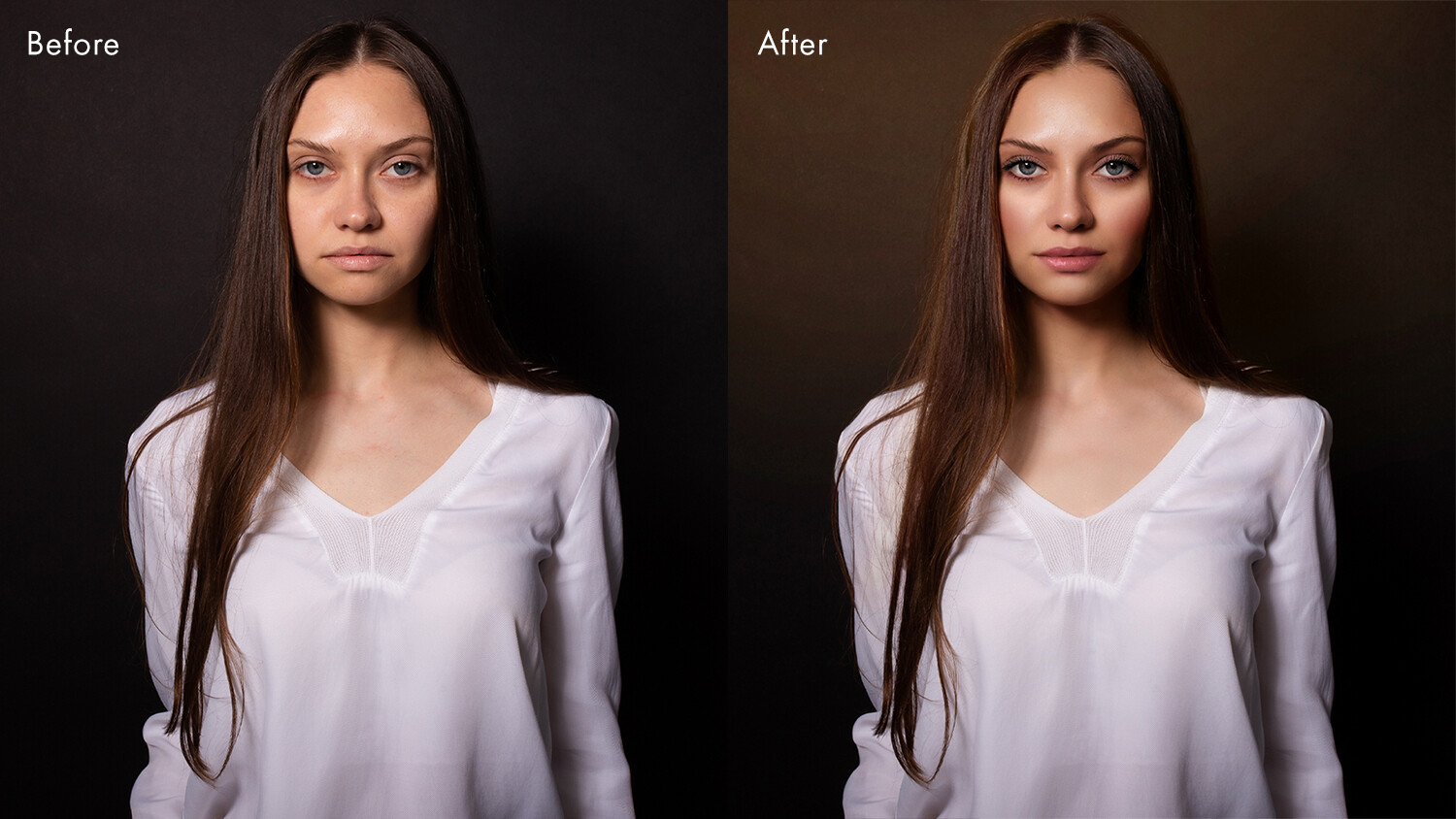
PortraitPro 21 review before and after

Sky replacement

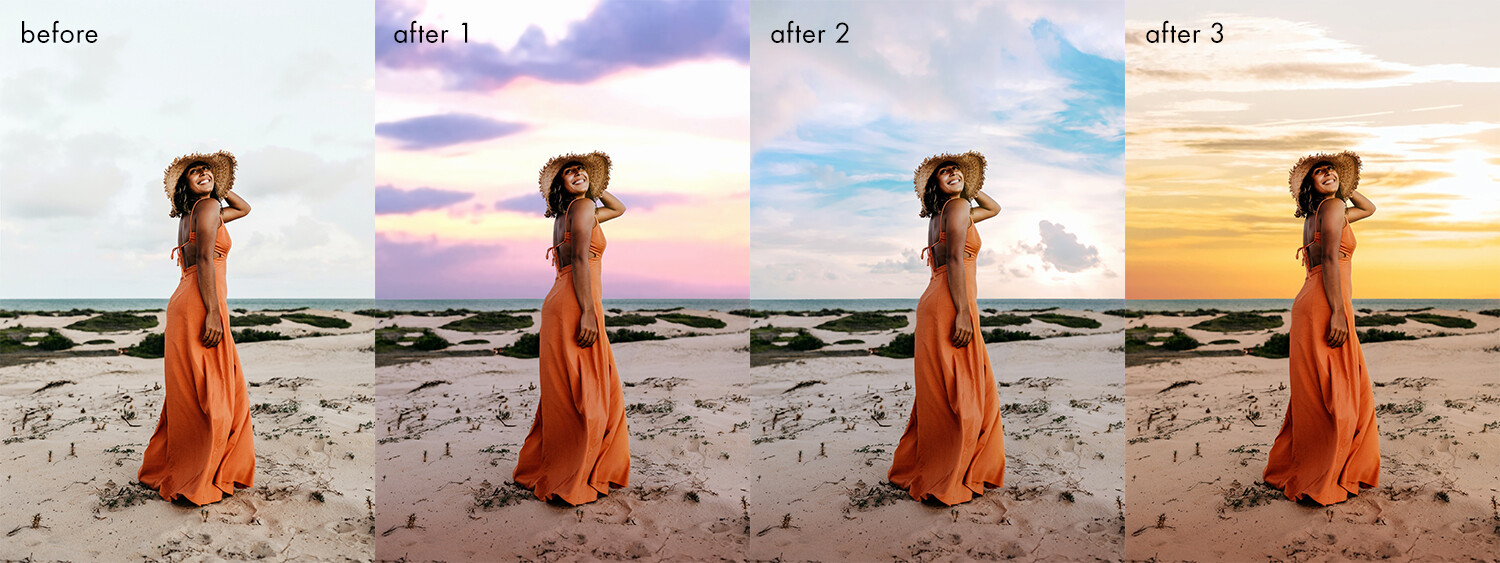
This feature is one that portrait photographers will love. There is nothing worse than capturing amazing shots against a blank sky, knowing you will need to edit them later. Swapping the sky on multiple images can be laborious and time-consuming. But in PortraitPro 21, replacing skies can be done with the click of a button.

Using technology from Anthropics LandscapePro software, this feature does not simply mask and drop in the new background. It also changes the color and tone of the image to match the new sky, giving a more natural result.

PortraitPro has quite a few skies for you to choose from, but if you are looking for something specific, you can always add in your own. 

Sky replacement examples

Lighting brushes

PortraitPro 21 includes a series of lighting brushes. These can be used to create specific effects such as light streams or realistic relighting elements. 

You are able to select exact colors and alter the strength of the brushes, which allows you to quickly get the perfect effect. These brushes are able to separate the background and foreground for you, so you can really get creative. 

Lighting brush effects PortraitPro 21

Clone tool

The addition of the Clone tool means you can remove troublesome areas from your photos. And the presence of the Clone tool means there is no reason to use other software to perfect your edits.

As with all tools in PortraitPro 21, the Clone tool is easy to use and allows completely adjustable precision so you can get the exact result you want.

Ultimately, it’s a great addition to the feature set of PortraitPro. And while it is a tool that most will recognize and is not as groundbreaking as others, it’s one that will be hugely appreciated by all users.

Using the clone tool in PortraitPro21

Denoise/Sharpening

Denoise and sharpening tools are another new addition to this version of PortraitPro.

Yes, these tools are available in other editing programs. But as you are probably beginning to see, the addition of these features to PortraitPro 21 means that you have no real need to switch between programs to get your final result – making PortraitPro 21 a more all-in-one editing solution for portrait photographers.

PortraitPro 21 review

History tool

The History tool continues the trend of the Clone tool. It’s a feature that users of other editing software will be well aware of, and it’s highly valuable.

Specifically, it allows you to move back to a specific point in your edit so you can rework an image without needing to start over. 

The history brush in PortraitPro 21

Color styles

Filters will be familiar to everyone who reads this, because we frequently have these in our social media apps.

PortraitPro now includes a series of color styles that can dramatically change your image in just a few clicks.

Color styles examples in PortraitPro 21

Hair highlights

PortraitPro 21 features a variety of new tools for working with hair.

These include tools that add highlights, as well as change hair color and vibrance. And you can fine-tune these to achieve “salon-level” results.

Hair highlights in PortraitPro 21

PortraitPro 21 review: Performance

As always, I spent some time getting to grips with PortraitPro 21. Having used previous versions, I was familiar with the interface. But as with PortraitPro 19, I was amazed by Anthropics’s excellent tutorials. 

In fact, there are many more tutorials in PortraitPro 21, which give new users confidence right away. Even as a previous user of PortraitPro, it was good to go through a series of tutorials on the new features. These allowed me to immediately understand what is possible in PortraitPro 21. 

I started with the hair tutorial, which gave convincing results quickly and easily. From there, I fine-tuned to my liking. 

Hair features
I loved how the tutorials helped me get started, but then I fine-tuned to my own taste.

After that, I experimented with the new sky replacement feature. Due to my lack of outdoor photography over the last 12 months, I used the tutorial image as a starting point for this feature, and the results were impressive.

Changing the sky on the test image highlighted the importance of choosing your replacement sky wisely. Certain skies won’t work on certain images.

However, Anthropics has included so many different skies for you to choose from that, for every situation, there will be a replacement sky that matches your scene. Again, the ability to fine-tune really allows you to dial in the detail and increase the realism. 

Sky replacement in PortraitPro 21
There are so many different sky options built into the software.

Using TIFF files

After working on the many image tutorials, I wanted to use some of my own images. I always feel this is the real test.

And I was hugely impressed.

My images worked exactly the same as those in the tutorials. Everything was fast, and the software’s AI technology picked features out flawlessly. The highest compliment I can pay the software is to say that I didn’t notice any slowdown between the images I used myself and those in the tutorials. 

Face selection AI demo in PortraitPro 21
Even with a shallow depth of field, PortraitPro 21 picked out the face almost perfectly.

To push the software, I used 16-bit TIFF files in the Adobe RGB color space. The images opened fast, and PortraitPro 21 picked out the features flawlessly. Applying presets took a little longer than the test images, but considering I was working on 16-bit TIFF files, I was really impressed. 

I loved the fact that little tips popped up in the bottom corner of the screen, reminding me of how to tweak things. I used an image with an incredibly shallow depth of field to test the feature-finding abilities, and again, I was very impressed.

For the first image I tested, I used the Clone tool to remove a couple of small blemishes. Even though I was editing TIFF files, the software worked perfectly.

With the blemishes cloned out, I simply added a preset and tweaked it to taste. I had a finished image in less than 5 minutes. This was much quicker than when I edited the image manually. One quick and simple export later, I had a beautiful image ready to go.

Before and after retouch
This full retouch only took 5 minutes.

The only thing I will say is that some of the presets are a little more extreme than my personal style. However, the great thing about PortraitPro is that you can create your own presets simply and easily.

In fact, I tend to do this on a shoot-by-shoot basis, starting with a preset and tweaking it to suit the shoot I am working on. I can then apply these presets quickly and easily to the whole set of images from the shoot before sending proofs to a client.

Working with presets is taken to a whole new level with the Studio Max version of PortraitPro 21, where you can batch process several images in seconds.

Batch processing

Setting up a batch of images in PortraitPro
Import images, select your style, and click Go. Batch processing is an incredibly powerful feature in PortraitPro 21.

For a working photographer, the batch processing in Studio Max is a huge timesaver when you need a consistent retouch across a range of images. PortraitPro’s face recognition means that you can trust the software to pick up the face and apply the retouch for you automatically.

To test this feature, I exported full-sized JPEGs from a styled shoot. After creating a look with a single image, I used the batch feature of Studio Max to apply this style to a group of ten images. In less than one minute, all the images had saved and were ready to go. I simply clicked two buttons.

This feature alone changes how I deliver portrait and headshot proofs to clients. For so many working photographers, batch processing is going to be a game-changer. Imagine being able to deliver headshot proofs to clients with such little effort.

batch of images from a wedding photoshoot
A variety of poses didn’t fool the software. Everything was ready to deliver in under a minute.

Who is it for?

In my last review of PortraitPro, I said, “PortraitPro is an amazing tool for those who are new to retouching portraits. It is simple yet incredibly powerful, and gives you pleasing results within seconds. However, it offers much more and encourages you to go back to the software and personalize your retouching.“

So much has changed since then. In fact, PortraitPro 21 has more features that make it even easier for me to recommend. It is possibly the most feature-rich portrait editing software out there. 

If you’ve loved previous versions of PortraitPro, then you will love this even more – especially with the special offer for dPS readers (see below!).

Note that there are three PortraitPro 21 versions: Standard, Studio, and Studio Max.

PortraitPro 21 Standard is great for many people. It is a standalone software that allows you to work with JPEG or 24-bit TIFF files. For many photographers, this will be perfect. 

By upgrading to PortraitPro Studio, you get the Photoshop/Lightroom plugin that so many of you will love, as well as the ability to work with RAW, DNG, and 48-bit TIFF files. It also has color-space conversion. 

Finally, for those who shoot professionally or need the ability to retouch a batch of images in a few clicks, the Studio Max version of PortraitPro 21 will save you so much time (and professionals all know time is money!) that I cannot help but recommend it. 

Sounds amazing! How do I get it?

You can download your free trial of PortraitPro 21 right here.

But if you’re thinking about purchasing the software, note that there is a 50% off launch offer, plus dPS readers get an extra 15% off with the coupon ZC1990. So click here to grab your discounted copy of PortraitPro 21!

Anthropics is a paid partner of Digital Photography School.


The post PortraitPro 21 Review: A Comprehensive Editor for Portrait Photographers appeared first on Digital Photography School. It was authored by Carl Spring.


Digital Photography School

 
Comments Off on PortraitPro 21 Review: A Comprehensive Editor for Portrait Photographers

Posted in Photography


DPReview TV: Nikon Z7 II review

09 Jan

The Nikon Z7 II has the same great ergonomics as its predecessor, but has more processing power, dual card slots, 4K/60p video, improved autofocus and more. Chris and Jordan tell us why it’s a solid choice for many shooters.

Subscribe to our YouTube channel to get new episodes of DPReview TV every week.

  • Introduction
  • Design and handling
  • Dual memory cards
  • Sample images
  • Displays
  • Autofocus
  • Burst shooting and buffer
  • Image quality
  • New subscriber challenge!
  • Video performance
  • Time-lapse
  • More sample photos!
  • Who's it for?

Nikon Z7 II sample gallery from this episode

$ (document).ready(function() { SampleGalleryV2({“containerId”:”embeddedSampleGallery_9134434139″,”galleryId”:”9134434139″,”isEmbeddedWidget”:true,”selectedImageIndex”:0,”isMobile”:false}) });
Articles: Digital Photography Review (dpreview.com)

 
Comments Off on DPReview TV: Nikon Z7 II review

Posted in Uncategorized


XP-Pen Artist 24 Pro Review: A Gorgeous Graphics Tablet for Photographers

08 Jan

The post XP-Pen Artist 24 Pro Review: A Gorgeous Graphics Tablet for Photographers appeared first on Digital Photography School. It was authored by Sime.

XP-Pen Artist 24 Pro graphics tablet review

I’ve been using Photoshop for many years – primarily as a photographer that works in Lightroom and sometimes exports images into Photoshop for editing. But using Photoshop with a mouse is something that takes a lot of practice; it’s not really a natural way to post-process, which is why many serious editors turn to graphics tablets.

Now, when the team from XP-Pen reached out and offered us a review unit of the XP-Pen Artist 24 Pro, a 2K, 23.8-inch QHD graphics tablet, I’ll admit I was a little dubious. I’d only ever owned one graphics tablet – a tiny little Wacom that didn’t get a lot of use. I was certainly keen to try a new tablet, but I’ll admit that I was a little worried about not liking it.

Fortunately, as you’ll soon see, I needn’t have worried. As I share in this review, the XP-Pen Artist 24 Pro is a powerful graphics tablet, one that both looks and works great.

So to discover all the nitty-gritty details, including both the benefits and the drawbacks of working with the Artist 24 Pro, read on.

First impressions

The package that arrived was much larger than I expected. I knew the Artist 24 Pro featured a 24-inch display, but I had clearly not managed to comprehend just how large the tablet would be.

I have a desk with two 27-inch displays, which meant that the XP-Pen Artist 24 Pro would need an extra bit of real estate. So after I MacGuyvered something together with a Kupo light stand and my Tether Tools Aero, it was time to get the new tablet set up!

XP-Pen Artist 24 Pro graphics tablet review
The XP-Pen Artist 24 Pro standing on the makeshift work table.

I tried using the tablet in two different configurations:

First, on a stand with my Macbook sitting behind it. This is a great setup for shooting tethered, as you can perform quick edits there and then with the tablet while using it as your main display.

The second configuration, as shown in the photograph above, was with the tablet adjusted to the height of my standing desk, ready to go!

Design

The XP-Pen Artist 24 Pro offers one HDMI and two USB host ports (so you can charge things like phones, etc.), as well as the power input on the back of the unit.

There’s also a USB-C port, which allows me to connect my iMac to the display. This was very quick and convenient; it worked straight out of the box with very little configuration required.

XP-Pen Artist 24 Pro graphics tablet

The rear of the tablet sports a flappy-paddle stand that, when depressed, moves a foot into the desired position. This lets you adjust the unit to stand up or lay almost flat, as though you’re writing in a nice big notepad.

XP-Pen Artist 24 Pro graphics tablet tilting

I love how I can stand up the tablet to use as a regular second monitor for my 13-inch Macbook Pro, before laying it flat and working on photographs.

XP-Pen Artist 24 pro setup
The XP-Pen Artist 24 Pro lying almost flat.

Ease of use

The XP-Pen Artist 24 Pro comes with a piece of software (a download) that adjusts the settings of the tablet, pen controls and functions, monitor configuration, express key setup (more on that in a bit), calibration, and other general features. I’ve found it very easy to use with no what-the-heck-am-I-doing moments to speak of!

XP-Pen Artist 24 Pro settings

However, when you first set up your tablet and open Photoshop, make sure you have the correct monitor mapped. Otherwise, you’ll find yourself deeply frustrated; I speak from personal experience.

XP-Pen Artist 24 pro settings tab

Performance

There are many technical reviews of the XP-Pen Artist 24 Pro on the web, and most of them will tell you, in superbly technical terms, that the tablet is a very capable tool.

In fact, my conclusion is similar – the large screen, the 2560×1440 resolution, the 90% AdobeRGB color gamut, and the tilting stand makes for a very usable tablet.

When you get the XP-Pen Artist 24 Pro custom buttons all configured using the two easy-to-control red dial wheels and the 20 customizable shortcut keys, it’s very easy to open and control many different graphics packages, as well as a lot of other options (depending on which software you like to use on your computer).

In truth, I hadn’t previously used a tablet much. I thought that I’d always just edit with my mouse. I guess that comes from having a less-than-pleasant time with the first tablet I tried (and I hadn’t used another tablet until the Artist 24 Pro).

I’ve now had the XP-Pen Artist 24 Pro for quite a while. And when working in Photoshop, while I would have once happily used my mouse, I now whip out the tablet and do my editing on the screen – a testament to the great performance and ease of use of the tablet.

Granted, the 24-inch tablet isn’t the smallest device, and you do need to have space for it. But the tablet only requires one USB-C (or HDMI) and one power cable, so you can have your laptop tucked behind the tablet, using the tablet as your main display with a wireless keyboard and mouse to give your laptop that “big screen” feeling.

I’ve used the tablet as the main display for my 13-inch MacBook Pro for almost everything from movies to editing since I received it.

The XP-Pen Artist 24 Pro review: Conclusion

The XP-Pen Artist 24 Pro offers solid build quality combined with a simple-to-navigate interface, great on-screen performance, visual clarity, and ergonomics.

There was only one thing I thought could be improved, and that was the rear foot of the big screen. It has a couple of rubber stoppers that hold the device nicely in place, but it’s easy to scratch your desk if you’re not careful.

Overall, I like almost everything about the Artist 24 Pro; it’s packed full of features that make it one great tablet!

You can purchase the XP-Pen Artist 24 Pro right here.

The post XP-Pen Artist 24 Pro Review: A Gorgeous Graphics Tablet for Photographers appeared first on Digital Photography School. It was authored by Sime.


Digital Photography School

 
Comments Off on XP-Pen Artist 24 Pro Review: A Gorgeous Graphics Tablet for Photographers

Posted in Photography


EaseUS Data Recovery Review: Fast, Powerful, and Easy to Use

06 Jan

The post EaseUS Data Recovery Review: Fast, Powerful, and Easy to Use appeared first on Digital Photography School. It was authored by Jaymes Dempsey.

EaseUS data recovery review

If you’ve ever deleted photos, videos, or documents by accident…

…then you know how important it is to have good data recovery software on hand. 

Unfortunately, not all recovery software works as promised – which is why you have to be extra-careful when purchasing. 

But what about EaseUS Data Recovery Wizard? It’s a popular recovery program, but can you trust it to bring back your precious files?

That’s what this article is all about. 

EaseUS data recovery review

I put EaseUS Data Recovery to the test, and I share all my findings with you. And honestly, it’s worth stating up front that EaseUS Data Recovery works really, really well. While I’ll share details with you later on in this review, I’d like to emphasize a few facts: 

First, EaseUS is remarkably fast. 

Second, it’s packed full of useful features for sorting and locating photo and video files.

And third: 

It does a great job (flawless, in my experience!) recovering deleted media. 

So to learn more about EaseUS Data Recovery, including what it can do, where you can purchase it, and how you can use it to recover your files…

…read on.

What can EaseUS Data Recovery software do?

EaseUS Data Recovery software offers a quick and easy way to recover deleted files. 

Specifically, you can use it to bring back desktop data that you’ve accidentally deleted, memory card files that you’ve formatted, or video files that you forgot to backup then deleted off your card. 

In other words: 

If you’ve lost your files through some method of accidental deletion, EaseUS Data Recovery can likely get them back.

EaseUS offers a huge list of file types you can recover with their recovery wizard, including plenty of photo file types (JPEGs, TIFFs, PNGs, CRWs, NEFs, ORFs, and DNGs, among others) and video file types (MP3s, WAVs, MPGs, WMVs, etc.), as well as document file types, audio file types, and more. 

the file types EaseUS can recover

Also note that EaseUS can go beyond recovery in select cases. The software can actually repair corrupted JPEGs, MP4, and MOV files, though this functionality unfortunately doesn’t extend to RAW files.

Now let’s take a look at how to actually use the EaseUS Data Recovery Wizard to resurrect your lost files:

How to use EaseUS: A quick guide

EaseUS is impressively simple to use. 

Start by installing the EaseUS software, which you can grab off the EaseUS website here for PC and here for Mac. 

installing EaseUS

Once you have the software set up, you’ll be prompted to select the location to target for recovery:

selecting a location to recover files from

Just hover over the relevant location, then click Scan:

click Scan to begin the recovery process

The scanning process will begin immediately, where EaseUS searches the targeted location for any and all files, including corrupted and deleted photos. 

EaseUS scanning for files

You’ll see a countdown at the bottom of the screen that gives you an estimated scan time.

And files will begin to appear in the EaseUS window as they’re identified for recovery. 

If you like, you can let the scan continue until completion, but you also have the option to recover already-discovered files. In other words, you can let the scan run in the background while you recover the files already present in the EaseUS window.

Eventually, you’ll need to select the files you’d like to recover. Just hit the check mark next to the file names:

choosing files to recover

Then select Recover:

clicking the Recover button

If you’d only like to recover certain files, you have the option to filter specific file types via tags: 

filtering by file type

Or filter specific file types via the Filter option:

using the Filter option

In fact, you can get even more granular with the Advanced Filter; simply open the Filter menu, then click Advanced Filter:

clicking the Advanced filter option

And select your filter options to bring up specific files while scanning: 

the filtering options

After you hit the Recover button, you’ll be prompted to select a location to store the recovered files:

select where to store your recovered files

Hit OK, and you can watch the progress bar as your files are recovered:

EaseUS data recovery review progress bar

Once the recovery is complete, EaseUS will automatically launch the location with your recovered files. You can also click the View Recovered button to launch the location manually:

view the recovered files

Then you can immediately access your recovered files!

the actual recovered files

How does EaseUS Data Recovery perform?

I tested EaseUS Data Recovery with a formatted memory card of my own, and it performed flawlessly. When I’d finished the recovery process, I had access to every one of my photos (all in perfect condition!). 

Of course, it’s impossible for me to test every scenario and every file type, but my Olympus RAW images came back safe and sound, and I’m confident that EaseUS could effortlessly handle plenty of other situations. 

I was handily impressed by the ease of recovery. The process was remarkably simple and took literally zero fumbling around with the software. And I was also pleased by the speed of recovery, because while some recovery software takes hours upon hours to scan and recover photos, EaseUS had all 20+ deleted photos ready for recovery within five to ten seconds. The recovery process itself took thirty seconds at most. 

Since I was just recovering Olympus RAW images from an SD card, I didn’t have much use for the filtering functions. But if you’re looking to recover select media from an entire hard drive of files, filtering is invaluable – it’ll let you find and select the files you’re after, without having to waste precious time going through the entire set of recovered items. And I’m a huge fan of the “recover while scanning” option, which allows you to recover already-discovered items while EaseUS continues to scan the drive. When I was testing the software, I didn’t have to wait for the entire deep scan to finish. Instead, I started recovering images as soon as EaseUS identified them.

A word of caution: There are times when EaseUS Data Recovery will fail; that’s just the nature of recovery software. If your photos or videos are too far gone, even the best recovery software won’t be able to piece them back together. 

For instance, if you fill up a memory card, format it, and fill it up again, the first set of images will almost certainly be unrecoverable, which is why you should always, always, always have a proper backup system from the beginning. And if you ever find yourself with a formatted memory card that needs recovering, do not, under any circumstances, overwrite that card with new images. 

But here’s the bottom line:

EaseUS did a fantastic job recovering my images, and I wouldn’t hesitate to use EaseUS to deal with accidental file deletion of any type.

EaseUS Data Recovery: Plans and pricing

EaseUS offers three editions for PC users:

First, there’s the Free edition, which allows you to recover up to 2 GB of media. If you’ve accidentally deleted a handful of images, this may be enough.

The Pro edition offers unlimited data recovery, plus you get support from EaseUS specialists, all for $ 69.95 USD. This is perfect for most users, assuming you can boot up your drive. 

Finally, there’s the Pro+Bootable Media edition, which offers everything included in the Pro edition, plus the capability to recover files from a crashed drive, all for $ 99.90 USD. This is the edition to purchase if you cannot get your drive to run.

EaseUS Windows pricing table

Mac users also have access to the Free edition. Then there’s a Pro edition for Mac, which offers the functionality of the PC Pro+Bootable Media edition in a comprehensive, $ 89.95 USD package. 

EaseUS Mac pricing table

Who should get EaseUS Data Recovery?

If you’ve accidentally deleted photos or videos, then EaseUS Data Recovery is a fantastic solution. 

It’ll bring back any recoverable files quickly and efficiently – and it’ll even let you sort through the files for easy access. 

So if you’ve lost photos or videos on a memory card, a flash drive, a hard drive, or your desktop, I highly recommend you grab this EaseUS software. If the files can be recovered, then EaseUS will get it done!

You can purchase a version of EaseUS right here for PC users and right here for Mac users.

EaseUS is a paid partner of dPS.

The post EaseUS Data Recovery Review: Fast, Powerful, and Easy to Use appeared first on Digital Photography School. It was authored by Jaymes Dempsey.


Digital Photography School

 
Comments Off on EaseUS Data Recovery Review: Fast, Powerful, and Easy to Use

Posted in Photography