For leaf-shutter flash geeks only: high-speed Phantom v1610 video of a Fuji X100s shutter not-quite-really syncing at 1/4000th of a sec.
Sorry, I know many of you will be bored to tears by this. But the full technical article photographer Kevin Housen developed around this video (and others, at different shutter speeds) will really peel the onion for you if you want to know about the demonstrable quirkiness of this camera and ultra-high speed sync.
The image below is a stitched panorama comprised of 7 separate frames, stitched together in Photoshop CS6, using the Photomerge feature. The full sized finished image weighs in at 85 megapixels. In this article I will share some tips for creating your own stitched panoramas.
Sunset Cliff, San Diego, CA – 1/160, f/5.0, ISO 125, 70mm (Canon 5DmkIII, EF24-70mm f/2.8L USM)
Shooting your Photos
The first step in creating a stitched panorama with Photomerge is to shoot suitable images. Keep these points in mind:
Overlap the images – according to Adobe, the images should overlap by at least 40%, but no more than 70%. Outside of this range, Photomerge may not be able to align the files correctly.
Keep your settings constant – you need to keep focal length, focus point, and exposure constant throughout the series of images so that you can combine them later. The easiest way that I’ve found to do this is to take one shot on P, look at the camera settings, and then dial those settings in on manual mode. I also focus on a suitable object about 1/3 of the way into the scene, and then change the camera to manual focus so that the focus will be constant.
Shoot vertical – this is a little counter-intuitive since we’re making panoramas. It’s usually best to shoot vertical (portrait orientation). Since you’ll merge multiple frames together later to get as wide as you need, shooting vertical will give you a taller overall panorama. Also, you’ll need some of this vertical space for cropping. More on cropping later.
Preparing your Files
The next step in the process is to prepare your files for Photomerge. This is actually optional. If you shoot JPEG and you’re happy with your images straight out of the camera you can go directly to Photomerge in Photoshop. If you shoot RAW, process your RAW images in whatever program you use, and export full size TIFF or PSD files to a temporary location on your computer so you can open them from Photomerge.
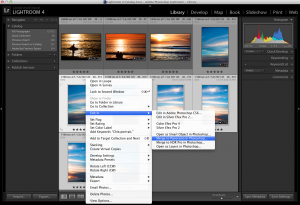
Lightroom users: If you process your RAW images in Lightroom, you don’t have to export to disk, because you can send your files straight to Photomerge from Lr.
1. Select the files
2. Right-click and choose “Merge to Panorama in Photoshop…”
Sending files straight to Photomerge from within Lightroom
Merging your Panorama with Photomerge
The next step is to open your images in Photomerge from within Photoshop, and stitch together your Panorama.
(Lightroom Users: if you jumped to Photomerge straight from Lr, skip to step 4 below)
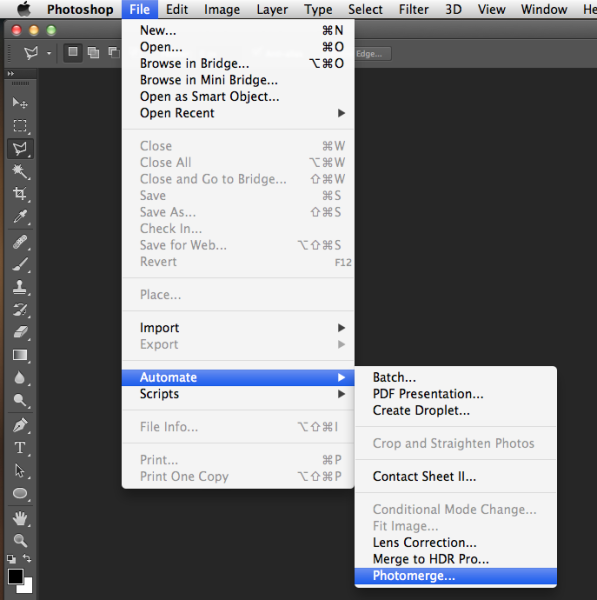
1. From the file menu, chose Automate > Photomerge
Launching Photomerge within Photoshop CS6
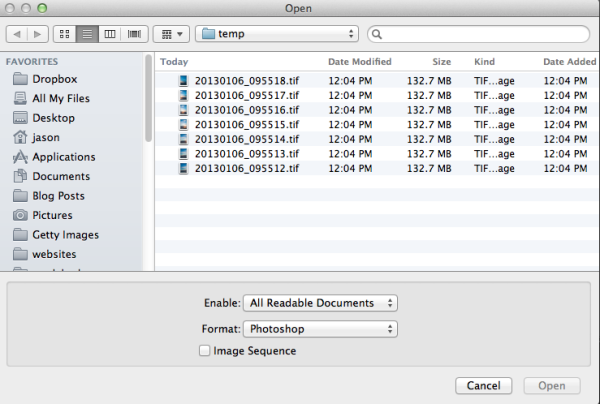
2. Click “Browse” and navigate to the files you exported to a temporary folder in your drive.
Browse to the location where your files are located
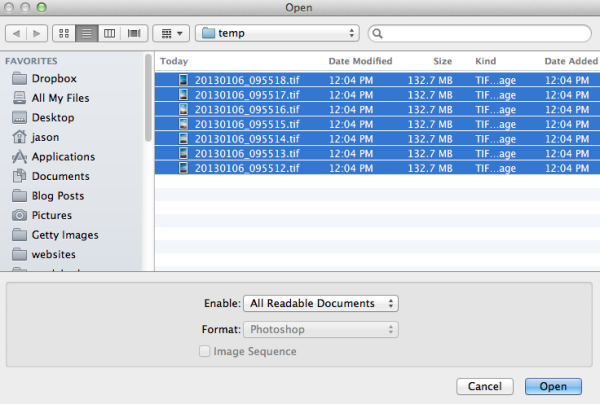
3. Select all of the files and click “Open.”
Select all files
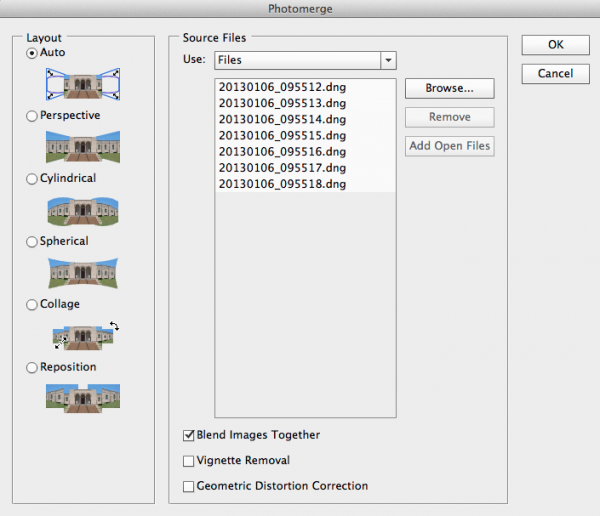
There are several options under “Layout” on the left side of the Photomerge dialogue box, but I’ve had good success with Auto. For a detailed explanation of each of the options, check out the Adobe Help article here.
Photomerge dialogue
If you noticed any vignetting or distortion in your source images, select the options to correct that during the Photomerge process. Personally I don’t use these two options, as I’ve noticed they slow down the Photomerge process exponentially. Instead I prepare my images in Lightroom and apply Lens Correction in Lr before sending my images to Photomerge. However these features are there if you need them.
Photomerge options
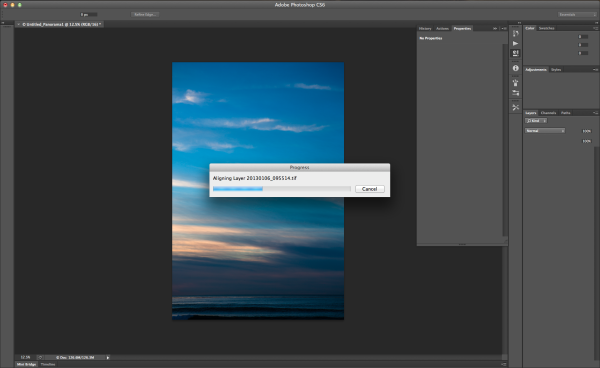
4. Click OK and wait for Photomerge to complete.
Photomerge working
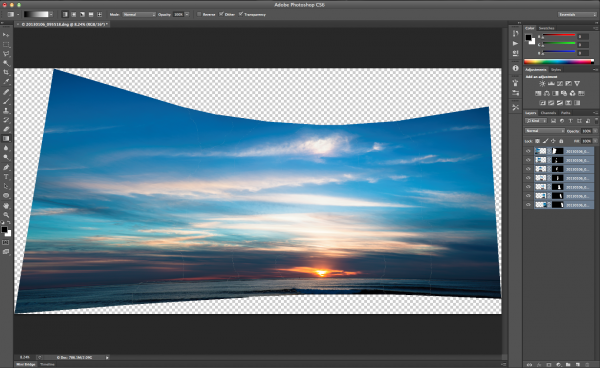
5. When Photomerge finishes its magic, you will have a single panorama with each image in a separate layer. Zoom to 100% and check the seams between the images. If everything looks OK, flatten by navigating to the Layers menu and selecting “Flatten Image.”
Panorama in separate layers
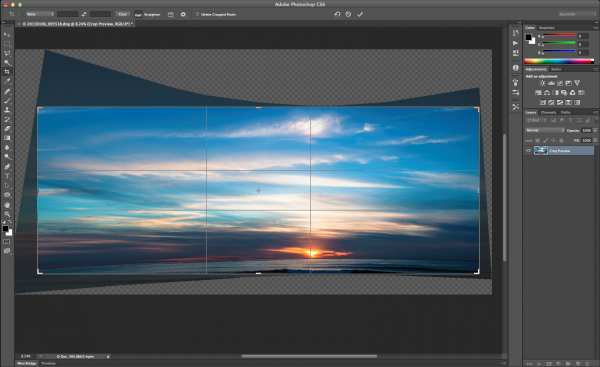
6. Crop a rectangular composition from the center of your stitched panorama. This is where shooting in portrait mode really helps. There is a more vertical height to the photo and therefore more space available for cropping.
Cropping your Panorama
Conclusion
The Photomerge feature in Photoshop makes stitching Panoramas easy. For me, the hardest part is remembering to take advantage of this feature by shooting images when I’m out an about that I can later stitch together into a panorama. Next time you’re out shooting and the you can’t figure out how to fit the scene into your lens, try shooting multiple frames and stitching together a panorama when you get back to your computer.
7-frame stitched panorama of Matsumoto Castle. Matsumoto City, Nagano Prefecture, Japan – 1/500, f/7.1, ISO 100, 70mm (Canon 5DmkII, EF70-200mm f/2.8L IS USM)
I appreciate feedback, please comment below or feel free to connect with me through Facebook or Google+. I’ll do my best to answer questions and reply to comments.
Post originally from: Digital Photography Tips.
Check out our more Photography Tips at Photography Tips for Beginners, Portrait Photography Tips and Wedding Photography Tips.
Unconventional solutions for home storage by Italian company AK47 make a bold, graphic statement on the wall or ceiling, turning everyday items like clothing, firewood, magazines and even food into decor. The 2012 home collection includes round wall-mounted shelves in black and white, a low coffee table with built-in storage and wall-mounted clothes hangers that can be arranged in artistic configurations.
Flouting the tired convention of storing books and other items in vertical stacks, the Tubola storage system creates little wall cubbies that keep items up off the ground, and put them on display in individual groups. Available in a range of sizes, the shelves can be mounted like wall art.
The Zerino coffee table features a center cutout that can hold the object of your choice, whether a plant, candles or a miniature fire pit. The space between the two discs offers room for storage.
The Bretell magazine rack puts your collection front-and-center, while the Tac wall-mounted clothes hanger brings your clothes and accessories out of the closet.
Have a lot to hang? The Gang ceiling-mounted chain hanger can fit a lot of clothing into one small space, and would also look great covered in plants.
Want More? Click for Great Related Content on WebUrbanist:
14 Spectacular Home Storage Design Solutions
Your cabinets, chests and dressers should be exciting and stylish ways to stow your belongings – and here are 15 examples that will make you do at least a double-take.
Click Here to Read More »»
25 (More!) Unique Book Shelving & Storage Solutions
Bookshelves are a common sight in most homes, but many of them are bland and boring. These 25 book storage designs are interesting enough to spruce up any home!
Click Here to Read More »»
Earlier this month as many of you know, I traveled to Hong Kong to be a guest on DigitalRev's Pro Tog, Cheap Camera series. (Full video and final pic edits below.)
Which meant I also got to hang out with the DR team, including Lok, Alamby, Theo—and of course show frontman/international sex symbol/Man of Mystery Kai Wong.
And you are probably wondering right now: what's Kai really like? Read more » Strobist
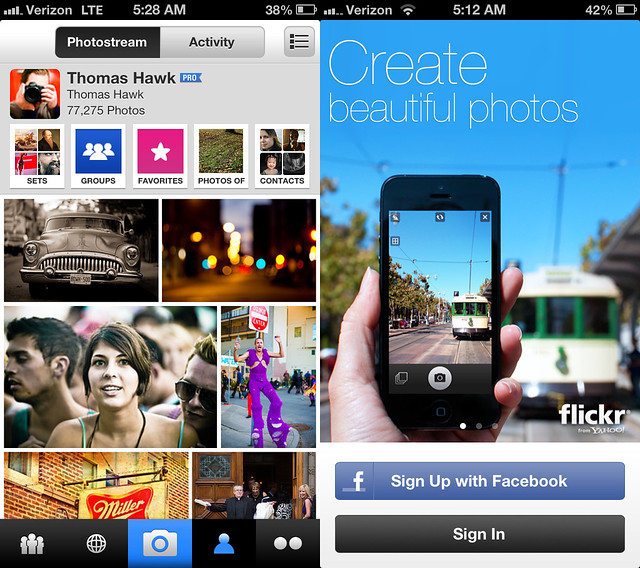
My photostream and the new Flickr splash screen for their new iPhone app.
Hot damn. Well Christmas is coming early this year for Flickr iPhone users. This morning Flickr is rolling out a brand spanking new Flickr iPhone app and it is that good — really, really, really, really mind blowingly fantastic good. It not only smokes every other previous mobile version of Flickr it smokes every other mobile photo sharing app on the market today.
I had some time to play around with the app yesterday and it is pretty much does 100% exactly what you’d want a Flickr mobile app to do. It’s nice to finally see a decent Instagram competitor out there.
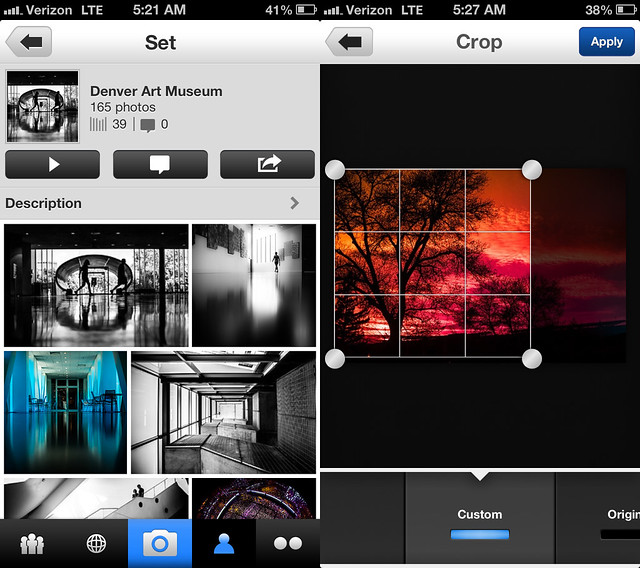
First the basics. The app takes photos. It has some pretty good simple editing tools powered by Aviary. You can crop photos, straighten photos, increase contrast, stuff like this. You can select different points for focus and exposure when you snap your photo. You can then apply one of about 15 different Instagrammy sort of filters that are all named after animals in the app. This stuff is probably super important to the average minor league user, but is actually pretty boring to me. It’s a solid decent camera app.
Where the app starts to get exciting for me though is the browsing of photos. Here Flickr delivers and delivers big. The best basic view is of your contacts’ most recent photos. As you vertical scroll down the screen it shows the last photos uploaded by all your favorite people that you follow. You can just keep scrolling down the page (infinitely) to see new photos by all your contacts or at any individual contact you can stop and start scrolling horizontally (infinitely) to go through their entire photostream, very, very fast.
Browsing group discussions and faving a contacts’ photo in the new Flickr iPhone app.
For newer users who don’t have a lot of contacts yet that might browse through their entire contacts list, new recommended photographers are added so that a user never runs out of contacts’ photos to see. Who and how these individuals are selected and included is Flickr secret sauce, but it should make sure that you never have a shortage of photos to see even if you’re new.
EVEN BETTER. Tap tap = fave. Yep, Instagram gave us the first big fave inflation tool by allowing us to tap tap fave our way through life and Flickr now has adopted that protocol allowing you to tap tap fave photos by all your favorite photographers.
What does this mean? It means that all of a sudden you are going to start noticing a ton more faves on your Flickr photos. Every time your friends have 10 minutes in line at the bakery they are going to be all up in your Flickrstream faving things like crazy. It’s so easy now. Flickr is also now going to begin counting mobile views of your photos as views for your photo stats (previously mobile views were not counted) so expect both the views and faves on your photos to sky rocket.
In addition to viewing your contacts’ most recent photos and going fave bombastic Billy Wilson style you’re also now able to view all kinds of other areas of Flickr in a beautiful mosaic photo layout — your own photostream and sets, group photo pools, other people’s sets, Explore, all have a justified photo layout that just invite you to go tap tap crazy.
Speaking of Flickr groups, with this new app Flickr introduces a really nice basic thread reader that will allow you to stay on top of all of your favorite threads while you’re mobile. The reader is super simple and does exactly what it’s supposed to do, it lets you easily read your threads and respond if you want from mobile. The previous version of Flickr’s mobile app lacked this important feature. Some of Flickr’s biggest power users live in these threads and this is an important improvement because it will help keep people plugged into their Flickr groups more often.
Another nice feature of the new app is that if you want to see any photo you are looking at full screen size you just tilt your iphone sideways and the photo immediately fills up the entire screen. You can then swipe from photo to photo as you scroll your way through whatever stream, set, group, etc. you are in. Flickr also uses a larger higher res version of your photo for this view so you get to see the photo with amazing clarity even if you pinch in to see a section in detail.
Flickr also includes lots of other detail on a photo page that you can access if you want to see it — EXIF data, location data, people tags, etc. Flickr also partnered with Foursquare to give you a list of venues to easily geotag your own photos as you upload them.
Flickr photos are now full-sized when you share them to Facebook and Twitter — before vs. after.
What about sharing your photos beyond Flickr? Yes! What about sharing your photos beyond Flickr? With the new Flickr app you can now share your Flickr photos to Facebook, Twitter, Tumblr or by email. Where it gets exciting though is how your photos are shared on these other sites. Beginning today, photos shared from Flickr to Facebook will now be shared full sized just like your Facebook photos are. In the past Flickr photos were given the downsized thumbnail treatment. Now your Flickr photos shared to Facebook will look as gloriously large as your photos shared directly on Facebook. This not only applies for your photos shared from the new app by the way, but from your photos shared via the web as well.
Likewise Flickr has now adopted Twitter’s envelope and your Flickr photos posted to Twitter will be seen full sized as well. What Twitter/Instagram taketh away Twitter/Flickr giveth back.
A Flickr set and editing a photo in the new Flickr iPhone app.
The only downside to today’s announcement is that as is usually the case, iPhone users get all the love while us Android fan boys get left out in the cold yet again. Flickr Product Head Markus Spiering did confirm that Flickr is working on future versions of their app for both Android and iPad though and said that Flickr hoped to have feature parity with today’s new iPhone app, but couldn’t confirm what the time frame might be on these future apps. He did emphasize that Flickr and Yahoo both are very committed to mobile going forward.
Flickr is also rolling out a few new enhancements to the web version of Flickr today as well. They’ve redesigned the global navigation and menus so that they are more intuitive and added their new justified photo view that they’ve been rolling out to various areas earlier this year to Explore. Explore is much easier to browse now as one big infinite scroll mosaic to go through each day. Hopefully Flickr’s awesome justified photo mosaic layout will be coming to sets and search next.
The new Flickr for iPhone app is available to download in Apple App Store this morning. Run, don’t walk and get it NOW! Trust me, you won’t be disappointed.
Stephen Shankland’s review over at CNET here. Review at the Next Web here. A blog post from the Flickr blog here.
Update: Pro Tip. Anil Dash points out that with the new “Find Friends” feature on the app you can find Facebook and Twitter friends’ flickr accounts that you may not know about. Try this feature and you many find a whole bunch of new Flickr contacts to add.
Dream Mining’s brand new talk show on everything that matters, starring Sarah, Lilly and Ella. www.dreammining.com Play Dream Mining www.dreammining.com Facebook www.facebook.com Subscribe: www.youtube.com Dream Mining is a place to create, to dream and to play! At Dream Mining it’s all about fashion, music, and film especially when YOU design, sing and make videos! There are great animated videos and real stars singing original songs! Characters play in the world of Fashion, Music and Film: Lilly, Sarah, and Ella. TAGS: Dreamminingco “Dream Mining” “Wizards of Waverly Place” Sarah “Hannah Montana” “Miley Cyrus” “Demi Lavato” Lilly “Everything That Really Matters” Ella “Justin Bieber” “Harry Potter” “Emma Watson” Twilight “Breaking Dawn” “Never Say Never” “Jackson Harris” “Long Story Short” “Deathly Hallows Part:2” “American Idol” Simon Video Rating: 2 / 5