RSS
 

Posts Tagged ‘Program’

Your Guide to Understanding Program Mode on Your Camera

03 Jun

Almost every DSLR or Mirrorless camera has a mode dial with a variety of letters and icons on it, some of which might seem cryptic or confusing. Usually you’ll find a green icon for Full Auto mode (usually a green A or rectangle), Full Manual mode (M), as well as Aperture Priority (A or Av) and Shutter Priority (S or Tv). Your camera might also feature scene modes such as portrait, night, or macro, and even some user-configurable modes indicated with a U1 or U2 (or C1/C2, etc.).

Somewhere on that dial is a letter that’s often left neglected, and unused by many people, even though it can be quite powerful – Program Auto (P). In my experience most people don’t use it because they don’t understand it. Is it Auto? Is it Manual? What can it do that the other modes can’t? The answer is a bit strange at first, but once you wrap your head around what the humble little P mode can do, you might find yourself using it much more than you thought.
DSC_2475

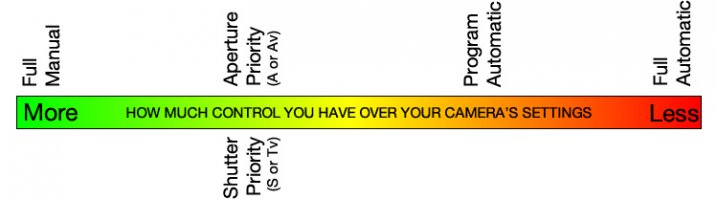
The camera mode dial operates on somewhat of a continuum. On one end you have Full Manual mode, which gives you complete control over the three elements of exposure: shutter speed, lens aperture, and ISO sensitivity. On the other end you have Full Auto mode which gives you almost no control over exposure except whether the flash turns on or not (and on some cameras, not even that much). On most cameras Full Auto will not even let you choose basic parameters like white balance and focus mode, which is fine if you just want to shoot some pictures and not worry about all the technical aspects of photography.

The other modes exist in the middle of the spectrum and give you some degree of control, while your camera handles the rest. For instance, in Aperture Priority you control the aperture and ISO, and let your camera figure out what shutter speed to use for a good overall exposure. In Shutter Priority things are reversed; you control the shutter speed and ISO, while your camera figures out what aperture to use.
program-auto-diagram

Program mode exists on the same continuum somewhere between Aperture/Shutter Priority and Full Automatic. When you initially put your camera in P mode you might notice that things look similar to Full Auto; your camera sets the aperture and shutter speed in order to get a proper exposure. One benefit you might not immediately realize is that you can set the ISO which will then remain unchanged by the camera. This is quite useful in situations where you want to intentionally use a lower ISO, such as outdoors or in bright light, or a high ISO when things are a bit darker and you prefer to not activate the flash. If nothing else, think of the Program Auto mode as an ISO Priority mode; you set the ISO and your camera figures out the shutter speed and the aperture. If that’s all you want to do, you’re set. Change the ISO (or not) and worry only about composing and framing your shots, then let your camera figure out the rest.
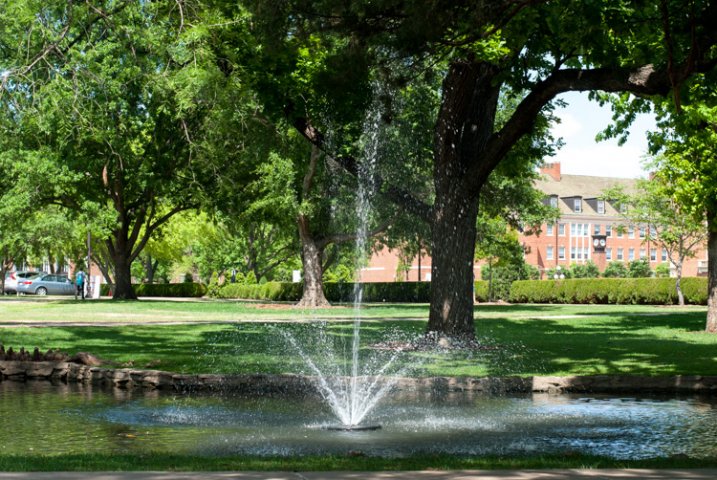
DSC_2624

Program Auto gave me a well-exposed picture but the result was not what I was hoping for. I wanted a smoother look for the fountain…
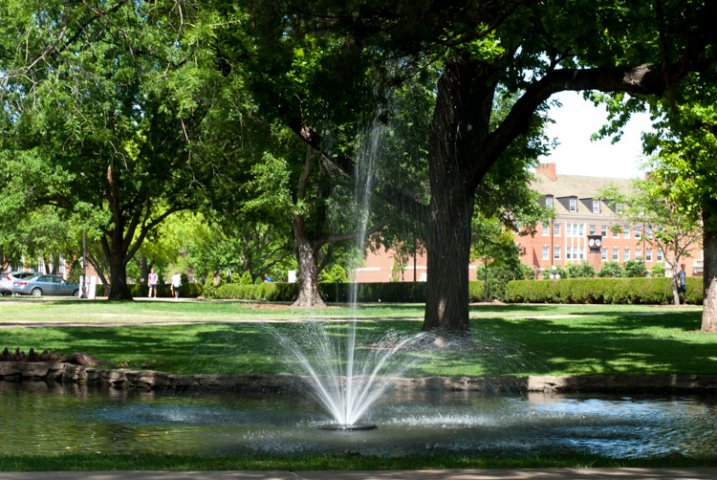
fountain-motion-blur

…so I quickly adjusted my shutter speed to 1/20 using the dial on my camera. Program mode kept a nice exposure while giving me the motion blur I was looking for.

If you’re willing to dig a little deeper you will find many more useful features to unlock in Program mode – far more than just giving you the ability to control the ISO. It’s kind of like the familiar Auto mode on steroids. There are many options available to you in Program that you won’t get in Full Auto, and many of these can help you get the shot you want, instead of the shot your camera thinks you want. However, as you start changing settings your camera will do its best to maintain a proper exposure. In this way Program is like the late-night infomercial version of Auto; it handles all the nitty-gritty complicated stuff for you…but wait, there’s more!

For example: if you are using Program mode while taking pictures at an indoor birthday party you can set a high ISO so you don’t need to use the flash, and your camera will choose a combination of aperture and shutter speed to get a properly-exposed photo. You can then rotate the command dial (on some cameras it might be pressing a button) to change these values if you decide you want a wider aperture or slower shutter. Essentially your camera says “Here’s what I think will be good,” and then you take over and say “Thanks bro, I’ll take it from here” as you shift the values of your shutter and aperture using the dial on your camera.

I shot this using Program Auto mode which was a great way to tweak my exposure settings on the fly with very little time to waste.

I shot this using Program Auto mode which was a great way to tweak my exposure settings on the fly with very little time to waste.

Or you might be outdoors doing some nature photography but aren’t quite sure what settings to use. So, you put your camera in Program and set the ISO to 100 in order to get as little noise as possible. Soon you might notice that your camera has selected a small aperture, and you’d like to get a bit of background blur so you quickly rotate the dial on your camera until your aperture is much wider. Your camera then automatically adjusts the shutter speed accordingly, in order to maintain a good exposure.

You can also set parameters within Program like white balance, metering mode (full/center/spot), select which focus point to use, and even tell your camera to use the flash or not. Contrast this to the Full Auto mode and you start to see the usefulness of the humble little P marker on your camera’s mode dial. At this point you might be wondering why you would want to use Program Auto instead of Aperture or Shutter Priority because those will also allow you to set the ISO, aperture, and shutter speed. Program Auto sort of functions like the best of all worlds: you can change various options if you want to, or you can just leave everything alone and let your camera figure it all out.
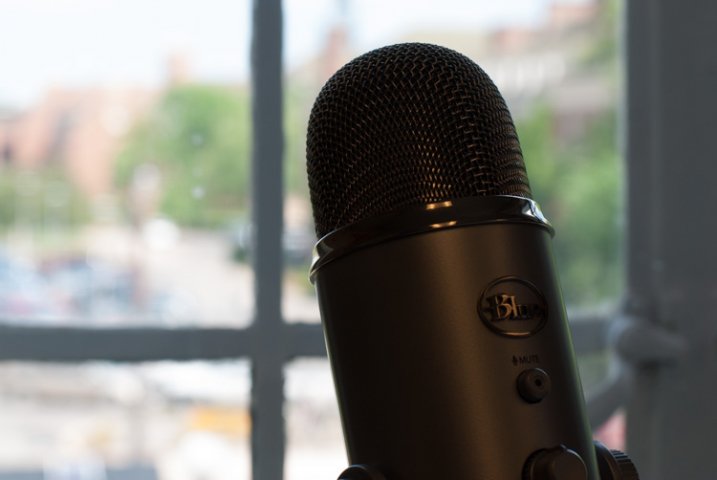
DSC_2641

Shooting in Program mode gave me a good overall exposure but I was not happy with the results…
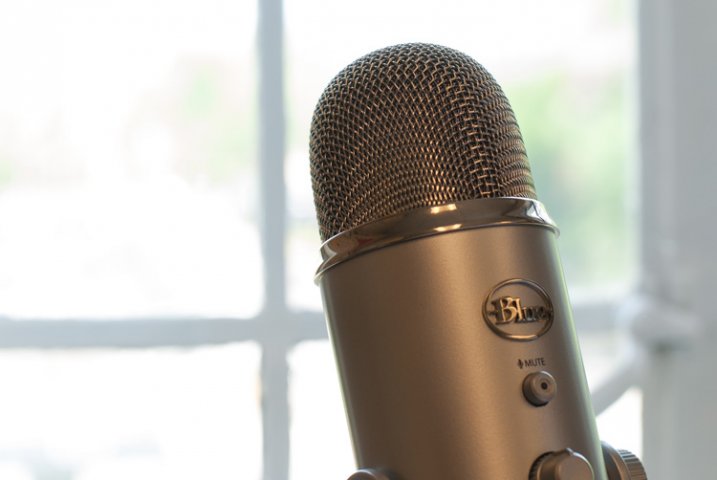
microphone-spot-meter

…so I switched to spot metering, re-took the shot, and got what I wanted. Program allows for this flexibility, whereas Full Auto does not.

I must admit that even though Program mode can be quite useful I spend most of my time in Shutter or Aperture Priority along with Manual. For me Program is great to have in a pinch, but I generally prefer to make more of the decisions when shooting, instead of having my camera do the heavy lifting.

Still, it’s good to be aware of what it is, and what it can do, in case you find yourself in a situation where you don’t want to give up all control to your camera but also don’t want to do everything yourself. What’s your preferred method of shooting, and what do you like (or dislike) about using the Program Auto mode? Leave your thoughts in the comment section below.

googletag.cmd.push(function() {
tablet_slots.push( googletag.defineSlot( “/1005424/_dPSv4_tab-all-article-bottom_(300×250)”, [300, 250], “pb-ad-78623” ).addService( googletag.pubads() ) ); } );

googletag.cmd.push(function() {
mobile_slots.push( googletag.defineSlot( “/1005424/_dPSv4_mob-all-article-bottom_(300×250)”, [300, 250], “pb-ad-78158” ).addService( googletag.pubads() ) ); } );

The post Your Guide to Understanding Program Mode on Your Camera by Simon Ringsmuth appeared first on Digital Photography School.


Digital Photography School

 
Comments Off on Your Guide to Understanding Program Mode on Your Camera

Posted in Photography


Sony launches support program for pro photographers

31 Oct

Sony has launched a ‘Pro Support’ program with the aim of offering professional photographers the levels of support available from the big DSLR makers. The move presumably comes to help persuade pros to consider switching to the company’s SLT and mirrorless camera systems. The program, called Sony Imaging PRO Support, provides ‘superior support’ so that pros can ‘ensure their Digital Imaging products are always ready’. Read more

Articles: Digital Photography Review (dpreview.com)

 
Comments Off on Sony launches support program for pro photographers

Posted in Uncategorized


LensRentals’ new Keeper program lets you buy rental gear

04 Oct

U.S.-based LensRentals has announced an expansion to its photo equipment rental service that allows photographers to purchase the gear they’ve borrowed. This gives renters a try-before-you-buy option and lets those who have become enamored with their rental equipment keep it forever. Learn more

Articles: Digital Photography Review (dpreview.com)

 
Comments Off on LensRentals’ new Keeper program lets you buy rental gear

Posted in Uncategorized


How to use Program Mode to set Your ISO

07 Sep

When I’m teaching my photography classes, the students and I are often neck deep into discussions of the exposure triangle; shutter speed, aperture size and sensor sensitivity (ISO). You can find great discussions and explanations of the triangle here on the dPS. I’d like to dissect the ISO corner of the issue, and give you a simple technique you can use to set the ISO to the best value for the situation. Understanding ISO is one thing but setting it correctly on the fly is another.

Exposure triangle

An equilateral triangle represents a well-exposed image. If any corner is too long, (slower shutter speed for example) the image would be brighter. If the corner is short, the image would be darker.

First a definition of ISO:

ISO is an acronym for International Organization for Standardization. It is a group that sets all sorts of standards for science and industry, but the meaning of ISO for photographers with digital cameras, is that it places a numerical value on the sensitivity of the camera’s imaging component, the sensor. Often compared to the film sensitivity rating called ASA (originally developed by the American Standards Association).

ISO is often seen as numbers ranging from 100 to 6400 and higher. The lowest number your camera presents is the lowest sensitivity setting; the highest number is the most sensitive. So, you can use the ISO settings to help you shoot in a variety of situations; bright and dark. Often you are taught to boost the ISO when conditions get dark but the opposite might be true depending upon your intent.

You are also told that high ISO settings degrade the quality of the image in the form of digital noise. Noise is a visual distortion of specks of light. Some is colored, and some just looks grainy. It is a similar look to the grain we would see in film negatives of higher ASA’s. Noise is worse in the shadows and appears more with higher ISO settings. This is true but the degradation of the image is gradual, and you can sometimes use ISO numbers that are quite high and get great, usable images.

ISO setting in menu

Select ISO sensitivity in the menu, via the Info screen, or sometimes with a dedicated button.

You probably came to understand the concept of ISO as part of the exposure triangle, and then immediately asked, “What ISO should I set?” Hmmm, something is missing in the explanation!

Here are some tips for setting ISO:

First for tripod shooting, set your ISO to the lowest (thus highest quality) setting. There won’t be any camera shake if you practice good technique and your images will have the highest quality. This will hold true unless you need a shorter shutter speed for other reasons. If that is true, keep reading and use the handheld technique.

When shooting handheld, you need to balance the quality you are getting with the ISO setting versus the shutter speed that you can use to get a sharp shot, with no camera movement. For example, if you have your ISO at 100 and you need 1/10th of a second to expose the shot properly, you are going to have some camera movement, and your image will not be sharp.

Follow these steps:

  1. Make sure your camera is not set to Auto ISO.
  2. Set your camera’s exposure mode to Program (not Auto). Even if you need Shutter or Aperture Priority, set it to Program first.
  3. Next, note your present ISO setting.
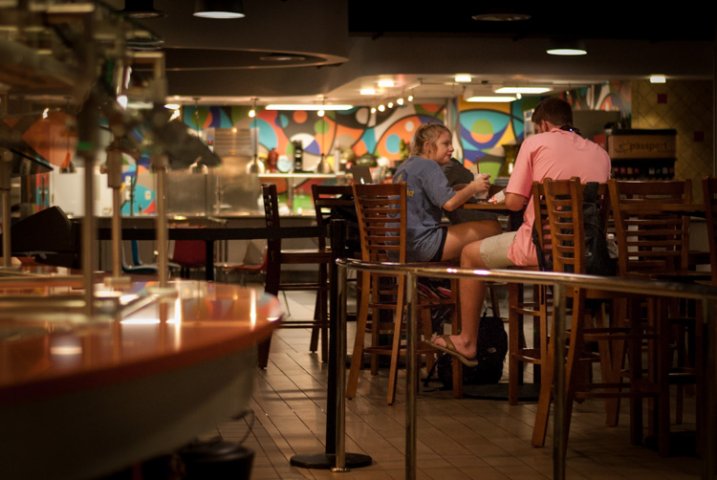
  4. Now half press the shutter button to wake it up and point it around your shooting environment. Try several different directions. Maybe you are in a restaurant; point it at the tables, at a group of people, down the bar, etc.
  5. All the while, watch your camera’s information display. You can look through the viewfinder for the information, or turn on your INFO display on the back LCD display. As the camera’s meter evaluates all the different shots it will adjust the shutter speed. Program tries to keep both aperture and shutter settings in the normal ranges. Take mental note of those shutter speeds.
    ISO on Info screen

    Here the shutter speed is showing 1/3rd of a second. This is way too slow for handheld photography.

    Shutter apeture in viewfinder

    1/2 of a second shutter time as seen through the viewfinder.

  6. Your camera will go sleep in a few seconds if you don’t wake it up occasionally by half-pressing the shutter button. Let it focus, as that will give you a more accurate reading.
  7. If you are seeing shutter speeds that are slower than 1/60th or 1/80th of a second, then the ISO needs to be bumped to a higher number. Most people cannot hand hold a camera, and obtain sharp photos, at longer than 1/60th of a second. You need good solid technique to do hand hold at those speeds. NOTE: 1/60th is being used here as a typical situation that includes a lens with up to 55mm of zoom. If you are going to zoom further, see the note below on focal lengths.
  8. If your shutter speeds are really fast, (1/1000th or 1/2000th) then you can safely drop the ISO to a higher quality setting (lower ISO number).
  9. Keep repeating the above steps until you see shutter speeds that you are comfortable with using, for the image you intend to make. Now you have your ISO set correctly for handheld photography in your current location, lighting conditions, and focal length.
Camera shake example

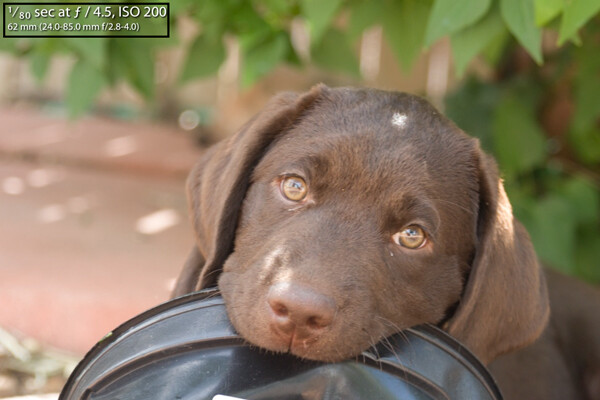
An example of camera shake. Note the exposure information. This was taken with the lens zoomed to 62mm (93mm equivalent on a cropped sensor). 1/160th of a second would have been better, which I could have gotten with an ISO of 400 rather than 200.

Focal length makes a difference

The focal length of your lens makes a difference as well. The directions above assume you are using a lens that is typical to entry-level DSLR setups. For example the typical kit lens is a 18-55mm zoom. If you are using a longer zoom, say 200mm, then the slowest shutter speed you can hand hold is much shorter. The widely accepted rule states: one over the focal length (so 1/200th of a second in the above mentioned situation) is the longest shutter speed that you can hand hold for a sharp, no-shake image.

However, this is an old rule that was based on 35mm film (and it applies to full frame digital sensor cameras). Many digital cameras have a crop factor, or multiplier effect, for focal length because their sensor is smaller. Yours might be 1.5x, 1.6x or even 2.0x – check your camera’s manual to be sure. Assuming a 1.5x multiplier for a 200mm zoom shot, you would need 1.5 x 200 = 300, so 1/300th of a second is your slowest shutter speed for an image that has no camera shake blur.

What about Shutter and Aperture Priority?

At this point you may be thinking that you actually need Shutter or Aperture priority – that is fine. But now you know the ISO range that will work. Perhaps ISO 400 was where you ended up, and the meter was telling you that the shutter speed of 1/200 was going to work. Now you can switch to the mode you want. Let’s say you need Shutter priority to stop some subject movement. Set your camera to Shutter priority, let’s say a shutter speed of 1/400th of a second, and repeat the process of aiming at some possible compositions. If your camera starts blinking the aperture, you will know your setting is out of range. It is telling you the aperture cannot be opened any wider, so you’ll know you need to increase the ISO to use that shutter speed.

For Aperture priority, set the aperture you need for a desired depth of field and use the camera’s meter to evaluate the scenes as described above. If the shutter speed starts goes below your maximum for the lens you’ll know your settings are out of range. Then you will need to bump up the ISO.

What about Vibration Reduction?

Sometimes called Image Stabilization, this is technology that might be built into your lens or camera. It can allow you to shoot at speeds longer than normally recommended, since it counteracts the movement you introduce into the camera. Take the marketing information about how many stops longer you can shoot with a grain of salt. Do your own tests with your equipment, with your best steady technique. I find that most people can learn to get two extra stops of shutter speed latitude. So, in our scenarios above you could shoot at 1/15th and 1/50th of a second respectively.

VR button

Vibration Reduction switch on a Nikon lens.

Try this process for a while with the Program mode to get comfortable, then you can use all of the exposure modes to set your ISO quickly and correctly. As your experience grows you will set your ISO quickly with intelligent estimates. You will never have to guess about your ISO again.

No camera shake

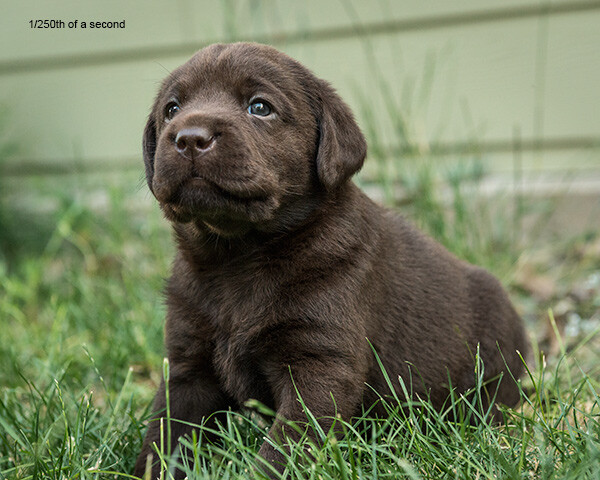
A higher ISO (3200) made little difference in quality here. The shutter speed of 1/250th assured a no-shake image and was fast enough to stop any subject motion.

The post How to use Program Mode to set Your ISO by Steve Gandy appeared first on Digital Photography School.


Digital Photography School

 
Comments Off on How to use Program Mode to set Your ISO

Posted in Photography


Sigma offers ‘Try before you buy’ program for DP2 Quattro

02 Jul

Photographers looking to try out a Sigma dp2 Quattro compact digital camera before making a purchase (and given its radical design, that’s a really good idea) can now take advantage of the Sigma ‘Try Before You Buy’ loaner program, launched today. Under the new program, photographers are invited to test the new camera before it begins shipping. Learn more

related news: Digital Photography Review (dpreview.com)

 
Comments Off on Sigma offers ‘Try before you buy’ program for DP2 Quattro

Posted in Uncategorized


Q&A: Will You Help Us Get a Studio for Our Photo Program?

28 Jan

An unnamed student at the Digital Photography program at Ravensbourne (UK) asks, via Twitter:

"Our photography degree course has no studio! (Will you) help us tell the management we need one?

No, anonymous student at Ravensbourne, I will not. Firstly, I think your petition signatures should be from students in the program. But more important, I probably would not equip you with a studio even if I were your dean.

For several reasons… Read more »
Strobist

 
Comments Off on Q&A: Will You Help Us Get a Studio for Our Photo Program?

Posted in Photography


Men Overestimate Performance, Photoshop Detection Program, A Boneless Robot

06 Jan

Today on The Daily Brief we take a look at a new Photoshop detection software now nothing can just ‘seem legit’, a crazy jelly robot that walks on boneless legs and men in the workforce are overconfident about their non existing performance: Photoshop Detecting Computer Program: goo.gl Freaky Boneless Robot Walks on Soft Legs: goo.gl Men overconfident in their performance: goo.gl Click here to watch yesterday’s Brief: youtu.be AskMen: www.askmen.com Follow us on Facebook: www.facebook.com Follow us on Twitter: twitter.com Follow us on Foursquare: foursquare.com Let us know know your opinions by commenting below!
Video Rating: 4 / 5


Joel Meyerowitz 1981 Street Photography Program

24 Dec

Street, landscape, NYC!


Photoeditorx – Advanced Photo Editor Digital Image Software – Free Photo Enhancing And Manipulation Photography Editing Program

04 Nov

xxsurl.com Photoeditorx – Advanced Photo Editor Digital Image Software – Free Photo Enhancing And Manipulation Photography Editing Program PhotoEditorX – Advanced Photo Editor Digital Image Software – Free Photo Enhancing and Manipulation Photography Editing Program FINALLY REVEALED: Photo Manipulation Made Easy Quick… Discover How To Edit Enhance Your Photos In 5 Minutes With An Award-Winning Photo Editing Software Previously Only Available For Professional Studios… Click The PLAY Button Below To Watch This Amazing Virtual Makeover LIVE in Action: Get Flash to see this player.That’s right – you can learn how to enhance and edit photos easily and quickly with our industry-leading software, step by step instructions and video training… From: Lucas GodfreyDate: Listen To A Special Message:An open letter to anyone interested in photo editing:If you want to edit and enhance your photos like the professionals the easy way, listen up closely as this may be most important letter you’ll ever read.Have you ever wished that you could edit images the easy way without spending hundreds of dollars and learning complicated and expensive software like PhotoShop CS3b Possibly one of the best photo editor software pack we’ve ever seen. At the price they’re offering, you’ll be crazy to pass this up. – Photo Review MagazinePowerful. Fast. Intuitive. These are just some of the things that are being said… a must-have for anyone who wants to edit images.- Maximum PC Magazine Listen up
Video Rating: 0 / 5

 
Comments Off on Photoeditorx – Advanced Photo Editor Digital Image Software – Free Photo Enhancing And Manipulation Photography Editing Program

Posted in Retouching in Photoshop


Docks – Program Launchers – Freeware to Launch Apps with a couple of Keystrokes

16 Sep

MadAppLauncher lets you set up groups of applications where you can launch one without using the mouse.

Looking for another way to group your Windows applications together and run them without having to navigate the “Start” menu?

If you’re tired of using the mouse, you may wish to consider MadAppLauncher, a freeware (GPL) application launcher. This application launcher can be run via a customizable hotkey, and programs may be placed into one of ten tabs. After adding program information to the launcher (right-click a virtual button and select “Edit”), just start the software by pressing the launcher hotkey, then a number to switch tabs, and then a letter / punctuation / function key to start the configured application. See the below screenshot for an example configuration….

Read more at MalekTips.
New Computer and Technology Help and Tips – MalekTips.Com

 
Comments Off on Docks – Program Launchers – Freeware to Launch Apps with a couple of Keystrokes

Posted in Technology