RSS
 

Posts Tagged ‘product’

Custom SLR Dual Camera Strap – Product Review

25 Aug

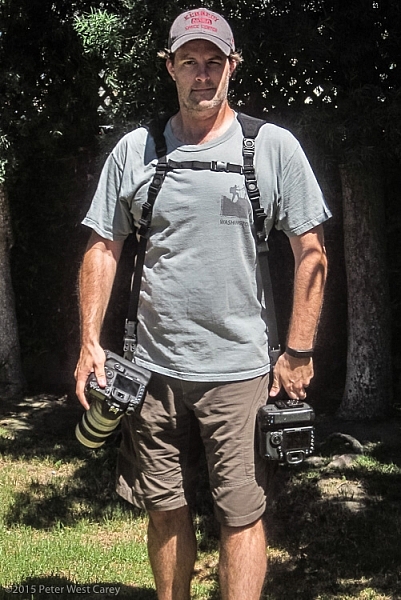
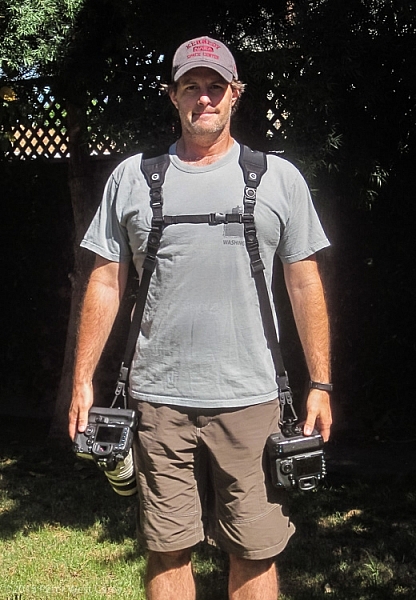
CustomSLR-Dual-Strap-DPS-PWC2015-0805-1314To be honest, I thought the Custom SLR Dual Camera Strap looked like a dorky idea when I was first asked to review it. The idea is simple: sometimes you need to carry two cameras (especially heavy cameras) and the logistics of such a feat have always been cumbersome. One strap over this way and the other maybe off of the other shoulder? Double criss-cross?

Custom SLR, a company that got its start thanks to a number of successful Kickstarter campaigns, crafted a solution using one of their best selling camera straps, times two. They sent me a copy of the Dual Camera Strap to test during a small boat cruise with UnCruise Adventures in Alaska last month. I was excited for the trip as it would mean I could take both my cameras and long lenses (28-300mm and a rented 150-600mm) for both close and distant images of marine wildlife. Having that range from 28mm-600mm (on crop factor cameras) always available was important to me so I was willing to try the Dual Camera Strap, with hopes I wouldn’t always be fumbling for the right camera.

What is it?

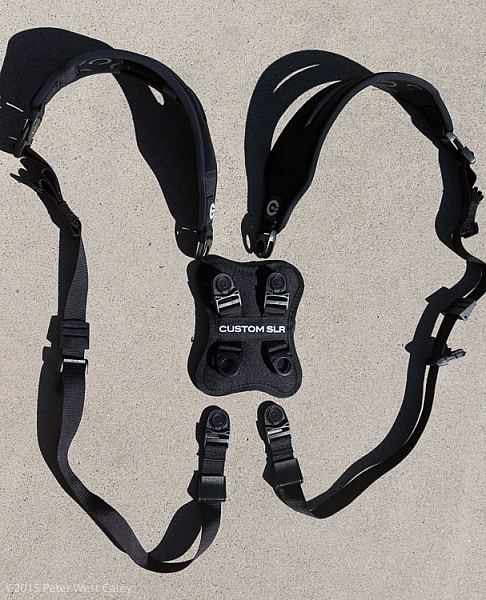
The unit is really five parts in one. Two of those parts are copies of the traditional Glide One Strap System by Custom SLR, meant to hold one camera, over one shoulder. Then they introduced a unique buckle connector that fits in the middle of your back. Lastly, there are two small pieces of webbing that add a sternum connector.
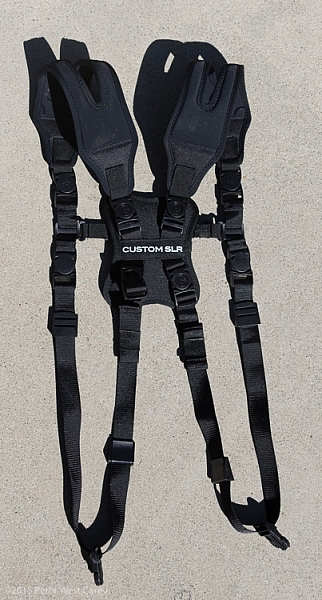
CustomSLR-Dual-Strap-DPS-PWC2015-0805-5547

The great thing about this setup is it uses two straps that can work alone. You’re not stuck with always using the dual setup when you only want to use one camera.

Let’s take a look at how it all fits together then I’ll tell you about my experience with the setup.

Anatomy of a Dual Camera Strap

The setup starts with the individual straps. Each has a piece of split neoprene to help evenly distribute weight on your shoulder. On the underside of the the split strap is a silicone print to provide traction, ensuring the strap doesn’t move around your shoulder.
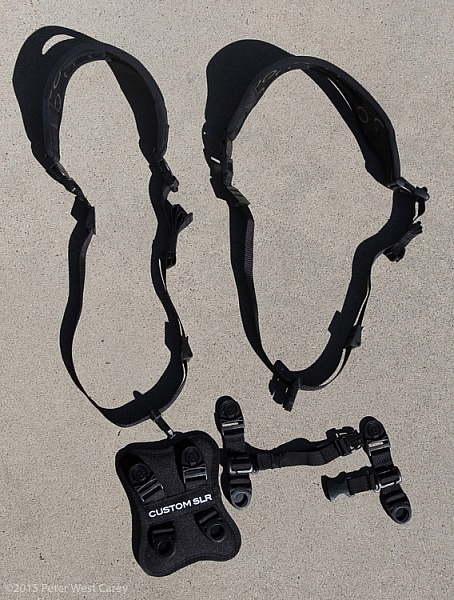
CustomSLR-Dual-Strap-DPS-PWC2015-0805-5550

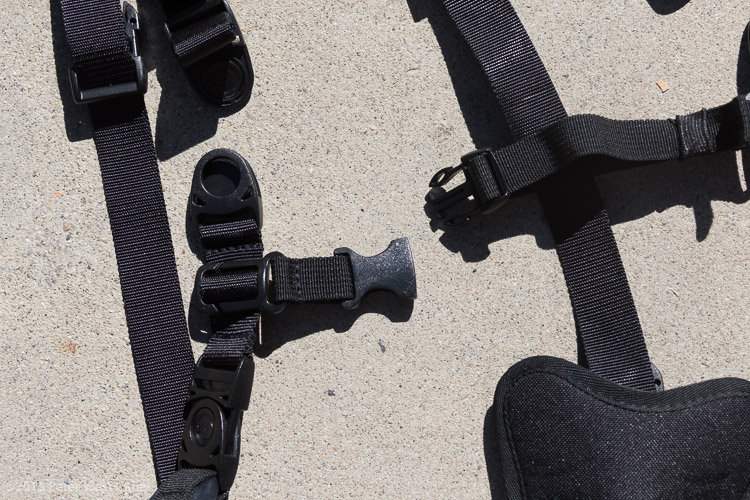
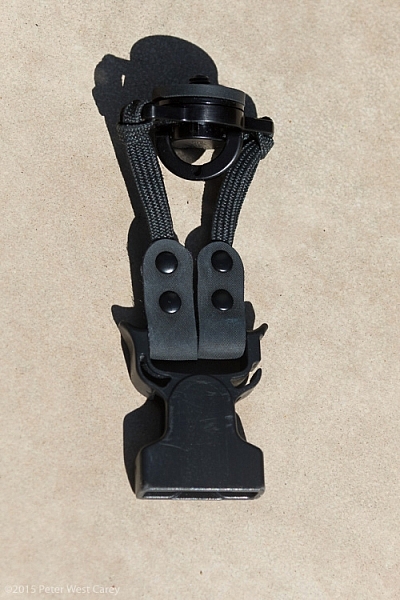
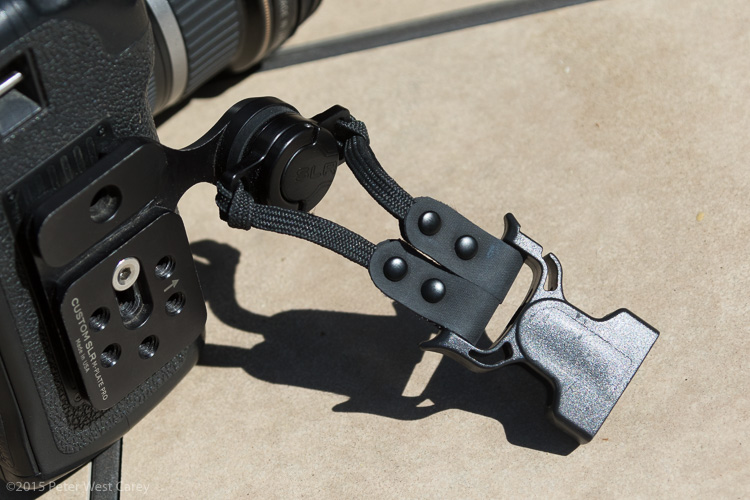
Cameras are connected to a strap via a beefy quick-release clip attached to a tripod screw, with a loop to make hand-tightening possible (no need for tools). I have used one of these single straps in my daily photography and travels to over a dozen countries for the past three years. It’s now getting a little frayed but never once has the screw mount or quick-release failed.

Next there is a connector that attaches the two straps in the middle of your back. Simply disconnect each single strap and clip them into the connector. The clips are one-way, making the process fairly idiot-proof.
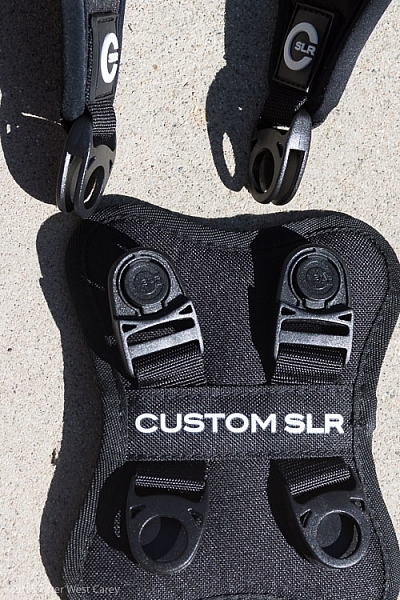
CustomSLR-Dual-Strap-DPS-PWC2015-0805-5555

Lastly, to keep the system stable, you need to insert a sternum strap that clips the two single straps together in the front.
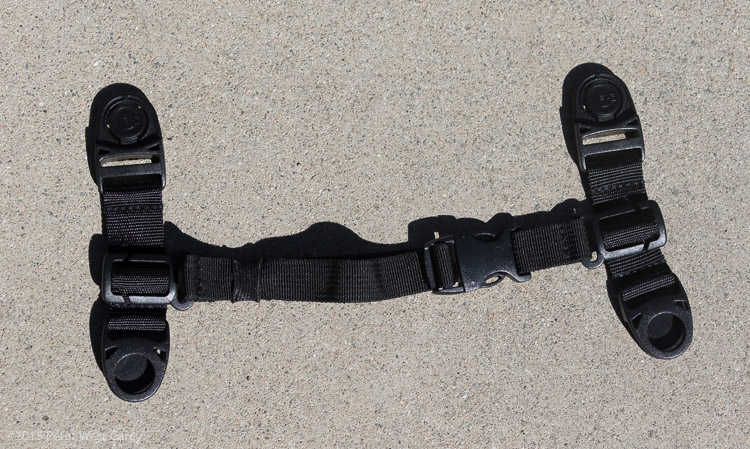
CustomSLR-Dual-Strap-DPS-PWC2015-0805-5551

Having received my unit already setup, I took it apart, jumbled up the pieces, and tried to put it all together at a leisurely pace. It took me one minute and 50 seconds to go from two single straps to the Dual setup, and that included making a small error and correcting it. It’s pretty easy.
CustomSLR-Dual-Strap-DPS-PWC2015-0805-5554

CustomSLR-Dual-Strap-DPS-PWC2015-0805-5556

Attach Your Cameras

When changing from single straps to dual, the straps first need to be shortened. This is because each strap is simply looping around one shoulder and not across your body.

Next, screw in the tripod mount, called a C-Loop, to each camera. As Custom SLR likes to create a whole inter-functioning ecosystem, the C-Loop also works with their M-Plate tripod quick release system. This additional plate gives better stability when using long lenses, but is sold separately (shown in second photo).

CustomSLR-Dual-Strap-DPS-PWC2015-0805-5553

CustomSLR-Dual-Strap-DPS-PWC2015-0805-5552

Suiting-Up – Harness First, Then Cameras

Now to put it all together! It’s best to put on the harness first before attaching cameras. It can be done the other way around, but it is quite clunky and will bang up your cameras. Then, clip each camera into your preferred side.

CustomSLR-Dual-Strap-DPS-PWC2015-0805-1314

CustomSLR-Dual-Strap-DPS-PWC2015-0805-1317

How Does it Feel?

What I enjoyed about the Dual Strap was how comfortable it was with the weight. I was wearing about 16lbs (7.2kg) of gear and it was no different than using a solid backpack with cameras stowed inside. In fact, short of a waist belt, this setup is just like a backpack with two comfortable stretchy neoprene shoulder straps.

How Does it Work?

In practice the unit takes some getting used to during initial setup. Having two cameras dangling from your hips also takes a different sense of awareness when maneuvering in crowds, or around hard surfaces. Keeping your hands on your cameras helps with stability.

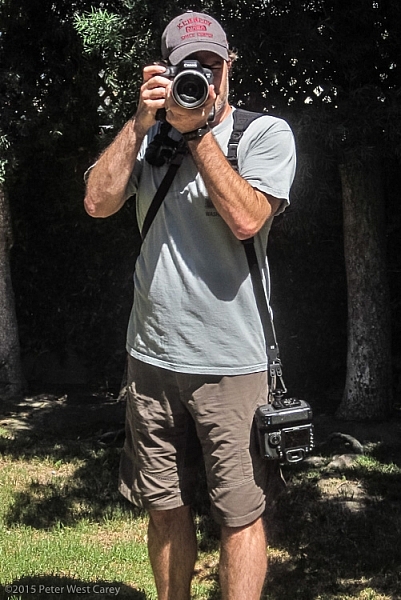
Each camera is free to glide up and down its own strap, yet is kept ready at your fingertips. When one camera is held up and the weight on that strap lessened, the second camera stays in place, without swinging to the side or sliding off your shoulder, as has been my case before using this strap.

CustomSLR-Dual-Strap-DPS-PWC2015-0805-1348  CustomSLR-Dual-Strap-DPS-PWC2015-0805-1349

CustomSLR-Dual-Strap-DPS-PWC2015-0805-1351 CustomSLR-Dual-Strap-DPS-PWC2015-0805-1352

I realize I look a little odd with this setup on my body. But the comfort and ease of use, quickly quieted my ego from worrying too much about what others think.

In short, the Dual Camera Strap now goes with me wherever I take both my camera bodies. I can break it down quickly for single camera use (I typically leave the sternum strap section attached to make setup quicker) and when I know I want both cameras at hand, there is simply no replacing this unit.

Additionally, I could still wear my F-Stop Lotus backpack over this setup, although range of motion was slightly lessened, but not enough to stop me from using the two together.

Conclusion

Dorkiness be damned, this thing works, and it works well. I wore the strap for more than 40 hours in a month, and after I figured out the best way to put it on (straps first, then attach cameras), it was a piece of cake.

There is something empowering having two cameras at the ready, and no longer worrying about one of them slipping off your shoulder. The Custom SLR Dual Camera Strap performs as advertised, and is a great solution if you have a two camera carrying problem.

Disclaimer: This product was provided to the author by the manufacturer for the purposes of doing a review. All reviews on dPS are 100% unbiased and based on the author’s opinions only. 

googletag.cmd.push(function() {
tablet_slots.push( googletag.defineSlot( “/1005424/_dPSv4_tab-all-article-bottom_(300×250)”, [300, 250], “pb-ad-78623” ).addService( googletag.pubads() ) ); } );

googletag.cmd.push(function() {
mobile_slots.push( googletag.defineSlot( “/1005424/_dPSv4_mob-all-article-bottom_(300×250)”, [300, 250], “pb-ad-78158” ).addService( googletag.pubads() ) ); } );

The post Custom SLR Dual Camera Strap – Product Review by Peter West Carey appeared first on Digital Photography School.


Digital Photography School

 
Comments Off on Custom SLR Dual Camera Strap – Product Review

Posted in Photography


Custom SLR Dual Camera Strap – Product Review

25 Aug

CustomSLR-Dual-Strap-DPS-PWC2015-0805-1314To be honest, I thought the Custom SLR Dual Camera Strap looked like a dorky idea when I was first asked to review it. The idea is simple: sometimes you need to carry two cameras (especially heavy cameras) and the logistics of such a feat have always been cumbersome. One strap over this way and the other maybe off of the other shoulder? Double criss-cross?

Custom SLR, a company that got its start thanks to a number of successful Kickstarter campaigns, crafted a solution using one of their best selling camera straps, times two. They sent me a copy of the Dual Camera Strap to test during a small boat cruise with UnCruise Adventures in Alaska last month. I was excited for the trip as it would mean I could take both my cameras and long lenses (28-300mm and a rented 150-600mm) for both close and distant images of marine wildlife. Having that range from 28mm-600mm (on crop factor cameras) always available was important to me so I was willing to try the Dual Camera Strap, with hopes I wouldn’t always be fumbling for the right camera.

What is it?

The unit is really five parts in one. Two of those parts are copies of the traditional Glide One Strap System by Custom SLR, meant to hold one camera, over one shoulder. Then they introduced a unique buckle connector that fits in the middle of your back. Lastly, there are two small pieces of webbing that add a sternum connector.

CustomSLR-Dual-Strap-DPS-PWC2015-0805-5547

The great thing about this setup is it uses two straps that can work alone. You’re not stuck with always using the dual setup when you only want to use one camera.

Let’s take a look at how it all fits together then I’ll tell you about my experience with the setup.

Anatomy of a Dual Camera Strap

The setup starts with the individual straps. Each has a piece of split neoprene to help evenly distribute weight on your shoulder. On the underside of the the split strap is a silicone print to provide traction, ensuring the strap doesn’t move around your shoulder.

CustomSLR-Dual-Strap-DPS-PWC2015-0805-5550

Cameras are connected to a strap via a beefy quick-release clip attached to a tripod screw, with a loop to make hand-tightening possible (no need for tools). I have used one of these single straps in my daily photography and travels to over a dozen countries for the past three years. It’s now getting a little frayed but never once has the screw mount or quick-release failed.

Next there is a connector that attaches the two straps in the middle of your back. Simply disconnect each single strap and clip them into the connector. The clips are one-way, making the process fairly idiot-proof.

CustomSLR-Dual-Strap-DPS-PWC2015-0805-5555

Lastly, to keep the system stable, you need to insert a sternum strap that clips the two single straps together in the front.

CustomSLR-Dual-Strap-DPS-PWC2015-0805-5551

Having received my unit already setup, I took it apart, jumbled up the pieces, and tried to put it all together at a leisurely pace. It took me one minute and 50 seconds to go from two single straps to the Dual setup, and that included making a small error and correcting it. It’s pretty easy.
CustomSLR-Dual-Strap-DPS-PWC2015-0805-5554

CustomSLR-Dual-Strap-DPS-PWC2015-0805-5556

Attach Your Cameras

When changing from single straps to dual, the straps first need to be shortened. This is because each strap is simply looping around one shoulder and not across your body.

Next, screw in the tripod mount, called a C-Loop, to each camera. As Custom SLR likes to create a whole inter-functioning ecosystem, the C-Loop also works with their M-Plate tripod quick release system. This additional plate gives better stability when using long lenses, but is sold separately (shown in second photo).
CustomSLR-Dual-Strap-DPS-PWC2015-0805-5553

CustomSLR-Dual-Strap-DPS-PWC2015-0805-5552

Suiting-Up – Harness First, Then Cameras

Now to put it all together! It’s best to put on the harness first before attaching cameras. It can be done the other way around, but it is quite clunky and will bang up your cameras. Then, clip each camera into your preferred side.
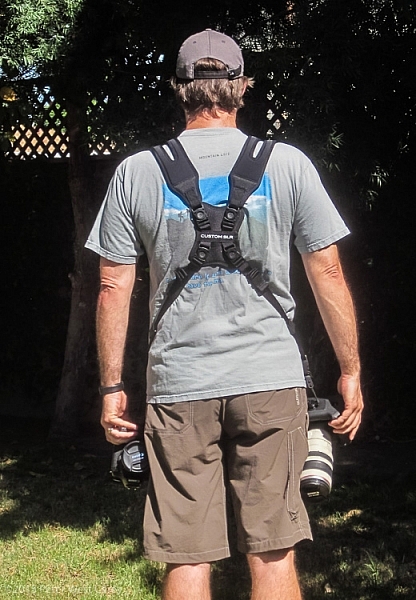
CustomSLR-Dual-Strap-DPS-PWC2015-0805-1314

CustomSLR-Dual-Strap-DPS-PWC2015-0805-1317

How Does it Feel?

What I enjoyed about the Dual Strap was how comfortable it was with the weight. I was wearing about 16lbs (7.2kg) of gear and it was no different than using a solid backpack with cameras stowed inside. In fact, short of a waist belt, this setup is just like a backpack with two comfortable stretchy neoprene shoulder straps.

How Does it Work?

In practice the unit takes some getting used to during initial setup. Having two cameras dangling from your hips also takes a different sense of awareness when maneuvering in crowds, or around hard surfaces. Keeping your hands on your cameras helps with stability.

Each camera is free to glide up and down its own strap, yet is kept ready at your fingertips. When one camera is held up and the weight on that strap lessened, the second camera stays in place, without swinging to the side or sliding off your shoulder, as has been my case before using this strap.
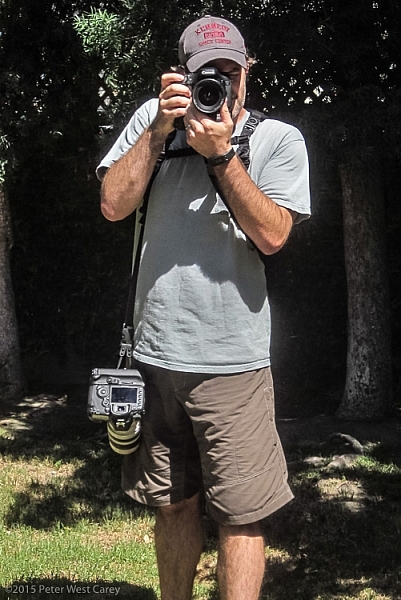
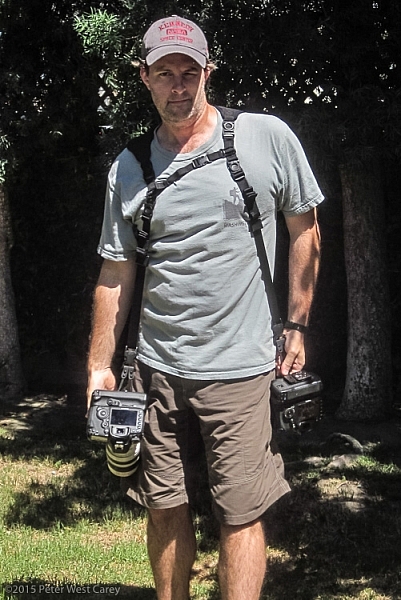
CustomSLR-Dual-Strap-DPS-PWC2015-0805-1348  CustomSLR-Dual-Strap-DPS-PWC2015-0805-1349

CustomSLR-Dual-Strap-DPS-PWC2015-0805-1351 CustomSLR-Dual-Strap-DPS-PWC2015-0805-1352

I realize I look a little odd with this setup on my body. But the comfort and ease of use, quickly quieted my ego from worrying too much about what others think.

In short, the Dual Camera Strap now goes with me wherever I take both my camera bodies. I can break it down quickly for single camera use (I typically leave the sternum strap section attached to make setup quicker) and when I know I want both cameras at hand, there is simply no replacing this unit.

Additionally, I could still wear my F-Stop Lotus backpack over this setup, although range of motion was slightly lessened, but not enough to stop me from using the two together.

Conclusion

Dorkiness be damned, this thing works, and it works well. I wore the strap for more than 40 hours in a month, and after I figured out the best way to put it on (straps first, then attach cameras), it was a piece of cake.

There is something empowering having two cameras at the ready, and no longer worrying about one of them slipping off your shoulder. The Custom SLR Dual Camera Strap performs as advertised, and is a great solution if you have a two camera carrying problem.

Disclaimer: This product was provided to the author by the manufacturer for the purposes of doing a review. All reviews on dPS are 100% unbiased and based on the author’s opinions only. 

googletag.cmd.push(function() {
tablet_slots.push( googletag.defineSlot( “/1005424/_dPSv4_tab-all-article-bottom_(300×250)”, [300, 250], “pb-ad-78623” ).addService( googletag.pubads() ) ); } );

googletag.cmd.push(function() {
mobile_slots.push( googletag.defineSlot( “/1005424/_dPSv4_mob-all-article-bottom_(300×250)”, [300, 250], “pb-ad-78158” ).addService( googletag.pubads() ) ); } );

The post Custom SLR Dual Camera Strap – Product Review by Peter West Carey appeared first on Digital Photography School.

Digital Photography School

 
Comments Off on Custom SLR Dual Camera Strap – Product Review

Posted in Photography


The Ice Light by Westcott – Product Review

22 Jul

Having easy access to the right light at every photo shoot is essential to any photographer, and in this case made possible by the Ice Light. A portable and brightness adjustable, continuous LED light source, the Ice Light is a lightweight and simple on-demand lighting solution. If anything, its similar build to that of a light sabre, will almost always be a conversation starter between you and your photo subject. This review will discuss the pros and cons of the Ice Light, as well as some photo shoot scenarios where it shines the most.

History of the Ice Light

A relatively new product, the Ice Light was developed in 2012 by world-reowned photographer Jerry Ghionis and manufactured by Wescott. The Ice Light’s main attributes are its ability to transmit daylight-balanced LED lighting via a long, handheld device, and the fact that is is powered by a rechargeable battery. Despite its relatively simple function, the Ice Light was groundbreaking as the very first daylight-balanced, handheld LED light on the market. It has quickly become a favorite light source for on-the-go photographers and videographers.

Ice-Light-Kit-b


The Ice Light Specs

The Ice Light’s long light bulb emits a perfect 5,200K color temperature through a frosted diffusion panel, helping your camera find the best white balance in the scene. With an outer encasing of aluminum, the Ice Light is durable, yet transportable. It stands about 24 inches long, weighs a mere 1.3 pounds, and it fits inside most regulation carry-on luggage. In fact, a slim carrying case is included with the light, making it easy to swing over one’s shoulder, or clip to a belt while on a photo shoot. The Ice Light has a very comfortable hand grip on one end, but also has mounting threads on both ends so it can be easily mounted to a tripod or light stand.

Powered by a single rechargeable Lithium Ion battery, the Ice Light can run for up to 60 minutes at full power, and be fully charged up in about 2.5 hours. Battery packs are also available to boost battery life by an extra 5 hours. There are also some light modifier accessories available including tungsten gels and barn doors to further modify the light.

Ice-Light-example-2b


Best uses

Given the Ice Light’s long shape, it can be likened to a rectangular strip light that operates according to the logic of the larger the light source is in relation to the photo subject, the softer the light will be.  As a result, the Ice Light really shines in these specific photography situations:

Achieving dramatic lighting

Due to the Ice Light’s long, narrow body, achieving a photo that is equally balanced with light requires at least two Ice Lights, or a single Ice Light and a reflector. However, if you’re aiming for a dramatically lit photo with lots of shadows, the Ice Light can give you just that!

Ice-Light-Buttons-2


When you don’t have a knowledgable photo assistant

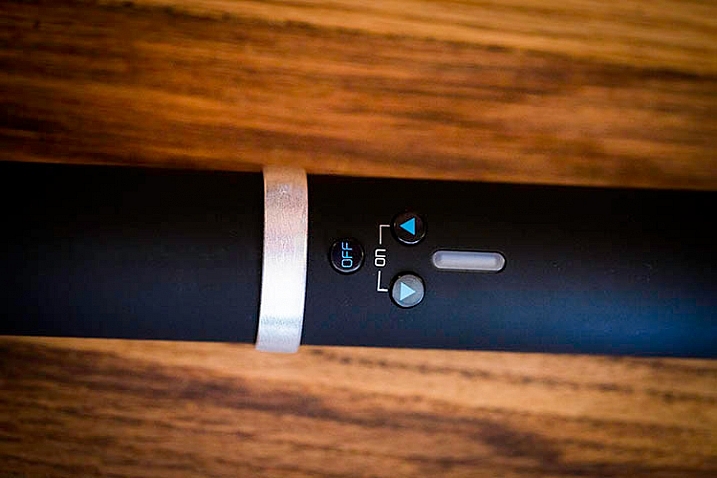
If you consistently perform run-and-gun type of photography, or change locations frequently, you will likely be in need of an assistant to hold or set up your lights as you shoot. If you have a spur-of-the-moment need for lighting, the Ice Light’s easy-to-use interface makes it simple for anyone to operate. There are three simple buttons: an on/off switch, a button to increase light, and another to dim it. As a result, there’s less time required to futz around with light testing as you might have to with strobes, and you can use any Average Joe as a lighting assistant.

When you need continuous lighting

Another big advantage of the Ice Light is its ability to emit continuous lighting rather than strobes. This can be hugely beneficial for videographers or any other media specialists who need a constant, on-demand stream of daylight-balanced LED illumination.

Ice-Light-example-1b


Sold? Well, about that price…

All in all, the Ice Light makes a compelling case to be a photographer’s new best friend. There is only one potential downside: the cost. A brand new Ice Light runs roughly $ 400, while its newer, upgraded version the Ice Light 2 is priced at $ 549. Both Ice Lights include a battery charger, power cords, plug converters, gel clips, and a carrying case. Still, the price may seem steep to some.

Maybe try your own DIY solution – How to make creative images with a $ 12 LED light

What are your thoughts on the Ice Light?

Have you tried out an Ice Light? If so, would your recommend it to others?

googletag.cmd.push(function() {
tablet_slots.push( googletag.defineSlot( “/1005424/_dPSv4_tab-all-article-bottom_(300×250)”, [300, 250], “pb-ad-78623” ).addService( googletag.pubads() ) ); } );

googletag.cmd.push(function() {
mobile_slots.push( googletag.defineSlot( “/1005424/_dPSv4_mob-all-article-bottom_(300×250)”, [300, 250], “pb-ad-78158” ).addService( googletag.pubads() ) ); } );

The post The Ice Light by Westcott – Product Review by Suzi Pratt appeared first on Digital Photography School.

Digital Photography School

 
Comments Off on The Ice Light by Westcott – Product Review

Posted in Photography


Product Review: F-Stop Gear Lotus Backpack

14 Jul

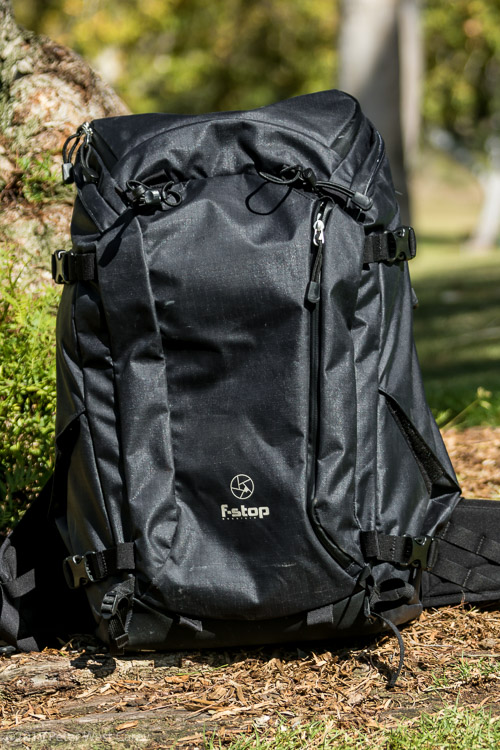
PWC-Lotus2015-0622-0001Rather than run down the long list of the Lotus Backpack’s features, I’m going to point you to f-stop’s webpage which has far more complete specs. To sum up this pack; it is built for the serious outdoor photographer who wants an all-weather backpack for their camera. They don’t want to spend all weekend out in nature (f-stop has larger packs for that) and they will be carrying a camera, maybe two, a few lenses and a flash, plus food and clothes.

Let’s dive right into what works and what doesn’t with this backpack.

The Good – F-Stop Gear Lotus Backpack

Weather and sand protected

The Mountain Series from f-stop is all about getting into the elements and keeping your photography gear safe. The water resistant fabric sheds downpours but also helps to keep other elements off your gear. It’s not entirely waterproof as the back access panel is foam and nylon, so I wouldn’t use this pack as a primary on rafting trips. But for trekking the backcountry and scaling peaks, it is nice to not have to deal with a separate pack cover.

PWC-Lotus2015-0622-0024

The thicker hide of this pack gives it some heft, but a lot of protection as well.

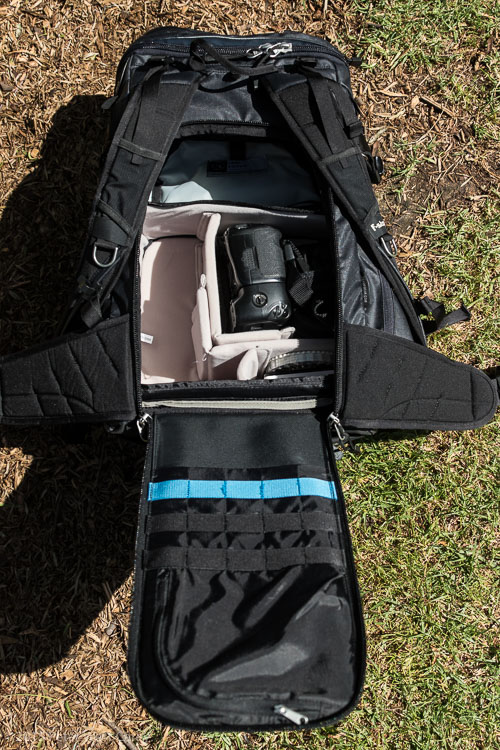
Easy, big zippers and it holds a medium sloped ICU

I have a couple of other f-stop packs and I can say without a doubt that the large zippers for the back access panel, and top access are an improvement. They work well with one hand, which is important while handling gear, and they round the corners with ease.

PWC-Lotus2015-0622-0021

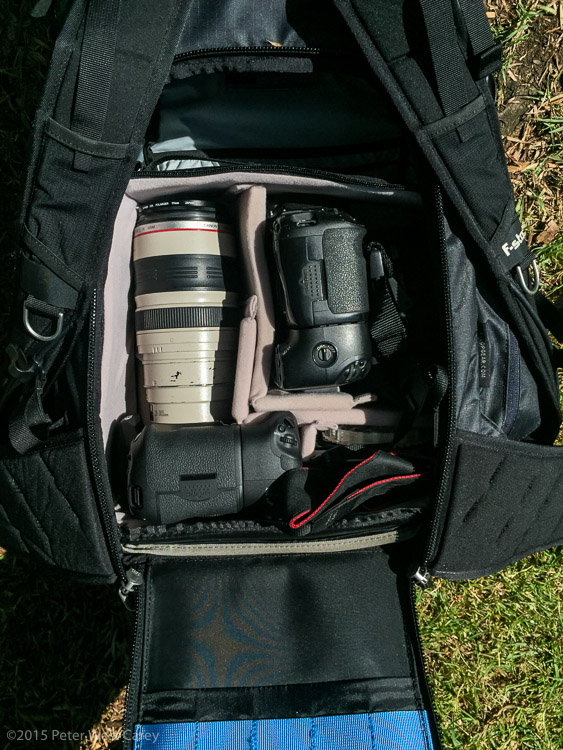
Behind one set of large zippers and the back panel is just enough room for the f-stop medium sized sloped ICU (Internal Camera Unit). F-stop uses interchangeable inserts to hold your camera gear, which I have found optimal for maximizing space inside the pack depending on how much gear I want to bring. Sometimes I travel light (camera and two lenses) and a small ICU works fine, leaving me more space inside the pack for food and hiking gear.

PWC-Lotus2015-0622-0016

The sloped medium ICU will hold two DSLR bodies and two lenses, including lenses equivalent to a 70-200mm f/2.8 (pictured here is the Canon 28-300mm L lens, which is the same size as a Canon or Nikon 70-200mm f/2.8) and battery grips, laid on their side. This makes me quite happy.

PWC-Lotus2015-0622-9298-2

Canon 7D Mark II w/28-300mm L and Canon 7D w/10-22mm, both with power grips. Plus rooms for filters and batteries.

Super comfortable

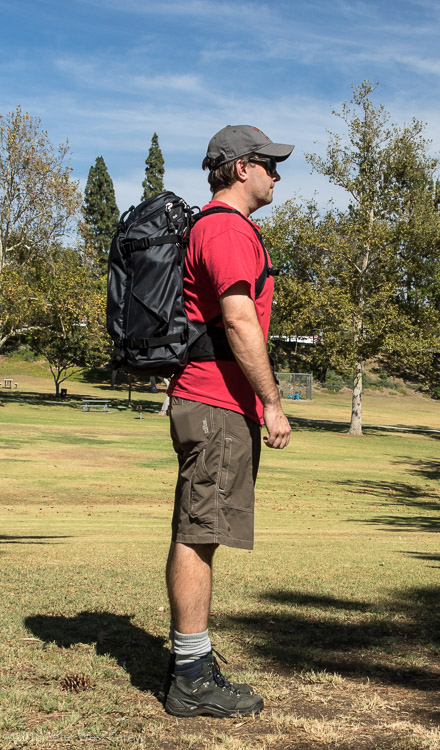
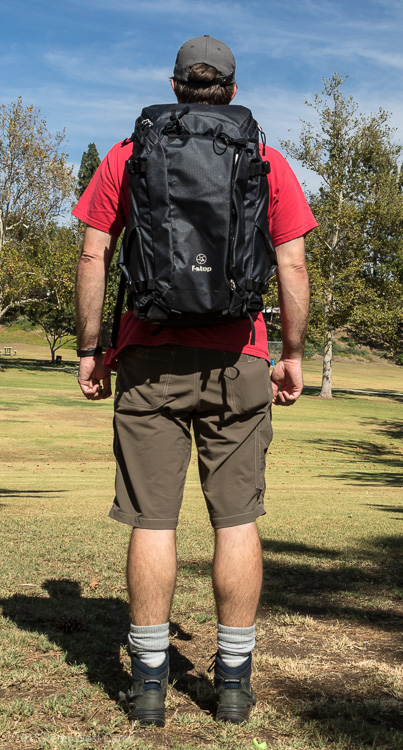
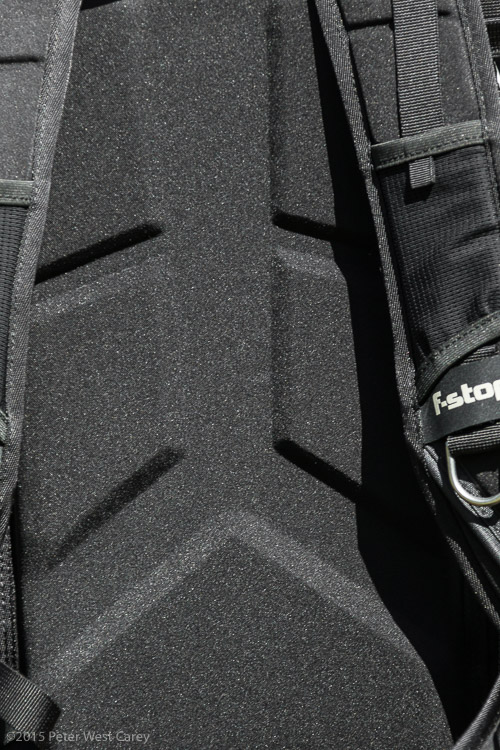
Every pack manufacturer tries to make their bags comfortable; some resort to gimmicks and odd designs. I thought f-stop was doing this with their back support and its multiple channels leading away from the center. It turns out, that center channel is just deep enough to brace your spine and add support to the rest of your back. The hip belt, while not robust (a plus for travel and fitting in overhead bins) gets the job done with enough fabric to take 100% of the pack weight while remaining comfortable. When overstuffed, the hip belts can be lacking, but keep the load under 40lbs/18kg and you should be fine.

PWC-Lotus2015-0622-0033

PWC-Lotus2015-0622-0034

PWC-Lotus2015-0622-0009

Garbage pocket

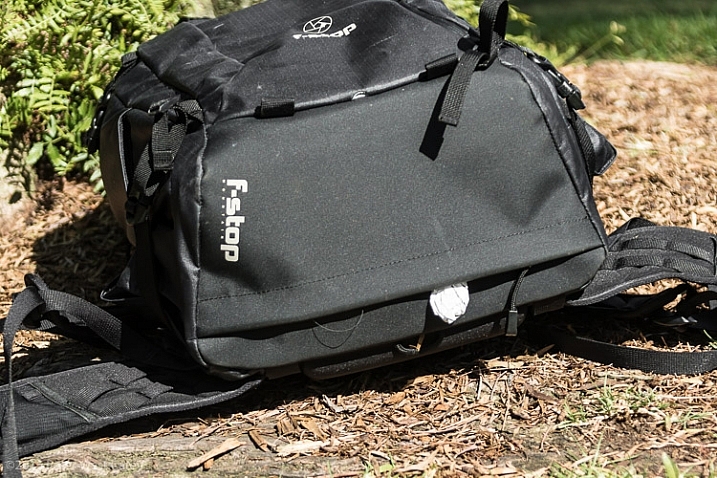
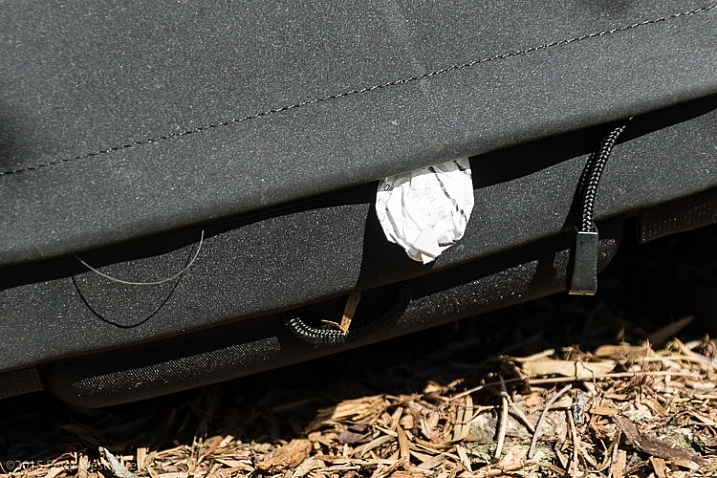
I’m one of those hikers who likes to keep nature clean and the bottom zippered area of the pack is perfect for garbage. It’s not easy to get into with the pack on and it could have other uses, but as it will constantly get crushed when the pack is set on the ground, I have chosen to take a clue from f-stop’s other packs and keep this area reserved for trash.

PWC-Lotus2015-0622-0014

PWC-Lotus2015-0622-0015

All the add-on space

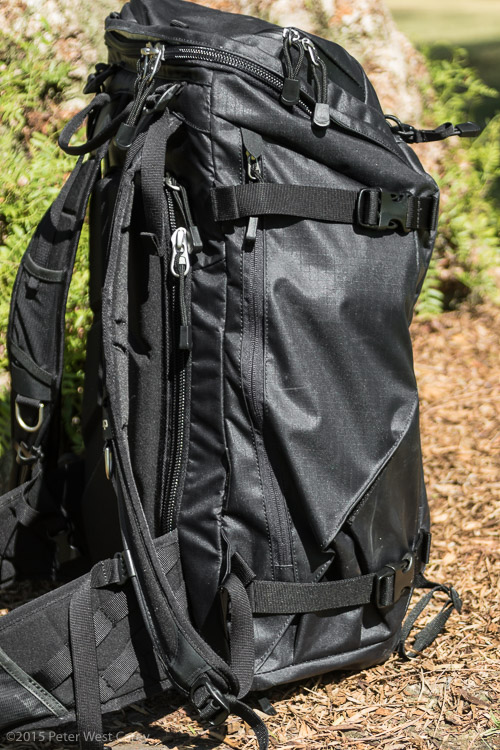
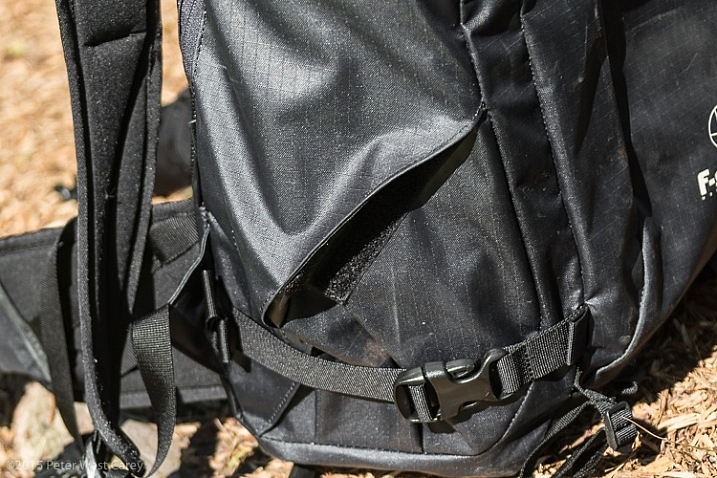
F-stop makes sure you are not limited when their bags can’t contain all of your gear. The hipbelt has loops for an extra lens case or accessory pouch. On the back and sides are loops for f-stop’s Gate Keeper system. While company promo pictures show people strapping snowboards and skis in these location, they also work great for tripods, hiking poles and a wet raincoat.

PWC-Lotus2015-0622-0005

PWC-Lotus2015-0622-0025

The small tab is for f-stop’s Gate Keeper add on straps

Ice axe loops

After I note you probably won’t strap a snowboard to the back of this pack, I do have a soft spot for adventure backpack companies who include ice axe loops. Seemingly eons ago I climbed mountains and used those loops regularly. Were I to scale another mountain, I would greatly appreciate their inclusion on this pack. You can kind of use them for trekking poles or a monopod as well.

PWC-Lotus2015-0622-0002

Just enough pockets, maybe one more though?

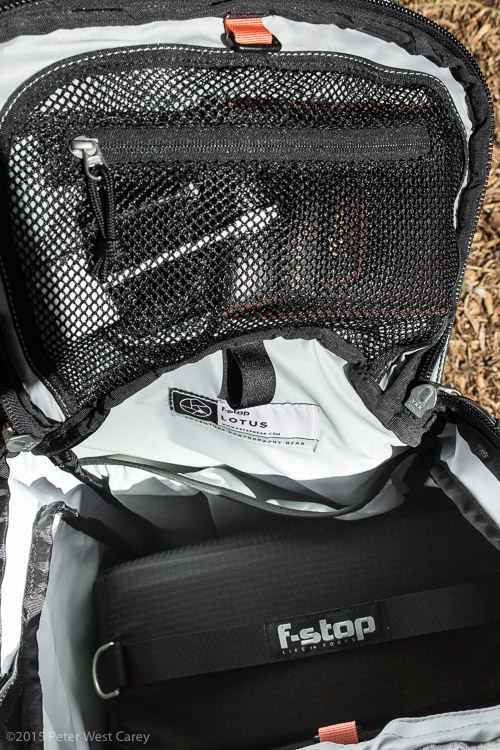
Inside and out, the Lotus has a fair number of pockets. I appreciate the divider in the top compartment and the pocket for either a tablet or a water bladder (complete with discrete opening in the top of the bag to route a drinking tube) on the inside of the pack. There is a small pocket on the inside of the main back panel that can hold just a filter or some cards. Under the top lid is another mesh pocket that holds a couple of filters at most.

PWC-Lotus2015-0622-0020

PWC-Lotus2015-0622-0029

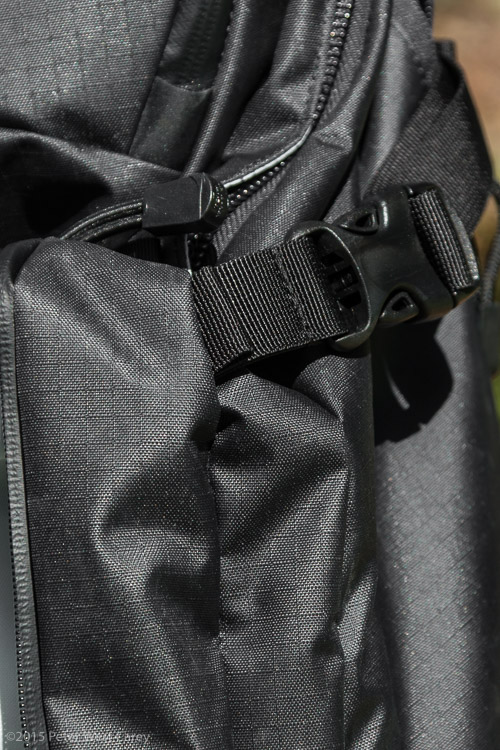
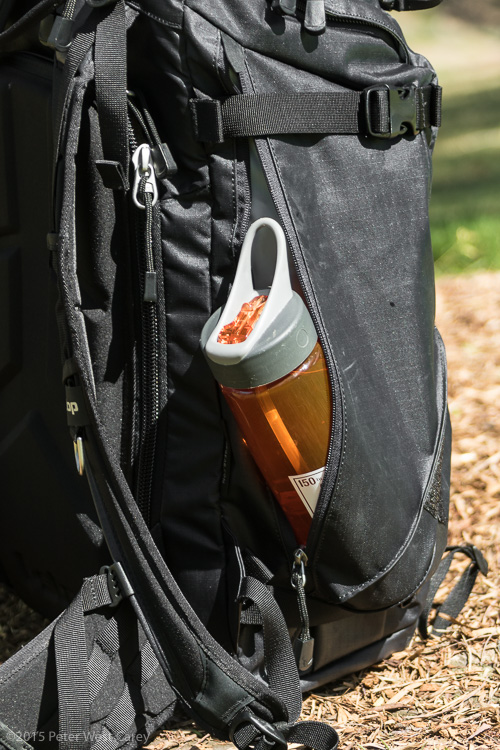
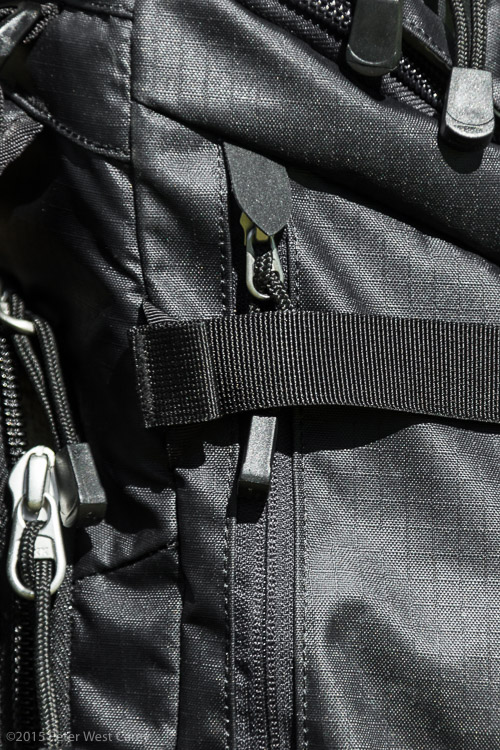
On the front of the bag is an ample, lengthy, zippered pocket great for maps or tablets or other long, thin items. It can hold a lightweight jacket as well. The sides have these odd little pockets. I see what I think they were trying to do here (economize space and streamline the sides so they don’t stick out) but it makes the pockets, well, odd. I can shove in a water bottle if the pack is not filled to capacity on the inside, so they work in that regard.

PWC-Lotus2015-0622-0024

PWC-Lotus2015-0622-0013

Not easy access, but it works.

For my liking I’d like to see at least one more pocket for items larger than a filter. I’m not sure where it would go, but I have grown accustom to enough pockets on my Mindshift Gear Rotation180 Pro and my f-stop Satori EXP that this pack certainly feels like a downsize in terms of pockets. Given the real estate and target market, that is understandable though.

Good range on the sternum strap

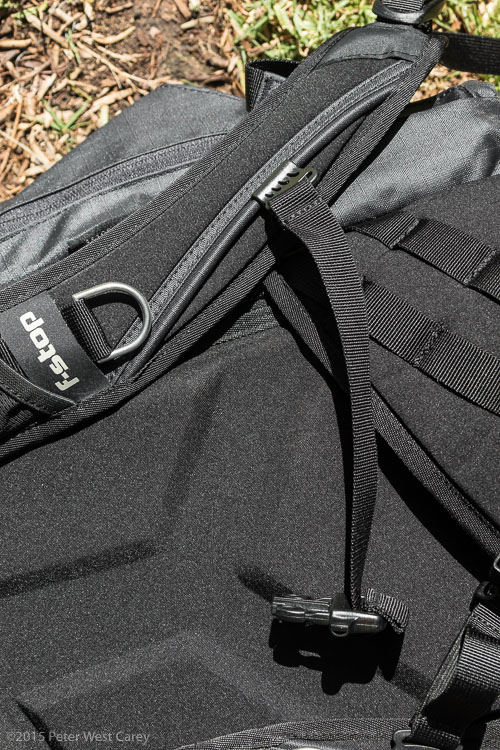
I love the sternum strap on this pack. I’m weird that way, but I also have a long torso and most packs have a sternum strap that ranges from choking me to just about choking me. The Lotus understands a longer torso and the sternum straps extend down further than most packs. As is often the case, the clip for the strap contains a whistle for signaling in the backcountry.

PWC-Lotus2015-0622-0032

Fits under an airplane seat

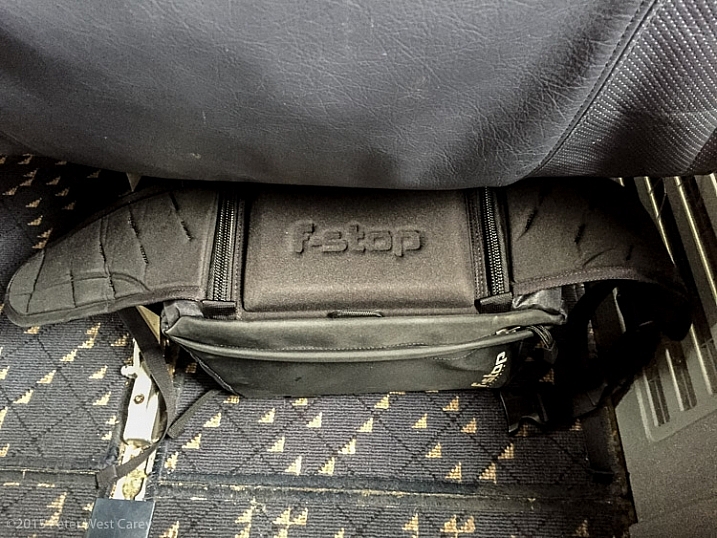
Lastly, this pack fits under the seat of most average planes! Here it is pictured under a seat in a 737-800. Not much room for your feet (I could fit one foot on one side) but the nice part is being able to get to cameras, or other items, easily while flying. Even when fully packed it also fits comfortably in overhead bins.

PWC-Lotus2015-0603-8562

Loops, clips and sneaky pockets

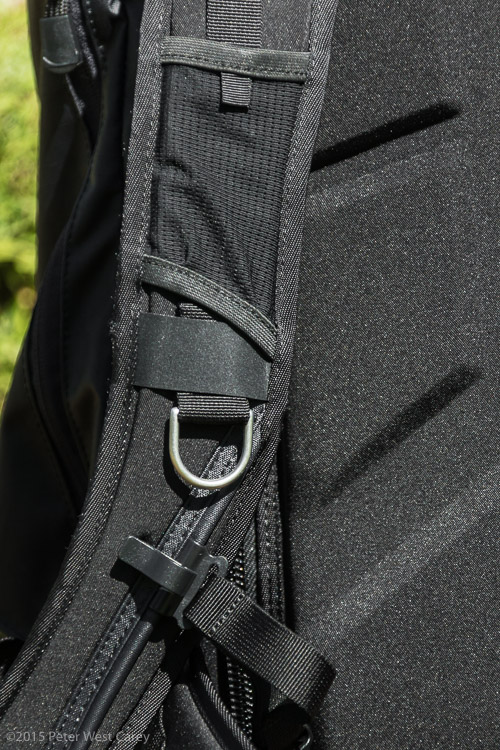
The metal attachment loops on the shoulder straps are easy for clipping spare gear to, and there is a clip on the right shoulder strap to help with routing a hydration tube. There are also two mini-pockets on the hip belt for small items, like a pocket knife, spare memory card or chapstick.

PWC-Lotus2015-0622-0008

What about the bad?

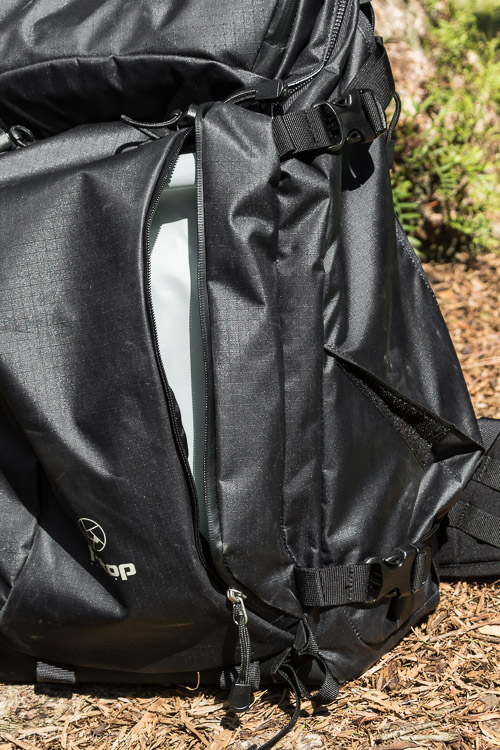
Side zippers get covered by compression straps

Those side pockets with the funky velcro gussets? The zippers for those pocket start at the top of the pack and are usually covered by the side compression straps. It’s a little annoyance but sometimes requires using both hands to get to a water bottle, or other items stored within.

PWC-Lotus2015-0622-0010

PWC-Lotus2015-0622-0012

PWC-Lotus2015-0622-0011

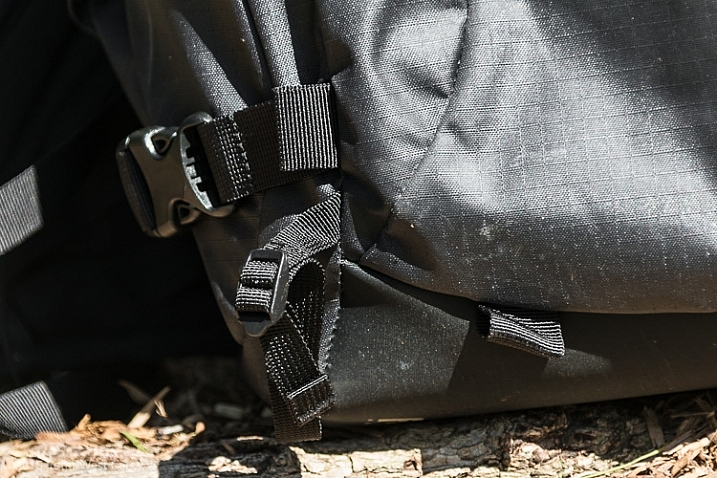
A little loud (crinkly)

I kept trying to place the sound of this pack. It makes a crinkle noise, as the material for the pack is stiffer for waterproofness. I finally figured out the sound is the same as that for a SCUBA BCD, the jacket you see divers wearing that helps keep them neutrally buoyant. If you plan to use this pack for silent ninja work, you might want to think again.

No water bottle, quick pockets

Getting a water bottle in and out of this pack is not a quick affair (see above). I enjoy the side mesh pocket of other packs for this purpose, and the Lotus is missing them. Again, this is probably to keep the bag streamlined. I might get a pouch to keep a bottle up front on the hip belt as an alternative.

Small zippers are a little stiff, certainly need two hands

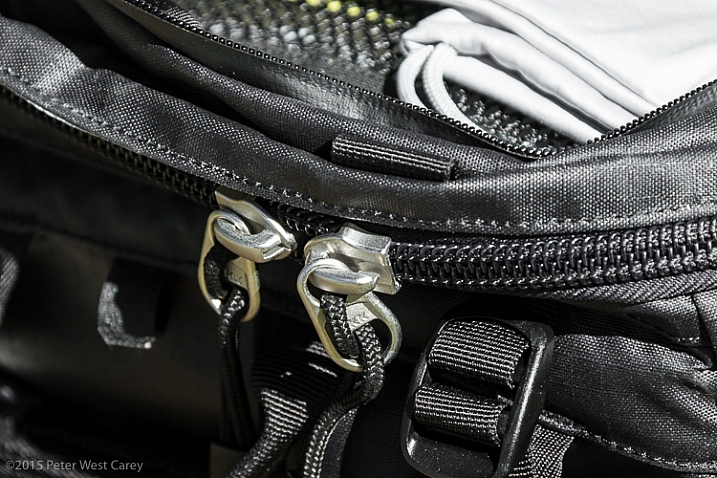
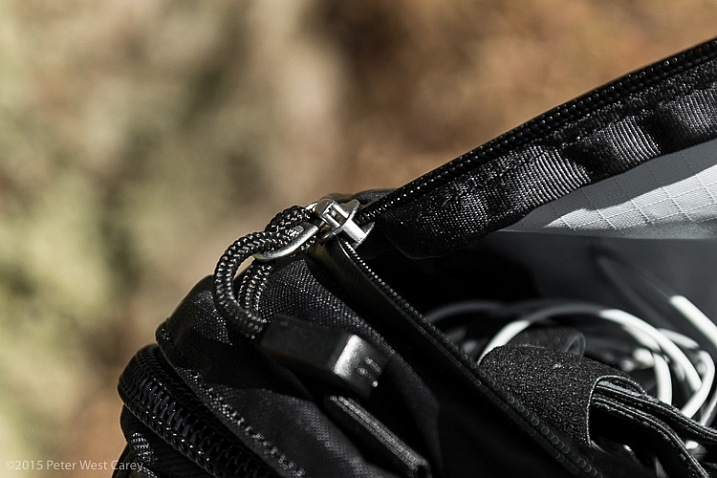
While the big zippers on the back panel are heaven, the smaller pocket zippers are tough, at least when the bag is new (ask me again in a year for an update). This is just the nature of the beast when wanting a zipper to keep out the elements, I suppose. I have to use two hands when opening the top most compartment, or jerk the zipper around multiple times. Same goes for the side zippers.

PWC-Lotus2015-0622-0022

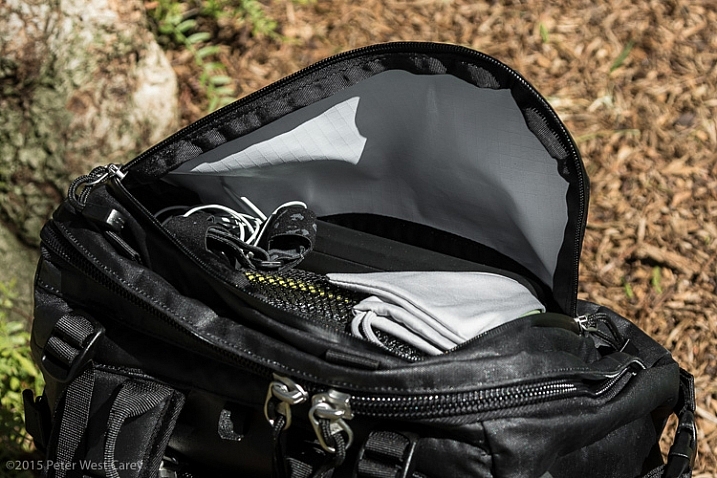
Top pocket a little shallow

I don’t like the top pocket because of its shallowness, and tendency to allow items to spill out. There is a velcro patch and a net inside this pocket which does help keep valuables in place (sized perfectly for a Moleskine notebook or a passport) and there is a detachable clip for keys. But overall, I worry about things easily falling out of this pocket each time I open it.

Conclusion

F-stop knows what they are doing, and this bag fills the need for a smaller day pack that is protected against the elements. Some things aren’t as convenient as on other packs of this size (water bottle access, small zippers are stiff) but when compared to employing a pack cover and the trouble that brings, it is a fair tradeoff. I’m 6’1″ and I loved how well the bag is sized for my torso; how well it stuck with me as I climbed over rocks or dashed through the airport.

If you want a day pack where you don’t have to worry about the weather ahead, and you desire hours of comfort while traversing mountain ridges, the f-stop Lotus is worth a look. With its interchangeable, padded camera carriers and room for the 10 essentials, this bag ensures you and your gear will get out there to get the shot in comfort and style.

Disclaimer: f-stop furnished me with a test model for this review which I was allowed to keep. The opinions above are entirely my own and they know I will call them out if their gear stinks. I don’t want any of our readers to pick a bad camera bag.

googletag.cmd.push(function() {
tablet_slots.push( googletag.defineSlot( “/1005424/_dPSv4_tab-all-article-bottom_(300×250)”, [300, 250], “pb-ad-78623” ).addService( googletag.pubads() ) ); } );

googletag.cmd.push(function() {
mobile_slots.push( googletag.defineSlot( “/1005424/_dPSv4_mob-all-article-bottom_(300×250)”, [300, 250], “pb-ad-78158” ).addService( googletag.pubads() ) ); } );

The post Product Review: F-Stop Gear Lotus Backpack by Peter West Carey appeared first on Digital Photography School.

Digital Photography School

 
Comments Off on Product Review: F-Stop Gear Lotus Backpack

Posted in Photography


DIY 101: How to Get Started with Product Photography

23 Jun

My role as a stay-at-home parent, along with my work as a blogger, means I’m stuck in the house more often than not. I love what I do, both as a writer and parent, but I do find myself lacking for photographic subjects. Everyone in my home, including the cats and dogs, seems to be camera shy. So I began Continue Reading

The post DIY 101: How to Get Started with Product Photography appeared first on Photodoto.


Photodoto

 
Comments Off on DIY 101: How to Get Started with Product Photography

Posted in Photography


Canon issues product advisory for Rebel T6i/T6s

09 May

Canon USA has released a product advisory regarding the sensor defects on its Rebel T6i/T6s (750D/760D) that we reported on last week. The company states that on certain cameras ‘white spots may exist on the optical layer which may result in the appearance of dark circular patterns on the captured image under certain shooting conditions’. These cameras will be repaired free of charge and models that have already been repaired will have a marking inside the battery door. Read more

Articles: Digital Photography Review (dpreview.com)

 
Comments Off on Canon issues product advisory for Rebel T6i/T6s

Posted in Uncategorized


Video Product Overviews

01 Jan

Over the past few months we’ve been busily updating various areas of DPReview – not least our portfolio of product roundups and buying guides. But we’ve also been adding to our catalog of video product overviews. These short pieces are intended to offer a high-level introduction to the key features and performance of several current cameras and lenses. Click through to check them out

Articles: Digital Photography Review (dpreview.com)

 
Comments Off on Video Product Overviews

Posted in Uncategorized


Product Review: Macphun Tonality Black and White Photo Editor

10 Sep

Macphun Software announces new program

Macphun Software, a photography app developer with over 20 million users worldwide just recently released their latest photo editing software program, called Tonality. This is a program dedicated entirely to editing your photos in black and white, and it is so much fun to use!

You may already be using a Macphun program – they have produced a whole suite of useful consumer photography editing tools, such as Intensify Pro, Snapheal Pro, and Focus Pro. This latest addition to their software collection is really a powerful one, for professionals and hobbyists alike.

I played around with the software a bit and there are quite a few things I liked about it, and just a couple of things that I found non-intuitive. Read on to discover more about this program.

Macphun Tonality

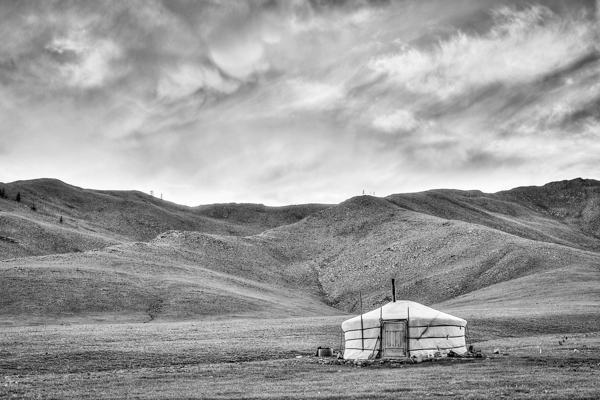
From my recent trip to Mongolia

Overview of Macphun Tonality

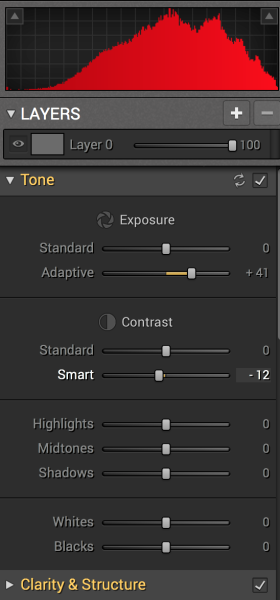
Macphun TonalityTonality is easy to pick up right away if you are familiar with Lightroom or Photoshop RAW editing tools. The designers intentionally created an editing panel on the right hand side of your viewing window that looks almost exactly like Lightroom’s editing panel. It includes familiar tools like Exposure, Tone Curve, Split Toning, and Vignetting.

There are some other effects here that are not so familiar, and do interesting things when you play with the sliders. Clarity & Structure is a section unto itself that provides the user with highly controlled clarity effects. In the Exposure section there is an ingenious slider titled Adaptive which allows you to adjust the exposure while preserving the highlights, something Lightroom should have had in place a long time ago. There is a section called Glow which does exactly what you think it would do; add glow to your images, like a balloon lit from the inside casting a nice glow over everything. You can add Grain, adjust the overall Opacity of the changes you are creating, and there are options for Texture Overlay and Frames, which are pretty fun with black and white images.

Macphun Tonality

Layers

One thing that is really fantastic is that ability to edit with layers. This is something that I found (and still find), rather non-intuitive, but allows for huge possibilities in editing, especially with textured layers.  When you add on a new layer and insert a texture via the Texture Overlay panel, you can brush through via masking and only texturize parts of the image, like the background in this image:

Macphun Tonality

Editing with the Textures Overlay panel. I added a metal texture in one layer and a paper texture in another layer, and painted through on the girl’s face using the layer mask so the texture didn’t affect the smoothness of her skin.

Here I added a metal texture in one layer and a paper texture in another layer and painted through on the face using the layer mask so the texture didn’t affect the smoothness of the girl’s skin.

The non-intuitive part for me is in actually using the layers and brushes to mask out parts of the image. If you have grown up on Adobe Photoshop then you might not find this familiar at all. It’s not impossible, it just requires a different way of thinking about how layers work and how the masking works. It will simply slow down your workflow slightly, but as with anything new, there is always a learning curve.

Some thoughts

When I first saw the software I thought to myself; “I can edit in black and white just fine with Lightroom. Why would I need another program to do such a simple thing?”. But just as Photomatix is brilliantly designed to do just one thing (tone-map HDR images), Tonality is designed to do just one thing perfectly: create black and white images like you could never do in Lightroom or Photoshop. I took a couple of black and white images from Lightroom that I was satisfied with, and tried them out in Tonality. Just using the presets alone as a jumping board for editing in Tonality shows an astounding difference in quality, sharpness, and texture.

See these two images side-by-side and notice what Tonality can do to really make a photo pop:

Digital Photography School Review

Edited in Lightroom for a simple black and white look

Macphun Tonality

Edited in Tonality for some movie poster “pop”

Perhaps some won’t like that HDR look, but I happen to love it. It makes an otherwise bland black and white photo cause me to pause and take a second look. Which is what we are always trying to accomplish with our photos, aren’t we?

Macphun Tonality Pro features:

  • Professional image quality with proprietary 16-bit RAW processing engine
  • Advanced algorithms and a streamlined user experience for superior results
  • Scores of inspiring professional presets provide a wide range of one-click image styles
  • Built-in organic-style overlay textures, plus user-loadable textures, for incredible creativity
  • Unique adaptive exposure and smart contrast tools for advanced tone control
  • Multiple effect layers, each with separate opacity controls, blending modes and preservation of color data offer true advancements in creative toolsetsTonalityPro
  • Adjustable, pressure-sensitive brushes and masking tools for precise selective edits
  • Advanced clarity and structure detail controls yield dramatic results
  • Proprietary grain engine with over 20 emulated film types
  • Selective color using color channel sliders for unique stylistic expressions
  • Glow, lens blur, vignette, photo frame and opacity controls for finishing touches
  • Easy image sharing to popular social networks, and via email, instant messaging, AirDrop and SmugMug
  • Macphun Print Lab services, powered by MILK
  • Runs as either a standalone app or, in the Pro version, as a plug-in to popular image editing software like Adobe® Photoshop®, Adobe Photoshop Lightroom®, Adobe Photoshop Elements® or Apple® Aperture®.

Find Tonality Pro and Tonality here on the Macphun website, starting at $ 19.99, and for dPS readers they’ve given us 20% off so use this link to get that special price.

Summary:

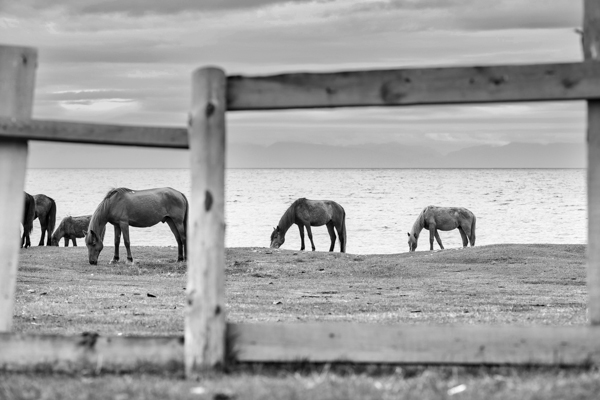
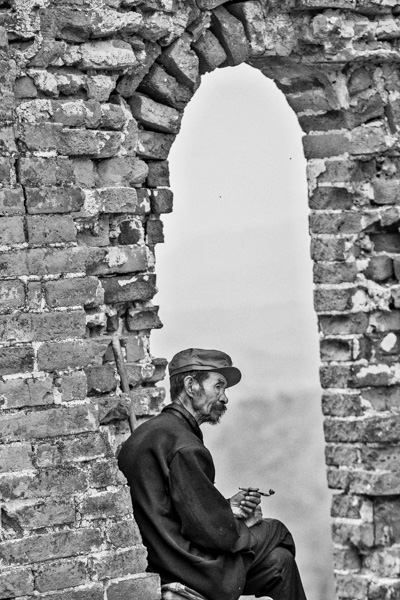
In summary, I give this software product 5 stars. I can actually see myself using this in the future, and I think it will be a welcome addition to my limited number of tools that I use for editing photos. It’s fun, super easy, and I can use it to edit a lot of my future travel photos. Like these:

Macphun TonalityPro

Macphun TonalityPro

Macphun TonalityPro

You can also add in some coloring for sepia tints or different metallic effects

The post Product Review: Macphun Tonality Black and White Photo Editor by Phillip VanNostrand appeared first on Digital Photography School.


Digital Photography School

 
Comments Off on Product Review: Macphun Tonality Black and White Photo Editor

Posted in Photography


Product Review – Dixie Grip: Rotating, handheld, or mounted hotshoe grip

29 Jul

What is it?

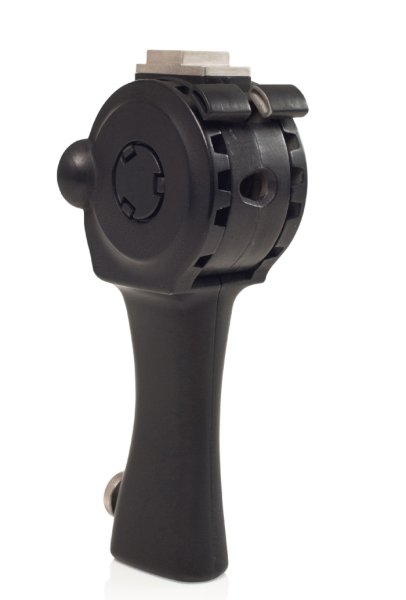
The Dixie Grip

The Dixie Grip is a product that doesn’t exist yet. It’s a Kickstarter campaign product, and it fills a gap in the street portrait world that desperately needs filling – a handheld Speedlite grip.
Don’t believe there is a need for this kind of thing? Case in point: just days after trying the product out and thinking about whether I would have a need for it or not, I was walking with my mentor Payam in New York talking about photography. He was describing to me an engagement session he was shooting in Central Park. He was using a Canon Speedlite with a remote trigger, and his assistant had the flash on a monopod with a softbox mounted onto the unit. The reason for this crazy handheld setup is that having off-camera flash with a softbox is like having a portable studio wherever you go! And having an assistant hold it allows for great flexibility in movement. But there is a problem with this setup. It’s a workaround. The monopod is not an ideal piece of equipment for a Speedlite. It’s awkward, too long, and not ergonomically friendly. That’s where the Dixie Grip comes into play.

What does it do? What’s it good for?

This piece of equipment replaces the light stand with something much more flexible – your hands! Yes, you can mount the grip onto a light stand, but the best part is having the mobility and freedom of using it with your hands. As far as I know, there is no other thing out there that does that, exactly like this. And it holds an umbrella. It’s an ergonomic solution to the mobile problem of traveling light and easy. As my mentor was saying, his assistant was doing the same thing but with a monopod or a tripod, holding the whole awkward kit in their hands. That rig is unwieldy, heavy, and awkward. The Dixie Grip was created for exactly that situation, a light, perfectly sized grip for Speedlites. It’s so simple, it’s amazing it hasn’t been done before.The last part of the product which is pretty slick is that it is adjustable. You can “rotate” the head by simply squeezing these two units together and moving the Speedlite or umbrella up or down. This give you the ability to work with different angles.

How I used it

The Dixie Grip

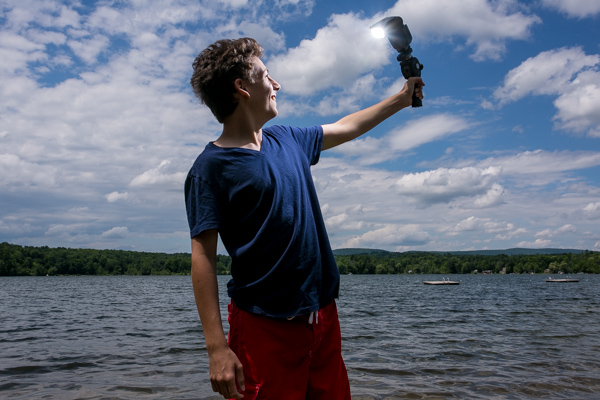
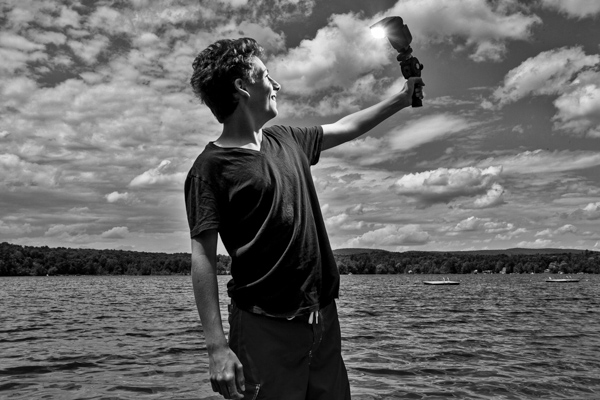
I brought the Dixie Grip with me to the lakeside with my cousin when I didn’t have an umbrella, and we played around with the equipment to get a feel for it. I made him the assistant and the model. The feel of it was easy enough to use, and since we were standing on sand we didn’t have to worry about getting sand on light stands or moving things around on uneven ground. He just got to hold the grip and it worked exactly as expected.

The Dixie Grip

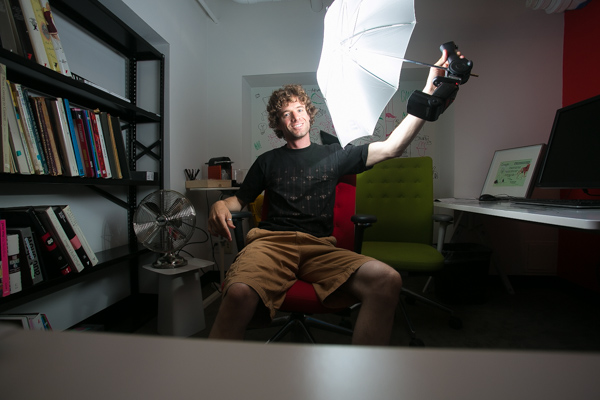
I got back to the city and was able to use the Dixie Grip with an umbrella which is how it is best used. As you can see in the photos, the light looks great, it’s smooth, and best of all, we could shoot in very tight quarters without maneuvering an awkward tripod stand or monopod.

The Dixie Grip

The Dixie Grip

Summary

In conclusion, I would definitely recommend this product if you shoot on location in different conditions. I could see this being a tremendous asset to a wedding photographer who needs to run and gun with their bride and groom for a quick formal session. I could also see this on the streets of NY with a model in the city. There is no reason not to own one of these. It’s intuitive and easy and it works.

The only drawbacks I found were when I tried using my cheap Yongnuo triggers to fit into the hotshoe. They don’t have tightening rings and just sit on whatever they are attached to. The hotshoe mount on the Dixie Grip was a bit too large for the trigger, so the trigger would slide out easy (which isn’t great when the Speedlite is attached to it). But that was an easy fix with a couple of pieces of cardboard. Or just use normal equipment like a Pocket Wizard and you’ll be fine.

Adjusting the head by squeezing those two pieces together, and moving the Speedlite, was slightly awkward. It didn’t always click into place right away. But I was also using a prototype which I know has some kinks to be smoothed out yet. I expect that component to be rock solid when it comes to production. Which is where you come in!

Kick Starter Campaign for The Dixie Grip

This is the link to the product. The campaign ends July 28th, so help put this thing on the market, and be the very first person to own a Dixie Grip.

I give the Dixie Grip product 4.5 stars out of 5.

The Dixie Grip

The post Product Review – Dixie Grip: Rotating, handheld, or mounted hotshoe grip by Phillip VanNostrand appeared first on Digital Photography School.


Digital Photography School

 
Comments Off on Product Review – Dixie Grip: Rotating, handheld, or mounted hotshoe grip

Posted in Photography


How to Use a Light Tent for Small Product Photography

15 Mar

Many crafters, cooks, and artists want to take high quality photographs of their own creations, whether to feature them in a blog post, offer them for sale online, or just share them with friends. The trick to getting these kinds of product shots easily and reliably is to use a light tent. This article will cover the fundamentals of shooting with a light tent to help you capture bright, high quality product photographs every time.

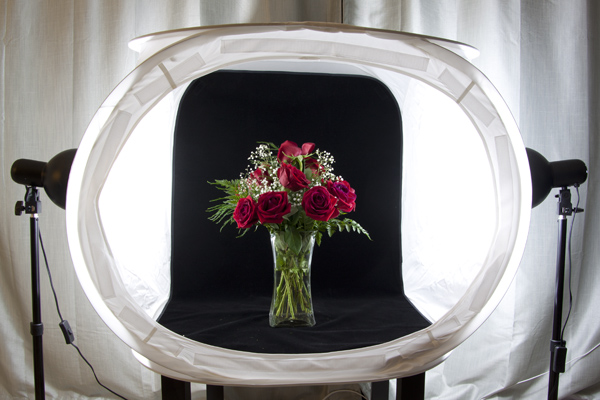
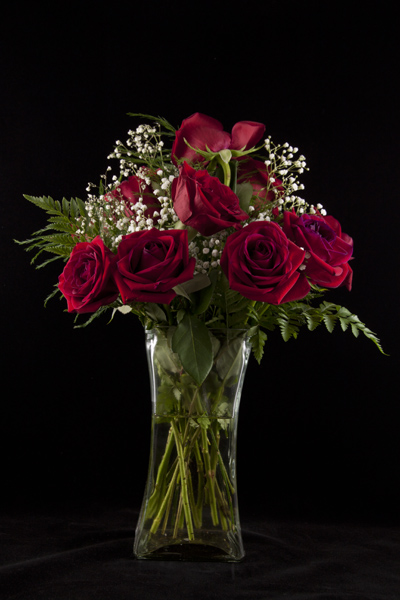
McEnaney-light-tent-roses-new-vase

What is a Light Tent?

A light tent or light box is a contraption with translucent sides that diffuses light coming from multiple sources. This allows for even, nearly shadow-less lighting against a simple, solid background.

light tent, photography, DIY, product photography

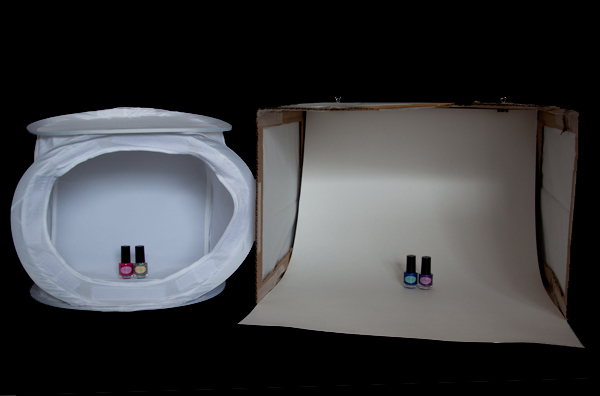
You can purchase a light tent as part of a kit or you can build your own DIY light tent. If you choose to purchase a light tent kit, it will usually come with one or more light tents, two light bulbs, two light stands, a tripod, and fabric backdrops in various colors. If you build your own light tent, you will also need to purchase two posable light sources, light bulbs, and poster board or fabric for the backdrops. Unsure of which to choose? In a future article I will offer a head-to-head comparison of a popular light tent kit and a DIY tent.

Shooting with a Light Tent

The standard set-up for light tent photography is to place the tent on some kind of table or end table, with the light sources directly opposite each other on each side and the tripod centered in front. Placing the tent up on a table makes it easier to see and maneuver, as well as easier to use your tripod for shooting.

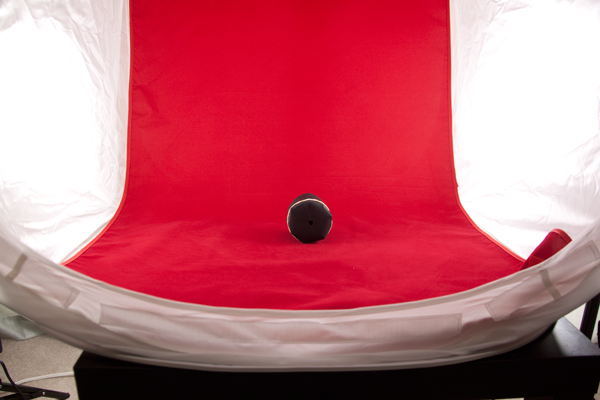
The backdrop is attached at the top inside the tent and should fall freely down into a gentle curve at the back and then across the bottom of the tent. You want to be sure that you backdrop is clean and free of debris and wrinkles. If using a fabric backdrop, be sure to iron it for a completely smooth look. (If you roll your backdrops up on a cardboard tube after shooting, you should be able to keep them wrinkle-free for next time.) Consider keeping a lint roller or small blower handy for dealing with the inevitable dust and debris.

light tent, photography, how to, product photography

Now you are ready to start photographing! Place your subject carefully inside the tent, and start with it in the exact center. Moving your subject forward or backwards relative to the light can change the lighting and shadows. Experiment to get the look you want. You can also experiment with pointing the lights slightly at an angle, rather than straight on at the tent. Be sure to leave space between your subject and the walls, so that you can zoom in or position your camera to see only the backdrop and not any edges.

Consider the ambient lighting and adjust as needed. I have found very little difference between shooting midday in diffused indoor light and shooting at night with only the lights themselves for light. You do want to avoid direct sunlight shining in or at your tent, as it will be difficult to balance such a powerful light source.

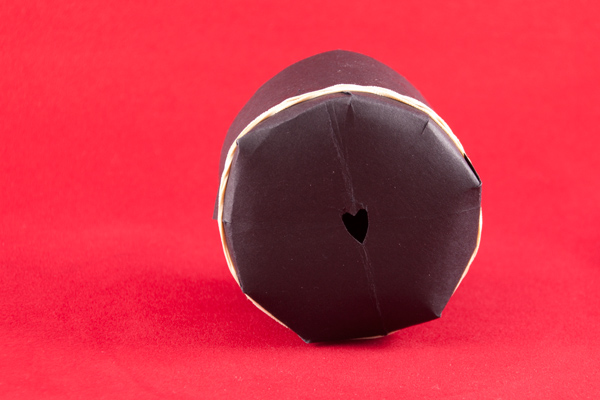
light tent photography, how to, bokeh heart

Camera Set-up

Set your camera securely on the tripod and use either the 2-second timer or a remote shutter release to ensure that you tripod remains steady. (If you are using a lens with image stabilization, vibration reduction, or vibration control, turn the switch to off.) The tripod will allow you to use longer shutter speeds with crisp results.

Begin by shooting in aperture priority mode with an ISO of 100 (or the lowest value for your camera). Choose your aperture based on the look that you want to achieve in the image (a wide aperture like f/1.8 for a narrow depth of field and a lot of blur or a narrow aperture like f/22 for a wide depth of field and crisp focus across the entire subject). Food photographs often utilize wide apertures and selective blur to make food look more appealing, while product shots of crafts and handmade goods look best with a narrow aperture to keep the entire item into focus. IF you want to avoid blur in the foreground (the bit directly in front of your object) – set your focus using the part of your subject that is closest to the camera.

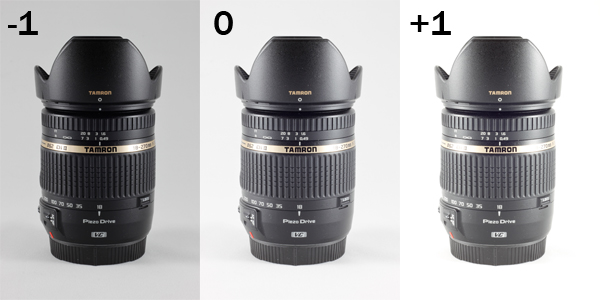
Consider also using exposure compensation to shoot a series of three shots, bracketed at -1, 0, and +1 exposure, so you can see which gives you the best results. (For white backgrounds, you may get better results around +1; while for black backgrounds, you will get better results around -1. If a full stop is too dark or too light, try a half or a third of a stop.)

light tent photography, exposure compensation, camera lens, Tamron, Tamron 18-270mm, light tent, product photography

Post-Processing Considerations

It can be difficult to get the background of your shots perfectly white or perfectly black while also keeping your subject properly exposed. In those situations, you may want to do some additional post-processing to ensure that your whites stay white and your blacks stay black. The following description relies on tools available in Adobe Photoshop, but you should be able to do many of these same procedures using other software products.

If you are shooting in RAW, adjust the white balance of your image first so that your whites look white and not yellow. Most light bulbs will list the color temperature of the light they produce, which you can use as a guide for setting the white balance. You can also set the white balance manually by shooting a white card and calibrating from that image (or if you know your background is pure white or black use the color picker in the RAW processor to neutalize any tint).

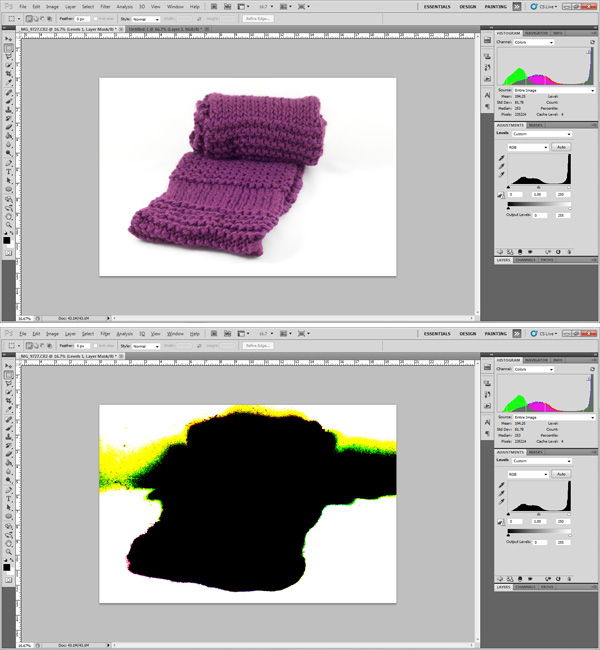
Use your histogram as a guide when processing. While standard photography advice recommends against having your histogram touch the edges of the scale (clipping), this is what you want to achieve in product shots. Clipping your background (whether on the left for black, or on the right for white) will create an entirely homogenous look to your background and focus all attention on your subject.

scarf, photography, Photoshop, post-processing, highlight clipping,

In Photoshop you can use the Levels tool to adjust either end of the histogram. Holding down the Alt (Option for Mac) key while adjusting the sliders allows you to see which areas of the photograph are being clipped, as shown in the image above. Move the slider in towards the center until the background is uniformly clipped but the subject is not. If your subject is too affected by this action, then you may need to scale back your adjustment.

If you are having trouble achieving a uniformly white background on your product shots, consider adding a thin border to your final image. While a not-quite-white background, on a shot displayed against a pure white background on a web page runs the risk of looking dingy. However, a slightly grey background with a black border can make the background shade appear intentional.

photography, bourbon, product photography, light tent, how to

Cheers! Do you use a light tent in your photography? Have a helpful tip for shooting with one? Share your thoughts and photographs in the comments below.

McEnaney-roses-closeup

Here’s a final image from the vase of flowers in the first image at the top of the article.

For more on product photography check these out:

  • DIY Seamless White Background for Product Shots
  • Tabletop Photography Walkthrough or How to Create an Eye-Catching Product Shot
  • How To Photograph Your Product to Enhance Your Online Sales in 4 Easy Steps
  • How to Create Simple Seamless Background Product Shots

The post How to Use a Light Tent for Small Product Photography by Katie McEnaney appeared first on Digital Photography School.


Digital Photography School

 
Comments Off on How to Use a Light Tent for Small Product Photography

Posted in Photography