RSS
 

Posts Tagged ‘Print’

Magnum’s ‘Conditions of the Heart’ square print sale underway

02 Nov

Magnum ‘Conditions of the Heart’ square print sale 

Kochi, India, 2014 © Alex Webb / Magnum Photos

Magnum Photos recently tasked its photographers with capturing photographs related to the theme ‘Conditions of the Heart,’ doing so for the organization’s Square Print Project. This project was inspired by David ‘Chim’ Seymour’s work, and is itself part of a larger series that examines the work of Magnum’s four co-founders. A new square print sale is now offering these photos as museum-quality 6×6 prints for a short duration.

The square print sale started yesterday, October 31, and is running through November 4 at 6PM EST. During this time, the public can purchase high-quality 6×6 prints that are signed and estate stamped for $ 100 each. These square prints are printed onto archival paper and will not be available for purchase beyond this sale. Photographers featured in the square print sale include Steve McCurry, Alex Webb, David Alan Harvey, Matt Black, and others.

Purchases can be made through Magnum Photos’ online shop.

Magnum ‘Conditions of the Heart’ square print sale

Kochi, India, 2014 © Alex Webb / Magnum Photos

“Connection in photography can take many forms. While one typically thinks of the connection in photographing people one knows, there can also be a kind of intimacy with a place or a culture itself. As a street photographer, it is this latter connection that intrigues me. Over the years, I’ve learned that each culture demands its own unique and complicated approach—often with many nuanced variations—in order to photograph the life of its streets. For instance in Mumbai, people sometimes seem so interested in strangers, one may later discover smiling faces peering into the edges of one’s photographs. However, in a city such as Kochi in southern India where I took this photograph, one may also encounter unexpected quieter moments. Ultimately, no matter how gently and respectfully one tries to photograph in a culture other than one’s own, how long a street photographer can linger is largely thanks to the grace of others.”

– Alex Webb

Magnum ‘Conditions of the Heart’ square print sale

Chiang Mai, Thailand © Steve McCurry / Magnum Photos

“I photographed these elephants and their mahouts at a rescue sanctuary in Chiang Mai, Thailand. The mahouts dedicate their lives to caring for a specific elephant, spending their days and nights tending to all of the elephant’s needs.”

– McCurry, Steve

Magnum ‘Conditions of the Heart’ square print sale

Savoy Ballroom. Harlem, New York City. 1939 . © Cornell Capa / International Center of Photography / Magnum Photos

“The Concerned Photographer produces images in which genuine human feeling predominates over commercial cynicism or disinterested formalism.”

– Cornell Capa

Magnum ‘Conditions of the Heart’ square print sale

Sheepherder with Mount Mikeno. North Kivu, Democratic Republic of the Congo. 2016 © Michael Christopher Brown/ Magnum Photos

“Though much of my work in the Democratic Republic of the Congo depicts dire circumstances, I remain optimistic for the country; it is not only one of the most beautiful places, but also filled with incredible people.”

– Michael Christopher Brown

Magnum ‘Conditions of the Heart’ square print sale

Fisherman and family. Bahía Honda, Cuba. 1954.© Eve Arnold/ Magnum Photos

“Magnum dispatched [Eve Arnold] to Cuba and Haiti to take pictures for magazine projects that [Robert] Capa had arranged. In both countries, she was confronted with destitution on a level she had never seen, beyond even the migrant farm workers. A Cuban family she was photographing begged her to adopt their nine-year-old daughter, Juana, to save her from a life of poverty and prostitution, and she was so moved by them that she cried when she left.”

– Janine di Giovanni, Magnum Legacy: Lives Behind Photographs – Eve Arnold, Prestel, 2015

Articles: Digital Photography Review (dpreview.com)

 
Comments Off on Magnum’s ‘Conditions of the Heart’ square print sale underway

Posted in Uncategorized


How to Prepare Your Images for Print and Display

18 Sep

If you’re into photography at some point you’ve probably had the desire to print and display your work. Whether it be for exhibition in a gallery or local community center, to hang on your own wall, or to give a print as a gift to a friend or loved one, you want to present your work in the best way possible. Treating it as the piece of art that it is. Displaying your printed work can sometimes result in a lot of angst, due to problems printing, decisions with regards to matting and framing, and finally, lighting.

Displaying Your Images

Many photographers believe an image isn’t fully realized until it has been printed and hung.

“The negative is the equivalent of the composer’s score, and the print the performance.” – Ansel Adams

While situations, intentions, and desires may vary from one photographer to the next, here are a few things to consider when preparing an image for print and display.

home-display-of-prints

Monitor Calibration

Before you even choose which route to go with in terms of printing your images, you have to address the biggest issue facing photographers today – monitor calibration.

The settings you have applied to your computer screen can drastically affect the way the image looks on screen. And while you may have edited the image to look fine onscreen, when you go to print it, there is a very good chance your printed output will look nothing like what you saw when editing. To solve that issue, you have to match your screen to a known standard. One that sets the color and brightness so that what you see on screen will translate to what comes back from the photo lab, or out of your printer.

Calibrating Your Monitor

Unless your monitor is properly calibrated, you can’t be sure that the vibrant colors you see on screen will be the same as those seen in a print.

There are several available options for monitor calibration, but they all do the same thing. They get your monitor set to a known state that the printing engine can translate to similar output. In other words, what you see onscreen is what you get out of the printer or lab! Finally, it’s important to realize that the lighting under which your print will be displayed will affect the way the image looks. Too cool lighting will make it look bluer, while fluorescent lighting will make it greener, and tungsten lighting will warm the tones.

Finally, it’s important to realize that the lighting under which your print will be displayed will affect the way the image looks. Lighting that is too cool will make it look bluer, while fluorescent lighting will make it appear greener, and tungsten lighting will add warm the tones.

Type of Print

Obviously, if you plan to display one or many of your images, the first thing you need to do is have it printed. You have several options available, and while none are wrong, some are better than others. The simplest option, in terms of work for you, is to use a photo lab or print service. If you like more control, you can choose to print the images yourself on your own photo quality inkjet printer. Even then, there are things to consider.

Making Prints

When you do decide to print an image, you have several choices to make, include what process to use, what media to print on, and how it should be finished.

There are two main printing methods prevalent today, depending on where you go for your prints of digital images:

Inkjet prints:

Inkjet prints are produced by placing tiny drops of ink on paper or canvas to produce an image. Professional inkjet printers tend to have more colors than consumer models, with high-end printers now featuring up to 12 different color inks to create a richly colored image.

Inkjet printers use inks that fall into one of two categories; pigment or dye-based inks. Pigment inks are made of tiny particles that sit on top of the paper, while dye-based inks are absorbed into the paper. Pigment inks are archival and can last up to 200 years or more in the proper conditions (under museum-quality lighting and framing). Pigment-based inks are more expensive but also suffer two main drawbacks. First, pigment based inks can suffer from metamerism, which appears as a shift in the color when viewing the print at an angle. The second drawback is that pigment-based inks are not as vibrant as dye-based ones. Dye-based inks tend to fade more quickly, though some are rated to last up to 75 years or more in proper conditions. Professional printers will usually use pigment-based inks.

Digital C-Print (Lightjet):

This method of printing involves using a laser to expose chromogenic paper, which is then processed in chemicals, similar to a traditional photographic print. It’s a continuous tone print, unlike inkjet which produces tiny dots of ink on the paper to create the image. The laser produces true photographic quality with continuous gradations and tones. Kodak Endura and Fuji Crystal Archive are the two most popular papers used in this process, and both produce archival prints that will last up to 200 years under proper conditions.

Displaying Your Work

While it’s fun to show off your images online, there is nothing quite like having one of your images printed and framed.

Choosing a Lab

Labs offer some decided advantages over printing images yourself. When choosing a lab, you want to find one with a reputation for good quality control and customer service. I’ve found getting recommendations from other photographers to be incredibly helpful when looking for a lab.

Other things you’ll want to consider are their products. Do they print using the method you want? Do they offer the sizes you want? Do they print on media other than photo paper, such as canvas, acrylic, or metal? What kinds of finishing options do they offer? Is the canvas gallery wrapped? Do they offer mounting or framing? Do you want or need those services? Answer those questions, knowing what you want or need, and that should give you a good answer as to whether the lab will fulfill your needs.

Answer those questions, knowing what you want or need, and that should give you a good answer as to whether the lab will fulfill your needs.

Displaying the Print

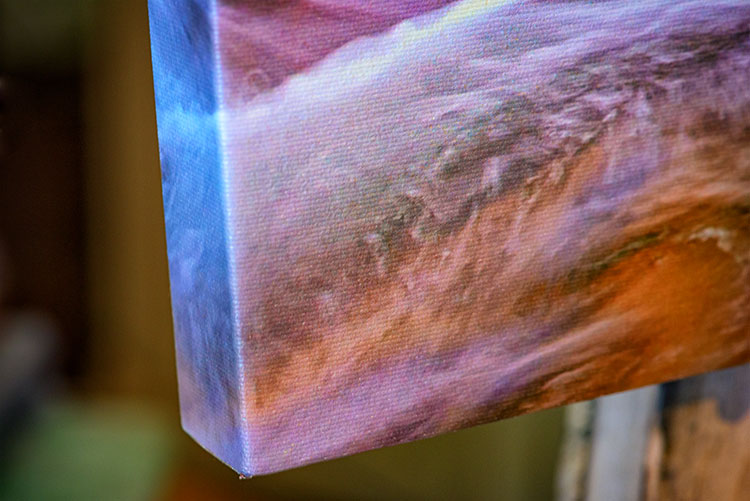
If you choose to go with a print on metal, acrylic, or canvas, once the print is made, you probably won’t have much else to do. These options are generally finished and require no framing, though a decorative frame can be added to canvas if desired. If you’ve printed on paper, you still have a little work to do.

canvas-wrap

Matting

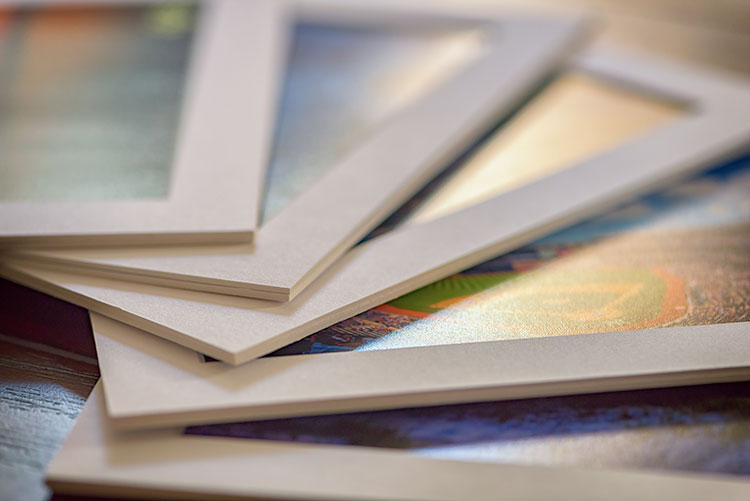
Paper prints, to be properly displayed, need to be matted and framed. You can find various qualities of mat board, using terms such as “Buffered pH Neutral” or “Acid-Free”. These are basically the same thing, meaning the acid has been removed from the paper to avoid harming the prints. Acid-free mats have a protective lifespan of about 7-12 years.

The next grade of mat board is known as “conservation grade acid-free” or sometimes “museum rag”, which is what you’d want to use for a serious art display in a gallery. In addition to removing the acid, another component harmful to paper, called lignin, is also removed from the mat board. Conservation mats that are acid and lignin free have a protective lifespan of 50 years or more. Conservation grade mats aremore expensive than simple acid-free ones.

Which type of mat should you choose? It really depends on your purpose. If you’re planning to display the print as art in a gallery and possibly for sale, conservation grade mats are the best choice. This helps add value to the print by preserving it, and lets the buyer know you are serious about your work and their potential investment in it. If the use is something less important, such as a temporary display that won’t be for sale, you can certainly save some money and go with a simple acid-free mat.
matted-prints

Framing

Framing prints can present you with some difficult choices, depending on where the print will be hanging. Since you never know where someone may hang a print, for galleries and art shows I suggest a simple, understated black frame, that lets the image breathe and speak for itself.

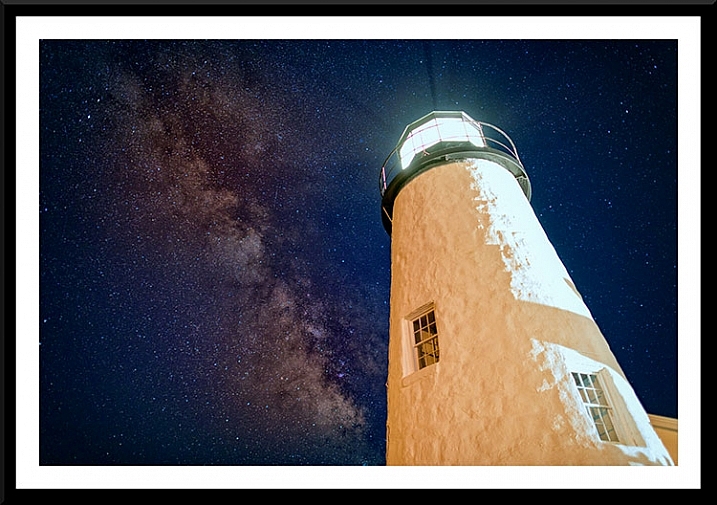
Framed Print

A matt and frame finish off an image and complete the piece for hanging.

One of the big mistakes I see new photographers and artists make when showing work in a gallery or exhibition is framing their work in overly ornate or colorful frames. When an art buyer purchases a new piece of art, if it is framed already, that frame becomes part of the consideration. By keeping the frame simple and understated, it allows the buyer to view the art neutrally without considering the frame. They won’t feel the frame has to be married to the image and can feel free to consider their own framing choices.

If you want to get really serious about the frames you use, you’ll want to use museum quality framing. Like conservation mats, it is designed to preserve the print for as long as possible. Museum quality framing includes UV filtered glass to reduce the UV rays from the sun that are a print’s worst enemy and keep it from fading. It should include conservation matting as described above, and will have a final layer of archival backing to further protect the print.

The Finishing Touch

Signing Your Prints

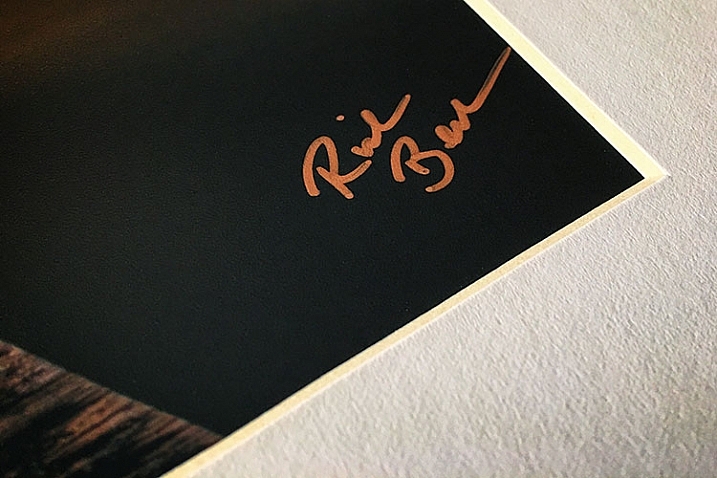
An artist should always sign his or her work, on the print, in the corner.

As with any artwork, you should always, without fail, sign your images. Signing your images signifies that you created the image, personally took responsibility for it from capture to print, and lets whoever is hanging the print on their wall know who created it. It adds value for art collectors.

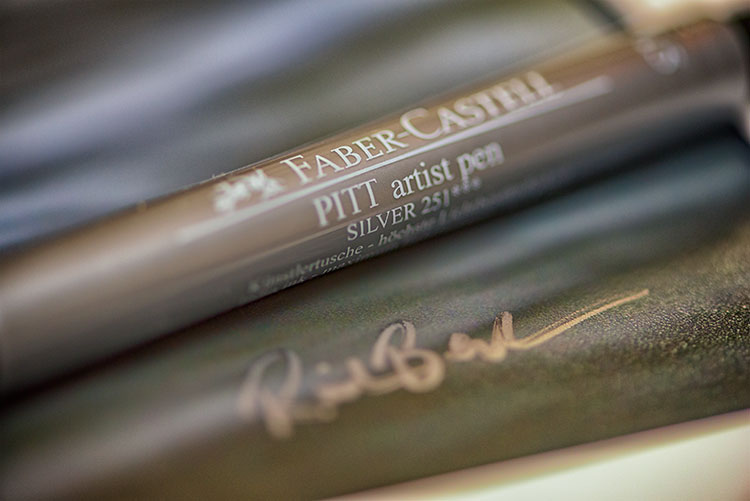
There is always some debate, it seems, but I will go on the record as saying that it is always the print that should be signed, and never the mat. The mat can be removed, and thus, so can your signature. Choose either the bottom left or bottom right corner and sign your prints with a neat, clear signature that identifies the image as your own. Again, you’ll want to use archival ink that won’t harm the print, in a color that will stand out. For darker prints, silver or gold metallic works nicely, while for lighter colored prints, a black ink will suffice. I prefer the Deco Color Liquid Fine Paint Markers to sign my prints, canvases, metal prints, and acrylics. There are several thicknesses available so you may want to experiment to find what works best for you.

artist-pen

Your photos are meant to be seen, not just take up space on a hard drive! So take these tips and start showing your images off. What are your favorite tips for displaying photos?

googletag.cmd.push(function() {
tablet_slots.push( googletag.defineSlot( “/1005424/_dPSv4_tab-all-article-bottom_(300×250)”, [300, 250], “pb-ad-78623” ).addService( googletag.pubads() ) ); } );

googletag.cmd.push(function() {
mobile_slots.push( googletag.defineSlot( “/1005424/_dPSv4_mob-all-article-bottom_(300×250)”, [300, 250], “pb-ad-78158” ).addService( googletag.pubads() ) ); } );

The post How to Prepare Your Images for Print and Display by Rick Berk appeared first on Digital Photography School.


Digital Photography School

 
Comments Off on How to Prepare Your Images for Print and Display

Posted in Photography


How to Size and Export Images from Lightroom for Facebook and Print

24 Aug

One of the most confusing features of Adobe Lightroom for many users, is how to get your final results out of the software, to show them to friends or to send to customers. Different from other programs, there is only one way to “save” thing out of Lightroom – that is to an Export Images. This article will walk you through some of the options to help you demystify this often confusing function, so you can post your images on Facebook, and get them printed, all using the right sizes.
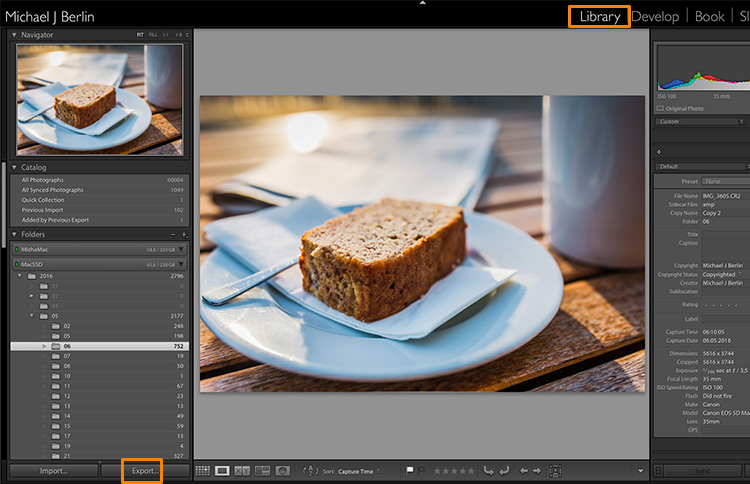
Lightroom export images

The reason is that Lightroom does not actually store your images, they are not really within its database. Lightroom merely keeps a list of locations where your original images are located, generates its own internal previews of those images to work with, and stores the changes you have chosen to make to the files. But until this stage all you are seeing in Lightroom is purely a visualization, there is no actual finished images created yet.

For this, you will have to learn to use the Export feature. While it is one of the essential features of Lightroom, it seems to confuse many people at the start. Part of the confusion certainly comes from the huge amount of options Lightroom offers when trying to save images:
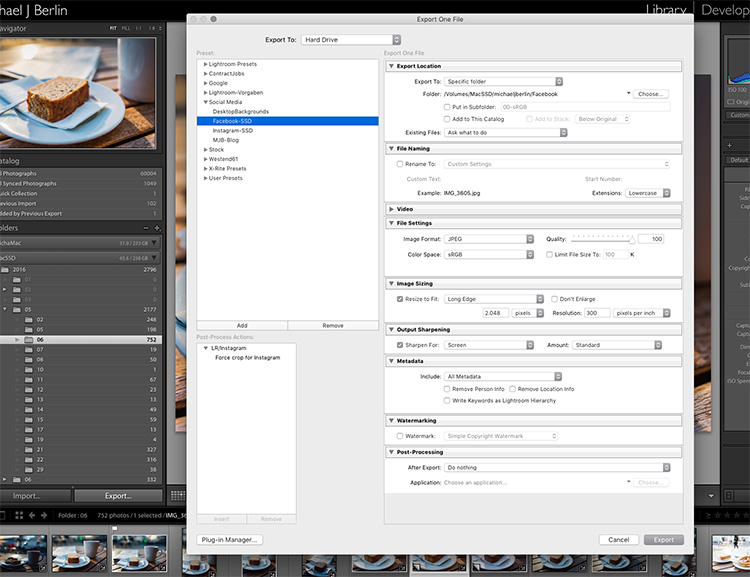
Lightroom export images

So let’s have a look at the most common cases for using the Export functionality to get the best results:

Export an image for Facebook

There are many discussions about how an image should be saved for Facebook. I trust Facebook’s own recommendations most and have had good experiences relying on that article. Typically I export images at the highest resolution Facebook will accept, the 2048 pixels mentioned in the help article.

So, first of all, you have to tell Lightroom where we want to save your image. Lightroom offers a lot of choices, one of them being to save the new resulting image into the same folder as the original. Remember, until now only the original image exists somewhere on your hard drive, no changes have been made to it.
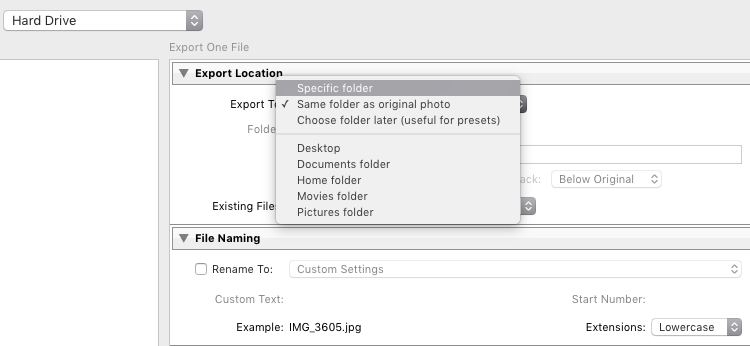
Lightroom export images

It can be a good idea to keep the original and your final copies in the same space. However, I typically save images into a subfolder to the original – named “For Facebook” for example – so when my original RAW image is in a folder structure by date “2016/05/06”, I would save my Facebook images into the sub folder “2016/05/06/For Facebook”.
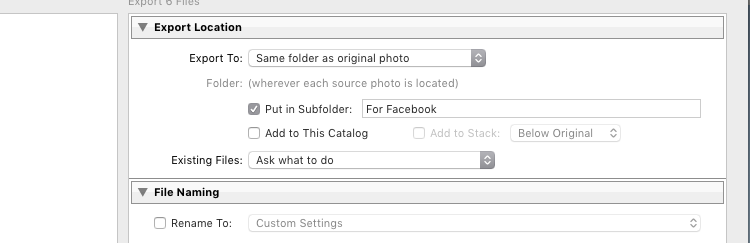
Lightroom export images

Another option at this point that I regularly use, is to define a “Specific folder” for my outputs. This allows you to send all exported images to the same location on your hard drive, for example to keep a specific folder containing all the images you have uploaded to Facebook. This also works great to automatically save files into an online cloud storage such as into a Dropbox folder on your disk.

File format

Further down on the Export screen, you get to choose the file format you want to make the exported image. For internet purposes, you would mostly choose JPEG as the desired file format. JPG is a compressed format which allows faster transmission of images, so most internet based platforms use this format to store photos. PSD and TIFF will allow you to store images in full detail in with a wider range of colors (16 bit instead of 8 bit). Some printers (photo labs) will accept TIF files because of the additional details stored in the images, but you should make sure your printer does before trying to send files that can reach more than 100 MB.
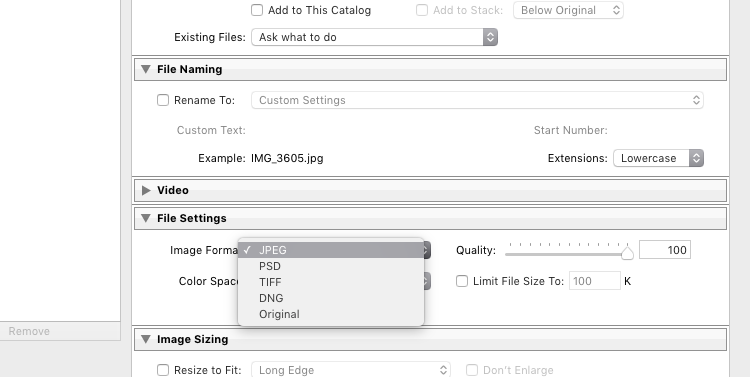
Lightroom Export 05 File Format

With the JPEG format, you also have to choose the Quality level. As JPEG tries to find areas of similar colors to make the file size smaller, the quality setting defines how “different” a color section needs to be before a compression is being applied. The lower the quality, the more compression artifacts you might see in the final image, in exchange for a lower file size. In most cases, values around 80-90% will not show critical changes over the full 100%, and only in rare occasions (when file size is very critical) you should go below 60%.

Color profile

Besides the format and quality settings, there is another drop down box in this section showing the color profile to be used. In simple terms, the color profile defines how many (and which) colors can be accurately stored. The smaller a color profile is, the less color information it contains, but also the smaller the file sizes will also be.
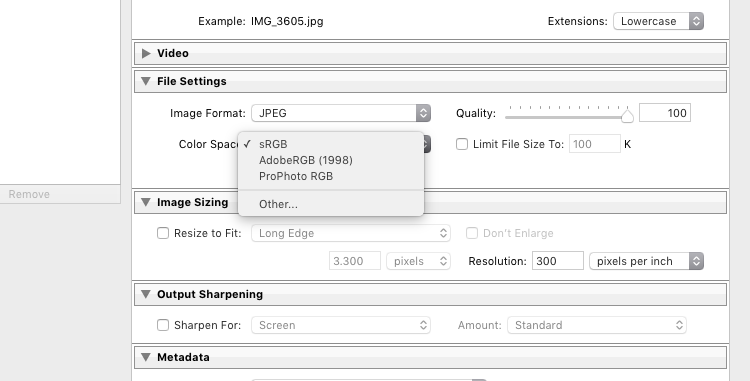
Lightroom Export 06 Color Space

In general, sRGB is the best choice for all images that are meant to be displayed on electronic screens, from large computer monitors, to smart phones, on your website, or on Facebook. The other options (AdobeRGB and ProPhoto RGB) both contain more color information, which can be advantageous if you want to apply further changes to the images at a later stage, for example in Photoshop or in the pre-print processing.

Just as with generating TIF or PSD files, you should only use these other color spaces when sending images when you know in advance that the recipient at the target location can work with them. Most online print services today are prepared to accept images in JPEG format and sRGB color space, as this is what most consumers produce with their cameras.

Sizing your images

The final section you need to address before exporting your images are the resizing options:
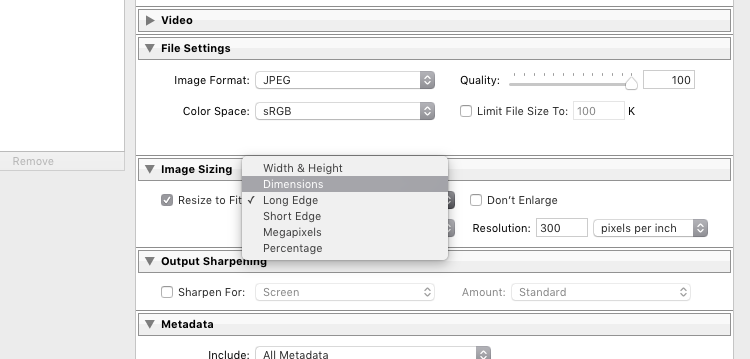
Lightroom Export 07 Resize

For images you plan to upload to the internet – be it your blog, to Facebook, or Instagram – you probably don’t want to upload the full resolution of 16 or 24 megapixels that your camera probably shoots. As mentioned in the linked help article above, Facebook only accepts up to 2048 pixels on the wide side, and if you upload larger images they will automatically be downscaled. So it is preferable to save the file in the recommended size, to save upload time.

With these settings, you could now export your image for sharing on Facebook. There are a few sections below like Output Sharpening (you can choose “Screen” and “Standard”, and compare the results to a version without output sharpening to see the difference) or adding a Watermark to your images automatically, but those are topics for a another article in the future. But just wait a second before you press the Export button right now, there is something else we should look at first.

Save your settings as an Export Preset in Lightroom

Now that you have taken the time to understand the settings on the Export screen and have come to a result you’re happy with, you want to be able to use the same settings in the future without having to think about getting them all right for every new image. This is why Lightroom allows you to save these settings as an Export Preset. Just press the “Add” button below the list of saved presets on the left half of the window, to add your personal preset – you can even have them sorted in Folders for different purposes:
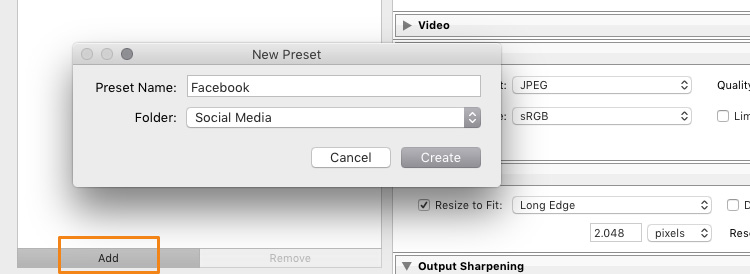
Lightroom Export 08 Add Export Preset

Once it is saved as an Export Preset, selecting the same settings is simply a matter of a single click. As you can see from the next screenshot, I have defined my personal Export Presets for different social media uses like my blog, Facebook, and Instagram, as well as usage as a new Desktop Background for my own computer.
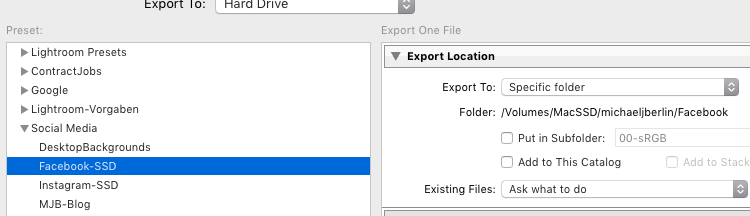
Lightroom Export 09 Use Export Preset

Cropping images for desired format before the Export

With all the settings, we have looked at in the first part of this article, there is one important part that has to be done before entering the Export screen: Cropping your images when you want to use them into a format (proportion) that does not match your camera’s output.

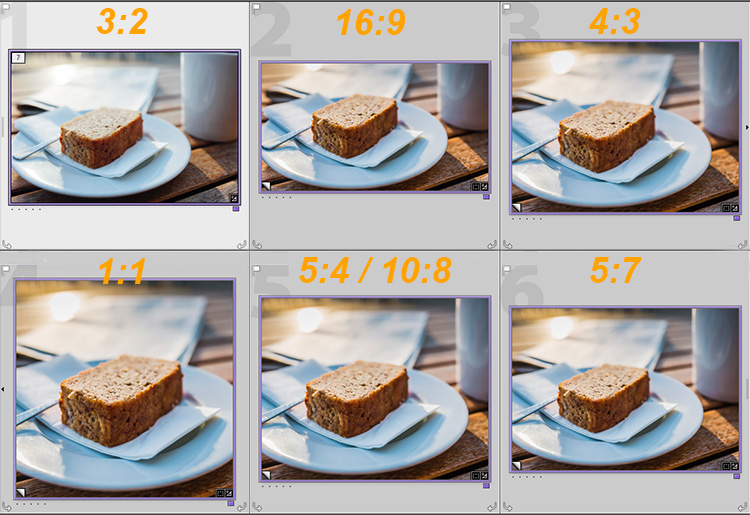
Most modern cameras produce images in a 3:2 aspect ratio, so the long side of an image is 50 percent longer than the short side – in a 24 megapixel camera this translate to 6,000 x 4,000 pixels. However, traditionally there are different popular formats, especially when it comes to printing images:

  • From the age of large format cameras, the 5:4 format (or 8×10 prints) is still very popular in some regions.
  • Medium format cameras usually produced images in 6 x 4.5 (so a 4:3 ratio) or in 6×6 square format.
  • The square format has also been Instagram’s unique format until recently.
  • TV screens, and a growing number of computer monitors, come in the 16:9 standard defined by high definition TV.

To print a full image in one of those different formats would cause distortion, as the image information would have to be squeezed to fit to the shorter sides. In general, printers will not distort the image but instead cut them off at the side. To avoid a random crop in print, what you need to do is to crop your images to fit the desired output format.

Make Virtual Copies

Bonus Tip: If you want to keep the original format for easy access and/or offer your customers different print formats, I recommend to create a Virtual Copy (keyboard shortcut is: Command/Control+’ or right click the image and select Create Virtual Copy, see screenshot below) from your image before doing the cropping. This way, you will have two (or more) versions of your images, one in original aspect ratio and others in the cropped format. Within Lightroom this will only take a minimal amount of space, as Virtual Copies do not duplicate the original file but are just an additional set of data within the database.
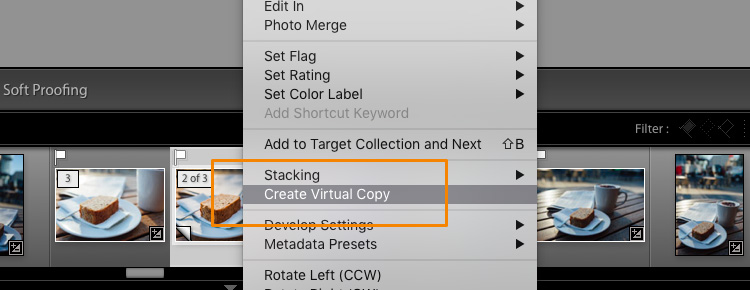
Lightroom Export 10 Virtual Copy

When you select the Crop tool in Lightroom’s Develop module, you will find a list of presets covering the most popular aspect ratios in a dropdown menu. Choose the desired format from the list, or choose a Custom Format if you don’t find the aspect ratio you are targeting.
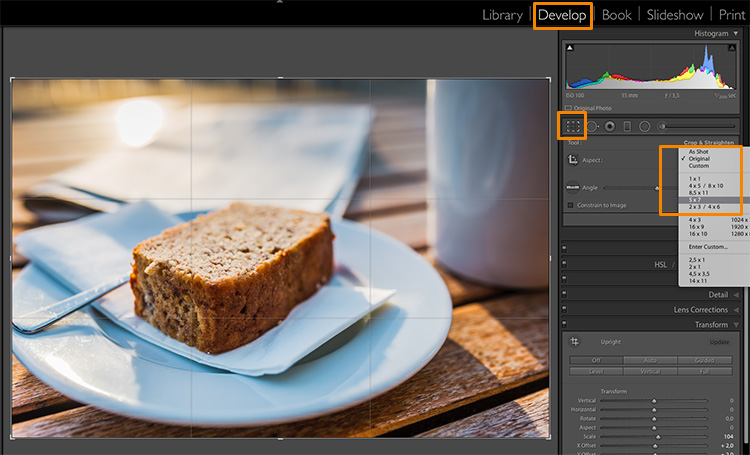
Lightroom Export 11 Crop Tool

If you select a 5×4 crop, you will see the crop guides highlighting the parts of your image that will remain in the final result, and the darkened parts on both sides of the photo that would be cropped off. You can now move the crop area to your liking to the right or left – or drag one of the corners in case you want to close in to your main subject a little more. Reminder: As everything in Lightroom, this is a non-destructive process, you can change the chosen crop at any stage and even return to the original size.
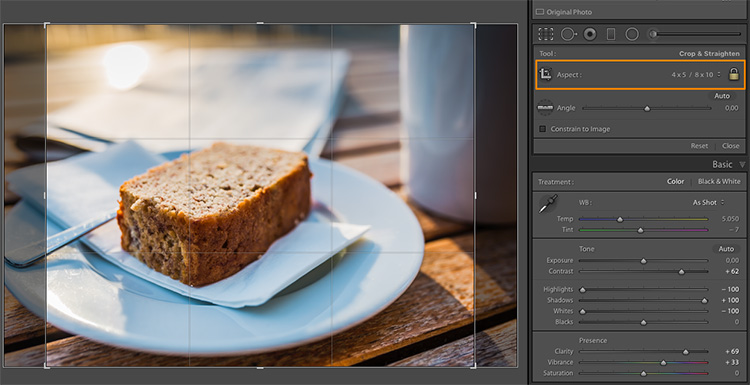
Lightroom Export 12 5x4 Crop

To give you an idea how the different crops can impact an image, I have created five virtaul copies, in addition to my original 3:2 format image, and have applied the five most popular aspect ratios as follows:
Lightroom export images Crop Comparison

Image size settings

Once you are happy with your crop, you can go back to the Export screen from the Library module. Now let’s have a look at the Image Sizing section again. As you can see, I have now chosen to make Lightroom fit the image to a 8 x 10 inch print format. Please note that I have changed the measure from “pixels” to “in” in the drop down box for this – if you prefer the metric system, there is a “cm” option for centimetres as well.
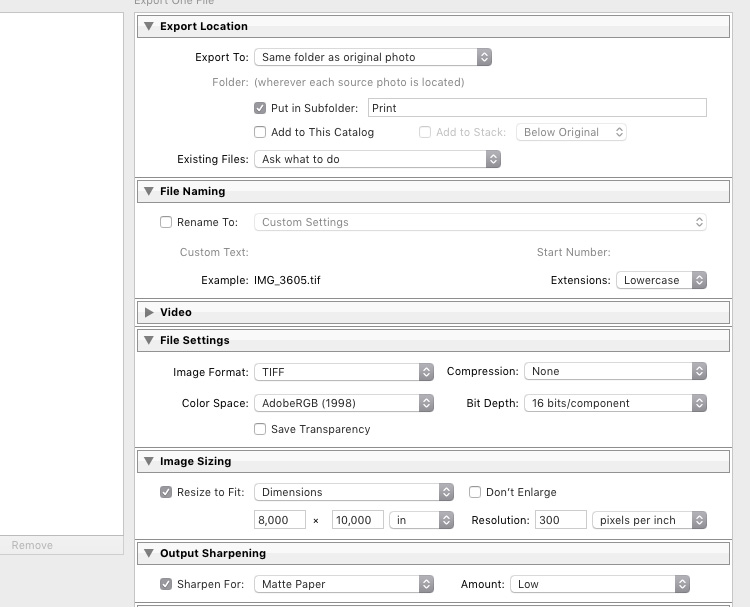
Lightroom export images Print

I have also set the Resolution to 300 pixels per inch which is the typical requirement for most printers. With these settings, Lightroom will now automatically save the image to the desired aspect ratio and file size. Remember to store these settings as another Export Preset if you are happy with the results, so you can use the same settings for future exports.

Also, please note that I have changed the File Settings in this case to TIFF, and AdobeRGB with 16-bit, to show the settings that will save the most information with the file. As discussed in the first part, this is only recommended if you know that the printer can handle the resulting large file size. If you want to deliver printable files to your clients, I would recommend you stick with JPEG and sRGB, as you can’t say in advance which printers they will use and most services will be able to handle those images as well.

Summary

I hope this article helped you to understand the basics of exporting images to different formats from Lightroom. In case you have questions, feel free to leave a comment below this article or join the Digital Photography School group on Facebook where I am available to answer questions as well.
lightroom-mastery.jpg


For more training using Lightroom check out our new course Lightroom Mastery!

googletag.cmd.push(function() {
tablet_slots.push( googletag.defineSlot( “/1005424/_dPSv4_tab-all-article-bottom_(300×250)”, [300, 250], “pb-ad-78623” ).addService( googletag.pubads() ) ); } );

googletag.cmd.push(function() {
mobile_slots.push( googletag.defineSlot( “/1005424/_dPSv4_mob-all-article-bottom_(300×250)”, [300, 250], “pb-ad-78158” ).addService( googletag.pubads() ) ); } );

The post How to Size and Export Images from Lightroom for Facebook and Print by Michael Zwahlen appeared first on Digital Photography School.


Digital Photography School

 
Comments Off on How to Size and Export Images from Lightroom for Facebook and Print

Posted in Photography


Toasteroid: Print Your Own Custom Toast Design With This App

23 Aug

[ By SA Rogers in Gadgets & Geekery & Technology. ]

toasteroid

You don’t necessarily need skills to be a food artist these days, now that smartphone apps make it possible to do things like print custom designs on your breakfast. A gadget called the Toasteroid (a toaster on steroids?) caters to those who demand more than just the browning of bread from the typically simple kitchen appliance, boasting that it also functions as a personal weather forecaster, private messenger and doodle pad. If Kickstarter is any gauge, there’s been a long-simmering demand for just such a device.

toasteroid 2

The Toasteroid comes with a companion mobile app, and you connect your smart phone to the toaster via Bluetooth. Choose from a collection of templates available within the app or draw your own design, which will have to be fairly simple and pixelated by virtue of the way the toaster works. You can also request that the toaster prints today’s weather right onto your breakfast. There’s a fairly sensitive brownness control, and if you don’t feel like fussing with it, an ordinary lever on the side lets you use it like a normal toaster.

toasteroid 5

toasteroid 4

If you know somebody else who has a Toasteroid, you can send them a private message via toast. Presumably, the app will prompt them to stick a piece of bread into their own toaster so they can receive it. The makers also note that you can leave yourself or a loved one a reminder that’s hard to ignore – at least, until you stuff it into your mouth. Probably the most useful function is pleasing picky kids who demand that their favorite cartoon characters be visible on every conceivable surface.

toasteroid 6

toasteroid 8

If you’re still asking why, Toasteroid is ready with an answer: “Because why not.” Sure, not everything in our homes should be a needlessly complicated smart gadget, but the Toasteroid does have all the same functions as any high-end toaster and costs less than a lot of them if you get in on the pre-sale. 

Share on Facebook


[ By SA Rogers in Gadgets & Geekery & Technology. ]

[ WebUrbanist | Archives | Galleries | Privacy | TOS ]


WebUrbanist

 
Comments Off on Toasteroid: Print Your Own Custom Toast Design With This App

Posted in Creativity


Branco Ottico creates world’s biggest contact print at 24 square meters

26 Jul

Do you lie awake at night wondering how big the world’s largest contact print is? Wonder no more. It turns out Branco Ottico, an Italian photography group, created the largest contact print in the world during Phototrace Florence in September 2015. The project involved a 24 square meter (about 258 square feet) photo negative stitched onto an equally large sheet of canvas, and enlisted the help of strangers who placed their hands on the print for the nearly 13-minute exposure.

Their efforts resulted in a successful – and massive – cyanotype print. According to the group’s website, the print now holds a Guinness World Record. The whole process has been documented in the newly published video below. Additional photos of the project are available on the group’s Instagram.

Via: PetaPixel

Articles: Digital Photography Review (dpreview.com)

 
Comments Off on Branco Ottico creates world’s biggest contact print at 24 square meters

Posted in Uncategorized


Magnum signed square print sale returns for third year

08 Jun

$ (document).ready(function() { SampleGalleryV2({“containerId”:”embeddedSampleGallery_1660447426″,”galleryId”:”1660447426″,”isEmbeddedWidget”:true,”standalone”:false,”selectedImageIndex”:0,”startInCommentsView”:false,”isMobile”:false}) });

Signed or estate stamped prints for $ 100 from over 60 Magnum photographers and artists will be available for a limited time, from 9am EST on Monday 6 June until 11pm Friday 10 June 2016, here: shop.magnumphotos.com

Magnum’s Square Print sale is back, offering up museum-quality signed prints for just $ 100 each. Upwards of 70 prints are on sale from photographers like Martin Parr, Alex Webb, Rene Burri, Eve Arnold, Tim Heatherington and many more. Each photographer contributed an image that plays on a theme of ‘The More or Less Decisive Moment(s)’. 

The 6×6″ prints are available for five days only, starting now through 11pm ET on Friday, June 10 at shop.magnumphotos.com.


Press release:

THE MAGNUM SQUARE PRINT SALE, June 6 – 10, 2016 THE (MORE OR LESS) DECISIVE MOMENTS

Signed and estate stamped, museum quality, 6×6” prints for $ 100. For 5 days only.

Magnum Photos co-founder Henri Cartier-Bresson is synonymous with the idea of ‘the decisive moment’, a critical idea in the theory and history of photography. In this Square Print Project the agency looks back at the impact and legacy of Cartier-Bresson, his influence on contemporary photography and the ways in which the decisive moment is manifest in the work of Magnum photographers today.

For five days only, prints by Magnum photographers which respond to the meaning of the decisive moment, will be available to buy as signed, museum quality, 6×6” square prints, exceptionally priced at just $ 100. Including both classic and contemporary photography, over 60 works by Martin Parr, Alex Webb, René Burri, Elliott Erwitt, Tim Hetherington, Newsha Tavakolian, Peter van Agtmael, Eve Arnold and many more Magnum photographers will be available for a limited time only.

ABOUT THE DECISIVE MOMENT

The notion of the decisive moment was coined by Cartier-Bresson’s English language publisher Simon & Schuster in 1952, translating the French title of the book, Images à la Sauvette. Cartier-Bresson annotated Martin Parr’s personal copy to read ‘The More or Less Decisive Moment(s)’, hinting at the plurality and ambiguity of its meaning.

Every photographer within Magnum Photos has been invited to select an image from their archive and to reflect upon how the photographic concept of the decisive moment influences their practice. Accompanied by personal written responses, these images and texts create a collective portrait of the critical thinking that defines the agency.

The works included in the Square Print sale are intended to spark debate around the meaning of the decisive moment. What goes through a photographer’s mind when capturing a shot? What are the moral or ethical implications in the quest to find the decisive moment? What part does the unconscious play? Is the realisation of a decisive moment always in the present, or can that come later? Is there even such a thing as the decisive moment?

The Magnum Square Print Sale will take place at the Magnum Photos Online Shop: shop.magnumphotos.com.

It will be open from Monday, June 6th, 2016, at 9AM EST until Friday, June 10th, 2016, at 6PM EST.

Articles: Digital Photography Review (dpreview.com)

 
Comments Off on Magnum signed square print sale returns for third year

Posted in Uncategorized


5 Tips for Going from Pixels to Print Quality

18 May

Whatever level of photographer, you are sure to have gathered a stockpile of pixels.

It’s just the way it is nowadays. Whether you are the kind of person that clogs up their hard drive, gradually slowing your Mac or PC down until you are forced to do something about it. Or perhaps you are already super organized having kept negatives, CDs, DVDs, hard drives, a raid system or even the cloud?

Indeed whatever storage method you choose you need to catalogue the files by name, event, and year, so you may retrieve without having a complete breakdown while searching for your favorite file. After all photography should be fun, not pain.

Many photographers use Lightroom, which is a great program, not only for editing but also for organizing your ever-increasing pile of pixels. But then what? What do you do with them then? I think you would agree we all spend too much time in front of screens? So why would you keep your masterpieces locked away in digital format?

To create that killer slideshow you will amaze your friends with is a lot of fun, especially if you have a large TV or digital projector. However, be careful of the content of your slideshow. Nothing worse than visiting a friend, only to be subjected to look through every snap taken on their holiday. Slideshows really should not be much more than ten minutes long or people generally loose interest. Keep them simple also, not too many whizzy effects, that just makes your viewer feel queasy!

PIC 10 simonjohn co uk

So you have this catalogue full of great images, what next? I would say enjoy them. Have your favorites printed and framed. Photography is personal, just like any other art form. By printing your special images, and hanging them in your home, you are not only enjoying the fruits of your labour, but also creating personalized wall art. This shows friends your talents, without the need for a longwinded slideshow.

You may find as time goes by, the framed photographs mean more or less to you. This is quite natural as we grow, and our taste and habits change also. Not to worry, you can always replace them with fresh images. It’s not like the old days when the portrait your parents had remained in the given spot forevermore. In fact, it is refreshing to change your images from time to time. Just like wallpaper or any other interior design things, move on. Only when you can look back at a photograph you made perhaps 10, 20, or 30 years ago, and still love it, will you know it’s a keeper!

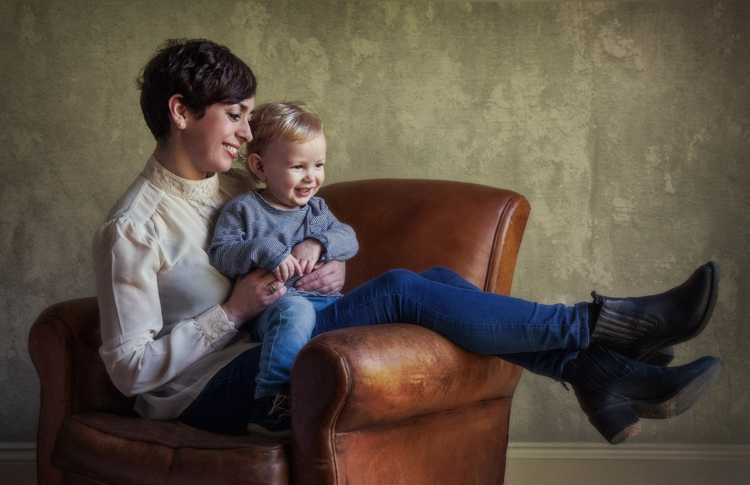
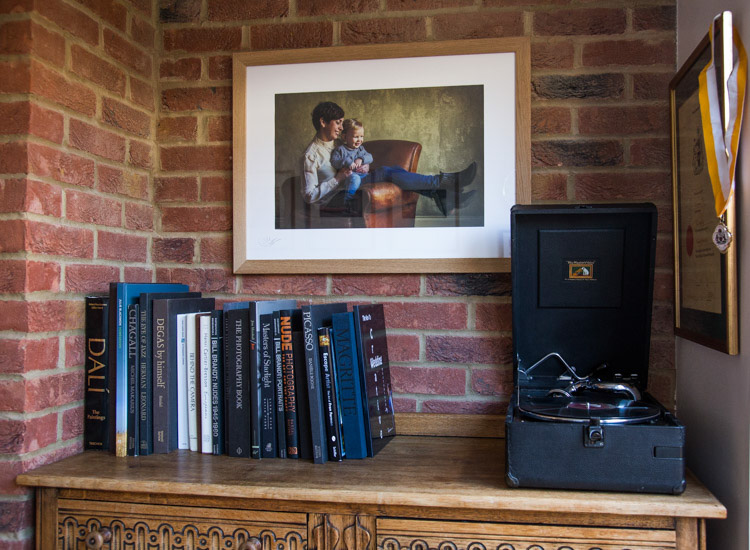
My background is a portrait and wedding specialist. Lets take a look at an image from my portfolio. I will describe the process from capture through editing, and finally the framed piece for the wall (above).

#1 – Get it right in-camera

Pic 1 simonjohn co uk

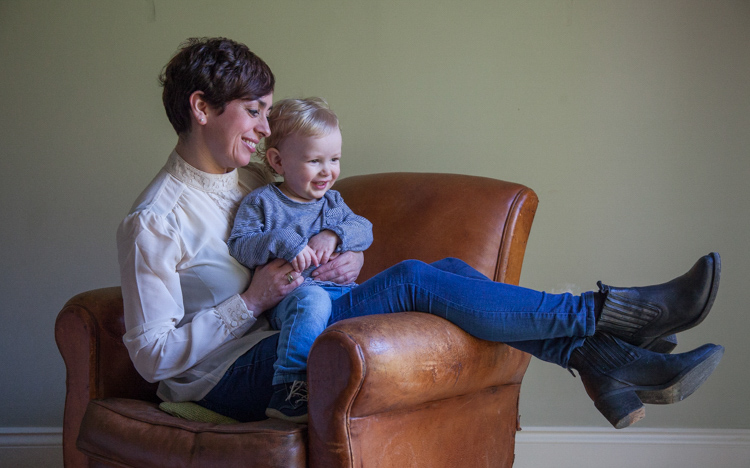
As you can see the old chair, and soft natural light, was perfect for the basis of this portrait. I positioned the mother in the first third of the image, placing her legs over the arm of the chair for a more relaxed contemporary look. My directions to her were simply to get close, and look at your beautiful boy. All I had to do then was to get the toddler to look in the right direction, with the expression to fit. A squeaky toy often saves the day!

The mother is in profile, while the toddler is in three quarter face, adding interest and different angles to the image. The lighting was a large window (not with hard sunlight) off to the right. I also placed a reflector just below the mum’s boots, to bring light back into the eyes and softly wrap around into the shadows. The exposure was 1/250th (freezing the toddler) with an aperture of f/5.6, using a 70mm focal length, as my back was pressed against the far wall of the room.

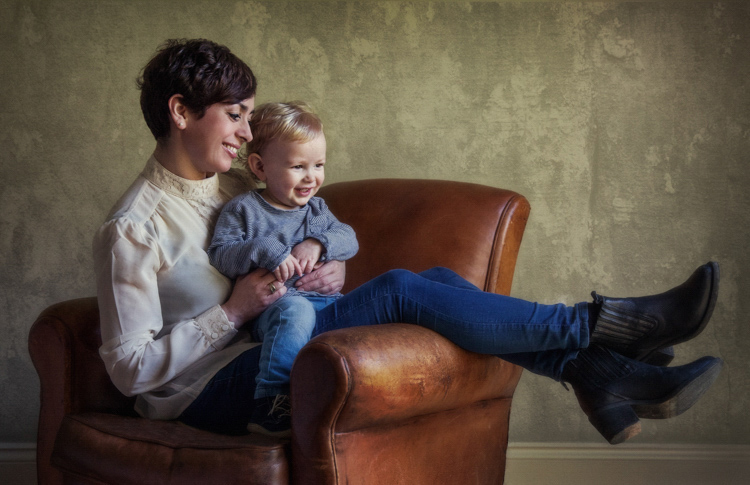
So to summarize; I feel the expressions are captured well. The lighting is fitting, being soft and directional. The image has style, and is well balanced compositionally. But it just needs something more. The capture stage is so important to get right. Photoshop should not be regarded as a fixer. The great Ansel Adams talked about “printing virtuosity” and just because we now craft our images on a screen, as opposed to in the darkroom, quality and finishing are still paramount.
So take a look at the edited image below.

Pic 2 simonjohn co uk

#2 Basic adjustments in Photoshop or Lightroom

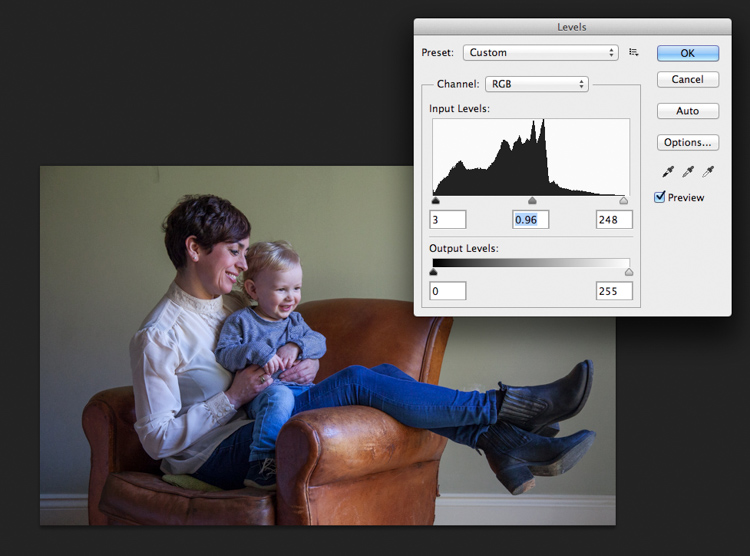
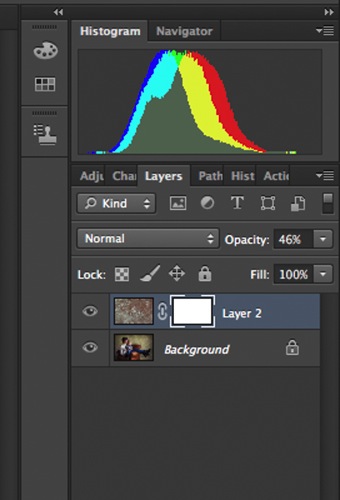
Firstly, you will need to level the image in Photoshop, bringing the sliders in to just clip the histogram at both ends. This ensures depth in the blacks and good clean whites. The mid-tone is really your X factor, but just be aware that you have detail throughout all tones if that is the look you are after. Be careful if you make it too light, the image could appear milky. While if you make the mid-tones too dark the image could appear muddy.

Screen Shot 2016-04-27 at 21.12.41-untitled

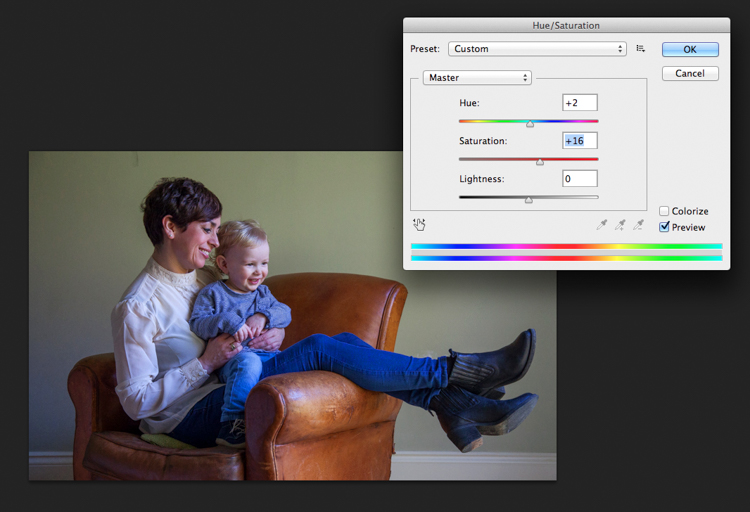
Secondly, I have adjusted the Saturation and the hue of the image to achieve the color pallet I require. Often you can go between the levels and saturation, and make small tweaks as the image takes shape.

Screen Shot 2016-04-27 at 21.13.20-untitled

#3 – Add a texture overlay (optional)

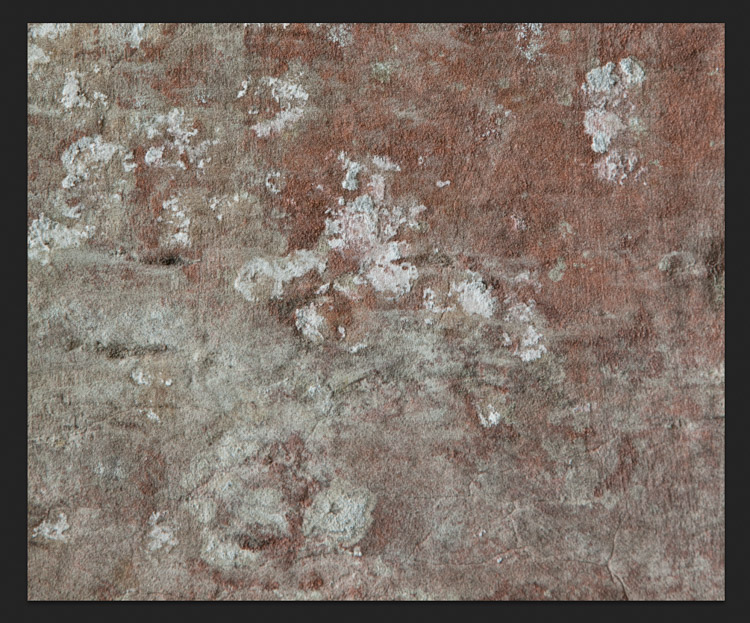
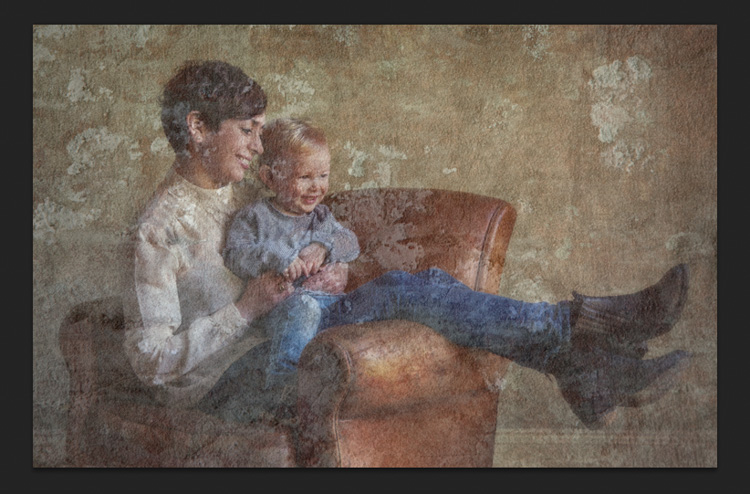
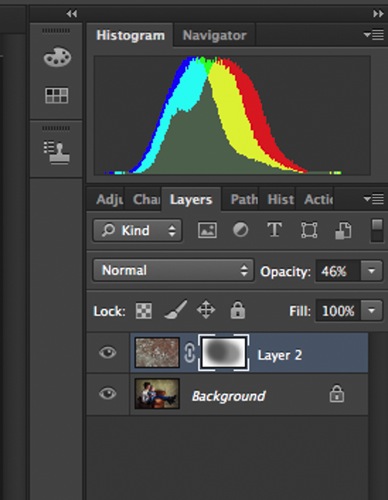
Next you could do as I have here, added a texture overlay. I felt it complimented the chair in its shabby chic style. I photographed a piece of wall, then blended the two images using opacity in the layers pallet. I added a layer mask, then rubbed through with a soft brush to create the subtle look you see here. I then added a soft Gaussian blur from the PS filters, blending the two layers together.

PIC 5 simonjohn co uk

PIC 6 simonjohn co uk

Pic 2-simonjohn.co.uk-untitled

PIC 8 simonjohn co uk PIC 9 simonjohn co uk

#4 – Local tone control

Finally to complete my image I needed to Dodge and Burn. As you can see this really is a subtle finishing skill, and should not be left to a Photoshop filter. In a future article I will explain exactly how to dodge and burn your images like a professional, directing the eye of your viewer to the important parts of the image. But for now, let’s see the final piece as it was hung on my gallery wall.

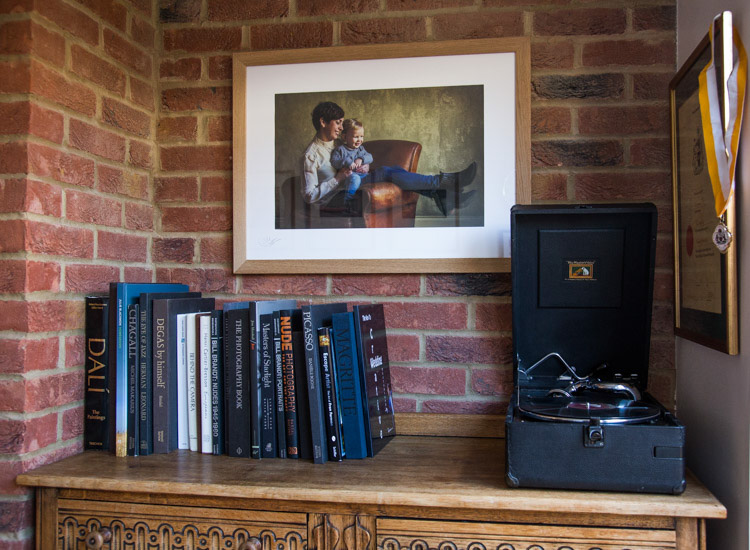
PIC 10 simonjohn co uk

#5 – Print it

I have printed the image on Fuji fine art 300mgs rough texture paper, which I love. The paper is not only excellent for color rendition but has a wonderful tooth to it, adding texture and depth. I have framed the portrait in a simple natural oak and white acid free mount. I have chosen clear glass. Although there is much talk about non-reflective glass, this simply flattens and dulls the image; I would not recommend it. The finished portrait compliments its surroundings, and fits well into the décor and given space.

As I said at the start of the article, it’s important to display your favorite images rather than hide them away on a computer. I am happy to share with you, that I have done just that here. This is my girlfriend Yvonne and my son Miles.

Some photographers prefer to print their own images. This can be a very good way of speeding up workflow and achieving exactly the right colors you require. In recent years printers have became smaller, and inks and paper more archival. I will perhaps invest this year simply for ease of use, and meeting clients deadlines. Perhaps one issue, according to friends who print their own, is you tend to have a fair amount of wastage profiling papers and inks. If you are not particularly a high volume, large output photographer, ink wells can get clogged up causing spattering of pigment. However I think both these problems are now almost eradicated as technology improves year after year.

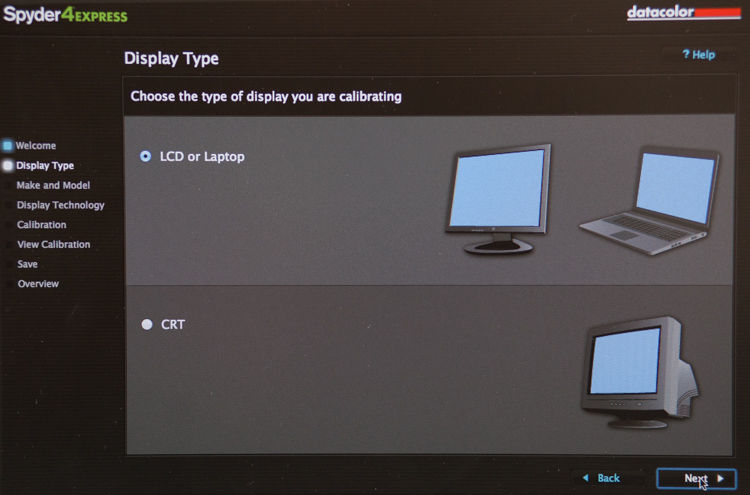
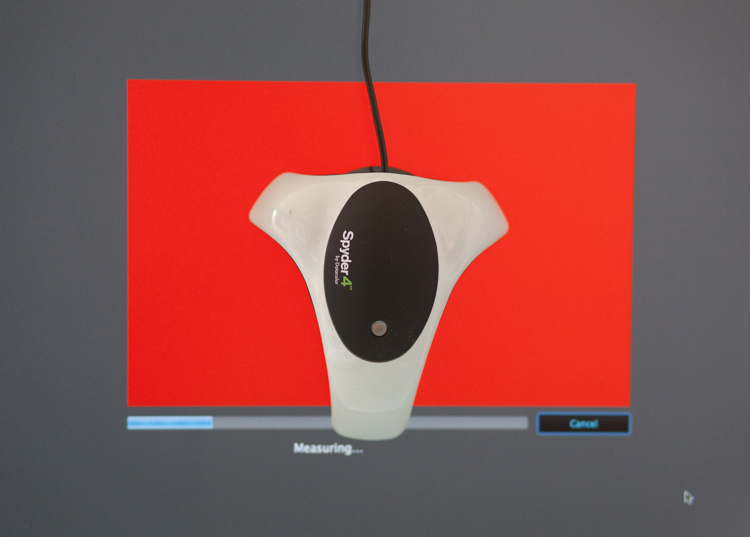
If you choose, as many professional photographers do, to use a pro lab you have to close the color loop from the start. I use a Spyder 4, as seen in the screenshots below, and my lab use the Epson 9900 and 4900 for printing the Giclee fine art papers I require.


2

4
It is attached via USB to your monitor, and simple to follow with onscreen instructions. Basically it brings the colors back in line within the colors space you use. Until recently most labs suggested sRGB, as the colors seen on your screen were pretty much what could be printed. The other often used space is Adobe 98, but not all printing machines can produce such subtleties in color. Progress moves on and there are machines that can print Adobe 98, but my advice for now would be stick with sRGB (ask your lab if you want to know which they use).

Because you are working in a given color space the lab can set its own monitors accordingly, and with a skilled technician the loop should be closed. Sometimes you may find a print is slightly too dark or light. This may be due to the ambient light in yours or your printer’s room being marginally different. A good working relationship is what is needed when using a lab. When asked to reprint an image they should work with you, and offer tips and help if needed; its in everyone’s interest. I rarely have a print that is off, but if I do my lab simply reprints without charge.

So how should you prepare your files? Follow this checklist below for ease of use:

  • Always shoot in raw. Much more detail recorded through highlight to shadow.
  • Save the raw file but create a working tiff.
  • Once you are happy with the finished tiff export as a jpg if sending to a lab.
  • Export or print always at 300dpi for best quality.
  • Check your prints against your monitor and if adjustments are needed, make sure you talk to your lab first.
  • Never compromise composition for print size, i.e. if your image looks better 10×5.5 rather than 10×8, make it that way and drop it on the nearest paper size available. Simply have a mat made to fit your masterpiece.

Do not hang your finished prints in direct sunlight. Like anything that has natural fibers and dyes they will fade. Hung correctly, ink jet prints are now considered very stable, and a alternative to traditional lab chemistry for environmental reasons, but also better quality colors and increased tonal range.

Please share photos of prints you make and hang up on your walls in the comments below. Ask any questions you may have about the process as well and I will try and help you out.

googletag.cmd.push(function() {
tablet_slots.push( googletag.defineSlot( “/1005424/_dPSv4_tab-all-article-bottom_(300×250)”, [300, 250], “pb-ad-78623” ).addService( googletag.pubads() ) ); } );

googletag.cmd.push(function() {
mobile_slots.push( googletag.defineSlot( “/1005424/_dPSv4_mob-all-article-bottom_(300×250)”, [300, 250], “pb-ad-78158” ).addService( googletag.pubads() ) ); } );

The post 5 Tips for Going from Pixels to Print Quality by Simon John appeared first on Digital Photography School.


Digital Photography School

 
Comments Off on 5 Tips for Going from Pixels to Print Quality

Posted in Photography


2 Video Tips for Using the Print Module in Lightroom

13 Mar

Julianne Kost is the premiere Adobe instructor who teaches us about both Lightroom and Photoshop. In these two videos she gives us tips for printing from Lightroom.

In this first one learn some general tips using the Print Module inside Lightroom:

The second video below is a handy tip on how to print multiple images directly to a JPG, using a the Print Module again but this time saving a file, not making a print. This is really good to know if you want to make images to share on social media, your blog or website, etc.

If you want more printing tips check out these dPS articles:

  • Image Size and Resolution Explained for Print and Onscreen
  • Two Useful Lightroom Print Module Custom Layouts
  • How to Create a 2015 Calendar in the Lightroom Print Module (you can figure out how to make one for 2016 too!)
  • Next Steps to Getting Started in the Lightroom Develop Module

googletag.cmd.push(function() {
tablet_slots.push( googletag.defineSlot( “/1005424/_dPSv4_tab-all-article-bottom_(300×250)”, [300, 250], “pb-ad-78623” ).addService( googletag.pubads() ) ); } );

googletag.cmd.push(function() {
mobile_slots.push( googletag.defineSlot( “/1005424/_dPSv4_mob-all-article-bottom_(300×250)”, [300, 250], “pb-ad-78158” ).addService( googletag.pubads() ) ); } );

The post 2 Video Tips for Using the Print Module in Lightroom by Darlene Hildebrandt appeared first on Digital Photography School.


Digital Photography School

 
Comments Off on 2 Video Tips for Using the Print Module in Lightroom

Posted in Photography


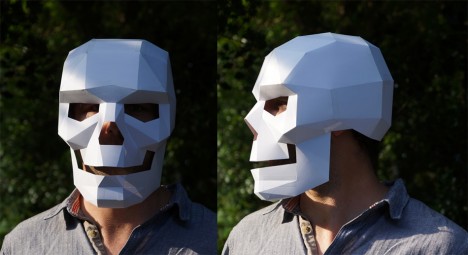
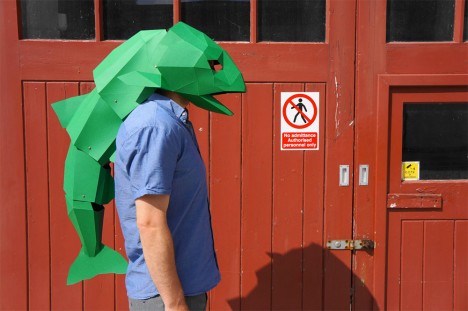
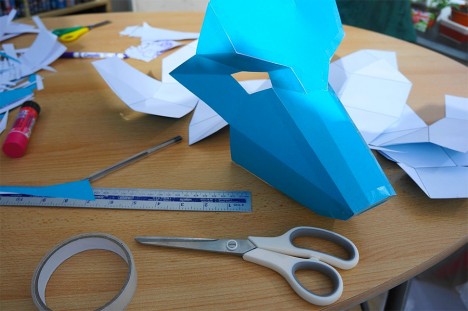
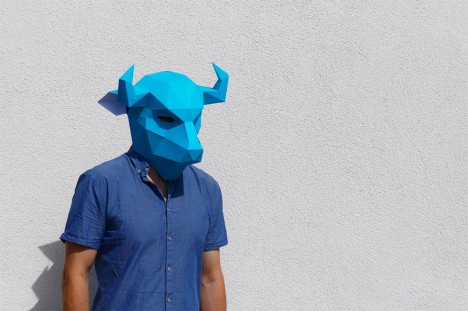
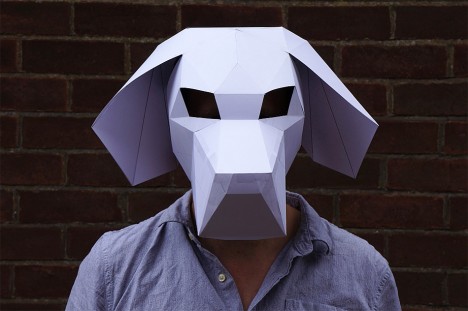
Geometric Monsters: Download, Print & Make DIY Halloween Masks

12 Oct

[ By WebUrbanist in Design & Products & Packaging. ]

diy skull mask

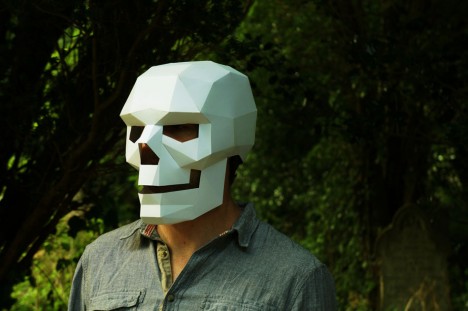
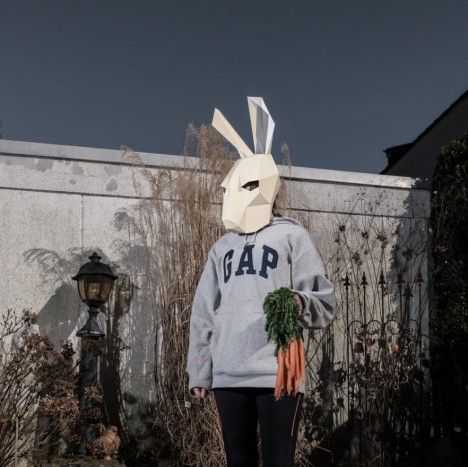
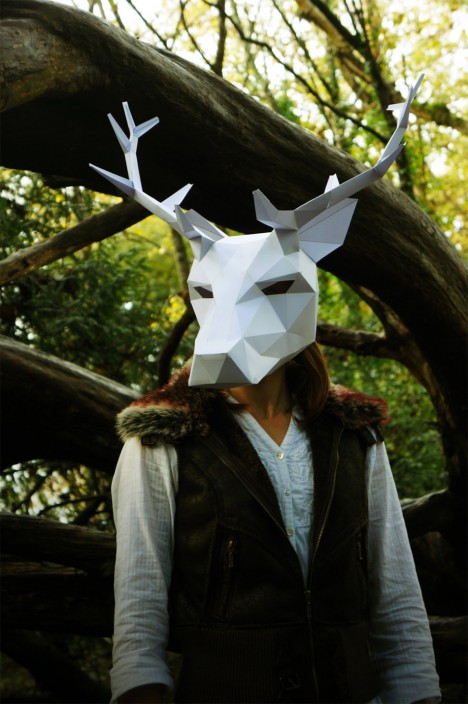
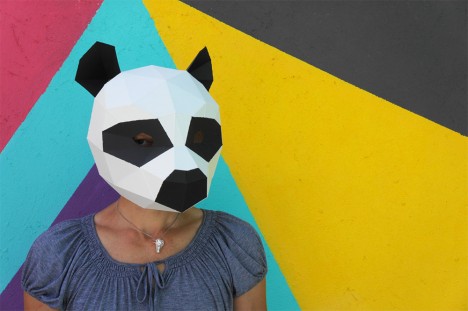
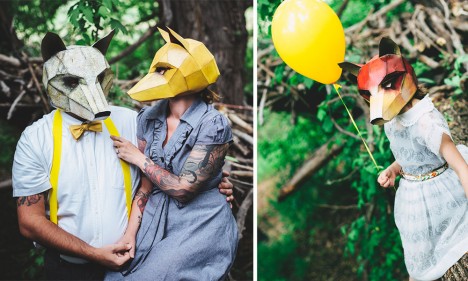
This holiday season brings fresh printer-compatible designs of low-poly skeletons, monsters, animals and more for the do-it-yourself costumer, all scaled to fit an adult or resizable for children.

diy skeleton paper cardboard

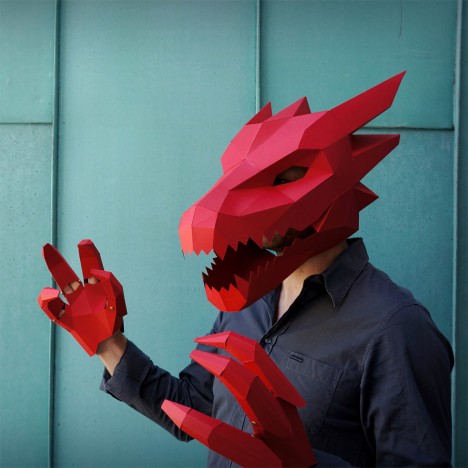
diy articulated dragon

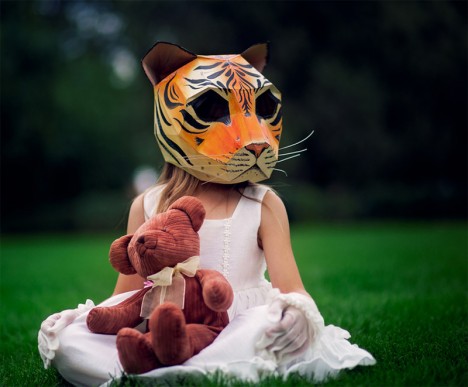
diy tiger head

Like a polygon mesh in 3D computer graphics (that has a relatively small number of polygons), these masks are leant a haunting effect unique to the digital age, looking otherworldly and surreal like low-resolution computer renderings.

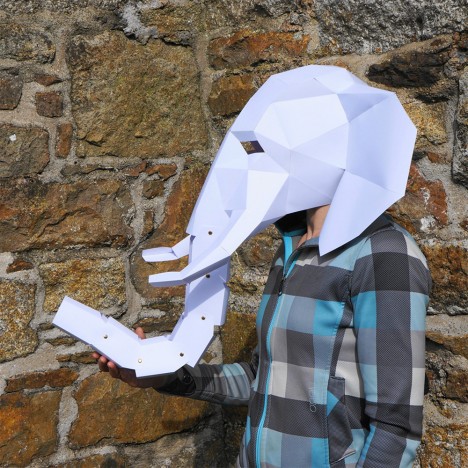
diy elephant trunk

diy tailed fish

Some models are more complex than others, involving sets of articulated parts that rotate on simple hinges or pivots, like the tail of a fish, trunk of an elephant or the hands of a dragon.

diy maskmaking process

diy bull horns

The key ingredients: a printer, some paper of applicable color, glue sticks, craft knife, tape, cardboard and an elastic headband. If you have more time than money, or simply enjoy the process, these models provide a great balance of personal work and creativity within a ready-made outline.

diy dog face

diy bunny rabbit

diy antler antelope

From their maker, Wintercroft on Etsy, who sells the plans online:  “The instructions and templates are designed to be quick and easy to follow. The finished masks are pretty robust due the their polygon construction and will survive the wildest of parties.

diy panda bear

diy fox people

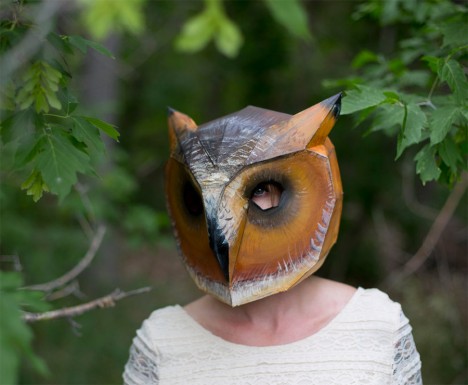
diy owl mask

More on Steven Wintercroft: “By nature I am obsessively creative and starting making things as a kid with my granddad. I studied Art and design, then furniture studies and have been designing and building custom surfboards since I was a teenager. I’ve worked as a cabinet maker but have spent most of my time as a full time surfboard shaper. I believe that the urge to create is a fundamental part of being human and these masks provide an excuse to sit down, get out the scissors, tape and paint and make something” (via Colossal).

Share on Facebook


[ By WebUrbanist in Design & Products & Packaging. ]

[ WebUrbanist | Archives | Galleries | Privacy | TOS ]


WebUrbanist

 
Comments Off on Geometric Monsters: Download, Print & Make DIY Halloween Masks

Posted in Creativity


Image Size and Resolution Explained for Print and Onscreen

17 Sep

One of the most confusing things for a new photographer is understanding image size, resolution, and printing. I’ll try and explain what these things mean, and how to make the best choices depending on what you want to do with your photos.

Megapixels and photo size

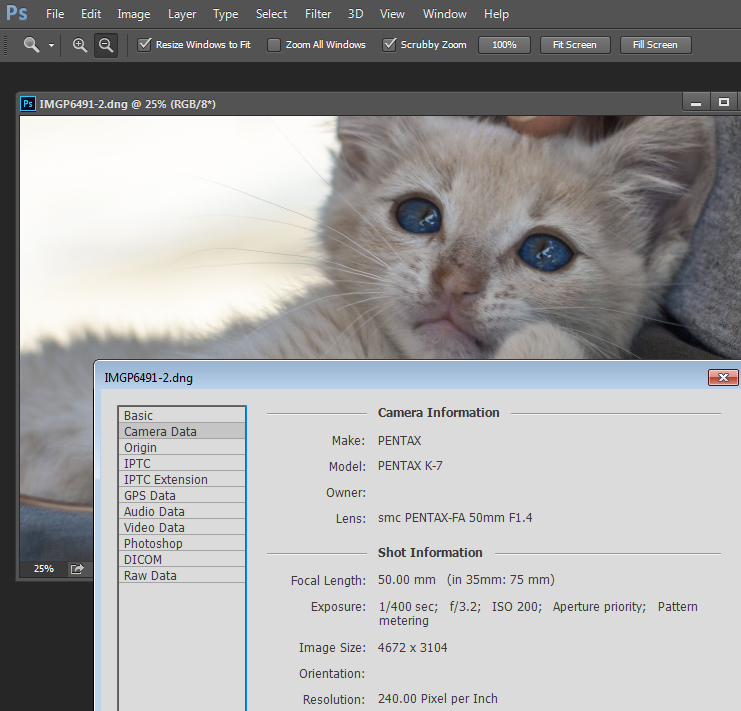
Find information about a photo using File > File Info

As a photographer you will already have confronted the term megapixel when you first purchased your camera. While technically a megapixel is equal to 1,048,576 pixels, in reality, camera manufacturers round this number to 1,000,000 when stating how large an image the camera will capture.

So, my camera, for example, is stated to capture 14.6 megapixel images which is around 14,600,000 pixels per image (14.6 x 1,000,000). This information tells you nothing about the actual pixel dimensions of the image – it only tells you the total number of pixels that comprise the image.

My camera, like most dSLRs, captures images with an aspect ratio of 1.5. So the ratio comparing the number of pixels along the long edge of the image, to the short edge is 3:2. Each full size raw image is 4672 x 3104 pixels in dimension. So, by multiplying the number of pixels along the width by those of the height (4672 x 3104 = 14,501,888) we get the actual number of pixels in the image. You and I might call this 14.5 MP but the camera manufacturer rounds this up and calls it a 14.6 MP camera.

You can check the width and height of an image using your photo editing software. In Photoshop, with the image open, choose File > File Info > Camera Data. The image above shows this information dialogue box.

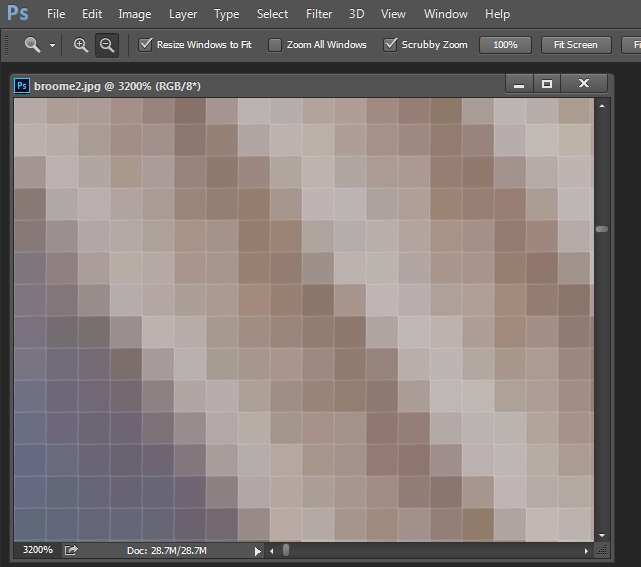
A pixel itself is a single picture element, and for our purposes it’s the smallest element that your photo can be divided into. A pixel can be only one color, and a photograph is made up of a grid of thousands of pixels, each of varying colors that together make up your image. You can see these pixels if you open a photo inside a photo editing program and zoom in until you see single blocks of color (like below). Each of these is a pixel.

An image of pixels in a photo

Why size is important when printing

When you’re printing an image you may encounter the term ppi or pixels per inch. Most printing services, and indeed your own printer, will require a certain density of pixels in the image (ppi) to be able to render an print that looks good, with smooth color transitions so you can’t see each individual pixel. Typical printing ppi values range from 150 to 300 ppi, although some high-end magazines may require images which are 1200 ppi.

So, for example, if you want to print an image 4 x 6 inches at 300 ppi, then you need a file that has at least 4 x 300 (1200) pixels along its short side and 6 x 300 (1800) pixels on the long side. So, it needs to be at least 1200 x 1800 pixels in size.

To print an 8 x 10 inches at 300 ppi use the same math – multiply the printed image width and height in inches each by 300 pixels. The result is 2,400 x 3,000 pixels, which is the size image you need to print an 8 x 10 at 300 ppi.

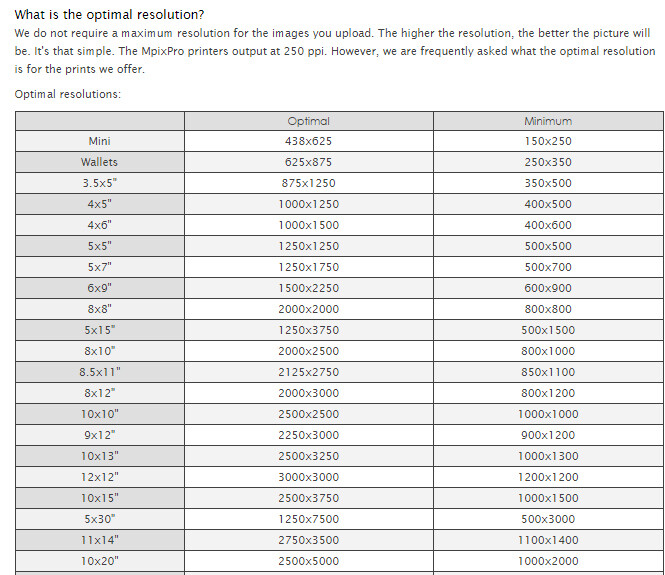
When cropping and sizing an image for printing, you’ll need to know what ppi the image should be – your printer manual or the printing service should be able to tell you this. This is a screenshot from the MpixPro.com website showing their Optimal and Minimum image sizes for standard print sizes. Their printer outputs at 250 ppi (but can handle 100 ppi images) – other services may differ – so always check before preparing your images:

Print size required for MpixPro printing

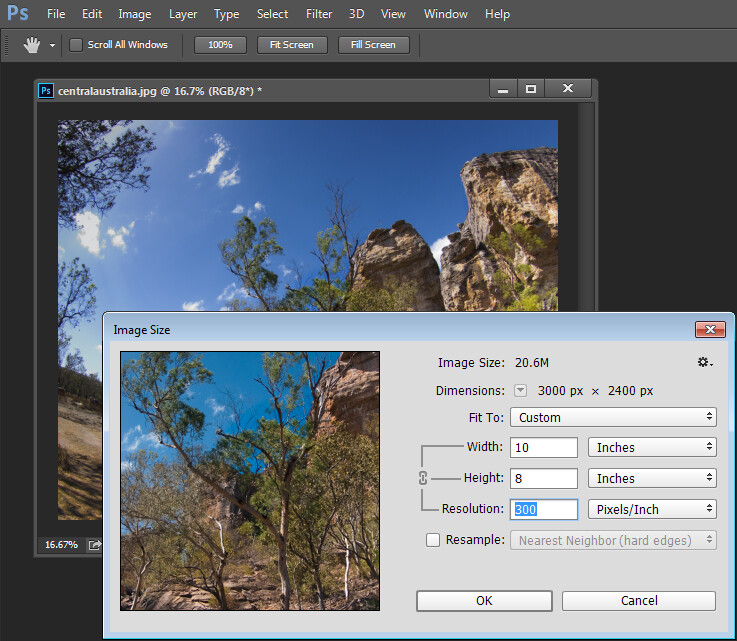
Use the crop or resize feature in your software to size the image to the desired width and height, and the ppi resolution. Here an image cropped to a size of 3000 x 2400 pixels is being adjusted from 72 ppi to 300 ppi in preparation for printing at 300 ppi. There is no resampling required as the image is already the correct dimension and only the resolution requires adjusting.

Adjusting resolution in a photo without resampling it

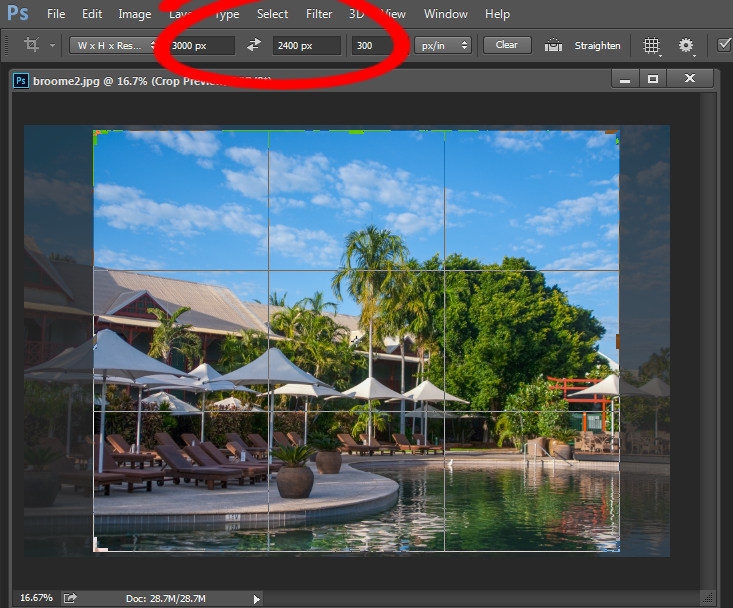
Photoshop, like other applications, will also crop an image to a fixed size and resolution if you type these value into the tool options bar when you have the Crop tool selected (see below). If your image is smaller than the typed dimensions then the image will be enlarged using the default resampling method as it is cropped. While it isn’t generally advisable to enlarge images – provided the image is already close in size to the desired size, enlarging it a little bit generally won’t cause a noticeable loss of quality.

Crop an image in Photoshop setting size and resolution

Sizing for screen

When it comes to displaying images on the screen you need far less pixels than you do for printing. This is because the density of pixels on the screen is far less than what is required for printing. So, for example a typical monitor is 1920 by 1080 pixels in size so, to fill the monitor you only need an image that is 1920 by 1080 pixels in size. That’s about the same size image you need for a 4 x 6 print at 300 ppi, yet this size image displays perfectly on a 23 inch diagonal monitor.

googletag.cmd.push(function() {
tablet_slots.push( googletag.defineSlot( “/1005424/_dPSv4_tab-all-article-bottom_(300×250)”, [300, 250], “pb-ad-78623” ).addService( googletag.pubads() ) ); } );

googletag.cmd.push(function() {
mobile_slots.push( googletag.defineSlot( “/1005424/_dPSv4_mob-all-article-bottom_(300×250)”, [300, 250], “pb-ad-78158” ).addService( googletag.pubads() ) ); } );

The post Image Size and Resolution Explained for Print and Onscreen by Helen Bradley appeared first on Digital Photography School.


Digital Photography School

 
Comments Off on Image Size and Resolution Explained for Print and Onscreen

Posted in Photography