RSS
 

Posts Tagged ‘Powerful’

How to use Filter Masks in Luminar for Powerful Local Adjustments

07 Nov

Luminar is a powerful, full-featured photo editor, with a massive array of features and editing tools. A great deal of its workflow is built around the fairly simple concept of applying filters. It’s much like the way you might edit a photo in Instagram or other similar programs – but you get much more power and control with Luminar.. You can use Luminar to add one or more filters to a picture in order to change properties like color, brightness, saturation, or even add fog effects or convert it to black and white.

However, this is where the similarities between Luminar and simple phone-based editing tools stops. Luminar’s filters are far more than just surface-level adjustments. They can be combined, layered, and customized in infinite combinations for photo editing far beyond what you might be used to in other programs. Add to that the use of filter masks to selectively choose where the edits to a filter are applied, and you have the recipe for a program that can become a very important part of your photography workflow.

How to use Filter Masks in Luminar for Powerful Local Adjustments

Understanding Filters

Luminar is built on a foundation of powerful editing algorithms that let you tweak every aspect of your photos. But unlike some other image editors on the market, it is extraordinarily simple to use the tools available to you. Rather than hundreds of confusing options, tiny buttons, and labyrinthine menus, many of the editing options in Luminar are available within a few clicks as Filters. Or you can access them by opening an image and clicking the “Add Filters” button on the upper-right portion of the user interface.

How to use Filter Masks in Luminar for Powerful Local Adjustments

Clicking “Add Filters” opens a menu that allows you to select from dozens of filters such as Clarity, Color Balance, Soft Focus, Tone, Vignette, and many others. If you’re unsure as to what all these filters actually do, just hover your cursor over one. A brief description will pop up along with a small sample image illustrating the type of editing that filter will do.

How to use Filter Masks in Luminar for Powerful Local Adjustments

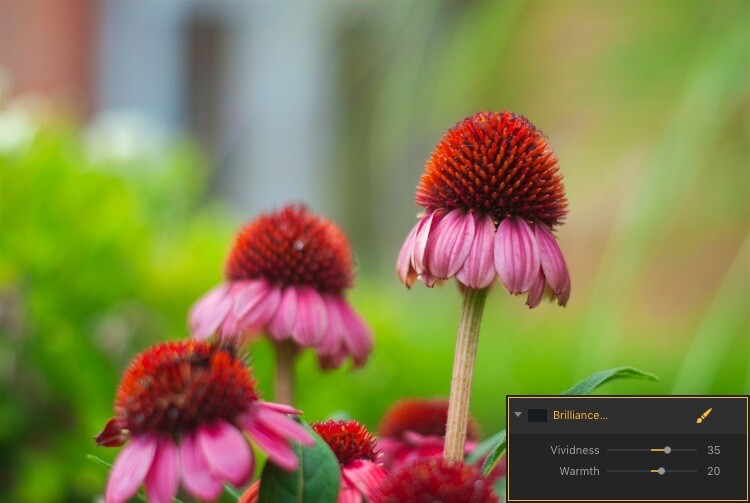
The easiest way to apply one of these is to simply click it and adjust any of the parameters available for that filter. For example, if you click on Brilliance/Warmth, you can adjust two different aspects of the filter; Vividness and Warmth.
How to use Filter Masks in Luminar for Powerful Local Adjustments

A few quick adjustments with a single filter made this bland RAW file go from ho-hum to frame-worthy.

Using Multiple Filters

You can combine as many filters as you want. You can even use layers, just as in Photoshop, to apply one or many filters. Then you can edit all of them at once with options like layer masking, which shows and hides everything on a single layer, and layer opacity.

It may sound complicated, but in actual use, the process is very simple: Load an image, add a filter, adjust the filter, and you’re done. The procedure only starts to get complicated if you want it to, at which point Luminar has a deep enough feature set to accommodate even the most highly demanding photographers.

Controlling the Effects with Filter Masks

Filters are all well and good, but the ace in Luminar’s sleeve is in the way it lets you apply them selectively with filter masks. If you have ever used a filter on Instagram you know that all your edits are applied across the entire image. That can be good but can also be quite frustrating if you only want to edit specific portions of the photo.

That’s where the simplicity and brilliance of Luminar’s approach really shine because you can control exactly where your edits are applied when you use a filter. To illustrate how this process works, I started with this photo (below) of a squirrel that was clearly in need of some editing.

I shot it in RAW in order to give myself the most amount of flexibility when editing the image, but Luminar works fine with JPG files too. Just know that you won’t have quite the same degree of control when editing JPG compared to RAW files.

How to use Filter Masks in Luminar for Powerful Local Adjustments

Apply Global Edits First

Before I started doing selective editing with filter masks, the first thing I did was to use two filters on the entire image. I used the Brightness/Contrast filter to make the picture brighter and then used Highlights/Shadows to lower the highlights a bit.

How to use Filter Masks in Luminar for Powerful Local Adjustments

So far so good, but I wanted to really make the squirrel stand out from the fountain in the background. Next, I added a Color Temperature filter but here I used the Brush icon in the top corner of the filter control box to apply it only to the squirrel.

Add Local Adjustments

This lets you literally paint in the filter adjustment in the same way you might use the Adjustment Brush tool in Lightroom to selectively edit an image. As you’re painting, you can use the toolbar at the top left of your screen to control the size, softness, and opacity of your brush as well as other settings that will feel right at home to most photographers.

How to use Filter Masks in Luminar for Powerful Local Adjustments

Click the Show Mask icon in the top left corner of the Luminar interface to show where you are applying (painting) a filter to the image.

By far, the most useful option here is Show Mask which you can select by clicking the eye icon in the top left, or by pressing the / key on your keyboard. This lets you see exactly where you are applying your adjustments in real-time while you paint. It is highly useful for making sure your edits are only applied where you want them to show up.

You can use the scroll wheel on your mouse to zoom into the image while brushing your filter adjustments. This allows you to fine-tune your editing to be exactly where you want it applied.

How to use Filter Masks in Luminar for Powerful Local Adjustments

With Show Mask enabled your filter adjustments show as red markings on the photo.

Add a Vignette on the Bottom Only

After editing the color temperature of the squirrel I used the Vignette filter. But instead of applying it to the whole picture I brushed it in just on the bottom corners (something users of Apple’s now-defunct image editing program Aperture might remember doing years ago).

How to use Filter Masks in Luminar for Powerful Local Adjustments

The icon in the top left corner of the filter window shows a black-and-white preview of where the mask has been applied. White reveals, black conceals – just like Photoshop. So anything shown in white is where that filter will be showing.

The ability to brush on filter adjustments is a huge game-changer for anyone who is used to the limited brushing options in Lightroom or overwhelmed by the prospect of doing this type of granular editing in Photoshop. And I say this as someone who uses both Lightroom and Photoshop!

Sometimes I just need a quick and simple editing workflow and the more I use Luminar the more it has replaced much of the work I do in those and other programs. To add a bit of icing to the editing cake, Luminar ships with full plugin support for many popular image editing programs including Photoshop and Lightroom. So you can still use those for your traditional workflow while simply hopping over to Luminar if you want to make use of that program as well.

Filter Mask Options

While my favorite aspect of filter making is the ability to brush adjustments precisely where I want them. But there are two other options that can be quite useful depending on the type of editing you want to do. In addition to a brush, you also have the option of applying Luminar filters with a Radial Mask, Gradient Mask, or Luminosity Mask.

Radial Mask

This applies the filter in a circular pattern which can be rotated, expanded, and contracted. It allows you to apply a filter in an even and controlled fashion. It works almost exactly like the Radial Filter in Lightroom. But instead of only letting you adjust the basic exposure, color, sharpness, and noise you can use it to apply any of Luminar’s dozens of filters.

Think of it like the Lightroom Radial Filter but much more powerful and customizable.

How to use Filter Masks in Luminar for Powerful Local Adjustments

The Radial Mask in Luminar can be used with any of its powerful Filters.

Gradient Mask

Similar to the Radial Mask, the Gradient Mask lets you apply a filter smoothly across an entire image while gradually changing the degree to which it is applied. Once again it works just like its Lightroom counterpart but for filters. Once you have either of the Radial or Gradient masks applied you can choose several additional options such as Disable, Invert, Density, and Feather.

How to use Filter Masks in Luminar for Powerful Local Adjustments

Luminosity Mask

This is an option that is somewhat unique to Luminar. Even though you can re-create this type of mask in Photoshop and other programs I have never seen it implemented so easily and smoothly as it is here.

When you enable a filter and click on the brush icon you have the option of creating a mask that applies the filter only to the brightest portions of the image. This is incredibly useful if you want to make changes and edits quickly without zooming in and painstakingly brushing in your adjustments at a granular level.

This feature is especially useful for landscape photographers who frequently have images with a lot of contrast between the lightest and darkest parts of the image. They often need to edit the sky separately from the rest of the image.

Luminosity Mask in Action

As an example of how this works, I have used the following image of a sunrise that I took in Nebraska one chilly winter morning.

How to use Filter Masks in Luminar for Powerful Local Adjustments

I wanted to make adjustments to the sky while also brightening the dark portions, but not have my edits interfere with each other.

The first step was to add a Brilliance/Warmth filter and then generate a Luminosity Mask. That would make sure any changes would be made just to the sky and not the foreground. I confirmed this by showing the Mask Overlay which gave me a clear idea of where the mask was being applied.

How to use Filter Masks in Luminar for Powerful Local Adjustments

I edited the values of the Brightness/Warmth slider to get the sky looking just right, then added a Highlight/Shadow filter to brighten up the foreground. After that, I finished with a Color Temperature filter which I applied only to the ground by using an inverted Luminosity Mask. That ensured it would apply only to the shadows and not the highlights.

The final image gave me a result that would have been much trickier to create in Lightroom, and require a lot of complicated selection editing and layer adjustments in Photoshop.

Note: the new version of Lightroom (Classic) that Adobe just released now has the ability to add a Luminosity mask to local adjustments as well. 

How to use Filter Masks in Luminar for Powerful Local Adjustments

Simply Powerful Editing

The real advantage for me when using Luminar’s Filter Masking is that it’s a way for me to do creative, complex edits to my images in a simple and efficient manner. Some people have asked me if it’s better than Photoshop and Lightroom, and my answer is a rather vague. “it depends”.

I think there is room for all three programs in a photographer’s workflow depending on that person’s individual needs. But there certainly is a lot to be said for how Luminar gives you access to such powerful and highly customizable image filters while making the adjustment process so easy to use.

If you just want to click a few filters and save your image, as you would in Instagram, then you can be on your way in seconds. However, if you want more fine-grain control over which parts of your photos that those filters are editing, then using Filter Masks in Luminar might be the answer you’ve been looking for.

Have you tried Luminar’s filter masking feature? I’m curious to know about your experience and any tips or tricks you might have uncovered. If you have not yet given these tools a chance you might be surprised at the results you can achieve.

Disclaimer: Macphun is a dPS advertising partner.

The post How to use Filter Masks in Luminar for Powerful Local Adjustments by Simon Ringsmuth appeared first on Digital Photography School.


Digital Photography School

 
Comments Off on How to use Filter Masks in Luminar for Powerful Local Adjustments

Posted in Photography


HP reveals the ZBook x2: The ‘world’s most powerful detachable PC workstation’

18 Oct

$ (document).ready(function() { SampleGalleryV2({“containerId”:”embeddedSampleGallery_9365668628″,”galleryId”:”9365668628″,”isEmbeddedWidget”:true,”standalone”:false,”selectedImageIndex”:0,”startInCommentsView”:false,”isMobile”:false}) });

Step aside Microsoft, because HP just released a monstrous ‘detachable PC workstation’ that can compete with powerful laptops like the Surface Book 2 released yesterday… but in a form factor that looks more like a Surface Pro. Meet the HP ZBook x2: the so-called “world’s most powerful and first detachable PC workstation.”

In HP’s own words, this computer “was designed to solve the performance and mobility needs of artists, designers and digital imaging professionals who need to push Adobe Creative Cloud and other professional applications to the limit.” So what makes this computer more capable than HPs other two-in one solutions: the HP Spectre x2 and HP Elite x2. In a word: performance.

While previous two-in-one iterations with these kinds of specs put most of the components—the main CPU, GPU, etc—into the base unit, the HP ZBook x2 flips the script. The bluetooth keyboard is basically just that: a bluetooth keyboard; even when the tablet is detached completely it maintains the full performance from its CPU and GPUs. Think of it like a Surface Pro dressed up to star in the next Iron Man movie.

Spec-wise, the HP ZBook x2 can be configured with 8th Gen Intel Core i7 graphics, a discreet NVIDIA Quadro M620 graphics card with 2GB of dedicated GDDR5 memory, up to 2TB of local PCIe SSD storage, and up to 32GB of RAM. All of this sits behind a 14-inch 4K multi-touch screen with optional 10- bit, one-billion color HP DreamColor display that’s been calibrated 100 percent of Adobe RGB.

The computer can be used in four different modes:

  • Laptop Mode: attached to the bluetooth keyboard.

  • Detached Mode: Use the tablet with the new HP pen, while still having full access to your Bluetooth keyboard shortcuts off to the side.

  • Docked Mode: Using the ZBook Dock, the x2 can power two additional 4K displays or five total displays.

  • Tablet Mode: totally detached and disconnected from the keyboard, the x2 maintains full graphics performance.

In most modes, you’ll want to use the ZBook x2 with the new battery-free HP pen, which is based on Wacom EMR technology and offers 4,096 levels of pressure sensitivity with multi-directional tilt capabilities and a dedicated eraser. And when it’s docked and powering two 4K displays, the setup can look pretty … intense:

In short, the ZBook x2 is trying to be all things to professional creatives and designers. Instead of using some combination of laptop, iPad, and Wacom tablet, you can replace all of them (ostensibly) with one ZBook x2. And since it was designed in collaboration with Adobe, you can bet Photoshop, Lightroom, Illustrator, Premiere, and other powerful CC apps will work exceptionally well.

To learn more about the HP ZBook x2, head over to HP’s website. The new ‘detachable workstation’ will go on sale in December and starts at $ 1,750 for the base model with a dual core 7th generation Intel Core i7 CPU—no word yet on how much more expensive it’ll be to fully spec out one of these.

Press Release

HP Unveils World’s Most Powerful and First Detachable PC Workstation

HP ZBook x2 PC Allows Designers to Unleash the Power of Adobe Creative Cloud and Other Professional Applications

LAS VEGAS, NV – October 18, 2017 — Today at Adobe® MAX, HP will showcase the world’s most powerful detachable PC1 designed to solve the performance and mobility needs of artists, designers and digital imaging professionals who need to push Adobe Creative Cloud® and other professional applications to the limit. The performance of the HP ZBook x2, the world’s first detachable workstation,15 increases productivity and allows digital creators and storytellers the freedom to work when and where inspiration strikes.

HP’s reinvention of detachable PCs began earlier this year with the introduction of the HP Spectre x2 and the HP Elite x2. Today’s introduction of the HP ZBook x2 completes HP’s trifecta with its most powerful detachable solution targeted for the creative community. With this new offering, HP is extending its PC leadership by pioneering a new era for detachable PCs that offer superb performance, elegance and efficiency.

“As the world’s most powerful and first detachable PC workstation, there is no device better suited to turn the vision of artists and designers into reality,” said Xavier Garcia, vice president and general manager, HP Z Workstations, HP Inc. “With the HP ZBook x2, we are delivering the perfect tool to accelerate the creative process – with unprecedented power, performance and natural ease-of-use. This device will make it easier than ever for creators to do what they do best – bring inspiring new ideas to life and enrich the world around us.”

Liberating Digital Creativity

The HP ZBook x2 allows designers to effortlessly create with quad-core Intel® CoreTM processors2, twice the memory of any other detachable PC3 and NVIDIA® Quadro® Graphics that deliver 73 percent higher graphics performance compared to the Surface Pro4. A quiet, dual-fan active cooling system is designed to dissipate heat from the powerful graphics card and processor. To better meet the needs of the creative community, including Adobe users, HP also developed customizable, application-aware HP Quick Keys, to provide artists with 18 time-saving shortcuts.

“At Adobe, our goal is to accelerate creativity. Creative Cloud is the platform that enables us to deliver powerful innovation in our apps and cloud-based services supported by Adobe Sensei with artificial intelligence at the heart of every customer experience,” said Mala Sharma, vice president and general manager, Creative Cloud Product, Marketing and Community. “Adobe is thrilled with our collaboration with HP, which we know will further fuel creativity and give Creative Cloud members more power and freedom to create wherever inspiration strikes.”

Today, many creative professionals use multiple devices such as a MacBook Pro plus an iPad to accomplish the same tasks that can be done on the HP ZBook x2. Knowing that ultimate mobility is important, HP created a single device that delivers the same performance capabilities from inking to docked mode.

HP’s most versatile detachable to date, the HP ZBook x2 operates in four modes: laptop, detached, docked and tablet.

  • In laptop mode, the HP ZBook x2 is a powerful mobile workstation with a keyboard leveraged from the HP ZBook Studio.

  • In detached mode, it allows users to create on the tablet with HP’s most accurate and expressive pen while still having full access to all of their shortcut keys with the Bluetooth®-enabled keyboard off to the side.

  • In docked mode, the HP ZBook x2 can power two additional 4K displays or five total displays.

  • In tablet mode, it maintains full graphics performance allowing users to capture ideas with powerful NVIDIA 3D graphics.

Using HP’s most natural pen with the HP ZBook x2, users can create without interruption as the pen never needs to be charged. The battery-less, HP-designed pen based on Wacom EMR technology, responds instantly to every nuance of the artist’s hand for natural motion. The HP ZBook x2 offers 4,096 levels of pressure sensitivity with multi-directional tilt capabilities and includes a dedicated eraser.

As a member of the world’s most secure and manageable mobile workstation family10, the HP ZBook x2 features HP Sure Start Gen311 for BIOS protection, TPM 2.0 for hardware-based encryption to secure credentials, secure authentication methods through the Smart Card Reader and HP’s Client Security Suite Gen312 to protect data, device and identity, including facial recognition and fingerprint reader.

HP ZBook x2 Highlights

The HP ZBook x2 embodies the intersection of mobility and performance in a fully-machined, aluminum and die-cast magnesium body starting at just 3.64 pounds5 and 14.6 mm thin when in tablet mode, and 4.78 pounds5 and 20.3 mm in laptop mode. The HP ZBook x2 has a stunning 14-inch diagonal, 4K multi-touch display with an optional 10- bit, one-billion color6 HP DreamColor display calibrated to 100 percent of Adobe RGB. The HP ZBook x2 has the world’s most advanced detachable PC display16 and includes an anti-glare touchscreen allowing users to immerse themselves while working in any lighting condition. At the desk, it can power dual 4K displays from the HP ZBook Dock with ThunderboltTM 37.

This detachable PC has up to 10 hours of battery life13 for maximum productivity and ultra-fast recharge (50 percent in just 30 minutes8). The HP ZBook x2 offers up to 4.2 GHz of Intel®Turbo Boost, 32 GB RAM over dual channels for more responsiveness under heavier workloads like complex layering in Photoshop. The model’s HP Z Turbo Drive storage is up to 6X faster than SATA SSD and up to 21X faster than traditional HDD storage. The HP ZBook x2 offers up to 2 TB9 of local PCIe storage and incorporates a full-sized SD card slot, perfect for professional photographers. Using the dock or Thunderbolt 3 ports on the HP ZBook x2, it can transfer large files from cameras, external storage, phones and other peripherals.

Designed to go anywhere and handle the toughest workloads, the HP ZBook x2 mobile workstation is designed to pass MIL-STD 810G testing14. The HP ZBook x2 also undergoes dozens of tests for certification and optimized performance with the industry’s leading software providers like Adobe and Autodesk.

HP ZBook x2 Pricing and Availability

HP ZBook x2 is scheduled for availability in December starting at $ 1,749. The datasheet is available here.

Articles: Digital Photography Review (dpreview.com)

 
Comments Off on HP reveals the ZBook x2: The ‘world’s most powerful detachable PC workstation’

Posted in Uncategorized


3 Powerful Tips for the Perfect Vignette in Lightroom

08 Oct

The vignette is one of the most powerful ways to boost your photos. It reduces your photo’s brightness at corners and sides compared to the image center. It’s mainly used to highlight elements in the center even more. Besides, you can also use it to cover distracting details on the sides of your image.

As popular as it is, it’s just as common to not apply vignettes properly using Lightroom or Adobe Camera Raw. Let me show you three powerful tweaks to squeeze out 100% of its potential and present your photos in a better light!

1) How to decide which photo is suited for a vignette

The vignette shifts the focus to the center of your frame. That’s why you’ll ideally have a photo where your subject is placed in the middle. Otherwise, the vignette will make your subject darker and take away the spotlight.

To make the vignette even more powerful, it really helps to have the light in the center of the frame as well. Your subject is either lit up from the front or illuminated by some backlight. Of course, it depends on how strong you apply the vignette. If you use it lightly around the sides and corners, then the subject can also be a bit to the top, bottom, left or right of the frame.

3 Powerful Tips for the Perfect Vignette

Take a look at the two photos above. The one on the left has the subject on the far left. The vignette not only covers the subject, it also highlights the less important wall in the middle. The right photo, however, has the subject in the center. The vignette blends out the unimportant details of the office and highlights the person and the view in the center. Do you see how the vignette works much better in the example on the right?

Whether you are capturing buildings in a city, trees in the countryside or animals in the zoo, the same rule of thumb applies: place the most important element in the center.

2) How to make the vignette as smooth as possible

The best vignette in the world is the one you barely notice. That’s why you always need to make sure that the transition is as gentle as possible. Once you notice the transition from dark to bright, it’s not done right. Do you see the circle of the vignette in this photo?

3 Powerful Tips for the Perfect Vignette

The reason for this is generally that the feather slider is too far to the left side. As you can see in the screenshot below, it’s at 33. The more you go to the left, the more visible the transition will be.

Transition Bad - 3 Powerful Tips for the Perfect Vignette

Always make sure to move the feather slider to the right side. For most of my vignettes, I slide it all the way to 100. That way, you will achieve the smoothest transition for your photos.

Transition Bad - 3 Powerful Tips for the Perfect Vignette

Once you’ve applied the feather more generously, the vignette’s border will largely disappear. As a result, your vignette will blend more smoothly into the natural light of the scenery. In case the transition remains too strong, you can always reduce the amount a bit as well.

3 Powerful Tips for the Perfect Vignette

3) How to create a custom vignette

Although the post-crop vignette works best with subjects in the center, you will also use different placements. Luckily, you can always create a custom vignette that is tailored to your composition. The easiest way to do this is to use the Radial Filter.

The following photo could really need a vignette. That way, we could highlight the sunset and the silhouette even more. In order to create a custom vignette, open the Radial Filter (Shift + M) first. Then you decrease the exposure to a level between -0.20 and -1.0. In this case, I set it to -0.64.

Radial 3 Powerful Tips for the Perfect Vignette

Click on the subject in your photo, hold and drag the circle around your subject. Everything outside of the circle will become darker.

3 Powerful Tips for the Perfect Vignette

Remember the first tip how the transition always needs to be smooth? We will do the same for the custom vignette. With the feather slider, you can make the transition from dark (outside the circle) to bright (inside the circle) smoother. The further you slide it to the right, the gentler the transition becomes. For this photo, I changed it to 81 instead of 50.

Radial 3 Powerful Tips for the Perfect Vignette

When you compare the original photo (left) with the custom vignette (right), you can clearly see the difference. The light atmosphere in the right photo is more intense and the vignette guides the viewer to the subject.

3 Powerful Tips for the Perfect Vignette

Conclusion

I hope these three tips for better vignettes will you take your images to the next level. Of course, practice makes perfect. Play around with the sliders as much as possible to get a feel for the right amount. If you have any questions, let me know in the comments and I’m more than happy to help you out!

The post 3 Powerful Tips for the Perfect Vignette in Lightroom by Marius Vieth appeared first on Digital Photography School.


Digital Photography School

 
Comments Off on 3 Powerful Tips for the Perfect Vignette in Lightroom

Posted in Photography


Trash Beats Tesla: This Powerful DIY Electric Car Cost Just $13K to Build

20 Jun

[ By SA Rogers in Technology & Vehicles & Mods. ]

Made from the corpse of a 1997 BMW 528i salvaged from a junkyard and other recycled parts, this DIY electric car beats the Tesla Model S P100D’s mile range at a tiny fraction of the cost. The Tesla boasts a range of 335 miles per charge, while the ‘Phoenix’ by Eric Lundgren gets 380 miles. Lundgren and his team built the Phoenix in 35 days for just $ 13,000, and hopes the attention his trash car is getting will encourage carmakers with more cash to do more material recycling.

Founder and CEO of information technology organization ITAP, Lundgren bought the 20-year-old E39 generation BMW 528i and removed most of the interior – including the rear seats, dashboard, center console and trim – in order to save weight (yes, that’s the catch.) He added a 130kWh battery pack that uses cells from EV and laptop batteries to power the car, which takes up most of the space where the backseat would normally be.

To test his creation, Lundgren pitted it against three popular electric vehicles: the Tesla, a Chevy Bolt and a Nissan Leaf. All four competed in a trip across Southern California to see which one would last the longest. The Leaf ran out of juice first after 81 miles, followed by the Model S at 238 miles. The Bolt managed to squeak out 271. The BMW never ran out of range at all – instead, it blew a fuse after 340 miles with 32 percent of its charge left on its battery pack. In a second test, the Phoenix ran directly against the Tesla, getting 382 miles to the 100D’s 315.

Clearly, the fact that so much of its weight has been removed while the Tesla is loaded down with luxury options makes a difference in the result, but so should the fact that Tesla is working with top-quality, brand-new parts. For Lundgren, that’s not really the point.

“Re-use is the purest form of recycling. It creates zero carbon footprint. Re-using parts/components within broken/obsolete electroncis is called ‘hybrid recycling.’ This is a much-needed and often missing part of the recycling ecosystem.”

Share on Facebook


[ By SA Rogers in Technology & Vehicles & Mods. ]

[ WebUrbanist | Archives | Galleries | Privacy | TOS ]


WebUrbanist

 
Comments Off on Trash Beats Tesla: This Powerful DIY Electric Car Cost Just $13K to Build

Posted in Creativity


Sony a9 offers powerful pro-level customization

02 May

Sony has certainly rippled some tides with the announcement of its a9, which we got a first look at hands-on in NYC. We’ve been thoroughly analyzing its capability, which you can follow in our updated First Impression Review, and if you’re an a7R II owner, check out our ‘what’s better?’ slideshow here.

But perhaps as, or more, important as all its technical capability is that the a9 comes with some serious ergonomic improvements that change everything for fast-paced shooters. Features we’ve been asking for a long time now. And Sony listens. Not just to us but to the requests of many of its direct users. And we can all agree direct access to certain camera features is a huge plus, as opposed to menu-diving.

We can all agree direct access to certain camera features is a huge plus, vs. menu-diving. That’s exactly what Sony has given us.

So that’s exactly what Sony has given us. Instant camera overrides at the press of a button. With one simple button press you can switch the camera from Aperture Priority with 1/125s minimum shutter speed in Auto ISO to Shutter Priority with 1/2000s shutter speed to freeze the action. This can allow you to instantly switch from panning shots to ‘freezing the motion’ shots – with one button press.

Sports/action shooters should take note, but we’re particularly excited because the ability to assign different autofocus area modes plus autofocus activation (among other options) to different custom buttons, just like you can on a Nikon D5 (and to a limited degree on a Canon 1D X II), has changed the way I personally shoot. I can instantly adapt to changing scenarios, much like with the Nikon D5 here, with a simple button press – potentially rescuing shots I’d have otherwise missed diving into settings to change AF modes. Watch our video below to see the implementation on the a9:

On the a9, what allows one to quickly activate any AF mode is not just Sony’s dedicated function to do so (called ‘Registered AF func.’ – which only recalls one AF area mode) but, instead, ‘Recall Custom hold’. This function instantly overrides a number of camera settings, including: Shoot Mode, Aperture, Shutter Speed, Drive Mode, Exposure Comp., ISO, Metering Mode, Focus Mode, Focus Area, and AF On (whether or not to engage AF). This is very similar to Canon’s ‘Register/recall shooting func’, but with the added benefit that there are 3 such banks, while Canon only offers 1. That means that on Canon DSLRs, you can only ever recall one set of overrides (even if you assign this function to multiple buttons, they all do the same thing). Nikon only allows certain settings to be overridden – like AF area and metering mode – but at least allows any number of buttons to be assigned arbitrarily to any AF/metering mode.

So what Sony allows via ‘Recall Custom hold’ is a sort of best-of-both-worlds: marrying Canon’s flexibility to override multiple settings with Nikon’s ability to assign any button to a number of AF/metering options, not just one particular bank. Canon’s custom controls are so complex and inflexible that you can only assign a button to change and activate an AF mode via ‘Metering and AF start’ or ‘Recall shooting func’, which are themselves only available to two buttons: AF-ON and AEL. That’s it. Read more about it in our 5D IV review covering all this in detail.

Sony: you’ve one-upped Canon and Nikon – in an ergonomic regard no less.

The Sony a9, on the other hand, simply affords you 3 banks to allow to quickly switch between 3 different commonly accessed operating modes with utmost ease. Kudos, Sony: you’ve one-upped Canon and Nikon – in an ergonomic regard no less.

Settings you do with override to change you check with a checkmark in the checkbox; if you don’t want that particular mode to change (like Shoot mode or exposure settings if you’re simply trying to change AF mode): just uncheck it.

This is a powerful feature that allows me, for example, to instantaneously switch between subject tracking AF, complete auto AF when the former fails, Eye AF for portraits, or good old center-focus-and-recompose when everything intelligent fails. All with one button press. That can be the difference between nailing the shot, and missing it.

Memory Recall

But that’s not all that’s different about the a9. Memory Recall functions have been extended to be far more like the Custom modes Canon, Panasonic and Olympus allow – instantly changing most/all camera settings with one switch of the mode dial.

Memory Recall modes on Sony cameras are like ‘Custom’ Modes on Canon, Panasonic, and Olympus cameras – they recall many cameras functions simply by switching to that mode. Sadly, in the past, Sony’s M modes have not been very comprehensive (they don’t remember custom button assignments, e.g.), but the a9 remembers more settings. And while it doesn’t remember button assignments – a shame since the features I wish to access in video are different than the features I wish to access in stills – it’s a step in the right direction. Still, Sony really needs to introduce proper C modes that remember all camera settings – including button assignments.

Memory Recall now remembers far more features than in previous Sony cameras. Ideally, it’d remember all of them – including button customizations – so as to recall the state of a camera precisely, immediately. Sadly, this not yet the case, but the extended set of settings Memory Recall now remembers is welcome and significant. We’ll outline the additional features remembered vs. the a7R II below, shortly, so stay tuned.

That means keep hitting that ‘Refresh’ button. 🙂*


* It’s late, and I promise to update this article with a full set of Memory Recall functions/differentiators in the morning, after I get (I hope) at least 4 hours of sleep. Thank you for your patience!

Articles: Digital Photography Review (dpreview.com)

 
Comments Off on Sony a9 offers powerful pro-level customization

Posted in Uncategorized


Rim Light – A Simple Way to Create Powerful Images with a Single Flash

22 Mar

In this article, I will introduce you to creating a rim light using a single flash. While not so common, it is extremely easy to put in place and will allow you to get very interesting and powerful images. To do this kind of photography you just need a flash with the ability to place it off camera. A welcome accessory, the only one you may need, is a light stand or tripod to easily keep the flash in place.

Rim Light - A Simple Way to Create Powerful Images with a Single Flash

Learning flash doesn’t have to be hard

If you are just getting started in portraiture, chances are you have been faced with the “flash versus natural light” dilemma, and you probably went with natural light. I find many amateur and beginning photographers are intimidated by lighting equipment because they think that in order to get something good, they have to use complicated setups where many pieces of equipment are required.

In my opinion, the problem with learning to use flash is that the easiest possible setup, i.e., a single flash used off-camera, is often presented only as a way to create a basic image that needs to be improved by adding more gear and by creating more complicated lighting setups. As if nobody would seriously use just one light. So, I can see why flash photography is intimidating.

If you are a beginner, you probably want to know how to use your single, entry level, flash and how to create images that will stand out from the gazillion of portraits out there.

googletag.cmd.push(function() {var gpt_slot = googletag.defineSlot( “/1005424/_dPSv5in-post-mobile(300×250)”, [300, 250], “pb-ruleset-mobile-ad-0” ).addService( googletag.pubads() );ruleset_mobile_slots.push( gpt_slot );});

googletag.cmd.push(function() {var gpt_slot = googletag.defineSlot( “/1005424/_dPSv5in-post-mobile(300×250)”, [300, 250], “pb-ruleset-desktop-ad-4” ).addService( googletag.pubads() );ruleset_desktop_slots.push( gpt_slot );});

Keep it simple

My solution was to forget about the magazine and fashion style portraits. I wanted to take advantage of the limitations of my single light setup to create strong and moody portraits by combining the hard light from the bare flash with a low-key style. Note; this style will better suit male models.

Rim lighting 01

Self-portrait using a single flash on my right, without any light modifiers.

By changing the output power and the zoom setting of the flash, you can get a more gentle and intimate portrait, like the one below.

Rim lighting 02

A single light setup can produce less punchy and contrasty images by changing the flash output power and the zoom settings.

Creating a rim light

This is all nice and good, but you can get a very different look by using a rim light. This kind of light highlights only the contours of the subject, and I love it.

Rim lighting 03

Rim light and low-key style; a powerful combination.

The setup is extremely simple. Just hide the flash right behind the model or the object, and point it back directly at the subject.

In practice, we could see the rim light as the opposite of a silhouette, where the subject is seen as a black shape against a brighter, often white, background. In the studio, the light setup for a silhouette is, in fact, the same of as that used to create a rim light, except that the flash is pointing at the background instead of at the subject.

Rim lighting 04

Self-portrait in silhouette.

Ideally, you want to have only the rim light in the scene and not record any ambient light. But this does not mean you have to work in a dark room. The only thing you need to be careful about with rim light setup is to ensure that the flash output power is such that the light does not spill over and around the subject edges. You want to have only the light running along the subject contour.

googletag.cmd.push(function() {var gpt_slot = googletag.defineSlot( “/1005424/_dPSv5in-post-mobile(300×250)”, [300, 250], “pb-ruleset-mobile-ad-1” ).addService( googletag.pubads() );ruleset_mobile_slots.push( gpt_slot );});

googletag.cmd.push(function() {var gpt_slot = googletag.defineSlot( “/1005424/_dPSv5in-post-mobile(300×250)”, [300, 250], “pb-ruleset-desktop-ad-5” ).addService( googletag.pubads() );ruleset_desktop_slots.push( gpt_slot );});

Rim Light - A Simple Way to Create Powerful Images with a Single Flash

It is all about that thin light running along the subject’s edges.

Refine it a little

If possible, the editing is even easier. Make sure that the blacks in your image are deep and the highlights are bright. Do this and you have pretty much done with the editing.

What I like about this technique is that the resulting photo has a mysterious look that captures the viewer’s imagination. I guess it has all to do with the “see/not see”.

If you like props, you can also use them with a rim light to better convey a message, like in the photo below.

Rim Light - A Simple Way to Create Powerful Images with a Single Flash

Addiction. Here I have allowed the light to spill a bit more, so as to light my hands and the mobile screen.

We all live, most of the time, with our noses inside a smartphone screen, somewhat unaware of the reality around us. That and a feeling of addiction is the message I tried to attach to the photo.

Adding emotion

Emotions can also be easily conveyed in an interesting way by using rim light. We had a new baby girl a few months ago, and a few weeks before the due date, I experimented with a rim light in the living room when my pregnant partner passed by. I decided to take the usual very cliché photo of the father kissing the belly of the mother. While kissing her baby bump, I had the vision of the sun rising from behind the Earth, seen from space and thought, “Use a rim light!”. This is the result:

Rim Light - A Simple Way to Create Powerful Images with a Single Flash

Rim light can change a cliché image into a very moody and interesting one.

googletag.cmd.push(function() {var gpt_slot = googletag.defineSlot( “/1005424/_dPSv5in-post-mobile(300×250)”, [300, 250], “pb-ruleset-mobile-ad-2” ).addService( googletag.pubads() );ruleset_mobile_slots.push( gpt_slot );});

googletag.cmd.push(function() {var gpt_slot = googletag.defineSlot( “/1005424/_dPSv5in-post-mobile(300×250)”, [300, 250], “pb-ruleset-desktop-ad-6” ).addService( googletag.pubads() );ruleset_desktop_slots.push( gpt_slot );});

I think this simple light setup transformed the same old same old photographic cliché into a much more powerful and interesting image.

Special effects

Finally, because the scene is backlit, an easy way to add interest is to include in the shot smoke or aerosols. Both will capture and scatter the light around, creating some interesting effects.

Rim Light - A Simple Way to Create Powerful Images with a Single FlashSince I do not smoke, I sprayed water around to make this self-portrait shot more interesting.

Finally, try to turn the model towards the light and allow the flash to light them a bit more for some interesting variations.

Rim Light - A Simple Way to Create Powerful Images with a Single FlashTurning the model to face the light can be an interesting variation on the theme.

To conclude, I hope I have given you some ideas to start playing with a single off-camera flash in a simple and non-intimidating way using a rim light. The bonus is creating some particular and interesting photos in the process.

googletag.cmd.push(function() {var gpt_slot = googletag.defineSlot( “/1005424/_dPSv5in-post-mobile(300×250)”, [300, 250], “pb-ruleset-mobile-ad-3” ).addService( googletag.pubads() );ruleset_mobile_slots.push( gpt_slot );});

googletag.cmd.push(function() {var gpt_slot = googletag.defineSlot( “/1005424/_dPSv5in-post-mobile(300×250)”, [300, 250], “pb-ruleset-desktop-ad-7” ).addService( googletag.pubads() );ruleset_desktop_slots.push( gpt_slot );});

The post Rim Light – A Simple Way to Create Powerful Images with a Single Flash by Andrea Minoia appeared first on Digital Photography School.


Digital Photography School

 
Comments Off on Rim Light – A Simple Way to Create Powerful Images with a Single Flash

Posted in Photography


Fearless Girl: Powerful Statue Faces Down Famous Charging Bull of Wall Street

19 Mar

[ By WebUrbanist in Art & Sculpture & Craft. ]

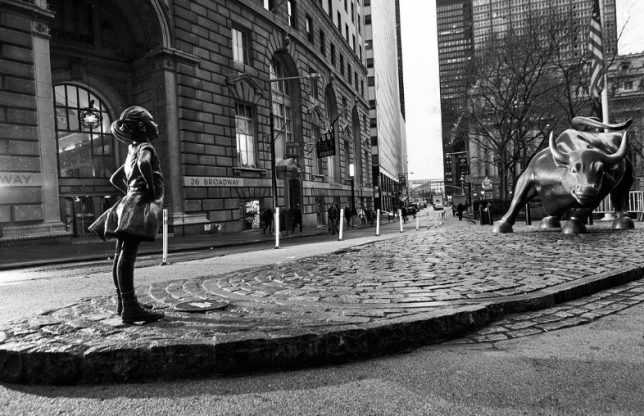
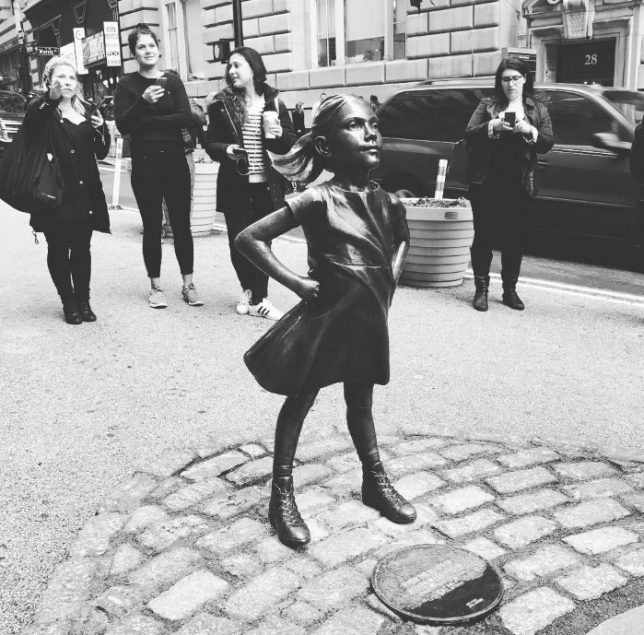
fearless womens day statue

Located in the heart of the financial district in New York City, the Charging Bull statue has long been an icon of the industry, but now faces its first opponent: a young girl cast in bronze.

wall street bull

Sponsored by city officials and a local firm and crafted by sculptor Kristen Visbal, The Fearless Girl was erected in recognition of International Women’s Day. Its intended message is to encourage companies to put women on their boards, but of course it carries a series of meanings in the face of Wall Street and the political climate.

fearless girl statue

“One of the most iconic images on Wall Street is the charging bull,” explains a representative of State Street. “So the idea of having a female sort of stand against the bull or stand up to the bull just struck us as a very clever but also creative and engaging way to make that statement. Even though it’s a little girl, her stance is one of determination, forwardness, and being willing to challenge and take on the status quo.”

Whether the statue will stand the test of time remains to be seen, but its persistence would certainly not be without precedent. Per Colossal, the “Charging Bull was originally an act of guerrilla art by Arturo Di Modica, and only became permanent after its soaring popularity, leaving some to wonder if Visbal’s statue could follow the same story.”

Share on Facebook


[ By WebUrbanist in Art & Sculpture & Craft. ]

[ WebUrbanist | Archives | Galleries | Privacy | TOS ]


WebUrbanist

 
Comments Off on Fearless Girl: Powerful Statue Faces Down Famous Charging Bull of Wall Street

Posted in Creativity


6 Powerful Reasons Why All Photographers Need Facebook Pages

04 Mar

Why Photographers Need A Facebook PageHi there everyone,


It’s Ed a.k.a Edrenalin here, editor of FashionPhotographyBlog.com, bringing you insights from the inside.


I’m constantly intrigued when I discover that out of the numerous photography businesses I’ve helped, the majority of them do not have a Facebook page for their business. Sure, these photographers had a personal Facebook profile, however, when it came to having a dedicated page for their photography, this was non-existent. I see this over and over again, and I can tell you that they are missing out on a great marketing tool in their business tool belts.


However, I have to insert a disclaimer here, in that not every business will benefit from having a Facebook page for their business. It really depends on what kind of clients you are after for your business. For those of you who are looking for clients to make contact with you to book you then a Facebook page would be an ideal platform for you. If not, you can still create a Facebook page but there may be other social media platforms that may be more relevant to your market.


Top 6 reasons why you need a Facebook Page for your business (even if you don’t have a photography business yet).


1. It’s free as long as you are connected on Facebook with a personal account. It won’t cost you anything to create a Facebook business page and it’s pretty quick and easy to set up so give it a go, you have nothing to lose.


2. Having a recognisable authority website such a Facebook, talking about your website provides bonus points for SEO. Not all social media accounts pass on “SEO link juice” these days (the reason for this is to prevent online scammers from abusing these social media platforms) however having a Facebook page is a great way to increase the visibility of your photography business, on Facebook and Google searches.


3. Not only can people see friends that they know like and interact with your page, they can read the reviews and the feedback that people leave in the comments, to work out if you are a reputable photography business or not. People trust what their friends say more than what what you say. It’s one thing for you to talk about how great you are with your photography business, but it’s another when they hear it (or read it) from people they know, trust or relate to.  


4. Potential clients who want to send a message to you on your website for an enquiry or booking might want to first know how quickly will you reply back to them (and whether you are still in business or on holiday). They may check out your Facebook page, since Facebook is one of the largest social media platforms in the world, and see what you are currently up to, and check up on your most recent posts.


5. It allows your target audience to discover your photography business outside your website. By having a Facebook page you have another web property with a sizeable audience that potential clients can find out about you and your photography, even if they don’t know what the web address of your photography website is (or even if you don’t have one yet).


6. And here is one of the most important reasons – If you don’t have a Facebook page yet, you can guarantee that your competitors already do and they are communicating with your potential clients before you get the chance to. This is the reality in today’s competitive marketplace and a lot of photographers are losing potential business because they haven’t jumped on board Facebook yet and join the conversation.


So if you are hesitating or been thinking about starting a Facebook page for a long time but haven’t done so yet, I recommend that you do so right away for the reasons stated in this article. Do not worry if it doesn’t look perfect the first time. Remember that progress is better than perfection, and you can always close the page down or make edits to it later if it’s not to your satisfaction.


Do you like this article? Want to read more articles like this? Then please SHARE this article on social media. If you have any comments or questions please feel free to put them in the comment section below. 


Fashion Photography Blog

 
Comments Off on 6 Powerful Reasons Why All Photographers Need Facebook Pages

Posted in Uncategorized


27 Images of Powerful and Practical Machinery

22 Aug

If you live in an urban area there is probably some construction and/or machinery around, somewhere. Machines can make interesting photographic subjects. Let’s see what some other photographers found:

Photograph Cog wheels by Jaromír Chalabala on 500px

Cog wheels by Jaromír Chalabala on 500px

Photograph Toronto Distillery District 01 by Brian Carson on 500px

Toronto Distillery District 01 by Brian Carson on 500px

Photograph stopped time by jacek tomczak on 500px

stopped time by jacek tomczak on 500px

Photograph hand by ÖmerCan Can?dar on 500px

hand by ÖmerCan Can?dar on 500px

Photograph Usine S - Contrivance by Maarten Tummers  on 500px

Usine S – Contrivance by Maarten Tummers on 500px

Photograph The Requiem of Machinery by Christian Boss on 500px

The Requiem of Machinery by Christian Boss on 500px

Photograph Old machinery by Luca Gaverina on 500px

Old machinery by Luca Gaverina on 500px

Photograph Building Construction with Cranes in the evening. by SAMART BOONYANG on 500px

Building Construction with Cranes in the evening. by SAMART BOONYANG on 500px

Photograph Constructing landcapes by Luke Chung on 500px

Constructing landcapes by Luke Chung on 500px

Photograph Toronto: City of Cranes by Evgeny Tchebotarev on 500px

Toronto: City of Cranes by Evgeny Tchebotarev on 500px

Photograph Oil worker silhouette by Zoran Orcik on 500px

Oil worker silhouette by Zoran Orcik on 500px

Photograph Clouds Adjustment by trynidada on 500px

Clouds Adjustment by trynidada on 500px

Photograph Construction Workers by Ognian Medarov on 500px

Construction Workers by Ognian Medarov on 500px

Photograph Votecrab II. by Peter Majkut on 500px

Votecrab II. by Peter Majkut on 500px

Photograph The backhoe foot by Phoomin Karagate on 500px

The backhoe foot by Phoomin Karagate on 500px

Photograph The beast on the beach by Morgan Tiphagne on 500px

The beast on the beach by Morgan Tiphagne on 500px

Photograph backhoe/retroexcavadora by sairacaz (Abad Torres) on 500px

backhoe/retroexcavadora by sairacaz (Abad Torres) on 500px

Photograph Edit by Chatrawee Wiratgasem on 500px

Edit by Chatrawee Wiratgasem on 500px

Photograph ABSTRACT YELLOW CRANE by imageaddition on 500px

ABSTRACT YELLOW CRANE by imageaddition on 500px

Photograph Hard Work by Joop Snijder on 500px

Hard Work by Joop Snijder on 500px

Photograph Chain by Faruk Barabhuiya on 500px

Chain by Faruk Barabhuiya on 500px

Photograph (machine) by Gerhard Speck on 500px

(machine) by Gerhard Speck on 500px

Photograph Schwader by Tobias Müller on 500px

Schwader by Tobias Müller on 500px

Photograph Camera Gear by Phoomin Karagate on 500px

Camera Gear by Phoomin Karagate on 500px

Photograph wood & metal by Lucage Photography  on 500px

wood & metal by Lucage Photography on 500px

Photograph IVZN6 by Peter Majkut on 500px

IVZN6 by Peter Majkut on 500px

Photograph Cutter by Jack Daugherty on 500px

Cutter by Jack Daugherty on 500px

googletag.cmd.push(function() {
tablet_slots.push( googletag.defineSlot( “/1005424/_dPSv4_tab-all-article-bottom_(300×250)”, [300, 250], “pb-ad-78623” ).addService( googletag.pubads() ) ); } );

googletag.cmd.push(function() {
mobile_slots.push( googletag.defineSlot( “/1005424/_dPSv4_mob-all-article-bottom_(300×250)”, [300, 250], “pb-ad-78158” ).addService( googletag.pubads() ) ); } );

The post 27 Images of Powerful and Practical Machinery by Darlene Hildebrandt appeared first on Digital Photography School.


Digital Photography School

 
Comments Off on 27 Images of Powerful and Practical Machinery

Posted in Photography


24 Architecture Images with Graphic Powerful Lines

25 Apr

Architecture photographers strive to get the lines all perfectly straight and up and down. But sometimes converging lines, or bending ones can create more powerful images.

Note: Check out our Using Lines in Your Photography series for more on this topic.

Let’s have a look at some architecture images that have graphic, powerful lines which are not always straight:

Photograph blackbox by markus studtmann on 500px

blackbox by markus studtmann on 500px

Photograph The Haunting by Michael Woloszynowicz on 500px

The Haunting by Michael Woloszynowicz on 500px

Photograph Manhattan Tower in Paris La Défense by Julien Batard on 500px

Manhattan Tower in Paris La Défense by Julien Batard on 500px

Photograph The Lightscraper by  M. Rafiee on 500px

The Lightscraper by M. Rafiee on 500px

Photograph Curvation by Aaron Yeoman on 500px

Curvation by Aaron Yeoman on 500px

Photograph Illumination XXV by Roland Shainidze on 500px

Illumination XXV by Roland Shainidze on 500px

Photograph Symphony of Lines by Roland Shainidze on 500px

Symphony of Lines by Roland Shainidze on 500px

Photograph Curve II by Roland Shainidze on 500px

Curve II by Roland Shainidze on 500px

Photograph SPACE WARP by SEPEHR GHASSEMI on 500px

SPACE WARP by SEPEHR GHASSEMI on 500px

Photograph Time's up by Julien Delaval on 500px

Time's up by Julien Delaval on 500px

Photograph Butterflies by Alfon No on 500px

Butterflies by Alfon No on 500px

Photograph From the 80th Floor (2) by PhotonPhotography -Viktor Lakics on 500px

From the 80th Floor (2) by PhotonPhotography -Viktor Lakics on 500px

Photograph *Telepathy* by Manita Goh on 500px

*Telepathy* by Manita Goh on 500px

Photograph Real world Tetris by Beboy Photographies on 500px

Real world Tetris by Beboy Photographies on 500px

Photograph Staircase by Sus Bogaerts on 500px

Staircase by Sus Bogaerts on 500px

Photograph *Visual Resonance #3* by Manita Goh on 500px

*Visual Resonance #3* by Manita Goh on 500px

Photograph Vertiginous by Daniel Cheong on 500px

Vertiginous by Daniel Cheong on 500px

Photograph Pure by Sébastien DEL GROSSO on 500px

Pure by Sébastien DEL GROSSO on 500px

Photograph The Stanley by Benjamin van der Spek on 500px

The Stanley by Benjamin van der Spek on 500px

Photograph Lines by Mason Noteboom on 500px

Lines by Mason Noteboom on 500px

Photograph Let there be light! by PK  on 500px

Let there be light! by PK on 500px

Photograph shell by Christian Richter on 500px

shell by Christian Richter on 500px

Photograph Sexy by Grant Orbeta on 500px

Sexy by Grant Orbeta on 500px

Photograph Black and White by Mike Orso on 500px

Black and White by Mike Orso on 500px

googletag.cmd.push(function() {
tablet_slots.push( googletag.defineSlot( “/1005424/_dPSv4_tab-all-article-bottom_(300×250)”, [300, 250], “pb-ad-78623” ).addService( googletag.pubads() ) ); } );

googletag.cmd.push(function() {
mobile_slots.push( googletag.defineSlot( “/1005424/_dPSv4_mob-all-article-bottom_(300×250)”, [300, 250], “pb-ad-78158” ).addService( googletag.pubads() ) ); } );

The post 24 Architecture Images with Graphic Powerful Lines by Darlene Hildebrandt appeared first on Digital Photography School.


Digital Photography School

 
Comments Off on 24 Architecture Images with Graphic Powerful Lines

Posted in Photography