RSS
 

Posts Tagged ‘Post’

NVIDIA Computational Zoom lets you change perspective and focal length in post

03 Aug

Researchers with the University of California, Santa Barbara (UCSB) and NVIDIA have detailed a new type of technology called ‘computational zoom’ that can be used to adjust the focal length and perspective of an image after it has been taken. The technology was detailed in a recently published technical paper, as well as a video (above) that shows the tech in action. With it, photographers are able to tweak an image’s composition during post-processing.

According to UCSB, computational zoom technology can, at times, allow for the creation of ‘novel image compositions’ that can’t be captured using a physical camera. One example is the generation of multi-perspective images featuring elements from photos taken using a telephoto lens and a wide-angle lens.

To utilize the technology, photographers must take what the researchers call a ‘stack’ of images, where each image is taken slightly closer to the subject while the focal length remains unchanged. The combination of an algorithm and the computational zoom system then determines the camera’s orientation and position based on the image stack, followed by the creation of a 3D rendition of the scene with multiple views.

“Finally,” UCSB researchers explain, “all of this information is used to synthesize multi-perspective images which have novel compositions through a user interface.”

The end result is the ability to change an image’s composition in real time using the software, bringing a photo’s background seemingly closer to the subject or moving it further away, as well as tweaking the perspective at which it is viewed. Computational zoom technology may make its way into commercial image editing software, according to UCSB, which says the team hopes to make it available to photographers in the form of software plug-ins.

Articles: Digital Photography Review (dpreview.com)

 
Comments Off on NVIDIA Computational Zoom lets you change perspective and focal length in post

Posted in Uncategorized


Shooting With Your Creative Team & Post Production

18 Jul

Make It happen & Post-Production


Hi FashionPhotographyBlog.com readers,

Last time we talked about how to communicate with your creative team clearly using mood boards, today we are talking about how to make the process of shooting with your team and taking the shots into post-production run smoothly. So here we go…


Once everyone on the creative team and everything for the shoot is confirmed, I’ll reach out to agencies and find a girl that suits the idea. This isn’t always the case. Oftentimes you’ll see a model and be inspired by their look. 


Be sure to send out a call sheet the day before your shoot. This serves as a reminder for everyone as to the time and location of the shoot as well as provides everyone with the contact information for all involved. This is a standard protocol on any professional shoot.


fashion-photoshoot-run-sheet-example

 Then… Shoot! If you keep everything organized and set yourself a bit of a time table to stick to, you’ll be on track for a successful shoot. For “Surrealia,” we managed to shoot two models with several looks in just a few hours.


Remember, make it fun! If everyone is enjoying what they’re doing, it will show. Put on some music – ask the model what their favorite band is or put on something that sets the mood to help convey the feeling in the images.


Post-Production


I know, this is the least fun part of any shoot. The edit. Jocelyne and I decided to pick our final images together and made sure our selects portrayed the model and clothing nicely.


As with any good retouch.. It took forever. Well worth it though! After retouching the images and converting to black and white, it was time to send them off to Matt for illustration.


The process I went through with Matt is basically the same as the process you go through when sending images off to a retoucher:


1) Send over the images and let them do their thing (of course, with a general sense of guidance from you.)

2) You’ll receive a “first round” which you can mark up anything you dislike or don’t see fit and send it back for revisions.

3) Repeat the process of markups and revisions until the image is complete. Don’t forget to be conscious of budget when working with a retoucher.


Working with Matt was fantastic. There was bright color, organic shape, line; all the elements we had like in the editorials we found when doing our research. Except they suited us! Matt did an excellent job of taking those elements we liked and translating them to suit his vision and compliment my photographs.


The result? A batch of images I’m proud to have my name on and remain some of my favorites to this day.


The best thing you can do when planning a shoot is be meticulous. Leave no leaf unturned. Be sure to think of every detail and put your stamp on it. The same type of work goes into planning a test, however you don’t need as extensive a concept. It can be as simple as just shooting a portrait.


Hope you liked my posts about finding, planning and working with a creative team. As always, if you have any questions, feel free to leave a comment below or shoot me an email.


Until next time.. See ya!

Alana


IMAGE SOURCE:

Feature image: Ophelia by Gregory Crewdson

Image 1: courtesy of Alana Tyler Slutsky


Fashion Photography Blog

 
Comments Off on Shooting With Your Creative Team & Post Production

Posted in Uncategorized


DEAL: $5000 worth of Post Production Tools for Just $79

13 Jul

It’s the 7th and final day of our 2016 Summer Sale… and we’ve saved the biggest deal until last!

The good people over at Photographypla have made their Ultimate Photography Bundle, worth a whopping US$ 5,000+, available to dPS subscribers for just US$ 79.

NewImage

Yes, $ 5,000+, worth of resources for Lightroom and Photoshop for $ 79.

In it you’ll get:

  • 1,000+ Lightroom presets
  • 1,000+ Photoshop actions
  • 500+ actions for Photoshop Elements to apply a huge variety of different effects to your photos in no time.
  • 1,000+ photo overlays for weddings, engagements, graduations and more
  • 130+ print templates with announcements for births, graduation, weddings and more
  • 120+ digital frames
  • Collection of business and marketing resources (including contract templates)

Why buy presets or actions in small packs when you can get this MASSIVE bundle at an amazing price? Get it while it lasts!

googletag.cmd.push(function() {
tablet_slots.push( googletag.defineSlot( “/1005424/_dPSv4_tab-all-article-bottom_(300×250)”, [300, 250], “pb-ad-78623” ).addService( googletag.pubads() ) ); } );

googletag.cmd.push(function() {
mobile_slots.push( googletag.defineSlot( “/1005424/_dPSv4_mob-all-article-bottom_(300×250)”, [300, 250], “pb-ad-78158” ).addService( googletag.pubads() ) ); } );

The post DEAL: $ 5000 worth of Post Production Tools for Just $ 79 by Darren Rowse appeared first on Digital Photography School.


Digital Photography School

 
Comments Off on DEAL: $5000 worth of Post Production Tools for Just $79

Posted in Photography


Go with the glow: How to effectively use Orton Layers in post processing

08 May

This image was taken in the summer of 2015 on the Skyline Trail near Panorama Point on the slopes of Mt. Rainier, WA.  The image is composed of 8 focus stacked frames and was shot at the following settings: 16mm, f/8, 1/25sec, ISO 400 using a Sony a7R and a Canon 16-35mm f/2.8L II lens.

Photo: Chris Williams Exploration Photography

Have you ever wondered how some of the top landscape photographers achieve that dreamy yet sharp look in their photos? It turns out that the answer is really quite simple. The Orton effect, as it has been dubbed in recent years, is achieved by selectively adding a Gaussian Blur layer in Photoshop. When applied correctly the technique can add depth, atmosphere and an almost surreal feeling to your images.  It can also help reverse some of the ‘crunchiness’ that sometimes results from web sharpening and compressing a large scene dynamic range into one, tone-mapped image. 

The technique itself was developed by photographer Michael Orton in the darkroom some years ago. This ‘Orton’ effect was achieved through the process of sandwiching two slightly over exposed images; one of which was slightly out of focus while the other remained tack sharp. The result of this process yielded a soft glowy image that retained much of its edge detail. 

Lucky for us this effect is now easily attained and even simplified in the digital age through the use of tools like Photoshop. In the following steps I will outline how to use and refine the technique that has been made popular by landscape photographers like Ryan Dyar over the past few years. 

Apply the Blur

The first step to this process is to take care of your focus stacking, exposure blending and touch up work before you apply the blur layer. Once that has been completed, sharpen your image as you would normally and merge the visible layers. Right click on your merged image layer and duplicate it.  

Now that you have the duplicated layer you can begin the process of applying the Orton effect. Select your duplicated layer (leave it at 100% opacity and normal blending mode) and apply the Gaussian filter to your layer. The radius at which you blur the pixels really depends upon your camera’s resolution and the desired outcome for your finished product. 

Selecting the Gaussian Blur layer is as simple as browsing through the filter options in Photoshop and selecting the appropriately named layer.

I typically blur the Raw files from my Sony a7R at a pixel radius of around 37. If you’re using a lower resolution file from something like a Sony a7S or even an APS-C camera I wouldn’t go further than a pixel radius blur of 25. The methodology behind this is that you don’t want to lose all of your edge detail and compromise the contrast in your blur layer, so choosing the correct blur radius is important. It’s a balance, and one that you should really play with to determine what blur radius works best for your needs and file types. Generally speaking, you want to stay within a pixel radius blur range of 15-40.  

A preview of the effect of your Gaussian blur settings can be seen prior to applying the setting to the layer; adjust the pixel blur radius here to determine what works best for your image.

Once you have selected the Gaussian blur settings that work best for your image click ‘okay’ to apply the filter to your layer. Leave the opacity of the layer at 100% for now.  

Bring Back the Contrast and Select the Opacity

One of the most important steps to this process is to apply a ‘levels’ adjustment to this layer. More often than not, when photographers first start to experiment with this type of technique in post processing, their images are left with haloing and a lack of contrast. Applying a levels adjustment selectively to your Orton layer can make a huge difference in your final result by bringing back the blacks and highlights that the Orton layer tends to bleed out. I normally bring the blacks in to between 10-25 and the highlights to around 245. Applying this step to your layer will ensure that you lose a minimal amount of contrast and will help to blend the layer in areas of harsh transition.   

Choose the ‘levels’ tool and adjust the blacks and lights to your taste.

Once you have completed this step it’s now time to adjust the opacity of your Orton layer. I typically aim for between 10-20% opacity. This really depends on your style and what the overall desired look and feel of your image is.  The example below illustrates what can happen if you increase your Orton layer to 35%, which can be a bit on the excessive side depending upon your image.   

10% Orton Layer 35% Orton Layer

The Devil is in the Details

Now that you’ve got this great atmosphere and glow going on in your image, you may ask yourself what happened to the detail? Loss of detail can happen when this layer is applied in your workflow, but there is a very easy solution to remedy this issue; the High-Pass filter. 

The first step is to duplicate your original background image layer (that has no Orton applied to it), select it, pull it to the top of your workflow and navigate to the filters tab.  Scroll down to find the ‘other’ category and select ‘High Pass’. A high-pass filter brings the detail out in the areas that tend to be most effected by the Gaussian layer: the edges of the elements in your composition. 

Choosing the high-pass filter follows many of the same steps as locating the Gaussian filter only this time the filter is located in the sub-menu titled ‘other’.

Once you have done this you will be given an option to select the pixel radius you wish to apply to your layer. I normally try to stay within a pixel radius of 4-5.5 (any larger and the image detail can get grainy). Pick your desired radius and click OK.  

Once you have selected the high-pass filter you can choose your pixel radius size; I normally choose between 4 and 5.5.

If you aren’t familiar with this type of application your first thought will probably be: ‘what did I just do to my image?’ as you stare at the grey layer on your screen. Fear not! There’s a very easy solution; you will need to select the layer and choose the ‘Soft Light’ blending mode.  

Make sure to apply the ‘soft light’ blending mode to your layer to blend the high-pass pixel detail seamlessly into your exposure.

This mode seamlessly blends the High-Pass pixel detail back into your image. You may want to adjust the opacity of this layer to your tastes after its application, but that’s all there is to it!  If you feel like you’ve got your settings down to a science you may want to even record this as an action. Be aware that every image will be a bit different from a processing stand point, however, so you may want to make subtle changes on a case by case basis.

Toggle the application of your layers off and on and make changes in opacity, detail and contrast as you see fit.

The Final Product

No Orton applied Orton applied

If you’ve completed all of these steps successfully, you now know how to effectively utilize an Orton layer in your workflow. This type of layer can be added to anything from landscapes, to wildlife, and even to portraits in some cases. The limits are only bound by your creativity. Have fun with it and happy shooting!    

Articles: Digital Photography Review (dpreview.com)

 
Comments Off on Go with the glow: How to effectively use Orton Layers in post processing

Posted in Uncategorized


Revisiting Film Photography After 10 Years: Development & Post

26 Apr
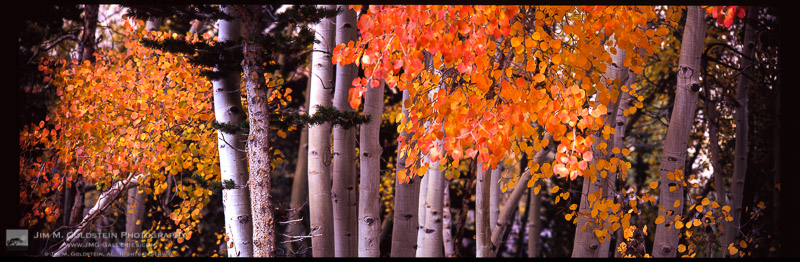
Brightly colored Aspen leaves cling to branches as Fall comes to an end in the Sierra Nevada mountains.

Brightly colored Aspen leaves cling to branches as Fall comes to an end in the Sierra Nevada mountains.

This is the 3rd of a 3 part series on my experience jumping back into film photography after a 10 year hiatus focusing purely on digital photography. You can start here at Revisiting Film Photography After 10 Years: The Readjustment if you missed it.

Withering Vine of Development vs Hipster Revival
These days you hear a lot about how film development has withered away to virtually nothing and I even wrote Film is Dead. No Really! back in 2009 . Depending where you are this may indeed be true. Long gone are the days of having easy access to development at a corner store. In that regard my post from 2009 still holds true. Luckily for me I live near San Francisco and the hipster revival of film has helped keep a few developers, like Light Waves Imaging, alive and kicking. Before finally going to Light Waves I did call around for other alternatives and the few mom and pop stores remaining ship their customers positive film to larger developers elsewhere in California. Rather than wait I opted to drive to Light Waves and pick up my film in 24-48 hours.

Pains of Review and Scanning
It took a while to get used to waiting to see the outcome of my Eastern Sierra shoot on film. It didn’t help that I had immediate access to images I took in parallel on a DSLR. This heightened my interest in seeing my film exposures because I wanted to see how the two formats compared. The last time I shot film side by side with a DSLR it was with an 8.5 megapixel sensor (1.3x crop) Canon 1D Mark II. On this trip I was shooting with a Canon 5DS R which utilizes a 50 megapixel sensor.

When the time came to pick up my film I brought my 5 year old son along and he had plenty of questions at the store counter as to what film was and why it was different than my digital camera. That in itself was a surreal experience as he has only seen digital photographs to this point. I had fun showing him how the images looked on the store light box, but it was still a fairly abstract concept for him to absorb. After spot checking a couple frames on each roll to see if there were any absolute failures (luckily there were not) we headed home. That evening I quickly learned that my old light box was missing a power cord and in a fit of impatience I started using my iPad as a light box. Considering this worked relatively well, but with a loop you see pixels behind your film and I found it distracting. I priced light boxes to buy, but opted to hold off and scanned each frame on my Epson V700 photo scanner.

Am I A Film Worthy Photographer?
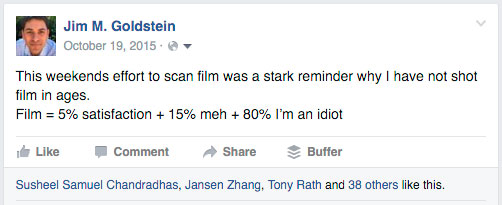
I have to admit I was nervous about jumping back into film after 10 years because I wasn’t sure how well I’d hold up to a very unforgiving format. You have a finite number of frames to expose, limited latitude in dynamic range, and a variety of ways to mess up an exposure. I wasn’t a bad film photographer back in the day, but I forgot how bad failed film images made me feel. It’s a miracle I stuck it out with photography. One of the nights I was scanning film I summed up my feelings about film photography on Facebook with the following update:

Film = 5% satisfaction + 15% meh + 80% I’m an idiot

Film = 5% satisfaction + 15% meh + 80% I’m an idiot

In the end I turned out to be a “worthy” film photographer. The stats turned out as follows:

  • 29% (13/45) are worthy of working further on (sharp, decent composition, etc.)
  • 11% (5/45) are likely worthy of sharing/printing from the 6×17.
  • 7% (3-4) are likely worthy of sharing from my pinhole camera.
    Note: Each roll of film was comprised of 4 exposures.

The numbers weren’t super impressive, but having >10% of my exposures being worthy of sharing and printing surpassed my expectations. Knowing that while using a new camera system for the first time I could get decently sharp exposures balanced the horrible dread I felt looking at each exposure where I didn’t advance the film properly, under/over exposed, mis-focused, and/or made poor composition choices.

Post-Production
One thing that remained universal 10 years on was how frustrating the results are from scanning film. Whether using a negative or flatbed scanner the resulting scan is soft and looks like a muted version of the film itself. One good thing about the downfall of film is that drum scans are much more reasonably priced. That said for my first time out, flatbed scans were good enough for sharing online.

Looking at my film to edit in Lightroom and Photoshop I felt as though I was transported back in my frustrated younger self 10 years earlier. Other than the interface of the software nothing had changed in the sense that I was color correcting, spotting and sharpening my scans. I found myself meticulously removing color casts with curves adjustments in Photoshop, spotting my image to remove dust spots created by dust on the scanner glass or film itself and trying to resurrect the sharpness of my image after being softened in the scanning process. It made me want to jump ship again to digital… until I saw how final 6×17 image came out.

One other thing that was surprisingly refreshing was once again enjoying the look of Fuji Velvia. In an age where presets are obsessed over as much if not more than cameras I liked seeing a defined look of a particular film. One could argue that the look of film is in itself a preset, but my point here is that it’s a distinct style I long missed seeing. No attempt at a recreated look via a digital preset compares.

Concluding Thoughts
Film photography is both an exhilarating and frustrating experience. Working with a film camera in the field was refreshing. Slowing down and taking in the scene while composing & setting up was incredibly refreshing. I instantly realized how much this had been missing from my digital shoots. On the other hand waiting for my film to be developed, taking a hit to my ego each time I viewed a failed exposure and dealing with the hassles of scanning & post-processing was enough to make me unconsciously start pulling out my hair. If I wasn’t so in love with the 6×17 format I’d likely revert back to shooting digital 35mm exclusively. Luckily for my remaining rolls of 120 film I’ll be taking them out again soon. I’ll keep plugging away with 6×17 film work over the next few years for select personal projects. Film lives after all.


The post Revisiting Film Photography After 10 Years: Development & Post appeared first on JMG-Galleries – Landscape, Nature & Travel Photography.


JMG-Galleries – Landscape, Nature & Travel Photography

 
Comments Off on Revisiting Film Photography After 10 Years: Development & Post

Posted in Equipment


Panasonic Lumix GH4 firmware 2.5 brings Post Focus and 4K Photo Mode

16 Mar

Panasonic has announced a firmware update for the Lumix DMC-GH4, bringing Post Focus, 4K Photo Mode and burst shooting with flash to the video-centric mirrorless camera. The update will be available at the end of March, free of charge. 

Post Focus was first announced in July of last year. It captures a short clip of 4K footage while racking focus from one end to the other, allowing the user to select a frame in playback mode after capture with the desired focus point. The Lumix GX8, G7 and FZ300 were the first in line to get the feature via firmware update.

Also taking advantage of the GH4’s video capabilities is the newly added 4K Photo feature, which enables 4K burst, 4K Burst (Start/Stop) and 4K pre-burst. These modes optimize 4K shooting for still photo extraction, and aim to help photographers catch hard-to-get moments, like the elusive group shot with all eyes open. Firmware 2.5 also enables consecutive shooting with compatible Panasonic external flash units.

In the past, Panasonic has used Photokina to launch its DSLR-style mirrorless cameras, so it would make sense if we see an update to the GH-series come September. However, a significant firmware update in the meantime indicates that it’s still alive and kicking.

Check Panasonic’s support website at the end of March to download the update.


Press release:

DMC-GH4 Firmware Update Version 2.5

Newark, NJ (March 16, 2016) – Panasonic has today announced the new firmware update Version 2.5 for the DMC-GH4 to further enhance its performance at no charge. The new firmware Version 2.5 includes following functional updates:

-Post Focus
Post Focus is a special function that enables users to select an in-focus point after shooting. It has already been integrated in new LUMIX cameras such as the GX8. With this function, users can enjoy changing the perspective for greater photographic expression or to choose the best in-focus shot for macro shooting.

-4K PHOTO (4K Burst / 4K Burst (Start/Stop) / 4K Pre-burst)
With 4K PHOTO mode there are three dedicated modes – 4K Burst / 4K Burst (Start/Stop) / 4K Pre-burst – are all now available on LUMIX GH4*. The addition of these modes further enhances the usability of 4K PHOTO to capture fleeting photo opportunities at 30p. 

-External Flash Burst
Consecutive shooting with flash burst is available with an external flash that is capable of continuous emission.  This includes the following Panasonic models: DMW-FL580L, DMW-FL360L, DMW-FL500, DMW-FL360 and DMW-FL220.

The new DMC-GH4 firmware Version 2.5 is scheduled to be released at the end of March 2016 at the LUMIX Customer Support website: http://panasonic.jp/support/global/cs/dsc/

Articles: Digital Photography Review (dpreview.com)

 
Comments Off on Panasonic Lumix GH4 firmware 2.5 brings Post Focus and 4K Photo Mode

Posted in Uncategorized


In use: Panasonic Post Focus after-capture focus selection feature

25 Nov

As announced on Friday, Panasonic has just released new firmware that enables a post-capture refocusing feature in some of its cameras that run 4K video on a Micro Four Thirds sensor. We got hold of a pre-release copy of the firmware and have been able to try it out on the Lumix DMC-GX8 body. Read more

Articles: Digital Photography Review (dpreview.com)

 
Comments Off on In use: Panasonic Post Focus after-capture focus selection feature

Posted in Uncategorized


Panasonic’s Post Focus feature arrives November 25

21 Nov

In July, Panasonic revealed plans to launch a feature it calls Post Focus for select camera models via a firmware update. Panasonic today announced that firmware update will be available via the Lumix Global website on November 25. The Panasonic Lumix DMC-GX8, DMC-G7, and DMC-FZ330 will be supported. Read more

Articles: Digital Photography Review (dpreview.com)

 
Comments Off on Panasonic’s Post Focus feature arrives November 25

Posted in Uncategorized


Deal 3: Save 57% On This Fantastic Lightroom Post Production Course

16 Dec

Today is day 3 in our 12 Days of Christmas and today is all about helping you improve your post production skills with a great deal on Gavin Gough’s Lightroom Video Tutorials.

The Deal

For one day only you can pick up Gavin’s ‘Post-Production Lightroom Video Course’ for just $ 29 – that’s a saving of just over 57%.

Screen Shot 2014 12 15 at 3 02 31 pm

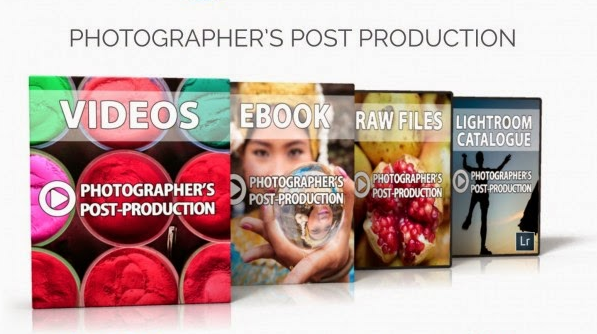
This value-packed course with 20 videos, companion eBook and some great high-res RAW files to learn with gives you step by step training in using the incredibly powerful Lightroom to help take the photos that you’ve taken to their potential.

Gavin has thoughtfully created these videos to walk you through the skills you need. From basics right through to more advanced techniques.

Here’s a video that gives you a feel for Gavin and what is covered.

The Photographer’s Post-Production – An Introduction from Gavin Gough on Vimeo.

This course is practical but also a lot of fun and today instead of paying $ 69 it is yours for $ 29. Grab it here.

Bundle It to Learn about Post Production Workflow

If you are looking to go beyond just processing your images (as is covered in the course) we’ve also got the option to bundle the processing course with Gavin’s best selling eBook – The Photographer’s Workflow.

NewImage

This eBook is all about backing up your photos, cataloging and arching images, presets and developing a workflow management system for your precious images that helps keep them safe and secure but also allows you to process them efficiently.

The full bundle of Course and eBook together normally retail for $ 99 but today only they are yours for just $ 49.

Two Options: But Only for 24 Hours

So today’s deals in a nutshell.

  1. Grab Gavin Gough’s ‘Post-Production Lightroom Video Course’ for just $ 29 (normally $ 69)
  2. OR get Gavin’s ‘Post-Production Lightroom Video Course’ AND his eBook ‘Photographer’s Workflow’ for $ 49 (normally $ 99).

But don’t wait too long – this deal is for today only and the clock is ticking.

googletag.cmd.push(function() {
tablet_slots.push( googletag.defineSlot( “/1005424/_dPSv4_tab-all-article-bottom_(300×250)”, [300, 250], “pb-ad-78623” ).addService( googletag.pubads() ) ); } );

googletag.cmd.push(function() {
mobile_slots.push( googletag.defineSlot( “/1005424/_dPSv4_mob-all-article-bottom_(300×250)”, [300, 250], “pb-ad-78158” ).addService( googletag.pubads() ) ); } );

The post Deal 3: Save 57% On This Fantastic Lightroom Post Production Course by Darren Rowse appeared first on Digital Photography School.


Digital Photography School

 
Comments Off on Deal 3: Save 57% On This Fantastic Lightroom Post Production Course

Posted in Photography


New: The dPS Guide to Portrait Post Production and Workflow

02 Oct

Our Exciting News in a Nutshell

Today I’m excited to announce the launch of a brand new eBook – Portraits: After the Shot – a Guide to Portrait Post Production and Workflow by Gina Milicia.

It’s available for a limited time with an early bird bonus of a collection of great Lightroom and Photoshop presets. Get your copy here.

The Story So Far

  • In January 2013 we released our first Portrait Photography eBook by Gina Milicia – Portraits: Making the Shot – a fantastic overview of taking beautiful portraits with soul.
  • In September 2013 we released Gina’s second eBook – Portraits: Lighting the Shot – a guide to lighting portraits with both natural and artificial light.
  • In January of this year we added to Gina’s library of eBooks with a 3rd – Portraits: Striking the Pose – an eBook all about working with your portrait subjects to get natural looking portrait poses.

Portraits ebooks

To say Gina’s first 3 eBooks have been popular would be a gross understatement. They’ve each outsold the previous one and have received fantastic reviews from many of our readers.

But we’re not finished yet. So far Gina has focused her eBooks on taking beautiful portraits. Here at dPS we’re big believers in getting the best photo you possibly can in-camera – but we also know there’s a lot you can do after you take the shot.

It’s for this reason that we’ve been working with Gina over the last 6 months on a new edition to this wonderful little collection of eBooks and today can introduce to you… Portraits: After the Shot

Portraitspostproduction

This eBook is all about giving you the confidence and skills to work with the portraits you take and bring them to life using the wonderful tools available to us today.

Inside Portraits: After the Shot you’ll discover topics such as:

  • The fundamental rules of portrait post processing
  • How keeping your processing simple can be much more profound
  • How to develop your own post processing style
  • All the gear you’ll need to support your processing
  • Storage and backup solutions
  • Detailed run though of Ginas exact workflow
  • Lightroom fundamentals and shortcuts
  • Lightroom ‘go to’ recipes
  • Photoshop essentials and recipes

There’s much more too.

See the full table of contents, some screenshots from the eBook and learn more about the early bird bonus here on our Portraits: After the Shot page.

For those of you who’ve not invested Gina’s previous eBooks you’ll also find a great bundle deal that gets you 38% off the full collection!

The post New: The dPS Guide to Portrait Post Production and Workflow by Darren Rowse appeared first on Digital Photography School.


Digital Photography School

 
Comments Off on New: The dPS Guide to Portrait Post Production and Workflow

Posted in Photography