RSS
 

Posts Tagged ‘Photoshop’

Ultimate Guide To Blending Modes in Photoshop

26 Apr

The blending modes feature is one of Photoshop’s most undervalued tools for Photographers. Blending modes can be used to alter the ways in which each layer interacts with the layers below it, allowing for endless possibilities when it comes to setting the right tone or adding artificial lighting. Graphic designers and digital illustrators use blending modes all the time to Continue Reading

The post Ultimate Guide To Blending Modes in Photoshop appeared first on Photodoto.


Photodoto

 
Comments Off on Ultimate Guide To Blending Modes in Photoshop

Posted in Photography


Adobe launches Photoshop Lightroom 5 Public Beta

16 Apr

lr5logo.png

Adobe has released a public beta version of its Photoshop Lightroom 5 workflow and image editing software. Available immediately for free download from Adobe Labs, the beta introduces a more advanced healing/cloning tool, automatic image leveling and perspective correction, a new selective editing tool and the ability to edit files that are offline. We’ll have our hands-on preview online very shortly but you can click here to begin exploring this new release on your own.

News: Digital Photography Review (dpreview.com)

 
Comments Off on Adobe launches Photoshop Lightroom 5 Public Beta

Posted in Uncategorized


Photoshop Basics: Working with Layers

05 Apr

Photoshop.  For photographers, web developers and graphic designers alike, its the go-to program for creating and editing professional grade graphics.  And like every beloved piece of software, it has to have a strong foundation to build upon; a base system that supports all other operations.  For Photoshop, it’s layers. Operations we describe here are performed using Adobe Photoshop CS5, but Continue Reading

The post Photoshop Basics: Working with Layers appeared first on Photodoto.


Photodoto

 
Comments Off on Photoshop Basics: Working with Layers

Posted in Photography


Photoshop in Real Life: Portrait Series Takes Tools Literally

05 Apr

[ By WebUrbanist in Design & Graphics & Branding. ]

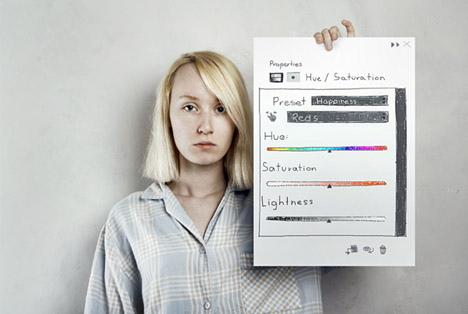
photoshop realism

Anyone who has used Adobe products, Photoshop or otherwise, knows that they have necessarily become quite creative in naming some of their more abstract, surreal and unusual functions.

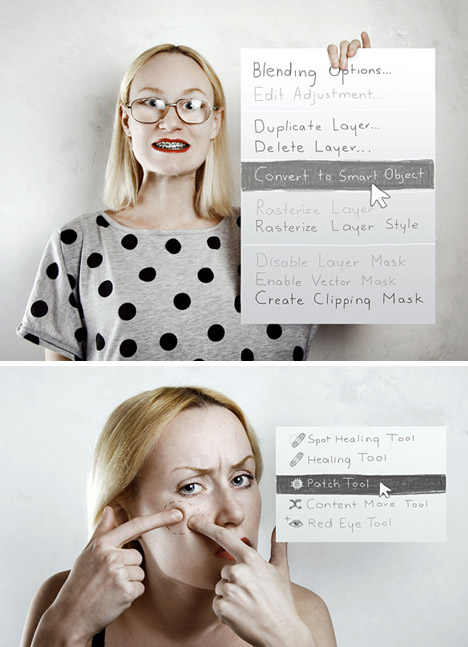
photoshop based manipulation series

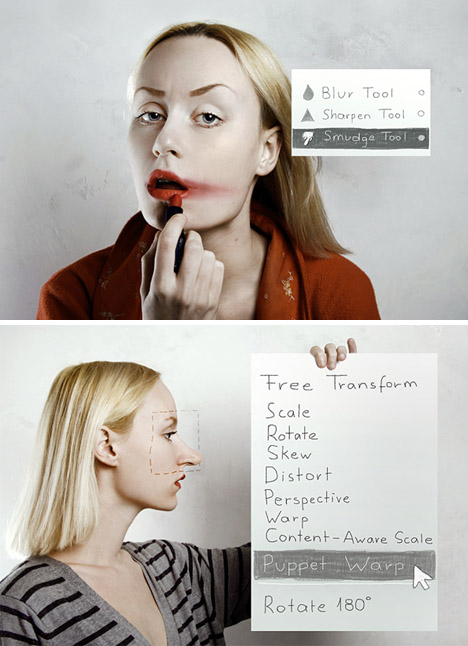
Flora Borsi of Budapest, Hungary, is a photographer and photo editor who has explored these meanings in return, taking them back out of the digital realm and applying them to ‘real life’ situations.

photoshop in real life

Through turns of phrase (‘Convert to Smart Object’) and other twisted interpretations, this series of portraits is an exploration of self, exhibition of abilities and simply fun series of mildly manipulated photos.

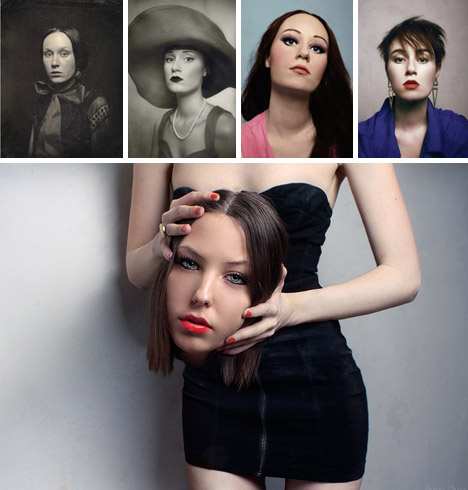
photo manipulations historical portraits

Her other series show off her capacity to understand and reproduce historical styles, but also to take and subvert visual expectations, in turn silly, serious and in some cases quite macabre.

Share on Facebook


[ By WebUrbanist in Design & Graphics & Branding. ]

[ WebUrbanist | Archives | Galleries | Privacy | TOS ]


WebUrbanist

 
Comments Off on Photoshop in Real Life: Portrait Series Takes Tools Literally

Posted in Creativity


Article: Blending images in Photoshop

10 Mar

BeforeAndAfter-with_adjustments.jpg

Photographer and imaging professional Jean Miele demonstrates how to combine images in Photoshop for seamless and natural-looking results. In this article he takes you through the basics of making Gradient tool adjustments to layer masks. Follow along with a simple tutorial that adds a dramatic sky to an interesting foreground. 

News: Digital Photography Review (dpreview.com)

 
Comments Off on Article: Blending images in Photoshop

Posted in Uncategorized


OPINION: Why Photoshop is Ruining Landscape Photography

06 Mar

This opinion piece was contributed by Declan O’Neill from www.newzealandscape.com.

The winner of one of Britain’s most prestigious photographic competitions was stripped of his title recently because of excessive use of Photoshop. David Byrne was the winner of the Landscape Photographer of The Year award and a £10,000 ($ 16000) prize but has now had his title and prize money taken away in a surprise move by the organisers of the competition which is supported by Epson, The Sunday Times Magazine and The National Theatre.

607589 landscalandscape photographer of the yearpe photographer of the year

The dramatic reversal came about after other photographers pointed out that the image had been photoshoped to include clouds not in the original image. Other photographers pointed to the impossibility of the sun casting shadows in different directions.

Mr. Byrne defended his manipulation of the image by pointing out that altering images is hardly new. He was quoted by The Daily Mail as saying, ‘The purists out there were not happy. Messing about with pictures has been done for over 100 years. I treat my photography as art and I try to make the best looking picture.’

Those three sentences neatly define the battle lines which have been drawn over the digital manipulation of photographs.

First of all he seems to suggest that anyone who objects to manipulating images is a ‘purist’. It seems clear that ‘purist’ is not a compliment in this context. What this veiled insult fails to acknowledge is that many photographers do not object to using Photoshop to enhance photographs but they do object to its use in altering photographs.

The problem comes in defining when enhancement crosses a boundary into alteration. Removing power lines from a landscape is one thing. Changing the colour of the sky from grey to orange quite another. It isn’t as if there is any shortage of sunsets around to photograph and the joy of landscape photography is capturing the elusive, not manufacturing it with software. It’s no crime to create a sunset sky, it’s just rather sad that someone would need to do it when there is so much natural colour to photograph. How many times have you looked at a super saturated landscape photograph and known instinctively that it’s false? Yet we see these photographs constantly win awards in club and national competitions. Anyone who has studied the way sunlight paints the landscape from different angles knows how to capture the best colour without needing Photoshop. That’s what being out in the field teaches you. You learn how to use the light to maximum effect.

The second defence that Mr. Byrne advances is that photographers have been ‘messing about’ with photographs for a long time. His choice of words is both unfortunate and revealing. Photographers should respect their subject matter. You do not have to go very far to capture truly beautiful natural photographs and the idea that it’s ok to mess about with the captured image is a depressing comment on the craft of photography. This attitude tells us that the photographer has no qualms about creating a vision of what they wish they had captured, but failed.

Finally Mr. Byrne tells us that he treats his photography as ‘art’ and tries to make ‘the best looking picture’. Here is the real problem with the software tools that allow us to create our own photographs. Photography has always been a craft. Ansel Adams had no need to add clouds or alter tree shapes because his images were honest and beautiful. There is nothing wrong with painting new images with Photoshop, just don’t call it photography. It is something entirely different when a photographer wants to be an artist. An artist creates images from their imagination and that is a wonderful thing. Just leave photography to record what the camera sees not what the photographer wishes it had seen.

What is extraordinary is that Mr. Byrne should have won such a prestigious title as Landscape Photographer of the Year. Luckily, his alterations were brought to the attention of the judges who had been unable to detect them for themselves. But for the ‘purists’ his accolade would have reinforced the idea that we can alter images in the name of ‘art’ and still claim they are photographs. If something good can come out of this sorry debacle it is the lesson that landscape does not need our interference. The true joy of landscape photography lies in capturing its pristine beauty. Painting it in the crude lipstick of Photoshop is both unnecessary and an admission that we cannot leave it to speak for itself through our lenses.

Declan O’Neill is a photographer who lives in Nelson New Zealand. He specialises in landscape photography and runs photographic tours of the South Island. His website can be found at www.newzealandscape.com.

Post originally from: Digital Photography Tips.

Check out our more Photography Tips at Photography Tips for Beginners, Portrait Photography Tips and Wedding Photography Tips.

OPINION: Why Photoshop is Ruining Landscape Photography


Digital Photography School

 
Comments Off on OPINION: Why Photoshop is Ruining Landscape Photography

Posted in Photography


Adobe releases Photoshop Touch for Android and iOS smartphones

27 Feb

adobe_photoshoptouch.png

Adobe has announced a smartphone version of its Photoshop Touch app for both Android and iOS. The app was originally launched for 10-inch tablets and more recently a version for smaller tablets, such as the iPad Mini and Google Nexus 7. It includes features familiar to Photoshop users such as layers, advanced selections tools, adjustments and filters, but in a much smaller format. Photoshop Touch for smartphones is available on the Apple App Store and Google Play for U.S. $ 4.99. Read more at connect.dpreview.com

News: Digital Photography Review (dpreview.com)

 
Comments Off on Adobe releases Photoshop Touch for Android and iOS smartphones

Posted in Uncategorized


How We Got Here: Analog Photoshop

27 Feb

There is nothing about flash in this post, except for "pre-flashing," and that is not what you think.

Every time I adjust the exposure slider in a raw converter or tweak the tonal curve into a subtle S-shape, I think back to how we used to do some pretty insane stuff—very improbably—with film, subtle tweaks of light and a witches-brew of chemistry.

If you are under 40, most of this is gonna be brand new. If you are older than that and used to shoot night sports for a newspaper, see how your experience matches up… Read more »
Strobist

 
Comments Off on How We Got Here: Analog Photoshop

Posted in Photography


Computer History Museum shares original Adobe Photoshop source code

16 Feb

splashscreen.png

The source code of the original version of Adobe Photoshop has been made available by The Computer History Museum, based in California. Photoshop started off in the 1980s as a program called ‘Display’ written by Thomas Knoll, before being renamed ‘Photoshop’ in 1990 – the year that the first version of the software shipped to customers. The download, which is available for non-commercial use with the permission of Adobe, consists of around 128,000 lines of code. Click through for more details (and some nostalgia-inducing screenshots of Photoshop 1).

News: Digital Photography Review (dpreview.com)

 
Comments Off on Computer History Museum shares original Adobe Photoshop source code

Posted in Uncategorized


How to Match Exposures when Stitching Panoramas in Photoshop

03 Feb

Since the introduction of Photoshop CS2, Adobe’s image editing software has shipped with the ability to easily merge a series of photographs into a panorama.  Often, it is incredibly simple: once you have the images you want to stitch together, it only takes a few clicks to produce the blended panorama.  However, whilst Photoshop may be able to seamlessly merge your images 90% of the time, on occasion it may struggle to perfectly match the exposures across the input images resulting in a final panorama with obvious joins between the individual photographs.

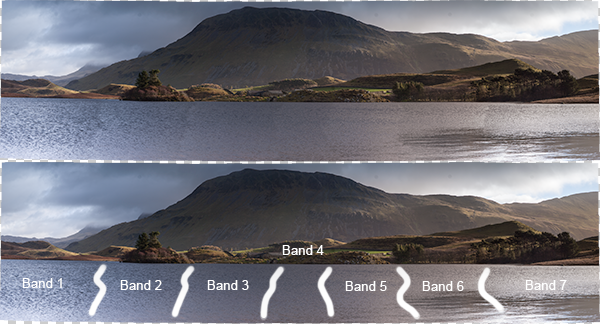
To see what I mean, have a look at the image below.  This is a 7 shot panorama, straight out of Photomerge, and you can see obvious banding in the water of the lake, as the exposure/colour tone subtly change between images.
panorama_exposure_match_image-3

Top: The panorama fresh out of Photomerge. Bottom: I've highlighted the joins between the individual input images where the blending of exposures was not sufficient

This article walks through a series of fairly simple steps to edit the above panorama to remove the obvious joins and give a perfectly blended panoramic image  (note: I am only going to discuss processing the panorama once it has been stitched by Photomerge.  For tips on how to take the images, prepare them for stitching and on use of Photoshop to stitch them, see this recent article by Jason Weddington).

It is worth mentioning that the images I started with were a challenge to shoot for a panorama as the exposure differed greatly between the far left of the image, where I was shooting away from the sun, and to the far right, where I was shooting towards the sun.  Therefore, before blending the images into the panorama, the individual images were processed in Adobe Lightroom to try and match the exposures as closely as possible first.  Once complete, the selected images were exported to Photoshop to ‘merge as a panorama’, using the ‘auto’ setting.

On to the steps…

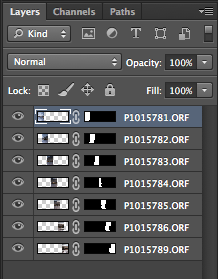
1.  Once the images have been merged, the output image will consist of several layers (one for each input image, in this case 7) with a mask applied to each layer.  In many cases, these layers can be flattened at this point to give the final panorama, however, we’re going to make a few edits first.
panorama_exposure_match_image-2

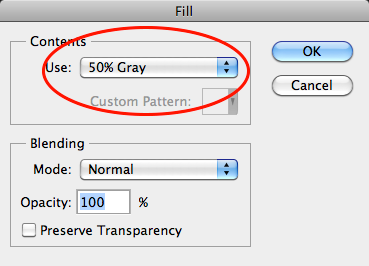
2.  Create a new layer, on top of all other layers.  Fill the layer (Edit > Fill) with 50% grey:
panorama_exposure_match_image-4

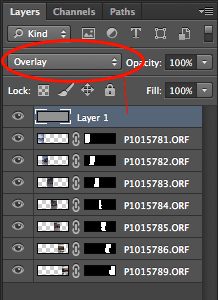
3.  Set the blending mode of the ‘grey layer’ to ‘overlay’.  When set to overlay, a 50% grey layer will appear transparent, so initially this layer will make no difference:
panorama_exposure_match_image-5

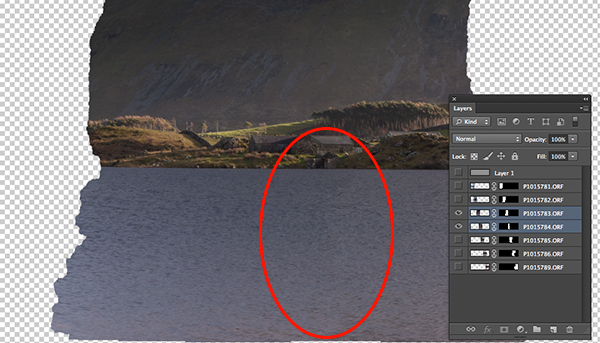
4.  Find one of the joins where the exposure needs to be tweaked, for example, below, there is an obvious join between the two images.  The left hand image needs to be a little lighter and the right hand image needs to be a little darker.  Let’s address the left hand image first.
panorama_exposure_match_image-6

Only the two layers of interest are selected here. The left hand image needs to be lightened, whilst the right hand image needs to be darkened

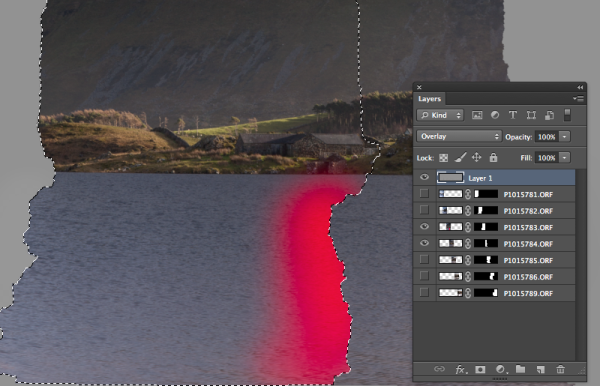
5.  If we ctrl+click/cmd+click the mask of the appropriate layer (i.e. click on the black/white rectangle in the layer bar), we will bring the portion of the image to be edited into an active selection (we only want to edit inside of that selection for the time being).

6.  Ensure the ‘grey layer’ is highlighted

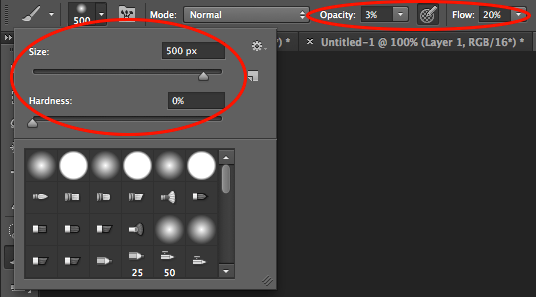
7.  Select the brush tool.  You will want a large, soft brush so set the size to be a few hundred pixels (I used 500 px in this instance, but the size is relative to the size of your panorama) and set the hardness to 0%.  Set the opacity to 3% and the flow to 20%:
panorama_exposure_match_image-7

8.  To lighten the layer we want to select the colour white (if we wanted to darken the layer, we would select black).

9.  Using the brush, liberally brush over the join and back towards the centre of the image.  This will paint white onto the grey layer, but only within the current selection.  As the brush is very soft the edits should be subtle, but as you brush you should be able to see the area under where you have painted white gradually begin to get lighter.
panorama_exposure_match_image-8

An active selection of the mask of the left hand image is required so that any edits are only applied within that selection. The idea is to paint white onto the 'grey layer' in the region highlighted by red in the above image.

10.  In order to get seamless joins, I find that is is a compromise between lightening one image and darkening the other in order to maintain a smooth transition of tone/exposure across each image.  Therefore to edit the right hand image, you repeat steps 5 to 9, but ensure that the right hand image is within your active selection, and that the colour black has been selected for your brush.

Initially it is a slow process that involves carefully modifying each image at the join in order to match the exposure, however once you get a feeling for the brush it can become quite quick.

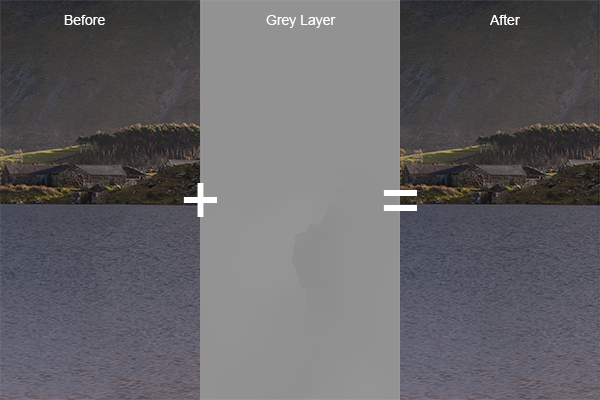
If we change the blend mode of our ‘grey layer’ back to ‘normal’ you will be left with something similar to the middle image below, where you can see the result of the white/black brush strokes on the grey layer and the difference it makes to the actual join.
panorama_exposure_blending_9

A composite showing the starting image, the modified 'grey layer' and the final image, when the 'grey layer' is set to 'overlay'.

If you repeat that for each join across the panorama, you will end up with grey layer that looks like the image below (with the blend mode set to ‘normal’).

panorama_exposure_match_image-10

The 'grey layer' for the entire panorama showing the white/black brush strokes around each join

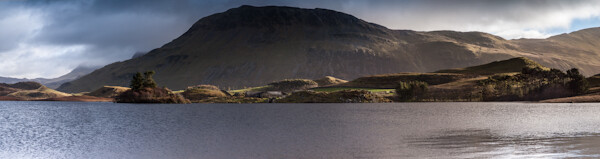
Once you set the blending mode back to ‘overlay’, all of the joins should disappear, and you should be left with a perfectly blended panorama with no tell tale signs of the joins:
panorama_exposure_match_image-11

The entire panorama when the 'grey layer' is set to 'overlay'. The joins between the images are no longer visible in the water of the lake

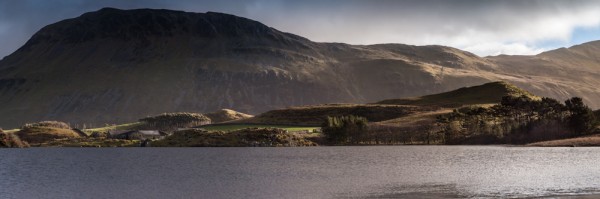
As the edits have been made to the ‘grey layer’ no permanent edits have yet been made to the actual images, so any mistakes are easily rectified or any further modifications can easily be made.  Once you are happy with the blending of the individual images, you can flatten the layers to produce your final panorama and make any further finishing touches:
panorama_exposure_match_image-12

The final panorama: Llyn Cregennen, North Wales, UK

I hope those steps were easy enough to follow.  Ultimately, this is just one application of a the use of a 50% grey layer, set to ‘overlay’, in order to modify the exposure of an image in a non-destructive manner (until the layers are flattened, that is).  So if you try to blend a panorama in Photoshop but didn’t quite get the results you were after, you dont have to jump for the clone brush straight away or send the image to the trash.  Give these steps a try and see if you can manually match your exposures where Photoshop can’t.

Please let me know if you have any feedback, I welcome any comments and, as always, I’ll try to respond when I can.


Post originally from: Digital Photography Tips.

Check out our more Photography Tips at Photography Tips for Beginners, Portrait Photography Tips and Wedding Photography Tips.

How to Match Exposures when Stitching Panoramas in Photoshop


Digital Photography School

 
Comments Off on How to Match Exposures when Stitching Panoramas in Photoshop

Posted in Photography