RSS
 

Posts Tagged ‘Photoshop’

Software technique: Photoshop Gradient Tool: Part 2 – Adjusting Images

27 May

CompositeWithAdjustments_2.jpg

In the second, concluding article of his 2-part tutorial explaining Photoshop’s Gradient tool, Jean Miele explains how to use linear, reflected and radial gradients in layer masks to improve your digital photographs. In this article Jean takes us through four clear, easy steps, and also includes more tips for making the most out of gradients in both Photoshop and Lightroom. Click through for links to the article. 

News: Digital Photography Review (dpreview.com)

 
Comments Off on Software technique: Photoshop Gradient Tool: Part 2 – Adjusting Images

Posted in Uncategorized


An Introduction to Photoshop Compositing for Beginners

26 May

by Sarah Hipwell

NewImage

What is compositing? Simply, it means to combine two or more images to make a single picture.

As a photographer, I’m constantly coming up with different concepts that I feel might make a good photo. But it is not always possible to get the perfect shot in one session. There have been numerous occasions while on a shoot where the light was not bright enough for the particular shot that I had in mind. On other occasions the background was too distracting. This is where the ability to create composite imagery in Photoshop is a huge advantage.

To produce a composite image in Photoshop, you need to isolate the subjects from the background of your various source photos. When I started out, I used the pen tool to help isolate my subjects. Now, I use the ‘quick selection’ and ‘refine edge’ tools which are superb and are a much faster way of doing extractions, especially for isolating hair!

But for this tutorial, I’m going to use the pen tool to create a path which I then save this as an alpha channel selection. I believe the pen tool should never be overlooked as an excellent way for beginners to increase their proficiency level with Photoshop. If you are new to using the pen tool, it does take a bit of getting used to but after time, you will pick up speed and accuracy. The big plus side to creating paths in this way is that they are re-editable and non-destructive.

I have highlighted three key features:

  1. Selection. Good selections are critical for compository work
  2. Composition.
  3. Uniform color balance and light.

Here’s the method:

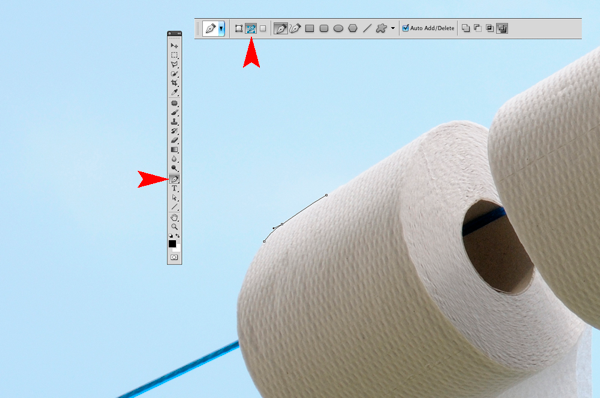
  1. The Pen Tool – With the Pen Tool selected in the toolbar, choose a starting point on the photo, click and drag around the area to be selected. This will create a path outline to be saved in the Paths Palette.
  2. Place the images – When I want to bring other images into a composite, I prefer to Place them into the file. What this means is that the image is brought into your psd file on a separate layer as a Smart Object. The photo can be moved into position, made larger or smaller without affecting the quality.
  3. Match Color – When all the elements of the photo are edited and in place, I use Match Color tool as an effective way to balance the color between the two images.

NewImage

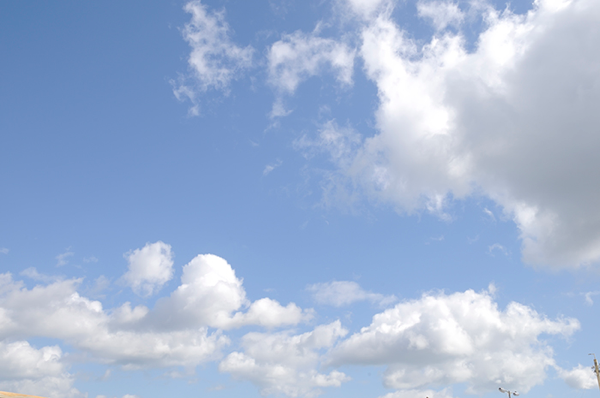
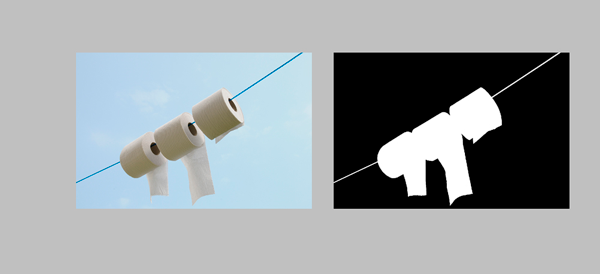
I took the photo above for a concept shot titled ‘Recycled toilet paper’. I wanted a bright blue sky with white fluffy clouds as the background. The above shot did not have the background that I wanted. So I waited a couple of days and I got the shot I wanted. See below:

NewImage

I made my selection using the pen tool to isolate the toilet rolls and clothesline. Zoom in up to 300 – 400% to get a good outline, as shown below.

NewImage

Holding down the Alt/Ctrl key enables you to move anchor points and direction lines and again make any edits to your lines and curves.

When you have finished plotting your anchor points, you can then save this outline in the Paths Palette. This selection can then be added as a layer mask. It should resemble the black and white image on the right below.

NewImage

I imported the new sky background by going to the File menu and select Place. The image then appeared as a Smart Object and on a separate layer. I had to reduce the size but the quality of the image was maintained.

When I was happy with the position of the new sky background, I merged all the layers onto one. I used a keyboard shortcut (Cmd/Ctrl+Alt+Shift+E) to achieve this. The reason for this is that the next adjustment isn’t non-destructive so that if I want to redo this edit, I would have to delete the layer and repeat the above step again.

The final adjustment was to go to Image menu and select Match Color to make sure the color is balanced between the two images. Using Image>Adjustments>Match Color I played with the two sliders to get the color of the image more uniform in appearance. See the link below where I uploaded the final composite image to iStockphoto.com

http://www.istockphoto.com/stock-photo-6231026-recycling-toilet-paper.php?st=faf18be

See more of Sarah Hipwell’s work at her website – SarahHipwell.com

Post originally from: Digital Photography Tips.

Check out our more Photography Tips at Photography Tips for Beginners, Portrait Photography Tips and Wedding Photography Tips.

An Introduction to Photoshop Compositing for Beginners


Digital Photography School

 
Comments Off on An Introduction to Photoshop Compositing for Beginners

Posted in Photography


50 Portrait Retouching Tutorials To Take Your Photoshop Skills To A New Level

24 May

21 face-retouching tutorials are at your service! Realistic perfect skin, teeth and eyes heve never been so easy to reach.

The post 50 Portrait Retouching Tutorials To Take Your Photoshop Skills To A New Level appeared first on Photodoto.


Photodoto

 
Comments Off on 50 Portrait Retouching Tutorials To Take Your Photoshop Skills To A New Level

Posted in Photography


How to create a reflection in Photoshop in 6 easy steps

21 May

Creating a reflection using Photoshop is one of those things that at first glance looks really hard, but really isn’t, once you break down the steps (just light Light Painting which I covered in another two part series). In this article I’m going to demystify creating a reflection, a technique that works particularly well on images with open pavement, and HDR processed images which tend to make the pavement look wet already.

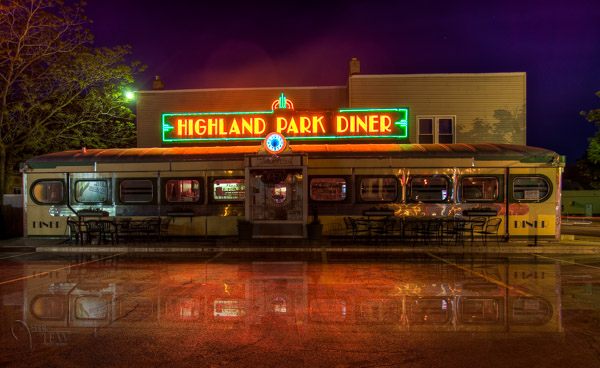
We’re going to learn how to go from this . . .
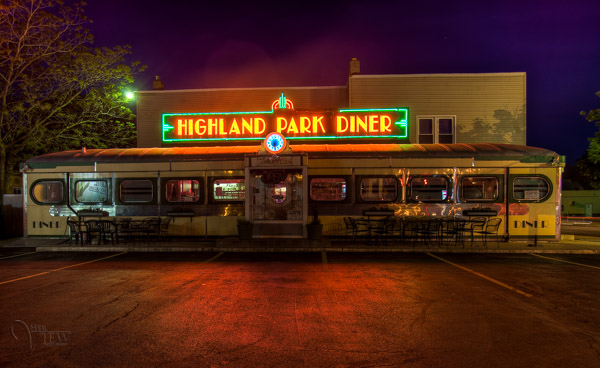
reflection-before

To this!

reflection-after-photoshop

In less than 10 minutes!

I recently showed one my HDR classes how to do this, and they all followed along with me step by step.  Some of them were using Elements (which works just fine, but you may find the menus and choices look slightly different), and this technique can be done using that program too, so if you use Elements, not to worry. Many of my students were also self proclaimed “Photoshop novices” and when I asked them if they thought they’d be able to this when I showed the before and after images, most said “no”!  But they all did, and we were done in less than 10 minutes. **Note that also included me going super slow to ensure each of the 12 people in the class were on the same page with me. I’m going to guess this will take less than 5 – ready GO!

Here are the six easy steps to follow in Photoshop.  This is the super condensed version for those quick readers and skimmers.

  1. copy a section of the image
  2. paste it as a new layer
  3. flip it
  4. position it
  5. change the layer blend mode
  6. mask it

That’s it! You want a few more details?
Let’s dive in a little deeper into each step

STEP ONE – COPY

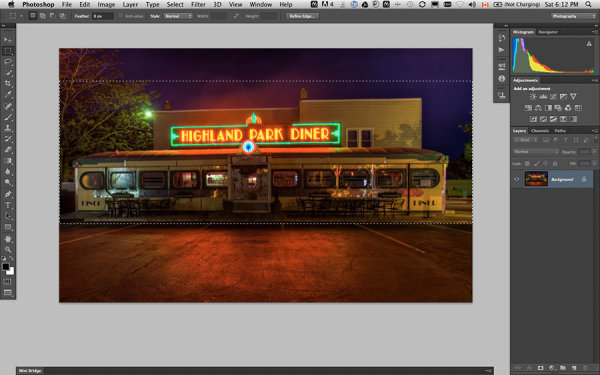
Using the marque tool (“M” is the keyboard shortcut) draw a box around an area of your image that will become the reflection (see Figure #1 below). Make sure you go edge to edge on the sides, and get enough of the image vertically. If you grab more than you need that’s fine we’ll be moving it around and masking later anyway.
select-section

Figure #1 make a selection

Copy the selection as a new layer. You can do that a few ways.

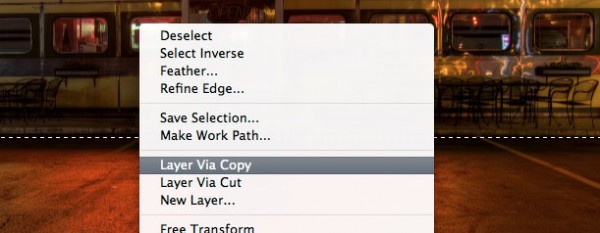
  • right click on the image and from the menu that pops up choose “layer via copy” (see Figure #2 below)
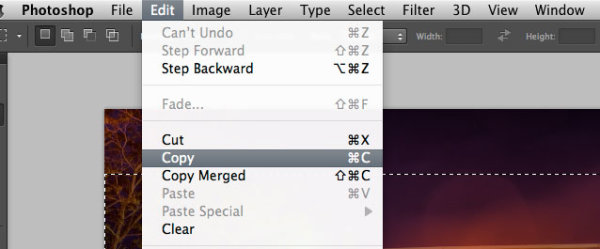
  • from the edit menu choose “copy” or using the keyboard shortcut “command/control+c”  (see Figure #3 below)
layer-via-copy2

Figure #2 right click>Layer Via Copy

Figure #3

Figure #3 Copy from Edit menu

STEP TWO – PASTE AS NEW LAYER

If you chose the “layer via copy” method above you already have the selection pasted as a new layer. If you haven’t already done that go ahead and paste either from the Edit>Paste menu option of the keyboard shortcut “command/control+v”. You will end up with something that looks like this, Figure #4 below.
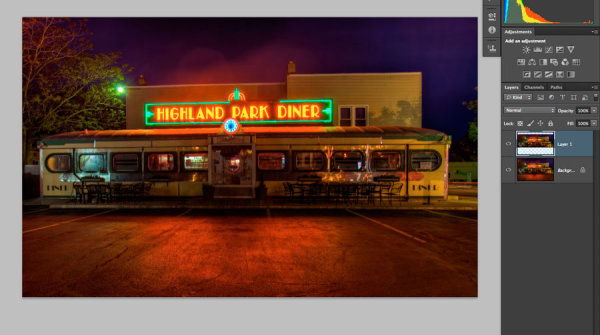
Figure #5

Figure #4 paste new layer

Doesn’t look much different right? Right! Because it’s basically on top of itself.  But look at your layers, it is there on a new layer and it only grabbed part of the image. Now the magic begins!

STEP THREE – FLIP IT

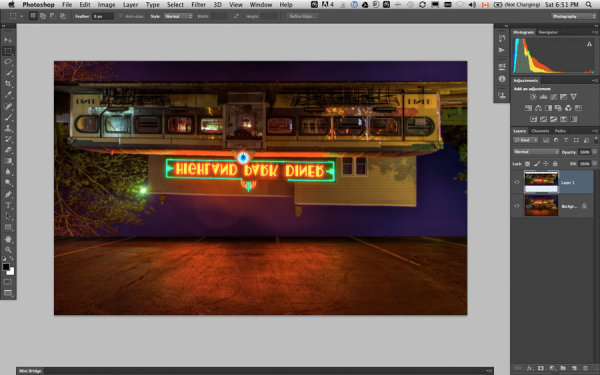
Next from your Edit menu choose “Edit>Transform>Flip vertical” to flip this new layer upside down. You should end up with something funny looking like Figure #5 below.
flip-layer

Figure #5 flip vertically

STEP FOUR – POSITION IT
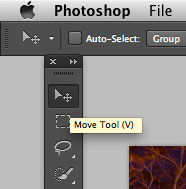
Figure #5 move tool

Figure #6 move tool

Next select your MOVE tool from your tool palette (see Figure #6 right – “v” is the keyboard shortcut) and grab the flipped layer and drag it down until the images start to line up where the reflection will begin. In my image I’m using the edge of the sidewalk in front of the diner. If it doesn’t line up perfectly don’t worry about it, you can mask any imperfect bits out later in step six.

Now you want to have something that looks like Figure #7 below. The reflection is in roughly the right position. Make sure you don’t move side to side, just down, otherwise you’ll have gaps on the edges of your reflection.

NOTE: once you’ve selected the Move Tool, you can also use the up and down arrows on your keyboard to move the layer up and down. This works great for smaller adjustments when you get it close to position.
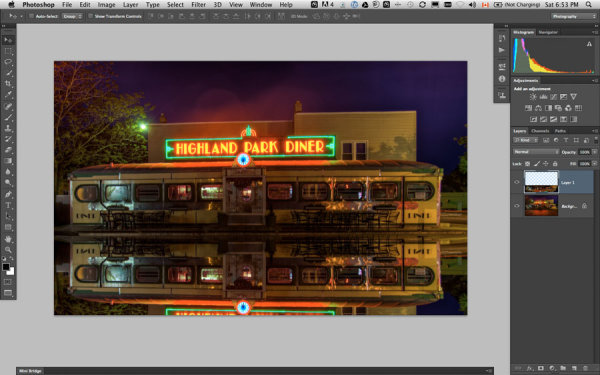
Figure #6

Figure #7 position the layer

STEP FIVE – CHANGE THE BLEND MODE
layer-blend-modes

Figure #8 Lighten blend modes

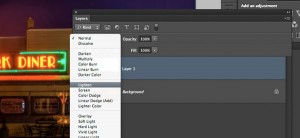
From your layers panel change the layer blend mode to one of the “lighten mode”.  You will find the layers blend modes near the top of your layers panel, next to “opacity”. By default the blend mode is “normal”.

The Lighten modes are the ones in the third section down (see Figure #8 right), they include: Lighten, Screen, Color Dodge, Linear Dodge, Lighter Color. Layer blend modes change how the selected layer interacts with the one below it (the original image). By selecting one of the options in this section it will only show areas of this layer that are lighter than the one below it, and any areas darker will not appear.  For reflections I usually choose Lighten or Screen, depends on the image. Try them all and choose the one that looks best for your image. For this example I’m using Screen mode.

Now I have something that looks a little closer to a real reflection  (see Figure #9 below).

Are you still with me!?  Do you have something reasonably similar?
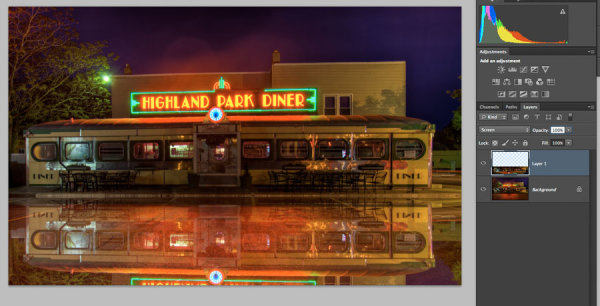
Figure #

Figure #9 change the layer blend mode

STEP SIX – MASK IT
add-layer-mask2

Figure #10 add a layer mask

Okay we’re almost done and it’s looking pretty good. But in my image the neon sign in the reflection is too bright. It doesn’t look natural because reflections are usually darker than the original – so we’re going to tone it down using a mask and the gradient tool.

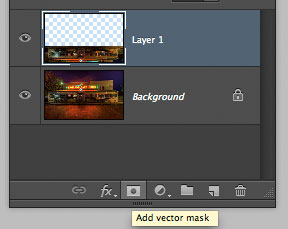
First, make a layer mask by clicking on the “add layer mask” icon at the bottom of your Layers Panel (Figure #10 right). You can also do it by going to the Layers menu>Layer mask>Reveal all.
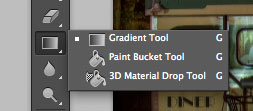
Figure #11 gradient tool
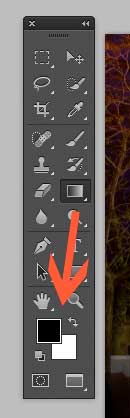
Figure #11 gradient tool

colors-foreground-background

Figure #12 foreground/background colors

Next select the Gradient tool from your tools panel. Keyboard shortcut is “g”  but make sure you have the gradient tool and not the paint bucket.  See Figure #11 above. Hit the “d” key on your keyboard to set your foreground/background colors to default, then hit “x” to switch them. Make sure you see black as your foreground color and white as the background color (see Figure #12 right).

Once you have your colors set to black and white, and your gradient tool selected and ready for use – make sure you are on the layer mask not the layer. You can tell because whatever is active has corner brackets around it. If you layer thumbnail is selected, just click on the white layer mask thumbnail to make it active. We need to make sure we are doing this on the mask, NOT the layer.

How masks work is that anything in white on the mask reveals the contents of the layer.  Where ever there is black on the mask it hides that area of the layer. So we want to hide the outer edges of this layer so it fades out gradually towards the bottom of the image and looks more natural.

With the gradient tool, by default it paints from the foreground color, to the background – fading from one to the other depending on how we create the gradient. Sometimes it takes a little experimenting to get it just right but you can always “undo” using the handy “command/control+z” shortcut on your keyboard and it goes back one step or undoes what you just applied.

NOTE:  ”undo” is your best friend in Photoshop, if you learn no other keyboard shortcuts, memorize this one!

So, to apply it to our reflection start with the cross hairs for the tool in the middle of your image, near the bottom.  TIP: holding the SHIFT key down will keep the gradient from applying at an angle, it will just go straight up. Click and drag the tool up (you’ll see a line drawing the gradient spread) and let go when you get near the top of your reflection. If it’s not exactly how you want it you may have to start a little more away from the bottom edge, or drag it up higher, or other variations.

NOTE: with the gradient tool on a mask you don’t actually even need to “undo” if you just drag another one overtop it replaces the first one. But it’s still good to know how to undo!

Here’s the image with my gradient applied to the layer mask.  Notice on the mask it goes from black to white? So it’s hiding the bottom area of this layer which is what we want. See Figure #13 below.
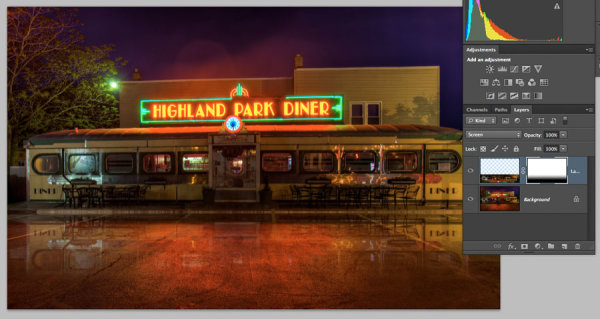
Figure #13 gradient applied to mask

Figure #13 gradient applied to the layer mask

OPTIONAL FINISHING TOUCHES

Now if you want to do any other masking to show or hide certain areas of the reflection just use your brush tool (“b” shortcut) at a lowered opacity (10-20%) and paint with black on the mask over areas you want to hide, and white on areas you want to show.  In this image I painted over the edges of the diner where I felt it was still a bit too bright. You can also change the opacity of your layer to adjust it that way too.

SeeFigure #14 below for my final version. Notice my mask where I painted a little up the sides to hide those areas just a little bit more.  You could also paint away a little in the middle of the reflection where the pavement is the darkest if you wanted. That’s the neat thing about photography – it’s all subjective!

It’s really easy to get upset or hurt feelings when someone else says something that we perceive as negative about one of our images, something we put blood, sweat and tears into, right!?   Well my personal opinion is that it is just their opinion, one person, and you don’t have to agree with them. If they have a valid, or constructive criticism YOU get to decide if you want to take it on board or, just agree to disagree and move on. Life is too short to worry about pleasing other people.

Do photography for you!  If other people like it, then great!

If not, oh well!  Move along and life goes on.
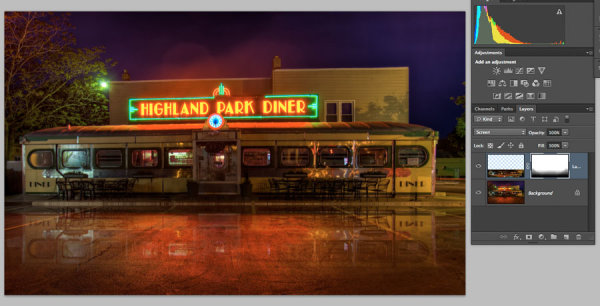
Figure #14

Figure #14

OKAY YOUR TURN!

So, think you can do this? Give it a try!

Here is my image to play with, in case you don’t have one that will work.  It’s 2000 pixels wide which is plenty big enough for this test.

Download diner image – just click on this link and save the image that opens in a new tab.

A few trivial things FYI about this image:

  • it was taken in Rochester, NY, USA when I was in the area and visited Eastman Kodak House. If you’re ever there, do go, it’s worth the trip to see where photography took roots and grew
  • it is a 5 image HDR, tone mapped in Photomatix and finished using LR4
  • during the longest exposure of my bracketed series a kid on a skateboard, carrying a goldfish in a bag skated right through the parking lot in front of me. Why didn’t he show up? Because my exposure was 30 seconds long and if you aren’t there for more than 1/2 the time you will not appear.

Okay, off you go and let’s see your results! 

Cheers Darlene


Post originally from: Digital Photography Tips.

Check out our more Photography Tips at Photography Tips for Beginners, Portrait Photography Tips and Wedding Photography Tips.

How to create a reflection in Photoshop in 6 easy steps


Digital Photography School

 
Comments Off on How to create a reflection in Photoshop in 6 easy steps

Posted in Photography


10 Photo Editing Programs (that aren’t Photoshop)

18 May

corel.jpg

Adobe Photoshop has become ubiquitous since its introduction more than 20 years ago, but it isn’t the only game in town. In this article, we’ve selected 10 photo editing programs that aren’t all as well-known as Photoshop, but which are well worth investigating if you’re looking for other options. Click through for a link to the full article. 

News: Digital Photography Review (dpreview.com)

 
Comments Off on 10 Photo Editing Programs (that aren’t Photoshop)

Posted in Uncategorized


Light Painting Part Two – Photoshop

13 May

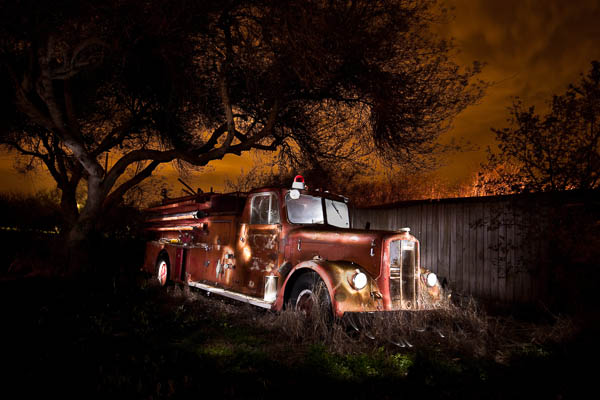
"1956 Le France Pumper"

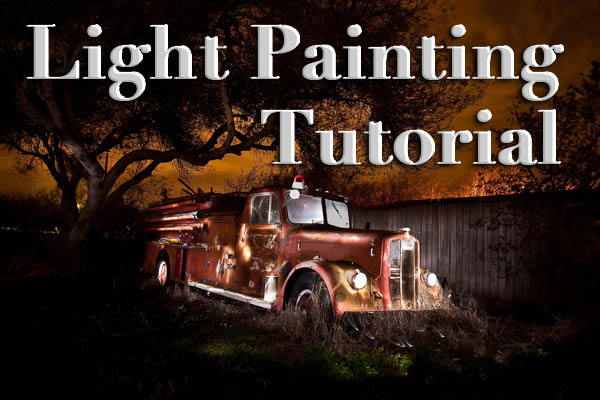
In Part One of  the Light Painting Tutorial I went over how to do the photography part: equipment, camera settings, set up, lighting, potential pitfalls, and step by step instruction on how to do light painting shots.  In this article Part Two, we’re going to take a look at how to combine multiple exposures in Photoshop.

WHAT YOU’LL LEARN IN THIS TUTORIAL

  • how to create one big layered file of all your images
  • what layer settings to use to “turn the lights on” with each added image
  • how to get rid of any unwanted areas of each image
  • how to easily “dim the lights” on any shots that were too bright
  • saving your final combined image as a masterpiece

Combining images in Photoshop is surprisingly quick and easy

What you need to do this:

  • a series of images of the same subject, shot with the same angle of view (you didn’t move the tripod), with each image lit just a little differently
  • Photoshop (CS or Elements) or some other photo editor that uses layers
  • a basic knowledge of how to use layers, blend modes and masking in your photo editor
  • a computer with good memory and speed – creating multi-layered documents can sometimes slow down your computer if you have an old processor, not enough RAM (put as much in as your computer will hold, I have 6gb and want more but I’m maxed on my 6 year old MacBookPro) or your hard drive is overly full (you want your hard drive never to go over 75% full max, otherwise it will bog down).

Note: if your computer is slow you may not need a new one: just upgrade your RAM and get a bigger hard drive or empty a bunch of stuff off and see if that helps.

STEP ONE OPENING YOUR FILES AS LAYERS

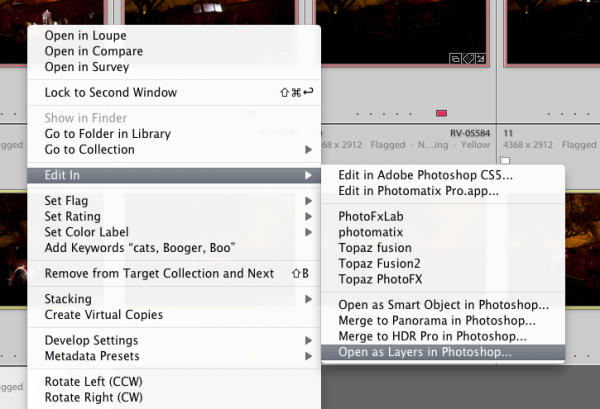
If you are using Adobe Lightroom, you can open your original files directly from Lightroom into Photoshop (wherever I mention Photoshop you can use CS, Elements or your usual editor that has layers capabilities). I do find however that if you are shooting Raw opening 12 or more Raw files into Photoshop really tends to bog it down. So in this case I have exported JPGs first and then opened those into Photoshop. If you are opening from Lightroom directly follow these steps:

  • select all the images of your scene so they are highlighted
  • right click on one of the thumbnails
  • from the pop up menu choose “Edit in” and then “Open as layers in Photoshop” like shown below in Figure #1
open-as-layers-from-LR-to-PS

Figure #1

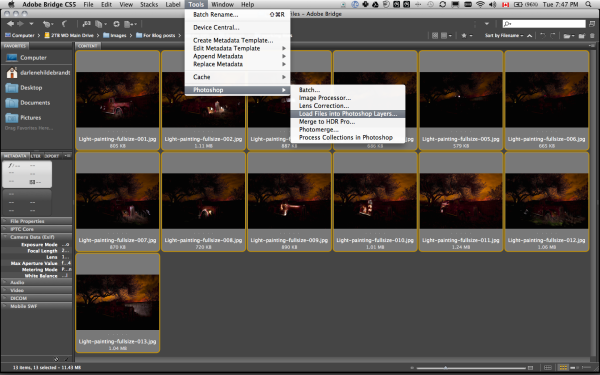
If you are using Photoshop you will follow almost the same steps using Bridge (or the mini browser where you can see your thumbnails)

  • select all the images of your scene so they are highlighted
  • go to the Tools menu
  • select Photoshop > Load files into Photoshop layers (as shown below in Figure #2)
Open as layers from Bridge

Figure #2

STEP TWO ALIGNING THE LAYERS

Once you have all your files opened as layers into one document in Photoshop you want to make sure they are perfectly aligned.  If you used a tripod and it didn’t move they should be pretty close, but we want to make sure they are perfect. Follow these steps:

eyeball-icon

Figure #3

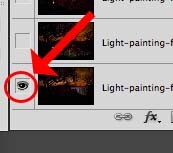
  • Turn on just your bottom layer by clicking and holding the Option or Alt key on your keyboard, then clicking on the little eyeball icon (next to the thumbnail of the layer) of the bottom layer. That will make that one active and hide all the others. (See Figure #3 right)
  • Next one by one turn on each layer by clicking the eyeball next to them. If you notice that any of the images seem to jump a bit as you do that, you’ll want to run an alignment. If not but you just want to be sure anyway, continue on to the next step
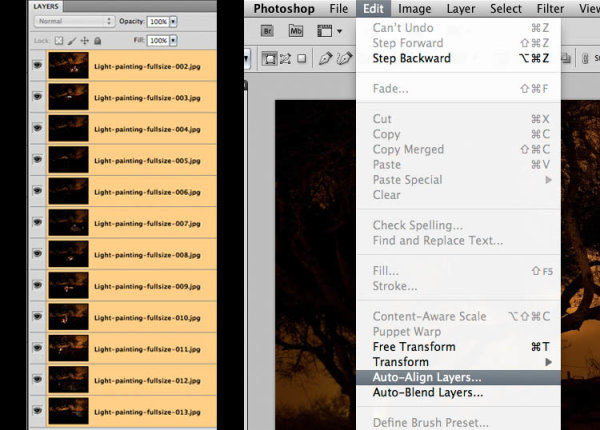
  • Select all your layers, click the bottom thumbnail, then shift>click the top one so all layers are highlighted (as shown below in Figure #4 below)
  • Align the layers by going to the Edit Menu> Auto align layers (see Figure #5 below) and just choose the auto method from the pop up box. If it adjusts any of the layers you may have to crop the result to get rid of any odd edges.
Figure #4 left - Figure #5 right

Figure #4 left – Figure #5 right

STEP THREE BLENDING THE LAYERS

Now that your images are aligned perfectly we’re ready to do some magic!  In this section we’re going to “turn on the lights” from each image one by one. Here’s how:

Rename darkest image, put it as bottom layer

Figure #6

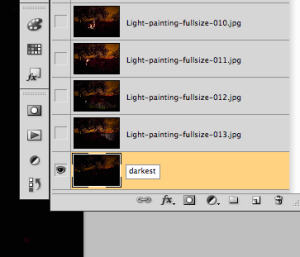
  • find your darkest image by going through each layer one at at time.  This should be the image you shot before you added light with your flashlight. The base image you created in Part One of the Light Painting Tutorial.  
  • drag the layer with your darkest image to the bottom of your layers panel.  Just grab the thumbnail for the layer and drag and drop it below the bottom one.  You can rename that layer “darkest” if you like by double clicking on the layer name and typing in your new one. See Figure #6 right.
  • turn on the layer just above the bottom one and make it your selected layer – use the eyeball icon, they should all be turned off except your “darkest” layer and the one above it now
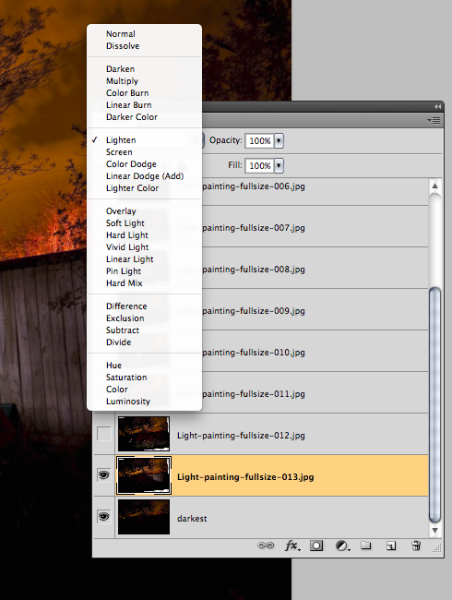
  • change the blend mode of the selected layer to “lighten” – you do this by going up to the pull down menu in the upper left corner of your layers palette, right under the tab that says “Layers” and to the left of where it says “Opacity”. See Figure #7 below.
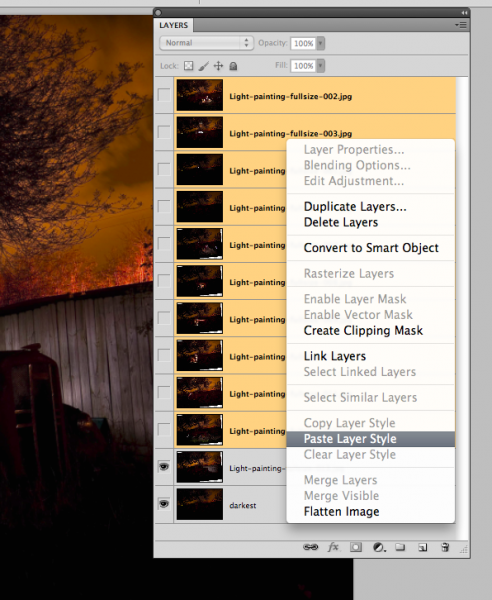
  • copy the layer style – right click on the layer itself and choose “copy layer style”
  • change the blend mode of all other layers to lighten – select all other layers, right click and choose “paste layer style”. That is the only way I know of to change them all quickly without having to do them individually, one by one. See Figure #8 below.
Figure #7

Figure #7

Figure #8

Figure #8

TURNING ON THE LIGHTS

Now if you click on each of the Eyeball icons for the layers above, you will see the lights turn on in the different spots you painted in each exposure. In the example of the firetruck here are a few views of the overall image as I turn on a layer above one at a time.

lights-on

REVIEW AND REFINING THE IMAGE

I’ve skipped a couple here, but you get the idea. Notice how as I turn each subsequent layer on a new part of the truck is magically lit up. There are a few issues however, as it’s never, or rarely perfect right out of the camera. But we can fix those things easily too using layer masks. Do you notice the following issues in the image above?

  • a few stray light bugs in places we don’t want them (on the fence to the right of the truck)
  • the sky got overly bright as well (caused by some of the exposures being longer than the “darkest” base layer)
  • there are some double images of the tree branches in a few places (caused by wind and the tree moving from one exposure to the next)

To fix any issues and clean up the image follow these steps:

Figure #9

Figure #9

  • turn on just the bottom layer again (alt/option click the eyeball for that layer)
  • turn on each layer one at a time, let’s do the one above the bottom one first
  • review the image and look for any issues such as – areas that got too light, stray light bugs, your body showed up in the photo, etc.
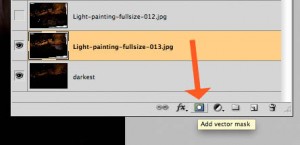
  • create a layer mask by clicking on the “layer mask icon” in the bottom of the layers panel. See Figure #9 right.  ***Important to note: you can do this two ways. Just clicking it directly will create a mask that shows the whole layer (mask will be white).  Alt/option clicking on it will make the layer hidden or “masked” (mask will be black). If you only have a few issues to “paint out” use the direct click method.  But if you have a lot of issues you need to paint out, I suggest using the second method so the mask hides the layer and then you just paint in the good areas. Either way you’ll get the same result just with less painting or adjustments needed so choose the method that is best for each layer.***
  • mask-selected

    Figure #10

  • paint on the mask to show or hide the parts you want – TIPS: hit the “D” key on your keyboard, that will set your swatches to the default black/white for foreground and background colors. Then hit “B” to get your brush tool. Select a soft edge brush so you don’t get a harsh line where you paint on the mask. Paint at 100% using Black to over areas you want to hide and switch to white for areas you want to show. To switch the foreground/background colors back and forth use the X key. Here’s what it looks like – make sure you are painting ON the mask not the image. You’ll be able to tell because there will be little corner markers around the mask and not the layer thumbnail. See Figure #10 right.
  • repeat for each layer – turn it on, add a layer mask, paint to hide and show the areas you want. TIP: if you want to see what it looks like without the layer mask (especially useful if you are using a black mask and painting IN areas you want to show), hold SHIFT and click on the mask itself. A red X will appear and the mask is just disable. Do the same to turn it back on. 
  • if any of your images appear too bright you can tone them down by simply lowering the opacity of that layer, or by painting over the parts that are too bright with the layer mask to partially hide them (just set your paintbrush opacity to 20% and brush over that area gently)

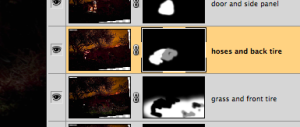
This is what my layers look like with the masks added and areas painted to show only the bits I want from each exposure. Remember to save your file in two formats:  PSD to preserve all the layers, and a final JPG you can use for printing or sharing online (you may have to make a smaller one for email sharing).

all-layers

SUMMARY AND REVIEW

Okay so it seems like a lot of steps but once you get the hang of it, then it really doesn’t take that long to make something you can wow your friends with. They’ll be asking you “how’d you do that?!” in no time! Let’s take a look at the steps in short form again:

  • open your files as layers into one document
  • align the layers in perfect registration
  • change the layer blend modes to “lighten” (all except the bottom layer)
  • add a layer mask to each layer and paint in areas you want, or hide areas you don’t want to appear in the final image
  • save as a layered PSD file
  • flatten and save again as a JPG (full resolution, no compression)

I hope you enjoyed this two part series, once again here is the final image.

"1956 Le France Pumper" Corpus Christi, Texas

“1956 Le France Pumper” Corpus Christi, Texas

Post originally from: Digital Photography Tips.

Check out our more Photography Tips at Photography Tips for Beginners, Portrait Photography Tips and Wedding Photography Tips.

Light Painting Part Two – Photoshop


Digital Photography School
 
Comments Off on Light Painting Part Two – Photoshop

Posted in Photography


Adobe Photoshop CC: What it means for photographers

08 May

shared:AdobeLogo.png

Yesterday’s announcement by Adobe that it will cease ‘perpetual license’ sales of Photoshop and its Creative Suite counterparts has generated considerable backlash here on dpreview and across the web. With such a significant change in store, we spoke today with Adobe VP of Creative Solutions, Winston Hendrickson for his response to the uproar.

News: Digital Photography Review (dpreview.com)

 
Comments Off on Adobe Photoshop CC: What it means for photographers

Posted in Uncategorized


Next Version of Adobe Photoshop to Be Branded Photoshop CC, Includes Awesome New Motion Blur Sharpening Tool

07 May

Today Adobe announced a new branding of their flagship Photoshop product to be released later this year, Photoshop CC. The new version will only be available via a monthly subscription to Adobe’s Creative Cloud and will not be sold as a traditional boxed application that consumers can purchase.

Probably the most anticipated new feature in the next iteration of Photoshop is a revolutionary new image sharpening tool that focuses on fixing camera shake issues.

The new tool analyzes images that are out of focus due to the slight movement or motion that takes place while a shutter is open. There are lots of reasons why photographers may find camera shake in their images. Many images shot slower than about 125th of a second are susceptible to camera shake unless you’re on a tripod or have a very steady hand. Telephoto shots, especially can be problematic.

With the new version of Photoshop CC, Adobe uses an algorithm to try and detect which direction the camera was moving that produced the shake. They then try to account for the movement back into the direction of a steady image without camera shake. This new sharpening tool won’t help you with other types of focal blur issues, like lens position, but it does address a fairly common issue dealt with by photographers.

Adobe had previously offered a sneak peak of this new technology in a video that they posted to Youtube. Watch the video and you’ll be impressed.

What makes this interesting to me is that there are a lot of old images that I’ve taken in the past that now will suddenly become salvageable.

This new technology advancement should be yet another reminder to photographers why they should save ALL of their images, even the bad ones that they don’t think they can use. With technology advancements in image processing, I’m finding more and more images that I’d previously dismissed due to problems. Whether previous Adobe noise reduction tech or newer tech like this new sharpening tool, it pays to save all of your images no matter what. Storage is cheap and you never know when you may need that image that you never knew you needed at the time. Even years after you are dead, those images may be important to someone, somewhere for some reason.

While the camera shake feature is the sizzle of the new Photoshop upgrade, there are several other enhancements they have made to the program as well including, smart Sharpen (new technology promising more realistic sharpening without halos or noise) and new upsampling tech (this helps make your photos look better when you make them larger than you processed them).

The biggest news though is Adobe’s moving Photoshop 100% into the Cloud and 100% by subscription. You’ll still be able to purchase Photoshop CS for the time being, but it won’t have the new features available in CC.

Pricing varies by type of customer but starts at $ 49.99 a month per person for individuals. Existing Creative Suite customers, students, and teachers will get a discount to $ 29.99 a month. Creative Cloud has a lot more applications than just Photoshop and also includes Lightroom and a whole suite of other Adobe Creative applications. It also includes integration with Behance, a portfolio site for creatives that Adobe recently purchased.


Thomas Hawk Digital Connection

 
Comments Off on Next Version of Adobe Photoshop to Be Branded Photoshop CC, Includes Awesome New Motion Blur Sharpening Tool

Posted in Photography


Adobe moves to subscription-only future for Photoshop and other creative tools

07 May

shared:AdobeLogo.png

Adobe has said it will no longer be developing its Creative Suite range of software, leaving its subscription and cloud-based Creative Cloud as the only way of accessing the latest version of Photoshop. Adobe has been trying to encourage users away from the traditional one-off payment licenses and on to a monthly payment model, with features such as online storage and syncing between devices. This latest move ups the ante by making it the only option for future versions of the software.

News: Digital Photography Review (dpreview.com)

 
Comments Off on Adobe moves to subscription-only future for Photoshop and other creative tools

Posted in Uncategorized


Adobe announces Creative Cloud update with new Photoshop tools

06 May

shared:AdobeLogo.png

Adobe has updated its suite of Creative Cloud software, with the latest versions rebranded with the appendage ‘CC’. Adobe Photoshop CC highlights include the Camera Shake Reduction tool that Adobe demoed earlier this year, and the ability to apply Camera Raw as a filter to any raster, vector or video layer. Creative Cloud members can now sync their Photoshop preferences across multiple devices. Click to read about these and other Photoshop CC features.

News: Digital Photography Review (dpreview.com)

 
Comments Off on Adobe announces Creative Cloud update with new Photoshop tools

Posted in Uncategorized