RSS
 

Posts Tagged ‘Photoshop’

12 Tips for Mastering the Clone Stamp Tool in Photoshop

29 Apr
Clone Stamp Tool - Opera Garnier shot

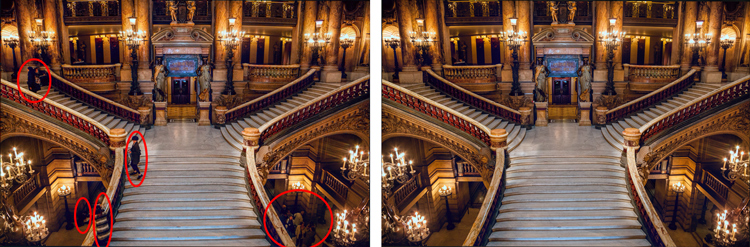
You will not often find the stairs of Opera Garnier in Paris free of people, so you will need to put the Clone Stamp tool to work to remove the people if you want a clean picture. This applies at many other tourist destinations as well.

There are a lot of good post-processing tools available for making minor edits to your photos. Within Photoshop, there are the Healing Brush and the Spot Healing Brush tools. Lightroom now has its own healing brush. Those are great for minor edits to your photos like removing spots or power lines. When it comes time for serious, intensive surgery on your photos, however, there is no substitute for the Clone Stamp tool. You will only find this in Photoshop and Photoshop Elements, there is no Lightroom substitute.

Getting started with the Clone Stamp tool is simple. You just have to tell Photoshop two things: (1) where you want to replace the pixels (target area), and (2) from where Photoshop should take the pixels to use as replacements (s0urce area). To use the Clone Stamp tool, just follow these steps:

  1. Select the Clone Stamp tool from the tool bar on the left side of your screen (you can also use the keyboard shortcut S). Once selected, set the brush size and hardness.
  2. Put your cursor in the area where you want to change the pixels.
  3. Select the source area: Press the Alt key (your cursor will now become a target) and move your cursor to the location where you want to take pixels from (source area). Click your mouse in that location.
  4. Paint in the target area: Release the Alt key and move your mouse back to the original location. Hold down the mouse button and paint in the pixels from the location you chose.

That is a simple process, but if you have used the Clone Stamp tool you realize that there is a lot more involved if you want to master it. This article will provide you with some tips to move you along the road towards conquering this important tool in Photoshop.

#1 – Work on a New Layer

First, always create a new layer before making changes with the Clone Stamp tool. Any changes you make should be made on the new layer. You can flatten the image when you’re done.

Why should you do this? There are many reasons. First of all, it is non-destructive – meaning you are not changing the underlying pixels of your image. In addition, when you use a layer, you can delete it if you don’t like where the changes are going. You can also create a mask if there are portions of the changes that you decide later you do not want. Finally, you can target adjustments to just the cloned areas if they are on a new layer (as will be shown below).

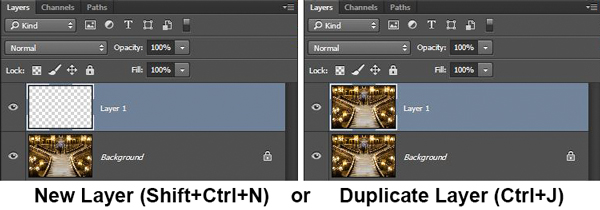
Creating a new layer is easy; simply press Ctrl+J (Cmd+J on Mac) to create a duplicate. You can also press Shift+Ctrl+N (Shift+Cmd+N on Mac) to create a new blank layer, but if you do so, make sure that you have “All Layers” selected as your source in the Clone Stamp Tool settings.
Clone Stamp Tool - Work on a New Layer

I prefer working on a new layer (as opposed to a duplicate layer) but either way will work.

#2 – Zoom in (way in)

When working with the Clone Stamp tool, zoom in on the area you are working on. In fact, zoom way in (to 100% even). That will help isolate the area you are working on, and importantly, it will also allow you to work at a much greater level of detail than you otherwise would. Make your changes look as good as you can at this higher level of detail, then when you zoom back out, the changes will be indistinguishable (which is what you want).

A shortcut for zooming quickly is to hold the Alt key with your left hand while using the scroll wheel on your mouse to zoom in and out (or use Cntrl/Cmd and the + or – key on the keyboard). That will allow you to move in and out quickly.

#3 – Set Your Brush Size Quickly

You will change your brush size often when working with the Clone Stamp tool. You should do this often to make sure that your brush size is tailored to the change you are making. Changing the size through the Brushes panel is cumbersome. Instead, use the keyboard shortcuts for changing brush size:

  • Left bracket [ makes brush smaller
  • Right bracket ] makes brush larger

Using these keys will allow you to rapidly tailor your brush to the specific circumstance.

#4 – Set the Proper Brush Hardness

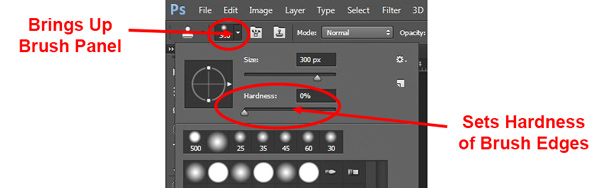
The Clone Stamp brush’s edges can be set to whatever hardness you desire. Hardness determines the level to which the cloning will blend in with the surrounding pixels. If you set the hardness level more toward 100%, the edges will be hard and definite. If you set the hardness more toward 0%, the edge will blend in with the surroundings.
Clone Stamp Tool - Setting Hardness of Brush

In general, keep the hardness level at 0%. That will help you seamlessly blend in the effect. There will be times, however, where you are working near a defined edge, in which case you should increase the hardness. Even then around 50% will usually do. Setting the hardness any higher creates harsh transitions that are dead giveaways to your use of the Clone Stamp tool.

#5 – Clone Without Adjustments

Do your cloning before making other adjustments to contrast, color and other changes often made via adjustment layers in Photoshop. If you use the Clone Stamp tool after creating those layers, you are baking the changes permanently into your picture when you clone.

Clone Stamp Tool - Adjustments

However, in some cases you will have already made changes on an adjustment layer, and you need to decide whether your cloning should include those adjustments. Photoshop lets you decide whether to include those changes in your cloning. After you have selected the Clone Stamp tool, the top row of your screen will include a circle with a line through it (see graphic above). Photoshop defaults to applying the changes of any adjustment layers, but if you click on this icon, Photoshop will ignore any adjustment layers when cloning.

#6 – Grab the Low Hanging Fruit

Most of the time your pictures will have some easy items to clone out, as well as some harder things. Clone out the easy ones first. In addition to giving you confidence in the tool, this will also help you when the time comes to make the hard changes.

How will that help you? Remember that you need clear space from which to draw pixels when using the Clone Stamp tool. By making the easy changes first, you are doing just that so you can draw replacement pixels and will make your job easier when it comes time for the harder, more in-depth changes.

#7 – Watch for Patterns

Sometimes you want to include patterns in your cloning. In that case, when selecting pixels from which to draw, try to find patterns in your picture that match the area you are replacing. For example, if the background is a building, look for a similar building. Then make them match (which will be the subject of the next tip).
Clone Stamp Tool - removing distractions without creating a pattern

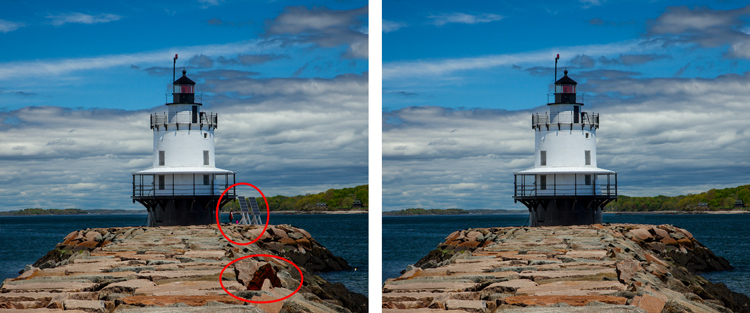
Here is a different example to show the Clone Stamp tool in another context. The right side of this image was filled with distractions, but the Clone Stamp tool eliminates them. Be careful that you do not create patterns by using pixels immediately adjacent, or it will give away your use of the Clone Stamp tool

But many times you will not want there to be any discernible patterns in your cloning. Usually a pattern is a dead giveaway to your having cloned something out. In that case, the way to ensure that there will be no patterns is to keep resetting your source point. Sample from one area and clone one part, then sample from another area – repeat frequently. Keep doing that to blend everything together without repeating a pattern.

#8 – Follow the Lines

A key to successful use of the Clone Stamp tool is making all the lines in your picture match. Even slight deviations look fake and destroy the effect you are trying to achieve. For example, in a landscape setting make the edges of tree branches match up. In an urban context, follow lines in buildings such as roof lines, doorways, and patterns on the ground.

When you are using the Clone Stamp tool, start with the lines and then let the rest of the pixels fall where they may. After that, if you need to go back over other areas, you can do so.
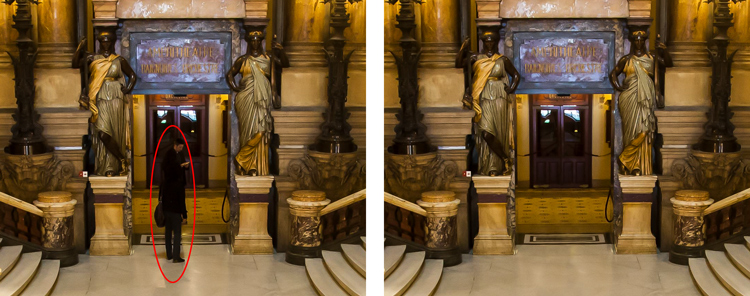
Here I've zoomed in on a portion of another shot of the Opera Garnier. Use the patterns on the floor and door to recreate the space where you clone over the people.

Here I’ve zoomed in on a portion of another shot of the Opera Garnier. Use the patterns on the floor and door to recreate the space where you clone over the people.

#9 – Avoid Selecting from Adjacent Areas

As previously mentioned, a dead giveaway of Clone Stamp tool usage is repetition. The Clone Stamp tool is all about repetition – you just need to do it in such a way that the viewer doesn’t notice it. If you draw pixels from an immediately adjacent area, you are risking the viewer noticing the repetition. Take the pixels from somewhere else in the picture instead.

Inadvertently creating a pattern is an easy trap to fall into because the immediately adjacent areas usually are the closest in color and tone to the area you want to replace. As you move further away, tones and colors change so that the pixels get harder to match. Working hard to find a way to use pixels from somewhere else in your picture will pay dividends because the viewer won’t see the repetition.

#10 – Muddle Through (accept the messiness)

By now you have fixed all the easy areas in your picture and you’re ready to tackle a bigger problem. It might be a crowd of people or a car that entered your frame, but it is a large area of your picture. This is the scary part of using the Clone Stamp tool.

The key is to just dive in. Don’t try to figure it all out beforehand (you never will). You can do this in a couple of different ways:

  1. Go big first: Set your brush a little larger than you might otherwise use and just replace the entire area in one fell swoop (and then clean up with a smaller brush), or
  2. Go small and steady: Stick with the smaller brush and paint in gradually, but the key is to keep going. Remember that you can go over it again. Whatever you are doing, while it is probably not perfect, will undoubtedly look better than what you started with.

The key thing is just to do it. There is a tendency to freeze up and plot the entire change before doing anything, which causes you to stare at the computer screen for long periods of time.

Remember, you can always undo what you’ve done (Ctrl/Cmd+Z). In addition, because you followed tip #1 above and are working on a new layer, you can always mask this area off or delete it if it isn’t heading in the direction you want.

#11 – Use the Mirror Function

You can affect a lot of settings involving the Clone Stamp tool in the Clone Source panel (to see it, go to Window and then click on Clone Source). For instance, you can change the shape of the brush or the angle of the replacement pixels.

One of the most useful features in the Cone Source panel is the flip-horizontal option in the middle of the panel. If you click on it, the pixels will be replaced in the opposite horizontal direction as the source. This can be extremely useful in many instances since often you will be dealing with a symmetrical subject where you can now draw from the other side.
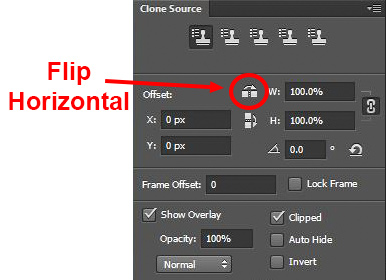
Clone Stamp Tool - Flip Horizontal setting

A typical example where you might want to use the flip horizontal option is where something covers one side of a doorway or window that you want to remove. By clicking on flip-horizontal, you can use the other side of the doorway or window as your source. Take another look at the Opera Garnier examples above and you will see how the flip horizontal tool would be used quite frequently whenever your picture contains any symmetry (I used this feature in those pictures quite a bit).

#12 – Change the Cloned Areas with Adjustment Layers

Sometimes your cloned areas just won’t look exactly like the surrounding areas. Perhaps it is too bright or too dark, or perhaps the colors are just off a little bit. You can fix it without affecting the surrounding pixels.
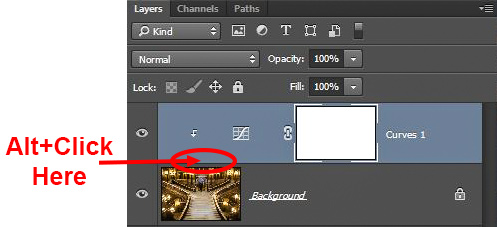
Clone Stamp Tool - tying adjustment layers

One of the great benefits of working on layers is that you can create adjustment layers that affect only the areas you just cloned. Simply create a new adjustment layer (levels, curves, or hue/saturation), which will appear above your cloning layer. Then hold down the Alt key and click at the bottom of the adjustment layer (you will see your cursor change). Doing so will apply the changes of the adjustment layer only to the layer below it.

Conclusion

Remember that using the Clone Stamp tool can be a messy process. Don’t worry if you find yourself having to redo changes or make things up as you go. There is no magical “clean” process. One of the fun parts about the cloning process is the problem-solving that goes into it. Take your time and just keep moving. You can always redo your changes or, if you are working in layers, get rid of them without losing the rest of your work.

The Clone Stamp tool will save more pictures than almost any other tool in your post-processing. If you master it, you can remove almost anything in your pictures that you do not want.

googletag.cmd.push(function() {
tablet_slots.push( googletag.defineSlot( “/1005424/_dPSv4_tab-all-article-bottom_(300×250)”, [300, 250], “pb-ad-78623” ).addService( googletag.pubads() ) ); } );

googletag.cmd.push(function() {
mobile_slots.push( googletag.defineSlot( “/1005424/_dPSv4_mob-all-article-bottom_(300×250)”, [300, 250], “pb-ad-78158” ).addService( googletag.pubads() ) ); } );

The post 12 Tips for Mastering the Clone Stamp Tool in Photoshop by Jim Hamel appeared first on Digital Photography School.

Digital Photography School

 
Comments Off on 12 Tips for Mastering the Clone Stamp Tool in Photoshop

Posted in Photography


How to do Frequency Separation Portrait Retouching in Photoshop

27 Apr
The goal of portrait retouching is to bring out the most naturally pleasing image of the subject. This image is the finished result of Frequency Separation Retouching in Photoshop.

The goal of portrait retouching is to bring out the most naturally pleasing image of the subject. This image is the finished result of Frequency Separation Retouching in Photoshop.

Portrait retouching may be accomplished using many different methods. Still, how often have you seen a portrait image that has been retouched to the point that the subject’s face looks unnatural? Even many of the software packages available for portrait retouching result in an airbrushed effect to skin tones.

What if the detail and color of a portrait could be separated for retouching? Frequency Separation Retouching will allow you to do just that! It will allow you to fix all the usual facial issues like removing wrinkles, bags under eyes, and blemishes. By dividing your image into two separate frequency layers, one layer being high frequency digital data, which contains the information of detail in the image, and a low frequency layer which contains the tonal and color information of the image.  However, the neat thing with Frequency Separation Retouching is that it allows you to make these corrections and retain the natural textures of the skin. By separating the colors and the details you can work on one aspect without affecting the other. Sure, some people will prefer the usual retouching methods, including airbrushing, but Frequency Separation Retouching gives you another option to use for enhancing your portraits. If you have a working knowledge of Photoshop, here’s how to get started:

Setup

#1 Make two copies of the background layer

In Photoshop, open your image, then make two copies of the background layer. Label the first layer “color” as this will be your low frequency layer, then name the second layer “detail” to become your high frequency layer.

#2 Apply a blur to the color layer

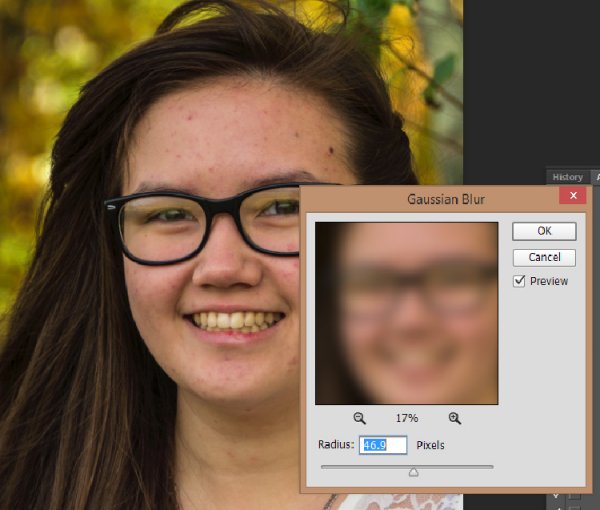
Turn off the detail layer and select the color layer. Apply a Gaussian Blur (found under the Filter menu>Blur) to a setting that blurs all the detail of the image, but leaves features intact (see sample below). This setting will vary from one image to another depending of the size of the image.

3-7-2015-2-21-56-PM750

#3 Setup the detail layer

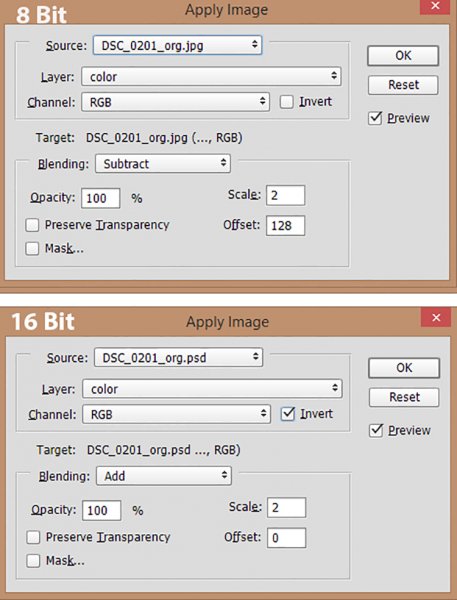
Turn the detail layer back on and select it, then go to Apply Image under the Image tab. Depending on which color depth you are working with, 8 bit or 16 bit, see settings below for Apply Image.

apply-image3Set your Layer to color. For 8 bit images set the Blending to Subtract, Scale to 2 and Offset. For 16 bit images set the Blending to Add, Scale to 2, Offset to 0 and check the Invert box.

Set your Layer to color. For 8 bit images set the Blending to Subtract, Scale to 2 and Offset. For 16 bit images set the Blending to Add, Scale to 2, Offset to 0 and check the Invert box.

  1. Change the blending mode of the detail layer to Linear Light.
  2. Create a layer group, and drag the color and detail layers into the new layer group.

Once you get the hang of this setup, it’s easy to make a Photoshop action to take care of these steps with one click. Download my Photoshop action for the setup HERE (the file is zipped, just unzip and load into Photoshop)

Now you’re ready to start the fun part!

Retouch the Color layer

By retouching the color layer, you are going to even out all the color tones of your subject’s complexion and to remove dark and light areas.

Clone Tool – the Clone tool can be used to even out the color tones or experiment with different blending modes. Normal, Darken and Lighten are very good effect modes to use on the color layer. You may also need to adjust the opacity (the degree of transparency) of these blending modes.

Dodge and Burn Tools are a couple of other useful tools to even out dark and light tones of the skin tones.

As with almost any Photoshop function, there are various ways to get the results you desire. The tools mentioned above are good starting points for working on the color layer, but the possibilities are endless! Don’t be afraid to experiment.

Retouch the Detail layer

Click on the Detail layer, which contains every detail of your portrait image. There are a wide variety of tools you can use to fix skin imperfections, ranging from wrinkles to acne.

Clone Tool – Use the Clone tool with mode set to normal and just clone out imperfections, sampling (ALT/OPT key click) from a desirable area to paint over an imperfection in another area.

Healing Brush Tool –  The Healing Brush tool works similarly to the Clone tool and will sample textures from nearby areas to make a seamless patch.

Spot Healing Brush –  Spot Healing Brush works similarly to the Clone tool and Healing brush, but does not require you to sample a source area. It will automatically sample from another area to repair the target imperfection. Use the adjustable brush sizes to paint over spots and remove them.

Patch Tool – Like the Healing tool, the Patch tool will match the texture of the near-by area for a seamless repair. Make a selection over the area to be repaired and drag the selection over a good area. For best results work on small areas at a time.

Content-Aware Patch –  Similar to the Patch Tool, but with the Content-Aware Patch you select a good area and drag it over area to be repaired, and the tool will match the texture.

After image

After image

Once you have finished retouching the color and detail layers of your image, you can simply turn off the layer group to see the before and after of your work. (This is also a handy review tactic as you are working, to see how your adjustments are affecting the image.) Because all the retouching you have done are applied to the two new layers, it is completely non-destructive to the original image.  So, if you are unhappy with your first results, you can simply delete the retouched group and start over.

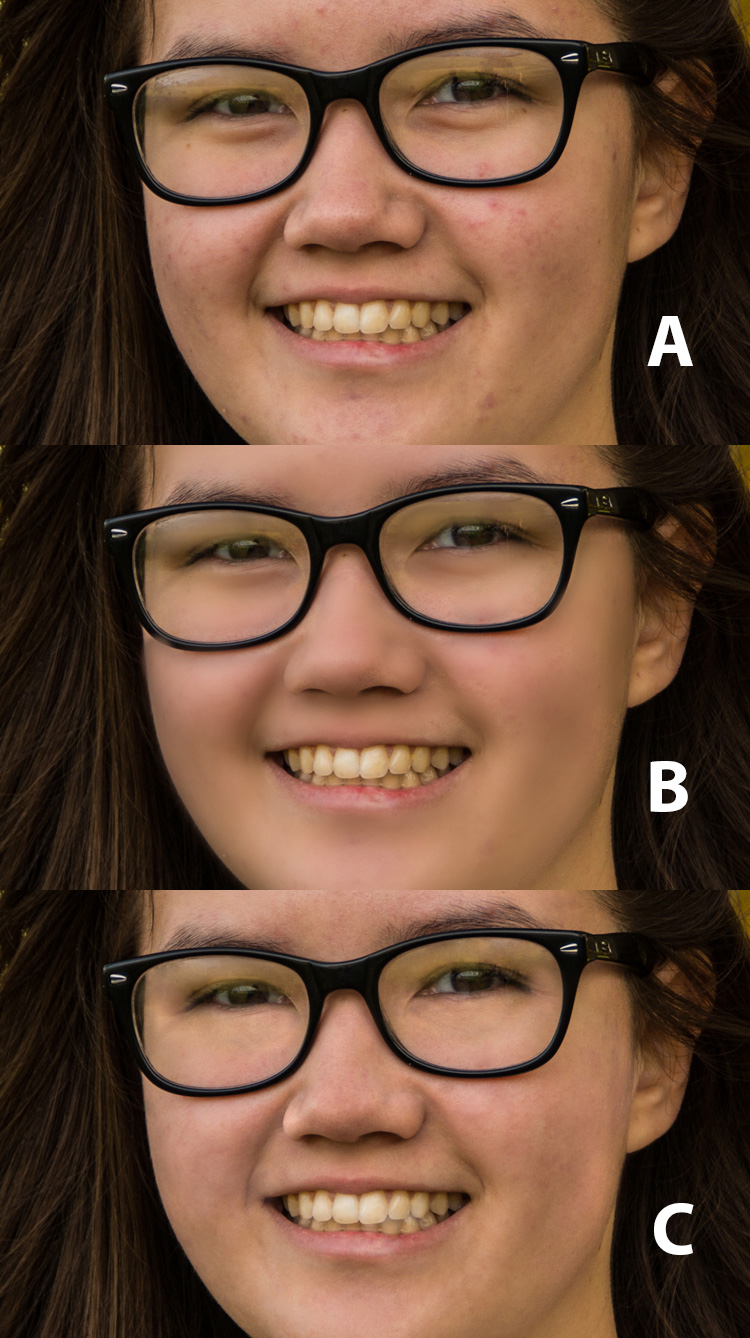
frequency-retouching-2-750

A – Original image B – Air-Brushed look retouching C – Frequency Separation retouching


Conclusion

Portrait retouching can be accomplished by using many different methods, and various software and plugins designed especially for that purpose. This article is meant to give you a Photoshop option for retouching and enhancing your portrait photography. The great feature of this method is the ability to separate the detail from the color and tones before retouching. Do you have any tips for portrait retouching?

googletag.cmd.push(function() {
tablet_slots.push( googletag.defineSlot( “/1005424/_dPSv4_tab-all-article-bottom_(300×250)”, [300, 250], “pb-ad-78623” ).addService( googletag.pubads() ) ); } );

googletag.cmd.push(function() {
mobile_slots.push( googletag.defineSlot( “/1005424/_dPSv4_mob-all-article-bottom_(300×250)”, [300, 250], “pb-ad-78158” ).addService( googletag.pubads() ) ); } );

The post How to do Frequency Separation Portrait Retouching in Photoshop by Bruce Wunderlich appeared first on Digital Photography School.


Digital Photography School

 
Comments Off on How to do Frequency Separation Portrait Retouching in Photoshop

Posted in Photography


5 Photoshop Layer Mask Tricks – Video Tutorial

26 Apr

Photoshop has many features that can make photo editing both non-destructive and creative. Using Layer masks is one such feature. Masks can also be confusing to understand and they have many ways to apply and use them.

In this video tutorial Joshua Cripps goes over five layer mask tricks – I even learned a couple things I hadn’t seen before, so thanks for that! See if you can pick up some things you can use for post-processing your images:

Menu > Image > Apply image = brilliant!

Try and see for yourself. Do you have any other Photoshop layer masking tips or tricks? Please share with us in the comments below. There are a million ways to do things in Photoshop, no one can know them all so show me something else I haven’t seen!

googletag.cmd.push(function() {
tablet_slots.push( googletag.defineSlot( “/1005424/_dPSv4_tab-all-article-bottom_(300×250)”, [300, 250], “pb-ad-78623” ).addService( googletag.pubads() ) ); } );

googletag.cmd.push(function() {
mobile_slots.push( googletag.defineSlot( “/1005424/_dPSv4_mob-all-article-bottom_(300×250)”, [300, 250], “pb-ad-78158” ).addService( googletag.pubads() ) ); } );

The post 5 Photoshop Layer Mask Tricks – Video Tutorial by Darlene Hildebrandt appeared first on Digital Photography School.

Digital Photography School

 
Comments Off on 5 Photoshop Layer Mask Tricks – Video Tutorial

Posted in Photography


Understanding the Difference Between Photoshop and Lightroom

20 Mar

One of the most common questions I hear from people just starting out in photography is, “What program should I use to edit my photos?”. There are many free options such as iPhoto, Picasa, GIMP, and other commercial programs such as AfterShot Pro and Pixelmator but the most popular programs are Photoshop and Lightroom.

That question is usually followed by another, which seems quite logical, “What’s the difference between Photoshop and Lightroom?”. While the two programs do share many similarities, and are both widely used by the photographic community, they each serve a unique purpose and are quite different in some very major ways. Understanding what makes them similar, as well as different, can help you make an informed choice when selecting the right software for your needs.

PhotoshopLightroomQuestionMark

If you’re not sure what the difference is between Photoshop and Lightroom, you’re not alone.

Similarities

At the core level both programs do essentially the same thing, edit images. How they go about handling that task, as well as how you actually use each program, is quite different – but if you are simply looking for software that will allow you to alter, tweak, and enhance your photographs, either one will suffice. Both are capable of handling multiple file types such as: JPEG, PNG, TIFF, and a perennial favorite of many photographers, RAW. In fact both Photoshop and Lightroom use the Adobe Camera Raw (ACR) processing engine to handle RAW files. So, you can expect similar controls and editing options in both programs when doing things like adjusting saturation, working with curves, and correcting for lens distortions.

Both Photoshop and Lightroom are powerful additions to any photographer's digital toolbox, but understanding what makes each one unique can help you choose one that suits your needs.

Both Photoshop and Lightroom are powerful additions to any photographer’s digital toolbox, but understanding what makes each one unique can help you choose the one that suits your needs best.

Both programs also feature an extensive set of editing and manipulation tools allowing you to do everything from; basic edits like cropping and adjusting exposure, to advanced alterations such as working with brushes, tone curves, and graduated filters. You will find a variety of built-in effects in both programs that will allow you to instantly apply edits such as black and white, sepia, and other artistic styles. The two programs are quite powerful image editors. I know some photographers who use Lightroom exclusively and never touch Photoshop, as well as plenty of others who spend all day in Photoshop and never open Lightroom. However, in order to understand which one is best for you it might help to see how they are also quite different from each other.

Difference #1: File Handling

One of the most significant ways in which Lightroom is different from Photoshop is that it does not actually edit photos, nor does it move your images around to different locations on your computer. Instead all the changes you implement are kept in a separate file called the Catalog, which is sort of like a recipe book of instructions for how each photo should be processed. When you apply some type of edit, like a radial filter or adjustment brush, Lightroom is essentially keeping a log of the alterations in a database, while leaving the original image intact. It’s a technique called nondestructive editing, which stands in stark contrast to how Photoshop operates.

For example, several months ago I sent my father this photo I took of him, which I had subsequently edited in Lightroom.

simon-dad-edited

Since the original file was left unchanged I can go back and re-edit the photo any time I want. The edits in Lightroom are a set of instructions for how to process the file, similar to how a recipe is a set of instructions for making food like a cake or casserole. After you finish making changes to an image in Lightroom the photo must be exported at which point it can be printed, shared, or posted online. Because the original photo remains on your computer fully intact and untouched you can go back to Lightroom at any point in the future and re-edit the photo however you want.

Another benefit of this approach is that the catalog itself is quite small, often taking up only a few hundred megabytes on your hard drive even if you have several thousand images in Lightroom.

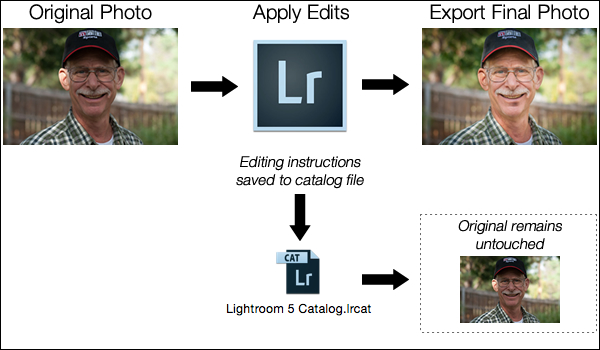
LightroomEditingWorkflow

A basic diagram of the Lightroom workflow: editing instructions are stored in the Catalog file and no changes are made to your original images.

Photoshop, on the other hand, operates quite differently. When you edit a picture such as a JPG, PNG, or RAW file in Photoshop you are always working on the original file itself, unless you save a copy as a Photoshop PSD file that is usually several dozen megabytes in size. This PSD file contains all the changes made to a photo, and in order to share a given image it must then be saved to a final format such as JPG, PNG, etc. In essence, if you want to perform nondestructive edits in Photoshop you will end up with three separate files: the original camera RAW file, a PSD, and the final copy saved into a shareable format from the PSD. The process works something like this:

PhotoshopEditingWorkflow

A basic diagram of the Photoshop workflow: If you want to edit an image later it must be saved as a separate PSD file.

FileDifferencesThe two processes look somewhat similar on the surface with one major difference; in Lightroom all your changes for every photo are saved in one single, relatively small, catalog file. In Photoshop all your changes are saved in unique files for every single picture you edit. This means much more space on your hard drive will be taken up as you work with multiple files in Photoshop, and you will end up with multiple versions of each image as well. So why would you want choose to use Photoshop instead of Lightroom? In a word, power.

Difference #2: Editing Tools

Lightroom is kind of like an all-terrain-vehicle you might see on some farms. It’s fast, nimble, and can be used for a variety of tasks like hauling small objects and towing little trailers. But it simply cannot match the sheer power of a massive farm truck when it comes to getting big, serious jobs done like transporting massive bales of hay, pulling a horse trailer, or ploughing through mud and snow.

Nearly a decade ago Adobe realized that not everyone needed the capability of Photoshop, particularly photographers who were returning from events with hundreds of images to edit quickly. What this new generation of digital photographers demanded was the essential editing tools of Photoshop in one easy-to-use package which resulted in Lightroom.

PhotoshopLayers

Photoshop uses layers, which can be intimidating for beginners but offers incredible versatility that Lightroom simply can’t match.

Photoshop contains a dizzying array of filters, brushes, and other tools that allow you to perform all manner of edits and changes to your images. But more than that, Photoshop operates by letting you create different layers on which your edits actually take place. For example, the image on the right shows the various layers I used to edit the image of the statue, and each layer can be edited independently of the others. This might look like a lot, but it is not uncommon for a digital artist to use dozens of layers when editing an image. Lightroom, by contrast, works in a much more linear fashion with no layers, fewer editing tools and less overall flexibility. Both programs contain a history panel that lets you step back in time to any of your edits, but working with layers gives you infinitely more control over exactly how you edit your image.

Case in point, let’s say you want to add a vignette to a portrait. In Lightroom it’s as simple as clicking the “Vignette” option and changing a few basic parameters like the amount, how big the untouched middle portion should be, and how gradually the vignette should fade from the center. It’s a quick no-fuss solution that is incredibly useful for all sorts of photography situations, and if you want a bit more control you can click on the Radial Filter for a few more options.

SereteanStatueFinal

After image


SereteanStatueOriginal

Before


To do the same thing in Photoshop would require adding a special layer to your photo called an Adjustment Layer such as  Levels. Then you’d adjust the levels to darken the image in the highlights and overall, and apply a mask to the layer to only darken the outer edges. You could also change the opacity of the layer (lightening the effect) or the Blend Mode,  or you could apply a Dodge and Burn layer – and that’s just the beginning. While all these additional steps might seem hopelessly convoluted, the more you learn how to use the tools Photoshop has to offer the greater degree of control you will have over the editing process.

LightroomVignette

In Lightroom adding a vignette is as simple as clicking a button. In Photoshop it’s much more complicated but you get much more control as well.

With all of its options and features (including support for text, 3D graphics, and even video) Photoshop is ideal for almost any image-editing situation. Lightroom essentially distills Photoshop down to the tools that Photographers use most, which is one reason it is so appealing to many shutterbugs.

Difference #3: Workflow

Features and file options aside, the trump card that Lightroom has over its big brother involves its end-to-end workflow solution for photographers. Since it is designed specifically to address the needs of photography enthusiasts and professionals, it handles everything from importing photos from your memory card, to organizing, editing, sharing, and finally printing them. Lightroom has support for keywords and virtual folders to help you keep track of your images, and you can even use it to create a slideshow or photo book. Many photographers, even professionals, will go weeks or months without ever opening Photoshop, because Lightroom takes care of everything they need.

LightroomLibraryModule

Lightroom’s Library module lets you quickly sort, organize, and manage all your photos.

On the other end of the spectrum is Photoshop which doesn’t transfer files, won’t organize your images, and certainly can’t make slide shows or photo books. But again, it’s all about the tradeoffs you are willing to accept. Nothing else can even come close to Photoshop in terms of sheer editing power. However, you can use Adobe Bridge to handle some workflow-based tasks like importing photos and organizing the digital media on your computer, which when paired with Photoshop, does offer a more comprehensive Lightroom-esque workflow experience. It’s not quite as streamlined as working in Lightroom alone, but it does provide a welcome degree of automation as opposed to manually organizing all your PSDs, JPGs, and other photos by hand.

Sometimes the best solution involves both programs. I used Lightroom to import this photo from my camera and do some basic edits, and then used Photoshop to add some more extensive tweaks.

Sometimes the best solution involves both programs. I used Lightroom to import this photo from my camera and do some basic edits and then used Photoshop to add some more extensive tweaks.

Which one is right for you?

By now you probably realize that this is a question only you can answer, and until recently it meant spending $ 150 on Lightroom or several times that amount on Photoshop. Thankfully, Adobe has made the decision much easier with its release of Creative Cloud and you can now get both programs for $ 10/month. If you don’t like the idea of subscribing to software, you can still buy Lightroom by itself, and Adobe has stated they will continue to sell the standalone version for all future versions as well.

This article could be much, much longer and in many ways it seems like I have just scratched the surface, but I hope you have a better understanding of what makes these programs similar and different.

What about you? What differences do you think are worth noting between both programs, and what purpose does each serve for you? Leave your input in the comments section below.

googletag.cmd.push(function() {
tablet_slots.push( googletag.defineSlot( “/1005424/_dPSv4_tab-all-article-bottom_(300×250)”, [300, 250], “pb-ad-78623” ).addService( googletag.pubads() ) ); googletag.pubads().enableSingleRequest();
googletag.pubads().disableInitialLoad();
googletag.pubads().collapseEmptyDivs( true );
googletag.enableServices();
} );

googletag.cmd.push( function() { googletag.display( ‘pb-ad-78623’ ); } );

googletag.cmd.push(function() {
mobile_slots.push( googletag.defineSlot( “/1005424/_dPSv4_mob-all-article-bottom_(300×250)”, [300, 250], “pb-ad-78158” ).addService( googletag.pubads() ) ); googletag.pubads().enableSingleRequest();
googletag.pubads().disableInitialLoad();
googletag.pubads().collapseEmptyDivs( true );
googletag.enableServices();
} );

googletag.cmd.push( function() { googletag.display( ‘pb-ad-78158’ ); } );

The post Understanding the Difference Between Photoshop and Lightroom by Simon Ringsmuth appeared first on Digital Photography School.


Digital Photography School

 
Comments Off on Understanding the Difference Between Photoshop and Lightroom

Posted in Photography


How to Correct Lens Distortion with the Adaptive Wide Angle Filter in Photoshop

11 Mar

The issue

When photographing subjects with a wide-angle lens, it’s pretty common for perspective problems to present themselves in the form of lines that should be straight, but appear curved and distorted. This is commonly referred to as barrel distortion, which occurs mostly in wide-angle lenses because the magnification of the image decreases the farther the subject is from the optical axis of the lens. In plain speech, it means that when looking through a wide-angle lens, anything that is at the edge of the frame will be prone to appearing curved.

BEFORE-Adaptive Wide Angle

Some lenses such as fisheyes take full advantage of barrel distortion by purposely capturing images that are heavily curved and spherical. However, there are times when other wide-angle lenses such as the Canon 16-35mm, or even mid-range zooms like the 24-70mm, might produce unwanted barrel distortion effects.

The solution

Perhaps the two easiest ways to correct this problem are to either use a tilt-shift lens or to change your perspective and zoom magnification while photographing the subject. But tilt-shift lenses are expensive, and sometimes, such as when photographing a large building, there aren’t a ton of different perspective options. In these cases, the easiest solution to correct correct lens distortion is to do so in post-processing using a unique tool in Photoshop known as the Adaptive Wide Angle filter.

Introduced in PhotoShop CS6, the Adaptive Wide Angle filter removes lens distortions in one of two ways: it either automatically detects the camera and lens model using pre-programmed details to straighten the images, or you can manually set constraints to tell the it which areas of the photo need to be straightened. In this tutorial, I’ll walk you through the manual use of the Adaptive Wide Angle filter.

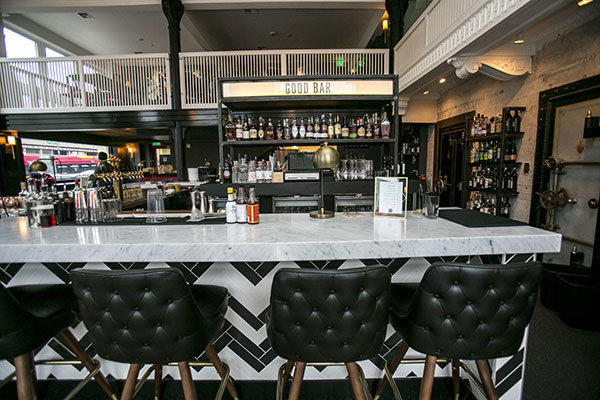
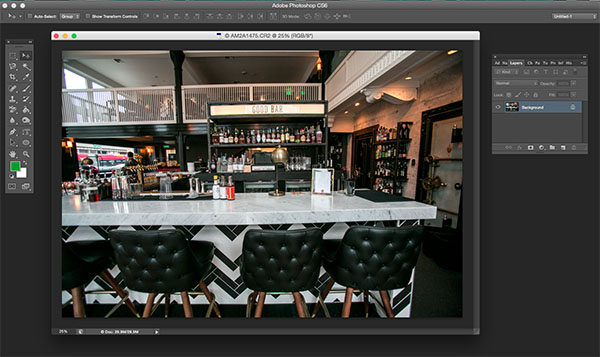
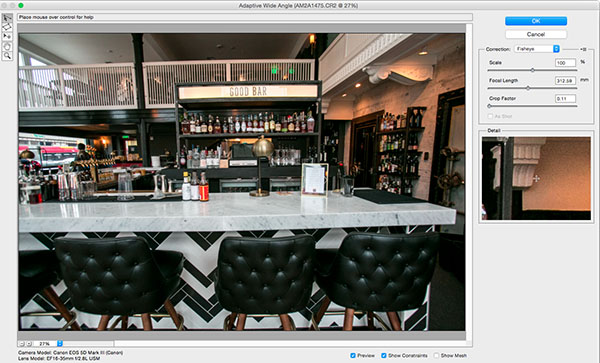
The example below was photographed in a beautiful brand new bar and restaurant using a Canon 16-35mm f/2.8 at a focal length of 16mm. It was a tight space, so there wasn’t room to back up or shoot the bar from a higher angle, so the resulting image sees quite a few horizontal lines such as the upstairs white railings and granite countertop that clearly should be straight, but aren’t.

Photoshop Adaptive wide angle filter correction

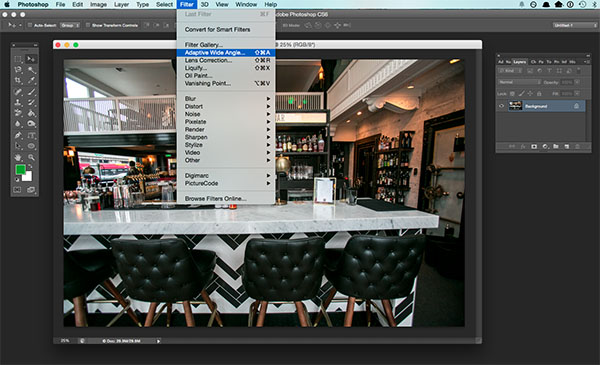
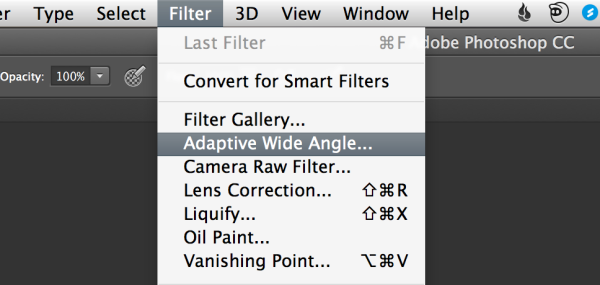
To begin correcting these distortions, click on Filter in the upper drop down menu and select Adaptive Wide Angle Filter.

Photoshop Adaptive wide angle filter correction

Screen Shot 2015-02-25 at 5.18.00 PM

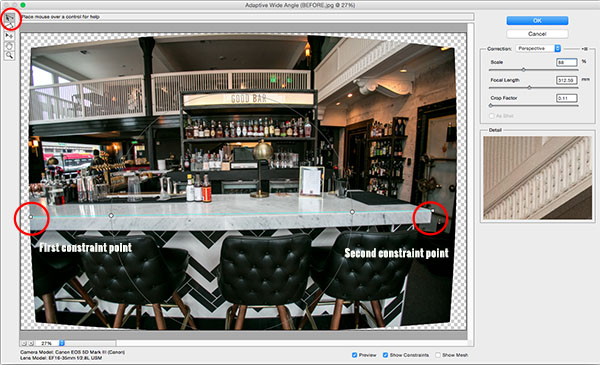
A large dialogue box will then appear with a host of options (see below).

Photoshop Adaptive wide angle filter correction

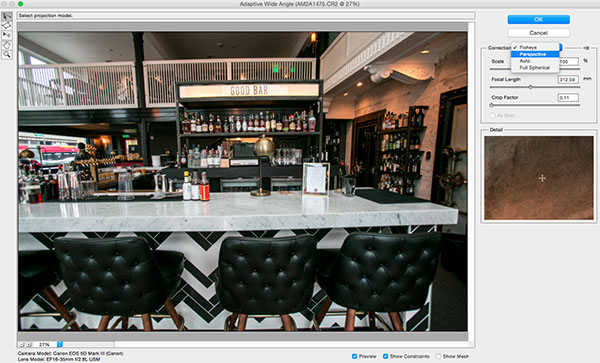
Begin with the right hand panel and choose a correction type from the drop down menu. Typically, I start with Auto, which will attempt for an automatic correction based on lens detection.

Photoshop Adaptive wide angle filter correction

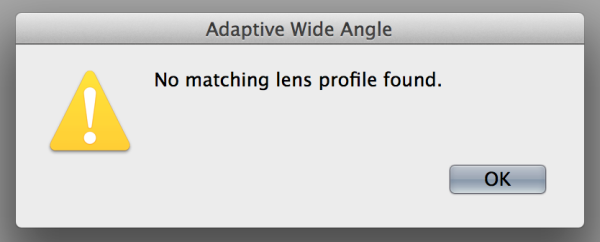
In this case, when I select Auto, another pop up window appears saying, “No matching lens profile found.” This means I need to manually adjust the image. Hit the OK button and turn your attention back to the box in the right hand corner.

Screen Shot 2015-02-25 at 5.24.27 PM

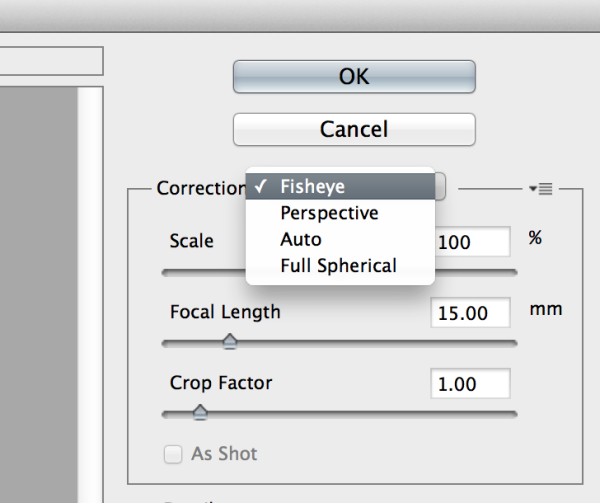
Besides Auto, the drop-down menu has three other options to choose from. If Auto doesn’t work, I’ll typically choose Perspective as my next correction type.

  • Fisheye will correct the aforementioned extreme curves that fisheye lenses purposely cause.
  • Perspective will target converging lines typically causes by the tilt and angle of the camera.
  • Panorama corrects for distortions caused by photo merging for panos.
  • Full Spherical corrects distortions in 360 panoramas shot with a 2:1 aspect ratio.

Screen Shot 2015-02-25 at 5.20.23 PM

Other options below the drop down menu include more settings that you can fiddle with to help correct distortions.

  • Scale: A value entered here will scale the image to best minimize the blank spots that may be present after the wide angle filter is applied.
  • Focal Length: Specify the focal length of the lens that created the image.
  • Crop Factor: This can be used in combination with Scale to minimize and compensate for blank areas produced by the filter.
  • As Shot: This box can be checked if your lens profile can be detected; if not, this option will be greyed out and you will need to manually specify the values of Scale, Focal Length, and Crop Factor.

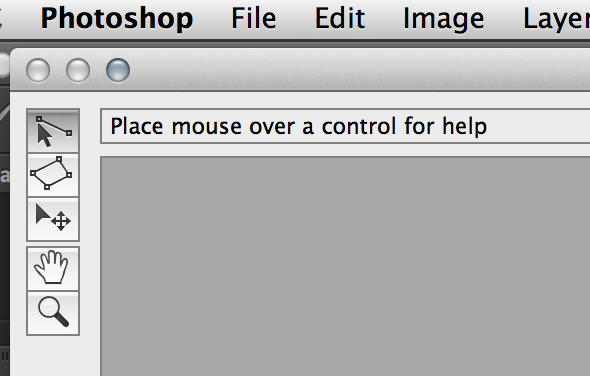
Next, turn your attention to the little vertical toolbar in the top left corner. These are the tools you’ll use to define the constraints that indicate which lines in your image ought to be straight. The primary tools to be familiar with are the first two:

Screen Shot 2015-02-25 at 5.27.14 PM

  • Constraint Tool: This tool is used to draw lines over the areas of the image that you wish to straighten. Simply click once to establish a desired starting point, and click again to close the line, holding down the shift key as well if you wish to add a constraint with a vertical or horizontal orientation.
  • Polygon Constraint Tool: This tool functions in the same way as the regular Constraint Tool except it allows you to draw a polygon instead of a single line.

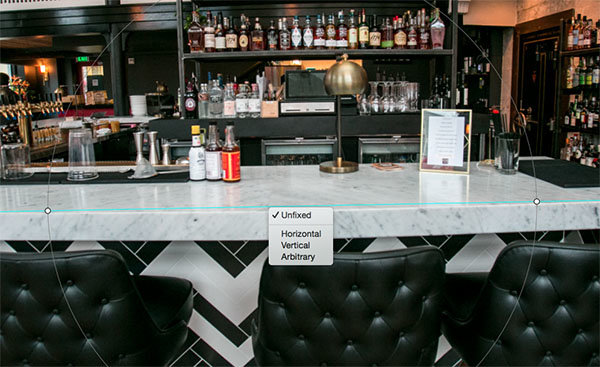
For example, let’s look at the horizontal line of the granite countertop in the image below.

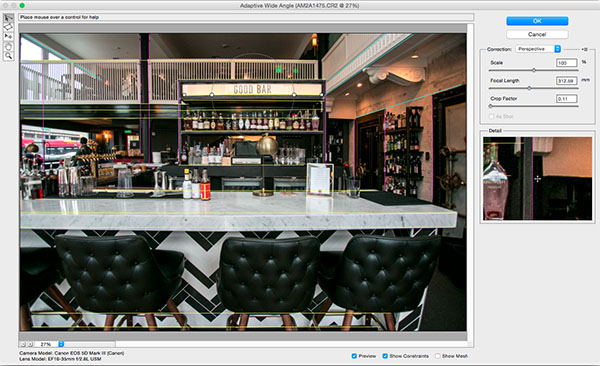
Begin by clicking once on the left end of the line to set one constraint point, then click once on the right end of the countertop to close it. After you set the line, right-click on it and you’ll see a small menu appear allowing you to assign either a Horizontal, Vertical, or Arbitrary constraint to the line. The default constraint is Unfixed, but in this case we want to assign a Horizontal constraint to straighten the line width-wise. In order to automatically assign a constraint to a line, hold down the shift key while in the process of creating the line. In between the two constraint points, there will be a yellow line (if you held down the shift key) or a blue one if you didn’t, indicating where the straightening occurred.

Photoshop adaptive wide angle filter

Constraints Explanation

You can set as many constraint lines as needed until your image is corrected to your satisfaction. Constraint lines typically should be vertical and/or horizontal. Some other tools in the toolbar that can help with this are the Move, Hand, and Zoom tools that allow you move the image around to make the adjustments needed. Additionally, there is the Magnification of the preview in the lower left corner that allows you to zoom in and help you see where to plant constraints.

Photoshop Adaptive wide angle filter correction

After you have corrected the image to your liking, hit the blue OK button to apply the filter.

Photoshop adaptive wide angle filter

BEFORE-Adaptive Wide Angle

BEFORE

After

AFTER

How do you correct distortion for your wide-angle images? Share in the comments section below.

googletag.cmd.push(function() {
tablet_slots.push( googletag.defineSlot( “/1005424/_dPSv4_tab-all-article-bottom_(300×250)”, [300, 250], “pb-ad-78623” ).addService( googletag.pubads() ) ); } );

googletag.cmd.push(function() {
mobile_slots.push( googletag.defineSlot( “/1005424/_dPSv4_mob-all-article-bottom_(300×250)”, [300, 250], “pb-ad-78158” ).addService( googletag.pubads() ) ); } );

The post How to Correct Lens Distortion with the Adaptive Wide Angle Filter in Photoshop by Suzi Pratt appeared first on Digital Photography School.

Digital Photography School

 
Comments Off on How to Correct Lens Distortion with the Adaptive Wide Angle Filter in Photoshop

Posted in Photography


4 Lighting Effects You Can Create in Photoshop

10 Mar
Title-image-green-energy

Lighting Effects using Color Dodge Blend Mode in Photoshop.

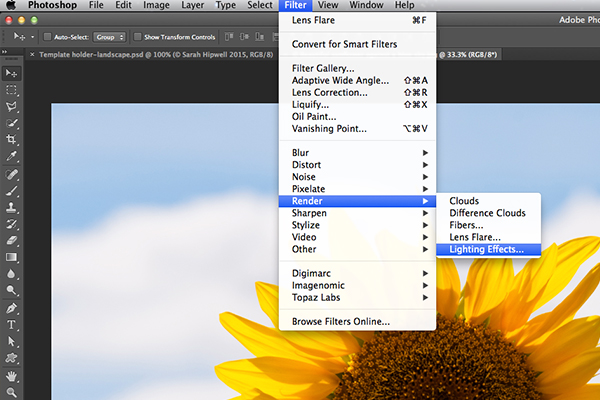
There are numerous methods to creating lighting effects in Photoshop. I’m only going to cover four but they can be used in many ways. But first let’s take a look at a couple that are in the Filter gallery under Render in Photoshop (CS6 and CC). The first is Lighting Effects, which has been upgraded and is more powerful and easier to use than previous versions of Photoshop.

Lighting-effects-filter

How to access Lighting Effects in Photoshop CS6.

The preview box has been replaced with a more sophisticated interface. You are presented with three different types of lighting effects in the Options Bar – Spot, Point and Infinite – and various presets to choose from. There is a Properties panel that customizes the look of the light that you want in terms of direction, placement, etc. This filter works on Smart Objects, so that you can work non-destructively. It is too comprehensive to go through all the aspects of this filter in this article. The best way to use it is simply open an image, experiment with the different options and see what you think.

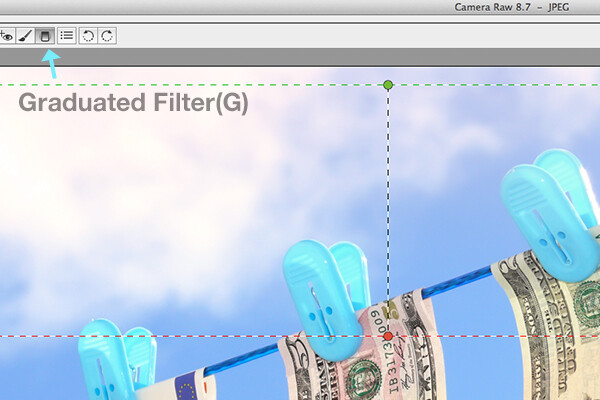
Instead, I will show alternative techniques that I prefer to use in Photoshop and Adobe Camera Raw (ACR), some of which you may already be familiar with. I really like the Graduated Filter tool in ACR. This works in similar way to a Graduated Neutral Density filter on your camera. Landscape photographers use graduated filters so that they don’t overexpose the sky area. The dark bit on the ND is on top allowing less light in, as exposure is set for the foreground. You can achieve similar results using the Gradient Editor in Photoshop.

Graduated-filter

The Graduated Filter icon in Adobe Camera Raw.

With your image opened in ACR, select the Graduated Filter tool. Drag over an area on your image where you want the effect to be applied. Adjust the slider options on the right – Exposure, Highlights etc., to either lighten or darken the area. You can also choose a color to add warmth or a cooler effect.

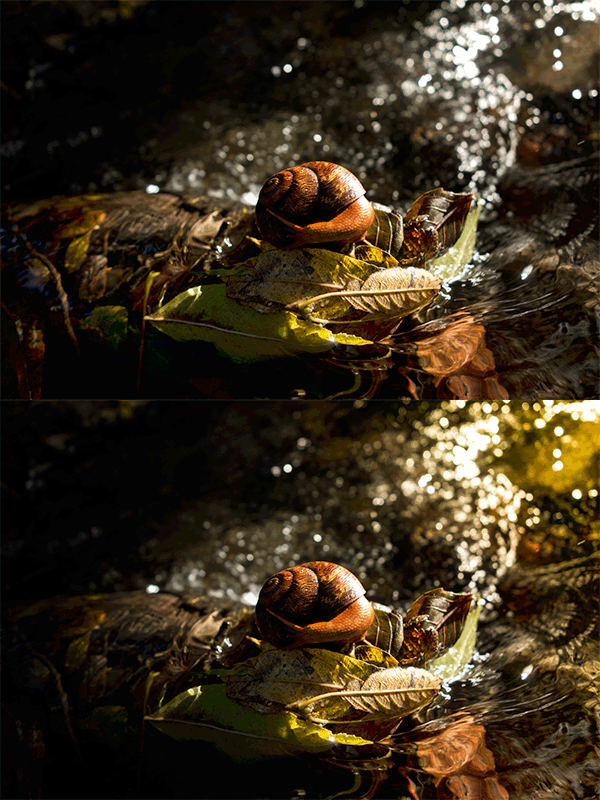
snail

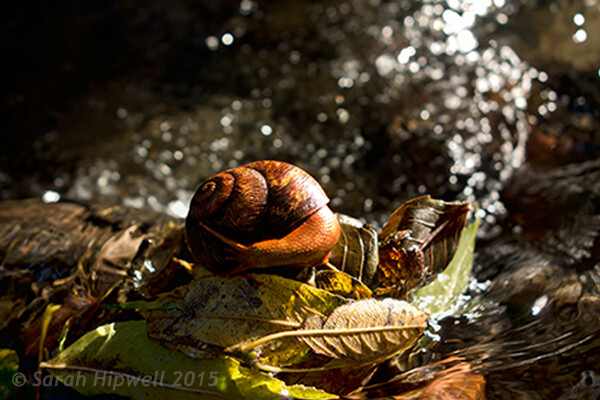
This is the original image of a snail before the Graduated Filter has been applied.

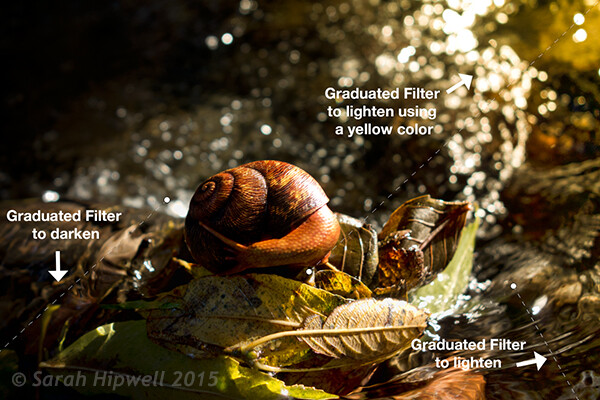
In the image of the snail, I used the Graduated Filter in three different areas on the image. I wanted to add more warmth to the water, so I used a yellow color to create an impression of a sun dappled effect. The second area was to lighten a little more of the water eddy, bottom right of the photo. Finally the third spot, I wanted to simply darken the area directly behind the snail so that the viewer’s eye is drawn to the it. Although, these are subtle light effects, they can add more drama and even change the composition of a photo.

Snail with Graduated Filter effects

The snail image with the Graduated Filter applied in three different areas.

Snail animated gif

Animated GIF  to show before and after effect from the Graduated Filters effects.

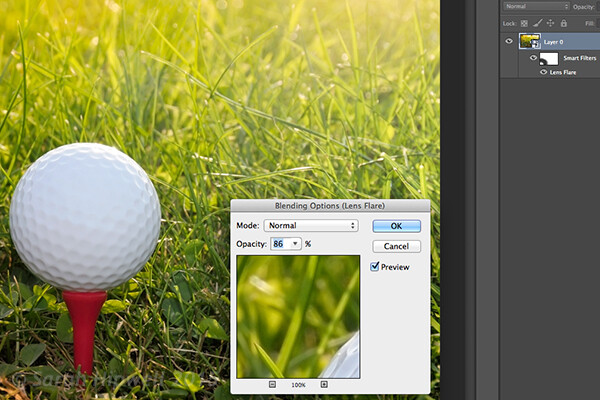
The Lens Flare, which is also found in the Filter gallery under Render, is a lighting effect that can be quite useful but you need to use it with care, using the less is more approach. For example in the image with the golf ball on the red tee below.

golf-ball-lens-flare

Lens Flare effect added to this image.

I used the Graduated Filter in three areas, similar to the snail image. I added a magenta color tint on the grass, bottom left of the image to break up the green flat look. Adding a different color using the graduated Filter in this way gives the image more depth. I then added a Lens Flare effect to the top right and reduced the opacity so that the effect caught the tips of the blades of grass. Converting your image to a Smart Object first before applying the filter effect, makes it easier to make changes non-destructively. I was also able to mask out some of the effect that I felt was too strong.

Animated gif of golf ball with Lens Flare

Animated GIF of golf ball with Graduated Filter effects and Lens Flare.

This brings me onto the third technique, the Color Dodge blend mode. I wanted to create the effect that the rear lights were switched on in this image of a car (below). This is such an easy way of creating a lighting effect in Photoshop and the result is brilliant.

First, create a new blank layer on top of the original image. Select a darker colour to the part of the image that you will be working on. For the lower section of the light, I used a dark red. Using the Brush tool set to soft, paint a small daub and then make it a bit bigger using the Free Transform tool.

car tail light

Rear taillights of a car.

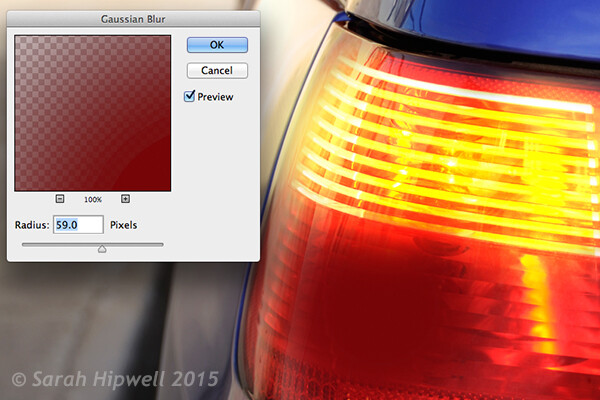
Add some Gaussian Blur so that there is no ‘hotspot’ in the middle and the color looks uniform. Position this on a section of the light, change the blend mode to Color Dodge and reduce Fill, not Opacity, to achieve the desired effect. In this case, I reduced the Fill to 59%. I then duplicated this layer and moved it over to the right. You can reduce the size of the spot area if you feel the over spill is too much. So now I had the bottom tail light working. I repeated the same steps for the top section of the light. But I used a darker color yellow there.

Color-dodge-gaussian-blur

On a separate layer, paint a darker colour to the area intended and add Gaussian Blur.

car tail lights flashing

Animated GIF with flashing taillights using Color Dodge Blend Mode in Photoshop.

The forth and final technique is similar to above. When you need to add a highlight(s) to an area of an image to bring out more detail, this technique and the one above can be used on any type of image. It is so easy, quick and very effective. In the photo of the grapes (below), I wanted to create highlights on the dark areas to make them stand out. Same as the above step, create a new blank layer on top of the image and using white as your color, paint a small daub. Make it bigger using the Free Transform tool and add some Gaussian blur. Change the blend mode to Overlay or Softlight, I generally use Softlight. Reduce the Opacity until you get the result that you want.

grapes

Animated GIF to show highlights on areas of some of the grapes, using Overlay/Softlight Blend Modes in Photoshop.

Do you have any other tips for adding or creating lighting effects in Photoshop or another way? If so please share in the comments below.

googletag.cmd.push(function() {
tablet_slots.push( googletag.defineSlot( “/1005424/_dPSv4_tab-all-article-bottom_(300×250)”, [300, 250], “pb-ad-78623” ).addService( googletag.pubads() ) ); } );

googletag.cmd.push(function() {
mobile_slots.push( googletag.defineSlot( “/1005424/_dPSv4_mob-all-article-bottom_(300×250)”, [300, 250], “pb-ad-78158” ).addService( googletag.pubads() ) ); } );

The post 4 Lighting Effects You Can Create in Photoshop by Sarah Hipwell appeared first on Digital Photography School.


Digital Photography School

 
Comments Off on 4 Lighting Effects You Can Create in Photoshop

Posted in Photography


Photoshop Video Tutorial: How to Add Warmth to Your Images

06 Mar

Warming up images either on camera or in post production is an easy task to accomplish. However depending on the image it can sometimes look like ….well we have thrown a warming filter on the image! In this short video Simon shows a couple of easy but powerful tips to add warmth to your images but do it in a Continue Reading

The post Photoshop Video Tutorial: How to Add Warmth to Your Images appeared first on Photodoto.


Photodoto

 
Comments Off on Photoshop Video Tutorial: How to Add Warmth to Your Images

Posted in Photography


4 Photoshop Tools Every Photographer Should Know

01 Mar

When it comes to photo-editing programs, one of the most popular among both amateur and professional photographers alike is Adobe Photoshop. While it can appear more complex than Lightroom, and certainly takes more time to learn all of its tricks, Photoshop offers four post-processing tools that come in handy for retouching images. These tools are pretty easy to locate and implement, and in this article I’ll show you how they work, specifically while retouching the image of the Space Needle in Seattle (below). I have the privilege of having this view from my home office, but the problem is that if I take a photo using anything but a telephoto lens, I get telephone pole remnants and wires in my otherwise pretty cityscape image.

Here are the four Photoshop tools I use to retouch my Space Needle images. There are of course other ways to retouch this image to achieve the same or even better results, but these are quick and easy methods that also highlight essential Photoshop skills.

5 basic photoshop tools for photographers

Before we do anything to modify Photoshop images, the first thing to note is that within Photoshop, you can cause permanent changes to the pixels and details of your photos if you’re not careful. This is why you always want to make sure you are performing nondestructive editing so that you don’t overwrite the original image data.

There are several ways to do this in PhotoShop. For the tools I’m about to show you, the best technique for nondestructive editing will be to work within an adjustment layer or retouch on a separate layer. You can create a new layer by clicking on the New Layer icon on the bottom of the Layers panel. Repeat this every time before you employ a new editing process on your image and be sure to double click on the layer and rename it to help you remember what editing process you did on that layer.

5 basic photoshop tools for photographers

1. Spot Healing Brush

First of all, let’s tackle those thin, yet annoying, power lines in the upper left corner of the image. To start, we’ll use the Spot Healing Brush. One of three image healing tools that Photoshop offers, this brush creates a seamless repair to your image by replacing unwanted textures of the image with good textures from another area.

5 basic photoshop tools for photographers

To use it, head over to the Tools panel and select the Spot Healing Brush. It will be grouped together with other healing and patching tools. Be sure the Sample All Layers option is checked on the upper Options bar, as well as Content Aware (Photoshop versions CS5 or later) or Proximity Match (Photoshop CS4 or earlier). Next, zoom into the image’s problem area and click (or click and drag) on the areas you want to replace or heal. To adjust the size of the brush, press the left ([) and right (]) bracket keys on your keyboard. If you make a mistake, just hit Ctrl+Z (on Windows) or Command+Z (on Mac) to undo. In this example, I clicked and dragged the Spot Healing Brush across those thin power lines to erase them.

In this example, I clicked and dragged the Spot Healing Brush across those thin power lines to erase them, which is the quickest way of using it. However, be careful when attempting to spot heal in large chunks particularly near high-contrast edges, since some areas can appear improperly blended. For the sake of accuracy, a more effective approach could be using the spot healing brush to heal smaller chunks of the image, rather than attempting to heal the entire area in one go.

Other important settings to be mindful of are the Size and Hardness of the brush, which can be adjusted per the settings panel pictured below. Since the Healing Brush automatically blends pixels, it’s best to choose a higher Hardness value for best results.

Cloning Tool Settings

2. Clone Stamp Tool

Another alternative way to getting rid of the power lines is to use another Photoshop essential: the Clone Stamp tool, which is used for pixel-to-pixel cloning. Like the Spot Healing Brush, this tool can be used to replace unwanted areas of an image, but unlike the Healing Brush, it won’t do automatic content-aware blending. The Clone Stamping is best used to duplicate an item or pattern, remove a brand logo, or remove power lines, which is what I’m going to do in this example.

5 basic photoshop tools for photographers

To use the Clone Stamp tool, first create a new layer and then select the Clone Stamp tool from the tool bar. This tool works similarly to the Spot Healing Brush, but before you begin clicking away, position your cursor over the area you want to clone from and Alt-click (on Windows) or Option-click (on Mac) to define and sample the source of the clone. Be sure to re-sample and re-define as many clone sources as needed to provide a seamless cloning result.

Be sure to re-sample and re-define as many clone sources as needed to provide a seamless cloning result. To make sure the result appears realistic, it is important to zoom in and make sure the same pattern is not being cloned over and over again. Per the same settings as the Spot Healing Brush, be mindful of the Size and Hardness settings that you choose as these will determine how accurately the Cloning Tool samples and clones layers. When cloning an area with lots of patterns and details, it’s sometimes best to work with a low Hardness value and low cloning opacity for smoother results.

3. Magic Wand

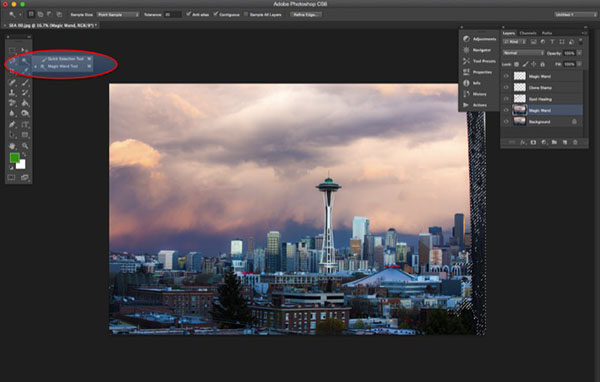
Next, let’s get rid of the remnant of a telephone pole in the right hand side of the image. The easiest way to eliminate it would be a simple crop, but another way is to select and replace it using the Magic Wand Tool. This is one of Photoshop’s oldest selection tools and it causes many a photographer joy or suffering. The Magic Wand is incredibly easy to use, requiring just a click of its icon in the tool bar, followed by clicking on the area of the image that you want to select. Here’s where things can get complicated. The Magic Wand selects pixels based on tone and color, which means it has the tendency to select more areas of the image than you initially want. The simplest way to fix this is to play around with Tolerance in the Options bar. If the Magic Wand is selecting too much of an area, simply input a smaller value of Tolerance and then reselect the area.

5 basic photoshop tools for photographers

4. Content-Aware Fill

After the proper area of the telephone pole is selected, it’s time to fill in that area. Hit Shift+Delete on the keyboard, and the below pop-up box will appear. Make sure Content-Aware is selected, then press OK; Photoshop will then sample pixels in the surrounding area and fill in the selected area accordingly. The results may not be perfect, and this is where the aforementioned Spot Healing Brush and Clone Stamp tools can come in handy to make the filled in area more seamless.

5 basic photoshop tools for photographers

The final retouched image can be seen below. Using the Spot Healing Brush, Clone Stamp, Quick Selection and Content-Aware fill, the telephone lines in the upper left corner have been removed, as well as the remnant of the pole on the right-hand side.

5 basic photoshop tools for photographers

In this brief tutorial, I’ve introduced several very important tools that all photographers should be familiar with, but it’s also important to note that I haven’t explained every possible use of them. There are many other practical and creative ways to use these tools, and I encourage you to do further research to learn more about them. But for the sake of doing quick edits and getting familiar with the tools, these are approachable ways to get started.

googletag.cmd.push(function() {
tablet_slots.push( googletag.defineSlot( “/1005424/_dPSv4_tab-all-article-bottom_(300×250)”, [300, 250], “pb-ad-78623” ).addService( googletag.pubads() ) ); } );

googletag.cmd.push(function() {
mobile_slots.push( googletag.defineSlot( “/1005424/_dPSv4_mob-all-article-bottom_(300×250)”, [300, 250], “pb-ad-78158” ).addService( googletag.pubads() ) ); } );

The post 4 Photoshop Tools Every Photographer Should Know by Suzi Pratt appeared first on Digital Photography School.

Digital Photography School

 
Comments Off on 4 Photoshop Tools Every Photographer Should Know

Posted in Photography


CreativeLive kicks off Photoshop Week 2015

24 Feb

Starting today, the folks at CreativeLive are hosting a week of educational programs designed to help photographers and designers get the most out of Adobe Photoshop. Classes range from tips for beginners to more specialized sessions in landscape, architecture and portrait photography, to name a few. All classes are streaming live for free over the next six days, and will be available for purchase after the event. Read more

Articles: Digital Photography Review (dpreview.com)

 
Comments Off on CreativeLive kicks off Photoshop Week 2015

Posted in Uncategorized


Adobe celebrates 25 years of Photoshop

19 Feb

Photoshop turns 25 today, and Adobe is marking the occasion with a look back at the software’s humble roots, along with a chance for users under the age of 25 to take control of the company’s Instagram handle for two weeks. Short of supplying its subscribers with complimentary birthday cake, the company has put together some entertaining graphics comparing Photoshop’s icons, toolbars and splash screens for a short trip down the digital memory lane. Read more

Articles: Digital Photography Review (dpreview.com)

 
Comments Off on Adobe celebrates 25 years of Photoshop

Posted in Uncategorized