RSS
 

Posts Tagged ‘Photoshop’

How to Crop to Exact Pixel Size Using Photoshop – with Phil Steele

10 May

If you’ve struggled to resize images to an exact pixel size watch this video tutorial by Phil Steele. He will show you exactly how to crop your images to fit a specific pixel size (like for a Facebook banner, etc.) using one quick step in Photoshop.

Crop to pixel size using Photoshop

Phil also mentioned that it’s a good idea to sharpen your image after cropping. Here is some help on that topic:

  • Photoshop Tip: Using the High Pass Filter to Sharpen Images
  • Smarter Sharpening in Photoshop using Adobe Camera Raw

If you want more Photoshop tutorials, try these:

  • How to Understand the Curves Tool in Photoshop
  • How to Use the Levels Tool in Photoshop
  • How to do Digital Blending in Photoshop to Create a Composite Photo
  • How to Create a Rim Light Effect Using Photoshop
  • How to Add a Sun Flare to Your Images Using Photoshop
  • How to do Non-Destructive Editing in Photoshop

Want more from Phil? Check out his Photoshop Basics course here. 

The post How to Crop to Exact Pixel Size Using Photoshop – with Phil Steele by Darlene Hildebrandt appeared first on Digital Photography School.


Digital Photography School

 
Comments Off on How to Crop to Exact Pixel Size Using Photoshop – with Phil Steele

Posted in Photography


6 Color Settings in Photoshop That You Need to Know

28 Apr

Photoshop CC is a complex piece of software. Most of us barely scratch its surface in terms of the features we use. Thankfully, it doesn’t matter if we’re not familiar with every aspect of this vast program if only we achieve the results we want. One of the hurdles in Photoshop has always been understanding how it handles color and what effect different color settings have. This can be mind-boggling for new photographers and even catches a few seasoned ones out.

There are 6 color settings to consider in Photoshop

#1 – RGB Working Spaces

Some basics

Under “Color Settings” in Photoshop, the first item needing attention is choice of RGB working space. What is this? It’s your editing color set, if you like, where all the various tones of red, green and blue are split into values between 0 and 255 and blended to make 16.7 million possible colors. We can’t separate all these colors with our eyes, but mathematically they’re there.

1b Simple RGB Color Wheel - 6 Color Settings in Photoshop That You Need to Know

This simple RGB color wheel shows the relationship between primary (red, green, blue) and secondary (cyan, magenta, yellow) colors. For example, a fully saturated magenta tone contains no green (RGB 255,0,255), so sits opposite green on the wheel. Tertiary colors are created by blending adjacent primary and secondary colors.

All RGB working spaces have the same number of colors; the gamut they cover is the main difference between them. Choice of RGB working space is, therefore, mainly about picking a gamut that suits your needs best.

Standard RGB working spaces (e.g. sRGB, Adobe RGB or ProPhoto RGB) are used for editing because they are “well behaved”. In other words, we know what to expect from them when we edit our photos. To illustrate this, if all three red, green and blue (RGB) values are equal in any pixel, the tone will always be neutral, be it gray, black or white. Any adjustments made to shadows, mid-tones or highlights cause the same degree of change, too, so editing is always predictable.

Choosing an RGB Working Space

Here are the three main choices of RGB working space:

sRGB

sRGB might be a good choice of working space if all you ever do is publish photos on the Internet and get your prints done at the shopping mall (i.e. a commercial photo lab). It’s one way of keeping things simple, but does potentially forfeit a lot of color data between camera and Photoshop, especially if you shoot RAW.

Some subjects are better suited to this color space than others, like portraits. Skin tones are likely to be encompassed by the sRGB color space, so you don’t lose data by editing in it. The types of subjects you shoot may play a part in choosing a working space.

The popular assertion that this color space is the “Internet standard” is partly true, though slightly outmoded. Most people can’t see much color outside of sRGB because of the standard gamut of their monitors, so a bigger space would be largely wasted on your web audience.

Adobe RGB

Adobe RGB is recommended to anyone who does their printing at home or who supplies third parties with images for publishing. Even humble models of inkjet printer produce colors outside of the sRGB gamut, while only high-end printers exceed Adobe RGB in output.

The Adobe RGB color space was designed to encompass the output of CMYK printers. It is often seen as a good all-rounder for the average photographer, and you can easily convert files to sRGB for the web at the end of editing if desired.

Landscapes benefit particularly from Adobe RGB, largely because of the cyan and green colors lost when converting down to sRGB. To a lesser extent, yellows and oranges are also truncated.

1a Working RGB space - 6 Color Settings in Photoshop That You Need to KnowSince most browsers are now color-managed by default, you can get away with saving photos in the larger Adobe RGB color space for the web. You must embed the profile into the image file if you do this, otherwise, your photos will look desaturated to most people. Only a minority of your audience will benefit from the bigger color space, alas, but it could be worth trying among a group of keen photographers with wide-gamut monitors.

ProPhoto RGB

ProPhoto RGB is the largest of the three commonly used RGB working spaces, and it’s the one that best preserves all color data between a RAW file and Photoshop. A purist would ask; why would you want to throw color away needlessly? You don’t always discard color with a smaller color space, of course, depending on the content of your photo.

ProPhoto RGB is a good choice if you use a high-end inkjet printer capable of colors outside the Adobe RGB gamut, but there are caveats attached to its use:

  • Because ProPhoto is spread over such a wide gamut, you’re forced to work with larger 16-bit files to avoid posterization, or banding. (The opposite is true of a small working space like sRGB, which is ideally suited to 8-bit editing.)
  • Since ProPhoto RGB produces colors beyond the capabilities of any monitor or that of human vision, you’ll be working partially “blind” when you edit in this color space. This is a trade-off that many accept in return for extracting as much color as possible from their printer.

Note: some photographic subjects, particularly those with a deep yellow color, lose detail straight away merely by opening them in Photoshop in a smaller color space (i.e. sRGB or Adobe RGB). It’s possible to see blotchy, posterized areas in photos of yellow flowers, for instance, in anything less than ProPhoto RGB, and the effect is worse the smaller a working space you select. This makes it desirable to print such subjects directly from ProPhoto RGB.

Again, there’s nothing to stop you from editing your files in ProPhoto RGB and then converting down to smaller RGB color spaces when required. Remember; you can’t convert up to a bigger color space and get data back.

ProPhoto RGB is not typically an in-camera option. You need a RAW > 16-bit workflow to make it a useful choice in Photoshop.

1c RGB Color Space Gamuts - 6 Color Settings in Photoshop That You Need to Know

A comparison of RGB color spaces. Note how the profile of an Epson 2200 printer with matt paper exceeds the Adobe RGB gamut.

#2 – Monitor RGB (check your monitor profile)

Also under the RGB working space menu you’ll see the “Monitor RGB” heading. This is not a profile you’ll want to use as a working space, because it effectively turns off color management in Photoshop. One thing the Monitor RGB selection is useful for is checking that Photoshop is accessing the correct monitor profile. The profile in current use is listed beside “Monitor RGB”.

If you’ve created a custom monitor profile and notice that color is wayward in Photoshop, one thing you can do is temporarily switch the monitor profile back to sRGB in your OS settings (Adobe RGB for wide-gamut monitors). If this improves the color, your own custom profile is probably corrupt and you’ll need to delete it and create another. Again, the “Monitor RGB” working space option will verify the profile in use.

#3 – Color Management Policies

Under “Color Management Policies” in Color Settings, select “Preserve Embedded Profiles” in all three drop-down menus.

3a Preserve Embedded Profiles - 6 Color Settings in Photoshop That You Need to Know

There is a case for unchecking the 2 boxes next to “Profile Mismatches”, since you’re unlikely to act on the alerts they produce. The first box “Ask When Opening” might be useful if you want to be kept in the loop and know immediately if a file has a different profile embedded to the one you edit with. You can disregard the second box “Ask When Pasting”.

3b Profile Checkboxes

It’s desirable to check the box next to “Missing Profiles”. When opening an image file without a profile embedded, you can sometimes guess the correct color space based on where it came from and then assign that profile to the image. You may also choose to open the file without a profile and then assign different profiles in Photoshop to see which looks best.

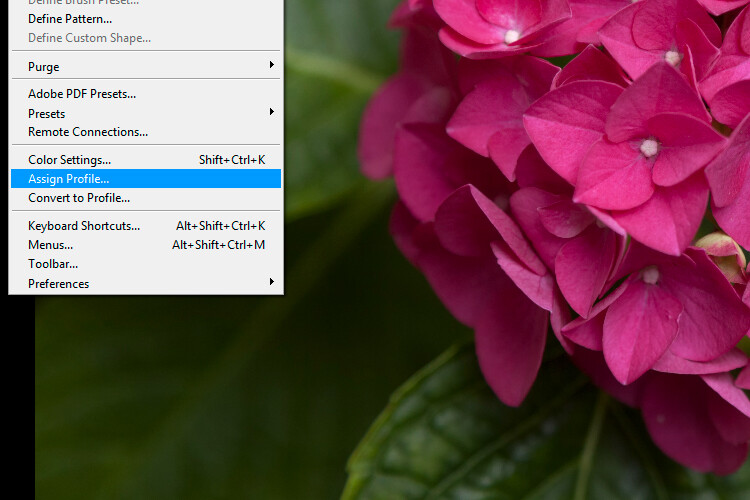
#4 – Assign Profile

The vital thing to learn about “Assign Profile” in Photoshop is that you should leave it alone in most situations. Many people don’t distinguish between this and “Convert to Profile”, which is a mistake.

4a Assign Profile - 6 Color Settings in Photoshop That You Need to Know

4b The Effect Of Misusing Assign Profile - 6 Color Settings in Photoshop That You Need to Know

A color shift occurs when wrongly using “Assign Profile” to convert files from one known RGB color space to another. “Convert to Profile” uses a relative colorimetric rendering intent to match destination colors to source colors as closely as possible.

Assign Profile applies the RGB values embedded in a photo to a different color space without any attempt to match color. This often causes a huge color shift. You’d only use this feature on a file that had no profile embedded or that had one assigned upon opening that you’d like to change.

#5 – Convert to Profile

If you need to convert a file from one RGB color space to another in Photoshop, “Convert to Profile” is the right tool for the job. A relative colorimetric rendering intent is used to match color between different color spaces. If you’re converting from Adobe RGB to sRGB, for instance, colors outside the sRGB gamut are matched to their nearest in-gamut equivalent.

5 Convert to Profile - 6 Color Settings in Photoshop That You Need to Know

Convert to Profile is typically used to convert between RGB color spaces, since most of us have no need to convert to printer or CMYK profiles within Photoshop. When converting between RGB files, “relative colorimetric” is always the rendering intent used, even though it’s possible to select other intents from the menu.

#6 – Proof Colors

You wouldn’t ordinarily check “Proof Colors” under the “View” menu unless previewing the color output of a printer or other device. The colors it displays are based on the selection made in the “Proof Setup” menu. Some people assume they should use Monitor RGB proof colors for editing, but, as we’ve already noted, this turns off color management in Photoshop.

6 Proof Colors For Color Blindness - 6 Color Settings in Photoshop That You Need to Know

Proof colors being used to simulate “Color Blindness – Protanopia-type”. More typically, you’d use this function to preview and edit print colors so they matched the original RGB screen image satisfactorily (a technique known as “soft-proofing”).

The normal method for using “Proof Colors” is to open a duplicate image next to the original, apply the printer profile to the duplicate using proof colors and then edit so it closely matches the original. This is basic soft-proofing method, though a full description merits another article.

Checklist

  • RGB Working Space: Choose Adobe RGB if in doubt. It’ll encompass the output of most monitors and inkjet printers.
  • RGB Working Space: Take note of the Monitor RGB selection to ensure Photoshop is using the right monitor profile.
  • Color Management Policies: Select “Preserve Embedded Profiles” in the three drop-down menus and check the “Ask When Opening” box next to “Missing Profiles”.
  • Don’t use “Assign Profile” to convert from one RGB space to another. It causes unwanted color shifts. Use it only when the original profile is unknown, which shouldn’t be often.
  • Use “Convert to Profile” to convert from one known RGB space to another. This matches color as closely as possible between the source and destination color space.
  • Proof Colors are used for previewing the color output of other programs or devices, or to see how an image will look to a color-blind viewer. For normal editing, this should be turned off.

Conclusion

I hope that clears up any confusion you have had around color settings in Photoshop. Please post any comments and questions below and I’ll try to answer them.

The post 6 Color Settings in Photoshop That You Need to Know by Glenn Harper appeared first on Digital Photography School.


Digital Photography School

 
Comments Off on 6 Color Settings in Photoshop That You Need to Know

Posted in Photography


How to Create a Retro Faded Look Using Lightroom or Photoshop

15 Apr

You’ve probably seen images floating around because it’s popular these days, you know, the ones with the retro faded look. It’s pretty popular with the instagram and wedding photography crowd. It’s not my fancy but I am all about empowering photographers to shoot what they have in mind. If that happens to be retro-faded here’s how to achieve that look in Lightroom and Photoshop.

How to Create a Retro Faded Look in Lightroom and Photoshop

Why this look is so popular

Here’s why I believe this look is very popular, it’s a quick and easy way to de-digitalize digital images. When you click that shutter release button, you get a straight, clinical, boring representation of reality. The faded retro look makes the images seem dreamy and ethereal because the colors are muted. Since it’s easy to do and already built into apps like Instagram, you have a recipe for popularity.

How to Create a Retro Faded Look in Lightroom and Photoshop

How to get this look using Lightroom

In Lightroom go ahead and process the image the way you want first. Once you are done, go to the Develop Module and scroll down until you reach the Tone Curves panel. Click the button on the bottom right.

How to Create a Retro Faded Look in Lightroom and Photoshop

First, click the button on the bottom right. Next, click on the little circle on the bottom left of the graph and drag it up. The higher you put it, the more faded the look. Adjust to your tastes and you’re done!

What you are essentially doing is putting a cap on how dark the black pixels will be. Imagine you had 3 groups of students with black, gray, and white shirts. The darkest shirt is black. But if you tell the group of students in black to become grey, the darkest shirt will be grey. It’s the same principle here, you are taking pixels that would normally be black to become dark gray.

How to get this look using Photoshop

In Photoshop the principle is the same. After you have processed the image, go in Image>Adjustments>Levels. You could also alternatively make an adjustment layer to do non-destructive edits by going to Layer>Adjustment Layer>Levels.

How to Create a Retro Faded Look in Lightroom and Photoshop

Drag the black output adjustment to the right to taste and you are done!

Examples

So to recap, take your straight image:

How to Create a Retro Faded Look in Lightroom and Photoshop

Straight original image.

Post-process to taste:

How to Create a Retro Faded Look in Lightroom and Photoshop

Post-processed with basic adjustments.

Then edit the blacks using Levels/Curves:

How to Create a Retro Faded Look in Lightroom and Photoshop

Black level lowered using Levels or Curves.

Further customization

Just like for any new technique, the trick is in experimenting, mixing, and finding your own favorite style. You can add some grain in Lightroom (My favorite, de-facto settings are 50-50-50 for Amount, size, and roughness) but you can also play around with the colors of the photograph for an added effect.

Under the Develop Module, you will find Split Toning in the right-side panel.

How to Create a Retro Faded Look in Lightroom and Photoshop

Split-toning adjustment panel.

The top is where you color the highlights of your image, the saturation controls how strong that color will be. The bottom is where you select the color for your shadows and saturation does the same as above. The Balance slider adjusts which direction you want the colors to lean more toward. If you push that slider to the right, the image will lean more towards the color you have chosen for highlights. If you push the slider left, the overall image will lean more towards the colors selected for the shadows. It’s usually best to keep it at 0 (in the middle) and play around with it after selecting the colors.

Starting points and examples

I personally keep my saturation levels around 10 for Highlights and Shadows because too much saturation will make the image go completely one color. Color images, I find 35 maximum saturation fit my tastes. Here are some results:

How to Create a Retro Faded Look in Lightroom and Photoshop

Playing with split-toning to add to the retro look. Top left is the original faded image.
Top right: Highlights color 299, Saturation at 25, Shadows at 99 and Saturation 31 (Balance at 0)
Bottom right: Highlights color 101, Saturation at 25, Shadows at 47 and Saturation 31 (Balance at 0)
Bottom left: Highlights color 30, Saturation at 25, Shadows at 253 and Saturation 31 (Balance at 0)

Yes, that is indeed how you get a cross-processed look in Lightroom. It fits in well with the overall retro faded look.

Conclusion

That’s it. It’s pretty easy to do if you ask me. It probably takes a bit more time (and you have more control) than using Instagram filters but it’s worth the time to learn if the look resonates with you. You will quickly learn “the numbers” that you like most and be able to be consistent throughout your images. Be yourself, stay focused and keep on shooting.

Please sure your faded retro look images in the comments below and tell us how you achieved it.

The post How to Create a Retro Faded Look Using Lightroom or Photoshop by Olivier Duong appeared first on Digital Photography School.


Digital Photography School

 
Comments Off on How to Create a Retro Faded Look Using Lightroom or Photoshop

Posted in Photography


How to Understand the Curves Tool in Photoshop

31 Mar

After you’ve mastered Levels, it’s time to take a step up to the tool that is probably the most useful for color and contrast control in Photoshop: Curves. As with levels, you should play around with the basic Curves command to get a feel for it. For safety’s sake, begin by duplicating your background layer, either from the Layer>New Layer from Copy menu, or use the shortcut Control/Command + J. You should make a habit of learning shortcuts because it speeds up your workflow.

The Curves Dialog

Here’s our starting image for this tutorial, shot on a hazy day at Formentor in Mallorca.

How to Understand Curves in Photoshop

Formentor, the northern tip of Mallorca

Use Control/Command + M to invoke the Curves dialog. Taking a look, you’ll see the main part of the dialog is the Curve itself. By default it’s a straight line from bottom left to top right – this is the baseline. There’s faded histogram in the background that corresponds to the tones in the image. There are two other tools to help you work in Curves.

There are two other tools to help you work in Curves. The first is the Channel Overlays, which show you the changes you make when applying curves to the individual red, green, and blue channel curves. The second is Intersection Lines, which appear when you drag a point on the curve. They let you see where the point is relative to the grid. The Channels Overlays, the Histogram, the Baseline, and the Intersection lines can all be turned off in the “Show” section of the dialog box. They’re all on by default.

How to Understand Curves in Photoshop

Another default is that the darker tones are on the left, and the lighter tones are on the right. It can be swapped by clicking the “Show Amount of:” option from Light (0-255) to Pigment/Ink %. Unless you have a specific reason to change it, leave it on the default option Light. The final option is for the Grid. You can change from quarters to tenths by alternating the grid size icon. Alternatively, you can Alt or Option click directly on the Grid to toggle between them.

Starting with Curves

To change the Curve, you click on the baseline to create a control point (we’ll just call them points from here). By dragging the point up, you will lighten the image at those tones and surrounding tone. Drag down, and you’ll see the image darken at the tones around your point.

The most basic change you can make is to click on the center of the curve and drag up. This lightens the mid-tones and acts in a similar way to the Brightness slider, but with more control over the center-point of the effect. By the way, you don’t even need to drag the point. Instead, you can click to create a point and then use the Up/Down/Left/Right arrow keys to move it. A single arrow click moves 1 point (in the range 0-255), while holding the Shift key down as well, moves it 10 points. For utter precision, you can enter the number directly into the Input (that’s the point you click) and Output (that’s the place it moves to).

How to Understand Curves in Photoshop

While it will work as a brightness tool, Curves is really about contrast. Contrast defines the relationship between the tones in your photo. A high contrast image will generally have strong shadows and highlights, with a lot of saturation. Low contrast photos will look flat and almost gray. That’s not to say low contrast is bad, it can be ethereal like the woods in fog, or a flared backlit portrait at sunset. A lot of photos can benefit from an increase in contrast.

So how can you do this? Well, you’ll need to make the shadows darker and the highlights lighter.

Creating Contrast

First of all, click on the line about a quarter of the way in from the left. Next, drag the point you’ve created down. This will darken your entire image. You don’t need to drag it down much to see a difference. After this, you should create a second point, this time about three-quarters of the way along and drag it up a little. Again, only a small amount is needed for this to work.

If you look at your curve, you’ll notice it resembles an S-shape. This S-Curve is probably one of the most common ways for you to create contrast with Curves. Our sample photo has better contrast now, but it is still a little dark, we’ll come to that shortly.

How to Understand Curves in Photoshop

Notice how the line now resembles the shape of the letter S.

As another way of working, start by placing a point in the center. This will be your anchor point. You’re not going to move this one. Now create the point for your shadows and drag it down. You’ll notice that as you drag the shadows down, the highlights will move up automatically across from the anchor point. By clicking and dragging the center up, you both brighten the image and increase contrast. If you want to control the image more, just add more points.

How to Understand Curves in Photoshop

Endpoints and Input

You’re not restricted to making just curves. You can also move the endpoints of the line in. This results in a look that’s similar to when you move the black and white points using Levels. This adjustment makes a huge difference with this image, where most of the tonal information is in the center of the histogram. Notice that as you move the endpoints in the black and white points on the Input Slider move to a corresponding position – so you could also just move these sliders.

How to Understand Curves in Photoshop

Moving the endpoints in curves.

To finish up this look, you can add a little S-Curve after moving the end points. You’ll notice that the increased contrast has also led to increased color saturation.

How to Understand Curves in Photoshop

Erase and Rewind

At any point that you want to start again without closing the dialog and reopening it, you can hold down the Alt or Option key, and click the Reset button that appears instead of the Cancel button.

How to Understand Curves in Photoshop - reset

If you only want to remove a single point, you’ve got a few options. Drag the point right off the grid. Or, you can click on a point and press the Delete key. The last option is to Control/Command+click on a point to remove it.

Presets

Just by way of mention, you should try the Curves presets in the menu to get a feel for what particular points can do to a curve. You can also save any curve you create yourself by clicking on the tiny cog beside the menu and choose “Save Preset”. Your Curves preset will then get added to the menu.

How to Understand Curves in Photoshop

Auto and Options

Just like Levels, there’s an Auto function for Curves. It too depends on the Options section. Rather than repeat it verbatim, go check out the Auto section in the Levels article.

Auto Curves - How to Understand Curves in Photoshop

Using Curves as an Adjustment Layer

Up to now, what you’ve done has been destructive editing. You’re completely changing the layer to which you apply the Curve. Instead, it’s best to use Curves as an Adjustment layer. From the bottom of the Layers panel, click the split circle icon and choose Curves.

How to Understand Curves in Photoshop

The Curve will appear in the Properties panel. Using the information you’ve got so far it should be no problem editing a file like this. I’ve started by pressing the Auto button, then added a curve to both increase contrast and brightness.

How to Understand Curves in Photoshop

Sectioning your photo with Curves Adjustment layers

So far you’ve been using Curves on the entire image. Not all areas in a photo may need the same work, but it’s easy for you to select different areas to work on.

Press L to bring up the Lasso tool, or select it in the toolbar. If it’s not the main lasso, use Shift+L to cycle through the options. At the top, enter 15px in the Feather option. You’re going to select the sky first. In order to draw outside the photo edge, hold down the Alt/Option key. You need to do this so the Feather, which softens the edge of the selection, doesn’t soften the edge of the photo. Join the two ends of the lasso to make a selection.

selection - How to Understand Curves in Photoshop

Now, create a new Curves Adjustment Layer. Notice that the mask beside the curve is white on top, and black on the bottom? That means your curve will only affect the top of the image. White means the effect is revealed, whereas black means it’s concealed. You can use the brush tool to add to a mask or remove from it using a black brush. Shades of gray will work too but act like an opacity control.

You can now go and edit the curve for the sky, separately to the main curve. Another advantage to using Curves as an adjustment layer is you can overdo the look of the curve, and then bring it back using the layer’s opacity slider.

How to Understand Curves in Photoshop

Before Curves adjustments.

How to Understand Curves in Photoshop

Here’s the version after curves have been applied.

The Tip of the Iceberg

Curves is a pretty useful tool and more versatile than Levels for advanced contrast control. You’ve seen a lot of what can be done here, but there’s also the color changes that can be done using the individual color channel curves, but that’s a topic for another article.

The post How to Understand the Curves Tool in Photoshop by Sean McCormack appeared first on Digital Photography School.


Digital Photography School

 
Comments Off on How to Understand the Curves Tool in Photoshop

Posted in Photography


How to Create an Antique Photo Look Using a Lemon and Layer Masks in Photoshop

17 Mar

Layers were presented for the first time in Adobe Photoshop in version 3.0, which launched in 1994. We take them for granted nowadays, but they were a total game changer at the time as they allowed image composites to be taken to a whole different level with image stacking and transparencies.

Layer Masks may seem like a scary monster for a Photoshop newbie, but they are in fact quite easy to understand as they work the same way as layer transparency. But layer masks use a non-destructive way to reveal or hide portions of a layer by defining pixel opacities without affecting the original data.

It all happens with greyscale data: think of black as transparent, white as opaque and gray as different levels of opacity depending on if they are lighter or darker. Following this theory, this also means that you can convert any greyscale image into a Layer Mask and use it to create many types of effects on your image.

This tutorial is a step-by-step example on how to use this technique.

How to create your own Layer Mask

Create an old school effect

For this particular image, I wanted to create an old-school or antique effect, like an alternative darkroom process of developing a black and white image with a brush. This mask could be done in many different ways, but, because I wanted to make it really textured and as authentic as possible, I used an oxidation process.

Prepare the paper first

To give this process a try, you will need a paper sheet and some lemon juice.

02 How to create your own Layer Masks

Brush the paper with the lemon juice and create you mask area

03 How to create your own Layer Masks

The lemon juice will oxidate upon contact with air, but it will take a long time. To accelerate the process, you can put the paper near a heat source like a tungsten lamp or if you want it even faster, you can use an oven at a low temperature setting like I did here.

04 How to create your own Layer Masks

The lemon juice will start to turn a brown color. Remove the paper from the oven when you get the color and texture you intend, and your paper sheet is ready to be scanned or photographed to create an image file like this:

05 How to create your own Layer Masks

Photoshop technique

Now open Photoshop and the image on which you want to create the mask.

06 How to create your own Layer Masks

Convert the layer to a mask

Now click on the layer mask icon on the bottom of the layers’ palette and your background layer will be converted into Layer 0 with a white mask next to it.

Press the alt/option key on your keyboard and click on the white mask to make it visible and active. This is a very important step! If you miss this step the image itself will be active and visible instead of the mask, that is what you will be working on.

Once you have done this, the image itself will not disappear, it will just be hidden.

07 How to create your own Layer Masks

Convert to greyscale

Now it’s time to open your mask image and convert it to greyscale. One easy way to do it is to use the desaturate function located in: Image > Adjustments > Desaturate (or keyboard shortcut Control/Cmd+Shift+U)

08 How to create your own Layer Masks

The final image you want to create is white around the edges, so your mask should be the opposite. You can use the invert function for this: Image > Adjustments > Invert (Control/Cmd+I)

09 How to create your own Layer Masks

Put the image into the mask

Next, it is time to paste the image into the mask with these simple steps:

  • Select > All (Control/Cmd+A)
  • Edit > Copy (Control/Cmd+C)
  • Now click on the original image where you created the layer mask and go to: Edit > Paste (Control/Cmd+P)
  • Click on the eye icon on the left side of the layers’ palette to see the image and the mask working together.

10 How to create your own Layer Masks

Add a white layer

As you can see the mask creates different levels of transparency on the image. To be able to see the transparency as white we can create a new white layer to use as a background.

  • Go to: Layer > New > Layer (Control/Cmd+Shift+N)
  • Edit > Fill > Contents: White; Mode: Normal; Opacity: 100%

11 How to create your own Layer Masks

Now just drag the new white layer to the bottom position of the layers panel, and you will have a full view of the final image appearance.

12 How to create your own Layer Masks

Fine-tune the effect

Now it is just a matter of a few adjustments to fine-tune the effect you want. In this particular image, I will adjust the size of the mask. Click on the mask icon in the layers’ palette and then click on the chain between the image and the mask icon to unlink them.

13 How to create your own Layer Masks

Next go to: Edit > Transform > Scale (Control/Cmd+T). Drag the image edge lines to transform the shape of the mask and adjust it to the image size.

14 How to create your own Layer Masks

The size of the mask is right, but the image looks to washed out. We can increase the contrast of the mask to make the blending with the image look better.

Go to: Image > Adjustments > Levels (Control/Cmd+L). Adjust the sliders on the levels dialogue box to create the effect you want.

15 How to create your own Layer Masks

Lastly, for the old image look, you can use the black and white function. Click on the image icon in the layers’ palette so that you are editing the image and not the mask, then go to; Image > Adjustments > Black & White (Control/Cmd+Alt+Shift+B). Adjust the sliders on the Black & White dialogue box to create the effect you want.

Note: You can also add the black and white as an adjustment layer to keep your editing non-destructive. Additionally, you can paint on the mask with a black brush, over any areas you want to keep clear (such as her eyes or face). 

16 How to create your own Layer Masks

There it is, a quick and easy way to create your own layer masks. Give it a try and share your images with us in the comments below.

The post How to Create an Antique Photo Look Using a Lemon and Layer Masks in Photoshop by Ivo Guimaraes appeared first on Digital Photography School.


Digital Photography School

 
Comments Off on How to Create an Antique Photo Look Using a Lemon and Layer Masks in Photoshop

Posted in Photography


How to Use the Levels Tool in Photoshop

22 Feb

Photoshop is a pretty daunting program when you’re beginning. So this is the first in a series of articles to bring you up to speed on some of the most useful tools to you as a photographer for editing and correcting your photos. If you’ve been a Lightroom only user, and are a CC subscriber, do follow along to start your journey into Photoshop. In this article, you’ll learn how to use the Levels tool, along with Auto Levels and learn to set up Auto Levels to suit your personal preference for the tool’s response.

You’ll also take your first step with Layers by using a Levels Adjustment Layer right at the end. But first, we’ll talk a little about Histograms.

The Histogram

A Histogram is a graphical representation of the colors and tones in your photo. The bottom axis shows the range of brightness in the image from dark to light. The side axis shows the strength a given tone has at that particular brightness. Typically you’ll hear people say that the bulk of tones should be in the middle, but that’s not exactly right. A night scene of stars will have the bulk of the tones in the dark region, with a spike at the top. Same for a dark product shot on a white background.

How to Use the Levels Tool in Photoshop

How to Use the Levels Tool in Photoshop

Histogram of a high key (light) image.

High Key shots will tend to have more information on the right of the histogram, while low key portraits will have them mostly to the left.

In general, most images will have information throughout the range of tones. When they don’t, but should, that’s where the levels tool comes into play.

Levels

To begin, you can use the keyboard shortcut CNTL/CMD+L, or choose Levels from the Image>Adjustments Menu. This is a destructive version of the tool, so it will throw away pixels. You won’t be saving this file, so it’s okay for now.

How to Use the Levels Tool in Photoshop

I’m using an image that I know is underexposed (you can tell by the histogram below as it doesn’t touch the right-hand side of the graph). Let’s look at what’s in your Levels tool dialog.

How to Use the Levels Tool in Photoshop

Preset:

You can save settings as a preset to reuse again quicker, there are a few default ones that ship with Photoshop. You can choose these presets and see both the effect and what’s been done to get it.

How to Use the Levels Tool in Photoshop

Level presets that come with Photoshop.

Channel

As well as the overall tone channel (RGB), you can select the red, green or blue channels separately. This will change the color balance of the image and you can use it to fix white balance issues or to creatively manipulate the look of the photo. For now, you’ll just be using the RGB channel.

How to Use the Levels Tool in Photoshop

Input Levels

This shows the histogram with three triangles (see above). Each triangle has a number below it (the defaults are set at 0, 1.00 and 255). You can edit these points by dragging the triangle along the histogram. They have names too. The leftmost is the Black Point, which controls the darkest tones in the image. The centre one in the Mid-tone Point, while the top is the White Point, or brightest tone in the image.

If you move the Black Point to the right, all tones to the left of the new position are rendered as pure black pixels. If you move the White Point to the left, this means that any pixel to the right of the new position will be rendered as white. Moving the Midpoint, (also referred to as the Gamma) it will shift the histogram the same direction effectively lightening or darkening the mid-tones. Left will lighten the mid-tone, while moving it to the right will darken. You may also have a perceived change in contrast as some tones at the extremes are compressed.

Output Levels

You can dictate the brightest or darkest point allowable in the image using these sliders. In general, you won’t use these as much as input levels.

Buttons

OK applies the Levels change. Cancel ignores any changes. We’ll look at Auto and Options separately. The Eyedroppers allow you to select the Black, Mid-tone, and White Points by clicking on specific parts of the photo. Preview allows you to see the changes you’re making on the image before applying the effect.

In Practice

Now that you know what the bits do, let’s look at them practically. You can see there’s a huge gap between the ends of the mountain in the histogram below and the White Point slider. By moving the White Point to the left, you can brighten the image and fix the underexposure.

How to Use the Levels Tool in Photoshop

Original histogram – notice the gap between the end of the mountain and the right-side of the chart? This indicates underexposure and is easily fixed.

How to Use the Levels Tool in Photoshop

Here the White Point has been moved to the left to touch the bottom of the mountain. This will give the image brighter tones and pure white.

By holding the Alt/Option key as you slide, you also see a heat map that shows where and clipping (pure white with no detail) occurs. For the White Point, the screen goes black, and the clipped areas show as color. For the Black Point, the image goes white, and again, the clipped areas show as color.

How to Use the Levels Tool in Photoshop

Holding Alt/Option while moving the slider, you can see there are some areas being clipped in the highlights. Move the White Point slider back to the right until they disappear in order to have detail in all areas of your highlights.

Here’s the result:

How to Use the Levels Tool in Photoshop

Fixing overexposure

If your image is overexposed (but without the highlights clipping in important areas), you need to do the opposite. In this case, you bring the Black Point up to fix the issue.

How to Use the Levels Tool in Photoshop

See the different left to right here? There is no black in the image on the left.

Low contrast

Another possibility is the detail is all in the middle of the histogram (low contrast or flat image). In this case, you need to move the sliders in from both ends. Notice the increase in contrast between the two photos.

How to Use the Levels Tool in Photoshop

How to Use the Levels Tool in Photoshop


How to Use the Levels Tool in Photoshop

By moving the Black Point to the right and the White Point to the left the contrast has been increased in this image.

While you’ve seen what changing the black and white points can do, you should also know that moving the midpoint will allow you to brighten (by moving to the left), or darken (by moving to the right) the mid-tones in your photo.

Auto Levels

Auto Levels, as the name suggest, will do this for you automatically. How Auto Levels responds depends on the settings in the Options section. These have changed with time as well, so you may not be aware of this. Press Auto Levels for this to work.

How to Use the Levels Tool in Photoshop

Original image.

How to Use the Levels Tool in Photoshop

After Auto Levels has been applied.

Options

To change the Auto Levels default settings you use the Options button.

Enhance Brightness and Contrast

The default option is Enhance Brightness and Contrast, which uses the external Brightness and Contrast tool to get a good rendition of the file. This is the look in the version of the photo above.

Enhance Monochromatic Contrast

The top option, Enhance Monochromatic Contrast is closer to what you’ve done manually in the previous section. Here’s what it looks like (starting from a fresh version of the file). First the settings in Options.

How to Use the Levels Tool in Photoshop

This results in the following, more dramatic, look.

How to Use the Levels Tool in Photoshop

Auto Levels with the default set to Enhance Monochromatic Contrast.

You can also automatically fix the color by clicking the “Snap Neutral Midtones” checkbox.

You’ll notice that the shadows are more than a little crushed in these images, though. That’s because of the mix of the swatch settings and the clip settings below. Clicking on the swatch gives Photoshop the base color for your blacks, neutrals, and white. In general, these should be black, mid gray, and white, but you could set them to suit tasks like having pure white below 255 to render something when printed, instead of paper white. For now, you should leave these at the defaults.

To prevent pure white and pure blacks being so deep, you need to back off the clipping settings. Put them at 0%.

You’ll notice the reduction in the blacks from this adjustment immediately. If you prefer the drama, leave the black clipping at 0.10%.

You can have your images render this way automatically by ticking the “Save as Defaults” checkbox.

Enhance Per Channel Contrast

This setting emulates you going in and setting each channel separately to get the white and black points to the edge of information for each color channel.

How to Use the Levels Tool in Photoshop

This has the effect of changing both the contrast and the color of your photo as seen below.

How to Use the Levels Tool in Photoshop

Find Light & Dark Colors

This option is used by the Auto Color command. It finds the average lightest and darkest pixels in your photo and uses them to get the best contrast while avoiding clipping.

Each person will have their own preference for which looks best on their photo. So choose the option you prefer the most and save it as the default. Now when you use Auto Levels, it’ll give you a quick fix when you need to get done in a hurry.

Levels Adjustment Layer

Everything you’ve done so far has been destructive editing. You’ve been throwing away pixels, which affects the quality of the photo. Have a look at the histogram in Levels when using the Enhance Monochromatic Contrast option.

See all those gaps? That’s information you’ve thrown away. If you change your mind, you’ve got nowhere to go, you can’t get that information back. There are ways to prevent this of course. You could, for instance, duplicate the layer (CTRL/CMD+J) and work on that. But you have an even better option; the Levels Adjustment Layer.

At the bottom of the Layers panel is the Adjustment Layers option. It’s a circle that’s half black and half white.

Click this to bring up the available Adjustment Layers and choose Levels. (Note: you can also open the Adjustments panel by going to: Window>Adjustments and then find the levels option, it’s the one that looks like a graph right after the sun icon).

The Adjustments panel – Levels is the second one on the top row.

A new layer, called Levels, will appear in your Layers panel. The controls for Levels don’t show as a dialog, they’re now in your Properties panel.

How to Use the Levels Tool in Photoshop

If you can’t see the Layers or Properties panel, you can turn them on in the Window menu. Using the Properties panel, set your Levels. If you’re not happy you can just change the settings as often as you like, without degrading the image like repeated use of the normal Levels tool would.

For the plane photo, I used Auto, which had Enhance Monochromatic Contrast, with 0% clipping, and Snap Neutral Midtones on, as the Default. I then brightened the image using the Midtone, set to 1.15.

Levelled Off

Right folks, so that’s been a look at the Levels tool in Photoshop. It’s one of the most fundamental photo tools in Photoshop. I actually think it’s a shame that Lightroom doesn’t have equivalent options in the Basic panel that emulate the options available in the Auto options (Aperture had buttons for both Monochromatic and Per Channel Auto Levels for example).

Give the tool a try, especially if you’re just starting to come to grips with Photoshop.

googletag.cmd.push(function() {
tablet_slots.push( googletag.defineSlot( “/1005424/_dPSv4_tab-all-article-bottom_(300×250)”, [300, 250], “pb-ad-78623” ).addService( googletag.pubads() ) ); } );

googletag.cmd.push(function() {
mobile_slots.push( googletag.defineSlot( “/1005424/_dPSv4_mob-all-article-bottom_(300×250)”, [300, 250], “pb-ad-78158” ).addService( googletag.pubads() ) ); } );

The post How to Use the Levels Tool in Photoshop by Sean McCormack appeared first on Digital Photography School.


Digital Photography School

 
Comments Off on How to Use the Levels Tool in Photoshop

Posted in Photography


How to Take Unique Double Exposures Without Using Photoshop

20 Feb

For over a hundred years, double exposures have captivated photographers and art enthusiasts alike. Discovered by pure chance, a double exposure is a trick where a single frame of film is exposed twice or more in order to achieve multiple images in a single shot. This results in a photograph that comes out as a combination of the two images that were shot, one superimposed on top of the other.

From the technique’s boom in the 1860s, this inspired accident created an avant-garde trend that could only be described as one of the most creative uses of photography. Today, you don’t need to shoot on film to be able to create wonderful double exposures. Digital cameras are all capable of performing this unique trick!

Double Exposures Made Simple

There are five key steps to creating a basic double exposure on a digital camera. Let’s look at them one at a time.

1. Conceptualize

Although spontaneity and experimentation in photography are excellent (and very important learning processes in becoming a good photographer), more difficult techniques require further planning and forethought. It is far easier to produce a successful and satisfying double exposure when you conceptualize the image(s) beforehand, than fumbling around for hours producing work that may leave you feeling frustrated! To begin your plan, ask yourself a few simple questions:

  • What is my subject?
  • What is my background?
  • What is this image’s purpose?
  • What resources do I have available to me?

After you have answered these, you should have a much better idea of what your finished photograph will look like. As such, bringing your vision to life will now be a breeze!.

Double Exposures Made Simple

2. Multiple exposures settings

For film, you would simply shoot on the same frame multiple times by re-rolling (or not advancing it) the film. Since digital is not a roll, you will have to dig into your camera’s settings (check your user manual if need by) and do a couple of tweaks. Most digital cameras, such as Canons and Nikons, have a multiple exposure setting to allow you to generate these distinctive images.

Often found in the menu, the multiple exposure setting will more than likely host an array of options.

One of the main selections presented is choosing how many images you would like to overlay. Most cameras range from two to ten. For the purpose of this simple tutorial, we will only be using two images. At the bottom of this article, I will mention how to use far more than two photographs for advanced techniques.

Another important option will be Multi-Exposure Control (or blend mode). This tells the camera how you want your images composited together. The options are typically Additive, Average, Dark, and Light.

Blend mode options

Additive means that your images will simply be overlaid one over the other without any special considerations (see below).

Double Exposures Made Simple

Average (which is similar to Additive) means that the camera will automatically adjust the exposure in any overlapping areas to prevent overexposure, based on the number of exposures you combine. Any non-overlapping areas will be rendered with a normal exposure.

Double Exposures Made Simple 8

Bright means that exposure priority will be given to bright objects so that they will retain their exposure even when combined with a dark background.

Double Exposures Made Simple 6

Dark means that exposure priority will be given to dark objects so that they will retain their exposure even when combined with a light background.

Double Exposures Made Simple

The final main setting should revolve around the actual physical camera controls. On Canon and Nikon cameras, you will most likely be presented with two options: Func/Ctrl (which allows you to pick your base image before shooting) and ContShtng (which means that you just photograph images one after the other and they will be composited).

Every camera is different, so remember to please reference your user manual for more detailed information.

3. Photograph the silhouette

A silhouette is the shape that will be filled by your background of choice. The key to this is making sure that your silhouette subject is photographed on a plain background. Don’t worry too much about properly exposing the details on your subject, all of that will be covered up by your background. Focus on making sure that the area around your subject is clear of objects.

Double Exposures Made Simple

The first thought that may pop into your head is using a studio, but that isn’t necessary. You don’t have to be in a studio to photograph your subject on a clean background. You can photograph your subject on a plainly colored wall or better yet, you can go outside and use the beautiful open sky above you.

To photograph your subject in front of the sky, shoot from a slightly lower angle to make sure that no additional clutter ends up disrupting your clear sky. Depending on your geographical position, the easiest time of day to photograph your subject is about an hour before sunset. The right exposure will ensure that no flare ends up in your photograph.

4. Photograph the background

This is the texture or image that will fill the silhouette you just captured. Good options for this image are well exposed trees, landscapes, flowers, mountains, or patterns. Make sure that your background is well lit, as to not lose any details. If the background is over or underexposed, the resulting image may be hard to read.

When picking your background, consider color, complementary shapes, and how these factors all correlate with one another to produce a great double exposure. If your silhouette is a soft, female form, think about using flowers with complimentary delicate shapes. If your silhouette is a rugged form, think about using some strong-featured trees to accent the silhouette’s configuration.

Double Exposures Made Simple

5. Watch the images line up

On some cameras, you need to remember the positioning of the two images. On others, you can use the Live View feature to actually see how the images line up before taking the last photograph. In either case, watch the photographs come together, and look in awe at your masterpiece.

The aforementioned steps are just the foundation for creating a simple version of these painterly images. The double exposure technique can be utilized for a variety of purposes, styles, and effects. Instead of just using two photographs, utilize three or more to create entirely new types of imagery. Here are some advanced techniques to really push the limits of double exposures:

Using double exposures for movement

Double exposures are a fantastic way to express artistic movement in an image and have the viewer move their eyes around the frame. Set your number of frames to three or more, and have your subject move differently in each shot. When the images are composited together, you will generate an image that showcases a lot of movement.

Double Exposures Made Simple

Using double exposures for sequences

You can use double exposures to create a step-by-step sequence in a single image. When Continuous Shooting (ContShtng) is selected in the settings, put the camera on a tripod, and fire away at your subject without panning (following the subject with your camera). Make sure that your focus settings are set to AI Servo for Canon or Continuous-Servo AF (AF-C) for Nikon (which means that the camera will lock focus on your subject and hold that focus no matter where the subject moves.

You want to keep the camera as still as possible so that the not-moving parts of your photographs do not have any overlap distortion. Your finished composite will feature every step in the sequence.

Super-imposing without photo editing software

Upon its discovery in the 1800s, a significant use of double exposures was to super-impose without needing to physically combine or paint photographs in the dark room. Today, although we have access to incredible post-processing and retouching programs, editing can be quite time consuming. A good way to combine images without the need of Photoshop is by utilizing this infamous technique.

Instead of silhouetting your subject and picking a background, you will now be placing subjects together. Similar to what was done with sequencing above, put the camera on a tripod to make sure that the frame does not move (as to not have any distortion on still objects.

Using double exposures for sequences

Ghosting

Back when double exposures were first discovered, many photographers of that time loved to create ghostly images. The concept of ghosts were quite prevalent because of the world’s tumultuous history. Photographers and artists alike were captivated with this eerie subject matter, and fascinated with the audience’s response to that kind of image.

To create your own ghostly photograph, set your camera on a tripod. Photograph the background location. Then for the next image, set your shutter speed quite low to create some motion blur. Finally, have someone slowly walk through the frame and take a picture. The composite will feature a ghostly presence.

Now that you’ve finished this guide, go out there and take some phenomenal double exposures. Please share your images and comments below.

googletag.cmd.push(function() {
tablet_slots.push( googletag.defineSlot( “/1005424/_dPSv4_tab-all-article-bottom_(300×250)”, [300, 250], “pb-ad-78623” ).addService( googletag.pubads() ) ); } );

googletag.cmd.push(function() {
mobile_slots.push( googletag.defineSlot( “/1005424/_dPSv4_mob-all-article-bottom_(300×250)”, [300, 250], “pb-ad-78158” ).addService( googletag.pubads() ) ); } );

The post How to Take Unique Double Exposures Without Using Photoshop by Anabel DFlux appeared first on Digital Photography School.


Digital Photography School

 
Comments Off on How to Take Unique Double Exposures Without Using Photoshop

Posted in Photography


How to do Digital Blending in Photoshop to Create a Composite Photo

14 Feb

Normally when talking about digital blending, people will first think of exposure blending. That is correct, but it can do more than that. There is several situations where digital blending can be very handy. Not only can it help create a better photo, it also eases you in your shooting experience. In this article, I will share how I use a digital blending in Photoshop to create a much more interesting composition.

digital blending

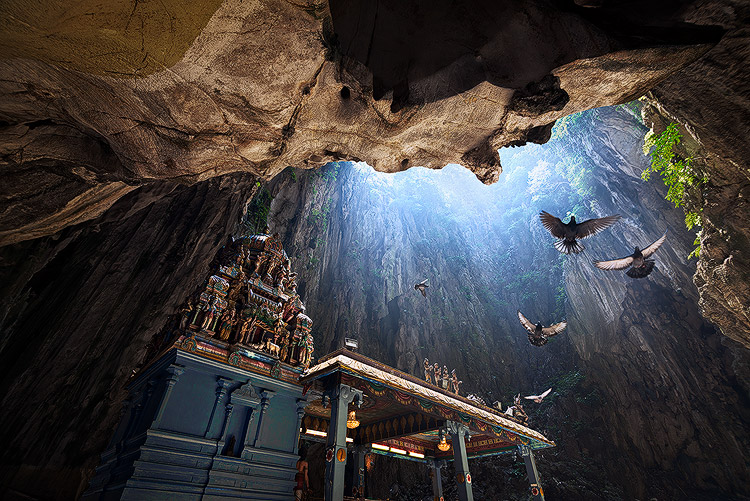
I took the photo above of Batu Cave in Malaysia. I chose to add a few pigeon photos from a series that I captured, and blended them all together into a single photo with the digital blending technique.

Select images

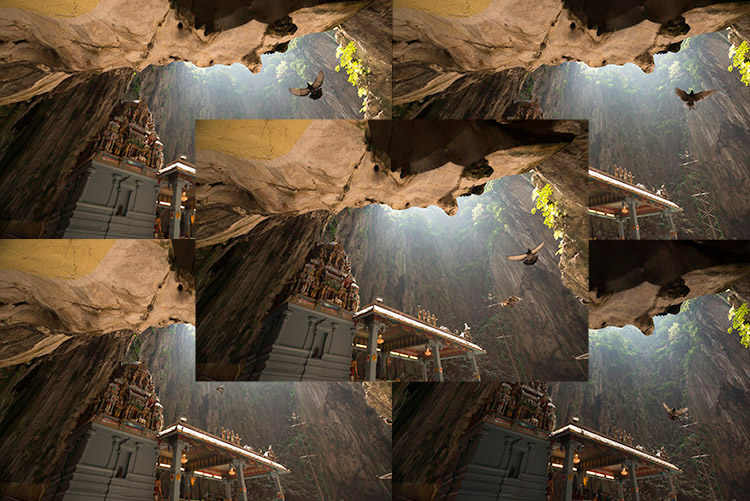
Here are the raw photos that I going to use. You can see that there are pigeons in different locations in each of the photos.

digital blending Photoshop

Open Photoshop

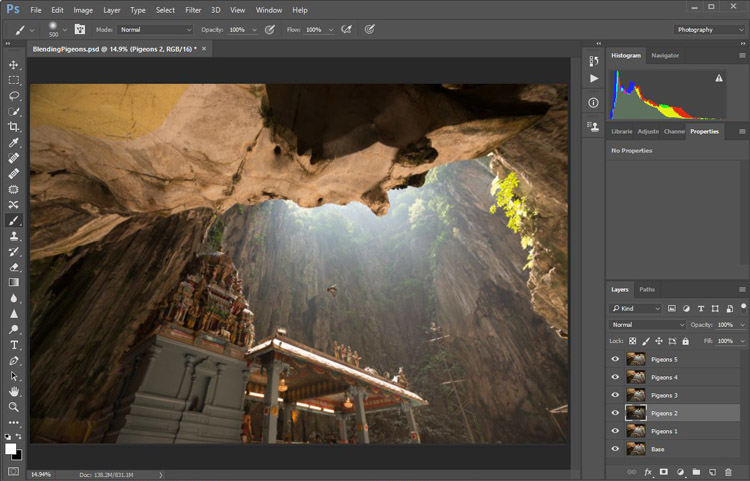
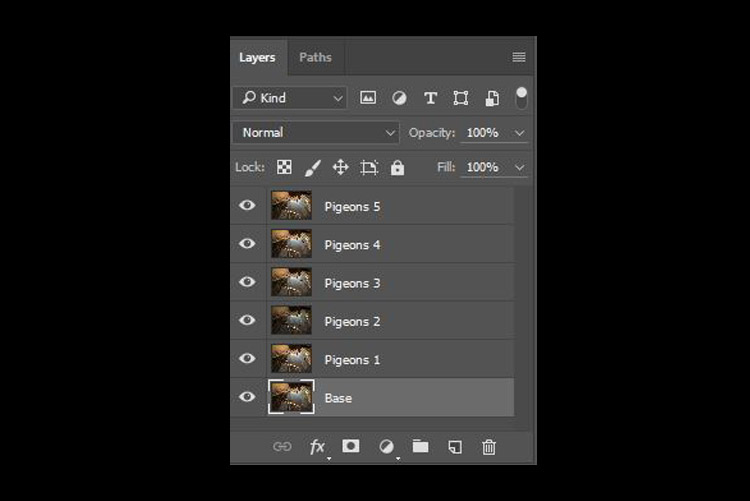
Next with Photoshop open, I load all the photos into one place as different layers. You can rename them if you want, as I did here.

digital blending in Photoshop

Back up for a second: How the shots were done

Notice there’s a “base” layer at the bottom. That image was captured with different camera settings compared to the pigeon shots. I do this because normally before capturing any additional photos such as the pigeon images, I will first take a few photos with the BEST camera settings for that situation. In this case, that was ISO 100, aperture of f/8, 1/30th of a second shutter speed.

However, the 1/30th shutter speed was too slow to capture any photos of pigeons. So I needed a faster shutter speed which ended up with camera settings of; ISO 800, f/5, and 1/640th of a second. This allowed me to freeze the movement of the pigeons, but at the same time, it also generated more noise in the photos (ISO 800 compare with ISO 100) and a slightly more shallow depth of field (f/5 compared with f/8) resulting in a softer background.

So the ideal scenario is to have them both together in one final image. Using the digital blending technique you can have the best image quality photo with lesser noise and better focus, and then blend in only the pigeons from later photos. The pigeons will appear to have more noise than other areas of the photo but only in very small areas and you can do a separate Noise Reduction just for the pigeons if needed.

Shooting sequence

Here is the shooting process in sequence, to give you a better picture:

  1. Decide on a composition.
  2. Take your photo with the best (optimal) camera settings for the scene.
  3. Without moving your composition, change the camera settings to capture anything that looks interesting to you. For example; animals, people that able to bring out the atmosphere of the place such as monk praying in a temple, or even any lifeless objects such as trains or boats, or anything else you can think of or notice in the scene.

Photoshop steps

Step #1 – Turn off some layers

Back in Photoshop, you will see there is an “Eye” icon beside each layer. This means that all these layers are visible. Temporary, let’s hide all the pigeon photos first by clicking on the “Eye” icon to uncheck each layer. Leave only two visible, the Base and Pigeons 1 layers.
digital blending

Step #2 – Add a layer mask

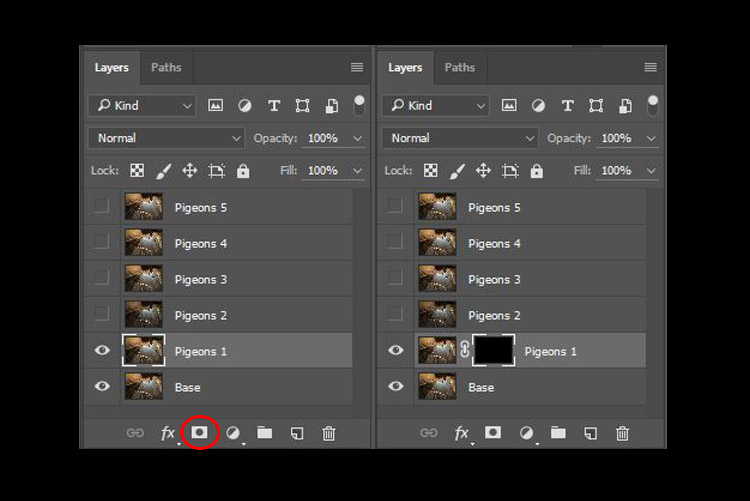
Next, select the Pigeons 1 layer and while holding down the Alt key, click on the “add layer mask” icon (circled in the red in the photo below left). You shall have a black rectangle appear at the right side of the layer, as seen in the photo below right. This is to add a reverse layer mask on your layer, the black mask means it is hiding what is currently in this layer. If you don’t hold the Alt key when you click on the icon, it will create a white mask which will reveal what is currently in the layer.

digital blending layer mask

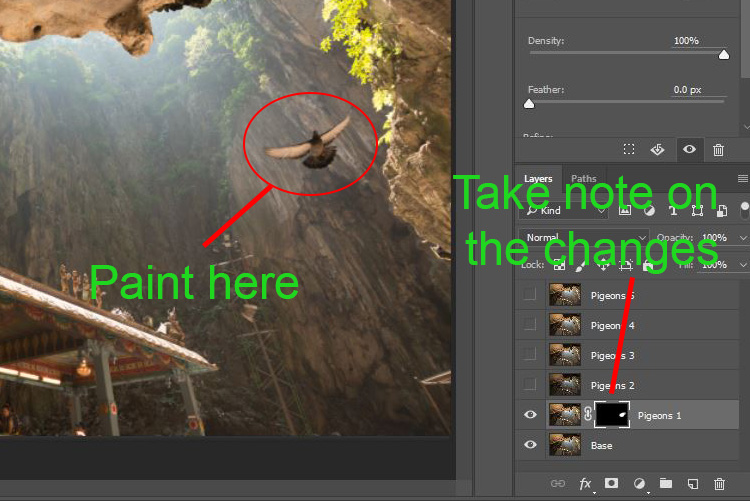
Step #3 – Paint on the mask to reveal the bird

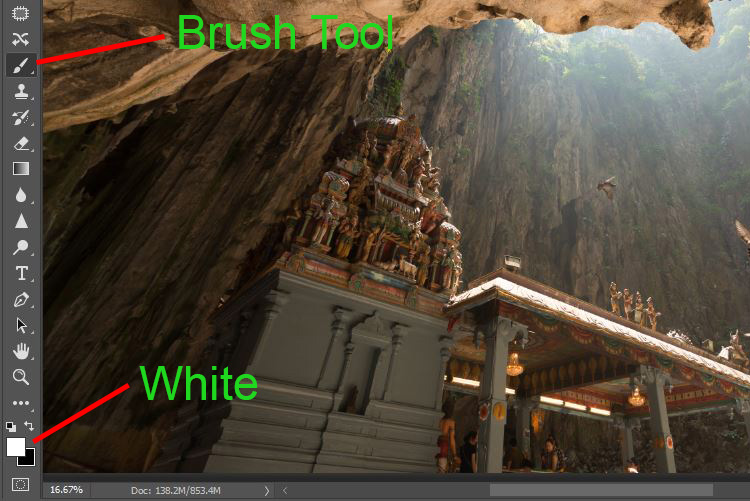
Now we have a black mask. To blend in only the pigeon from that layer, we will need to select the Brush Tool and paint on the mask in white over the pigeon’s area. Note: A black mask means hiding and white means revealing the layer.

digital blending Photoshop

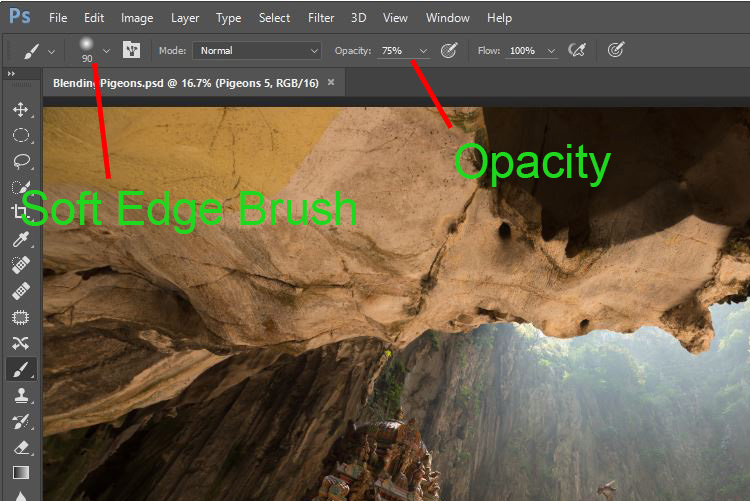
After selecting the Brush tool, make sure you are using a soft edged brush, and the opacity is set to about 75%. The opacity will affect how much of your painting result will be applied. Using opacity at 100%, you only need to paint once to fully reveal that particular area. However at 75 % or lesser opacity, you will need to repeat the painting few times in order to achieve the 100% effect. It is slower, but at the same time it create a smoother edges and the layer is better blended to the original image.

digital blending brush tool

Notice when you do the painting, the mask on the layer also reflects your painting result. Congratulations, now you have the first pigeon blended in! Let’s repeat the same process for the next layer.

digital blending Photoshop

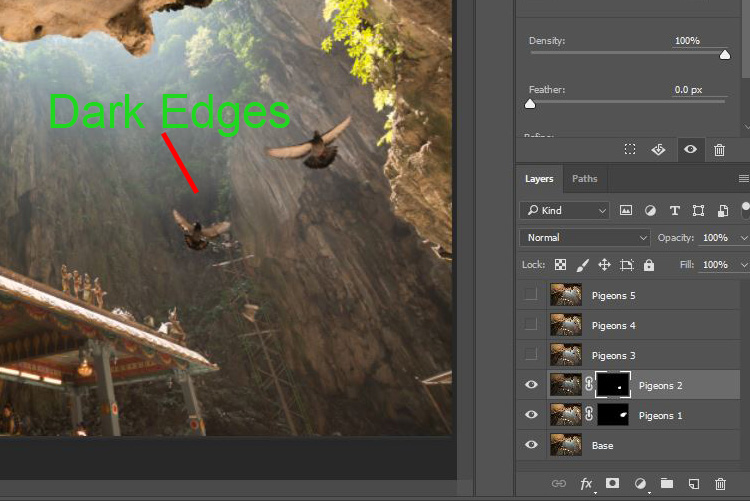
Step #4 – Repeat on next layer

By performing the same steps on the “Pigeons 2” layer, you will now have the second pigeon added. But wait, something is not right. Do you notice that the second pigeon has dark edges surrounding it? Why?

digital blending Photoshop

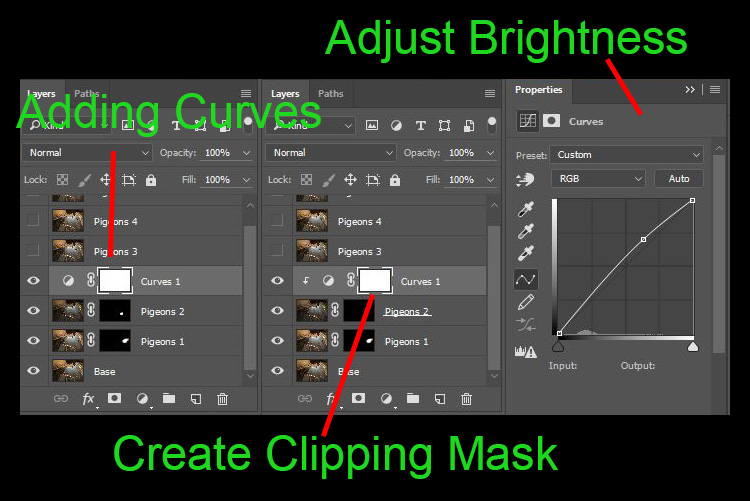
This is because even at the same camera settings, the lighting conditions may have changed during the shooting process. This image was captured when there were clouds blocking the sun and it dimmed the light in the cave. Instead of solving this by doing some really precise masking (by zooming in and brushing carefully on the edge of the pigeons, which can be a tedious process), let’s try adding a Curves adjustment layer.
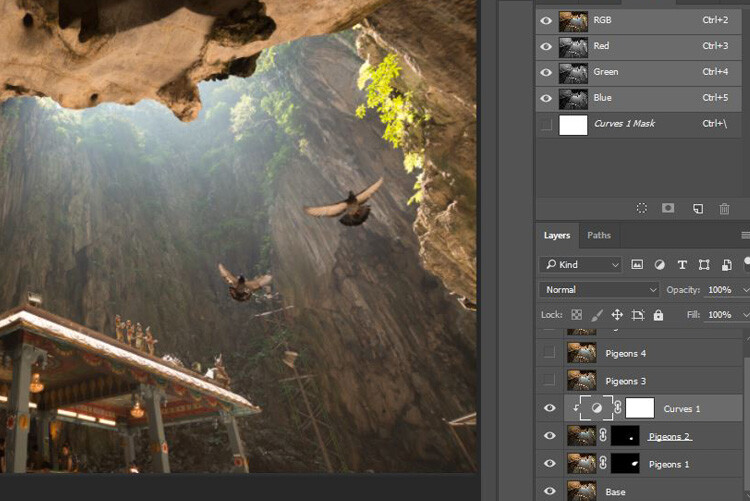
Before doing any adjustment with the curve layer, right-click on it and choose “create clipping mask”. This will make sure whatever adjustment is done here will only affect the layer below it. Now add some brightness by slightly pulling the curve up, as shown below right.

digital blending Photoshop

The surroundings of the second pigeon looks much better now. Other than using a Curve, you can do this on any other adjustment layers such as color balance adjustment layer to correct the tone of the particular layer, if the white balance is not equal with the background.

digital blending Photoshop

You can see the bird blends in much better now with the Curve applied.

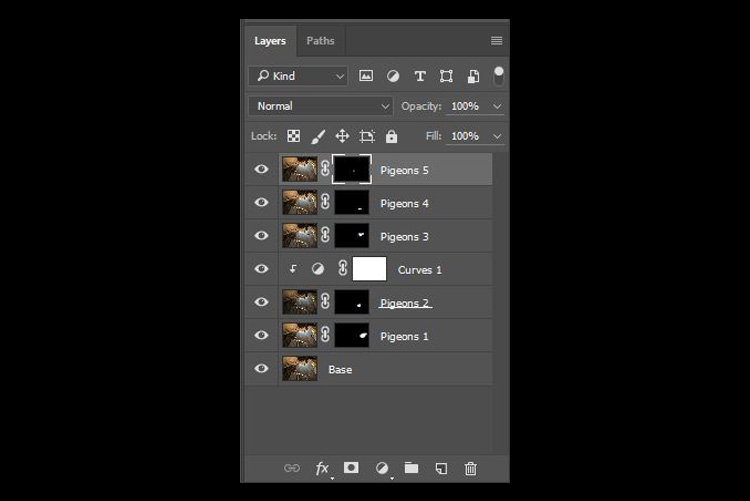
Step #5 – Complete masking on all layers

Let’s continue with the rest of the layers. The masking results will look like the photo below once you have done the blending process.

digital blending Photoshop

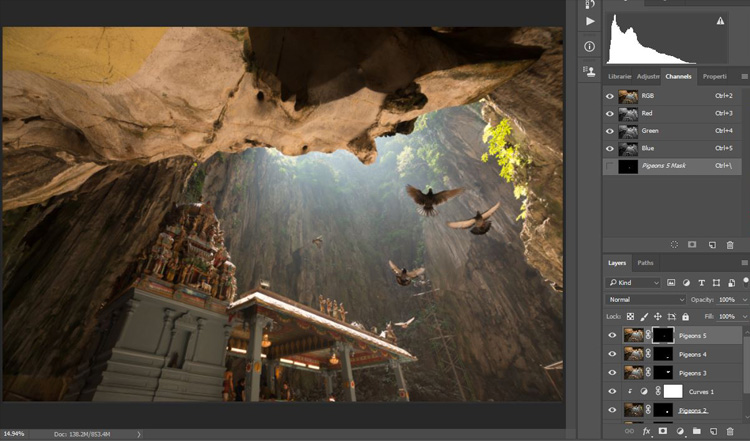
Finally

Here is the final output of the digital blending. Now you can perform any other post-processing adjustments from here by applying contrast, changing color balance, sharpening, or any other process that you think is necessary to enhance your photo.

digital blending Photoshop

I hope you have enjoyed this article, and it gives you some ideas or inspiration. If you have any questions or suggestions, feel free to leave a comment below.

googletag.cmd.push(function() {
tablet_slots.push( googletag.defineSlot( “/1005424/_dPSv4_tab-all-article-bottom_(300×250)”, [300, 250], “pb-ad-78623” ).addService( googletag.pubads() ) ); } );

googletag.cmd.push(function() {
mobile_slots.push( googletag.defineSlot( “/1005424/_dPSv4_mob-all-article-bottom_(300×250)”, [300, 250], “pb-ad-78158” ).addService( googletag.pubads() ) ); } );

The post How to do Digital Blending in Photoshop to Create a Composite Photo by Grey Chow appeared first on Digital Photography School.


Digital Photography School

 
Comments Off on How to do Digital Blending in Photoshop to Create a Composite Photo

Posted in Photography


How to Turn Your Kids into Star Wars Characters Using Photoshop

10 Feb

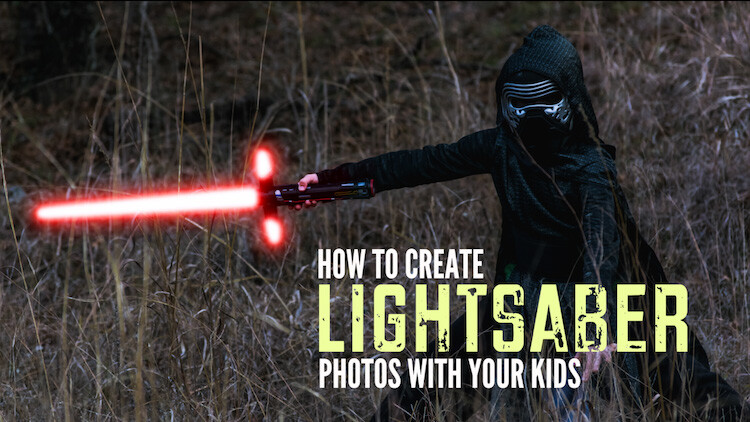
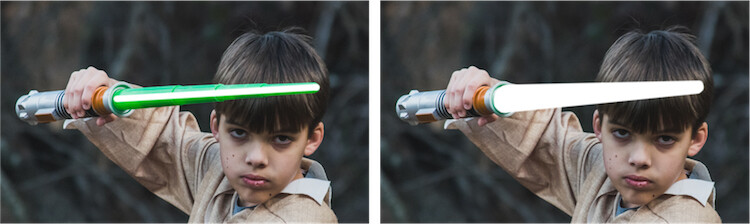
Do your kids love Star Wars? Do you love photography? If so, here’s a great opportunity to join forces and turn your kids into Star Wars heroes or villains by giving them the ultimate Star Wars weapon, the lightsaber.

How to Turn Your Kids into Star Wars Characters Using Adobe Photoshop

All you need to awaken the force are these three steps:

  1. The setup
  2. Capturing the shot
  3. Light up your sabers using Photoshop

BONUS tip – The Jumping Jedi

Step #1 – The Setup

For the setup, you will want to make sure that the photographs of your kids look as close to a Star Wars scene as possible. Don’t just take a picture of your kids wearing a t-shirt standing in the kitchen. Luke Skywalker doesn’t light up his lightsaber in a kitchen. Your kids will have a lot of fun getting into character, so spend some time on the setup.

Costumes

You can buy costumes for your kids on Amazon. Here are the costumes used in this tutorial.

  • Luke Skywalker
  • Rey
  • Kylo Ren
  • Lightsabers
  • Total customs cost ~ $ 40-70

Location

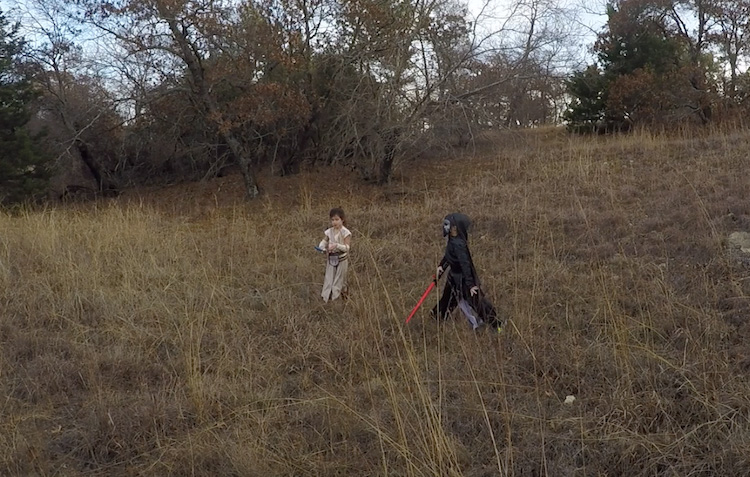
For the location, you will want to find a place that looks like it could be a scene in any of the Star Wars movies. The easiest location to use would be a park with trees, and no noticeable man-made objects in sight.

2 Location - How to Turn Your Kids into Star Wars Characters Using Adobe Photoshop

Step #2 – Capturing the Shot

Action shots

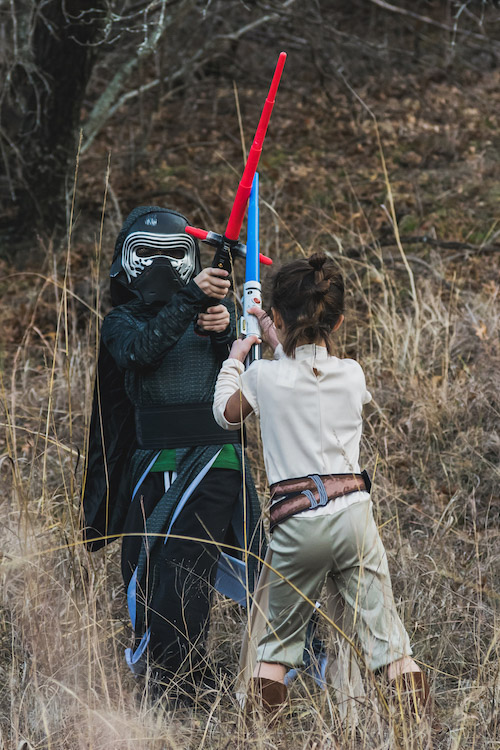
For action shots of a lightsaber battle, you will want to use a fast shutter speed of at least 1/500th of a second, and set your camera to continuous (burst) shooting mode. This will allow you to freeze the action of the battle and take multiple shots in sequence to ensure you capture the best of the action.

4 Action shot - How to Turn Your Kids into Star Wars Characters Using Adobe Photoshop

Shutter speed was 1/800th of a second.

Portraits

For the portraits, give your kids some epic poses to follow. To give you ideas for creative poses, do a Google images search for the Star Wars character of your choice. This will also help your child get more into the character. For example here are some for Rey.

5 Portrait pose - How to Turn Your Kids into Star Wars Characters Using Adobe Photoshop

Do basic edits to the image

After you capture the image, you will need to make a few adjustments to the image to make it stand out. This can be done in Adobe Lightroom and is the final step before your photo is ready to go into Photoshop for the lightsaber effect.

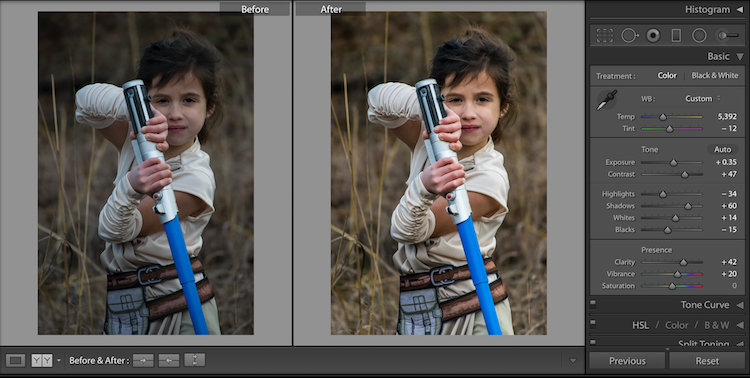
For the look of Star Wars, a few basic edits, such as increasing the contrast and the clarity will help give it a rough and grungy look that Star Wars is known for.

6 Before After Lightroom Edit Star Wars

Notice the differences between the before and after of this image by making a few basic edits in Adobe Lightroom.

Step #3 – Light your sabers up in Photoshop

Adding the lightsaber effect is the last and final step in making turning your kid into the Star Wars character of their dreams. This process should take about five minutes per photo once you have done it a few times.

Part 1: Prepare the layer

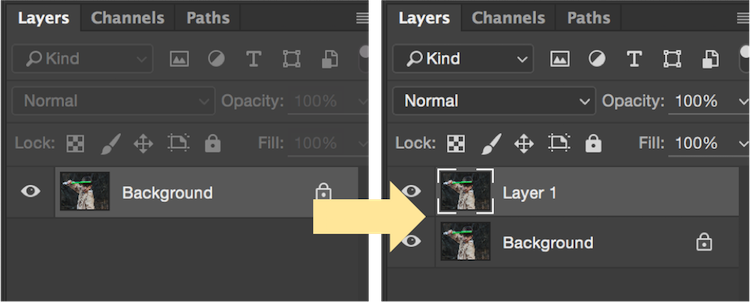
Start by creating a duplicate layer by pressing CTRL/CMD + J.

8 Duplicate layer - Star Wars character in Photoshop

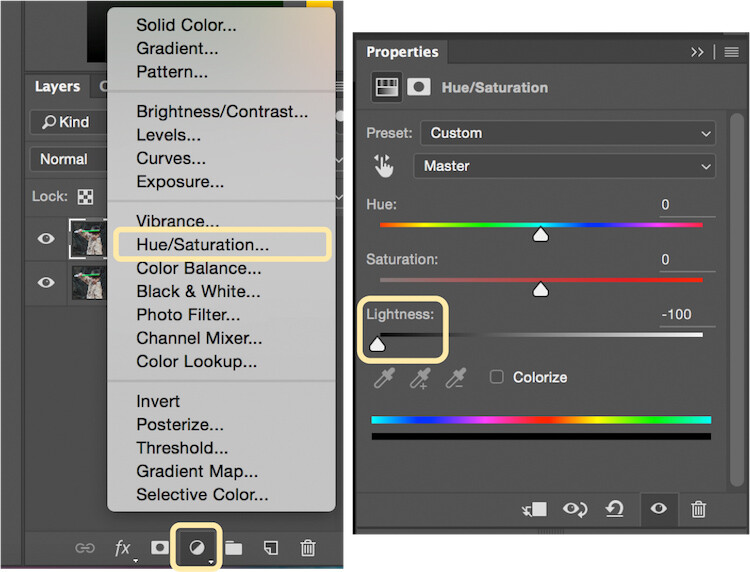
Select the icon to create a new fill or adjustment layer, and from that menu select Hue/Saturation. Then, move the lightness slider to -100 to make it black.

9 Hue Saturation

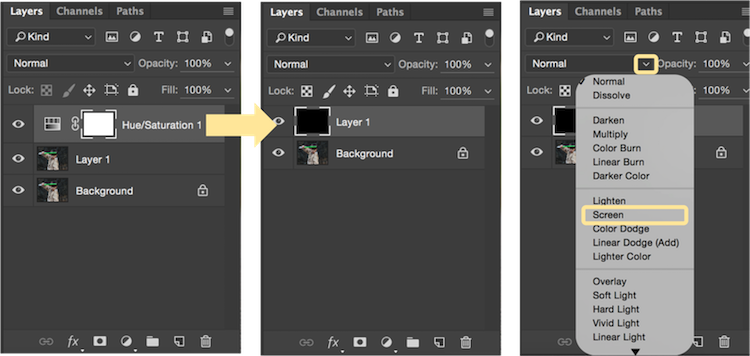
Select CTRL/CMD + E to merge the adjustment layer and duplicate layer. Next, set the blending mode drop down to Screen.

10 merge and screen Star Wars

At this point, your layers are prepped and ready to add the lightsaber.

Part 2: Add the lightsaber by using the brush tool

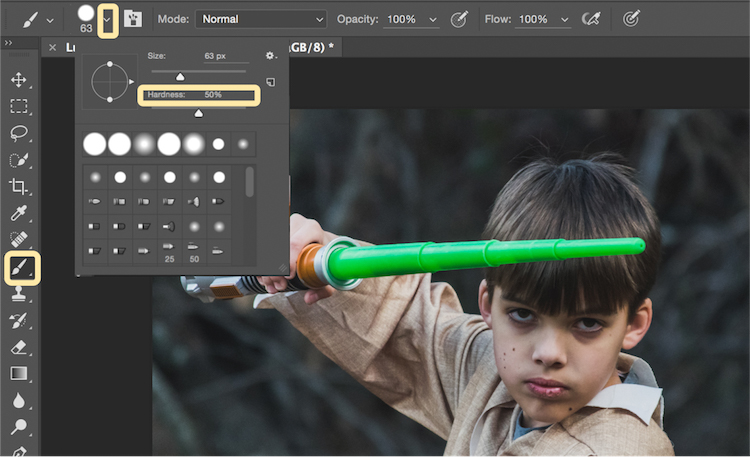
Select the brush tool, and adjust the size and hardness of the brush. The size of your brush will vary based on the size of the lightsaber and your image. Set the hardness of the brush to approximately 50%.

11 brush selection

Begin to add your lightsaber using brush strokes. Select the end point of the lightsaber, then hold down shift, and click the other end of the lightsaber to draw a straight line. Repeat these lines multiple times to fill in the lightsaber with brush strokes. You will likely need to add free-form brush strokes around the base of the lightsaber to fill it in.

12 draw the saber

Illuminate the lightsaber

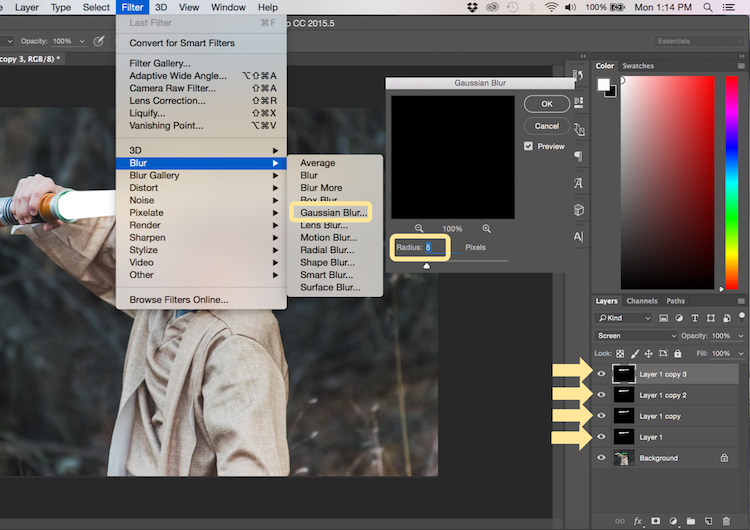
The next step allows you to illuminate the lightsaber. Create three duplicate layers of the lightsaber by selecting CTRL/CMD + J three times. For each layer, you will then select Filter > Blur > Gaussian Blur. But, each layer will be set to a different radius setting. For this image, we used 5, 15, 35, 75 for each respective layer. Note, that the amount of Gaussian Blur needed may vary based on the size of your image. Adjust these numbers as needed to ensure you have a nice glow from the lightsaber.

13 Gausian Blur

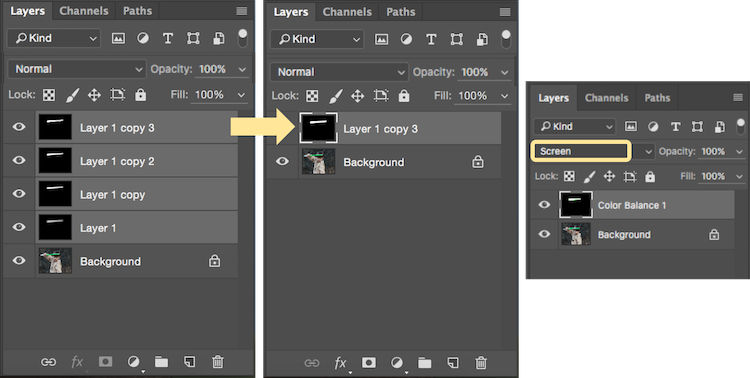
Select all of the duplicate layers (do not select the background), and merge them into one layer by pressing CTRL/CMD + E. Then set the blending mode to Screen.

14 Merge and Screen

Add color to the lightsaber

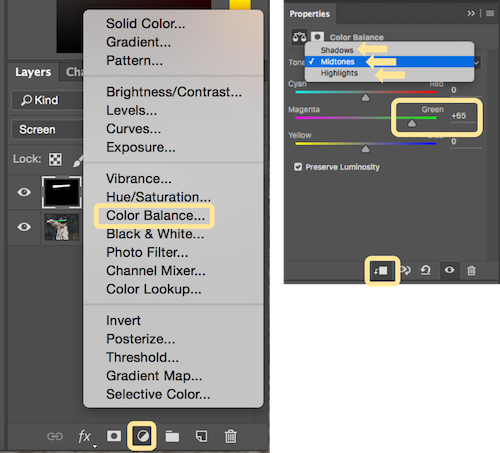
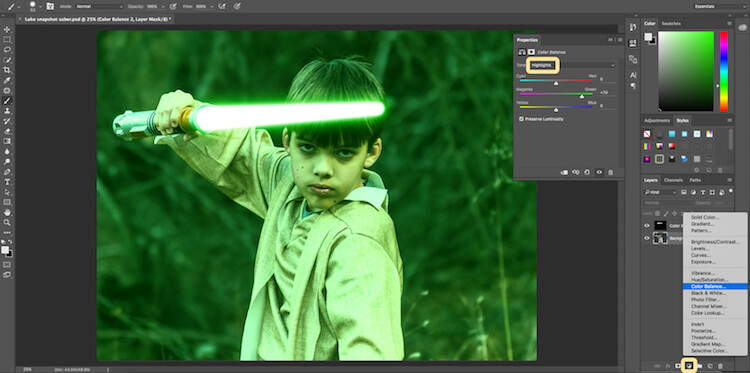
It’s now time to add color to your lightsaber. Select the icon to create a new fill or adjustment layer, and choose the option for Color Balance. Activate the clipping mask so that you only add color to the lightsaber, not the entire image. You can choose any color of your choice, but in this example, we are working with green.

You will want to add the color selection to each option for Shadows, Midtones, and Highlights. Adjust the color slider up or down based on the color preferences for your lightsaber. For this photo, we set shadows, midtones, and highlights to green at around +65.

15 Color Lightsaber

Your lightsaber is now complete, but there is still one more important step to get a realistic photo. You need to add some glow to the subject from the illumination coming off of the lightsaber.

Part 3: Add the reflective glow from the lightsaber

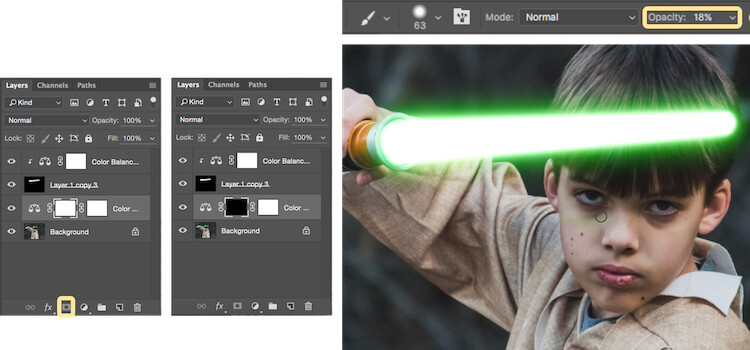
Select the background or base layer. Click the icon to create a new fill or adjustment layer, and choose the option for Color Balance. Choose the same color as you used for your lightsaber, but this time as you adjust the color for Shadows, Midtones, and Highlights, it will work best if you emphasize the color around the highlights more than the shadows or Midtones. For this photo, we used Shadows +32, Midtones +38, and Highlights +70

16 Color for Glow

Add a vector mask and then select CTRL/CMD + I to hide all of the color balance. Select the brush tool, and make it a soft edge brush with an opacity around +18. This will allow you to brush in a soft reflection of glow to parts of the image that make it look realistic.

17 Brush in glow reflection

Bonus – Jumping Jedi

A bonus tip that you may want to use in your Star Wars photo shoot is a jumping Jedi. With a few simple tricks, you can give the illusion of your Jedi jumping high into the air over a swinging lightsaber.

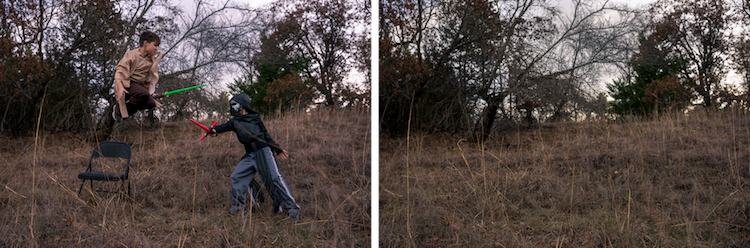
First, make sure you use a tripod as you will need the camera to be completely stationary for two different shots. You can have your Jedi jump off a chair at the same time that his enemy swings his lightsaber. Then remove the chair and capture a shot of the exact same scene, but this time without the chair or characters in the shot (tripod use is important for image alignment later).

The second shot should be empty with the exception of the background because it will allow you to take the chair out of the original picture to create the illusion of a jumping Jedi.

19 Jumping jedi tripod shots

Here’s how it’s done in Photoshop.

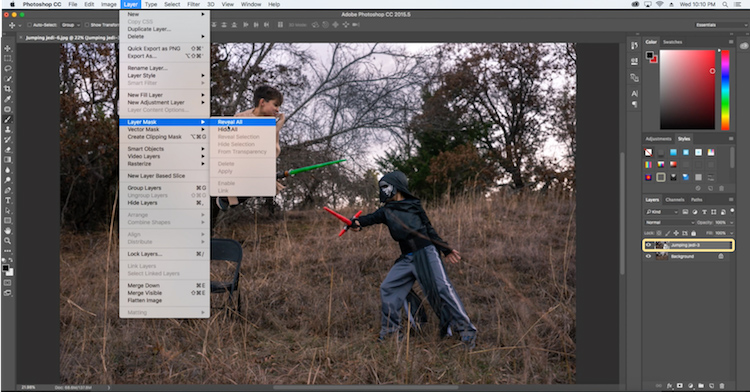
Start by opening both photos as layers. You will want the empty background shot to be set as the base layer and the action shot as the top one. Select the top layer of the action shot, and click Layer > Layer Mask > Reveal all.

20 Jumping Jedi mask

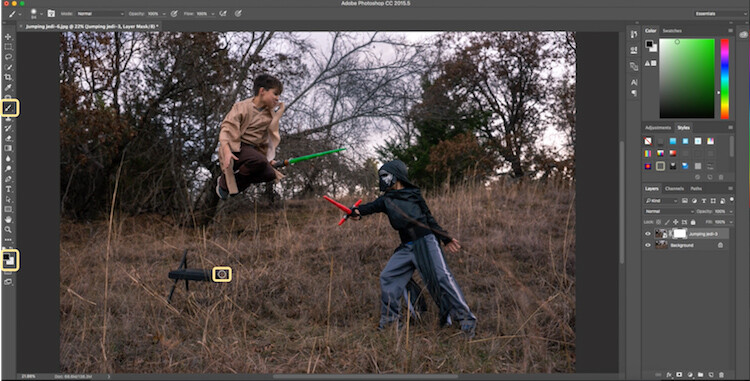
Select the brush tool, and make sure that your foreground color is set to black, which will allow you to brush away the top layer to reveal some of the base layer. If your foreground color is set to white as opposed to black you can switch it to black by clicking X. Simply brush over the chair (make sure you are painting on the mask NOT the layer) to make it disappear.

21 Jumping Jedi brush away

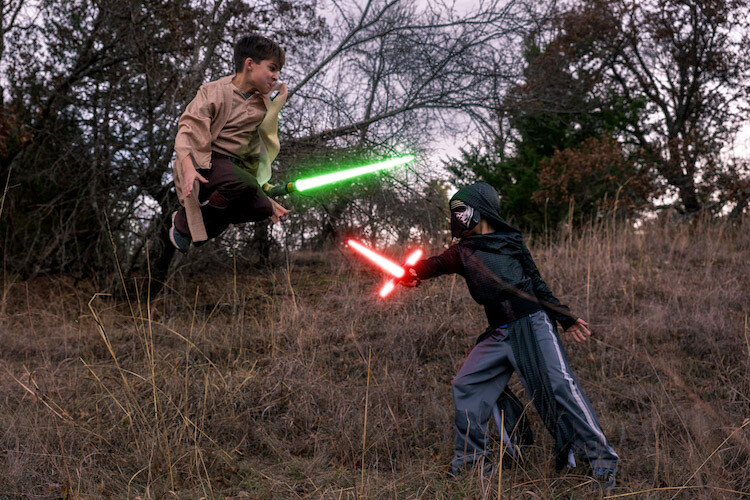
Add the lightsaber effect from above, and you have the illusion of a jumping Jedi.

22 Final photo Jumping Jedi

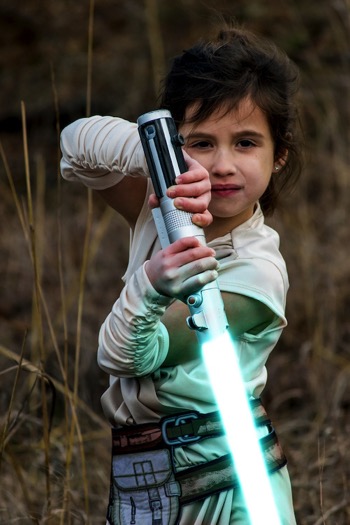
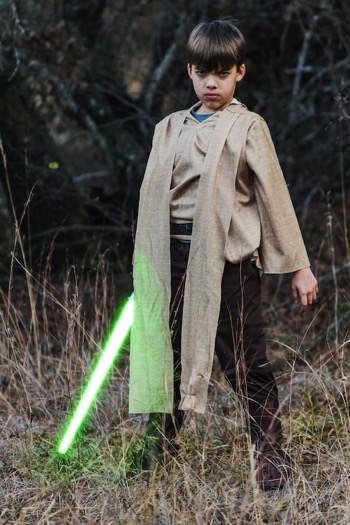
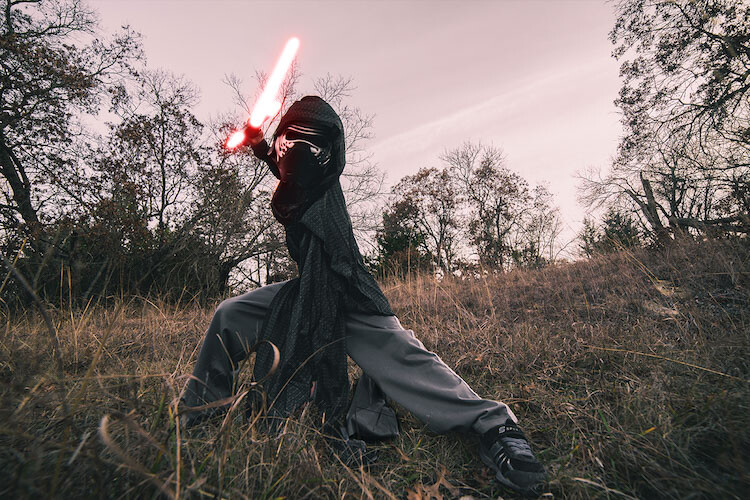
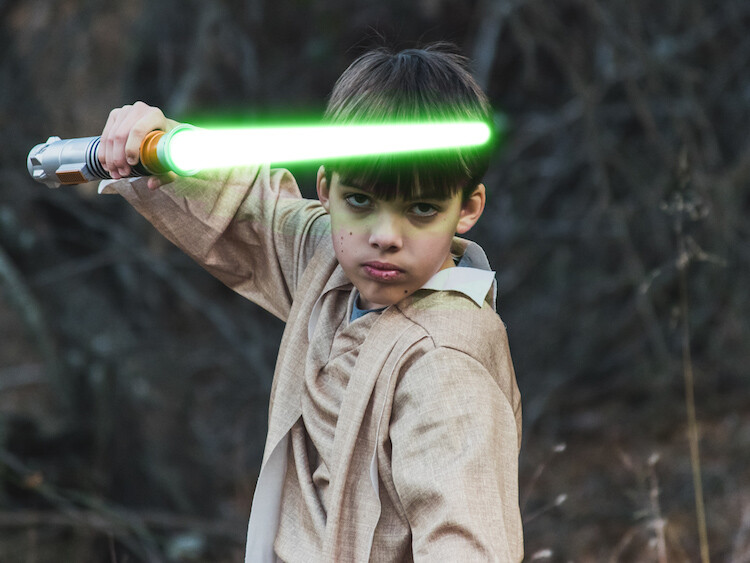
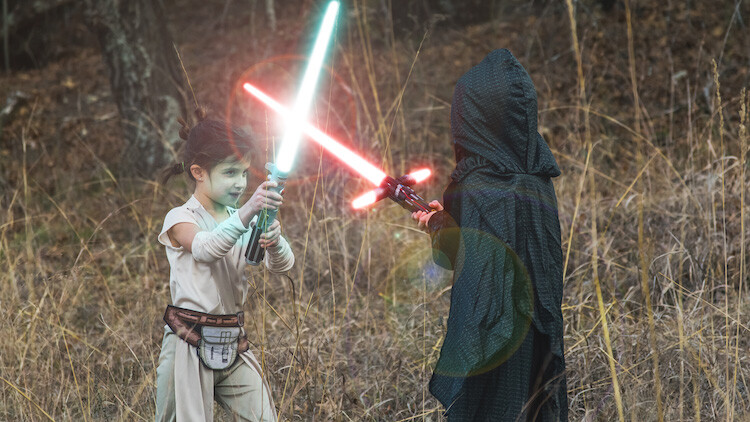
Below are some additional examples of the final images from this Star Wars project to give you additional ideas for action shots and portraits to bring your characters to life.

28 Final photo Rey portrait 29 Final Photo Luke portrait

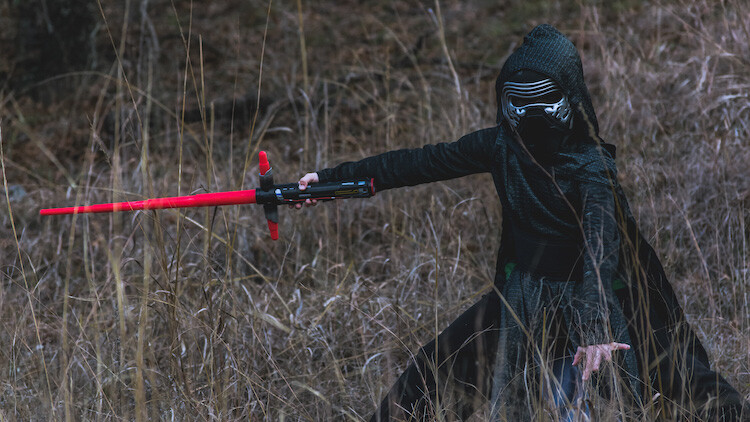
30 Kylo Ren Red

27 Final photo saber battle

Finally

You can watch this whole process in the follow short video as well:

Note: thanks to my co-author on this article, David Kahl.

Try to awaken the force in your family by giving them a lightsaber and following this tutorial. In addition, leave a comment with any other fun photography projects that you have captured with your kids or family. Share your images if you give this a go, we’d love to see them!

googletag.cmd.push(function() {
tablet_slots.push( googletag.defineSlot( “/1005424/_dPSv4_tab-all-article-bottom_(300×250)”, [300, 250], “pb-ad-78623” ).addService( googletag.pubads() ) ); } );

googletag.cmd.push(function() {
mobile_slots.push( googletag.defineSlot( “/1005424/_dPSv4_mob-all-article-bottom_(300×250)”, [300, 250], “pb-ad-78158” ).addService( googletag.pubads() ) ); } );

The post How to Turn Your Kids into Star Wars Characters Using Photoshop by Paul Fontanelli appeared first on Digital Photography School.


Digital Photography School

 
Comments Off on How to Turn Your Kids into Star Wars Characters Using Photoshop

Posted in Photography


How to Turn Your Kids into Star Wars Characters Using Photoshop

09 Feb

Do your kids love Star Wars? Do you love photography? If so, here’s a great opportunity to join forces and turn your kids into Star Wars heroes or villains by giving them the ultimate Star Wars weapon, the lightsaber.

How to Turn Your Kids into Star Wars Characters Using Adobe Photoshop

All you need to awaken the force are these three steps:

  1. The setup
  2. Capturing the shot
  3. Light up your sabers using Photoshop

BONUS tip – The Jumping Jedi

Step #1 – The Setup

For the setup, you will want to make sure that the photographs of your kids look as close to a Star Wars scene as possible. Don’t just take a picture of your kids wearing a t-shirt standing in the kitchen. Luke Skywalker doesn’t light up his lightsaber in a kitchen. Your kids will have a lot of fun getting into character, so spend some time on the setup.

Costumes

You can buy costumes for your kids on Amazon. Here are the costumes used in this tutorial.

  • Luke Skywalker
  • Rey
  • Kylo Ren
  • Lightsabers
  • Total customs cost ~ $ 40-70

Location

For the location, you will want to find a place that looks like it could be a scene in any of the Star Wars movies. The easiest location to use would be a park with trees, and no noticeable man-made objects in sight.

2 Location - How to Turn Your Kids into Star Wars Characters Using Adobe Photoshop

Step #2 – Capturing the Shot

Action shots

For action shots of a lightsaber battle, you will want to use a fast shutter speed of at least 1/500th of a second, and set your camera to continuous (burst) shooting mode. This will allow you to freeze the action of the battle and take multiple shots in sequence to ensure you capture the best of the action.

4 Action shot - How to Turn Your Kids into Star Wars Characters Using Adobe Photoshop

Shutter speed was 1/800th of a second.

Portraits

For the portraits, give your kids some epic poses to follow. To give you ideas for creative poses, do a Google images search for the Star Wars character of your choice. This will also help your child get more into the character. For example here are some for Rey.

5 Portrait pose - How to Turn Your Kids into Star Wars Characters Using Adobe Photoshop

Do basic edits to the image

After you capture the image, you will need to make a few adjustments to the image to make it stand out. This can be done in Adobe Lightroom and is the final step before your photo is ready to go into Photoshop for the lightsaber effect.

For the look of Star Wars, a few basic edits, such as increasing the contrast and the clarity will help give it a rough and grungy look that Star Wars is known for.

6 Before After Lightroom Edit Star Wars

Notice the differences between the before and after of this image by making a few basic edits in Adobe Lightroom.

Step #3 – Light your sabers up in Photoshop

Adding the lightsaber effect is the last and final step in making turning your kid into the Star Wars character of their dreams. This process should take about five minutes per photo once you have done it a few times.

Part 1: Prepare the layer

Start by creating a duplicate layer by pressing CTRL/CMD + J.

8 Duplicate layer - Star Wars character in Photoshop

Select the icon to create a new fill or adjustment layer, and from that menu select Hue/Saturation. Then, move the lightness slider to -100 to make it black.

9 Hue Saturation

Select CTRL/CMD + E to merge the adjustment layer and duplicate layer. Next, set the blending mode drop down to Screen.

10 merge and screen Star Wars

At this point, your layers are prepped and ready to add the lightsaber.

Part 2: Add the lightsaber by using the brush tool

Select the brush tool, and adjust the size and hardness of the brush. The size of your brush will vary based on the size of the lightsaber and your image. Set the hardness of the brush to approximately 50%.

11 brush selection

Begin to add your lightsaber using brush strokes. Select the end point of the lightsaber, then hold down shift, and click the other end of the lightsaber to draw a straight line. Repeat these lines multiple times to fill in the lightsaber with brush strokes. You will likely need to add free-form brush strokes around the base of the lightsaber to fill it in.

12 draw the saber

Illuminate the lightsaber

The next step allows you to illuminate the lightsaber. Create three duplicate layers of the lightsaber by selecting CTRL/CMD + J three times. For each layer, you will then select Filter > Blur > Gaussian Blur. But, each layer will be set to a different radius setting. For this image, we used 5, 15, 35, 75 for each respective layer. Note, that the amount of Gaussian Blur needed may vary based on the size of your image. Adjust these numbers as needed to ensure you have a nice glow from the lightsaber.

13 Gausian Blur

Select all of the duplicate layers (do not select the background), and merge them into one layer by pressing CTRL/CMD + E. Then set the blending mode to Screen.

14 Merge and Screen

Add color to the lightsaber

It’s now time to add color to your lightsaber. Select the icon to create a new fill or adjustment layer, and choose the option for Color Balance. Activate the clipping mask so that you only add color to the lightsaber, not the entire image. You can choose any color of your choice, but in this example, we are working with green.

You will want to add the color selection to each option for Shadows, Midtones, and Highlights. Adjust the color slider up or down based on the color preferences for your lightsaber. For this photo, we set shadows, midtones, and highlights to green at around +65.

15 Color Lightsaber

Your lightsaber is now complete, but there is still one more important step to get a realistic photo. You need to add some glow to the subject from the illumination coming off of the lightsaber.

Part 3: Add the reflective glow from the lightsaber

Select the background or base layer. Click the icon to create a new fill or adjustment layer, and choose the option for Color Balance. Choose the same color as you used for your lightsaber, but this time as you adjust the color for Shadows, Midtones, and Highlights, it will work best if you emphasize the color around the highlights more than the shadows or Midtones. For this photo, we used Shadows +32, Midtones +38, and Highlights +70

16 Color for Glow

Add a vector mask and then select CTRL/CMD + I to hide all of the color balance. Select the brush tool, and make it a soft edge brush with an opacity around +18. This will allow you to brush in a soft reflection of glow to parts of the image that make it look realistic.

17 Brush in glow reflection

Bonus – Jumping Jedi

A bonus tip that you may want to use in your Star Wars photo shoot is a jumping Jedi. With a few simple tricks, you can give the illusion of your Jedi jumping high into the air over a swinging lightsaber.

First, make sure you use a tripod as you will need the camera to be completely stationary for two different shots. You can have your Jedi jump off a chair at the same time that his enemy swings his lightsaber. Then remove the chair and capture a shot of the exact same scene, but this time without the chair or characters in the shot (tripod use is important for image alignment later).

The second shot should be empty with the exception of the background because it will allow you to take the chair out of the original picture to create the illusion of a jumping Jedi.

19 Jumping jedi tripod shots

Here’s how it’s done in Photoshop.

Start by opening both photos as layers. You will want the empty background shot to be set as the base layer and the action shot as the top one. Select the top layer of the action shot, and click Layer > Layer Mask > Reveal all.

20 Jumping Jedi mask

Select the brush tool, and make sure that your foreground color is set to black, which will allow you to brush away the top layer to reveal some of the base layer. If your foreground color is set to white as opposed to black you can switch it to black by clicking X. Simply brush over the chair (make sure you are painting on the mask NOT the layer) to make it disappear.

21 Jumping Jedi brush away

Add the lightsaber effect from above, and you have the illusion of a jumping Jedi.

22 Final photo Jumping Jedi

Below are some additional examples of the final images from this Star Wars project to give you additional ideas for action shots and portraits to bring your characters to life.

28 Final photo Rey portrait 29 Final Photo Luke portrait

30 Kylo Ren Red

27 Final photo saber battle

Finally

You can watch this whole process in the follow short video as well:

Note: thanks to my co-author on this article, David Kahl.

Try to awaken the force in your family by giving them a lightsaber and following this tutorial. In addition, leave a comment with any other fun photography projects that you have captured with your kids or family. Share your images if you give this a go, we’d love to see them!

googletag.cmd.push(function() {
tablet_slots.push( googletag.defineSlot( “/1005424/_dPSv4_tab-all-article-bottom_(300×250)”, [300, 250], “pb-ad-78623” ).addService( googletag.pubads() ) ); } );

googletag.cmd.push(function() {
mobile_slots.push( googletag.defineSlot( “/1005424/_dPSv4_mob-all-article-bottom_(300×250)”, [300, 250], “pb-ad-78158” ).addService( googletag.pubads() ) ); } );

The post How to Turn Your Kids into Star Wars Characters Using Photoshop by Paul Fontanelli appeared first on Digital Photography School.


Digital Photography School

 
Comments Off on How to Turn Your Kids into Star Wars Characters Using Photoshop

Posted in Photography